change wheel SMART FORTWO 2016 User Guide
[x] Cancel search | Manufacturer: SMART, Model Year: 2016, Model line: FORTWO, Model: SMART FORTWO 2016Pages: 214, PDF Size: 4.93 MB
Page 105 of 214
tions. Even a small amount of alcohol or
drugs can affect your reflexes, perceptions
and judgment.
The possibility of a serious or even fatal
accident is greatly increased when you
drink or take drugs and drive.
Do not drink or take drugs and drive or
allow anyone to drive who has been drinkingor taking drugs.
Emission control
GWARNING
Combustion engines emit poisonous
exhaust gases such as carbon monoxide.
Inhaling these exhaust gases leads to poi-
soning. There is a risk of fatal injury.
Therefore never leave the engine running
in enclosed spaces without sufficient ven- tilation.
Certain engine systems are designed to keep
the level of poisonous components in exhaust
fumes within legal limits.
These systems only work at peak efficiency if
they are serviced exactly in accordance with
the manufacturer's specifications. There-
fore, only allow qualified and authorized
technicians to perform work on the engine.
The engine settings must not be changed
under any circumstances. Furthermore, all
specific service work must be performed at
regular intervals and in accordance with
smart service requirements. Details can be
found in the Maintenance Booklet.
Braking
Important safety notes
GWARNING
If you shift down on a slippery road surface
in an attempt to increase the engine's
braking effect, the drive wheels could lose
their grip. There is an increased danger of
skidding and accidents.
Do not shift down for additional engine
braking on a slippery road surface.
Downhill gradients
!On long and steep gradients, you must
reduce the load on the brakes by shifting to
a lower gear in good time. This allows you
to take advantage of the engine's braking
effect. This helps you to avoid overheating
the brakes and wearing them out exces-
sively.
When you take advantage of the engine's
braking effect, a drive wheel may not turn
for some time, e.g. on a slippery road sur-
face. This could cause damage to the drive
train, which is not covered by the smart
warranty.
Heavy and light loads
GWARNING
If you rest your foot on the brake pedal
while driving, the braking system can
overheat. This increases the stopping dis-
tance and can even cause the braking system
to fail. There is a risk of an accident.
Never use the brake pedal as a footrest.
Never depress the brake pedal and the
accelerator pedal at the same time.
!Depressing the brake pedal constantly
results in excessive and premature wear to
the brake pads.
If the brakes have been subjected to a heavy
load, do not stop the vehicle immediately.
Drive on for a short while. This allows the
airflow to cool the brakes more quickly.
Wet roads
If you have driven for a long time in heavy
rain without braking, there may be a delayed
reaction from the brakes when braking for the
first time. This may also occur after the vehi-
cle has been washed or driven through deep
water.
You then have to depress the brake pedal more
firmly. Maintain a greater distance from the
vehicle in front.
After driving on a wet road or having the
vehicle washed, brake firmly while paying
attention to the traffic conditions. This will warm up the brake discs, thereby drying them
Driving tips103
>> Driving and parking.
Z
Page 107 of 214
Prevent water from entering the vehicle inte-
rior or the engine compartment. If you must
drive through standing water, bear in mind
that:
Rthe water level should not exceed the lower
edge of the vehicle body in still water
Ryou should drive no faster than at walking
pace.
Winter driving
GWARNING
If you shift down on a slippery road surface
in an attempt to increase the engine's
braking effect, the drive wheels could lose
their grip. There is an increased danger of
skidding and accidents.
Do not shift down for additional engine
braking on a slippery road surface.
GDANGER
If the exhaust pipe is blocked or adequate
ventilation is not possible, poisonous
gases such as carbon monoxide (CO) may
enter the vehicle. This is the case, e.g. if
the vehicle becomes trapped in snow. There
is a risk of fatal injury.
If you have to leave the engine running,
keep the exhaust pipe and the area around
the vehicle free of snow. To ensure an ade- quate supply of fresh air, open a window on
the side of the vehicle that is not facing
into the wind.
Have your vehicle winterproofed at a quali-
fied specialist workshop at the onset of win-
ter.
Drive particularly carefully on slippery road
surfaces. Avoid sudden acceleration, steer-
ing and braking maneuvers. Do not use cruise
control.
If the vehicle threatens to skid or cannot be
stopped when moving at low speed:
XTry to bring the vehicle under control
using corrective steering.
XVehicles with automatic transmission:
shift the transmission to position N.The outside temperature indicator is not
designed to serve as an ice-warning device
and is therefore unsuitable for that purpose.
Changes in the outside temperature are dis-
played after a short delay.
Indicated temperatures just above the freez-
ing point do not guarantee that the road sur-
face is free of ice. The road may still be icy,
especially in wooded areas or on bridges.
You should pay special attention to road con-
ditions when temperatures are around freez-
ing point.
For more information on driving with snow
chains, see (
Ypage 179).
For more information on driving with summer
tires, see (
Ypage 179).
Observe the notes in the "Winter operation"
section (
Ypage 179).
Driving systems
Cruise control
General notes
Cruise control maintains a constant road
speed for you. Cruise control does not brake
the vehicle automatically. Only the engine's
braking effect is available. In order to
reduce speed and maintain distance to other
road users, you need to brake yourself. This
interrupts cruise control.
Use cruise control only if road and traffic
conditions make it appropriate to maintain a steady speed for a prolonged period. You can
use cruise control at speeds above 20 mph
(30 km/h).
Important safety notes
If you fail to adapt your driving style, cruise
control can neither reduce the risk of an
accident nor override the laws of physics.
Cruise control cannot take into account road,
weather or traffic conditions. Cruise control
is only an aid. You are responsible for the
distance to the vehicle in front, for vehicle
speed, for braking in good time and for stay-ing in lane.
Driving systems105
>> Driving and parking.
Z
Page 108 of 214
Do not use cruise control:
Rin road and traffic conditions which do not
allow you to maintain a constant speed e.g.
in heavy traffic or on winding roads
Ron slippery road surfaces. Braking or
accelerating could cause the drive wheels
to lose traction and the vehicle could then
skid
Rwhen there is poor visibility, e.g. due to
fog, heavy rain or snow
If there is a change of drivers, advise the new
driver of the speed stored.
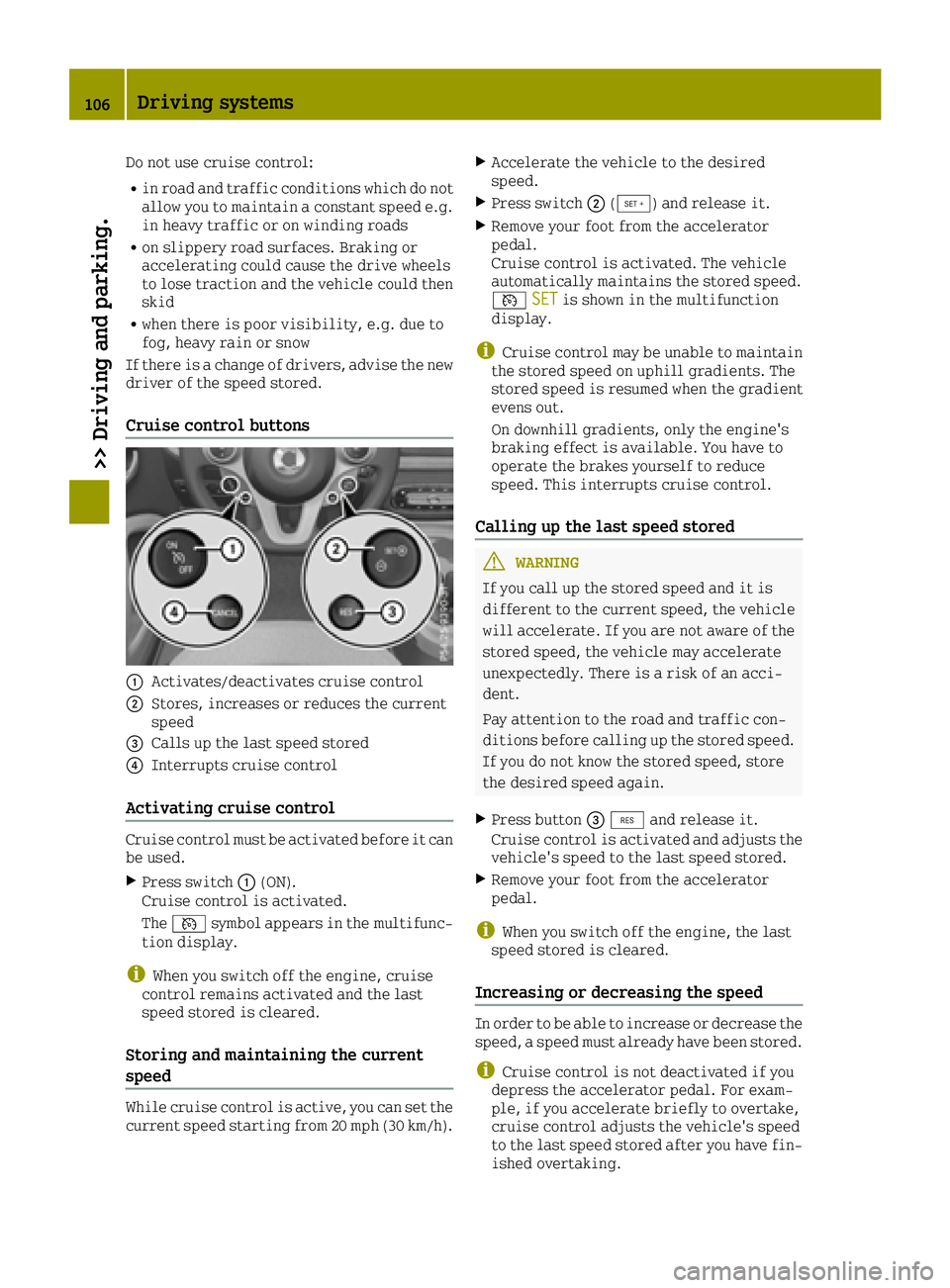
Cruise control buttons
0043Activates/deactivates cruise control
0044Stores, increases or reduces the current
speed
0087Calls up the last speed stored
0085Interrupts cruise control
Activating cruise control
Cruise control must be activated before it can
be used.
XPress switch 0043(ON).
Cruise control is activated.
The 0085 symbol appears in the multifunc-
tion display.
iWhen you switch off the engine, cruise
control remains activated and the last
speed stored is cleared.
Storing and maintaining the current
speed
While cruise control is active, you can set the
current speed starting from 20 mph (30 km/h).
XAccelerate the vehicle to the desired
speed.
XPress switch 0044(®) and release it.
XRemove your foot from the accelerator
pedal.
Cruise control is activated. The vehicle
automatically maintains the stored speed.
0085 SET
is shown in the multifunction
display.
iCruise control may be unable to maintain
the stored speed on uphill gradients. The
stored speed is resumed when the gradient
evens out.
On downhill gradients, only the engine's
braking effect is available. You have to
operate the brakes yourself to reduce
speed. This interrupts cruise control.
Calling up the last speed stored
GWARNING
If you call up the stored speed and it is
different to the current speed, the vehicle
will accelerate. If you are not aware of the
stored speed, the vehicle may accelerate
unexpectedly. There is a risk of an acci-
dent.
Pay attention to the road and traffic con-
ditions before calling up the stored speed. If you do not know the stored speed, store
the desired speed again.
XPress button 0087° and release it.
Cruise control is activated and adjusts the vehicle's speed to the last speed stored.
XRemove your foot from the accelerator
pedal.
iWhen you switch off the engine, the last
speed stored is cleared.
Increasing or decreasing the speed
In order to be able to increase or decrease the
speed, a speed must already have been stored.
iCruise control is not deactivated if you
depress the accelerator pedal. For exam-
ple, if you accelerate briefly to overtake,
cruise control adjusts the vehicle's speed
to the last speed stored after you have fin-
ished overtaking.
106Driving systems
>> Driving and parking.
Page 114 of 214
Depending on the vehicle equipment, you can
call up the following menus one after the
other:
RDistancemenu (Ypage 112)
Rfrom Starttrip computer menu
(Ypage 112)
Rfrom Resettrip computer menu
(Ypage 112)
RFuel consumptionmenu (Ypage 112)
RCoolant Temperaturemenu (Ypage 113)
RMessages and Servicemenu (Ypage 113)
RSettingsmenu (Ypage 114)
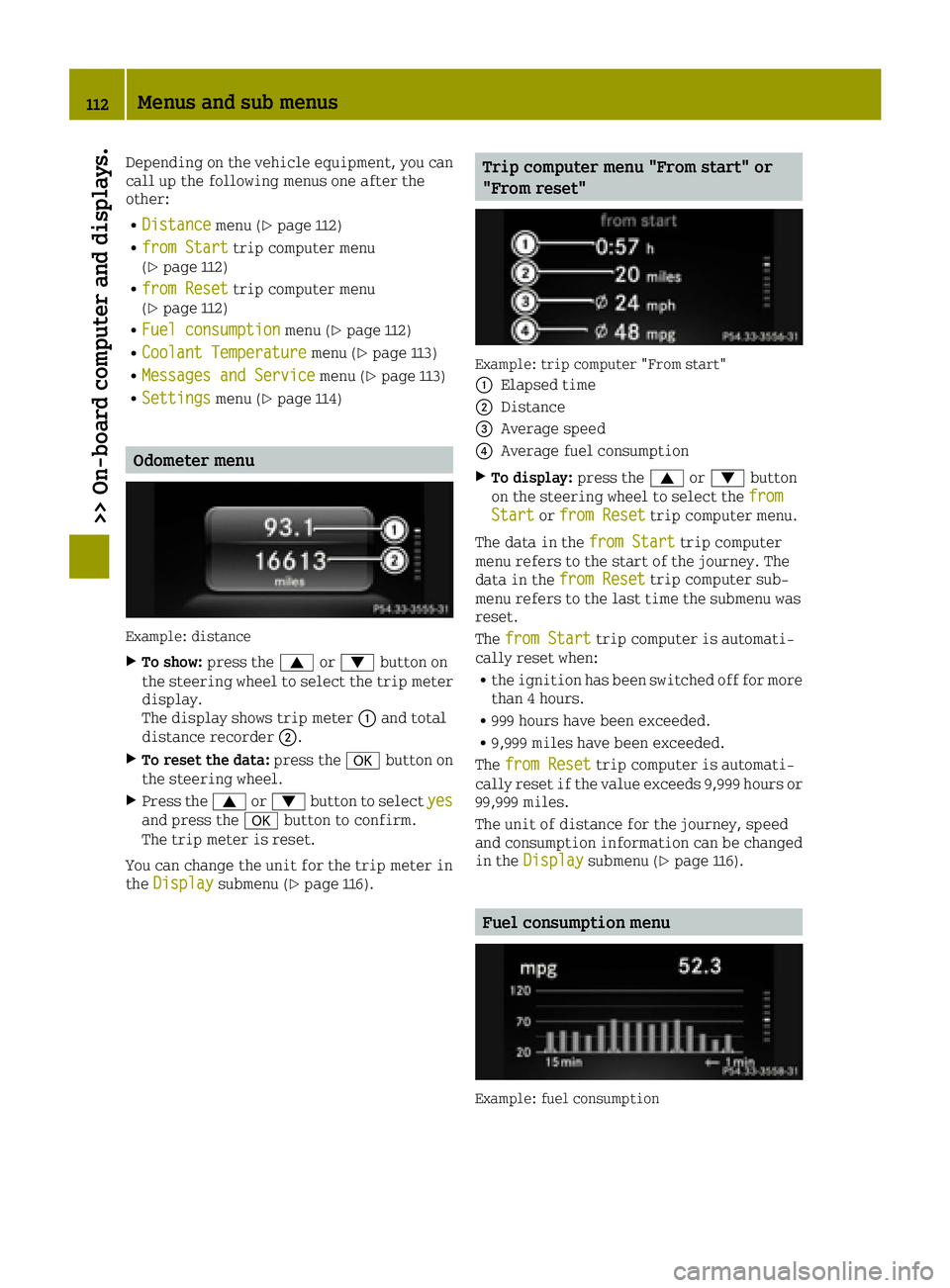
Odometer menu
Example: distance
XTo show: press the 0063or0064 button on
the steering wheel to select the trip meter display.
The display shows trip meter 0043and total
distance recorder 0044.
XTo reset the data:press the0076button on
the steering wheel.
XPress the 0063or0064 button to select yesand press the0076button to confirm.
The trip meter is reset.
You can change the unit for the trip meter in
the Display
submenu (Ypage 116).
Trip computer menu "From start" or
"From reset"
Example: trip computer "From start"
0043
Elapsed time
0044Distance
0087Average speed
0085Average fuel consumption
XTo display: press the0063or0064 button
on the steering wheel to select the from
Startorfrom Resettrip computer menu.
The data in the from Start
trip computer
menu refers to the start of the journey. The
data in the from Reset
trip computer sub-
menu refers to the last time the submenu was
reset.
The from Start
trip computer is automati-
cally reset when:
Rthe ignition has been switched off for more
than 4 hours.
R999 hours have been exceeded.
R9,999 miles have been exceeded.
The from Reset
trip computer is automati-
cally reset if the value exceeds 9,999 hours or 99,999 miles.
The unit of distance for the journey, speed
and consumption information can be changed
in the Display
submenu (Ypage 116).
Fuel consumption menu
Example: fuel consumption
112Menus and sub menus
>> On-board computer and displays.
Page 115 of 214
XPress the0063or0064 button on the steer-
ing wheel to select the display of current
fuel consumption.
The display shows the fuel consumption over
the previous 15 minutes as a bar chart. The
display additionally shows the current fuel
consumption as a numeric value in the upper
right section of the display.
If you switch off the ignition, or change the
distance unit, the fuel consumption data is
deleted automatically.
You can change the distance unit in the Dis‐
playsubmenu (Ypage 116).
Coolant temperature menu
Under normal operating conditions and with
the specified coolant level, the coolant tem-
perature may rise to 230‡(110 †).
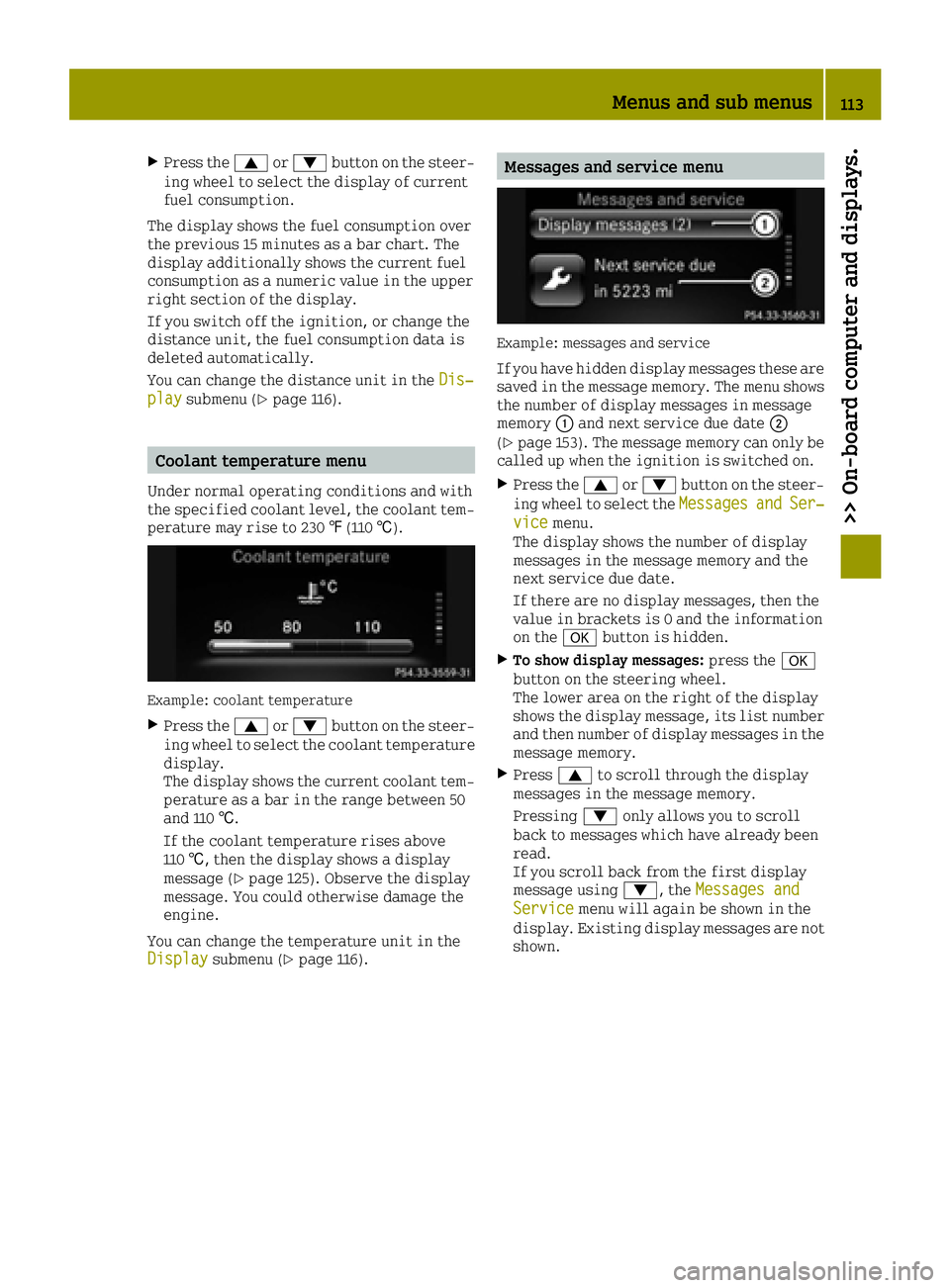
Example: coolant temperature
XPress the 0063or0064 button on the steer-
ing wheel to select the coolant temperature
display.
The display shows the current coolant tem-
perature as a bar in the range between 50
and 110 †.
If the coolant temperature rises above
110 †, then the display shows a display
message (
Ypage 125). Observe the display
message. You could otherwise damage the
engine.
You can change the temperature unit in the
Display
submenu (Ypage 116).
Messages and service menu
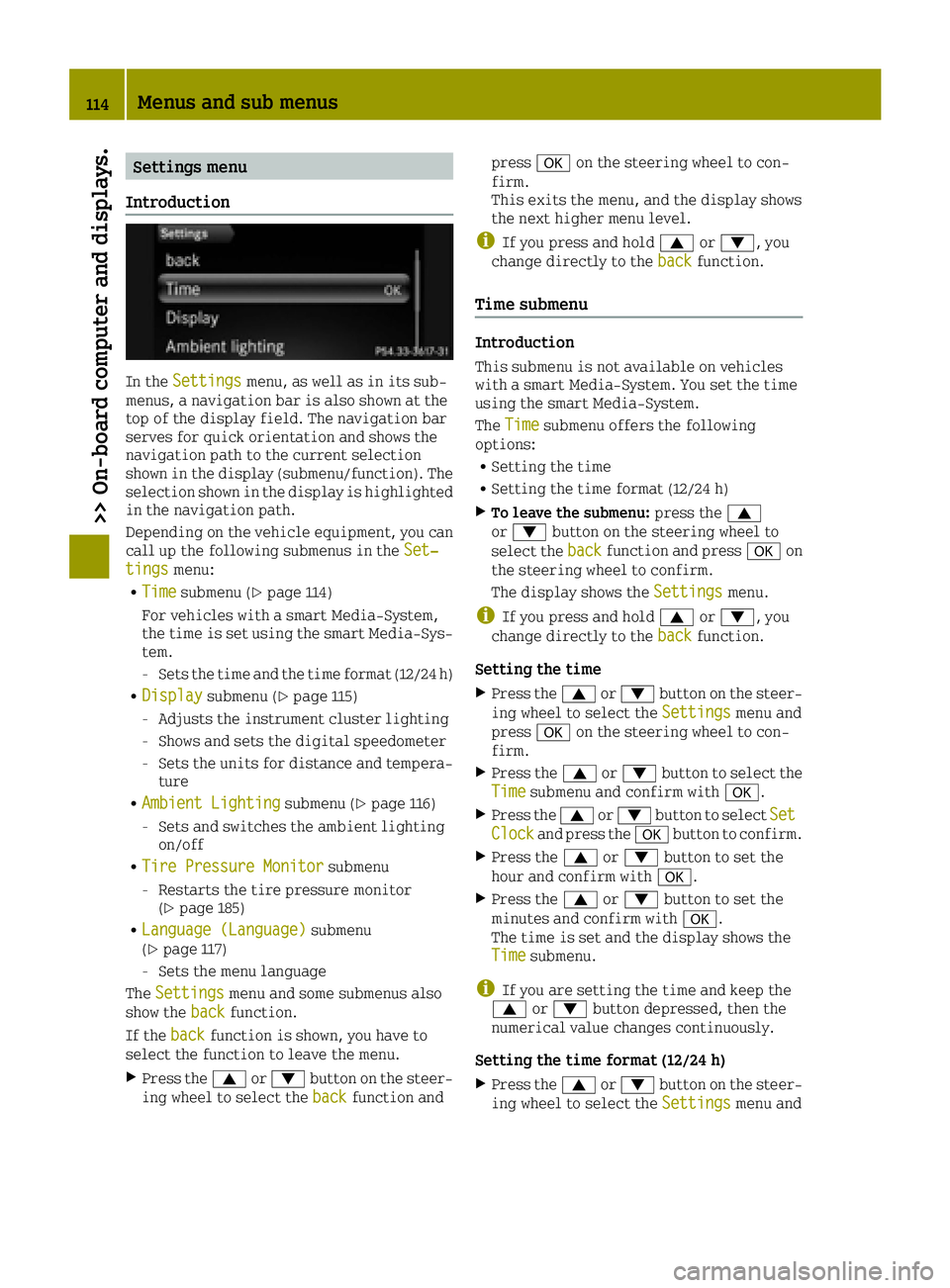
Example: messages and service
If you have hidden display messages these are
saved in the message memory. The menu shows
the number of display messages in message
memory 0043and next service due date 0044
(
Ypage 153). The message memory can only be
called up when the ignition is switched on.
XPress the 0063or0064 button on the steer-
ing wheel to select the MessagesandSer‐vicemenu.
The display shows the number of display
messages in the message memory and the
next service due date.
If there are no display messages, then the
value in brackets is 0 and the information
on the 0076button is hidden.
XTo show display messages: press the0076
button on the steering wheel.
The lower area on the right of the display
shows the display message, its list number
and then number of display messages in the
message memory.
XPress 0063to scroll through the display
messages in the message memory.
Pressing 0064only allows you to scroll
back to messages which have already been
read.
If you scroll back from the first display
message using 0064, theMessages and
Servicemenu will again be shown in the
display. Existing display messages are not
shown.
Menus and sub menus113
>> On-board computer and displays.
Z
Page 116 of 214
Settings menu
Introduction
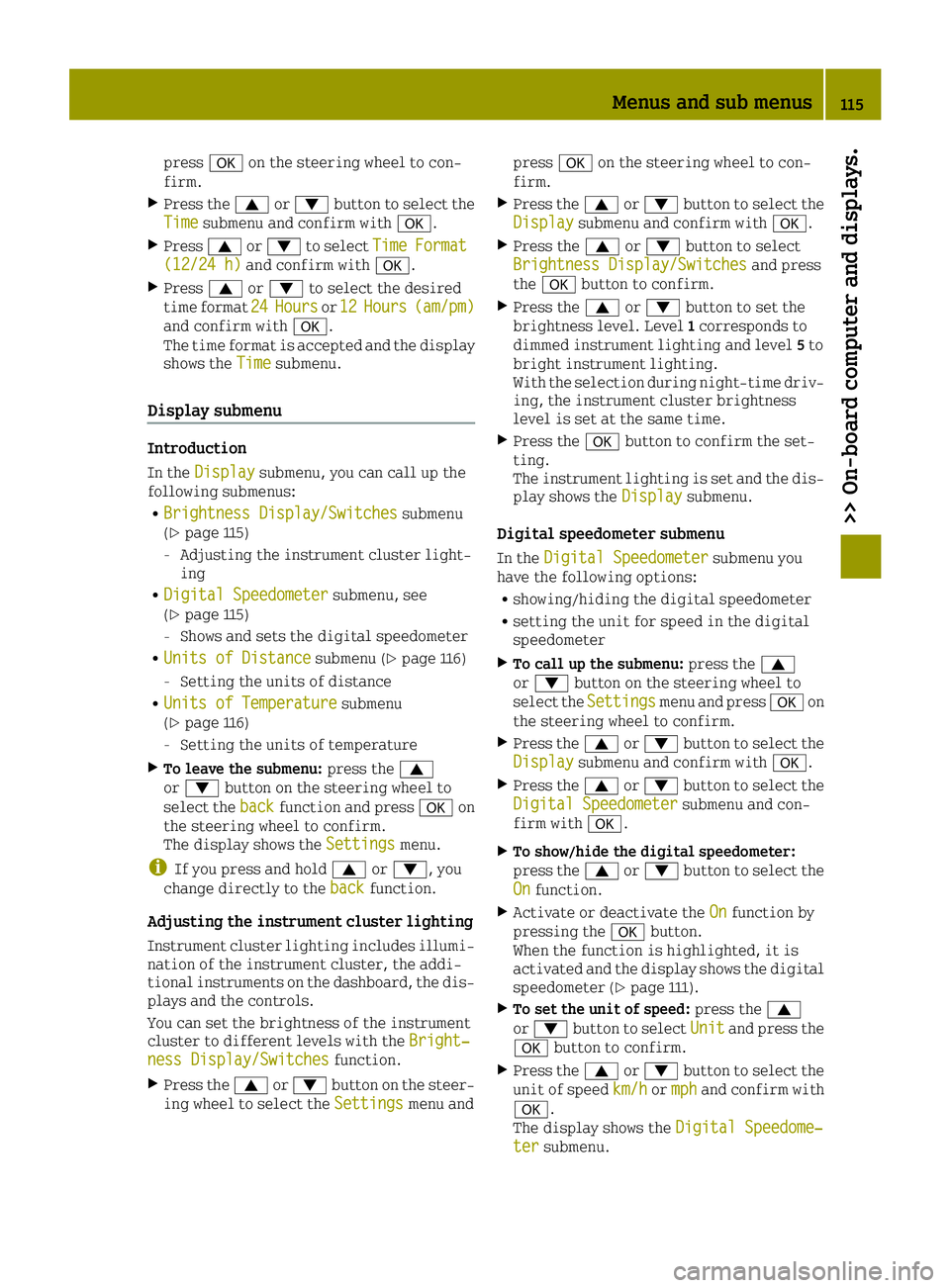
In the Settingsmenu, as well as in its sub-
menus, a navigation bar is also shown at the
top of the display field. The navigation bar
serves for quick orientation and shows the
navigation path to the current selection
shown in the display (submenu/function). The
selection shown in the display is highlighted
in the navigation path.
Depending on the vehicle equipment, you can
call up the following submenus in the Set‐
tingsmenu:
RTimesubmenu (Ypage 114)
For vehicles with a smart Media-System,
the time is set using the smart Media-Sys-
tem.
-Sets the time and the time format (12/24 h)
RDisplaysubmenu (Ypage 115)
-Adjusts the instrument cluster lighting
-Shows and sets the digital speedometer
-Sets the units for distance and tempera-
ture
RAmbient Lightingsubmenu (Ypage 116)
-Sets and switches the ambient lighting
on/off
RTire Pressure Monitorsubmenu
-Restarts the tire pressure monitor
(Ypage 185)
RLanguage (Language)submenu
(Ypage 117)
-Sets the menu language
The Settings
menu and some submenus also
show the backfunction.
If the back
function is shown, you have to
select the function to leave the menu.
XPress the 0063or0064 button on the steer-
ing wheel to select the backfunction andpress
0076on the steering wheel to con-
firm.
This exits the menu, and the display shows
the next higher menu level.
iIf you press and hold 0063or0064, you
change directly to the backfunction.
Time submenu
Introduction
This submenu is not available on vehicles
with a smart Media-System. You set the time
using the smart Media-System.
TheTime
submenu offers the following
options:
RSetting the time
RSetting the time format (12/24 h)
XTo leave the submenu: press the0063
or 0064 button on the steering wheel to
select the back
function and press 0076on
the steering wheel to confirm.
The display shows the Settings
menu.
iIf you press and hold0063or0064, you
change directly to the backfunction.
Setting the time
XPress the0063or0064 button on the steer-
ing wheel to select the Settingsmenu and
press 0076on the steering wheel to con-
firm.
XPress the 0063or0064 button to select the
Timesubmenu and confirm with 0076.
XPress the0063or0064 button to select SetClockand press the0076button to confirm.
XPress the 0063or0064 button to set the
hour and confirm with 0076.
XPress the0063or0064 button to set the
minutes and confirm with 0076.
The time is set and the display shows the
Time
submenu.
iIf you are setting the time and keep the
0063 or0064 button depressed, then the
numerical value changes continuously.
Setting the time format (12/24 h)
XPress the 0063or0064 button on the steer-
ing wheel to select the Settingsmenu and
114Menus and sub menus
>> On-board computer and displays.
Page 117 of 214
press0076on the steering wheel to con-
firm.
XPress the 0063or0064 button to select the
Timesubmenu and confirm with 0076.
XPress0063or0064 to select TimeFormat(12/24 h)and confirm with 0076.
XPress0063or0064 to select the desired
time format 24Hoursor12Hours(am/pm)and confirm with 0076.
The time format is accepted and the display
shows the Time
submenu.
Display submenu
Introduction
In theDisplaysubmenu, you can call up the
following submenus:
RBrightness Display/Switchessubmenu
(Ypage 115)
-Adjusting the instrument cluster light-
ing
RDigital Speedometersubmenu, see
(Ypage 115)
-Shows and sets the digital speedometer
RUnits of Distancesubmenu (Ypage 116)
-Setting the units of distance
RUnits of Temperaturesubmenu
(Ypage 116)
-Setting the units of temperature
XTo leave the submenu: press the0063
or 0064 button on the steering wheel to
select the back
function and press 0076on
the steering wheel to confirm.
The display shows the Settings
menu.
iIf you press and hold0063or0064, you
change directly to the backfunction.
Adjusting the instrument cluster lighting
Instrument cluster lighting includes illumi-
nation of the instrument cluster, the addi-
tional instruments on the dashboard, the dis-
plays and the controls.
You can set the brightness of the instrument
cluster to different levels with the Bright‐
ness Display/Switchesfunction.
XPress the0063or0064 button on the steer-
ing wheel to select the Settingsmenu andpress
0076on the steering wheel to con-
firm.
XPress the 0063or0064 button to select the
Displaysubmenu and confirm with 0076.
XPress the0063or0064 button to select
Brightness Display/Switchesand press
the 0076 button to confirm.
XPress the 0063or0064 button to set the
brightness level. Level 1corresponds to
dimmed instrument lighting and level 5to
bright instrument lighting.
With the selection during night-time driv-
ing, the instrument cluster brightness
level is set at the same time.
XPress the 0076button to confirm the set-
ting.
The instrument lighting is set and the dis-
play shows the Display
submenu.
Digital speedometer submenu
In theDigital Speedometersubmenu you
have the following options:
Rshowing/hiding the digital speedometer
Rsetting the unit for speed in the digital
speedometer
XTo call up the submenu: press the0063
or 0064 button on the steering wheel to
select the Settings
menu and press 0076on
the steering wheel to confirm.
XPress the 0063or0064 button to select the
Displaysubmenu and confirm with 0076.
XPress the0063or0064 button to select the
Digital Speedometersubmenu and con-
firm with 0076.
XTo show/hide the digital speedometer:
press the0063or0064 button to select the
On
function.
XActivate or deactivate the Onfunction by
pressing the 0076button.
When the function is highlighted, it is
activated and the display shows the digital
speedometer (
Ypage 111).
XTo set the unit of speed: press the0063
or 0064 button to select Unitand press the
0076 button to confirm.
XPress the 0063or0064 button to select the
unit of speed km/hormphand confirm with
0076.
The display shows the Digital Speedome‐
tersubmenu.
Menus and sub menus115
>> On-board computer and displays.
Z
Page 118 of 214
XTo leave the submenu:press the0063
or 0064 button to select the backfunction
and confirm with 0076.
The display shows the Display
submenu.
iIf you press and hold0063or0064, you
change directly to the backfunction.
Setting the unit of measurement for dis-
tance
If you change the unit of measurement for
distance, the values in the:
Rtrip computer "From start" or "From reset"
(Ypage 112)
RFuel consumption (Ypage 112)
menus are also reset automatically.
You can only set the unit of measurement for
distance when the vehicle is stationary.
XPress the 0063or0064 button on the steer-
ing wheel to select the Settingsmenu and
press 0076on the steering wheel to con-
firm.
XPress the 0063or0064 button to select the
Displaysubmenu and confirm with 0076.
XPress the0063or0064 button to select
Units of Distanceand press the 0076
button to confirm.
XPress the 0063or0064 button to select
Kilometersor Milesas the unit of meas-
urement for distance and press 0076to
confirm.
The display shows the Display
submenu.
The selected unit of measurement for dis-
tance applies as the basis for:
Rthe trip computer
Rthe service display
Rthe fuel consumption display
Rthe total distance recorder and the trip
meter display
Rthe cruise control speed display
Setting the temperature unit
You can switch the display of the outside tem-
perature and the coolant temperature between
† and ‡.
XPress the 0063or0064 button on the steer-
ing wheel to select the Settingsmenu andpress
0076on the steering wheel to con-
firm.
XPress the 0063or0064 button to select the
Displaysubmenu and confirm with 0076.
XPress the0063or0064 button to select
UnitsofTemperatureand press the 0076
button to confirm.
XPress the 0063or0064 button to select the
unit of temperature °Cor°Fand confirm
with 0076.
The display shows the Display
submenu.
Ambient lighting submenu
Introduction
In theAmbient Lightingsubmenu you have
the following options:
Rswitching the ambient lighting on/off
Rsetting the brightness of the ambient
lighting to different levels
XTo leave the submenu: press the0063
or 0064 button on the steering wheel to
select the back
function and press 0076on
the steering wheel to confirm.
The display shows the Settings
menu.
iIf you press and hold0063or0064, you
change directly to the backfunction.
Switching the ambient lighting on/off
XPress the0063or0064 button on the steer-
ing wheel to select the Settingsmenu and
press 0076on the steering wheel to con-
firm.
XPress the 0063or0064 button to select the
AmbientLightingsubmenu and confirm by
pressing the 0076button.
XPress the 0063or0064 button to select the
onfunction.
XActivate or deactivate the onfunction by
pressing the 0076button.
When the function is highlighted it is
activated and the ambient lighting is
switched on.
To set the brightness
You can set the brightness of the ambient
lighting to different levels.
XPress the 0063or0064 button on the steer-
ing wheel to select the Settingsmenu and
116Menus and sub menus
>> On-board computer and displays.
Page 119 of 214
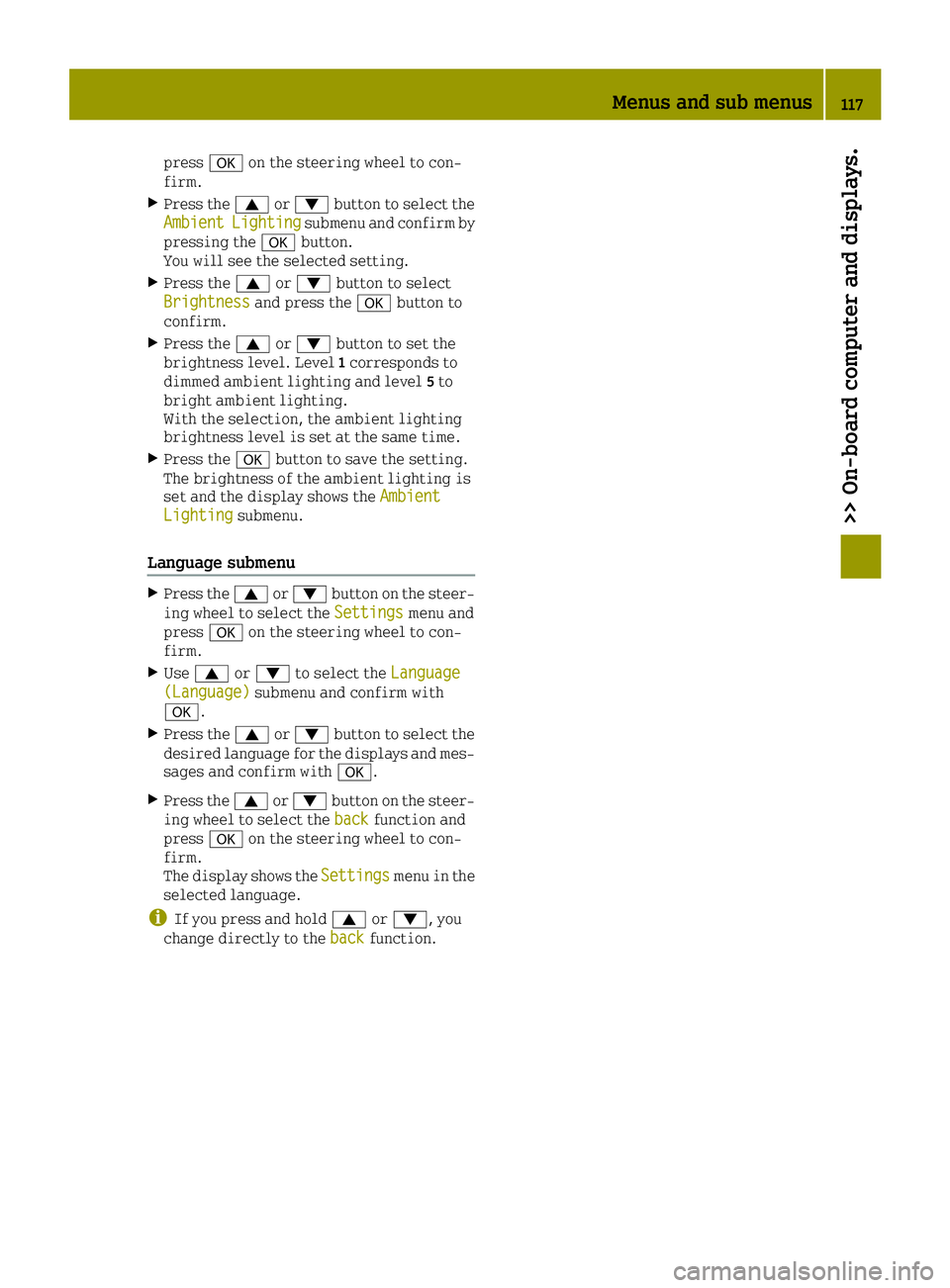
press0076on the steering wheel to con-
firm.
XPress the 0063or0064 button to select the
AmbientLightingsubmenu and confirm by
pressing the 0076button.
You will see the selected setting.
XPress the 0063or0064 button to select
Brightnessand press the 0076button to
confirm.
XPress the 0063or0064 button to set the
brightness level. Level 1corresponds to
dimmed ambient lighting and level 5to
bright ambient lighting.
With the selection, the ambient lighting
brightness level is set at the same time.
XPress the 0076button to save the setting.
The brightness of the ambient lighting is
set and the display shows the Ambient
Lightingsubmenu.
Language submenu
XPress the0063or0064 button on the steer-
ing wheel to select the Settingsmenu and
press 0076on the steering wheel to con-
firm.
XUse 0063 or0064 to select the Language(Language)submenu and confirm with
0076.
XPress the 0063or0064 button to select the
desired language for the displays and mes-
sages and confirm with 0076.
XPress the0063or0064 button on the steer-
ing wheel to select the backfunction and
press 0076on the steering wheel to con-
firm.
The display shows the Settings
menu in the
selected language.
iIf you press and hold 0063or0064, you
change directly to the backfunction.
Menus and sub menus117
>> On-board computer and displays.
Z
Page 128 of 214
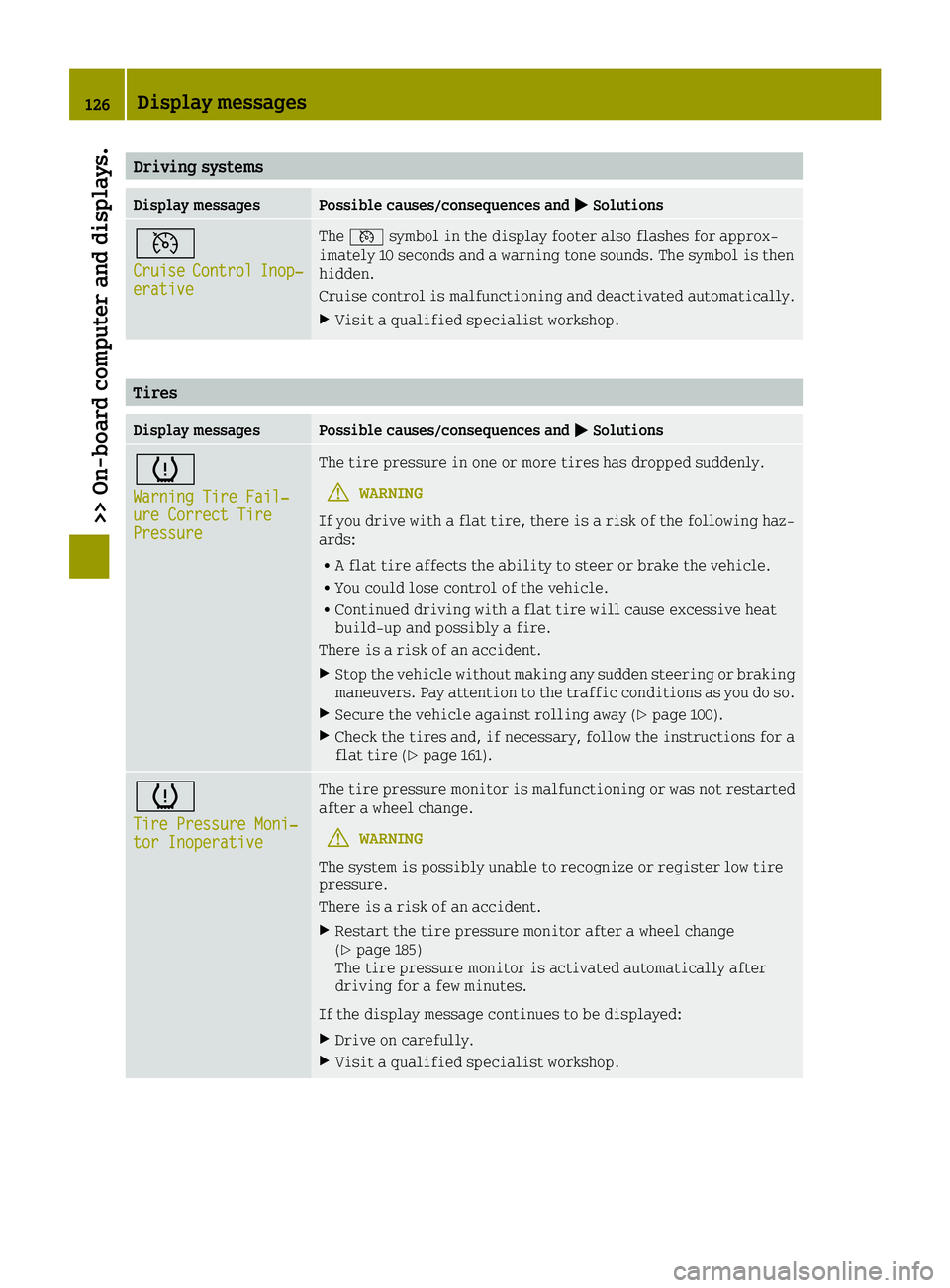
Driving systems
Display messagesPossible causes/consequences and0050Solutions
0085
CruiseControlInop‐erative
The0085 symbol in the display footer also flashes for approx-
imately 10 seconds and a warning tone sounds. The symbol is then
hidden.
Cruise control is malfunctioning and deactivated automatically.
XVisit a qualified specialist workshop.
Tires
Display messagesPossible causes/consequences and 0050Solutions
0077
Warning Tire Fail‐ure Correct TirePressure
The tire pressure in one or more tires has dropped suddenly.
GWARNING
If you drive with a flat tire, there is a risk of the following haz-
ards:
RA flat tire affects the ability to steer or brake the vehicle.
RYou could lose control of the vehicle.
RContinued driving with a flat tire will cause excessive heat
build-up and possibly a fire.
There is a risk of an accident.
XStop the vehicle without making any sudden steering or braking
maneuvers. Pay attention to the traffic conditions as you do so.
XSecure the vehicle against rolling away (Ypage 100).
XCheck the tires and, if necessary, follow the instructions for a
flat tire (Ypage 161).
0077
Tire Pressure Moni‐tor Inoperative
The tire pressure monitor is malfunctioning or was not restarted
after a wheel change.
GWARNING
The system is possibly unable to recognize or register low tire
pressure.
There is a risk of an accident.
XRestart the tire pressure monitor after a wheel change
(Ypage 185)
The tire pressure monitor is activated automatically after
driving for a few minutes.
If the display message continues to be displayed:
XDrive on carefully.
XVisit a qualified specialist workshop.
126Display messages
>> On-board computer and displays.