change time SUBARU BRZ 2016 1.G Navigation Manual
[x] Cancel search | Manufacturer: SUBARU, Model Year: 2016, Model line: BRZ, Model: SUBARU BRZ 2016 1.GPages: 336, PDF Size: 10.83 MB
Page 82 of 336
80 Navigation
Read First
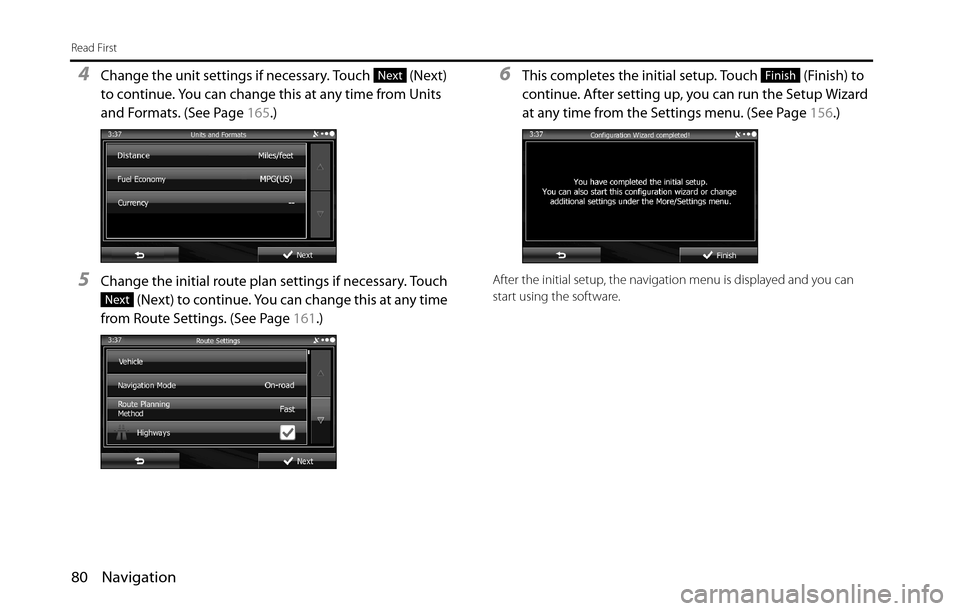
4Change the unit settings if necessary. Touch (Next)
to continue. You can change this at any time from Units
and Formats. (See Page 165.)
5Change the initial route plan settings if necessary. Touch
(Next) to continue. You can change this at any time
from Route Settings. (See Page 161.)
6This completes the initial setup. Touch (Finish) to
continue. After setting up, you can run the Setup Wizard
at any time from the Settings menu. (See Page 156.)
After the initial setup, the navigation menu is displayed and you can
start using the software.
Next
Next
Finish
Page 89 of 336
Navigation 87
Read First
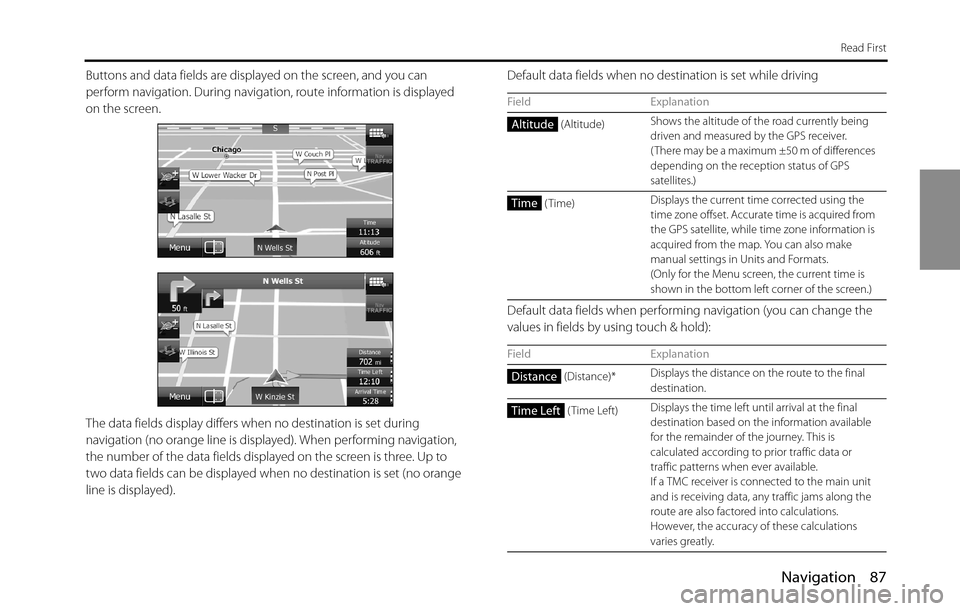
Buttons and data fields are displayed on the screen, and you can
perform navigation. During navigation, route information is displayed
on the screen.
The data fields display differs when no destination is set during
navigation (no orange line is displayed). When performing navigation,
the number of the data fields displayed on the screen is three. Up to
two data fields can be displayed when no destination is set (no orange
line is displayed). Default data fields when no destination is set while driving
Default data fields when performing navigation (you can change the
values in fields by using touch & hold):
Field Explanation
(Altitude)Shows the altitude of the road currently being
driven and measured by the GPS receiver.
( There may be a maximum ±50 m of differences
depending on the reception status of GPS
satellites.)
(Time)Displays the current time corrected using the
time zone offset. Accurate time is acquired from
the GPS satellite, while time zone information is
acquired from the map. You can also make
manual settings in Units and Formats.
(Only for the Menu screen, the current time is
shown in the bottom left corner of the screen.)
Field Explanation
(Distance)*Displays the distance on the route to the final
destination.
(Time Left)Displays the time left until arrival at the final
destination based on the information available
for the remainder of the journey. This is
calculated according to prior traffic data or
traffic patterns when ever available.
If a TMC receiver is connected to the main unit
and is receiving data, any traffic jams along the
route are also factored into calculations.
However, the accuracy of these calculations
varies greatly.
Altitude
Time
Distance
Time Left
Page 94 of 336
92 Navigation
Read First
■Items displayed during route navigation
The route is displayed using the following methods.
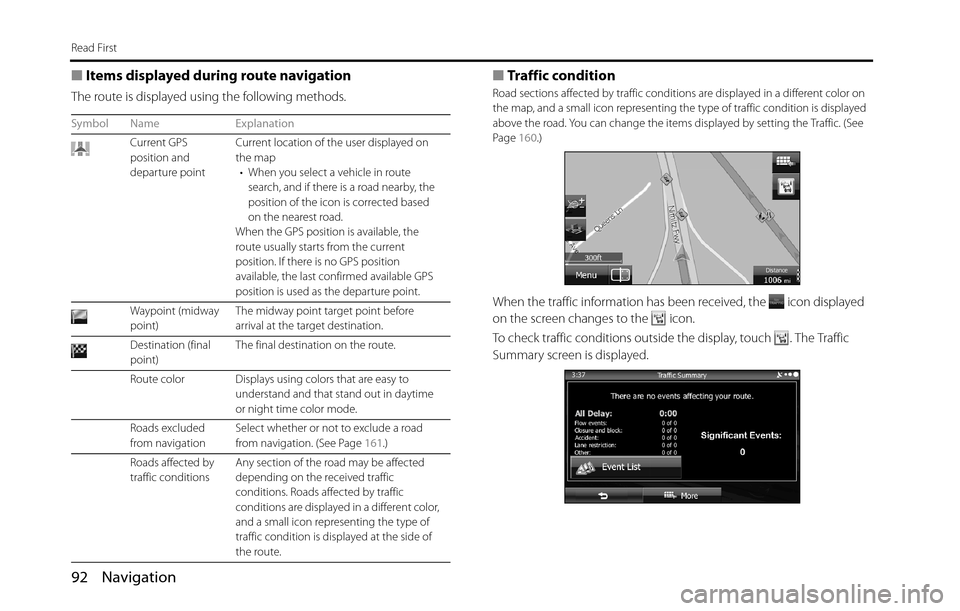
■Traffic condition
Road sections affected by traffic conditions are displayed in a different color on
the map, and a small icon representing the type of traffic condition is displayed
above the road. You can change the items displayed by setting the Traffic. (See
Page 160.)
When the traffic information has been received, the icon displayed
on the screen changes to the icon.
To check traffic conditions outside the display, touch . The Traffic
Summary screen is displayed.
Symbol Name Explanation
Current GPS
position and
departure pointCurrent location of the user displayed on
the map
• When you select a vehicle in route
search, and if there is a road nearby, the
position of the icon is corrected based
on the nearest road.
When the GPS position is available, the
route usually starts from the current
position. If there is no GPS position
available, the last confirmed available GPS
position is used as the departure point.
Waypoint (midway
point)The midway point target point before
arrival at the target destination.
Destination (final
point)The final destination on the route.
Route color Displays using colors that are easy to
understand and that stand out in daytime
or night time color mode.
Roads excluded
from navigation Select whether or not to exclude a road
from navigation. (See Page 161.)
Roads affected by
traffic conditions Any section of the road may be affected
depending on the received traffic
conditions. Roads affected by traffic
conditions are displayed in a different color,
and a small icon representing the type of
traffic condition is displayed at the side of
the route.
Page 96 of 336
94 Navigation
Read First
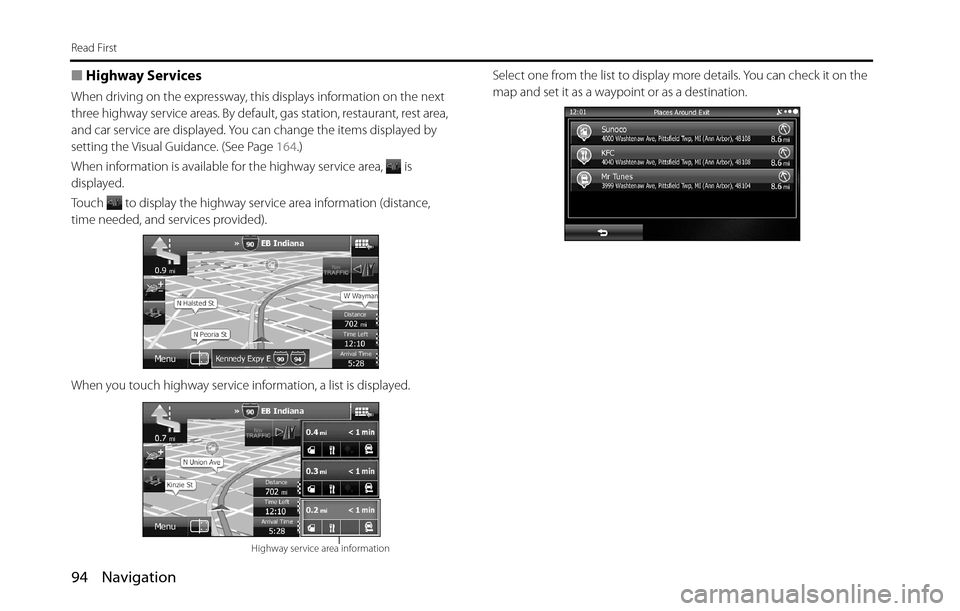
■Highway Services
When driving on the expressway, this displays information on the next
three highway service areas. By default, gas station, restaurant, rest area,
and car service are displayed. You can change the items displayed by
setting the Visual Guidance. (See Page 164.)
When information is available for the highway service area, is
displayed.
Touch to display the highway service area information (distance,
time needed, and services provided).
When you touch highway service information, a list is displayed.Select one from the list to display more details. You can check it on the
map and set it as a waypoint or as a destination.
Highway service area information
Page 133 of 336
Navigation 131
Navigation
Selecting a Frequently Used Destination (Smart
History)
Destinations that have been set previously are displayed in the History
list. The two most recent destinations are displayed on the destination
menu allowing you to select them easily. Smart History uses conditions
such as the current time, date, and position, and displays a position in
response to the user's navigation habits. The more you use the
navigation system, the more accurate the anticipated destination
becomes.
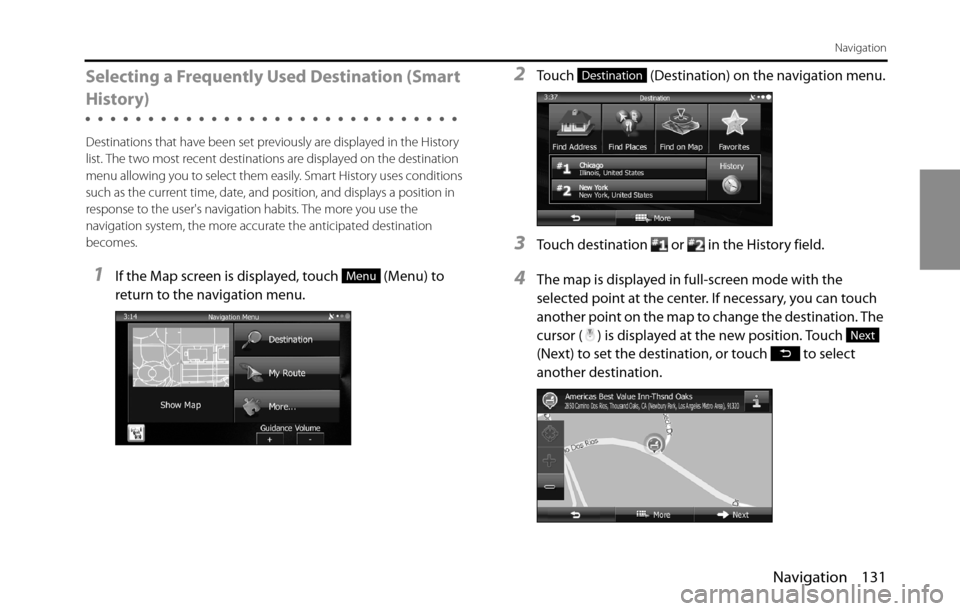
1If the Map screen is displayed, touch (Menu) to
return to the navigation menu.
2Touch (Destination) on the navigation menu.
3Touch destination or in the History field.
4The map is displayed in full-screen mode with the
selected point at the center. If necessary, you can touch
another point on the map to change the destination. The
cursor ( ) is displayed at the new position. Touch
(Next) to set the destination, or touch to select
another destination.Menu
Destination
Next
Page 134 of 336

132 Navigation
Navigation
5After a summary of the route plan is displayed, the entire
route is displayed on the map. The route is researched
automatically. Touch (More) to change the route
plan, or touch (Go!) to start navigation. (When the
countdown is displayed in the “Go!” button, guidance
begins automatically after 10 seconds even if you do not
touch the button.)Selecting a Recent Destination from History
Destinations that have been set previously are displayed in the History
list.
1Use the History function as follows.
• If the Map screen is displayed, touch and then touch
(History). (Only when registered to the Quick Menu.)
• If the Map screen is displayed, touch (Menu),
(Destination) and then touch (History).
2A list of recently entered destinations is displayed. A
History search displays three destination on the top page
based on previously entered routes (destinations with
the highest likelihood of use). Other destinations are
displayed based on the time they were entered in the
past. If necessary, scroll through the list to display older
entries and select the destination.
More
Go!
History
Menu
DestinationHistory
Page 138 of 336
136 Navigation
Navigation
Confirming Route Settings and Calling Route Related Functions
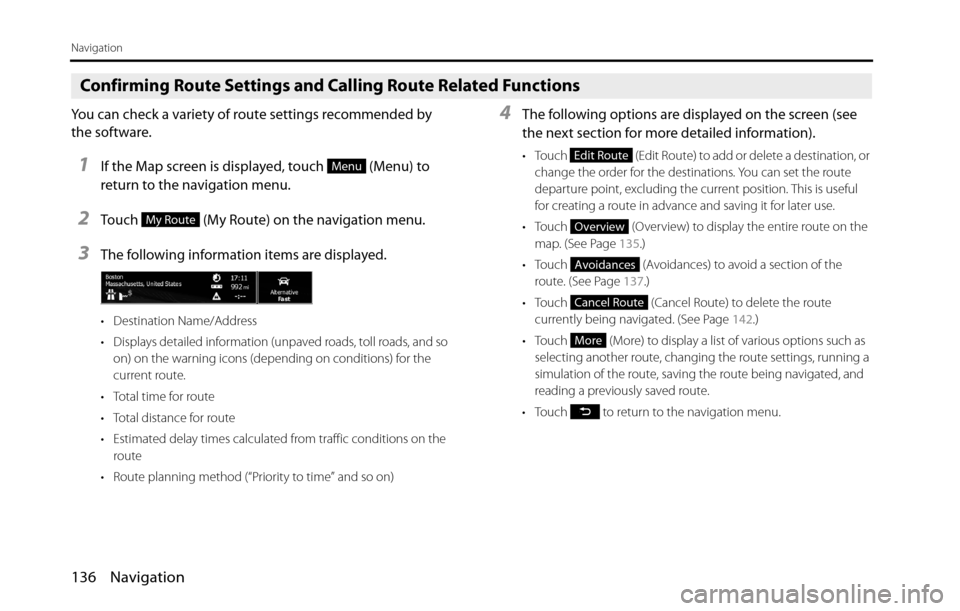
You can check a variety of route settings recommended by
the software.
1If the Map screen is displayed, touch (Menu) to
return to the navigation menu.
2Touch (My Route) on the navigation menu.
3The following information items are displayed.
• Destination Name/Address
• Displays detailed information (unpaved roads, toll roads, and so
on) on the warning icons (depending on conditions) for the
current route.
• Total time for route
• Total distance for route
• Estimated delay times calculated from traffic conditions on the
route
• Route planning method (“Priority to time” and so on)
4The following options are displayed on the screen (see
the next section for more detailed information).
• Touch (Edit Route) to add or delete a destination, or
change the order for the destinations. You can set the route
departure point, excluding the current position. This is useful
for creating a route in advance and saving it for later use.
• Touch (Overview) to display the entire route on the
map. (See Page 135.)
• Touch (Avoidances) to avoid a section of the
route. (See Page 137.)
• Touch (Cancel Route) to delete the route
currently being navigated. (See Page 142.)
• Touch (More) to display a list of various options such as
selecting another route, changing the route settings, running a
simulation of the route, saving the route being navigated, and
reading a previously saved route.
• Touch to return to the navigation menu.Menu
My Route
Edit Route
Overview
Avoidances
Cancel Route
More
Page 152 of 336
150 Navigation
Reference Data
The following pages explain the software's various features and menu screens.
Feature
Smart Zoom
Smart zoom offers a large improvement over standard zoom functions.
•While driving the route: When approaching an intersection, the
screen is enlarged and the viewpoint raised so that you can easily
see which way to drive at the next intersection. After navigating the
intersection, the screen is reduced and the angle lowered to check
the road in front.
•When driving without route navigation: The screen is enlarged as
you slow down and reduced as you speed up.
Switching between Day and Night Screens
For the Map screen and menu screen, the colors differ between day and
night.
•During daytime, the screen's colors are the same as those of a
printed map, and the menu is brighter.
•At night, the screen uses dark colors for large objects and reduces
the overall brightness of the screen.
The screen's color scheme differs between day and night. When Link to
Day/Night View on the Settings screen is set to “Headlight” (See Page
28.), day view or night view is selected based on whether the lights
(sidelights, tail lights, license plate light) are on or off, to make it easier to
view the screen. When “Time” is set (See Page 28.), the view changes at
the set time. Also, when set to “None” (See Page 29.), you can manually
switch to a day view or a night view screen at any time.
Page 153 of 336
Navigation 151
Reference Data
Route Search/Search Again
You can search for routes to suit your preferences.
Route search methods:
• (Fast):
Searches all roads for the quickest route following the speed limits of
the roads.
• (Green):
Searches for the route that conserves the most energy, taking into
account the merits of “Fast” and “Short”.
• (Short):
Searches for the shortest distance in all possible routes.
• (Easy):
Searches for a route that is easiest to drive, with few right and left
turns. Using this option, the program allows you to avoid
combinations of smaller roads and to take the expressway.Search for a route by using or avoiding certain road categories:
• (Highways)
• (Period Charge)
• (Per-use Toll)
• (Ferries)
•
• (Unpaved Roads)
• (Calculate Green Alternative)
The route may change drastically when real time traffic conditions are
factored in. (See Page 152.)
If you leave the route that was searched for based on your current
position, and new information is received regarding traffic conditions
for the recommended route, the software automatically searches for
another route.
See “Route Settings” on Page 161 for detailed information on Route
settings.
Fast
Green
Short
Easy
Highways
Period Charge
Per-use Toll
Ferries
Carpool/HOV
Unpaved Roads
Calculate Green Alternative
Page 155 of 336
Navigation 153
Reference Data
Real-time traffic information (TMC)
TMC ( Traffic Message Channel) offers real-time traffic conditions. This
can help you to avoid traffic jams that could not be anticipated due to
road closures or accidents.
TMC uses a dedicated XM satellite radio to broadcast real-time traffic
information.
The default settings use traffic information when searching for a route.
If traffic data normally broadcast in your region can be accessed, this
received information is automatically taken into account. This does not
need to be manually set. XM satellite radio stations broadcasting TMC
data are searched for automatically, and decoded information is
immediately used to search for routes. If traffic information that might
affect the current route is received, a warning is displayed indicating
that the route will be searched for again, and navigation continues
using a new, optimal route taking into account the latest traffic
conditions.
By delaying the timing before applying a route that has been searched
again, the user can check the route and fine-tune the details creating
the optimal search results. You can set this from Traffic settings. (See
Page 160.)When traffic information is being received, a special icon ( ) is
displayed on the map. When there is no traffic information available for
the route, this icon indicates the status of the traffic information
receiver, and when information is received, the type of upcoming traffic
information is displayed.
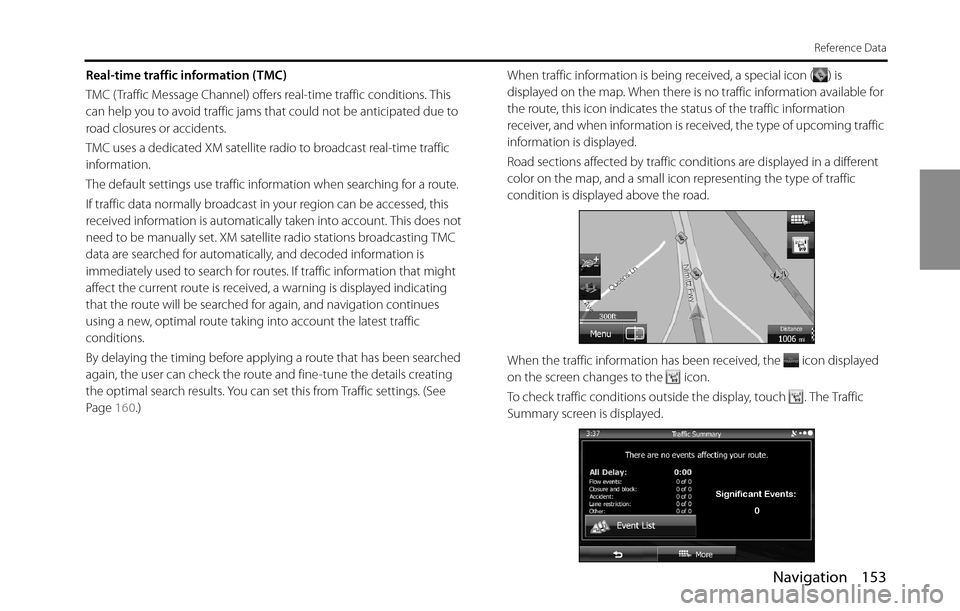
Road sections affected by traffic conditions are displayed in a different
color on the map, and a small icon representing the type of traffic
condition is displayed above the road.
When the traffic information has been received, the icon displayed
on the screen changes to the icon.
To check traffic conditions outside the display, touch . The Traffic
Summary screen is displayed.