control panel SUBARU CROSSTREK 2017 1.G Owner's Manual
[x] Cancel search | Manufacturer: SUBARU, Model Year: 2017, Model line: CROSSTREK, Model: SUBARU CROSSTREK 2017 1.GPages: 572, PDF Size: 41.52 MB
Page 249 of 572
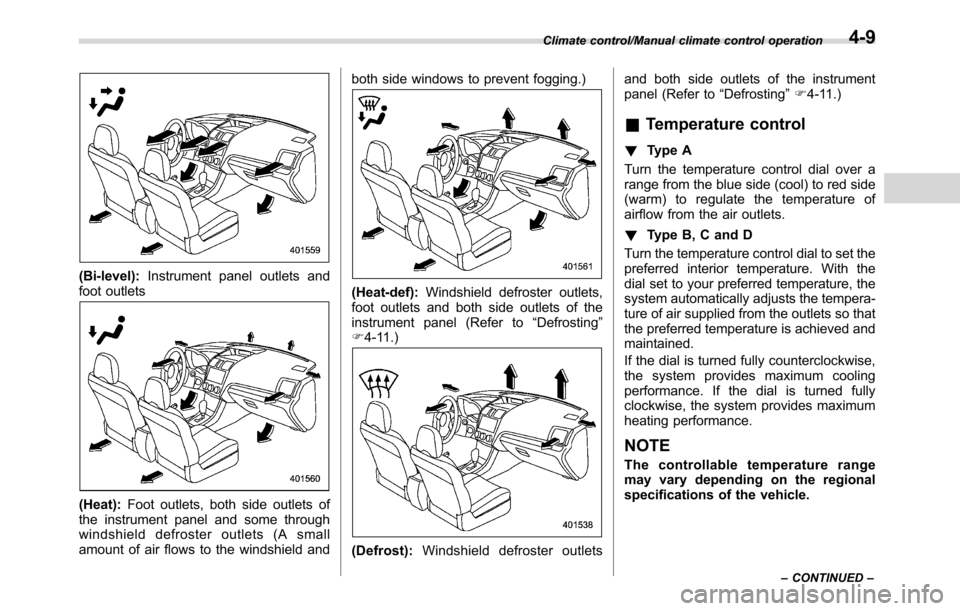
(Bi-level):Instrument panel outlets and
foot outlets
(Heat):Foot outlets, both side outlets of
the instrument panel and some through
windshield defroster outlets (A small
amount of air flows to the windshield andboth side windows to prevent fogging.)
(Heat-def):Windshield defroster outlets,
foot outlets and both side outlets of the
instrument panel (Refer to“Defrosting”
F4-11.)
(Defrost):Windshield defroster outletsand both side outlets of the instrument
panel (Refer to“Defrosting”F4-11.)
&Temperature control
!Type A
Turn the temperature control dial over a
range from the blue side (cool) to red side
(warm) to regulate the temperature of
airflow from the air outlets.
!Type B, C and D
Turn the temperature control dial to set the
preferred interior temperature. With the
dial set to your preferred temperature, the
system automatically adjusts the tempera-
ture of air supplied from the outlets so that
the preferred temperature is achieved and
maintained.
If the dial is turned fully counterclockwise,
the system provides maximum cooling
performance. If the dial is turned fully
clockwise, the system provides maximum
heating performance.
NOTE
The controllable temperature range
may vary depending on the regional
specifications of the vehicle.
Climate control/Manual climate control operation
–CONTINUED–4-9
Page 273 of 572
NOTE
.If the audio control screen appears,
select the“Source”key on the audio
screen or press the AUDIO/TUNE knob
again.
.When you push the AUDIO/TUNE
knob while any screen other than the
audio control screen is displayed, the
display will return to the audio control
screen.
.When the AUDIO/TUNE knob is
pushed and held, the graphic equalizer
screen will be displayed. Refer to
““Graphic Equalizer””F5-23.
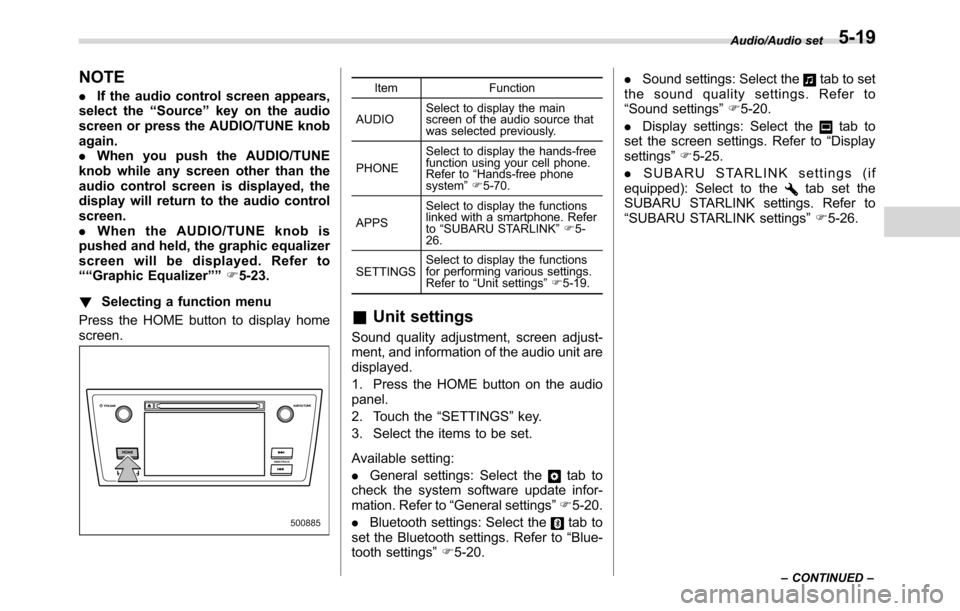
!Selecting a function menu
Press the HOME button to display home
screen.Item Function
AUDIOSelect to display the main
screen of the audio source that
was selected previously.
PHONESelect to display the hands-free
function using your cell phone.
Refer to“Hands-free phone
system”F5-70.
APPSSelect to display the functions
linked with a smartphone. Refer
to“SUBARU STARLINK”F5-
26.
SETTINGSSelect to display the functions
for performing various settings.
Refer to“Unit settings”F5-19.
&Unit settings
Sound quality adjustment, screen adjust-
ment, and information of the audio unit are
displayed.
1. Press the HOME button on the audio
panel.
2. Touch the“SETTINGS”key.
3. Select the items to be set.
Available setting:
.General settings: Select the
tab to
check the system software update infor-
mation. Refer to“General settings”F5-20.
.Bluetooth settings: Select the
tab to
set the Bluetooth settings. Refer to“Blue-
tooth settings”F5-20..Sound settings: Select the
tab to set
the sound quality settings. Refer to
“Sound settings”F5-20.
.Display settings: Select the
tab to
set the screen settings. Refer to“Display
settings”F5-25.
.SUBARU STARLINK settings (if
equipped): Select to the
tab set the
SUBARU STARLINK settings. Refer to
“SUBARU STARLINK settings”F5-26.
Audio/Audio set
–CONTINUED–5-19
Page 282 of 572
Audio/Audio set
&AM/FM radio
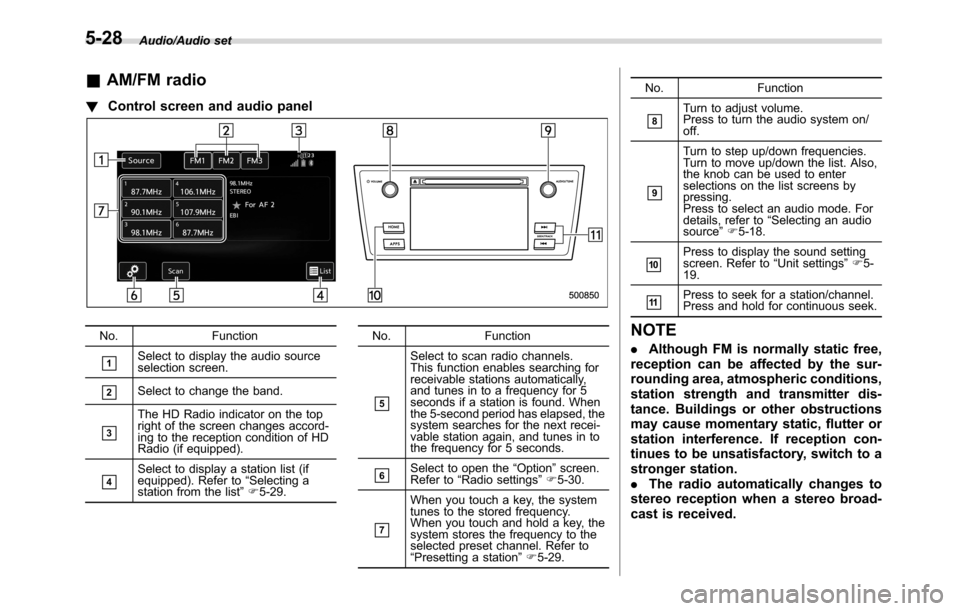
!Control screen and audio panel
No. Function
&1Select to display the audio source
selection screen.
&2Select to change the band.
&3
The HD Radio indicator on the top
right of the screen changes accord-
ing to the reception condition of HD
Radio (if equipped).
&4Select to display a station list (if
equipped). Refer to“Selecting a
station from the list”F5-29.No. Function
&5
Select to scan radio channels.
This function enables searching for
receivable stations automatically,
and tunes in to a frequency for 5
seconds if a station is found. When
the 5-second period has elapsed, the
system searches for the next recei-
vable station again, and tunes in to
the frequency for 5 seconds.
&6Select to open the“Option”screen.
Refer to“Radio settings”F5-30.
&7
When you touch a key, the system
tunes to the stored frequency.
When you touch and hold a key, the
system stores the frequency to the
selected preset channel. Refer to
“Presetting a station”F5-29.No. Function
&8Turn to adjust volume.
Press to turn the audio system on/
off.
&9
Turn to step up/down frequencies.
Turn to move up/down the list. Also,
the knob can be used to enter
selections on the list screens by
pressing.
Press to select an audio mode. For
details, refer to“Selecting an audio
source”F5-18.
&10Press to display the sound setting
screen. Refer to“Unit settings”F5-
19.
&11Press to seek for a station/channel.
Press and hold for continuous seek.
NOTE
.Although FM is normally static free,
reception can be affected by the sur-
rounding area, atmospheric conditions,
station strength and transmitter dis-
tance. Buildings or other obstructions
may cause momentary static, flutter or
station interference. If reception con-
tinues to be unsatisfactory, switch to a
stronger station.
.The radio automatically changes to
stereo reception when a stereo broad-
cast is received.
5-28
Page 291 of 572
&SiriusXM Satellite Radio (if
equipped)
!SiriusXM Data Service
Data service information, which is com-
prised of traffic information and weather
information, can be received via the
SiriusXM Radio.
To receive the data service information in
the vehicle, a subscription to the SiriusXM
Satellite Radio service is necessary.
Content set to use the SiriusXM data
service is reset when personal information
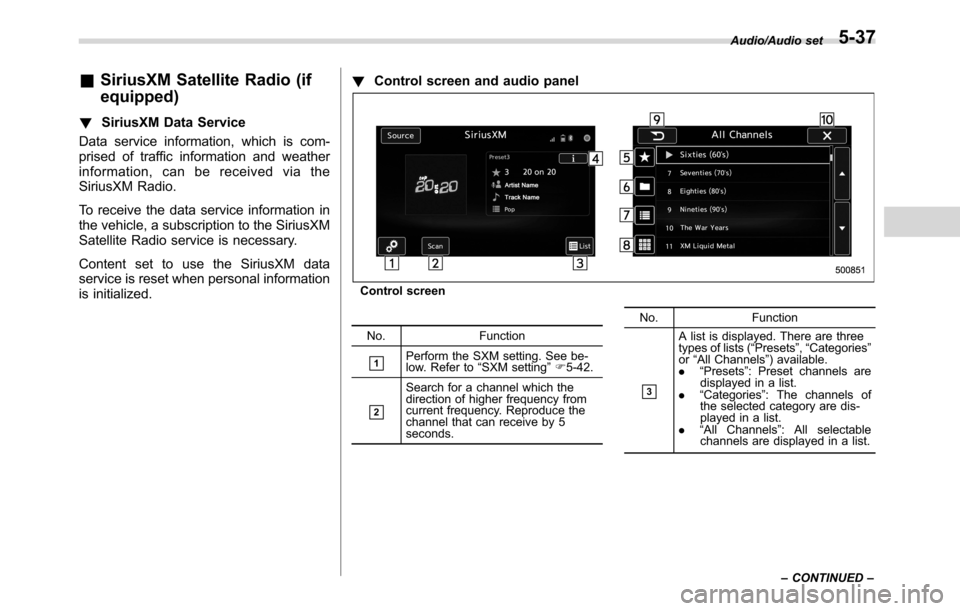
is initialized.!Control screen and audio panel
Control screen
No. Function
&1Perform the SXM setting. See be-
low. Refer to“SXM setting”F5-42.
&2
Search for a channel which the
direction of higher frequency from
current frequency. Reproduce the
channel that can receive by 5
seconds.No. Function&3
A list is displayed. There are three
types of lists (“Presets”,“Categories”
or“All Channels”) available.
.“Presets”: Preset channels are
displayed in a list.
.“Categories”: The channels of
the selected category are dis-
played in a list.
.“All Channels”: All selectable
channels are displayed in a list.Audio/Audio set
–CONTINUED–
5-37
Page 298 of 572
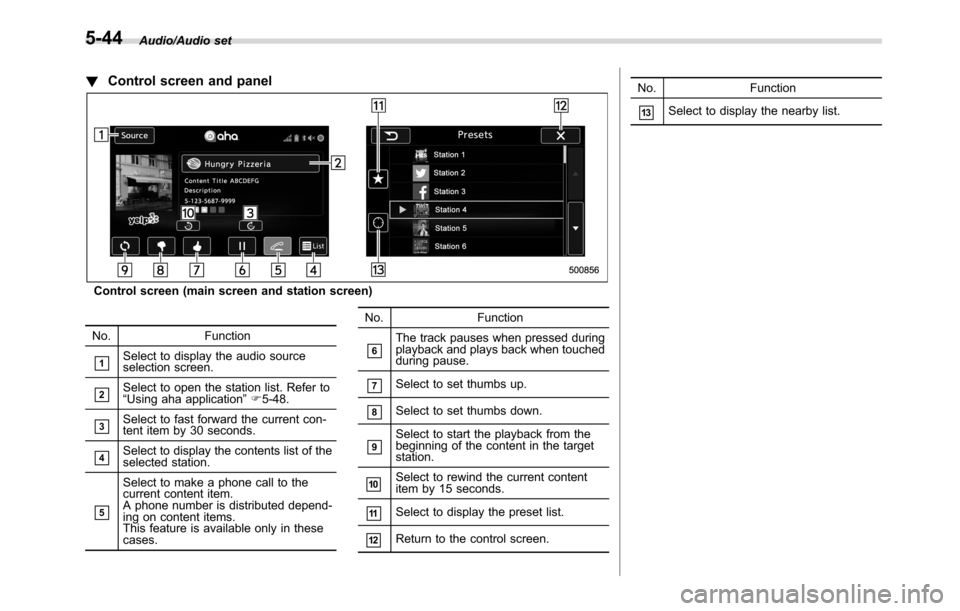
Audio/Audio set
!Control screen and panel
Control screen (main screen and station screen)
No. Function
&1Select to display the audio source
selection screen.
&2Select to open the station list. Refer to
“Using aha application”F5-48.
&3Select to fast forward the current con-
tent item by 30 seconds.
&4Select to display the contents list of the
selected station.
&5
Select to make a phone call to the
current content item.
A phone number is distributed depend-
ing on content items.
This feature is available only in these
cases.No. Function
&6The track pauses when pressed during
playback and plays back when touched
during pause.
&7Select to set thumbs up.
&8Select to set thumbs down.
&9Select to start the playback from the
beginning of the content in the target
station.
&10Select to rewind the current content
item by 15 seconds.
&11Select to display the preset list.
&12Return to the control screen.No. Function
&13Select to display the nearby list.
5-44
Page 304 of 572
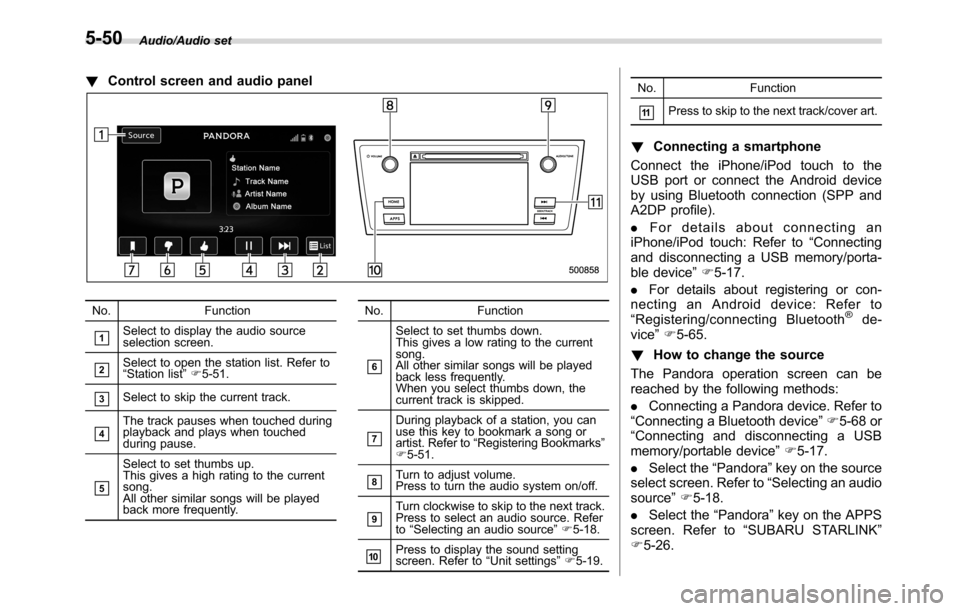
Audio/Audio set
!Control screen and audio panel
No. Function
&1Select to display the audio source
selection screen.
&2Select to open the station list. Refer to
“Station list”F5-51.
&3Select to skip the current track.
&4The track pauses when touched during
playback and plays when touched
during pause.
&5
Select to set thumbs up.
This gives a high rating to the current
song.
All other similar songs will be played
back more frequently.No. Function
&6
Select to set thumbs down.
This gives a low rating to the current
song.
All other similar songs will be played
back less frequently.
When you select thumbs down, the
current track is skipped.
&7
During playback of a station, you can
use this key to bookmark a song or
artist. Refer to“Registering Bookmarks”
F5-51.
&8Turn to adjust volume.
Press to turn the audio system on/off.
&9Turn clockwise to skip to the next track.
Press to select an audio source. Refer
to“Selecting an audio source”F5-18.
&10Press to display the sound setting
screen. Refer to“Unit settings”F5-19.No. Function
&11Press to skip to the next track/cover art.
!Connecting a smartphone
Connect the iPhone/iPod touch to the
USB port or connect the Android device
by using Bluetooth connection (SPP and
A2DP profile).
.For details about connecting an
iPhone/iPod touch: Refer to“Connecting
and disconnecting a USB memory/porta-
ble device”F5-17.
.For details about registering or con-
necting an Android device: Refer to
“Registering/connecting Bluetooth
®de-
vice”F5-65.
!How to change the source
The Pandora operation screen can be
reached by the following methods:
.Connecting a Pandora device. Refer to
“Connecting a Bluetooth device”F5-68 or
“Connecting and disconnecting a USB
memory/portable device”F5-17.
.Select the“Pandora”key on the source
select screen. Refer to“Selecting an audio
source”F5-18.
.Select the“Pandora”key on the APPS
screen. Refer to“SUBARU STARLINK”
F5-26.
5-50
Page 306 of 572
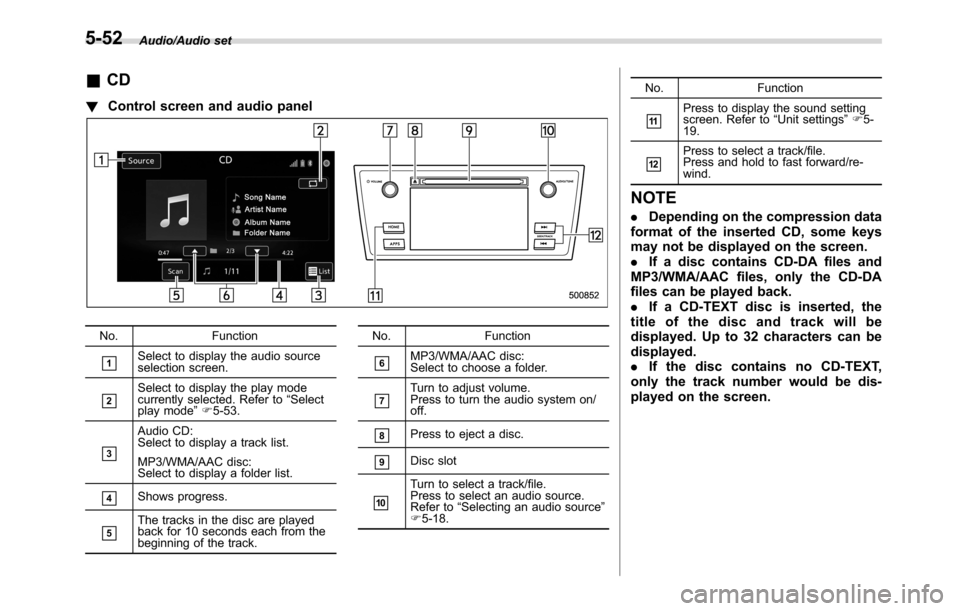
Audio/Audio set
&CD
!Control screen and audio panel
No. Function
&1Select to display the audio source
selection screen.
&2Select to display the play mode
currently selected. Refer to“Select
play mode”F5-53.
&3
Audio CD:
Select to display a track list.
MP3/WMA/AAC disc:
Select to display a folder list.
&4Shows progress.
&5The tracks in the disc are played
back for 10 seconds each from the
beginning of the track.No. Function
&6MP3/WMA/AAC disc:
Select to choose a folder.
&7Turn to adjust volume.
Press to turn the audio system on/
off.
&8Press to eject a disc.
&9Disc slot
&10
Turn to select a track/file.
Press to select an audio source.
Refer to“Selecting an audio source”
F5-18.No. Function
&11Press to display the sound setting
screen. Refer to“Unit settings”F5-
19.
&12Press to select a track/file.
Press and hold to fast forward/re-
wind.
NOTE
.Depending on the compression data
format of the inserted CD, some keys
may not be displayed on the screen.
.If a disc contains CD-DA files and
MP3/WMA/AAC files, only the CD-DA
files can be played back.
.If a CD-TEXT disc is inserted, the
title of the disc and track will be
displayed. Up to 32 characters can be
displayed.
.If the disc contains no CD-TEXT,
only the track number would be dis-
played on the screen.
5-52
Page 308 of 572
Audio/Audio set
&USB memory
Audio files on the USB memory can be
played.
WARNING
Do not operate the player’s controls
or connect the USB memory while
driving. Doing so may result in
losing control of your vehicle and
cause an accident or serious injury.
CAUTION
.Do not leave your USB memory
in the car. In particular, high
temperatures inside the vehicle
may damage the USB memory.
.Do not push down on or apply
unnecessary pressure to the
USB memory while it is con-
nected as this may damage the
USB memory or its terminal.
.Do not insert foreign objects into
the port as this may damage the
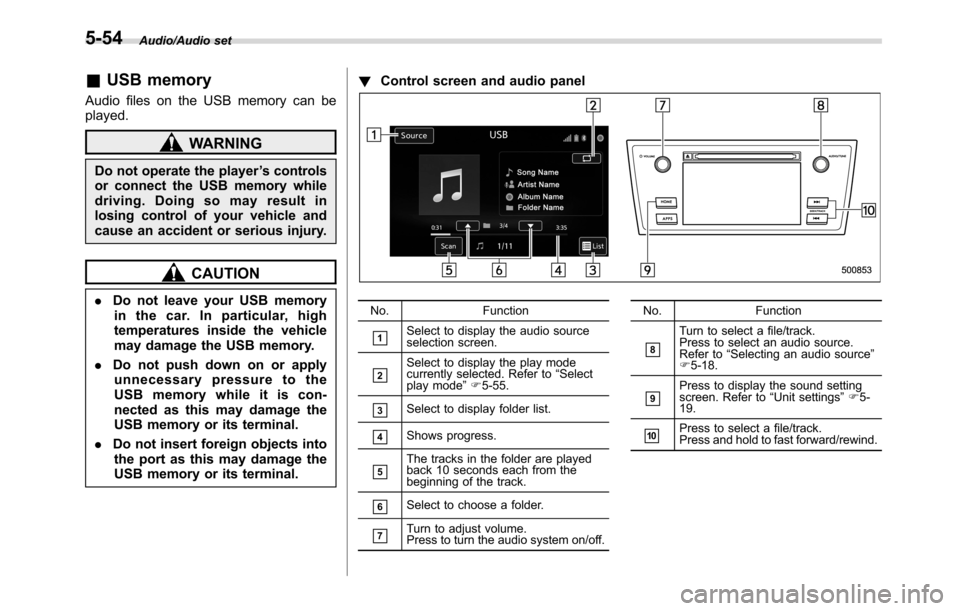
USB memory or its terminal.!Control screen and audio panelNo. Function
&1Select to display the audio source
selection screen.
&2Select to display the play mode
currently selected. Refer to“Select
play mode”F5-55.
&3Select to display folder list.
&4Shows progress.
&5The tracks in the folder are played
back 10 seconds each from the
beginning of the track.
&6Select to choose a folder.
&7Turn to adjust volume.
Press to turn the audio system on/off.No. Function
&8
Turn to select a file/track.
Press to select an audio source.
Refer to“Selecting an audio source”
F5-18.
&9Press to display the sound setting
screen. Refer to“Unit settings”F5-
19.
&10Press to select a file/track.
Press and hold to fast forward/rewind.
5-54
Page 310 of 572
Audio/Audio set
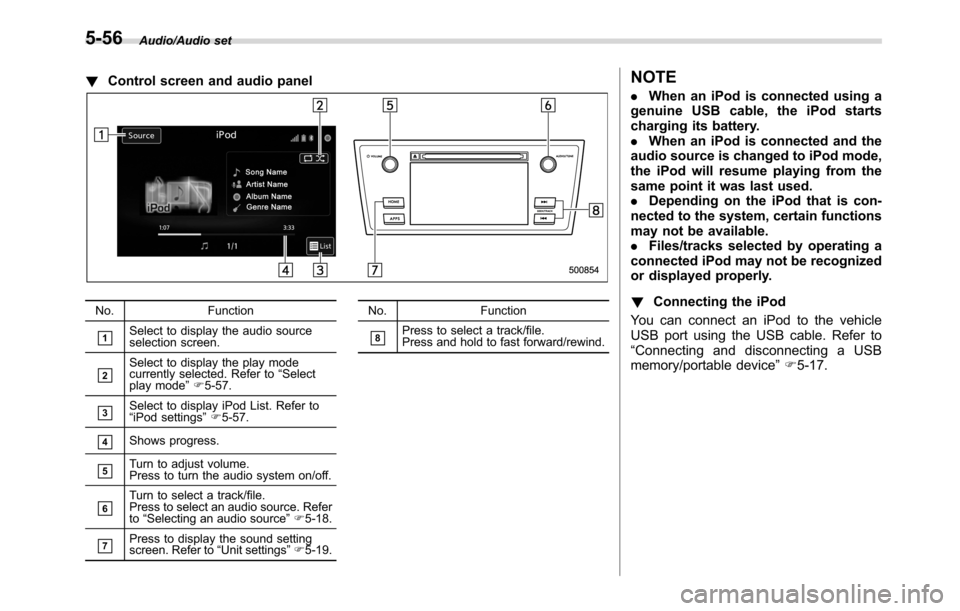
!Control screen and audio panel
No. Function
&1Select to display the audio source
selection screen.
&2Select to display the play mode
currently selected. Refer to“Select
play mode”F5-57.
&3Select to display iPod List. Refer to
“iPod settings”F5-57.
&4Shows progress.
&5Turn to adjust volume.
Press to turn the audio system on/off.
&6Turn to select a track/file.
Press to select an audio source. Refer
to“Selecting an audio source”F5-18.
&7Press to display the sound setting
screen. Refer to“Unit settings”F5-19.No. Function
&8Press to select a track/file.
Press and hold to fast forward/rewind.
NOTE
.When an iPod is connected using a
genuine USB cable, the iPod starts
charging its battery.
.When an iPod is connected and the
audio source is changed to iPod mode,
the iPod will resume playing from the
same point it was last used.
.Depending on the iPod that is con-
nected to the system, certain functions
may not be available.
.Files/tracks selected by operating a
connected iPod may not be recognized
or displayed properly.
!Connecting the iPod
You can connect an iPod to the vehicle
USB port using the USB cable. Refer to
“Connecting and disconnecting a USB
memory/portable device”F5-17.
5-56
Page 312 of 572
Audio/Audio set
.Before using Bluetooth devices,
users of any electrical medical
device other than implantable
cardiac pacemakers, cardiac re-
synchronization therapy-pace-
makers or implantable cardiover-
ter defibrillators should consult
the manufacturer of the device
for information about its opera-
tion under the influence of radio
waves. Radio waves could have
unexpected effects on the opera-
tion of such medical devices.
CAUTION
Do not leave your portable player in
the vehicle. In particular, high tem-
peratures inside the vehicle may
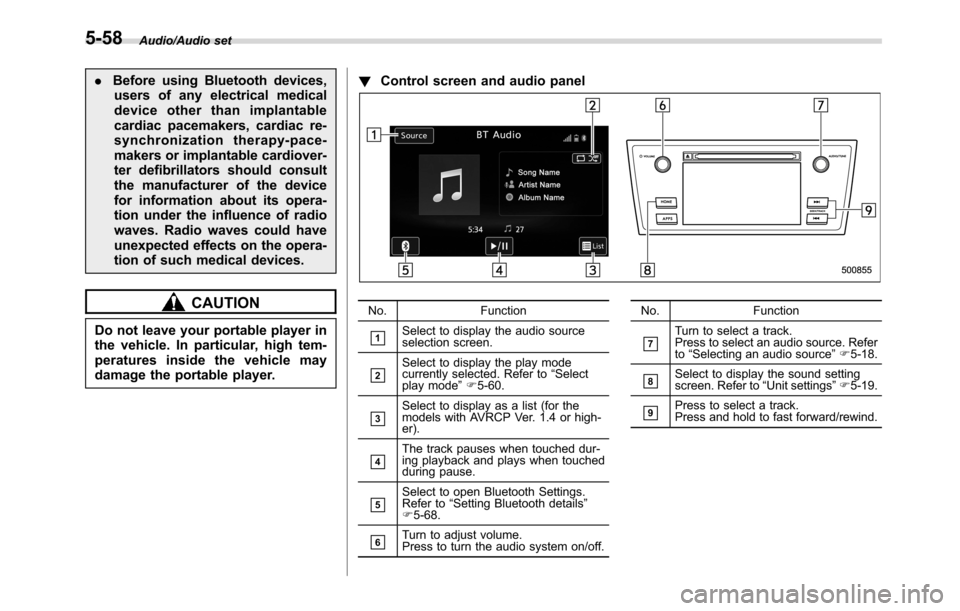
damage the portable player.!Control screen and audio panel
No. Function
&1Select to display the audio source
selection screen.
&2Select to display the play mode
currently selected. Refer to“Select
play mode”F5-60.
&3Select to display as a list (for the
models with AVRCP Ver. 1.4 or high-
er).
&4The track pauses when touched dur-
ing playback and plays when touched
during pause.
&5Select to open Bluetooth Settings.
Refer to“Setting Bluetooth details”
F5-68.
&6Turn to adjust volume.
Press to turn the audio system on/off.No. Function
&7Turn to select a track.
Press to select an audio source. Refer
to“Selecting an audio source”F5-18.
&8Select to display the sound setting
screen. Refer to“Unit settings”F5-19.
&9Press to select a track.
Press and hold to fast forward/rewind.
5-58