change time SUBARU FORESTER 2012 SH / 3.G Owner's Manual
[x] Cancel search | Manufacturer: SUBARU, Model Year: 2012, Model line: FORESTER, Model: SUBARU FORESTER 2012 SH / 3.GPages: 438, PDF Size: 15.31 MB
Page 207 of 438
5-34Audio
to in-vehicle equipment will be charged
when the ignition switch is in the “ON ”
or “Acc ”position. However, activation
of the iPod
®may be delayed if the
battery charge of the iPod®is low.
. If an iPod®does not activate after
operation, disconnect the connection
cable from the iPod
®and reset it. For
the resetting procedure, see the User ’s
Guide that comes with the iPod
®.
. If an iPod®and the connection cable
are connected improperly, the iPod®
cannot be powered on or will not be
recognized by in-vehicle equipment. In
this case, disconnect the connection
cable from the iPod
®, and then connect
it again.
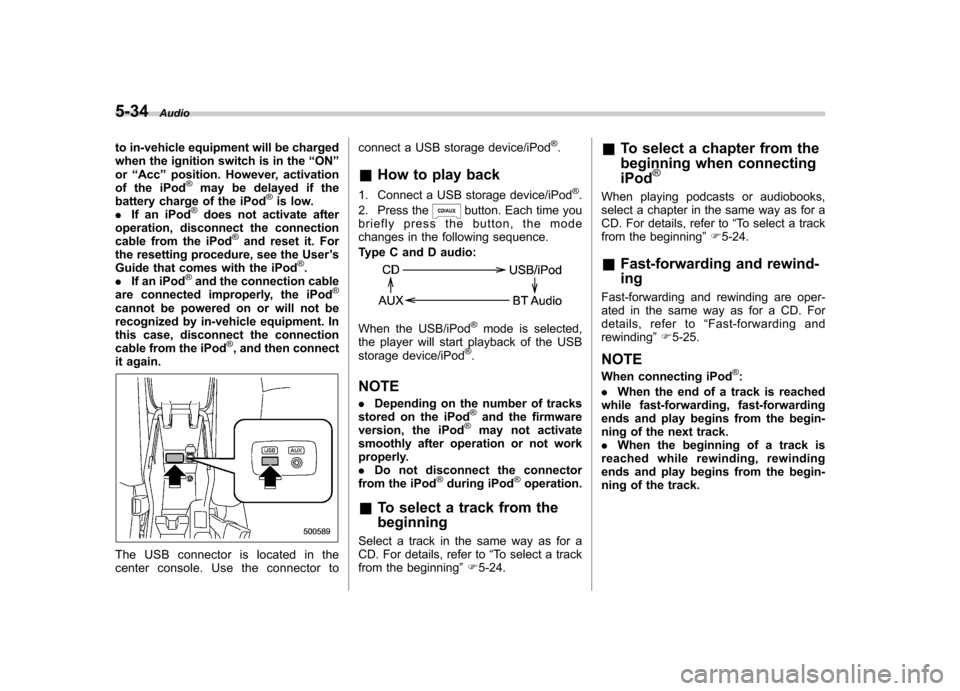
The USB connector is located in the
center console. Use the connector to connect a USB storage device/iPod
®.
& How to play back
1. Connect a USB storage device/iPod
®.
2. Press the
button. Each time you
briefly press the button, the mode
changes in the following sequence.
Type C and D audio:
When the USB/iPod®mode is selected,
the player will start playback of the USB
storage device/iPod
®.
NOTE . Depending on the number of tracks
stored on the iPod
®and the firmware
version, the iPod®may not activate
smoothly after operation or not work
properly.. Do not disconnect the connector
from the iPod
®during iPod®operation.
& To select a track from the beginning
Select a track in the same way as for a
CD. For details, refer to “To select a track
from the beginning ”F 5-24. &
To select a chapter from the
beginning when connecting iPod
®
When playing podcasts or audiobooks,
select a chapter in the same way as for a
CD. For details, refer to “To select a track
from the beginning ”F 5-24.
& Fast-forwarding and rewind- ing
Fast-forwarding and rewinding are oper-
ated in the same way as for a CD. For
details, refer to “Fast-forwarding and
rewinding ”F 5-25.
NOTE
When connecting iPod
®:
. When the end of a track is reached
while fast-forwarding, fast-forwarding
ends and play begins from the begin-
ning of the next track.. When the beginning of a track is
reached while rewinding, rewinding
ends and play begins from the begin-
ning of the track.
Page 208 of 438

&Repeating
! When connecting USB storage de- vice
Repeating is operated in the same way as
for a CD. For details, refer to “Repeating ”
F 5-25.
! When connecting iPod
®
Type C audio
Type D audio
Each time you briefly press the “RPT ”
button, the mode changes in the following sequence.
Type C audio:
Type D audio:
NOTE . The “ALL RPT ”indication refers to
the repeat playback of all tracks on the
entire iPod
®.
. The “SONG RPT ”(type C audio)/ “
ONE RPT ”(type D audio) indication
refers to the repeat playback of a single
track. It repeats the track that is play-ing.. When an audiobook is playing, the
mode does not change even if you
press the “RPT ”button.
& Random playback
Type C audio*
1
Type D audio*2
*1: Press and hold the button.
*2: Press the button briefly.
To playback tracks at random, press the “ RDM ”button while a track is playing.
Each time you press the button, the mode
changes in the following sequence.
When connecting USB storage device
(type C audio):
When connecting USB storage device
(type D audio):
When connecting iPod®(type C audio):
When connecting iPod®(type D audio):
NOTE . The “FOLDER RDM ”indication re-
fers to the random playback in the
folders. It randomly repeats all of the
tracks in the folder.. The “ALL RDM ”indication refers to
the random playback in the entire USB
storage device. It randomly repeats all
of the tracks on the USB storagedevice.. The “ALBUM RDM ”indication refers
to the shuffle playback of the album. It
sequentially plays back all of the tracks
on the album.. The “SONG RDM ”indication refers Audio
5-35
– CONTINUED –
Page 209 of 438

5-36Audio
to the shuffle playback on the entire iPod
®. It randomly repeats all of the
tracks on the iPod®.
. When an iPod®is connected, the
tracks are played back at random by
the shuffle function of the iPod
®. There-
fore, iPod®operation may be different
depending on the model of the con-
nected iPod
®.
. When an audiobook or a podcast is
playing, the mode does not change
even if you press the “RDM ”button.
To cancel the random playback mode,
press the “RDM ”button and select CAN-
CEL. The “RDM ”indication will turn off
and the normal playback mode will re-sume. & SCAN (only when connecting
USB storage device) (type Caudio)
Scan is operated in the same way as for a
CD. For details, refer to “Scan (type A, B
and C audio) ”F 5-27.
NOTE
When an iPod
®is connected, you
cannot select the SCAN mode. &
Selecting category (only
when connecting iPod
®)
When the
button is pressed briefly,
the iPod®menu is displayed.
Each time you turn the “TUNE/TRACK/
CH ”dial clockwise, the displayed category
changes in the following sequence. Each
time you turn the dial counterclockwise,
the displayed category changes in the
opposite sequence.
To select the category, press the dial. To
close the iPod®menu, press and hold thebutton. To return to the previous
screen, briefly press thebutton.
& Display selection
Refer to “Display selection (type A, B and
C audio) ”F 5-27. !
Page scroll
Refer to “Page (track/folder title) scroll ”
F 5-27.
& Folder selection (only when
connecting USB storage de- vice)
Refer to “Folder selection ”F 5-28.
NOTE
When an iPod
®is connected, you
cannot select a folder. & Setting the playing speed
(only when the audiobook is
playing) (type D audio)
Each time you briefly press
(the
“ RPT ”button) while the audiobook is
playing, the playing speed changes in
the following sequence.
& When the following mes-
sages are displayed
If one of the following messages is
displayed while connecting the USB sto-
rage device/iPod
®, determine the cause
Page 211 of 438
5-38Audio
Models with Hands-free system
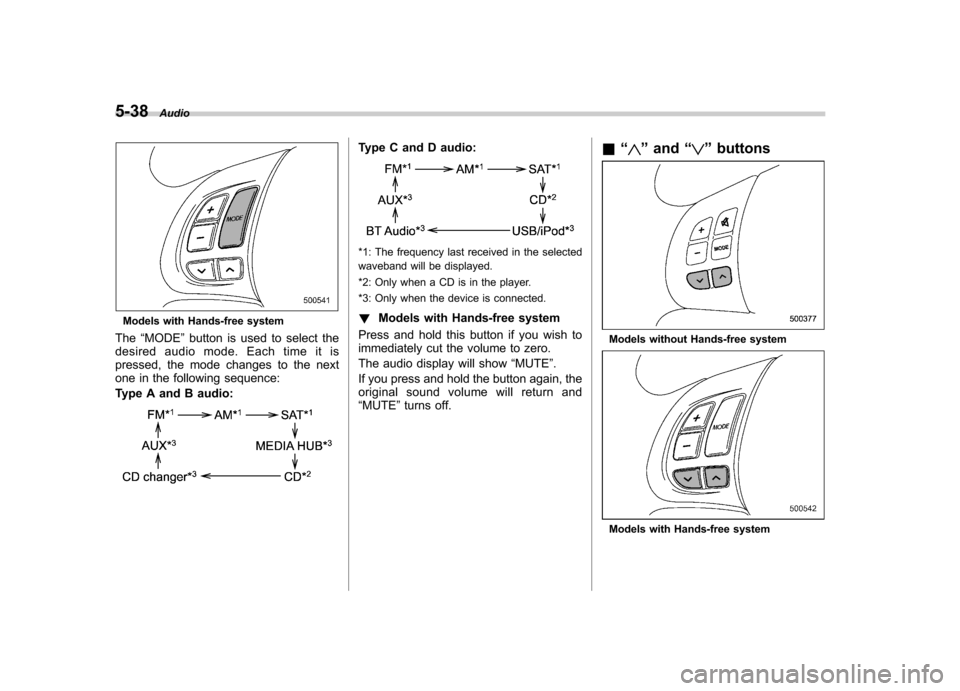
The “MODE ”button is used to select the
desiredaudiomode.Eachtimeitis
pressed, the mode changes to the next
one in the following sequence:
Type A and B audio:
Type C and D audio:
*1: The frequency last received in the selected
waveband will be displayed.
*2: Only when a CD is in the player.
*3: Only when the device is connected. ! Models with Hands-free system
Press and hold this button if you wish to
immediately cut the volume to zero.
The audio display will show “MUTE ”.
If you press and hold the button again, the
original sound volume will return and“ MUTE ”turns off. &
“
”and “”buttons
Models without Hands-free system
Models with Hands-free system
Page 214 of 438

gistering procedure was not successful
and the mode changes to theBluetooth®
audio setting mode. NOTE
After the ignition switch is turned to the “LOCK ”position, the registered device
is not automatically connected to the
system even if the ignition switch is
turned to the “Acc ”or “ON ”position.
! Selecting device
1. Select the “SELECT AUDIO ”(type C
audio)/ “Select Audio Player ”(type D
audio) menu. If no devices are registered,“ EMPTY ”is displayed and the mode
changes to the Bluetooth
®audio setting
mode.
2. Select the “CONFIRM ”menu. If the
device is connected, “SELECTED ”is
displayed and the selecting procedure is
finished. If the device cannot be con-nected, “FAILED ”is displayed and the
selecting procedure was not successful. ! Setting passkey
1. Select the “SET PASSKEY ”menu.
After the currently set passkey is dis-
played, a new passkey can be entered.
2. Input the new passkey by operating the “TUNE/TRACK/CH ”dial. 3. Select the
“CONFIRM ”menu. The new
passkey is displayed, the passkey is
changed and the mode changes to theBluetooth
®audio setting mode.
! Deleting device
1. Select the “DELETE AUDIO ”(type C
audio)/ “Delete Audio Player ”(type D
audio) menu. If no devices are registered,“ EMPTY ”is displayed and the mode
changes to the Bluetooth
®audio setting
mode.
2. Select the “CONFIRM ”menu. “DE-
LETED ”is displayed and the mode
changes to the Bluetooth
®audio setting
mode. & Bluetooth
®audio operation
NOTE
Depending on the connected device, it
may not activate as per the following
items or not work smoothly. ! How to play back
Press the
button and select the “BT-
A ” (type C audio)/ “BT Audio ”(type D
audio) mode. ! To select a track from its beginning
Select a track in the same way as for a
CD. Refer to “To select a track from the
beginning ”F 5-24. !
Repeating
Repeating is operated in the same way as
for a CD. Refer to “Repeating ”F 5-25.
Each time you briefly press the
button (type C audio)/button (the
“ RPT ”button) (type D audio), the mode
changes in the following sequence.
! Random playback
Random playback is operated in the same
way as for a CD. Refer to “Random
playback ”F 5-26. Each time you press
and hold the
button (type C audio)/
press thebutton (the “RDM ”button)
briefly (type D audio), the mode changes
in the following sequence.
! Display selection (type C audio)
Select an item to be displayed using the
same way as for a CD. Refer to “Display
selection (type A, B and C audio) ”F 5-27.
Each time you briefly press the
Audio 5-41
– CONTINUED –
Page 216 of 438
that is used, the screen on the cell
phone may remain illuminated while
the ignition switch is in the“ON ”
position. If this occurs, turn the illumi-
nation off by adjusting the cell phonesettings. . Depending on the setting of the cell
phone, the dial lock function may be
activated after making a call. Deacti-
vate the automatic dial lock function of
the cell phone before using the Hands-
free system. . Depending on the type of cell phone
that is used, operation and the sound
volume may be different from those of
cell phones currently used. . When the ignition switch is turned to
the “LOCK ”position during a call, the
call may be disconnected or continued
on the cell phone depending on the
type of cell phone that is used. Note
that operation of the cell phone may be
necessary if the call is continued on the
cell phone. . Do not speak at the same time as the
other party during a call. If you and the
party speak at the same time, it may be
difficult for the other party to hear your
voice and vice versa. This is normal. . The receiver sound volume should
be set as low as possible. Otherwise,
the party you are calling may notice an undesirable echo sound. .
Speak clearly and loudly.
. Your voice may be difficult to be
heard by the party under the following conditions.
–Driving on a rough road.
– Driving at a high speed.
– Driving with a window open.
– When air from the ventilator
blows directly towards the micro-phone. – When the sound coming from the
ventilator is loud.– When the cell phone is too close
to the microphone.
. The sound quality may degrade due
to the influence of the cell phone that is
connected to the system or the circum-
stances of the Bluetooth network. . When another Bluetooth
®device is
simultaneously connected, noise may
be heard in the voice coming from the
hands-free phone. ! Corresponding profiles for the cell phone
. HFP (Hands Free Profile): Ver. 1.0
. OPP (Object Push Profile): Ver. 1.1 &
Certification for the Hands-
free system
CAUTION
FCC WARNING
Changes or modifications not ex-
pressly approved by the party re-
sponsible for compliance could void
the user ’s authority to operate the
equipment.
NOTE
This device complies with Part 15 of
the FCC Rules and RSS-Gen of IC
Rules. Operation is subject to the
following two conditions: (1) this de-
vice may not cause harmful interfer-
ence, and (2) this device must accept
any interference received, including
interference that may cause undesiredoperation. NOTE
This equipment has been tested and
found to comply with the limits for a
Class B digital device, pursuant to Part
15 of the FCC Rules. These limits are
designed to provide reasonable protec-
tion against harmful interference in a
residential installation. This equipment Audio
5-43
– CONTINUED –
Page 231 of 438

6-2Interior equipment
Interior lights
When leaving your vehicle, make sure the
lights are turned off to avoid batterydischarge. &Dome light
Type A
Type B
1) ON
2) DOOR
3) OFF
The dome light switch has the following
three positions. ON: The light remains on continuously.
OFF: The light remains off.
DOOR: The dome light illuminates auto-
matically in the following cases. . Any of the doors or the rear gate is
opened.. The doors or the rear gate are un-
locked using the remote keyless entry
transmitter. . The ignition switch is turned from the
“ Acc ”position to the “LOCK ”position. The automatically illuminated dome light
remains on for several seconds and then
gradually turns off after all doors and the
rear gate are closed.
While the light is illuminated, if any of the
following operations are performed, the
dome light turns off immediately. .
The ignition switch is turned from the
“ LOCK ”position to the “Acc ”or “ON ”
position.. All doors and the rear gate are locked
using the remote keyless entry transmitter.
The setting of the period for which the light
remains on (OFF delay timer) can be
changed by a SUBARU dealer. Contact
your SUBARU dealer for details.
Page 233 of 438
6-4Interior equipment
illuminate when only the rear gate is opened.) .The doors are unlocked using the
remote keyless entry transmitter.. The ignition switch is turned from the
“ Acc ”position to the “LOCK ”position.
The automatically illuminated map lights
remain on for several seconds and then
gradually turn off after all doors are
closed. While the lights are on, if any of
the following operations are performed,
the map lights turn off immediately. . The ignition switch is turned from the
“ LOCK ”position to the “Acc ”or “ON ”
position.. All doors and the rear gate are locked
using the remote keyless entry transmitter.
The setting of the period for which the
lights remain on (OFF delay timer) can be
changed by a SUBARU dealer. Contact
your SUBARU dealer for details. Sun visors
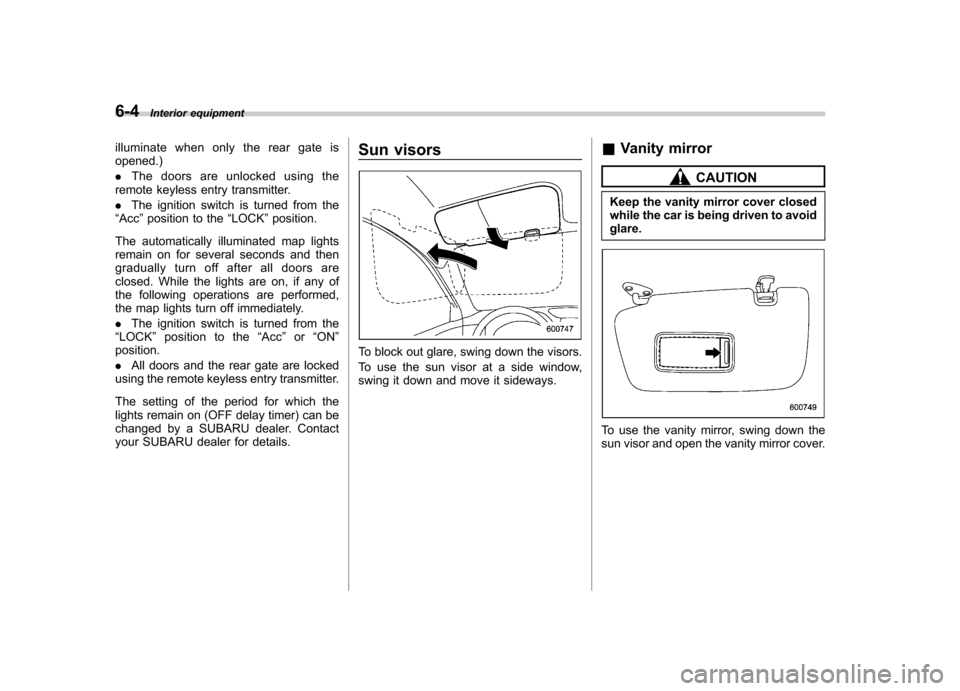
To block out glare, swing down the visors.
To use the sun visor at a side window,
swing it down and move it sideways.
&
Vanity mirror
CAUTION
Keep the vanity mirror cover closed
while the car is being driven to avoidglare.
To use the vanity mirror, swing down the
sun visor and open the vanity mirror cover.
Page 263 of 438
7-12Starting and operating
Pressing the brake pedal repeatedly will
toggle the feature ON or OFF each time.
7. To exit the remote transmitter and
feature programming mode, turn the igni-
tion switch to the “LOCK ”position, remove
the key from the ignition switch and test
operation of the remote transmitter(s) and
horn confirmation feature. & System maintenance
! Changing the remote control bat- teries
CAUTION
. Do not let dust, oil or water get on
or in the remote engine start
transmitter when replacing the
battery.
. Be careful not to damage the
printed circuit board in the re-
mote engine start transmitter
when replacing the battery.
. Be careful not to allow children to
touch the battery and any re-
moved parts; children could
swallow them.
. There is a danger of explosion if
an incorrect replacement battery
is used. Replace only with the
same or equivalent type of bat- tery.
. Batteries should not be exposed
to excessive heat such as sun-
shine, fire or the like.
The two 3-volt lithium batteries (modelCR-1220 ) supplied in your remote control
should last approximately 3 years, de-
pending on usage. When the batteries
begin to weaken, you will notice a
decrease in range (distance from the
vehicle that your remote control operates).
Follow the instructions below to change
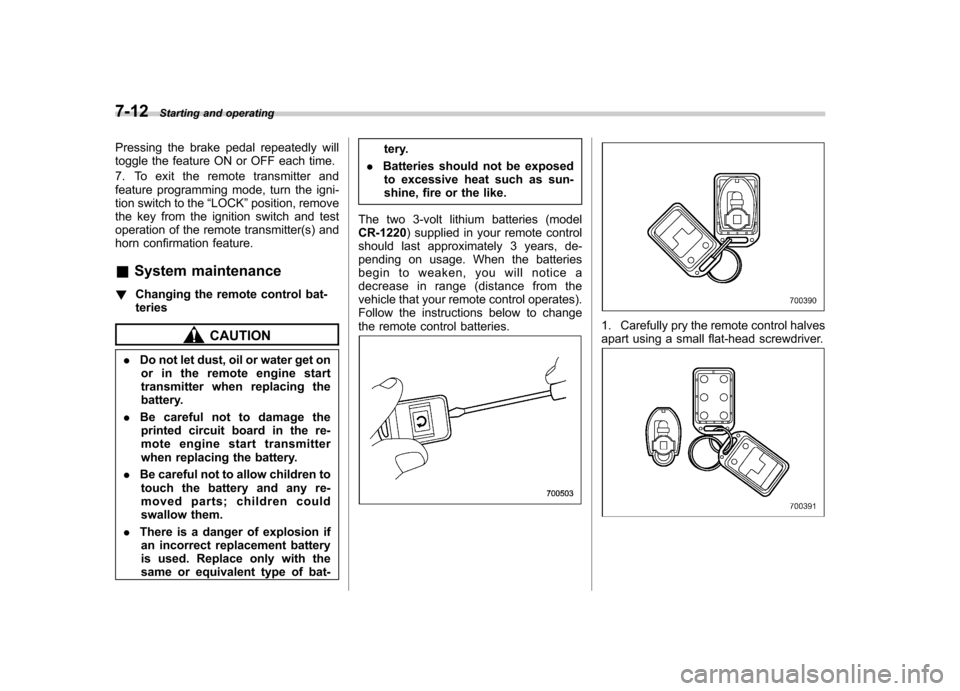
the remote control batteries.1. Carefully pry the remote control halves
apart using a small flat-head screwdriver.
Page 285 of 438
7-34Starting and operating
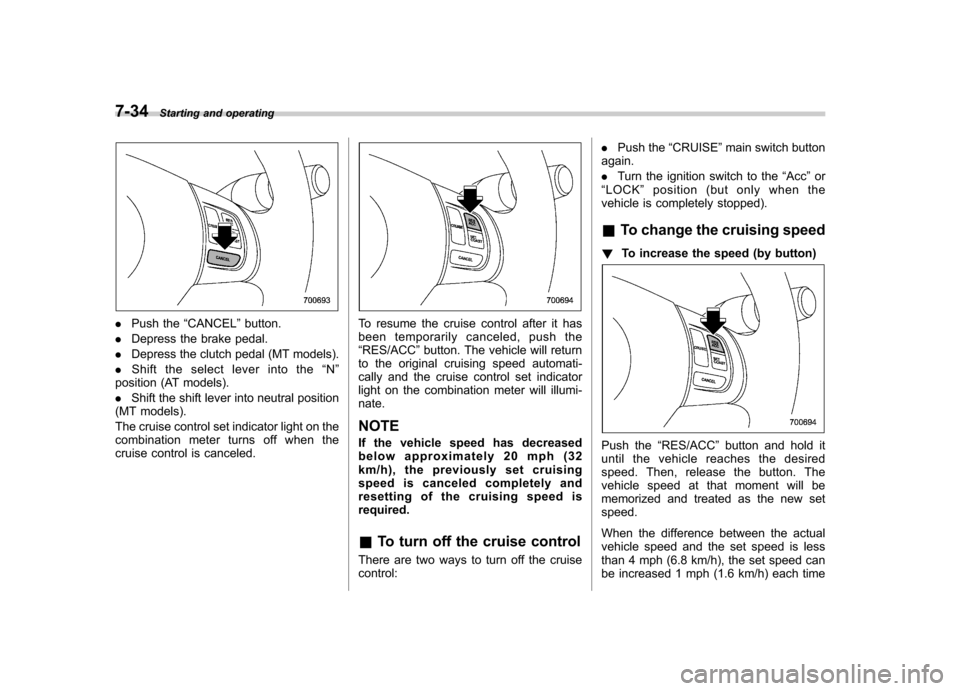
.Push the “CANCEL ”button.
. Depress the brake pedal.
. Depress the clutch pedal (MT models).
. Shift the select lever into the “N ”
position (AT models). . Shift the shift lever into neutral position
(MT models).
The cruise control set indicator light on the
combination meter turns off when the
cruise control is canceled.To resume the cruise control after it has
been temporarily canceled, push the“ RES/ACC ”button. The vehicle will return
to the original cruising speed automati-
cally and the cruise control set indicator
light on the combination meter will illumi-nate. NOTE
If the vehicle speed has decreased
below approximately 20 mph (32
km/h), the previously set cruising
speed is canceled completely and
resetting of the cruising speed isrequired. & To turn off the cruise control
There are two ways to turn off the cruise control: .
Push the “CRUISE ”main switch button
again. . Turn the ignition switch to the “Acc ”or
“ LOCK ”position (but only when the
vehicle is completely stopped). & To change the cruising speed
! To increase the speed (by button)
Push the “RES/ACC ”button and hold it
until the vehicle reaches the desired
speed. Then, release the button. The
vehicle speed at that moment will be
memorized and treated as the new setspeed.
When the difference between the actual
vehicle speed and the set speed is less
than 4 mph (6.8 km/h), the set speed can
be increased 1 mph (1.6 km/h) each time