ac control SUBARU FORESTER 2017 SJ / 4.G Owners Manual
[x] Cancel search | Manufacturer: SUBARU, Model Year: 2017, Model line: FORESTER, Model: SUBARU FORESTER 2017 SJ / 4.GPages: 634, PDF Size: 11.77 MB
Page 310 of 634
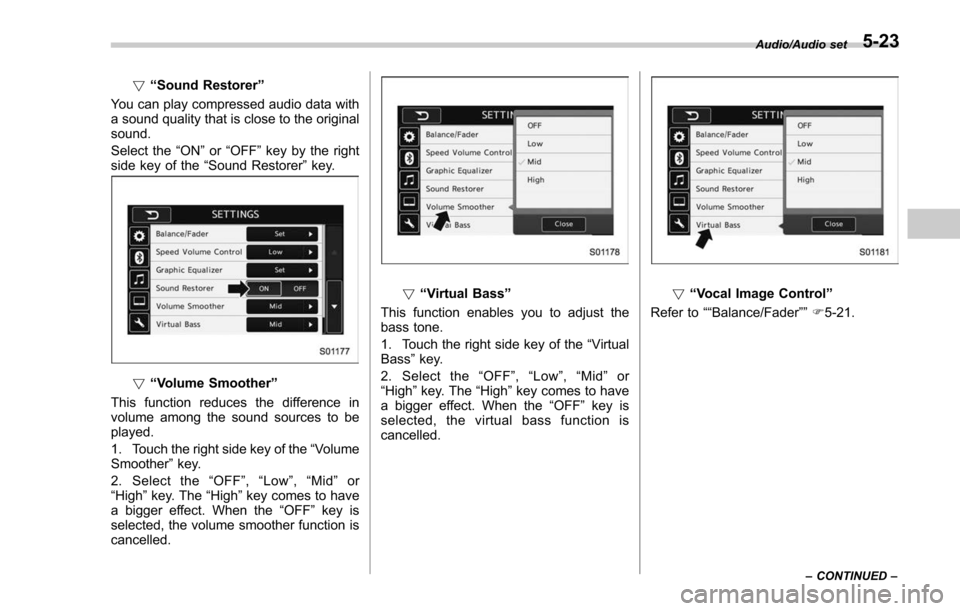
!“Sound Restorer ”
You can play compressed audio data with
a sound quality that is close to the original
sound.
Select the “ON”or “OFF ”key by the right
side key of the “Sound Restorer ”key.
! “Volume Smoother”
This function reduces the difference in
volume among the sound sources to be
played.
1. Touch the right side key of the “Volume
Smoother ”key.
2. Select the “OFF ”, “Low ”, “Mid ”or
“High ”key. The “High”key comes to have
a bigger effect. When the “OFF ”key is
selected, the volume smoother function is
cancelled.
! “Virtual Bass ”
This function enables you to adjust the
bass tone.
1. Touch the right side key of the “Virtual
Bass ”key.
2. Select the “OFF ”, “Low ”, “Mid ”or
“High ”key. The “High”key comes to have
a bigger effect. When the “OFF ”key is
selected, the virtual bass function is
cancelled.! “Vocal Image Control ”
Refer to ““Balance/Fader ””F5-21.
Audio/Audio set
–CONTINUED –5-23
Page 314 of 634
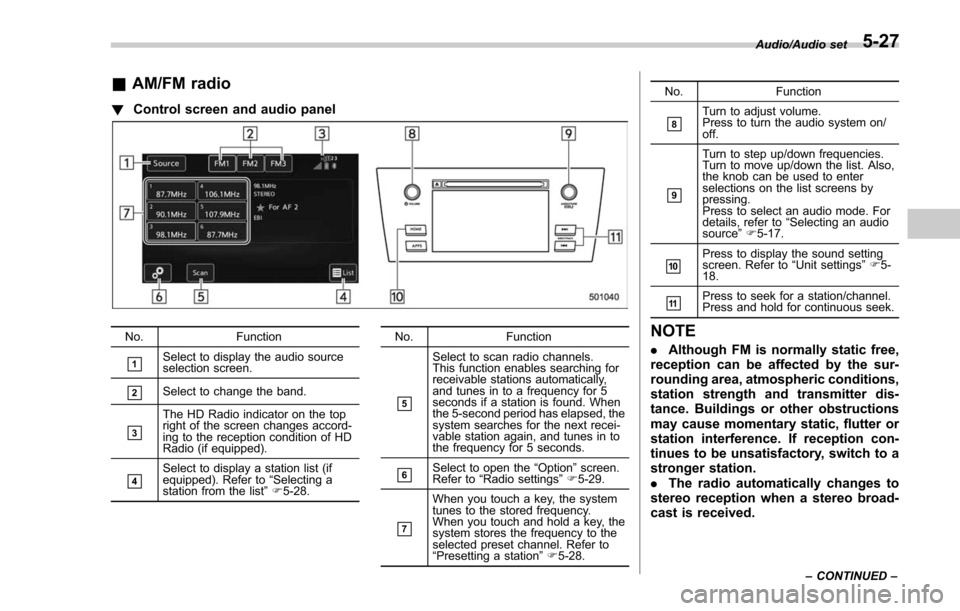
&AM/FM radio
! Control screen and audio panel
No. Function
&1Select to display the audio source
selection screen.
&2Select to change the band.
&3
The HD Radio indicator on the top
right of the screen changes accord-
ing to the reception condition of HD
Radio (if equipped).
&4Select to display a station list (if
equipped). Refer to“Selecting a
station from the list ”F 5-28. No. Function
&5
Select to scan radio channels.
This function enables searching for
receivable stations automatically,
and tunes in to a frequency for 5
seconds if a station is found. When
the 5-second period has elapsed, the
system searches for the next recei-
vable station again, and tunes in to
the frequency for 5 seconds.
&6Select to open the
“Option ”screen.
Refer to “Radio settings ”F 5-29.
&7
When you touch a key, the system
tunes to the stored frequency.
When you touch and hold a key, the
system stores the frequency to the
selected preset channel. Refer to
“Presetting a station ”F 5-28. No. Function
&8Turn to adjust volume.
Press to turn the audio system on/
off.
&9
Turn to step up/down frequencies.
Turn to move up/down the list. Also,
the knob can be used to enter
selections on the list screens by
pressing.
Press to select an audio mode. For
details, refer to
“Selecting an audio
source ”F 5-17.
&10Press to display the sound setting
screen. Refer to “Unit settings ”F 5-
18.
&11Press to seek for a station/channel.
Press and hold for continuous seek.
NOTE
. Although FM is normally static free,
reception can be affected by the sur-
rounding area, atmospheric conditions,
station strength and transmitter dis-
tance. Buildings or other obstructions
may cause momentary static, flutter or
station interference. If reception con-
tinues to be unsatisfactory, switch to a
stronger station.
. The radio automatically changes to
stereo reception when a stereo broad-
cast is received.
Audio/Audio set
–CONTINUED –5-27
Page 317 of 634
Audio/Audio set
AM and FM broadcast sound quality is
now crystal clear, with AM sound quality
that virtually matches FM quality of the
past, and FM broadcasts that have near
CD-level sound quality.
HD Radio Technology manufactured un-
der license from iBiquity Digital Corpora-
tion. Foreign Patents. HD Radio
TMand the
HD, HD Radio, and “Arc ”logos are
proprietary trademarks of iBiquity Digital
Corp.
FM stations can provide additional digital-
only audio programming on HD2/HD3
Channels.
! Available HD Radio
TMtechnology (if
equipped)
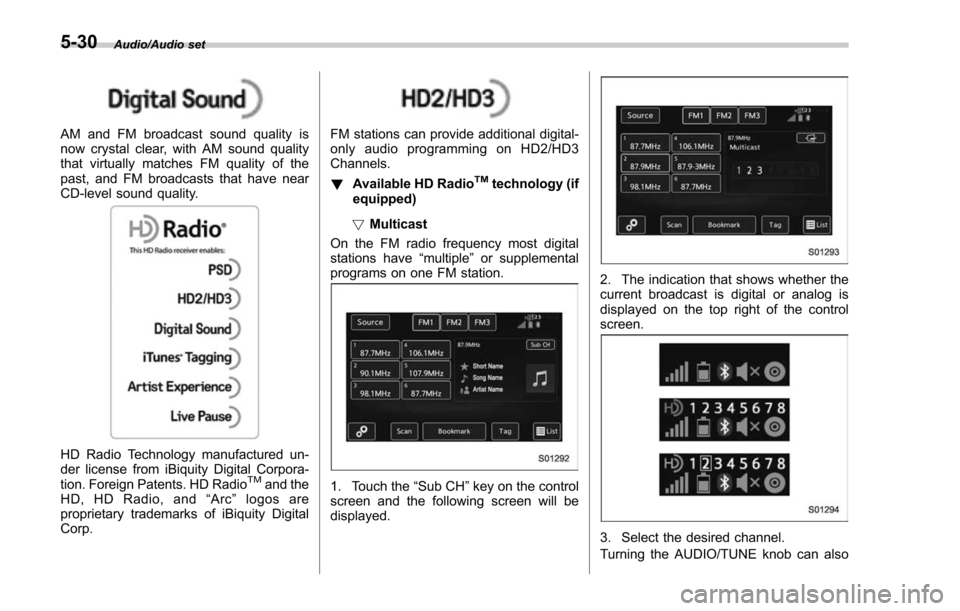
! Multicast
On the FM radio frequency most digital
stations have “multiple”or supplemental
programs on one FM station.
1. Touch the “Sub CH”key on the control
screen and the following screen will be
displayed.
2. The indication that shows whether the
current broadcast is digital or analog is
displayed on the top right of the control
screen.
3. Select the desired channel.
Turning the AUDIO/TUNE knob can also
5-30
Page 318 of 634
select the desired multicast channel.
NOTE
.HD RadioTMstations can be preset.
. An orangewill be displayed on
the screen when in digital. Thewill
first appear in a gray color indicating
the station is indeed (an analog and) a
digital station. Once the digital signal is
acquired, the logo will change to a
bright orange color.
. The song title and artist name will
appear on the screen when available by
the radio station. The radio station can
send album pictures when available.
. As a user works through the analog
radio stations, (where applicable) the
radio receiver will automatically tune
from an analog signal to a digital signal
within 5 seconds.
!Preserving a music information
Tag information in the music broadcasting
is preserved in the system and transmits
to an iPod.
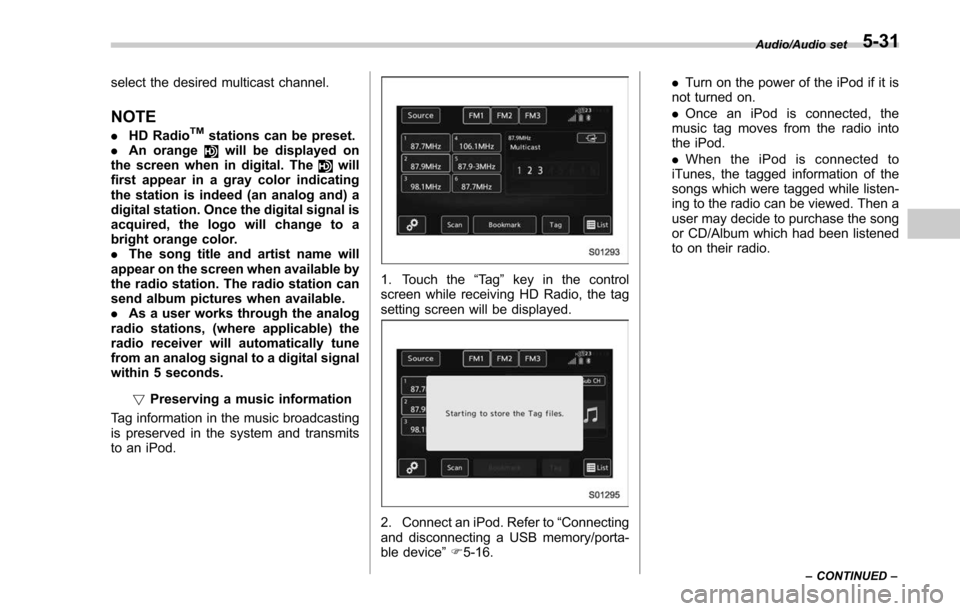
1. Touch the “Ta g”key in the control
screen while receiving HD Radio, the tag
setting screen will be displayed.
2. Connect an iPod. Refer to “Connecting
and disconnecting a USB memory/porta-
ble device ”F 5-16. .
Turn on the power of the iPod if it is
not turned on.
. Once an iPod is connected, the
music tag moves from the radio into
the iPod.
. When the iPod is connected to
iTunes, the tagged information of the
songs which were tagged while listen-
ing to the radio can be viewed. Then a
user may decide to purchase the song
or CD/Album which had been listened
to on their radio.
Audio/Audio set
–CONTINUED –5-31
Page 323 of 634
Audio/Audio set
&SiriusXM Satellite Radio (if
equipped)
! SiriusXM Data Service
Data service information, which is com-
prised of traffic information and weather
information, can be received via the
SiriusXM Radio.
To receive the data service information in
the vehicle, a subscription to the SiriusXM
Satellite Radio service is necessary.
Content set to use the SiriusXM data
service is reset when personal information
is initialized. !
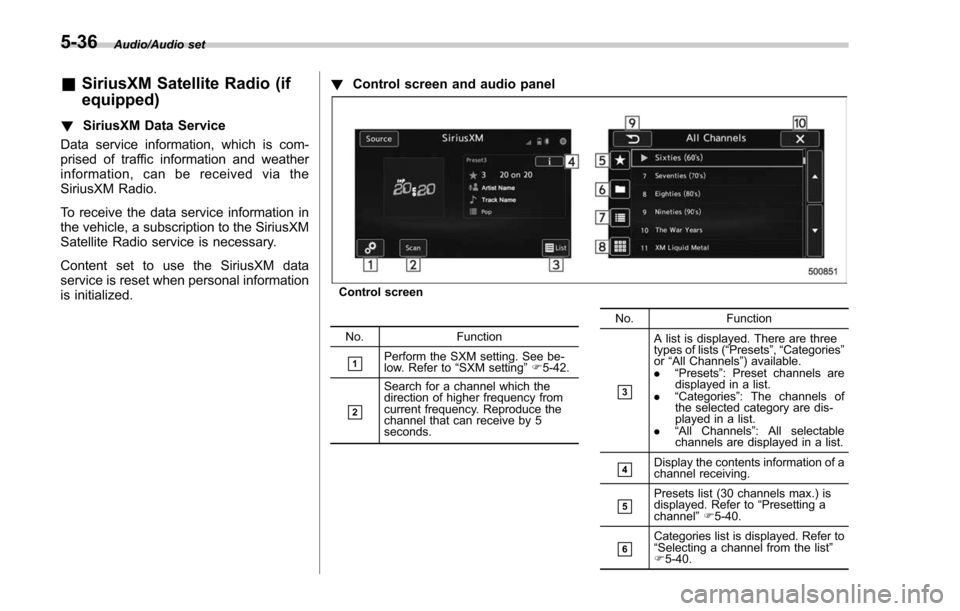
Control screen and audio panel
Control screen
No. Function
&1Perform the SXM setting. See be-
low. Refer to “SXM setting ”F 5-42.
&2
Search for a channel which the
direction of higher frequency from
current frequency. Reproduce the
channel that can receive by 5
seconds. No. Function&3
A list is displayed. There are three
types of lists (
“Presets ”, “Categories ”
or “All Channels ”) available.
. “Presets ”: Preset channels are
displayed in a list.
. “Categories ”: The channels of
the selected category are dis-
played in a list.
. “All Channels ”: All selectable
channels are displayed in a list.
&4Display the contents information of a
channel receiving.
&5Presets list (30 channels max.) is
displayed. Refer to “Presetting a
channel ”F 5-40.
&6Categories list is displayed. Refer to
“Selecting a channel from the list ”
F 5-40.
5-36
Page 328 of 634
In addition, the following messages appear.
Display MessageContents
“ Subscription Update ”
“ Press OK to Continue ” An update to your SiriusXM subscription has
been received by the SiriusXM tuner. Touch
any key to continue.
“ Channel XXX Not Available ”
( “ XXX ”refers to the selected channel number.) This channel is not a valid SiriusXM channel.
The channel number has been entered incor-
rectly, or the channel was removed from the
SiriusXM channel lineup.
“ Channel XXX Not Subscribed Call. ”
“ Call SiriusXM to Subscribed. ”
( “ XXX ”refers to the selected channel number.) This channel is not included in your SiriusXM
subscription plan.
“ Ch Locked ”
“ Lock Code? ” The selected channel has been locked by the
parental controls.
A prompt to enter the unlock code will appear.
“ Check Antenna ” Ensure the SiriusXM antenna cable is con-
nected to the SiriusXM tuner correctly.
Check the SiriusXM antenna wire for breaks or
sharp bends.
Replace the antenna if necessary.
“ No Signal ” The vehicle must be outside, and the antenna
must have a clear view of the southern sky.
NOTEContact SiriusXM
.
Listener Care Center (U.S. customers):
1-866-635-2349
. Listener Care Centre (Canadian customers):
1-877-209-0079 !
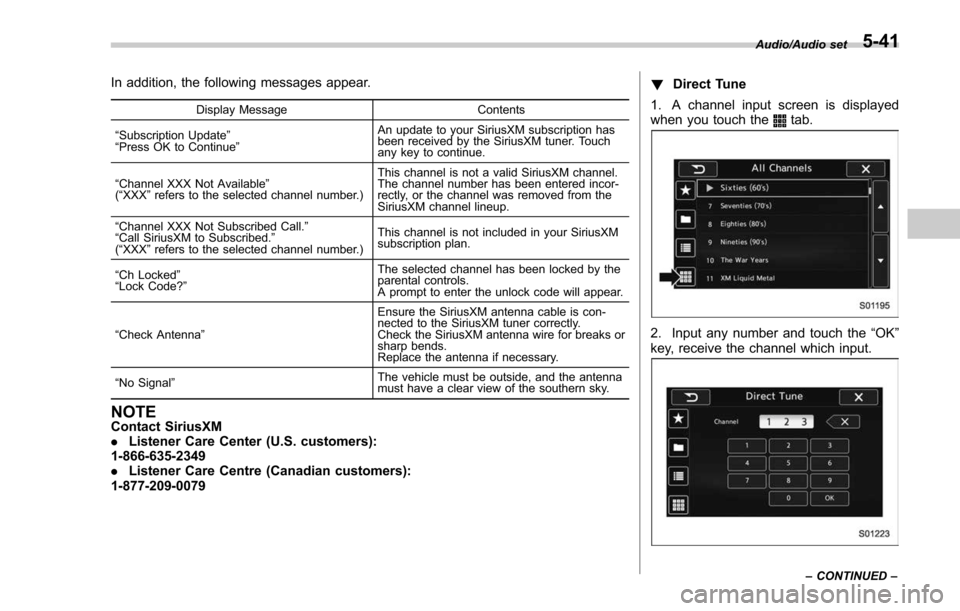
Direct Tune
1. A channel input screen is displayed
when you touch the
tab.
2. Input any number and touch the “OK”
key, receive the channel which input.
Audio/Audio set
–CONTINUED –5-41
Page 330 of 634
&ahaTMby HARMAN
aha is a cloud-based application that
connects to the system and gives you
access to your favorite web content safely
and easily. There are over 30,000 stations
spanning internet radio, personalized mu-
sic, audiobooks, Facebook, Twitter, res-
taurant and hotel searches, weather and
more. For more about aha, go to the aha
site (http://www.aharadio.com).
When connecting iPhone and iPod touch
or Android devices with the aha applica-
tion installed, you can control, view, and
hear aha content through the system.
In order to connect to this system, use a
USB port for an iPhone or iPod touch and
Bluetooth for Android devices. In this chapter, iPhone and iPod touch or
Android devices will be referred to as a
smartphone.
WARNING
Do not connect or operate the
smartphone while driving. Doing so
may result in loss of control of your
vehicle and cause an accident or
serious injury.
CAUTION
.
Do not leave your smartphone in
the car. In particular, high tem-
peratures inside the vehicle may
damage the smartphone.
. Do not push down on or apply
unnecessary pressure to the
smartphone while it is connected
as this may damage the smart-
phone or its terminal.
. Do not insert foreign objects into
the port as this may damage the
smartphone or its terminal.
Audio/Audio set
–CONTINUED –5-43
Page 331 of 634
Audio/Audio set
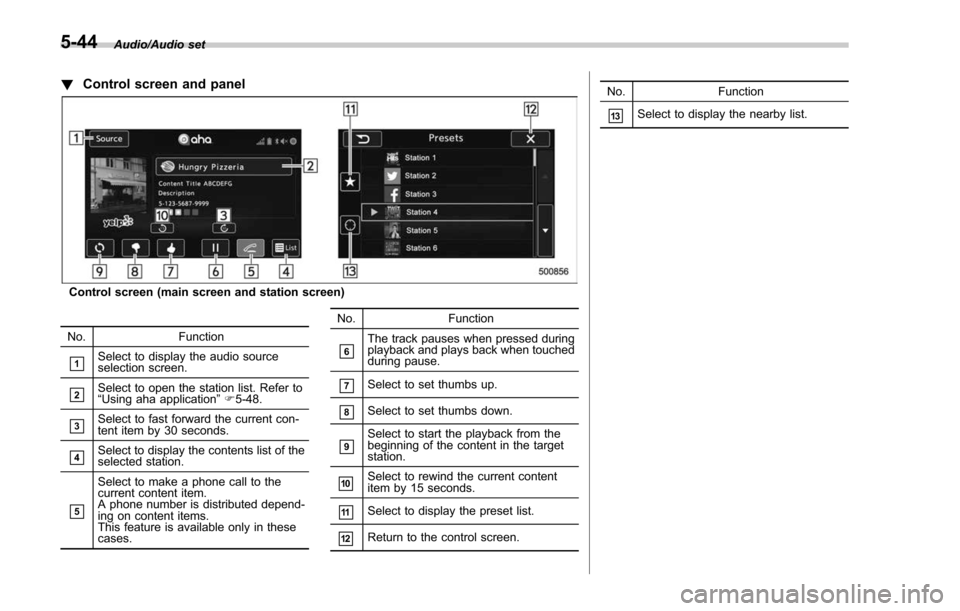
!Control screen and panel
Control screen (main screen and station screen)
No. Function
&1Select to display the audio source
selection screen.
&2Select to open the station list. Refer to
“ Using aha application ”F 5-48.
&3Select to fast forward the current con-
tent item by 30 seconds.
&4Select to display the contents list of the
selected station.
&5
Select to make a phone call to the
current content item.
A phone number is distributed depend-
ing on content items.
This feature is available only in these
cases. No. Function
&6The track pauses when pressed during
playback and plays back when touched
during pause.
&7Select to set thumbs up.
&8Select to set thumbs down.
&9Select to start the playback from the
beginning of the content in the target
station.
&10Select to rewind the current content
item by 15 seconds.
&11Select to display the preset list.
&12Return to the control screen. No. Function
&13Select to display the nearby list.
5-44
Page 336 of 634
&Pandora®(if equipped)
Pandora is an application for a smart-
phone. This can automatically select and
play recommended tracks.
By rating the track currently playing, tracks
that better match your preference will be
recommended.
In order to connect to this system, use a
USB port for an iPhone or iPod touch and
Bluetooth for Android devices.
Depending on differences between mod-
els or software version etc., some models
might be incompatible with this system.
This function is not available if the
Pandora application has not been in-
stalled on the smartphone.
WARNING
Do not operate the player ’s controls
or connect the smartphone while
driving. Doing so may result in loss
of control of your vehicle and cause
an accident or serious injury.
CAUTION
. Do not leave your smartphone in
the car. In particular, high tem-
peratures inside the vehicle may
damage the smartphone.
. Do not push down on or apply
unnecessary pressure to the
smartphone while it is connected
as this may damage the smart-
phone or its terminal.
. Do not insert foreign objects into
the port as this may damage the
smartphone or its terminal.
NOTE
Follow the specific operation proce-
dures for the smartphone application.
Audio/Audio set
–CONTINUED –5-49
Page 337 of 634
Audio/Audio set
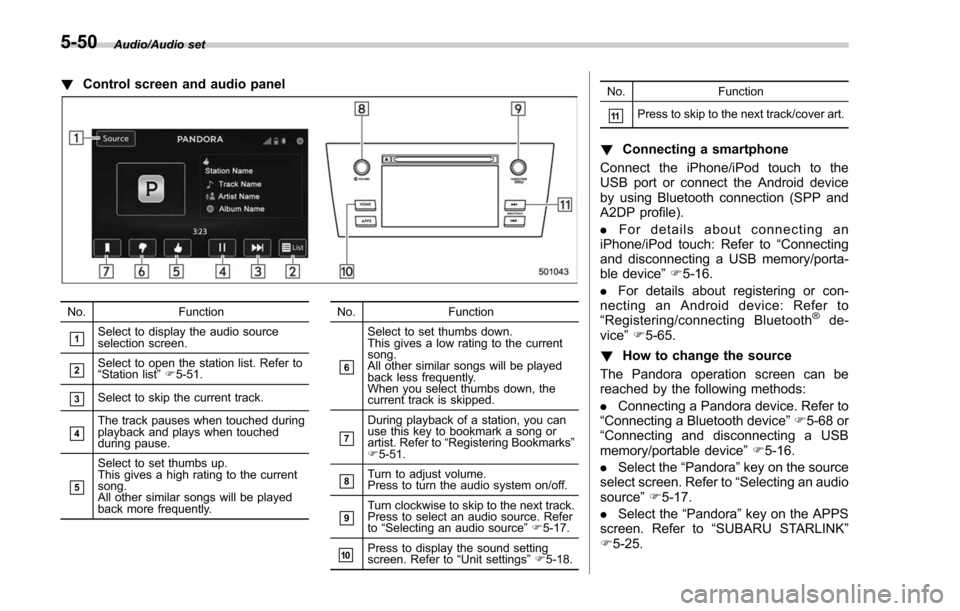
!Control screen and audio panel
No. Function
&1Select to display the audio source
selection screen.
&2Select to open the station list. Refer to
“Station list ”F 5-51.
&3Select to skip the current track.
&4The track pauses when touched during
playback and plays when touched
during pause.
&5
Select to set thumbs up.
This gives a high rating to the current
song.
All other similar songs will be played
back more frequently. No. Function
&6
Select to set thumbs down.
This gives a low rating to the current
song.
All other similar songs will be played
back less frequently.
When you select thumbs down, the
current track is skipped.
&7
During playback of a station, you can
use this key to bookmark a song or
artist. Refer to
“Registering Bookmarks ”
F 5-51.
&8Turn to adjust volume.
Press to turn the audio system on/off.
&9Turn clockwise to skip to the next track.
Press to select an audio source. Refer
to “Selecting an audio source ”F 5-17.
&10Press to display the sound setting
screen. Refer to “Unit settings ”F 5-18. No. Function
&11Press to skip to the next track/cover art.
!
Connecting a smartphone
Connect the iPhone/iPod touch to the
USB port or connect the Android device
by using Bluetooth connection (SPP and
A2DP profile).
. For details about connecting an
iPhone/iPod touch: Refer to “Connecting
and disconnecting a USB memory/porta-
ble device ”F 5-16.
. For details about registering or con-
necting an Android device: Refer to
“ Registering/connecting Bluetooth
®de-
vice” F5-65.
! How to change the source
The Pandora operation screen can be
reached by the following methods:
. Connecting a Pandora device. Refer to
“ Connecting a Bluetooth device ”F 5-68 or
“ Connecting and disconnecting a USB
memory/portable device ”F 5-16.
. Select the “Pandora”key on the source
select screen. Refer to “Selecting an audio
source” F5-17.
. Select the “Pandora”key on the APPS
screen. Refer to “SUBARU STARLINK ”
F 5-25.
5-50