Led SUBARU FORESTER 2017 SJ / 4.G Manual PDF
[x] Cancel search | Manufacturer: SUBARU, Model Year: 2017, Model line: FORESTER, Model: SUBARU FORESTER 2017 SJ / 4.GPages: 634, PDF Size: 11.77 MB
Page 333 of 634
Audio/Audio set
–Outside wireless communication
range, such as some countryside
areas
– Where the wireless communica-
tion network is congested, or where
communications are restricted
. Depending on the circumstances
and environment, the signal may be
weak or not be received. In such cases,
an error may occur.
. Top 35 entries in the preset station
list on the smartphone are displayed.
When there are more than 35 entries in
the preset station list, change the order
of the entries in the list on the smart-
phone. You can change the priority of
your preset stations within the aha
application (after disconnected from
this system) to modify the station list
shown on the screen. Please see your
smartphone aha application “Edit Pre-
sets (in Main menu) ”to modify this list.
. For operating the smartphone, see
the instruction manual that comes with
it.
. If there are multiple music files
stored on your iPhone or iPod touch,
it may take some time until playback
starts.
. Playback may be intermittent when
you switch to streaming Bluetooth
audio from aha on your smartphone device.
.
When connecting the device via
Bluetooth, the communication speed
may become slower than via USB.
! Before using aha application
In order to use the aha application on this
system, the application must be installed
on the smartphone.
! Settings required to use aha
application
. Search and download the aha applica-
tion from your smartphone app store.
–iPhone and iPod touch: Apple App
Store via iTunes
– Android device: Google Play Store
. Create an account and login to the aha
application on the smartphone.
NOTE
Please use the latest version of the aha
application.
!About app-based connected con-
tent
Requirements for using the connected
content services of the aha application
on this system.
. Latest version of the system is compa-
tible with connected content application(s)
for the smartphone, available from aha, downloaded to your smartphone.
.
A current account with a wireless
content service provider.
. A smartphone data plan: If the data
plan for your smartphone does not provide
for unlimited data usage, additional
charges from your carrier may apply for
accessing app-based connected content
via 3G, 4G, Wi-Fi or 4G LTE wireless
networks.
. Connection to the internet via 3G, 4G,
Wi-Fi or 4G LTE networks.
NOTE
. Changes to product specifications
may result in differences between the
content of the manual and features of
the product.
. Be careful not to exceed the data
usage limits for your smartphone.
Doing so will result in additional data
usage charges from your phone car-
rier.
. Access to app-based connected
content will depend on the availability
of wireless cell and/or Wi-Fi network
coverage for the purpose of allowing
your smartphone to connect to the
internet.
. Service availability may be geogra-
phically limited by region. Consult the
wireless connected content service
5-46
Page 336 of 634
&Pandora®(if equipped)
Pandora is an application for a smart-
phone. This can automatically select and
play recommended tracks.
By rating the track currently playing, tracks
that better match your preference will be
recommended.
In order to connect to this system, use a
USB port for an iPhone or iPod touch and
Bluetooth for Android devices.
Depending on differences between mod-
els or software version etc., some models
might be incompatible with this system.
This function is not available if the
Pandora application has not been in-
stalled on the smartphone.
WARNING
Do not operate the player ’s controls
or connect the smartphone while
driving. Doing so may result in loss
of control of your vehicle and cause
an accident or serious injury.
CAUTION
. Do not leave your smartphone in
the car. In particular, high tem-
peratures inside the vehicle may
damage the smartphone.
. Do not push down on or apply
unnecessary pressure to the
smartphone while it is connected
as this may damage the smart-
phone or its terminal.
. Do not insert foreign objects into
the port as this may damage the
smartphone or its terminal.
NOTE
Follow the specific operation proce-
dures for the smartphone application.
Audio/Audio set
–CONTINUED –5-49
Page 356 of 634
NOTE
The setting is fixed as the“OFF ”key
when no device is registered.
!Deleting a Bluetooth device
1. Display the “BT Devices Connection ”
screen. Refer to “BT Devices Connection
screen” F5-68.
2. Select the desired device.
3. Touch the
key for the device to be
deleted, and then select the “OK ”key.
NOTE
When deleting a Bluetooth phone, the
contact data will be deleted at the same
time.
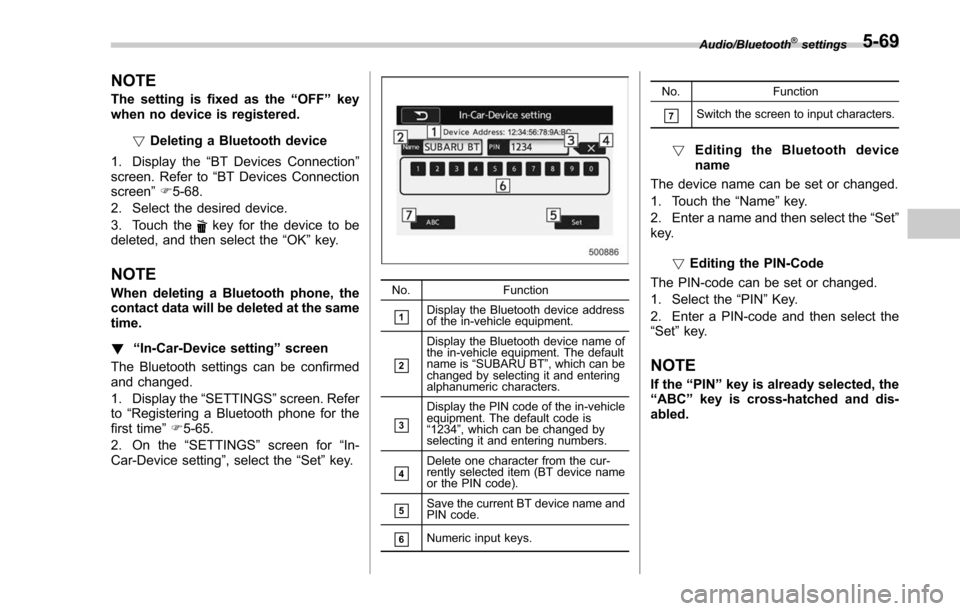
! “In-Car-Device setting ”screen
The Bluetooth settings can be confirmed
and changed.
1. Display the “SETTINGS”screen. Refer
to “Registering a Bluetooth phone for the
first time ”F 5-65.
2. On the “SETTINGS”screen for “In-
Car-Device setting ”, select the“Set”key.No. Function
&1Display the Bluetooth device address
of the in-vehicle equipment.
&2
Display the Bluetooth device name of
the in-vehicle equipment. The default
name is“SUBARU BT ”, which can be
changed by selecting it and entering
alphanumeric characters.
&3
Display the PIN code of the in-vehicle
equipment. The default code is
“ 1234 ”, which can be changed by
selecting it and entering numbers.
&4Delete one character from the cur-
rently selected item (BT device name
or the PIN code).
&5Save the current BT device name and
PIN code.
&6Numeric input keys. No. Function
&7Switch the screen to input characters.
!
Editing the Bluetooth device
name
The device name can be set or changed.
1. Touch the “Name”key.
2. Enter a name and then select the “Set”
key.
!Editing the PIN-Code
The PIN-code can be set or changed.
1. Select the “PIN”Key.
2. Enter a PIN-code and then select the
“Set ”key.
NOTE
If the “PIN ”key is already selected, the
“ ABC ”key is cross-hatched and dis-
abled.
Audio/Bluetooth®settings5-69
Page 360 of 634
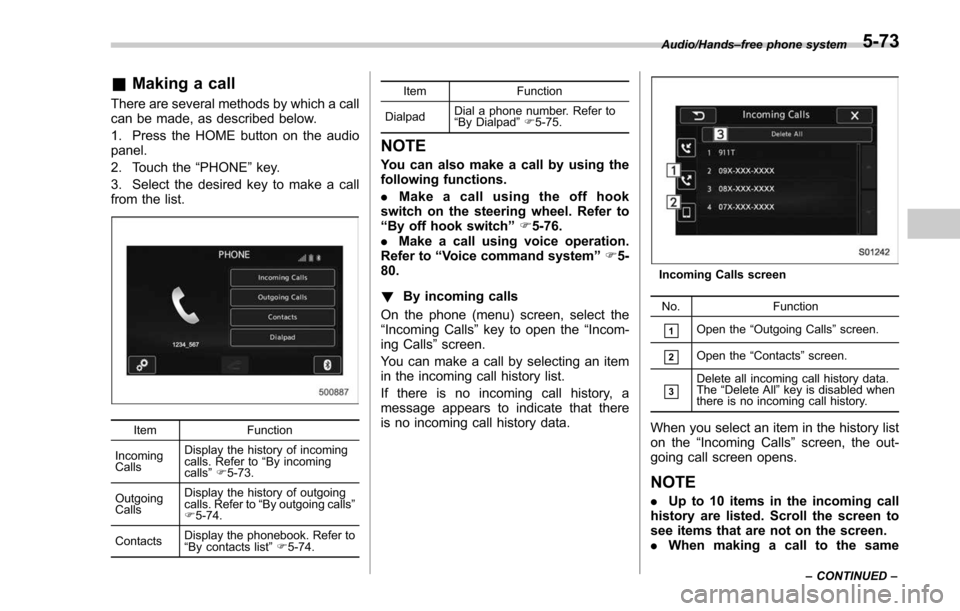
&Making a call
There are several methods by which a call
can be made, as described below.
1. Press the HOME button on the audio
panel.
2. Touch the “PHONE”key.
3. Select the desired key to make a call
from the list.
Item Function
Incoming
Calls Display the history of incoming
calls. Refer to
“By incoming
calls ”F 5-73.
Outgoing
Calls Display the history of outgoing
calls. Refer to
“By outgoing calls ”
F 5-74.
Contacts Display the phonebook. Refer to
“
By contacts list ”F 5-74. Item
Function
Dialpad Dial a phone number. Refer to
“
By Dialpad ”F 5-75.
NOTE
You can also make a call by using the
following functions.
. Make a call using the off hook
switch on the steering wheel. Refer to
“ By off hook switch ”F 5-76.
. Make a call using voice operation.
Refer to “Voice command system ”F 5-
80.
! By incoming calls
On the phone (menu) screen, select the
“Incoming Calls ”key to open the “Incom-
ing Calls ”screen.
You can make a call by selecting an item
in the incoming call history list.
If there is no incoming call history, a
message appears to indicate that there
is no incoming call history data.
Incoming Calls screen
No. Function
&1Open the“Outgoing Calls ”screen.
&2Open the “Contacts ”screen.
&3Delete all incoming call history data.
The “Delete All ”key is disabled when
there is no incoming call history.
When you select an item in the history list
on the “Incoming Calls ”screen, the out-
going call screen opens.
NOTE
. Up to 10 items in the incoming call
history are listed. Scroll the screen to
see items that are not on the screen.
. When making a call to the same
Audio/Hands –free phone system
–CONTINUED –5-73
Page 361 of 634
Audio/Hands–free phone system
number continuously, only the most
recent call is listed in call history.
. When a phone number registered in
the contact list is received, the name is
displayed.
. Number-withheld calls are also
memorized in the system.
. International phone calls may not be
made depending on the type of cell
phone you have.
. The list should group together con-
secutive entries with the same phone
number and same call type.
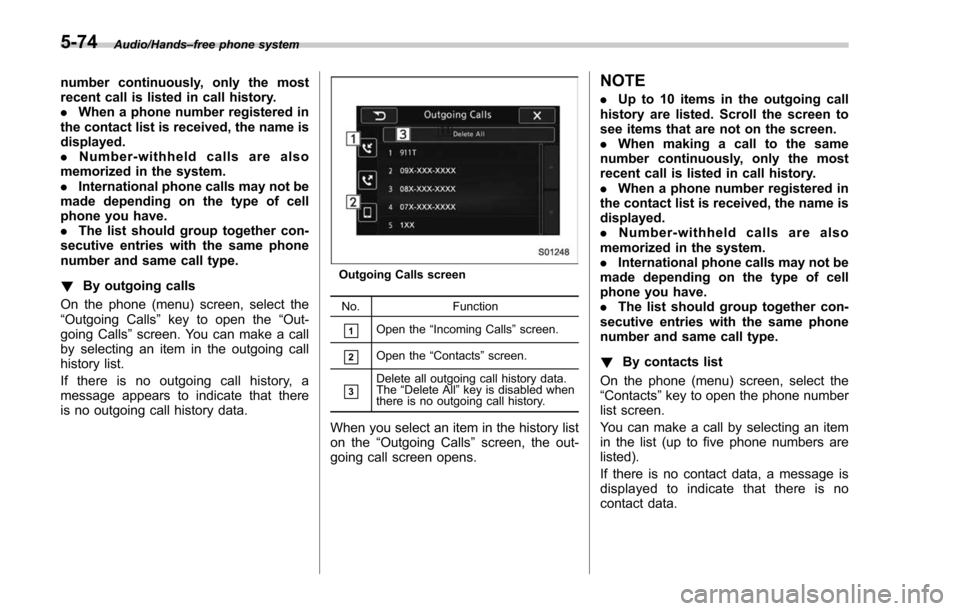
! By outgoing calls
On the phone (menu) screen, select the
“Outgoing Calls ”key to open the “Out-
going Calls ”screen. You can make a call
by selecting an item in the outgoing call
history list.
If there is no outgoing call history, a
message appears to indicate that there
is no outgoing call history data.
Outgoing Calls screen
No. Function
&1Open the“Incoming Calls ”screen.
&2Open the “Contacts ”screen.
&3Delete all outgoing call history data.
The “Delete All” key is disabled when
there is no outgoing call history.
When you select an item in the history list
on the “Outgoing Calls ”screen, the out-
going call screen opens.
NOTE
. Up to 10 items in the outgoing call
history are listed. Scroll the screen to
see items that are not on the screen.
. When making a call to the same
number continuously, only the most
recent call is listed in call history.
. When a phone number registered in
the contact list is received, the name is
displayed.
. Number-withheld calls are also
memorized in the system.
. International phone calls may not be
made depending on the type of cell
phone you have.
. The list should group together con-
secutive entries with the same phone
number and same call type.
! By contacts list
On the phone (menu) screen, select the
“Contacts ”key to open the phone number
list screen.
You can make a call by selecting an item
in the list (up to five phone numbers are
listed).
If there is no contact data, a message is
displayed to indicate that there is no
contact data.
5-74
Page 362 of 634
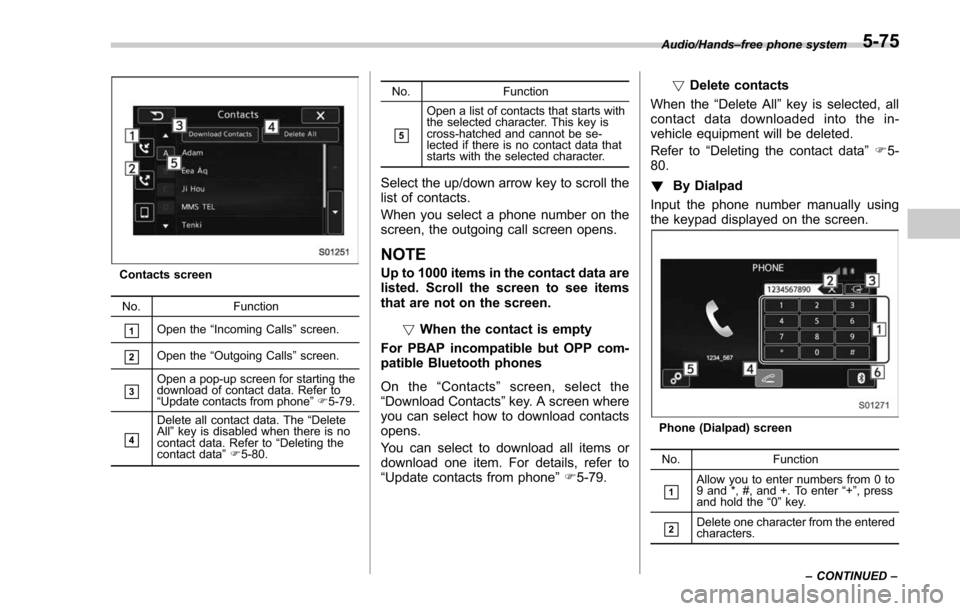
Contacts screenNo. Function
&1Open the“Incoming Calls ”screen.
&2Open the “Outgoing Calls ”screen.
&3Open a pop-up screen for starting the
download of contact data. Refer to
“Update contacts from phone ”F 5-79.
&4
Delete all contact data. The “Delete
All ”key is disabled when there is no
contact data. Refer to “Deleting the
contact data ”F 5-80. No. Function
&5
Open a list of contacts that starts with
the selected character. This key is
cross-hatched and cannot be se-
lected if there is no contact data that
starts with the selected character.
Select the up/down arrow key to scroll the
list of contacts.
When you select a phone number on the
screen, the outgoing call screen opens.
NOTE
Up to 1000 items in the contact data are
listed. Scroll the screen to see items
that are not on the screen.
!When the contact is empty
For PBAP incompatible but OPP com-
patible Bluetooth phones
On the “Contacts ”screen, select the
“Download Contacts” key. A screen where
you can select how to download contacts
opens.
You can select to download all items or
download one item. For details, refer to
“Update contacts from phone ”F 5-79. !
Delete contacts
When the “Delete All”key is selected, all
contact data downloaded into the in-
vehicle equipment will be deleted.
Refer to “Deleting the contact data ”F 5-
80.
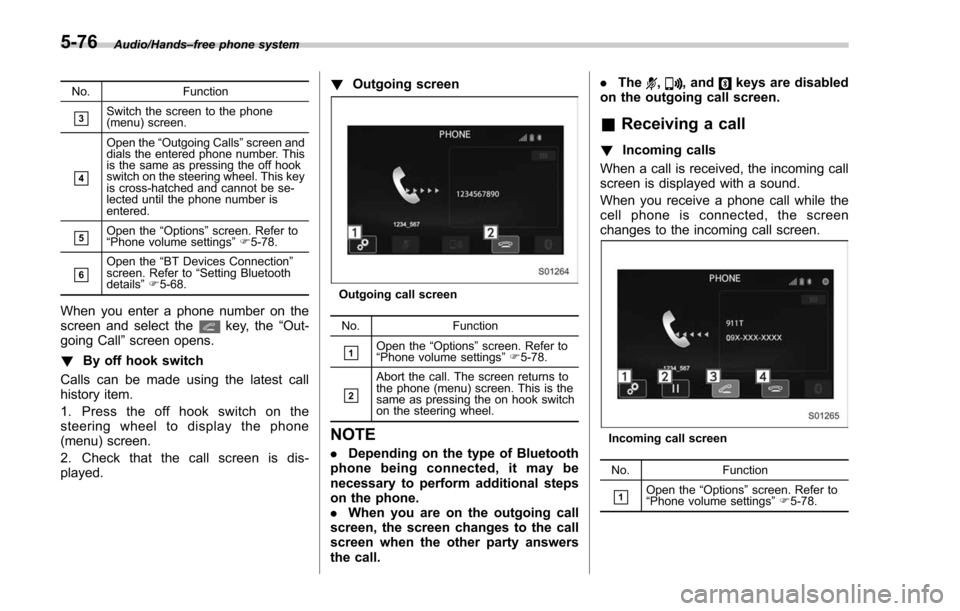
! By Dialpad
Input the phone number manually using
the keypad displayed on the screen.
Phone (Dialpad) screen
No. Function
&1Allow you to enter numbers from 0 to
9 and *, #, and +. To enter “+” , press
and hold the “0 ” key.
&2Delete one character from the entered
characters.
Audio/Hands
–free phone system
–CONTINUED –
5-75
Page 363 of 634
Audio/Hands–free phone system
No. Function
&3Switch the screen to the phone
(menu) screen.
&4
Open the“Outgoing Calls ”screen and
dials the entered phone number. This
is the same as pressing the off hook
switch on the steering wheel. This key
is cross-hatched and cannot be se-
lected until the phone number is
entered.
&5Open the “Options ”screen. Refer to
“ Phone volume settings ”F 5-78.
&6Open the “BT Devices Connection ”
screen. Refer to “Setting Bluetooth
details ”F 5-68.
When you enter a phone number on the
screen and select thekey, the “Out-
going Call ”screen opens.
! By off hook switch
Calls can be made using the latest call
history item.
1. Press the off hook switch on the
steering wheel to display the phone
(menu) screen.
2. Check that the call screen is dis-
played. !
Outgoing screen
Outgoing call screen
No. Function
&1Open the “Options ”screen. Refer to
“ Phone volume settings ”F 5-78.
&2
Abort the call. The screen returns to
the phone (menu) screen. This is the
same as pressing the on hook switch
on the steering wheel.
NOTE
. Depending on the type of Bluetooth
phone being connected, it may be
necessary to perform additional steps
on the phone.
. When you are on the outgoing call
screen, the screen changes to the call
screen when the other party answers
the call. .
The
,, andkeys are disabled
on the outgoing call screen.
& Receiving a call
! Incoming calls
When a call is received, the incoming call
screen is displayed with a sound.
When you receive a phone call while the
cell phone is connected, the screen
changes to the incoming call screen.
Incoming call screen
No. Function
&1Open the“Options ”screen. Refer to
“ Phone volume settings ”F 5-78.
5-76
Page 364 of 634
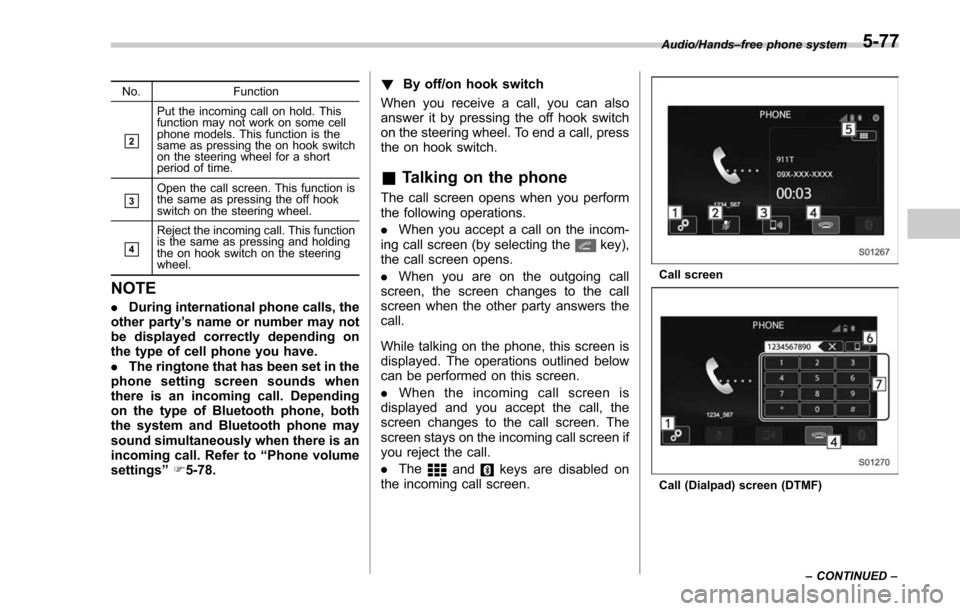
No.Function
&2
Put the incoming call on hold. This
function may not work on some cell
phone models. This function is the
same as pressing the on hook switch
on the steering wheel for a short
period of time.
&3Open the call screen. This function is
the same as pressing the off hook
switch on the steering wheel.
&4
Reject the incoming call. This function
is the same as pressing and holding
the on hook switch on the steering
wheel.
NOTE
.During international phone calls, the
other party’ s name or number may not
be displayed correctly depending on
the type of cell phone you have.
. The ringtone that has been set in the
phone setting screen sounds when
there is an incoming call. Depending
on the type of Bluetooth phone, both
the system and Bluetooth phone may
sound simultaneously when there is an
incoming call. Refer to “Phone volume
settings ”F 5-78. !
By off/on hook switch
When you receive a call, you can also
answer it by pressing the off hook switch
on the steering wheel. To end a call, press
the on hook switch.
& Talking on the phone
The call screen opens when you perform
the following operations.
. When you accept a call on the incom-
ing call screen (by selecting the
key),
the call screen opens.
. When you are on the outgoing call
screen, the screen changes to the call
screen when the other party answers the
call.
While talking on the phone, this screen is
displayed. The operations outlined below
can be performed on this screen.
. When the incoming call screen is
displayed and you accept the call, the
screen changes to the call screen. The
screen stays on the incoming call screen if
you reject the call.
. The
andkeys are disabled on
the incoming call screen.
Call screen
Call (Dialpad) screen (DTMF) Audio/Hands
–free phone system
–CONTINUED –
5-77
Page 365 of 634
Audio/Hands–free phone system
No. Function
&1Open the“Options ”screen. Refer to
“ Phone volume settings ”F 5-78.
&2
Mute your voice to the other party.
Touch this key again to deactivate the
Mute mode. This key is disabled in the
private mode.
&3
Change the mode to private mode.
The other party ’s voice emits from the
cell phone. Touch this key again to
deactivate the private mode.
&4
End the call. This will return you to the
phone (menu) screen when ending
outgoing calls and the previous
screen when ending incoming calls.
This function is the same as pressing
the on hook switch on the steering
wheel.
&5Open the call (dialpad) screen. For
details about how to use the function,
refer to “By Dialpad ”F 5-75.
&6Switch the screen to the phone
(menu) screen.
&7Allow you to make DTMF (Dual Tone
Multi Frequency) calls. The numbers
you enter are sent as tone signals.
NOTE
. When cell phone call is changed to
hands-free call, the hands-free screen
is displayed and its functions can be
operated on the screen.
. Changing between cell phone call
and hands-free call can be performed by operating the cell phone directly.
.
Transferring methods and opera-
tions will be different depending on
the type of cell phone you have.
. For the operation of the cell phone,
see the manual that comes with it.
. The sound quality of the voice heard
from the other party’ s speaker may be
negatively impacted.
& Phone settings
You can transfer the phonebook informa-
tion and adjust the volume of your phone
using the Bluetooth phone system.
NOTE
. The ringer volume for outgoing and
incoming calls, as well as the volume
while on hold or during a call are
controlled independently from the vo-
lume of the audio source. The volume
setting in the phone setting is applied.
. When making a call, receiving a call
or while talking on the phone, you can
adjust the volume by using the power/
Volume knob on the audio panel or the
volume control switch on the steering
wheel. !
Phone volume settings
The call and ringtone volume can be
adjusted. A ringtone can be selected.
1. Display the “PHONE ”screen. Refer to
“How to change the hands-free phone
system ”F 5-72.
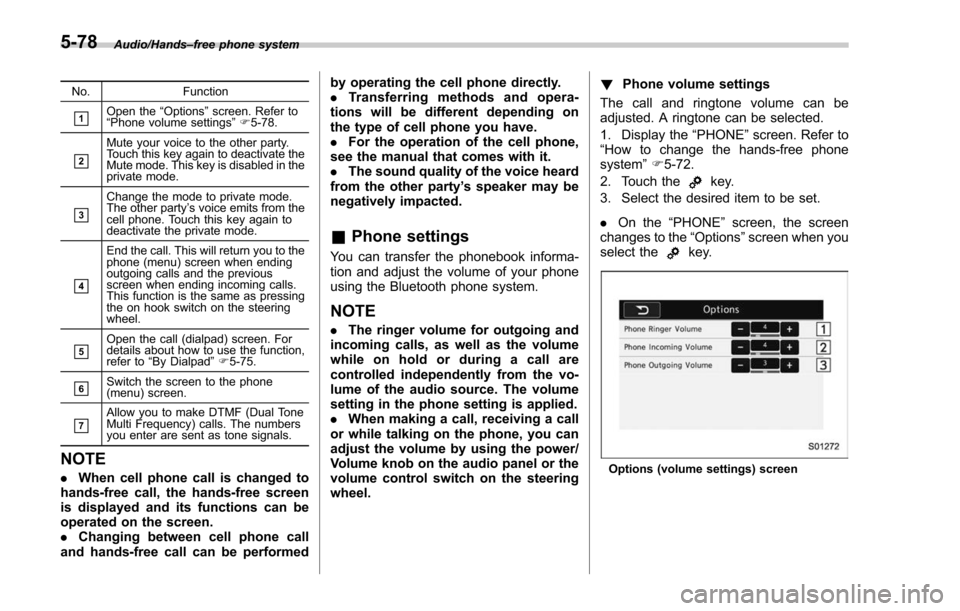
2. Touch the
key.
3. Select the desired item to be set.
. On the “PHONE ”screen, the screen
changes to the “Options ”screen when you
select the
key.
Options (volume settings) screen
5-78
Page 371 of 634
Audio/Voice command system
&Command list
Recognizable voice commands and their
actions are shown below.
NOTE
. Some voice commands may not be
available depending on the market,
vehicle specifications or the device
connection status.
. Frequently used commands are
listed in the following tables.
. For devices that are not installed in
the vehicle, the related commands will
not be displayed on the screen. Also,
according to conditions, other com-
mands may not be displayed on the
screen.
. The functions available may vary
according to the system installed.
. Voice recognition language can be
changed. Refer to “Unit settings ”F 5-
18.
. The notations used in the com-
mands are as follows.
–<
>: Numbers, titles or
names to be spoken
– (
): There is no need to
speak the command, the voice
command system will recognize
the content. !
Basic command
Voice command Function
Back Go back one hierar-
chy or cancel the
voice recognition
(voice command top
screen)
Help Ask for help with the
current task
Cancel, Close Cancel the current
task
Ye s
No
Display OFF Turns the display off
Audio ON Turns the audio sys-
tem on
Audio OFF Turns the audio sys-
tem off
STARLINK Switch to APPS mode
!
Commands for changing the audio
mode
Voice command Function
Change to AM Switch to AM mode
Change to AM1 Switch to AM mode
band 1
Change to AM2 Switch to AM mode
band 2
Change to FM Switch to FM mode
Change to FM1 Switch to FM mode
band 1
Change to FM2 Switch to FM mode
band 2
Change to FM3 Switch to FM mode
band 3
Change to SiriusXM Switch to XM mode
Change to BT Audio Switch to Bluetooth
Audio mode
Change to CD Switch to CD mode
Change to USB Switch to USB mode
Change to iPod Switch to iPod mode
Change to aha Switch to aha radio
mode
Change to Pandora Switch to Pandora
mode
Change to AUX Switch to AUX mode
5-84