start SUBARU FORESTER 2022 Getting Started Guide
[x] Cancel search | Manufacturer: SUBARU, Model Year: 2022, Model line: FORESTER, Model: SUBARU FORESTER 2022Pages: 156, PDF Size: 45.35 MB
Page 58 of 156
NEW VEHICLE BREAK-IN
The performance and long life of your Subaru are dependent on how you handle and care
for your Subaru while it is new.
Follow these instructions during the first 1,000 miles:
• Do not race the engine.
• Do not allow the engine speed to exceed 4,000 rpm except in an emergency.
• Do not drive at one consistent engine or vehicle speed for a long time, either fast orslow.
• Avoid starting suddenly and rapid acceleration, except in an emergency.
• Avoid hard braking, except in an emergency.
ENGINE OIL
Use 0W-20 synthetic, with one of the following specifications:
• API classification SN with the words “RESOURCE CONSERVING”, SN PLUS with the words “RESOURCE CONSERVING”, or SP with the words “RESOURCE CONSERVING”.
• ILSAC GF-5 or GF-6A, which can be identified with the ILSAC certification mark (Starburst mark).
ENGINE OIL CAPACITY
4.4 US quarts (during oil and filter change).
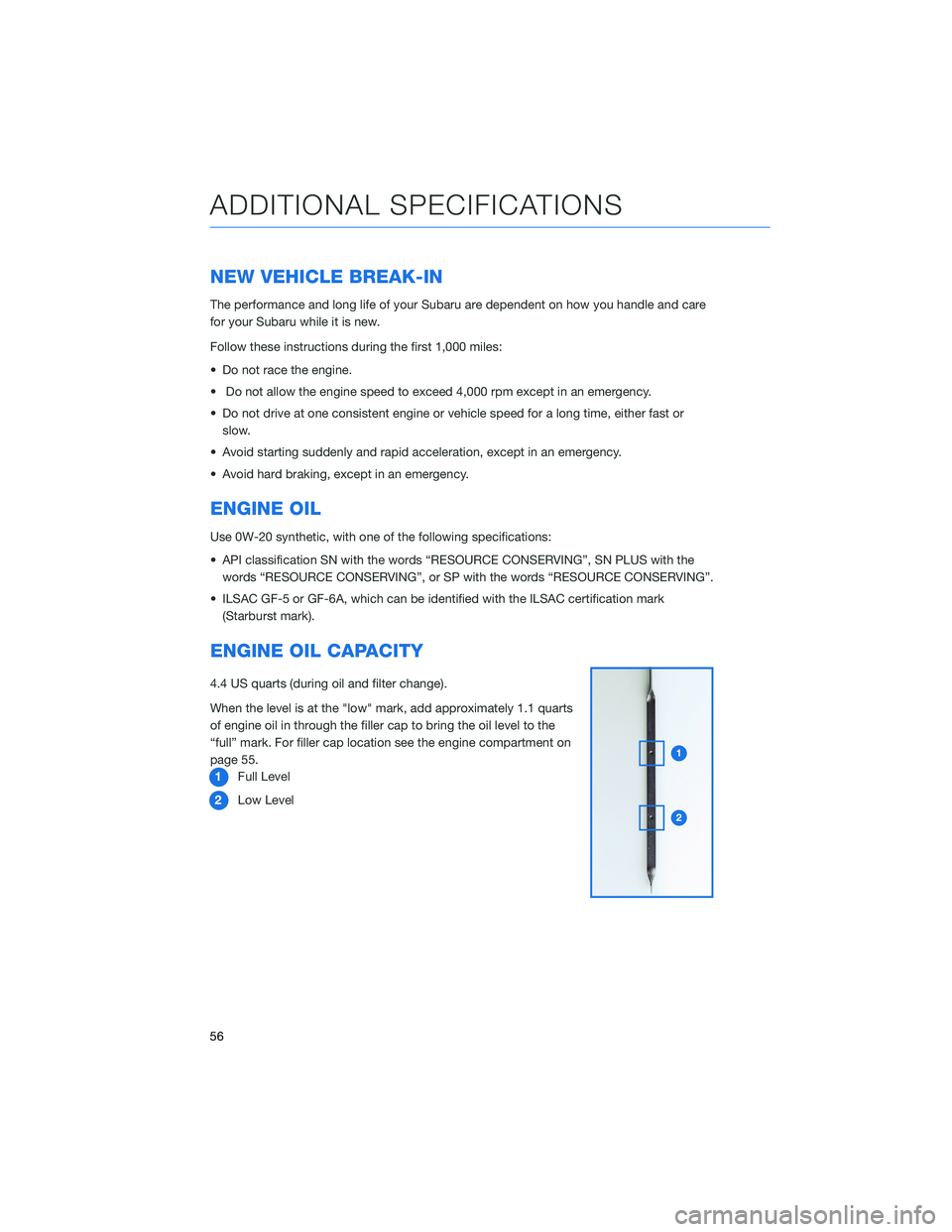
When the level is at the "low" mark, add approximately 1.1 quarts
of engine oil in through the filler cap to bring the oil level to the
“full” mark. For filler cap location see the engine compartment on
page 55.1 Full Level
2 Low Level
ADDITIONAL SPECIFICATIONS
56
Page 59 of 156
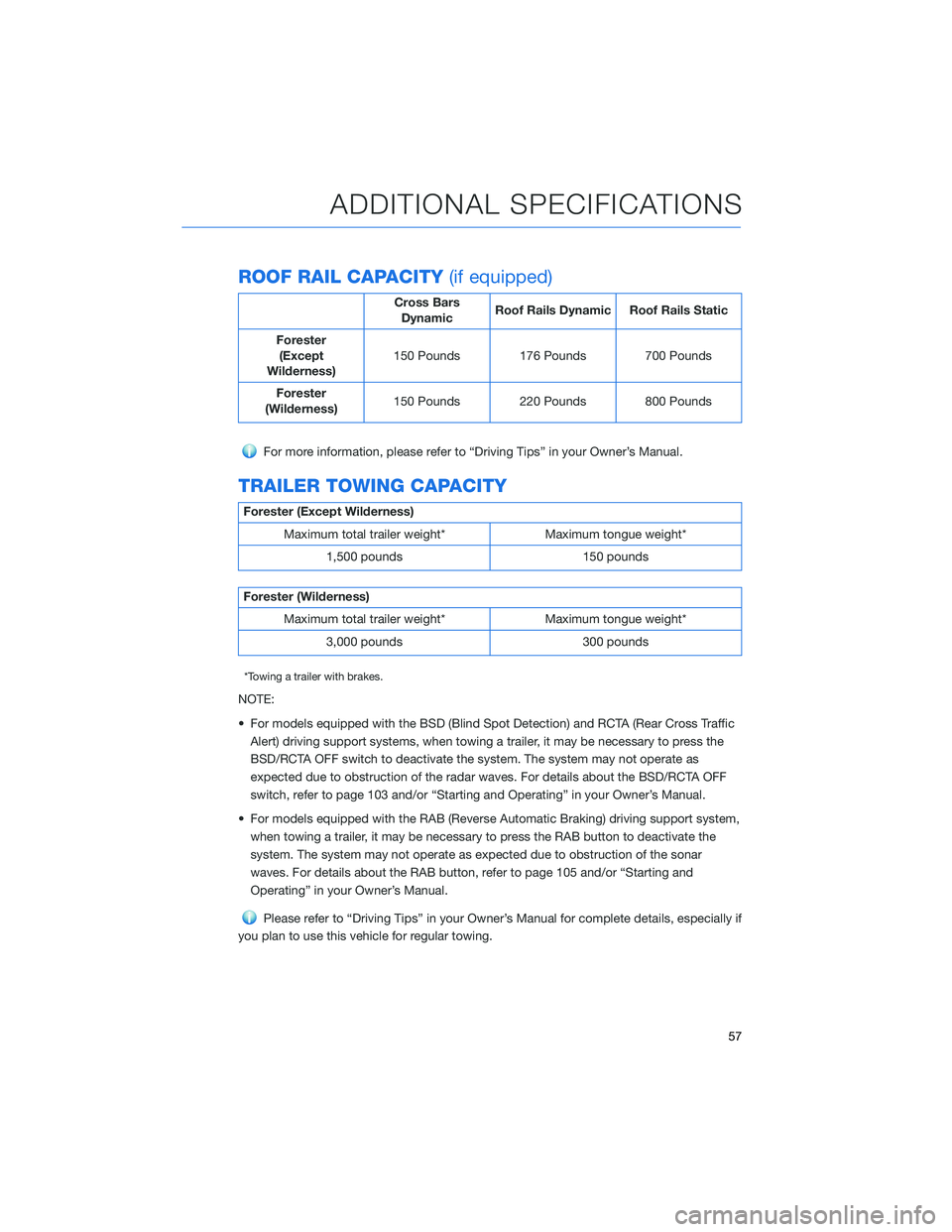
ROOF RAIL CAPACITY(if equipped)
Cross Bars
Dynamic Roof Rails Dynamic Roof Rails Static
Forester (Except
Wilderness) 150 Pounds 176 Pounds 700 Pounds
Forester
(Wilderness) 150 Pounds 220 Pounds 800 Pounds
For more information, please refer to “Driving Tips” in your Owner’s Manual.
TRAILER TOWING CAPACITY
Forester (Except Wilderness)
Maximum total trailer weight* Maximum tongue weight* 1,500 pounds 150 pounds
Forester (Wilderness)Maximum total trailer weight* Maximum tongue weight* 3,000 pounds 300 pounds
*Towing a trailer with brakes.
NOTE:
• For models equipped with the BSD (Blind Spot Detection) and RCTA (Rear Cross TrafficAlert) driving support systems, when towing a trailer, it may be necessary to press the
BSD/RCTA OFF switch to deactivate the system. The system may not operate as
expected due to obstruction of the radar waves. For details about the BSD/RCTA OFF
switch, refer to page 103 and/or “Starting and Operating” in your Owner’s Manual.
• For models equipped with the RAB (Reverse Automatic Braking) driving support system, when towing a trailer, it may be necessary to press the RAB button to deactivate the
system. The system may not operate as expected due to obstruction of the sonar
waves. For details about the RAB button, refer to page 105 and/or “Starting and
Operating” in your Owner’s Manual.
Please refer to “Driving Tips” in your Owner’s Manual for complete details, especially if
you plan to use this vehicle for regular towing.
ADDITIONAL SPECIFICATIONS
57
Page 66 of 156
VOICE RECOGNITION
With SUBARU STARLINK®, simple voice commands can control
features like navigation, entertainment, phone calls, and, on select
models, climate control. A microphone is located in the overhead
console; however, you do not need to speak directly into it to
activate the voice command features. Press the Voice Recognition
button on the steering wheel to start the voice recognition system.
Press and hold the button to cancel the system.
For help with what features are available with voice recognition,
press the "Help" button on the screen or press the voice recognition
button and say "Help".
Tips
The system may not recognize the voice command due to various
types of interference. Some causes for voice command interference
are:
• The command is spoken too quickly or at a low or high volume.
• The command is incorrect or unclear.
• The window is open, the climate control system is set on high, or the ventilation is directed toward the microphone.
• Passengers are talking while the command is spoken.
NOTE: The system is designed to recognize a variety of commands, but certain words,
accents or speech patterns may be difficult for the system to recognize.
STARLINK OVERVIEW
64
Page 74 of 156
PAIRING A PHONE
To begin using your Bluetooth®hands-free device you must first
pair your phone with the system. Phone pairing provides access to
the contact list on your phone and allows you to use the voice
recognition system to make and receive calls. The system can also
read incoming text messages, as well as allowing you to reply to
texts or send short messages. The system automatically reconnects
to your Bluetooth
®device and will remember your driver profile.
Visit www.subaru.com/engineering/starlink/multimedia.html for
more information on what is available by connecting a phone to the
Touchscreen.
For instructions on how to pair your phone to the Touchscreen, see page 119 for
Android devices or page 123 for Apple devices.
MAKING A CALL
Once your phone is paired, you can make a call
through voice recognition by pressing the “Voice
Recognition Switch” on the steering wheel. After
pressing the “Voice Recognition Switch”, wait for the
“Voice Guidance” screen to appear on the
Touchscreen and say “Call [name and phone type]” or
“Dial [number]”.
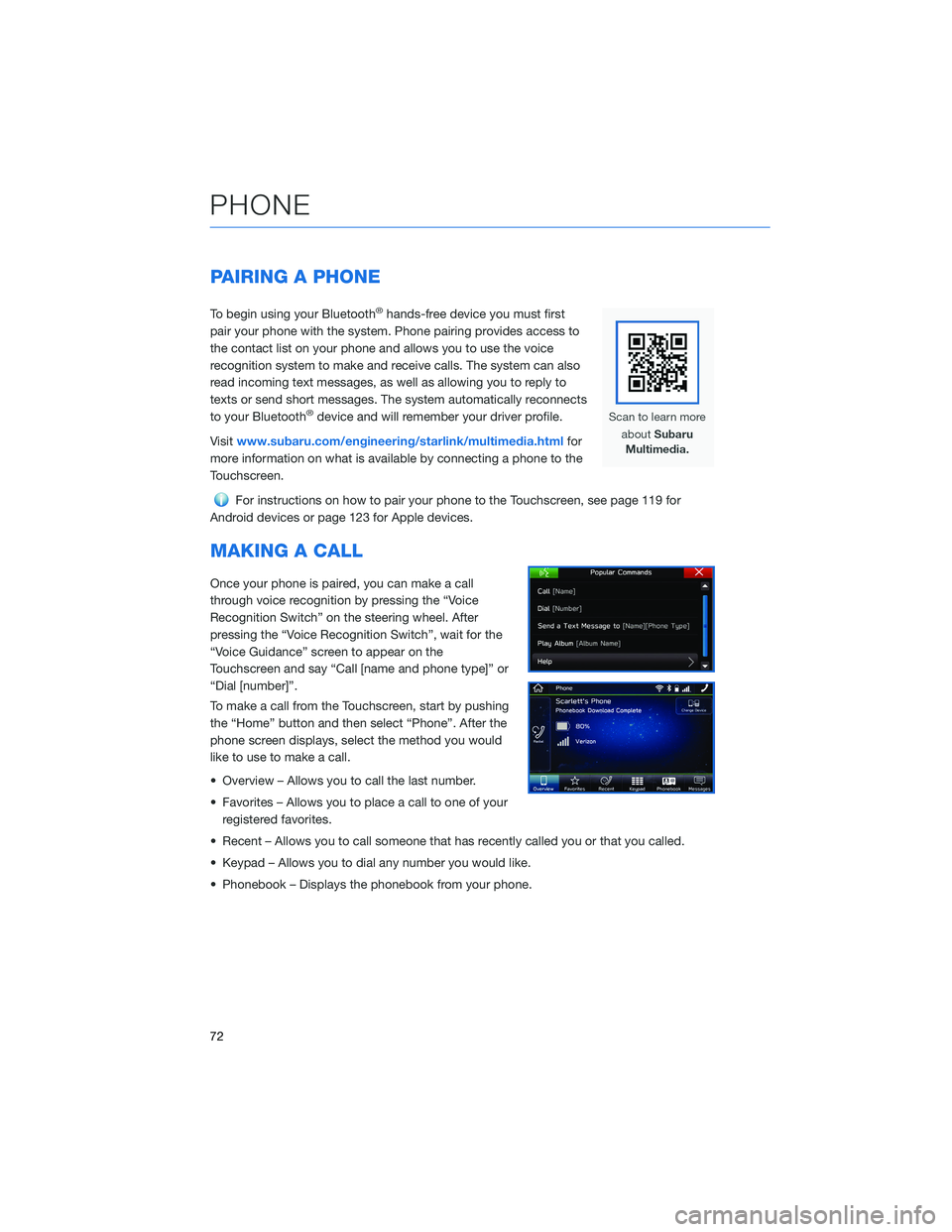
To make a call from the Touchscreen, start by pushing
the “Home” button and then select “Phone”. After the
phone screen displays, select the method you would
like to use to make a call.
• Overview – Allows you to call the last number.
• Favorites – Allows you to place a call to one of your registered favorites.
• Recent – Allows you to call someone that has recently called you or that you called.
• Keypad – Allows you to dial any number you would like.
• Phonebook – Displays the phonebook from your phone.
PHONE
72
Page 78 of 156
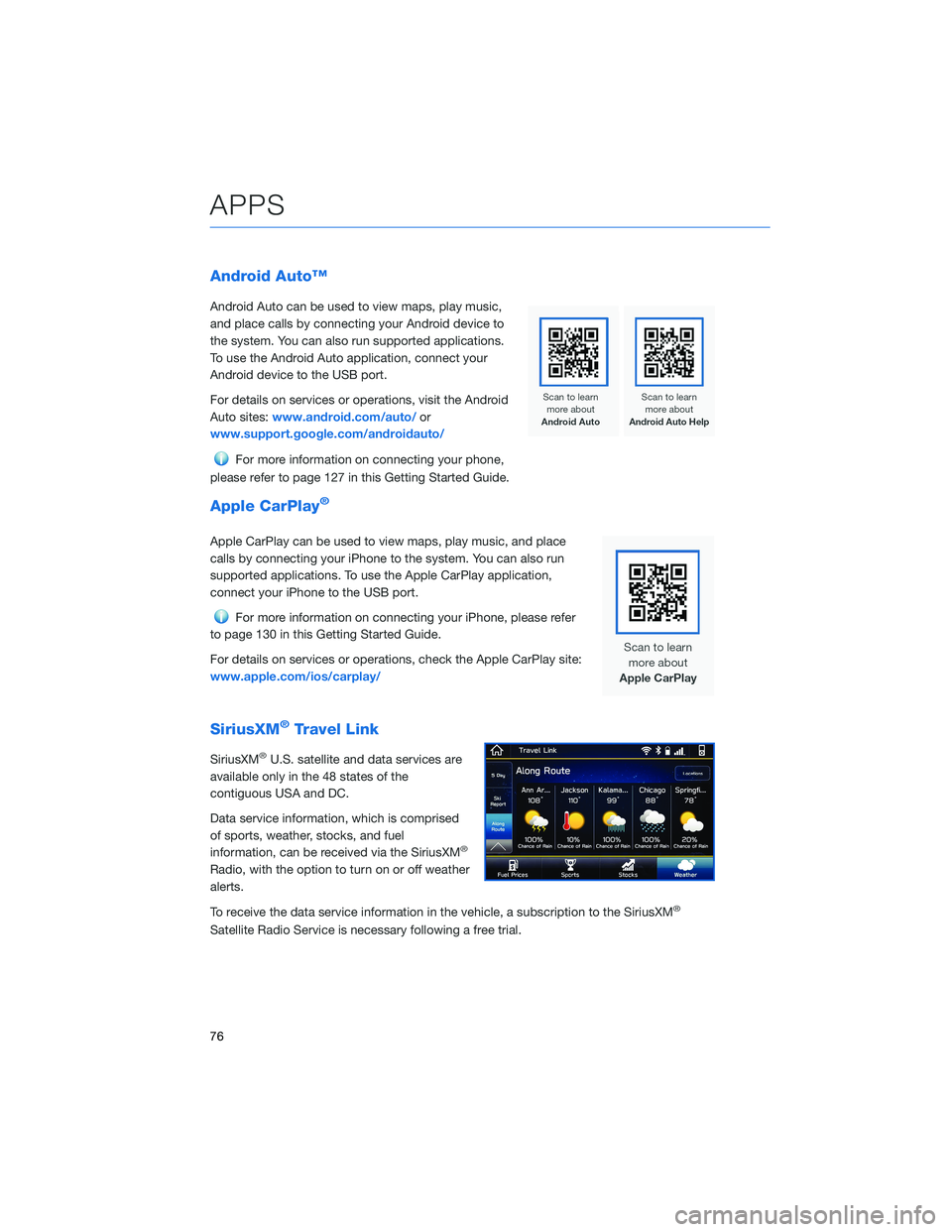
Android Auto™
Android Auto can be used to view maps, play music,
and place calls by connecting your Android device to
the system. You can also run supported applications.
To use the Android Auto application, connect your
Android device to the USB port.
For details on services or operations, visit the Android
Auto sites:www.android.com/auto/ or
www.support.google.com/androidauto/
For more information on connecting your phone,
please refer to page 127 in this Getting Started Guide.
Apple CarPlay®
Apple CarPlay can be used to view maps, play music, and place
calls by connecting your iPhone to the system. You can also run
supported applications. To use the Apple CarPlay application,
connect your iPhone to the USB port.
For more information on connecting your iPhone, please refer
to page 130 in this Getting Started Guide.
For details on services or operations, check the Apple CarPlay site:
www.apple.com/ios/carplay/
SiriusXM®Travel Link
SiriusXM®U.S. satellite and data services are
available only in the 48 states of the
contiguous USA and DC.
Data service information, which is comprised
of sports, weather, stocks, and fuel
information, can be received via the SiriusXM
®
Radio, with the option to turn on or off weather
alerts.
To receive the data service information in the vehicle, a subscription to the SiriusXM
®
Satellite Radio Service is necessary following a free trial.
APPS
76
Page 79 of 156
SUBARU STARLINK®MOBILE APP
The STARLINK®app gives you access to a suite of convenient cloud-based applications,
such as iHeartRadio®, Yelp®, Magellan NAVI®, eBird, and more via your in-vehicle
multimedia touchscreen, helping you and your family stay safe, entertained, and
connected. App availability will vary by vehicle and trim level. To get started, first download
and log in to the SUBARU STARLINK
®app on your phone.
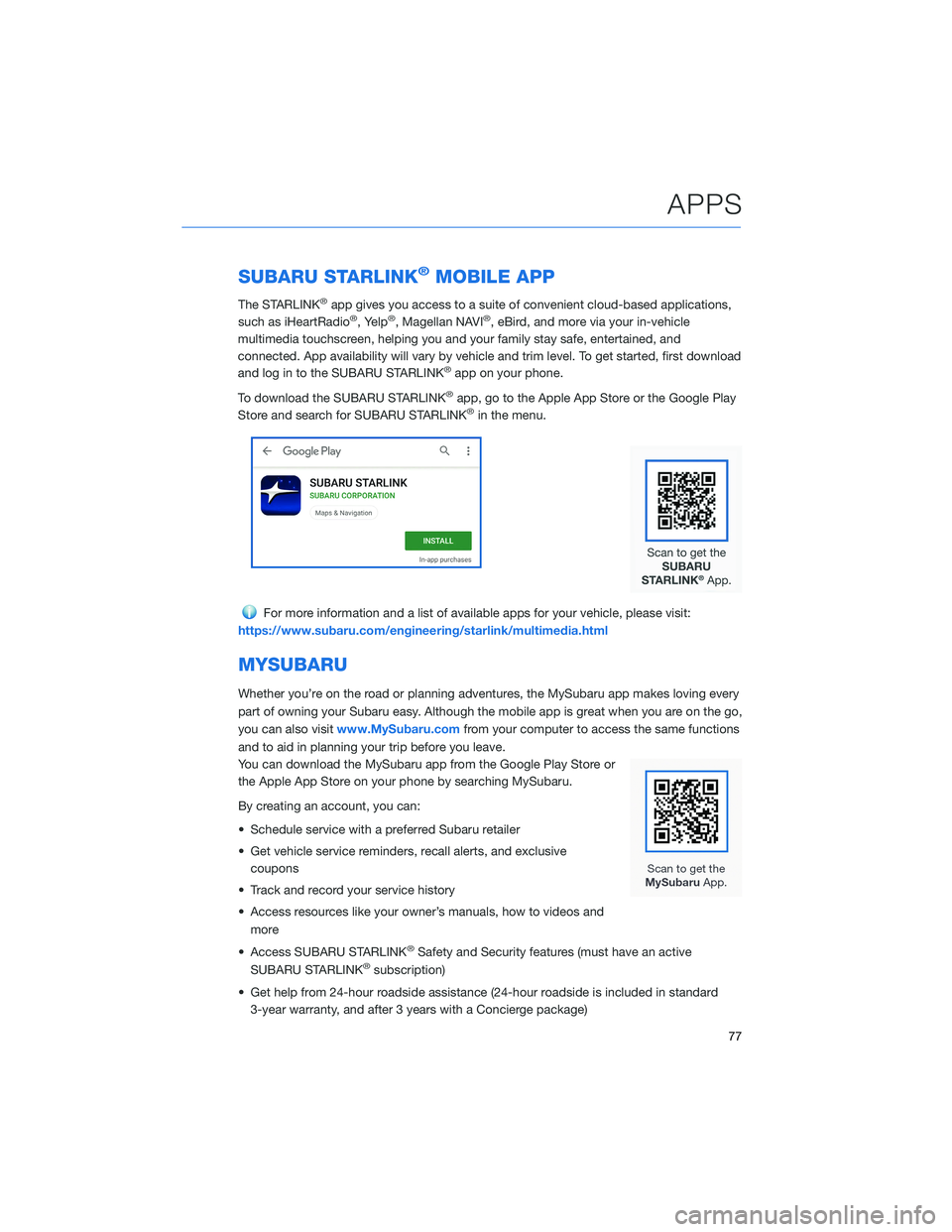
To download the SUBARU STARLINK
®app, go to the Apple App Store or the Google Play
Store and search for SUBARU STARLINK®in the menu.
For more information and a list of available apps for your vehicle, please visit:
https://www.subaru.com/engineering/starlink/multimedia.html
MYSUBARU
Whether you’re on the road or planning adventures, the MySubaru app makes loving every
part of owning your Subaru easy. Although the mobile app is great when you are on the go,
you can also visit www.MySubaru.com from your computer to access the same functions
and to aid in planning your trip before you leave.
You can download the MySubaru app from the Google Play Store or
the Apple App Store on your phone by searching MySubaru.
By creating an account, you can:
• Schedule service with a preferred Subaru retailer
• Get vehicle service reminders, recall alerts, and exclusive coupons
• Track and record your service history
• Access resources like your owner’s manuals, how to videos and more
• Access SUBARU STARLINK
®Safety and Security features (must have an active
SUBARU STARLINK®subscription)
• Get help from 24-hour roadside assistance (24-hour roadside is included in standard 3-year warranty, and after 3 years with a Concierge package)
APPS
77
Page 80 of 156
Service Appointment Scheduler
The SUBARU STARLINK®Service
Appointment Scheduler can help you set an
appointment from the MySubaru website,
Mobile App or the vehicle’s Touchscreen.
Getting your Subaru vehicle to the Subaru
professionals for service is easy, no matter
where you are. If you are away from your
preferred Subaru retailer for service, you can
always use Service Appointment Scheduler to locate any of our certified Subaru retailers
near your location.
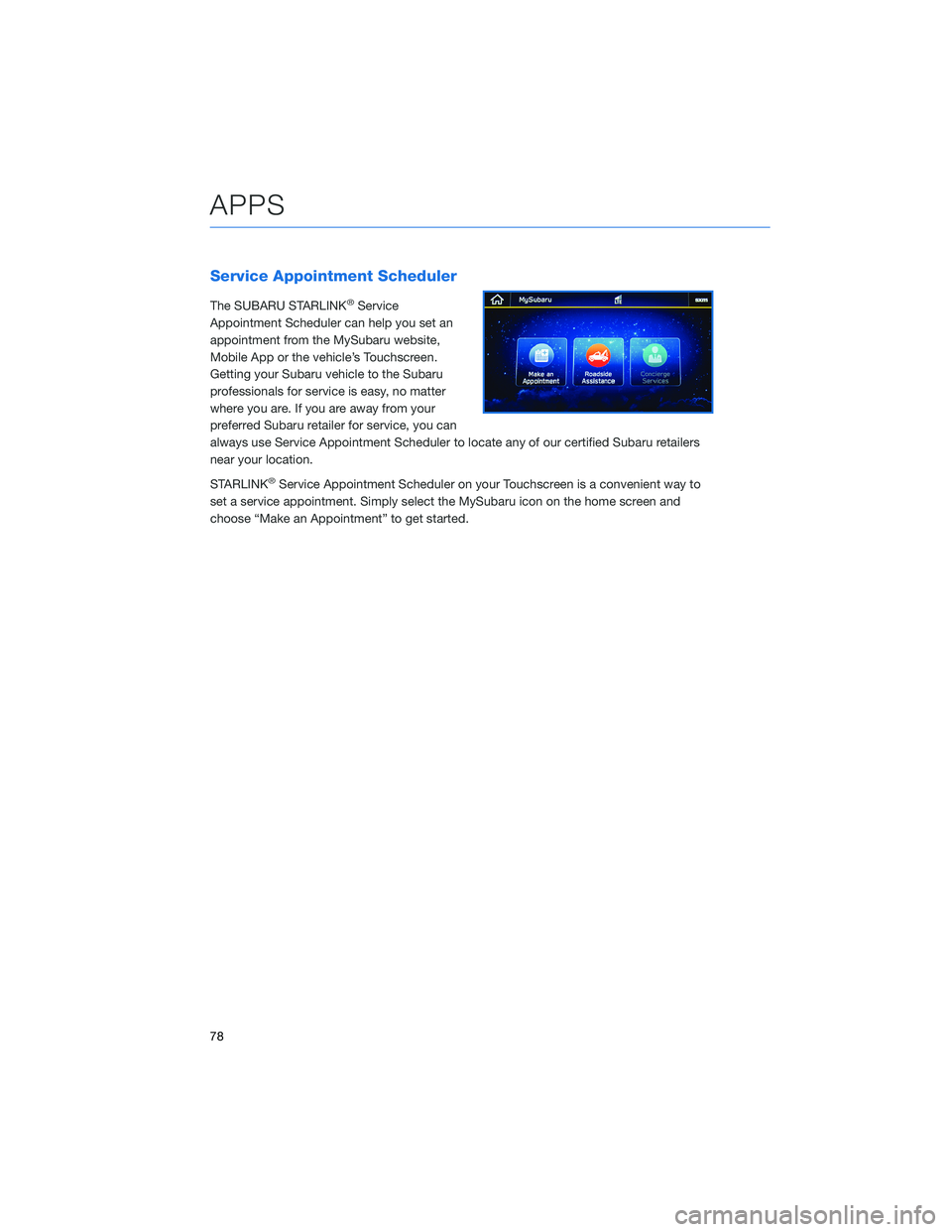
STARLINK
®Service Appointment Scheduler on your Touchscreen is a convenient way to
set a service appointment. Simply select the MySubaru icon on the home screen and
choose “Make an Appointment” to get started.
APPS
78
Page 81 of 156
MAPS OVERVIEW
Your new SUBARU STARLINK®comes equipped with an integrated navigation system,
powered by TomTom. We hope you enjoy the state-of-the-art navigation technology and
optimized mapping routes to guide you on safer, better, and more enjoyable journeys.
With your integrated navigation system, you can find destinations by address or search by
points of interest, as well as save destinations in the system as favorites. You can also
customize route options and settings and find the nearest gas station along your route with
the touch of a button.
For more information and step by step directions on using your navigation system,
please refer to page 134 in this Getting Started Guide or “Navigation System (8-inch with
Navi system only)” in your STARLINK
®Owner’s Manual.
CREATING HOME AND WORK PROFILES
Creating a driver profile allows you to save your home address and work address in the
navigation system for ease of use.
For step by step instructions on creating a driver profile, please refer to page 68.
MAPS (if equipped)
79
Page 82 of 156
SAFETY AND SECURITY OVERVIEW
STARLINK®Safety and Security services* are designed to help in your time of need. These
include Advanced Automatic Collision Notification, SOS Emergency Assistance, Enhanced
Roadside Assistance, Stolen Vehicle Recovery, the added convenience of Remote Engine
Start with Climate Control, and so much more.
With the SUBARU STARLINK
®system integrated into your vehicle, advanced safety and
security technology is just a button press away. The SUBARU STARLINK®experience
includes in-vehicle call center support, maintenance and diagnostic alerts as well as
remote services that keep you connected to your Subaru vehicle.
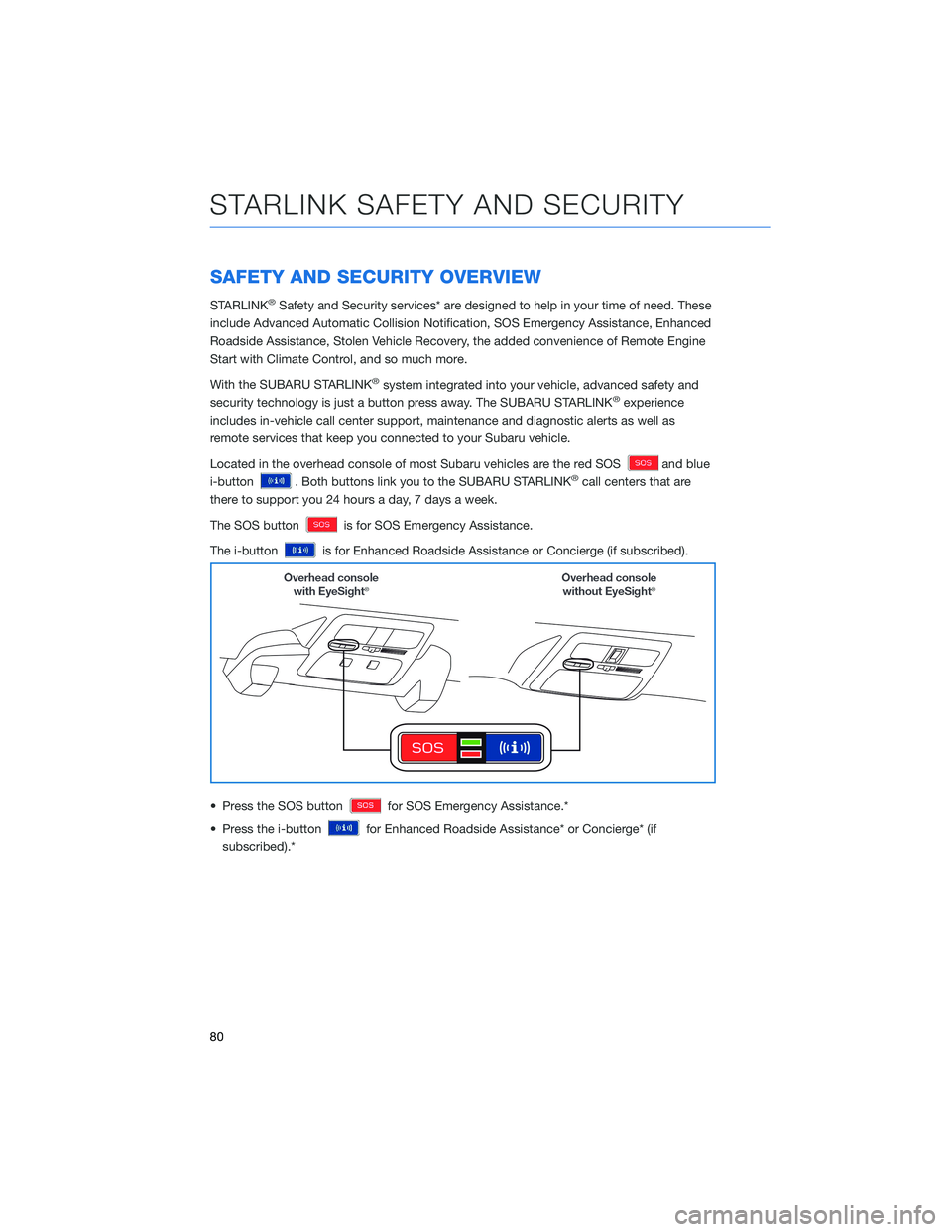
Located in the overhead console of most Subaru vehicles are the red SOS
and blue
i-button
. Both buttons link you to the SUBARU STARLINK®call centers that are
there to support you 24 hours a day, 7 days a week.
The SOS button
is for SOS Emergency Assistance.
The i-button
is for Enhanced Roadside Assistance or Concierge (if subscribed).
• Press the SOS button
for SOS Emergency Assistance.*
• Press the i-button
for Enhanced Roadside Assistance* or Concierge* (if
subscribed).*
STARLINK SAFETY AND SECURITY
80
Page 83 of 156
• To cancel a SOS Emergency Assistance, Enhanced Roadside Assistance or a Conciergecall, press and hold the same button for approximately two seconds or select the “End
Call” button if displayed on the Touchscreen.
Head to www.Subaru.com/STARLINK to see all the SUBARU
STARLINK
®subscription services and packages.
* Access to STARLINK®Safety and Security services requires an active
STARLINK®subscription. Not available in all States. See retailer for details.
Remote Engine Start available on keyless access with push-button start
vehicles. Remote Engine Start with Climate Control is available on select
models only. Not available on vehicles with manual transmission. See
Retailer for details or visit the STARLINK
®page on Subaru.com to learn
more.
ENROLLMENT
To enroll in SUBARU STARLINK®and access remote services, a MySubaru account is
required. MySubaru is the Subaru owner website that allows you to access vehicle remote
services, user preferences, diagnostic alerts and other useful features enabled by your
STARLINK
®Safety Plus, STARLINK®Security Plus and STARLINK®Concierge
subscription.
Your retailer may have created an account for you during the delivery process. However,
you can also create a MySubaru account at www.mysubaru.com.
Enrollment in SUBARU STARLINK
®can be done online at MySubaru.com, through the
MySubaru Mobile App, at your Subaru retailer or by calling a STARLINK®Customer Care
Representative at: 1-855-753-2495
NOTE: Please have your Vehicle Identification Number (VIN) available, as you will need it
to complete this step. After the enrollment process, you will learn more about the features
in detail at MySubaru.com.
STARLINK SAFETY AND SECURITY
81