start SUBARU FORESTER 2022 Getting Started Guide
[x] Cancel search | Manufacturer: SUBARU, Model Year: 2022, Model line: FORESTER, Model: SUBARU FORESTER 2022Pages: 156, PDF Size: 45.35 MB
Page 84 of 156
MYSUBARU INTEGRATION
The connection between you and your Subaru has never been simpler, and the MySubaru
website (MySubaru.com) and MySubaru Mobile Application are the best ways to stay in
touch with your Subaru vehicle. From MySubaru, you can access the following information
and STARLINK
®Safety and Security services*:
• Remote Services
• Vehicle Health
• Usage Reports
• Service Appointment Scheduler
• Vehicle Maintenance Schedules
• Destination to Vehicle
• Service History
• Support Resources
* Activation with subscription required. Features and availability vary by vehicle and trim level. See your retailer for details.
SUBARU STARLINK®WI-FI HOTSPOT
SUBARU STARLINK®in-vehicle Wi-Fi Hotspot* keeps you and your
family connected using AT&T’s 4G LTE nationwide cellular network.
Whether watching movies, playing games or even listening to
music, your family won’t miss a beat with SUBARU STARLINK
®
in-vehicle Wi-Fi Hotspot. Set up is quick and easy.
For more information on a subscription and step by step
enrollment instructions, please refer to page 133 in this Getting
Started Guide or visit:
https://www.att.com/plans/connected-car/subaru.html
* Internet access is purchased separately through AT&T with monthly, per gigabyte, and unlimited data options available. Existing AT&T customers
have the option to add an additional line to their AT&T Mobile Share plan. Available on select models.
STARLINK SAFETY AND SECURITY
82
Page 85 of 156
SETTINGS AND UPDATES OVERVIEW
Many settings can be customized for different features in your Subaru. In this section you
will find examples and instructions for some of the settings you can tailor to fit your
preferences, as well as ways to keep your system updated.
Connect to Home Wi-Fi
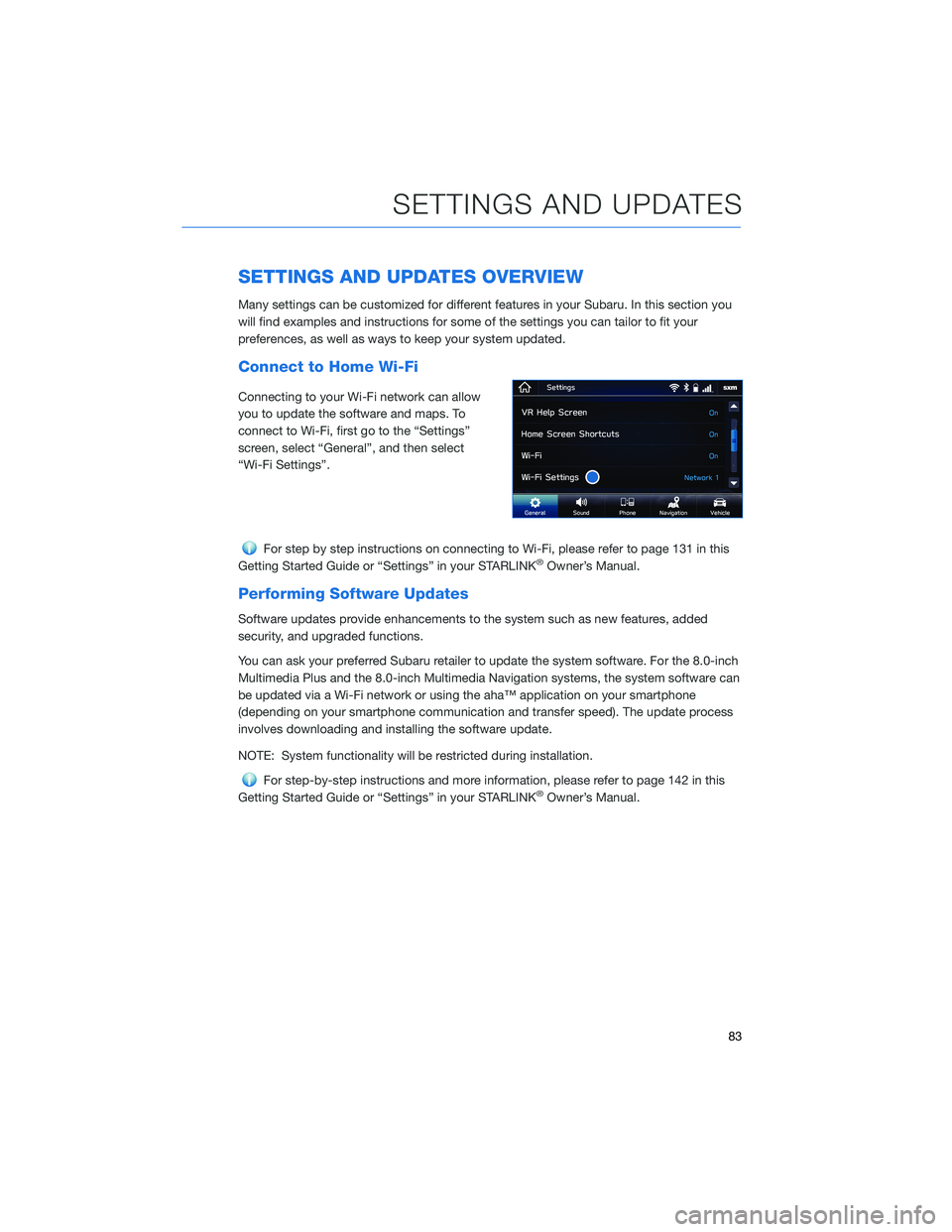
Connecting to your Wi-Fi network can allow
you to update the software and maps. To
connect to Wi-Fi, first go to the “Settings”
screen, select “General”, and then select
“Wi-Fi Settings”.
For step by step instructions on connecting to Wi-Fi, please refer to page 131 in this
Getting Started Guide or “Settings” in your STARLINK®Owner’s Manual.
Performing Software Updates
Software updates provide enhancements to the system such as new features, added
security, and upgraded functions.
You can ask your preferred Subaru retailer to update the system software. For the 8.0-inch
Multimedia Plus and the 8.0-inch Multimedia Navigation systems, the system software can
be updated via a Wi-Fi network or using the aha™ application on your smartphone
(depending on your smartphone communication and transfer speed). The update process
involves downloading and installing the software update.
NOTE: System functionality will be restricted during installation.
For step-by-step instructions and more information, please refer to page 142 in this
Getting Started Guide or “Settings” in your STARLINK®Owner’s Manual.
SETTINGS AND UPDATES
83
Page 88 of 156
Updating Maps Using Your PC/MAC
Maps can also be updated using a USB memory device, which will
allow the entire map program to be updated at one time. This is a
great option if you are going to take a cross-country trip and your
maps have not been updated in a while.
To update the map using a USB memory device, start by going to
www.subaru-maps.com.
SETTINGS AND UPDATES
86
Page 93 of 156
OPERATION
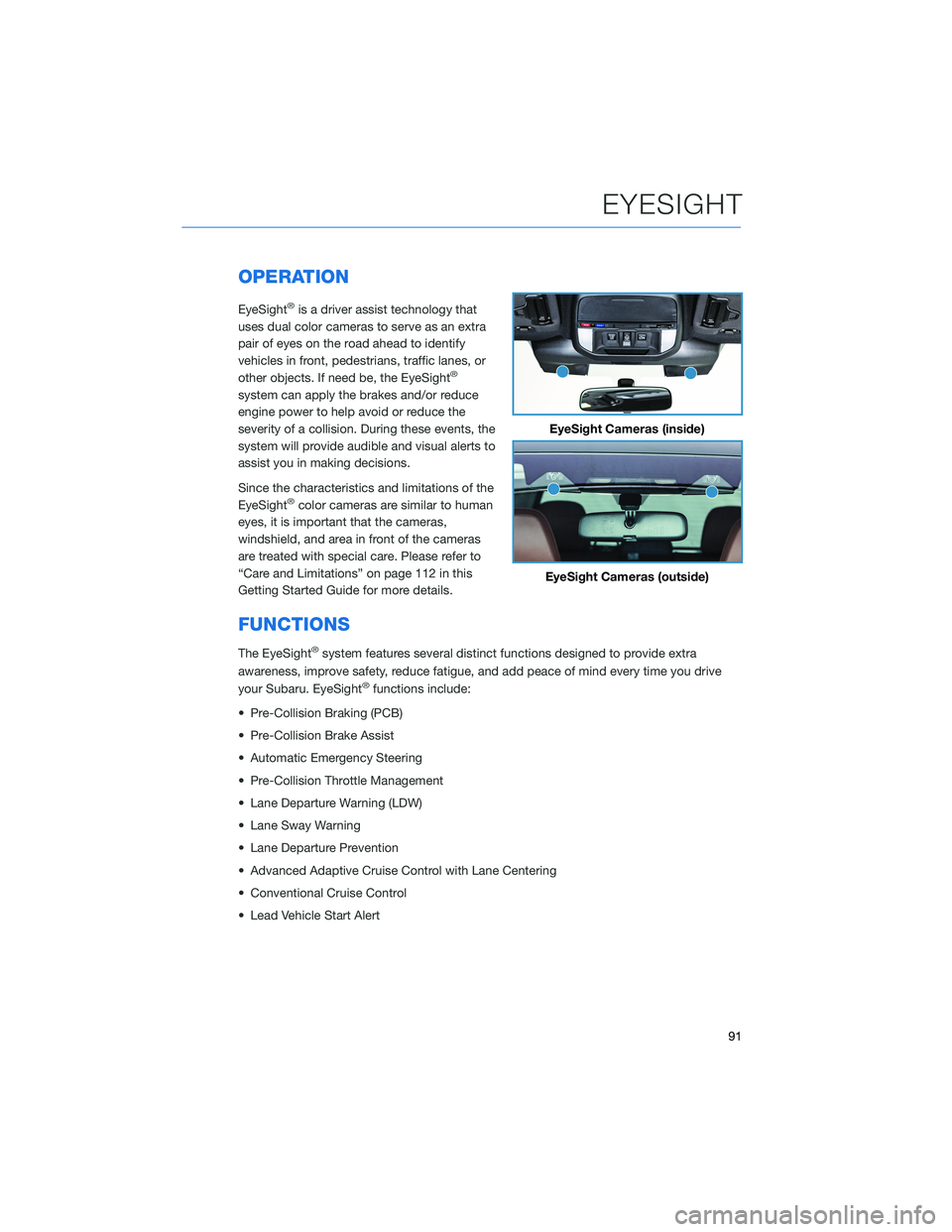
EyeSight®is a driver assist technology that
uses dual color cameras to serve as an extra
pair of eyes on the road ahead to identify
vehicles in front, pedestrians, traffic lanes, or
other objects. If need be, the EyeSight
®
system can apply the brakes and/or reduce
engine power to help avoid or reduce the
severity of a collision. During these events, the
system will provide audible and visual alerts to
assist you in making decisions.
Since the characteristics and limitations of the
EyeSight
®color cameras are similar to human
eyes, it is important that the cameras,
windshield, and area in front of the cameras
are treated with special care. Please refer to
“Care and Limitations” on page 112 in this
Getting Started Guide for more details.
FUNCTIONS
The EyeSight®system features several distinct functions designed to provide extra
awareness, improve safety, reduce fatigue, and add peace of mind every time you drive
your Subaru. EyeSight
®functions include:
• Pre-Collision Braking (PCB)
• Pre-Collision Brake Assist
• Automatic Emergency Steering
• Pre-Collision Throttle Management
• Lane Departure Warning (LDW)
• Lane Sway Warning
• Lane Departure Prevention
• Advanced Adaptive Cruise Control with Lane Centering
• Conventional Cruise Control
• Lead Vehicle Start Alert
EyeSight Cameras (inside)
EyeSight Cameras (outside)
EYESIGHT
91
Page 95 of 156
Pre-Collision Throttle Management
This function is designed to help prevent you from unintentionally accelerating into a
stopped vehicle or other obstacle by reducing engine power. Warnings are displayed in the
Combination Meter Display (CMD) with audible beeps.
Pre-Collision Throttle Management is helpful when:
• You unintentionally place the select lever in the “D” position instead of the “R” positionand start to accelerate toward a parked car, wall or parking structure.
• While you are at a stop, the vehicle ahead of you accelerates, but then suddenly slows down or stops as you begin to accelerate.
This system can be turned on or off by using the Pre-Collision Braking System OFF switch
(see page 100).
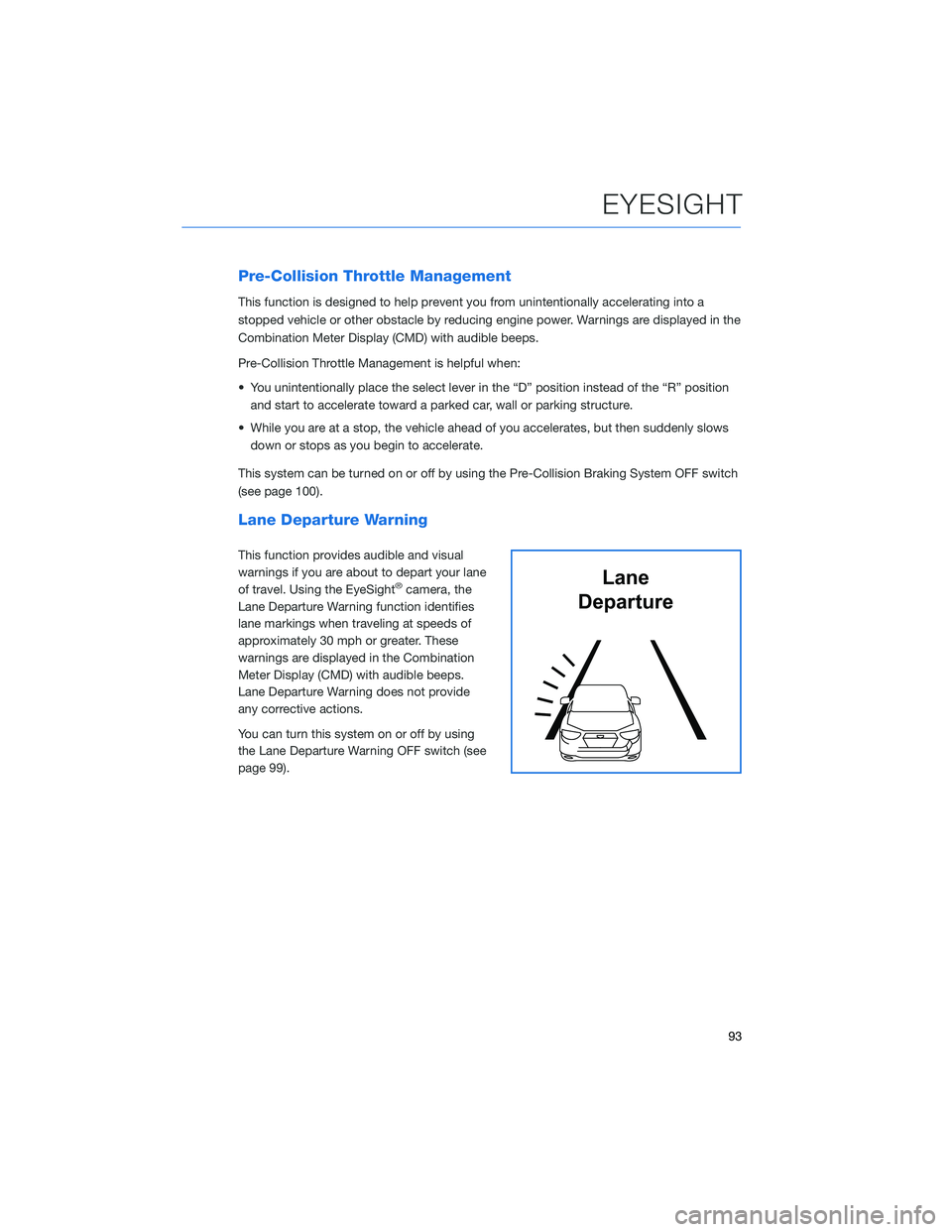
Lane Departure Warning
This function provides audible and visual
warnings if you are about to depart your lane
of travel. Using the EyeSight
®camera, the
Lane Departure Warning function identifies
lane markings when traveling at speeds of
approximately 30 mph or greater. These
warnings are displayed in the Combination
Meter Display (CMD) with audible beeps.
Lane Departure Warning does not provide
any corrective actions.
You can turn this system on or off by using
the Lane Departure Warning OFF switch (see
page 99).Lane
Departure
EYESIGHT
93
Page 99 of 156
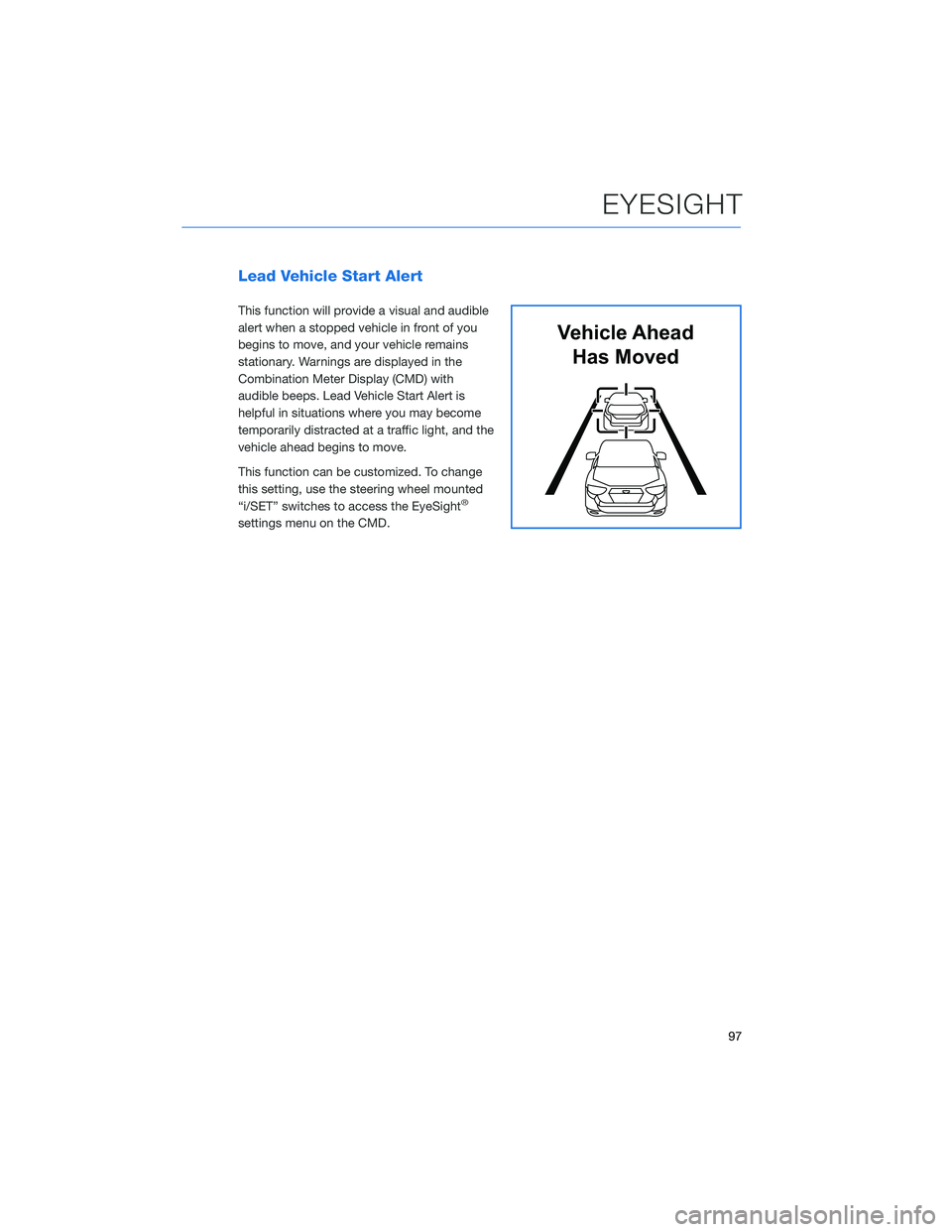
Lead Vehicle Start Alert
This function will provide a visual and audible
alert when a stopped vehicle in front of you
begins to move, and your vehicle remains
stationary. Warnings are displayed in the
Combination Meter Display (CMD) with
audible beeps. Lead Vehicle Start Alert is
helpful in situations where you may become
temporarily distracted at a traffic light, and the
vehicle ahead begins to move.
This function can be customized. To change
this setting, use the steering wheel mounted
“i/SET” switches to access the EyeSight
®
settings menu on the CMD.
Vehicle AheadHas Moved
EYESIGHT
97
Page 104 of 156
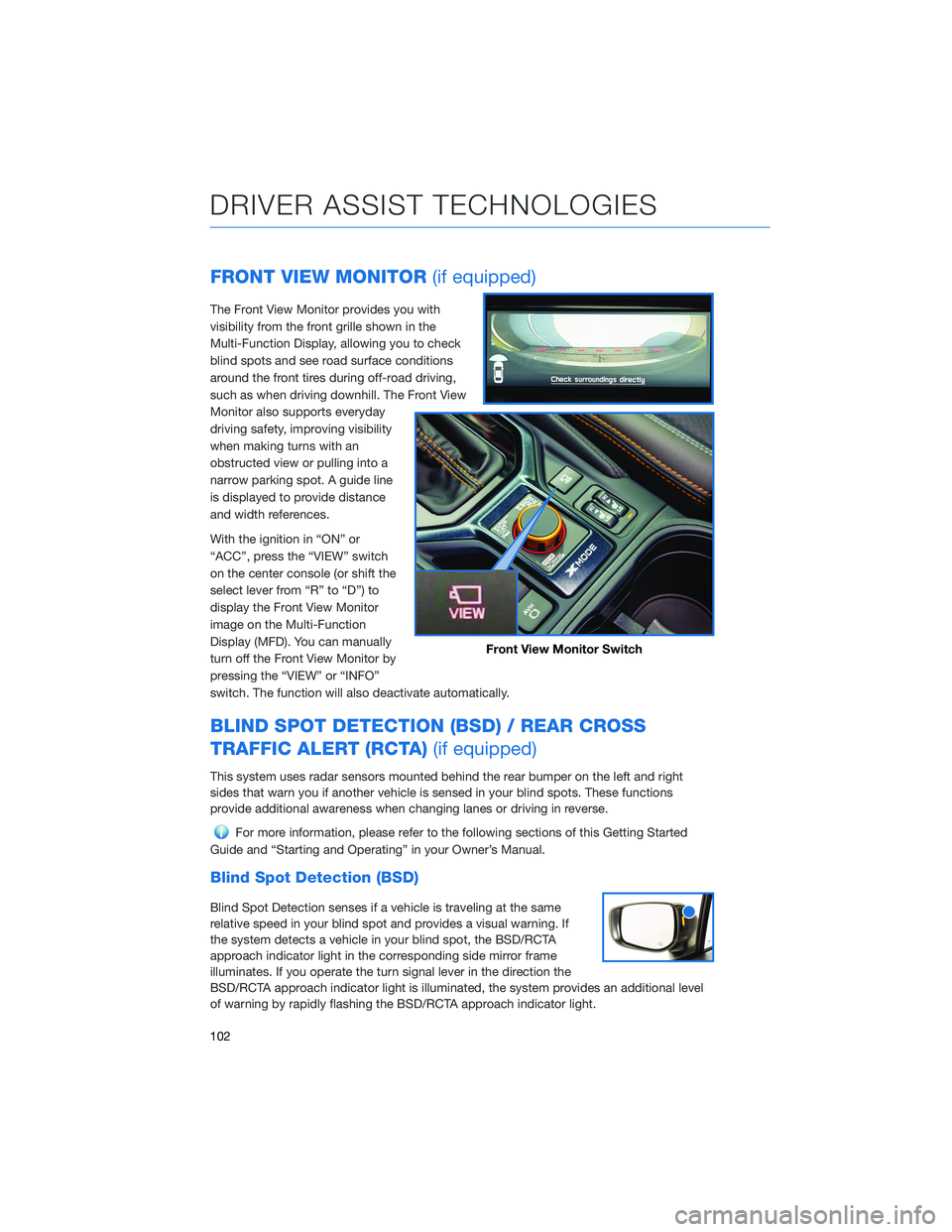
FRONT VIEW MONITOR(if equipped)
The Front View Monitor provides you with
visibility from the front grille shown in the
Multi-Function Display, allowing you to check
blind spots and see road surface conditions
around the front tires during off-road driving,
such as when driving downhill. The Front View
Monitor also supports everyday
driving safety, improving visibility
when making turns with an
obstructed view or pulling into a
narrow parking spot. A guide line
is displayed to provide distance
and width references.
With the ignition in “ON” or
“ACC”, press the “VIEW” switch
on the center console (or shift the
select lever from “R” to “D”) to
display the Front View Monitor
image on the Multi-Function
Display (MFD). You can manually
turn off the Front View Monitor by
pressing the “VIEW” or “INFO”
switch. The function will also deactivate automatically.
BLIND SPOT DETECTION (BSD) / REAR CROSS
TRAFFIC ALERT (RCTA) (if equipped)
This system uses radar sensors mounted behind the rear bumper on the left and right
sides that warn you if another vehicle is sensed in your blind spots. These functions
provide additional awareness when changing lanes or driving in reverse.
For more information, please refer to the following sections of this Getting Started
Guide and “Starting and Operating” in your Owner’s Manual.
Blind Spot Detection (BSD)
Blind Spot Detection senses if a vehicle is traveling at the same
relative speed in your blind spot and provides a visual warning. If
the system detects a vehicle in your blind spot, the BSD/RCTA
approach indicator light in the corresponding side mirror frame
illuminates. If you operate the turn signal lever in the direction the
BSD/RCTA approach indicator light is illuminated, the system provides an additional level
of warning by rapidly flashing the BSD/RCTA approach indicator light.
Front View Monitor Switch
DRIVER ASSIST TECHNOLOGIES
102
Page 108 of 156
DRIVERFOCUS®OVERVIEW(if equipped)
Your Subaru features DriverFocus®, a state-of-the-art system that
helps reduce distracted driving for both new and experienced
drivers.
Working with our award-winning EyeSight
®Driver Assist
Technology, DriverFocus®is like having an attentive co-pilot along
for the ride, available to give a helpful alert if a driver becomes
distracted or drowsy. For added convenience, DriverFocus
®can
also recognize up to five drivers and remember their preferences,
such as seat position, climate settings, and outside mirror positions.
For more information, please refer to the video linked in the QR code and to “Starting
and Operating” in your Owner’s Manual.
DRIVERFOCUS®COMPONENTS
Camera
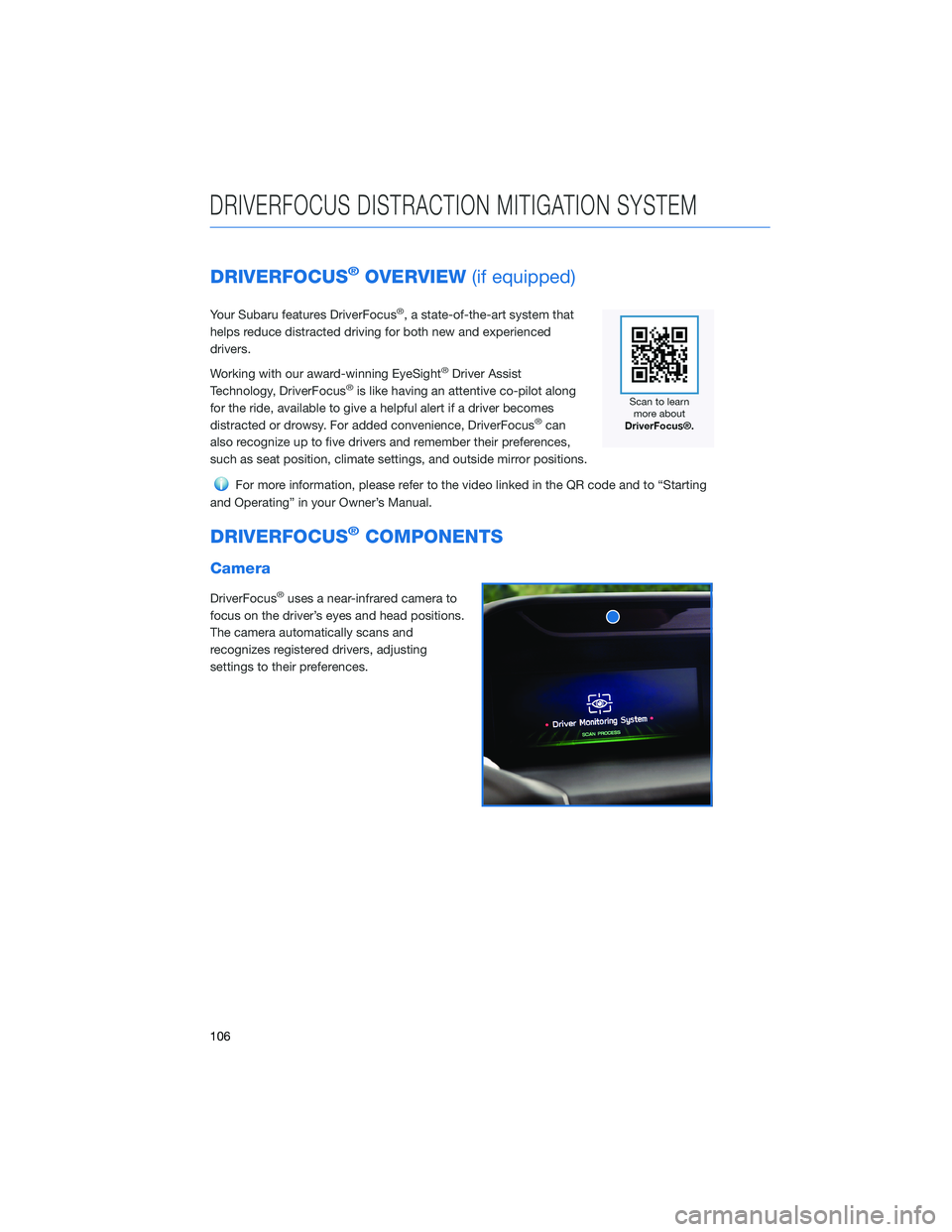
DriverFocus®uses a near-infrared camera to
focus on the driver’s eyes and head positions.
The camera automatically scans and
recognizes registered drivers, adjusting
settings to their preferences.
DRIVERFOCUS DISTRACTION MITIGATION SYSTEM
106
Page 121 of 156
To retrieve the seat position set with the access key fob:
1. Hold the access key fob.
2. Unlock and open the driver’s door. The seat and outside mirrors are automaticallyrecalled to your preferred positions.
BLUETOOTH®PAIRING
Pairing an Android Device
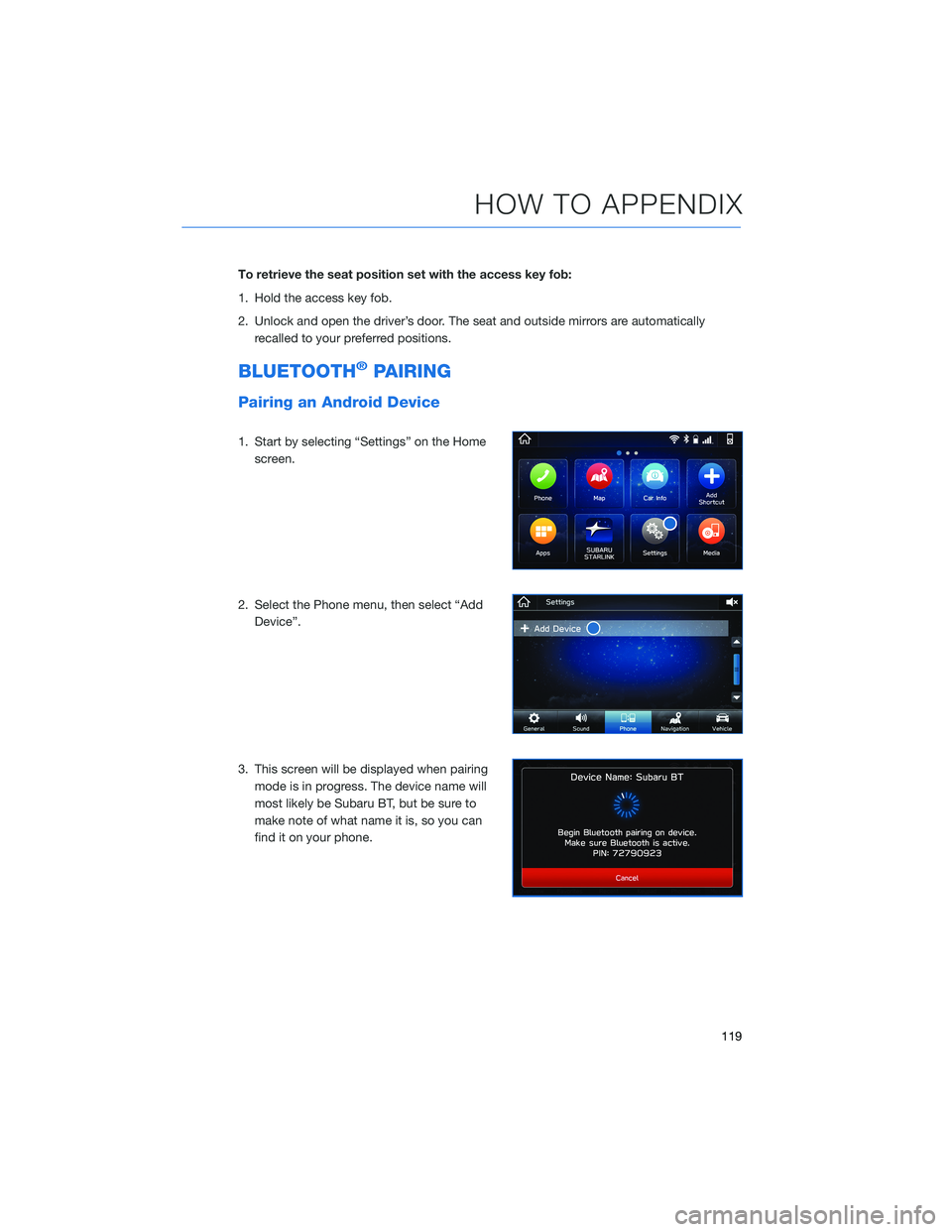
1. Start by selecting “Settings” on the Homescreen.
2. Select the Phone menu, then select “Add Device”.
3. This screen will be displayed when pairing mode is in progress. The device name will
most likely be Subaru BT, but be sure to
make note of what name it is, so you can
find it on your phone.
HOW TO APPENDIX
119
Page 125 of 156
Pairing an iOS/Apple Device
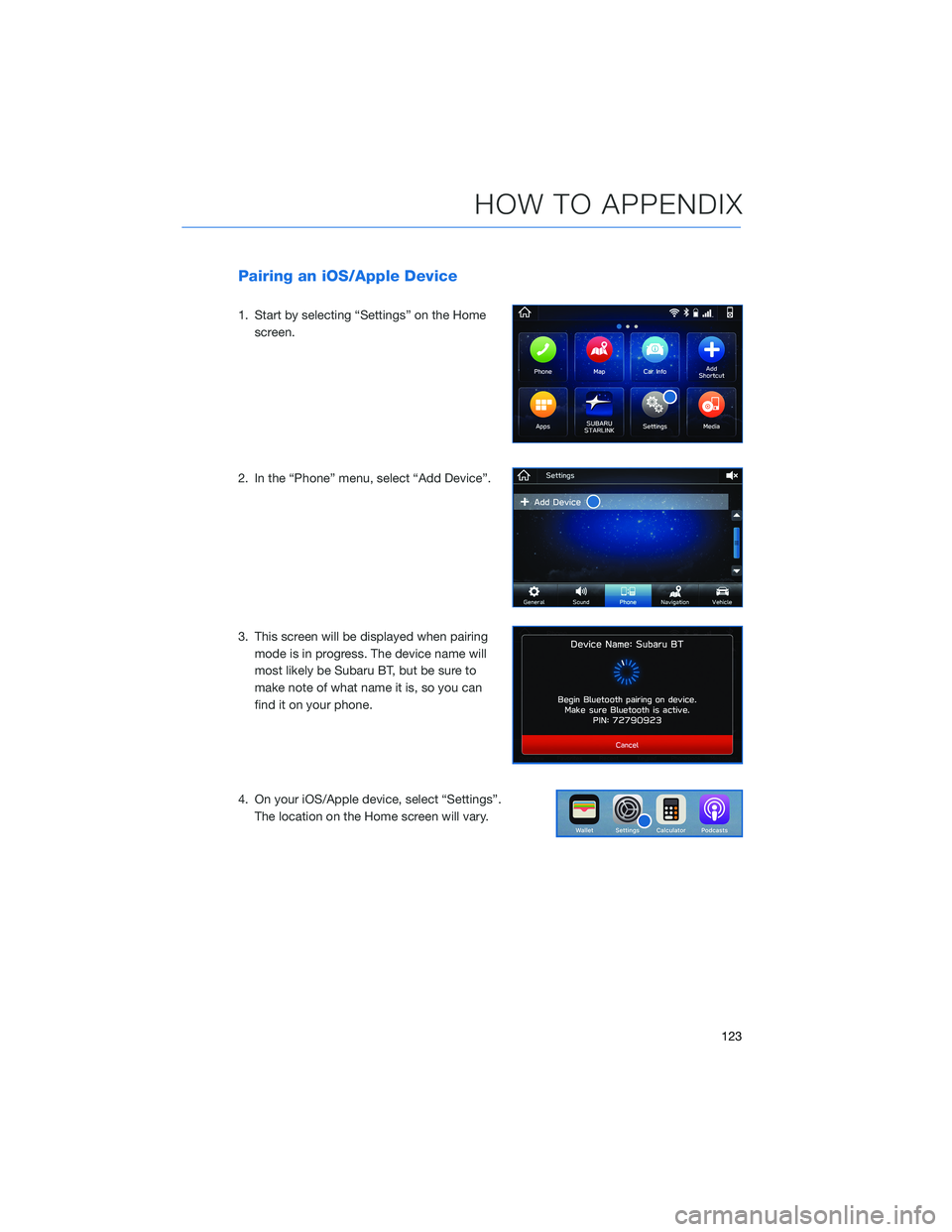
1. Start by selecting “Settings” on the Homescreen.
2. In the “Phone” menu, select “Add Device”.
3. This screen will be displayed when pairing mode is in progress. The device name will
most likely be Subaru BT, but be sure to
make note of what name it is, so you can
find it on your phone.
4. On your iOS/Apple device, select “Settings”. The location on the Home screen will vary.
HOW TO APPENDIX
123