phone SUBARU IMPREZA 2011 4.G Owners Manual
[x] Cancel search | Manufacturer: SUBARU, Model Year: 2011, Model line: IMPREZA, Model: SUBARU IMPREZA 2011 4.GPages: 458, PDF Size: 16.22 MB
Page 11 of 458
8
&Driving when tired or sleepy
WARNING
When you are tired or sleepy, your
reaction time will be delayed and
your perception, judgment and at-
tentiveness will be impaired. If you
drive when tired or sleepy, your,
your passengers ’and other per-
sons ’chances of being involved in
a serious accident may increase.
Please do not continue to drive but
instead find a safe place to rest if you
are tired or sleepy. On long trips, you
should make periodic rest stops to refresh
yourself before continuing on your journey.
When possible, you should share the
driving with others.
& Modification of your vehicle
CAUTION
Your vehicle should not be modified
other than with genuine SUBARU
parts and accessories. Other types
of modifications could affect its
performance, safety or durability,
and may even violate governmental
regulations. In addition, damage or performance problems resulting
from modification may not be cov-
ered under warranties.
& Car phone/cell phone and driving
CAUTION
Do not use a car phone/cell phone
while driving; it may distract your
attention from driving and can lead
to an accident. If you use a car
phone/cell phone, pull off the road
and park in a safe place before
using your phone. In some States/
Provinces, only hands-free phones
may legally be used while driving.
& Driving vehicles equipped
with navigation system
WARNING
Do not allow the monitor to distract
your attention from driving. Also, do
not operate the controls of the
navigation system while driving.
The loss of attention to driving
could lead to an accident. If you wish to operate the controls of the
navigation system, first take the
vehicle off the road and stop it in a
safe place.
& Driving with pets
Unrestrained pets can interfere with your
driving and distract your attention from
driving. In a collision or sudden stop,
unrestrained pets or cages can be thrown
around inside the vehicle and hurt you or
your passengers. Besides, the pets can
be hurt under these situations. It is also for
their own safety that pets should be
properly restrained in your vehicle. Re-
strain a pet with a special traveling
harness which can be secured to the rear
seat with a seatbelt or use a pet carrier
which can be secured to the rear seat by
routing a seatbelt through the carrier ’s
handle. Never restrain pets or pet carriers
in the front passenger ’s seat. For further
information, consult your veterinarian,
local animal protection society or petshop.
Page 79 of 458
1-48Seat, seatbelt and SRS airbags
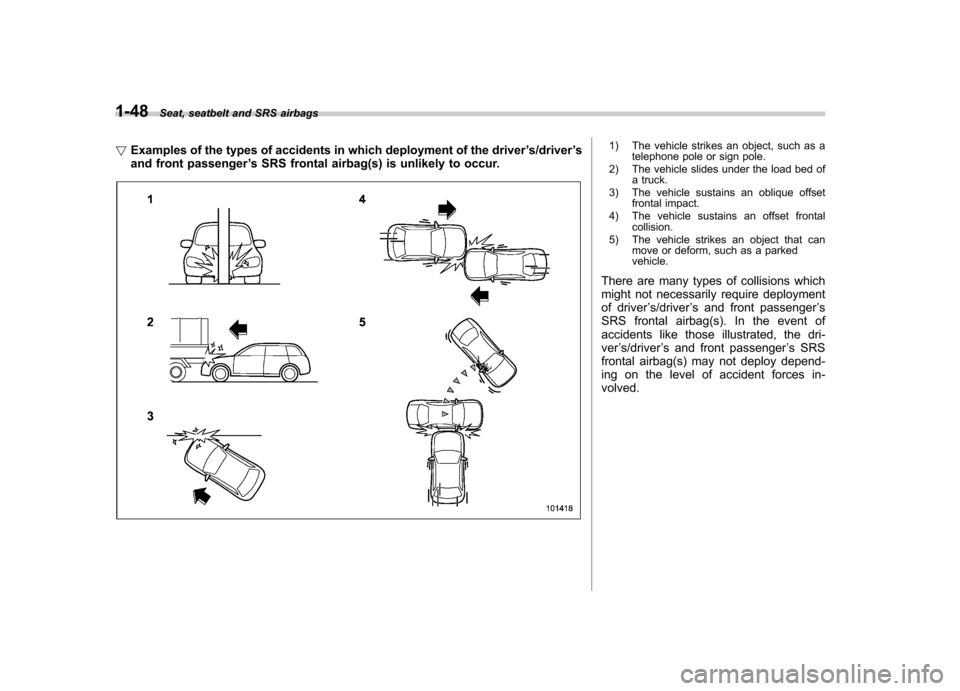
! Examples of the types of accidents in which deployment of the driver ’s/driver ’s
and front passenger ’s SRS frontal airbag(s) is unlikely to occur.
1) The vehicle strikes an object, such as a
telephone pole or sign pole.
2) The vehicle slides under the load bed of a truck.
3) The vehicle sustains an oblique offset frontal impact.
4) The vehicle sustains an offset frontal collision.
5) The vehicle strikes an object that can move or deform, such as a parked vehicle.
There are many types of collisions which
might not necessarily require deployment
of driver ’s/driver ’s and front passenger ’s
SRS frontal airbag(s). In the event of
accidents like those illustrated, the dri-ver ’s/driver ’s and front passenger ’s SRS
frontal airbag(s) may not deploy depend-
ing on the level of accident forces in-volved.
Page 82 of 458
WARNING
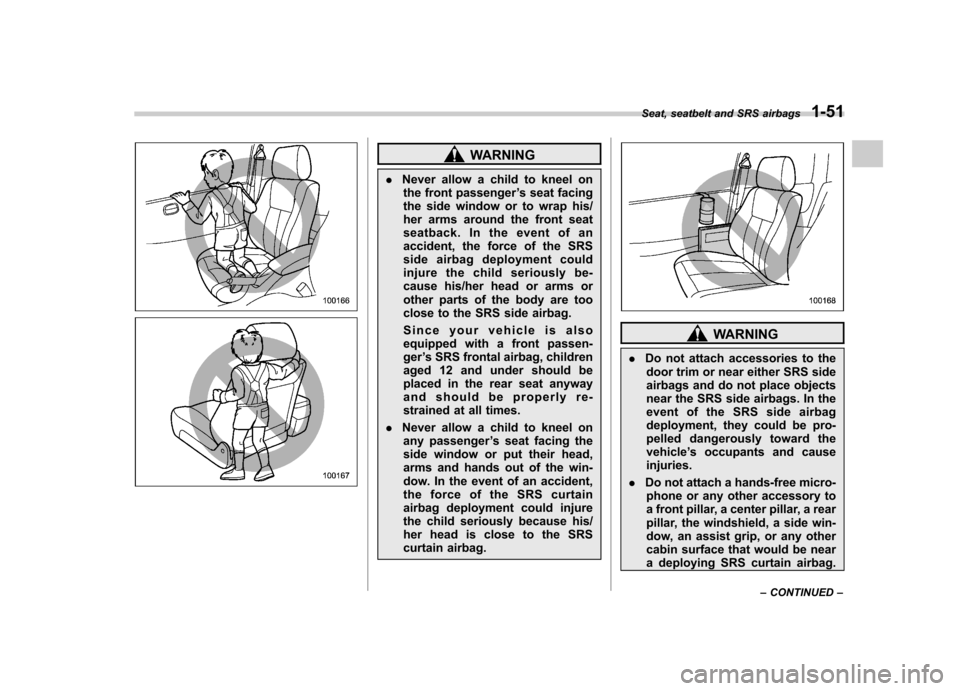
. Never allow a child to kneel on
the front passenger ’s seat facing
the side window or to wrap his/
her arms around the front seat
seatback. In the event of an
accident, the force of the SRS
side airbag deployment could
injure the child seriously be-
cause his/her head or arms or
other parts of the body are too
close to the SRS side airbag.
Since your vehicle is also
equipped with a front passen-ger ’s SRS frontal airbag, children
aged 12 and under should be
placed in the rear seat anyway
and should be properly re-
strained at all times.
. Never allow a child to kneel on
any passenger ’s seat facing the
side window or put their head,
arms and hands out of the win-
dow. In the event of an accident,
the force of the SRS curtain
airbag deployment could injure
the child seriously because his/
her head is close to the SRS
curtain airbag.
WARNING
. Do not attach accessories to the
door trim or near either SRS side
airbags and do not place objects
near the SRS side airbags. In the
event of the SRS side airbag
deployment, they could be pro-
pelled dangerously toward thevehicle ’s occupants and cause
injuries.
. Do not attach a hands-free micro-
phone or any other accessory to
a front pillar, a center pillar, a rear
pillar, the windshield, a side win-
dow, an assist grip, or any other
cabin surface that would be near
a deploying SRS curtain airbag.
Seat, seatbelt and SRS airbags
1-51
– CONTINUED –
Page 83 of 458
1-52Seat, seatbelt and SRS airbags
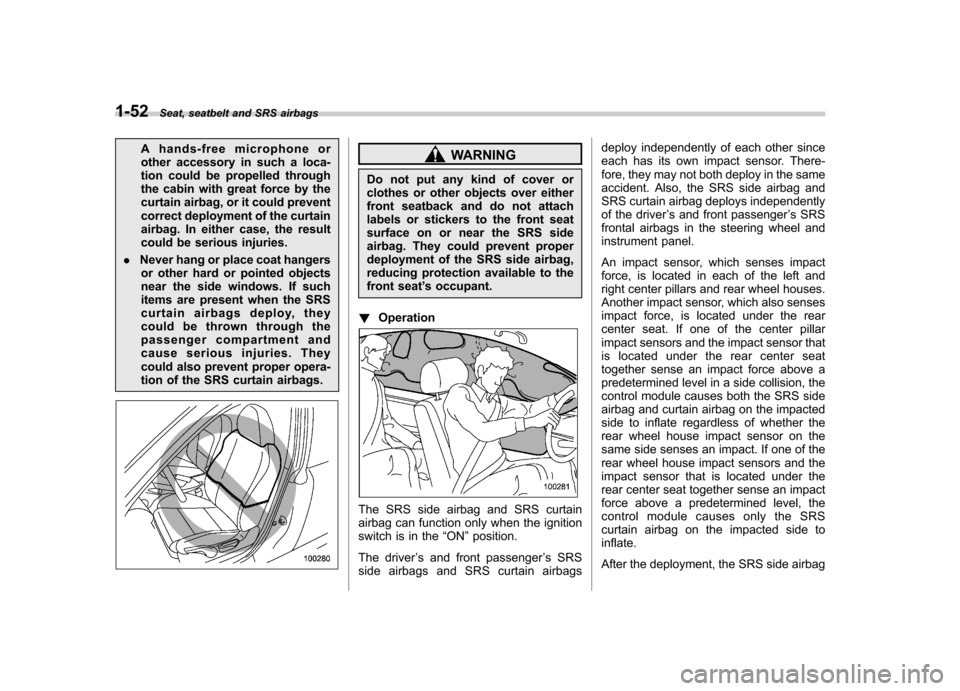
A hands-free microphone or
other accessory in such a loca-
tion could be propelled through
the cabin with great force by the
curtain airbag, or it could prevent
correct deployment of the curtain
airbag. In either case, the result
could be serious injuries.
. Never hang or place coat hangers
or other hard or pointed objects
near the side windows. If such
items are present when the SRS
curtain airbags deploy, they
could be thrown through the
passenger compartment and
cause serious injuries. They
could also prevent proper opera-
tion of the SRS curtain airbags.WARNING
Do not put any kind of cover or
clothes or other objects over either
front seatback and do not attach
labels or stickers to the front seat
surface on or near the SRS side
airbag. They could prevent proper
deployment of the SRS side airbag,
reducing protection available to the
front seat ’s occupant.
! Operation
The SRS side airbag and SRS curtain
airbag can function only when the ignition
switch is in the “ON ”position.
The driver ’s and front passenger ’s SRS
side airbags and SRS curtain airbags deploy independently of each other since
each has its own impact sensor. There-
fore, they may not both deploy in the same
accident. Also, the SRS side airbag and
SRS curtain airbag deploys independently
of the driver
’s and front passenger ’s SRS
frontal airbags in the steering wheel and
instrument panel.
An impact sensor, which senses impact
force, is located in each of the left and
right center pillars and rear wheel houses.
Another impact sensor, which also senses
impact force, is located under the rear
center seat. If one of the center pillar
impact sensors and the impact sensor that
is located under the rear center seat
together sense an impact force above a
predetermined level in a side collision, the
control module causes both the SRS side
airbag and curtain airbag on the impacted
side to inflate regardless of whether the
rear wheel house impact sensor on the
same side senses an impact. If one of the
rear wheel house impact sensors and the
impact sensor that is located under the
rear center seat together sense an impact
force above a predetermined level, the
control module causes only the SRS
curtain airbag on the impacted side toinflate.
After the deployment, the SRS side airbag
Page 85 of 458

1-54Seat, seatbelt and SRS airbags
! Examples of the types of accidents in which the SRS side airbag and SRS
curtain airbag are unlikely to deploy.
1) The vehicle is involved in an oblique
side-on impact.
2) The vehicle is involved in a side-on impact in an area outside the vicinity of
the passenger compartment.
3) The vehicle strikes a telephone pole or similar object.
4) The vehicle is involved in a side-on impact from a motorcycle.
5) The vehicle rolls onto its side or roof.
There are many types of collisions which
might not necessarily require SRS side
airbag and SRS curtain airbag deploy-
ment. In the event of accidents like those
illustrated, the SRS side airbag and SRS
curtain airbag may not deploy depending
on the level of accident forces involved.
Page 89 of 458
1-58Seat, seatbelt and SRS airbags
This includes following modifica- tions. .Installation of custom steering
wheels
. Attachment of additional trim
materials to the dashboard
. Installation of custom seats
. Replacement of seat fabric or
leather
. Installation of additional fabric or
leather on the front seat
. Attachment of a hands-free mi-
crophone or any other accessory
to a front pillar, a center pillar, a
rear pillar, the windshield, a side
window, an assist grip, or any
other cabin surface that would be
near a deploying SRS curtainairbag.
. Installation of additional electri-
cal/electronic equipment such as
a mobile two-way radio on or
near the SRS airbag system
components and/or wiring is not
advisable. This could interfere
with proper operation of the
SRS airbag system.CAUTION
Do not perform any of the following
modifications. Such modifications
can interfere with proper operation
of the SRS airbag system. . Attachment of any equipment
(bush bar, winches, snow plow,
skid plate, etc.) other than genu-
ine SUBARU accessory parts to
the front end.
. Modification of the suspension
system or front end structure.
. Installation of a tire of different
size and construction from the
tires specified on the vehicle
placard attached to the driver ’s
door pillar or specified for indivi-
dual vehicle models in this Own-er ’s Manual.
. Attachment of any equipment
(side steps or side sill protectors,
etc.) other than genuine SUBARU
accessory parts to the side body.
Always consult your SUBARU dealer if
you want to install any accessory parts on
your vehicle.
Page 191 of 458

5-4Audio
Installation of accessories
Always consult your SUBARU dealer
before installing a citizen band radio or
other transmitting device in your vehicle.
Such devices may cause the electronic
control system to malfunction if they are
incorrectly installed or if they are not
suited for the vehicle. Audio set
Your SUBARU may be equipped with one
of the following audio sets. Refer to the
pages indicated in this section for operat-
ing details. NOTE
If a cell phone is placed near the audio
set, it may cause the audio set to emit
noise when the phone receives calls.
This noise does not indicate an audio
set malfunction. Note that a cell phone
should be placed as far as possible
from the audio set.
Page 203 of 458

5-16Audio
& Station preset
Preset buttons (type A and B audio)
Preset buttons (type C audio) !
How to preset stations
1. Press the “FM/AM ”button to select
FM1, FM2, FM3 or AM reception.
2. Press the “
”or “”side of the
“ SEEK ”button or tune the radio manually
until the desired station frequency is displayed.
3. Press one of the preset buttons for
more than 1.5 seconds to store the
frequency. If the button is pressed for less
than 1.5 seconds, the preceding selection
will remain in memory.
NOTE . If the connection between the radio
and battery is broken for any reason
such as vehicle maintenance or radio
removal, all stations stored in the
preset buttons are cleared. If this
occurs, it is necessary to reset the
preset buttons.. If a cell phone is placed near the
radio, it may cause the radio to emit
noise when it receives calls. This noise
does not indicate a radio malfunction. !
Selecting preset stations
Presetting a station with a preset button
allows you to select that station in a single
operation. Up to six AM, FM1, FM2 and
FM3 stations each may be preset.
Page 225 of 458

5-38Audio
&Connectable iPod®models
Model Firmware version
iPod
®
5G 1.3
5.5G 1.3
classic 1G 2.0.4
classic 2G 2.0.4
nano 2G 1.1.3
nano 3G 1.1.3
nano 4G 1.0.4
nano 5G 1.0.2
touch 1G 3.1.2
touch 2G 3.1.2
iPhone
®1G (GSM) 3.1.2
3G 3.1.2
3G S 3.1.2
CAUTION
Do not connect an iPod
®other than
the previously stated models. Doing
so may result in a malfunction or,
depending on conditions, cause a fire. NOTE .
iPod
®is a registered trademark of
Apple Inc. . You are only permitted to personally
copy and play copyright-free material
or material that is legally permitted to
be copied and played by using aniPod
®and iTunes. Copyright infringe-
ment is prohibited by law.. To check the firmware version of an
iPod
®, connect it to a computer and
check the device manager. For further
information, see the User ’s Guide that
comes with the iPod
®
. To update the firmware version of an
iPod®, visit the Apple Inc. website.
. Depending on the model and firm-
ware version of an iPod
®, it may not
work properly or not operate at all. & Connecting USB storage de-
vice / iPod
®
CAUTION
. If the data stored in an iPod
®is
deleted while it is connected to
the in-vehicle system, the data
cannot be recovered.
. Do not store an iPod
®in the
vehicle. If an iPod®is left in the
vehicle for a long period of time, it may be deformed, discolored
or damaged by high temperature.
NOTE . Even if a USB storage device or
iPod
®is connected, it cannot be played
unless the “CD/AUX ”button is
pressed. . A movie cannot be played while an
iPod
®is connected.
. While an iPod®is connected, the
iPod®cannot be operated using the
click wheel on the iPod®. However,
touch panel equipped models can beoperated.. When using an iPod
®by connecting
it to in-vehicle equipment, the order of
the list items displayed on the in-
vehicle equipment may be different
from that on the iPod
®. However, this
does not indicate a malfunction. . An iPod
®battery that is connected
to in-vehicle equipment will be charged
when the ignition switch is in the “ON ”
or “Acc ”position. However, activation
of the iPod
®may be delayed if the
battery charge of the iPod®is low.
. If an iPod®does not activate after
operation, disconnect the connection
cable from the iPod
®and reset it. For
the resetting procedure, see the User ’s
Guide that comes with the iPod
®.
Page 232 of 458

Bluetooth®audio (type C
audio)
This function enables you to play back
audio sources recorded in Bluetooth
®
audio devices. You need to register theBluetooth®audio device in the system
before using it. & Media format
Bluetooth
®audio devices cannot be
connected if they are not compatible with
the following Bluetooth
®profiles.
. A2DP (Advanced Audio Distribution
Profile) . AVRCP (Audio/Video Remote Control
Profile) & Setting Bluetooth
®audio
1. Select the “BT-A SETUP ”menu by
pressing the “MENU ”button.
2. Perform the following procedure while “ BT-A ”is displayed.
NOTE
You cannot set a Bluetooth
®audio
while driving. !
Registering (pairing) device
1. Select the “PAIR AUDIO ”menu by
operating the “TUNE/TRACK/CH ”dial. If a
device is already registered, “MEMORY
FULL ”is displayed and the mode changes
to the Bluetooth
®audio setting mode.
2. After the passkey is shown on the
display, input the passkey into the cell
phone. If you input the correct passkey,“ PAIRED ”is displayed and the registering
procedure is finished. If you input an
incorrect passkey, “FAILED ”is displayed,
the registering procedure was not suc-
cessful and the mode changes to theBluetooth
®audio setting mode.
! Selecting device
1. Select the “SELECT AUDIO ”menu by
operating the “TUNE/TRACK/CH ”dial. If
no devices are registered, “EMPTY ”is
displayed and the mode changes to theBluetooth
®audio setting mode.
2. Select the “CONFIRM ”menu by oper-
ating the “TUNE/TRACK/CH ”dial. If the
device is connected, “SELECTED ”is
displayed and the selecting procedure is
finished. If the device cannot be con-nected, “FAILED ”is displayed and the
selecting procedure was not successful. !
Setting passkey
1. Select the “SET PASSKEY ”menu by
operating the “TUNE/TRACK/CH ”dial.
After the currently set passkey is dis-
played, a new passkey can be entered.
2. Input the new passkey by operating the “TUNE/TRACK/CH ”dial.
3. Select the “CONFIRM ”menu by oper-
ating the “TUNE/TRACK/CH ”dial. The
new passkey is displayed, the passkey is
changed and the mode changes to theBluetooth
®audio setting mode.
! Deleting device
1. Select the “DELETE AUDIO ”menu by
operating the “TUNE/TRACK/CH ”dial. If
no devices are registered, “EMPTY ”is
displayed and the mode changes to theBluetooth
®audio setting mode.
2. Select the “CONFIRM ”menu by oper-
ating the “TUNE/TRACK/CH ”dial. “DE-
LETED ”is displayed and the mode
changes to the Bluetooth
®audio setting
mode. & Bluetooth
®audio operation
NOTE
Depending on the connected device, it
may not activate as per the following
items or not work smoothly. Audio
5-45
– CONTINUED –