reset SUBARU IMPREZA 2016 5.G Owner's Manual
[x] Cancel search | Manufacturer: SUBARU, Model Year: 2016, Model line: IMPREZA, Model: SUBARU IMPREZA 2016 5.GPages: 594, PDF Size: 5.36 MB
Page 303 of 594
Audio/Audio set
select the desired multicast channel.
NOTE
.HD RadioTMstations can be preset.
. An orangewill be displayed on
the screen when in digital. Thewill
first appear in a gray color indicating
the station is indeed (an analog and) a
digital station. Once the digital signal is
acquired, the logo will change to a
bright orange color.
. The song title and artist name will
appear on the screen when available by
the radio station. The radio station can
send album pictures when available.
. As a user works through the analog
radio stations, (where applicable) the
radio receiver will automatically tune
from an analog signal to a digital signal
within 5 seconds.
!Preserving a music information
Tag information in the music broadcasting
is preserved in the system and transmits
to an iPod.
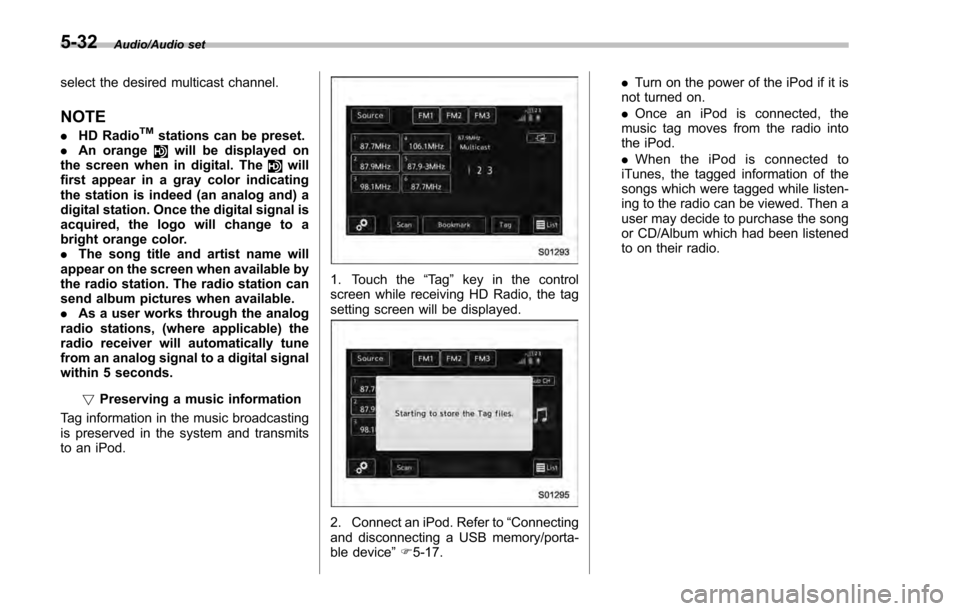
1. Touch the “Ta g”key in the control
screen while receiving HD Radio, the tag
setting screen will be displayed.
2. Connect an iPod. Refer to “Connecting
and disconnecting a USB memory/porta-
ble device ”F 5-17. .
Turn on the power of the iPod if it is
not turned on.
. Once an iPod is connected, the
music tag moves from the radio into
the iPod.
. When the iPod is connected to
iTunes, the tagged information of the
songs which were tagged while listen-
ing to the radio can be viewed. Then a
user may decide to purchase the song
or CD/Album which had been listened
to on their radio.
5-32
Page 306 of 594

!Troubleshooting guide
Experience CauseAction
Mismatch of time alignment - a user may hear
a short period of programming replayed or an
echo, stutter or skip. The radio stations analog and digital volume is
not properly aligned or the station is in ballgame
mode.
None, radio broadcast issue. A user can contact
the radio station.
Sound fades, blending in and out. Radio is shifting between analog and digital
audio. Reception issue. May clear-up as the vehicle
continues to be driven. Turning the indicator of the
HD Radio
TMoff will change the radio mode to
analog audio.
Audio mute condition when an HD2/HD3
multicast channel had been playing. The radio does not have access to digital
signals at the moment. This is normal behavior, wait until the digital signal
returns. If out of the coverage area, seek a new
station.
Audio mute delay when selecting an HD2/
HD3 multicast channel preset. The digital multicast content is not available until
HD Radio
TMbroadcast can be decoded and
make the audio available. This takes up to 7
seconds. This is normal behavior, wait for the audio to
become available.
Text information does not match the present
song audio. Data service issue by the radio broadcaster. Broadcaster should be notified. Complete the form;
www.ibiquity.com/automotive/report_radio
_station_experiences.
No text information shown for the present
selected frequency. Data service issue by the radio broadcaster. Broadcaster should be notified. Complete the form;
www.ibiquity.com/automotive/report_radio
_station_experiences.
The “Acquiring ”caution message appears
when the system attempts to acquire digital
transmission. When acquiring digital data while receiving a
digital broadcast and SPS station. .
When the reception in digital of the SPS station
is confirmed.
. When the system determined that the SPS
station could not be received.
. When the SPS broadcast is ended (stopped) by
the radio station while receiving SPS. Audio/Audio set
–CONTINUED –
5-35
Page 308 of 594
&SiriusXM Satellite Radio (if
equipped)
! SiriusXM Data Service
Data service information, which is com-
prised of traffic information and weather
information, can be received via the
SiriusXM Radio.
To receive the data service information in
the vehicle, a subscription to the SiriusXM
Satellite Radio service is necessary.
Content set to use the SiriusXM data
service is reset when personal information
is initialized. !
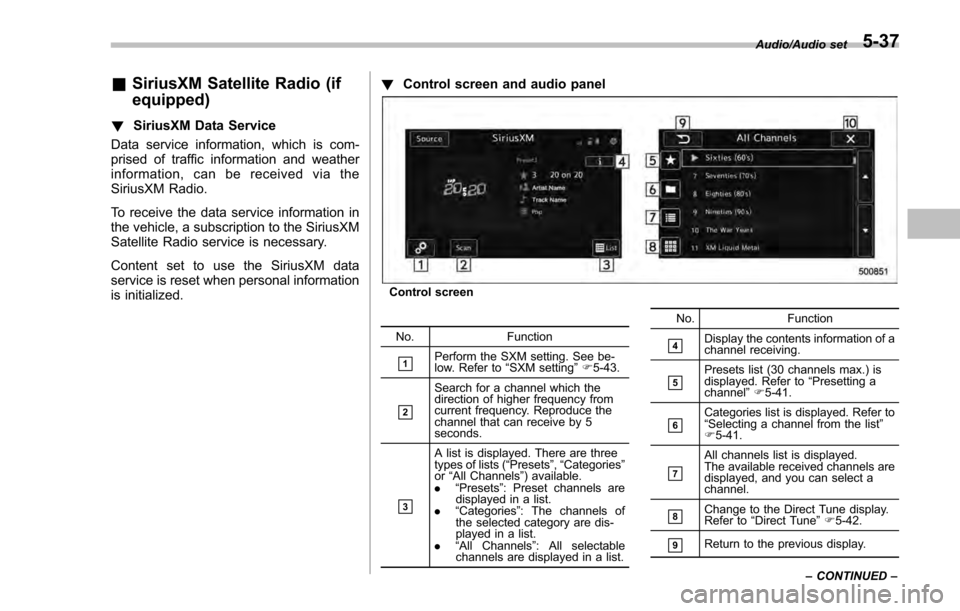
Control screen and audio panel
Control screen
No. Function
&1Perform the SXM setting. See be-
low. Refer to “SXM setting ”F 5-43.
&2
Search for a channel which the
direction of higher frequency from
current frequency. Reproduce the
channel that can receive by 5
seconds.
&3
A list is displayed. There are three
types of lists ( “Presets ”, “Categories ”
or “All Channels” ) available.
. “Presets ”: Preset channels are
displayed in a list.
. “Categories ”: The channels of
the selected category are dis-
played in a list.
. “All Channels” : All selectable
channels are displayed in a list. No. Function
&4Display the contents information of a
channel receiving.
&5Presets list (30 channels max.) is
displayed. Refer to
“Presetting a
channel ”F 5-41.
&6Categories list is displayed. Refer to
“Selecting a channel from the list ”
F 5-41.
&7
All channels list is displayed.
The available received channels are
displayed, and you can select a
channel.
&8Change to the Direct Tune display.
Refer to “Direct Tune ”F 5-42.
&9Return to the previous display. Audio/Audio set
–CONTINUED –
5-37
Page 312 of 594
!Presetting a channel
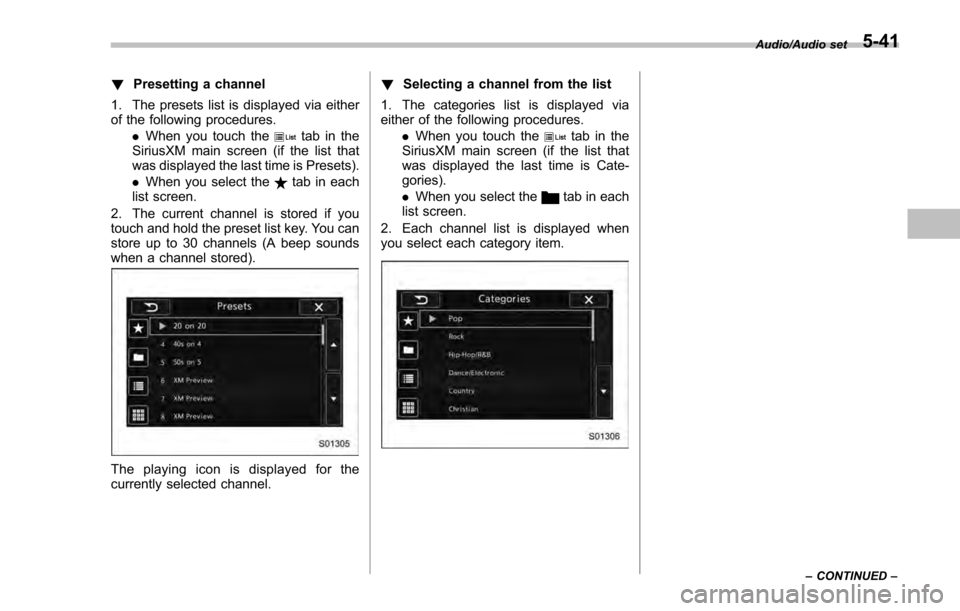
1. The presets list is displayed via either
of the following procedures. .When you touch the
tab in the
SiriusXM main screen (if the list that
was displayed the last time is Presets).
. When you select the
tab in each
list screen.
2. The current channel is stored if you
touch and hold the preset list key. You can
store up to 30 channels (A beep sounds
when a channel stored).
The playing icon is displayed for the
currently selected channel. !
Selecting a channel from the list
1. The categories list is displayed via
either of the following procedures. .When you touch the
tab in the
SiriusXM main screen (if the list that
was displayed the last time is Cate-
gories).
. When you select the
tab in each
list screen.
2. Each channel list is displayed when
you select each category item.
Audio/Audio set
–CONTINUED –5-41
Page 316 of 594
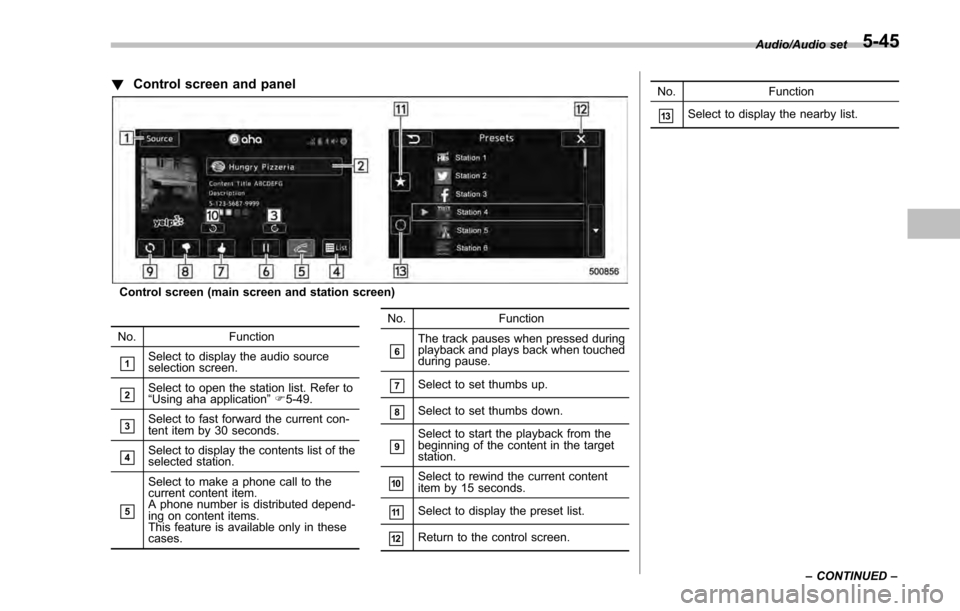
!Control screen and panel
Control screen (main screen and station screen)
No. Function
&1Select to display the audio source
selection screen.
&2Select to open the station list. Refer to
“ Using aha application ”F 5-49.
&3Select to fast forward the current con-
tent item by 30 seconds.
&4Select to display the contents list of the
selected station.
&5
Select to make a phone call to the
current content item.
A phone number is distributed depend-
ing on content items.
This feature is available only in these
cases. No. Function
&6The track pauses when pressed during
playback and plays back when touched
during pause.
&7Select to set thumbs up.
&8Select to set thumbs down.
&9Select to start the playback from the
beginning of the content in the target
station.
&10Select to rewind the current content
item by 15 seconds.
&11Select to display the preset list.
&12Return to the control screen. No. Function
&13Select to display the nearby list.
Audio/Audio set
–CONTINUED –
5-45
Page 318 of 594

–Outside wireless communication
range, such as some countryside
areas
– Where the wireless communica-
tion network is congested, or where
communications are restricted
. Depending on the circumstances
and environment, the signal may be
weak or not be received. In such cases,
an error may occur.
. Top 35 entries in the preset station
list on the smartphone are displayed.
When there are more than 35 entries in
the preset station list, change the order
of the entries in the list on the smart-
phone. You can change the priority of
your preset stations within the aha
application (after disconnected from
this system) to modify the station list
shown on the screen. Please see your
smartphone aha application “Edit Pre-
sets (in Main menu) ”to modify this list.
. For operating the smartphone, see
the instruction manual that comes with
it.
. If there are multiple music files
stored on your iPhone or iPod touch,
it may take some time until playback
starts.
. Playback may be intermittent when
you switch to streaming Bluetooth
audio from aha on your smartphone device.
.
When connecting the device via
Bluetooth, the communication speed
may become slower than via USB.
! Before using aha application
In order to use the aha application on this
system, the application must be installed
on the smartphone.
! Settings required to use aha
application
. Search and download the aha applica-
tion from your smartphone app store.
–iPhone and iPod touch: Apple App
Store via iTunes
– Android device: Google Play Store
. Create an account and login to the aha
application on the smartphone.
NOTE
Please use the latest version of the aha
application.
!About app-based connected con-
tent
Requirements for using the connected
content services of the aha application
on this system.
. Latest version of the system is compa-
tible with connected content application(s)
for the smartphone, available from aha, downloaded to your smartphone.
.
A current account with a wireless
content service provider.
. A smartphone data plan: If the data
plan for your smartphone does not provide
for unlimited data usage, additional
charges from your carrier may apply for
accessing app-based connected content
via 3G, 4G, Wi-Fi or 4G LTE wireless
networks.
. Connection to the internet via 3G, 4G,
Wi-Fi or 4G LTE networks.
NOTE
. Changes to product specifications
may result in differences between the
content of the manual and features of
the product.
. Be careful not to exceed the data
usage limits for your smartphone.
Doing so will result in additional data
usage charges from your phone car-
rier.
. Access to app-based connected
content will depend on the availability
of wireless cell and/or Wi-Fi network
coverage for the purpose of allowing
your smartphone to connect to the
internet.
. Service availability may be geogra-
phically limited by region. Consult the
wireless connected content service
Audio/Audio set
–CONTINUED –5-47
Page 335 of 594

Audio/Steering switches for audio
.+/− switch
Mode Operation Function
Except list screen Press
Volume up/down
Press and hold Volume up/down continuously
List screen Press Move cursor up/down
Pandora main screen (if equipped) Press and hold “
+” switch is thumb up/ “− ” switch is thumb down
./switch
Mode Operation Function
AM/FM Radio, SiriusXM (if equipped) Press
Preset channel up/down
Press and hold Seek up/down continuously while the switch is
being pressed
aha Press
Content up/down
Press and hold Reverse the current content item for 15 sec-
onds/Fast forward the current content item for
30 seconds
Audio CD, MP3/WMA/AAC disc, USB, iPod, BT audio Press
Select a track/file
Press and hold Fast forward/rewind
Pandora (if equipped) Press and hold Thumbs up
List screen Press Move cursor left/right
5-64
Page 358 of 594

!Commands for AM/FM control
Voice command Function
Seek Up Tunes in the higher
frequency direction
Seek Down Tunes in the lower
frequency direction
Scan Switch to the scan
mode
Tune to
quency to switch to a
specific radio station
Preset
channel to switch to
specific radio station
Ta g iTunes Tagging for
HD Radio
!
Commands for SiriusXM radio con-
trol
Voice command Function
Preset
channel to switch to
specific radio station
Scan Switch to the scan
mode
Channel
nel to switch to spe-
cific radio station Voice command Function
Category ?Next
(page), Previous
(page), <1-5> ?Next
(page), Previous
(page), <1-5> Displays the category
list screen
!
Commands for CD control
Voice command Function
Track Up Select the next track
Track Down Select the current
track
Scan Switch to the scan
mode
Repeat ?1 Track
Repeat, Repeat All Select a repeat mode
1 Track Repeat Repeat single track
Repeat All Repeat all tracks
Shuffle Plays randomly
!
Commands for MP3/WMA/AAC,
USB control
Voice command Function
Track Up Select the next track
Track Down Select the current
track Voice command Function
Folder Up Plays from the start of
the next folder
Folder Down Plays from the start of
the previous folder
Scan Switch to the scan
mode
Repeat ?1 Track
Repeat, Repeat
Folder, Repeat All Select a repeat mode
1 Track Repeat Repeat single track
Repeat Folder Repeat of the folder
Repeat All Repeat all tracks
Shuffle ?Shuffle
Folder, Shuffle All Select a random play
mode
Shuffle Folder Plays randomly of the
folder
Shuffle All Plays randomly
!
Commands for iPod Control
Voice command Function
Track Up Select the next track
Track Down Select the current
track
Repeat ?Repeat
One, Repeat All Select a repeat mode
Repeat One Repeat single track Audio/Voice command system
–CONTINUED –
5-87
Page 393 of 594

Starting and operating/Preparing to drive
.A vehiclefails the OBDII inspection if
the “CHECK ENGINE ”warning light is not
properly operating (light is illuminated or is
not working due to a burned out bulb) or
there is one or more diagnostic trouble
codes stored in the vehicle’ s computer.
. A state emission inspection may reject
(not pass or fail) a vehicle if the number of
OBDII system readiness monitors “NOT
READY ”is greater than one. If the
vehicle’ s battery has been recently re-
placed or disconnected, the OBDII system
inspection may indicate that the vehicle is
not ready for the emission test. Under this
condition, the vehicle driver should be
instructed to drive his/her vehicle for a few
days to reset the readiness monitors and
return for an emission re-inspection.
. Owners of rejected or failing vehicles
should contact their SUBARU Dealer for
service.
Some states still use dynamometers in
their emission inspection program. A
dynamometer is a treadmill or roller-like
testing device that allows your vehicle ’s
wheels to turn while the vehicle remains in
one place. Prior to your vehicle being put
on a dynamometer, tell your emission
inspector
not to place your SUBARU
AWD vehicle on a two-wheel dynam-
ometer. Otherwise, serious transmis-
sion damage will result. The U.S. Environmental Protection
Agency (EPA) and states using two-wheel
dynamometers in their emission testing
program have EXEMPTED SUBARU
AWD vehicles from the portion of the
testing program that involves a two-wheel
dynamometer. There are some states that
use four-wheel dynamometers in their
testing program. When properly used, this
equipment should not damage a SUBARU
AWD vehicle.
Under no circumstances should the rear
wheels be jacked off the ground, nor
should the driveshaft be disconnected for
state emission testing.
Preparing to drive
You should perform the following checks
and adjustments every day before you
start driving.
1. Check that all windows, mirrors, and
lights are clean and unobstructed.
2. Check the appearance and condition
of the tires. Also check tires for proper
inflation.
3. Look under the vehicle for any sign of
leaks.
4. Check that the hood, trunk (4-door)
and rear gate (5-door) are fully closed.
5. Check the adjustment of the seat.
6. Check the adjustment of the inside
and outside mirrors.
7. Fasten your seatbelt. Check that your
passengers have fastened their seatbelts.
8. Check the operation of the warning
and indicator lights when the ignition
switch is turned to the
“ON ”position.
9. Check the gauges, indicator and warn-
ing lights after starting the engine.
10. Check that no small animals enter the
engine compartment.
7-8
Page 424 of 594
pressure threshold, the low tire
pressure warning light should
turn off a few minutes later.
If this light still illuminates while
driving after adjusting the tire
pressure, a tire may have signifi-
cant damage and a fast leak that
causes the tire to lose air rapidly.
If you have a flat tire, replace it
with a spare tire as soon as
possible.
. When a spare tire is mounted or a
wheel rim is replaced without the
original pressure sensor/trans-
mitter being transferred, the low
tire pressure warning light will
illuminate steadily after blinking
for approximately one minute.
This indicates the TPMS is un-
able to monitor all four road
wheels. Contact your SUBARU
dealer as soon as possible for
tire and sensor replacement and/
or system resetting.
. When a tire is repaired with liquid
sealant, the tire pressure warning
valve and transmitter may not
operate properly. If a liquid sea-
lant is used, contact your nearest
SUBARU dealer or other qualified
service shop as soon as possi-
ble. Make sure to replace the tire pressure warning valve and
transmitter when replacing the
tire. You may reuse the wheel if
there is no damage to it and if the
sealant residue is properly
cleaned off. Do not inject any tire
liquid or aerosol tire sealant into
the tires, as this may cause a
malfunction of the tire pressure
sensors. If the light illuminates
steadily after blinking for ap-
proximately one minute,
promptly contact a SUBARU
dealer to have the system in-
spected.
CAUTION
Do not place metal film or any metal
parts in the trunk. This may cause
poor reception of the signals from
the tire pressure sensors, and the
tire pressure monitoring system will
not function properly.
FCC ID: CWTWD1U781
NOTE
This device complies with part 15 of the
FCC Rules. Operation is subject to the
following two conditions: (1) This de-
vice may not cause harmful interfer- ence, and (2) this device must accept
any interference received, including
interference that may cause undesired
operation.
FCC CAUTION
Changes or modifications not ex-
pressly approved by the party respon-
sible for compliance could void the
user
’s authority to operate the equip-
ment.
Starting and operating/Tire pressure monitoring system (TPMS) (U.S. –spec. models)7-39