ECO mode SUBARU IMPREZA 2016 5.G Repair Manual
[x] Cancel search | Manufacturer: SUBARU, Model Year: 2016, Model line: IMPREZA, Model: SUBARU IMPREZA 2016 5.GPages: 594, PDF Size: 5.36 MB
Page 324 of 594
&CD
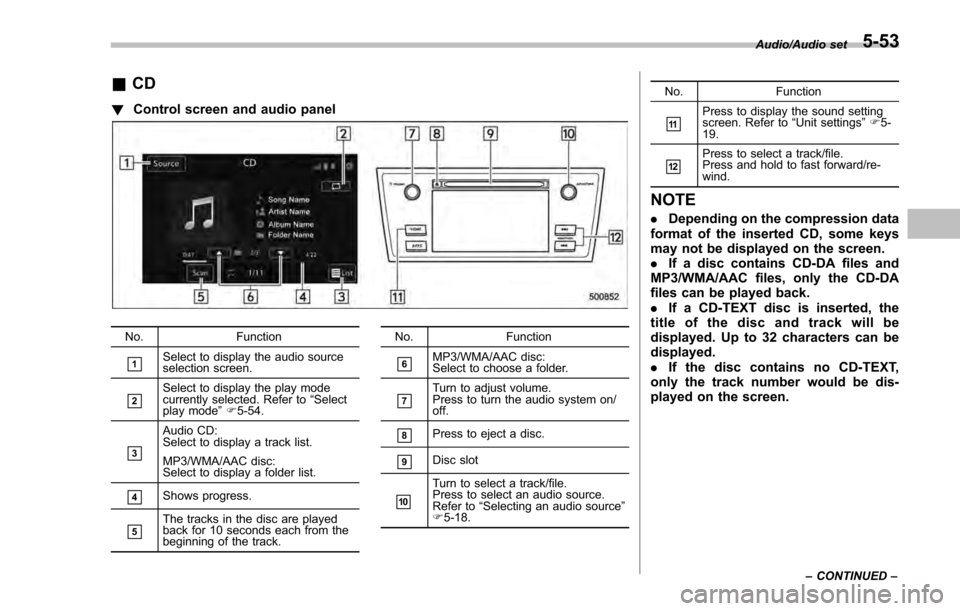
! Control screen and audio panel
No. Function
&1Select to display the audio source
selection screen.
&2Select to display the play mode
currently selected. Refer to “Select
play mode ”F 5-54.
&3
Audio CD:
Select to display a track list.
MP3/WMA/AAC disc:
Select to display a folder list.
&4Shows progress.
&5The tracks in the disc are played
back for 10 seconds each from the
beginning of the track. No. Function
&6MP3/WMA/AAC disc:
Select to choose a folder.
&7Turn to adjust volume.
Press to turn the audio system on/
off.
&8Press to eject a disc.
&9Disc slot
&10
Turn to select a track/file.
Press to select an audio source.
Refer to
“Selecting an audio source ”
F 5-18. No. Function
&11Press to display the sound setting
screen. Refer to
“Unit settings ”F 5-
19.
&12Press to select a track/file.
Press and hold to fast forward/re-
wind.
NOTE
. Depending on the compression data
format of the inserted CD, some keys
may not be displayed on the screen.
. If a disc contains CD-DA files and
MP3/WMA/AAC files, only the CD-DA
files can be played back.
. If a CD-TEXT disc is inserted, the
title of the disc and track will be
displayed. Up to 32 characters can be
displayed.
. If the disc contains no CD-TEXT,
only the track number would be dis-
played on the screen.
Audio/Audio set
–CONTINUED –5-53
Page 326 of 594
&USB memory
Audio files on the USB memory can be
played.
WARNING
Do not operate the player ’s controls
or connect the USB memory while
driving. Doing so may result in
losing control of your vehicle and
cause an accident or serious injury.
CAUTION
. Do not leave your USB memory
in the car. In particular, high
temperatures inside the vehicle
may damage the USB memory.
. Do not push down on or apply
unnecessary pressure to the
USB memory while it is con-
nected as this may damage the
USB memory or its terminal.
. Do not insert foreign objects into
the port as this may damage the
USB memory or its terminal. !
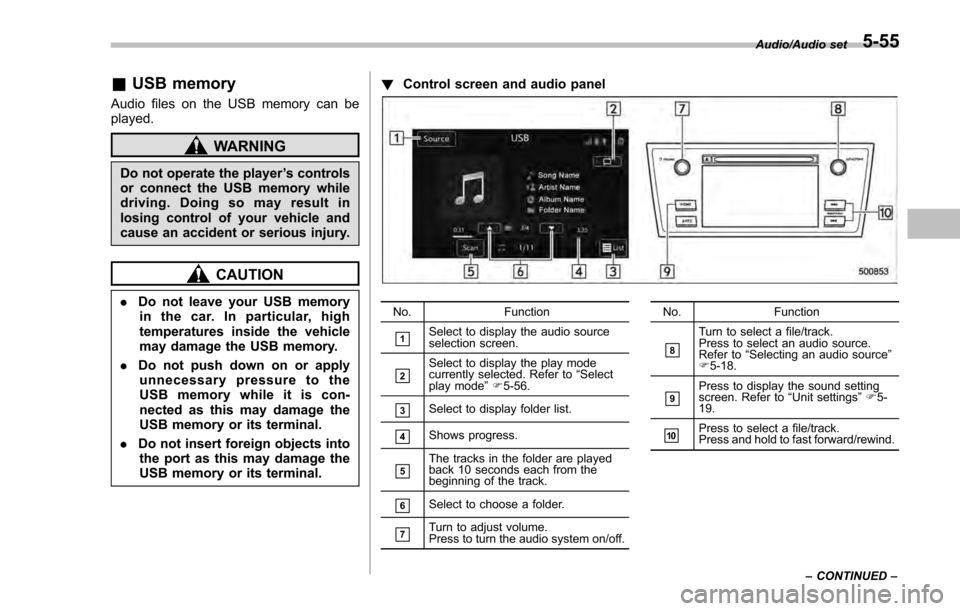
Control screen and audio panelNo. Function
&1Select to display the audio source
selection screen.
&2Select to display the play mode
currently selected. Refer to “Select
play mode ”F 5-56.
&3Select to display folder list.
&4Shows progress.
&5The tracks in the folder are played
back 10 seconds each from the
beginning of the track.
&6Select to choose a folder.
&7Turn to adjust volume.
Press to turn the audio system on/off. No.
Function
&8
Turn to select a file/track.
Press to select an audio source.
Refer to“Selecting an audio source ”
F 5-18.
&9Press to display the sound setting
screen. Refer to “Unit settings ”F 5-
19.
&10Press to select a file/track.
Press and hold to fast forward/rewind. Audio/Audio set
–CONTINUED –
5-55
Page 328 of 594
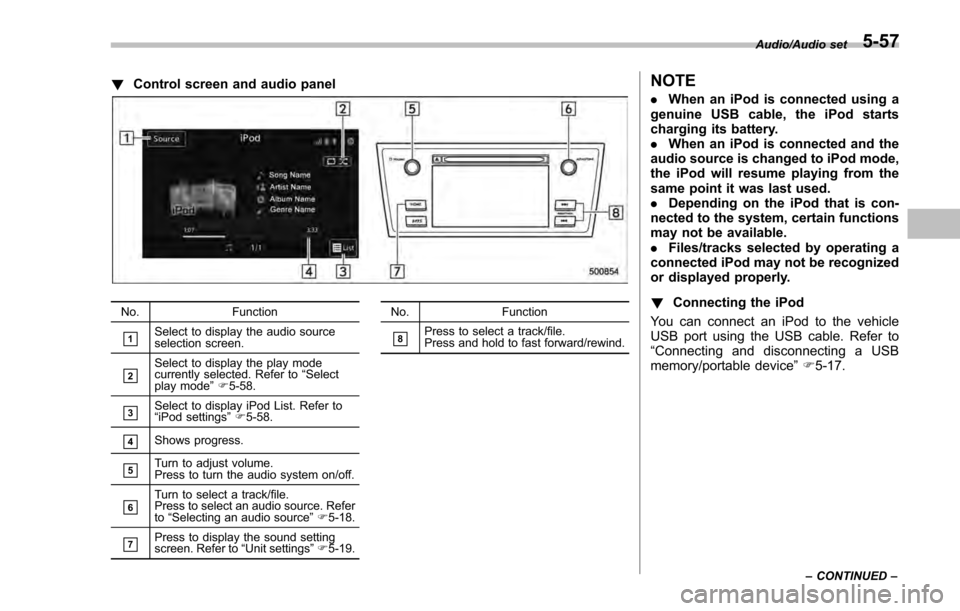
!Control screen and audio panel
No. Function
&1Select to display the audio source
selection screen.
&2Select to display the play mode
currently selected. Refer to “Select
play mode ”F 5-58.
&3Select to display iPod List. Refer to
“iPod settings ”F 5-58.
&4Shows progress.
&5Turn to adjust volume.
Press to turn the audio system on/off.
&6Turn to select a track/file.
Press to select an audio source. Refer
to “Selecting an audio source ”F 5-18.
&7Press to display the sound setting
screen. Refer to “Unit settings ”F 5-19. No. Function
&8Press to select a track/file.
Press and hold to fast forward/rewind.
NOTE
.
When an iPod is connected using a
genuine USB cable, the iPod starts
charging its battery.
. When an iPod is connected and the
audio source is changed to iPod mode,
the iPod will resume playing from the
same point it was last used.
. Depending on the iPod that is con-
nected to the system, certain functions
may not be available.
. Files/tracks selected by operating a
connected iPod may not be recognized
or displayed properly.
! Connecting the iPod
You can connect an iPod to the vehicle
USB port using the USB cable. Refer to
“ Connecting and disconnecting a USB
memory/portable device ”F 5-17.
Audio/Audio set
–CONTINUED –5-57
Page 331 of 594

Audio/Audio set
NOTE
.Depending on the Bluetooth device
that is connected to the system, the
music may start playing when selecting
the
key while it is paused. Con-
versely, the music may pause when
selecting the
key while it is playing.
. In the following conditions, the sys-
tem may not function:
–The Bluetooth device is turned
off.
– The Bluetooth device is not con-
nected.
– The Bluetooth device has a low
battery.
. It may take time to connect the
phone when Bluetooth audio is being
played.
. For operating the portable player,
see the instruction manual that comes
with it.
. If the Bluetooth device is discon-
nected due to poor reception from the
Bluetooth network when the ignition
switch is in the “ACC”or “ON ”posi-
tion, the system will automatically
reconnect to the portable player.
. If the Bluetooth device is discon-
nected on purpose, such as it was
turned off, this does not happen.
Reconnect the portable player manu-
ally. .
Bluetooth device information is re-
gistered when the Bluetooth device is
connected to the Bluetooth audio sys-
tem. When selling or disposing of the
vehicle, remove the Bluetooth audio
information from the system. Refer to
“Bluetooth®settings ”F 5-66.
! Connecting a Bluetooth device
To use the Bluetooth audio system, it is
necessary to register a Bluetooth device
with the system.
. Registering an additional device
1. Select the “Add”key on the Bluetooth
devices connection screen.
2. For more information: Refer to “Regis-
tering/connecting Bluetooth
®device ”F 5-
66.
. Selecting a registered device
1. Select the “Select”key on the Blue-
tooth devices connection screen.
2. For more information: Refer to “BT
Devices Connection screen” F5-69.
! How to change the source
Select the “BT Audio”key on the source
select screen. Refer to “Selecting an audio
source” F5-18.
NOTE
Depending on the type of portable
player connected, some functions
may not be available and/or the screen
may look differently than shown in this
manual.
! Select play mode
The play mode settings display will appear
when play mode key is touched. Select
the preferred play mode from the following
items.
Icon Function
Touch to start 1 track repeat.
Touch to start repeat all.
Touch to repeat the tracks in the
group.
Touch to start shuffle all.
Touch to play tracks in the order
in which they are registered in
the audio device.
Touch to start shuffle group.
5-60
Page 335 of 594

Audio/Steering switches for audio
.+/− switch
Mode Operation Function
Except list screen Press
Volume up/down
Press and hold Volume up/down continuously
List screen Press Move cursor up/down
Pandora main screen (if equipped) Press and hold “
+” switch is thumb up/ “− ” switch is thumb down
./switch
Mode Operation Function
AM/FM Radio, SiriusXM (if equipped) Press
Preset channel up/down
Press and hold Seek up/down continuously while the switch is
being pressed
aha Press
Content up/down
Press and hold Reverse the current content item for 15 sec-
onds/Fast forward the current content item for
30 seconds
Audio CD, MP3/WMA/AAC disc, USB, iPod, BT audio Press
Select a track/file
Press and hold Fast forward/rewind
Pandora (if equipped) Press and hold Thumbs up
List screen Press Move cursor left/right
5-64
Page 353 of 594
Audio/Voice command system
Voice command system
The voice command system enables the
audio, hands-free phone system, etc. to
be operated using voice commands.
Refer to the“Command list ”F 5-85 for
samples of voice commands.
Voice commands can be used even when
you set the system to another language.
For details about setting language, refer to
“ General settings” F5-20.
& Using the voice command
system
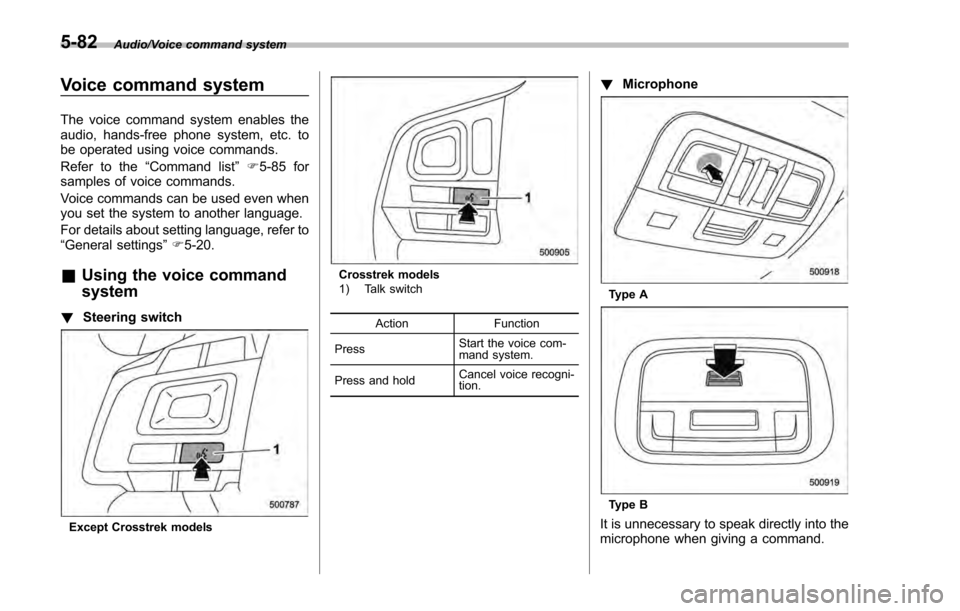
! Steering switch
Except Crosstrek models
Crosstrek models
1) Talk switch
Action Function
Press Start the voice com-
mand system.
Press and hold Cancel voice recogni-
tion.
!
Microphone
Type A
Type B
It is unnecessary to speak directly into the
microphone when giving a command.
5-82
Page 354 of 594
NOTE
.Wait for the confirmation beep be-
fore speaking a command.
. Voice commands may not be recog-
nized if:
–Spoken too quickly.
– Spoken at a low or high volume.
– The moonroof or windows are
open.
– Passengers are talking while
voice commands are spoken.
– The air conditioning speed is set
high.
– The air conditioning vents are
turned towards the microphone.
. In the following conditions, the sys-
tem may not recognize the command
properly and using voice commands
may not be possible:
–The command is incorrect or
unclear. Note that certain words,
accents or speech patterns may be
difficult for the system to recognize.
– There is excessive background
noise, such as wind noise.& Voice command system op-
eration
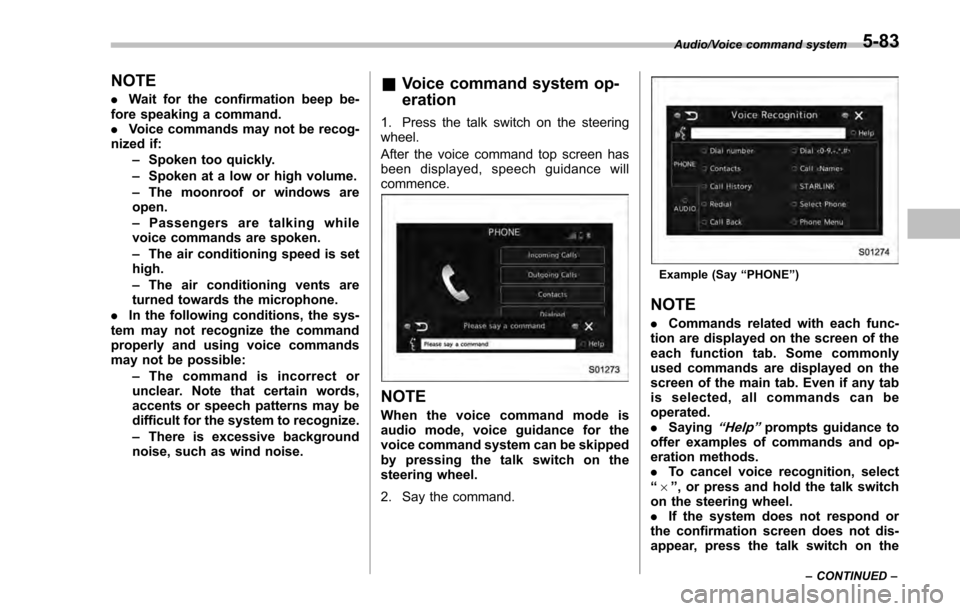
1. Press the talk switch on the steering
wheel.
After the voice command top screen has
been displayed, spe ech guidance will
commence.
NOTE
When the voice command mode is
audio mode, voice guidance for the
voice command system can be skipped
by pressing the talk switch on the
steering wheel.
2. Say the command.
Example (Say “PHONE ”)
NOTE
. Commands related with each func-
tion are displayed on the screen of the
each function tab. Some commonly
used commands are displayed on the
screen of the main tab. Even if any tab
is selected, all commands can be
operated.
. Saying
“Help”prompts guidance to
offer examples of commands and op-
eration methods.
. To cancel voice recognition, select
“6 ”, or press and hold the talk switch
on the steering wheel.
. If the system does not respond or
the confirmation screen does not dis-
appear, press the talk switch on the
Audio/Voice command system
–CONTINUED –5-83
Page 356 of 594

!Casual speech recognization
Due to natural language speech recogni-
tion technology, this system enables re-
cognition of a command when spoken
naturally. However, the system cannot
recognize every variation of each com-
mand. In some situations, it is possible to
omit the command for the procedure and
directly state the desired operation. Not all
voice commands are displayed in the
function menu.
NOTE
If the command cannot be recognized
completely, the command input screen
will be displayed. (Search results will
be shown based on the part of the
command that was recognized.)
! Expression examples for each
function
Command Expression examples
“ Dial
Phone
& Command list
Recognizable voice commands and their
actions are shown below.
NOTE
. Some voice commands may not be
available depending on the market,
vehicle specifications or the device
connection status.
. Frequently used commands are
listed in the following tables.
. For devices that are not installed in
the vehicle, the related commands will
not be displayed on the screen. Also,
according to conditions, other com-
mands may not be displayed on the
screen.
. The functions available may vary
according to the system installed.
. Voice recognition language can be
changed. Refer to “Unit settings”F 5-
19.
. The notations used in the com-
mands are as follows.
–<
>: Numbers, titles or
names to be spoken
– (
): There is no need to
speak the command, the voice
command system will recognize
the content. !
Basic command
Voice command Function
Back Go back one hierar-
chy or cancel the
voice recognition
(voice command top
screen)
Help Ask for help with the
current task
Cancel, Close Cancel the current
task
Ye s
No
Display OFF Turns the display off
Audio ON Turns the audio sys-
tem on
Audio OFF Turns the audio sys-
tem off
STARLINK Switch to APPS mode
Audio/Voice command system
–CONTINUED –
5-85
Page 367 of 594
Interior equipment/Interior lights
Interior lights
CAUTION
When leaving your vehicle, make
sure the lights are turned off to
avoid battery discharge.
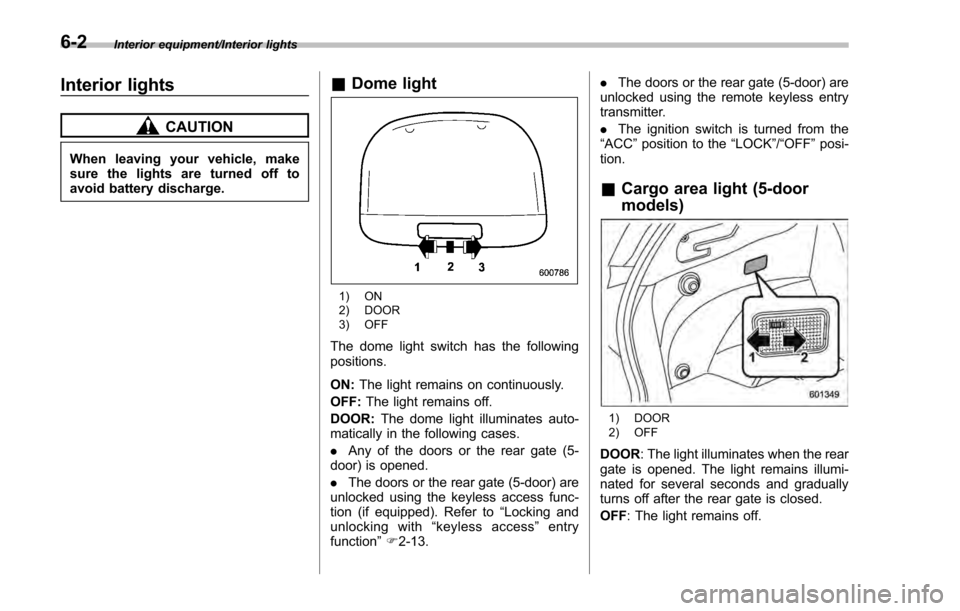
&Dome light
1) ON
2) DOOR
3) OFF
The dome light switch has the following
positions.
ON: The light remains on continuously.
OFF: The light remains off.
DOOR: The dome light illuminates auto-
matically in the following cases.
. Any of the doors or the rear gate (5-
door) is opened.
. The doors or the rear gate (5-door) are
unlocked using the keyless access func-
tion (if equipped). Refer to “Locking and
unlocking with “keyless access” entry
function ”F 2-13. .
The doors or the rear gate (5-door) are
unlocked using the remote keyless entry
transmitter.
. The ignition switch is turned from the
“ ACC ”position to the “LOCK”/ “OFF”posi-
tion.
& Cargo area light (5-door
models)
1) DOOR
2) OFF
DOOR : The light illuminates when the rear
gate is opened. The light remains illumi-
nated for several seconds and gradually
turns off after the rear gate is closed.
OFF : The light remains off.
6-2
Page 368 of 594
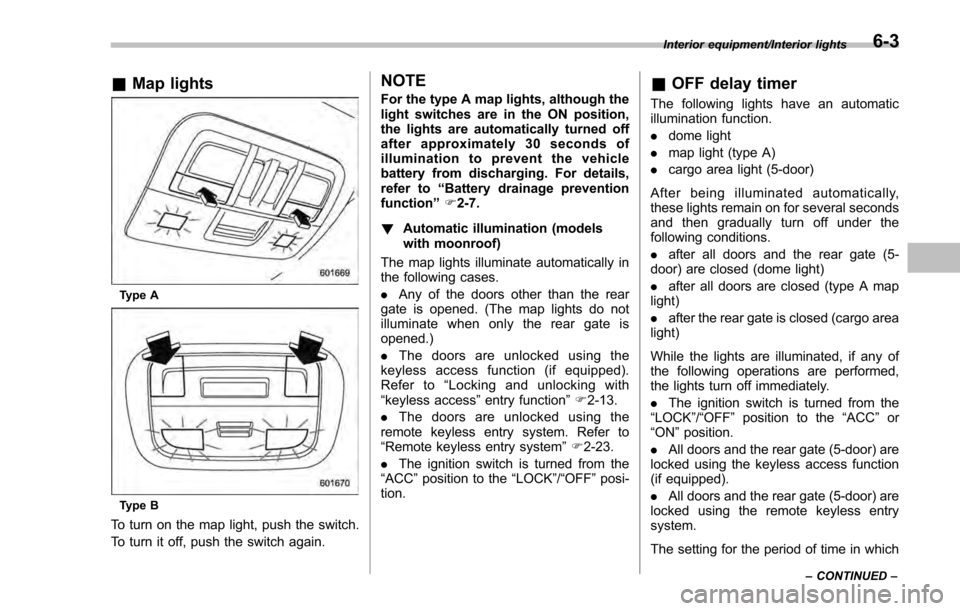
&Map lights
Type A
Type B
To turn on the map light, push the switch.
To turn it off, push the switch again.
NOTE
For the type A map lights, although the
light switches are in the ON position,
the lights are automatically turned off
after approximately 30 seconds of
illumination to prevent the vehicle
battery from discharging. For details,
refer to “Battery drainage prevention
function” F2-7.
! Automatic illumination (models
with moonroof)
The map lights illuminate automatically in
the following cases.
. Any of the doors other than the rear
gate is opened. (The map lights do not
illuminate when only the rear gate is
opened.)
. The doors are unlocked using the
keyless access function (if equipped).
Refer to “Locking and unlocking with
“keyless access” entry function”F 2-13.
. The doors are unlocked using the
remote keyless entry system. Refer to
“Remote keyless entry system ”F 2-23.
. The ignition switch is turned from the
“ACC ”position to the “LOCK”/ “OFF”posi-
tion.& OFF delay timer
The following lights have an automatic
illumination function.
. dome light
. map light (type A)
. cargo area light (5-door)
After being illuminated automatically,
these lights remain on for several seconds
and then gradually turn off under the
following conditions.
. after all doors and the rear gate (5-
door) are closed (dome light)
. after all doors are closed (type A map
light)
. after the rear gate is closed (cargo area
light)
While the lights are illuminated, if any of
the following operations are performed,
the lights turn off immediately.
. The ignition switch is turned from the
“ LOCK ”/“OFF ”position to the “ACC”or
“ON ”position.
. All doors and the rear gate (5-door) are
locked using the keyless access function
(if equipped).
. All doors and the rear gate (5-door) are
locked using the remote keyless entry
system.
The setting for the period of time in which
Interior equipment/Interior lights
–CONTINUED –6-3