ECU SUBARU OUTBACK 2017 6.G Workshop Manual
[x] Cancel search | Manufacturer: SUBARU, Model Year: 2017, Model line: OUTBACK, Model: SUBARU OUTBACK 2017 6.GPages: 610, PDF Size: 10.28 MB
Page 234 of 610
the device during the“cycling ”pro-
cess to prevent possible overheating.
Proceed with “Programming a New
HomeLink
®button ”step 4 to complete.
! Using HomeLink
®
To operate, simply press and release the
programmed HomeLink®button. Activa-
tion will now occur for the trained device
(i.e. garage door opener, gate operator,
security system, entry door lock, home/
office lighting, etc.). For convenience, the
hand-held remote of the device may also
be used at any time.
!Erasing HomeLink
®buttons
To erase programming from the three
buttons (individual buttons cannot be
erased but can be “reprogrammed”as
outlined below), follow the step noted:
Press and hold the two outer HomeLink
®buttons for at least 10 seconds. The LED
indicator will change from continuously lit
to rapidly flashing. Release both buttons.
Do not hold for longer than 20 seconds.
HomeLink
®is now ready to be pro-
grammed at any time beginning with
“Programming a New HomeLink
®button ”
- step 1. !
Reprogramming a Single
HomeLink
®button
To program a previously trained button,
follow these steps:
1. Press and hold the desired HomeLink
®button. DO NOT release the button.
2. The indicator light will begin to slowly
flash orange after 20 seconds. The
HomeLink
®button can be released at this
point. Proceed with “Programming a New
HomeLink
®button ”- step 3.
3. If you do not complete the program-
ming of a new device to the button, it will
revert to the previously stored program-
ming.
!Garage Door Two-Way Commu-
nication
HomeLink
®has the capability of commu-
nicating with your garage door opener.
HomeLink
®can receive and display “clos-
ing ”or “opening ”status messages from
compatible garage door opener systems.
At any time, HomeLink
®can also recall
and display the last recorded status
communicated by the garage door opener
to indicate your garage door being
“ closed ”or “opened ”.
HomeLink
®has the capability of receiving
this communication from the garage door
opener at a range up to 820 feet (250 m). Range may be reduced by obstacles such
as houses or trees. You may have to slow
your vehicle speed to successfully receive
the garage door opener communication.
!Programming Two-Way Commu-
nication
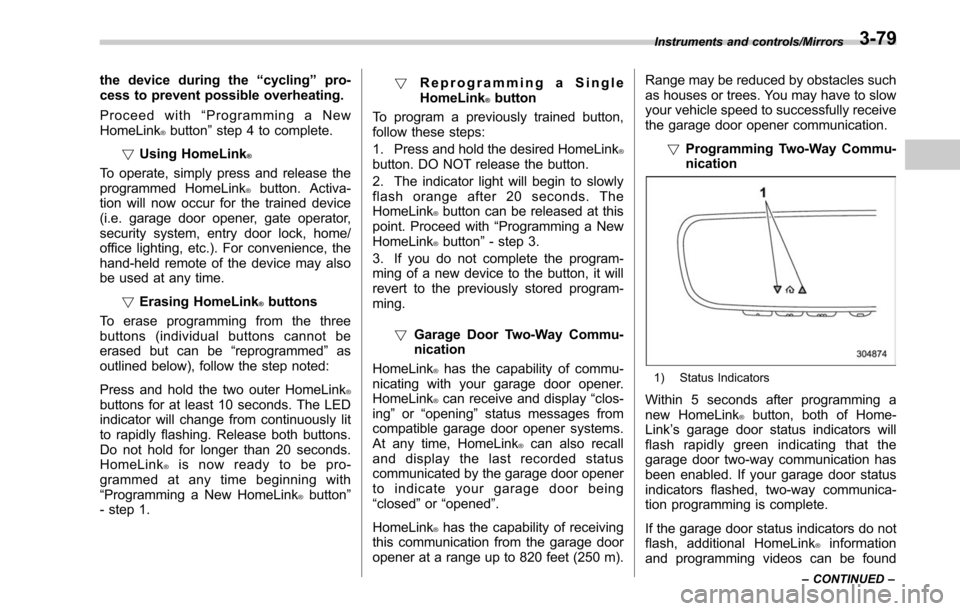
1) Status Indicators
Within 5 seconds after programming a
new HomeLink®button, both of Home-
Link ’s garage door status indicators will
flash rapidly green indicating that the
garage door two-way communication has
been enabled. If your garage door status
indicators flashed, two-way communica-
tion programming is complete.
If the garage door status indicators do not
flash, additional HomeLink
®information
and programming videos can be found
Instruments and controls/Mirrors
–CONTINUED –3-79
Page 237 of 610
Instruments and controls/Tilt/telescopic steering wheel
!Remote control mirror switch
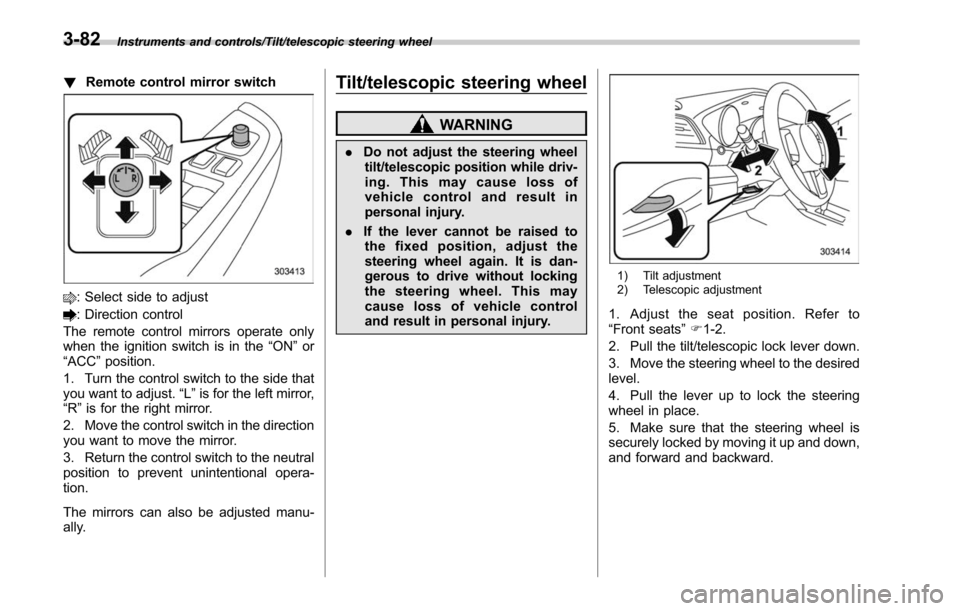
: Select side to adjust
: Direction control
The remote control mirrors operate only
when the ignition switch is in the “ON”or
“ACC ”position.
1. Turn the control switch to the side that
you want to adjust. “L”is for the left mirror,
“R ”is for the right mirror.
2. Move the control switch in the direction
you want to move the mirror.
3. Return the control switch to the neutral
position to prevent unintentional opera-
tion.
The mirrors can also be adjusted manu-
ally.
Tilt/telescopic steering wheel
WARNING
. Do not adjust the steering wheel
tilt/telescopic position while driv-
ing. This may cause loss of
vehicle control and result in
personal injury.
. If the lever cannot be raised to
the fixed position, adjust the
steering wheel again. It is dan-
gerous to drive without locking
the steering wheel. This may
cause loss of vehicle control
and result in personal injury.
1) Tilt adjustment
2) Telescopic adjustment
1. Adjust the seat position. Refer to
“Front seats ”F 1-2.
2. Pull the tilt/telescopic lock lever down.
3. Move the steering wheel to the desired
level.
4. Pull the lever up to lock the steering
wheel in place.
5. Make sure that the steering wheel is
securely locked by moving it up and down,
and forward and backward.
3-82
Page 280 of 610
.The radio automatically blends to an
HD Radio signal (if equipped) in AM or
FM where available.
! How to change the source
Select the “AM”or “FM ”key on the source
select screen. Refer to “Selecting an audio
source” F5-18.
! Presetting a station
In total 18 stations can be set for the FM
band (6 each for FM1, FM2 and FM3) and
12 stations can be set for the AM band (6
each for AM1 and AM2).
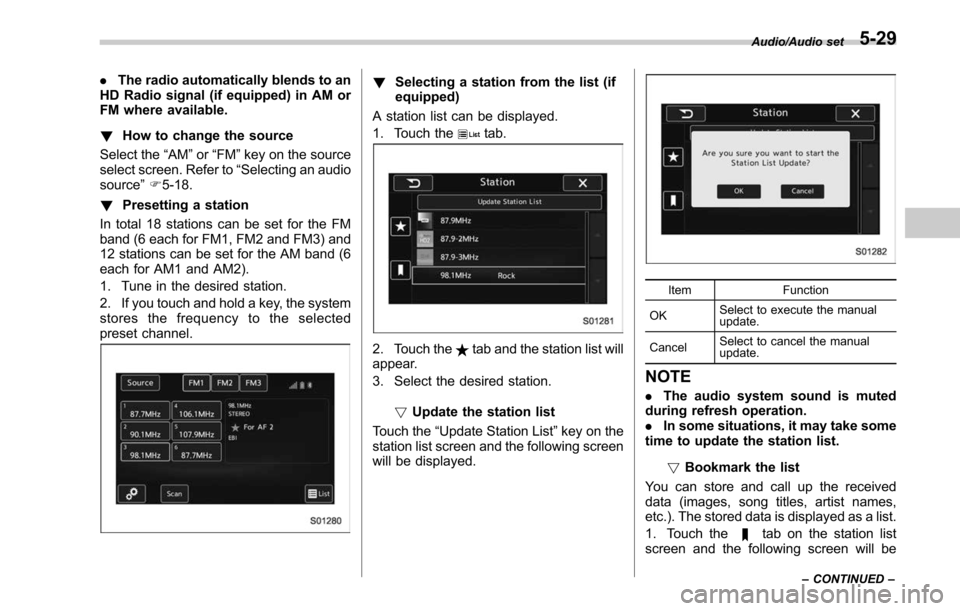
1. Tune in the desired station.
2. If you touch and hold a key, the system
stores the frequency to the selected
preset channel.! Selecting a station from the list (if
equipped)
A station list can be displayed.
1. Touch the
tab.
2. Touch thetab and the station list will
appear.
3. Select the desired station.
!Update the station list
Touch the “Update Station List ”key on the
station list screen and the following screen
will be displayed.
Item Function
OK Select to execute the manual
update.
Cancel Select to cancel the manual
update.
NOTE
.
The audio system sound is muted
during refresh operation.
. In some situations, it may take some
time to update the station list.
!Bookmark the list
You can store and call up the received
data (images, song titles, artist names,
etc.). The stored data is displayed as a list.
1. Touch the
tab on the station list
screen and the following screen will be
Audio/Audio set
–CONTINUED –5-29
Page 297 of 610
Audio/Audio set
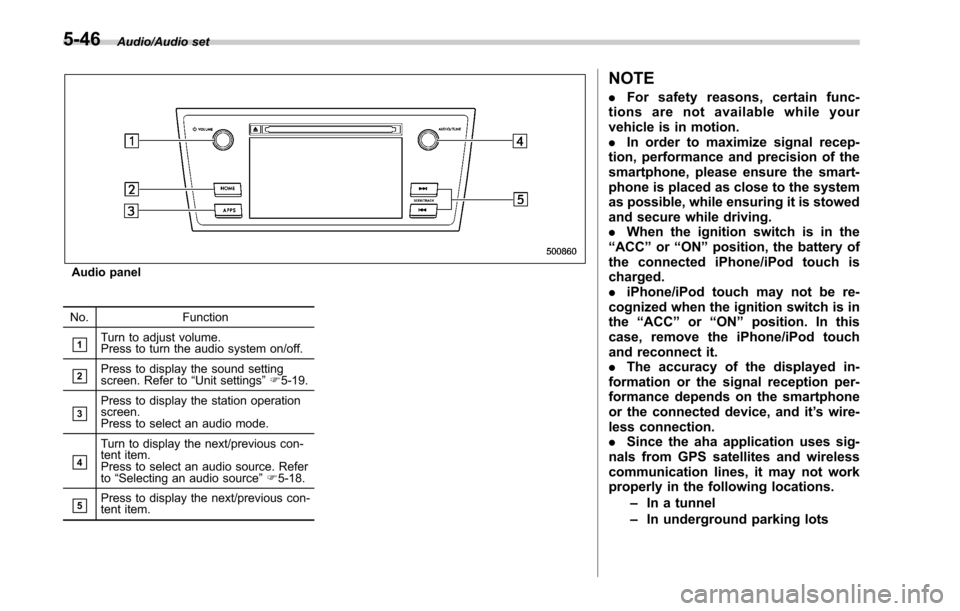
Audio panel
No. Function
&1Turn to adjust volume.
Press to turn the audio system on/off.
&2Press to display the sound setting
screen. Refer to “Unit settings ”F 5-19.
&3Press to display the station operation
screen.
Press to select an audio mode.
&4
Turn to display the next/previous con-
tent item.
Press to select an audio source. Refer
to “Selecting an audio source ”F 5-18.
&5Press to display the next/previous con-
tent item.
NOTE
. For safety reasons, certain func-
tions are not available while your
vehicle is in motion.
. In order to maximize signal recep-
tion, performance and precision of the
smartphone, please ensure the smart-
phone is placed as close to the system
as possible, while ensuring it is stowed
and secure while driving.
. When the ignition switch is in the
“ ACC ”or “ON ”position, the battery of
the connected iPhone/iPod touch is
charged.
. iPhone/iPod touch may not be re-
cognized when the ignition switch is in
the “ACC ”or “ON ”position. In this
case, remove the iPhone/iPod touch
and reconnect it.
. The accuracy of the displayed in-
formation or the signal reception per-
formance depends on the smartphone
or the connected device, and it ’s wire-
less connection.
. Since the aha application uses sig-
nals from GPS satellites and wireless
communication lines, it may not work
properly in the following locations.
–In a tunnel
– In underground parking lots
5-46
Page 318 of 610
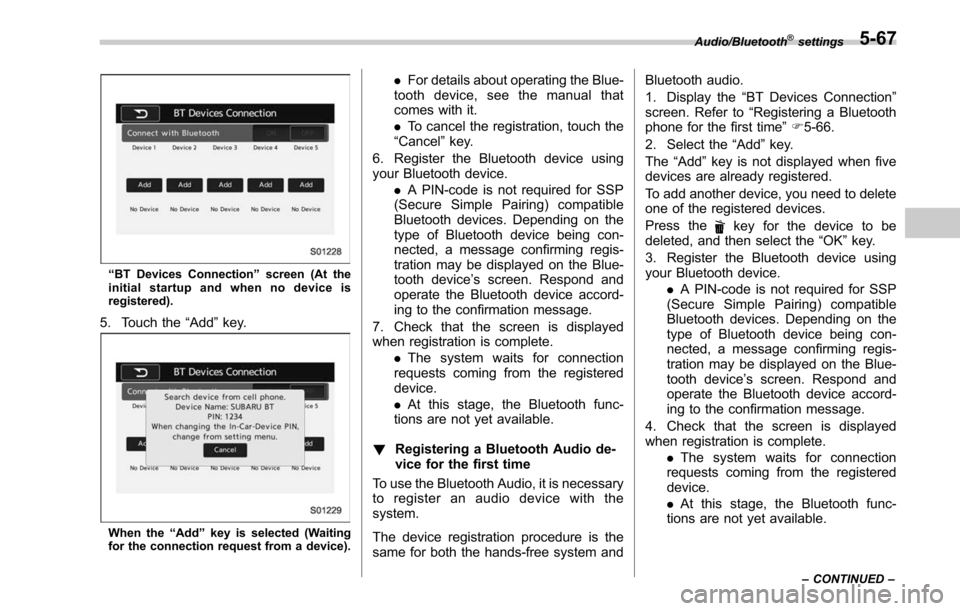
“BT Devices Connection ”screen (At the
initial startup and when no device is
registered).
5. Touch the “Add”key.
When the “Add ”key is selected (Waiting
for the connection request from a device).
. For details about operating the Blue-
tooth device, see the manual that
comes with it.
. To cancel the registration, touch the
“Cancel” key.
6. Register the Bluetooth device using
your Bluetooth device. .A PIN-code is not required for SSP
(Secure Simple Pairing) compatible
Bluetooth devices. Depending on the
type of Bluetooth device being con-
nected, a message confirming regis-
tration may be displayed on the Blue-
tooth device ’s screen. Respond and
operate the Bluetooth device accord-
ing to the confirmation message.
7. Check that the screen is displayed
when registration is complete. .The system waits for connection
requests coming from the registered
device.
. At this stage, the Bluetooth func-
tions are not yet available.
! Registering a Bluetooth Audio de-
vice for the first time
To use the Bluetooth Audio, it is necessary
to register an audio device with the
system.
The device registration procedure is the
same for both the hands-free system and Bluetooth audio.
1. Display the
“BT Devices Connection ”
screen. Refer to “Registering a Bluetooth
phone for the first time ”F 5-66.
2. Select the “Add”key.
The “Add” key is not displayed when five
devices are already registered.
To add another device, you need to delete
one of the registered devices.
Press the
key for the device to be
deleted, and then select the “OK”key.
3. Register the Bluetooth device using
your Bluetooth device. .A PIN-code is not required for SSP
(Secure Simple Pairing) compatible
Bluetooth devices. Depending on the
type of Bluetooth device being con-
nected, a message confirming regis-
tration may be displayed on the Blue-
tooth device ’s screen. Respond and
operate the Bluetooth device accord-
ing to the confirmation message.
4. Check that the screen is displayed
when registration is complete. .The system waits for connection
requests coming from the registered
device.
. At this stage, the Bluetooth func-
tions are not yet available.
Audio/Bluetooth®settings
– CONTINUED –5-67
Page 325 of 610
Audio/Hands–free phone system
Item Function
Incoming
Calls Display the history of incoming
calls. Refer to
“By incoming
calls ”F 5-74.
Outgoing
Calls Display the history of outgoing
calls. Refer to
“By outgoing calls ”
F 5-75.
Contacts Display the phonebook. Refer to
“
By contacts list ”F 5-75.
Dialpad Dial a phone number. Refer to
“
By Dialpad ”F 5-76.
NOTE
You can also make a call by using the
following functions.
. Make a call using the off hook
switch on the steering wheel. Refer to
“ By off hook switch ”F 5-76.
. Make a call using voice operation. Refer to
“Voice command system ”F 5-
81.
! By incoming calls
On the phone (menu) screen, select the
“Incoming Calls ”key to open the “Incom-
ing Calls ”screen.
You can make a call by selecting an item
in the incoming call history list.
If there is no incoming call history, a
message appears to indicate that there
is no incoming call history data.
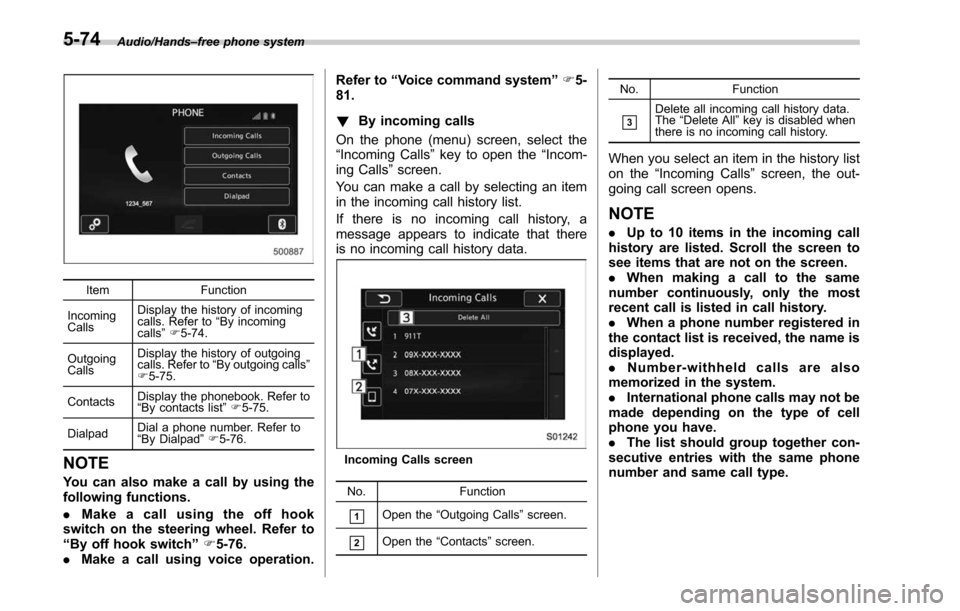
Incoming Calls screen
No. Function
&1Open the “Outgoing Calls ”screen.
&2Open the “Contacts ”screen. No. Function
&3Delete all incoming call history data.
The
“Delete All ”key is disabled when
there is no incoming call history.
When you select an item in the history list
on the “Incoming Calls ”screen, the out-
going call screen opens.
NOTE
. Up to 10 items in the incoming call
history are listed. Scroll the screen to
see items that are not on the screen.
. When making a call to the same
number continuously, only the most
recent call is listed in call history.
. When a phone number registered in
the contact list is received, the name is
displayed.
. Number-withheld calls are also
memorized in the system.
. International phone calls may not be
made depending on the type of cell
phone you have.
. The list should group together con-
secutive entries with the same phone
number and same call type.
5-74
Page 326 of 610
!By outgoing calls
On the phone (menu) screen, select the
“Outgoing Calls ”key to open the “Out-
going Calls ”screen. You can make a call
by selecting an item in the outgoing call
history list.
If there is no outgoing call history, a
message appears to indicate that there
is no outgoing call history data.
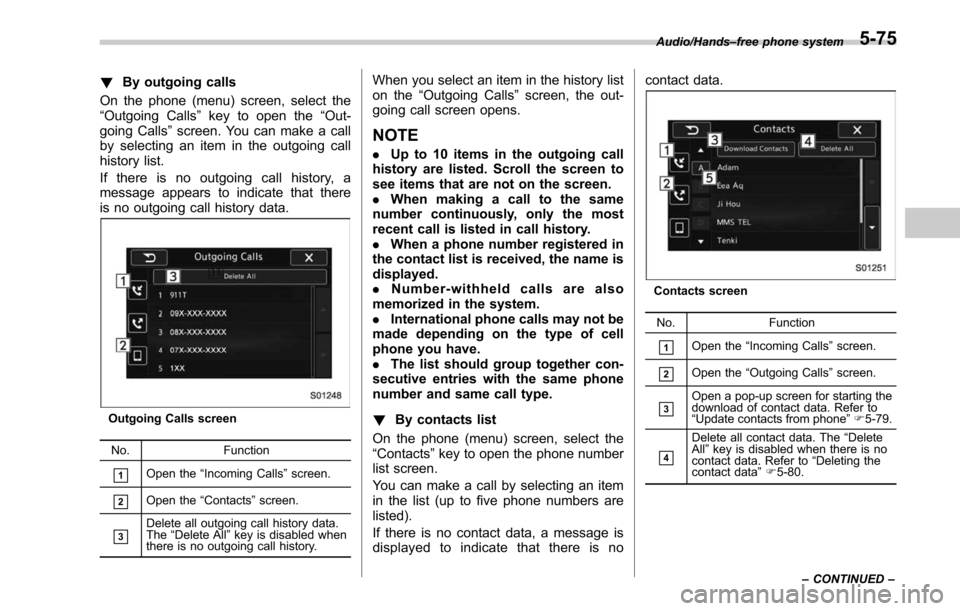
Outgoing Calls screen
No. Function
&1Open the “Incoming Calls ”screen.
&2Open the “Contacts ”screen.
&3Delete all outgoing call history data.
The “Delete All” key is disabled when
there is no outgoing call history.
When you select an item in the history list
on the “Outgoing Calls ”screen, the out-
going call screen opens.
NOTE
. Up to 10 items in the outgoing call
history are listed. Scroll the screen to
see items that are not on the screen.
. When making a call to the same
number continuously, only the most
recent call is listed in call history.
. When a phone number registered in
the contact list is received, the name is
displayed.
. Number-withheld calls are also
memorized in the system.
. International phone calls may not be
made depending on the type of cell
phone you have.
. The list should group together con-
secutive entries with the same phone
number and same call type.
! By contacts list
On the phone (menu) screen, select the
“ Contacts” key to open the phone number
list screen.
You can make a call by selecting an item
in the list (up to five phone numbers are
listed).
If there is no contact data, a message is
displayed to indicate that there is no contact data.
Contacts screen
No. Function
&1Open the“Incoming Calls ”screen.
&2Open the “Outgoing Calls ”screen.
&3Open a pop-up screen for starting the
download of contact data. Refer to
“Update contacts from phone ”F 5-79.
&4
Delete all contact data. The “Delete
All” key is disabled when there is no
contact data. Refer to “Deleting the
contact data ”F 5-80.
Audio/Hands
–free phone system
–CONTINUED –
5-75
Page 342 of 610

In other situations
SymptomLikely cause SolutionPage
Cell
phone This
system
Even though all conceivable mea-
sures have been taken, the symptom
status does not change. The cell phone is not close enough to
this system.
Bring the cell phone closer to this system.
——
The cell phone is the most likely cause
of the symptom. Turn the cell phone off, remove and reinstall
the battery pack, and then restart the cell
phone.
*
—
Enable the cell phone ’s Bluetooth connection. * —
Stop the cell phone ’s security software and
close all applications. *
—
Before using an application installed on the
cell phone, carefully check its source and how
its operation might affect this system. *
—
*: For details, refer to the owner ’s manual that came with the cell phone. Audio/What to do if...
5-91
Page 357 of 610
Interior equipment/Ashtray
Ashtray (if equipped)
CAUTION
Observe the following precautions.
Not doing so could result in a fire.
.Always extinguish matches and
cigarettes before putting them
into the ashtray, and then close
the ashtray securely.
. Do not put flammable material in
the ashtray.
. Do not leave a lighted cigarette in
the ashtray.
. Do not leave a lot of cigarette
butts in the ashtray.
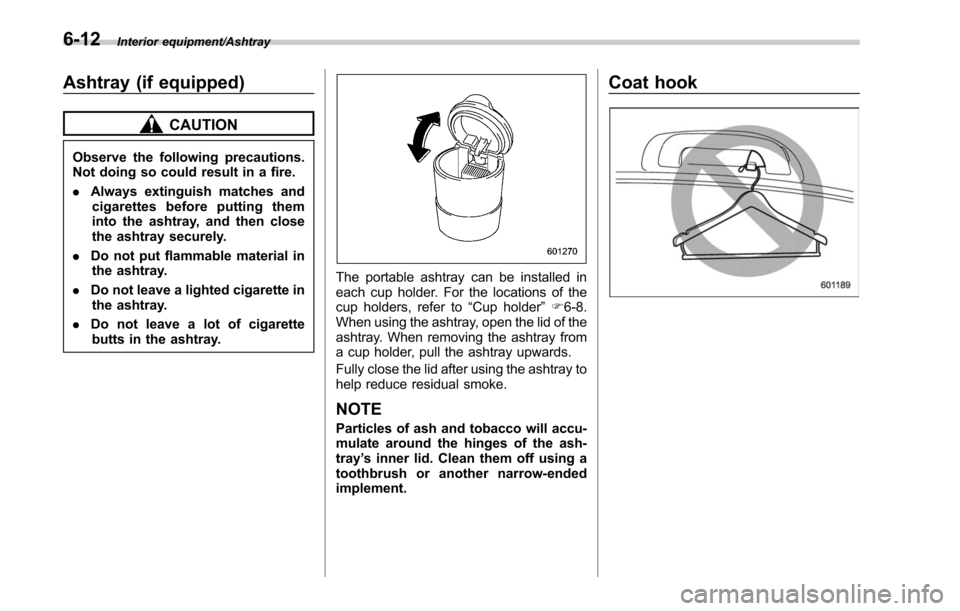
The portable ashtray can be installed in
each cup holder. For the locations of the
cup holders, refer to “Cup holder”F 6-8.
When using the ashtray, open the lid of the
ashtray. When removing the ashtray from
a cup holder, pull the ashtray upwards.
Fully close the lid after using the ashtray to
help reduce residual smoke.
NOTE
Particles of ash and tobacco will accu-
mulate around the hinges of the ash-
tray ’s inner lid. Clean them off using a
toothbrush or another narrow-ended
implement.
Coat hook
6-12
Page 360 of 610
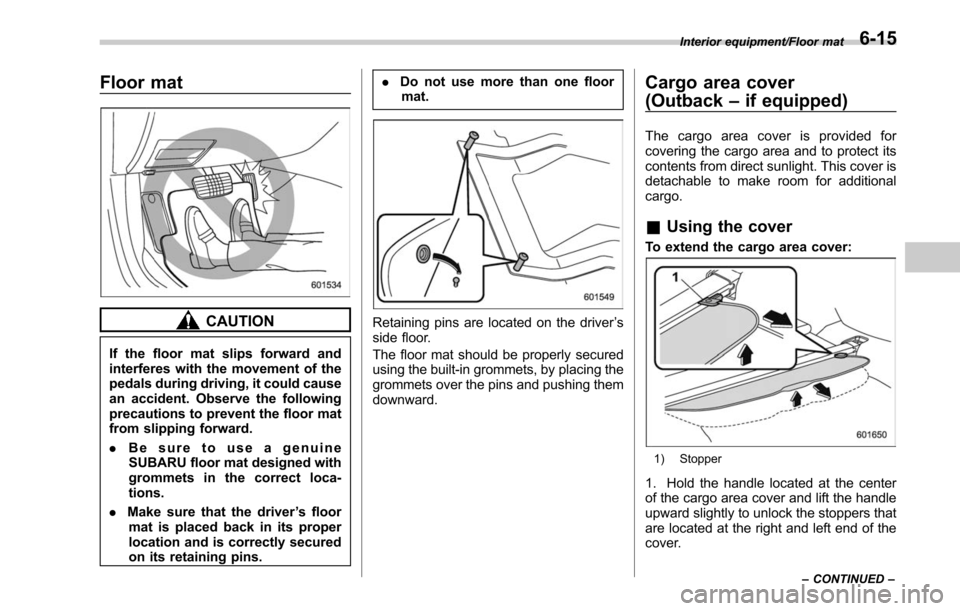
Floor mat
CAUTION
If the floor mat slips forward and
interferes with the movement of the
pedals during driving, it could cause
an accident. Observe the following
precautions to prevent the floor mat
from slipping forward.
.Be sure to use a genuine
SUBARU floor mat designed with
grommets in the correct loca-
tions.
. Make sure that the driver ’s floor
mat is placed back in its proper
location and is correctly secured
on its retaining pins. .
Do not use more than one floor
mat.
Retaining pins are located on the driver ’s
side floor.
The floor mat should be properly secured
using the built-in grommets, by placing the
grommets over the pins and pushing them
downward.
Cargo area cover
(Outback –if equipped)
The cargo area cover is provided for
covering the cargo area and to protect its
contents from direct sunlight. This cover is
detachable to make room for additional
cargo.
& Using the cover
To extend the cargo area cover:
1) Stopper
1. Hold the handle located at the center
of the cargo area cover and lift the handle
upward slightly to unlock the stoppers that
are located at the right and left end of the
cover.
Interior equipment/Floor mat
–CONTINUED –6-15