ignition SUBARU WRX 2016 Owners Manual
[x] Cancel search | Manufacturer: SUBARU, Model Year: 2016, Model line: WRX, Model: SUBARU WRX 2016Pages: 594, PDF Size: 19.43 MB
Page 323 of 594
Audio/Media operation
WARNING. Do not connect or operate the
smartphone while driving.
. Be sure to park the vehicle in a
safe location before connecting
or operating the smartphone.
CAUTION. Do not leave your smartphone in
the car. In particular, high tem-
peratures inside the vehicle may
damage the smartphone.
. Do not push down on or apply
unnecessary pressure to the
smartphone while it is connected
as this may damage the smart-
phone or its terminal.
. Do not insert foreign objects into
the port as this may damage the
smartphone or its terminal.
NOTE . For safety reasons, certain func-
tions are not available while your
vehicle is in motion.
. In order to maximize signal recep-
tion, performance and precision of the
smartphone, please ensure the smart- phone is placed as close to the system
as possible, while ensuring it is stowed
and secure while driving.
. Use USB cables of iPhone/iPod
touch accessories.
. When the ignition switch is in the
“ ACC ” or “ ON ” position, the battery of
the connected iPhone/iPod touch is
charged.
. iPhone/iPod touch may not be re-
cognized when the ignition switch is in
the “ ACC ” or “ ON ” position. In this
case, remove the iPhone/iPod touch
and reconnect it.
. The accuracy of the displayed in-
formation or the signal reception per-
formance depends on the smartphone
or the connected device, and it ’ s wire-
less connection.
. Since the aha application uses sig-
nals from GPS satellites and wireless
communication lines, it may not work
properly in the following locations.
– In a tunnel
– In underground parking lots
– Outside wireless communication
range, such as some countryside
areas
– Where the wireless communica-
tion network is congested, or where
communications are restricted
. Depending on the circumstances and environment, the signal may be
weak or not be received. In such cases,
an error may occur.
. Top 35 entries in the preset station
list on the smartphone are displayed.
When there are more than 35 entries in
the preset station list, change the order
of the entries in the list on the smart-
phone. You can change the priority of
your preset stations within the aha
application (after disconnected from
this system) to modify the station list
shown on the screen. Please see your
smartphone aha application “ Edit Pre-
sets (in Main menu) ” to modify this list.
. For operating the smartphone, see
the instruction manual that comes with
it.
. If there are multiple music files
stored on your iPhone or iPod touch,
it may take some time until playback
starts.
. Playback may be intermittent when
youswitchtostreamingBluetooth
audio from aha on your smartphone
device.
. When connecting the device via
Bluetooth, the communication speed
may become slower than via USB.5-68
Page 327 of 594
Audio/Media operation
! Using aha application
Ifyouconnectasmartphonetothis
system after starting a supported aha
application on the smartphone, you can
display and operate the aha application
displayed on the smartphone on the
system screen.
NOTE . Connect a smartphone to the USB
port before turning the ignition switch
to the “ ACC ” or “ ON ” position.
. When it is not played back normally,
press the POWER/VOLUME knob twice
while a USB cable is connected.
1. Run the aha application on your
smartphone.
2. Connect the iPhone/iPod touch to the
USB port or connect the Android device
by utilizing the Bluetooth connection (SPP
and A2DP profile).
. For details about connecting an
iPhone/iPod touch: Refer to “ Connect-
ing and disconnecting a USB memory/
portable device ” F 5-6.
. For details about registering or con-
necting an Android device: Refer to
“ Registering/connecting Bluetooth ®
device ” F 5-81.
Press AUDIO/TUNE knob twice to switch
between iPhone and Android. 3. Select “ aha ” on the “ Select Audio
Source (Select Audio Source) ” screen.
Refer to “ Basic operation ” F 5-12.
Select “ aha ” on the “ Apps (APPS) ” screen.
Refer to “ STARLINK ” F 5-30.
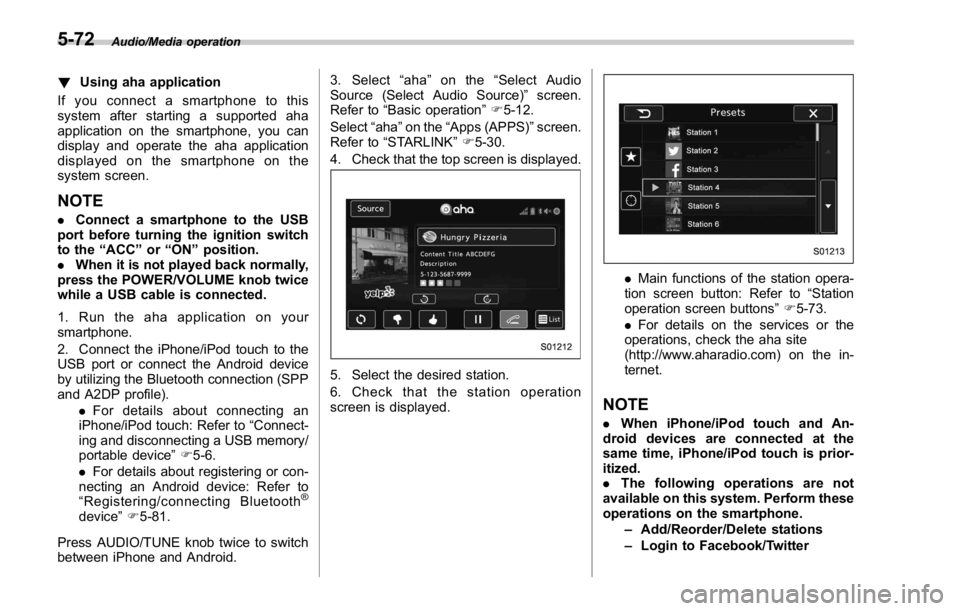
4. Check that the top screen is displayed.
5. Select the desired station.
6. Check that the station operation
screen is displayed. . Main functions of the station opera-
tion screen button: Refer to “ Station
operation screen buttons ” F 5-73.
. For details on the services or the
operations, check the aha site
(http://www.aharadio.com) on the in-
ternet.
NOTE . When iPhone/iPod touch and An-
droid devices are connected at the
same time, iPhone/iPod touch is prior-
itized.
. The following operations are not
available on this system. Perform these
operations on the smartphone.
– Add/Reorder/Delete stations
– Login to Facebook/Twitter5-72
Page 331 of 594
Audio/Media operation
WARNINGDo not operate the player ’ s controls
or connect the portable audio device
while driving.
CAUTION. Do not leave portable audio de-
vice in the vehicle. The tempera-
ture inside the vehicle may be-
come high, resulting in damage
to the player.
. Do not push down on or apply
unnecessary pressure to the por-
table audio device while it is
connected as this may damage
the portable audio device or its
terminal.
. Do not insert foreign objects into
the port as this may damage the
portable audio device or its term-
inal. & Pandora ®
Pandora is an application for a smart-
phone. This can automatically select and
play recommended tracks.
By rating the track currently playing, tracks
that better match your preference will be
recommended.
In order to connect to this system, use a
USB port for an iPhone or iPod touch and
Bluetooth for Android devices.
Depending on differences between mod-
els or software version etc., some models
might be incompatible with this system.
This function is not available if the
Pandora application has not been in-
stalled on the smartphone.
NOTE . Connect a smartphone to the USB
port before turning the ignition switch
to the “ ACC ” or “ ON ” position.
. When it is not played back normally,
press the POWER/VOLUME knob twice
while a USB cable is connected.
! Overview
The Pandora operation screen can be
reached by the following methods:
. Connecting a Pandora device. Refer to
“ Connecting a Bluetooth device ” F 5-85 or “ Connecting and disconnecting a USB
memory/portable device ” F 5-6.
. Select
Pandora (Pandora) on the
“ Select Audio Source (Select Audio
Source) ” screen. Refer to “ Selecting an
audio source ” F 5-13.
. Select
Pandora (Pandora) on the
“ APPS (APPS) ” screen. Refer to
“ STARLINK ” F 5-30.5-76
Page 359 of 594

Audio/What to do if...
When registering/connecting a cellular phone Symptom Likely cause Solution Page
Cellular
phone This
system
A cellular phone cannot be regis-
tered. An incorrect passcode was entered
on the cellular phone. Enter the correct passcode on the cellular phone. * —
The registration operation has not
been completed on the cellular phone
side. Complete the registration operation on the cellular
phone (approve registration on the phone). * —
Old registration information remains
on either this system or the cellular
phone. Delete the existing registration information from
both this system and the cellular phone, then
register the cellular phone you wish to connect to
this system. *5-84
A Bluetooth connection cannot be
made. Another Bluetooth device is already
connected. Manually connect the cellular phone you wish to
use to this system. — 5-84
Bluetooth function is not enabled on
the cellular phone. Enable the Bluetooth function on the cellular phone. * —
Automatic Bluetooth connection on
this system is set to off. Set automatic Bluetooth connection on this system
to on when the ignition switch is turned to the “ ACC ”
or “ ON ” position. — 5-84
“ Unable to dial. Please check your
phone. (Unable to dial. Please
check your phone.) ” Bluetooth function is not enabled on
the cellular phone. Enable the Bluetooth function on the cellular phone. * —
Old registration information remains
on either this system or the cellular
phone. Delete the existing registration information from
both this system and the cellular phone, then
register the cellular phone you wish to connect to
this system. * 5-84
*: For details, refer to the owner ’ s manual that came with the cellular phone.5-104
Page 373 of 594
Interior equipment/Interior lights
Interior lights CAUTIONWhen leaving your vehicle, make
sure the lights are turned off to
avoid battery discharge.
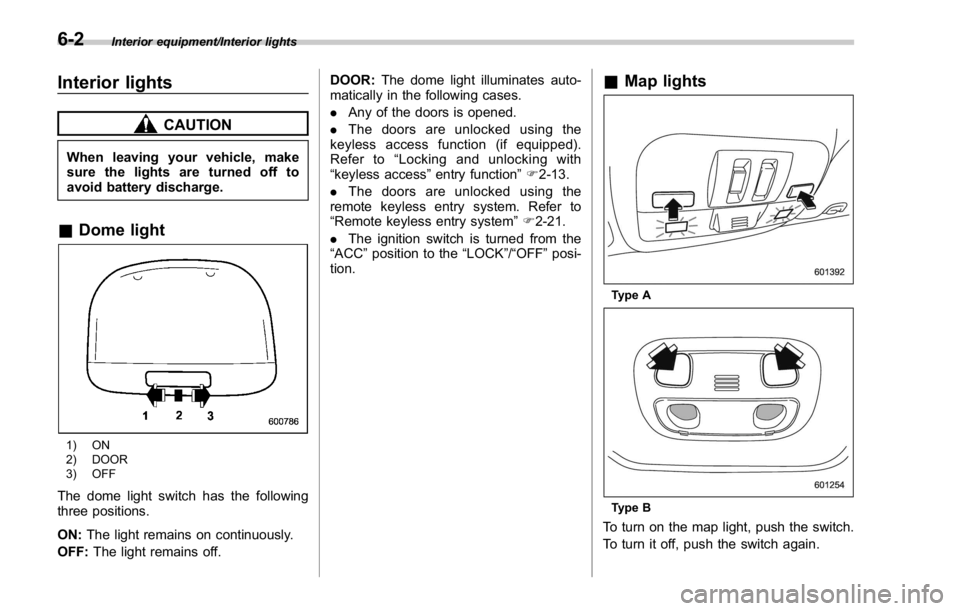
& Dome light
1) ON
2) DOOR
3) OFF
The dome light switch has the following
three positions.
ON: The light remains on continuously.
OFF: The light remains off. DOOR: The dome light illuminates auto-
matically in the following cases.
. Any of the doors is opened.
. The doors are unlocked using the
keyless access function (if equipped).
Refer to “ Locking and unlocking with
“ keyless access ” entry function ” F 2-13.
. The doors are unlocked using the
remote keyless entry system. Refer to
“ Remote keyless entry system ” F 2-21.
. The ignition switch is turned from the
“ ACC ” position to the “ LOCK ” / “ OFF ” posi-
tion. & Map lights
Type A
Type B
To turn on the map light, push the switch.
To turn it off, push the switch again.6-2
Page 374 of 594

When leaving the vehicle, make sure the
lights are turned off to avoid battery
discharge.
! Automatic illumination (type A map
lights)
The map lights illuminate automatically in
the following cases.
. Any of the doors is opened.
. The doors are unlocked using the
keyless access function (if equipped).
Refer to “ Locking and unlocking with
“ keyless access ” entry function ” F 2-13.
. The doors are unlocked using the
remote keyless entry transmitter.
. The ignition switch is turned from the
“ ACC ” position to the “ LOCK ” / “ OFF ” posi-
tion. & OFF delay timer The following lights have an automatic
illumination function.
. dome light (when the dome light switch
is in the “ DOOR ” position)
. map light (type A)
After being illuminated automatically,
these lights remain on for several seconds
and then gradually turn off after all doors
are closed.
While the lights are illuminated, if any of
the following operations are performed,
the lights turn off immediately.
. The ignition switch is turned from the
“ LOCK ” / “ OFF ” position to the “ ACC ” or
“ ON ” position.
. All doors are locked using the keyless
access function (if equipped).
. All doors are locked using the remote
keyless entry system.
The setting for the period of time in which
the lights remain on (OFF delay timer) can
be changed by a SUBARU dealer. Con-
tact your SUBARU dealer for details. Also,
the setting can be changed by operating
the multi function display. For details, refer
to “ Interior light off delay timer setting ” F 3-
87. Sun visors
To block out glare, swing down the visors.
To use the sun visor at a side window,
swing it down and move it sideways. Interior equipment/Sun visors
– CONTINUED –6-3
Page 379 of 594
Interior equipment/Accessory power outlets
trim can be used to hold a beverage bottle
and other items.
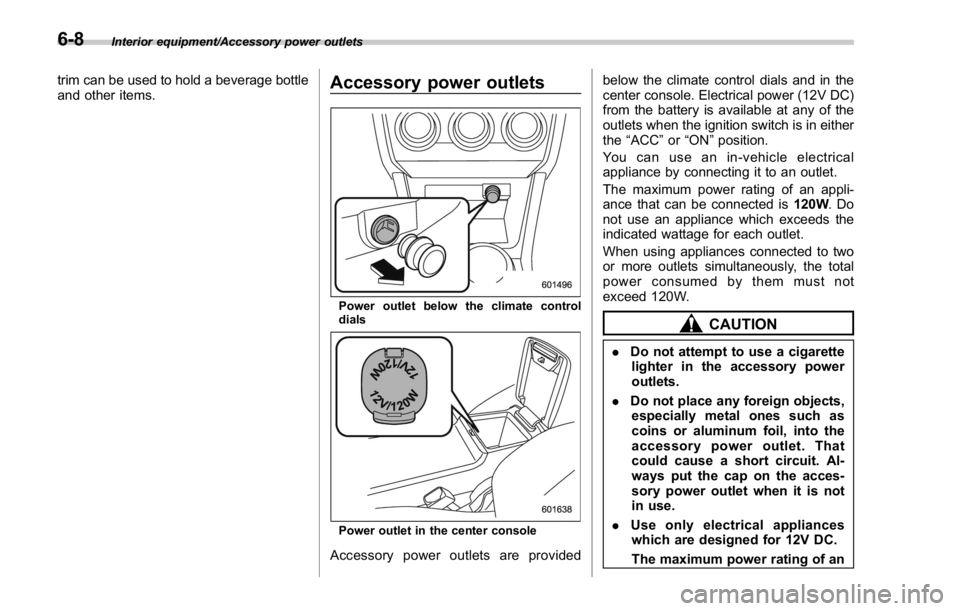
Accessory power outlets
Power outlet below the climate control
dials
Power outlet in the center console
Accessory power outlets are provided below the climate control dials and in the
center console. Electrical power (12V DC)
from the battery is available at any of the
outlets when the ignition switch is in either
the “ ACC ” or “ ON ” position.
You can use an in-vehicle electrical
appliance by connecting it to an outlet.
The maximum power rating of an appli-
ance that can be connected is 120W .Do
not use an appliance which exceeds the
indicated wattage for each outlet.
When using appliances connected to two
or more outlets simultaneously, the total
power consumed by them must not
exceed 120W.
CAUTION. Do not attempt to use a cigarette
lighter in the accessory power
outlets.
. Do not place any foreign objects,
especially metal ones such as
coins or aluminum foil, into the
accessory power outlet. That
could cause a short circuit. Al-
ways put the cap on the acces-
sory power outlet when it is not
in use.
. Use only electrical appliances
which are designed for 12V DC.
The maximum power rating of an6-8
Page 380 of 594
appliance that can be connected
is 120W. Do not use an appliance
which exceeds the indicated wat-
tage for each outlet.
When using appliances con-
nected to two or more outlets
simultaneously, the total power
consumed by them must not
exceed 120W. Overloading the
accessory power outlet can
cause a short circuit. Do not use
double adapters or more than
one electrical appliance.
. If the plug on your electric appli-
ance is either too loose or too
tight for the accessory power
outlet, this can result in a poor
contact or cause the plug to get
stuck. Only use plugs that fit
properly.
. Use of an electric appliance in the
accessory power outlet for a long
period of time while the engine is
not running can cause battery
discharge.
. Before driving your vehicle, make
sure that the plug and the cord
on your electrical appliance will
not interfere with your shifting
gears and operating the accel-
erator and brake pedals. If they do, do not use the electrical
appliance while driving.
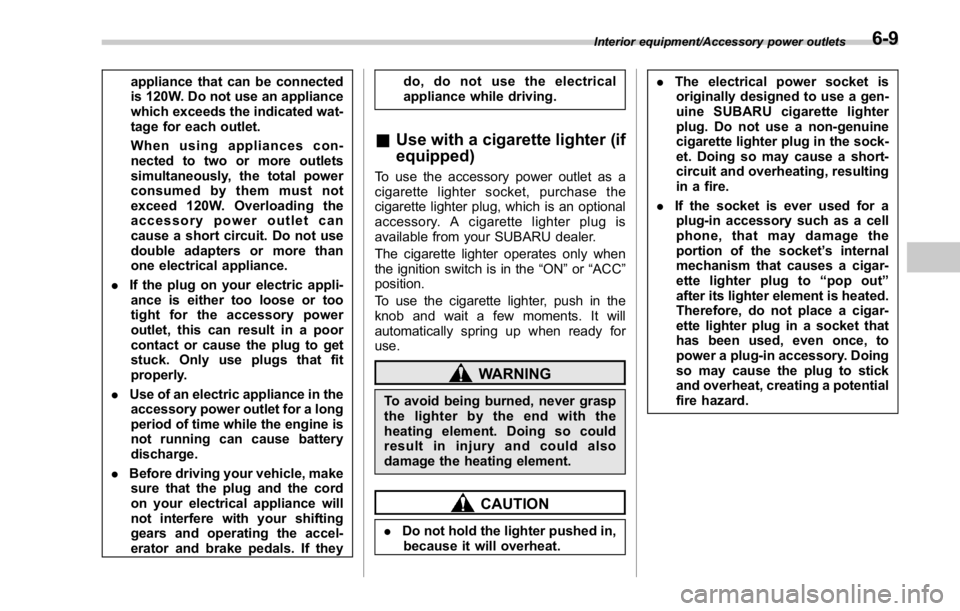
& Use with a cigarette lighter (if
equipped) To use the accessory power outlet as a
cigarette lighter socket, purchase the
cigarette lighter plug, which is an optional
accessory. A cigarette lighter plug is
available from your SUBARU dealer.
The cigarette lighter operates only when
the ignition switch is in the “ ON ” or “ ACC ”
position.
To use the cigarette lighter, push in the
knob and wait a few moments. It will
automatically spring up when ready for
use.
WARNING
To avoid being burned, never grasp
the lighter by the end with the
heating element. Doing so could
result in injury and could also
damage the heating element.
CAUTION
. Do not hold the lighter pushed in,
because it will overheat. . The electrical power socket is
originally designed to use a gen-
uine SUBARU cigarette lighter
plug. Do not use a non-genuine
cigarette lighter plug in the sock-
et. Doing so may cause a short-
circuit and overheating, resulting
in a fire.
. If the socket is ever used for a
plug-in accessory such as a cell
phone, that may damage the
portion of the socket ’ s internal
mechanism that causes a cigar-
ette lighter plug to “ pop out ”
after its lighter element is heated.
Therefore, do not place a cigar-
ette lighter plug in a socket that
has been used, even once, to
power a plug-in accessory. Doing
so may cause the plug to stick
and overheat, creating a potential
fire hazard.Interior equipment/Accessory power outlets
6-9
Page 383 of 594
Interior equipment/Under – floor storage compartment
Under-floor storage compart-
ment
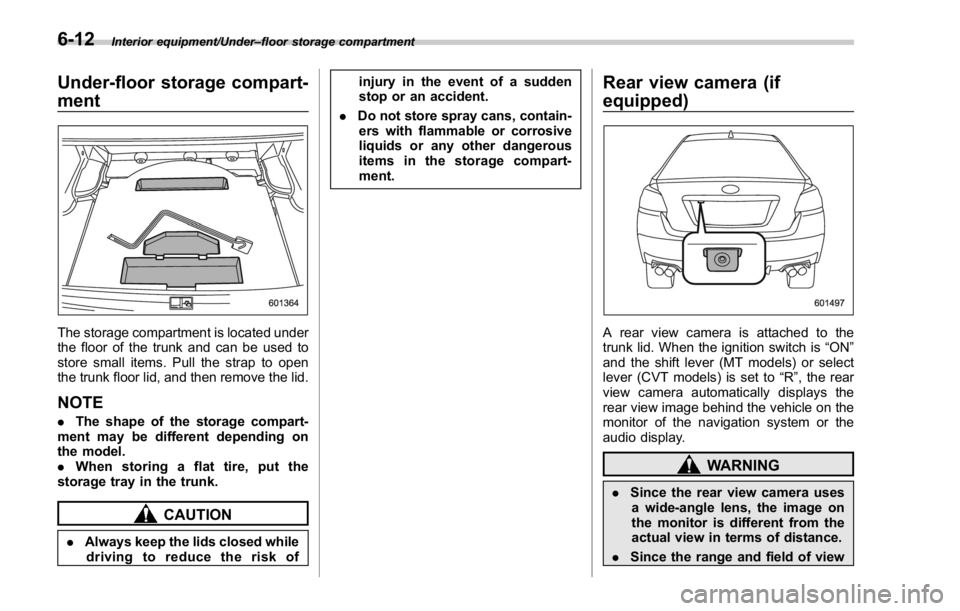
The storage compartment is located under
the floor of the trunk and can be used to
store small items. Pull the strap to open
the trunk floor lid, and then remove the lid.
NOTE . The shape of the storage compart-
ment may be different depending on
the model.
. When storing a flat tire, put the
storage tray in the trunk.
CAUTION
. Always keep the lids closed while
driving to reduce the risk of injury in the event of a sudden
stop or an accident.
. Do not store spray cans, contain-
ers with flammable or corrosive
liquids or any other dangerous
items in the storage compart-
ment.
Rear view camera (if
equipped)
A rear view camera is attached to the
trunk lid. When the ignition switch is “ ON ”
and the shift lever (MT models) or select
lever (CVT models) is set to “ R ” , the rear
view camera automatically displays the
rear view image behind the vehicle on the
monitor of the navigation system or the
audio display.
WARNING
. Since the rear view camera uses
a wide-angle lens, the image on
the monitor is different from the
actual view in terms of distance.
. Since the range and field of view6-12
Page 385 of 594
Interior equipment/Rear view camera
is displayed.
1. Set the ignition switch to “ ON ” .
2. Set the shift lever/select lever to “ R ” .
NOTE . For models with the genuine
SUBARU navigation or audio system,
the image of the rear view camera has
priority over other screen displays.
Therefore, while the rear view camera
is in operation, the operations of other
screens are disabled. To operate other
screens, set the shift lever or select
lever to a position other than “ R ” .
. The image of the rear view camera
has priority over other screen displays.
. The image of the rear view camera is
horizontally reversed as is the case
with the vehicle rearview mirror or the
side view mirror.
. It may be difficult to see the image of
the rear view camera in the following
cases. This is not a malfunction of the
camera.
– The vehicle is in a dark place (at
night, in a tunnel, etc.).
– The vehicle is in an extremely hot
or cold place.
– An object (such as raindrops,
snow, dirt, etc.) that disturbs the
view of the rear view camera sticks to the lens of the camera.
– Strong light shined directly on
the camera lens (occasionally, there
are vertical lines on the screen).
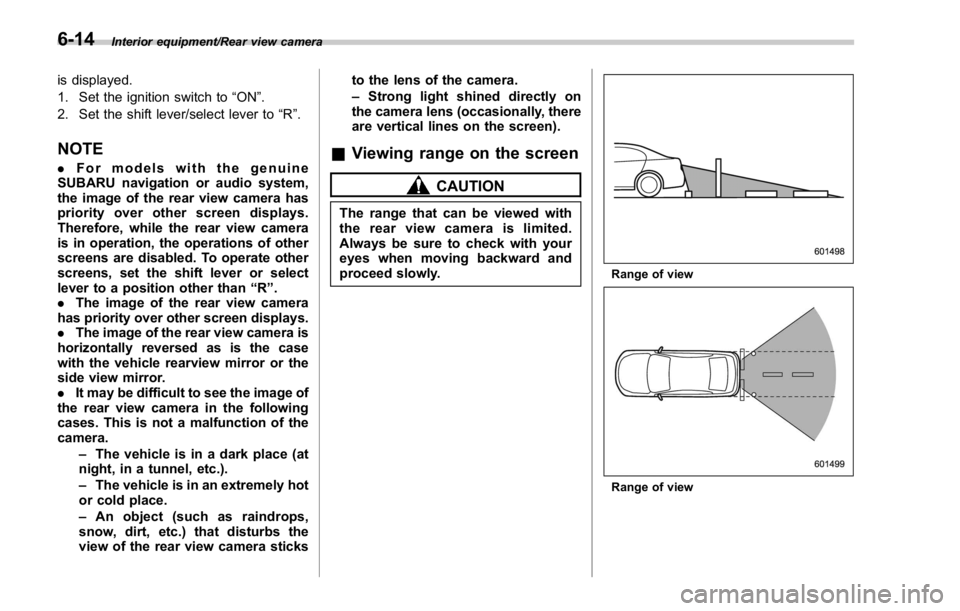
& Viewing range on the screen CAUTIONThe range that can be viewed with
the rear view camera is limited.
Always be sure to check with your
eyes when moving backward and
proceed slowly. Range of view
Range of view6-14