phone SUBARU WRX 2016 Workshop Manual
[x] Cancel search | Manufacturer: SUBARU, Model Year: 2016, Model line: WRX, Model: SUBARU WRX 2016Pages: 594, PDF Size: 19.43 MB
Page 359 of 594

Audio/What to do if...
When registering/connecting a cellular phone Symptom Likely cause Solution Page
Cellular
phone This
system
A cellular phone cannot be regis-
tered. An incorrect passcode was entered
on the cellular phone. Enter the correct passcode on the cellular phone. * —
The registration operation has not
been completed on the cellular phone
side. Complete the registration operation on the cellular
phone (approve registration on the phone). * —
Old registration information remains
on either this system or the cellular
phone. Delete the existing registration information from
both this system and the cellular phone, then
register the cellular phone you wish to connect to
this system. *5-84
A Bluetooth connection cannot be
made. Another Bluetooth device is already
connected. Manually connect the cellular phone you wish to
use to this system. — 5-84
Bluetooth function is not enabled on
the cellular phone. Enable the Bluetooth function on the cellular phone. * —
Automatic Bluetooth connection on
this system is set to off. Set automatic Bluetooth connection on this system
to on when the ignition switch is turned to the “ ACC ”
or “ ON ” position. — 5-84
“ Unable to dial. Please check your
phone. (Unable to dial. Please
check your phone.) ” Bluetooth function is not enabled on
the cellular phone. Enable the Bluetooth function on the cellular phone. * —
Old registration information remains
on either this system or the cellular
phone. Delete the existing registration information from
both this system and the cellular phone, then
register the cellular phone you wish to connect to
this system. * 5-84
*: For details, refer to the owner ’ s manual that came with the cellular phone.5-104
Page 360 of 594

When making/receiving a call Symptom Likely cause Solution Page
Cellular
phone This
system
A call cannot be made/received. Your vehicle is in a “ No Service (No
Service) ” area. Move to where “ No Service (No Service) ” no
longer appears on the display. — —
When using the phonebook Symptom Likely cause Solution Page
Cellular
phone This
system
Phonebook data cannot be trans-
ferred manually. The profile version of the connected
cellular phone may not be compatible
with transferring phonebook data. For USA customers, please visit
www.subaru.com for details. Outside of the
USA customers, contact your local dealer to
arrange a demonstration in order to confirm
whether or not the device can be paired with
the vehicle. * —
Transfer operation on the cellular phone
has not completed. Complete transfer operation on the cellular
phone (approve transfer operation on the
phone). * —
Phonebook data cannot be edited. Editing function is not available on this
system. —— 5-102
*: For details, refer to the owner ’ s manual that came with the cellular phone. Audio/What to do if...
– CONTINUED –5-105
Page 361 of 594

Audio/What to do if...
In other situations Symptom Likely cause Solution Page
Cellular
phone This
system
Even though all conceivable mea-
sures have been taken, the symptom
status does not change. The cellular phone is not close enough
to this system. Bring the cellular phone closer to this system. ——
The cellular phone is the most likely
cause of the symptom. Turn the cellular phone off, remove and
reinstall the battery pack, and then restart the
cellular phone. * —
Enable the cellular phone ’ s Bluetooth con-
nection. * —
Stop the cellular phone ’ s security software
and close all applications. * —
Before using an application installed on the
cellular phone, carefully check its source and
how its operation might affect this system. * —
*: For details, refer to the owner ’ s manual that came with the cellular phone.5-106
Page 362 of 594
Voice command system op-
eration & Voice command system The voice command system enables the
audio, hands-free systems, etc. to be
operated using voice commands.
Refer to the “ Command list ” F 5-110 for
samples of voice commands.
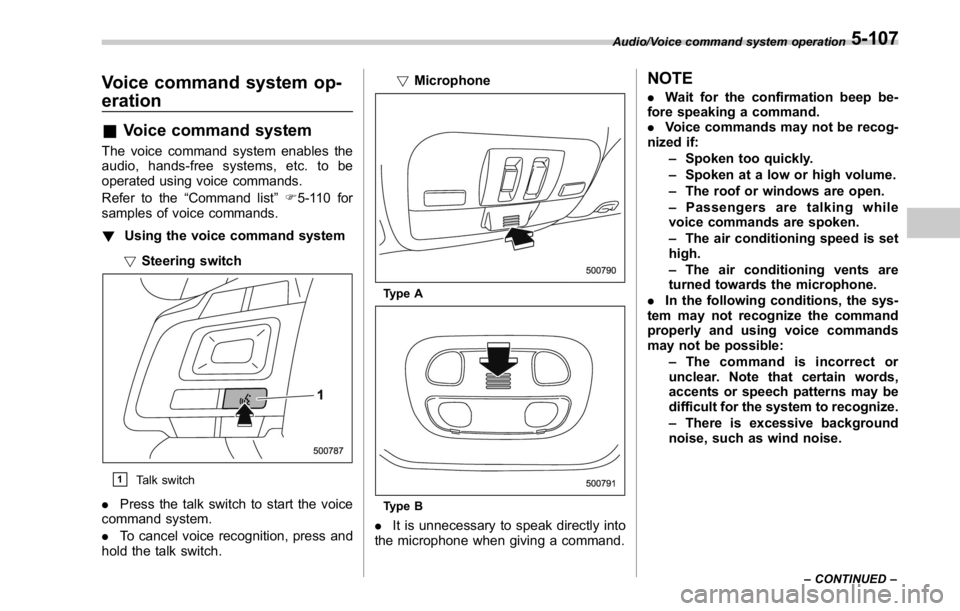
! Using the voice command system
! Steering switch
& 1
Talk switch
. Press the talk switch to start the voice
command system.
. To cancel voice recognition, press and
hold the talk switch. ! Microphone
Type A
Type B
. It is unnecessary to speak directly into
the microphone when giving a command. NOTE . Wait for the confirmation beep be-
fore speaking a command.
. Voice commands may not be recog-
nized if:
– Spoken too quickly.
– Spoken at a low or high volume.
– The roof or windows are open.
– Passengers are talking while
voice commands are spoken.
– The air conditioning speed is set
high.
– The air conditioning vents are
turned towards the microphone.
. In the following conditions, the sys-
tem may not recognize the command
properly and using voice commands
may not be possible:
– The command is incorrect or
unclear. Note that certain words,
accents or speech patterns may be
difficult for the system to recognize.
– There is excessive background
noise, such as wind noise. Audio/Voice command system operation
– CONTINUED –5-107
Page 363 of 594
Audio/Voice command system operation
! Voice command system operation
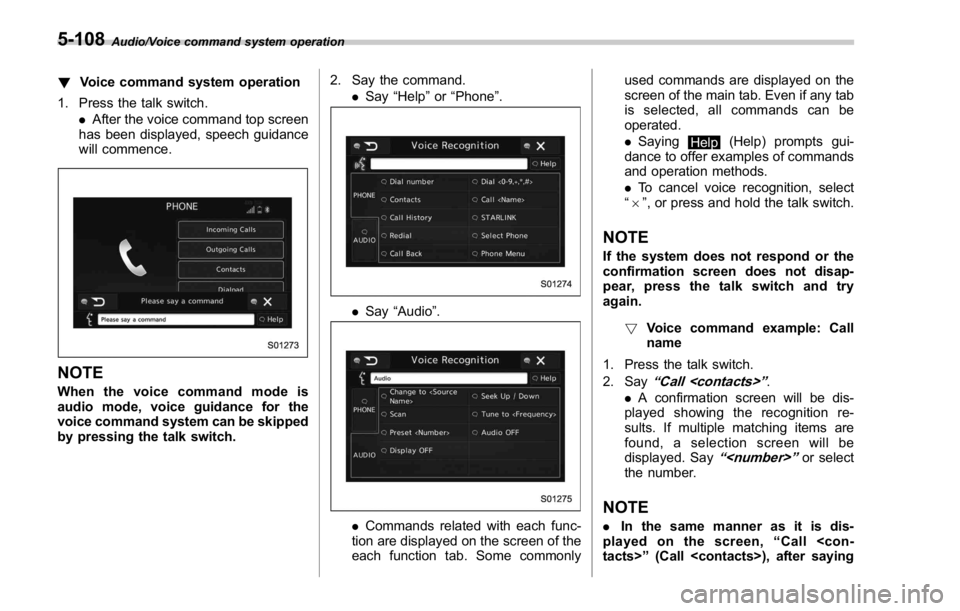
1. Press the talk switch.
. After the voice command top screen
has been displayed, speech guidance
will commence.
NOTE When the voice command mode is
audio mode, voice guidance for the
voice command system can be skipped
by pressing the talk switch. 2. Say the command.
. Say “ Help ” or “ Phone ” .
. Say “ Audio ” .
. Commands related with each func-
tion are displayed on the screen of the
each function tab. Some commonly used commands are displayed on the
screen of the main tab. Even if any tab
is selected, all commands can be
operated.
. Saying
Help (Help) prompts gui-
dance to offer examples of commands
and operation methods.
. To cancel voice recognition, select
“ 6 ” , or press and hold the talk switch.
NOTE If the system does not respond or the
confirmation screen does not disap-
pear, press the talk switch and try
again.
! Voice command example: Call
name
1. Press the talk switch.
2. Say
“ Call
. A confirmation screen will be dis-
played showing the recognition re-
sults. If multiple matching items are
found, a selection screen will be
displayed. Say
“
the number.
NOTE
. In the same manner as it is dis-
played on the screen, “ Call
Page 364 of 594

“
Call a contact ” say the name of a
contact. For example:
“ Call a contact ” ,
“
John Smith ” or“ Call a contact ” ,
“
Mary Davis ”
. Short or abbreviated names in the
contacts list may not be recognized.
Change names in the contacts list to
full names.
. Sometimes a voice recognition re-
sult confirmation screen will be dis-
played. After confirming the result, say
“ Ye s ” or“ No ” .
. When the system recognizes multi-
ple names from the contacts list, a
name candidate list will be displayed
on the screen. If the desired name is
not displayed on the top of the screen,
say or select the number of the name
from the candidate list (number 1,
number 2, etc.) to select a name from
the candidate list.
. When a contact has multiple phone
numbers registered in the contacts list,
a candidate list will be displayed. If the
desired phone number is not displayed
on the top of the screen, say or select
the number of the desired phone
number from the candidate list (num-
ber 1, number 2, etc.) to select a phone
number from the candidate list. ! Voice command example: Dial
number
1. Press the talk switch.
2. Say the phone number.
. In the same manner as it is dis-
played on the screen, “ Dial
(Dial
“ Dial a
number ”
say the phone number.
. Say the phone number one digit at a
time.
For example, if the phone number is
2345678:
Say
“ two three four five six seven
eight ”
Do not say“ twenty three forty five
sixty seven eight ”
Calling to the following phone numbers
– 3 digit numbers (911, 411, 611)
– 7 digit numbers (Local phone num-
bers)
– 10 digit numbers (Area code +
Local phone number)
– 11 digit phone numbers (1 + Area
code + Local phone number)
. As the system cannot recognize
additional numbers, say the complete
number without stopping. Calling to other phone numbers
3. Say
“ Call ” or press the switch on
the steering wheel.
. When the system recognizes multi-
ple phone numbers, a phone number
candidate list will be displayed on the
screen. Pressing the
switch on the
steering wheel makes a call to the top
entry on the list. If the desired phone
number is not displayed on the top of
the screen, say the number of the
desired phone number from the candi-
date list to select a phone number from
the candidate list.
! Casual speech recognition
Due to natural language speech recogni-
tion technology, this system enables re-
cognition of a command when spoken
naturally. However, the system cannot
recognize every variation of each com-
mand. In some situations, it is possible to
omit the command for the procedure and
directly state the desired operation. Not all
voice commands are displayed in the
function menu. Audio/Voice command system operation
– CONTINUED –5-109
Page 365 of 594

Audio/Command list
NOTE If the command cannot be recognized
completely, the command input screen
will be displayed. (Search results will
be shown based on the part of the
command that was recognized.)
! Expression examples for each
function Command Expression examples
“ Dial
actions are shown below.
. Frequently used commands are listed
in the following tables.
. For devices that are not installed in the
vehicle, the related commands will not be
displayed in the screen. Also, according to
conditions, other commands may not be
displayed in the screen.
. The functions available may vary ac-
cording to the system installed.
. Voice recognition language can be
changed. Refer to “ Other settings ” F 5-10.
NOTE . The notations used in the com-
mands are as follows.
– [
]: Commands that need not
to be spoken
– <
>: Numbers, titles, or
names to be spoken Basic command Voice
command Phrase Function
System back Back Go back one
hierarchy or
cancel the
voice recogni-
tion (voice
command top
screen)
System help Help Ask for help
with the cur-
rent task
System can-
cel (Close) Cancel, Close Cancel the
current task
Ye s Ye s
No No
Display OFF Display OFF Turns the dis-
play off
Audio ON Audio ON Turns the
audio system
on
Audio OFF Audio OFF Turns the
audio system
off
STARLINK
mode change STARLINK Switch to
APPS mode5-110
Page 366 of 594

Commands for changing the radio mode Voice
command Phrase Function
AM mode
change Change to
AM Switch to AM
mode
Change to
AM1 Switch to AM
mode band 1
Change to
AM2 Switch to AM
mode band 2
FM mode
change Change to
FM Switch to FM
mode
Change to
FM1 Switch to FM
mode band 1
Change to
FM2 Switch to FM
mode band 2
Change to
FM3 Switch to FM
mode band 3
XM radio
mode change Change to
SiriusXM Switch to XM
mode
Bluetooth
Audio mode
change Change to BT
Audio Switch to
Bluetooth
Audio mode
CD mode
change Change to
CD Switch to CD
mode
USB mode
change Change to
USB Switch to
USB mode
iPod mode
change Change to
iPod Switch to iPod
mode
Aha radio
mode change Change to
Aha Switch to Aha
radio mode Voice
command Phrase Function
Pandora
mode change Change to
Pandora Switch to
Pandora
mode
AUX mode
change Change to
AUX Switch to
AUX mode
Commands for Hands Free Voice
command Phrase Function
Dial number
calling Dial Number
? <0-9, +, *,
#> ? Change
number, Dial Places a call
to the said
phone num-
berDial <0-9, +,
*, #> ?
Change num-
ber, Dial
Contacts
(Phonebook) Contacts,
Phonebook
?
? <1-5> ?
Dial Make a call
by using the
phonebook
Call
? <1-5> ?
Dial Voice
command Phrase Function
Recent calls Call History
? Incoming
call, Outgoing
call ? Next
(page), Pre-
vious (page)
? <1-5> ?
Dial Make a call
by using the
call history
Incoming
calls Incoming
Calls Display the
call history
screen
Outgoing
calls Outgoing
Calls Display the
call history
screen
Redial Redial Places a call
to the phone
number of the
latest out-
going call
Callback Callback Places a call
to the phone
number of the
latest incom-
ing call
Select phone Select Phone
? <1-5> Display the
phone select
screen
Show phone
menu Phone Menu Display the
hands free
top screenAudio/Command list
– CONTINUED –5-111
Page 369 of 594
Audio/Appendix
Commands for Bluetooth audio control Voice
command Phrase Function
Pause Pause Pause play
Track up,
next track Track Up Select the
next track
Track down,
previous track Track Down Select the
current track
1 Track re-
peat 1 Track Re-
peat Repeat single
track
Repeat all Repeat All Repeat all
tracks
Group repeat Group Re-
peat Repeat tracks
on group
Shuffle all Shuffle All Shuffle all
tracks
Group shuffle Group Shuffle Shuffle tracks
on group
Shuffle OFF Shuffle OFF Turn off shuf-
fleAppendix & Certification . Bluetooth
The Bluetooth word mark and logo are
registered trademarks of Bluetooth SIG,
Inc. and any use of such marks by Clarion
Co., Ltd. is under license.
. SiriusXM Satellite Radio
SiriusXM TM
and all related marks and
logos are trademarks of SiriusXM Radio
Inc. All rights reserved.
. Pandora
Pandora, the Pandora logo, and other
Pandora marks are trademarks or regis-
tered trademarks of Pandora Media, Inc.,
or its subsidiaries worldwide.
If you have any issues with the Pandora
application on your mobile phone, please
direct them to
[email protected]. . iPod
“ Made for iPod ” and “ Made for iPhone ”
mean that an electronic accessory has
been designed to connect specifically to
iPod or iPhone respectively, and has been
certified by the developer to meet Apple
performance standards. Apple is not
responsible for the operation of this device
or its compliance with safety and regula-
tory standards. Please note that the use of
this accessory with iPod or iPhone may
affect wireless performance.
iPhone, iPod, iPod classic, iPod nano,
iPod touch, and iTunes are trademarks of
Apple Inc., registered in the U.S. and other
countries.
. How to get the source code using
the open source
This system implements software using
the open source. For customers who
would like to get the source code of the
software, it is available by downloading it
from the web site of Clarion Co., Ltd.
For details, refer to the following web site.
http://www.clarion.com/us/en/support/in-
dex.html5-114
Page 380 of 594
appliance that can be connected
is 120W. Do not use an appliance
which exceeds the indicated wat-
tage for each outlet.
When using appliances con-
nected to two or more outlets
simultaneously, the total power
consumed by them must not
exceed 120W. Overloading the
accessory power outlet can
cause a short circuit. Do not use
double adapters or more than
one electrical appliance.
. If the plug on your electric appli-
ance is either too loose or too
tight for the accessory power
outlet, this can result in a poor
contact or cause the plug to get
stuck. Only use plugs that fit
properly.
. Use of an electric appliance in the
accessory power outlet for a long
period of time while the engine is
not running can cause battery
discharge.
. Before driving your vehicle, make
sure that the plug and the cord
on your electrical appliance will
not interfere with your shifting
gears and operating the accel-
erator and brake pedals. If they do, do not use the electrical
appliance while driving.
& Use with a cigarette lighter (if
equipped) To use the accessory power outlet as a
cigarette lighter socket, purchase the
cigarette lighter plug, which is an optional
accessory. A cigarette lighter plug is
available from your SUBARU dealer.
The cigarette lighter operates only when
the ignition switch is in the “ ON ” or “ ACC ”
position.
To use the cigarette lighter, push in the
knob and wait a few moments. It will
automatically spring up when ready for
use.
WARNING
To avoid being burned, never grasp
the lighter by the end with the
heating element. Doing so could
result in injury and could also
damage the heating element.
CAUTION
. Do not hold the lighter pushed in,
because it will overheat. . The electrical power socket is
originally designed to use a gen-
uine SUBARU cigarette lighter
plug. Do not use a non-genuine
cigarette lighter plug in the sock-
et. Doing so may cause a short-
circuit and overheating, resulting
in a fire.
. If the socket is ever used for a
plug-in accessory such as a cell
phone, that may damage the
portion of the socket ’ s internal
mechanism that causes a cigar-
ette lighter plug to “ pop out ”
after its lighter element is heated.
Therefore, do not place a cigar-
ette lighter plug in a socket that
has been used, even once, to
power a plug-in accessory. Doing
so may cause the plug to stick
and overheat, creating a potential
fire hazard.Interior equipment/Accessory power outlets
6-9