display SUZUKI ERTIGA 2013 1.G User Guide
[x] Cancel search | Manufacturer: SUZUKI, Model Year: 2013, Model line: ERTIGA, Model: SUZUKI ERTIGA 2013 1.GPages: 207, PDF Size: 5.14 MB
Page 108 of 207
Downloaded from www.Manualslib.com manuals search engine 5-13OTHER CONTROLS AND EQUIPMENT
60MK0-14E
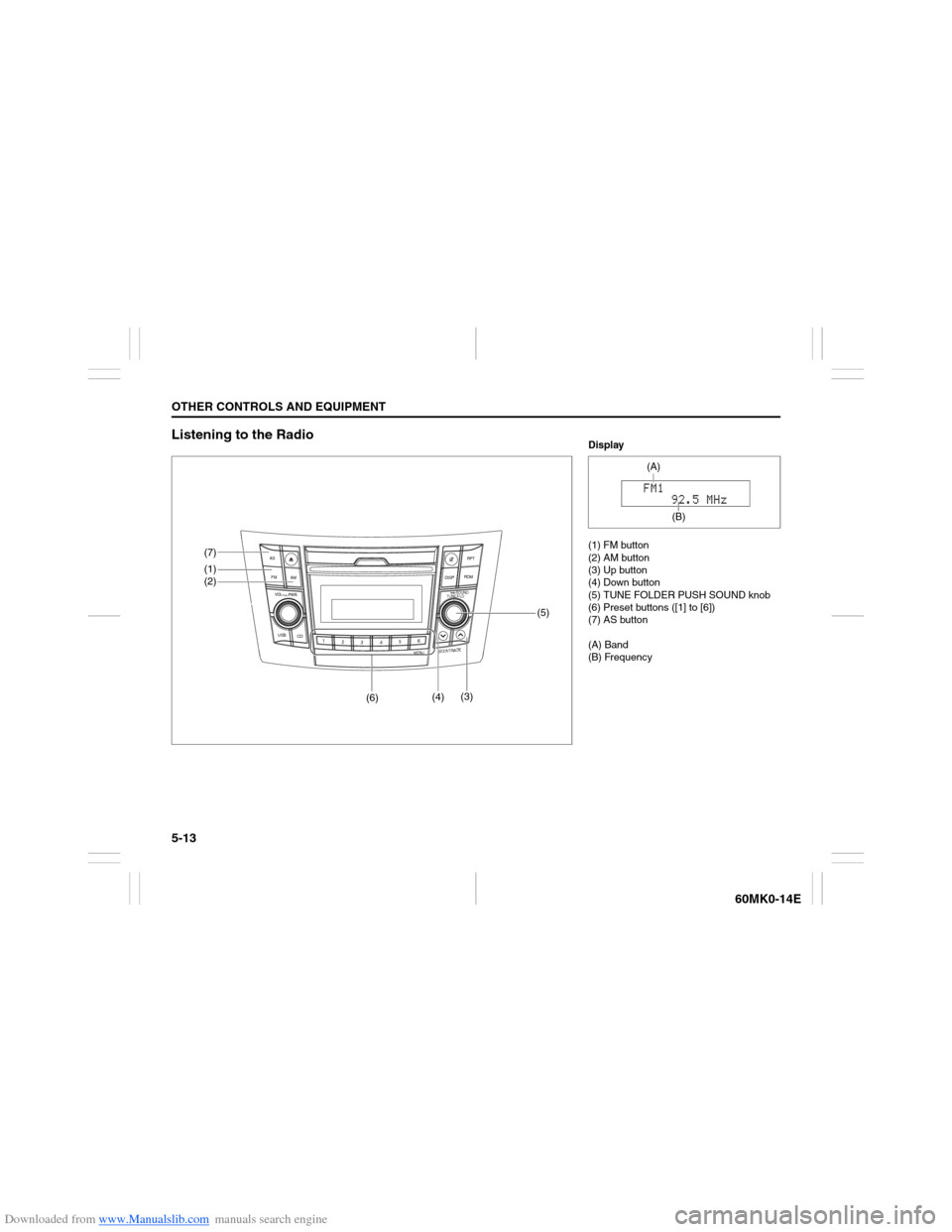
Listening to the Radio
USB
CD
1
2
3456
MENU
SEEK/TRACK
AS
AM FMRPT
RDM
DISP
PUSH SOUND
TUNE/FLD
VO L PUSH PWR
(7)
(5)
(4)(3)
(6)
(1)(2)
Display
(1) FM button
(2) AM button
(3) Up button
(4) Down button
(5) TUNE FOLDER PUSH SOUND knob
(6) Preset buttons ([1] to [6])
(7) AS button
(A) Band
(B) Frequency
(A)
(B)
Page 109 of 207
Downloaded from www.Manualslib.com manuals search engine 5-14
OTHER CONTROLS AND EQUIPMENT
60MK0-14E
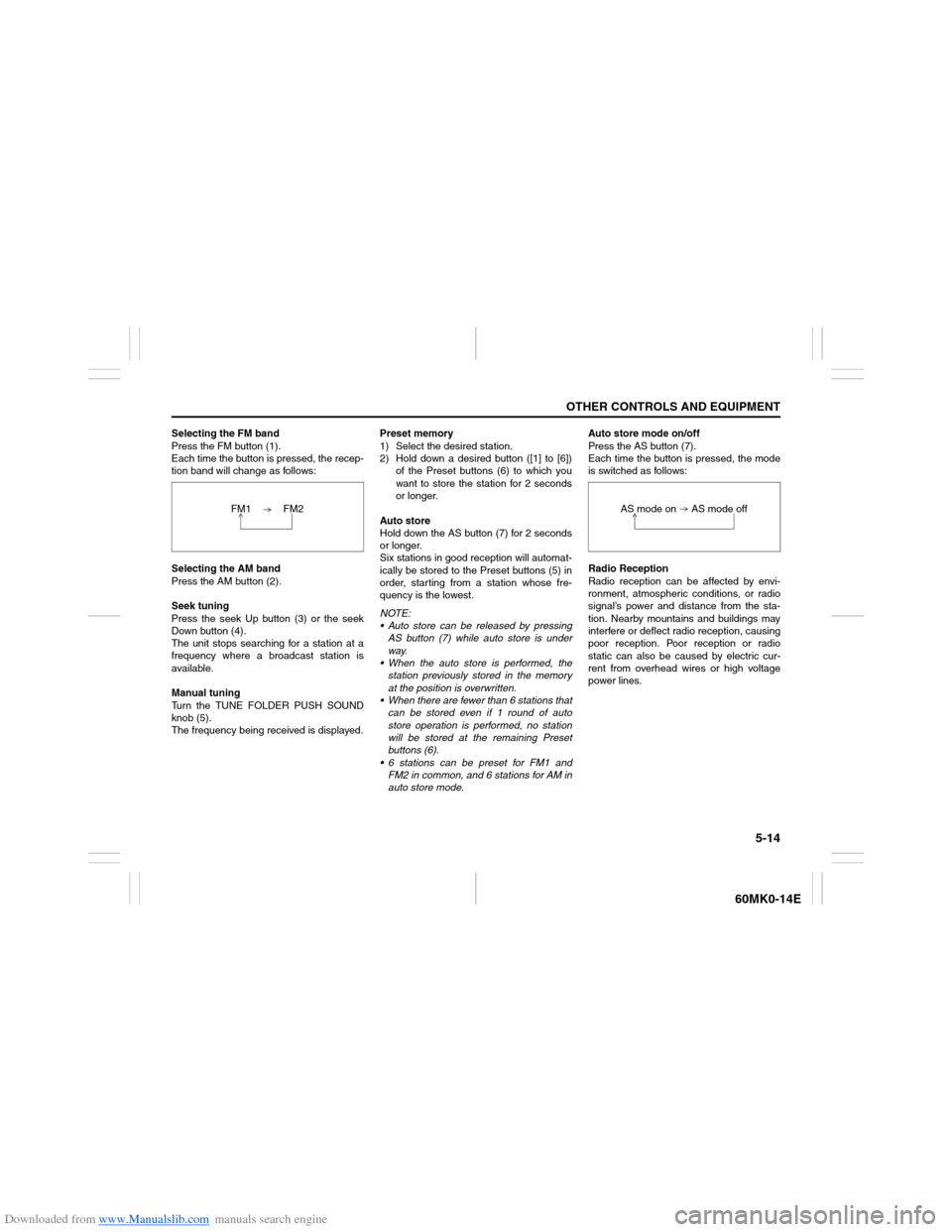
Selecting the FM band
Press the FM button (1).
Each time the button is pressed, the recep-
tion band will change as follows:
Selecting the AM band
Press the AM button (2).
Seek tuning
Press the seek Up button (3) or the seek
Down button (4).
The unit stops searching for a station at a
frequency where a broadcast station is
available.
Manual tuning
Turn the TUNE FOLDER PUSH SOUND
knob (5).
The frequency being received is displayed.Preset memory
1) Select the desired station.
2) Hold down a desired button ([1] to [6])
of the Preset buttons (6) to which you
want to store the station for 2 seconds
or longer.
Auto store
Hold down the AS button (7) for 2 seconds
or longer.
Six stations in good reception will automat-
ically be stored to the Preset buttons (5) in
order, starting from a station whose fre-
quency is the lowest.
NOTE:
Auto store can be released by pressing
AS button (7) while auto store is under
way.
When the auto store is performed, the
station previously stored in the memory
at the position is overwritten.
When there are fewer than 6 stations that
can be stored even if 1 round of auto
store operation is performed, no station
will be stored at the remaining Preset
buttons (6).
6 stations can be preset for FM1 and
FM2 in common, and 6 stations for AM in
auto store mode.Auto store mode on/off
Press the AS button (7).
Each time the button is pressed, the mode
is switched as follows:
Radio Reception
Radio reception can be affected by envi-
ronment, atmospheric conditions, or radio
signal’s power and distance from the sta-
tion. Nearby mountains and buildings may
interfere or deflect radio reception, causing
poor reception. Poor reception or radio
static can also be caused by electric cur-
rent from overhead wires or high voltage
power lines. FM1 FM2
AS mode on AS mode off
Page 110 of 207
Downloaded from www.Manualslib.com manuals search engine 5-15OTHER CONTROLS AND EQUIPMENT
60MK0-14E
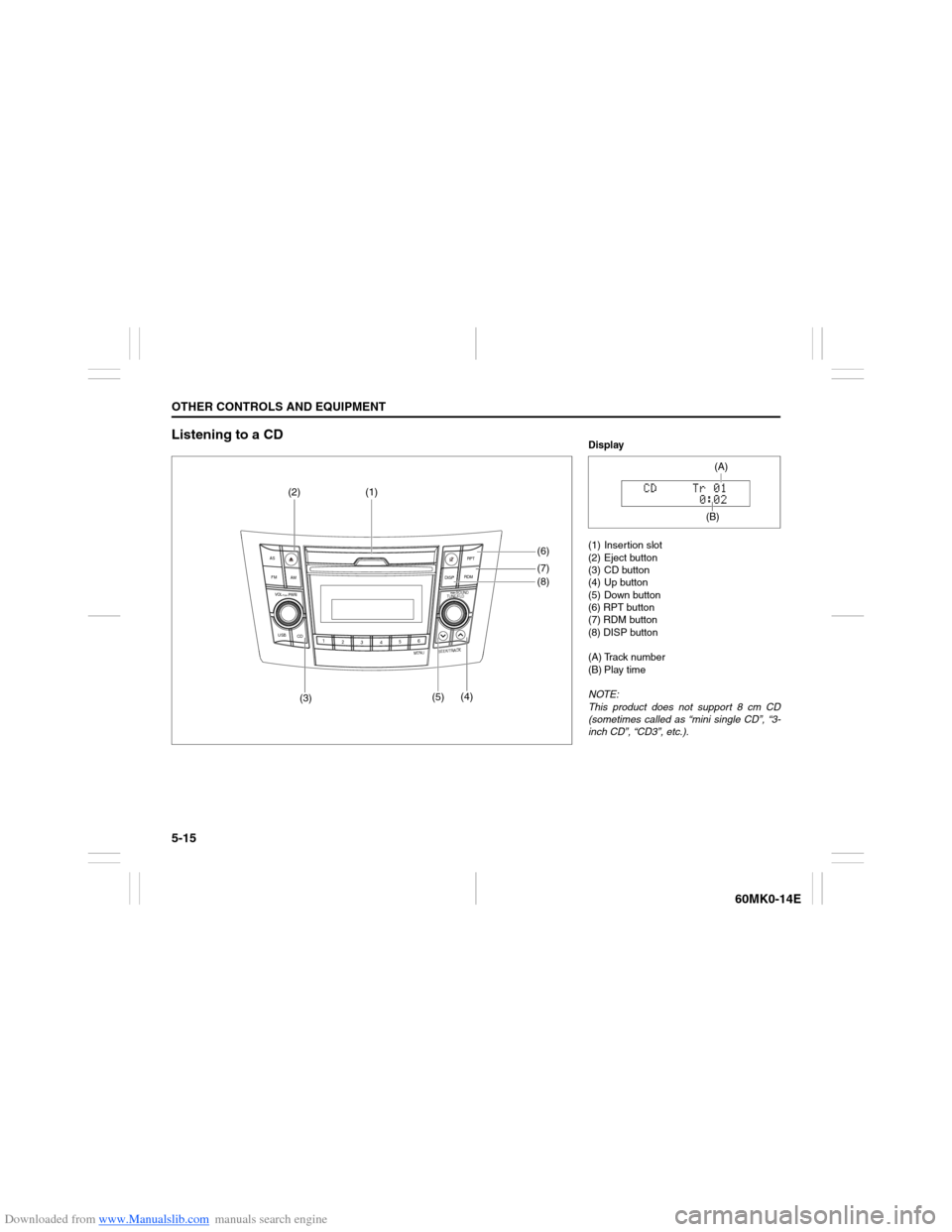
Listening to a CD
USB
CD
1
2
3456
MENU
SEEK/TRACK
AS
AM FMRPT
RDM
DISP
PUSH SOUND
TUNE/FLD
VO L PUSH PWR
(3)(5)(4)(8) (6)
(7) (2) (1)
Display
(1) Insertion slot
(2) Eject button
(3) CD button
(4) Up button
(5) Down button
(6) RPT button
(7) RDM button
(8) DISP button
(A) Track number
(B) Play time
NOTE:
This product does not support 8 cm CD
(sometimes called as “mini single CD”, “3-
inch CD”, “CD3”, etc.).
(B)(A)
Page 112 of 207
Downloaded from www.Manualslib.com manuals search engine 5-17OTHER CONTROLS AND EQUIPMENT
60MK0-14E
Selecting a track
Press the Up button (4) to listen to the
next track.
Press the Down button (5) twice to lis-
ten to the previous track.
When the Down button (5) is pressed
once, the track currently being played
will start from the beginning again.
Fast forwarding/Rewinding a track
Hold down the Up button (4) to fast for-
ward the track.
Hold down the Down button (5) to fast
rewind the track.
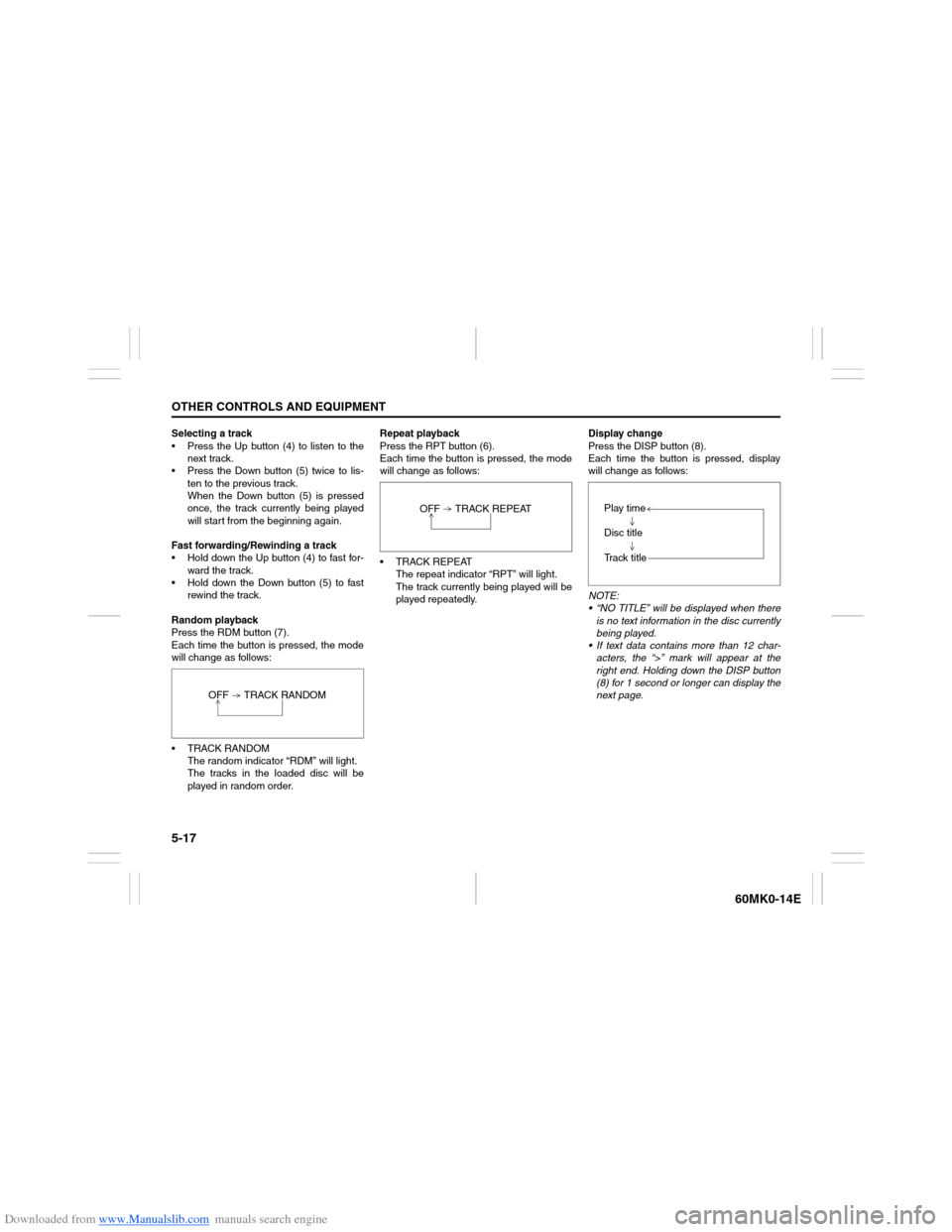
Random playback
Press the RDM button (7).
Each time the button is pressed, the mode
will change as follows:
TRACK RANDOM
The random indicator “RDM” will light.
The tracks in the loaded disc will be
played in random order.Repeat playback
Press the RPT button (6).
Each time the button is pressed, the mode
will change as follows:
TRACK REPEAT
The repeat indicator “RPT” will light.
The track currently being played will be
played repeatedly.Display change
Press the DISP button (8).
Each time the button is pressed, display
will change as follows:
NOTE:
“NO TITLE” will be displayed when there
is no text information in the disc currently
being played.
If text data contains more than 12 char-
acters, the “>” mark will appear at the
right end. Holding down the DISP button
(8) for 1 second or longer can display the
next page. OFF TRACK RANDOM
OFF TRACK REPEAT
Play time
Disc title
Track title
Page 113 of 207
Downloaded from www.Manualslib.com manuals search engine 5-18
OTHER CONTROLS AND EQUIPMENT
60MK0-14E
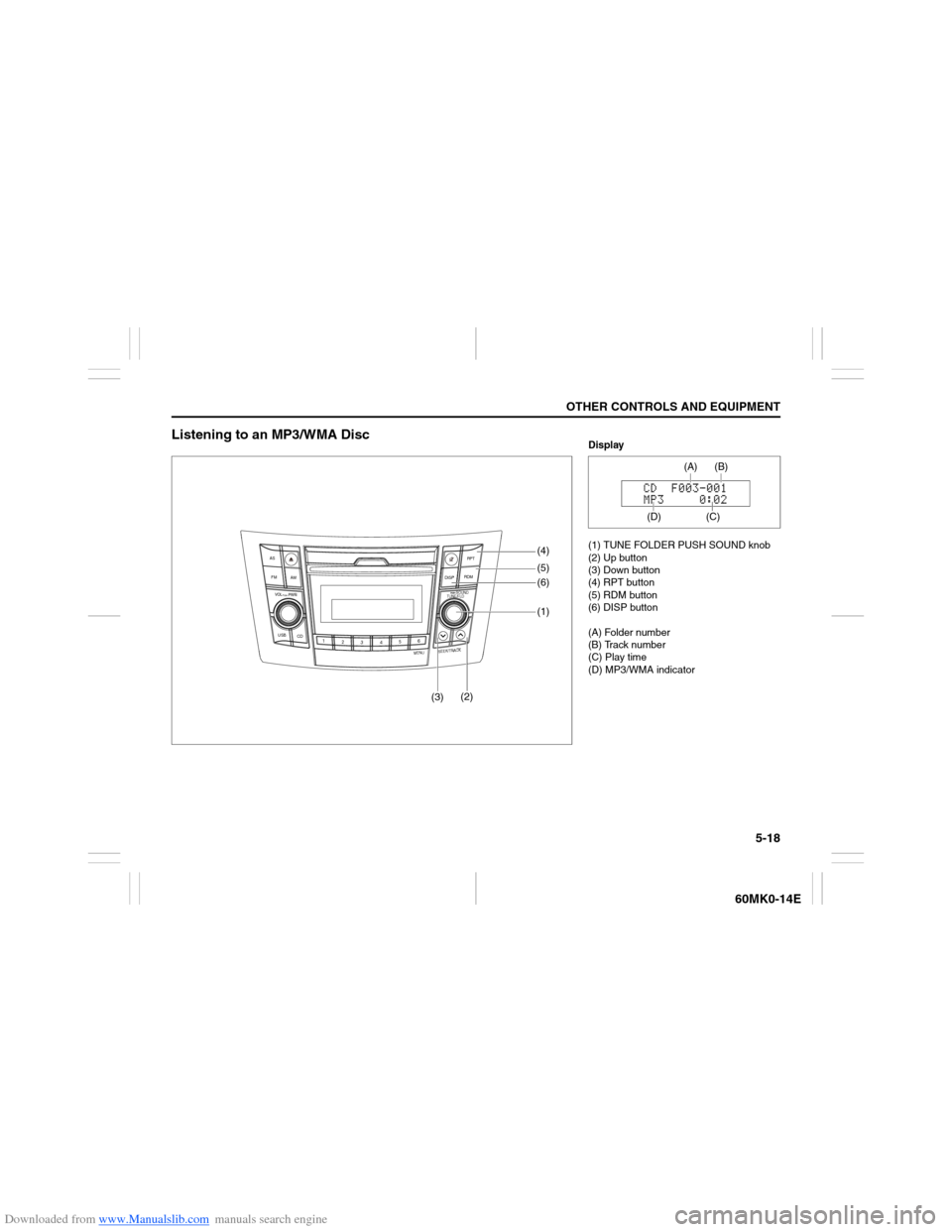
Listening to an MP3/WMA Disc
USB
CD
1
2
3456
MENU
SEEK/TRACK
AS
AM FMRPT
RDM
DISP
PUSH SOUND
TUNE/FLD
VO L PUSH PWR
(3)(2)(6) (4)
(5)
(1)
Display
(1) TUNE FOLDER PUSH SOUND knob
(2) Up button
(3) Down button
(4) RPT button
(5) RDM button
(6) DISP button
(A) Folder number
(B) Track number
(C) Play time
(D) MP3/WMA indicator
(C)(B) (A)
(D)
Page 115 of 207
Downloaded from www.Manualslib.com manuals search engine 5-20
OTHER CONTROLS AND EQUIPMENT
60MK0-14E
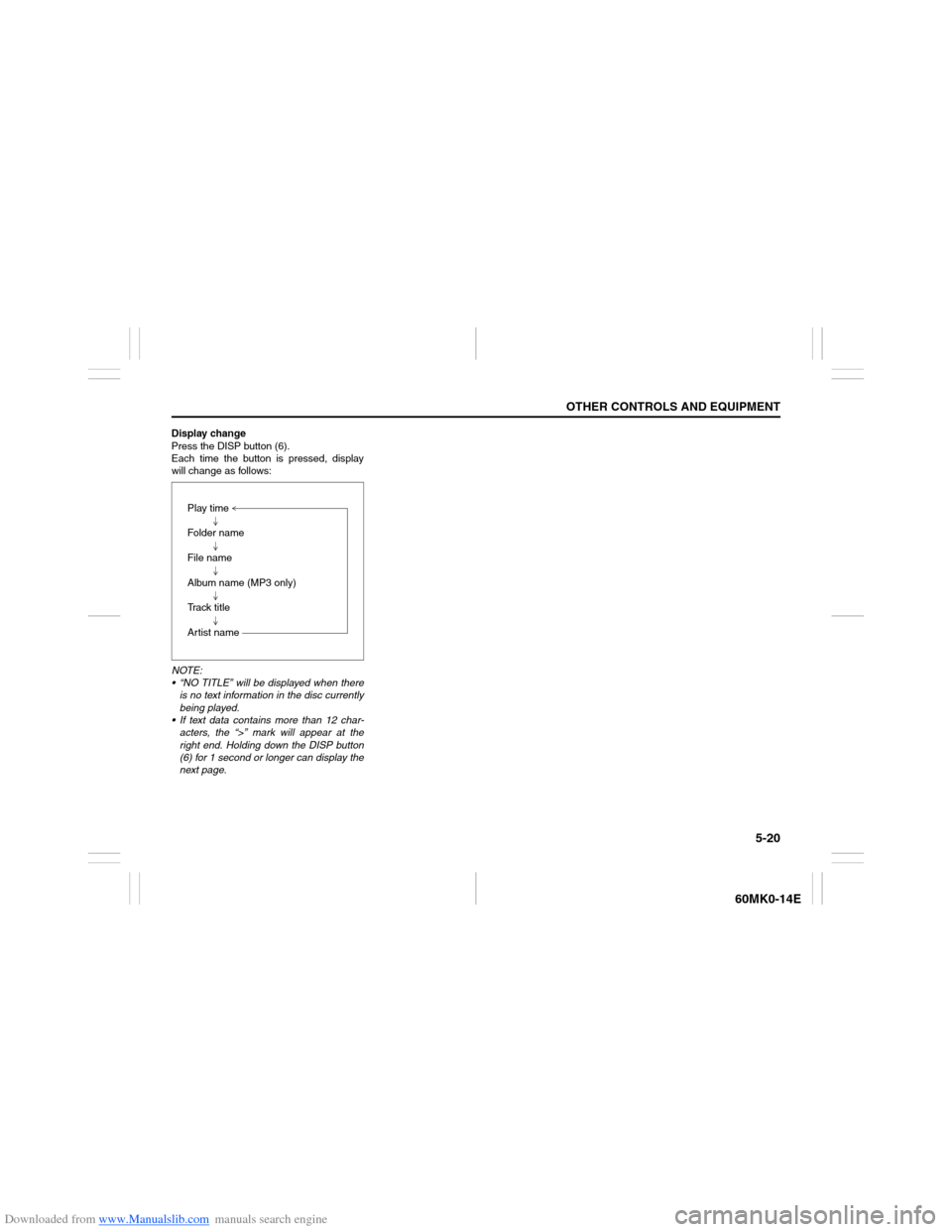
Display change
Press the DISP button (6).
Each time the button is pressed, display
will change as follows:
NOTE:
“NO TITLE” will be displayed when there
is no text information in the disc currently
being played.
If text data contains more than 12 char-
acters, the “>” mark will appear at the
right end. Holding down the DISP button
(6) for 1 second or longer can display the
next page.Play time
Folder name
File name
Album name (MP3 only)
Track title
Artist name
Page 116 of 207
Downloaded from www.Manualslib.com manuals search engine 5-21OTHER CONTROLS AND EQUIPMENT
60MK0-14E
Notes on MP3/WMAWhat is MP3/WMA?
MP3 (MPEG1/2 Audio Layer-III) and WMA
(Windows Media
TM
Audio) are the com-
pression formats of digital audio. The
former is developed by MPEG (Motion Pic-
ture Experts Group), and the latter is
developed by Microsoft Corporation.
Using these compression formats, you can
record contents of about 10 music CDs on
a single CD media. (This figure refers to
data recorded on a 650 MB CD-R or CD-
RW at a fixed bit rate of 128 kbps and a
sampling frequency of 44.1 kHz.)
Points to remember when making MP3/
WMA files
Common
High bit rate and high sampling fre-
quency are recommended for high
quality sounds.
Selecting VBR (Variable Bit Rate) is not
recommended. Selecting VBR may
cause display of incorrect playing time
and jumpiness of playback.
Playback sound quality varies depend-
ing on the encoding environment. For
details, refer to the user manual of the
encoding software and the writing soft-
ware in use.MP3
It is recommended to set the bit rate to
“128 kbps or more” and “fixed”.
WMA
It is recommended to set the bit rate to
“64 kbps or more” and “fixed”.
Do not set the copy protect attribute on
the WMA file to enable this unit to play-
back.
Recording MP3/WMA files on a CD
media
It is recommended not to write both
CD-DA files and MP3/WMA files on a
disc.
If both CD-DA files and MP3/WMA files
are on the same disc, tracks may not
be played in the correct order or some
tracks may not be played at all.
When storing both MP3 data and WMA
data on the same disc, sort and place
them in different folders. Do not write files other than MP3/WMA
files and unnecessary folders on a disc.
MP3/WMA files should be named to
meet the standards and the file system
specifications as shown below.
The file extension “.mp3” or “.wma”
should be assigned to files based on
their format independently.
You may encounter a trouble in playing
MP3/WMA files or displaying informa-
tion of MP3/WMA files depending on
the writing software or CD recorder in
use.
This unit does not have a play list func-
tion.
It is recommended to write discs in
Disc-at-Once mode even though Multi-
session mode is supported.
Compression formats
MP3
Bit rate
:
MPEG1 Audio Layer III: 64 k - 320 kbps
MPEG2 Audio Layer III: 64 k - 160 kbps
Sampling frequency
:
MPEG1 Audio Layer III: 32 k/44.1 k/48 kHz
MPEG2 Audio Layer III: 16 k/22.05 k/24 kHz
WMA (Ver.7, Ver.8) Bit rate: CBR 48 k -192 kbps
Sampling frequency: 32 k/44.1 k/48 kHz
NOTICE
Never assign the “.mp3”, or “.wma”
file name extension to a file if it is not
in the MP3/WMA format file. Failure to
observe this may result in damage to
the speaker due to noise production.
Page 118 of 207
Downloaded from www.Manualslib.com manuals search engine 5-23OTHER CONTROLS AND EQUIPMENT
60MK0-14E
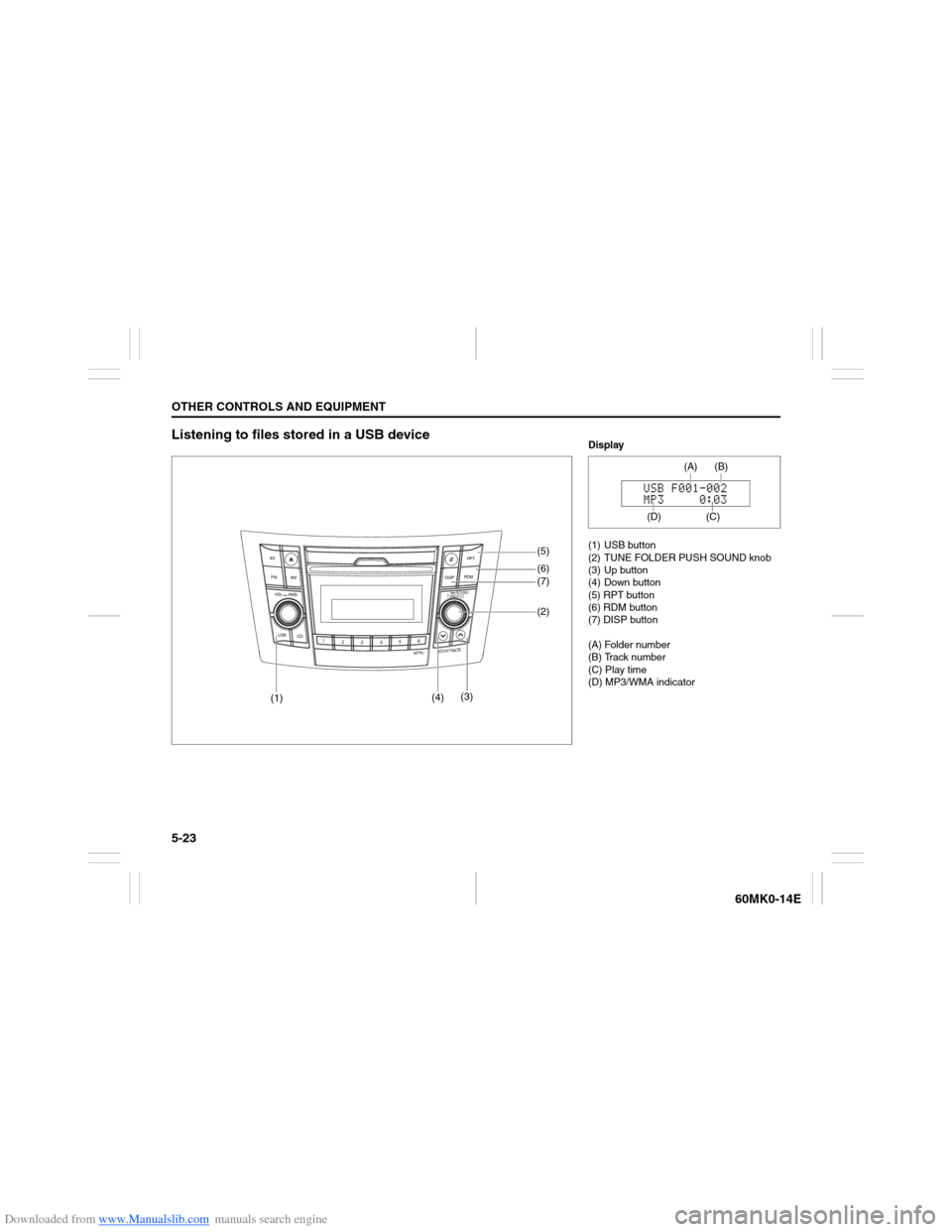
Listening to files stored in a USB device
USB
CD
1
2
3456
MENU
SEEK/TRACK
AS
AM FMRPT
RDM
DISP
PUSH SOUND
TUNE/FLD
VO L PUSH PWR
(4)(3)(7) (5)
(6)
(2)
(1)
Display
(1) USB button
(2) TUNE FOLDER PUSH SOUND knob
(3) Up button
(4) Down button
(5) RPT button
(6) RDM button
(7) DISP button
(A) Folder number
(B) Track number
(C) Play time
(D) MP3/WMA indicator
(C)(B) (A)
(D)
Page 120 of 207
Downloaded from www.Manualslib.com manuals search engine 5-25OTHER CONTROLS AND EQUIPMENT
60MK0-14E
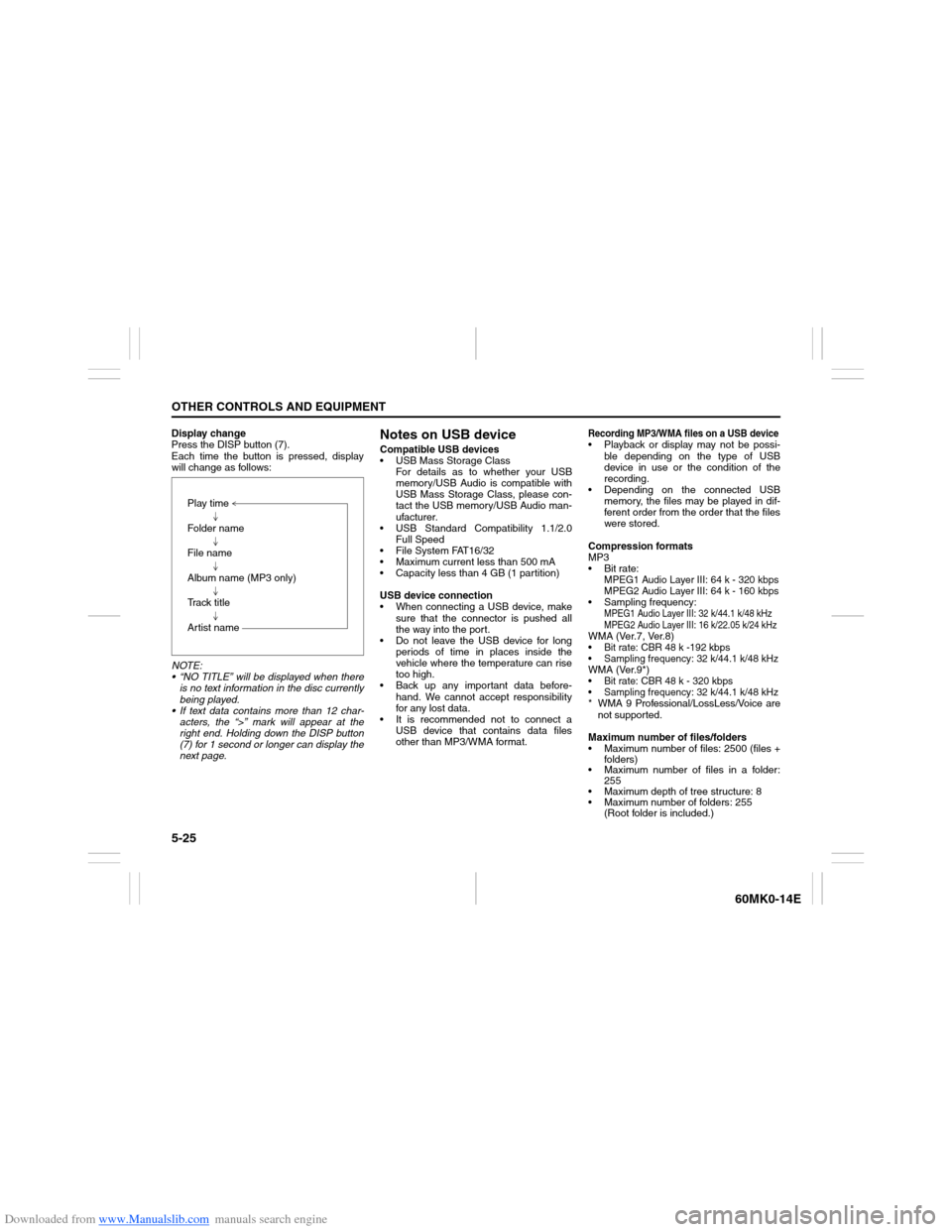
Display change
Press the DISP button (7).
Each time the button is pressed, display
will change as follows:
NOTE:
“NO TITLE” will be displayed when there
is no text information in the disc currently
being played.
If text data contains more than 12 char-
acters, the “>” mark will appear at the
right end. Holding down the DISP button
(7) for 1 second or longer can display the
next page.
Notes on USB deviceCompatible USB devices
USB Mass Storage Class
For details as to whether your USB
memory/USB Audio is compatible with
USB Mass Storage Class, please con-
tact the USB memory/USB Audio man-
ufacturer.
USB Standard Compatibility 1.1/2.0
Full Speed
File System FAT16/32
Maximum current less than 500 mA
Capacity less than 4 GB (1 partition)
USB device connection
When connecting a USB device, make
sure that the connector is pushed all
the way into the port.
Do not leave the USB device for long
periods of time in places inside the
vehicle where the temperature can rise
too high.
Back up any important data before-
hand. We cannot accept responsibility
for any lost data.
It is recommended not to connect a
USB device that contains data files
other than MP3/WMA format.
Recording MP3/WMA files on a USB device Playback or display may not be possi-
ble depending on the type of USB
device in use or the condition of the
recording.
Depending on the connected USB
memory, the files may be played in dif-
ferent order from the order that the files
were stored.
Compression formats
MP3
Bit rate
:
MPEG1 Audio Layer III: 64 k - 320 kbps
MPEG2 Audio Layer III: 64 k - 160 kbps
Sampling frequency
:
MPEG1 Audio Layer III: 32 k/44.1 k/48 kHz
MPEG2 Audio Layer III: 16 k/22.05 k/24 kHz
WMA (Ver.7, Ver.8) Bit rate: CBR 48 k -192 kbps Sampling frequency: 32 k/44.1 k/48 kHzWMA (Ver.9*) Bit rate: CBR 48 k - 320 kbps Sampling frequency: 32 k/44.1 k/48 kHz* WMA 9 Professional/LossLess/Voice are
not supported.
Maximum number of files/folders
Maximum number of files: 2500 (files +
folders)
Maximum number of files in a folder:
255
Maximum depth of tree structure: 8
Maximum number of folders: 255
(Root folder is included.) Play time
Folder name
File name
Album name (MP3 only)
Track title
Artist name
Page 121 of 207
Downloaded from www.Manualslib.com manuals search engine 5-26
OTHER CONTROLS AND EQUIPMENT
60MK0-14E
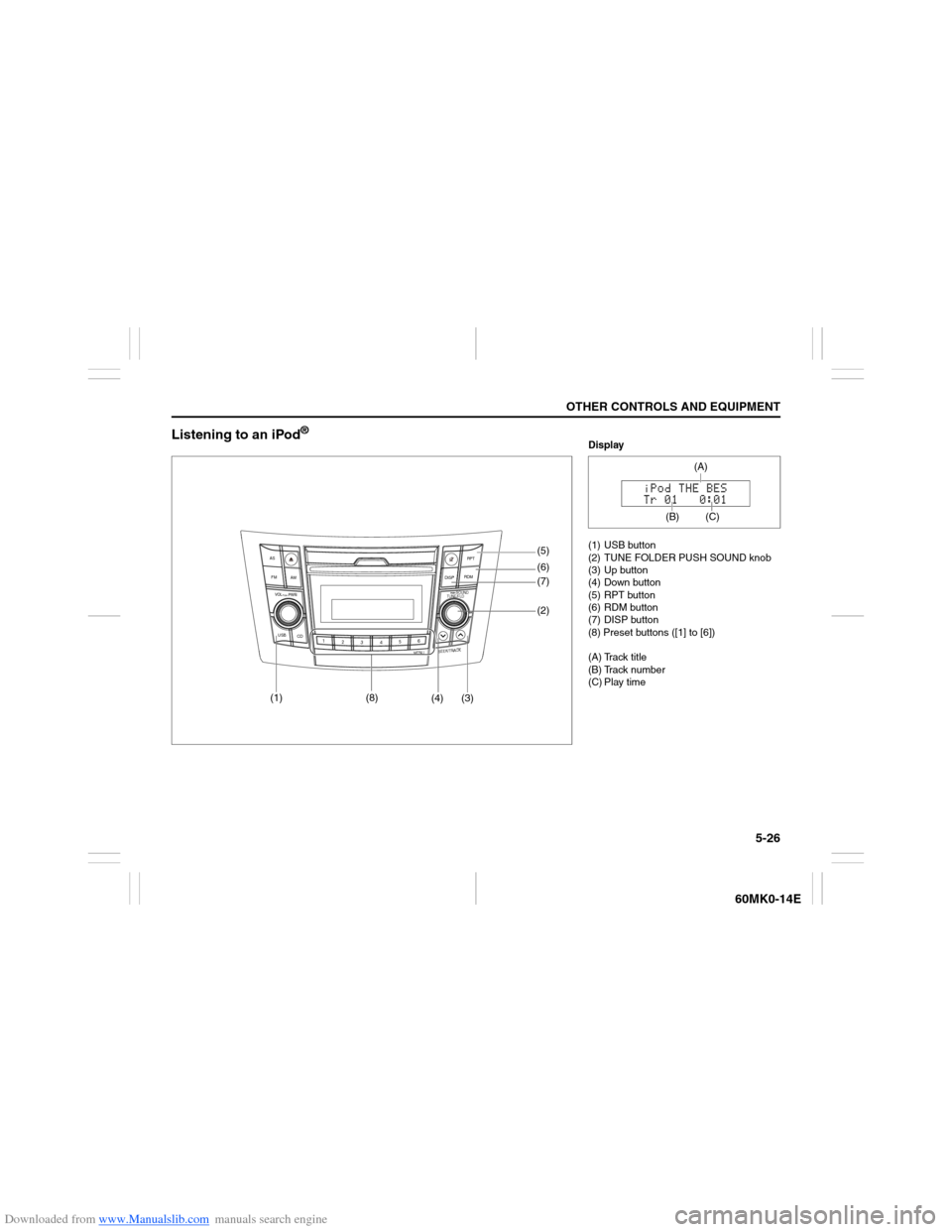
Listening to an iPod
®
USB
CD
1
2
3456
MENU
SEEK/TRACK
AS
AM FMRPT
RDM
DISP
PUSH SOUND
TUNE/FLD
VO L PUSH PWR
(4) (3)(7) (5)
(6)
(2)
(1)
(8)
Display
(1) USB button
(2) TUNE FOLDER PUSH SOUND knob
(3) Up button
(4) Down button
(5) RPT button
(6) RDM button
(7) DISP button
(8) Preset buttons ([1] to [6])
(A) Track title
(B) Track number
(C) Play time
(C)
(A)
(B)