the SUZUKI SWIFT 2017 5.G Owners Manual
[x] Cancel search | Manufacturer: SUZUKI, Model Year: 2017, Model line: SWIFT, Model: SUZUKI SWIFT 2017 5.GPages: 336, PDF Size: 6.24 MB
Page 147 of 336
5-20
OTHER CONTROLS AND EQUIPMENT
74LH0-74E
Selecting a USB device mode
Press the USB device mode (1).
Selecting a folder
Turn the TUNE FOLDER PUSH SOUND
knob (2) to select the desired folder.
Selecting a track
Press the Up button (3) to listen to the
next track.
Press the Down button (4) twice to listen
to the previous track.
When the Down button (4) is pressed
once, the track currently being played
will start from the beginning again.
Fast forwarding/Rewinding a track
Hold down the Up button (3) to fast for-
ward the track.
Hold down the Down button (4) to fast
rewind the track.Random playback
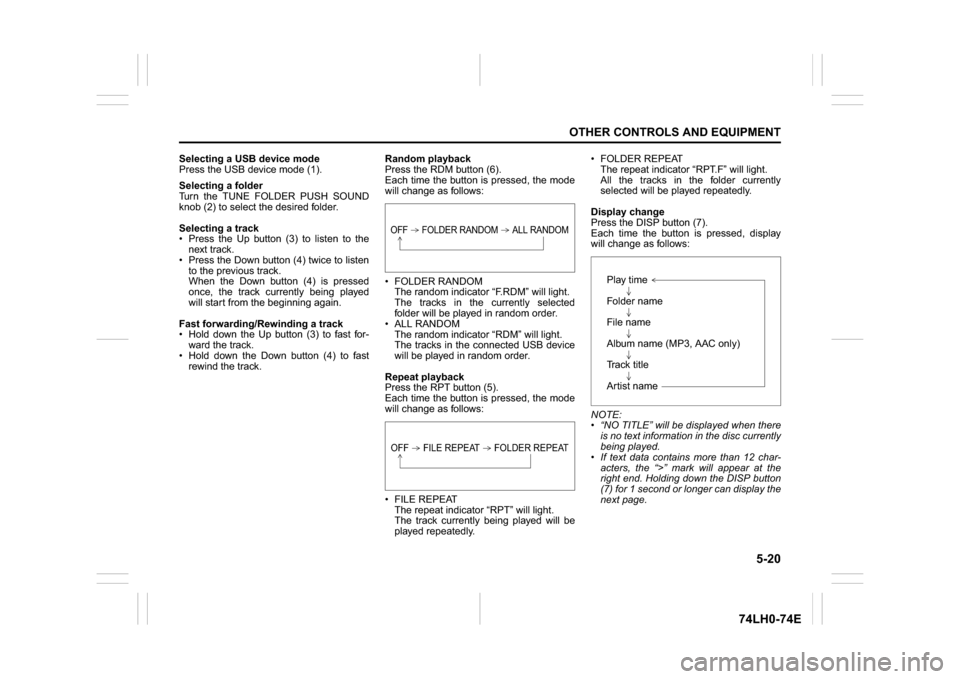
Press the RDM button (6).
Each time the button is pressed, the mode
will change as follows:
FOLDER RANDOM
The random indicator “F.RDM” will light.
The tracks in the currently selected
folder will be played in random order.
ALL RANDOM
The random indicator “RDM” will light.
The tracks in the connected USB device
will be played in random order.
Repeat playback
Press the RPT button (5).
Each time the button is pressed, the mode
will change as follows:
FILE REPEAT
The repeat indicator “RPT” will light.
The track currently being played will be
played repeatedly. FOLDER REPEAT
The repeat indicator “RPT.F” will light.
All the tracks in the folder currently
selected will be played repeatedly.
Display change
Press the DISP button (7).
Each time the button is pressed, display
will change as follows:
NOTE:
“NO TITLE” will be displayed when there
is no text information in the disc currently
being played.
If text data contains more than 12 char-
acters, the “>” mark will appear at the
right end. Holding down the DISP button
(7) for 1 second or longer can display the
next page.
OFF FOLDER RANDOM ALL RANDOMOFF FILE REPEAT FOLDER REPEAT
Play time
Folder name
File name
Album name (MP3, AAC only)
Track title
Artist name
Page 148 of 336
5-21OTHER CONTROLS AND EQUIPMENT
74LH0-74E
Notes on USB deviceCompatible USB devices
USB Mass Storage Class
For details as to whether your USB
memory/USB Audio is compatible with
USB Mass Storage Class, please con-
tact the USB memory/USB Audio manu-
facturer.
USB Standard Compatibility 1.1/2.0 Full
Speed
File System FAT12/16/32, VFAT
Maximum current less than 1.0 A
If devices such as USB hub, extension
cable are connected to the audio sys-
tem, it may not be recognized. In such
case connect the USB device directly to
the audio system.
Devices such as MP3 player/Mobile
phone/digital camera may not be recog-
nized by the audio system for playing
music.
USB device connection
When connecting a USB device, make
sure that the connector is pushed all the
way into the port.
Do not leave the USB device for long
periods of time in places inside the vehi-
cle where the temperature can rise too
high.
Back up any important data beforehand.
We cannot accept responsibility for any
lost data.
It is recommended not to connect a USB
device that contains data files other than
MP3/WMA/AAC format.Recording MP3/WMA/AAC files on a
USB device
Playback or display may not be possible
depending on the type of USB device in
use or the condition of the recording.
Depending on the connected USB mem-
ory, the files may be played in different
order from the order that the files were
stored.
Compression formats
MP3
Bit rate
:
MPEG1 Audio Layer III: 32 k - 320 kbps
MPEG2 Audio Layer III: 8 k - 160 kbps
MPEG2.5 Audio Layer III: 8 k - 160 kbps Sampling frequency
:
MPEG1 Audio Layer III: 32 k/44.1 k/48 kHz
MPEG2 Audio Layer III: 16 k/22.05 k/24 kHz
MPEG2.5 Audio Layer III: 8 k/11.025 k/12 kHzWMA (Ver. 7, Ver. 8, Ver. 9*)
Bit rate: CBR 32 k -320 kbps
Sampling frequency: 32 k/44.1 k/48 kHz
* WMA 9 Professional/LossLess/Voice are
not supported.
AAC*
Bit rate: ABR 16k - 320 kbbs
Sampling frequency: 32 k/44.1 k/48 kHz
* Apple Lossless is not supported.
Maximum number of files/folders
Maximum number of files: 2500
Maximum number of files in a folder: 255
Maximum depth of tree structure: 8
Maximum number of folders: 255
(Root folder is included.)
Listening to an iPod
®
74LHT5007
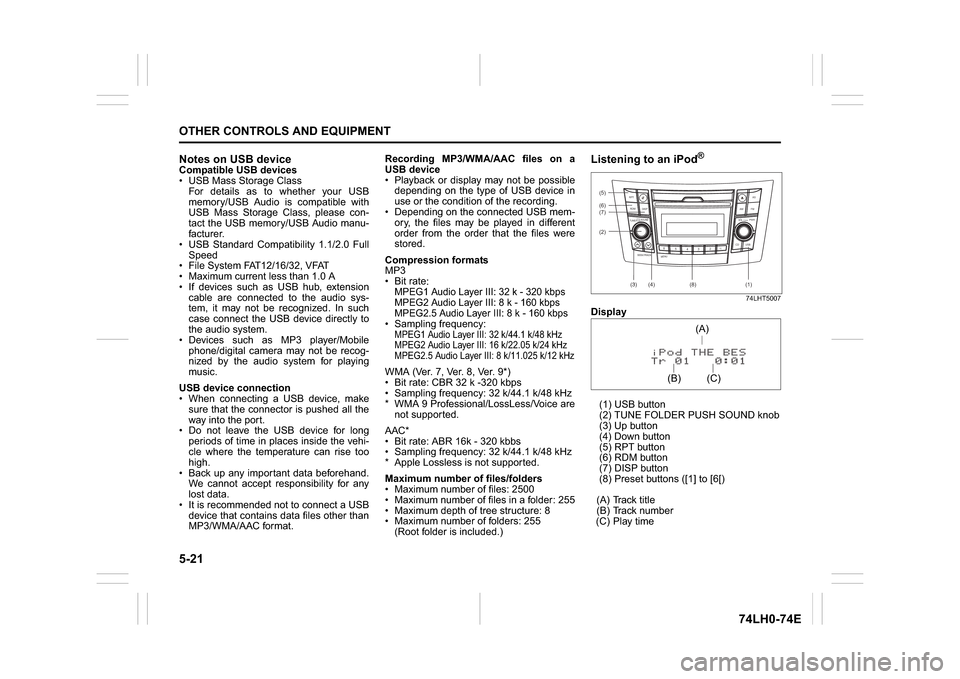
Display
(1) USB button
(2) TUNE FOLDER PUSH SOUND knob
(3) Up button
(4) Down button
(5) RPT button
(6) RDM button
(7) DISP button
(8) Preset buttons ([1] to [6[)
(A) Track title
(B) Track number
(C) Play time(2) (6)
B S U
CD
2
3 4 5 6
SEEK/TRACK
AS
AMFM RPT
RDM
DISP
PUSHSOUND
TUNE/FLD
VOLPWRPUSH
11
MENU
(3)
(5)
(4) (7)
(1)
(8)
(C)(A)
(B)
Page 149 of 336
5-22
OTHER CONTROLS AND EQUIPMENT
74LH0-74E
Selecting an iPod
® mode
Press the USB button (1).
Selecting a track
Press the Up button (3) to listen to the
next track.
Press the Down button (4) twice to listen
to the previous track.
When the Down button (4) is pressed
once, the track currently being played
will start from the beginning again.
Fast forwarding/Rewinding a track
Hold down the Up button (3) to fast for-
ward the track.
Hold down the Down button (4) to fast
rewind the track.
Random playback
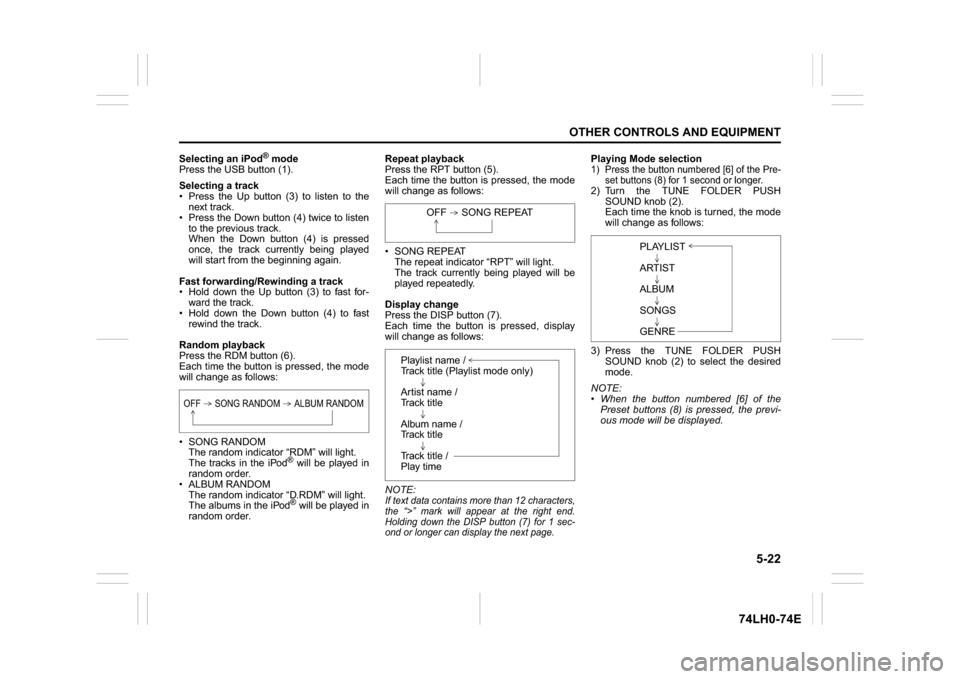
Press the RDM button (6).
Each time the button is pressed, the mode
will change as follows:
SONG RANDOM
The random indicator “RDM” will light.
The tracks in the iPod
® will be played in
random order.
ALBUM RANDOM
The random indicator “D.RDM” will light.
The albums in the iPod® will be played in
random order.Repeat playback
Press the RPT button (5).
Each time the button is pressed, the mode
will change as follows:
SONG REPEAT
The repeat indicator “RPT” will light.
The track currently being played will be
played repeatedly.
Display change
Press the DISP button (7).
Each time the button is pressed, display
will change as follows:
NOTE:
If text data contains more than 12 characters,
the “>” mark will appear at the right end.
Holding down the DISP button (7) for 1 sec-
ond or longer can display the next page.
Playing Mode selection1) Press the button numbered [6] of the Pre-
set buttons (8) for 1 second or longer.2) Turn the TUNE FOLDER PUSH
SOUND knob (2).
Each time the knob is turned, the mode
will change as follows:
3) Press the TUNE FOLDER PUSH
SOUND knob (2) to select the desired
mode.
NOTE:
When the button numbered [6] of the
Preset buttons (8) is pressed, the previ-
ous mode will be displayed.
OFF SONG RANDOM ALBUM RANDOM
OFF SONG REPEAT
Playlist name /
Track title (Playlist mode only)
Artist name /
Track title
Album name /
Track title
Track title /
Play time
PLAYLIST
ARTIST
ALBUM
SONGS
GENRE
Page 150 of 336
5-23OTHER CONTROLS AND EQUIPMENT
74LH0-74E
Notes on iPod
®
Supported iPod
®
® touch (5th generation)
® touch (4th generation)
® touch (3rd generation)
® touch (2nd generation)
® touch (1st generation)
® classic
® nano (7th generation)
® nano (6th generation)
® nano (5th generation)
® nano (4th generation)
® nano (3rd generation)
® nano (2nd generation)
® nano (1st generation)
® (5th generation)
iPhone® 6 Plus
iPhone® 6
iPhone® 5S
iPhone® 5
iPhone® 4S
iPhone® 4
iPhone® 3GS
iPhone® 3G
iPhone®
* Some functions may not be available
depending on the model of iPod
®.
*iPod
® is a trademark of Apple Inc., regis-
tered in the U.S. and other countries.
* iPhone® is a trademark of Apple Inc.,
registered in the U.S. and other coun-
tries.
* Apple is not responsible for the operation
of this device or its compliance with
safety and regulatory standards.iPod
® connection
Make sure to detach the iPod
® after
pressing the engine switch to change the
ignition mode to LOCK. The iPod® may
not be shut down when it is being con-
nected and may result in battery deple-
tion.
Please do not connect iPod
® accesso-
ries such as an iPod
® remote control or
headphones while connecting the iPod
®
with the unit. The unit may not operate
correctly.
AUX Function
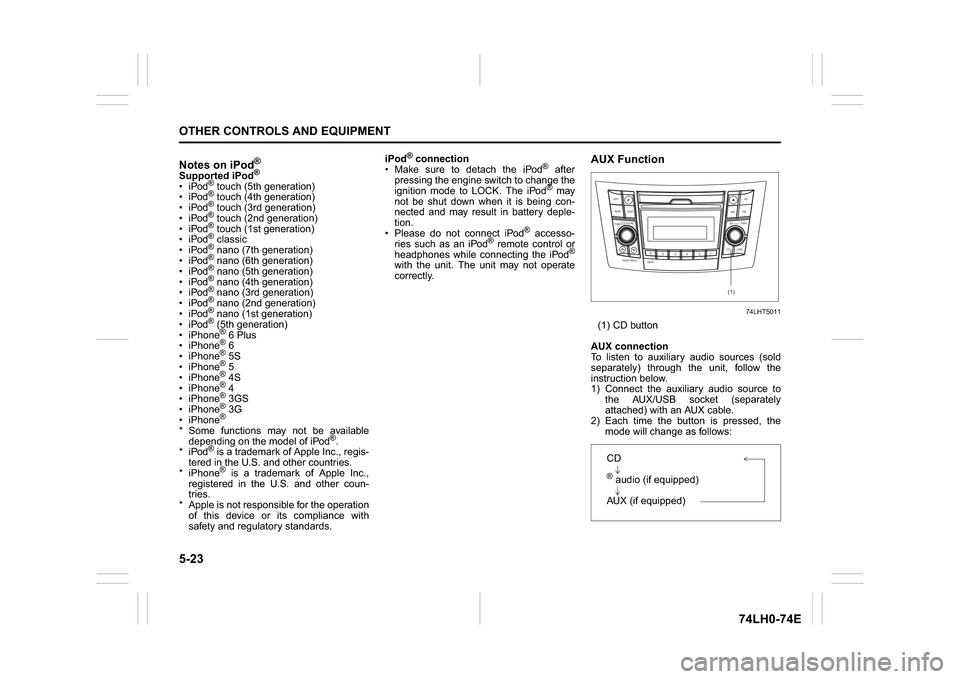
74LHT5011
(1) CD button
AUX connection
To listen to auxiliary audio sources (sold
separately) through the unit, follow the
instruction below.
1) Connect the auxiliary audio source to
the AUX/USB socket (separately
attached) with an AUX cable.
2) Each time the button is pressed, the
mode will change as follows:
B S U
CD
2
3 4 5 6
SEEK/TRACK
AS
AMFM RPT
RDM
DISP
PUSHSOUND
TUNE/FLD
VOL
PWRPUSH
11
MENU
(1)
CD® audio (if equipped)
AUX (if equipped)
Page 151 of 336
5-24
OTHER CONTROLS AND EQUIPMENT
74LH0-74E
NOTE:
Please consult your place of purchase
for details about whether a given auxil-
iary audio source can be connected and
the proper auxiliary cord to use.
The volume and tone controls of the
auxiliary audio source can be adjusted
on the unit.
In AUX mode, the volume setting is dif-
ferent from another mode.
® Hands-Free (if equipped)
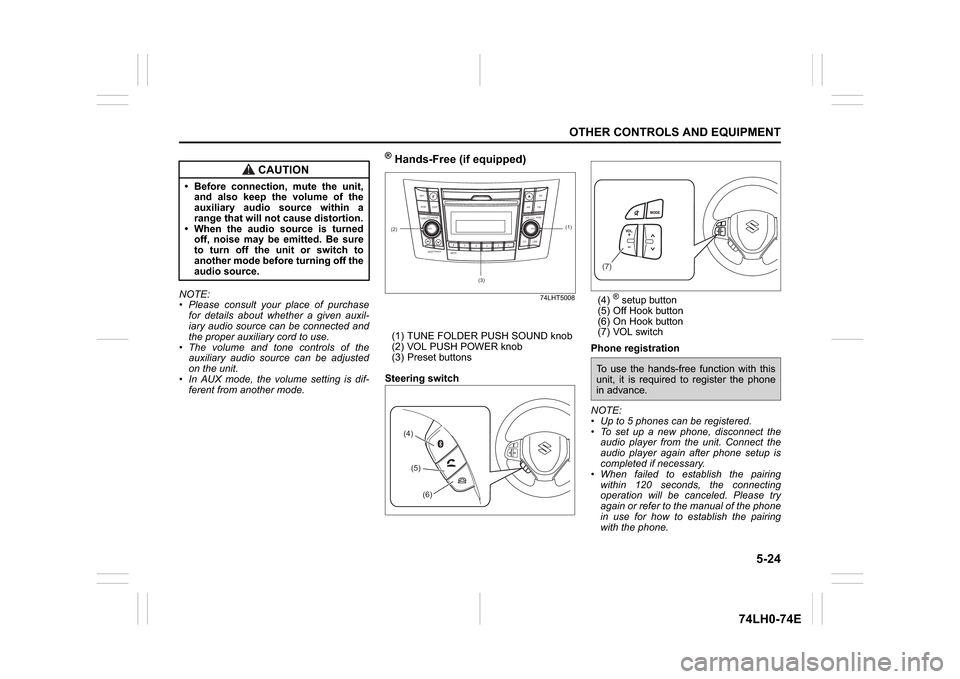
74LHT5008
(1) TUNE FOLDER PUSH SOUND knob
(2) VOL PUSH POWER knob
(3) Preset buttons
Steering switch(4)
® setup button
(5) Off Hook button
(6) On Hook button
(7) VOL switch
Phone registration
NOTE:
Up to 5 phones can be registered.
To set up a new phone, disconnect the
audio player from the unit. Connect the
audio player again after phone setup is
completed if necessary.
When failed to establish the pairing
within 120 seconds, the connecting
operation will be canceled. Please try
again or refer to the manual of the phone
in use for how to establish the pairing
with the phone.
CAUTION
Before connection, mute the unit,
and also keep the volume of the
auxiliary audio source within a
range that will not cause distortion.
When the audio source is turned
off, noise may be emitted. Be sure
to turn off the unit or switch to
another mode before turning off the
audio source.
(2)
B S U
CD
2
3 4 5 6
SEEK/TRACK
AS
AMFM RPT
RDM
DISP
PUSHSOUND
TUNE/FLD
VOLPWRPUSH
11
MENU
(3)
(1)
(4)(5)
(6)
(7)To use the hands-free function with this
unit, it is required to register the phone
in advance.
Page 152 of 336
5-25OTHER CONTROLS AND EQUIPMENT
74LH0-74E
/Telephone setup mode can be entered
only during vehicle is stationary speed
less than ~ 8 kmph)
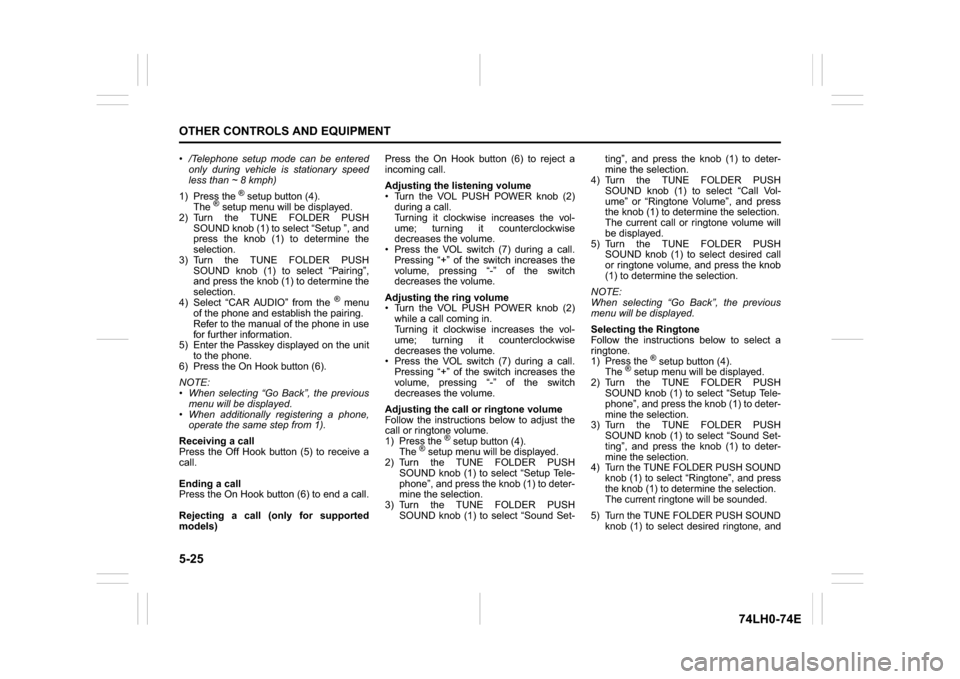
1) Press the
® setup button (4).
The
® setup menu will be displayed.
2) Turn the TUNE FOLDER PUSH
SOUND knob (1) to select “Setup ”, and
press the knob (1) to determine the
selection.
3) Turn the TUNE FOLDER PUSH
SOUND knob (1) to select “Pairing”,
and press the knob (1) to determine the
selection.
4) Select “CAR AUDIO” from the
® menu
of the phone and establish the pairing.
Refer to the manual of the phone in use
for further information.
5) Enter the Passkey displayed on the unit
to the phone.
6) Press the On Hook button (6).
NOTE:
When selecting “Go Back”, the previous
menu will be displayed.
When additionally registering a phone,
operate the same step from 1).
Receiving a call
Press the Off Hook button (5) to receive a
call.
Ending a call
Press the On Hook button (6) to end a call.
Rejecting a call (only for supported
models)Press the On Hook button (6) to reject a
incoming call.
Adjusting the listening volume
Turn the VOL PUSH POWER knob (2)
during a call.
Turning it clockwise increases the vol-
ume; turning it counterclockwise
decreases the volume.
Press the VOL switch (7) during a call.
Pressing “+” of the switch increases the
volume, pressing “-” of the switch
decreases the volume.
Adjusting the ring volume
Turn the VOL PUSH POWER knob (2)
while a call coming in.
Turning it clockwise increases the vol-
ume; turning it counterclockwise
decreases the volume.
Press the VOL switch (7) during a call.
Pressing “+” of the switch increases the
volume, pressing “-” of the switch
decreases the volume.
Adjusting the call or ringtone volume
Follow the instructions below to adjust the
call or ringtone volume.
1) Press the
® setup button (4).
The
® setup menu will be displayed.
2) Turn the TUNE FOLDER PUSH
SOUND knob (1) to select “Setup Tele-
phone”, and press the knob (1) to deter-
mine the selection.
3) Turn the TUNE FOLDER PUSH
SOUND knob (1) to select “Sound Set-ting”, and press the knob (1) to deter-
mine the selection.
4) Turn the TUNE FOLDER PUSH
SOUND knob (1) to select “Call Vol-
ume” or “Ringtone Volume”, and press
the knob (1) to determine the selection.
The current call or ringtone volume will
be displayed.
5) Turn the TUNE FOLDER PUSH
SOUND knob (1) to select desired call
or ringtone volume, and press the knob
(1) to determine the selection.
NOTE:
When selecting “Go Back”, the previous
menu will be displayed.
Selecting the Ringtone
Follow the instructions below to select a
ringtone.
1) Press the
® setup button (4).
The
® setup menu will be displayed.
2) Turn the TUNE FOLDER PUSH
SOUND knob (1) to select “Setup Tele-
phone”, and press the knob (1) to deter-
mine the selection.
3) Turn the TUNE FOLDER PUSH
SOUND knob (1) to select “Sound Set-
ting”, and press the knob (1) to deter-
mine the selection.
4) Turn the TUNE FOLDER PUSH SOUND
knob (1) to select “Ringtone”, and press
the knob (1) to determine the selection.
The current ringtone will be sounded.
5) Turn the TUNE FOLDER PUSH SOUND
knob (1) to select desired ringtone, and
Page 153 of 336
5-26
OTHER CONTROLS AND EQUIPMENT
74LH0-74E
press the knob (1) to determine the
selection.
NOTE:
When selecting “Go Back”, the previous
menu will be displayed.Dialing using Missed/Incoming/
Outgoing CallsFollow the instructions below to dial to the
last dialed number again.NOTE:
Up to 10 phone numbers of the latest calls
can be stored. (10 each for dialed, received
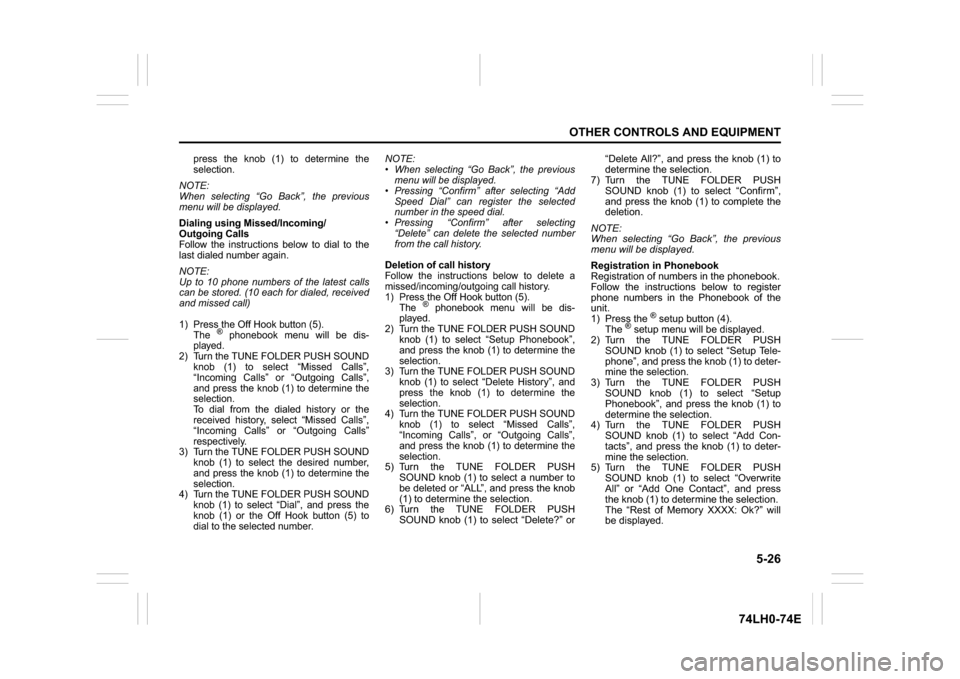
and missed call)1) Press the Off Hook button (5).
The
® phonebook menu will be dis-
played.
2) Turn the TUNE FOLDER PUSH SOUND
knob (1) to select “Missed Calls”,
“Incoming Calls” or “Outgoing Calls”,
and press the knob (1) to determine the
selection.
To dial from the dialed history or the
received history, select “Missed Calls”,
“Incoming Calls” or “Outgoing Calls”
respectively.
3) Turn the TUNE FOLDER PUSH SOUND
knob (1) to select the desired number,
and press the knob (1) to determine the
selection.
4) Turn the TUNE FOLDER PUSH SOUND
knob (1) to select “Dial”, and press the
knob (1) or the Off Hook button (5) to
dial to the selected number.
NOTE:
When selecting “Go Back”, the previous
menu will be displayed.
Pressing “Confirm” after selecting “Add
Speed Dial” can register the selected
number in the speed dial.
Pressing “Confirm” after selecting
“Delete” can delete the selected number
from the call history.Deletion of call historyFollow the instructions below to delete a
missed/incoming/outgoing call history.
1) Press the Off Hook button (5).
The
® phonebook menu will be dis-
played.
2) Turn the TUNE FOLDER PUSH SOUND
knob (1) to select “Setup Phonebook”,
and press the knob (1) to determine the
selection.
3) Turn the TUNE FOLDER PUSH SOUND
knob (1) to select “Delete History”, and
press the knob (1) to determine the
selection.
4) Turn the TUNE FOLDER PUSH SOUND
knob (1) to select “Missed Calls”,
“Incoming Calls”, or “Outgoing Calls”,
and press the knob (1) to determine the
selection.
5) Turn the TUNE FOLDER PUSH
SOUND knob (1) to select a number to
be deleted or “ALL”, and press the knob
(1) to determine the selection.
6) Turn the TUNE FOLDER PUSH
SOUND knob (1) to select “Delete?” or“Delete All?”, and press the knob (1) to
determine the selection.
7) Turn the TUNE FOLDER PUSH
SOUND knob (1) to select “Confirm”,
and press the knob (1) to complete the
deletion.
NOTE:
When selecting “Go Back”, the previous
menu will be displayed.
Registration in Phonebook
Registration of numbers in the phonebook.
Follow the instructions below to register
phone numbers in the Phonebook of the
unit.
1) Press the
® setup button (4).
The
® setup menu will be displayed.
2) Turn the TUNE FOLDER PUSH
SOUND knob (1) to select “Setup Tele-
phone”, and press the knob (1) to deter-
mine the selection.
3) Turn the TUNE FOLDER PUSH
SOUND knob (1) to select “Setup
Phonebook”, and press the knob (1) to
determine the selection.
4) Turn the TUNE FOLDER PUSH
SOUND knob (1) to select “Add Con-
tacts”, and press the knob (1) to deter-
mine the selection.
5) Turn the TUNE FOLDER PUSH
SOUND knob (1) to select “Overwrite
All” or “Add One Contact”, and press
the knob (1) to determine the selection.
The “Rest of Memory XXXX: Ok?” will
be displayed.
Page 154 of 336
5-27OTHER CONTROLS AND EQUIPMENT
74LH0-74E
6) Press or turn the TUNE FOLDER
PUSH SOUND knob (1) to select “Con-
firm”, and press the knob (1) to deter-
mine the selection.
7) Transfer contacts from the phone.
When the registration is completed, the
“Setup Phonebook” will be displayed.
NOTE:
When selecting “Go Back” the previous
menu will be displayed.
Up to 1000 numbers can be registered in
Phonebook.
Transfer of call history (Call History)
Follow the instructions below to transfer
call history of the registered phone.
1) Press the
® setup button (4).
The
® setup menu will be displayed.
2) Turn the TUNE FOLDER PUSH
SOUND knob (1) to select “Setup Tele-
phone”, and press the knob (1) to deter-
mine the selection.
3) Turn the TUNE FOLDER PUSH
SOUND knob (1) to select “Call His-
tory”, and press the knob (1) to deter-
mine the selection.
4) Turn the TUNE FOLDER PUSH
SOUND knob (1) to select “Call His-
tory?”, and press the knob (1) to deter-
mine the selection.
5) Turn the TUNE FOLDER PUSH
SOUND knob (1) to select “Confirm”,
and press the knob (1) to transfer the
call history from the phone.
NOTE:When selecting “Go Back”, the previous
menu will be displayed.
Making a call by Phonebook
Follow the instructions below to dial a num-
ber registered in Phonebook.
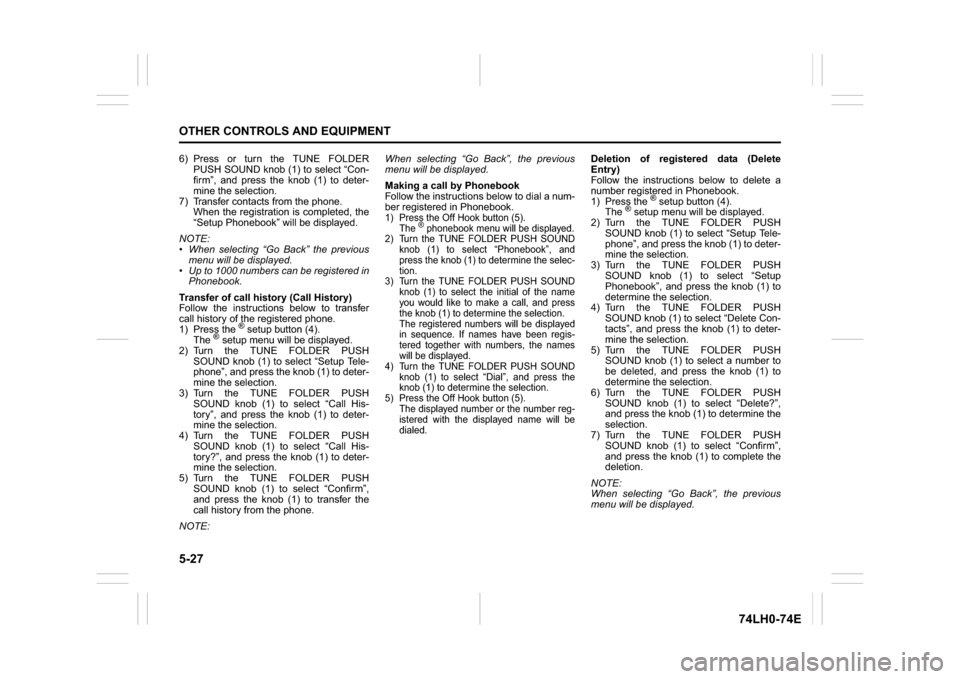
1) Press the Off Hook button (5).
The
® phonebook menu will be displayed.
2) Turn the TUNE FOLDER PUSH SOUND
knob (1) to select “Phonebook”, and
press the knob (1) to determine the selec-
tion.
3) Turn the TUNE FOLDER PUSH SOUND
knob (1) to select the initial of the name
you would like to make a call, and press
the knob (1) to determine the selection.
The registered numbers will be displayed
in sequence. If names have been regis-
tered together with numbers, the names
will be displayed.
4) Turn the TUNE FOLDER PUSH SOUND
knob (1) to select “Dial”, and press the
knob (1) to determine the selection.
5) Press the Off Hook bu
tton (5).
The displayed number or the number reg-
istered with the displayed name will be
dialed.
Deletion of registered data (Delete
Entry)
Follow the instructions below to delete a
number registered in Phonebook.
1) Press the
® setup button (4).
The
® setup menu will be displayed.
2) Turn the TUNE FOLDER PUSH
SOUND knob (1) to select “Setup Tele-
phone”, and press the knob (1) to deter-
mine the selection.
3) Turn the TUNE FOLDER PUSH
SOUND knob (1) to select “Setup
Phonebook”, and press the knob (1) to
determine the selection.
4) Turn the TUNE FOLDER PUSH
SOUND knob (1) to select “Delete Con-
tacts”, and press the knob (1) to deter-
mine the selection.
5) Turn the TUNE FOLDER PUSH
SOUND knob (1) to select a number to
be deleted, and press the knob (1) to
determine the selection.
6) Turn the TUNE FOLDER PUSH
SOUND knob (1) to select “Delete?”,
and press the knob (1) to determine the
selection.
7) Turn the TUNE FOLDER PUSH
SOUND knob (1) to select “Confirm”,
and press the knob (1) to complete the
deletion.
NOTE:
When selecting “Go Back”, the previous
menu will be displayed.
Page 155 of 336
5-28
OTHER CONTROLS AND EQUIPMENT
74LH0-74E
Registration in speed dial
Follow the instructions below to assign a
number to one of the Preset buttons to use
as the speed dial.
1) Press the
® setup button (4).
The
® setup menu will be displayed.
2) Turn the TUNE FOLDER PUSH
SOUND knob (1) to select “Setup Tele-
phone”, and press the knob (1) to deter-
mine the selection.
3) Turn the TUNE FOLDER PUSH
SOUND knob (1) to select “Setup
Phonebook”, and press the knob (1) to
determine the selection.
4) Turn the TUNE FOLDER PUSH
SOUND knob (1) to select “Add Speed
Dial”, and press the knob (1) to deter-
mine the selection.
5) Turn the TUNE FOLDER PUSH
SOUND knob (1) to select a number to
be assigned, and press the knob (1) to
determine the selection.
6) Turn the TUNE FOLDER PUSH
SOUND knob (1) to select “Choose
Preset”, and press the knob (1) to
determine the selection.
7) Press one of the Preset buttons (3) to
which the selected number is to be
assigned. If a number is already
assigned to the selected button, a con-
firmation message will be displayed.
Turn the TUNE FOLDER PUSH
SOUND knob (1) to select “Confirm”,
and press the knob (1) to complete the
assignment.When the assignment is completed, the
“Setup Phonebook” will be displayed.
NOTE:
When selecting “Go Back”, the previous
menu will be displayed.
One-touch call (Speed dial)
Follow the instructions below to dial the
number assigned to each of the Preset
buttons (3).
1) Press the Off Hook button (5).
The
® phonebook menu will be dis-
played.
2) Turn the TUNE FOLDER PUSH
SOUND knob (1) to select “Speed
Dials”, and press the knob (1) to deter-
mine the selection.
3) Press one of the Preset buttons (3).
When no number is assigned, “No
Entry” is displayed.
4) Press the Off Hook button (5).
The selected number will be dialed.
Deletion of speed dial (Del Speed Dial)
To delete a number assigned for the speed
dial, follow the instructions below.
1) Press the Off Hook button (5).
The® phonebook menu will be dis-
played.
2) Turn the TUNE FOLDER PUSH
SOUND knob (1) to select “Speed
Dials”, and press the knob (1) to deter-
mine the selection.
3) Press one of the Preset buttons (3) to
which the number to be deleted isassigned.
“No Entry” appears if the number is not
registered.
4) Turn the TUNE FOLDER PUSH
SOUND knob (1) to select “Delete”, and
press the knob (1) to determine the
selection.
5) Turn the TUNE FOLDER PUSH
SOUND knob (1) to select “Del Speed
Dial”, and press the knob (1) to deter-
mine the selection.
6) Turn the TUNE FOLDER PUSH
SOUND knob (1) to select “Confirm”,
and press the knob (1) to complete the
deletion.
NOTE:
When selecting “Go Back”, the previous
menu will be displayed.
Display of device data (Device Name)
Follow the instructions below to display the
BD (
® Device) address and device name.
1) Press the
® setup button (4).
The
® setup menu will be displayed.
2) Turn the TUNE FOLDER PUSH
SOUND knob (1) to select “Setup ”, and
press the knob (1) to determine the
selection.
3) Turn the TUNE FOLDER PUSH
SOUND knob (1) to select “ Info”, and
press the knob (1) to determine the
selection.
4) Turn the TUNE FOLDER PUSH
SOUND knob (1) to select “Device
Name” or “Device Address”, and press
Page 156 of 336
5-29OTHER CONTROLS AND EQUIPMENT
74LH0-74E
the knob (1) to display the device name
or the BD (
® Device) address.
NOTE:
When selecting “Go Back”, the previous
menu will be displayed.
Reset to the factory defaults
Follow the instructions below to reset all
the settings to the factory defaults.
1) Press the ® setup button (4).
The
® setup menu will be displayed.
2) Turn the TUNE FOLDER PUSH
SOUND knob (1) to select “Setup ”, and
press the knob (1) to determine the
selection.
3) Turn the TUNE FOLDER PUSH
SOUND knob (1) to select “Initialize”,
and press the knob (1) to determine the
selection.
4) Turn the TUNE FOLDER PUSH
SOUND knob (1) to select “All Initial-
ize”, and press the knob (1) to deter-
mine the selection.
5) Turn the TUNE FOLDER PUSH
SOUND knob (1) to select “Confirm”,
and press the knob (1) to start the
reset.
NOTE:
When selecting “Go Back”, the previous
menu will be displayed.Selection of phone (Select Phone)
Follow the instructions below to select a
phone to be paired with from the registered
phones.
1) Press the
® setup button (4).
The
® setup menu will be displayed.
2) Turn the TUNE FOLDER PUSH
SOUND knob (1) to select “Setup ”, and
press the knob (1) to determine the
selection.
3) Turn the TUNE FOLDER PUSH
SOUND knob (1) to select “List Phone”,
and press the knob (1) to determine the
selection.
4) Turn the TUNE FOLDER PUSH
SOUND knob (1) to select a phone to
be paired with, and press the knob (1)
to determine the selection.
5) Turn the TUNE FOLDER PUSH
SOUND knob (1) to select “Select”, and
press the knob (1) to determine the
selection.
NOTE:
When selecting “Go Back”, the previous
menu will be displayed.
The ® ready audio device will be discon-
nected when the phone is selected.List of phones (List Phones)
Follow the instructions below to display the
names of the registered phones in
sequence.
1) Press the
® setup button (4).
The
® setup menu will be displayed.
2) Turn the TUNE FOLDER PUSH
SOUND knob (1) to select “Setup ”, and
press the knob (1) to determine the
selection.
3) Turn the TUNE FOLDER PUSH
SOUND knob (1) to select “List Phone”,
and press the knob (1) to determine the
selection.
The names of the registered phones
are displayed in sequence.
NOTE:
When selecting “Go Back”, the previous
menu will be displayed.
Passkey setting (Set Passkey)
Follow the instructions below to set the
security number (Passkey).
1) Press the
® setup button (4).
The
® setup menu will be displayed.
2) Turn the TUNE FOLDER PUSH
SOUND knob (1) to select “Setup ”, and
press the knob (1) to determine the
selection.
3) Turn the TUNE FOLDER PUSH
SOUND knob (1) to select “Passkey”,
and press the knob (1) to determine the
selection.
4) Turn the TUNE FOLDER PUSH
SOUND knob (1) to select “New Pass-