charging TESLA MODEL S 2014 (Europe) User Guide
[x] Cancel search | Manufacturer: TESLA, Model Year: 2014, Model line: MODEL S, Model: TESLA MODEL S 2014Pages: 152, PDF Size: 17.5 MB
Page 93 of 152
Electric Vehicle Components
CHARGING6.3
Mobile Charging Equipment
Model S is equipped with a Mobile Connector
and the adapter(s) you need to plug into
commonly used power outlets.
When using the Mobile Connector, first plug the
Mobile Connector into the power outlet, then
plug in Model S. For more information about
your Mobile Connector, see the Mobile
Connector Owner’s Manual.
NOTE: Additional adapters can be purchased
from Tesla.
High Power Wall Connector
A High Power Wall Connector is also available
from Tesla. This connector is the fastest way to
charge Model S at home and installs in your
garage. For more information, go to
www.teslamotors.com.
charging.fm Page 3 Thursday, July 25, 2013 1:00 PM
Page 94 of 152
Battery InformationBattery Information
6.4MODEL S OWNERS MANUAL
Battery InformationAbout the Battery
Model S has one of the most sophisticated
battery systems in the world. The most
important way to preserve the Battery is to
LEAVE YOUR MODEL S PLUGGED IN when you
are not using it. This is particularly important if
you are not planning to drive Model S for
several weeks. When plugged in, Model S wakes
up when needed to automatically maintain a
charge level that maximizes the lifetime of the
Battery.
There is no advantage to waiting until the
Battery’s level is low before charging. In fact,
the Battery performs best when charged
regularly.
Battery Care
Never allow the Battery to fully discharge. Even
when Model S is not being driven, its Battery
discharges very slowly to power the onboard
electronics. On average, the Battery discharges
at a rate of 1% per day. Situations can arise in
which you must leave Model S unplugged for an
extended period of time (for example, at an
airport when traveling). In these situations,
keep the 1% in mind to ensure that you leave the
Battery with a sufficient charge level. For
example, over a two week period (14 days), the
Battery discharges by approximately 14%.
Discharging the Battery to 0% may
permanently damage the Battery. To protect
against a complete discharge, Model S enters a
low-power consumption mode when the
charge level drops to 5%. In this mode, the
Battery stops supporting the onboard
electronics to slow the discharge rate to
approximately 4% per month. Once this
low-power consumption mode is active, it is
important to plug in Model S within two months
to avoid Battery damage.
NOTE: When the low-power consumption
mode is active, the auxiliary 12V battery is no
longer being charged and can completely
discharge within 12 hours. In the unlikely event
that this occurs, you may need to jump start or
replace the 12V battery before you can charge.
In this situation, contact Tesla.
Temperature Limits
Do not expose Model S to ambient
temperatures above 60° C or below -30° C for
more than 24 hours at a time.
Battery Warnings and Cautions
WARNING: The Battery has no parts that
an owner or a non-Tesla authorized
service technician can service. Under no
circumstances should you open or tamper with
the Battery. Always contact Tesla to arrange for
Battery servicing.
CAUTION: If the Battery’s charge level
falls to 0%, you must plug it in. If you leave
it unplugged for an extended period, it may not
be possible to charge Model S or use the
vehicle without jump starting or replacing the
12V battery. Leaving Model S unplugged for an
extended period can also result in permanent
Battery damage. If you are unable to charge
Model S, contact Tesla immediately.
CAUTION: The Battery requires no owner
maintenance. Do not remove the filler cap
and do not add fluid. If the instrument panel
warns you that the fluid level is low, contact
Tesla immediately.
At the end of its service life, the Battery
should be recycled. Contact Tesla for
recycling arrangements.
charging.fm Page 4 Monday, July 22, 2013 11:52 AM
Page 95 of 152
Charging Model S
CHARGING6.5
Charging Model SOpening the Charge Port
The charge port is located on the driver’s side
o f M o d e l S , b e h i n d a d o o r t h a t i s p a r t o f t h e r e a r
tail light assembly.
Park Model S so that the charge cable easily
reaches the charge port.
With Model S unlocked, or a recognized key
nearby, press and hold the button on a Tesla
charging cable.
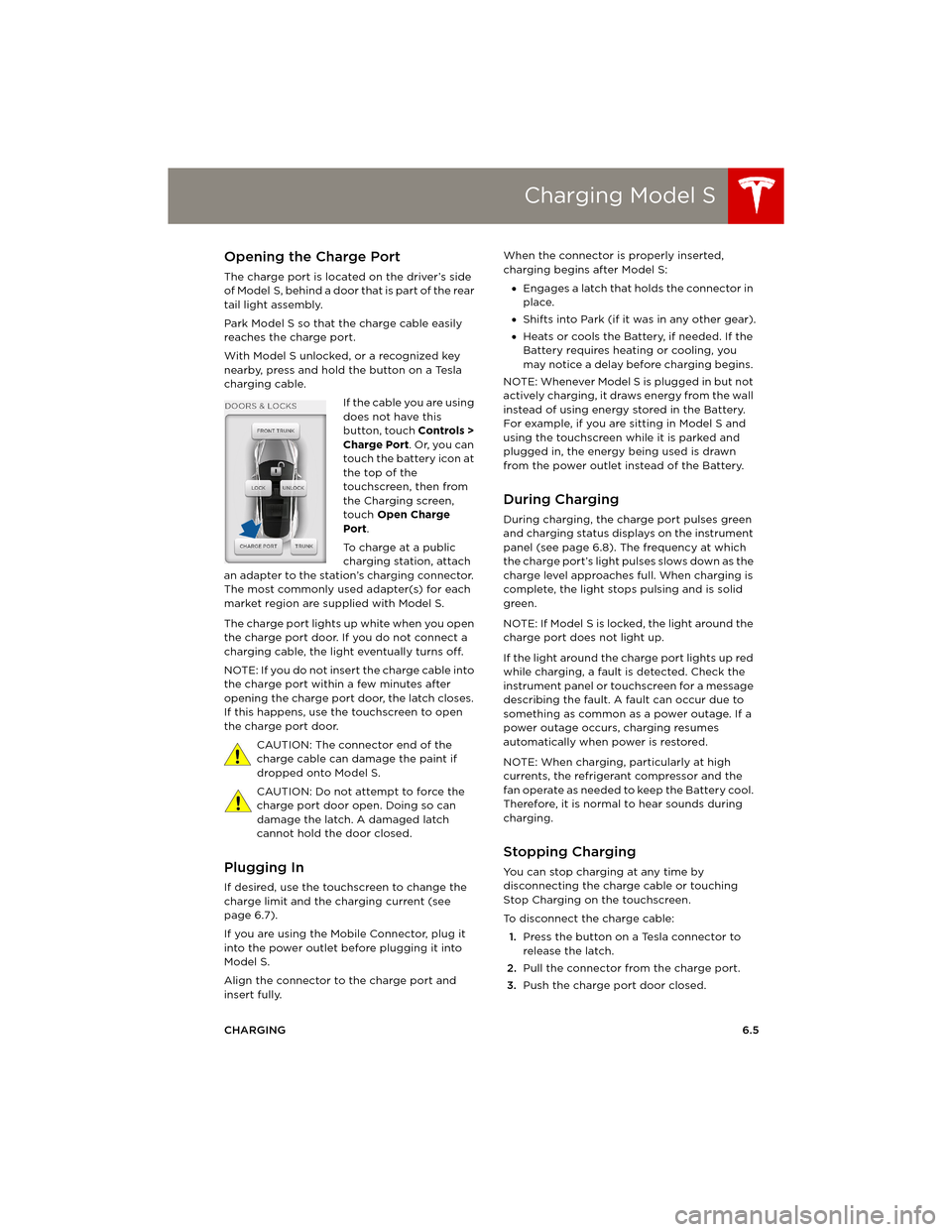
If the cable you are using
does not have this
button, touch Controls >
Charge Port. Or, you can
touch the battery icon at
the top of the
touchscreen, then from
the Charging screen,
touch Open Charge
Port.
To charge at a public
charging station, attach
an adapter to the station’s charging connector.
The most commonly used adapter(s) for each
market region are supplied with Model S.
The charge port lights up white when you open
the charge port door. If you do not connect a
charging cable, the light eventually turns off.
NOTE: If you do not insert the charge cable into
the charge port within a few minutes after
opening the charge port door, the latch closes.
If this happens, use the touchscreen to open
the charge port door.
CAUTION: The connector end of the
charge cable can damage the paint if
dropped onto Model S.
CAUTION: Do not attempt to force the
charge port door open. Doing so can
damage the latch. A damaged latch
cannot hold the door closed.
Plugging In
If desired, use the touchscreen to change the
charge limit and the charging current (see
page 6.7).
If you are using the Mobile Connector, plug it
into the power outlet before plugging it into
Model S.
Align the connector to the charge port and
insert fully. When the connector is properly inserted,
charging begins after Model S:
•Engages a latch that holds the connector in
place.
•Shifts into Park (if it was in any other gear).
•Heats or cools the Battery, if needed. If the
Battery requires heating or cooling, you
may notice a delay before charging begins.
NOTE: Whenever Model S is plugged in but not
actively charging, it draws energy from the wall
instead of using energy stored in the Battery.
For example, if you are sitting in Model S and
using the touchscreen while it is parked and
plugged in, the energy being used is drawn
from the power outlet instead of the Battery.
During Charging
During charging, the charge port pulses green
and charging status displays on the instrument
panel (see page 6.8). The frequency at which
the charge port’s light pulses slows down as the
charge level approaches full. When charging is
complete, the light stops pulsing and is solid
green.
NOTE: If Model S is locked, the light around the
charge port does not light up.
If the light around the charge port lights up red
while charging, a fault is detected. Check the
instrument panel or touchscreen for a message
describing the fault. A fault can occur due to
something as common as a power outage. If a
power outage occurs, charging resumes
automatically when power is restored.
NOTE: When charging, particularly at high
currents, the refrigerant compressor and the
fan operate as needed to keep the Battery cool.
Therefore, it is normal to hear sounds during
charging.
Stopping Charging
You can stop charging at any time by
disconnecting the charge cable or touching
Stop Charging on the touchscreen.
To disconnect the charge cable:
1.Press the button on a Tesla connector to
release the latch.
2.Pull the connector from the charge port.
3.Push the charge port door closed.
book.book Page 5 Friday, July 19, 2013 12:53 PM
Page 96 of 152
Charging Model SCharging Model S
6.6MODEL S OWNERS MANUAL To prevent unauthorized unplugging of the
charging cable, Model S must be unlocked or
able to recognize a key before you can
disconnect the charging cable.
NOTE: Model S stops charging whenever you
double-click the key. If you do not unplug
within 60 seconds, charging resumes.
CAUTION: Tesla strongly recommends
leaving Model S plugged in when not in
use. This maintains the Battery at the
optimum level of charge.
Charge Port Light
White The charge port door is
open and charge mode
is initiated.
Green - pulsing Charging is in progress.
Green - solid Charging is complete.
Red - flashing A fault was detected
and charging has
stopped. Check the
instrument panel or
touchscreen for a
message describing
the fault.
book.book Page 6 Friday, July 19, 2013 12:53 PM
Page 97 of 152
Charging Model S
CHARGING6.7
Changing Charge Settings
The charge settings screen displays on the
touchscreen whenever the charge port door is
open.
To display charge settings at any time,
touch the Battery icon on the top of the
touchscreen, or touch Controls > Charging
(located in the upper right portion of the
Controls screen).
The following illustration is provided for
demonstration purposes only and may vary
slightly depending on the software version and
market region of your Model S.
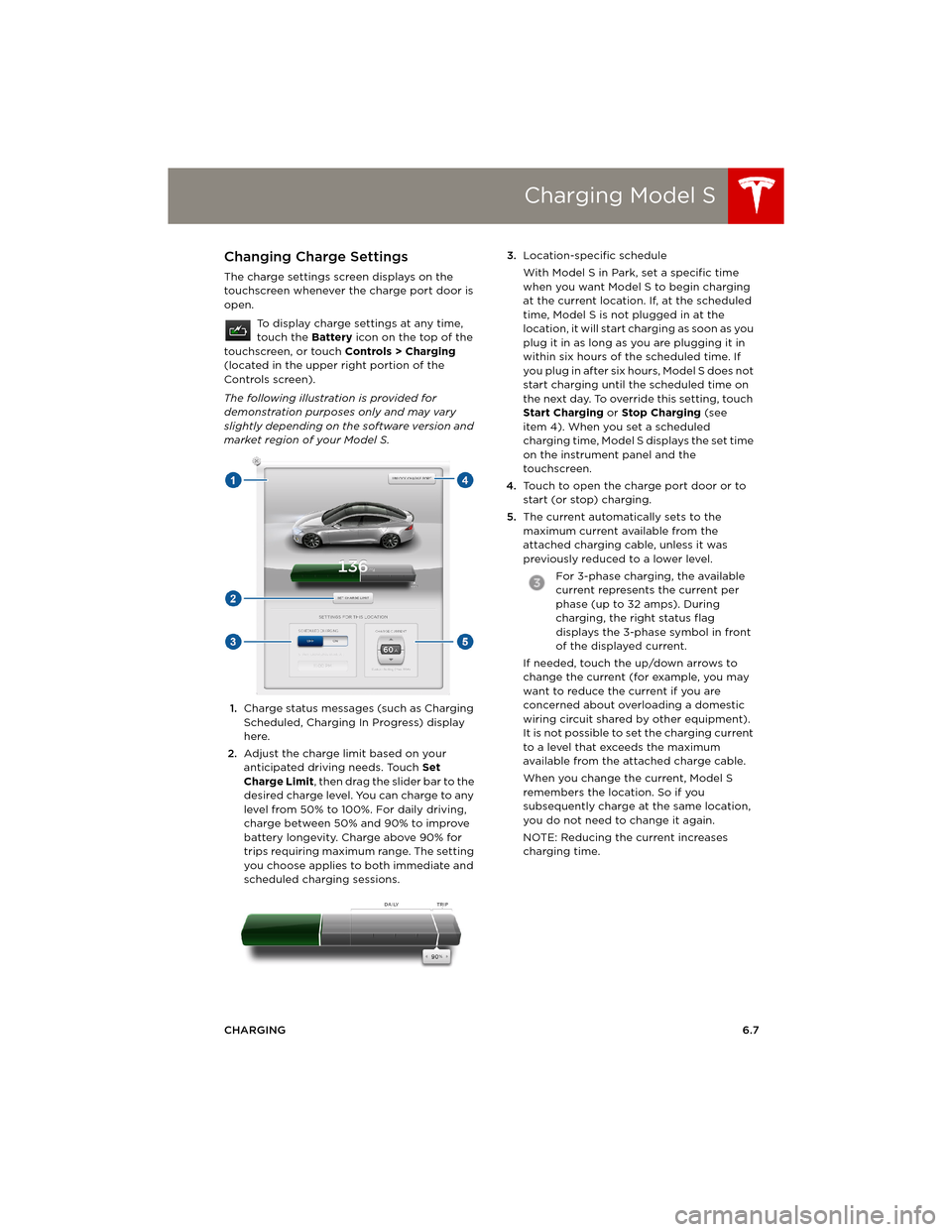
1.Charge status messages (such as Charging
Scheduled, Charging In Progress) display
here.
2.Adjust the charge limit based on your
anticipated driving needs. Touch Set
Charge Limit, then drag the slider bar to the
desired charge level. You can charge to any
level from 50% to 100%. For daily driving,
charge between 50% and 90% to improve
battery longevity. Charge above 90% for
trips requiring maximum range. The setting
you choose applies to both immediate and
scheduled charging sessions.3.Location-specific schedule
With Model S in Park, set a specific time
when you want Model S to begin charging
at the current location. If, at the scheduled
time, Model S is not plugged in at the
location, it will start charging as soon as you
plug it in as long as you are plugging it in
within six hours of the scheduled time. If
you plug in after six hours, Model S does not
start charging until the scheduled time on
the next day. To override this setting, touch
Start Charging or Stop Charging (see
item 4). When you set a scheduled
charging time, Model S displays the set time
on the instrument panel and the
touchscreen.
4.Touch to open the charge port door or to
start (or stop) charging.
5.The current automatically sets to the
maximum current available from the
attached charging cable, unless it was
previously reduced to a lower level.
For 3-phase charging, the available
current represents the current per
phase (up to 32 amps). During
charging, the right status flag
displays the 3-phase symbol in front
of the displayed current.
If needed, touch the up/down arrows to
change the current (for example, you may
want to reduce the current if you are
concerned about overloading a domestic
wiring circuit shared by other equipment).
It is not possible to set the charging current
to a level that exceeds the maximum
available from the attached charge cable.
When you change the current, Model S
remembers the location. So if you
subsequently charge at the same location,
you do not need to change it again.
NOTE: Reducing the current increases
charging time.
book.book Page 7 Friday, July 19, 2013 12:53 PM
Page 98 of 152
Charging Model SCharging Model S
6.8MODEL S OWNERS MANUAL
Charging Status
The following illustration is provided for demonstration purposes only and may vary slightly
depending on the software version and market region of your Model S.
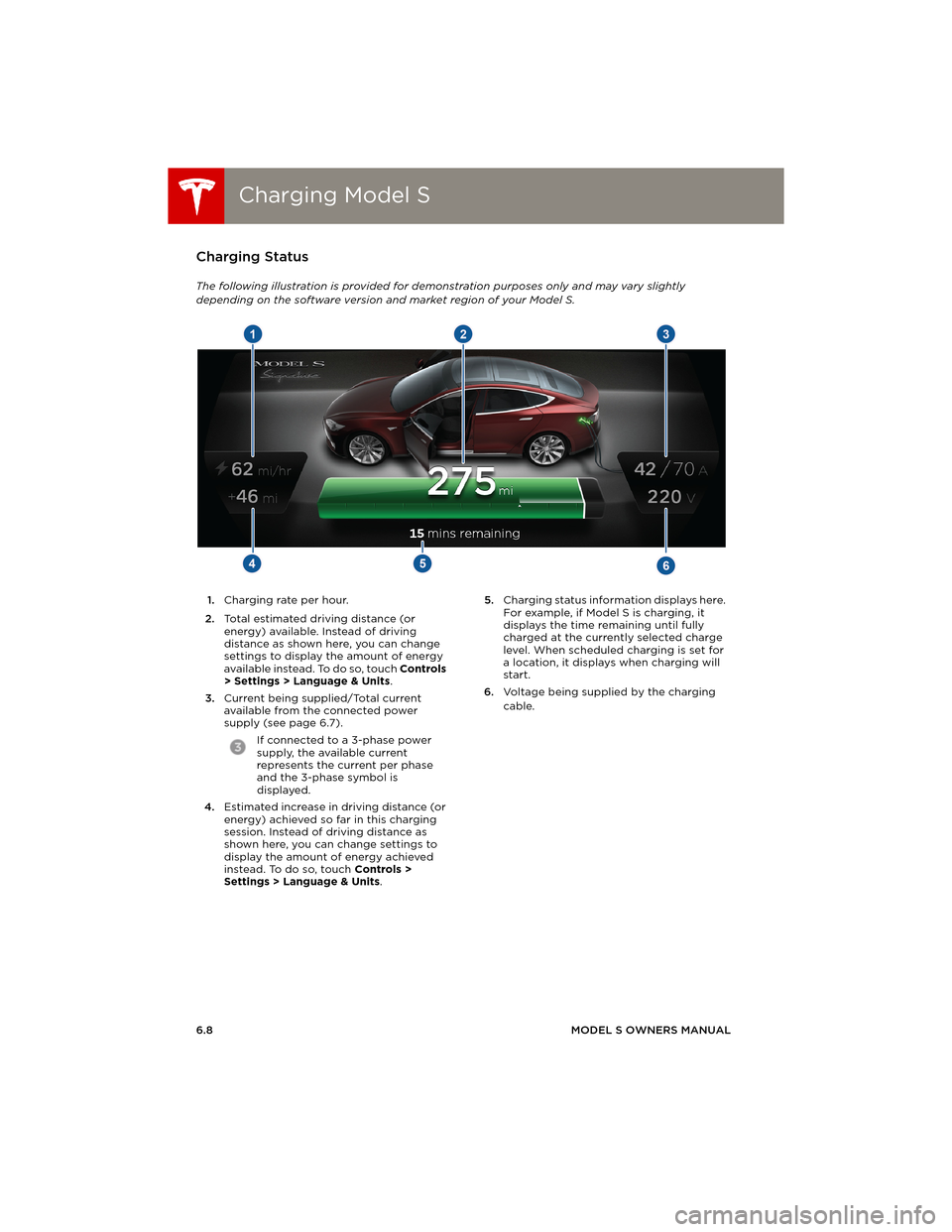
1.Charging rate per hour.
2.Total estimated driving distance (or
energy) available. Instead of driving
distance as shown here, you can change
settings to display the amount of energy
available instead. To do so, touch Controls
> Settings > Language & Units.
3.Current being supplied/Total current
available from the connected power
supply (see page 6.7).
If connected to a 3-phase power
supply, the available current
represents the current per phase
and the 3-phase symbol is
displayed.
4.Estimated increase in driving distance (or
energy) achieved so far in this charging
session. Instead of driving distance as
shown here, you can change settings to
display the amount of energy achieved
instead. To do so, touch Controls >
Settings > Language & Units. 5.Charging status information displays here.
For example, if Model S is charging, it
displays the time remaining until fully
charged at the currently selected charge
level. When scheduled charging is set for
a location, it displays when charging will
start.
6.Voltage being supplied by the charging
cable.
book.book Page 8 Friday, July 19, 2013 12:53 PM
Page 100 of 152
Maintenance ScheduleMaintenance Schedule
7.2MODEL S OWNERS MANUAL
MAINTENANCE
Maintenance ScheduleService Intervals
Regular maintenance is the key to ensuring the
continued reliability and efficiency of your
Model S.
Take Model S to Tesla at the regularly scheduled
maintenance intervals of every 12 months, or
every 20,000 kms, whichever comes first.
Model S must be serviced by Tesla-certified
technicians. Damages or failures caused by
maintenance or repairs performed by non-Tesla
certified technicians are not covered by the
warranty.
Fluid Replacement
Do not change or top up Battery coolant and
brake fluid yourself. Tesla service technicians
replace fluids at the regularly scheduled service
intervals:
•Brake fluid - every 2 years or 40,000 kms,
whichever comes first.
•Battery coolant - every 4 years or
80,000 kms, whichever comes first.
NOTE: Any damage from opening the Battery
coolant reservoir is excluded from the warranty.
Daily and Monthly Checks
In addition to the regularly scheduled
maintenance performed by Tesla, you should
carry out a few simple checks more frequently.
Daily Checks
•Check the Battery’s charge level, displayed
on the instrument panel.
•Check that all exterior lights, horn, turn
signals, and wipers and washers are
working.
•Check the operation of the brakes,
including the parking brake.
•Check the operation of the seat belts
(see page 3.5).
•Look for fluid deposits underneath Model S
that might indicate a leak. It is normal for a
small pool of water to form (caused by the
air conditioning system’s dehumidifying
process).
Monthly Checks
•Check the condition and pressure of each
tire (see page 7.3).
•Check washer fluid level and top up if
necessary (see page 7.18).
•Check that the air conditioning system is
operating (see page 5.9).
CAUTION: Contact Tesla immediately if
you notice any significant or sudden drop
in fluid levels or uneven tire wear.
High Voltage Safety
Your Model S has been designed and built with
safety as a priority. However, be aware of these
precautions to protect yourself from the risk of
injury inherent in all high-voltage systems:
•Read and follow all instructions provided on
the labels that are attached to Model S.
These labels are there for your safety.
•The high voltage system has no
user-serviceable parts. Do not disassemble,
remove or replace high voltage
components, cables or connectors. High
voltage cables are colored orange for easy
identification.
•If an accident occurs, do not touch any high
voltage wiring, connectors, or components
connected to the wiring.
•In the unlikely event that a fire occurs,
immediately contact your local fire
emergency responders.
WARNING: Always disconnect the charge
cable before working underneath
Model S, even if charging is not in progress.
WARNING: Keep your hands and clothing
away from cooling fans. Some fans
operate even when Model S is powered off.
WARNING: Some fluids (battery acid,
Battery coolant, brake fluid, windshield
washer additives, etc.) used in motor vehicles
are poisonous and should not be inhaled,
swallowed, or brought into contact with open
wounds. For your safety, always read and follow
instructions printed on fluid containers.
Dispose of used fluids and other
chemicals at authorized waste disposal
sites. It is illegal to pollute drains, waterways or
soil.
book.book Page 2 Friday, July 19, 2013 12:53 PM
Page 112 of 152
CleaningCleaning
7.14MODEL S OWNERS MANUAL
Polishing, Touch Up, and Body
Repair
To preserve the cosmetic appearance of the
body, you can occasionally treat the paint
surfaces with an approved polish containing:
•Very mild abrasive to remove surface
contamination without removing or
damaging the paint.
•Filling compounds that fill scratches and
reduce their visibility.
•Wax to provide a protective coating
between the paint and environmental
elements.
Regularly inspect the exterior paint for
damage. Treat minor chips and scratches using
a paint touch up pen (available for purchase
from Tesla). Use the touch-up pen after
washing but before polishing or waxing.
Repair rock chips, fractures or scratches. Body
repairs should be performed only by a Tesla
approved body repair facility. Contact Tesla for
a list of approved facilities.
CAUTION: Do not use cutting pastes,
color restoration compounds, or polishes
containing harsh abrasives. These can
scour the surface and permanently damage the
paint.
CAUTION: Do not use chrome polish or
other abrasive cleaners.
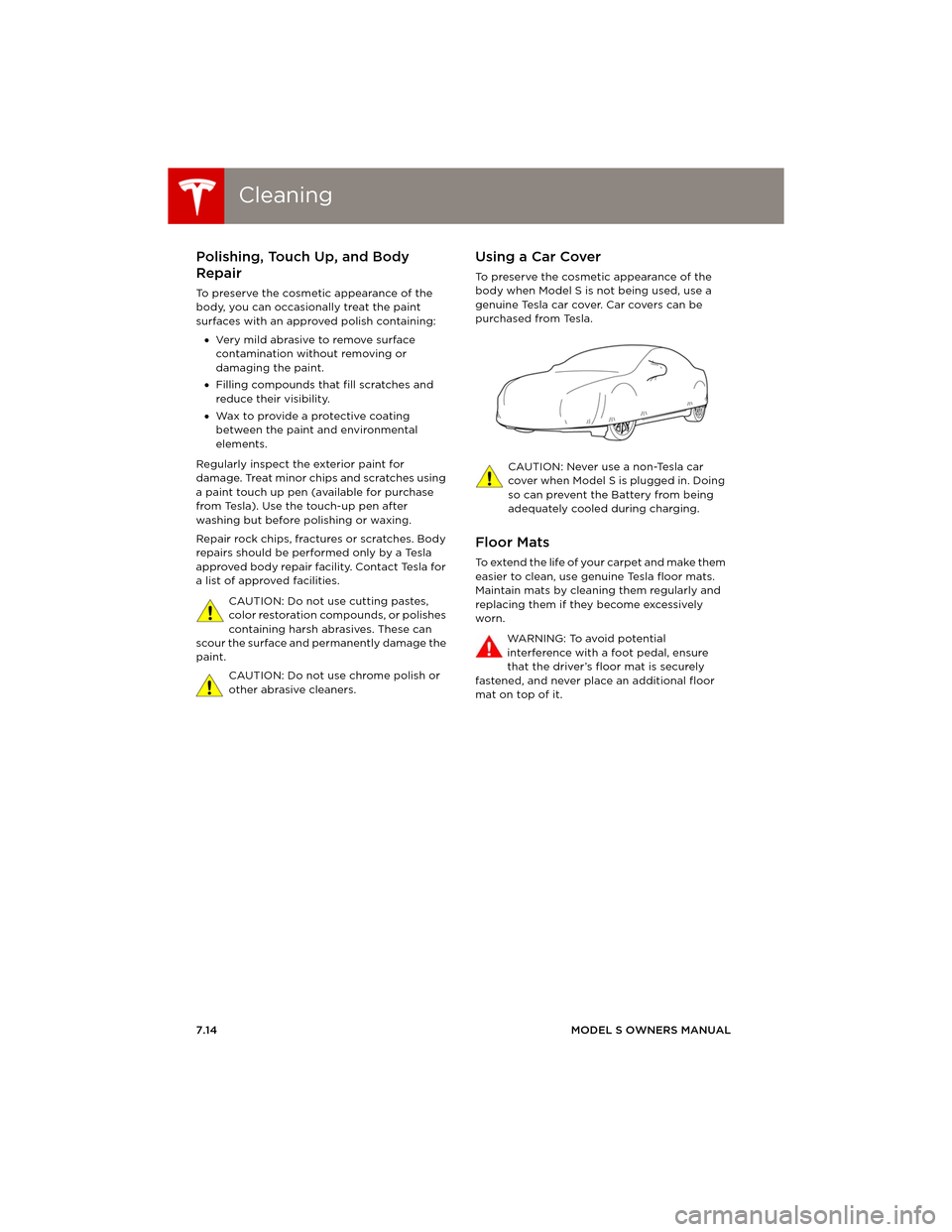
Using a Car Cover
To preserve the cosmetic appearance of the
body when Model S is not being used, use a
genuine Tesla car cover. Car covers can be
purchased from Tesla.
CAUTION: Never use a non-Tesla car
cover when Model S is plugged in. Doing
so can prevent the Battery from being
adequately cooled during charging.
Floor Mats
To e x t e n d t h e l i f e o f y o u r c a r p e t a n d m a k e t h e m
easier to clean, use genuine Tesla floor mats.
Maintain mats by cleaning them regularly and
replacing them if they become excessively
worn.
WARNING: To avoid potential
interference with a foot pedal, ensure
that the driver’s floor mat is securely
fastened, and never place an additional floor
mat on top of it.
maintenance.fm Page 14 Thursday, July 25, 2013 12:49 PM
Page 121 of 152
Jacking and Lifting
MAINTENANCE7.23
Jacking and LiftingJacking Procedure
Follow the steps below to lift Model S. Ensure
that any non-Tesla repair facility is aware of
these lifting points.
1.Position Model S centrally between the lift
posts.
2.If your Model S is equipped with Active Air
Suspension, it automatically self-levels,
even when power is off. Use the
touchscreen to set the suspension as
follows:
•To u c h Controls.
•Press the brake pedal, then touch Ve r y
High to maximize the height of the
suspension.
•To u c h Jack to disable self-leveling.
When Jack mode is active,
Model S displays this indicator
light on the instrument panel,
along with a message telling you
that active suspension is
disabled.
NOTE: Jack mode cancels automatically
when Model S is driven over 7 km/h.
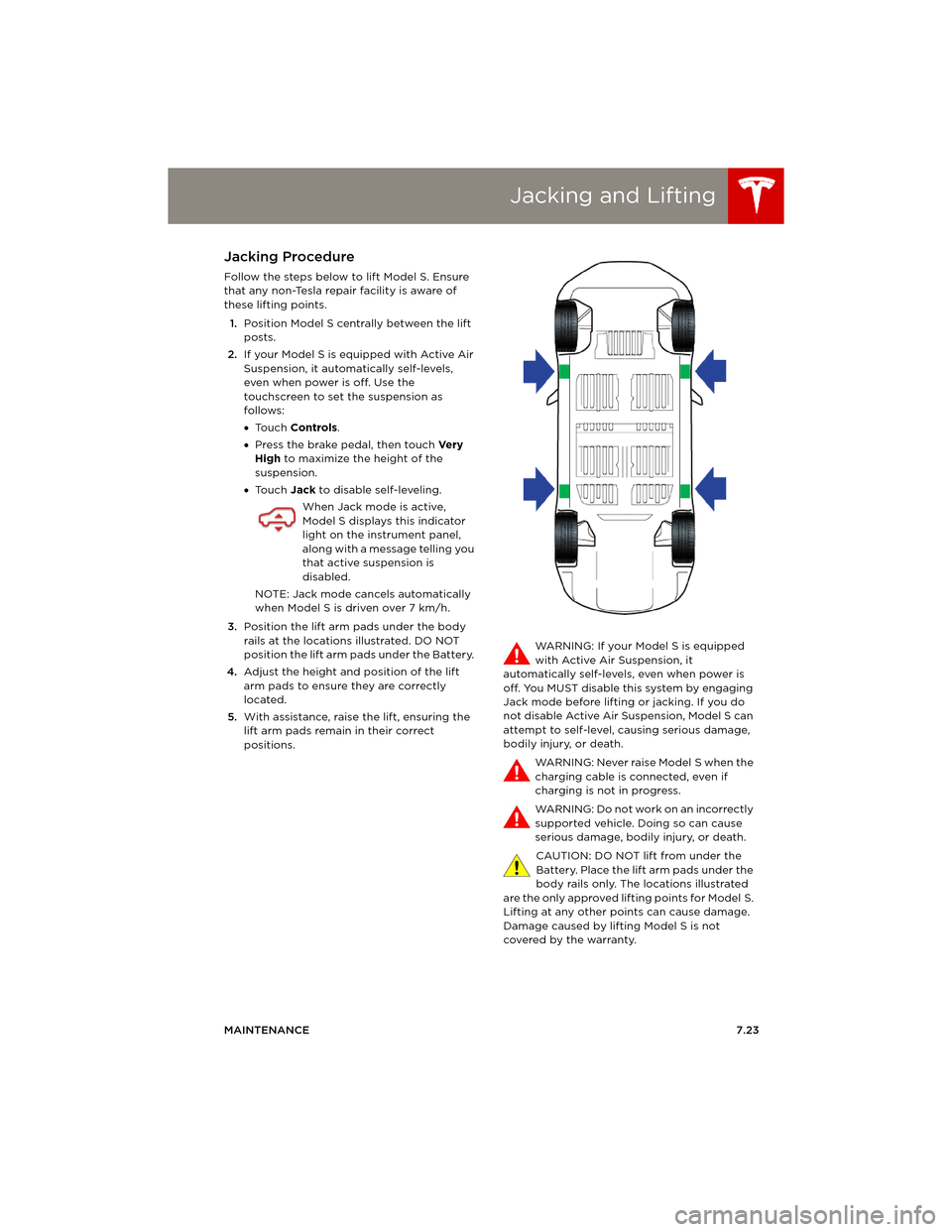
3.Position the lift arm pads under the body
rails at the locations illustrated. DO NOT
position the lift arm pads under the Battery.
4.Adjust the height and position of the lift
arm pads to ensure they are correctly
located.
5.With assistance, raise the lift, ensuring the
lift arm pads remain in their correct
positions.WARNING: If your Model S is equipped
with Active Air Suspension, it
automatically self-levels, even when power is
off. You MUST disable this system by engaging
Jack mode before lifting or jacking. If you do
not disable Active Air Suspension, Model S can
attempt to self-level, causing serious damage,
bodily injury, or death.
WARNING: Never raise Model S when the
charging cable is connected, even if
charging is not in progress.
WARNING: Do not work on an incorrectly
supported vehicle. Doing so can cause
serious damage, bodily injury, or death.
CAUTION: DO NOT lift from under the
Battery. Place the lift arm pads under the
body rails only. The locations illustrated
are the only approved lifting points for Model S.
Lifting at any other points can cause damage.
Damage caused by lifting Model S is not
covered by the warranty.
book.book Page 23 Friday, July 19, 2013 12:53 PM
Page 140 of 152
DisclaimersDisclaimers
10.2MODEL S OWNERS MANUAL
CONSUMER INFORMATION
DisclaimersVehicle Telematics/Data Recorders
This vehicle is equipped with electronic
modules that monitor and record data from
various vehicle systems, including the motor,
Battery, braking and electrical systems. The
electronic modules record information about
various driving and vehicle conditions,
including braking, acceleration, trip and other
related information regarding your vehicle.
These modules also record information about
the vehicle’s features such as charging events
and status, the enabling/disabling of various
systems, diagnostic trouble codes, VIN, speed,
direction and location.
The data is stored by the vehicle and may be
accessed, used and stored by Tesla service
technicians during vehicle servicing or
periodically transmitted to Tesla wirelessly
through the vehicle’s telematics system. This
data may be used by Tesla for various purposes,
including, but not limited to: providing you with
Tesla telematics services; troubleshooting;
evaluation of your vehicle’s quality,
functionality and performance; analysis and
research by Tesla and its partners for the
improvement and design of our vehicles and
systems; and as otherwise may be required by
law. In servicing your vehicle, we can potentially
resolve issues remotely simply by reviewing
your vehicle’s data log.
Tesla’s telematics system wirelessly transmits
vehicle information to Tesla on a periodic basis.
The data is used as described above and helps
ensure the proper maintenance of your vehicle.
Additional Model S features may use your
vehicle’s telematics system and the information
provided, including features such as charging
reminders, software updates, and remote
access to, and control of, various systems of
your vehicle.
Tesla does not disclose the data recorded in
your vehicle to any third party except when:
•An agreement or consent from the vehicle’s
owner (or the leasing company for a leased
vehicle) is obtained.
•Officially requested by the police or other
authorities.
•Used as a defense for Tesla in a lawsuit.
•Ordered by a court of law.•Used for research purposes without
disclosing details of the vehicle owner or
identification information.
•Disclosed to a Tesla affiliated company,
including their successors or assigns, or our
information systems and data management
providers.
In addition, Tesla does not disclose the data
recorded to an owner unless it pertains to a
non-warranty repair service and in this case,
will disclose only the data that is related to the
repair.
Quality Control
You might notice a few kms on the odometer
when you take delivery of your Model S. This is
a result of a comprehensive testing process
that ensures the quality of your Model S.
The testing process includes extensive
inspections during and after production. The
final inspection takes place at Tesla Motors and
includes a road test conducted by a Tesla
technician.
book.book Page 2 Friday, July 19, 2013 12:53 PM