change wheel TESLA MODEL S 2014 Owner's manual (Europe)
[x] Cancel search | Manufacturer: TESLA, Model Year: 2014, Model line: MODEL S, Model: TESLA MODEL S 2014Pages: 152, PDF Size: 17.5 MB
Page 42 of 152
Driver ProfilesDriver Profiles
4.2MODEL S OWNERS MANUAL
DRIVING
Driver ProfilesCreating a Driver Profile
If Model S is equipped with the optional tech
package, you only need to adjust Model S once.
When you first adjust the driver’s seat, steering
wheel, or driver’s side mirror, the touchscreen
prompts you to create a driver profile. Your
profile saves the position of the seat, steering
wheel, and driver’s side mirror, as well as several
other preferences you make using the
touchscreen’s Settings window (Controls >
Settings).
You can also add a driver profile by touching
Controls > Settings > Driver Profiles. Then
enter the name of the driver and touch Create
Profile.
If you change the position of the steering
wheel, driver’s seat, or driver’s side mirror after
you have saved a profile, the touchscreen
prompts you to save the new position or
restore the previously saved position (other
preferences are automatically saved). To use a
setting without saving or restoring, just ignore
the prompt.
Restoring a Driver’s Profile
To adjust Model S based on a driver’s
profile, touch the driver profile icon,
located to the left side of the Tesla “T”
on the touchscreen’s status bar. Then
choose the driver and the saved
adjustments are automatically made.
Saved Driver Settings
To see what settings are associated with your
driver profile, touch Controls > Settings >
Driver Profiles. Then touch the See what’s
saved link. A popup window displays the
settings that are associated with a driver
profile. These settings vary depending on the
version of software currently running in
Model S.
book.book Page 2 Friday, July 19, 2013 12:53 PM
Page 43 of 152
Steering Wheel
DRIVING4.3
Steering WheelAdjusting Position
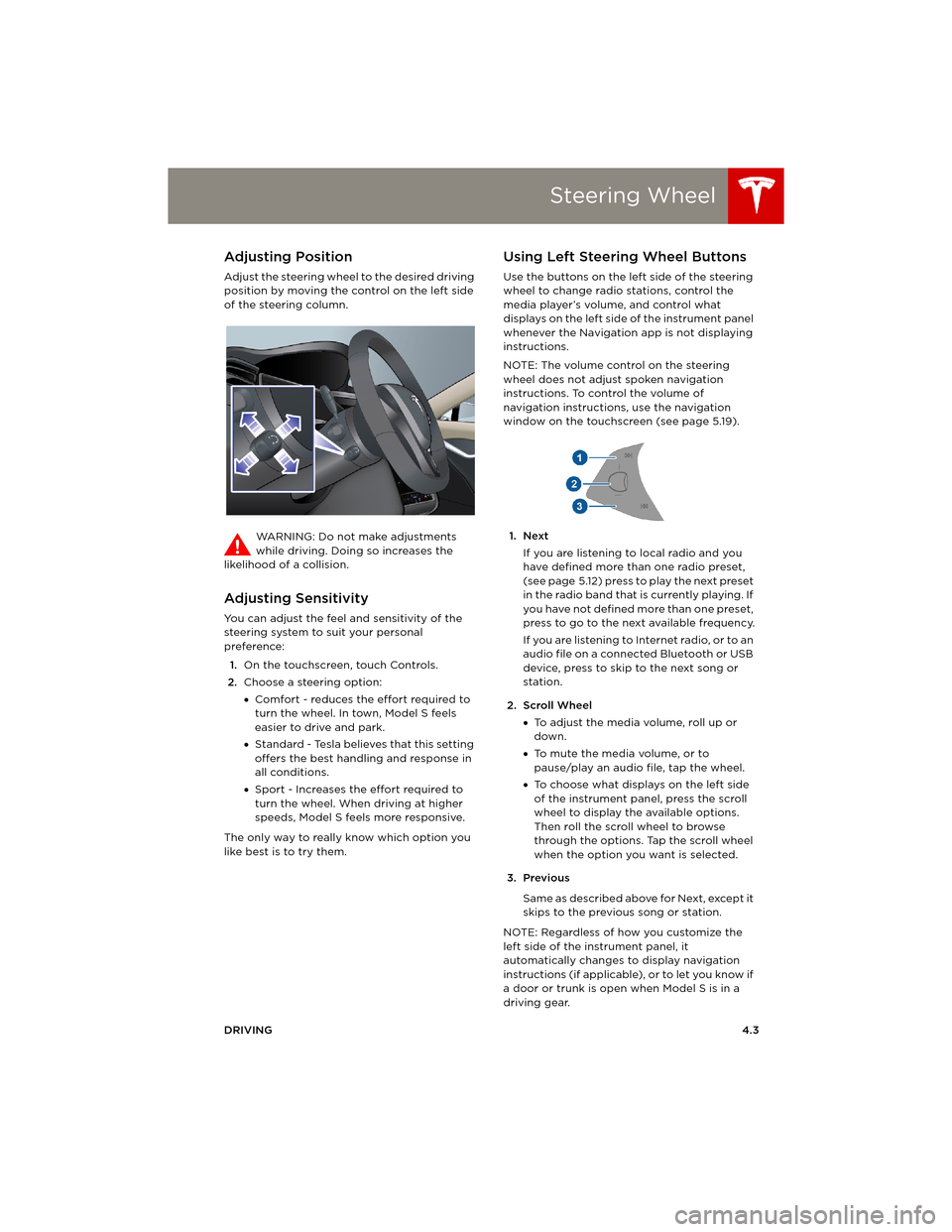
Adjust the steering wheel to the desired driving
position by moving the control on the left side
of the steering column.
WARNING: Do not make adjustments
while driving. Doing so increases the
likelihood of a collision.
Adjusting Sensitivity
You can adjust the feel and sensitivity of the
steering system to suit your personal
preference:
1.On the touchscreen, touch Controls.
2.Choose a steering option:
•Comfort - reduces the effort required to
turn the wheel. In town, Model S feels
easier to drive and park.
•Standard - Tesla believes that this setting
offers the best handling and response in
all conditions.
•Sport - Increases the effort required to
turn the wheel. When driving at higher
speeds, Model S feels more responsive.
The only way to really know which option you
like best is to try them.
Using Left Steering Wheel Buttons
Use the buttons on the left side of the steering
wheel to change radio stations, control the
media player’s volume, and control what
displays on the left side of the instrument panel
whenever the Navigation app is not displaying
instructions.
NOTE: The volume control on the steering
wheel does not adjust spoken navigation
instructions. To control the volume of
navigation instructions, use the navigation
window on the touchscreen (see page 5.19).
1. Next
If you are listening to local radio and you
have defined more than one radio preset,
(see page 5.12) press to play the next preset
in the radio band that is currently playing. If
you have not defined more than one preset,
press to go to the next available frequency.
If you are listening to Internet radio, or to an
audio file on a connected Bluetooth or USB
device, press to skip to the next song or
station.
2. Scroll Wheel
•To adjust the media volume, roll up or
down.
•To mute the media volume, or to
pause/play an audio file, tap the wheel.
•To choose what displays on the left side
of the instrument panel, press the scroll
wheel to display the available options.
Then roll the scroll wheel to browse
through the options. Tap the scroll wheel
when the option you want is selected.
3. Previous
Same as described above for Next, except it
skips to the previous song or station.
NOTE: Regardless of how you customize the
left side of the instrument panel, it
automatically changes to display navigation
instructions (if applicable), or to let you know if
a door or trunk is open when Model S is in a
driving gear.
book.book Page 3 Friday, July 19, 2013 12:53 PM
Page 44 of 152
Steering WheelSteering Wheel
4.4MODEL S OWNERS MANUAL
Using Right Steering Wheel Buttons
Use the buttons on the right side of the steering
wheel to control the phone and some Model S
features, use voice commands, and customize
what Model S feature the right scroll wheel can
control.
NOTE: Regardless of how you customize the
right side of the instrument panel, it
automatically displays the phone menu when
someone is calling you on a Bluetooth
connected phone.
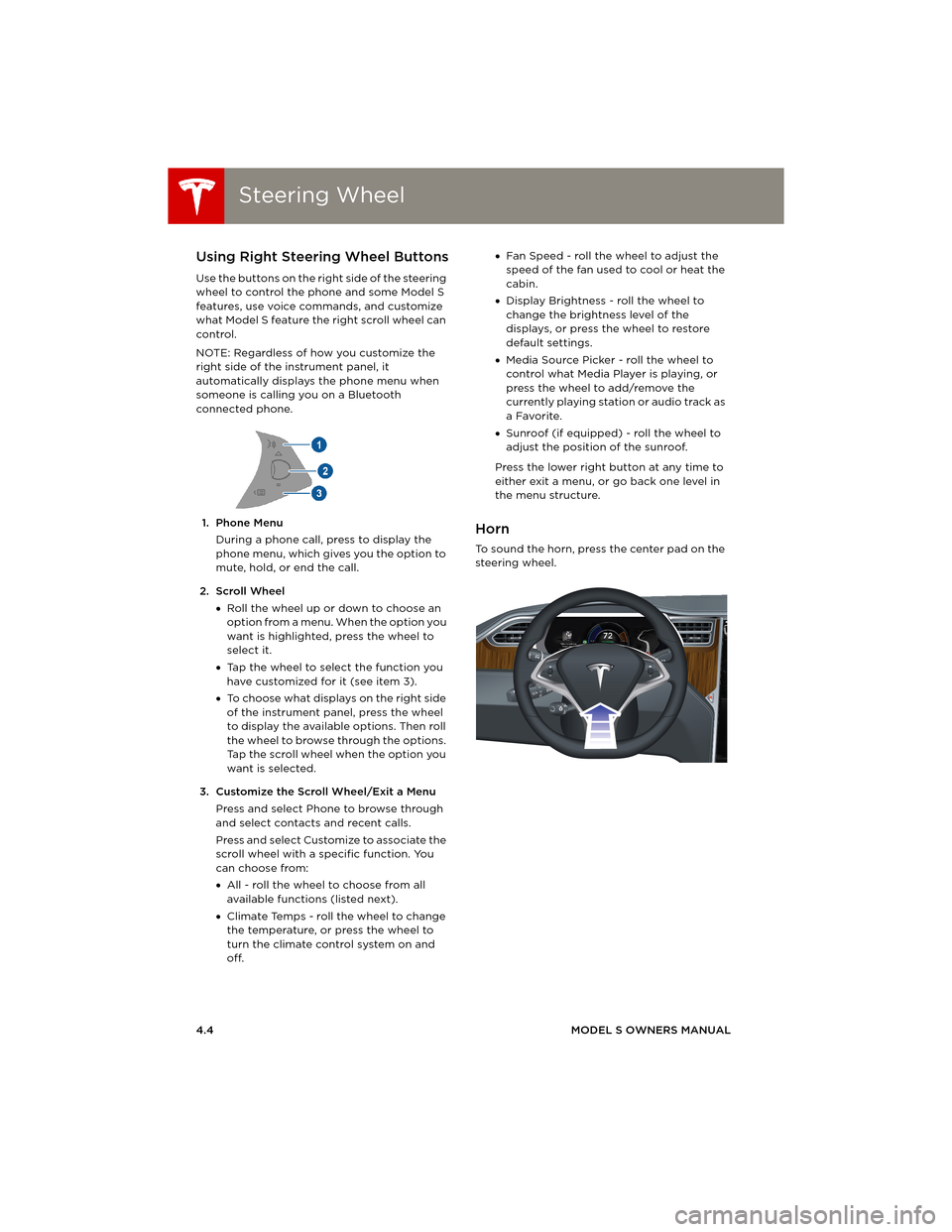
1. Phone Menu
During a phone call, press to display the
phone menu, which gives you the option to
mute, hold, or end the call.
2. Scroll Wheel
•Roll the wheel up or down to choose an
option from a menu. When the option you
want is highlighted, press the wheel to
select it.
•Tap the wheel to select the function you
have customized for it (see item 3).
•To choose what displays on the right side
of the instrument panel, press the wheel
to display the available options. Then roll
the wheel to browse through the options.
Tap the scroll wheel when the option you
want is selected.
3. Customize the Scroll Wheel/Exit a Menu
Press and select Phone to browse through
and select contacts and recent calls.
Press and select Customize to associate the
scroll wheel with a specific function. You
can choose from:
•All - roll the wheel to choose from all
available functions (listed next).
•Climate Temps - roll the wheel to change
the temperature, or press the wheel to
turn the climate control system on and
off. •Fan Speed - roll the wheel to adjust the
speed of the fan used to cool or heat the
cabin.
•Display Brightness - roll the wheel to
change the brightness level of the
displays, or press the wheel to restore
default settings.
•Media Source Picker - roll the wheel to
control what Media Player is playing, or
press the wheel to add/remove the
currently playing station or audio track as
a Favorite.
•Sunroof (if equipped) - roll the wheel to
adjust the position of the sunroof.
Press the lower right button at any time to
either exit a menu, or go back one level in
the menu structure.
Horn
To sound the horn, press the center pad on the
steering wheel.
book.book Page 4 Friday, July 19, 2013 12:53 PM
Page 48 of 152
Instrument PanelInstrument Panel
4.8MODEL S OWNERS MANUAL
Instrument PanelInstrument Panel Overview
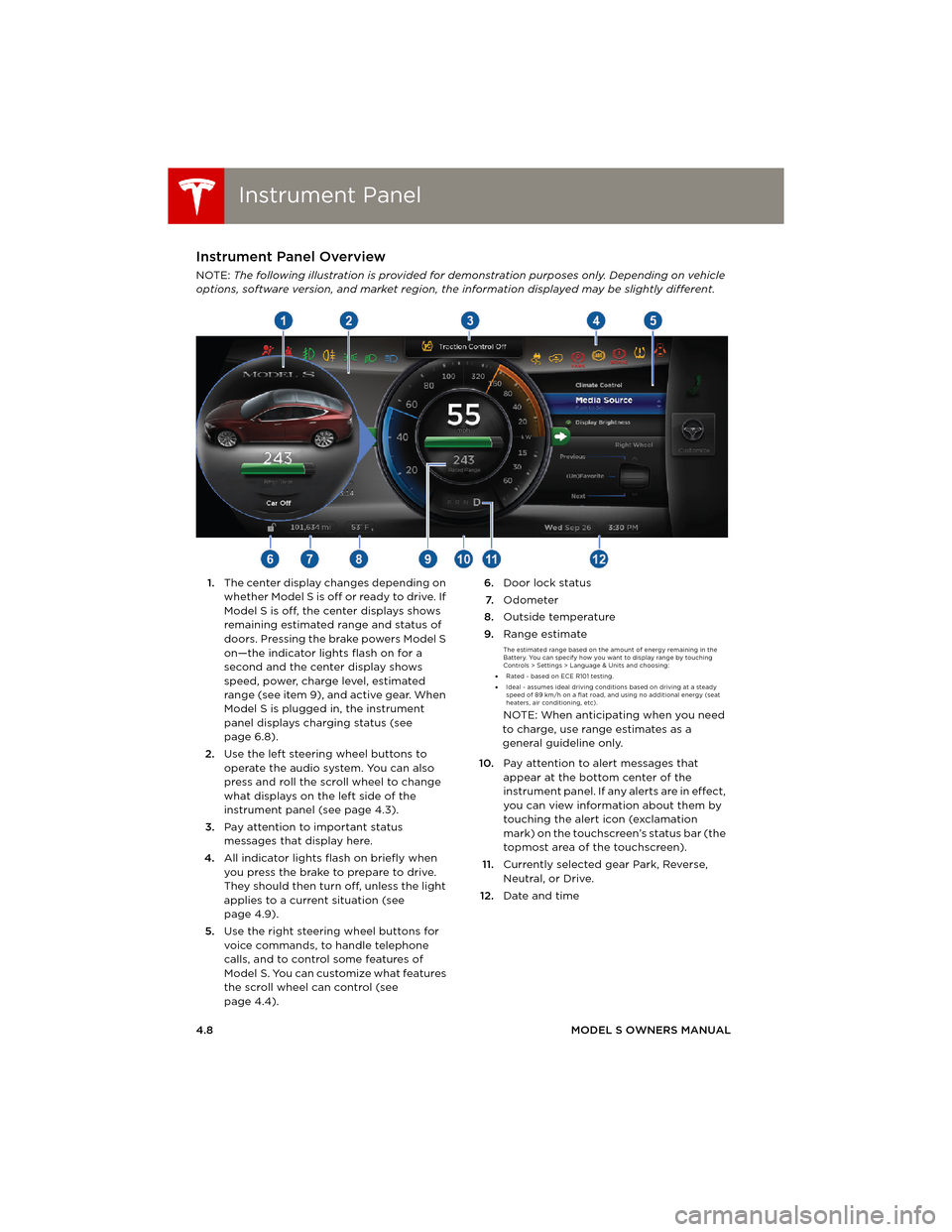
NOTE: The following illustration is provided for demonstration purposes only. Depending on vehicle
options, software version, and market region, the information displayed may be slightly different.
1.The center display changes depending on
whether Model S is off or ready to drive. If
Model S is off, the center displays shows
remaining estimated range and status of
doors. Pressing the brake powers Model S
on—the indicator lights flash on for a
second and the center display shows
speed, power, charge level, estimated
range (see item 9), and active gear. When
Model S is plugged in, the instrument
panel displays charging status (see
page 6.8).
2.Use the left steering wheel buttons to
operate the audio system. You can also
press and roll the scroll wheel to change
what displays on the left side of the
instrument panel (see page 4.3).
3.Pay attention to important status
messages that display here.
4.All indicator lights flash on briefly when
you press the brake to prepare to drive.
They should then turn off, unless the light
applies to a current situation (see
page 4.9).
5.Use the right steering wheel buttons for
voice commands, to handle telephone
calls, and to control some features of
Model S. You can customize what features
the scroll wheel can control (see
page 4.4).6.Door lock status
7.Odometer
8.Outside temperature
9.Range estimate
The estimated range based on the amount of energy remaining in the
Battery. You can specify how you want to display range by touching
Controls > Settings > Language & Units and choosing:
•Rated - based on ECE R101 testing.
•Ideal - assumes ideal driving conditions based on driving at a steady
speed of 89 km/h on a flat road, and using no additional energy (seat
heaters, air conditioning, etc).
NOTE: When anticipating when you need
to charge, use range estimates as a
general guideline only.
10.Pay attention to alert messages that
appear at the bottom center of the
instrument panel. If any alerts are in effect,
you can view information about them by
touching the alert icon (exclamation
mark) on the touchscreen’s status bar (the
topmost area of the touchscreen).
11.Currently selected gear Park, Reverse,
Neutral, or Drive.
12.Date and time
book.book Page 8 Friday, July 19, 2013 12:53 PM
Page 54 of 152
LightsLights
4.14MODEL S OWNERS MANUAL
Turn Signals
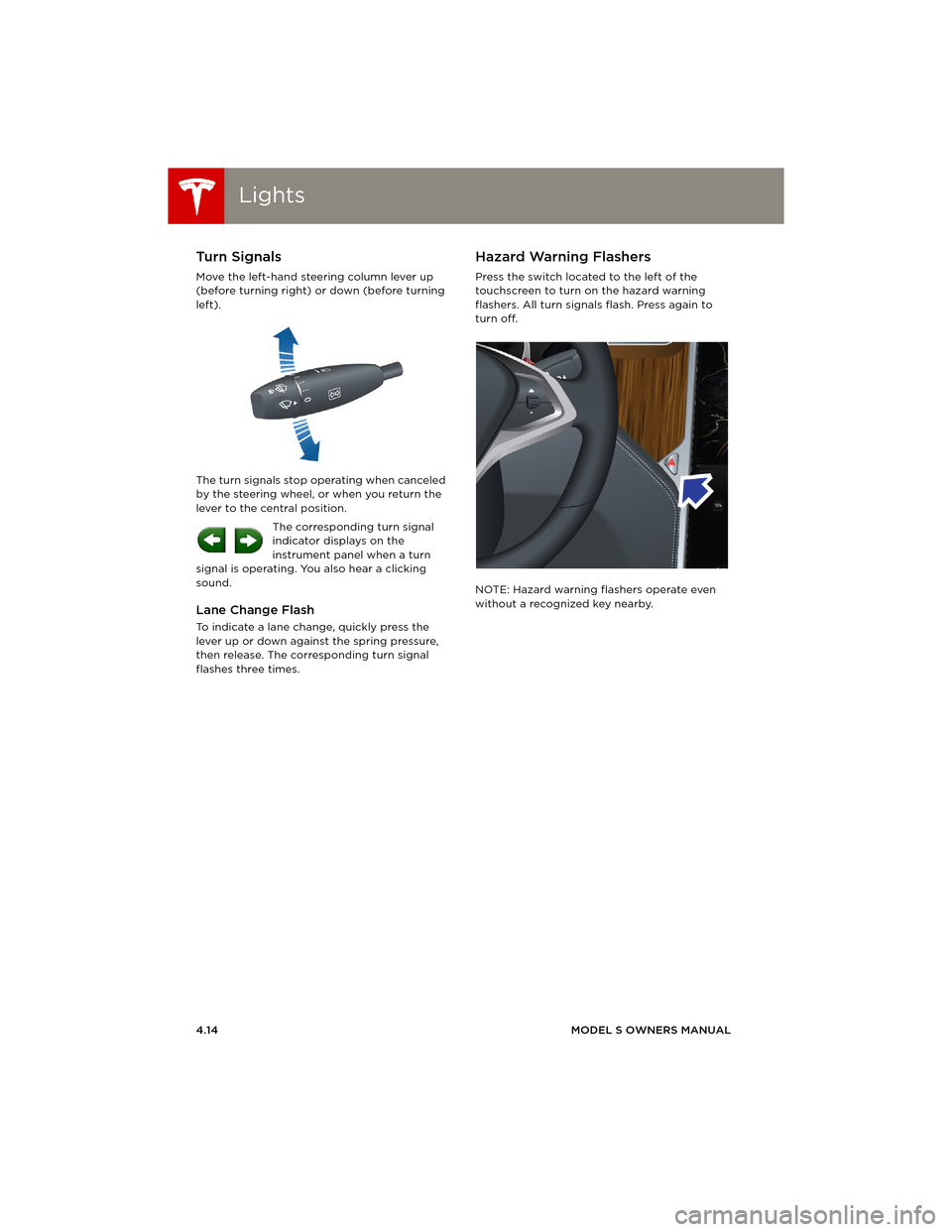
Move the left-hand steering column lever up
(before turning right) or down (before turning
left).
The turn signals stop operating when canceled
by the steering wheel, or when you return the
lever to the central position.
The corresponding turn signal
indicator displays on the
instrument panel when a turn
signal is operating. You also hear a clicking
sound.
Lane Change Flash
To indicate a lane change, quickly press the
lever up or down against the spring pressure,
then release. The corresponding turn signal
flashes three times.
Hazard Warning Flashers
Press the switch located to the left of the
touchscreen to turn on the hazard warning
flashers. All turn signals flash. Press again to
turn off.
NOTE: Hazard warning flashers operate even
without a recognized key nearby.
book.book Page 14 Friday, July 19, 2013 12:53 PM
Page 56 of 152
Park AssistPark Assist
4.16MODEL S OWNERS MANUAL
Park AssistHow Park Assist Works
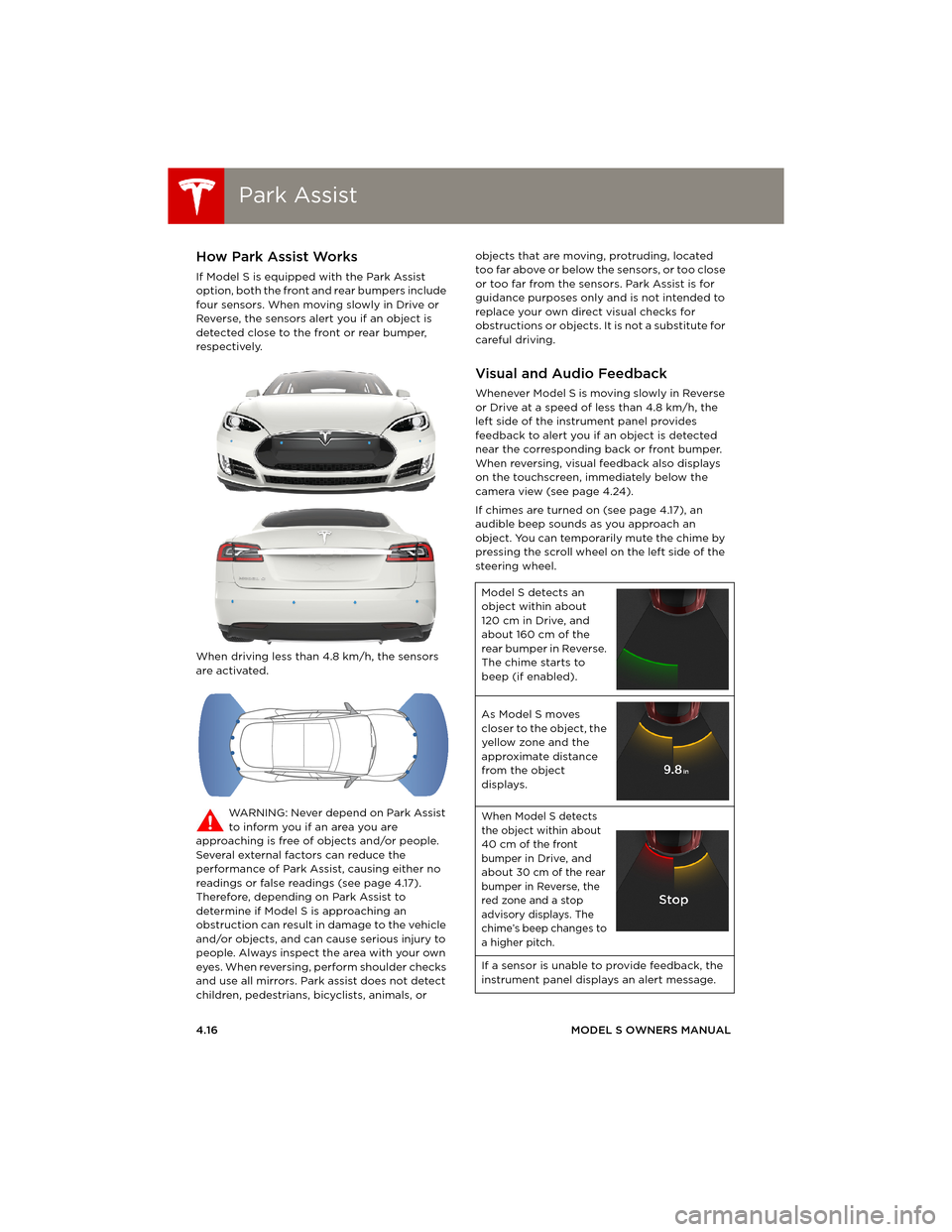
If Model S is equipped with the Park Assist
option, both the front and rear bumpers include
four sensors. When moving slowly in Drive or
Reverse, the sensors alert you if an object is
detected close to the front or rear bumper,
respectively.
When driving less than 4.8 km/h, the sensors
are activated.
WARNING: Never depend on Park Assist
to inform you if an area you are
approaching is free of objects and/or people.
Several external factors can reduce the
performance of Park Assist, causing either no
readings or false readings (see page 4.17).
Therefore, depending on Park Assist to
determine if Model S is approaching an
obstruction can result in damage to the vehicle
and/or objects, and can cause serious injury to
people. Always inspect the area with your own
eyes. When reversing, perform shoulder checks
and use all mirrors. Park assist does not detect
children, pedestrians, bicyclists, animals, or objects that are moving, protruding, located
too far above or below the sensors, or too close
or too far from the sensors. Park Assist is for
guidance purposes only and is not intended to
replace your own direct visual checks for
obstructions or objects. It is not a substitute for
careful driving.
Visual and Audio Feedback
Whenever Model S is moving slowly in Reverse
or Drive at a speed of less than 4.8 km/h, the
left side of the instrument panel provides
feedback to alert you if an object is detected
near the corresponding back or front bumper.
When reversing, visual feedback also displays
on the touchscreen, immediately below the
camera view (see page 4.24).
If chimes are turned on (see page 4.17), an
audible beep sounds as you approach an
object. You can temporarily mute the chime by
pressing the scroll wheel on the left side of the
steering wheel.
Model S detects an
object within about
120 cm in Drive, and
about 160 cm of the
rear bumper in Reverse.
The chime starts to
beep (if enabled).
As Model S moves
closer to the object, the
yellow zone and the
approximate distance
from the object
displays.
When Model S detects
the object within about
40 cm of the front
bumper in Drive, and
about 30 cm of the rear
bumper in Reverse, the
red zone and a stop
advisory displays. The
chime’s beep changes to
a higher pitch.
If a sensor is unable to provide feedback, the
instrument panel displays an alert message.
book.book Page 16 Friday, July 19, 2013 12:53 PM
Page 59 of 152
Energy Usage
DRIVING4.19
Energy UsageDisplaying Energy Usage
Touch the Energy app on the top of the
touchscreen to display a graph showing
how much energy Model S has been
using.
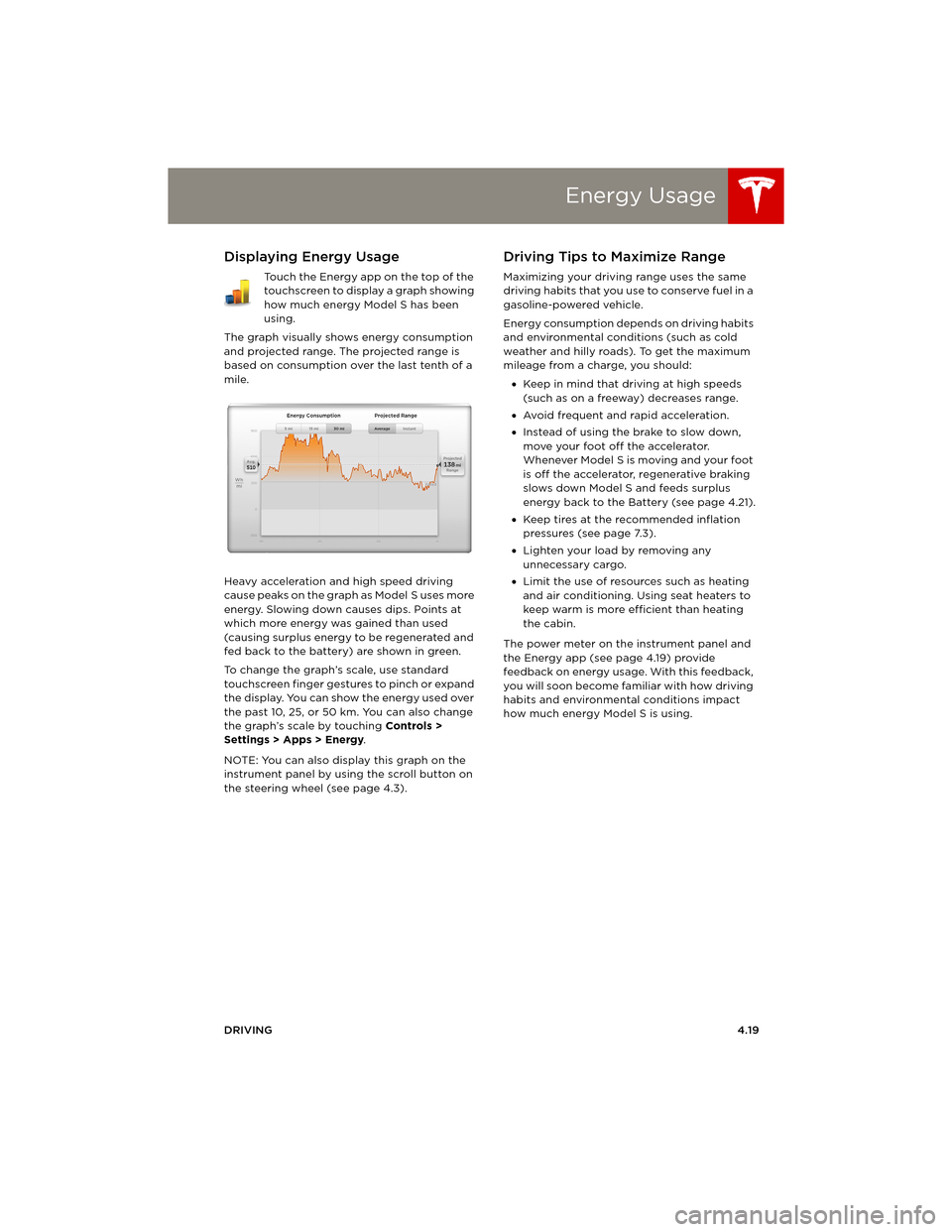
The graph visually shows energy consumption
and projected range. The projected range is
based on consumption over the last tenth of a
mile.
Heavy acceleration and high speed driving
cause peaks on the graph as Model S uses more
energy. Slowing down causes dips. Points at
which more energy was gained than used
(causing surplus energy to be regenerated and
fed back to the battery) are shown in green.
To change the graph’s scale, use standard
touchscreen finger gestures to pinch or expand
the display. You can show the energy used over
the past 10, 25, or 50 km. You can also change
the graph’s scale by touching Controls >
Settings > Apps > Energy.
NOTE: You can also display this graph on the
instrument panel by using the scroll button on
the steering wheel (see page 4.3).
Driving Tips to Maximize Range
Maximizing your driving range uses the same
driving habits that you use to conserve fuel in a
gasoline-powered vehicle.
Energy consumption depends on driving habits
and environmental conditions (such as cold
weather and hilly roads). To get the maximum
mileage from a charge, you should:
•Keep in mind that driving at high speeds
(such as on a freeway) decreases range.
•Avoid frequent and rapid acceleration.
•Instead of using the brake to slow down,
move your foot off the accelerator.
Whenever M odel S is moving and your foot
is off the accelerator, regenerative braking
slows down Model S and feeds surplus
energy back to the Battery (see page 4.21).
•Keep tires at the recommended inflation
pressures (see page 7.3).
•Lighten your load by removing any
unnecessary cargo.
•Limit the use of resources such as heating
and air conditioning. Using seat heaters to
keep warm is more efficient than heating
the cabin.
The power meter on the instrument panel and
the Energy app (see page 4.19) provide
feedback on energy usage. With this feedback,
you will soon become familiar with how driving
habits and environmental conditions impact
how much energy Model S is using.
book.book Page 19 Friday, July 19, 2013 12:53 PM
Page 61 of 152
Brakes
DRIVING4.21
Regenerative Braking
Whenever Model S is moving and your foot is
off the accelerator, regenerative braking slows
down Model S and feeds any surplus energy
back to the Battery.
By anticipating your stops and simply removing
your foot from the accelerator to slow down,
you can take advantage of regenerative
braking to increase driving range. Of course,
this is no substitute for regular braking when
needed for safety.
NOTE: If regenerative braking is aggressively
slowing Model S, such as on a steep descent,
brake lights turn on to alert other road users
that you are slowing down.
The power meter on the instrument panel
displays real-time feedback on the amount of
energy being gained by regenerative braking.
The amount of energy fed back to the Battery
using regenerative braking can depend on the
current state of the Battery and the charge
level setting that you are using. If regenerative
braking is limited, a dashed yellow line displays
on the power meter. For example, regenerative
braking may be limited if the Battery is
extremely hot or cold because the surplus
energy is used to cool or heat the Battery.
Regenerative braking is also limited if the
Battery is already fully charged.
To Set the Regenerative Braking Level
You can use the touchscreen to change the
level of regenerative braking:
1.Touch Controls.
2.Choose from two levels:
•Standard - provides the maximum
amount of regenerative braking. When
you release the accelerator, Model S slows
down faster, reducing the need to use the
brakes.
•Low - limits the amount of regenerative
braking. When you release the
accelerator, Model S takes longer to slow
down and coasts further.
NOTE: Regenerative braking resets to Standard
each time you start Model S.
Parking Brake
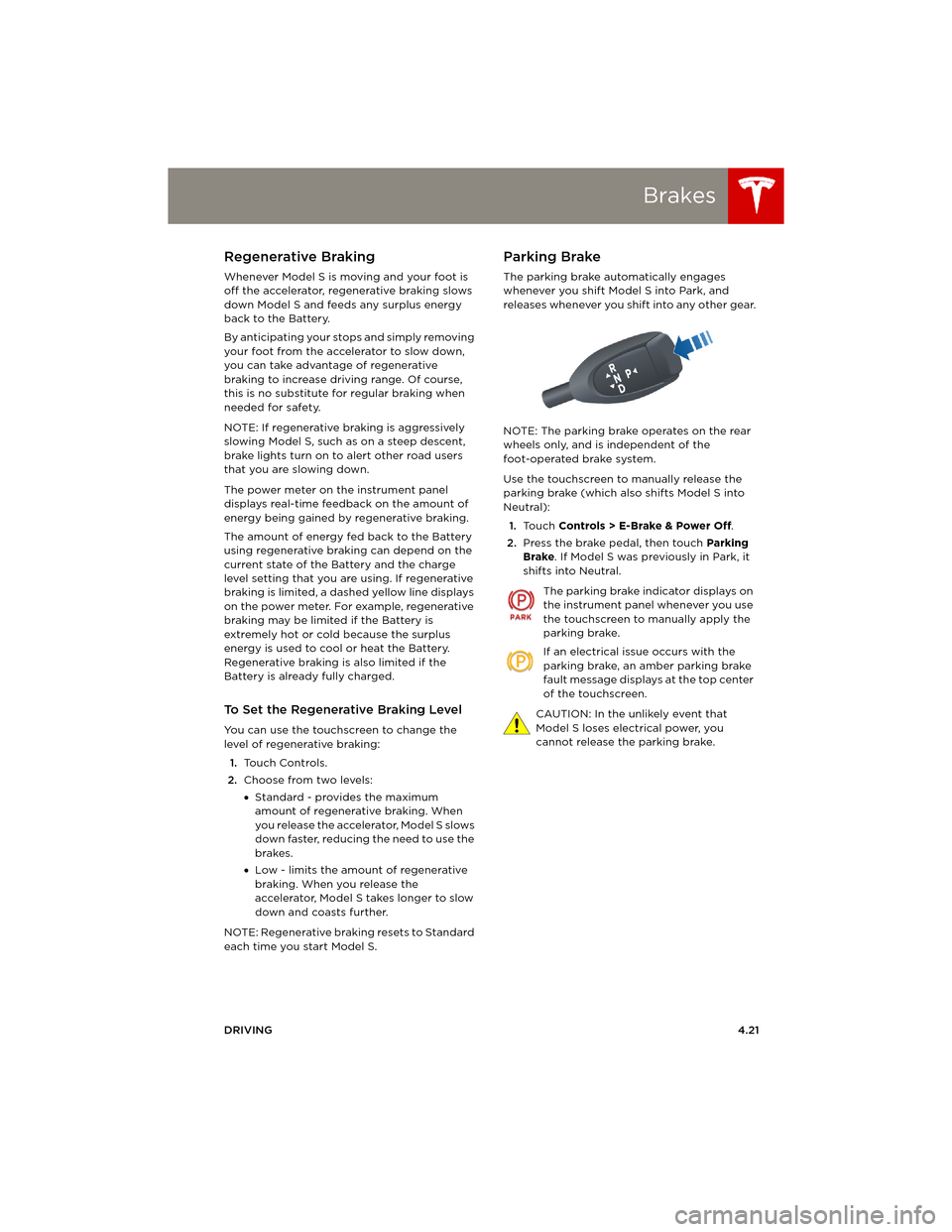
The parking brake automatically engages
whenever you shift Model S into Park, and
releases whenever you shift into any other gear.
NOTE: The parking brake operates on the rear
wheels only, and is independent of the
foot-operated brake system.
Use the touchscreen to manually release the
parking brake (which also shifts Model S into
Neutral):
1.Touch Controls > E-Brake & Power Off.
2.Press the brake pedal, then touch Parking
Brake. If Model S was previously in Park, it
shifts into Neutral.
The parking brake indicator displays on
the instrument panel whenever you use
the touchscreen to manually apply the
parking brake.
If an electrical issue occurs with the
parking brake, an amber parking brake
fault message displays at the top center
of the touchscreen.
CAUTION: In the unlikely event that
Model S loses electrical power, you
cannot release the parking brake.
book.book Page 21 Friday, July 19, 2013 12:53 PM
Page 67 of 152
Touchscreen Overview
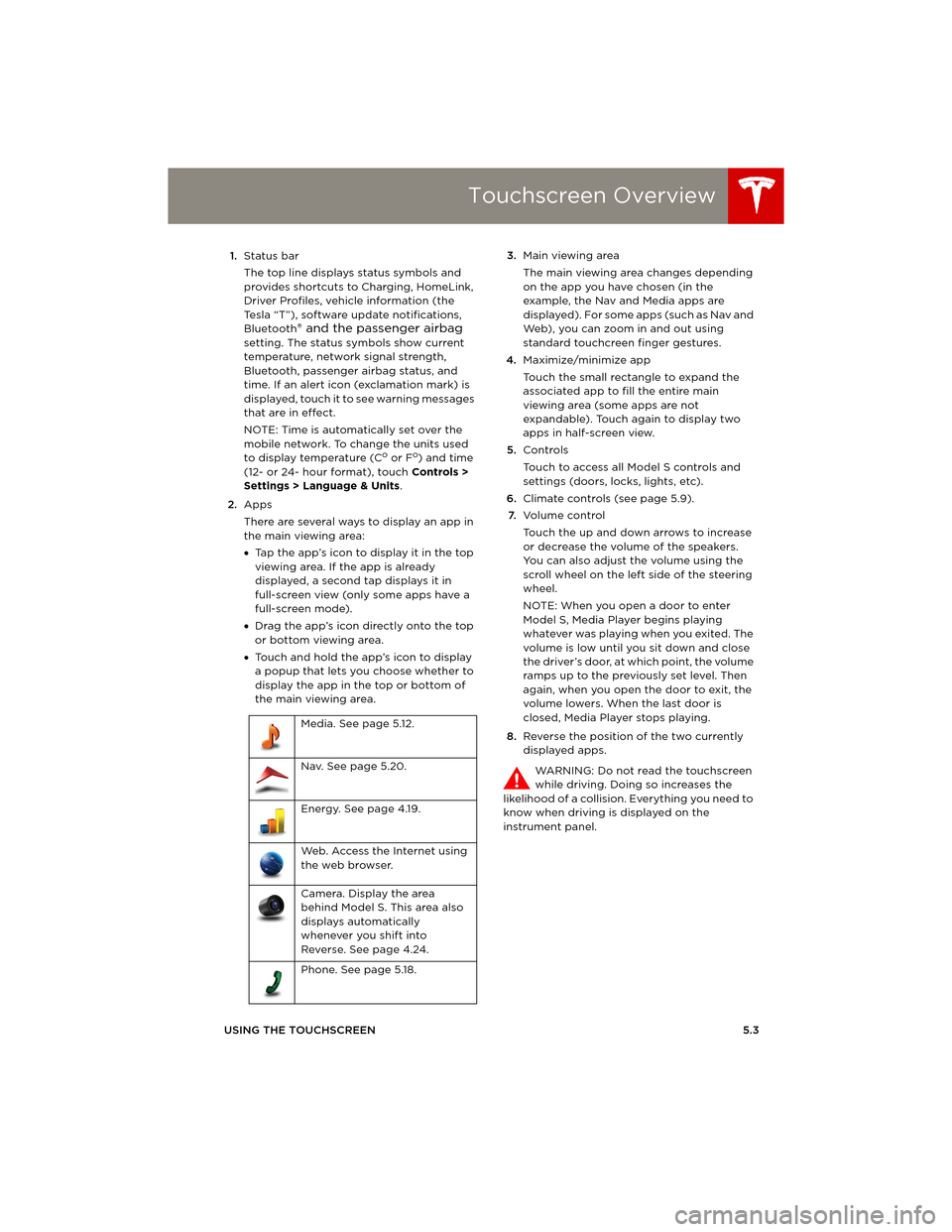
USING THE TOUCHSCREEN5.3 1.Status bar
The top line displays status symbols and
provides shortcuts to Charging, HomeLink,
Driver Profiles, vehicle information (the
Tesla “T”), software update notifications,
Bluetooth
® and the passenger airbag
setting. The status symbols show current
temperature, network signal strength,
Bluetooth, passenger airbag status, and
time. If an alert icon (exclamation mark) is
displayed, touch it to see warning messages
that are in effect.
NOTE: Time is automatically set over the
mobile network. To change the units used
to display temperature (C
o or Fo) and time
(12- or 24- hour format), touch Controls >
Settings > Language & Units.
2.Apps
There are several ways to display an app in
the main viewing area:
•Tap the app’s icon to display it in the top
viewing area. If the app is already
displayed, a second tap displays it in
full-screen view (only some apps have a
full-screen mode).
•Drag the app’s icon directly onto the top
or bottom viewing area.
•Touch and hold the app’s icon to display
a popup that lets you choose whether to
display the app in the top or bottom of
the main viewing area. 3.Main viewing area
The main viewing area changes depending
on the app you have chosen (in the
example, the Nav and Media apps are
displayed). For some apps (such as Nav and
Web), you can zoom in and out using
standard touchcreen finger gestures.
4.Maximize/minimize app
Touch the small rectangle to expand the
associated app to fill the entire main
viewing area (some apps are not
expandable). Touch again to display two
apps in half-screen view.
5.Controls
Touch to access all Model S controls and
settings (doors, locks, lights, etc).
6.Climate controls (see page 5.9).
7.Vo l u m e co n t r o l
Touch the up and down arrows to increase
or decrease the volume of the speakers.
You can also adjust the volume using the
scroll wheel on the left side of the steering
wheel.
NOTE: When you open a door to enter
Model S, Media Player begins playing
whatever was playing when you exited. The
volume is low until you sit down and close
the driver’s door, at which point, the volume
ramps up to the previously set level. Then
again, when you open the door to exit, the
volume lowers. When the last door is
closed, Media Player stops playing.
8.Reverse the position of the two currently
displayed apps.
WARNING: Do not read the touchscreen
while driving. Doing so increases the
likelihood of a collision. Everything you need to
know when driving is displayed on the
instrument panel. Media. See page 5.12.
Nav. See page 5.20.
Energy. See page 4.19.
Web. Access the Internet using
the web browser.
Camera. Display the area
behind Model S. This area also
displays automatically
whenever you shift into
Reverse. See page 4.24.
Phone. See page 5.18.
book.book Page 3 Friday, July 19, 2013 12:53 PM
Page 69 of 152
Touchscreen - Controls
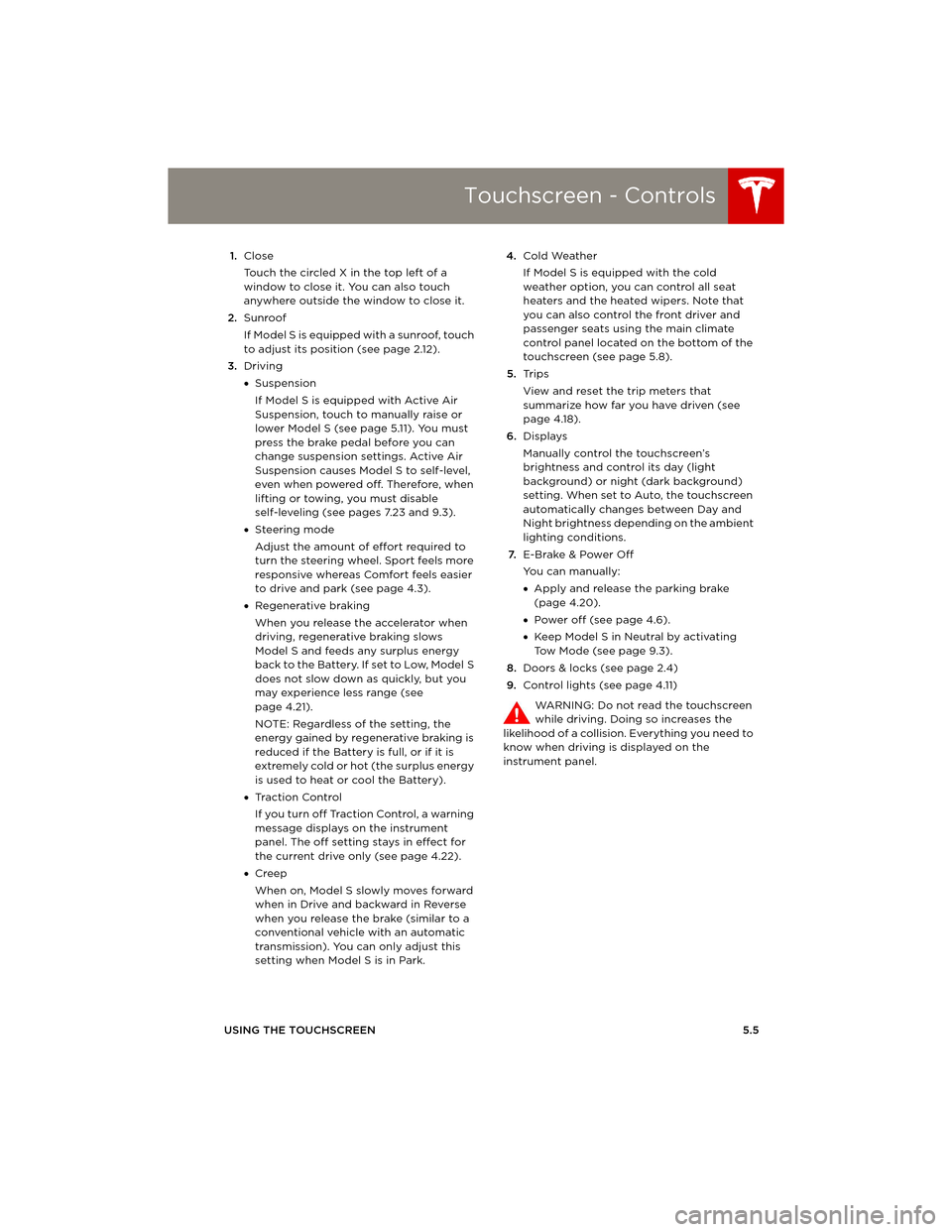
USING THE TOUCHSCREEN5.5 1.Close
Touch the circled X in the top left of a
window to close it. You can also touch
anywhere outside the window to close it.
2.Sunroof
If Model S is equipped with a sunroof, touch
to adjust its position (see page 2.12).
3.Driving
•Suspension
If Model S is equipped with Active Air
Suspension, touch to manually raise or
lower Model S (see page 5.11). You must
press the brake pedal before you can
change suspension settings. Active Air
Suspension causes Model S to self-level,
even when powered off. Therefore, when
lifting or towing, you must disable
self-leveling (see pages 7.23 and 9.3).
•Steering mode
Adjust the amount of effort required to
turn the steering wheel. Sport feels more
responsive whereas Comfort feels easier
to drive and park (see page 4.3).
•Regenerative braking
When you release the accelerator when
driving, regenerative braking slows
Model S and feeds any surplus energy
b a c k t o t h e B a t t e r y. I f s e t t o L o w, M o d e l S
does not slow down as quickly, but you
may experience less range (see
page 4.21).
NOTE: Regardless of the setting, the
energy gained by regenerative braking is
reduced if the Battery is full, or if it is
extremely cold or hot (the surplus energy
is used to heat or cool the Battery).
•Tr a c t i o n C o n t r o l
If you turn off Traction Control, a warning
message displays on the instrument
panel. The off setting stays in effect for
the current drive only (see page 4.22).
•Creep
When on, Model S slowly moves forward
when in Drive and backward in Reverse
when you release the brake (similar to a
conventional vehicle with an automatic
transmission). You can only adjust this
setting when Model S is in Park.4.Cold Weather
If Model S is equipped with the cold
weather option, you can control all seat
heaters and the heated wipers. Note that
you can also control the front driver and
passenger seats using the main climate
control panel located on the bottom of the
touchscreen (see page 5.8).
5.Tr i p s
View and reset the trip meters that
summarize how far you have driven (see
page 4.18).
6.Displays
Manually control the touchscreen’s
brightness and control its day (light
background) or night (dark background)
setting. When set to Auto, the touchscreen
automatically changes between Day and
Night brightness depending on the ambient
lighting conditions.
7.E-Brake & Power Off
You can manually:
•Apply and release the parking brake
(page 4.20).
•Power off (see page 4.6).
•Keep Model S in Neutral by activating
Tow Mode (see page 9.3).
8.Doors & locks (see page 2.4)
9.Control lights (see page 4.11)
WARNING: Do not read the touchscreen
while driving. Doing so increases the
likelihood of a collision. Everything you need to
know when driving is displayed on the
instrument panel.
book.book Page 5 Friday, July 19, 2013 12:53 PM