ECU TESLA MODEL S 2014 (North America) User Guide
[x] Cancel search | Manufacturer: TESLA, Model Year: 2014, Model line: MODEL S, Model: TESLA MODEL S 2014Pages: 159, PDF Size: 6.14 MB
Page 31 of 159
Seating a ChildThe Tesla built-in rear facing child seats arechild restraint systems and must only be used
for children over 37" (94 cm) tall and
weighing between 35 and 77 lbs (16.2 to 35.2
kg).
Always ensure the top of the child’s head
cannot contact the vehicle and that the child
is seated comfortably with the seat belts positioned and latched correctly. The child’spelvis must be held securely in place by thelap belt. Follow all instructions provided anddo not use supplemental child safety seats inthese seats.
Note: Whenever a child is seated in the Tesla
built-in rear facing child seats, it is
recommended that you set the climate control
system to draw outside air into Model S
instead of recirculating the air. This draws
more air into the rear seating areas.
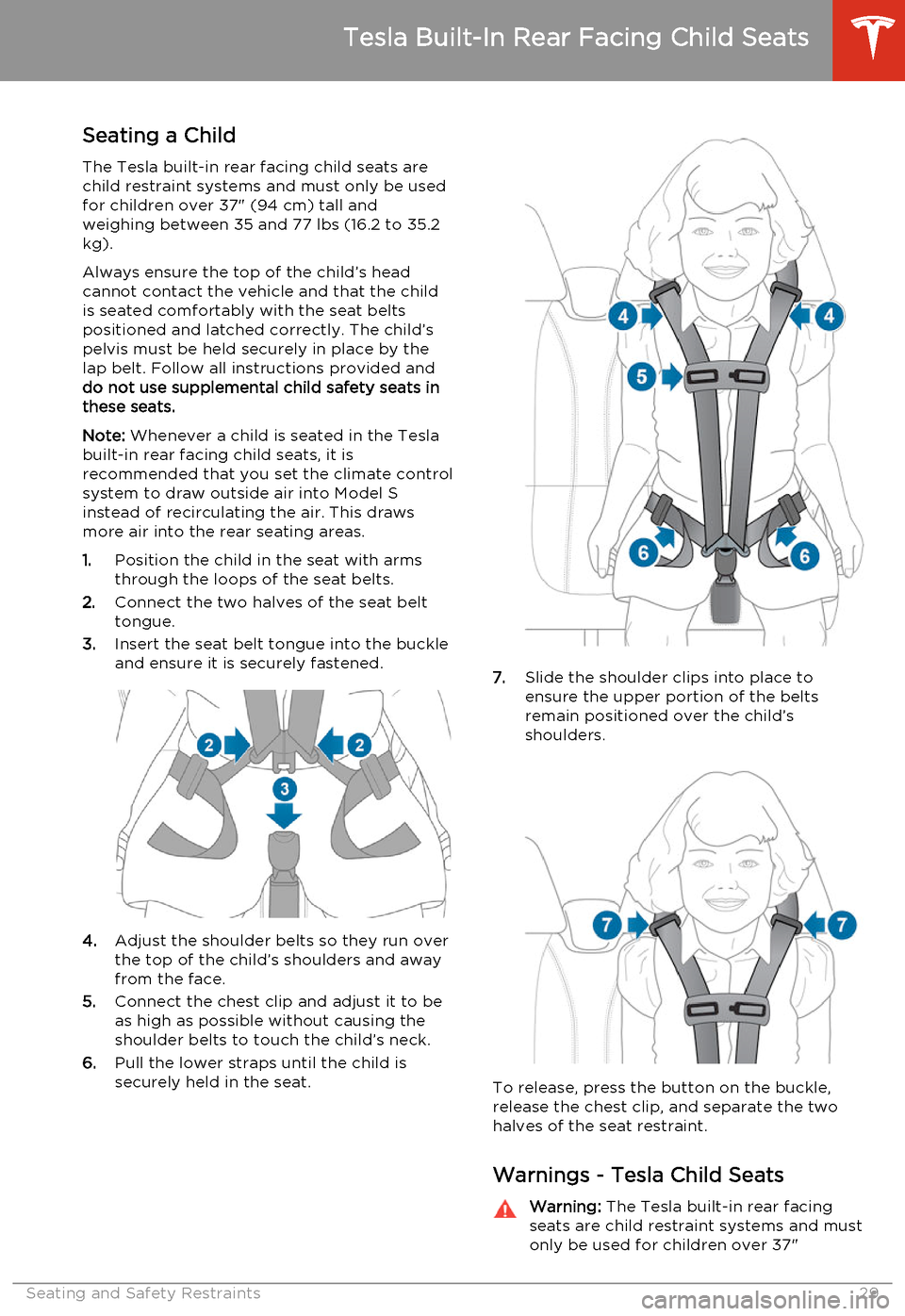
1. Position the child in the seat with arms
through the loops of the seat belts.
2. Connect the two halves of the seat belt
tongue.
3. Insert the seat belt tongue into the buckle
and ensure it is securely fastened.
4. Adjust the shoulder belts so they run over
the top of the child’s shoulders and away
from the face.
5. Connect the chest clip and adjust it to be
as high as possible without causing the
shoulder belts to touch the child’s neck.
6. Pull the lower straps until the child is
securely held in the seat.
7. Slide the shoulder clips into place to
ensure the upper portion of the belts
remain positioned over the child’s
shoulders.
To release, press the button on the buckle,
release the chest clip, and separate the two
halves of the seat restraint.
Warnings - Tesla Child Seats
Warning: The Tesla built-in rear facing
seats are child restraint systems and must
only be used for children over 37"
Tesla Built-In Rear Facing Child Seats
Seating and Safety Restraints29
Page 32 of 159
(94 cm) tall and weighing between 35and 77 lbs (16.2 to 35.2 kg).Warning: Do not use supplemental child
restraint systems, including booster seats,
in the Tesla built-in rear facing child seats.Warning: Always ensure that the top of
the child’s head cannot touch the vehicle and that the child is seated comfortablywith the seat belts correctly fastened.Warning: Follow all instructions and heed
all warnings related to the Tesla built-in
rear facing child seats. Failure to do so
can compromise occupant safety.Warning: Read all safety warnings and
labels attached to the seats.Warning: Do not leave children
unattended in Model S, even if the child is secured in a child safety seat or a Tesla
built-in rear facing child seat. In hot
weather, the interior temperature can reach dangerous levels that can result in
dehydration, serious injury or death.Warning: Do not remove or replace the
fabric on a Tesla built-in rear facing child
seat. The covers are an integral part of the restraint’s performance and shouldnot be removed or replaced with any
other type than those supplied by Tesla.Warning: If the Tesla built-in rear facing
child seats have been worn in an
accident, they must be inspected or
replaced by Tesla, even if damage is not
obvious.Warning: Before allowing a child to ride in
the Tesla built-in rear facing child seats, check that the seat is securely held in theupright position by trying to pull the seat
back toward you.Warning: Do not remove the built-in rear
facing child seats for any reason,
including cleaning. To ensure safety of
occupants, removal and installation must
be performed by qualified Tesla service
technicians.Warning: Do not make modifications or
additions that can interfere with the
operation of the Tesla built-in rear facing
child seats.Warning: To prevent injury, ensure all
loose items (bags, luggage, etc.) are
secured. In an accident, or during hard
braking and sharp turns, loose items
could cause injury.
Tesla Built-In Rear Facing Child Seats
30Model S Owner's Manual
Page 56 of 159
How Park Assist Works
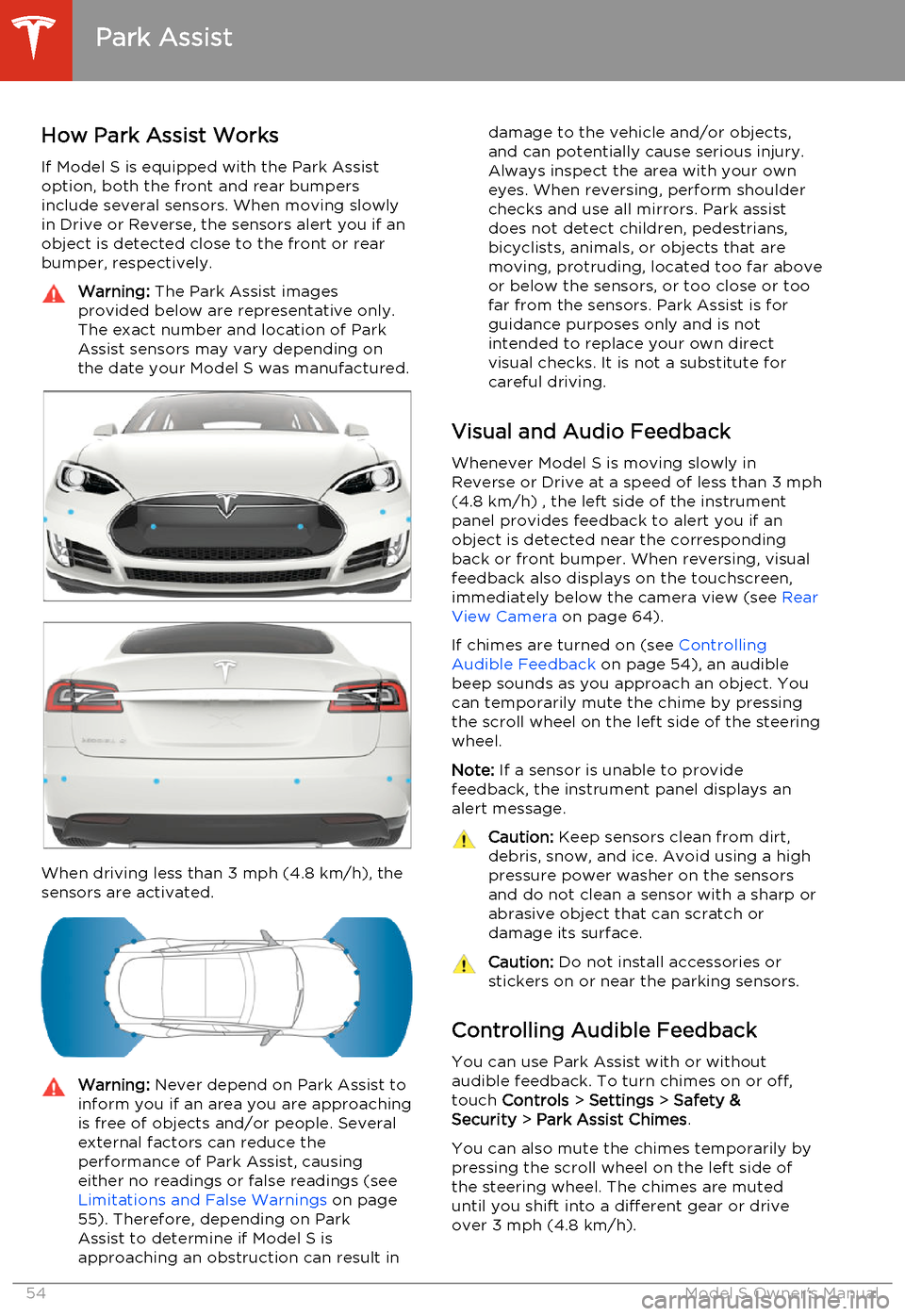
If Model S is equipped with the Park Assist option, both the front and rear bumpers
include several sensors. When moving slowly
in Drive or Reverse, the sensors alert you if an object is detected close to the front or rear
bumper, respectively.Warning: The Park Assist images
provided below are representative only.
The exact number and location of Park
Assist sensors may vary depending on
the date your Model S was manufactured.
When driving less than 3 mph (4.8 km/h), the
sensors are activated.
Warning: Never depend on Park Assist to
inform you if an area you are approaching is free of objects and/or people. Several
external factors can reduce the
performance of Park Assist, causing
either no readings or false readings (see Limitations and False Warnings on page
55). Therefore, depending on Park
Assist to determine if Model S is
approaching an obstruction can result indamage to the vehicle and/or objects,
and can potentially cause serious injury.
Always inspect the area with your own
eyes. When reversing, perform shoulder
checks and use all mirrors. Park assist
does not detect children, pedestrians,
bicyclists, animals, or objects that are moving, protruding, located too far above
or below the sensors, or too close or too far from the sensors. Park Assist is for
guidance purposes only and is not
intended to replace your own direct
visual checks. It is not a substitute for careful driving.
Visual and Audio Feedback
Whenever Model S is moving slowly inReverse or Drive at a speed of less than 3 mph
(4.8 km/h) , the left side of the instrument
panel provides feedback to alert you if an object is detected near the corresponding
back or front bumper. When reversing, visual feedback also displays on the touchscreen,
immediately below the camera view (see Rear
View Camera on page 64).
If chimes are turned on (see Controlling
Audible Feedback on page 54), an audible
beep sounds as you approach an object. You can temporarily mute the chime by pressing
the scroll wheel on the left side of the steering
wheel.
Note: If a sensor is unable to provide
feedback, the instrument panel displays an
alert message.
Caution: Keep sensors clean from dirt,
debris, snow, and ice. Avoid using a high
pressure power washer on the sensors
and do not clean a sensor with a sharp or abrasive object that can scratch ordamage its surface.Caution: Do not install accessories or
stickers on or near the parking sensors.
Controlling Audible Feedback
You can use Park Assist with or without
audible feedback. To turn chimes on or off,
touch Controls > Settings > Safety &
Security > Park Assist Chimes .
You can also mute the chimes temporarily by
pressing the scroll wheel on the left side of
the steering wheel. The chimes are muted
until you shift into a different gear or drive
over 3 mph (4.8 km/h).
Park Assist
54Model S Owner's Manual
Page 72 of 159
1.Adjust settings associated with installed
apps (applications). Apps that have no settings that you can adjust at this time
are grayed out.
2. Manage driver profiles (see Driver Profiles
on page 35).
3. Units & Format
Adjust how Model S displays:
• Distance: Miles or km can be shown on the range display, speedometer,
energy chart, trip meters, Google map searches and navigation routes.
• Time: 12 or 24 hour format.
• Temperature: o
F or o
C.
• Charging Units: Display charging units as either the percentage of battery
energy remaining, or distance
remaining.
• Range Display: Display estimated range as either:
• Rated - based on EPA testing. • Ideal - assumes ideal driving conditions based on driving at a
steady speed of 55 mph
(89 km/h) on a flat road, and using no additional energy (seat heaters, air conditioning, etc).
Note: When anticipating when you
need to charge, use range estimates as a general guideline only.
4. Vehicle
• Drive-away Door Lock: If on, all doors automatically lock whenever you
drive Model S over 5 mph (8 km/h)
(see Drive-away Locking on page 7).
• Walk-away Door Lock: If on, all doors automatically lock when you walk
away from Model S, carrying the key
with you (see Walk-away Locking on
page 7). Available only if Model S is
equipped with the optional tech
package.
• Child-Protection Lock: If on, safety locks prevent the rear doors and theliftgate from being opened from
inside Model S.• Auto-Present Handles: If on, door handles extend automatically
whenever you approach Model S carrying a key, whether locked orunlocked (see Using Exterior Door
Handles on page 6). Note that to
preserve battery life, Model is
designed to temporarily disable the
Auto-Present Handles feature when
the key has been out of range for
more than 48 hours, or if the key
remains within range for five minutes
after all doors have been closed.
• Headlights After Exit: If on, headlights stay on for two minutes after you exit,
or until you lock Model S (see
Headlights After Exit on page 48).
• Tire Pressure Monitor: Touch Reset
Sensors to reset the TPMS sensors
after replacing a wheel (see Resetting
the TPMS Sensors on page 103).
• Range Mode: If on, Model S conserves energy by limiting the power of theclimate control system. Cabin heatingand cooling may be less effective, butseat heaters turn on to compensate.
• Service Mode: If on, moves wiper blades to the service position to make
them easier to access when replacing
them. Model S must be in Park. See
Wiper Blades and Washer Jets on
page 112.
• Mirror Auto-Tilt: If on, exterior mirrors tilt downward when reversing (see Mirrors on page 39). Available only if
Model S is equipped with the optional tech package.
• Mirror Auto-Fold: If on, exterior mirrors fold when you lock Model S
with the key or walk-away locking. They extend automatically when you return to Model S. Available only ifModel S is equipped with both folding
mirrors (newer models) and the
optional tech package. For newer
Model S vehicles, you can also fold
mirrors manually by touching the
center mirror control button (see
Mirrors on page 39).
• Automatic Lowering: If Model S is equipped with Smart Air Suspension,you can set the speed at which the
suspension automatically transitions to a lower ride height (see Smart Air
Suspension on page 75).
5. Safety & Security
Turn various safety and security features
on and off:
Settings
70Model S Owner's Manual
Page 73 of 159
• Active safety devices Model S isequipped with, such as Park Assist
Chimes (see Park Assist on page 54).
• Alarm, and security options Model S is equipped with (see Security Settings
on page 86).
• Remote access by Tesla’s mobile applications (see Mobile App on page
91).
6. Displays
Manually control the touchscreen’s
brightness and control its day (light
background) or night (dark background)
setting. When set to Auto, the
touchscreen automatically changes
between Day and Night brightness
depending on the ambient lighting
conditions. You can also put Model S into
an energy saving mode so it consumes
less energy when not in use (see Getting
Maximum Range on page 57). Note that
the Displays settings can also be accessed
from the Controls window.
7. Driver Assistance
If your vehicle is equipped with Driver
Assistance features, you can control
features that can provide a safer driving
experience, such as Speed Assist (see
Speed Assist on page 51) and Lane
Departure Warning (see Lane Departure
Warning on page 53).
8. HomeLink
If the HomeLink feature is available in
your region, use it to control RF-enabled
garage doors, lights, or security systems
(see HomeLink ®
Universal Transceiver on
page 87).
9. Manual
Display this owners manual.Warning: Do not read the touchscreen
while driving. Doing so increases the
likelihood of a collision.
Naming Model S
To further personalize your Model S, you can
name it. The name you give your Model S will appear in the mobile app. To name yourModel S, touch the Tesla “T” at the top center
of the touchscreen, then touch Name Your
Vehicle .
Settings
Using the Touchscreen71
Page 74 of 159
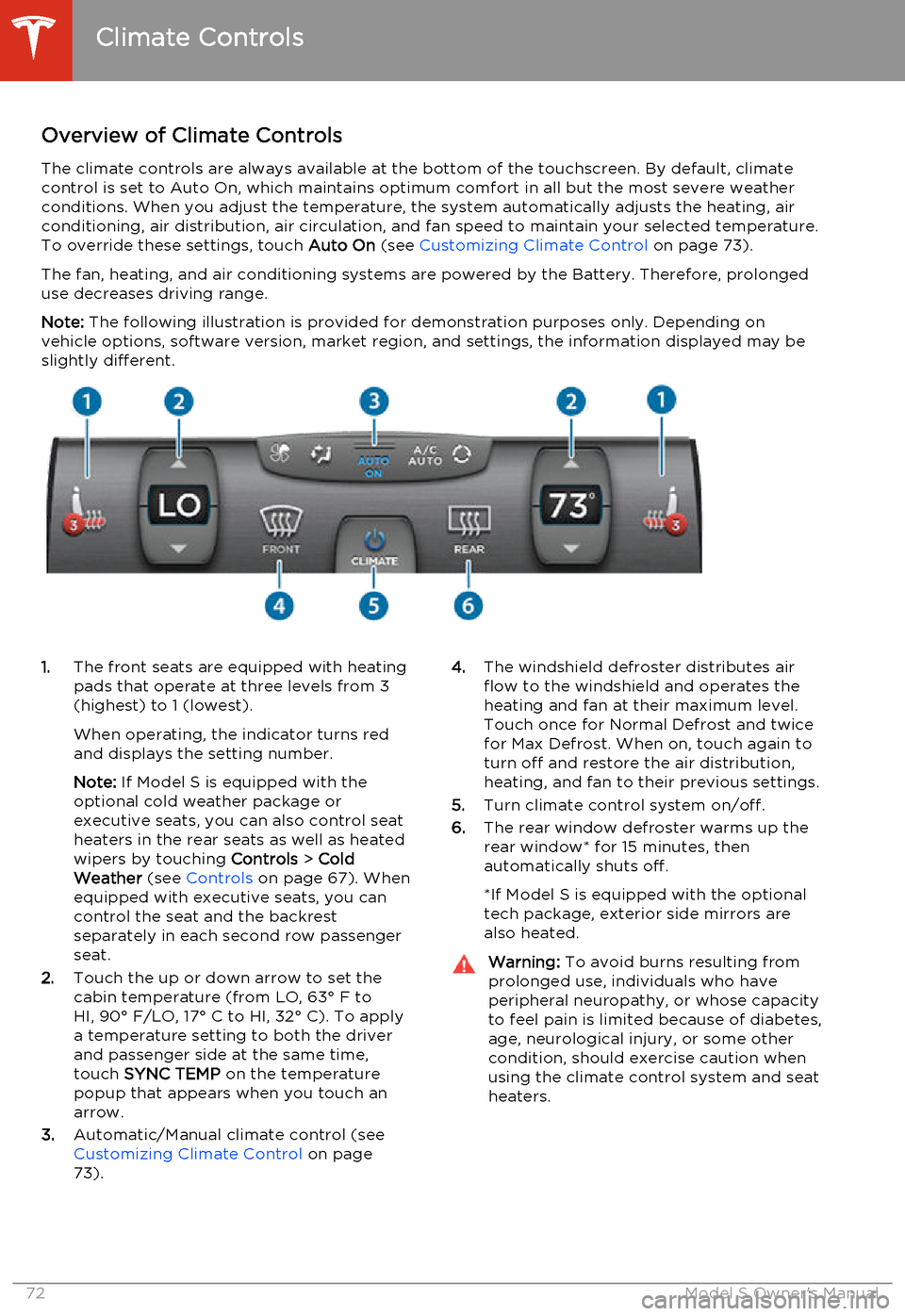
Overview of Climate ControlsThe climate controls are always available at the bottom of the touchscreen. By default, climate
control is set to Auto On, which maintains optimum comfort in all but the most severe weather conditions. When you adjust the temperature, the system automatically adjusts the heating, air
conditioning, air distribution, air circulation, and fan speed to maintain your selected temperature.
To override these settings, touch Auto On (see Customizing Climate Control on page 73).
The fan, heating, and air conditioning systems are powered by the Battery. Therefore, prolonged use decreases driving range.
Note: The following illustration is provided for demonstration purposes only. Depending on
vehicle options, software version, market region, and settings, the information displayed may be
slightly different.1. The front seats are equipped with heating
pads that operate at three levels from 3
(highest) to 1 (lowest).
When operating, the indicator turns red
and displays the setting number.
Note: If Model S is equipped with the
optional cold weather package or
executive seats, you can also control seat
heaters in the rear seats as well as heated wipers by touching Controls > Cold
Weather (see Controls on page 67). When
equipped with executive seats, you can
control the seat and the backrest
separately in each second row passenger
seat.
2. Touch the up or down arrow to set the
cabin temperature (from LO, 63° F to
HI, 90° F/LO, 17° C to HI, 32° C). To apply a temperature setting to both the driver
and passenger side at the same time,
touch SYNC TEMP on the temperature
popup that appears when you touch an
arrow.
3. Automatic/Manual climate control (see
Customizing Climate Control on page
73).4. The windshield defroster distributes air
flow to the windshield and operates the
heating and fan at their maximum level.
Touch once for Normal Defrost and twice
for Max Defrost. When on, touch again to
turn off and restore the air distribution,
heating, and fan to their previous settings.
5. Turn climate control system on/off.
6. The rear window defroster warms up the
rear window* for 15 minutes, then
automatically shuts off.
*If Model S is equipped with the optional
tech package, exterior side mirrors are
also heated.Warning: To avoid burns resulting from
prolonged use, individuals who have
peripheral neuropathy, or whose capacity to feel pain is limited because of diabetes,
age, neurological injury, or some other
condition, should exercise caution when using the climate control system and seat
heaters.
Climate Controls
72Model S Owner's Manual
Page 87 of 159
OverviewNote: Calendar is a BETA feature in Release
6.0.
The Calendar app allows you to view your
phone’s (iPhone or Android) calendar for the current and next day. The Calendar app
requires that:
• The Tesla Model S mobile app is running and you are logged in. When prompted on
your phone, you must grant calendar access to the mobile app. The mobile app
can then periodically (and automatically)
send calendar data from your phone to
Model S. Also, whenever you display themobile app on your phone, updated
calendar data is sent to Model S.
• Your phone is connected to Model S via Bluetooth.
• Remote access to Model S is enabled (touch Controls > Settings > Safety &
Security > Remote Access > On ).
• Both Model S and the phone have good connectivity.
Note: For privacy reasons, calendar data
displays only from the phone that Model S is connected to via Bluetooth.
You can customize when you want Model S to
display a reminder of the day's events by
touching Controls > Settings > Apps >
Calendar > Show Calendar Upon Entry .
Calendar and Navigation If Model S is equipped with the navigationfeature, and a calendar event has a locationspecified, you will be given the option to
navigate to that location. Also, when an event
on your Calendar takes place within the next
hour and has a uniquely specified location, the Model S navigation system notifies you if
there is a better route due to traffic, even if
you’re not using navigation.
Calendar
Using the Touchscreen85
Page 88 of 159

About the Security System
If Model S does not detect a key nearby and a locked door or trunk is opened, an alarmsounds and headlights and turn signals flash.
To deactivate the alarm, press any button on
the key.
To manually enable or disable the alarm
system, touch Controls > Settings > Safety &
Security > Alarm . When set to on, Model S
activates its alarm one minute after the doors
lock and a recognized key is no longer
detected nearby.
Security Settings
86Model S Owner's Manual
Page 89 of 159
About HomeLinkIf Model S is equipped with the optional tech
package, you can program the HomeLink ®
Universal Transceiver to operate up to three
garage doors, gates, lights, and security
systems that can transmit Radio Frequency
(RF) signals.
Programming HomeLink
1. Park Model S in front of the device you
want to program, and have the device’s
remote control ready.
2. Touch Controls > Settings > HomeLink on
the touchscreen.
3. Touch Add New HomeLink , then use the
onscreen keyboard to enter a name for
your HomeLink device.
4. Touch Program .
5. Follow the onscreen instructions.
Once programmed, you can operate the device by touching its corresponding
HomeLink icon on the touchscreen’s status bar. HomeLink remembers the location of
your programmed devices. When you approach a known location, the HomeLink
control on the touchscreen automatically
drops down. When you drive away, it
disappears.
Note: For security reasons, erase your
HomeLink settings if you sell Model S.Warning: Your device might open or
close during programming. Before
programming, make sure that the device is clear of any people or objects.Warning: Do not use the HomeLink
Universal Transceiver with a garage door that does not meet safety standards. Agarage door opener that cannot detectan object in its path and then
automatically stop and reverse, does not
meet these standards. Using a garage
door opener without these features
increases the risk of injury or death.
Troubleshooting HomeLink
When programming a HomeLink device, the touchscreen steps you through a two-part
programming process:
• First, Model S records the signal from the remote. The touchscreen instructs you to
stand in front of the car, point the remote
at the front bumper and press and hold
the button until the headlights flash.
When headlights flash, Model S has
learned the remote and you can touch
Continue on the touchscreen . If the
headlights do not flash, refer to the
guidelines below.
• Next, the device's receiver learns Model S. The touchscreen instructs you to press
the LEARN button on the garage door or
gate's receiver. If training the receiver
does not work, refer to the guidelines
below.
NOTE: Only devices that are equipped
with a “rolling code” remote need to learn
Model S. If you have a very old device that
is not equipped with a rolling code
remote, the device does not need to learn
Model S and you can skip this part. You
can also skip this step if your receiver is
Quick-Train compatible. The opener
should work.
Headlights do not flash
• Check the batteries in the remote. It is a good idea to replace the batteries before
you start programming.
• Hold the remote against the nose cone, with the button pressed, about 6 inches to
the left of the Tesla emblem. In some
cases you must hold the remote for up to
three minutes.
• Check compatibility of the remote by contacting the HomeLink manufacturer
( www.homelink.com ).
After programming, the device does not work
• Park Model S with its front bumper as close as possible to the HomeLink device
(garage door, gate, etc).
• Make sure you haven’t reached the device receiver's limit of learned remotes/cars.
Most receivers can learn up to five
remotes/cars. If the receiver's memory is
full, you must clear the memory and
restart the programming process. For
instructions on how to clear the receiver's
memory, refer to the owner
documentation provided with the
HomeLink device.
• Make sure you are pressing the receiver's LEARN button. Most receivers have twobuttons and a LED. One button is a RESET
button and the other is a LEARN button.
Pressing the LEARN button usually causes the LED to flash. For instructions on how
to put the receiver into learning mode, refer to the owner documentation
provided with the HomeLink device.
HomeLink ®
Universal Transceiver
Using the Touchscreen87
Page 93 of 159
Model S Mobile AppThe Tesla Model S mobile app allows you tocommunicate with Model S remotely using
your iPhone ®
or Android ™
phone. With this app,
you can:
• Check charging progress and receive notifications when charging has started,
has been interrupted, or is complete.
• Heat or cool Model S before driving (even if it's in a garage).
• Locate Model S with directions, or track its movement across a map.
• Flash lights or honk the horn to find Model S when parked.
• Vent or close the sunroof.
• Lock or unlock Model S from afar. • Start Model S.
• Support the Model S Calendar app by allowing the mobile app to send your
phone's calendar data to Model S.
• Receive notifications when the car alarm has been triggered, or a new Model S
software update is available.
Simply download the Tesla Model S mobile
app to your phone and enter your MY TESLA
login credentials. You must also ensure that Model S is ready to communicate with the
mobile app by turning on its remote access
setting. Touch Controls > Settings > Safety &
Security > Remote Access > On (see Settings
on page 69).
Mobile App
Using the Touchscreen91