wheel TESLA MODEL S 2015 User Guide
[x] Cancel search | Manufacturer: TESLA, Model Year: 2015, Model line: MODEL S, Model: TESLA MODEL S 2015Pages: 164, PDF Size: 4.78 MB
Page 50 of 164
Headlights After ExitWhen you stop driving and park Model S in
low lighting conditions, the exterior lights
automatically turn on. They automatically turn
off after two minutes or when you lock Model S.
You can turn this feature on and off using the
touchscreen. Touch Controls > Settings >
Vehicle > Headlights After Exit .
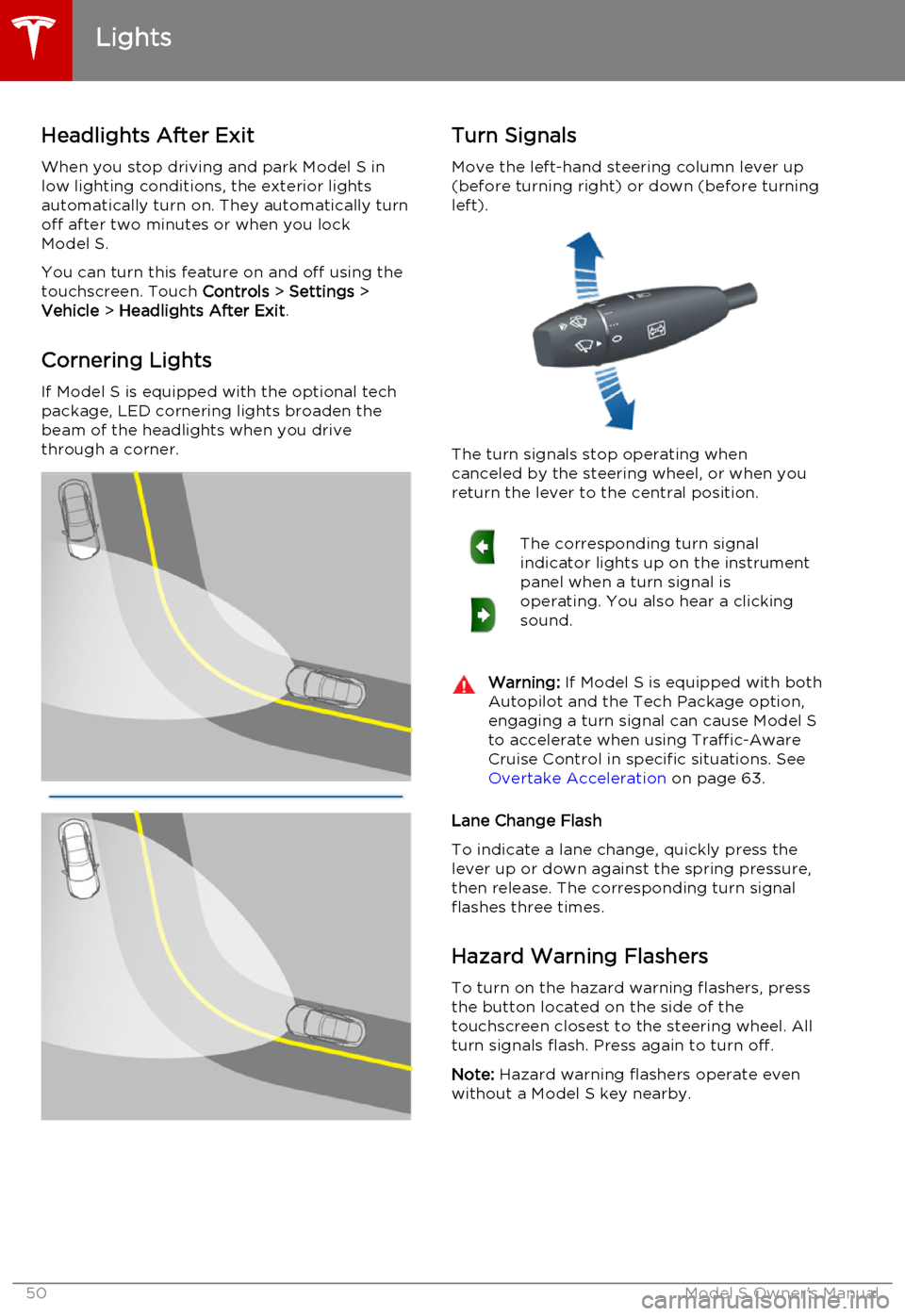
Cornering Lights
If Model S is equipped with the optional tech package, LED cornering lights broaden the
beam of the headlights when you drive
through a corner.Turn Signals
Move the left-hand steering column lever up(before turning right) or down (before turning
left).
The turn signals stop operating when
canceled by the steering wheel, or when you return the lever to the central position.
The corresponding turn signal
indicator lights up on the instrument
panel when a turn signal is
operating. You also hear a clicking
sound.Warning: If Model S is equipped with both
Autopilot and the Tech Package option, engaging a turn signal can cause Model S
to accelerate when using Traffic-Aware
Cruise Control in specific situations. See Overtake Acceleration on page 63.
Lane Change Flash
To indicate a lane change, quickly press the
lever up or down against the spring pressure, then release. The corresponding turn signalflashes three times.
Hazard Warning Flashers
To turn on the hazard warning flashers, press
the button located on the side of the
touchscreen closest to the steering wheel. All turn signals flash. Press again to turn off.
Note: Hazard warning flashers operate even
without a Model S key nearby.
Lights
50Model S Owner's Manual
Page 52 of 164
Braking SystemsModel S has an anti-lock braking system
(ABS) that prevents the wheels from locking
when you apply maximum brake pressure. This improves steering control during heavy
braking in most road conditions.
During emergency braking conditions, the
ABS constantly monitors the speed of each
wheel and varies the brake pressure according
to the grip available.
The alteration of brake pressure can be felt as
a pulsing sensation through the brake pedal.
This demonstrates that the ABS is operating
and is not a cause for concern. Keep firm and
steady pressure on the brake pedal while
experiencing the pulsing.The ABS indicator flashes briefly on
the instrument panel when you first
start Model S. If this indicator lights
up at any other time, an ABS fault
has occurred and the ABS is not
operating. Contact Tesla. The
braking system remains fully
operational and is not affected by an
ABS failure. However, braking
distances may increase.If the instrument panel displays this
indicator at any time other than
displaying briefly when you first start
Model S, a brake system fault is
detected or the brake fluid level is
low. Contact Tesla immediately.Emergency Braking
In an emergency, fully press the brake pedal
and maintain firm pressure, even on low
traction surfaces. The ABS varies the braking pressure to each wheel according to the
amount of traction available. This prevents wheels from locking and ensures that you
stop as safely as possible.Warning: Do not pump the brake pedal.
Doing so interrupts operation of the ABS
and can increase braking distance.Warning: Always maintain a safe distance
from the vehicle in front of you and be aware of hazardous driving conditions.
While the ABS can improve stopping
distance, it cannot overcome the laws of physics. It also does not prevent the
danger of hydroplaning (where a layer of
water prevents direct contact between
the tires and the road).
Brake Wear
Model S brake pads are equipped with wearindicators. A wear indicator is a thin metalstrip attached to the brake pad that squeals as
it rubs against the rotor when the pad wears
down. This squealing sound indicates that the
brake pads have reached the end of their
service life and require replacement. To stop
the squealing, contact Tesla Service.
Warning: Neglecting to replace worn
brake pads results in damage to the
braking system and can create a braking
hazard.
Brakes
52Model S Owner's Manual
Page 53 of 164
Regenerative Braking
Whenever Model S is moving and your foot is off the accelerator, regenerative braking slows
down Model S and feeds any surplus energy
back to the Battery.
By anticipating your stops and simply removing your foot from the accelerator to
slow down, you can take advantage of
regenerative braking to increase driving range. Of course, this is no substitute for
regular braking when needed for safety.
Note: If regenerative braking is aggressively
slowing Model S, such as on a steep descent,
brake lights turn on to alert other road users
that you are slowing down.
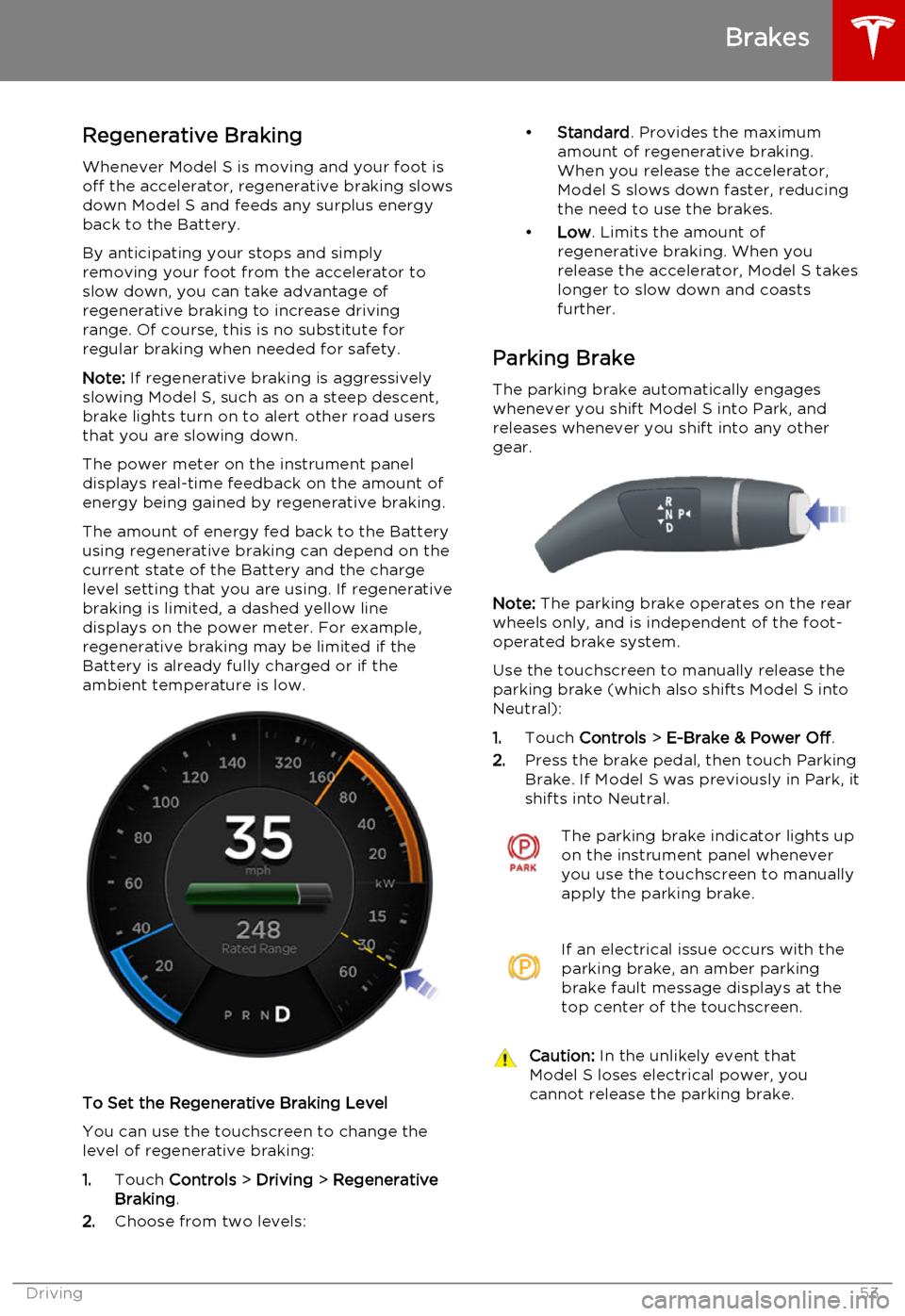
The power meter on the instrument panel displays real-time feedback on the amount of
energy being gained by regenerative braking.
The amount of energy fed back to the Battery
using regenerative braking can depend on the current state of the Battery and the charge
level setting that you are using. If regenerative braking is limited, a dashed yellow line
displays on the power meter. For example,
regenerative braking may be limited if the
Battery is already fully charged or if the
ambient temperature is low.
To Set the Regenerative Braking Level
You can use the touchscreen to change thelevel of regenerative braking:
1. Touch Controls > Driving > Regenerative
Braking .
2. Choose from two levels:
•
Standard . Provides the maximum
amount of regenerative braking. When you release the accelerator,
Model S slows down faster, reducing
the need to use the brakes.
• Low . Limits the amount of
regenerative braking. When you
release the accelerator, Model S takes longer to slow down and coastsfurther.
Parking Brake The parking brake automatically engages
whenever you shift Model S into Park, and
releases whenever you shift into any other
gear.
Note: The parking brake operates on the rear
wheels only, and is independent of the foot-
operated brake system.
Use the touchscreen to manually release the parking brake (which also shifts Model S intoNeutral):
1. Touch Controls > E-Brake & Power Off .
2. Press the brake pedal, then touch Parking
Brake. If Model S was previously in Park, it
shifts into Neutral.
The parking brake indicator lights up on the instrument panel whenever
you use the touchscreen to manually
apply the parking brake.If an electrical issue occurs with the
parking brake, an amber parking
brake fault message displays at the
top center of the touchscreen.Caution: In the unlikely event that
Model S loses electrical power, you
cannot release the parking brake.
Brakes
Driving53
Page 54 of 164
How It WorksThe traction control system constantly
monitors the difference in speed between the
front and rear wheels. If Model S experiences a
loss of traction, the system minimizes wheel
spin by controlling brake pressure and motor
power. By default, the traction control system
is always active. Under normal conditions, it should remain active to ensure maximum
safety.
On standard Model S vehicles, traction control can be turned off at any time. Turn it off only
in circumstances where you deliberately want
the wheels to spin, such as when Model S is
stuck in snow or mud.
On a dual motor Model S, you can enable slip
start to allow the wheels to spin at a limited speed. Slip start can be enabled only whenModel S is moving 20 mph (32 km/h) or
slower. Slip start automatically disables when the speed exceeds 40 mph (64 km/h).This indicator displays on the
instrument panel whenever the
traction control system is actively
controlling brake pressure and
motor power to minimize wheel spin.Warning: Traction control can not
prevent accidents caused by driving dangerously or turning too sharply at
high speeds.
Allowing Wheel Slip
Under normal conditions, the traction control
system should remain enabled. Disable it only in circumstances where you deliberately want
the wheels to spin, such as:
• Starting on a loose surface, such as gravel or snow.
• Driving in deep snow, sand or mud.
• Rocking out of a hole or deep rut.
To allow the wheels to spin on a standard single motor Model S, touch Controls >
Driving > Traction Control > Off .
To allow the wheels to spin on a dual motor
Model S, touch Controls > Driving > Traction
Control > Slip Start .
This indicator displays at the top
center of the touchscreen whenever
the wheels are allowed to spin (i.e.
when the traction control system on
a standard single-motor Model S is
turned off, or when Slip start on a
dual-motor Model S is enabled.
Although the traction control system automatically reactivates the next time you
start Model S, it is strongly recommended that you enable it immediately after thecircumstances that required you to disable it
have passed.
Traction Control
54Model S Owner's Manual
Page 57 of 164
How Lane Departure Warning
Works
If Model S is equipped with Autopilot, a
camera mounted on the windshield behind the interior rear view mirror monitors the markers
on the lane you are driving in. If a front wheel passes over a lane marking and the associated
turn signal is off, you feel three slight
vibrations in the steering wheel.
Lane Departure Warning operates only when
Model S is traveling over approximately
30 mph (50 km/h).Warning: Lane Departure Warning is for
guidance purposes only. Never depend
on Lane Departure Warning to inform you of unintentionally driving outside of theboundaries of the driving lane. Several
external factors can reduce the
performance of Lane Departure Warning,
causing either no readings or false
readings. Therefore, depending on this
system to stay within the boundaries of the driving lane can result in serious injuryor death. Always keep your eyes on the
road when driving. It is the driver's
responsibility to stay alert, drive safely,
ensure the vehicle stays in the traveling lane, and be in control of the vehicle at all
times.Warning: Lane Departure Warning is
designed to activate when it detects lane markings. It is not designed to detect the
edge of a road. It is the driver's
responsibility to drive attentively and stay
within the boundaries of the driving lane.Caution: If your Model S is equipped with
Lane Departure Warning, you must take
your vehicle to Tesla Service if a
windshield replacement is needed. Failure
to do so can cause Lane Departure
Warning to malfunction.Controlling Lane Departure
Warning
To turn Lane Departure Warning on or off,
touch Controls > Settings > Driver
Assistance > Lane Assist .
Limitations and Inaccuracies Lane Departure Warning can not always
clearly detect lane markings and you may
experience unnecessary or invalid warnings in
these situations:
• Visibility is poor and lane markings are not clearly visible (due to heavy rain, snow,fog, etc.).
• Bright light (oncoming headlights or direct sunlight) is interfering with thecamera's view.
• Model S is being driven very close to a vehicle in front of it which is blocking the
camera's view.
• The windshield area in the camera's field of view is obstructed (fogged over, dirty,
covered by a sticker, etc.).
• Lane markings are excessively worn or have been adjusted due to roadconstruction.
• Lane markings are changing quickly (for example, lanes branching off, crossing
over, or merging).
• The road is narrow or winding.
• Objects or landscape features are casting strong shadows on lane markers.
Lane Departure Warning
Driving57
Page 64 of 164
Canceling and Resuming
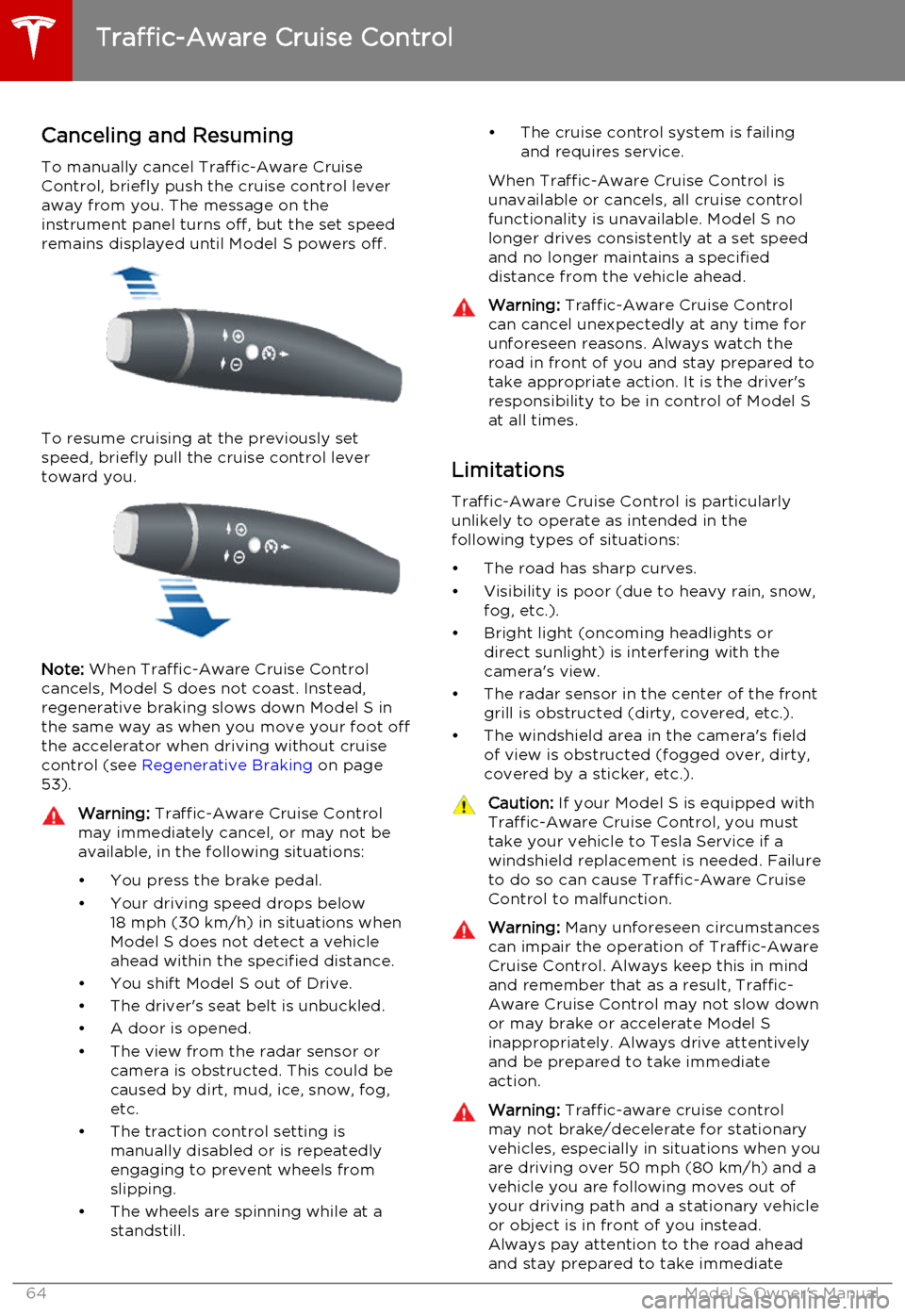
To manually cancel Traffic-Aware Cruise
Control, briefly push the cruise control lever
away from you. The message on the
instrument panel turns off, but the set speed remains displayed until Model S powers off.
To resume cruising at the previously set
speed, briefly pull the cruise control lever
toward you.
Note: When Traffic-Aware Cruise Control
cancels, Model S does not coast. Instead,
regenerative braking slows down Model S in
the same way as when you move your foot off
the accelerator when driving without cruise
control (see Regenerative Braking on page
53).
Warning: Traffic-Aware Cruise Control
may immediately cancel, or may not be available, in the following situations:
• You press the brake pedal.
• Your driving speed drops below 18 mph (30 km/h) in situations when
Model S does not detect a vehicle
ahead within the specified distance.
• You shift Model S out of Drive.
• The driver's seat belt is unbuckled.
• A door is opened.
• The view from the radar sensor or camera is obstructed. This could be
caused by dirt, mud, ice, snow, fog,
etc.
• The traction control setting is manually disabled or is repeatedly
engaging to prevent wheels from
slipping.
• The wheels are spinning while at a standstill.• The cruise control system is failing
and requires service.
When Traffic-Aware Cruise Control is unavailable or cancels, all cruise control
functionality is unavailable. Model S no longer drives consistently at a set speed
and no longer maintains a specified
distance from the vehicle ahead.Warning: Traffic-Aware Cruise Control
can cancel unexpectedly at any time for
unforeseen reasons. Always watch the
road in front of you and stay prepared to
take appropriate action. It is the driver's responsibility to be in control of Model S
at all times.
Limitations
Traffic-Aware Cruise Control is particularly
unlikely to operate as intended in the
following types of situations:
• The road has sharp curves.
• Visibility is poor (due to heavy rain, snow, fog, etc.).
• Bright light (oncoming headlights or direct sunlight) is interfering with the
camera's view.
• The radar sensor in the center of the front grill is obstructed (dirty, covered, etc.).
• The windshield area in the camera's field of view is obstructed (fogged over, dirty,
covered by a sticker, etc.).
Caution: If your Model S is equipped with
Traffic-Aware Cruise Control, you must take your vehicle to Tesla Service if a
windshield replacement is needed. Failure
to do so can cause Traffic-Aware Cruise
Control to malfunction.Warning: Many unforeseen circumstances
can impair the operation of Traffic-Aware Cruise Control. Always keep this in mind
and remember that as a result, Traffic-
Aware Cruise Control may not slow down or may brake or accelerate Model S
inappropriately. Always drive attentively and be prepared to take immediate
action.Warning: Traffic-aware cruise control
may not brake/decelerate for stationary vehicles, especially in situations when youare driving over 50 mph (80 km/h) and a
vehicle you are following moves out of your driving path and a stationary vehicleor object is in front of you instead.
Always pay attention to the road ahead
and stay prepared to take immediate
Traffic-Aware Cruise Control
64Model S Owner's Manual
Page 66 of 164
How Park Assist Works
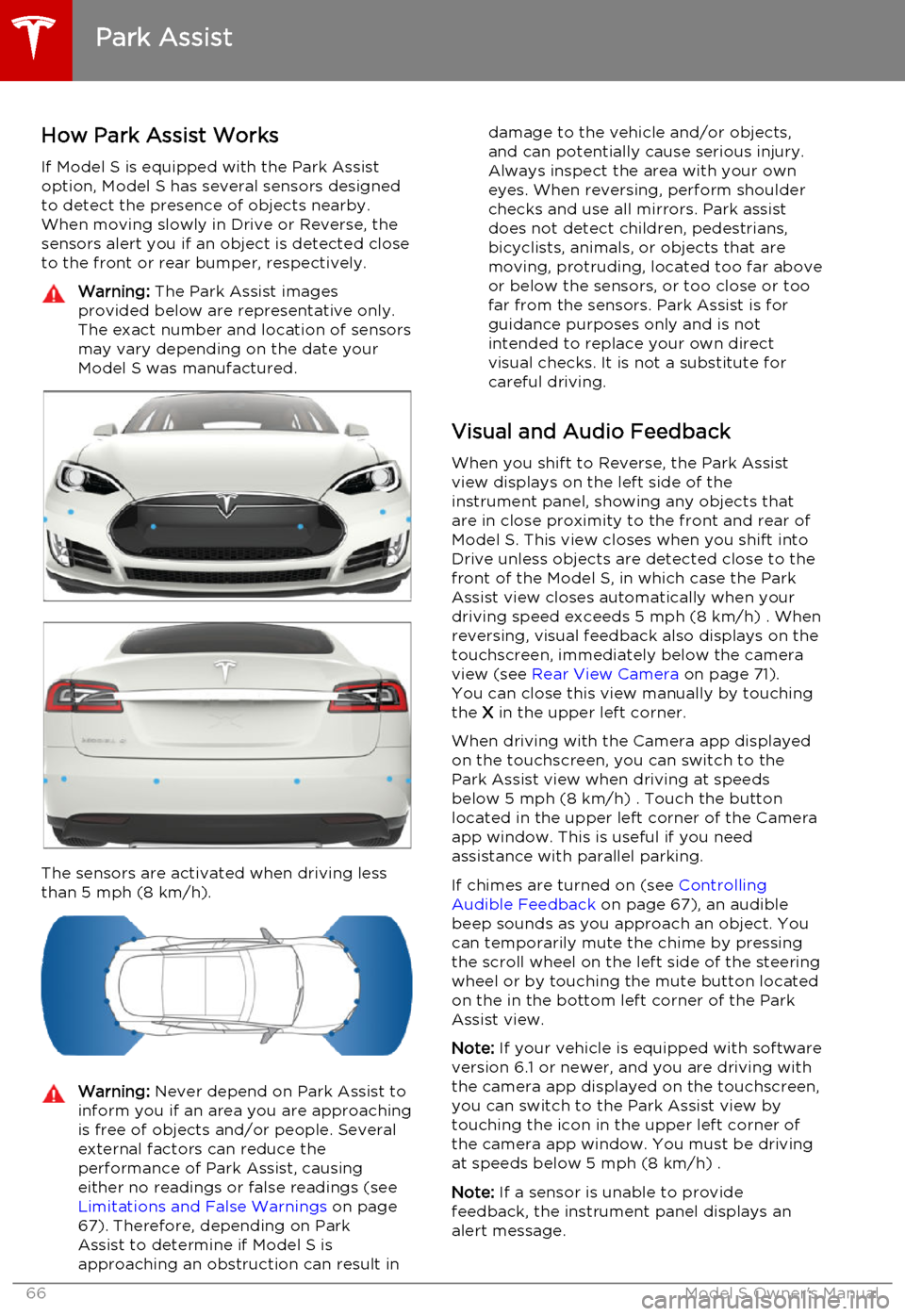
If Model S is equipped with the Park Assist option, Model S has several sensors designedto detect the presence of objects nearby.When moving slowly in Drive or Reverse, the
sensors alert you if an object is detected close to the front or rear bumper, respectively.Warning: The Park Assist images
provided below are representative only.
The exact number and location of sensors
may vary depending on the date your
Model S was manufactured.
The sensors are activated when driving less
than 5 mph (8 km/h).
Warning: Never depend on Park Assist to
inform you if an area you are approaching is free of objects and/or people. Several
external factors can reduce the
performance of Park Assist, causing
either no readings or false readings (see Limitations and False Warnings on page
67). Therefore, depending on Park Assist to determine if Model S is
approaching an obstruction can result indamage to the vehicle and/or objects,
and can potentially cause serious injury.
Always inspect the area with your own
eyes. When reversing, perform shoulder
checks and use all mirrors. Park assist
does not detect children, pedestrians,
bicyclists, animals, or objects that are moving, protruding, located too far above
or below the sensors, or too close or too far from the sensors. Park Assist is for
guidance purposes only and is not
intended to replace your own direct
visual checks. It is not a substitute for careful driving.
Visual and Audio Feedback
When you shift to Reverse, the Park Assistview displays on the left side of the
instrument panel, showing any objects that
are in close proximity to the front and rear of
Model S. This view closes when you shift into
Drive unless objects are detected close to the front of the Model S, in which case the Park
Assist view closes automatically when your
driving speed exceeds 5 mph (8 km/h) . When reversing, visual feedback also displays on the
touchscreen, immediately below the camera
view (see Rear View Camera on page 71).
You can close this view manually by touching
the X in the upper left corner.
When driving with the Camera app displayed
on the touchscreen, you can switch to the Park Assist view when driving at speeds
below 5 mph (8 km/h) . Touch the button
located in the upper left corner of the Camera
app window. This is useful if you need
assistance with parallel parking.
If chimes are turned on (see Controlling
Audible Feedback on page 67), an audible
beep sounds as you approach an object. You
can temporarily mute the chime by pressing
the scroll wheel on the left side of the steering
wheel or by touching the mute button located
on the in the bottom left corner of the Park Assist view.
Note: If your vehicle is equipped with software
version 6.1 or newer, and you are driving with the camera app displayed on the touchscreen,
you can switch to the Park Assist view by
touching the icon in the upper left corner of the camera app window. You must be driving
at speeds below 5 mph (8 km/h) .
Note: If a sensor is unable to provide
feedback, the instrument panel displays an
alert message.
Park Assist
66Model S Owner's Manual
Page 67 of 164
Caution: Keep sensors clean from dirt,
debris, snow, and ice. Avoid using a high
pressure power washer on the sensors
and do not clean a sensor with a sharp or abrasive object that can scratch ordamage its surface.Caution: Do not install accessories or
stickers on or near the parking sensors.
Controlling Audible Feedback
You can use Park Assist with or without
audible feedback. To turn chimes on or off,
touch Controls > Settings > Safety &
Security > Park Assist Chimes .
You can also mute the chimes temporarily by
pressing the scroll wheel on the left side of
the steering wheel or by touching the mute
button in the bottom left corner of the Park
Assist view. The chimes are muted until you
shift into a different gear or drive over 5 mph
(8 km/h).
Limitations and False Warnings
The parking sensors may not function
correctly in these situations:
• One or more of the parking sensors is damaged, dirty, or covered (such as mud,
ice, or snow).
• Object is located below approximately 8 inches (20 cm) (such as a curb or lowbarrier).
• Weather conditions (heavy rain, snow, or fog) are interfering with sensor operation.
• Object is thin (such as a sign post).
• A sensor’s operating range has been exceeded.
• Object is sound-absorbing or soft (such as powder snow).
• Object is sloped (such as a sloped embankment).
• Model S has been parked in, or being driven in, extremely hot or cold
temperatures.
• The sensors are affected by other electrical equipment or devices that
generate ultrasonic waves.
• Object is located too close to the bumper. • A bumper is misaligned or damaged.
• An object that is mounted to Model S is interfering with and/or obstructing the
sensor (such as a bike rack or a bumper
sticker).
Other Parking Aids
In addition to Park Assist, when shifted into
Reverse gear, the backup camera displays a
view of the area behind Model S. See Rear
View Camera on page 71.
Park Assist
Driving67
Page 69 of 164

Displaying Trip Information
Trip information displays on the touchscreen
when you touch Controls > Trips . There are
two trip meters available, A and B. To reset a particular trip meter, touch its associated
RESET .
Note: You can also display range and trip
information on the instrument panel (see
Using Left Steering Wheel Buttons on page
37).
Trip Information
Driving69
Page 73 of 164
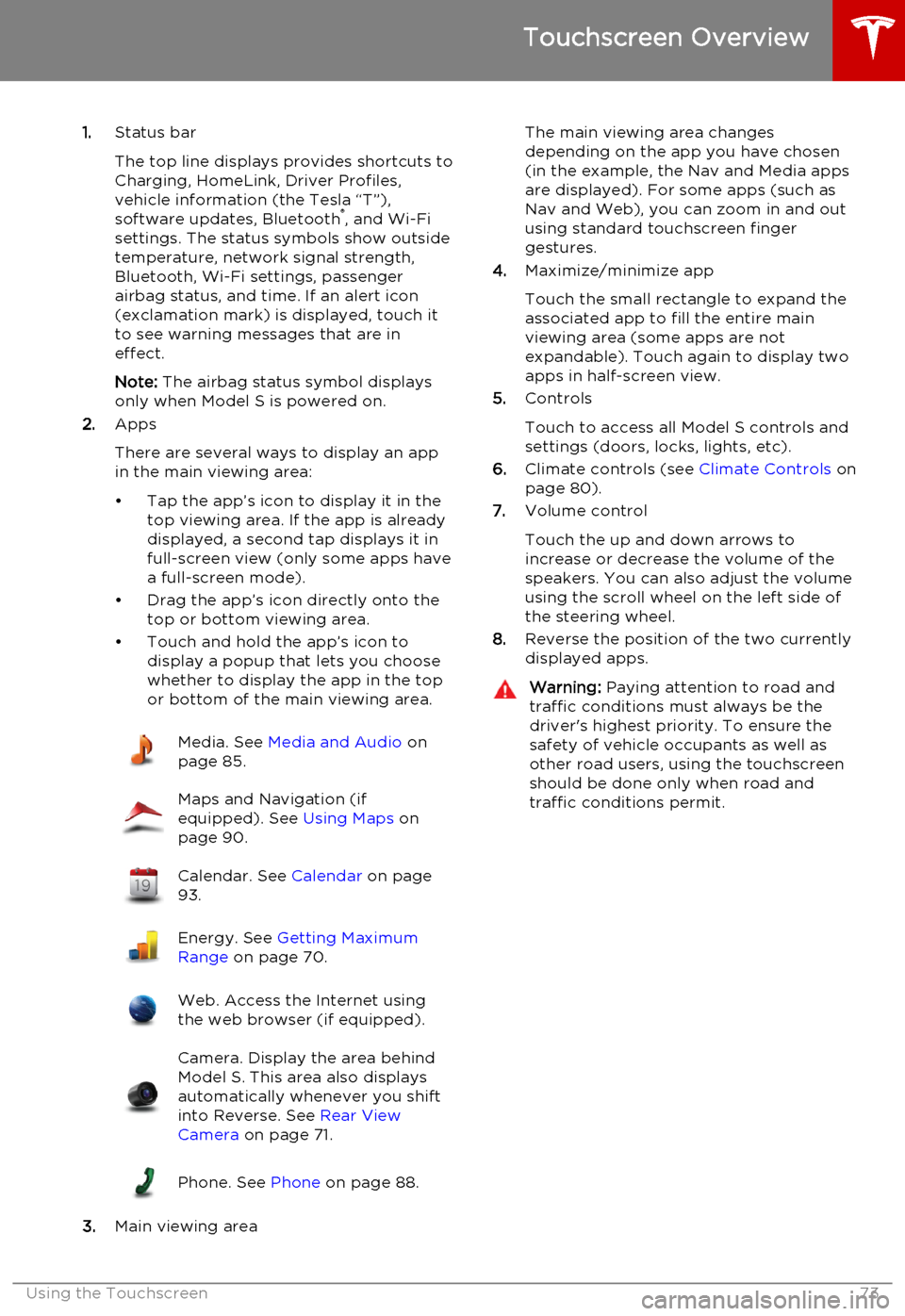
1.Status bar
The top line displays provides shortcuts to
Charging, HomeLink, Driver Profiles,
vehicle information (the Tesla “T”),
software updates, Bluetooth ®
, and Wi-Fi
settings. The status symbols show outside
temperature, network signal strength,
Bluetooth, Wi-Fi settings, passenger
airbag status, and time. If an alert icon
(exclamation mark) is displayed, touch it
to see warning messages that are in
effect.
Note: The airbag status symbol displays
only when Model S is powered on.
2. Apps
There are several ways to display an app
in the main viewing area:
• Tap the app’s icon to display it in the top viewing area. If the app is alreadydisplayed, a second tap displays it infull-screen view (only some apps have a full-screen mode).
• Drag the app’s icon directly onto the top or bottom viewing area.
• Touch and hold the app’s icon to display a popup that lets you choose
whether to display the app in the top or bottom of the main viewing area.Media. See Media and Audio on
page 85.Maps and Navigation (if
equipped). See Using Maps on
page 90.Calendar. See Calendar on page
93.Energy. See Getting Maximum
Range on page 70.Web. Access the Internet using
the web browser (if equipped).Camera. Display the area behind
Model S. This area also displays
automatically whenever you shift
into Reverse. See Rear View
Camera on page 71.Phone. See Phone on page 88.
3.Main viewing area
The main viewing area changes
depending on the app you have chosen
(in the example, the Nav and Media apps
are displayed). For some apps (such as
Nav and Web), you can zoom in and out
using standard touchscreen finger
gestures.
4. Maximize/minimize app
Touch the small rectangle to expand the
associated app to fill the entire main
viewing area (some apps are not
expandable). Touch again to display two
apps in half-screen view.
5. Controls
Touch to access all Model S controls and settings (doors, locks, lights, etc).
6. Climate controls (see Climate Controls on
page 80).
7. Volume control
Touch the up and down arrows to increase or decrease the volume of the
speakers. You can also adjust the volume
using the scroll wheel on the left side of
the steering wheel.
8. Reverse the position of the two currently
displayed apps.Warning: Paying attention to road and
traffic conditions must always be the
driver's highest priority. To ensure the
safety of vehicle occupants as well as other road users, using the touchscreenshould be done only when road andtraffic conditions permit.
Touchscreen Overview
Using the Touchscreen73