wheel TESLA MODEL S 2015 Owner's Guide
[x] Cancel search | Manufacturer: TESLA, Model Year: 2015, Model line: MODEL S, Model: TESLA MODEL S 2015Pages: 164, PDF Size: 4.78 MB
Page 75 of 164
1.Close
Touch the circled X in the top left corner
of a window to close it (or you can touch anywhere outside the window).
2. Sunroof
If Model S is equipped with a sunroof,
touch to adjust its position (see Sunroof
on page 15).
3. Suspension
If Model S is equipped with Smart Air
Suspension, touch to manually raise or lower Model S, or to remove a previously
saved auto-raising location (see Smart Air
Suspension on page 83). Model S must
be powered on and you must press the
brake pedal before you can change
suspension settings. Smart Air Suspension
causes Model S to self-level, even when
powered off. Therefore, when towing or
lifting, you must disable self-leveling (see
Instructions for Transporters on page 150
and Jacking and Lifting on page 132).
4. Driving
• Steering mode Adjust the amount of effort requiredto turn the steering wheel. Sport feels
more responsive whereas Comfort
feels easier to drive and park (see
Steering Wheel on page 37).
• Acceleration (Dual Motor vehicles only)
Choose an acceleration level. Sport is the standard level of acceleration and allows you to maximize driving range(see the Range Mode setting below).
Choose Insane if you want to increase
peak torque by approximately 50 per cent. If you choose Insane, the Range
mode setting, if on, automatically turns off.
• Creep
When on, Model S slowly movesforward when in Drive and backward
in Reverse when you release the brake
(similar to a conventional vehicle with an automatic transmission). You can
adjust this setting only when Model S
is in Park.
• Traction ControlTo allow the wheels to spin on a
standard single motor Model S, you can turn off traction control. On a dualmotor Model S, you can enable Slip
Start. If you turn off Traction Control
(or enable Slip Start), a warning
message displays on the instrument
panel. Traction control turns off for
the current drive only. On dual motor
vehicles, traction control is
automatically turned on again when the speed exceeds 40 mph
(64 km/h). See Traction Control on
page 54.
• Regenerative braking
When you release the accelerator
when driving, regenerative braking
slows Model S and feeds any surplus
energy back to the Battery. If set to
Low, Model S does not slow down as
quickly, but you may experience less range (see Regenerative Braking on
page 53).
Note: Regardless of the setting, the
energy gained by regenerative
braking is reduced if the Battery is
full, or if it is extremely cold or hot
(the surplus energy is used to heat or
cool the Battery).
• Range Mode
If on, Model S conserves energy by
limiting the power of the climate
control system. Cabin heating and
cooling may be less effective, but seat
heaters turn on to compensate. In
Dual Motor vehicles, Range Mode can
be turned on only when acceleration
is set to Sport (see above).
5. Cold Weather
If Model S is equipped with the cold
weather option, you can control all seat heaters as well as the heated wipers andsteering wheel. Heaters that are turned on
are displayed in red. To turn off all seat
heaters, touch All Off. Note that you can
also control the front driver and
passenger seats using the main climate
control panel located on the bottom of
the touchscreen (see Climate Controls on
page 80).
6. Trips
View and reset the trip meters that
summarize how far you have driven (see
Trip Information on page 69).
7. Displays
Controls
Using the Touchscreen75
Page 79 of 164
Manually control the touchscreen’s
brightness and control its day (light
background) or night (dark background)
setting. When set to Auto, the
touchscreen automatically changes between Day and Night brightness
depending on the ambient lighting
conditions. To disable the touchscreen
momentarily for cleaning purposes, touch
Clean Mode . You can also put Model S
into an energy saving mode so it consumes less energy when not in use
(see Getting Maximum Range on page
70). Note that the Displays settings can
also be accessed from the Controls
window.
7. HomeLink
If the HomeLink feature is available in your region, use it to control RF-enabled
garage doors, lights, or security systems
(see HomeLink ®
Universal Transceiver on
page 96).
8. Driver Assistance
If your vehicle is equipped with Driver Assistance features, you can control
features that can provide a safer driving experience
• Lane Departure Warning: If on, the steering wheel vibrates if a front
wheel passes over a lane marking and
the associated turn signal is off (see
Lane Departure Warning on page 57).
• Overtake Acceleration: If on when Traffic-Aware Cruise Control is
operating, Model S accelerates when you engage the turn signal to indicate
a move into the passing lane (see Traffic-Aware Cruise Control on page
60).
• Speed Assist: Control how speed limits are determined and how
warnings are issued when you exceed the speed limit (see Speed Assist on
page 55).
• Forward Collision Warning: Control when warnings display on the
instrument panel if Model S detects a
vehicle, bike, or pedestrian ahead and
a collision is considered likely unless
you take immediate corrective action
(see Forward Collision Warning on
page 58).
9. Service & Reset
Turn various service-related features on
and off:• Service Mode: If on, moves wiper blades to the service position to make
them easier to access when replacing
them. Model S must be in Park. See
Wiper Blades and Washer Jets on
page 121.
• Tire Pressure Monitor: Touch Reset
Sensors to reset the TPMS sensors
after replacing a wheel (see Resetting
the TPMS Sensors on page 113).
• Tow Mode: Activate Tow Mode to keep Model S in Neutral (see Leaving
Model S in Neutral - Tow Mode on
page 42).
• Factory Reset: Touch Erase & Reset to
erase all personal data (saved addresses, music favorites, etc.) and
restore all customized settings to
their factory defaults.
10. Manual
Display this owners manual.Warning: Do not read the touchscreen
while driving. Doing so increases the
likelihood of a collision.
Naming Model S
To further personalize your Model S, you can
name it. The name you give your Model S will appear in the mobile app. To name your
Model S, touch the Tesla “T” at the top center
of the touchscreen, then touch Name Your
Vehicle .
When you save, Name Your Vehicle is
replaced by the name you provided. You can
touch the name at any time to rename your
Model S.
Erasing Personal Data
You can erase all personal data (saved
addresses, music favorites, imported contacts,
HomeLink programming, etc.) and restore all
customized settings to their factory defaults.
This is useful when transferring ownership of
Model S. Touch Settings > Service & Reset >
Factory Reset > Erase & Reset . Before erasing,
Model S verifies your credentials by
prompting you to enter the user name and
password associated with your MY TESLA
account.
Settings
Using the Touchscreen79
Page 85 of 164

OverviewTouch the Media icon to listen to the radio or
play audio files. The touchscreen displays the
Media Player. Media Player has two tabs. Use the Browse tab to select what you want to
play and use the Now Playing tab to view and
control what is currently playing. You can play
AM and FM radio (including HD), and XM
satellite radio (if Model S is equipped with the optional sound package). You can also play
Internet radio (such as TuneIn), and audio files from a Bluetooth-connected device or a USB-
connected flash drive.
To adjust the media volume, roll the scroll
wheel on the left side of the steering wheel up or down. To mute the volume, tap the wheel.
AM and FM Radio
Model S provides AM and FM radio services. These can be selected from the Browse tab orusing the Source Picker, located in the upperright corner of the Media Player window.
You can manually tune the radio to any
frequency by touching and dragging the channel selector bar on the Now Playing
screen. The channel selector bar allows you to move from one available radio station to the
next.
XM Radio If Model S is equipped with the optional sound
studio package, you can listen to XM radio, a
subscription-based satellite radio service. To
receive XM radio channels, you must provide
the radio service provider with the radio ID for
your touchscreen.
To view the radio ID:
1. Select the XM radio source.
2. Tune it to channel 0.
3. The Radio ID displays in the station
information area.
To select an XM radio channel, you can either
manually scroll through the channel numbers,
or you can browse the channels by category.
To browse by category, touch Browse >
Radio > XM Satellite Radio .
Note: On newer models, XM radio is available
only if Model S is equipped with both the optional sound studio package and thepanoramic roof. To optimize aerodynamics,
Model S does not have an external antenna.
The internal antenna is compatible only with the transparent panoramic roof.Internet Radio
Internet radio services are accessed over a
data connection. To use Internet radio, touch
Media > Browse > Internet .
Choose your desired Internet radio service
(for example, TuneIn), then browse through the available categories and/or stations. When
you select a specific station or episode, Media Player starts playing it and displays the NowPlaying screen.
To play the next (and in some cases previous) available station, episode, or track beingprovided by the Internet radio service, touch
the arrows on the Now Playing screen, or use
the buttons on the left side of the steering
wheel (see Using Left Steering Wheel Buttons
on page 37). The exact function of these
controls vary depending on the specific
Internet service you are listening to.
You can also use voice commands to play a
specific song, artist, or album from an Internet
radio service. For details, see Using Voice
Commands on page 38.
Internet Radio Account Registration
Model S provides you with one or more
Internet radio services. To enter your log in
information, touch Controls > Settings >
Apps > Media Player . Enter the email and
password associated with the Internet radio
account(s) you want to use, then touch Log
In .
Slacker
You can use your own Slacker account or the
one that Tesla has already set up for you. To
use your own account, log in as described above.
Note: If you have a Slacker Premium account,
you can shuffle tracks in a playlist or repeat any track using the shuffle/repeat icons
displayed below the album cover art on the
Now Playing tab.
TuneIn
TuneIn does not require an account for it to work. But if you have a TuneIn account (go towww.tunein.com), you can log in as describedabove.
When playing a TuneIn podcast, you can rewind or fast forward to any location in the
podcast by dragging the slider bar on the Now Playing tab.
Media and Audio
Using the Touchscreen85
Page 86 of 164
Media SettingsTo adjust settings for your radio stations, and
to log into your Internet radio account(s),
touch Controls > Settings > Apps > Media
Player .
FavoritesTo add a currently playing radio
station or audio file to your Favorites
list, touch the Favorites icon on the
Now Playing screen. The icon turns
blue to show that it is a favorite. To
remove a favorite, touch the icon
again.
Note: Adding a radio station to your Favorites
list also assigns it to one of the six presets, if an empty preset is available.
Note: To select a favorite radio station or
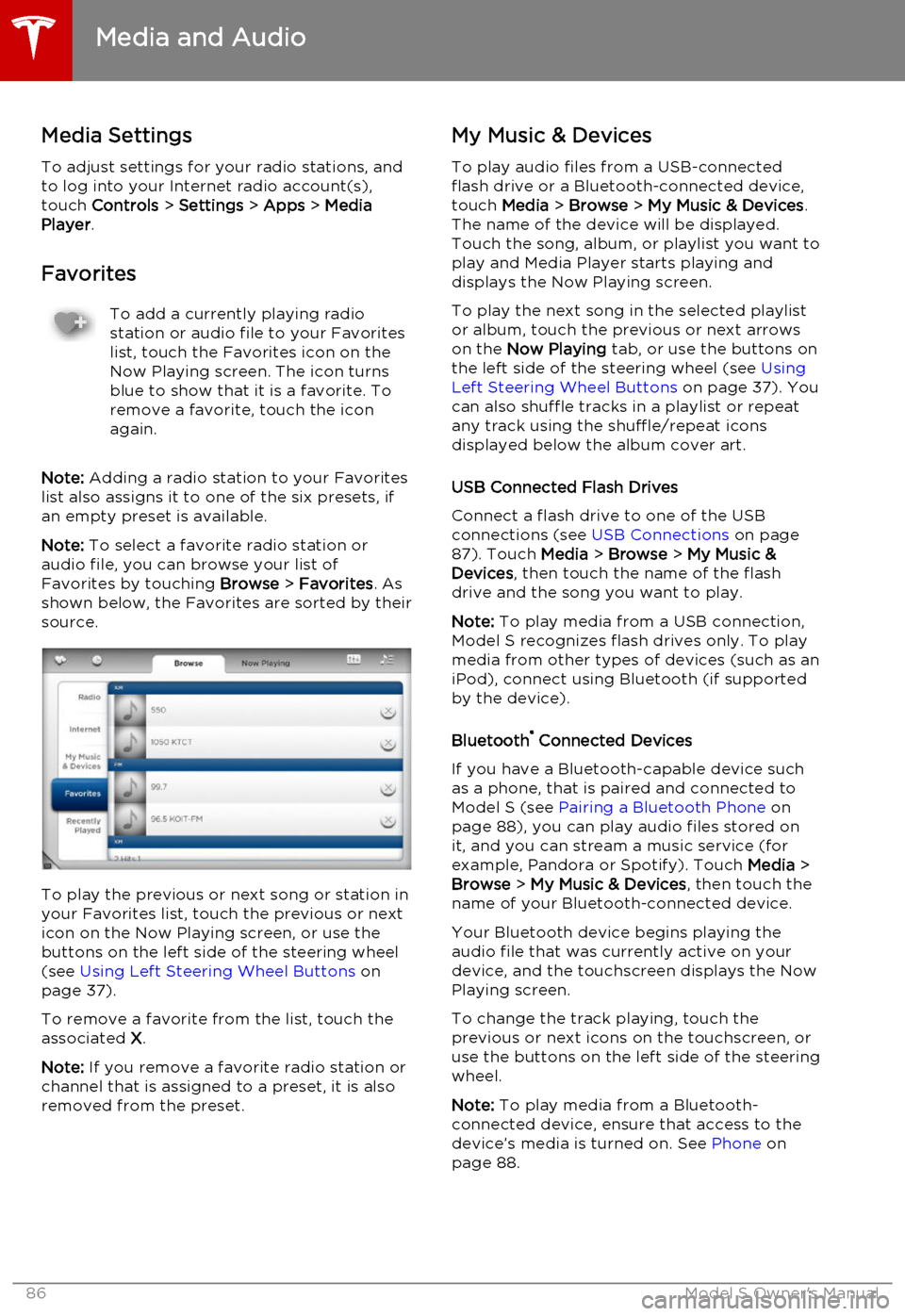
audio file, you can browse your list of Favorites by touching Browse > Favorites . As
shown below, the Favorites are sorted by their
source.
To play the previous or next song or station in
your Favorites list, touch the previous or next icon on the Now Playing screen, or use thebuttons on the left side of the steering wheel(see Using Left Steering Wheel Buttons on
page 37).
To remove a favorite from the list, touch the associated X.
Note: If you remove a favorite radio station or
channel that is assigned to a preset, it is also
removed from the preset.
My Music & Devices
To play audio files from a USB-connected
flash drive or a Bluetooth-connected device,
touch Media > Browse > My Music & Devices .
The name of the device will be displayed. Touch the song, album, or playlist you want to
play and Media Player starts playing and
displays the Now Playing screen.
To play the next song in the selected playlist or album, touch the previous or next arrowson the Now Playing tab, or use the buttons on
the left side of the steering wheel (see Using
Left Steering Wheel Buttons on page 37). You
can also shuffle tracks in a playlist or repeat
any track using the shuffle/repeat icons
displayed below the album cover art.
USB Connected Flash Drives
Connect a flash drive to one of the USB
connections (see USB Connections on page
87). Touch Media > Browse > My Music &
Devices , then touch the name of the flash
drive and the song you want to play.
Note: To play media from a USB connection,
Model S recognizes flash drives only. To play
media from other types of devices (such as an
iPod), connect using Bluetooth (if supported
by the device).
Bluetooth ®
Connected Devices
If you have a Bluetooth-capable device such
as a phone, that is paired and connected to
Model S (see Pairing a Bluetooth Phone on
page 88), you can play audio files stored on
it, and you can stream a music service (for example, Pandora or Spotify). Touch Media >
Browse > My Music & Devices , then touch the
name of your Bluetooth-connected device.
Your Bluetooth device begins playing theaudio file that was currently active on your
device, and the touchscreen displays the Now
Playing screen.
To change the track playing, touch the previous or next icons on the touchscreen, oruse the buttons on the left side of the steering
wheel.
Note: To play media from a Bluetooth-
connected device, ensure that access to the device’s media is turned on. See Phone on
page 88.
Media and Audio
86Model S Owner's Manual
Page 89 of 164
Connecting to a Paired Phone
Model S automatically connects with the last
phone to which it was connected, provided it is within operating range and has Bluetooth
turned on. If the last phone is not within range,
it attempts to connect with the next phone
that it has been paired with.
To connect to a different phone, touch the
Bluetooth icon on the touchscreen's status
bar. The Bluetooth window displays a list of paired phones. Choose the phone you want to
connect to, then touch Connect. If the phone
you want to connect to is not listed, follow the instructions on Pairing a Bluetooth Phone on
page 88.
When connected, the Model S touchscreen
displays the Bluetooth symbol next to the
phone name to show that the connection is
active.
Making a Phone Call You can make a phone call by:• Speaking a voice command. For details, see Using Voice Commands on page 38.
• Choosing a contact from your contact list (described above).
• Using the Model S on-screen dialer.
To make a phone call using the on-screendialer:
1. Touch the Phone app on the touchscreen,
then touch Dialer.
2. Enter the phone number on the dialer.
3. Touch Call. The touchscreen displays the
call screen and the number you are
calling.
To make a phone call by choosing a contact: 1. Touch the Phone app on the touchscreen,
then touch Contacts.
Note: Ensure that access to the phone’s
contacts is turned on.
2. Touch the name of the contact you want
to call to display details about the
contact.
3. Touch the number you want to dial (there
may be more than one). The touchscreen
displays the call screen and the name of
the contact you are calling.
Note: If it is safe and legal to do so, you can
also initiate a call by dialing the number or
selecting the contact directly from your
phone.Receiving a Phone Call
When your phone receives an incoming call,
both the instrument panel and the
touchscreen display the caller’s number or name (if the caller is in your phone’s contactlist and Model S has access to your contacts).
Touch one of the options on the touchscreen,
or use the scroll wheel on the right side of the
steering wheel to Answer or Ignore the call
(see Using Right Steering Wheel Buttons on
page 38).
In Call Options When a call is in progress, you can display the
call menu on the instrument panel by pressing
the top button on the right side of the
steering wheel. Then use the right scroll wheel
to scroll through and choose an option (see
Using Right Steering Wheel Buttons on page
38).
Phone
Using the Touchscreen89
Page 110 of 164
Inspecting and Maintaining Tires
Regularly inspect the tread and side walls for
any sign of distortion (bulges), cuts or wear.Warning: Do not drive Model S if a tire is
damaged, excessively worn, or inflated to
an incorrect pressure. Check tires
regularly for wear, and ensure there are
no cuts, bulges or exposure of the ply/
cord structure.
Tire Wear
Adequate tread depth is important for proper tire performance. Tires with a tread depth less
than 4/32” (3 mm) are more likely tohydroplane in wet conditions and should notbe used. Tires with a tread depth less than5/32” (4 mm) do not perform well in snow
and slush and should not be used when
driving in winter conditions.
Model S is originally fitted with tires that have
wear indicators molded into the tread pattern.
When the tread has been worn down to 2/32”
(1.6 mm), the indicators start to appear at the surface of the tread pattern, producing the
effect of a continuous band of rubber across
the width of the tire. For optimal performance and safety, Tesla recommends replacing tires
before the wear indicators are visible.
Tire Rotation, Balance, and Wheel Alignment
Tesla recommends rotating the tires every 5000 miles (8000 km).
Unbalanced wheels (sometimes noticeable as
vibration through the steering wheel) affect
vehicle handling and tire life. Even with
regular use, wheels can get out of balance.
Therefore, they should be balanced as
required.
If tire wear is uneven (on one side of the tire
only) or becomes abnormally excessive, check
the alignment of wheels.
Note: When replacing only two tires, always
install the new tires on the rear.
Punctured Tires
A puncture eventually causes the tire to lose
pressure, which is why it is important to check tire pressures frequently. Permanently repair
or replace punctured or damaged tires as
soon as possible. Do not drive with a
punctured tire, even if the puncture has not caused the tire to deflate. A punctured tire
can deflate suddenly at any time.
Your tubeless tires may not leak when
penetrated, provided the object remains in the
tire. If, however, you feel a sudden vibration or
ride disturbance while driving, or you suspect
a tire is damaged, immediately reduce your
speed. Drive slowly, while avoiding heavy
braking or sharp steering and, when safe to do
so, stop the vehicle. Arrange to have Model S
transported to a Tesla service center, or to a
nearby tire repair center.
Note: In some cases, you can temporarily
repair small tire punctures (under 1/4”/6 mm)
using an optional tire repair kit available from
Tesla. This allows you to slowly drive Model S to Tesla or to a nearby tire repair facility.Warning: Do not drive Model S with a
punctured tire. Even if the punctured tire has not deflated, it can suddenly deflate
at any time.
Flat Spots
If Model S is stationary for a long period in
high temperatures, tires can form flat spots. When Model S is driven, these flat spots causea vibration which gradually disappears as thetires warm up and regain their original shape.
To minimize the flat spots during storage,
inflate tires to the maximum pressure
indicated on the tire wall. Then, before driving, release air to adjust tire pressure to the
recommended levels.
Improving Tire Mileage
To improve the mileage you get from your
tires, maintain tires at the recommended tire
pressures, observe speed limits and advisory
speeds, and avoid:
• Pulling away quickly, or hard acceleration.
• Fast turns and heavy braking. • Potholes and objects in the road.
• Hitting curbs when parking.
• Contaminating tires with fluids that can cause damage.
Tire Care and Maintenance
110Model S Owner's Manual
Page 111 of 164
Replacing Tires and Wheels
Tires degrade over time due to the effects of
ultraviolet light, extreme temperatures, high loads, and environmental conditions. It isrecommended that tires are replaced everysix years, or sooner if required.
Wheel rims and tires are matched to suit the
handling characteristics of the vehicle. Replacement tires must comply with the
original specification. If tires other than those
specified are used, ensure that the load and speed ratings marked on the tire equal orexceed those of the original specification.
Ideally, you should replace all four tires at the
same time. If this is not possible, replace the
tires in pairs (both front or both rear). When
replacing tires, always re-balance and check
the alignment of wheels.
If you replace a wheel, the TPMS (Tire
Pressure Monitoring System) sensors need to
be reset to ensure they provide accurate
warnings when tires are under- or over-
inflated (see Resetting the TPMS Sensors on
page 113).Warning: For your safety, use only tires
and wheels that match the original
specification (see Wheels and Tires on
page 143). Tires that do not match the original specification can affect the
operation of the Tire Pressure Monitoring System (TPMS).Warning: Never exceed the speed rating
of your vehicle's tires. The speed rating is
shown on the sidewall of your tires (see
Understanding Tire Markings on page
145).Asymmetric Tires
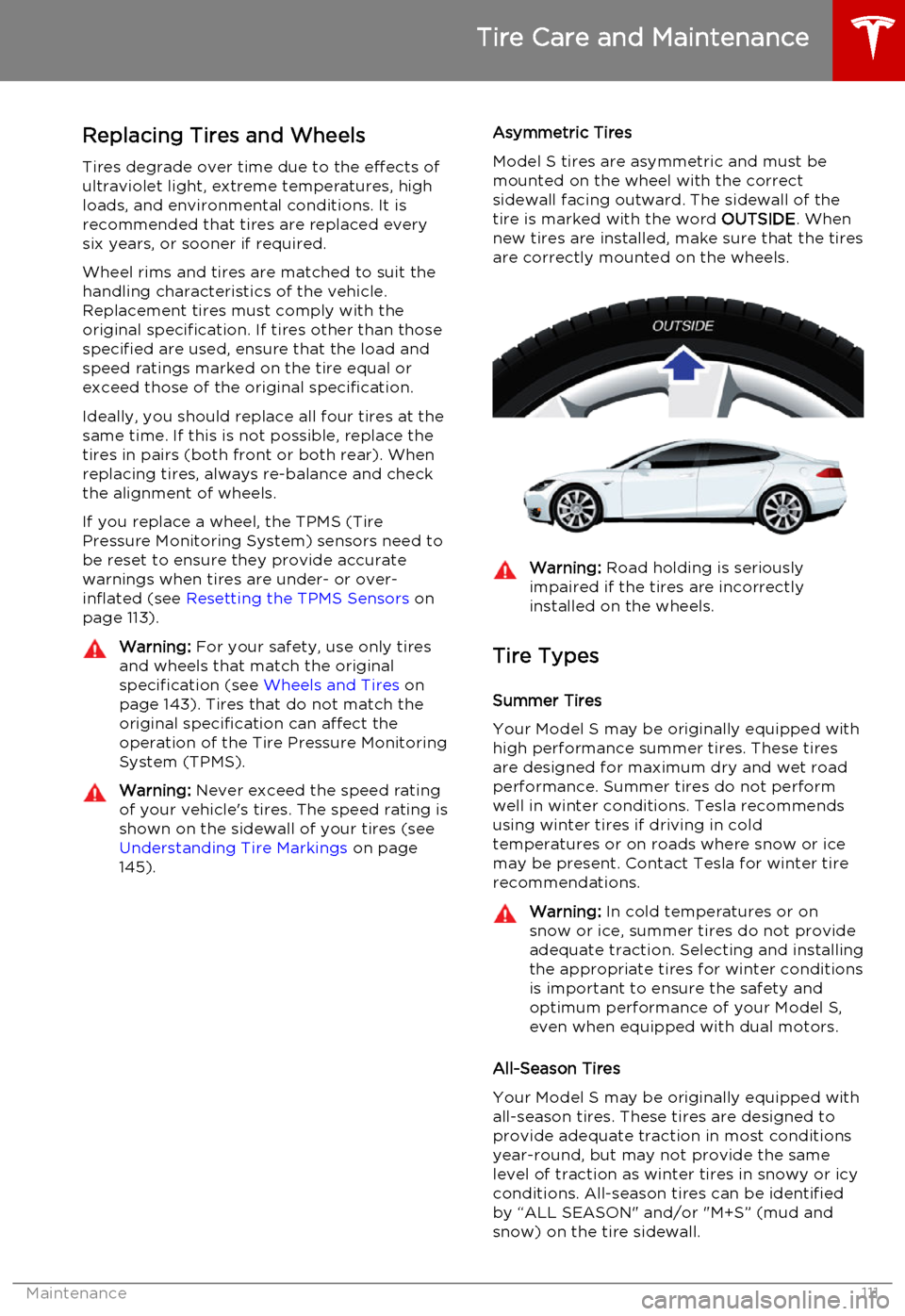
Model S tires are asymmetric and must be mounted on the wheel with the correctsidewall facing outward. The sidewall of thetire is marked with the word OUTSIDE. When
new tires are installed, make sure that the tires
are correctly mounted on the wheels.Warning: Road holding is seriously
impaired if the tires are incorrectly
installed on the wheels.
Tire Types
Summer Tires
Your Model S may be originally equipped with high performance summer tires. These tires
are designed for maximum dry and wet road performance. Summer tires do not performwell in winter conditions. Tesla recommendsusing winter tires if driving in cold
temperatures or on roads where snow or ice
may be present. Contact Tesla for winter tire recommendations.
Warning: In cold temperatures or on
snow or ice, summer tires do not provide
adequate traction. Selecting and installing the appropriate tires for winter conditionsis important to ensure the safety andoptimum performance of your Model S,
even when equipped with dual motors.
All-Season Tires
Your Model S may be originally equipped with all-season tires. These tires are designed to
provide adequate traction in most conditions
year-round, but may not provide the same
level of traction as winter tires in snowy or icy
conditions. All-season tires can be identified by “ALL SEASON" and/or "M+S” (mud and
snow) on the tire sidewall.
Tire Care and Maintenance
Maintenance111
Page 112 of 164

Winter Tires
Your Model S is not originally equipped with
winter tires. In snowy and icy conditions, consider installing winter tires. Winter tires are
designed to increase traction in snowy or icy
conditions. When installing winter tires, always install a complete set of four tires at the sametime. Winter tires must be the same size,brand, construction and tread pattern on allfour wheels. Contact Tesla for winter tire
recommendations.Winter tires can be identified by a
mountain/snowflake symbol on the
tire's sidewall.
When driving with winter tires, you may
experience more road noise, shorter tread life, and less traction on dry roads.
Driving in Low Temperatures Tire performance is reduced in low ambient
temperatures, resulting in reduced grip and an
increased susceptibility to damage from
impacts. Performance tires can temporarily
harden when cold, causing you to hear
rotational noise for the first few miles (kms)
until the tires warm up.
Using Tire Chains Tesla has tested and approved Security Chain
Company (SCC) Model Z-563 chains for use
on the rear wheels. These chains must only be
used if your Model S has 245/45R19 rear tires
installed. Do not use chains on 21 inch tires.
When installing tire chains, follow the
instructions provided by the tire chain
manufacturer. Mount them as tightly as
possible.
When using tire chains:
• Drive slowly. Do not exceed 30 mph (48 km/h).
• Avoid heavily loading Model S (heavy loads can reduce the clearance between
the tires and the body).
• Remove the tire chains as soon as conditions allow.
Note: Tire chains are prohibited in some
jurisdictions. Check local laws before installing
tire chains.
Caution: Using non-recommended tire
chains, or using tire chains on other sized tires, can damage the suspension, body,wheels, and/or brake lines. Damagecaused by using non-recommended tire
chains is not covered by the warranty.Caution: Ensure that tire chains cannot
touch suspension components or brake
lines. If you hear the chains making
unusual noises that would indicate
contact with Model S, stop and
investigate immediately.
Tire Pressure Monitoring
Each tire should be checked monthly when
cold and inflated to the recommended pressures that are printed on the Tire and
Loading Information label located on the
driver’s door pillar (see Maintaining Tire
Pressures on page 109). If your vehicle has
tires of a different size than the size indicated
on the vehicle placard or tire inflation pressure
label, determine the proper tire inflation
pressure for those tires.
As an added safety feature, your vehicle has
been equipped with a tire pressure monitoring
system (TPMS) that displays a tire pressure
telltale (Tire Pressure Warning) on the
instrument panel when one or more of your
tires is significantly under- or over-inflated.
Accordingly, when the Tire Pressure indicator
light displays on the instrument panel alerting
of tire pressure, stop and check your tires as
soon as possible, and inflate them to the
proper pressure (see Maintaining Tire
Pressures on page 109). Driving on a
significantly under-inflated tire causes the tire
to overheat and can lead to tire failure. Under-
inflation also reduces fuel efficiency and tire
tread life, and may affect the vehicle's
handling and stopping ability.
If Model S detects a fault with the
Tire Pressure Monitoring System
(TPMS), this indicator flashes for one
minute whenever you power on
Model S.
Note: Installing accessories that are not
approved by Tesla can interfere with the TPMS system.
Warning: The TPMS is not a substitute for
proper tire maintenance, including
manually checking tire pressures and
regularly inspecting the condition of tires.
It is the driver's responsibility to maintain
correct tire pressure, even if under- or
over-inflation has not reached the level
Tire Care and Maintenance
112Model S Owner's Manual
Page 113 of 164
for the TPMS to trigger the Tire PressureWarning on the instrument panel.
Resetting the TPMS Sensors
After replacing one or more wheels, the TPMS sensors must be reset to ensure tire pressurewarnings are accurate. However, note that theTPMS sensors do not need to be reset after
replacing a tire or rotating wheels.
Note: When changing to 21" wheels
(Performance Plus models), the TPMS may
generate false tire pressure warnings. Bring
Model S to a Tesla Service center for further
adjustment.
Note: Do not reset the TPMS sensors in an
attempt to clear tire pressure warnings.
To reset TPMS sensors:
1. Inflate all tires to their recommend
pressures, as indicated on the Tire and Loading Information label located on the
driver’s door pillar.
2. Get ready to drive for ten minutes, then,
on the Model S touchscreen, touch
Controls > Settings > Service & Reset >
Tire Pressure Monitor > Reset Sensors .
3. Follow the onscreen instructions.
Replacing a Tire Sensor
If the Tire Pressure warning indicator displays frequently, contact Tesla to determine if a tiresensor needs to be replaced. Tire sensors
must be replaced by a Tesla service technician
who can perform a brief setup procedure. If a non-Tesla service center repairs or replaces atire, the tire sensor will not work until Tesla
performs the setup procedure.
TPMS Malfunction
Model S has also been equipped with a TPMS
malfunction indicator to indicate when the
system is not operating properly.
The TPMS malfunction indicator is
combined with the tire pressure
indicator light. When the system
detects a malfunction, the indicator
flashes for approximately one
minute after Model S powers on, and
then remains continuously lit. This
sequence continues upon
subsequent vehicle start-ups as long
as the malfunction exists. When the
TPMS malfunction indicator is on,
the system might not be able to
detect or signal under- and over-
inflated tires as intended.
TPMS malfunctions can occur for a variety of reasons, including installing replacement oralternate tires or wheels that prevent theTPMS from functioning properly. Alwayscheck the TPMS malfunction indicator light
after replacing one or more tires or wheels on
your vehicle to ensure that the replacement
tires or wheels allow the TPMS to continue to
function properly.
Note: If a tire has been replaced or repaired
using a different tire sealant than the one
available from Tesla, and a low tire pressure is
detected, it is possible that the tire sensor has
been damaged. Contact Tesla to have the
fault repaired as soon as possible.
Tire Care and Maintenance
Maintenance113
Page 115 of 164

Inflating with Sealant and AirIf you have a Tesla tire repair kit, follow these
steps to temporarily repair a small tire
puncture (less than 1/4” (6 mm)).
1. Stop Model S in a safe place away from
traffic and ask passengers to wait in a safe area.
2. Turn on the hazard warning flashers to
alert other road users.
3. If possible, position the wheel with the
puncture at the bottom.
4. Detach the power supply connector from
the back of the compressor and plug it
into the 12V power socket located on the front of center console.
5. Release the clear plastic hose from the
tire compressor.
6. Remove the red cap and screw the end of
the hose onto the tire’s valve.
7. Attach the sealant kit’s black air hose to
the sealant valve and press the lever
down to secure it in place.
8. Ensure the compressor is lying on a level
surface with the pressure gauge facing to the side as shown in Step 5.
9. Turn on the compressor.
10. Inflate the tire to the recommended
pressure.
11. Turn off the compressor and disconnect
the hose from the tire’s valve. Wipe any
excess sealant from the tire valve and wheel rim.
12. Immediately drive for 5 miles (8 km) to
distribute the sealant around the tire. Donot exceed 30 mph (48 km/h).
13. Stop and check the tire’s pressure. If
necessary, inflate using the black air hose.
14. Have the tire repaired or replaced as soon
as possible.
15. Replace the tire repair sealant canister
(see Replacing the Sealant Canister on
page 117).
Temporary Tire Repair
Maintenance115