set TESLA MODEL S 2019 Owner's Manual
[x] Cancel search | Manufacturer: TESLA, Model Year: 2019, Model line: MODEL S, Model: TESLA MODEL S 2019Pages: 207, PDF Size: 5.41 MB
Page 2 of 207

Contents
Overview............................................................. 2
Interior Overview.........................................................................2
Exterior Overview....................................................................... 3
Touchscreen Overview..............................................................4
Opening and Closing..................................... 9
Doors............................................................................................... 9 Windows....................................................................................... 14Rear Trunk.................................................................................... 15 Front Trunk.................................................................................. 18Interior Storage and Electronics........................................ 20Sunroof......................................................................................... 23
Seating and Safety Restraints..................24 Front and Rear Seats.............................................................. 24Seat Belts..................................................................................... 27 Child Safety Seats.................................................................... 30Tesla Built-In Rear Facing Child Seats.............................. 37
Airbags.......................................................................................... 41
Driving...............................................................45 Driver Profiles ............................................................................ 45
Steering Wheel.......................................................................... 47
Mirrors.......................................................................................... 50 Starting and Powering Off.................................................... 52
Gears............................................................................................. 54 Lights.............................................................................................55Instrument Panel.......................................................................59 Wipers and Washers............................................................... 65Brakes........................................................................................... 67Traction Control........................................................................ 70 Park Assist.................................................................................... 71Vehicle Hold................................................................................ 73Acceleration Modes................................................................. 74Active Hood................................................................................ 76
Trip Information.........................................................................77 Getting Maximum Range....................................................... 78Rear View Camera................................................................... 80
Dashcam....................................................................................... 81
Autopilot.......................................................... 82 About Autopilot........................................................................ 82Traffic-Aware Cruise Control................................................ 85
Autosteer...................................................................................... 91 Autopark...................................................................................... 98 Summon..................................................................................... 100Lane Assist................................................................................ 102Collision Avoidance Assist.................................................. 104Speed Assist............................................................................. 107
Using the Touchscreen..............................109 Controls...................................................................................... 109Climate Controls....................................................................... 119 Maps and Navigation............................................................. 125Media and Audio..................................................................... 130Phone........................................................................................... 133Air Suspension......................................................................... 135Calendar......................................................................................137
Security Settings..................................................................... 138 HomeLink
Page 5 of 207

Touchscreen Overview
The main components of the touchscreen are shown here. The touchscreen is used to control
many features that, in traditional cars, are controlled using physical buttons (for example,
adjusting the heating and air conditioning, headlights, etc.). You can also use the touchscreen to
customize Model S to suit your preferences.
Warning: Always pay attention to road and traffic conditions when driving. To minimize driver
distraction and ensure the safety of vehicle occupants as well as other road users, avoid using
the touchscreen to adjust settings while the vehicle is in motion.
Note: The image below is provided for demonstration purposes only. Depending on vehicle
options, software version and market region, your touchscreen may appear slightly different.
Touchscreen Overview
4Model S Owner
Page 7 of 207

1.This area on the top of the touchscreen displays the time and provides shortcut to lock/
unlock the vehicle, access vehicle information (the Tesla "T"), choose to set up a driver profile
(see Driver Profiles on page 45), control HomeLink devices (if equipped) (see HomeLink
Universal Transceiver on page 140), view network strength, and connect to Wi-Fi (see
Connecting to Wi-Fi on page 142) and Bluetooth devices (see Pairing a Bluetooth Phone on
page 133). If you see an exclamation mark, touch it to see warning messages that are in effect. If you see a yellow clock icon, a software update is available (see Software Updates on
page 143).
Note: An airbag status symbol displays in the top corner of the touchscreen only when
Model S is powered on, ready to drive, and the airbag is turned off (see Airbags on page 41).
2. Controls. Touch to control features and customize Model S to suit your preferences (see
Controls on page 109).
3. Media Player. (see Media and Audio on page 130).
Touchscreen Overview
6Model S Owner
Page 12 of 207

Using Exterior Door HandlesA light press on a door handle extends it,
provided Model S detects a valid key nearby
and Passive Entry is on ( Controls > Safety &
Security > Passive Entry ).
You can set the door handles to extend
automatically whenever you approach the
driver
Page 17 of 207

2.Press and hold the button on the
underside of the liftgate for two seconds
until you hear a confirmation chime.
3.Confirm that you have set it to the desired
height by closing the liftgate, then
reopening it.
Interior Release To open the rear trunk from inside a Model S
equipped with the Tesla Built-In Rear Facing
Child Seats, press the interior release switch located inside the rear trunk and push theliftgate up. If Model S is locked and is
equipped with a power liftgate, the first press
unlocks the rear trunk and the second press
opens it.
Note: If Model S is not equipped with the Tesla
Rear Facing Child Seats, the switch may
appear to exist, but it will be inactive and
pressing it does not release the liftgate.
If Model S is equipped with the power liftgate,
you do not need to push it up. When you
press the release switch, it opens, and when you pull the switch, it closes.
Note: The interior release switch is disabled if
child-protection locks are turned on (see
Child-Protection Lock on page 12), or if
Model S is moving.
Accessing the Cargo Area
To access the cargo area inside the rear trunk,
pull up the strap at the rear of the cargo cover.
You can then fold the cargo cover forward or
remove it from Model S.Caution: Never load more than 175 lbs (80
kg) on the rear load
Page 56 of 207
Lights
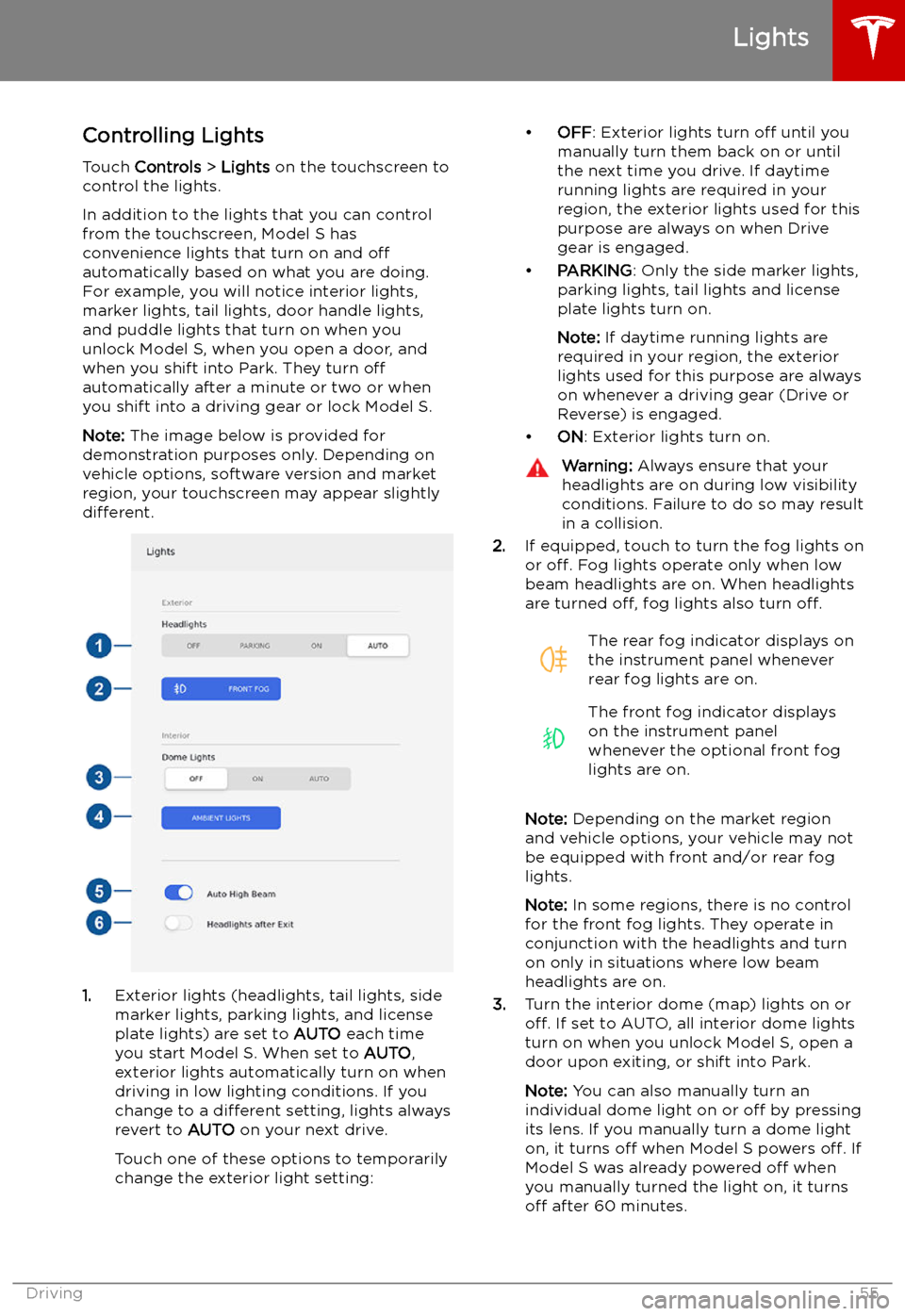
Controlling Lights Touch Controls > Lights on the touchscreen to
control the lights.
In addition to the lights that you can control
from the touchscreen, Model S has
convenience lights that turn on and off
automatically based on what you are doing. For example, you will notice interior lights,marker lights, tail lights, door handle lights,
and puddle lights that turn on when you unlock Model S, when you open a door, and
when you shift into Park. They turn off
automatically after a minute or two or when
you shift into a driving gear or lock Model S.
Note: The image below is provided for
demonstration purposes only. Depending on vehicle options, software version and market
region, your touchscreen may appear slightly
different.
1. Exterior lights (headlights, tail lights, side
marker lights, parking lights, and license
plate lights) are set to AUTO each time
you start Model S. When set to AUTO,
exterior lights automatically turn on when
driving in low lighting conditions. If you
change to a different setting, lights always
revert to AUTO on your next drive.
Touch one of these options to temporarily
change the exterior light setting:
Page 64 of 207
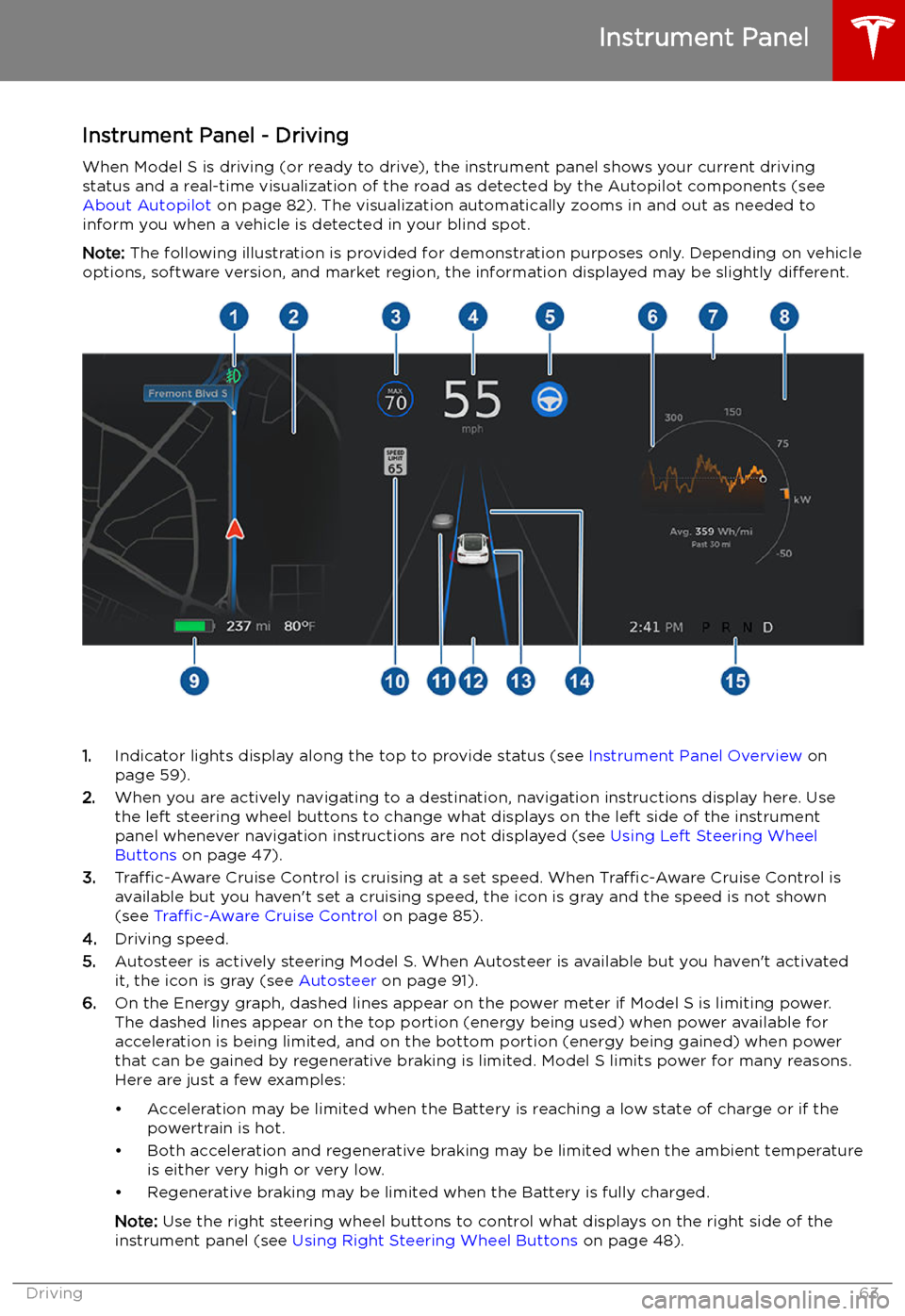
Instrument Panel - DrivingWhen Model S is driving (or ready to drive), the instrument panel shows your current drivingstatus and a real-time visualization of the road as detected by the Autopilot components (see
About Autopilot on page 82). The visualization automatically zooms in and out as needed to
inform you when a vehicle is detected in your blind spot.
Note: The following illustration is provided for demonstration purposes only. Depending on vehicle
options, software version, and market region, the information displayed may be slightly different.
1.Indicator lights display along the top to provide status (see Instrument Panel Overview on
page 59).
2. When you are actively navigating to a destination, navigation instructions display here. Use
the left steering wheel buttons to change what displays on the left side of the instrument
panel whenever navigation instructions are not displayed (see Using Left Steering Wheel
Buttons on page 47).
3. Traffic-Aware Cruise Control is cruising at a set speed. When Traffic-Aware Cruise Control is
available but you haven
Page 69 of 207

Note: If regenerative braking is aggressively
slowing Model S (such as when your foot is
completely off the accelerator pedal at
highway speeds), the brake lights turn on to
alert others that you are slowing down.Warning: In snowy or icy conditions
Model S may experience traction loss
during regenerative braking, particularly
when in the Standard setting and/or not
using winter tires. Tesla recommends
using the Low setting (see To Set the
Regenerative Braking Level on page 68)
in snowy or icy conditions to help
maintain vehicle stability.
The Energy app displays real-time feedback
on the amount of energy being gained by
regenerative braking. You can also display the
power meter on either side of the instrument
panel by choosing Energy using the scroll
button on the steering wheel (see Steering
Wheel on page 47).
The amount of energy fed back to the Battery using regenerative braking can depend on thecurrent state of the Battery and the charge
level setting that you are using. For example,
regenerative braking may be limited if the Battery is already fully charged or if the
ambient temperature is too cold.
Note: If regenerative braking is limited, a
dashed yellow line displays on the power
meter.
To Set the Regenerative Braking Level
You can use the touchscreen to change the
level of regenerative braking:
1. Touch Controls > Driving > Regenerative
Braking .
2. Choose from two levels:
Page 75 of 207
Acceleration Modes
The acceleration settings available on your Model S vary depending on date of
manufacture and options chosen at time of
purchase:
Page 87 of 207
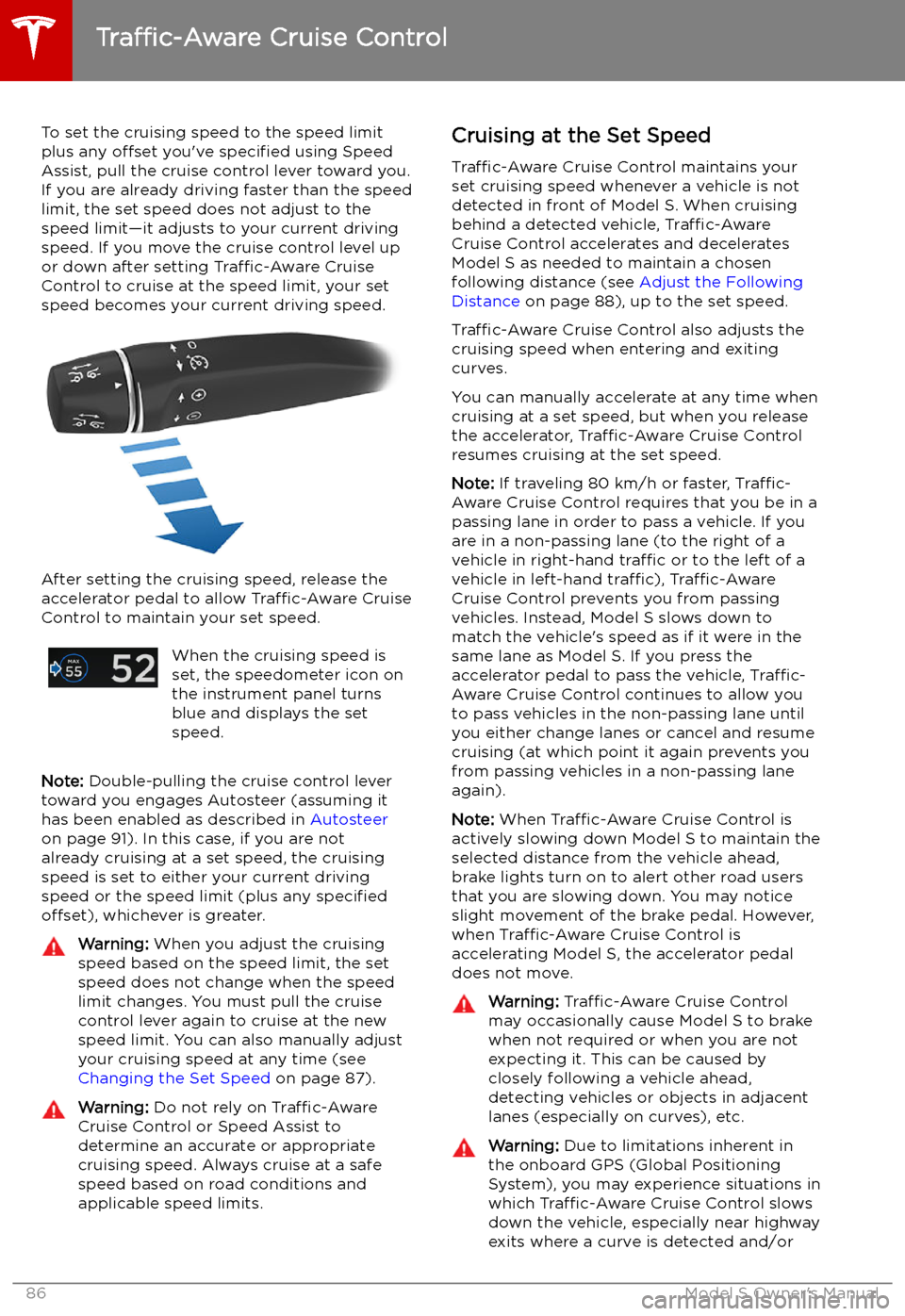
To set the cruising speed to the speed limitplus any offset you