ac control TESLA MODEL S 2023 User Guide
[x] Cancel search | Manufacturer: TESLA, Model Year: 2023, Model line: MODEL S, Model: TESLA MODEL S 2023Pages: 276, PDF Size: 7.88 MB
Page 45 of 276
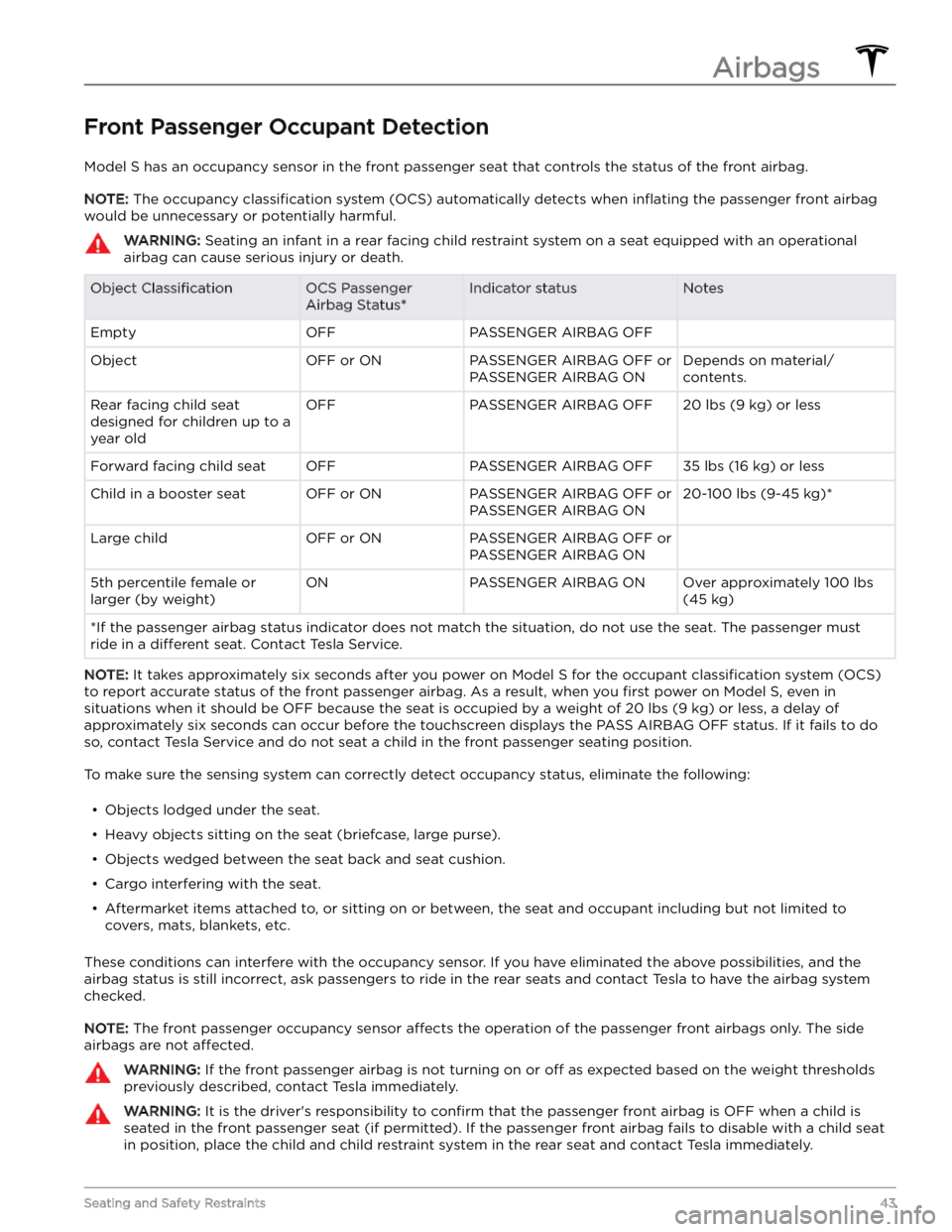
Front Passenger Occupant Detection
Model S has an occupancy sensor in the front passenger seat that controls the status of the front airbag.
NOTE: The occupancy classification system (OCS) automatically detects when inflating the passenger front airbag
would be unnecessary or potentially harmful.
WARNING: Seating an infant in a rear facing child restraint system on a seat equipped with an operational
airbag can cause serious injury or death.
Object ClassificationOCS Passenger
Airbag Status*Indicator statusNotesEmptyOFFPASSENGER AIRBAG OFF ObjectOFF or ONPASSENGER AIRBAG OFF or
PASSENGER AIRBAG ONDepends on material/
contents.Rear facing child seat
designed for children up to a
year oldOFFPASSENGER AIRBAG OFF20 lbs (9 kg) or lessForward facing child seatOFFPASSENGER AIRBAG OFF35 lbs (16 kg) or lessChild in a booster seatOFF or ONPASSENGER AIRBAG OFF or
PASSENGER AIRBAG ON20-100 lbs (9-45 kg)*Large childOFF or ONPASSENGER AIRBAG OFF or
PASSENGER AIRBAG ON 5th percentile female or
larger (by weight)ONPASSENGER AIRBAG ONOver approximately 100 lbs
(45 kg)
*If the passenger airbag status indicator does not match the situation, do not use the seat. The passenger must
ride in a
different seat. Contact Tesla Service.
NOTE: It takes approximately six seconds after you power on Model S for the occupant classification system (OCS)
to report accurate status of the front passenger airbag. As a result, when you
first power on Model S, even in
situations when it should be OFF because the seat is occupied by a weight of
20 lbs (9 kg) or less, a delay of
approximately six seconds can occur before the touchscreen displays the PASS AIRBAG OFF status. If it fails to do
so, contact Tesla Service and do not seat a child in the front passenger seating position.
To make sure the sensing system can correctly detect occupancy status, eliminate the following:
Page 51 of 276

Adjusting the Steering Yoke (or
Steering Wheel) Position
Depending on options purchased, you may have either a steering yoke or a steering wheel: the design may
differ
but the function is the same.
To adjust the steering yoke (or steering wheel), touch
Controls and touch the Steering icon.
Use the left scroll button on the steering yoke (or
steering wheel) to move the steering yoke (or steering
wheel) to the desired position:
Page 54 of 276

Adjusting Exterior Mirrors
Adjust the exterior mirrors by touching Controls >
Mirrors. Press the left scroll button on the steering yoke
(or steering wheel) to choose whether you are adjusting
the
Left or Right mirror. Then use the left scroll button
as follows to adjust the selected mirror to its desired position:
Page 55 of 276
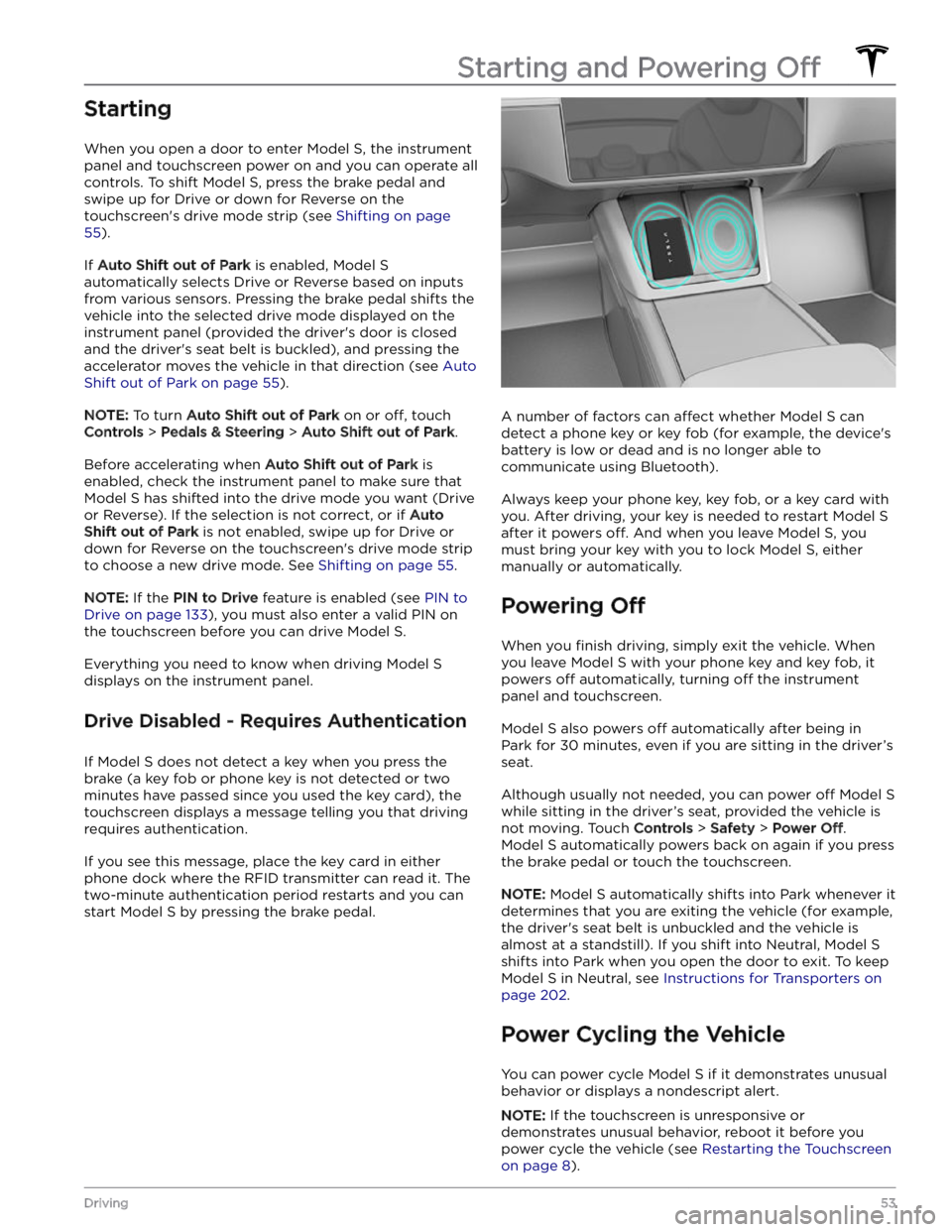
Starting
When you open a door to enter Model S, the instrument
panel and touchscreen power on and you can operate all controls. To shift
Model S, press the brake pedal and
swipe up for Drive or down for Reverse on the
touchscreen
Page 56 of 276

1. Shift into Park.2.
On the touchscreen, touch Controls > Safety > Power
Off.
3.
Wait for at least two minutes without interacting with the vehicle. Do not open the doors, touch the brake
pedal, touch the touchscreen, etc.
4.
After two minutes, press the brake pedal or open the
door to wake the vehicle.
Starting and Powering Off
54MODEL S Owner
Page 60 of 276
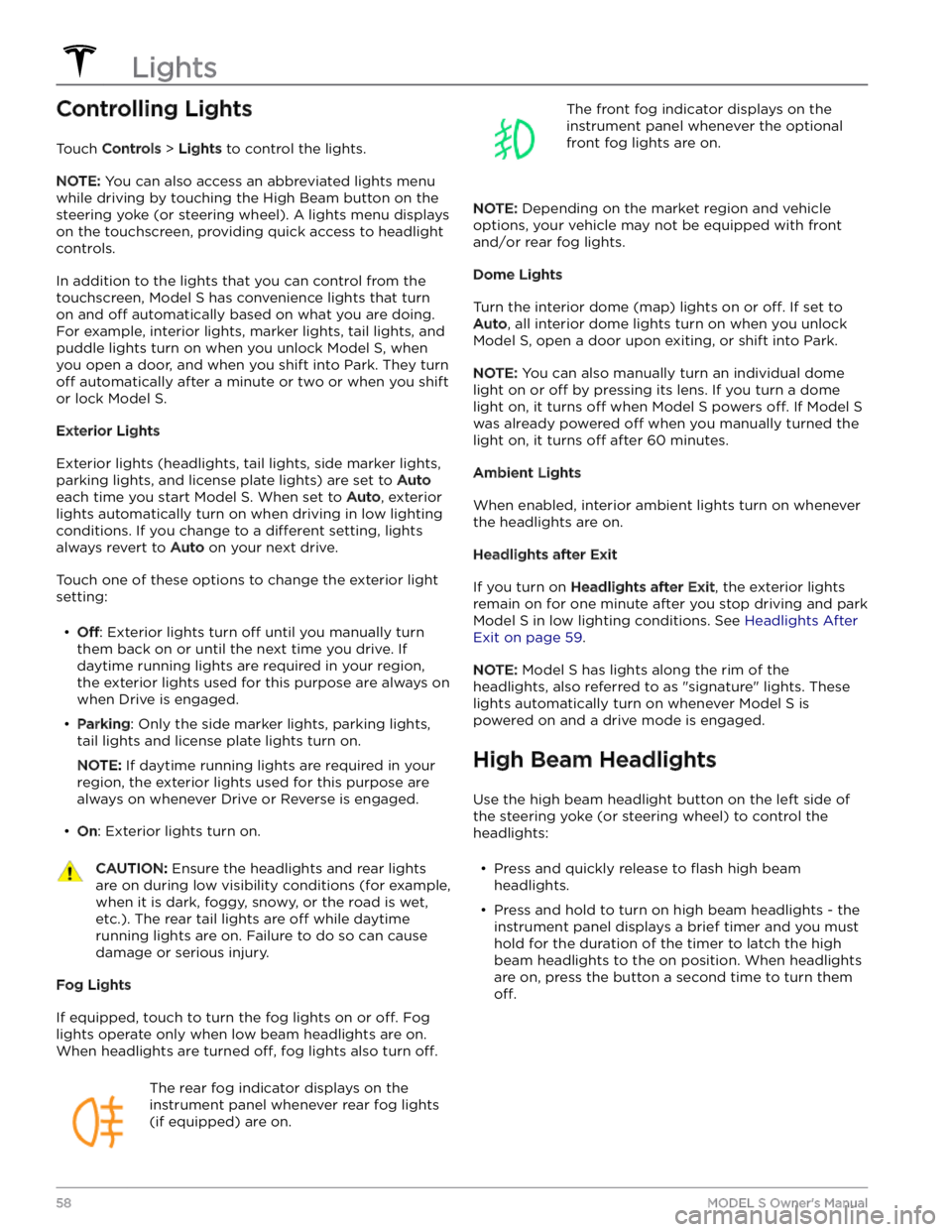
Controlling Lights
Touch Controls > Lights to control the lights.
NOTE: You can also access an abbreviated lights menu
while driving by touching the High Beam button on the
steering yoke (or steering wheel). A lights menu displays
on the touchscreen, providing quick access to headlight controls.
In addition to the lights that you can control from the
touchscreen,
Model S has convenience lights that turn
on and
off automatically based on what you are doing.
For example, interior lights, marker lights, tail lights, and
puddle lights turn on when you unlock
Model S, when
you open a door, and when you shift into Park. They turn
off automatically after a minute or two or when you shift
or lock
Model S.
Exterior Lights
Exterior lights (headlights, tail lights, side marker lights,
parking lights, and license plate lights) are set to
Auto
each time you start Model S. When set to Auto, exterior
lights automatically turn on when driving in low lighting
conditions. If you change to a
different setting, lights
always revert to
Auto on your next drive.
Touch one of these options to change the exterior light setting:
Page 61 of 276
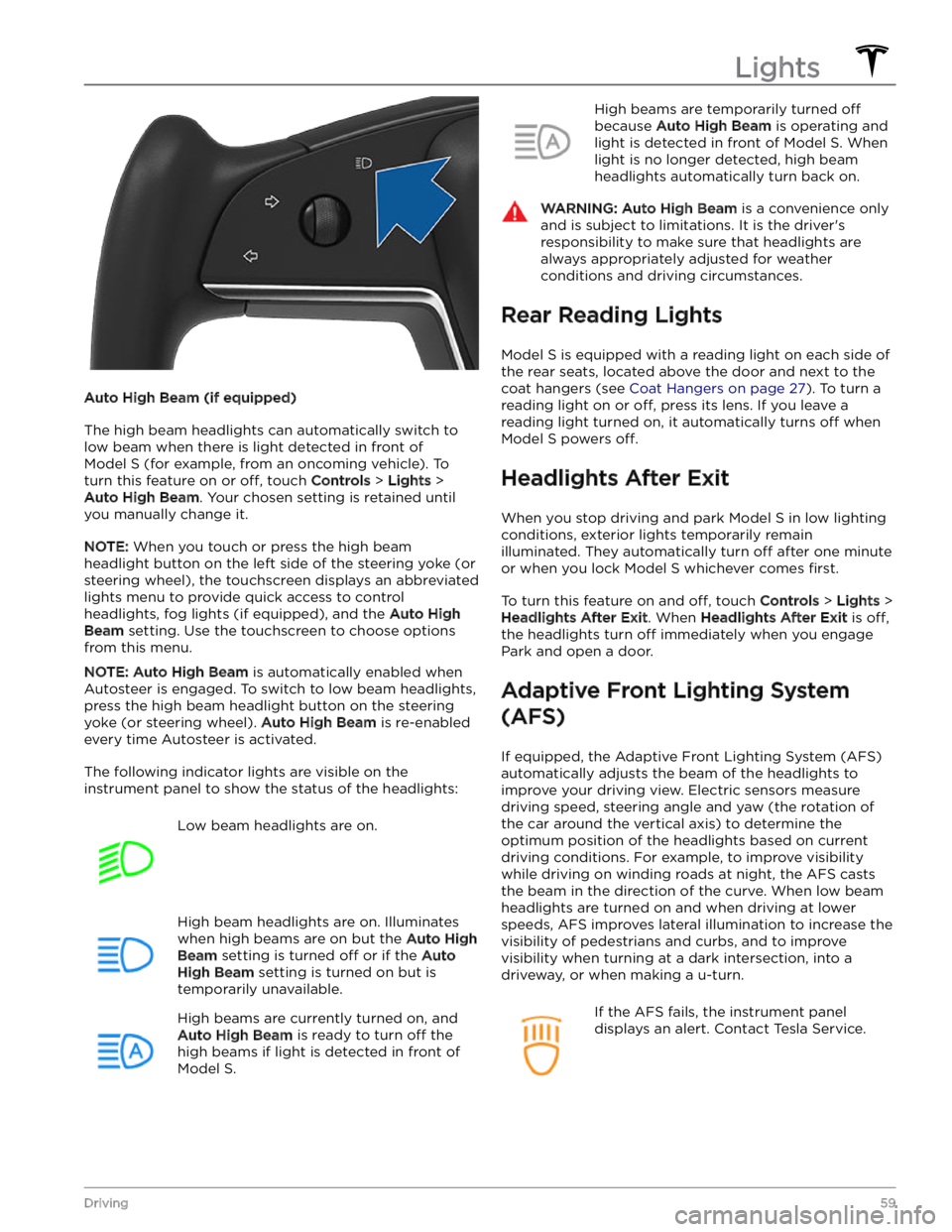
Auto High Beam (if equipped)
The high beam headlights can automatically switch to low beam when there is light detected in front of
Model S (for example, from an oncoming vehicle). To
turn this feature on or
off, touch Controls > Lights >
Auto High Beam. Your chosen setting is retained until
you manually change it.
NOTE: When you touch or press the high beam
headlight button on the left side of the
steering yoke (or
steering wheel), the touchscreen displays an abbreviated
lights menu to provide quick access to control headlights, fog lights (if equipped), and the
Auto High
Beam setting. Use the touchscreen to choose options
from this menu.
NOTE: Auto High Beam is automatically enabled when
Autosteer is engaged. To switch to low beam headlights, press the high beam headlight button on the
steering
yoke (or steering wheel). Auto High Beam is re-enabled
every time Autosteer is activated.
The following indicator lights are visible on the instrument panel to show the status of the headlights:
Low beam headlights are on.High beam headlights are on. Illuminates
when high beams are on but the Auto High
Beam setting is turned off or if the Auto
High Beam setting is turned on but is
temporarily unavailable.
High beams are currently turned on, and
Auto High Beam is ready to turn off the
high beams if light is detected in front of
Model S.
High beams are temporarily turned off
because Auto High Beam is operating and
light is detected in front of
Model S. When
light is no longer detected, high beam headlights automatically turn back on.
WARNING: Auto High Beam is a convenience only
and is subject to limitations. It is the driver
Page 62 of 276
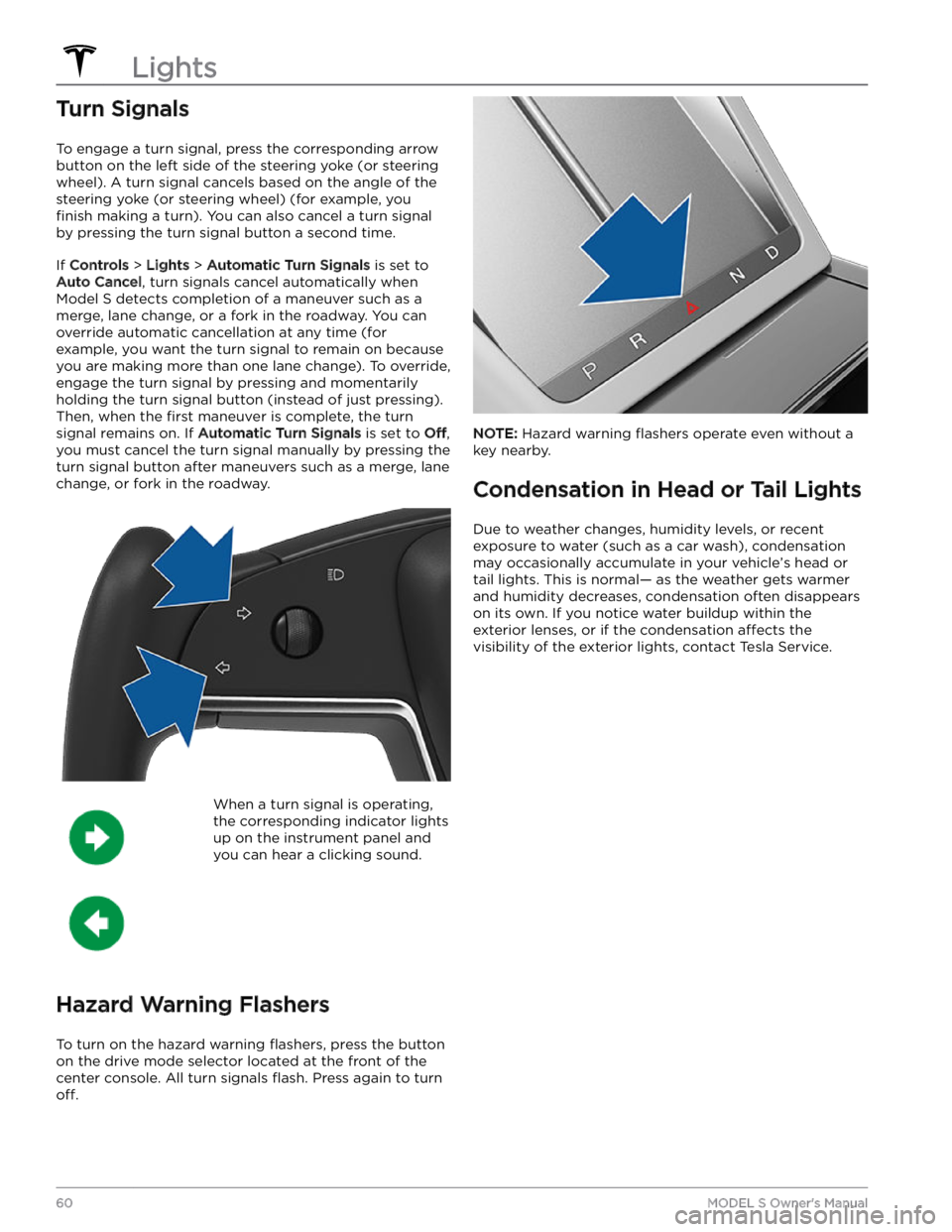
Turn Signals
To engage a turn signal, press the corresponding arrow
button on the left side of the
steering yoke (or steering
wheel). A turn signal cancels based on the angle of the
steering yoke (or steering wheel) (for example, you
finish making a turn). You can also cancel a turn signal
by pressing the turn signal button a second time.
If Controls > Lights > Automatic Turn Signals is set to
Auto Cancel, turn signals cancel automatically when
Model S detects completion of a maneuver such as a
merge, lane change, or a fork in the roadway. You can override automatic cancellation at any time (for
example, you want the turn signal to remain on because
you are making more than one lane change). To override, engage the turn signal by pressing and momentarily holding the turn signal button (instead of just pressing). Then, when the
first maneuver is complete, the turn
signal remains on. If
Automatic Turn Signals is set to Off,
you must cancel the turn signal manually by pressing the
turn signal button after maneuvers such as a merge, lane change, or fork in the roadway.
When a turn signal is operating,
the corresponding indicator lights
up on the instrument panel and
you can hear a clicking sound.
Hazard Warning Flashers
To turn on the hazard warning flashers, press the button
on the drive mode selector located at the front of the center console. All turn signals
flash. Press again to turn
off.
NOTE: Hazard warning flashers operate even without a
key nearby.
Condensation in Head or Tail Lights
Due to weather changes, humidity levels, or recent exposure to water (such as a car wash), condensation may occasionally accumulate in your vehicle
Page 64 of 276
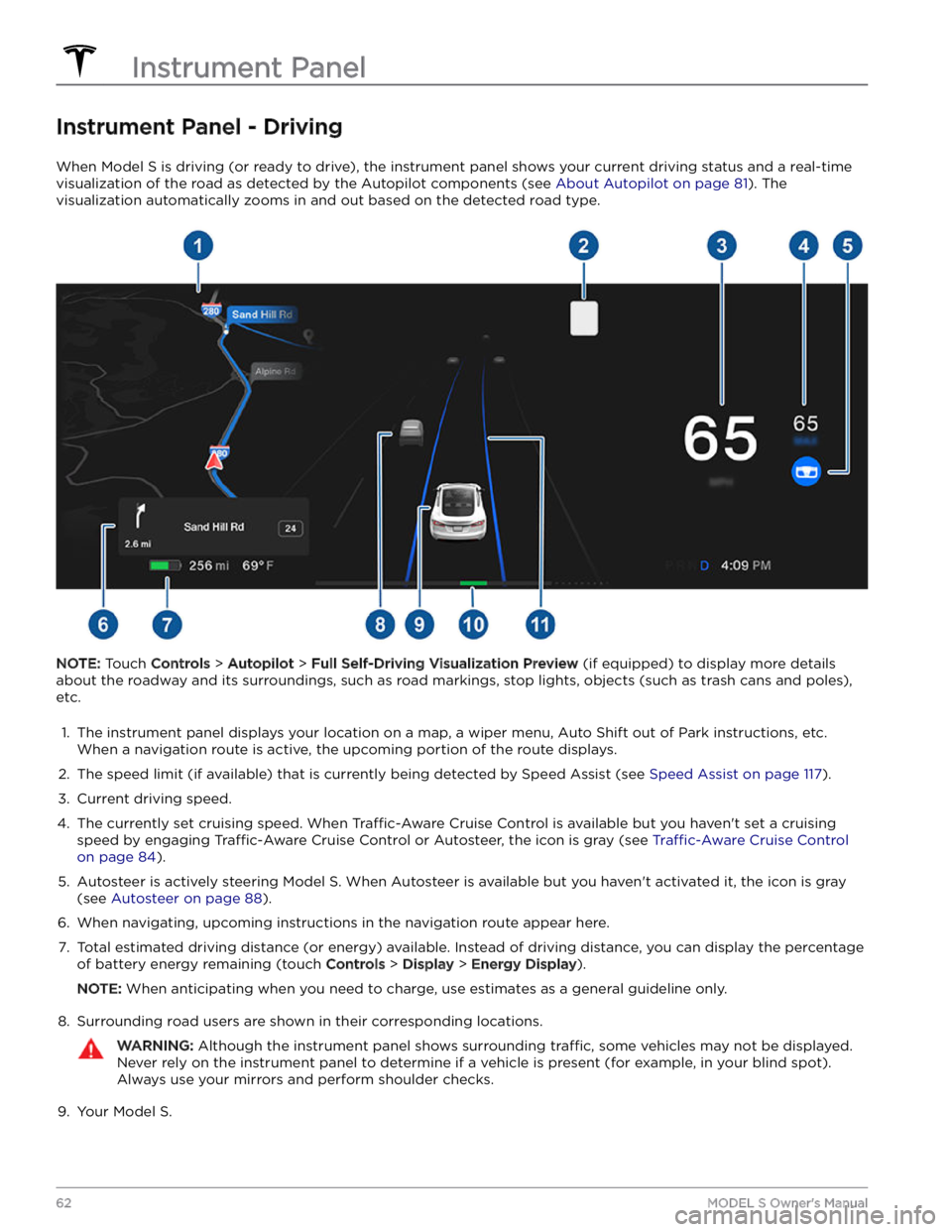
Instrument Panel - Driving
When Model S is driving (or ready to drive), the instrument panel shows your current driving status and a real-time
visualization of the road as detected by the Autopilot components (see
About Autopilot on page 81). The
visualization automatically zooms in and out based on the detected road type.
NOTE: Touch Controls > Autopilot > Full Self-Driving Visualization Preview (if equipped) to display more details
about the roadway and its surroundings, such as road markings, stop lights, objects (such as trash cans and poles),
etc.
1.
The instrument panel displays your location on a map, a wiper menu, Auto Shift out of Park instructions, etc. When a navigation route is active, the upcoming portion of the route displays.
2.
The speed limit (if available) that is currently being detected by Speed Assist (see Speed Assist on page 117).
3.
Current driving speed.
4.
The currently set cruising speed. When Traffic-Aware Cruise Control is available but you haven
Page 66 of 276
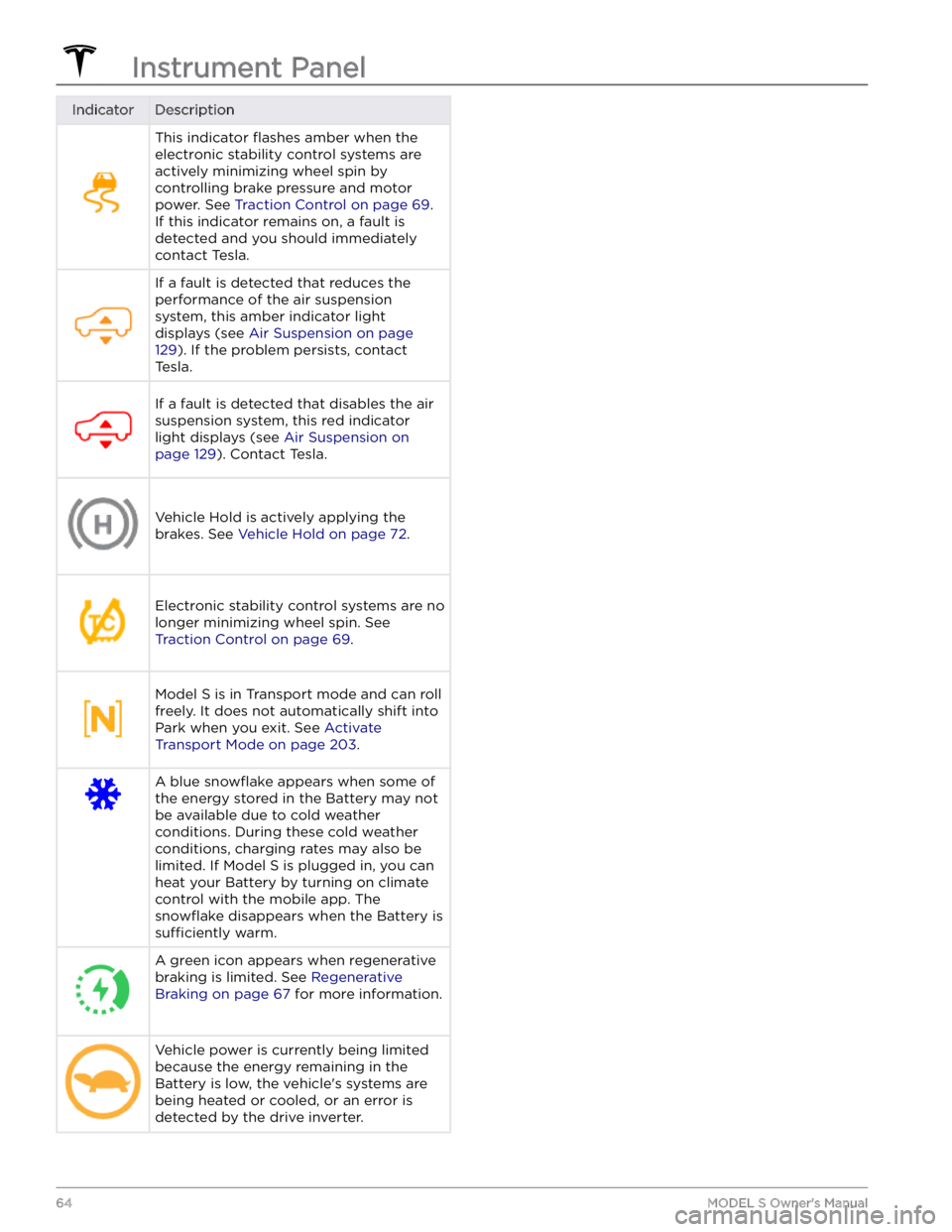
IndicatorDescriptionThis indicator flashes amber when the
electronic stability control systems are actively minimizing wheel spin by
controlling brake pressure and motor
power. See
Traction Control on page 69.
If this indicator remains on, a fault is detected and you should immediately contact Tesla.
If a fault is detected that reduces the performance of the air suspension system, this amber indicator light
displays (see
Air Suspension on page
129). If the problem persists, contact
Tesla.
If a fault is detected that disables the air suspension system, this red indicator light displays (see
Air Suspension on
page 129). Contact Tesla.
Vehicle Hold is actively applying the brakes. See
Vehicle Hold on page 72.
Electronic stability control systems are no longer minimizing wheel spin. See
Traction Control on page 69.
Model S is in Transport mode and can roll
freely. It does not automatically shift into Park when you exit. See
Activate
Transport Mode on page 203.
A blue snowflake appears when some of
the energy stored in the Battery may not be available due to cold weather
conditions. During these cold weather
conditions, charging rates may also be limited. If
Model S is plugged in, you can
heat your Battery by turning on climate control with the mobile app. The
snowflake disappears when the Battery is
sufficiently warm.
A green icon appears when regenerative
braking is limited. See
Regenerative
Braking on page 67 for more information.
Vehicle power is currently being limited
because the energy remaining in the
Battery is low, the vehicle