wheel TESLA MODEL Y 2023 User Guide
[x] Cancel search | Manufacturer: TESLA, Model Year: 2023, Model line: MODEL Y, Model: TESLA MODEL Y 2023Pages: 298, PDF Size: 10.28 MB
Page 67 of 298
Braking SystemsWARNING: Properly functioning braking systems
are critical to ensure safety. If you experience a
problem with the brake pedal, brake calipers, or
any component of a Model Y braking system,
contact Tesla immediately.
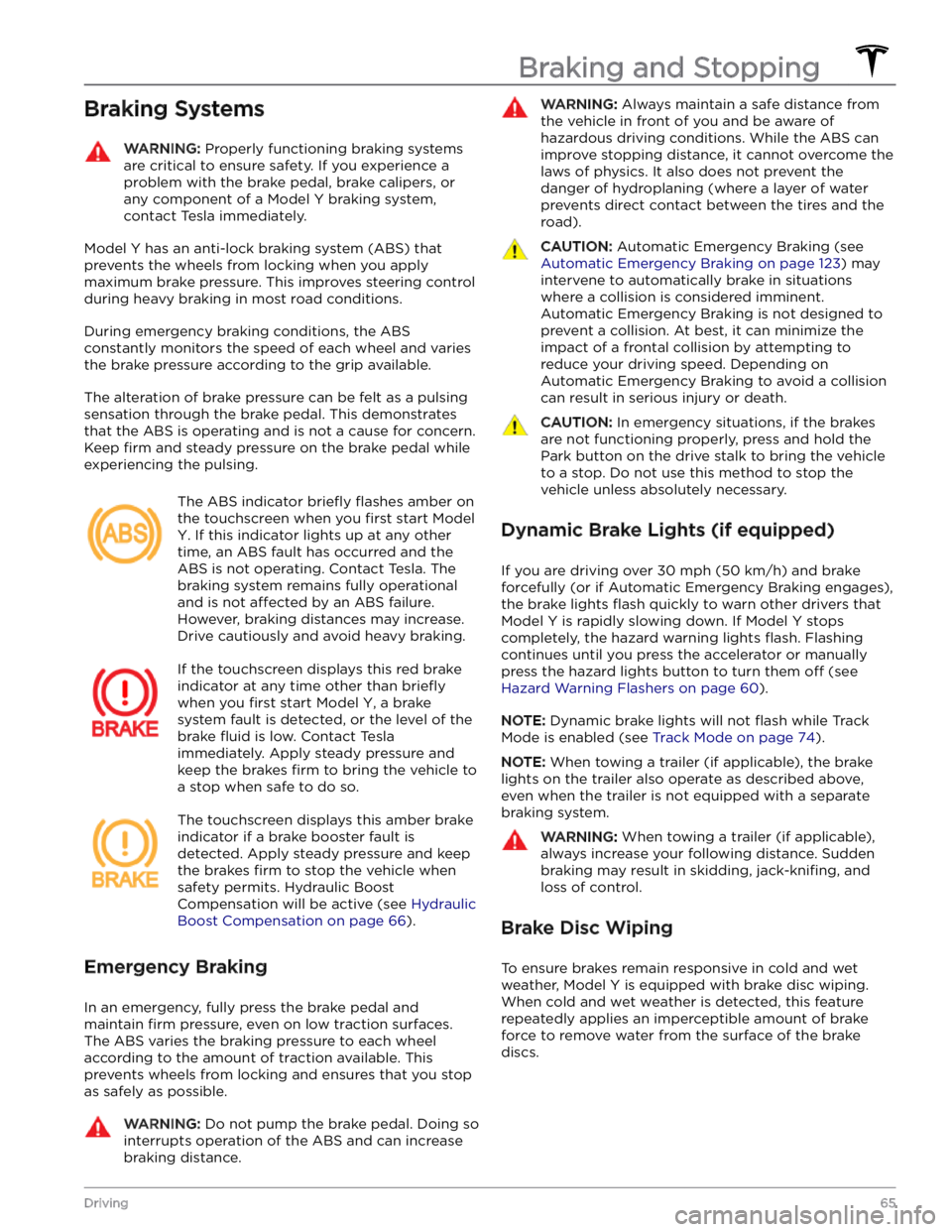
Model Y has an anti-lock braking system (ABS) that
prevents the wheels from locking when you apply
maximum brake pressure. This improves steering control
during heavy braking in most road conditions.
During emergency braking conditions, the ABS
constantly monitors the speed of each wheel and varies
the brake pressure according to the grip available.
The alteration of brake pressure can be felt as a pulsing sensation through the brake pedal. This demonstrates that the ABS is operating and is not a cause for concern. Keep
firm and steady pressure on the brake pedal while
experiencing the pulsing.
The ABS indicator briefly flashes amber on
the
touchscreen when you first start Model
Y. If this indicator lights up at any other
time, an ABS fault has occurred and the ABS is not operating. Contact Tesla. The
braking system remains fully operational
and is not
affected by an ABS failure.
However, braking distances may increase. Drive cautiously and avoid heavy braking.
If the touchscreen displays this red brake
indicator at any time other than
briefly
when you first start Model Y, a brake
system fault is detected, or the level of the
brake
fluid is low. Contact Tesla
immediately. Apply steady pressure and
keep the brakes
firm to bring the vehicle to
a stop when safe to do so.
The touchscreen displays this amber brake
indicator if a brake booster fault is detected. Apply steady pressure and keep the brakes
firm to stop the vehicle when
safety permits. Hydraulic Boost
Compensation will be active (see
Hydraulic
Boost Compensation on page 66).
Emergency Braking
In an emergency, fully press the brake pedal and
maintain
firm pressure, even on low traction surfaces.
The ABS varies the braking pressure to each wheel according to the amount of traction available. This prevents wheels from locking and ensures that you stop as safely as possible.
WARNING: Do not pump the brake pedal. Doing so
interrupts operation of the ABS and can increase
braking distance.
WARNING: Always maintain a safe distance from
the vehicle in front of you and be aware of
hazardous driving conditions. While the ABS can
improve stopping distance, it cannot overcome the
laws of physics. It also does not prevent the
danger of hydroplaning (where a layer of water
prevents direct contact between the tires and the
road).
CAUTION: Automatic Emergency Braking (see
Automatic Emergency Braking on page 123) may
intervene to automatically brake in situations
where a collision is considered imminent.
Automatic Emergency Braking is not designed to
prevent a collision. At best, it can minimize the
impact of a frontal collision by attempting to
reduce your driving speed. Depending on
Automatic Emergency Braking to avoid a collision
can result in serious injury or death.
CAUTION: In emergency situations, if the brakes
are not functioning properly, press and hold the
Park button on the drive stalk to bring the vehicle
to a stop. Do not use this method to stop the
vehicle unless absolutely necessary.
Dynamic Brake Lights (if equipped)
If you are driving over 30 mph (50 km/h) and brake
forcefully
(or if Automatic Emergency Braking engages),
the brake lights
flash quickly to warn other drivers that
Model Y is rapidly slowing down. If Model Y stops
completely, the hazard warning lights
flash. Flashing
continues until you press the accelerator or manually press the hazard lights button to turn them
off (see
Hazard Warning Flashers on page 60).
NOTE: Dynamic brake lights will not flash while Track
Mode is enabled (see
Track Mode on page 74).
NOTE: When towing a trailer (if applicable), the brake
lights on the trailer also operate as described above,
even when the trailer is not equipped with a separate
braking system.
WARNING: When towing a trailer (if applicable),
always increase your following distance. Sudden
braking may result in skidding, jack-knifing, and
loss of control.
Brake Disc Wiping
To ensure brakes remain responsive in cold and wet
weather,
Model Y is equipped with brake disc wiping.
When cold and wet weather is detected, this feature repeatedly applies an imperceptible amount of brake
force to remove water from the surface of the brake discs.
Braking and Stopping
65Driving
Page 70 of 298

WARNING: In snowy or icy conditions the rear
wheels may not have sufficient traction to prevent
Model Y from sliding down a slope, particularly if
not using winter tires. Avoid parking on hills in
snowy or icy conditions. You are always
responsible for parking safely.
WARNING: Your Model Y may display an alert if
the road is too steep to safely park on, or if the
parking brakes are not properly engaged. These
alerts are for guidance purposes only and are not a
substitute for the driver
Page 71 of 298

How It Works
The traction control system constantly monitors the speed of the front and rear wheels. If
Model Y
experiences a loss of traction, the system minimizes wheel spin by controlling brake pressure and motor
power. By default, the traction control system is on. Under normal conditions, it should remain on to ensure
maximum safety.
This yellow indicator flashes on the
touchscreen whenever the traction control
system is actively controlling brake
pressure and motor power to minimize wheel spin. If the indicator stays on, a fault is detected with the traction control system. Contact Tesla Service.
WARNING: Traction control cannot prevent
collisions caused by driving dangerously or turning
too sharply at high speeds.
Disabling Traction Control
Under normal conditions, the traction control system should remain on. Turn it
off only in circumstances
where you deliberately want the wheels to spin, such as:
Page 79 of 298

Camera Location
Model Y is equipped with a rear view camera located
above the rear license plate.
Whenever you shift into Reverse, the touchscreen displays the view from the camera. Lines show your
driving path based on the position of the
steering wheel.
These lines adjust as you move the
steering wheel.
Model Y also displays images from the side cameras (if
equipped). Simply swipe up or down to hide or show the
side camera views.
NOTE: Visual feedback from Park Assist also appears on
the
touchscreen (see Park Assist on page 70).
To display the view from the rear view
cameras at any time, open the app
launcher and touch the Camera app.
If a black screen appears on the touchscreen instead of the rear view camera feed when in Reverse, use the rear view mirrors and ensure your surroundings are safe before continuing to Reverse. If inoperability of the rear
view camera persists, use the mobile app to schedule a service appointment.
WARNING: Never depend on the cameras to
inform you if the area behind you is free of objects
and/or people. The cameras may not detect
objects or barriers that can potentially cause
damage or injury. In addition, several external
factors can reduce the performance of the
cameras, including a dirty or obstructed lens.
Therefore, depending on the cameras to determine
if Model Y is approaching an obstruction can result
in damage to the vehicle and/or objects and can
potentially cause serious injury. Always inspect the
area with your own eyes. When reversing, perform
shoulder checks and use all mirrors. Use the
cameras for guidance purposes only. It is not
intended to replace your own direct visual checks
and is not a substitute for careful driving.
Cleaning a Camera
To ensure a clear picture, the camera lens must be clean
and free of obstructions. Remove any build-up of dirt or debris by spraying water onto the camera lens with a
spray bottle.
CAUTION: Do not attempt to remove dirt or debris
by wiping an exposed lens with your hands or a
cloth. This debris can damage the surface of the
lens when rubbed against it during wiping.
CAUTION: Do not use chemical-based or abrasive
cleaners. Doing so can damage the surface of the
lens.
Rear Facing Camera(s)
77Driving
Page 81 of 298

The towing package includes a 2" x 2" (5 cm x 5 cm)
hitch receiver that can support an accessory carrier (for bicycles, skis, snowboards, etc.) or tow a trailer.
Installing and Using a Carrier
When using the tow package to carry accessories, the 2"
x 2" (5 cm x 5 cm) square hitch receiver is designed to
support vertical loads of up to
160 lbs (72 kg). Ball
mounts that are compatible with the square receiver
must be purchased separately.
To install and use an accessory carrier, you must first
attach the ball mount to the hitch receiver (see
Attaching and Removing the Ball Mount on page 83).
Then, follow the instructions provided by your accessory
carrier. Observe all regulations and legal requirements in your state or region that apply to carrying accessories.
The Model Y towing package includes the wiring
necessary for using an accessory carrier equipped with
lights (see
Electrical Connections on page 83). The
package also includes Trailer Mode software compatibility (see
Trailer Mode on page 81).
NOTE: Go to http://www.tesla.com to purchase
accessories for your vehicle. Although third-party products are available, Tesla recommends and supports
only Tesla-approved products (see
Parts and
Accessories on page 198). The accessory products
available for your vehicle may vary based on market
region. Before attempting to install a non Tesla-
approved carrier, review the product information to ensure compatibility.
NOTE: When not in use, the ball mount should be
removed and stored in a dry location to prevent dust and corrosion. Keep the dust cover over the hitch housing to prevent dirt and debris from entering (see
Attaching and Removing the Ball Mount on page 83).
NOTE: Tesla assumes no responsibility for damage or
injuries resulting from installing and using an accessory carrier, for any omissions in the instructions
accompanying an accessory carrier, or for your failure to follow the instructions. Damage caused by using an accessory carrier is not covered by the warranty.
Carrying Accessories
The hitch receiver is designed to support vertical loads
up to
160 lbs (72 kg). When carrying bicycles, skis, or
other items on the
Model Y hitch, always check to
ensure that the maximum weight is not exceeded. When calculating weight, remember to include the weight of
the accessory carrier.
For example, assuming the carrier
weighs 40 lbs (18 kg), the weight threshold is sufficient
for carrying two bicycles weighing approximately 60 lbs
(27 kg) each, or four items weighing approximately 30
lbs (14 kg) each.
NOTE: Consult the product details of your accessory
carrier for more information, such as additional weight or load limits. Damage caused by non Tesla-approved
accessories is not covered by the warranty.CAUTION: Exceeding the maximum weight the
Model Y hitch is designed to support (as
previously described) can cause significant
damage.
CAUTION: Do not attempt to install an accessory
carrier on Model Y that is not equipped with the
tow package. Doing so can cause significant
damage.
Trailer Towing
The maximum trailer weight (including all cargo and
additional equipment), and the trailer tongue weight
depend on the number of occupants in your vehicle and the tires being used. The maximum towing capacity and
trailer tongue weight must never exceed the following:
Wheel/Rim Size# of
PassengersMaximum
Towing
CapacityMaximum
Tongue
Weight19", 20"
and 21"up to 33,500 lbs
(1,588 kg)350 lbs (159
kg)19" and
21"4 - 53,500 lbs
(1,588 kg)350 lbs (159
kg)20"4 - 52,300 lbs
(1,043 kg)**230 lbs (104
kg)**19"6 - 7*2000 lbs
(907 kg)**200 lbs (91
kg)**20"6 - 7*Towing not
permitted-21"6 - 7*1200 lbs
(544 kg)**120 lbs (54
kg)**
*Applicable only to vehicles with seven seating
positions.
** You must operate within the speed limitations of your trailer and tires, and only drive at speeds appropriate for
the load you are towing, the weather, road and
traffic
conditions, and your level of towing experience. Always
obey posted speed limits and local regulations regarding
speed.
NOTE: In Canada, towing is limited to 55 mph (89 km/h).
For trailers with a combined loading of more than 1650
lbs (750 kg), Tesla recommends using a separate braking
system with an independent controller (see
Trailer
Brakes on page 81). Carefully follow the instructions
provided by the trailer brake manufacturer to ensure that trailer brakes are properly installed, adjusted, and
maintained.
Towing and Accessories
79Driving
Page 89 of 298
NOTE: Installing winter tires can result in temporarily
reduced regenerative braking power but after a short
period of driving,
Model Y recalibrates to correct this.
Touch
Service > Wheel & Tire Configuration > Tires to
select winter tires and quicken this process.
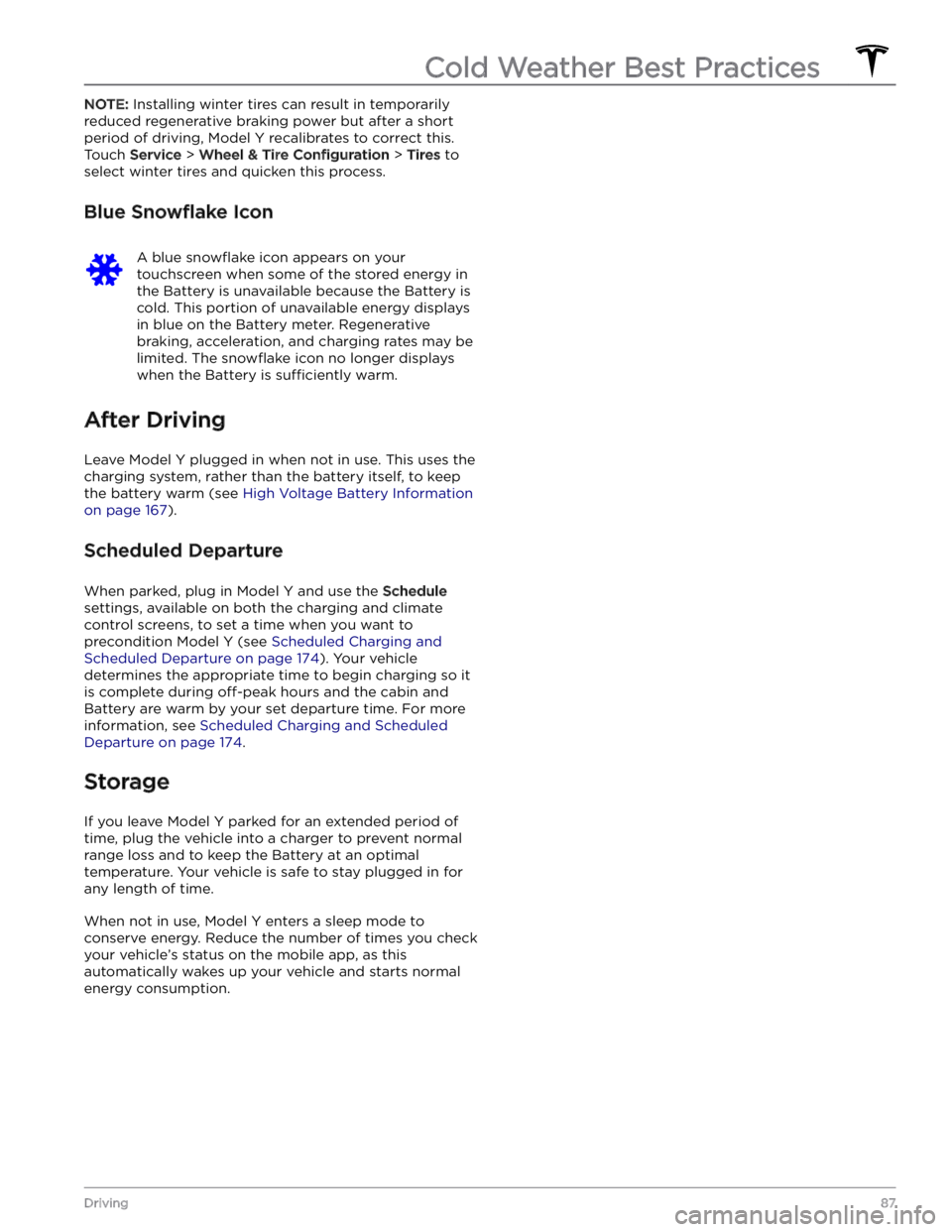
Blue Snowflake Icon
A blue snowflake icon appears on your
touchscreen when some of the stored energy in
the Battery is unavailable because the Battery is cold. This portion of unavailable energy displays in blue on the Battery meter. Regenerative
braking, acceleration, and charging rates may be limited. The
snowflake icon no longer displays
when the Battery is
sufficiently warm.
After Driving
Leave Model Y plugged in when not in use. This uses the
charging system, rather than the battery itself, to keep the battery warm (see
High Voltage Battery Information
on page 167).
Scheduled Departure
When parked, plug in Model Y and use the Schedule
settings, available on both the charging and climate
control screens, to set a time when you want to precondition
Model Y (see Scheduled Charging and
Scheduled Departure on page 174). Your vehicle
determines the appropriate time to begin charging so it is complete during
off-peak hours and the cabin and
Battery are warm by your set departure time. For more information, see
Scheduled Charging and Scheduled
Departure on page 174.
Storage
If you leave Model Y parked for an extended period of
time, plug the vehicle into a charger to prevent normal range loss and to keep the Battery at an optimal temperature. Your vehicle is safe to stay plugged in for any length of time.
When not in use, Model Y enters a sleep mode to
conserve energy. Reduce the number of times you check
your vehicle
Page 94 of 298

pressing the drive stalk down, or touching the speed
limit sign on the touchscreen. For more details, see
Changing the Cruising Speed on page 92.
4.
To cancel Traffic-Aware Cruise Control, push the drive
stalk up once or press the brake pedal. See
Canceling
and Resuming on page 94 for more information.
Set Traffic-Aware Cruise Control
Chime
If you want a chime to sound when you engage or cancel
Traffic-Aware Cruise Control, touch Controls >
Autopilot > Traffic-Aware Cruise Control Chime.
NOTE: Model Y must be in Park.
Changing the Cruising Speed
Roll the right scroll wheel up to increase, or down to decrease, the set speed. Slowly rolling the scroll wheel changes the set speed in
1 mph (1 km/h) increments and
quickly rolling the scroll wheel changes the set speed to
the closest
5 mph (5 km/h) increment. For example, if
you are traveling at
57 mph and quickly roll the scroll
wheel, the speed increases to
60 mph.
With Traffic-Aware Cruise Control engaged and cruising
at a set speed, you can also change the cruising speed
to the current speed limit (including any
offset you
Page 98 of 298
NOTE: Depending on market region, vehicle
configuration, options purchased, and software version,
your vehicle may not be equipped with Autosteer, or the
feature may not operate exactly as described.
NOTE: Autosteer is a BETA feature.
Autosteer builds upon Traffic-Aware Cruise Control (see
Traffic-Aware Cruise Control on page 91), intelligently
keeping
Model Y in its driving lane when cruising at a set
speed.
Autosteer also allows you to use the turn signals
to move Model Y into an adjacent lane (see Auto Lane
Change on page 98). Autosteer detects lane markings
and the presence of vehicles and objects to
steer Model
Y.
NOTE: To display more details about the roadway and its
surroundings, such as road markings, stop lights, objects (such as trash cans and poles), etc., touch
Controls >
Autopilot > Full Self-Driving Visualization Preview (if
equipped).
CAUTION: Ensure all cameras and sensors (if
equipped) are clean. Dirty cameras and sensors, as
well as environmental conditions such as rain and
faded lane markings, affect performance.
WARNING: Autosteer is a hands-on feature. You
must keep your hands on the steering wheel at all
times.
WARNING: Autosteer is intended for use on
controlled-access highways with a fully attentive
driver. When using Autosteer, hold the steering
wheel and be mindful of road conditions and
surrounding traffic. Do not use Autosteer in
construction zones, or in areas where bicyclists or
pedestrians may be present. Never depend on
Autosteer to determine an appropriate driving
path. Always be prepared to take immediate
action. Failure to follow these instructions could
cause damage, serious injury or death.
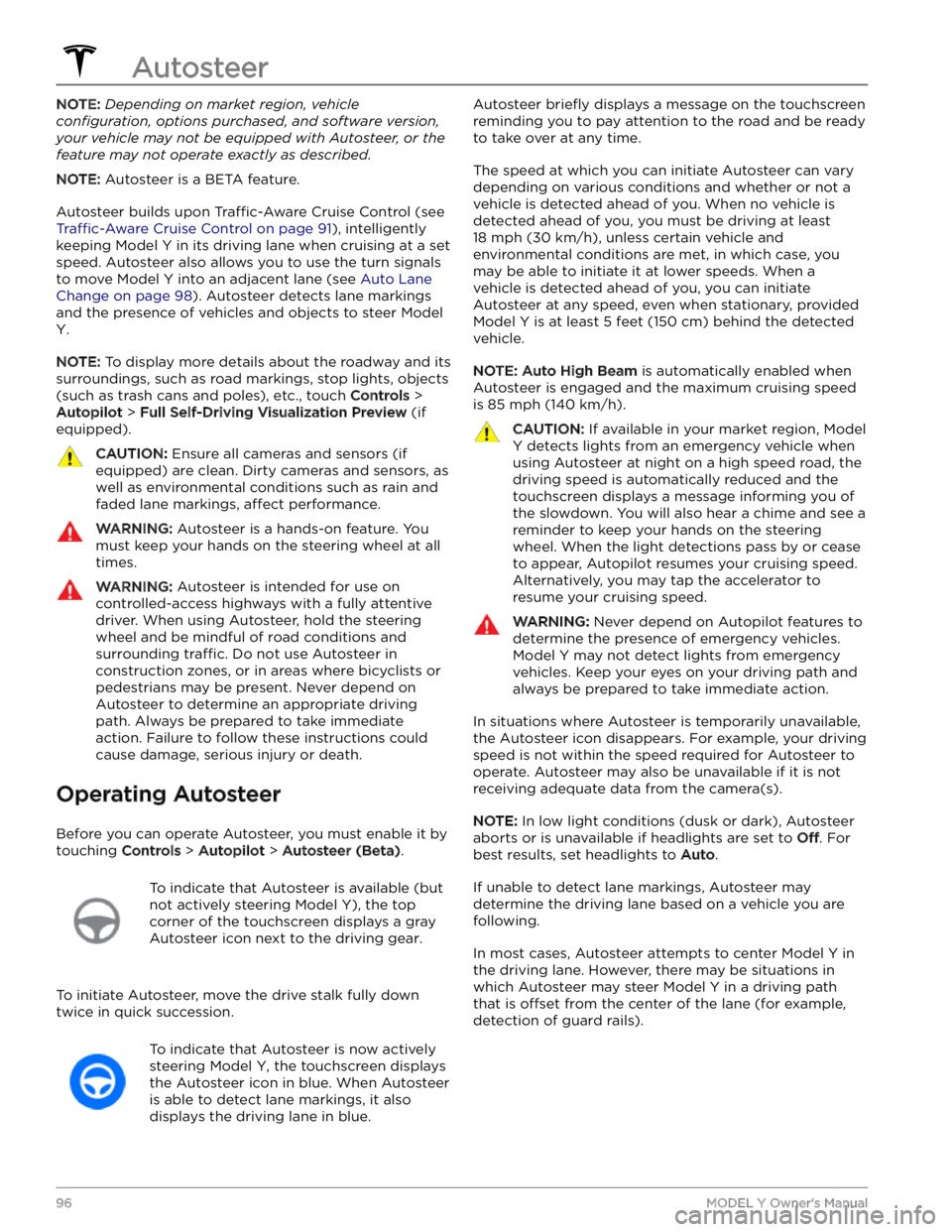
Operating Autosteer
Before you can operate Autosteer, you must enable it by touching
Controls > Autopilot > Autosteer (Beta).
To indicate that Autosteer is available (but
not actively steering
Model Y), the top
corner of the touchscreen displays a gray
Autosteer icon
next to the driving gear.
To initiate Autosteer, move the drive stalk fully down
twice in quick succession.
To indicate that Autosteer is now actively
steering
Model Y, the touchscreen displays
the Autosteer icon in blue. When Autosteer is able to detect lane markings, it also
displays the driving lane in blue.
Autosteer briefly displays a message on the touchscreen
reminding you to pay attention to the road and be ready
to take over at any time.
The speed at which you can initiate Autosteer can vary depending on various conditions and whether or not a vehicle is detected ahead of you. When no vehicle is
detected ahead of you, you must be driving at least
18 mph (30 km/h), unless certain vehicle and
environmental conditions are met, in which case, you
may be able to initiate it at lower speeds. When a
vehicle is detected ahead of you, you can initiate
Autosteer at any speed, even when stationary, provided
Model Y is at least 5 feet (150 cm) behind the detected
vehicle.
NOTE: Auto High Beam is automatically enabled when
Autosteer is engaged and the maximum cruising speed is
85 mph (140 km/h).
CAUTION: If available in your market region, Model
Y detects lights from an emergency vehicle when
using Autosteer at night on a high speed road, the
driving speed is automatically reduced and the
touchscreen displays a message informing you of
the slowdown. You will also hear a chime and see a
reminder to keep your hands on the steering
wheel. When the light detections pass by or cease
to appear, Autopilot resumes your cruising speed.
Alternatively, you may tap the accelerator to
resume your cruising speed.
WARNING: Never depend on Autopilot features to
determine the presence of emergency vehicles.
Model Y may not detect lights from emergency
vehicles. Keep your eyes on your driving path and
always be prepared to take immediate action.
In situations where Autosteer is temporarily unavailable, the Autosteer icon disappears. For example, your driving speed is not within the speed required for Autosteer to operate. Autosteer may also be unavailable if it is not receiving adequate data from the camera(s).
NOTE: In low light conditions (dusk or dark), Autosteer
aborts or is unavailable if headlights are set to
Off. For
best results, set headlights to
Auto.
If unable to detect lane markings, Autosteer may determine the driving lane based on a vehicle you are
following.
In most cases, Autosteer attempts to center Model Y in
the driving lane. However, there may be situations in which Autosteer may steer
Model Y in a driving path
that is
offset from the center of the lane (for example,
detection of guard rails).
Autosteer
96MODEL Y Owner
Page 100 of 298

NOTE: If Autosteer cancels because you started steering
manually, Traffic-Aware Cruise Control remains active.
Disengage
Traffic-Aware Cruise Control as you normally
would, by pressing the brake pedal
moving the drive
stalk upward.
NOTE: If you move the drive stalk upward and hold it up
for more than one second,
Model Y shifts into Neutral
after canceling Autosteer.
To disable Autosteer so it is no longer available, touch
Controls > Autopilot > Autosteer (Beta).
Auto Lane Change
NOTE: Depending on market region, vehicle
configuration, options purchased, and software version,
your vehicle may not be equipped with Auto Lane
Change, or the feature may not operate exactly as
described.
When Autosteer is active, engage a turn signal to move
Model Y into an adjacent lane (moving the steering
wheel would cancel Autosteer).
WARNING: It is the driver
Page 103 of 298
NOTE: Depending on market region, vehicle
configuration, options purchased, and software version,
your vehicle may not be equipped with Navigate on
Autopilot, or the feature may not operate exactly as
described.
NOTE: Navigate on Autopilot is a BETA feature.
When using Autosteer on a controlled-access highway (a main highway on which road users enter and exit
using on-ramps and
off-ramps). Navigate on Autopilot
guides
Model Y to off-ramps and interchanges based on
your navigation route. Along the highway portion of a navigation route, Navigate on Autopilot also changes
lanes to prepare for exits (route-based lane changes) and to minimize the driving time to your destination (speed-based lane changes).
WARNING: Navigate on Autopilot does not make
driving autonomous. You must pay attention to the
road, keep your hands on the steering wheel at all
times, and remain aware of your navigation route.
WARNING: As is the case with normal driving, be
extra careful around blind corners, interchanges,
and on-ramps and off-ramps - obstacles can
appear quickly and at any time.
WARNING: Navigate on Autopilot may not
recognize or detect oncoming vehicles, stationary
objects, and special-use lanes such as those used
exclusively for bikes, carpools, emergency vehicles,
etc. Remain alert at all times and be prepared to
take immediate action. Failure to do so can cause
damage, injury or death.
Enabling and Customizing Navigate
on Autopilot
To enable Navigate on Autopilot, touch Controls >
Autopilot > Navigate on Autopilot (Beta). Then, to
customize how you want Navigate on Autopilot to operate, touch
Customize Navigate on Autopilot: