Time TOYOTA AURIS 2011 (in English) Owner's Guide
[x] Cancel search | Manufacturer: TOYOTA, Model Year: 2011, Model line: AURIS, Model: TOYOTA AURIS 2011Pages: 524, PDF Size: 25.6 MB
Page 259 of 524
259 3-2. Using the audio system
3
Interior features
UK_AURIS_HV_EETraffic information
Press .
TP mode: The system automatically switches to traffic information
when a broadcast with a traffic information signal is
received.
The station returns to the previous one when the traffic infor-
mation ends.
TA mode: The system automatically switches to traffic information
when a broadcast with a traffic information signal is
received. In FM modes, the system will be mute unless
traffic information is being broadcast.
The audio system returns to the previous mode when the traf-
fic information ends.
Traffic information cannot be heard if the hands-free phone
system is in use.
The audio system mode changes as follows each time is
pressed.
FM modes: TPTAOFF
Modes other than FM modes: TAOFF
Emergency broadcast reception mode
“ALARM” appears on the display in the event that an emergency
broadcast is received, and the emergency broadcast is aired.
Page 260 of 524
260 3-2. Using the audio system
UK_AURIS_HV_EE
Certification for the radio (for Italy)
IL PRODUTTORE Panasonic Corporation Automotive Systems Company
4261, Ikenobe-cho, Tsuzuki-ku, Yokohama, 224-8520, JAPAN
DI QUESTO APPARECCHIO MODELLO 86120-02F50 DICHIARA CHE
ESSO E’CONFORME AL D.M.28.08.1995 Nr.548, OTTEMPERANDO ALLE
PRESCRIZIONI DI CUI AL D.M.25.6.1985 (PARAGRAFO 3,ALL.A) ED AL
D.M.27.8.1987 (PARAGRAFO 3,ALL.I)
IL PRODUTTORE FUJITSU TEN (EUROPE) GmbH, Mündelheimer Weg
39, 40472 Düsseldorf, Germania DI QUESTO APPARECCHIO MODELLO
FT0001n DICHIARA CHE ESSO E’CONFORME AL D.M.28.08.1995
Nr.548, OTTEMPERANDO ALLE PRESCRIZIONI DI CUI AL
D.M.25.06.1985 (PARAGRAFO 3,ALL.A) ED AL D.M.27.08.1987
(PARAGRAFO 3,ALL.I.).
EON (Enhanced Other Network) system (for traffic announcement
function)
If the RDS station (with EON data) you are listening to is not broadcasting a
traffic information program and the audio system is in the TA (traffic
announcement) mode, the radio will be switched automatically to a station
broadcasting a traffic information program in the EON AF list when traffic
information begins.
When the 12-volt battery is disconnected
Stations presets are erased.
Reception sensitivity
Maintaining perfect radio reception at all times is difficult due to the con-
tinually changing position of the antenna, differences in signal strength
and surrounding objects, such as trains, transmitters, etc.
When is used, automatic station selection and automatic regis-
tering of stations may not be possible.
The radio antenna is mounted on the rear roof. The antenna can be
removed from the base by turning it.
Page 263 of 524
263 3-2. Using the audio system
3
Interior features
UK_AURIS_HV_EE
Fast-forwarding and reversing tracks
To fast-forward or reverse, press and hold “
” or “” on .
Selecting a CD (CD player with changer only)
To select the desired CD, press () or ().
Repeat play
To repeat a track
Press (RPT).
To repeat all of the tracks on a CD (CD player with changer
only)
Press and hold (RPT) until you hear a beep.
Random playback
Current CD
Press (RAND).
Tracks are played in a random order until is pressed once more.
All CDs (CD player with changer only)
Press and hold (RAND) until you hear a beep.
Tracks on all loaded CDs are played in a random order until is
pressed once more.
Switching the display
Press .
Each time is pressed, the display changes in the order of Track
no./Elapsed timeCD titleTrack name.
Page 264 of 524
264 3-2. Using the audio system
UK_AURIS_HV_EE
Display
Up to 12 characters can be displayed at a time.
If there are 13 characters or more, pressing and holding for 1
second or more will display the remaining characters.
A maximum of 24 characters can be displayed.
If is pressed for 1 second or more again or has not been pressed
for 6 seconds or more, the display will return to the first 12 characters.
Depending on the contents recorded, the characters may not be displayed
properly or may not be displayed at all.
Canceling random and repeat playback
Press
(RAND) or (RPT) again.
Error message
“ERROR”: This indicates a problem either in the CD or inside the player.
The CD may be dirty, damaged or inserted up-side down.
Discs that can be used
Discs with the marks shown below can be used.
Playback may not be possible depending on recording format or disc fea-
tures, or due to scratches, dirt or deterioration.
CDs with copy-protect features may not be used.
CD player protection feature
To protect the internal components, playback is automatically stopped when
a problem is detected while the CD player is being used.
If a CD is left inside the CD player or in the ejected position for
extended periods
The CD may be damaged and may not play properly.
Lens cleaners
Do not use lens cleaners. Doing so may damage the CD player.
Page 268 of 524
268 3-2. Using the audio system
UK_AURIS_HV_EE
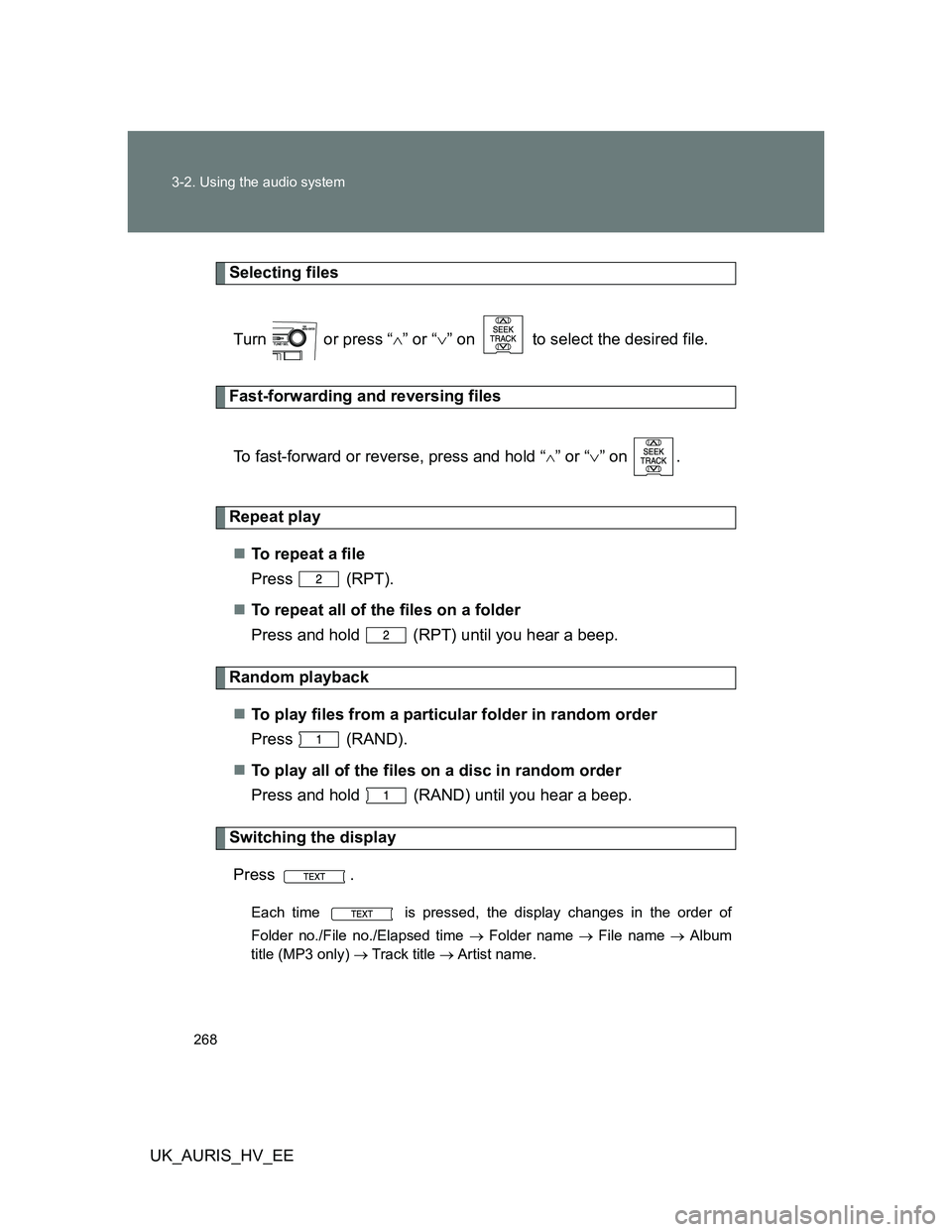
Selecting files
Turn or press “” or “” on to select the desired file.
Fast-forwarding and reversing files
To fast-forward or reverse, press and hold “
” or “” on .
Repeat play
To r e p e a t a f i l e
Press (RPT).
To repeat all of the files on a folder
Press and hold (RPT) until you hear a beep.
Random playback
To play files from a particular folder in random order
Press (RAND).
To play all of the files on a disc in random order
Press and hold (RAND) until you hear a beep.
Switching the display
Press .
Each time is pressed, the display changes in the order of
Folder no./File no./Elapsed time Folder name File name Album
title (MP3 only) Track title Artist name.
Page 269 of 524
269 3-2. Using the audio system
3
Interior features
UK_AURIS_HV_EE
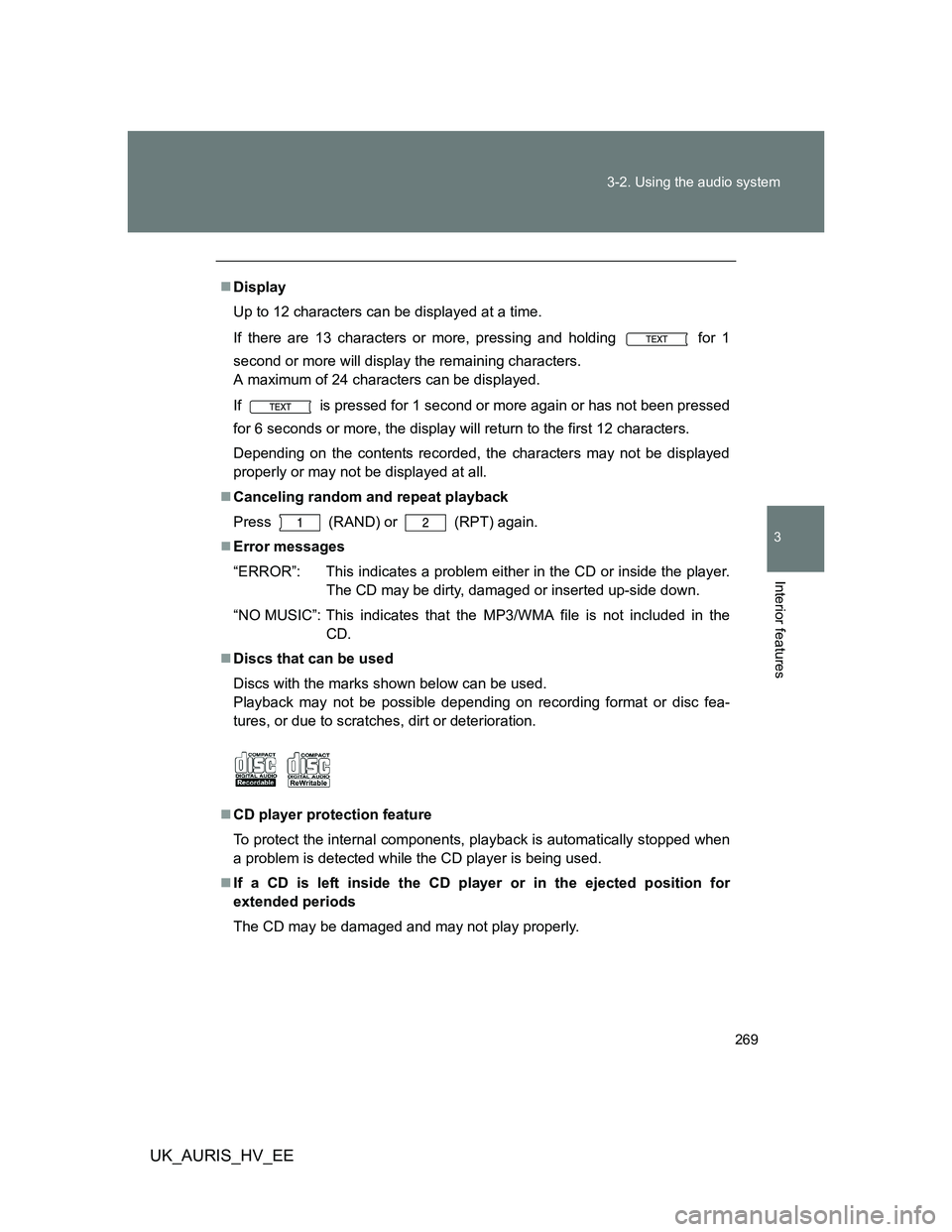
Display
Up to 12 characters can be displayed at a time.
If there are 13 characters or more, pressing and holding for 1
second or more will display the remaining characters.
A maximum of 24 characters can be displayed.
If is pressed for 1 second or more again or has not been pressed
for 6 seconds or more, the display will return to the first 12 characters.
Depending on the contents recorded, the characters may not be displayed
properly or may not be displayed at all.
Canceling random and repeat playback
Press
(RAND) or (RPT) again.
Error messages
“ERROR”: This indicates a problem either in the CD or inside the player.
The CD may be dirty, damaged or inserted up-side down.
“NO MUSIC”: This indicates that the MP3/WMA file is not included in the
CD.
Discs that can be used
Discs with the marks shown below can be used.
Playback may not be possible depending on recording format or disc fea-
tures, or due to scratches, dirt or deterioration.
CD player protection feature
To protect the internal components, playback is automatically stopped when
a problem is detected while the CD player is being used.
If a CD is left inside the CD player or in the ejected position for
extended periods
The CD may be damaged and may not play properly.
Page 272 of 524
272 3-2. Using the audio system
UK_AURIS_HV_EE
MP3 and WMA playback
When a disc containing MP3 or WMA files is inserted, all files on the disc
are first checked. Once the file check is finished, the first MP3 or WMA file
is played. To make the file check finish more quickly, we recommend you
do not write in any files other than MP3 or WMA files or create any unnec-
essary folders.
If the discs contain a mixture of music data and MP3 or WMA format data,
only music data can be played.
Extensions
If the file extensions .mp3 and .wma are used for files other than MP3 and
WMA files, they will be mistakenly recognized and played as MP3 and
WMA files. This may result in large amounts of interference and damage
to the speakers.
Playback
• To play MP3 files with steady sound quality, we recommend a fixed bit
rate of 128 kbps and a sampling frequency of 44.1 kHz.
• CD-R or CD-RW playback may not be possible in some instances,
depending on the characteristics of the disc.
• There is a wide variety of freeware and other encoding software for
MP3 and WMA files on the market, and depending on the status of the
encoding and the file format, poor sound quality or noise at the start of
playback may result. In some cases, playback may not be possible at
all.
• When files other than MP3 or WMA files are recorded on a disc, it may
take more time to recognize the disc and in some cases, playback may
not be possible at all.
• Microsoft, Windows, and Windows Media are the registered trade-
marks of Microsoft Corporation in the U.S. and other countries.
NOTICE
CDs and adapters that cannot be used (P. 265)
CD player precautions (P. 266)
Page 277 of 524
277 3-2. Using the audio system
3
Interior features
UK_AURIS_HV_EE
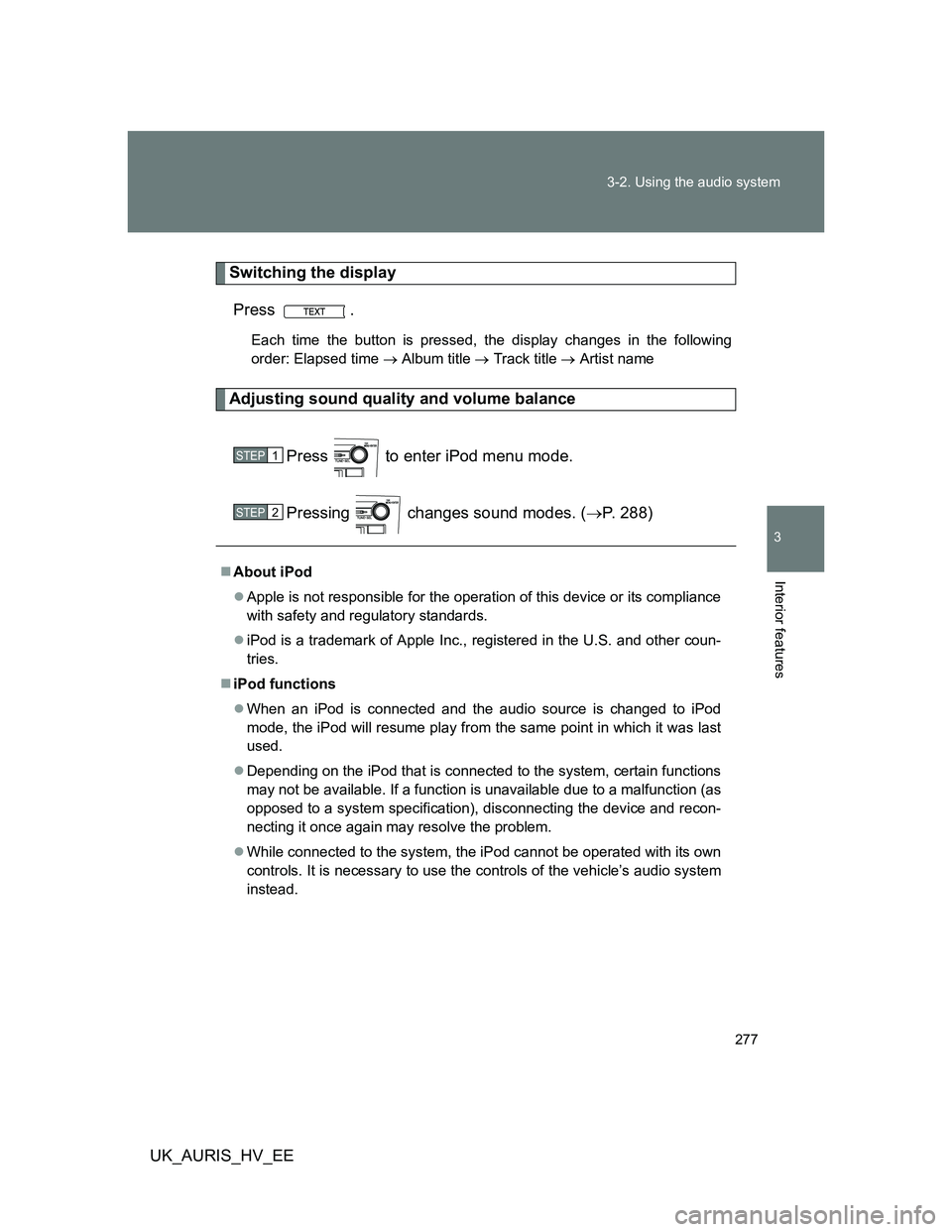
Switching the display
Press .
Each time the button is pressed, the display changes in the following
order: Elapsed time Album title Track title Artist name
Adjusting sound quality and volume balance
Press to enter iPod menu mode.
Pressing changes sound modes. (P. 288)
About iPod
Apple is not responsible for the operation of this device or its compliance
with safety and regulatory standards.
iPod is a trademark of Apple Inc., registered in the U.S. and other coun-
tries.
iPod functions
When an iPod is connected and the audio source is changed to iPod
mode, the iPod will resume play from the same point in which it was last
used.
Depending on the iPod that is connected to the system, certain functions
may not be available. If a function is unavailable due to a malfunction (as
opposed to a system specification), disconnecting the device and recon-
necting it once again may resolve the problem.
While connected to the system, the iPod cannot be operated with its own
controls. It is necessary to use the controls of the vehicle’s audio system
instead.
STEP1
STEP2
Page 281 of 524
281 3-2. Using the audio system
3
Interior features
UK_AURIS_HV_EE
Selecting a folder
Selecting folders one at a time
Press () or () to select the desired folder.
Returning to the first folder
Press and hold () until you hear a beep.
Selecting files
Turn or press “” or “” on to select the desired file.
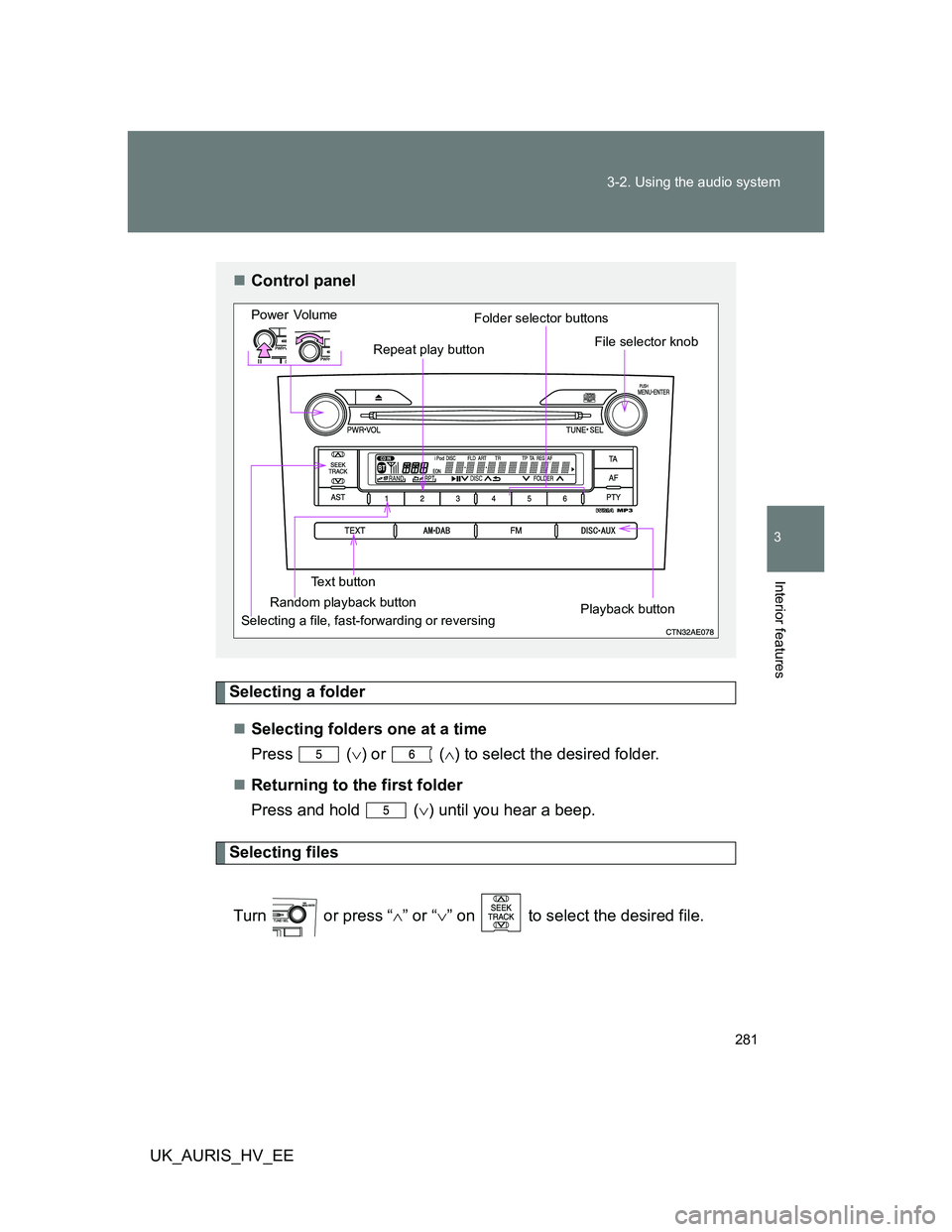
Control panel
Power Volume
Playback button Folder selector buttons
File selector knob
Text buttonRepeat play button
Selecting a file, fast-forwarding or reversingRandom playback button
Page 283 of 524
283 3-2. Using the audio system
3
Interior features
UK_AURIS_HV_EE
Switching the display
Press .
Each time the button is pressed, the display changes in the following
order: Elapsed time Folder name File name Album title (MP3
only) Track title Artist name
USB memory functions
Depending on the USB memory that is connected to the system, the
device itself may not be operable and certain functions may not be avail-
able. If the device is inoperable or a function is unavailable due to a mal-
function (as opposed to a system specification), disconnecting the device
and reconnecting it once again may resolve the problem.
If the USB memory still does not begin operation after being discon-
nected and reconnected, format the memory.
Display
P. 264
Error messages
“ERROR”: This indicates a problem in the USB memory or its con-
nection.
“NO SUPPORT”: This indicates that no MP3/WMA files are included in the
USB memory.