phone TOYOTA AVALON 2019 Accessories, Audio & Navigation (in English)
[x] Cancel search | Manufacturer: TOYOTA, Model Year: 2019, Model line: AVALON, Model: TOYOTA AVALON 2019Pages: 326, PDF Size: 5.97 MB
Page 24 of 326
24
3. NAVIGATION OPERATION
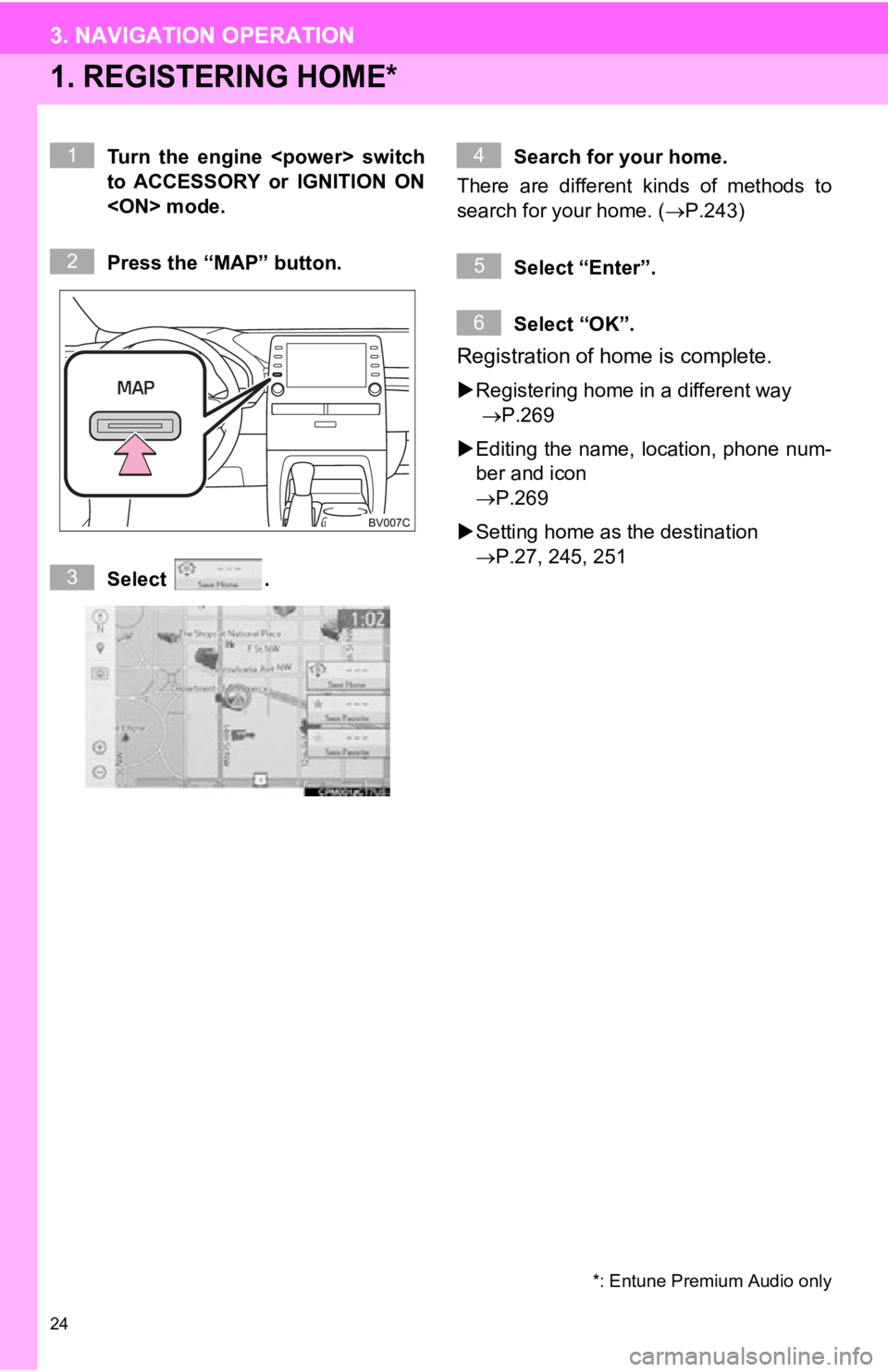
1. REGISTERING HOME*
Turn the engine
to ACCESSORY or IGNITION ON
Press the “MAP” button.
Select .Search for your home.
There are different kinds of methods to
search for your home. ( P.243)
Select “Enter”.
Select “OK”.
Registration of home is complete.
Registering home in a different way
P.269
Editing the name, location, phone num-
ber and icon
P.269
Setting home as the destination
P.27, 245, 251
*: Entune Premium Audio only
1
2
3
4
5
6
3. NAVIGATION OPERATION
Page 25 of 326
25
3. NAVIGATION OPERATION
QUICK GUIDE
1
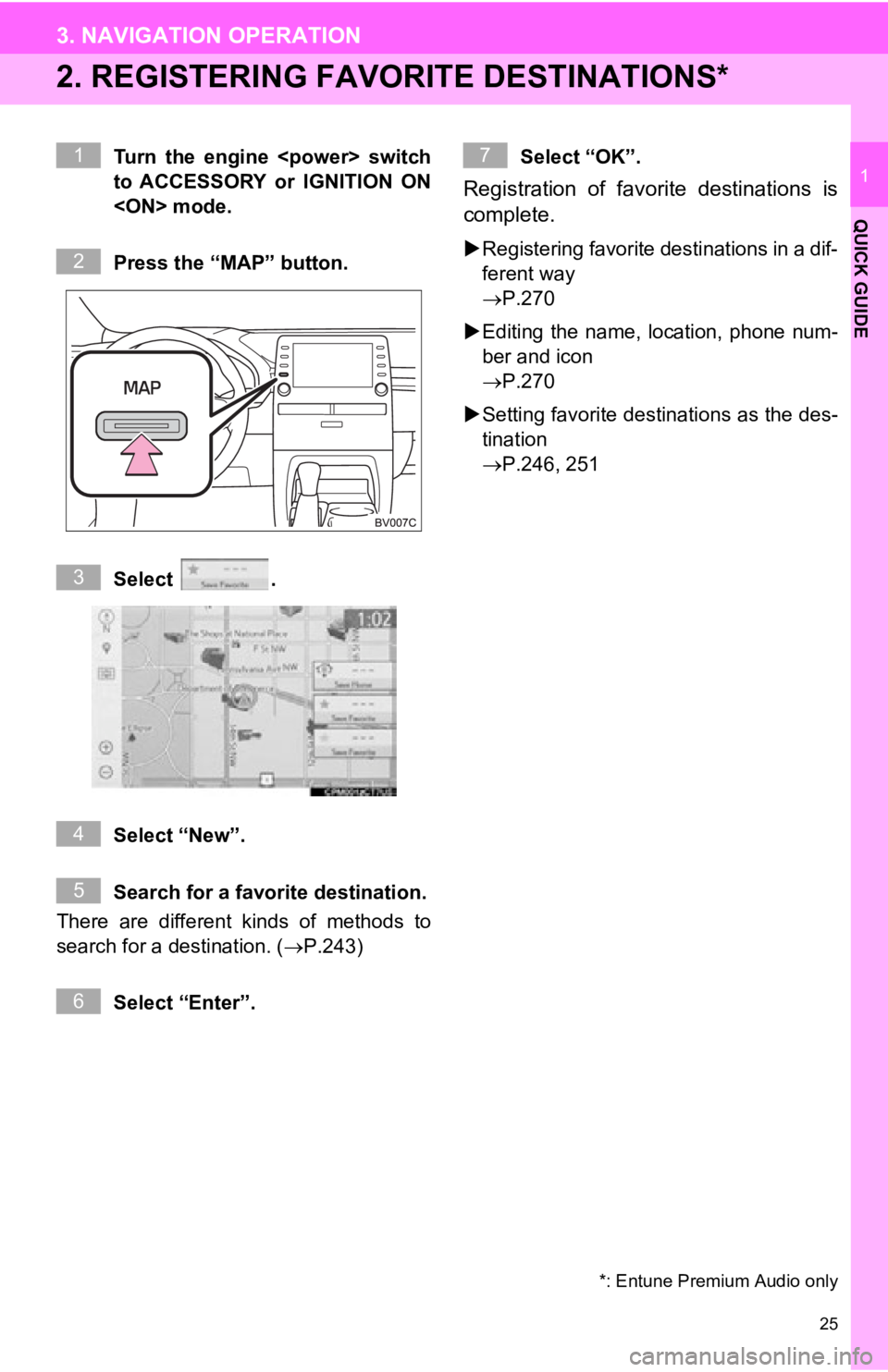
2. REGISTERING FAVORITE DESTINATIONS*
Turn the engine
to ACCESSORY or IGNITION ON
Press the “MAP” button.
Select .
Select “New”.
Search for a favorite destination.
There are different kinds of methods to
search for a destination. ( P.243)
Select “Enter”. Select “OK”.
Registration of favorite destinations is
complete.
Registering favorite destinations in a dif-
ferent way
P.270
Editing the name, l ocation, phone num-
ber and icon
P.270
Setting favorite destinations as the des-
tination
P.246, 251
*: Entune Premium Audio only
1
2
3
4
5
6
7
Page 29 of 326
29
4. FUNCTION INDEX
QUICK GUIDE
1
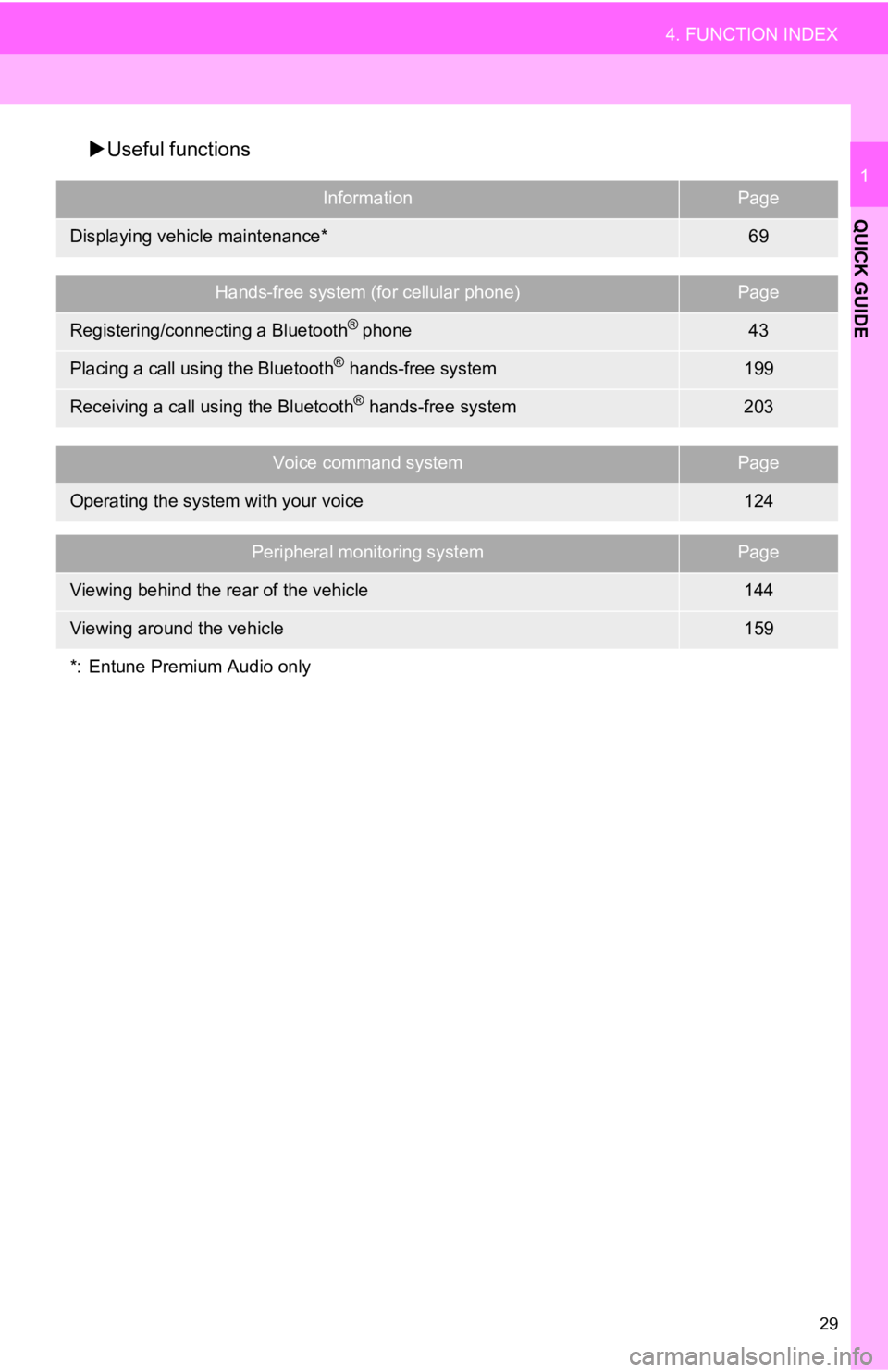
Useful functions
InformationPage
Displaying vehicle maintenance*69
Hands-free system (for cellular phone)Page
Registering/connecting a Bluetooth® phone43
Placing a call using the Bluetooth® hands-free system199
Receiving a call using the Bluetooth® hands-free system203
Voice command systemPage
Operating the system with your voice124
Peripheral monitoring systemPage
Viewing behind the rear of the vehicle144
Viewing around the vehicle159
*: Entune Premium Audio only
Page 32 of 326
32
1. BASIC INFORMATION BEFORE OPERATION
1. INITIAL SCREEN
When the engine
to ACCESSORY or IGNITION ON
mode, the initial screen will be displayed
and the system will begin operating.
After a few seconds, the caution screen
will be displayed.
After about 5 seconds or selecting “Con-
tinue” , the caution screen automatically
switches to the next screen.
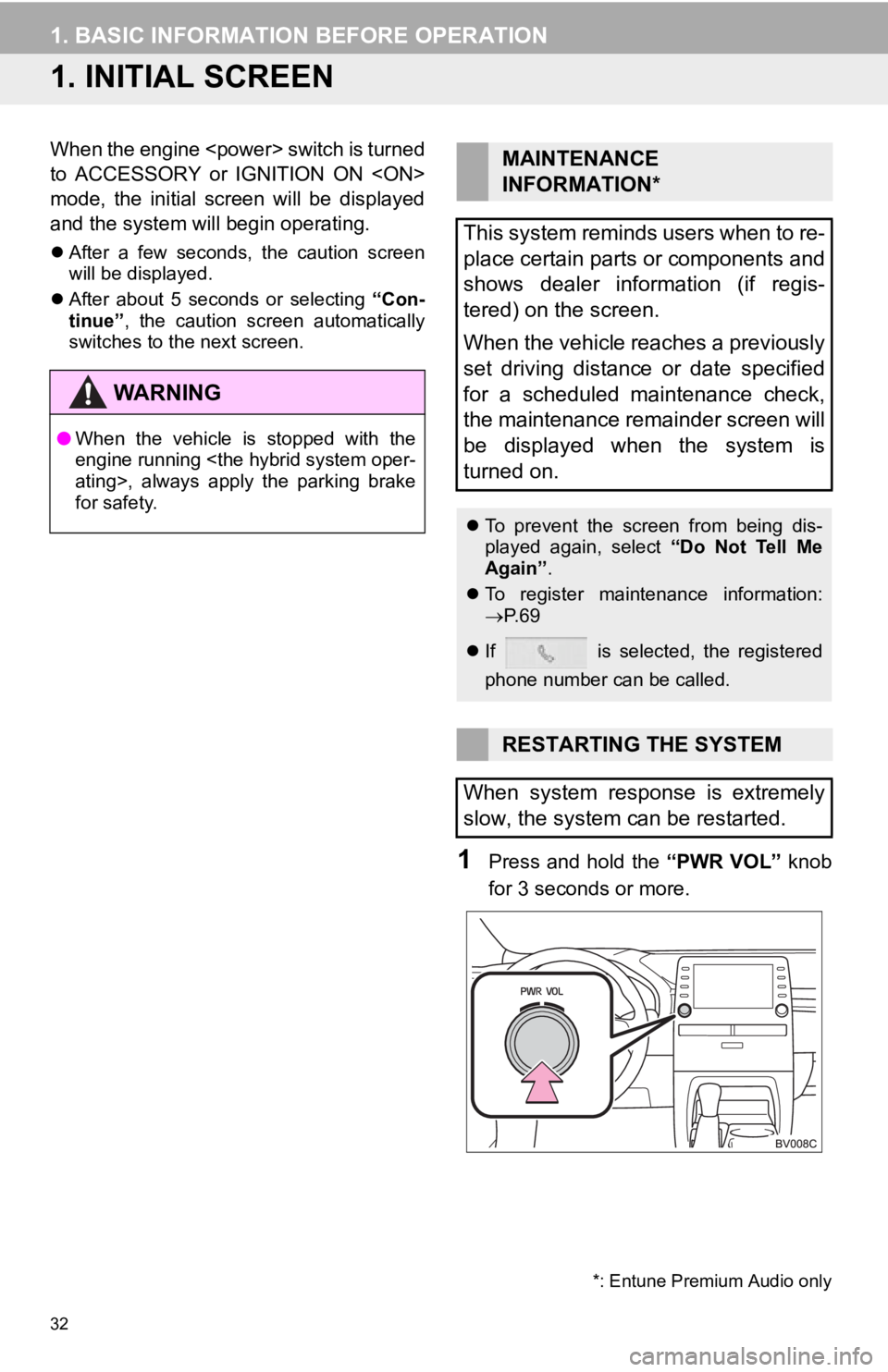
1Press and hold the “PWR VOL” knob
for 3 seconds or more.
WA R N I N G
● When the vehicle is stopped with the
engine running
for safety.
MAINTENANCE
INFORMATION*
This system reminds users when to re-
place certain parts or components and
shows dealer information (if regis-
tered) on the screen.
When the vehicle reaches a previously
set driving distance or date specified
for a scheduled maintenance check,
the maintenance remainder screen will
be displayed when the system is
turned on.
To prevent the screen from being dis-
played again, select “Do Not Tell Me
Again” .
To register maintenance information:
P. 6 9
If is selected, the registered
phone number can be called.
RESTARTING THE SYSTEM
When system response is extremely
slow, the system can be restarted.
*: Entune Premium Audio only
Page 42 of 326

42
1. BASIC INFORMATION BEFORE OPERATION
7. LINKING MULTI-INFORMATION DISPLAY AND THE SYSTEM
The following functions of the system are linked with the multi-information display
in the instrument cluster:
• Phone
•Audio
• Language
etc.
These functions can be operated using multi-information display control switches
on the steering wheel. For details, refer to “OWNER’S MANUAL”.
Page 43 of 326
43
BASIC FUNCTION
2
2. CONNECTIVITY SETTINGS
1. REGISTERING/CONNECTING A Bluetooth® DEVICE
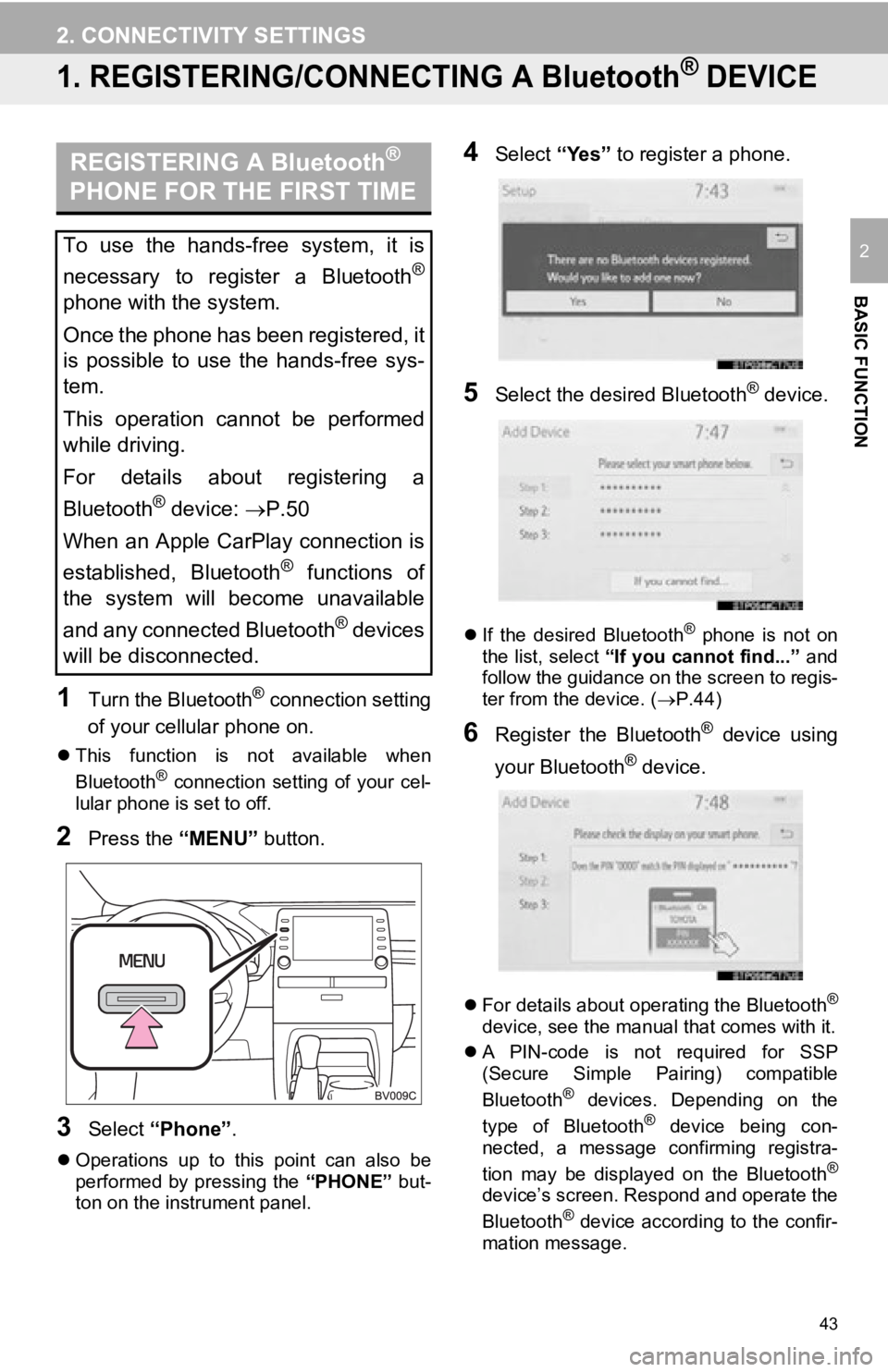
1Turn the Bluetooth® connection setting
of your cellular phone on.
This function is not available when
Bluetooth® connection setting of your cel-
lular phone is set to off.
2Press the “MENU” button.
3Select “Phone” .
Operations up to this point can also be
performed by pressing the “PHONE” but-
ton on the instrument panel.
4Select “Yes” to register a phone.
5Select the desired Bluetooth® device.
If the desired Bluetooth® phone is not on
the list, select “If you cannot find...” and
follow the guidance on the screen to regis-
ter from the device. ( P.44)
6Register the Bluetooth® device using
your Bluetooth
® device.
For details about operating the Bluetooth®
device, see the manual that comes with it.
A PIN-code is not required for SSP
(Secure Simple Pairing) compatible
Bluetooth
® devices. Depending on the
type of Bluetooth® device being con-
nected, a message confirming registra-
tion may be displayed on the Bluetooth
®
device’s screen. Respond and operate the
Bluetooth® device according to the confir-
mation message.
REGISTERING A Bluetooth®
PHONE FOR THE FIRST TIME
To use the hands-free system, it is
necessary to register a Bluetooth
®
phone with the system.
Once the phone has been registered, it
is possible to use the hands-free sys-
tem.
This operation cannot be performed
while driving.
For details about registering a
Bluetooth
® device: P.50
When an Apple CarPlay connection is
established, Bluetooth
® functions of
the system will become unavailable
and any connected Bluetooth
® devices
will be disconnected.
Page 44 of 326
44
2. CONNECTIVITY SETTINGS
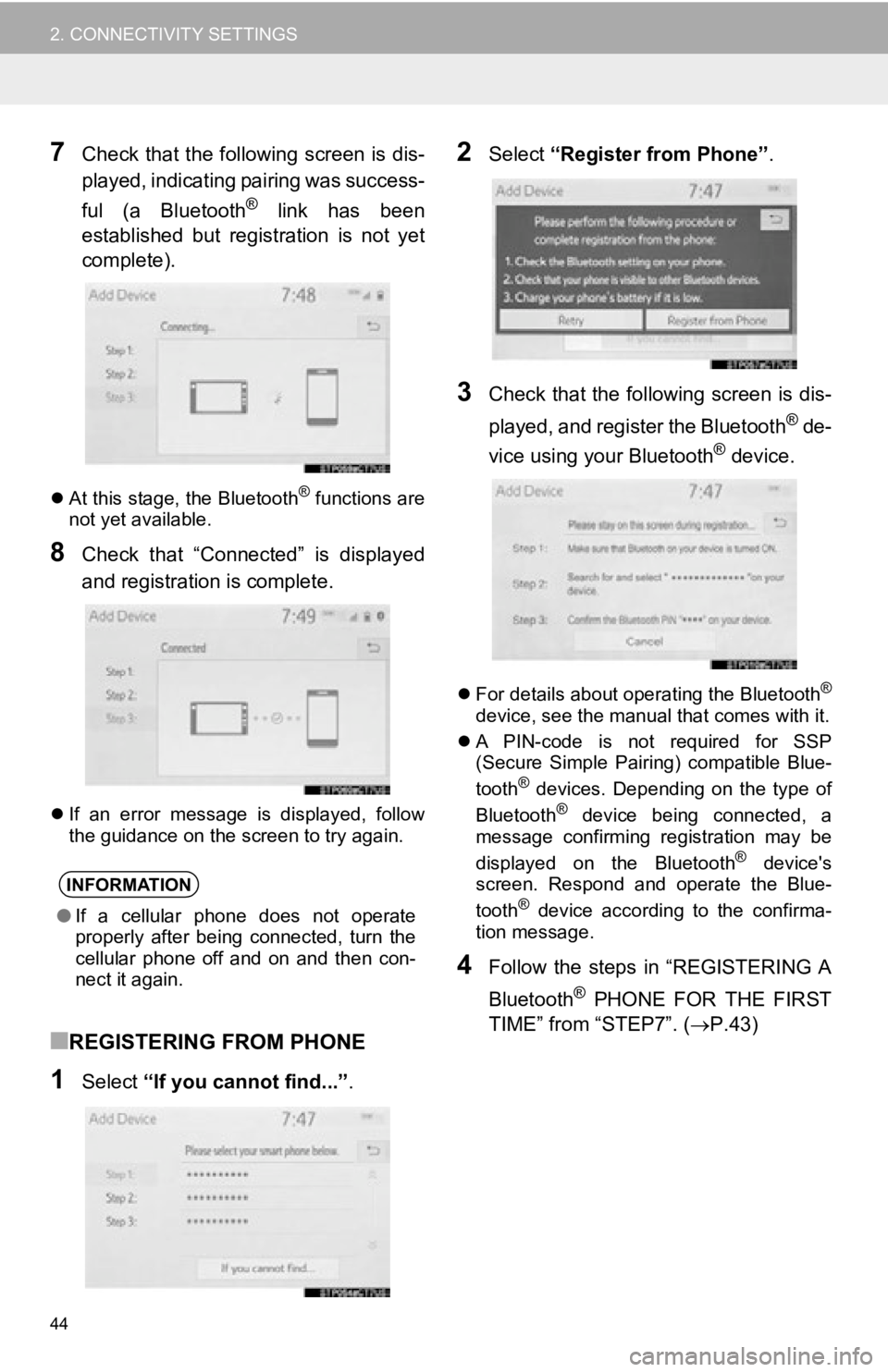
7Check that the following screen is dis-
played, indicating pairing was success-
ful (a Bluetooth
® link has been
established but registration is not yet
complete).
At this stage, the Bluetooth® functions are
not yet available.
8Check that “Connected” is displayed
and registration is complete.
If an error message is displayed, follow
the guidance on the screen to try again.
■REGISTERING FROM PHONE
1Select “If you cannot find...” .
2Select “Register from Phone”.
3Check that the following screen is dis-
played, and register the Bluetooth
® de-
vice using your Bluetooth® device.
For details about operating the Bluetooth®
device, see the manual that comes with it.
A PIN-code is not required for SSP
(Secure Simple Pairing) compatible Blue-
tooth
® devices. Depending on the type of
Bluetooth® device being connected, a
message confirming registration may be
displayed on the Bluetooth
® device's
screen. Respond and operate the Blue-
tooth
® device according to the confirma-
tion message.
4Follow the steps in “REGISTERING A
Bluetooth
® PHONE FOR THE FIRST
TIME” from “STEP7”. ( P.43)
INFORMATION
●If a cellular phone does not operate
properly after being connected, turn the
cellular phone off and on and then con-
nect it again.
Page 45 of 326
45
2. CONNECTIVITY SETTINGS
BASIC FUNCTION
2
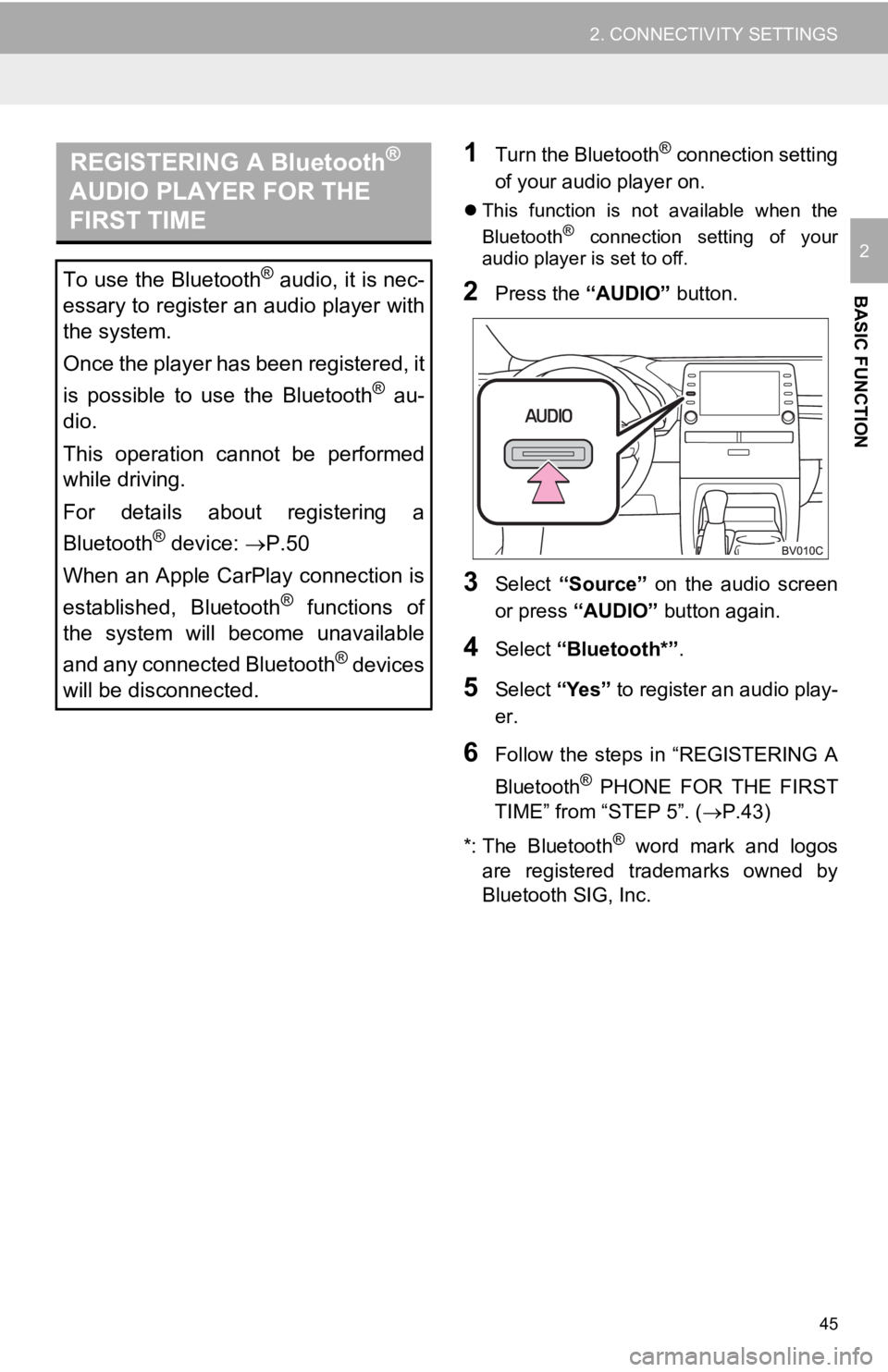
1Turn the Bluetooth® connection setting
of your audio player on.
This function is not available when the
Bluetooth® connection setting of your
audio player is set to off.
2Press the “AUDIO” button.
3Select “Source” on the audio screen
or press “AUDIO” button again.
4Select “Bluetooth*” .
5Select “Yes” to register an audio play-
er.
6Follow the steps in “REGISTERING A
Bluetooth
® PHONE FOR THE FIRST
TIME” from “STEP 5”. ( P.43)
*: The Bluetooth
® word mark and logos
are registered trademarks owned by
Bluetooth SIG, Inc.
REGISTERING A Bluetooth®
AUDIO PLAYER FOR THE
FIRST TIME
To use the Bluetooth® audio, it is nec-
essary to register an audio player with
the system.
Once the player has been registered, it
is possible to use the Bluetooth
® au-
dio.
This operation cannot be performed
while driving.
For details about registering a
Bluetooth
® device: P.50
When an Apple CarPlay connection is
established, Bluetooth
® functions of
the system will become unavailable
and any connected Bluetooth
® devices
will be disconnected.
Page 46 of 326
46
2. CONNECTIVITY SETTINGS
Bluetooth is a registered trademark of Bluetooth SIG, Inc.
PROFILES
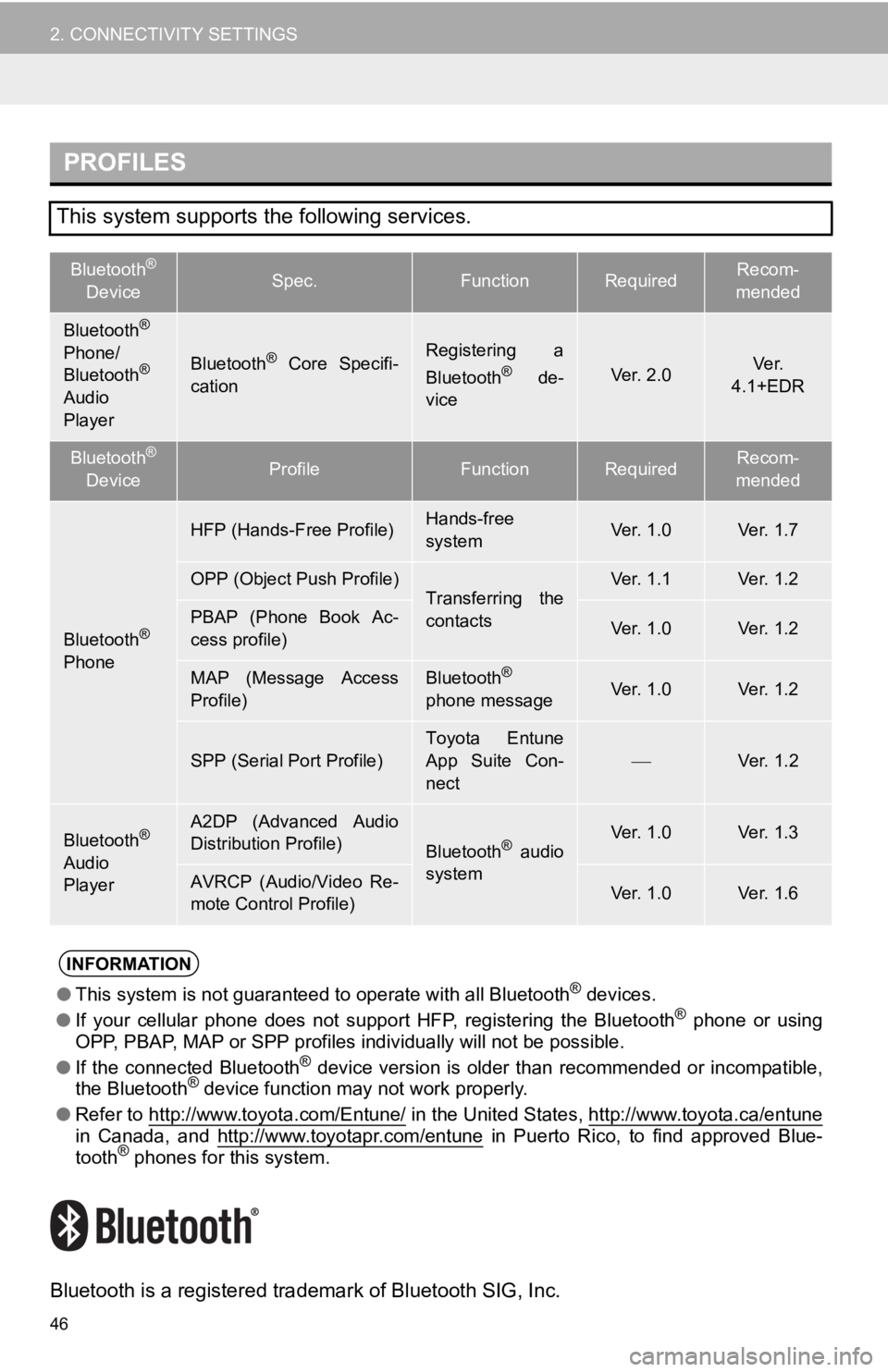
This system supports the following services.
Bluetooth®
DeviceSpec.FunctionRequiredRecom-
mended
Bluetooth®
Phone/
Bluetooth®
Audio
Player
Bluetooth® Core Specifi-
cationRegistering a
Bluetooth® de-
viceVer. 2.0Ve r.
4.1+EDR
Bluetooth®
DeviceProfileFunctionRequiredRecom-
mended
Bluetooth®
Phone
HFP (Hands-Free Profile)Hands-free
systemVer. 1.0Ver. 1.7
OPP (Object Push Profile)Transferring the
contactsVer. 1.1Ver. 1.2
PBAP (Phone Book Ac-
cess profile)Ver. 1.0Ver. 1.2
MAP (Message Access
Profile)Bluetooth®
phone messageVer. 1.0Ver. 1.2
SPP (Serial Port Profile)
Toyota Entune
App Suite Con-
nect
Ver. 1.2
Bluetooth®
Audio
Player
A2DP (Advanced Audio
Distribution Profile)
Bluetooth® audio
systemVer. 1.0Ver. 1.3
AVRCP (Audio/Video Re-
mote Control Profile)Ver. 1.0Ver. 1.6
INFORMATION
● This system is not guaranteed to operate with all Bluetooth® devices.
● If your cellular phone does not support HFP, registering the Bl uetooth® phone or using
OPP, PBAP, MAP or SPP profiles individually will not be possible.
● If the connected Bluetooth
® device version is older than recommended or incompatible,
the Bluetooth® device function may not work properly.
● Refer to http://www.toyota.com/Entune/
in the United States, http://www.toyota.ca/entunein Canada, and http://www.toyotapr.com/entune in Puerto Rico, to find approved Blue-
tooth® phones for this system.
Page 48 of 326
48
2. CONNECTIVITY SETTINGS
1Display the Bluetooth® settings
screen. ( P.47)
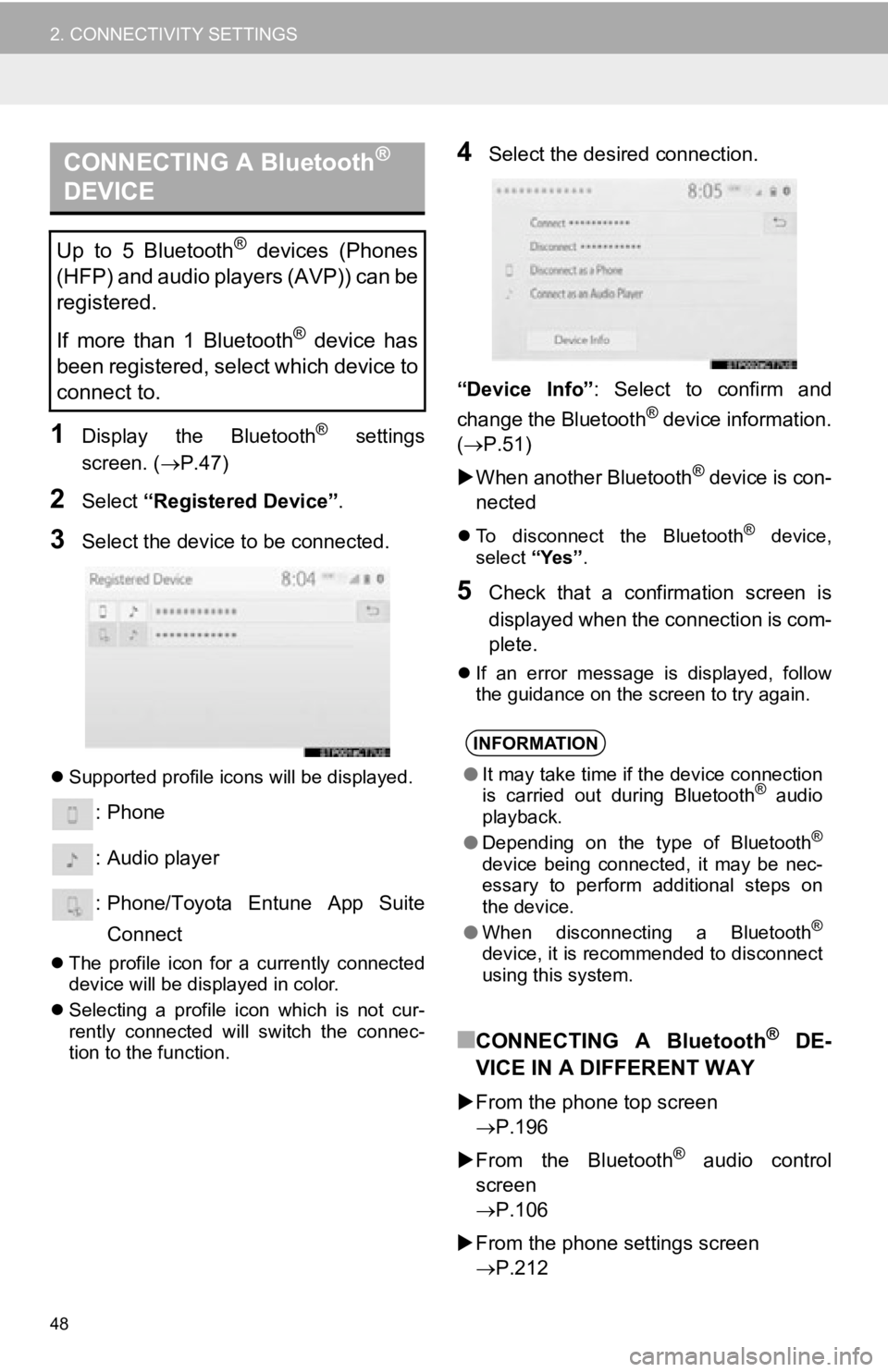
2Select “Registered Device” .
3Select the device to be connected.
Supported profile icons will be displayed.
: Phone
: Audio player
: Phone/Toyota Entune App Suite
Connect
The profile icon for a currently connected
device will be displayed in color.
Selecting a profile icon which is not cur-
rently connected will switch the connec-
tion to the function.
4Select the desired connection.
“Device Info” : Select to confirm and
change the Bluetooth
® device information.
(P.51)
When another Bluetooth
® device is con-
nected
To disconnect the Bluetooth® device,
select “Yes”.
5Check that a confirmation screen is
displayed when the connection is com-
plete.
If an error message is displayed, follow
the guidance on the screen to try again.
■CONNECTING A Bluetooth® DE-
VICE IN A DIFFERENT WAY
From the phone top screen
P.196
From the Bluetooth
® audio control
screen
P.106
From the phone settings screen
P.212
CONNECTING A Bluetooth®
DEVICE
Up to 5 Bluetooth® devices (Phones
(HFP) and audio players (AVP)) can be
registered.
If more than 1 Bluetooth
® device has
been registered, select which device to
connect to.
INFORMATION
● It may take time if the device connection
is carried out during Bluetooth® audio
playback.
● Depending on the type of Bluetooth
®
device being connected, it may be nec-
essary to perform additional steps on
the device.
● When disconnecting a Bluetooth
®
device, it is recommended to disconnect
using this system.