display TOYOTA AVALON 2019 (in English) User Guide
[x] Cancel search | Manufacturer: TOYOTA, Model Year: 2019, Model line: AVALON, Model: TOYOTA AVALON 2019Pages: 536, PDF Size: 9.43 MB
Page 86 of 536
862. Instrument cluster
Odometer/trip meter (P. 97)
Shift position ( P. 1 7 9 )
Outside temperature ( P. 8 2 )
Menu icons ( P. 87)
“ODO/TRIP” switch ( P. 8 6 )
Meter control switches ( P. 86)
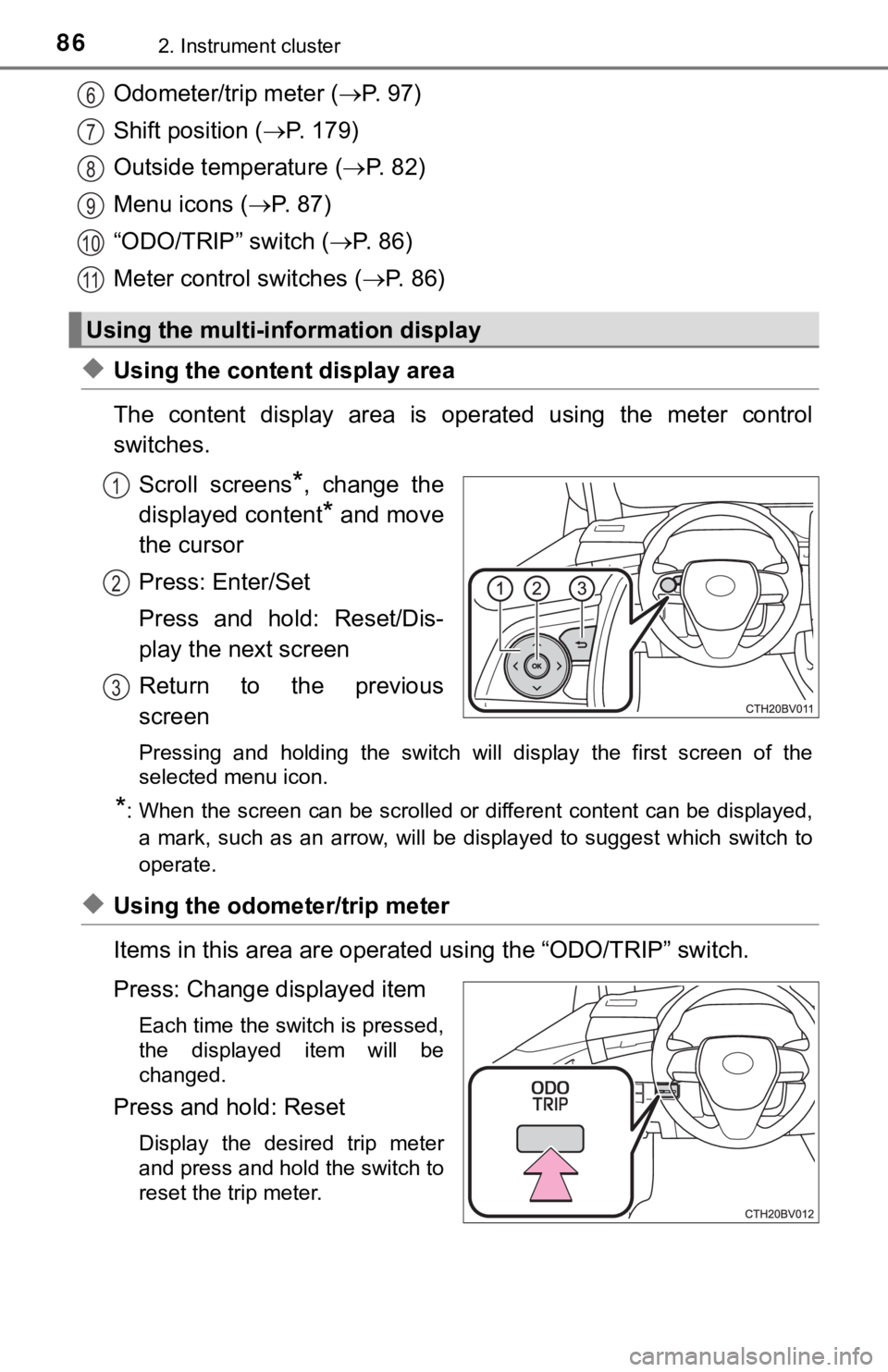
◆Using the content display area
The content display area is operated using the meter control
switches.
Scroll screens
*, change the
displayed content
* and move
the cursor
Press: Enter/Set
Press and hold: Reset/Dis-
play the next screen
Return to the previous
screen
Pressing and holding the switch will display the first screen o f the
selected menu icon.
*: When the screen can be scrolled or different content can be di splayed,
a mark, such as an arrow, will be displayed to suggest which sw itch to
operate.
◆Using the odometer/trip meter
Items in this area are operated using the “ODO/TRIP” switch.
Press: Change displayed item
Each time the switch is pressed,
the displayed item will be
changed.
Press and hold: Reset
Display the desired trip meter
and press and hold the switch to
reset the trip meter.
Using the multi-information display
6
7
8
9
10
11
1
2
3
Page 87 of 536
872. Instrument cluster
2
Instrument cluster
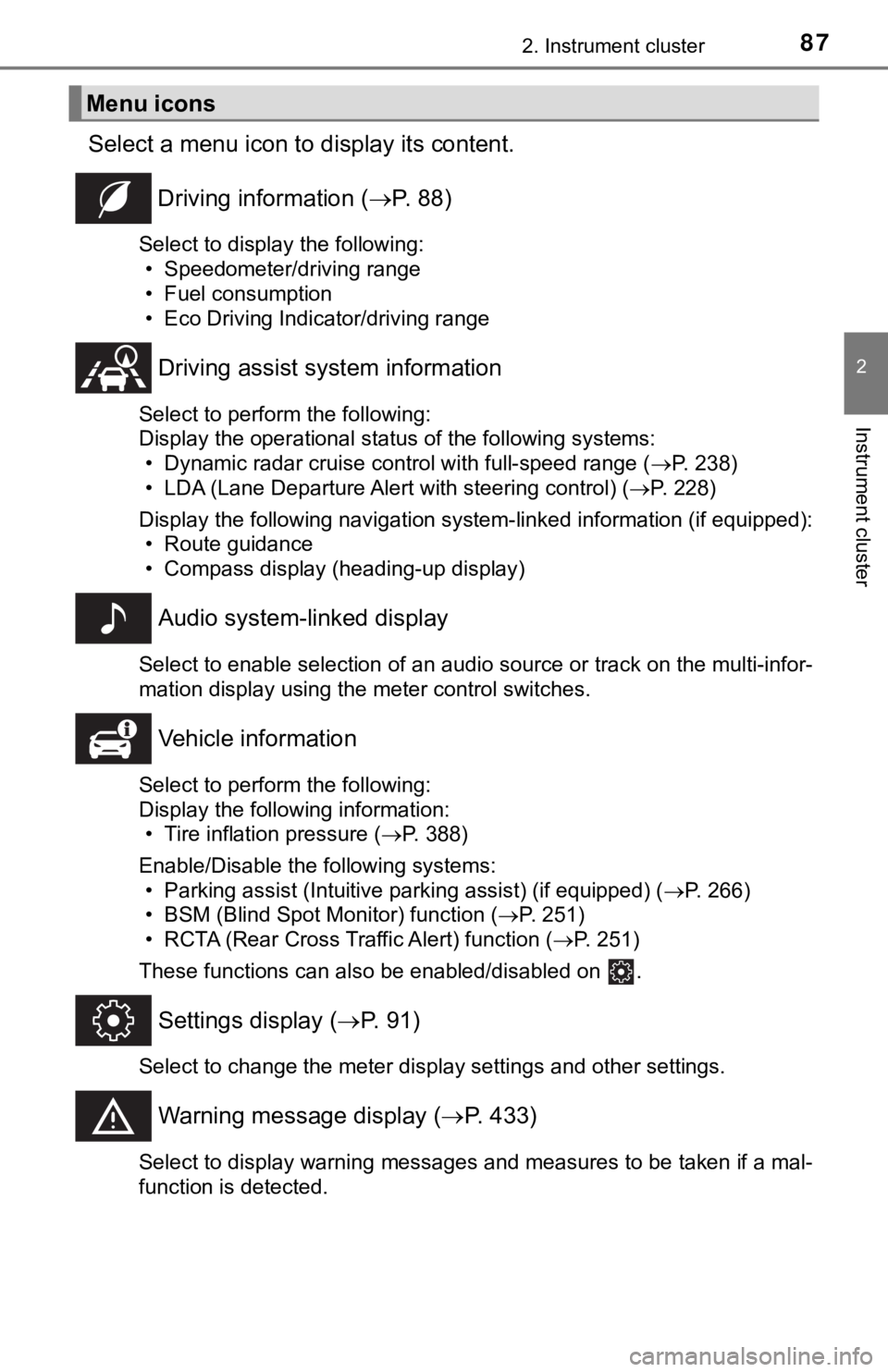
Select a menu icon to display its content.
Driving information ( P. 8 8 )
Select to display the following:
• Speedometer/driving range
• Fuel consumption
• Eco Driving Indicator/driving range
Driving assist sys tem information
Select to perform the following:
Display the operational status of the following systems:
• Dynamic radar cruise control with full-speed range ( P. 238)
• LDA (Lane Departure Alert with steering control) ( P. 228)
Display the following navigation system-linked information (if equipped):
• Route guidance
• Compass display (heading-up display)
Audio system-linked display
Select to enable selection of an audio source or track on the multi-infor-
mation display using the meter control switches.
Vehicle information
Select to perform the following:
Display the following information: • Tire inflation pressure ( P. 388)
Enable/Disable the following systems: • Parking assist (Intuitive parking assist) (if equipped) ( P. 266)
• BSM (Blind Spot Monitor) function ( P. 251)
• RCTA (Rear Cross Traffic Alert) function ( P. 251)
These functions can also be enabled/disabled on .
Settings display ( P. 9 1 )
Select to change the meter display settings and other settings.
Warning message display ( P. 433)
Select to display warning messages and measures to be taken if a mal-
function is detected.
Menu icons
Page 88 of 536
882. Instrument cluster
■Speedometer/driving range• Speedometer
• Driving range Displays the driving rang e with remaining fuel.
When only a small amount of fuel is added to the tank, the display may
not be updated.
When refueling, turn the engine switch off. If the vehicle is r efueled with-
out turning the engine switch off, the display may not be updat ed.
This distance is computed based on your average fuel consumption. As
a result, the actual distance that can be driven may differ fro m that dis-
played.
■
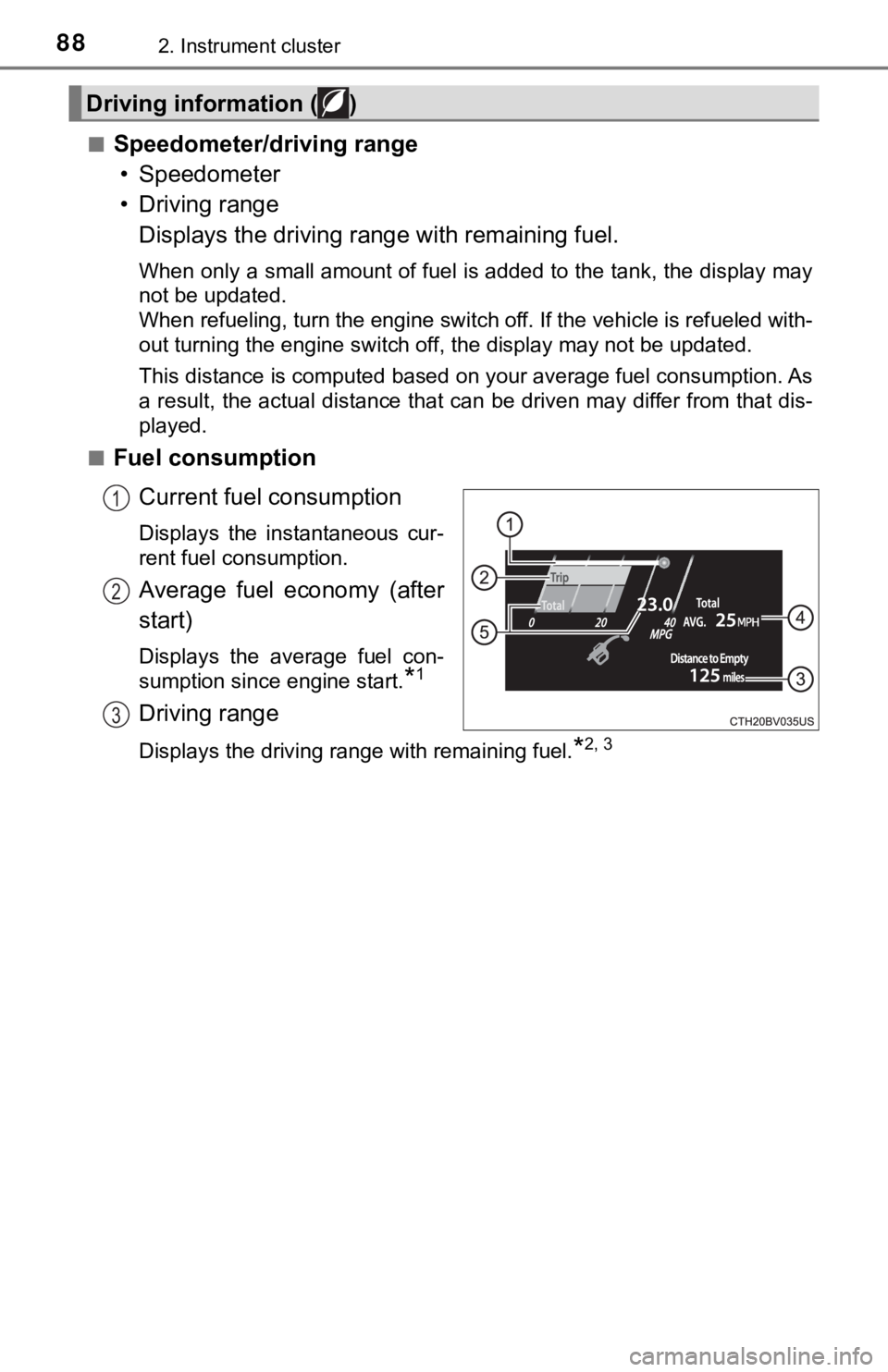
Fuel consumption
Current fuel consumption
Displays the instantaneous cur-
rent fuel consumption.
Average fuel economy (after
start)
Displays the average fuel con-
sumption since engine start.
*1
Driving range
Displays the driving range with remaining fuel.*2, 3
Driving information ( )
1
2
3
Page 89 of 536
892. Instrument cluster
2
Instrument cluster
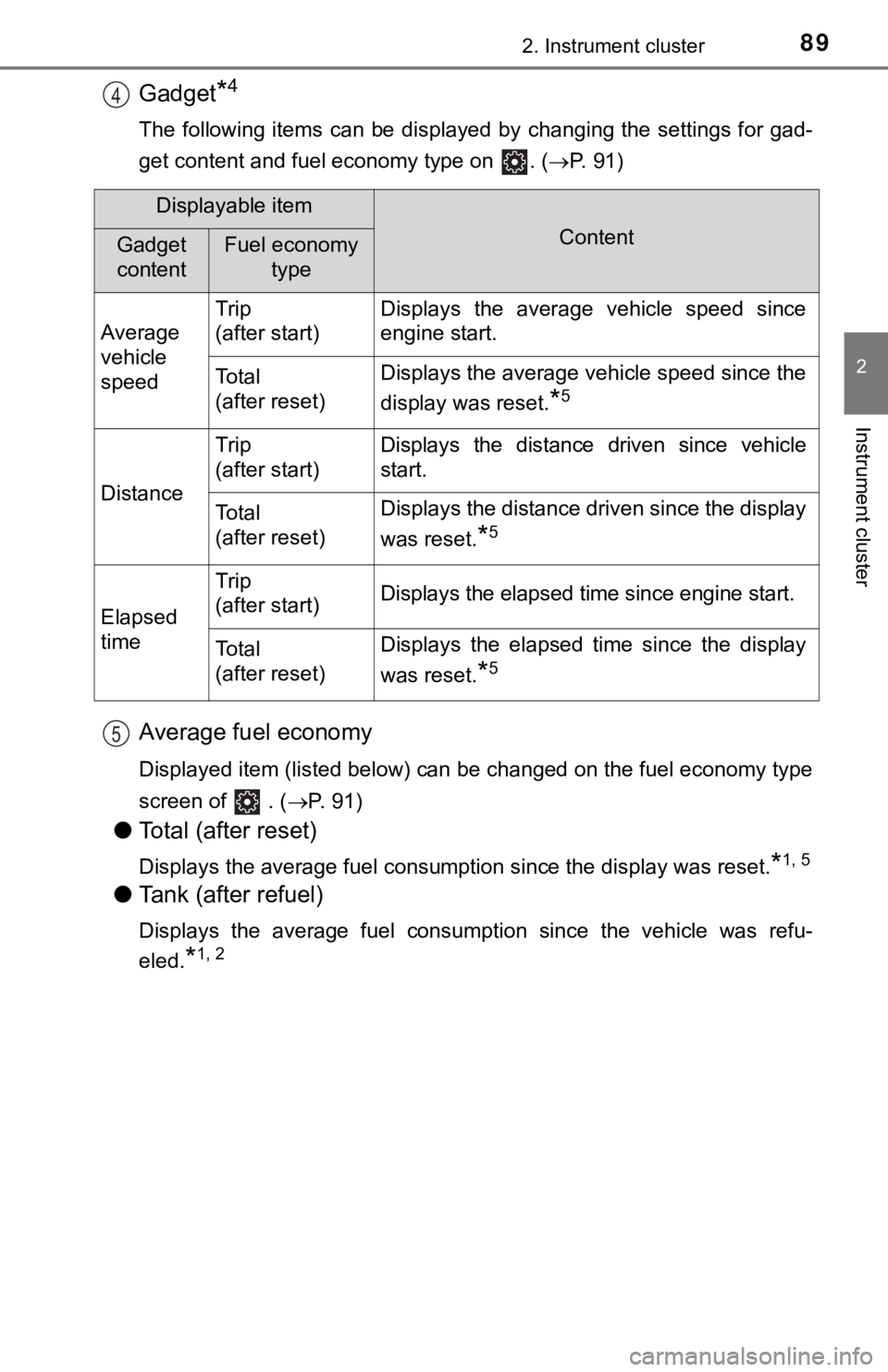
Gadget*4
The following items can be displayed by changing the settings for gad-
get content and fuel economy type on . ( P. 91)
Average fuel economy
Displayed item (listed below) can be changed on the fuel econom y type
screen of . (P. 91)
●Total (after reset)
Displays the average fuel consumption since the display was res et.*1, 5
●Tank (after refuel)
Displays the average fuel consumption since the vehicle was ref u-
eled.
*1, 2
4
Displayable item
ContentGadget
contentFuel economy type
Average
vehicle
speed Trip
(after start)
Displays the average vehicle speed since
engine start.
To t a l
(after reset)Displays the average vehicle speed since the
display was reset.
*5
Distance
Trip
(after start)Displays the distance driven since vehicle
start.
To t a l
(after reset)Displays the distance driven since the display
was reset.
*5
Elapsed
time
Trip
(after start)Displays the elapsed time since engine start.
To t a l
(after reset)Displays the elapsed time since the display
was reset.
*5
5
Page 90 of 536

902. Instrument cluster
*1: Use the displayed fuel consumption as a reference only.
*2: When only a small amount of fuel is added to the tank, the display may
not be updated.
When refueling, turn the engine switch off. If the vehicle is r efueled with-
out turning the engine switch off, the display may not be updat ed.
*3: This distance is computed based on your average fuel consumpti on. As
a result, the actual distance that can be driven may differ fro m that dis-
played.
*4: The default setting is no display.
*5: This display can be reset by pressing and holding while it is dis- played.
■
Eco Driving Indica tor/driving range
• Eco Driving Indicator P. 9 8
• Driving range Displays the driving rang e with remaining fuel.
When only a small amount of fuel is added to the tank, the display may
not be updated.
When refueling, turn the engine switch off. If the vehicle is r efueled with-
out turning the engine switch off, the display may not be updat ed.
This distance is computed based on your average fuel consumption. As
a result, the actual distance that can be driven may differ fro m that dis-
played.
Page 91 of 536
912. Instrument cluster
2
Instrument cluster
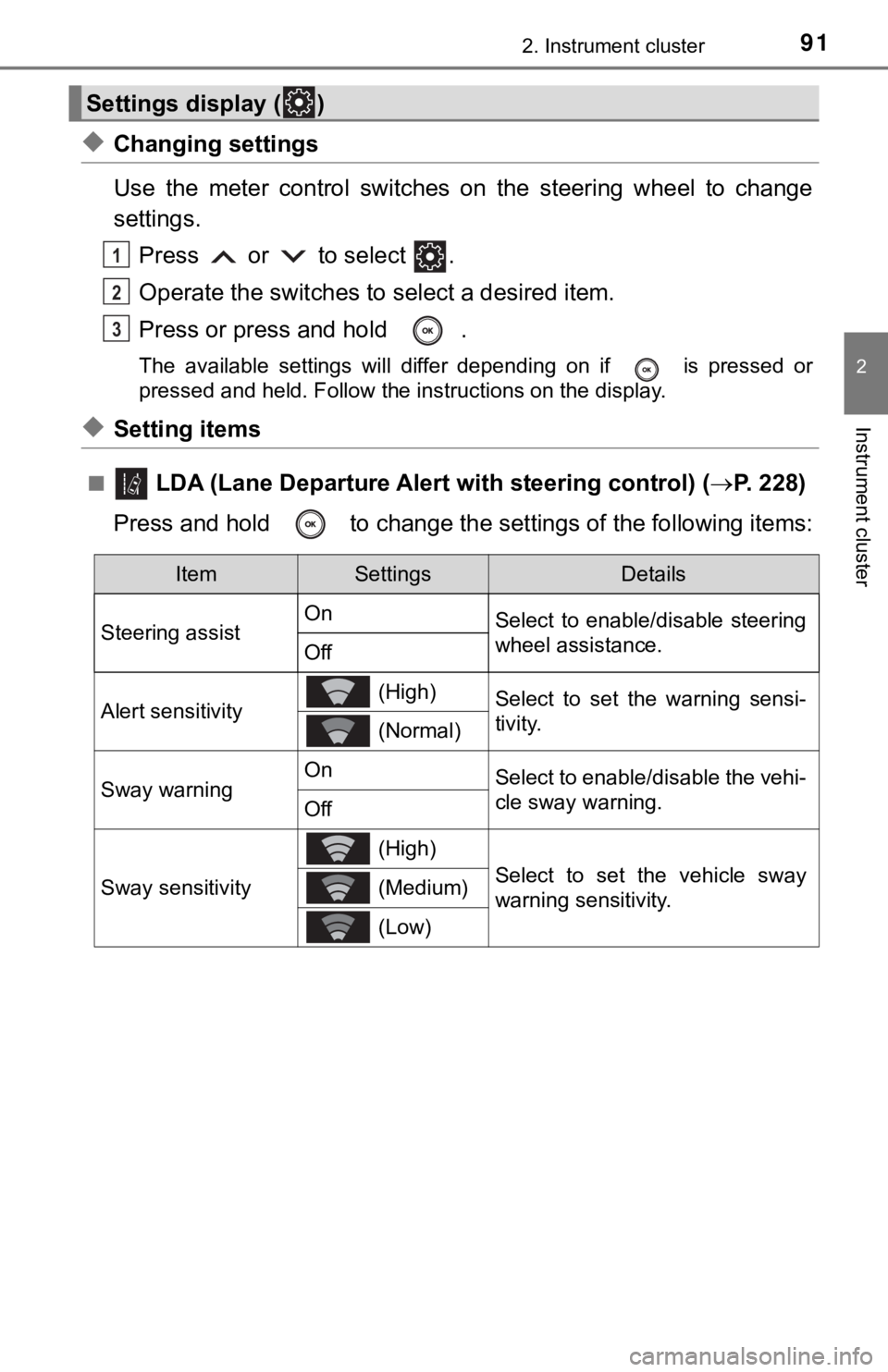
◆Changing settings
Use the meter control switches on the steering wheel to change
settings.Press or to select .
Operate the switches to select a desired item.
Press or press and hold .
The available settings will differ depending on if is pressed or
pressed and held. Follow the instructions on the display.
◆Setting items
■ LDA (Lane Departure Alert with steering control) (P. 228)
Press and hold to change the se ttings of the following items:
Settings display ( )
1
2
3
ItemSettingsDetails
Steering assist On
Select to enable/disable steering
wheel assistance.
Off
Alert sensitivity (High)Select to set the warning sensi-
tivity.
(Normal)
Sway warningOnSelect to enable/disable the vehi-
cle sway warning.
Off
Sway sensitivity
(High)
Select to set the vehicle sway
warning sensitivity. (Medium)
(Low)
Page 94 of 536
942. Instrument cluster
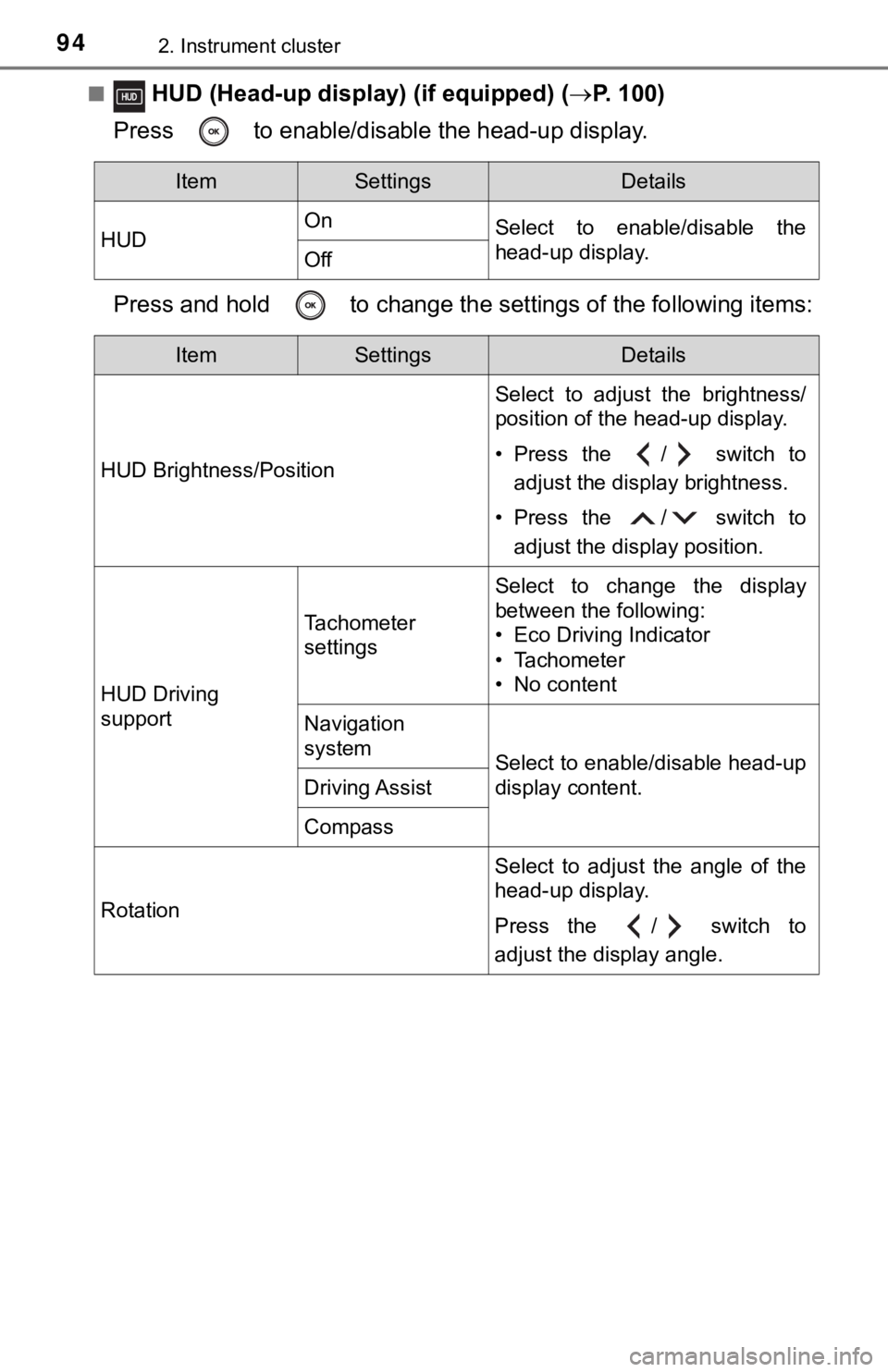
■ HUD (Head-up display) (if equipped) (P. 100)
Press to enable/disable the head-up display.
Press and hold to change the se ttings of the following items:
ItemSettingsDetails
HUD On
Select to enable/disable the
head-up display.
Off
ItemSettingsDetails
HUD Brightness/Position Select to adjust the brightness/
position of the head-up display.
• Press the / switch to
adjust the display brightness.
• Press the / switch to adjust the display position.
HUD Driving
support
Tachometer
settings
Select to change the display
between the following:
• Eco Driving Indicator
• Tachometer
• No content
Navigation
system
Select to enable/disable head-up
display content.
Driving Assist
Compass
Rotation Select to adjust the angle of the
head-up display.
Press the / switch to
adjust the display angle.
Page 95 of 536
952. Instrument cluster
2
Instrument cluster
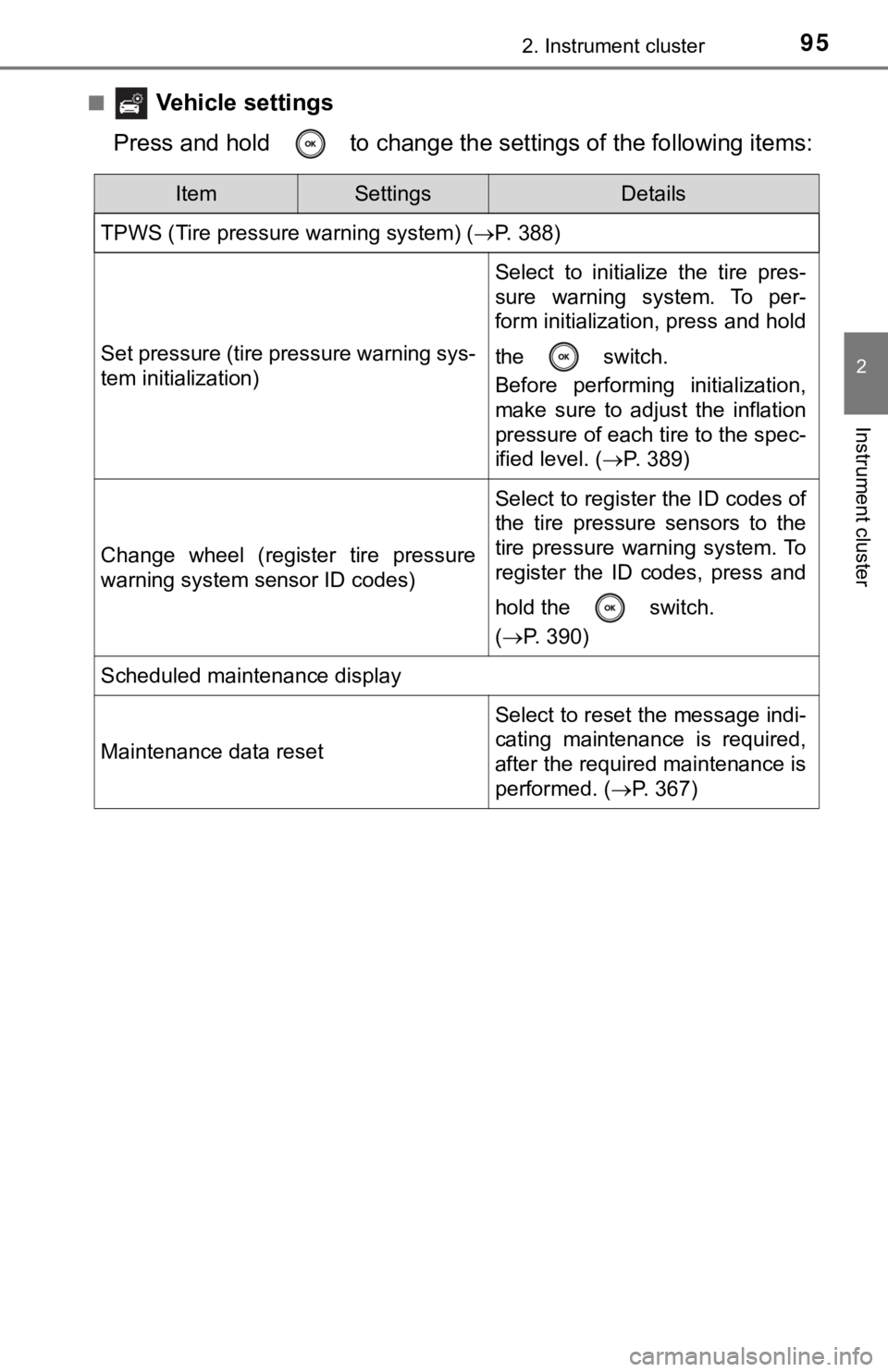
■ Vehicle settings
Press and hold to change the se ttings of the following items:
ItemSettingsDetails
TPWS (Tire pressure warning system) ( P. 388)
Set pressure (tire pressure warning sys-
tem initialization)
Select to initialize the tire pres-
sure warning system. To per-
form initialization, press and hold
the switch.
Before performing initialization,
make sure to adjust the inflation
pressure of each tire to the spec-
ified level. (P. 389)
Change wheel (register tire pressure
warning system sensor ID codes)
Select to register the ID codes of
the tire pressure sensors to the
tire pressure warning system. To
register the ID codes, press and
hold the switch.
(P. 390)
Scheduled maintenance display
Maintenance data reset
Select to reset the message indi-
cating maintenance is required,
after the required maintenance is
performed. ( P. 367)
Page 96 of 536
962. Instrument cluster
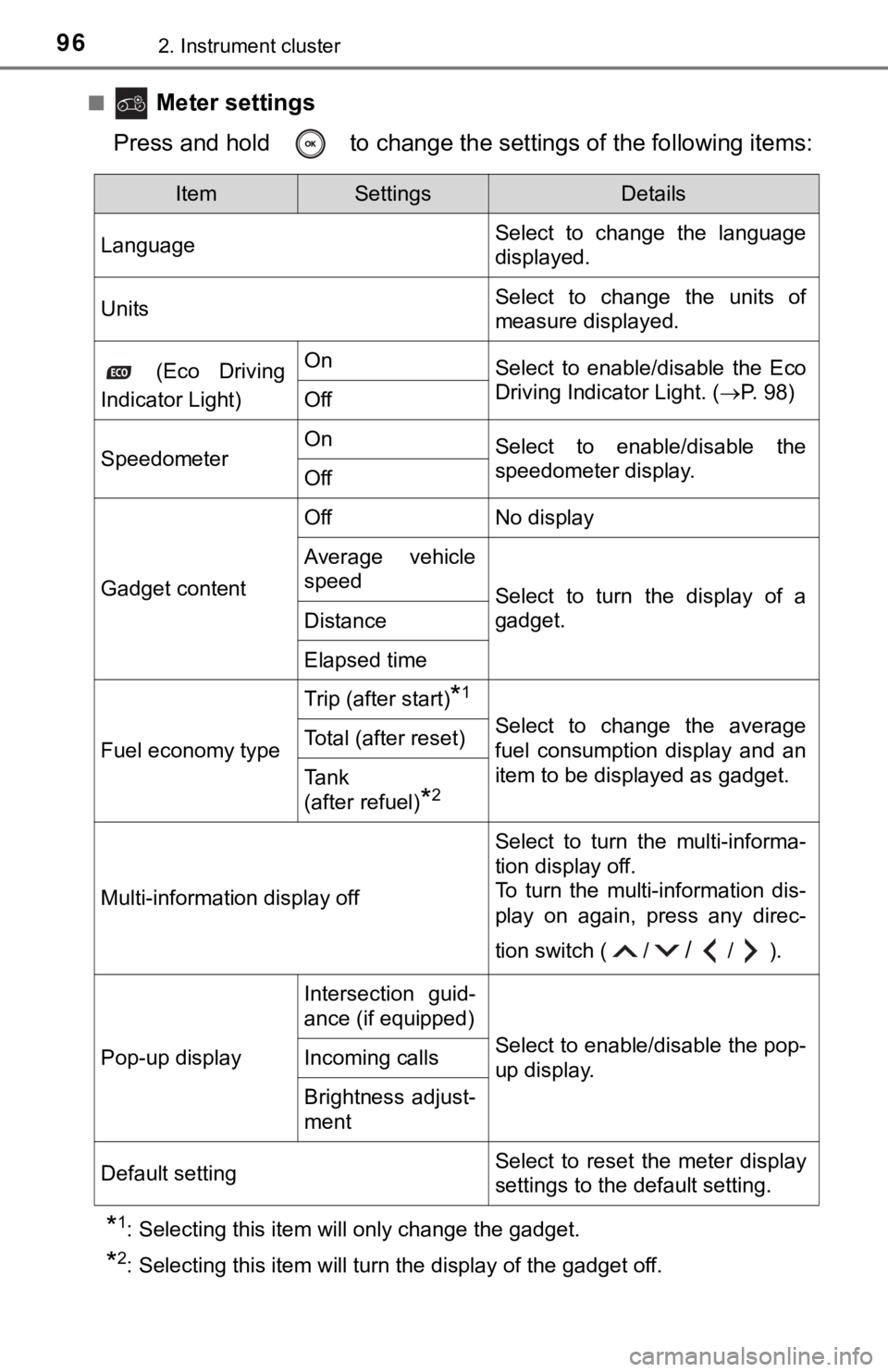
■ Meter settings
Press and hold to change the se ttings of the following items:
*1: Selecting this item will only change the gadget.
*2: Selecting this item will turn the display of the gadget off.
ItemSettingsDetails
Language Select to change the language
displayed.
UnitsSelect to change the units of
measure displayed.
(Eco Driving
Indicator Light)OnSelect to enable/disable the Eco
Driving Indicator Light. ( P. 98)
Off
SpeedometerOnSelect to enable/disable the
speedometer display.
Off
Gadget content
OffNo display
Average vehicle
speed
Select to turn the display of a
gadget.
Distance
Elapsed time
Fuel economy type
Trip (after start)*1
Select to change the average
fuel consumption display and an
item to be displayed as gadget.Total (after reset)
Tank
(after refuel)
*2
Multi-information display off
Select to turn the multi-informa-
tion display off.
To turn the multi-information dis-
play on again, press any direc-
tion switch ( /
//).
Pop-up display
Intersection guid-
ance (if equipped)
Select to enable/disable the pop-
up display.Incoming calls
Brightness adjust-
ment
Default settingSelect to reset the meter display
settings to the default setting.
Page 97 of 536
972. Instrument cluster
2
Instrument cluster
■Odometer
Displays the total distance the vehicle has been driven.
■Trip meter A/trip meter B
Displays the distance the vehicl e has been driven since the met er
was last reset. Trip meters A and B can be used to record and d is-
play different distances independently.
To reset, display the desired trip meter and press and hold the “ODO/
TRIP” switch.
Displays suggestions to the drive r in the following situations. To select
a response to a displayed suggestion, use the meter control swi tches.
The suggestion function can be turned on/off.
(Customizable features:P. 491)
■
Suggestion to turn off the headlights
If the headlights are left on for a certain amount of time afte r the
engine switch has been turned of f, if the headlight switch is in the
“AUTO” position, a suggestion m essage will be displayed asking if
you wish to turn the headlights off. To turn the headlights off , select
“Yes”.
If a front door is opened after the engine switch is turned off, this sug-
gestion message will not be displayed.
Odometer/trip meter
Suggestion function