apple carplay TOYOTA AVALON HYBRID 2020 Accessories, Audio & Navigation (in English)
[x] Cancel search | Manufacturer: TOYOTA, Model Year: 2020, Model line: AVALON HYBRID, Model: TOYOTA AVALON HYBRID 2020Pages: 326, PDF Size: 7.79 MB
Page 102 of 326
102
3. MEDIA OPERATION
3. Bluetooth® AUDIO
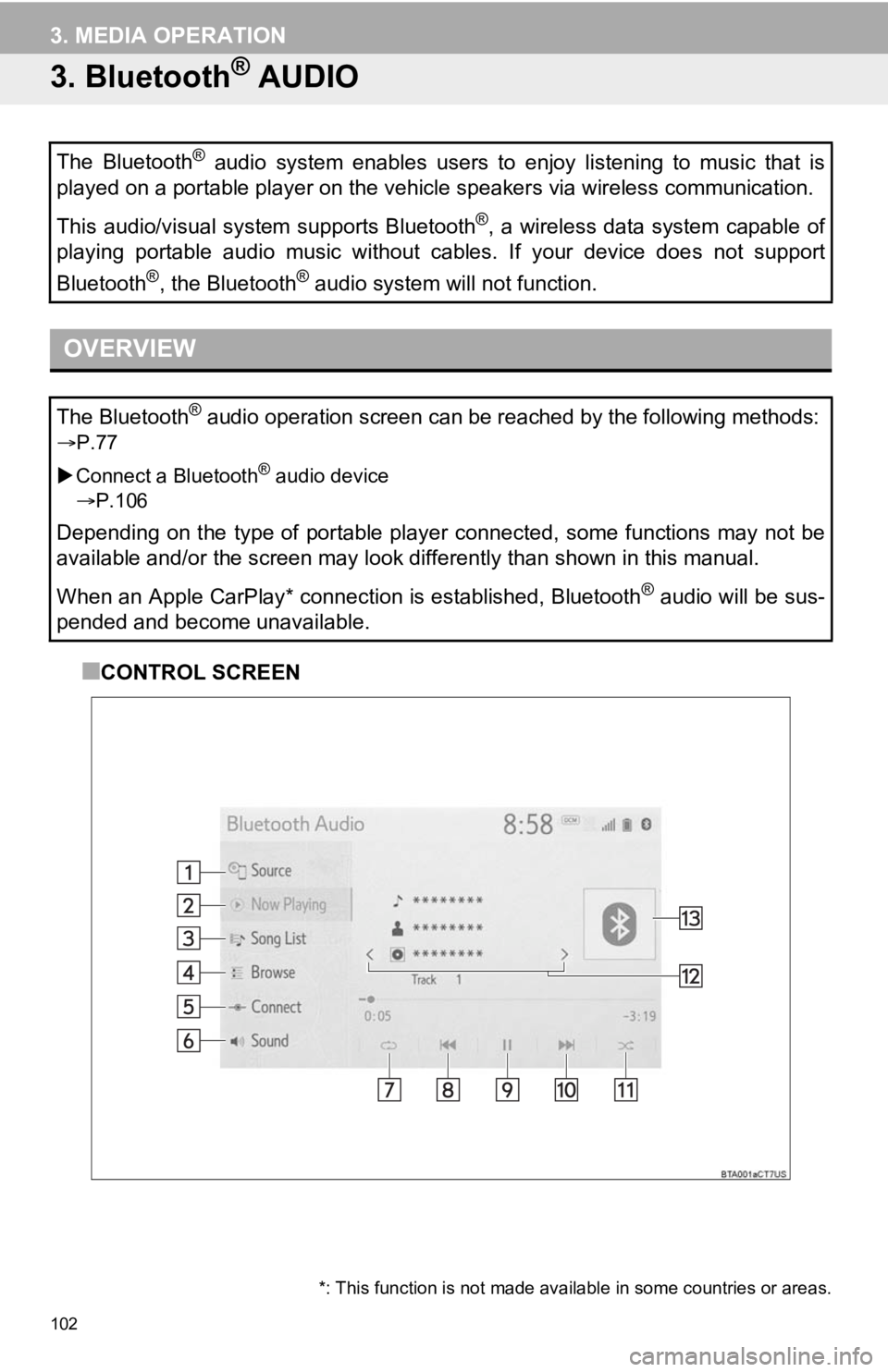
■CONTROL SCREEN
The Bluetooth
® audio system enables users to enjoy listening to music that is
played on a portable player on the vehicle speakers via wireles s communication.
This audio/visual system supports Bluetooth
®, a wireless data system capable of
playing portable audio music without cables. If your device doe s not support
Bluetooth
®, the Bluetooth® audio system will not function.
OVERVIEW
The Bluetooth® audio operation screen can be reached by the following methods :
P.77
Connect a Bluetooth
® audio device
P.106
Depending on the type of portable player connected, some functions may not be
available and/or the screen may look differently than shown in this manual.
When an Apple CarPlay* connection is established, Bluetooth
® audio will be sus-
pended and become unavailable.
*: This function is not made avai lable in some countries or areas.
Page 110 of 326
110
4. AUDIO/VISUAL REMOTE CONTROLS
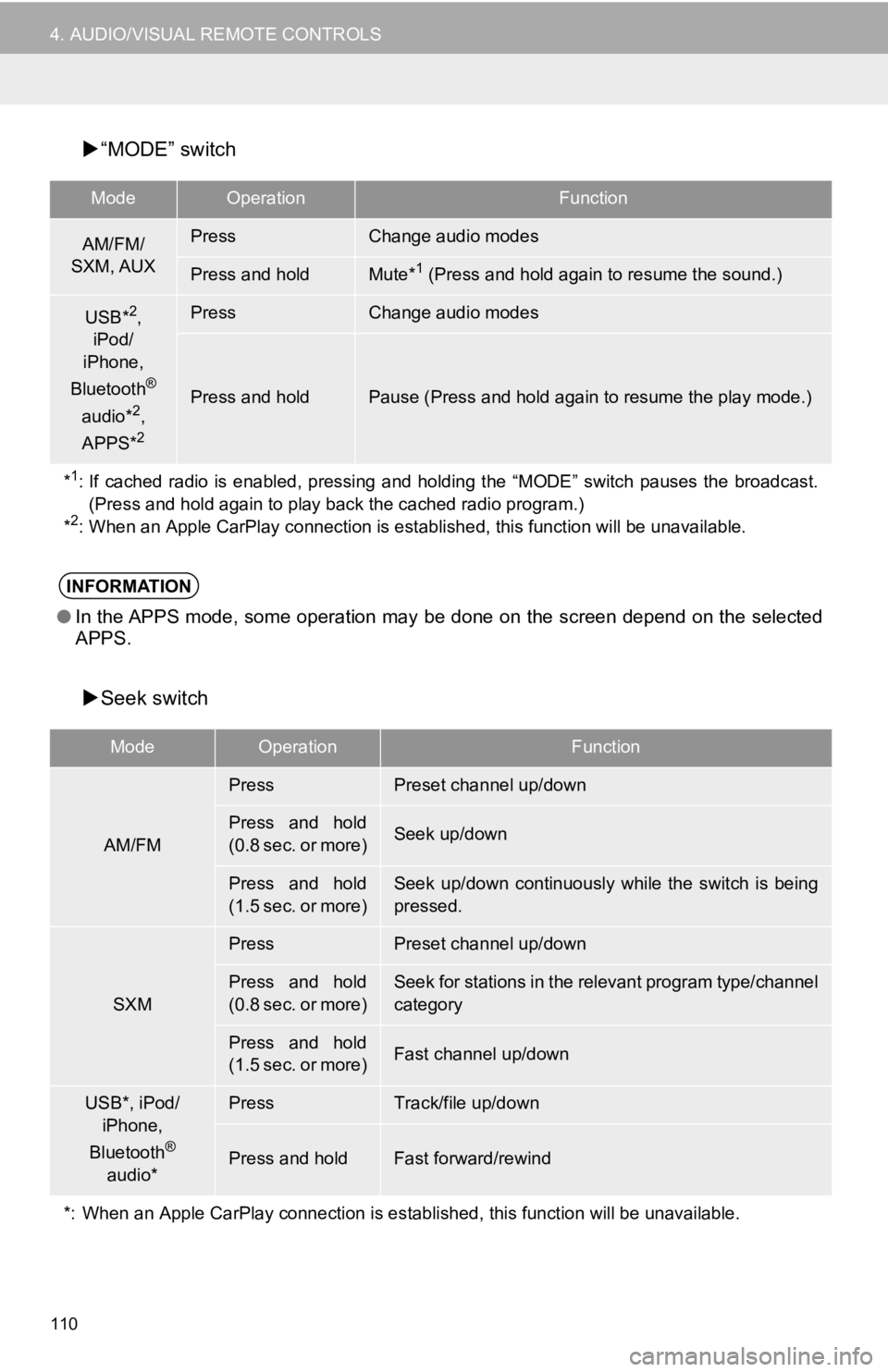
“MODE” switch
Seek switch
ModeOperationFunction
AM/FM/
SXM, AUXPressChange audio modes
Press and holdMute*1 (Press and hold again to resume the sound.)
USB*2,
iPod/
iPhone,
Bluetooth
®
audio*2,
APPS*2
PressChange audio modes
Press and holdPause (Press and hold again to resume the play mode.)
*
1: If cached radio is enabled, pressing and holding the “MODE” switch pauses the broadcast. (Press and hold again to play back the cached radio program.)
*
2: When an Apple CarPlay connection is established, this function will be unavailable.
INFORMATION
●In the APPS mode, some operation may be done on the screen depe nd on the selected
APPS.
ModeOperationFunction
AM/FM
PressPreset channel up/down
Press and hold
(0.8 sec. or more)Seek up/down
Press and hold
(1.5 sec. or more)Seek up/down continuously while the switch is being
pressed.
SXM
PressPreset channel up/down
Press and hold
(0.8 sec. or more)Seek for stations in the relevant program type/channel
category
Press and hold
(1.5 sec. or more)Fast channel up/down
USB*, iPod/
iPhone,
Bluetooth
®
audio*
PressTrack/file up/down
Press and holdFast forward/rewind
*: When an Apple CarPlay connec tion is established, this function will be unavailable.
Page 124 of 326
124
1. VOICE COMMAND SYSTEM OPERATION
1. VOICE COMMAND SYSTEM
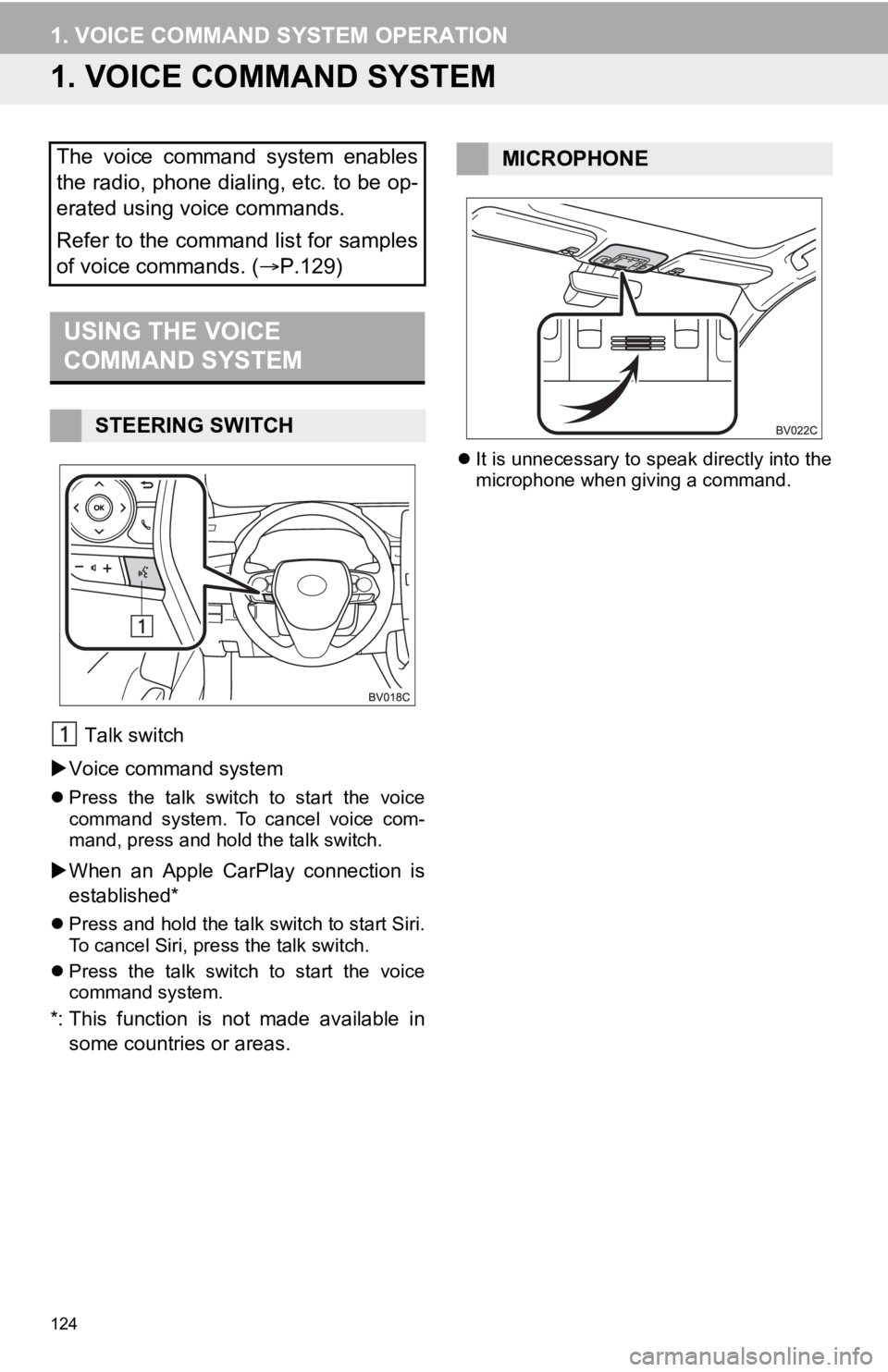
Talk switch
Voice command system
Press the talk switch to start the voice
command system. To cancel voice com-
mand, press and hold the talk switch.
When an Apple CarPlay connection is
established*
Press and hold the talk switch to start Siri.
To cancel Siri, press the talk switch.
Press the talk switch to start the voice
command system.
*: This function is not made available in
some countries or areas.
It is unnecessary to speak directly into the
microphone when giving a command.
The voice command system enables
the radio, phone dialing, etc. to be op-
erated using voice commands.
Refer to the command list for samples
of voice commands. ( P.129)
USING THE VOICE
COMMAND SYSTEM
STEERING SWITCH
MICROPHONE
Page 131 of 326
131
1. VOICE COMMAND SYSTEM OPERATION
VOICE COMMAND SYSTEM
4
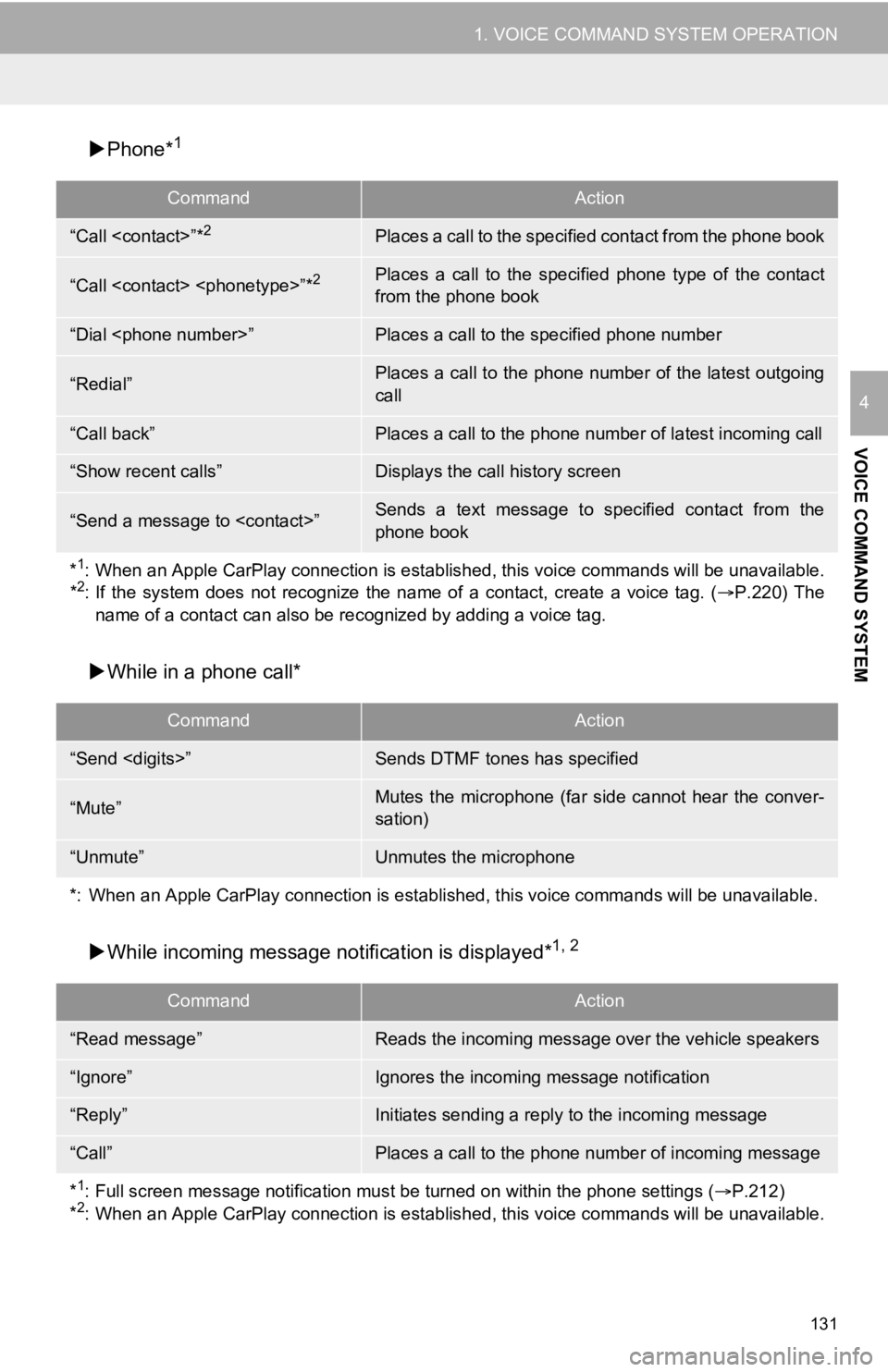
Phone*1
While in a phone call*
While incoming message not ification is displayed*
1, 2
CommandAction
“Call
“Call
from the phone book
“Dial
“Redial”Places a call to the phone number of the latest outgoing
call
“Call back”Places a call to the phone num ber of latest incoming call
“Show recent calls”Displays the call history screen
“Send a message to
phone book
*
1: When an Apple CarPlay connection is established, this voice commands will be unavailable.
*2: If the system does not recognize the name of a contact, create a voice tag. (P.220) The
name of a contact can also be re cognized by adding a voice tag.
CommandAction
“Send
“Mute”Mutes the microphone (far side cannot hear the conver-
sation)
“Unmute”Unmutes the microphone
*: When an Apple CarPlay connecti on is established, this voice commands will be unavailable.
CommandAction
“Read message”Reads the incoming message over the vehicle speakers
“Ignore”Ignores the incoming message notification
“Reply”Initiates sending a reply to the incoming message
“Call”Places a call to the phone number of incoming message
*
1: Full screen message notification must be turned on within the phone settings ( P.212)
*2: When an Apple CarPlay connection is established, this voice commands will be unavailable.
Page 132 of 326
132
1. VOICE COMMAND SYSTEM OPERATION
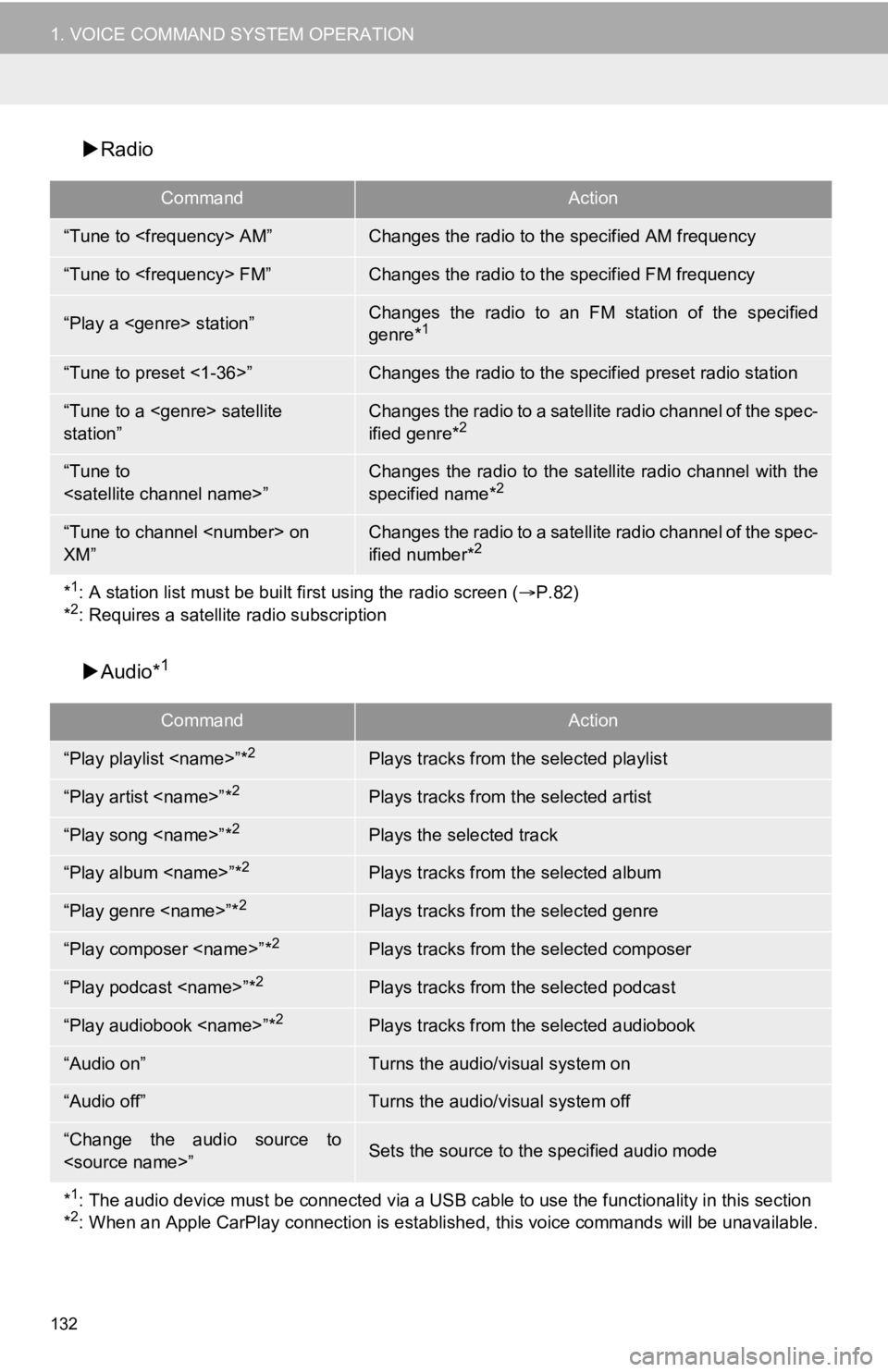
Radio
Audio*
1
CommandAction
“Tune to
“Tune to
“Play a
genre*1
“Tune to preset <1-36>”Changes the radio to the specified preset radio station
“Tune to a
station” Changes the radio to a satellite radio channel of the spec-
ified genre*2
“Tune to
specified name*2
“Tune to channel
XM” Changes the radio to a satellite radio channel of the spec-
ified number*2
*1: A station list must be built fi rst using the radio screen (P.82)
*2: Requires a satellite radio subscription
CommandAction
“Play playlist
“Play artist
“Play song
“Play album
“Play genre
“Play composer
“Play podcast
“Play audiobook
“Audio on”Turns the audio/visual system on
“Audio off”Turns the audio/visual system off
“Change the audio source to
*
1: The audio device must be connected via a USB cable to use the functionality in this section
*2: When an Apple CarPlay connection is established, this voice commands will be unavailable.
Page 133 of 326
133
1. VOICE COMMAND SYSTEM OPERATION
VOICE COMMAND SYSTEM
4
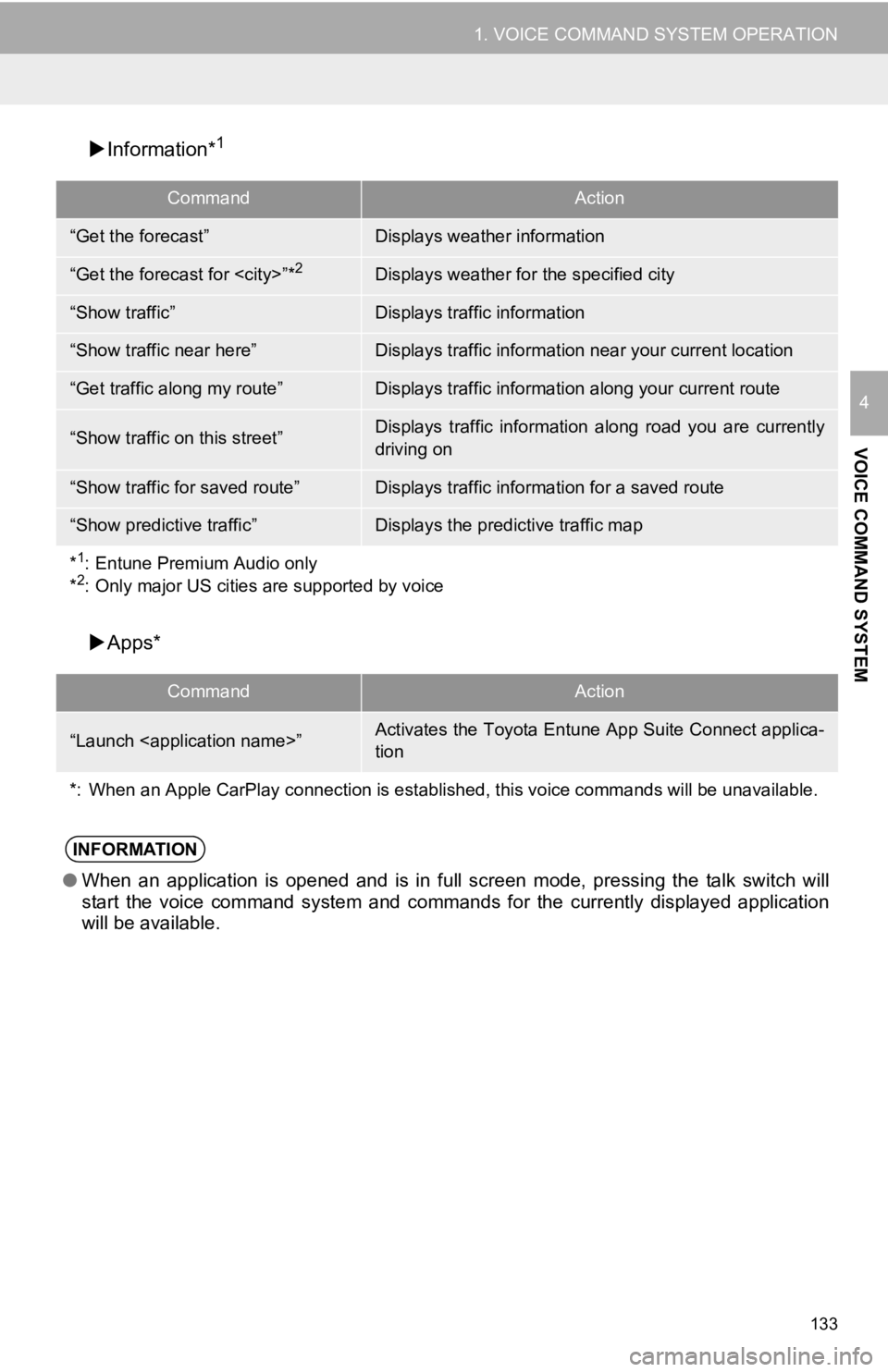
Information*1
Apps*
CommandAction
“Get the forecast”Displays weather information
“Get the forecast for
“Show traffic”Displays traffic information
“Show traffic near here”Displays traffic information near your current location
“Get traffic along my route”Displays traffic information along your current route
“Show traffic on this street”Displays traffic information along road you are currently
driving on
“Show traffic for saved route”Displays traffic information for a saved route
“Show predictive traffic”Displays the predictive traffic map
*
1: Entune Premium Audio only
*2: Only major US cities are supported by voice
CommandAction
“Launch
tion
*: When an Apple CarPlay connecti on is established, this voice commands will be unavailable.
INFORMATION
●When an application is opened and is in full screen mode, pressing the talk switch will
start the voice command system and commands for the currently displayed application
will be available.
Page 134 of 326
134
2. MOBILE ASSISTANT OPERATION
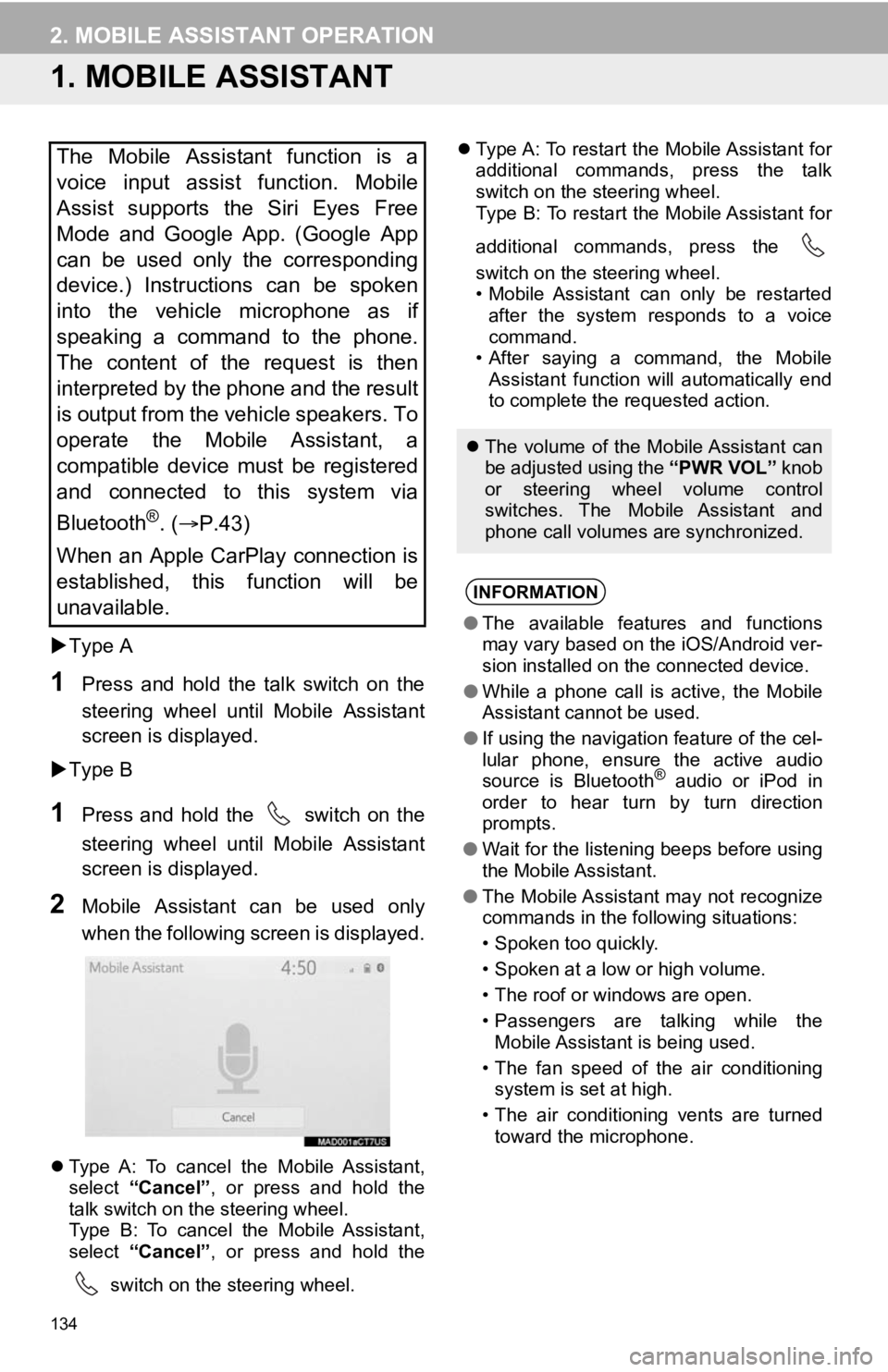
1. MOBILE ASSISTANT
Type A
1Press and hold the talk switch on the
steering wheel until Mobile Assistant
screen is displayed.
Type B
1Press and hold the switch on the
steering wheel until Mobile Assistant
screen is displayed.
2Mobile Assistant can be used only
when the following screen is displayed.
Type A: To cancel the Mobile Assistant,
select “Cancel”, or press and hold the
talk switch on the steering wheel.
Type B: To cancel the Mobile Assistant,
select “Cancel”, or press and hold the
switch on the steering wheel.
Type A: To restart the Mobile Assistant for
additional commands, press the talk
switch on the steering wheel.
Type B: To restart the Mobile Assistant for
additional commands, press the
switch on the steering wheel.
• Mobile Assistant can only be restarted
after the system responds to a voice
command.
• After saying a command, the Mobile Assistant function will automatically end
to complete the requested action.
The Mobile Assistant function is a
voice input assist function. Mobile
Assist supports the Siri Eyes Free
Mode and Google App. (Google App
can be used only the corresponding
device.) Instructions can be spoken
into the vehicle microphone as if
speaking a command to the phone.
The content of the request is then
interpreted by the phone and the result
is output from the vehicle speakers. To
operate the Mobile Assistant, a
compatible device must be registered
and connected to this system via
Bluetooth
®. ( P.43)
When an Apple CarPlay connection is
established, this function will be
unavailable.
The volume of the Mobile Assistant can
be adjusted using the “PWR VOL” knob
or steering wheel volume control
switches. The Mobile Assistant and
phone call volumes are synchronized.
INFORMATION
● The available features and functions
may vary based on the iOS/Android ver-
sion installed on the connected device.
● While a phone call is active, the Mobile
Assistant cannot be used.
● If using the navigation feature of the cel-
lular phone, ensure the active audio
source is Bluetooth
® audio or iPod in
order to hear turn by turn direction
prompts.
● Wait for the listening beeps before using
the Mobile Assistant.
● The Mobile Assistant may not recognize
commands in the following situations:
• Spoken too quickly.
• Spoken at a low or high volume.
• The roof or windows are open.
• Passengers are talking while the
Mobile Assistant is being used.
• The fan speed of the air conditioning system is set at high.
• The air conditioning vents are turned toward the microphone.
Page 195 of 326
195
1. PHONE OPERATION (HANDS-FREE SYSTEM FOR CELLULAR PHONES)
PHONE
7
2. SOME BASICS
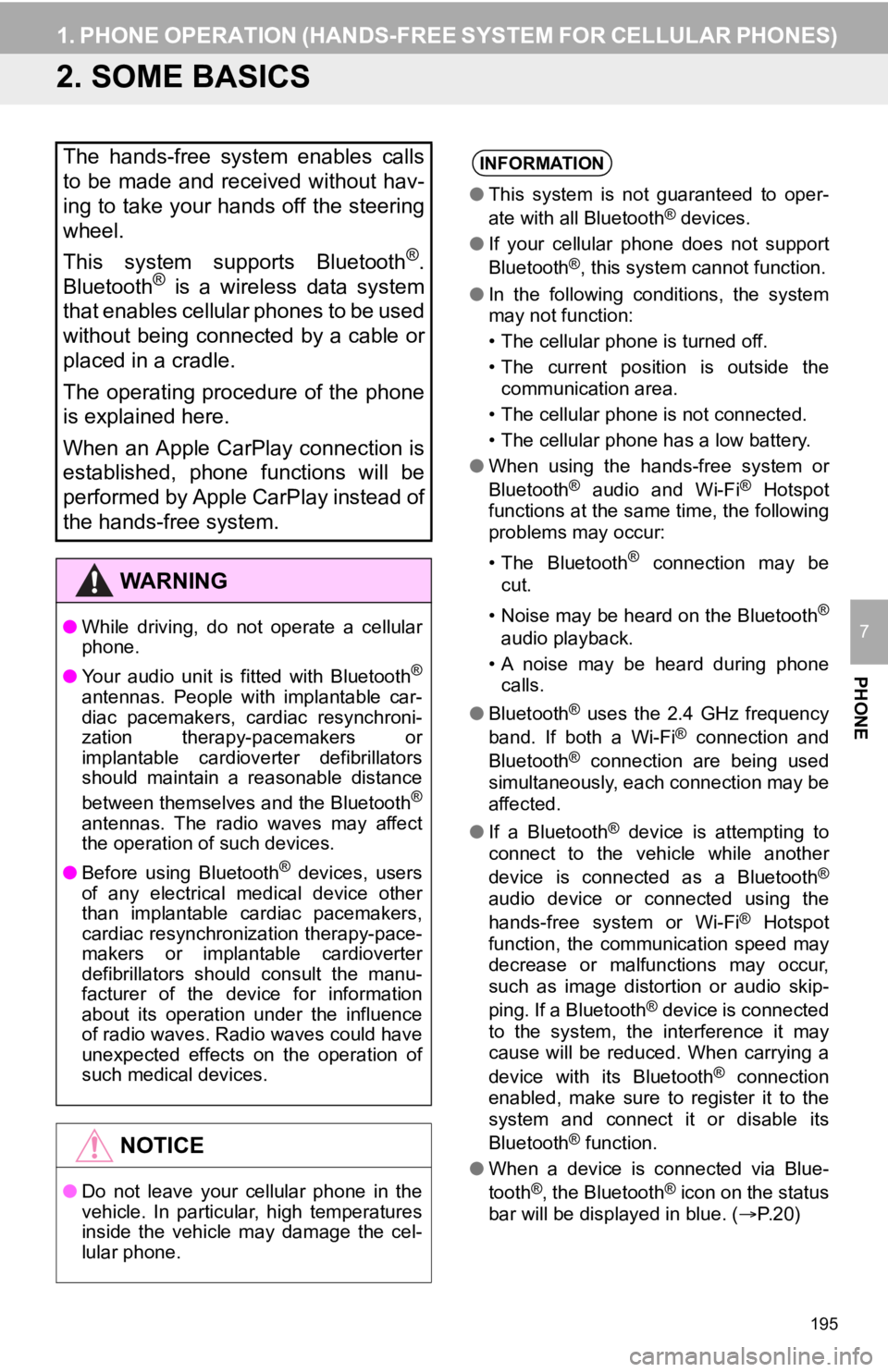
The hands-free system enables calls
to be made and received without hav-
ing to take your hands off the steering
wheel.
This system supports Bluetooth
®.
Bluetooth® is a wireless data system
that enables cellular phones to be used
without being connected by a cable or
placed in a cradle.
The operating procedure of the phone
is explained here.
When an Apple CarPlay connection is
established, phone functions will be
performed by Apple CarPlay instead of
the hands-free system.
WA R N I N G
● While driving, do not operate a cellular
phone.
● Your audio unit is fitted with Bluetooth
®
antennas. People with implantable car-
diac pacemakers, cardiac resynchroni-
zation therapy-pacemakers or
implantable cardioverter defibrillators
should maintain a reasonable distance
between themselves and the Bluetooth
®
antennas. The radio waves may affect
the operation of such devices.
● Before using Bluetooth
® devices, users
of any electrical medical device other
than implantable cardiac pacemakers,
cardiac resynchronization therapy-pace-
makers or implantable cardioverter
defibrillators should consult the manu-
facturer of the device for information
about its operation under the influence
of radio waves. Radio waves could have
unexpected effects on the operation of
such medical devices.
NOTICE
● Do not leave your cellular phone in the
vehicle. In particular, high temperatures
inside the vehicle may damage the cel-
lular phone.
INFORMATION
●This system is not guaranteed to oper-
ate with all Bluetooth® devices.
● If your cellular phone does not support
Bluetooth
®, this system cannot function.
● In the following conditions, the system
may not function:
• The cellular phone is turned off.
• The current position is outside the
communication area.
• The cellular phone is not connected.
• The cellular phone has a low battery.
● When using the hands-free system or
Bluetooth
® audio and Wi-Fi® Hotspot
functions at the same time, the following
problems may occur:
• The Bluetooth
® connection may be
cut.
• Noise may be heard on the Bluetooth
®
audio playback.
• A noise may be heard during phone calls.
● Bluetooth
® uses the 2.4 GHz frequency
band. If both a Wi-Fi® connection and
Bluetooth® connection are being used
simultaneously, each connection may be
affected.
● If a Bluetooth
® device is attempting to
connect to the vehicle while another
device is connected as a Bluetooth
®
audio device or connected using the
hands-free system or Wi-Fi® Hotspot
function, the communication speed may
decrease or malfunctions may occur,
such as image distortion or audio skip-
ping. If a Bluetooth
® device is connected
to the system, the interference it may
cause will be reduced. When carrying a
device with its Bluetooth
® connection
enabled, make sure to register it to the
system and connect it or disable its
Bluetooth
® function.
● When a device is connected via Blue-
tooth
®, the Bluetooth® icon on the status
bar will be displayed in blue. ( P. 2 0 )
Page 196 of 326
196
1. PHONE OPERATION (HANDS-FREE SYSTEM FOR CELLULAR PHONES)
Registering an add itional device
1Display the phone top screen.
(P.194)
2Select “Select Device” .
3Select “Add Device” .
When another Bluetooth® device is con-
nected, a confirmation screen will be dis-
played. To disconnect the Bluetooth
®
device, select “Yes”.
Up to 5 Bluetooth® devices can be regis-
tered to the system. If the maximum num-
ber of devices are registered, registration
cannot be performed from the phone top
screen.
4Follow the steps in “REGISTERING A
Bluetooth
® PHONE FOR THE FIRST
TIME” from “STEP 5”. ( P.43)
Selecting a registered device
1Display the phone top screen.
(P.194)
2Select “Select Device” .
3Select the desired device to be con-
nected.
4Check that a confirmation screen is
displayed when the connection is com-
plete.
If an error message is displayed, follow
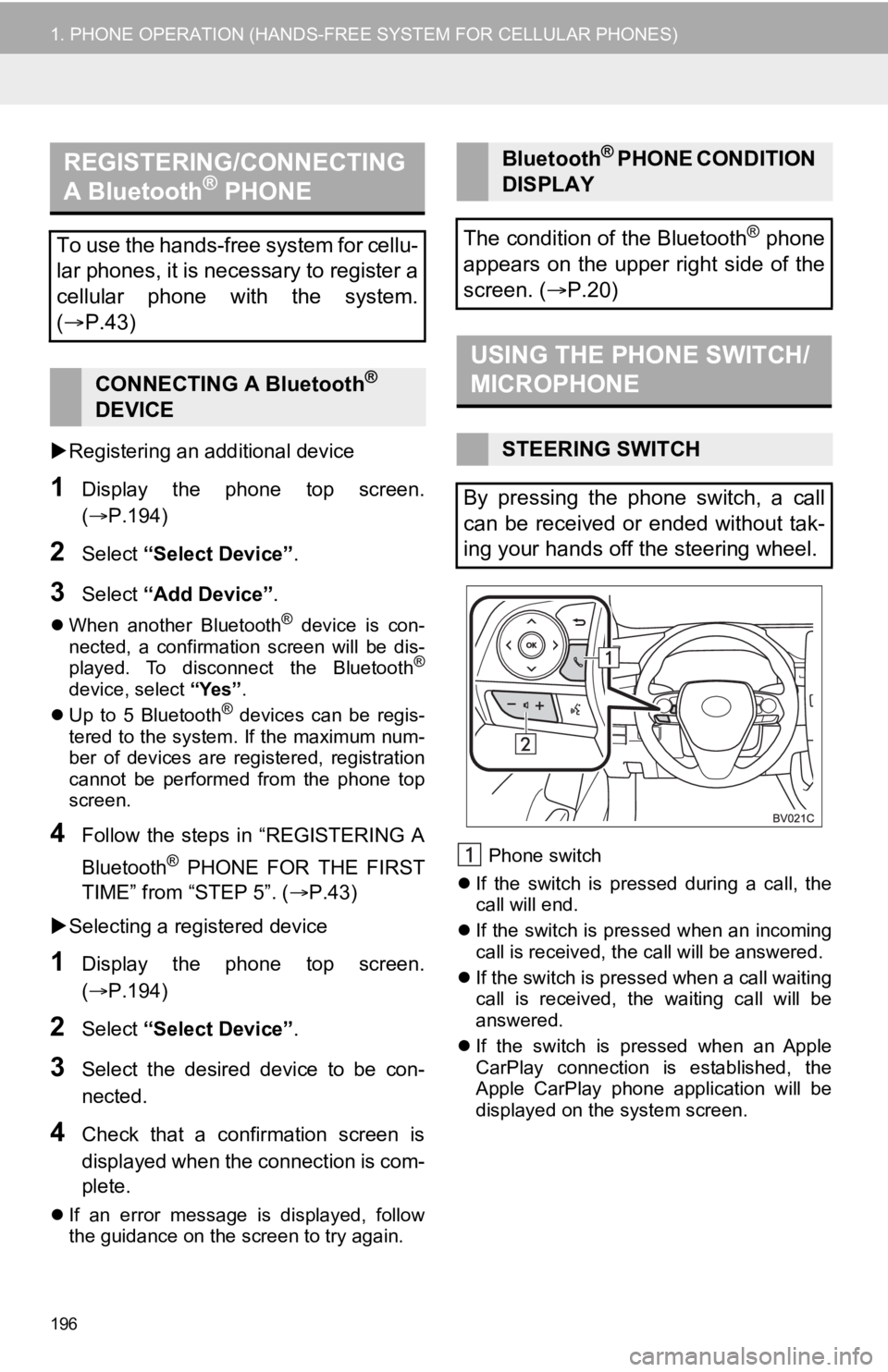
the guidance on the screen to try again. Phone switch
If the switch is pressed during a call, the
call will end.
If the switch is pressed when an incoming
call is received, the call will be answered.
If the switch is pressed when a call waiting
call is received, the waiting call will be
answered.
If the switch is pressed when an Apple
CarPlay connection is established, the
Apple CarPlay phone application will be
displayed on t he system screen.
REGISTERING/CONNECTING
A Bluetooth® PHONE
To use the hands-free system for cellu-
lar phones, it is necessary to register a
cellular phone with the system.
( P.43)
CONNECTING A Bluetooth®
DEVICE
Bluetooth® PHONE CONDITION
DISPLAY
The condition of the Bluetooth
® phone
appears on the upper right side of the
screen. ( P.20)
USING THE PHONE SWITCH/
MICROPHONE
STEERING SWITCH
By pressing the phone switch, a call
can be received or ended without tak-
ing your hands off the steering wheel.
Page 322 of 326

322
ALPHABETICAL INDEX
A
AAC......................................................... 116
Adding destinations................................. 256
Address ................................................... 247
Adjacent road .......................................... 267
AM.............................................................82
Apple CarPlay ........................................... 59
Applications..................................... 290, 300
APPS button ............................................. 14
Area to avoid ........................................... 272
Arrival time .............................................. 257
AUDIO button............................................ 14
Audio settings ......................................... 111
Audio/visual system .................................. 77
Audio screen adjustment ....................... 80
Screen adjustment ................................ 81
Selecting an audio source ..................... 77
Sound settings....................................... 78
Turning the system on and off ............... 77
USB/AUX port ....................................... 78
Voice command system ... ..................... 81
AUX......................................................... 107
AUX port ................................................... 78
Avoid traffic ............................................. 279
B
Bluetooth® audio .....................................102
Registering/connecting a Bluetooth
® device ............................106
Bluetooth® phone ....................................195
About the contacts in the contact list ........................................198
Registering/connecting a Bluetooth
® phone.............................196
Using the phone switch/microphone ...........................196
Voice command system ..... .................197
When selling or disposing of the vehicle....................198
Bluetooth
® settings ...................................47
Connecting a Bluetooth® device............48
Deleting a Bluetooth® device.................50
Editing the Bluetooth®
device information ..............................51
Registering a Bluetooth
® device............50
Setting Bluetooth® system.....................52
Buttons overview .......................................14
C
Calibration ...............................................276
Calling on the Bluetooth® phone .............199
By call history ......................................199
By contacts list.....................................200
By favorites list ....................................200
By home screen...................................202
By keypad ............................................202
Camera switch ........................................161
Command list ..........................................129
Compass .................................................236
Contacts ..................................200, 214, 247
Current position .......................................232