display TOYOTA AVENSIS 2011 Manual PDF
[x] Cancel search | Manufacturer: TOYOTA, Model Year: 2011, Model line: AVENSIS, Model: TOYOTA AVENSIS 2011Pages: 772, PDF Size: 34.43 MB
Page 431 of 772
431 3-2. Using the audio system
3
Interior features
AVENSIS_EE (OM20B44E)
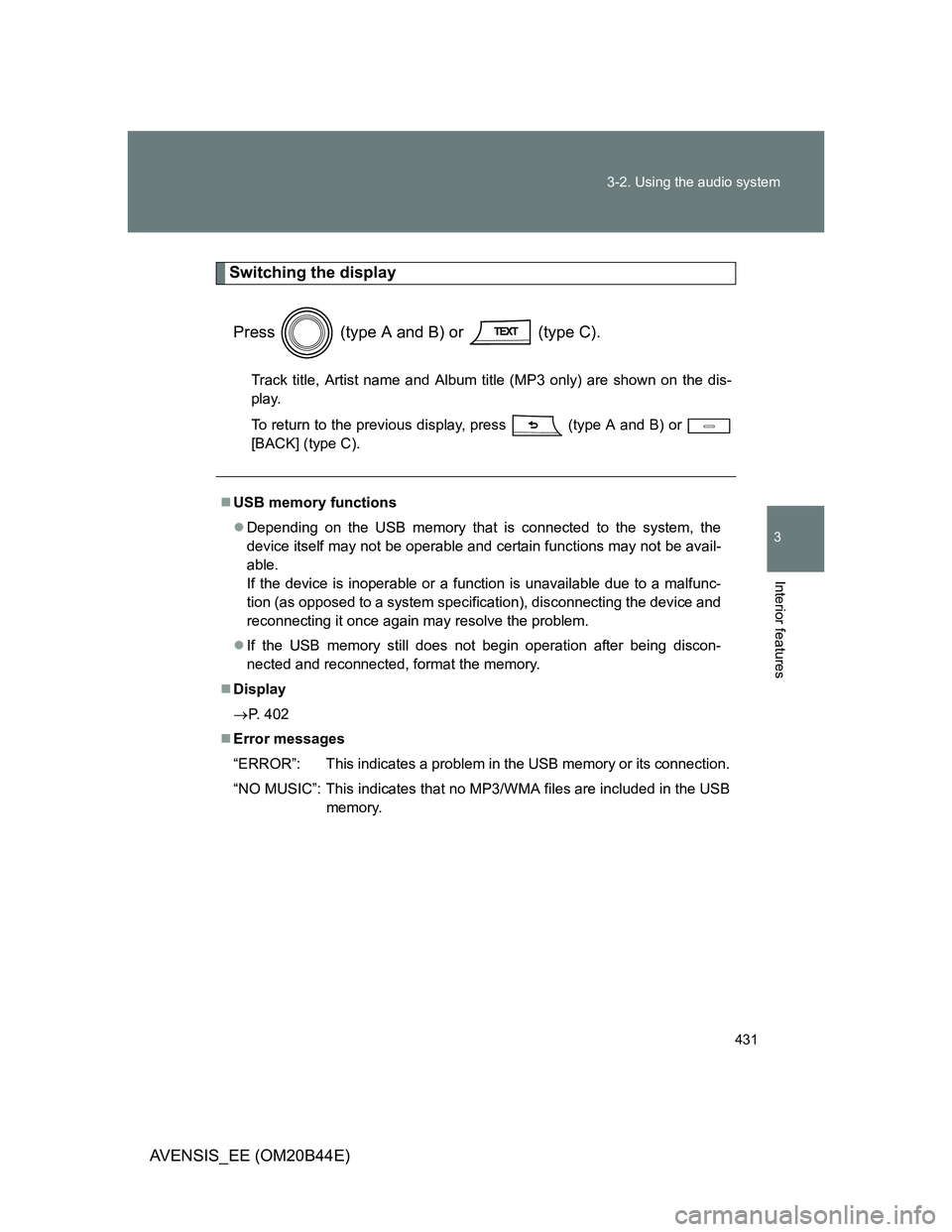
Switching the display
Press (type A and B) or (type C).
Track title, Artist name and Album title (MP3 only) are shown on the dis-
play.
To return to the previous display, press (type A and B) or
[BACK] (type C).
USB memory functions
Depending on the USB memory that is connected to the system, the
device itself may not be operable and certain functions may not be avail-
able.
If the device is inoperable or a function is unavailable due to a malfunc-
tion (as opposed to a system specification), disconnecting the device and
reconnecting it once again may resolve the problem.
If the USB memory still does not begin operation after being discon-
nected and reconnected, format the memory.
Display
P. 402
Error messages
“ERROR”: This indicates a problem in the USB memory or its connection.
“NO MUSIC”: This indicates that no MP3/WMA files are included in the USB
memory.
Page 432 of 772
432 3-2. Using the audio system
AVENSIS_EE (OM20B44E)
USB memory
Compatible devices
USB memory that can be used for MP3 and WMA playback
Compatible device formats
The following device formats can be used:
• USB communication formats: USB2.0 FS (12mbps)
• File formats: FAT16/32 (Windows)
• Correspondence class: Mass storage class
MP3 and WMA files written in any format other than those listed above
may not play correctly, and their file names and folder names may not
be displayed correctly.
Items related to standards and limitations are as follows:
• Maximum directory hierarchy: 8 levels
• Maximum number of folders in a device: 999 (including the root)
• Maximum number of files in a device: 9999
• Maximum number of files per folder: 255
MP3 and WMA files
MP3 (MPEG Audio LAYER 3) is a standard audio compression format.
Files can be compressed to approximately 1/10 of their original size
using MP3 compression.
WMA (Windows Media Audio) is a Microsoft audio compression format.
This format compresses audio data to a size smaller than that of the MP3
format.
There is a limit to the MP3 and WMA file standards that can be used and
to the media/formats on which the files are recorded.
Page 436 of 772
436
3-2. Using the audio system
AVENSIS_EE (OM20B44E)
Optimal use of the audio system
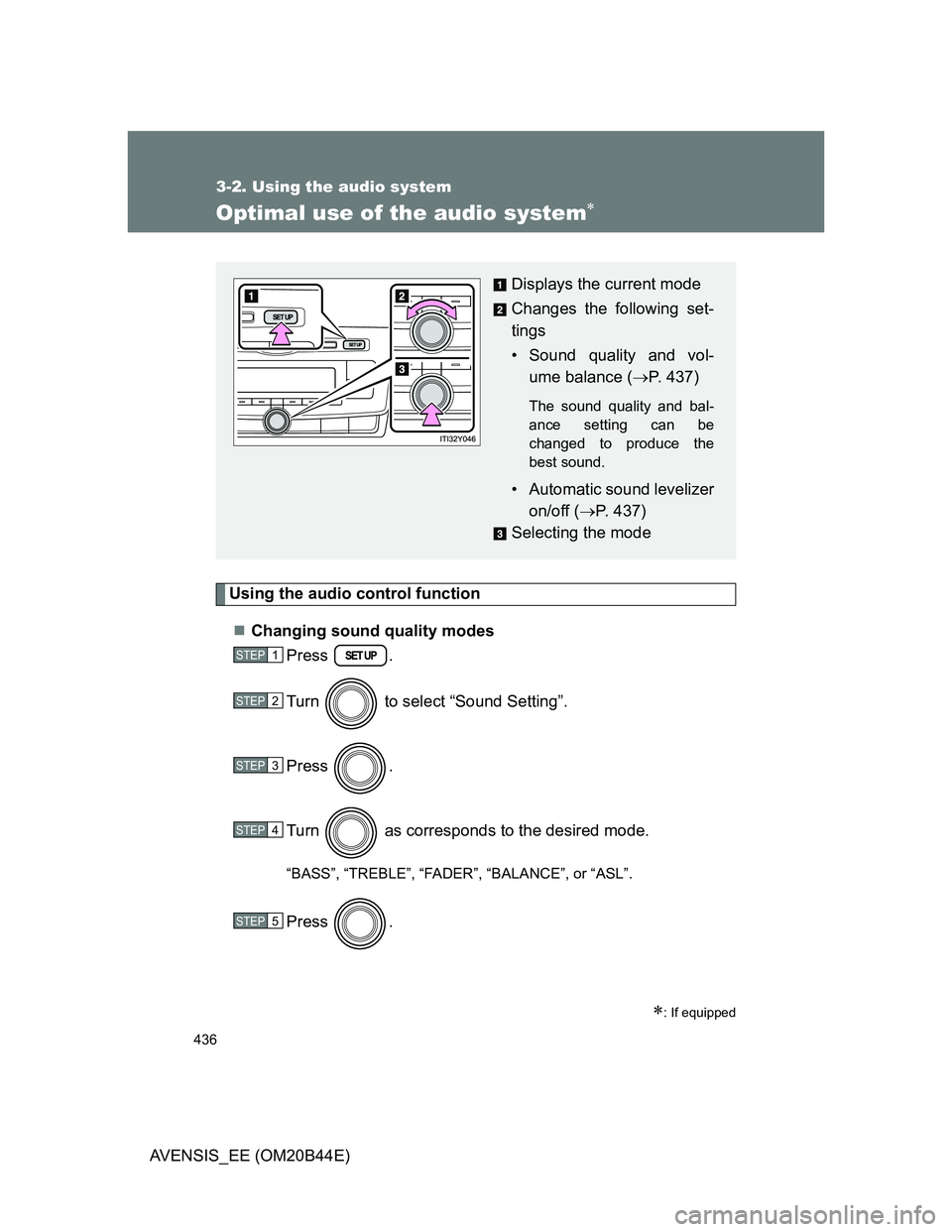
Using the audio control function
Changing sound quality modes
Press .
Turn to select “Sound Setting”.
Press .
Turn as corresponds to the desired mode.
“BASS”, “TREBLE”, “FADER”, “BALANCE”, or “ASL”.
Press .
: If equipped
Displays the current mode
Changes the following set-
tings
• Sound quality and vol-
ume balance (P. 437)
The sound quality and bal-
ance setting can be
changed to produce the
best sound.
• Automatic sound levelizer
on/off (P. 437)
Selecting the mode
STEP1
STEP2
STEP3
STEP4
STEP5
Page 437 of 772
437 3-2. Using the audio system
3
Interior features
AVENSIS_EE (OM20B44E)Adjusting sound quality
Turning adjusts the level.
*: The sound quality level is adjusted individually in each audio mode.
Adjusting the Automatic Sound Levelizer (ASL)
When ASL is selected, turning to the right changes the
amount of ASL in the order of LOW, MID and HIGH.
Turning to the left turns ASL off.
ASL automatically adjusts the volume and tone quality according to vehi-
cle speed.
Sound
quality modeMode
displayedLevelTurn to the
leftTurn to the
right
Bass*“BASS”-5 to 5LowHighTreble*“TREBLE”-5 to 5
Front/rear
volume
balance
“FADER”F7 to R7Shifts to rearShifts to
front
Left/right
volume
balance
“BALANCE”L7 to R7Shifts to leftShifts to
right
Page 438 of 772
438
3-2. Using the audio system
AVENSIS_EE (OM20B44E)
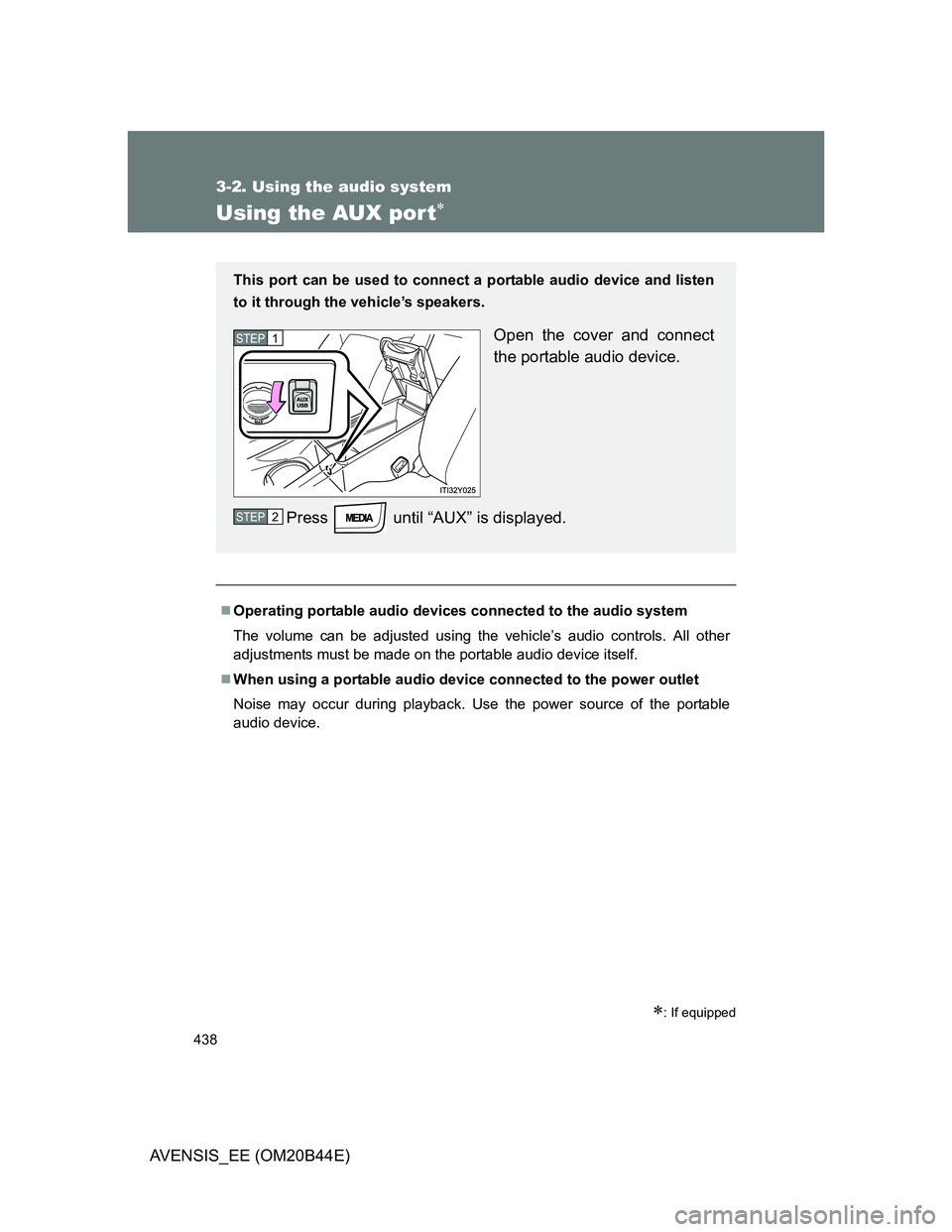
Using the AUX por t
: If equipped
Operating portable audio devices connected to the audio system
The volume can be adjusted using the vehicle’s audio controls. All other
adjustments must be made on the portable audio device itself.
When using a portable audio device connected to the power outlet
Noise may occur during playback. Use the power source of the portable
audio device.
This port can be used to connect a portable audio device and listen
to it through the vehicle’s speakers.
Open the cover and connect
the portable audio device.
Press until “AUX” is displayed.STEP1
STEP2
Page 449 of 772
449
3-2. Using the audio system
3
Interior features
AVENSIS_EE (OM20B44E)
Using the Bluetooth® audio/phone
: If equipped
Audio unit
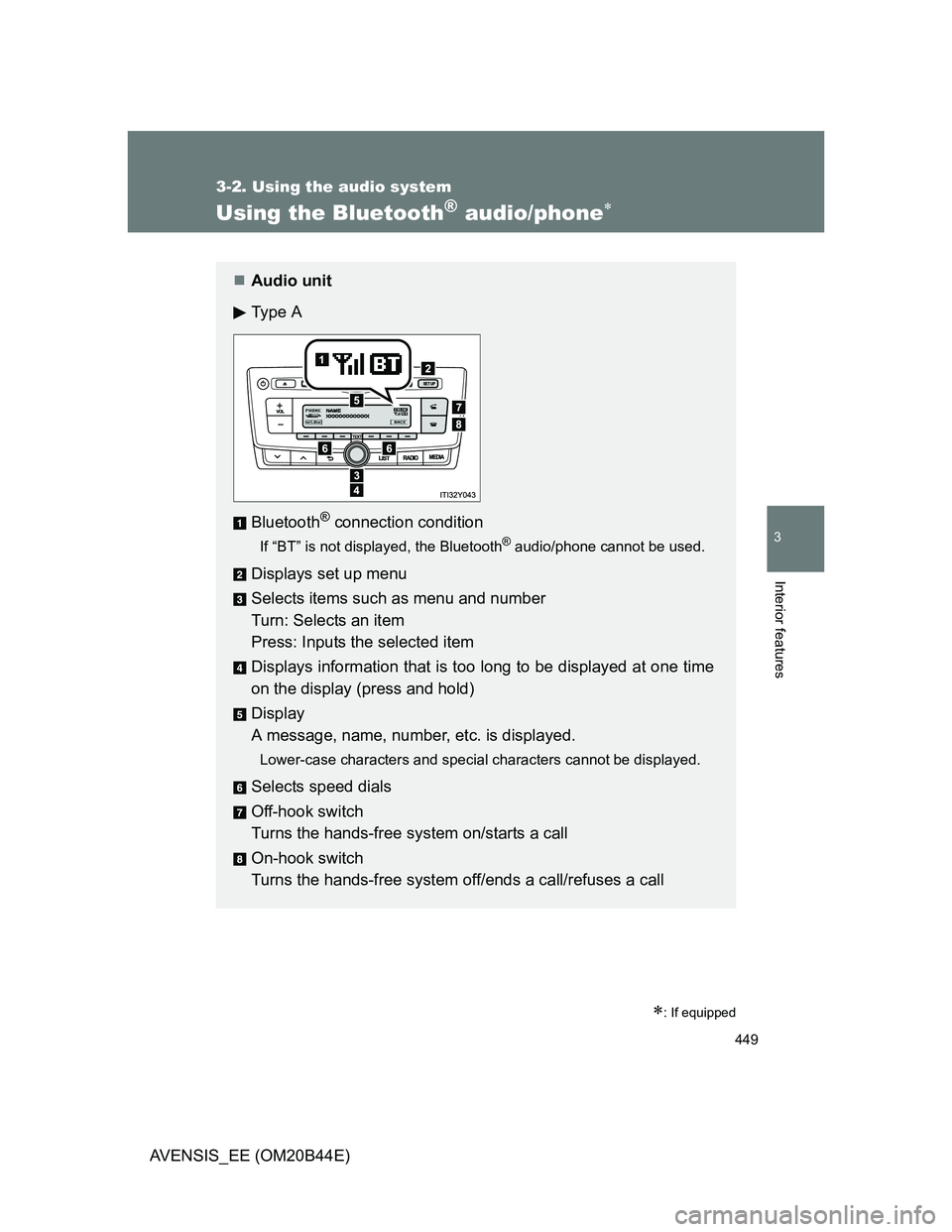
Ty p e A
Bluetooth
® connection condition
If “BT” is not displayed, the Bluetooth® audio/phone cannot be used.
Displays set up menu
Selects items such as menu and number
Turn: Selects an item
Press: Inputs the selected item
Displays information that is too long to be displayed at one time
on the display (press and hold)
Display
A message, name, number, etc. is displayed.
Lower-case characters and special characters cannot be displayed.
Selects speed dials
Off-hook switch
Turns the hands-free system on/starts a call
On-hook switch
Turns the hands-free system off/ends a call/refuses a call
Page 450 of 772
450 3-2. Using the audio system
AVENSIS_EE (OM20B44E)
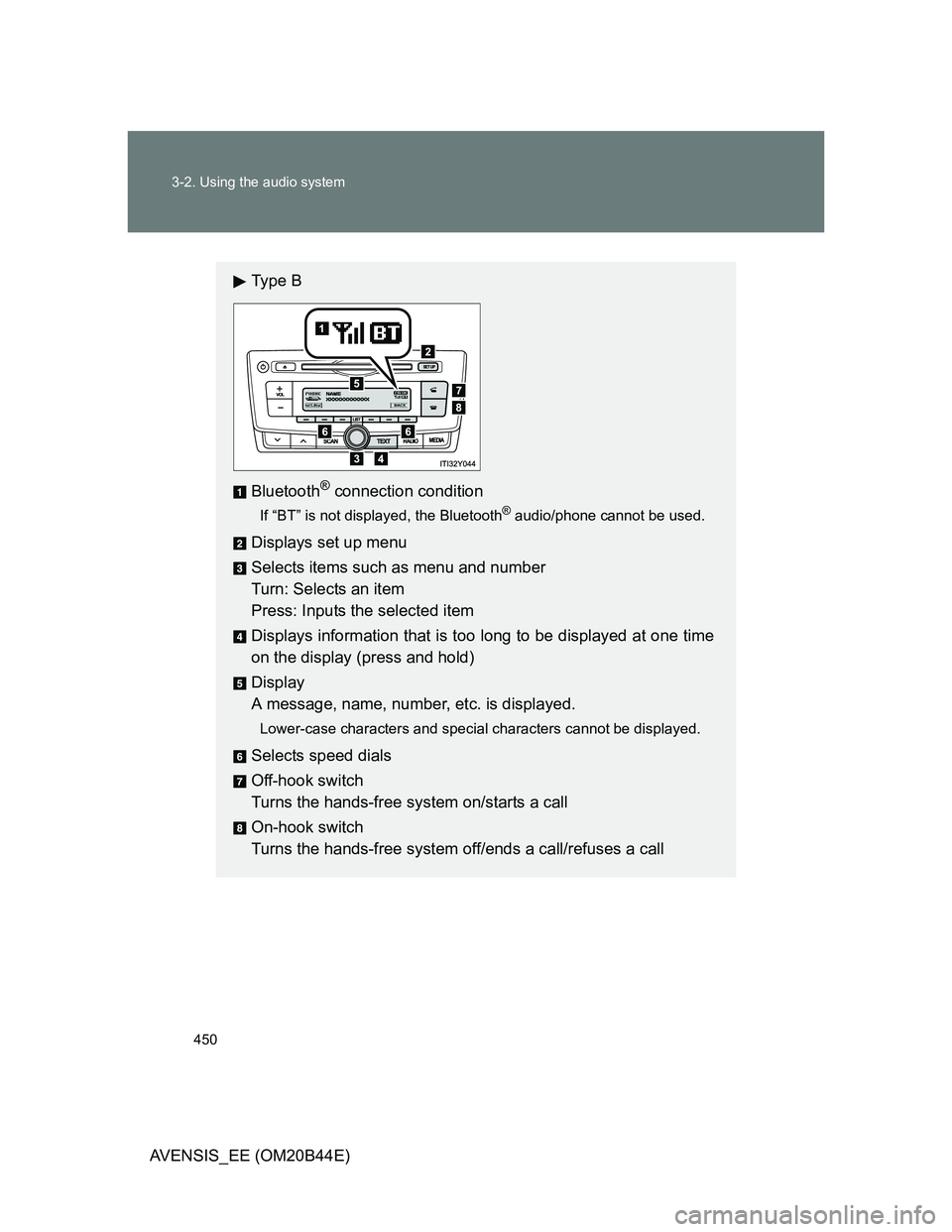
Ty p e B
Bluetooth
® connection condition
If “BT” is not displayed, the Bluetooth® audio/phone cannot be used.
Displays set up menu
Selects items such as menu and number
Turn: Selects an item
Press: Inputs the selected item
Displays information that is too long to be displayed at one time
on the display (press and hold)
Display
A message, name, number, etc. is displayed.
Lower-case characters and special characters cannot be displayed.
Selects speed dials
Off-hook switch
Turns the hands-free system on/starts a call
On-hook switch
Turns the hands-free system off/ends a call/refuses a call
Page 452 of 772
452 3-2. Using the audio system
AVENSIS_EE (OM20B44E)
Using the Bluetooth® audio/phone for the first time
Before using the Bluetooth
® audio/phone, it is necessary to register a
Bluetooth® device in the system. Follow the procedure below to reg-
ister (pair) a device:
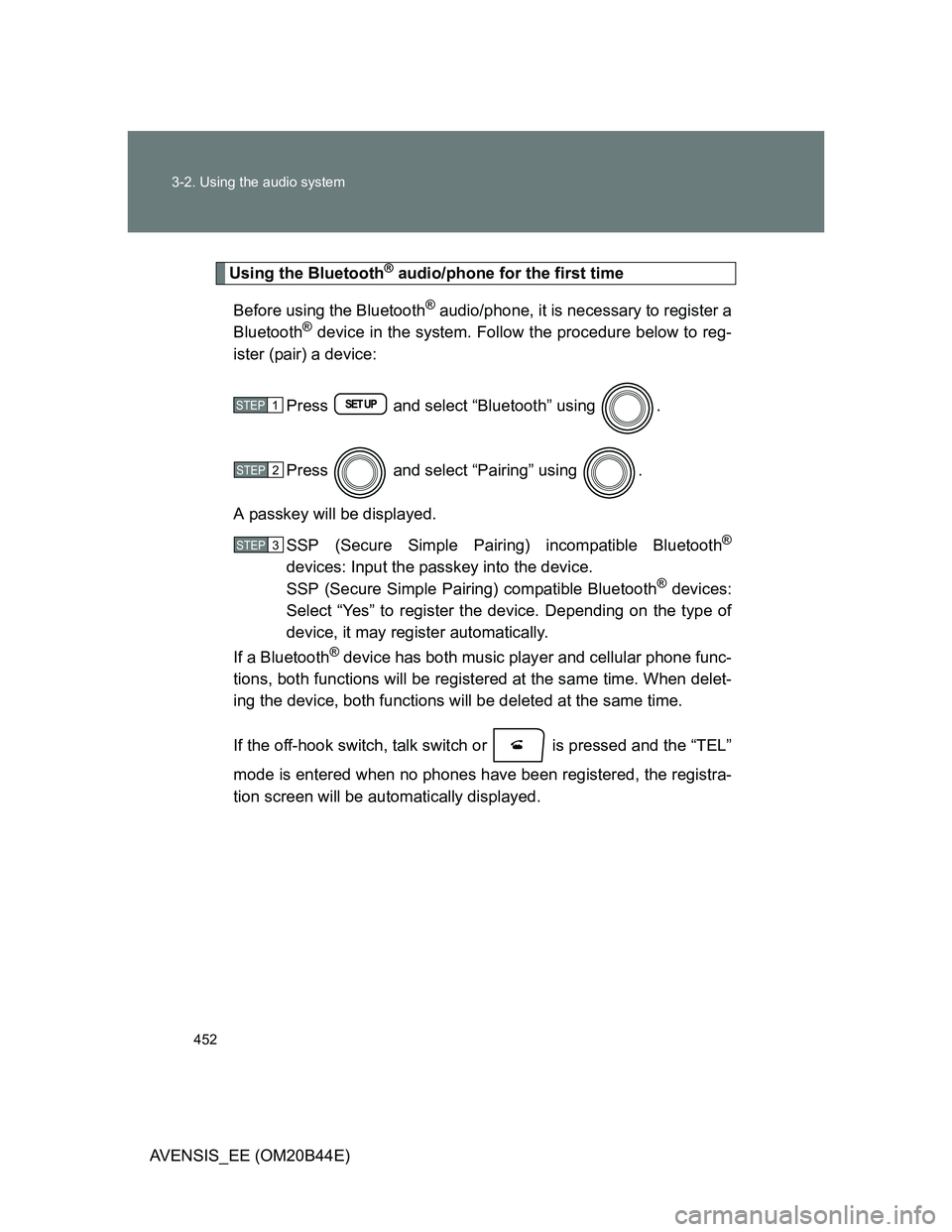
Press and select “Bluetooth” using .
Press and select “Pairing” using .
A passkey will be displayed.
SSP (Secure Simple Pairing) incompatible Bluetooth
®
devices: Input the passkey into the device.
SSP (Secure Simple Pairing) compatible Bluetooth® devices:
Select “Yes” to register the device. Depending on the type of
device, it may register automatically.
If a Bluetooth
® device has both music player and cellular phone func-
tions, both functions will be registered at the same time. When delet-
ing the device, both functions will be deleted at the same time.
If the off-hook switch, talk switch or is pressed and the “TEL”
mode is entered when no phones have been registered, the registra-
tion screen will be automatically displayed.
STEP1
STEP2
STEP3
Page 453 of 772
453 3-2. Using the audio system
3
Interior features
AVENSIS_EE (OM20B44E)
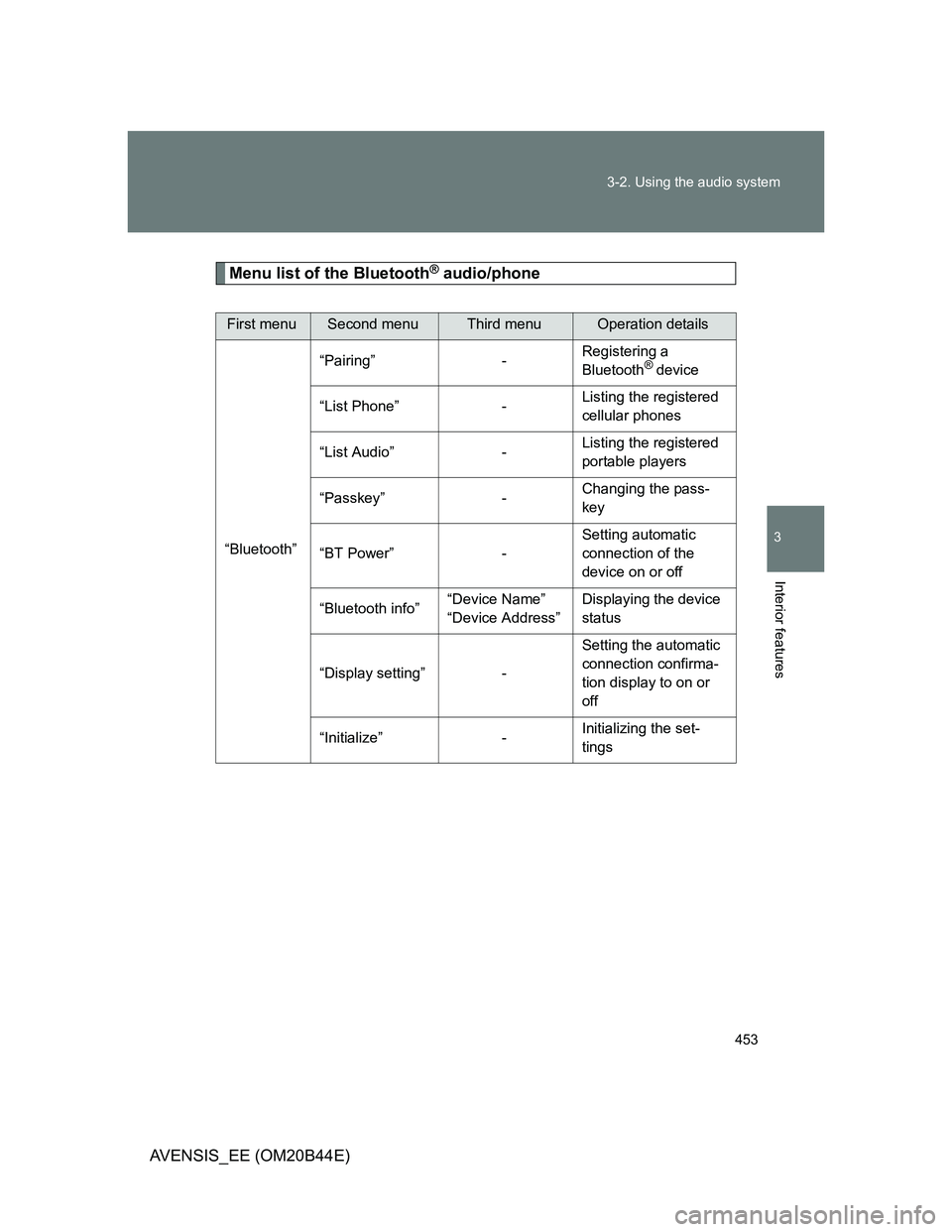
Menu list of the Bluetooth® audio/phone
First menuSecond menuThird menuOperation details
“Bluetooth”“Pairing” -Registering a
Bluetooth
® device
“List Phone” -Listing the registered
cellular phones
“List Audio” -Listing the registered
portable players
“Passkey” -Changing the pass-
key
“BT Power” -Setting automatic
connection of the
device on or off
“Bluetooth info”“Device Name”
“Device Address”Displaying the device
status
“Display setting” -Setting the automatic
connection confirma-
tion display to on or
off
“Initialize” -Initializing the set-
tings
Page 455 of 772
455
3-2. Using the audio system
3
Interior features
AVENSIS_EE (OM20B44E)
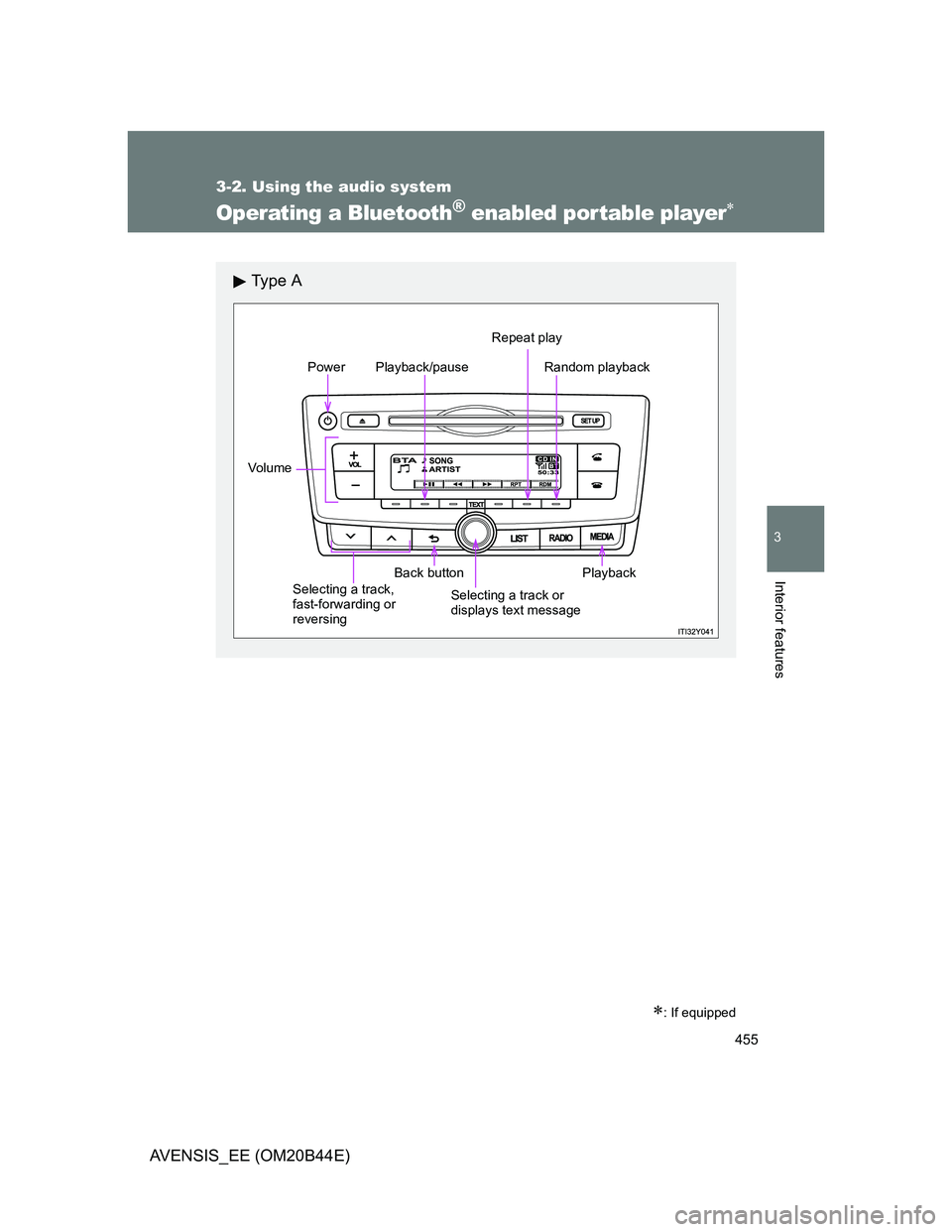
Operating a Bluetooth® enabled portable player
: If equipped
Ty p e A
Power
Vo lu m e
Back buttonPlayback/pauseRepeat play
Random playback
Playback
Selecting a track,
fast-forwarding or
reversingSelecting a track or
displays text message