park assist TOYOTA BZ4X 2022 (in English) Service Manual
[x] Cancel search | Manufacturer: TOYOTA, Model Year: 2022, Model line: BZ4X, Model: TOYOTA BZ4X 2022Pages: 674, PDF Size: 120.02 MB
Page 384 of 674
382
Owners Manual_Europe_M42D76_en
5-4. Using the driving support systems
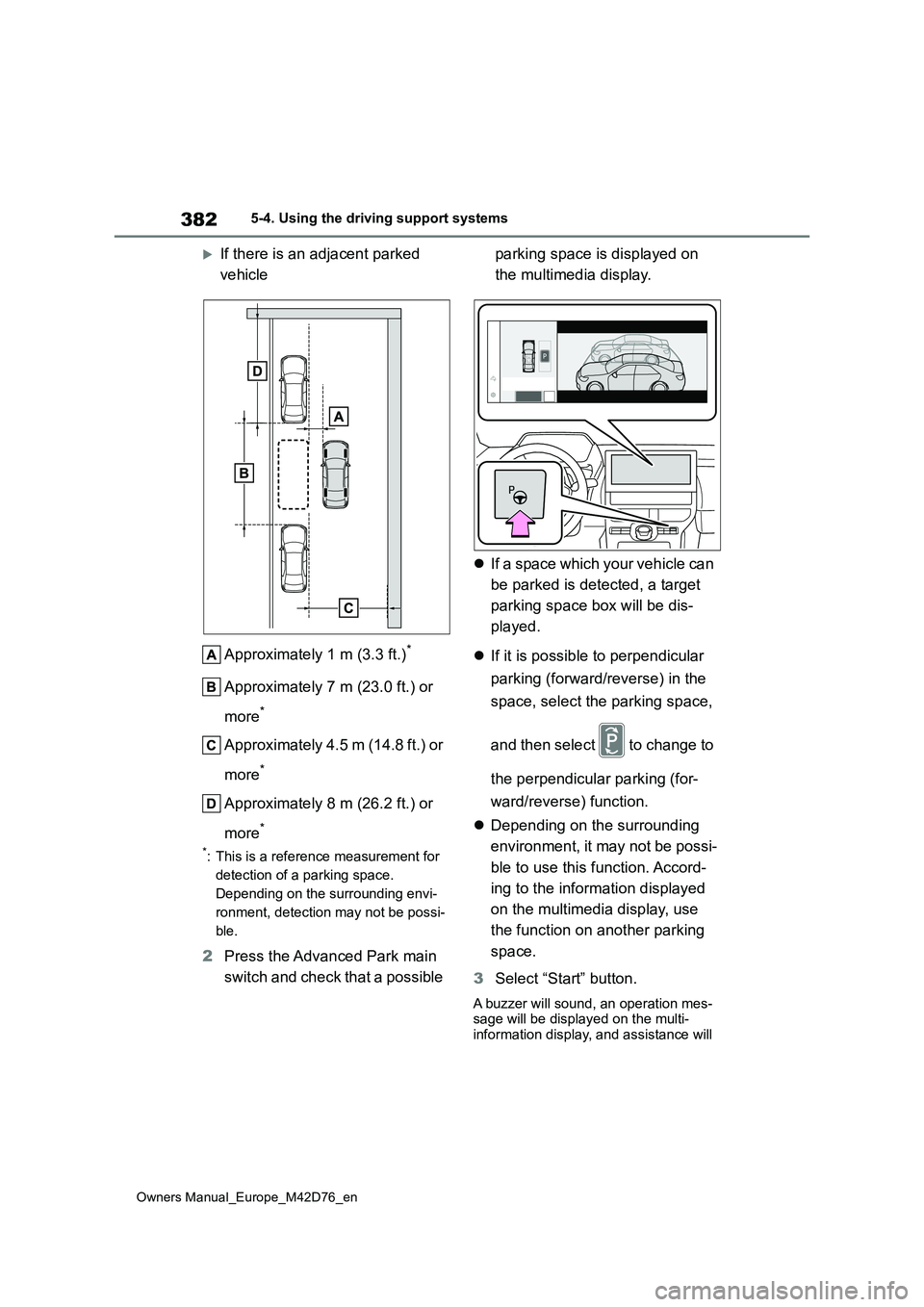
If there is an adjacent parked
vehicle
Approximately 1 m (3.3 ft.)*
Approximately 7 m (23.0 ft.) or
more*
Approximately 4.5 m (14.8 ft.) or
more*
Approximately 8 m (26.2 ft.) or
more*
*: This is a reference measurement for
detection of a parking space.
Depending on the surrounding envi-
ronment, detection may not be possi-
ble.
2 Press the Advanced Park main
switch and check that a possible
parking space is displayed on
the multimedia display.
If a space which your vehicle can
be parked is detected, a target
parking space box will be dis-
played.
If it is possible to perpendicular
parking (forward/reverse) in the
space, select the parking space,
and then select to change to
the perpendicular parking (for-
ward/reverse) function.
Depending on the surrounding
environment, it may not be possi-
ble to use this function. Accord-
ing to the information displayed
on the multimedia display, use
the function on another parking
space.
3 Select “Start” button.
A buzzer will sound, an operation mes- sage will be displayed on the multi-information display, and assistance will
Page 385 of 674
383
5
Owners Manual_Europe_M42D76_en
5-4. Using the driving support systems
Driving
begin operating.
When the brake pedal is
released, “Moving Forward...”
will be displayed and the vehicle
will begin moving forward.
To cancel assistance, press the
Advanced Park main switch.
If assistance is canceled, “Advanced
Park Cancelled” will be displayed.
If you feel that the vehicle is approach-
ing close to a surrounding vehicle,
object, person, or gutter: P. 3 8 3
4Perform operations as indicated
by the advice displays until the
vehicle stops in the target park-
ing space.
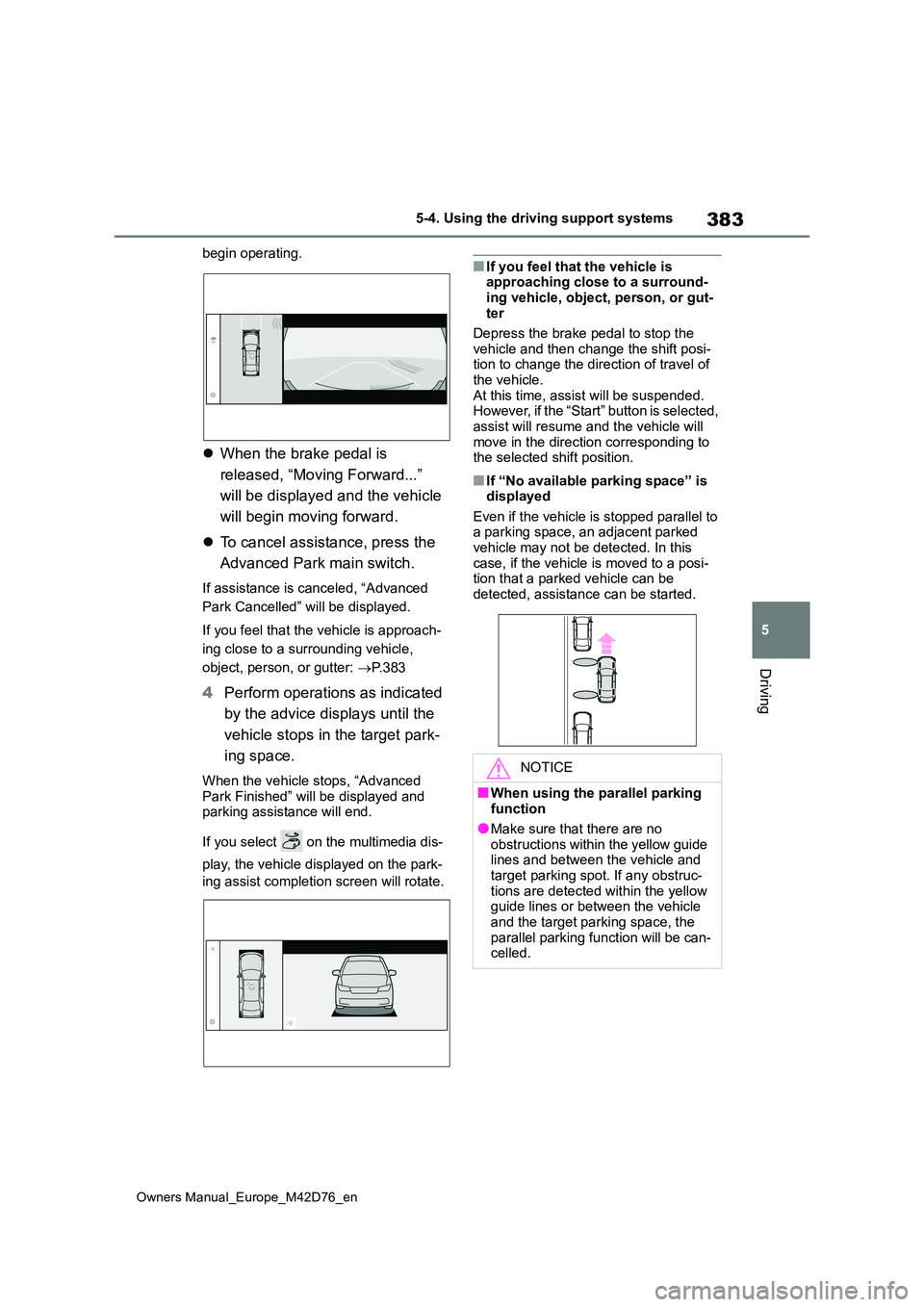
When the vehicle stops, “Advanced
Park Finished” will be displayed and parking assistance will end.
If you select on the multimedia dis-
play, the vehicle displayed on the park-
ing assist completion screen will rotate.
■If you feel that the vehicle is approaching close to a surround-
ing vehicle, object, person, or gut- ter
Depress the brake pedal to stop the
vehicle and then change the shift posi- tion to change the direction of travel of the vehicle.
At this time, assist will be suspended. However, if the “Start” button is selected, assist will resume and the vehicle will
move in the direction corresponding to the selected shift position.
■If “No available parking space” is displayed
Even if the vehicle is stopped parallel to a parking space, an adjacent parked vehicle may not be detected. In this
case, if the vehicle is moved to a posi- tion that a parked vehicle can be detected, assistance can be started.
NOTICE
■When using the parallel parking function
●Make sure that there are no obstructions within the yellow guide lines and between the vehicle and
target parking spot. If any obstruc- tions are detected within the yellow guide lines or between the vehicle
and the target parking space, the parallel parking function will be can-celled.
Page 386 of 674
384
Owners Manual_Europe_M42D76_en
5-4. Using the driving support systems
■Function description
When exiting from a parallel park-
ing space, if the system determines
that exit is possible the parallel exit-
ing function can be used. Also,
depending on the surrounding envi-
ronment, if it is necessary to
change the direction of travel of the
vehicle, the shift position can be
changed by assistance control.
■Leaving a parking space using
the parallel exiting function
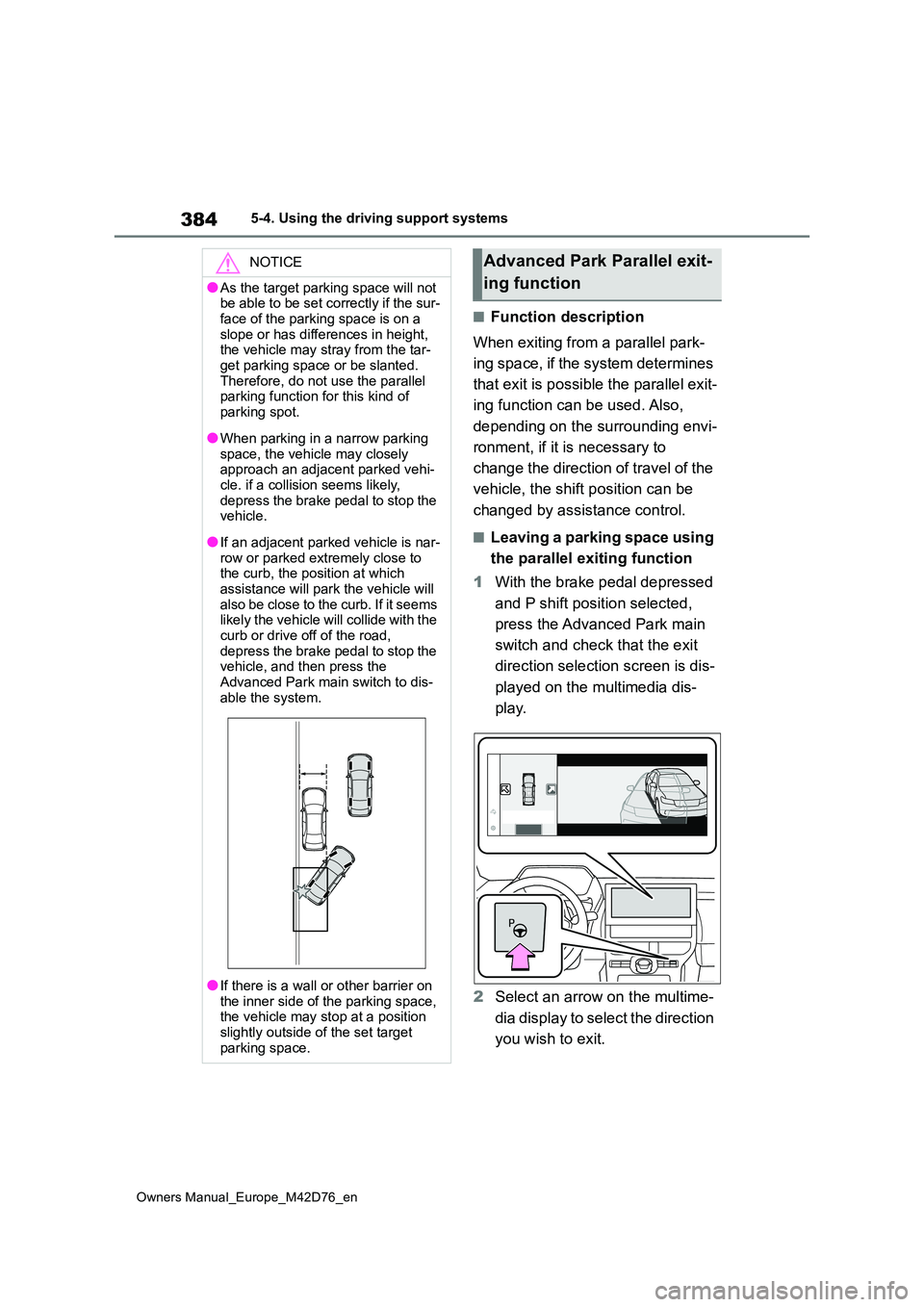
1 With the brake pedal depressed
and P shift position selected,
press the Advanced Park main
switch and check that the exit
direction selection screen is dis-
played on the multimedia dis-
play.
2 Select an arrow on the multime-
dia display to select the direction
you wish to exit.
NOTICE
●As the target parking space will not be able to be set correctly if the sur-
face of the parking space is on a slope or has differences in height, the vehicle may stray from the tar-
get parking space or be slanted. Therefore, do not use the parallel parking function for this kind of
parking spot.
●When parking in a narrow parking
space, the vehicle may closely approach an adjacent parked vehi-cle. if a collision seems likely,
depress the brake pedal to stop the vehicle.
●If an adjacent parked vehicle is nar-row or parked extremely close to the curb, the position at which
assistance will park the vehicle will also be close to the curb. If it seems likely the vehicle will collide with the
curb or drive off of the road, depress the brake pedal to stop the vehicle, and then press the
Advanced Park main switch to dis- able the system.
●If there is a wall or other barrier on the inner side of the parking space, the vehicle may stop at a position
slightly outside of the set target parking space.
Advanced Park Parallel exit-
ing function
Page 387 of 674
385
5
Owners Manual_Europe_M42D76_en
5-4. Using the driving support systems
Driving
If the turn signal lever is operated, only
exit to the left or right can be selected.
3 Depress the brake pedal and
select “Start” button.
A buzzer will sound, an operation mes-
sage will be displayed on the multi- information display, and assistance will begin operating.
To cancel assistance, press the Advanced Park main switch.
If assistance is canceled, “Advanced
Park Cancelled” will be displayed.
If you feel that the vehicle is approach- ing close to a surrounding vehicle,
object, person, or gutter: P. 3 8 5
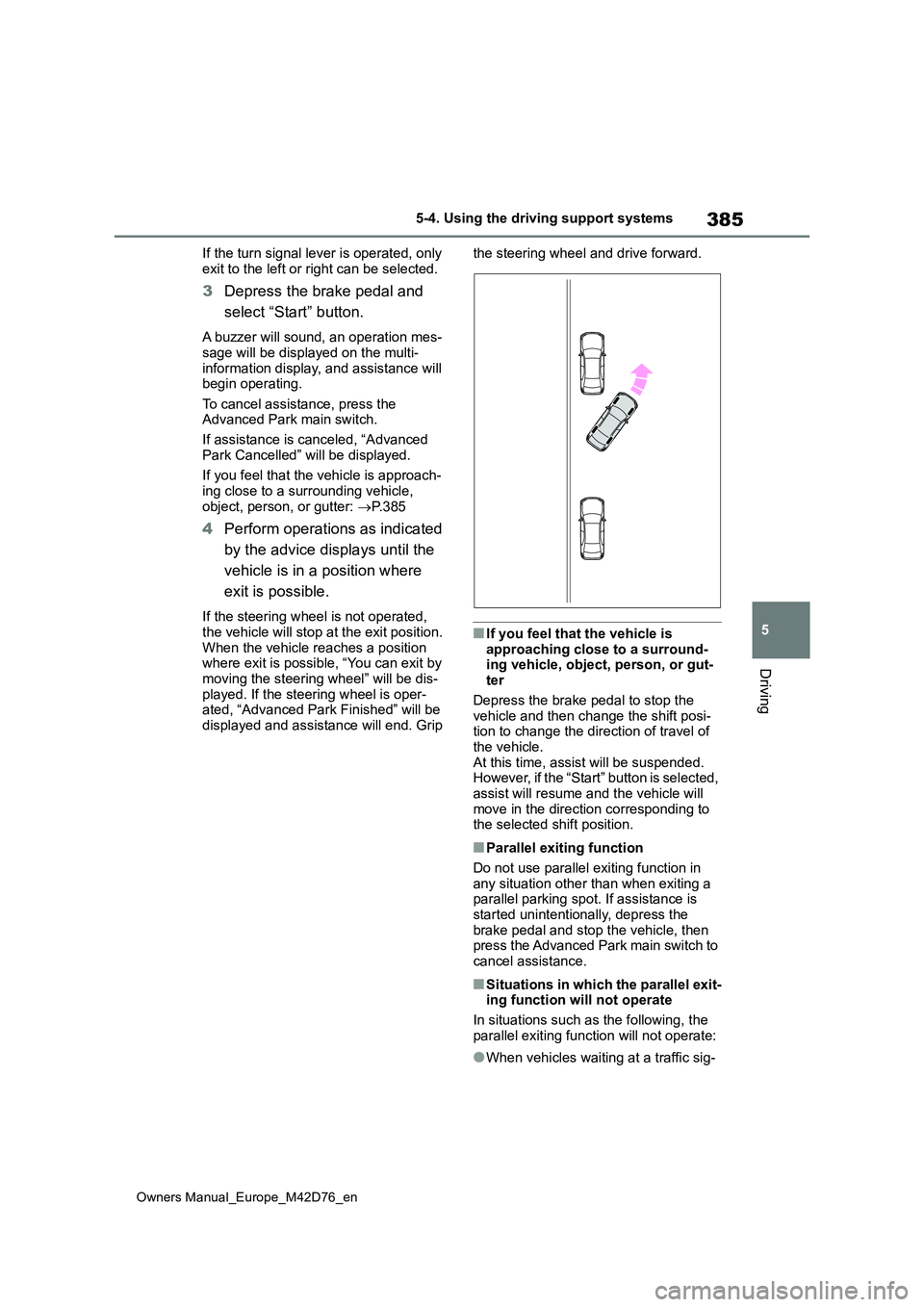
4Perform operations as indicated
by the advice displays until the
vehicle is in a position where
exit is possible.
If the steering wheel is not operated,
the vehicle will stop at the exit position. When the vehicle reaches a position where exit is possible, “You can exit by
moving the steering wheel” will be dis- played. If the steering wheel is oper-ated, “Advanced Park Finished” will be
displayed and assistance will end. Grip
the steering wheel and drive forward.
■If you feel that the vehicle is
approaching close to a surround- ing vehicle, object, person, or gut-ter
Depress the brake pedal to stop the vehicle and then change the shift posi-tion to change the direction of travel of
the vehicle. At this time, assist will be suspended. However, if the “Start” button is selected,
assist will resume and the vehicle will move in the direction corresponding to the selected shift position.
■Parallel exiting function
Do not use parallel exiting function in any situation other than when exiting a parallel parking spot. If assistance is
started unintentionally, depress the brake pedal and stop the vehicle, then press the Advanced Park main switch to
cancel assistance.
■Situations in which the parallel exit- ing function will not operate
In situations such as the following, the
parallel exiting function will not operate:
●When vehicles waiting at a traffic sig-
Page 389 of 674
387
5
Owners Manual_Europe_M42D76_en
5-4. Using the driving support systems
Driving
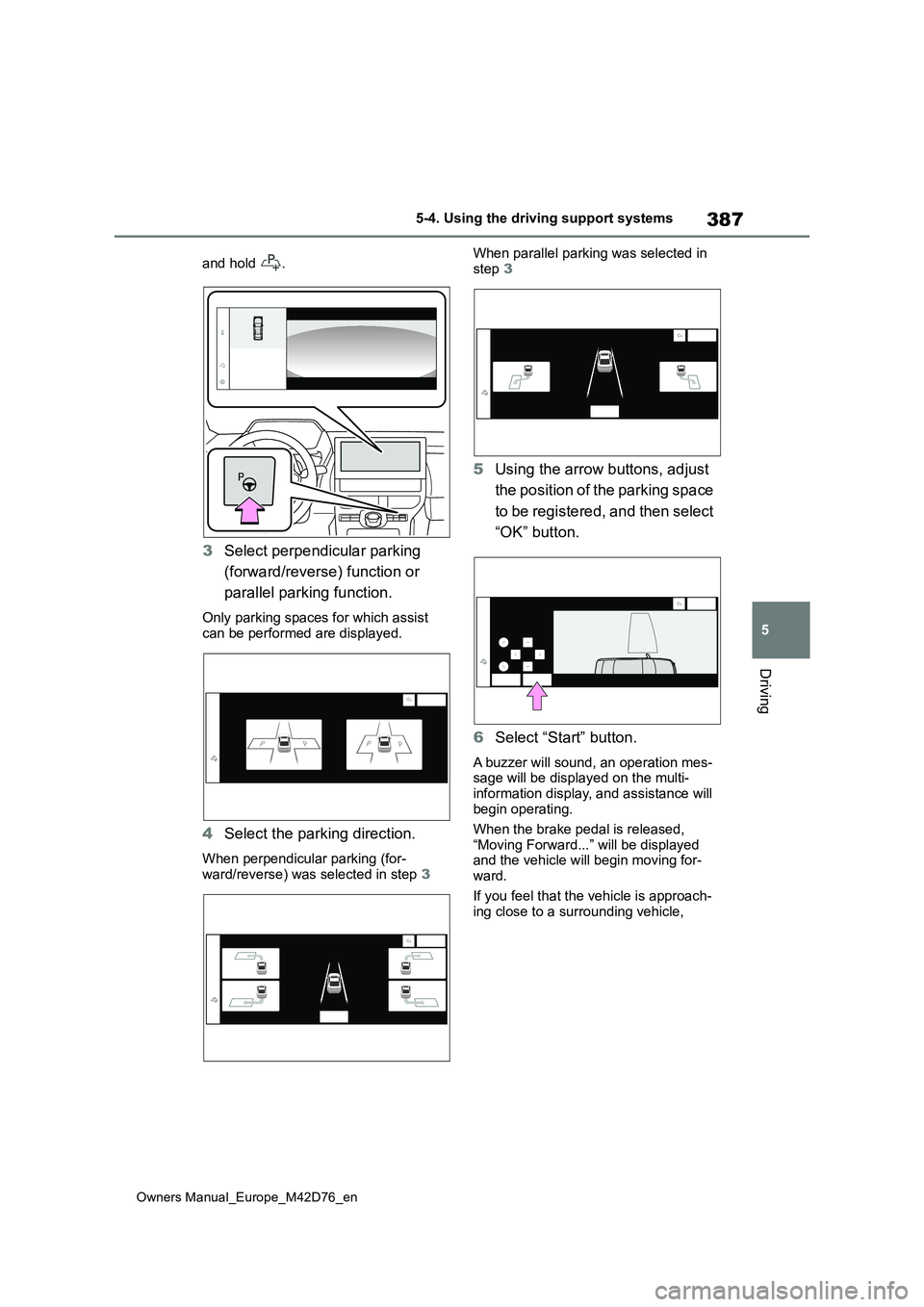
and hold .
3Select perpendicular parking
(forward/reverse) function or
parallel parking function.
Only parking spaces for which assist can be performed are displayed.
4 Select the parking direction.
When perpendicular parking (for-
ward/reverse) was selected in step 3
When parallel parking was selected in
step 3
5Using the arrow buttons, adjust
the position of the parking space
to be registered, and then select
“OK” button.
6 Select “Start” button.
A buzzer will sound, an operation mes- sage will be displayed on the multi-
information display, and assistance will begin operating.
When the brake pedal is released,
“Moving Forward...” will be displayed and the vehicle will begin moving for-ward.
If you feel that the vehicle is approach- ing close to a surrounding vehicle,
Page 391 of 674
389
5
Owners Manual_Europe_M42D76_en
5-4. Using the driving support systems
Driving
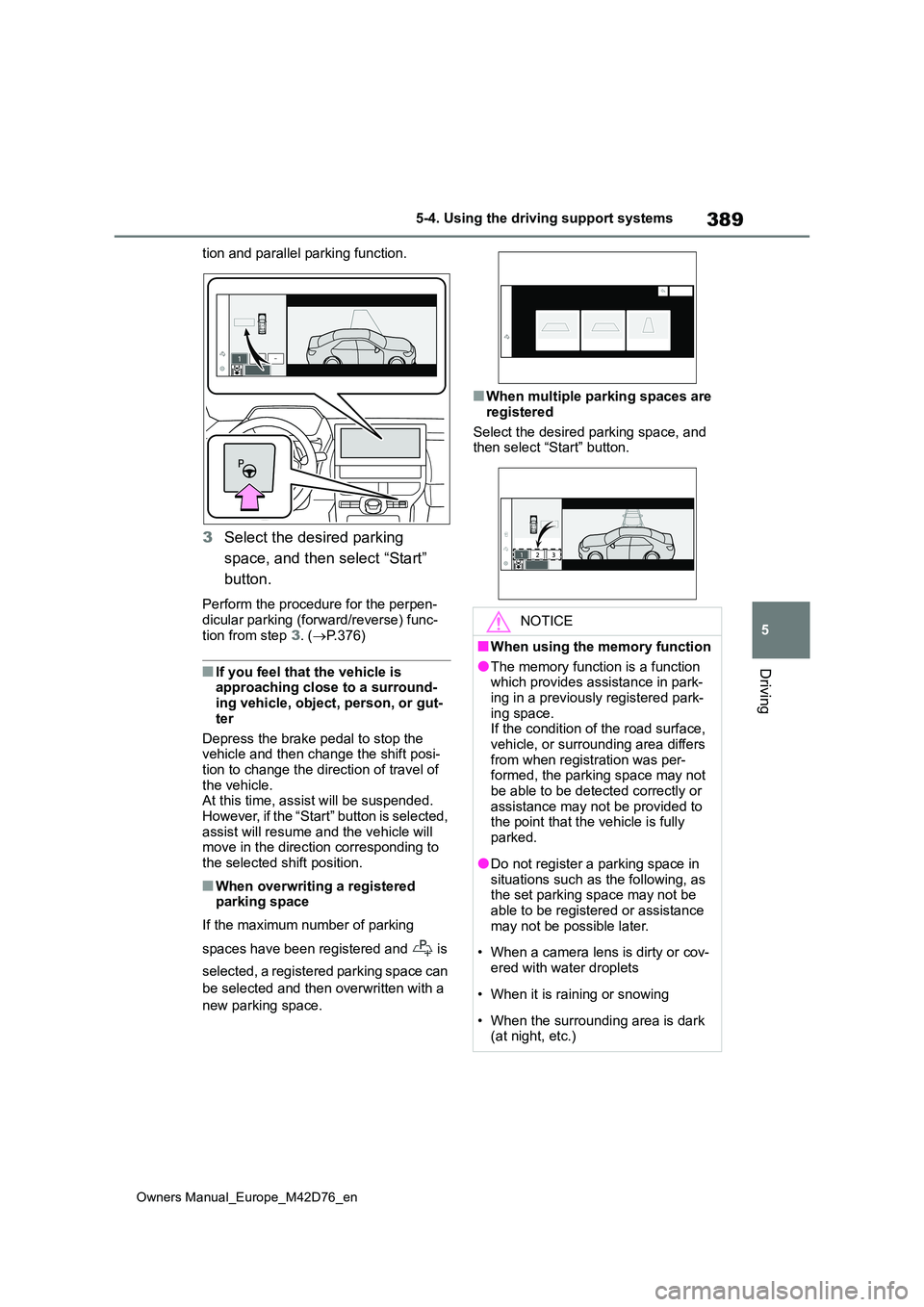
tion and parallel parking function.
3Select the desired parking
space, and then select “Start”
button.
Perform the procedure for the perpen-
dicular parking (forward/reverse) func- tion from step 3. (P.376)
■If you feel that the vehicle is approaching close to a surround-ing vehicle, object, person, or gut-
ter
Depress the brake pedal to stop the vehicle and then change the shift posi-
tion to change the direction of travel of the vehicle.At this time, assist will be suspended.
However, if the “Start” button is selected, assist will resume and the vehicle will move in the direction corresponding to
the selected shift position.
■When overwriting a registered parking space
If the maximum number of parking
spaces have been registered and is
selected, a registered parking space can
be selected and then overwritten with a
new parking space.
■When multiple parking spaces are
registered
Select the desired parking space, and then select “Start” button.
NOTICE
■When using the memory function
●The memory function is a function which provides assistance in park-
ing in a previously registered park- ing space.If the condition of the road surface,
vehicle, or surrounding area differs from when registration was per-formed, the parking space may not
be able to be detected correctly or assistance may not be provided to the point that the vehicle is fully
parked.
●Do not register a parking space in
situations such as the following, as the set parking space may not be able to be registered or assistance
may not be possible later.
• When a camera lens is dirty or cov-
ered with water droplets
• When it is raining or snowing
• When the surrounding area is dark (at night, etc.)
Page 392 of 674
390
Owners Manual_Europe_M42D76_en
5-4. Using the driving support systems
NOTICE
●In situations such as the following, it may not be possible to register a
parking space.
• When there is insufficient space
between the road and parking space
• When the road surface around the parking space does not have any differences the system can recog-
nize
●If a parking space has been regis-
tered in situations such as the fol- lowing, assistance may not be able to be started later or assistance to
the registered position may not be possible.
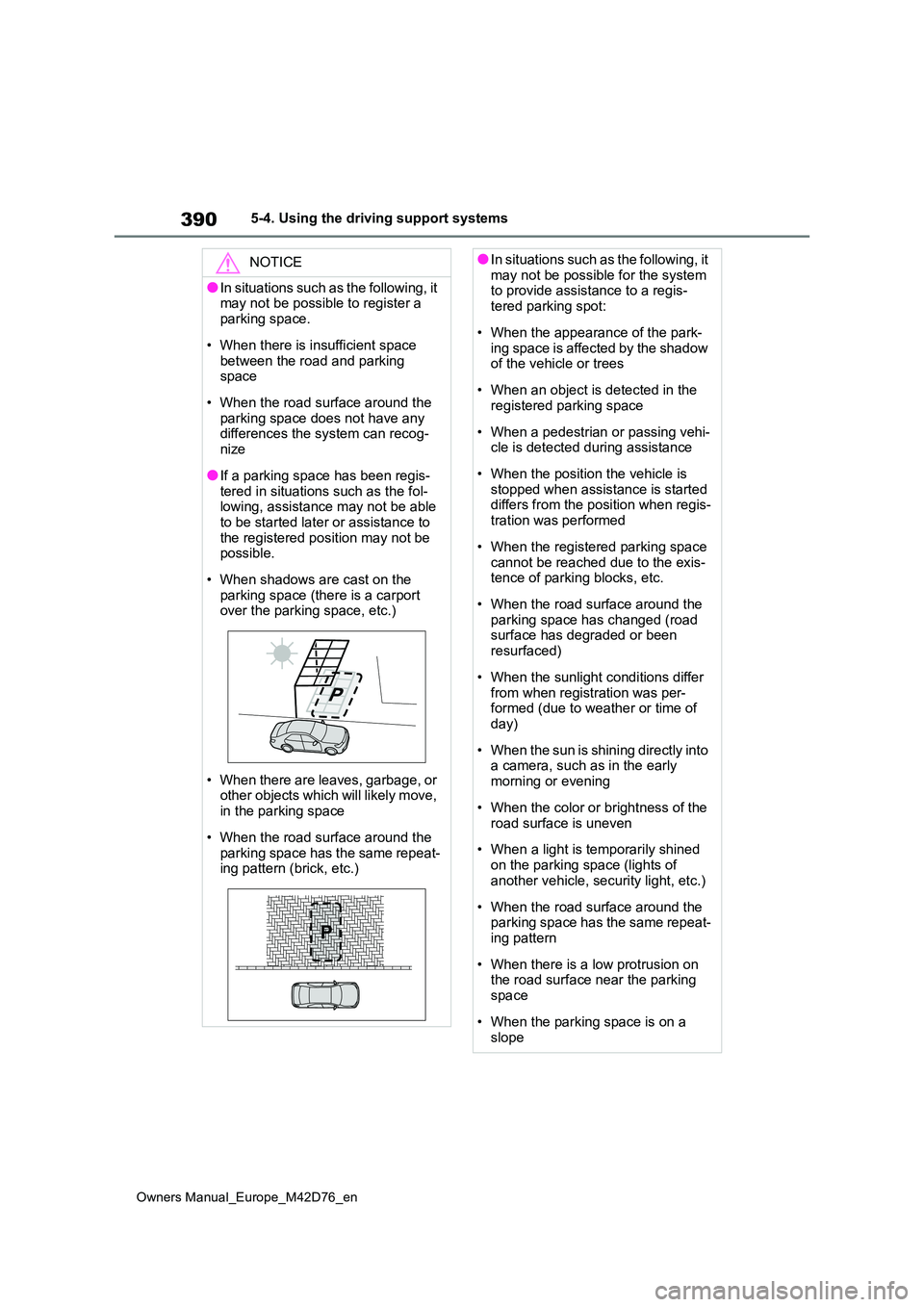
• When shadows are cast on the parking space (there is a carport over the parking space, etc.)
• When there are leaves, garbage, or other objects which will likely move,
in the parking space
• When the road surface around the
parking space has the same repeat- ing pattern (brick, etc.)
●In situations such as the following, it may not be possible for the system to provide assistance to a regis-
tered parking spot:
• When the appearance of the park-
ing space is affected by the shadow of the vehicle or trees
• When an object is detected in the registered parking space
• When a pedestrian or passing vehi- cle is detected during assistance
• When the position the vehicle is stopped when assistance is started differs from the position when regis-
tration was performed
• When the registered parking space
cannot be reached due to the exis- tence of parking blocks, etc.
• When the road surface around the parking space has changed (road surface has degraded or been
resurfaced)
• When the sunlight conditions differ
from when registration was per- formed (due to weather or time of day)
• When the sun is shining directly into a camera, such as in the early
morning or evening
• When the color or brightness of the
road surface is uneven
• When a light is temporarily shined
on the parking space (lights of another vehicle, security light, etc.)
• When the road surface around the parking space has the same repeat-ing pattern
• When there is a low protrusion on the road surface near the parking
space
• When the parking space is on a
slope
Page 393 of 674
391
5
Owners Manual_Europe_M42D76_en
5-4. Using the driving support systems
Driving
■Function description
A smartphone can be used to
remotely operate the parking func-
tions and exit functions. Also, assis-
tance can be provided to remotely
move the vehicle forward or back-
ward into a garage, etc.
■Parking using Remote control
function
A smartphone can be used to
remotely operate the parking func-
tion if the target parking space can
be detected when the vehicle is
stopped close and perpendicular to
the center of the parking space.
Also, depending on the condition of
the parking space, etc., if it is nec-
essary to change the direction of
travel of the vehicle, the shift posi-
tion can be changed by assistance
control.
1 Stop the vehicle with it aligned
near the center of the target
parking space. ( P.376)
2 Press the Advanced Park main
switch and check that a possible
parking space is displayed on
the multimedia display.
( P.376)
3 Select the button and then
select [Perpendicular/parallel].
4 Select [OK] button.
5 Exit the vehicle while carrying
the electronic key and smart-
phone, and then start the
Remote Park app on the smart-
phone.
The detection area of the electronic key is within approximately 3 m (9.8 ft.) around the vehicle.
If there is an obstruction in the path of the vehicle, move it before parking the vehicle. A traffic cone can also be
moved after exit the vehicle.
NOTICE
• When a camera has been splashed by hot or cold water and the lens
has fogged up
• When a camera lens is dirty or cov-
ered with water droplets
• When accessories which obstruct
the view of the camera are installed
If assistance is ended during registra-
tion, perform registration again.
●When registering a parking space
to the memory function, if the road surface cannot be detected “No available parking space to register”
will be displayed.
●When using the memory function,
make sure to stop immediately in front of the stop position. Otherwise the parking space may not be able
to be detected correctly or assis- tance may not be provided to the point that the vehicle is fully parked.
●Do not use the memory function if a camera has been subjected to a
strong impact or images of the pan- oramic view monitor are mis-aligned.
●If a camera has been replaced, as the installation angle of the camera
will have changed, it will be neces- sary to reregister parking spaces of the memory function.
Remote control function
Page 394 of 674
392
Owners Manual_Europe_M42D76_en
5-4. Using the driving support systems
6From outside of the vehicle,
confirm the parking space on
the screen of the smartphone
and then select the start button.
Start operation of Remote control func-
tion while standing approximately 50 cm (1.6 ft.) or more from the vehicle and out of the path of the vehicle.
7 Checking the safety of the area
around the vehicle, trace the
operation area on the screen of
the smartphone continuously,
the vehicle will move and park-
ing assistance will be per-
formed.
If operation of the screen of the smart-
phone is stopped, assistance can be suspended and the vehicle can be stopped. The doors are automatically
locked before the vehicle starts moving.
8 When the parking space is
reached, after the vehicle is
stopped by the parking brake,
the shift position will be changed
to P, the power switch will be
turned off, and the doors will be
locked.
A completion screen will be displayed on the smartphone
■The parking function can be used
even if obstructions exist if
●When using the parking functions at a
parking space made of white lines, even if an obstruction exists in the parking space, the space can be set
as the target parking space. This allows for assistance to continue after setting a parking space from inside
the vehicle and then exiting the vehi- cle to move an obstruction, such as a traffic cone placed in a handicapped
parking space.
●When perpendicular parking using
Advanced Park, 3 parking spaces on each side of the vehicle (up to 6 total) can be detected. However, when
using Remote control function, only 1 parking space on each side of the vehicle can be detected
After the vehicle is stopped, assis-
tance can be provided to move the
vehicle into a garage, etc., by using
the forward and backward move-
ment function.
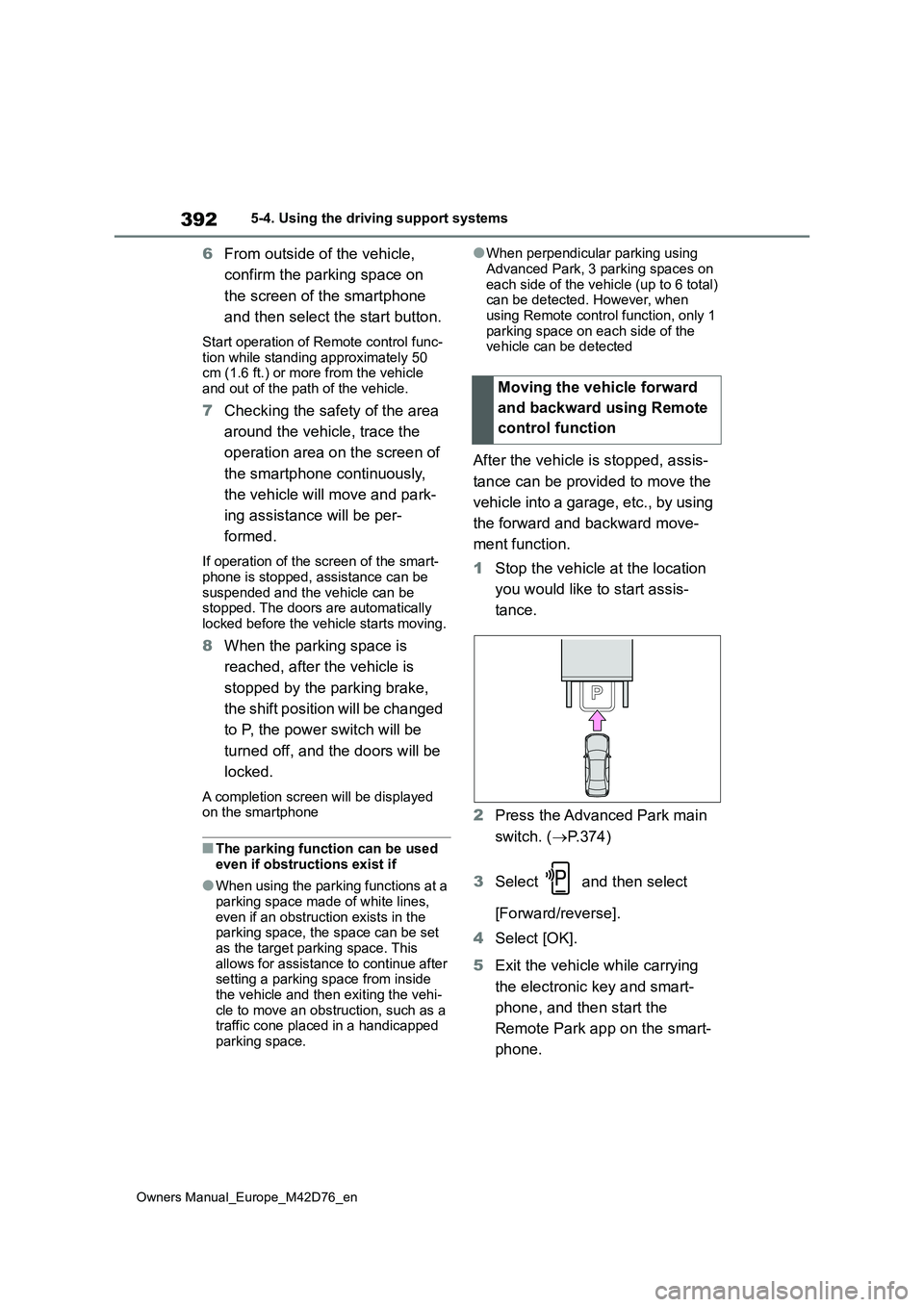
1 Stop the vehicle at the location
you would like to start assis-
tance.
2 Press the Advanced Park main
switch. ( P.374)
3 Select and then select
[Forward/reverse].
4 Select [OK].
5 Exit the vehicle while carrying
the electronic key and smart-
phone, and then start the
Remote Park app on the smart-
phone.
Moving the vehicle forward
and backward using Remote
control function
Page 395 of 674
393
5
Owners Manual_Europe_M42D76_en
5-4. Using the driving support systems
Driving
The detection area of the electronic key
is within approximately 3 m (9.8 ft.) around the vehicle.
6 From outside of the vehicle,
confirm the direction of travel on
the screen of the smartphone
and then select the start button.
Start operation of Remote control func- tion while standing approximately 50 cm (1.6 ft.) or more from the vehicle
and out of the path of the vehicle. The detection area of the electronic key is within approximately 3 m (9.8 ft.)
around the vehicle.
7 Checking the safety of the area
around the vehicle, trace the
operation area on the screen of
the smartphone continuously,
the vehicle will move and park-
ing assistance will be per-
formed.
If operation of the screen of the smart- phone is stopped, assistance can be suspended and the vehicle can be
stopped. After assistance has been started, it can be stopped part way or the direction of travel of the vehicle can
be changed.
8 Select the power button on the
screen of the smartphone. The
power switch will then turn OFF
and the doors will lock automati-
cally.
■Changing the direction of travel
While assistance is being performed, the direction of travel of the vehicle can
be changed by the forward and reverse movement function. When there is a wall behind the vehicle, etc., by operat-
ing the direction of travel changing but- ton on the screen of the smartphone, the vehicle can be slightly moved forward to
allow loading of items and then moved back to its original position.
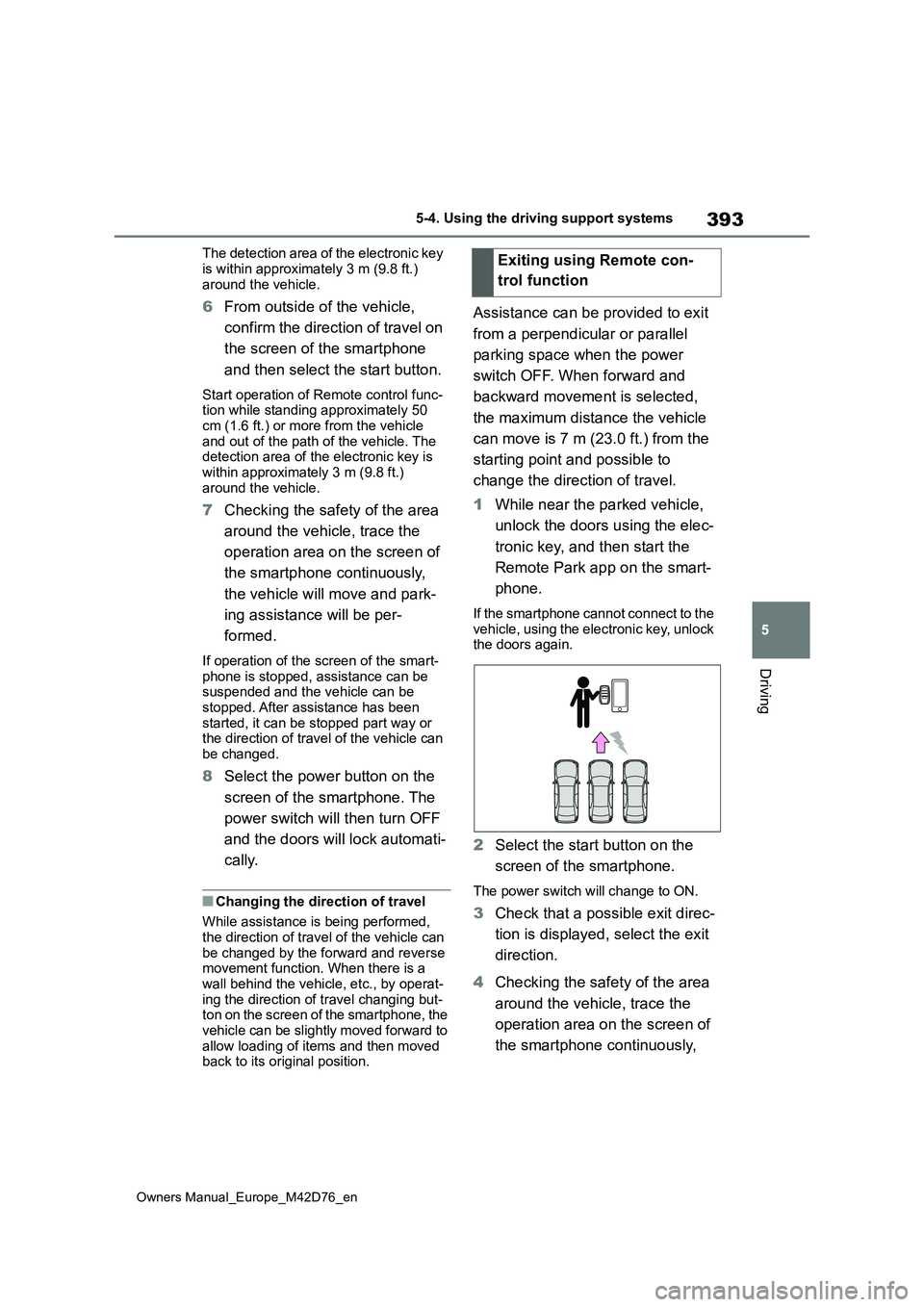
Assistance can be provided to exit
from a perpendicular or parallel
parking space when the power
switch OFF. When forward and
backward movement is selected,
the maximum distance the vehicle
can move is 7 m (23.0 ft.) from the
starting point and possible to
change the direction of travel.
1 While near the parked vehicle,
unlock the doors using the elec-
tronic key, and then start the
Remote Park app on the smart-
phone.
If the smartphone cannot connect to the vehicle, using the electronic key, unlock the doors again.
2 Select the start button on the
screen of the smartphone.
The power switch will change to ON.
3 Check that a possible exit direc-
tion is displayed, select the exit
direction.
4 Checking the safety of the area
around the vehicle, trace the
operation area on the screen of
the smartphone continuously,
Exiting using Remote con-
trol function