lock TOYOTA BZ4X 2023 Owners Manual
[x] Cancel search | Manufacturer: TOYOTA, Model Year: 2023, Model line: BZ4X, Model: TOYOTA BZ4X 2023Pages: 628, PDF Size: 11.91 MB
Page 263 of 628
2635-4. Using the driving support systems
Owners Manual_USA_M42C01_en
5
Driving
■Situations in which the sensors
may not operate properly
●When the height or inclination of
the vehicle has been changed due
to modifications
●When the windshield is dirty,
fogged up, cracked or damaged
●When the ambient temperature is
high or low
●When mud, water, snow, dead
insects, foreign matter, etc., is
attached to the fr ont of the sensor
●When in inclement weather such
as heavy rain, fog, snow, or a
sandstorm
●When water, snow, dust, etc. is
thrown up in front of the vehicle, or
when driving through mist or
smoke
●When the headlig hts are not illu-
minated while driving in the dark,
such as at night o r when in a tun-
nel
●When the lens of a headlight is
dirty and illumination is weak
●When the headlights are mis-
aligned
●When a headlight is malfunction-
ing
●When a the headlights of another vehicle, sunlight, or reflected light
shines directly into the front cam-
era
●When the brightness of the sur-
rounding area changes suddenly
●When driving near a TV tower,
broadcasting station, electric
power plant, radar equipped vehi-
cles, etc., or other location where
strong radio waves or electrical
noise may be present
●When a wiper blade is blocking
the front camera
●When in a location or near objects
which strongly reflect radio waves,
such as the following:
• Tunnels
• Truss bridges
• Gravel roads
• Rutted, snow-covered roads
• Walls
• Large trucks
• Manhole covers
• Guardrail
• Metal plates
●When near a step or protrusion
●When a detectable vehicle is nar-
row, such as a small mobility vehi-
cle
●When a detectable vehicle has a
small front or rear end, such as an
unloaded truck
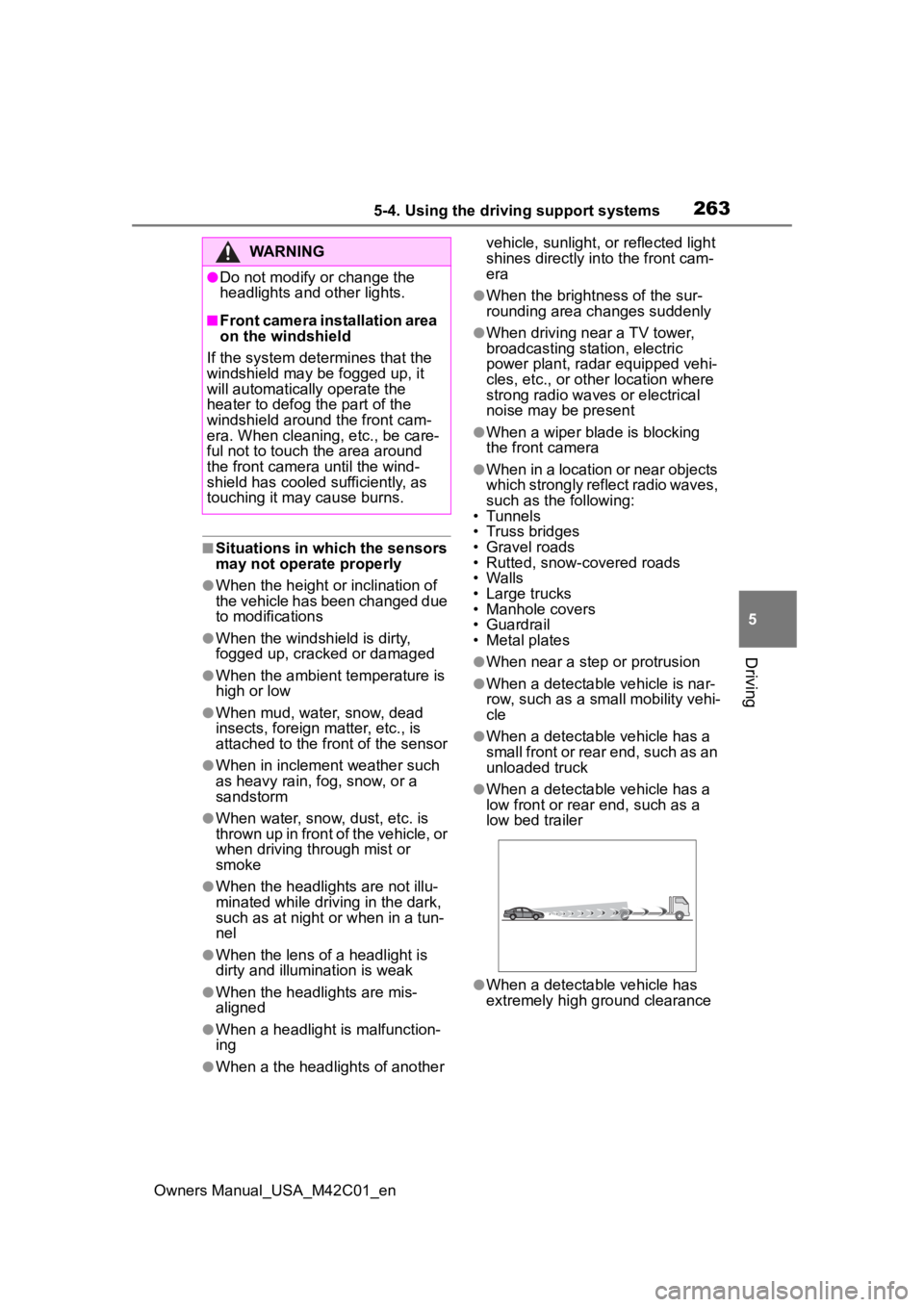
●When a detectable vehicle has a
low front or rear end, such as a
low bed trailer
●When a detectable vehicle has
extremely high ground clearance
WARNING
●Do not modify or change the
headlights and other lights.
■Front camera installation area
on the windshield
If the system determines that the
windshield may be fogged up, it
will automatically operate the
heater to defog the part of the
windshield around the front cam-
era. When cleaning, etc., be care-
ful not to touch the area around
the front camera until the wind-
shield has cooled sufficiently, as
touching it may cause burns.
Page 346 of 628
3465-4. Using the driving support systems
Owners Manual_USA_M42C01_en
WARNING
●Depending on the condition of
the road surface or the vehicle,
the distance between the vehi-
cle and a parking space, etc., it
may not be possible to detect a
parking space or the system
may not be able to provide
assistance to the point the vehi-
cle is fully parked.
●This system will guide the vehi-
cle to appropriate positions for
changing the direction of travel,
however, if you feel that the
vehicle is approaching too close
to an adjacent parked vehicle at
any time, depress the brake
pedal and change the shift posi-
tion. However, if this is per-
formed, the number of times the
vehicle changes direction may
increase, and the vehicle may
be parked at an angle.
●As following objects may not be
detected, make sure to check
the safety of the area around
your vehicle and depress the
brake pedal to stop the vehicle if
it may collide with an object.
• Thin objects such as wire, fences, rope, etc.
• Cotton, snow and other materi- als that absorb sound waves
• Sharply-angled objects
• Low objects (curb stones, park- ing blocks, etc.)
• Tall objects with upper sections that protrude outward
●Even if there is an object in the
target parking space, it may not
be detected and assistance
may be performed.
●While the system is operating, if
it is likely that your vehicle will
collide with a nearby vehicle,
parking block, object, or person,
depress the brake pedal to stop
the vehicle and press the
Advanced Park main switch to
disable the system.
●Never use only the multimedia
display to view the area behind
the vehicle. The image dis-
played may dif fer than the
actual situation. Using only the
screen when backing up may
lead to an accident, such as a
collision with another vehicle.
When backing up, make sure to
look directly or use the mirrors
to check the safe ty of the area
around your vehicle, especially
behind the vehicle.
●When the ambient temperature
is extremely low, the screen
may appear dark or the dis-
played image may become
unclear. Also, as moving objects
may appear distorted or may
not be able to be seen on the
screen, make sure to directly
check the safety of the area
around your vehicle.
In the following situations, while
the vehicle is stopped and held
by Advanced Park, it may be
canceled and th e vehicle may
start moving. Immediately
depress the brake pedal. Fail-
ure to do so may lead to an
accident.
• When the driver’s door is opened
• When operations instructed by the system are not performed
within a certain amount of time
• When the brake pedal is depressed and th e vehicle is
stopped for a certain amount of
time
Page 349 of 628
3495-4. Using the driving support systems
Owners Manual_USA_M42C01_en
5
Driving
WARNING
●Remote control function can
only perform some driving oper-
ations. It should only be oper-
ated by a driver with a valid
driving license. While using
application, carry, electronic
key. While operating, do not
stare at the application screen,
and pay attention to the vehi-
cle’s surroundings. In an emer-
gency, cancel the Remote
control function operation and
stop the vehicle.
●As with a normal vehicle, take
care to observe the area around
the vehicle while the vehicle is
moving.
●Always pay attention to the
vehicle’s surroundings while the
system is operating.
●Remote control function is a
system which assists in remote
parking or exiting operations
using a smartphone. When
using Remote control function,
the driver must carry the elec-
tronic key and smartphone and
confirm the safe ty of the area
around the vehicle.
●While using Remote control
function, the vehicle can be
stopped by stop continuously
operating the smartphone (stop-
ping movement of your finger,
removing your fi nger from the
screen, etc.). The vehicle can
also be stopped by touching the
cancel button on the smart-
phone application, unlocking the
doors using the electronic key,
or opening a door.
●If it seems like your vehicle may
contact an obstruction, etc.,
stop operating the smartphone
and cancel Remote control
function if necessary.
●System operation will only be
performed at a f ixed speed and
the vehicle cannot be acceler-
ated or decelera ted even if the
speed of continuous operation
of the smartphone is increased
or decreased.
●Never drive the vehicle while
staring at the smartphone
screen.
●When driving, make sure to
directly check the safety of the
area around your vehicle.
●Do not use Remote control
function when passengers or
pets are in the vehicle.
●In an emergency, the system
can be canceled by operating a
switch on the electronic key or
by opening a door.
●To use Remote control function,
it is necessary to have a smart-
phone with the latest version of
the Remote Park app. The fol-
lowing operating systems are
supported:
• Android
™
• Apple® iOS
●When registering the vehicle to
the Remote Park smartphone
app, disconnect any other apps
which are connected to the
vehicle.
●To enable Remote control func-
tion, make sure to disable the
Apple CarPlay connection.
●When parking, make sure that
the vehicle can be parked in the
target parking space before
beginning operation.
Page 350 of 628
3505-4. Using the driving support systems
Owners Manual_USA_M42C01_en
WARNING
●Only use Remote control func-
tion on level road surfaces
which are not slick. Do not use
Remote control function for
parking spaces on a downward
or upward incline.
●While Remote control function
is operating, if a malfunction or
system limitation is detected,
the following will occur automat-
ically:
• Remote control function will be canceled
• The vehicle will stop
• The shift position will change to P and the parking brake will be
engaged
• The power switch will turn off
(for some malfunctions, the
power switch will not turn off or
cannot be turned off. Enter the
vehicle and take corrective
action accordin g to the mes-
sage displayed on the smart-
phone.)
• The doors will remain locked
●When starting Remote control
function, unlock the doors with
wireless remote control by elec-
tronic key.
●When Remote control function
is operating, the driver should
remain within approximately 9.8
ft. (3 m) of the vehicle. If the
driver becomes more than
approximately 9.8 ft. (3 m)
away, Remote control function
will be suspend ed and a mes-
sage will be displayed on the
smartphone. Re mote control
function operation can be
resumed by approaching the
vehicle.
●The headlights will be turned on
if the surrounding area is dark.
●If system operation is canceled
due to a malfunction, the emer-
gency flashers will flash.
The emergency flashers will
turn off if any of the following
conditions are met:
• A door is opened
• 3 minutes have elapsed since the emergency flashers began
flashing
●Remote control function can
only be started when the follow-
ing conditions are met:
• When the EV system is starting, after assist mode is selected
• When the power switch is off
• When the remote air condition- ing is operating
●After unlocking the doors using
the wireless remote control, if
the doors are lo cked using the
smart entry function, the lock
operation may be delayed.
NOTICE
■Precautions for use
Advanced Park
If the 12-volt battery was dis-
charged or has been removed
and installed, fold and extend the
outside rear view mirrors.
■When using Remote control
function
Page 351 of 628
3515-4. Using the driving support systems
Owners Manual_USA_M42C01_en
5
Driving
NOTICE
●Check the battery charge level
of the smartphon e before using
Remote control function. If the
battery of the smartphone dies
while operating Remote control
function, assist will be sus-
pended. Also, if the battery
charge level of the smartphone
is 20% or less when attempting
to start Remote control function,
Remote control function will not
be started.
●Turn on the Bluetooth communi-
cation function of the smart-
phone before using Remote
control function. Remote con-
trol function cannot be used if
the Bluetooth function is off.
●Do not turn off the Bluetooth
function of the smartphone or
disconnect from the multimedia
system while using Remote
control function. If the vehicle
cannot be connected to via
Bluetooth, Remote control func-
tion cannot be used.
●While using Remote control
function, if a call is received,
etc., and another app is
opened, Remote control func-
tion will be suspended. Assist
can be resumed if the Remote
Park app is reopened within 3
minutes. If 3 minutes or more
elapse, assist will be canceled.
●While using Remote control
function, if the home button or
power button of the smartphone
is pressed and the screen is
locked, Remote control function
will be suspended. Assist can
be resumed if the Remote Park
app is reopened within 3 min-
utes. If 3 minutes or more
elapse, assist will be canceled.
●Do not use the Remote Park
app with devices other than
those which operation has been
confirmed by the maker. Other-
wise the system may not oper-
ate correctly.
●When the ambient temperature
is low, it may take time for the
system to start, due to 12-volt
battery charging.
●If the 12-volt battery voltage
drops, assistance will be can-
celed.
●When using Remote control
function on a slope, the vehicle
speed will be slower and the
distance that th e vehicle will
approach objects will become
longer than when on a level
road surface.
●If a system temporary failure
occurs, after th e vehicle is
stopped by the electronic park-
ing brake or the shift position
being changed to P, the power
switch may turn off and the sys-
tem may be canceled. In this
case, have the vehicle
inspected by your Toyota
dealer.
●If a system malfunction occurs,
assistance may be temporarily
suspended. If the system
returns to normal, operation can
be resumed. Follow the content
on the smartphone screen to
resume operation.
●Remote control function cannot
be started if the EV system has
been started using an aftermar-
ket remote starter.
Page 353 of 628
3535-4. Using the driving support systems
Owners Manual_USA_M42C01_en
5
Driving
becomes far, it may no longer be
able to be detected. Depending on
shape or conditi on of a parked
vehicle, the detection range may
become short or the vehicle may
not be detected.
●Objects other than parked vehi-
cles, such as columns, walls, etc.,
may not be detect ed. Also, if they
are detected, they may cause the
target parking space to be mis-
aligned.
■Situations in which white park-
ing space lines may not be rec-
ognized properly
●In situations such as the following,
parking space lines on the road
surface may not be detected:
• When the parking space does not use white lines (parking space
boundaries are marked with rope,
blocks, etc.)
• When the parking space lines are
faded or dirty, making them
unclear
• When the road surface is bright,
such as concrete, and the contrast
between it and t he white parking
space lines is small
• When the parking space lines are
any color other than yellow or
white
• When the area surrounding the parking space is dark, such as at
night, in an underground parking
lot, parking garage, etc.
• When it is raining or has rained and the road surface is wet and
reflective or there are puddles
• When the sun is shining directly into a camera, such as in the early
morning or evening
• When the parking space is cov- ered with snow or de-icing agent
• When there marks from repairs or other marks on the road surface,
or there is a traffic bollard, or other
object on the road surface
• When the color or brightness of the road surface is uneven
• When a camera has been
splashed by hot or cold water and
the lens has fogged up • When the appearance of the park-
ing space is affected by the
shadow of the vehicle or trees
• When a camera lens is dirty or covered with wa ter droplets
●In situations such as the following,
the target parking space may not
be recognized correctly:
• When there marks from repairs or other marks on the road surface,
or there is a parking block, traffic
bollard, or other object on the road
surface
• When it is raining or has rained
and the road surface is wet and
reflective or there are puddles
• When the area around the vehicle
is dark or backlit
• When the color or brightness of the road surface is uneven
• When the parking space is on a slope
• When there are diagonal lines
(access aisle) nea r the parking
space
• When the appearance of the park-
ing space is affected by the
shadow of a parked vehicle (such
as shadows from the grille, side
step, etc.)
• When accessories which obstruct the view of the camera are
installed
• When the parking space lines are faded or dirty, making them
unclear
• When the appearance of the park- ing space is affected by the
shadow of the vehicle or trees
■Sensor detection information
P.313
■Objects which the sensor may
not be properly detected
P.314
■Situations in which the sensor
may not operate properly
P.314
Page 370 of 628
3705-4. Using the driving support systems
Owners Manual_USA_M42C01_en
NOTICE
●If a parking space has been reg-
istered in situations such as the
following, assistance may not
be able to be started later or
assistance to the registered
position may not be possible.
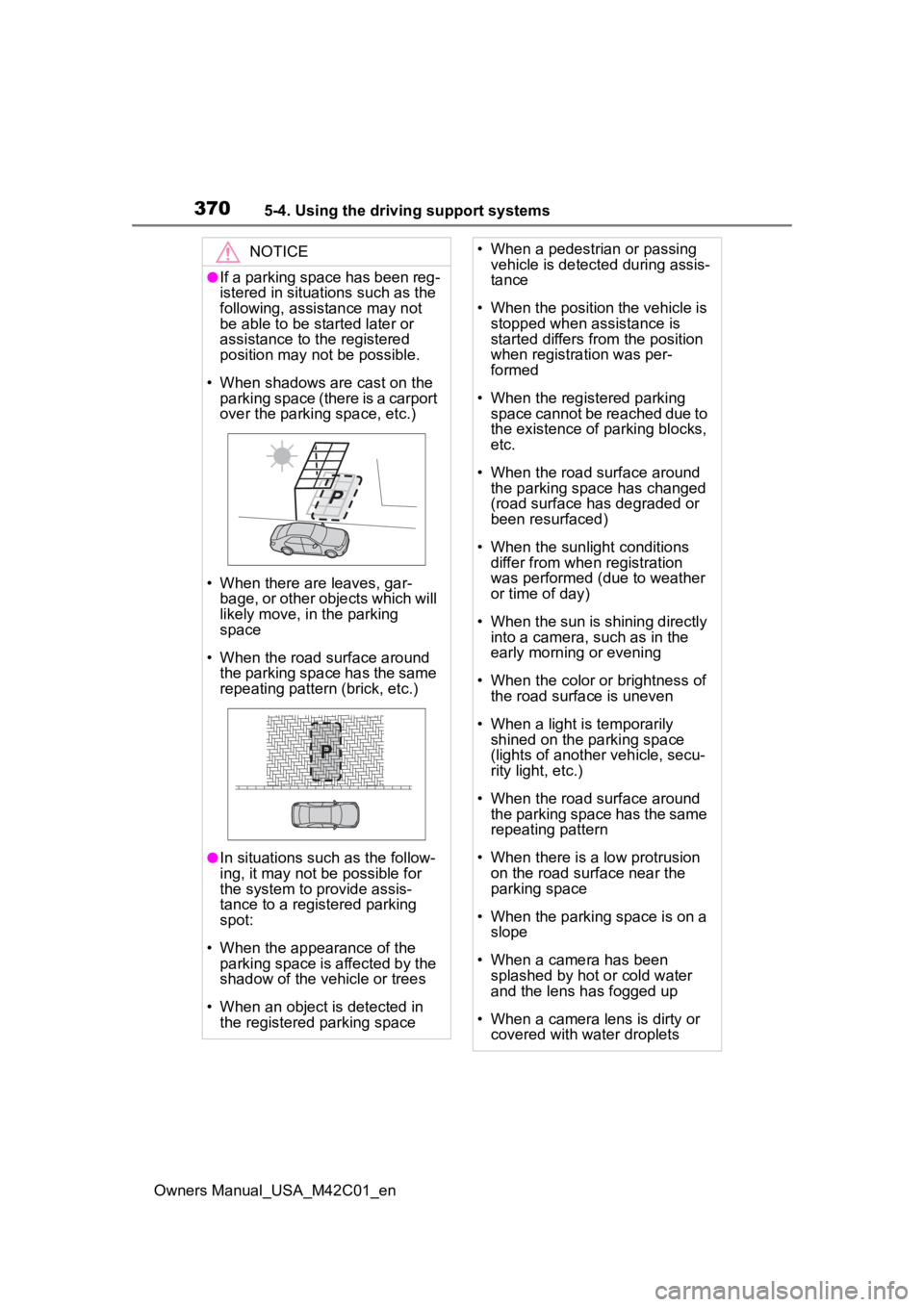
• When shadows are cast on the parking space (there is a carport
over the parking space, etc.)
• When there are leaves, gar- bage, or other objects which will
likely move, in the parking
space
• When the road surface around the parking space has the same
repeating pattern (brick, etc.)
●In situations such as the follow-
ing, it may not be possible for
the system to provide assis-
tance to a registered parking
spot:
• When the appearance of the parking space is affected by the
shadow of the vehicle or trees
• When an object is detected in the registered parking space
• When a pedestrian or passing vehicle is detected during assis-
tance
• When the position the vehicle is stopped when assistance is
started differs from the position
when registration was per-
formed
• When the registered parking space cannot be reached due to
the existence of parking blocks,
etc.
• When the road surface around the parking space has changed
(road surface has degraded or
been resurfaced)
• When the sunlight conditions differ from when registration
was performed (due to weather
or time of day)
• When the sun is shining directly into a camera, such as in the
early morning or evening
• When the color or brightness of the road surface is uneven
• When a light is temporarily shined on the parking space
(lights of another vehicle, secu-
rity light, etc.)
• When the road surface around the parking space has the same
repeating pattern
• When there is a low protrusion on the road surface near the
parking space
• When the parking space is on a slope
• When a camera has been splashed by hot o r cold water
and the lens has fogged up
• When a camera lens is dirty or covered with water droplets
Page 372 of 628
3725-4. Using the driving support systems
Owners Manual_USA_M42C01_ening the vehicle. A traffic cone can
also be moved after exit the vehi-
cle.
6
From outside of the vehicle,
confirm the parking space on
the screen of the smartphone
and then select the start but-
ton.
Start operation of Remote control
function while standing approxi-
mately 1.6 ft. (50 cm) or more from
the vehicle and out of the path of
the vehicle.
7 Checking the safety of the
area around the vehicle,
trace the operation area on
the screen of the smartphone
continuously, the vehicle will
move and parking assis-
tance will be performed.
If operation of the screen of the
smartphone is stopped, assistance
can be suspended and the vehicle
can be stopped. T he doors are
automatically locked before the
vehicle starts moving.
8 When the parking space is
reached, after the vehicle is
stopped by the parking
brake, the shift position will
be changed to P, the power
switch will be turned off, and
the doors will be locked.
A completion screen will be dis-
played on the smartphone
■The parking function can be
used even if obs tructions exist
if
●When using the parking functions
at a parking space made of white
lines, even if an obstruction exists
in the parking space, the space
can be set as th e target parking
space. This allows for assistance to continue after setting a parking
space from inside the vehicle and
then exiting the
vehicle to move
an obstruction, su ch as a traffic
cone placed in a handicapped
parking space.
●When perpendicular parking using
Advanced Park, 3 parking spaces
on each side of the vehicle (up to
6 total) can be detected. However,
when using Remot e control func-
tion, only 1 parking space on each
side of the vehicle can be
detected
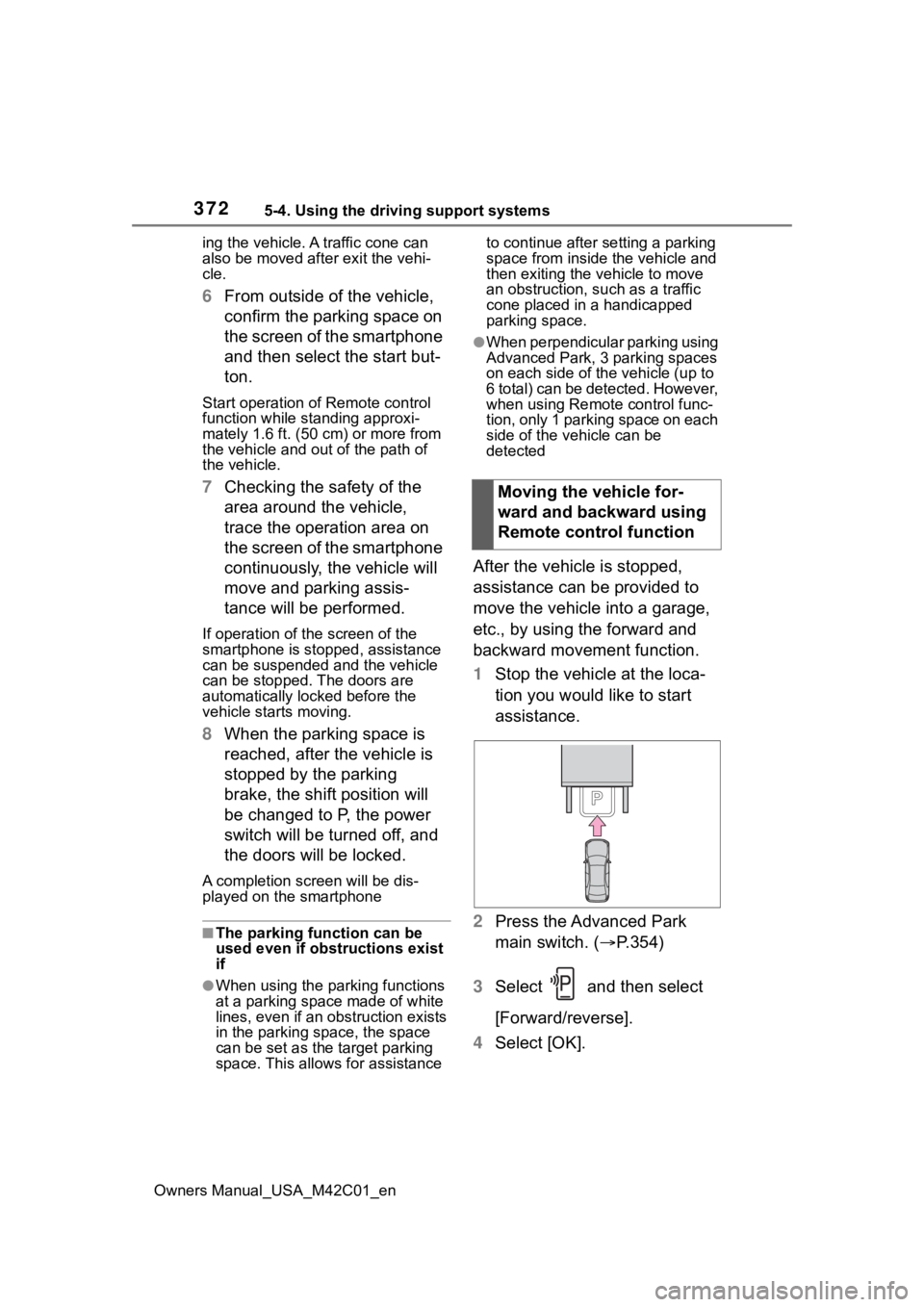
After the vehicle is stopped,
assistance can be provided to
move the vehicle into a garage,
etc., by using the forward and
backward movement function.
1 Stop the vehicle at the loca-
tion you would like to start
assistance.
2 Press the Advanced Park
main switch. ( P.354)
3 Select and then select
[Forward/reverse].
4 Select [OK].Moving the vehicle for-
ward and backward using
Remote control function
Page 373 of 628
3735-4. Using the driving support systems
Owners Manual_USA_M42C01_en
5
Driving
5 Exit the vehicle while carrying
the electronic key and smart-
phone, and then start the
Remote Park app on the
smartphone.
The detection area of the electronic
key is within approximately 9.8 ft. (3
m) around the vehicle.
6From outside of the vehicle,
confirm the direction of travel
on the screen of the smart-
phone and then select the
start button.
Start operation of Remote control
function while standing approxi-
mately 1.6 ft. (50 cm) or more from
the vehicle and out of the path of
the vehicle. The d etection area of
the electronic key is within approxi-
mately 9.8 ft. (3 m) around the vehi-
cle.
7 Checking the safety of the
area around the vehicle,
trace the operation area on
the screen of the smartphone
continuously, the vehicle will
move and parking assis-
tance will be performed.
If operation of the screen of the
smartphone is stopped, assistance
can be suspended and the vehicle
can be stopped. After assistance
has been started, it can be stopped
part way or the direction of travel of
the vehicle can be changed.
8 Select the power button on
the screen of the smart-
phone. The power switch will
then turn OFF and the doors
will lock automatically.
■Changing the direction of travel
While assistance is being per- formed, the directio
n of travel of the
vehicle can be changed by the for-
ward and reverse movement func-
tion. When there is a wall behind the
vehicle, etc., by operating the direc-
tion of travel changing button on the
screen of the smartphone, the vehi-
cle can be slightly moved forward to
allow loading of items and then
moved back to its original position.
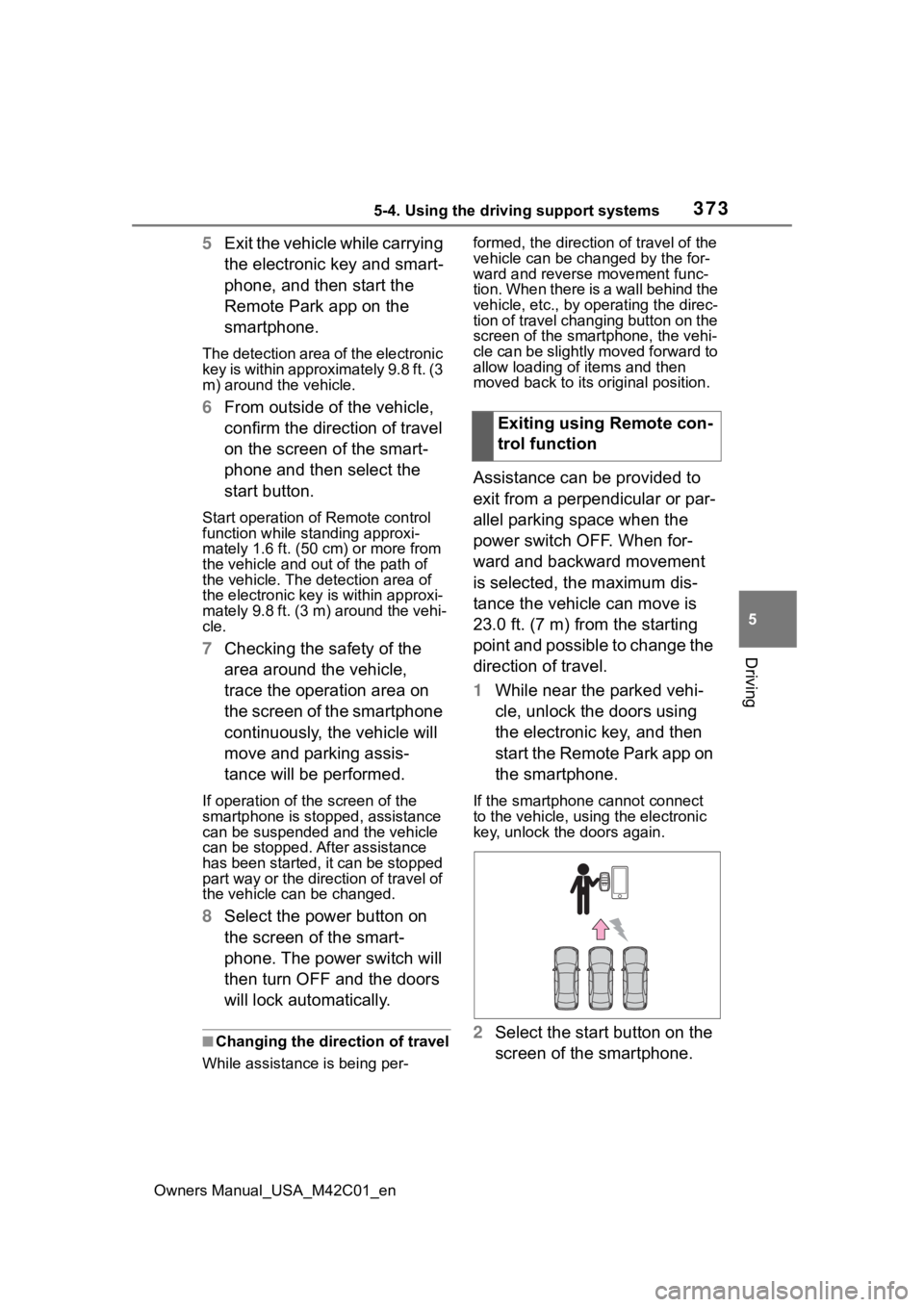
Assistance can be provided to
exit from a perpendicular or par-
allel parking space when the
power switch OFF. When for-
ward and backward movement
is selected, the maximum dis-
tance the vehicle can move is
23.0 ft. (7 m) from the starting
point and possible to change the
direction of travel.
1 While near the parked vehi-
cle, unlock the doors using
the electronic key, and then
start the Remote Park app on
the smartphone.
If the smartphone cannot connect
to the vehicle, using the electronic
key, unlock the doors again.
2 Select the start button on the
screen of the smartphone.Exiting using Remote con-
trol function
Page 375 of 628
3755-4. Using the driving support systems
Owners Manual_USA_M42C01_en
5
Driving
Remote Park app on the
smartphone.
The detection area of the electronic
key is within approximately 9.8 ft. (3
m) around the vehicle. If there is a
cone or other obstruction in the
path of the vehicle, move it after
exiting the vehicle.
6 From outside of the vehicle,
confirm the parking space on
the screen of the smartphone
and then select the start but-
ton.
Start operation of Remote control
function while standing approxi-
mately 1.6 ft. (50 cm) or more from
the vehicle and out of the path of
the vehicle.
7 Checking the safety of the
area around the vehicle,
trace the operation area on
the screen of the smartphone
continuously, the vehicle will
move and parking assis-
tance will be performed.
If operation of the screen of the
smartphone is stopped, assistance
can be suspended and the vehicle
can be stopped. T he doors are
automatically locked before the
vehicle starts moving.
8 When the parking space is
reached, after the vehicle is
stopped by the parking
brake, the shift position will
be changed to P, the power
switch will be turned off, the
doors will be locked and the
mirrors will be closed.
A completion screen will then be
displayed on the smartphone.
Make sure to perform the follow-
ing before using Remote control
function:
1Download the Remote Park
app from the app store.
2 Turn the power switch to ON
and register the smartphone
as a Bluetooth device to the
multimedia system. For
details on registering a Blue-
tooth device, refer to the
“MULTIMEDIA OWNER’S
MANUAL”.
3 Setup the Remote Park app
and register the vehicle.
4 The registered vehicle will be
displayed on the screen of
the smartphone.
Select the vehicle.
The name and image of the vehicle
can be changed on the new vehicle
registration screen.
Vehicles can be added through the
menu screen.
1Select and then select
“Advanced Park” on the Mul-
timedia display.
2 Select “Remote Park” to turn
it on/off. (The default setting
is on.)Preparation before using
Remote control function
Preparation before using
Remote control function
on/off