phone TOYOTA CAMRY 2012 XV50 / 9.G Navigation Manual
[x] Cancel search | Manufacturer: TOYOTA, Model Year: 2012, Model line: CAMRY, Model: TOYOTA CAMRY 2012 XV50 / 9.GPages: 328, PDF Size: 5.67 MB
Page 1 of 328
1
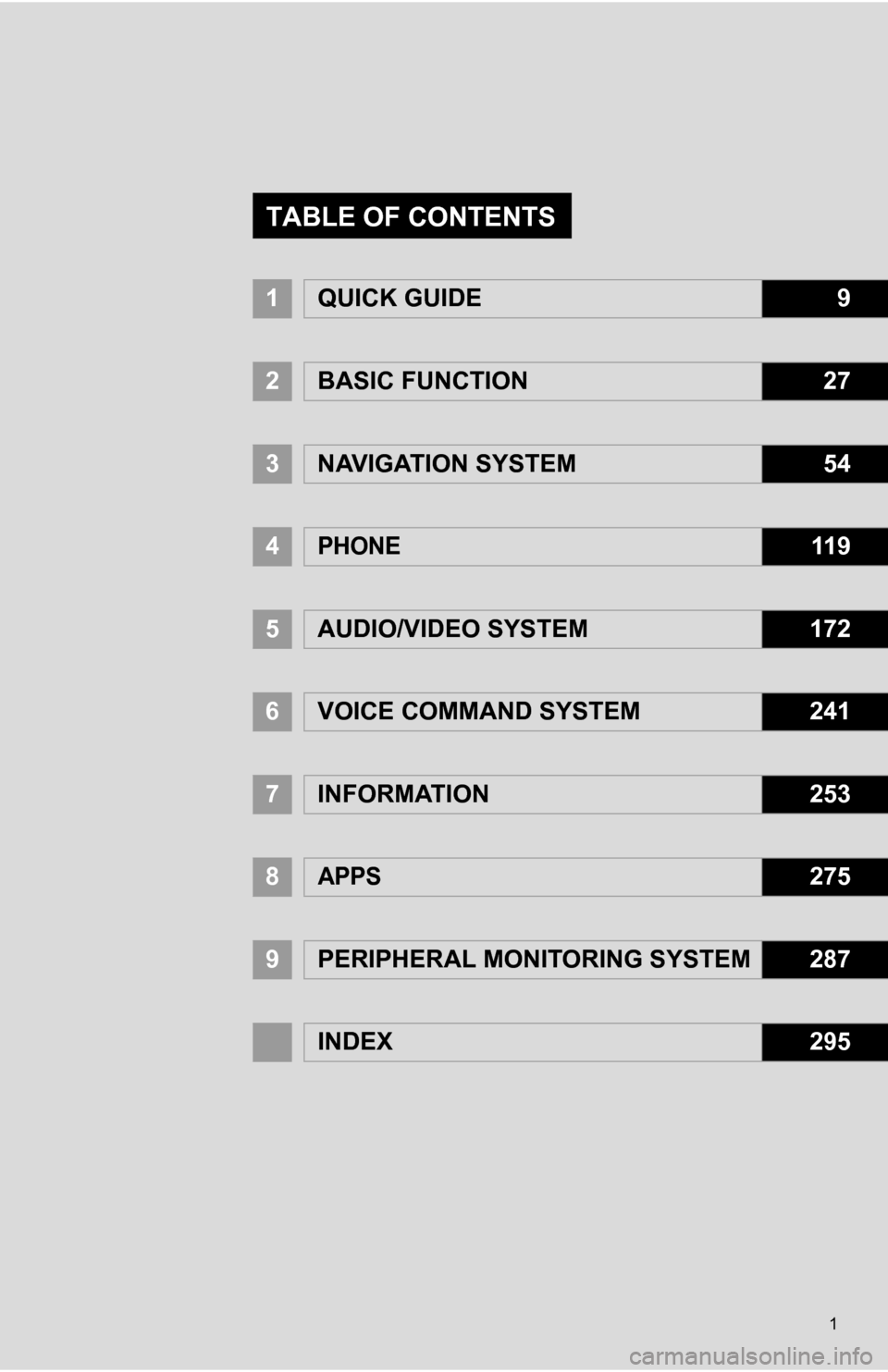
1QUICK GUIDE9
2BASIC FUNCTION27
3NAVIGATION SYSTEM54
4PHONE11 9
5AUDIO/VIDEO SYSTEM172
6VOICE COMMAND SYSTEM241
7INFORMATION253
8APPS275
9PERIPHERAL MONITORING SYSTEM287
INDEX295
TABLE OF CONTENTS
Page 7 of 328
7
1
2
3
4
5
6
7
8
9
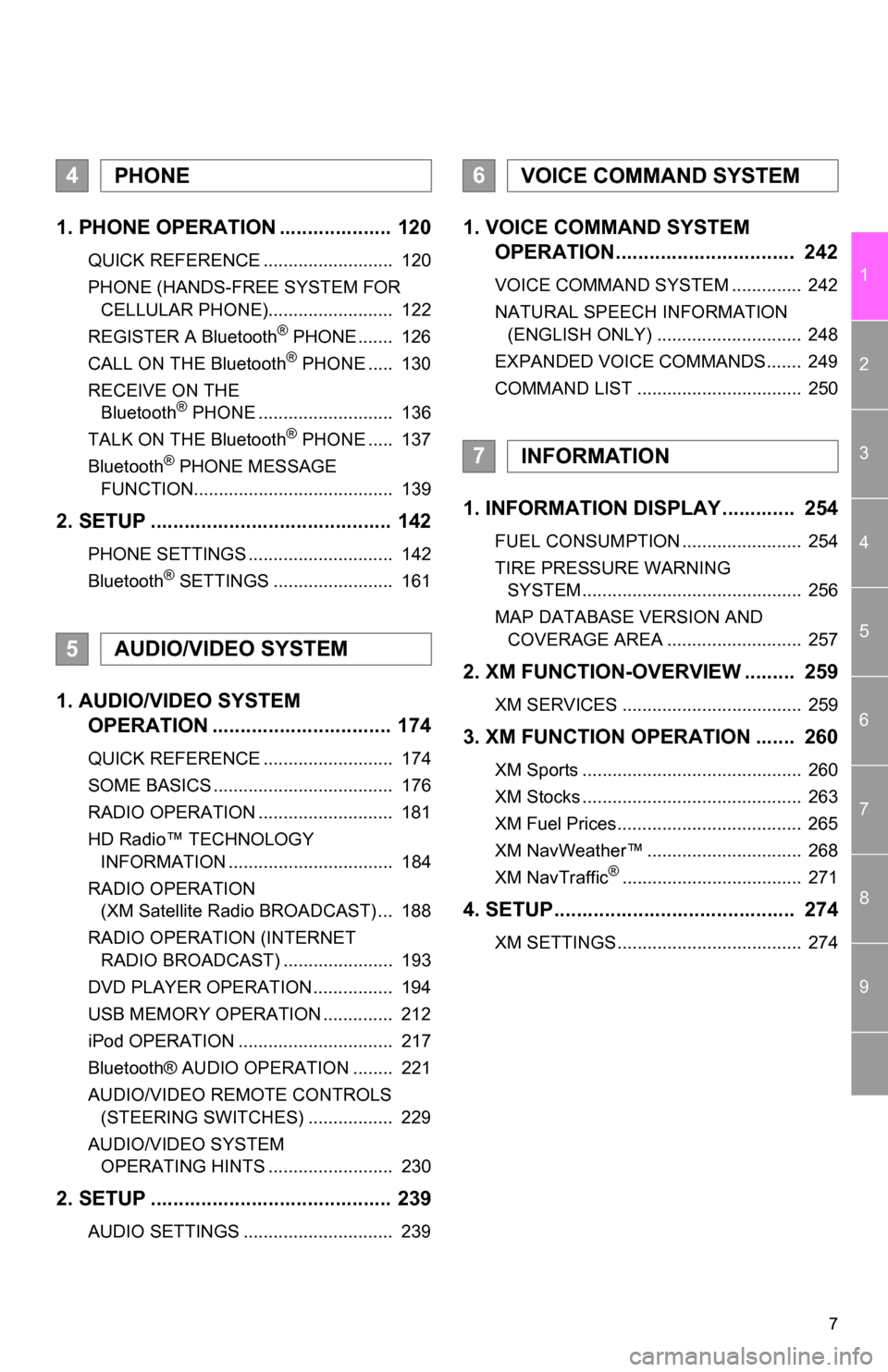
1. PHONE OPERATION .................... 120
QUICK REFERENCE .......................... 120
PHONE (HANDS-FREE SYSTEM FOR CELLULAR PHONE)......................... 122
REGISTER A Bluetooth
® PHONE ....... 126
CALL ON THE Bluetooth® PHONE ..... 130
RECEIVE ON THE Bluetooth
® PHONE ........................... 136
TALK ON THE Bluetooth® PHONE ..... 137
Bluetooth® PHONE MESSAGE
FUNCTION........................................ 139
2. SETUP ........................................... 142
PHONE SETTINGS ............................. 142
Bluetooth® SETTINGS ........................ 161
1. AUDIO/VIDEO SYSTEM OPERATION ................................ 174
QUICK REFERENCE .......................... 174
SOME BASICS .................................... 176
RADIO OPERATION ........................... 181
HD Radio™ TECHNOLOGY
INFORMATION ................................. 184
RADIO OPERATION (XM Satellite Radio BROADCAST) ... 188
RADIO OPERATION (INTERNET RADIO BROADCAST) ...................... 193
DVD PLAYER OPERATION ................ 194
USB MEMORY OPERATION .............. 212
iPod OPERATION ............................... 217
Bluetooth® AUDIO OPERATION ........ 221
AUDIO/VIDEO REMOTE CONTROLS (STEERING SWITCHES) ................. 229
AUDIO/VIDEO SYSTEM OPERATING HINTS ......................... 230
2. SETUP ........................................... 239
AUDIO SETTINGS .............................. 239
1. VOICE COMMAND SYSTEM OPERATION................................ 242
VOICE COMMAND SYSTEM .............. 242
NATURAL SPEECH INFORMATION
(ENGLISH ONLY) ............................. 248
EXPANDED VOICE COMMANDS....... 249
COMMAND LIST ................................. 250
1. INFORMATION DISPLAY ............. 254
FUEL CONSUMPTION ........................ 254
TIRE PRESSURE WARNING SYSTEM ............................................ 256
MAP DATABASE VERSION AND COVERAGE AREA ........................... 257
2. XM FUNCTION-O VERVIEW ......... 259
XM SERVICES .................................... 259
3. XM FUNCTION OPERATION ....... 260
XM Sports ............................................ 260
XM Stocks ............................................ 263
XM Fuel Prices..................................... 265
XM NavWeather™ ............................... 268
XM NavTraffic
®.................................... 271
4. SETUP........................................... 274
XM SETTINGS..................................... 274
4PHONE
5AUDIO/VIDEO SYSTEM
6VOICE COMMAND SYSTEM
7INFORMATION
Page 13 of 328
13
1. NAVIGATION OPERATION
1
QUICK GUIDE
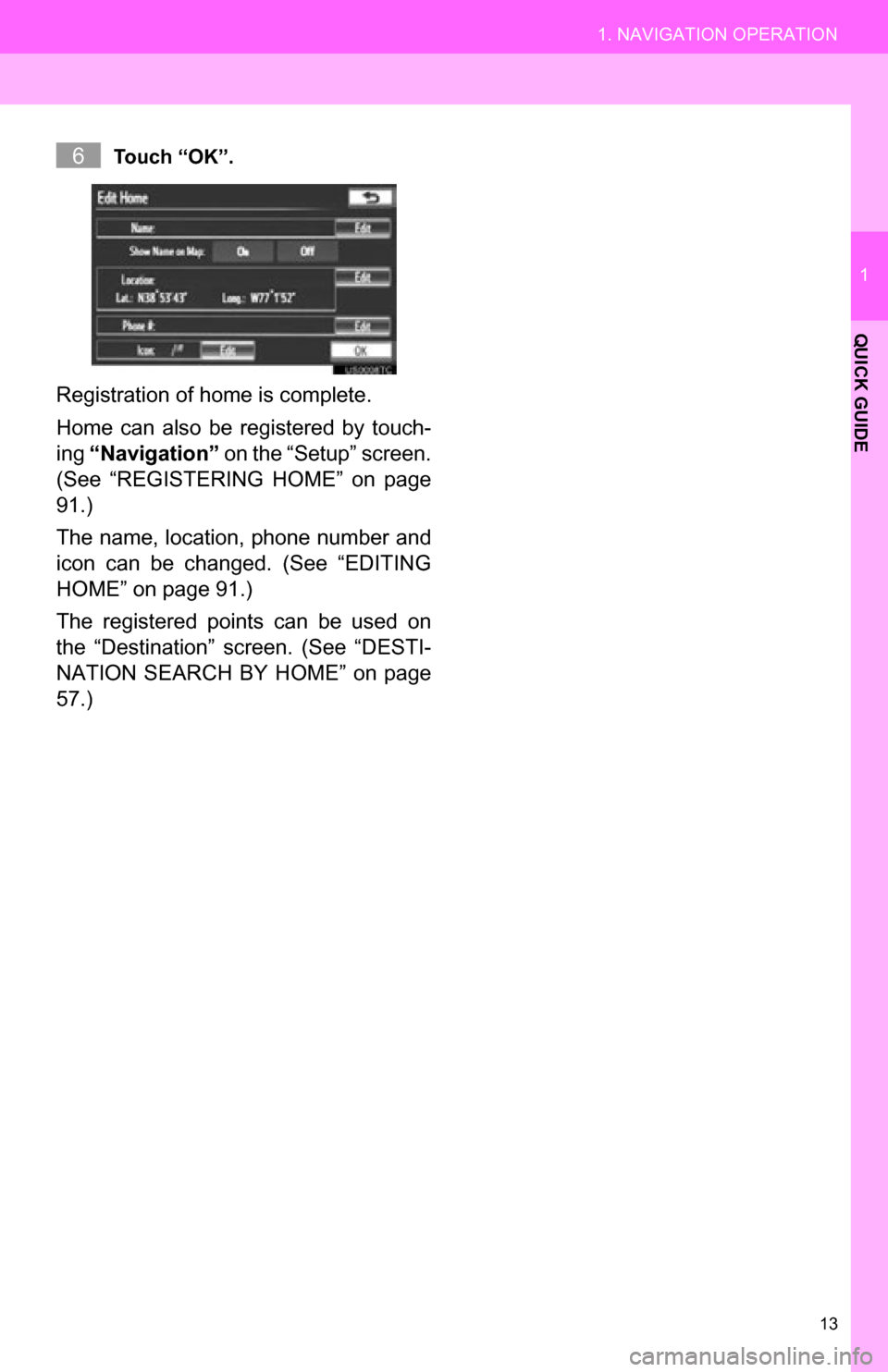
Touch “OK”.
Registration of home is complete.
Home can also be registered by touch-
ing “Navigation” on the “Setup” screen.
(See “REGISTERING HOME” on page
91.)
The name, location, phone number and
icon can be changed. (See “EDITING
HOME” on page 91.)
The registered points can be used on
the “Destination” screen. (See “DESTI-
NATION SEARCH BY HOME” on page
57.)
6
Page 15 of 328
15
1. NAVIGATION OPERATION
1
QUICK GUIDE
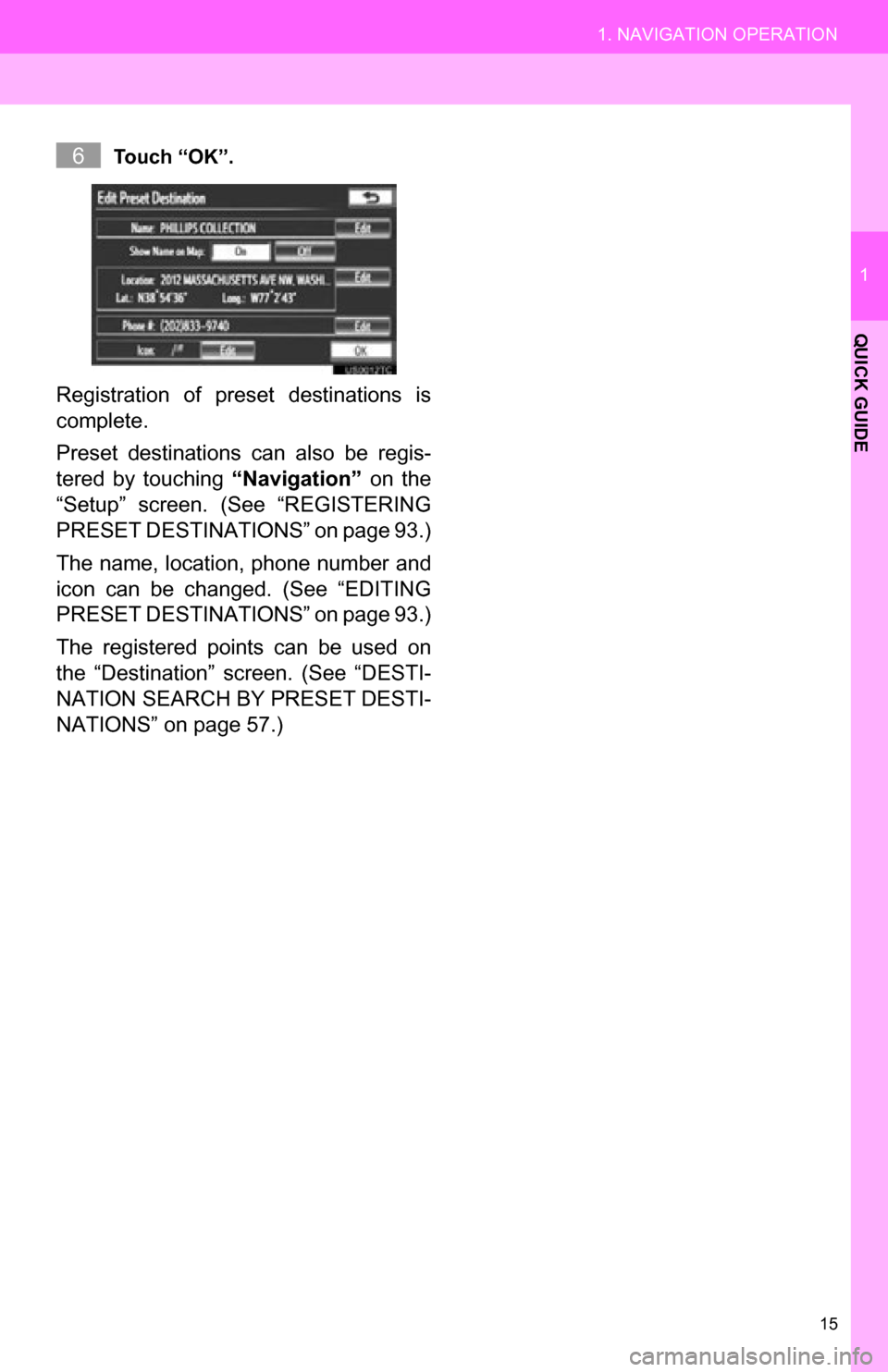
Touch “OK”.
Registration of preset destinations is
complete.
Preset destinations can also be regis-
tered by touching “Navigation” on the
“Setup” screen. (See “REGISTERING
PRESET DESTINAT IONS” on page 93.)
The name, location, phone number and
icon can be changed. (See “EDITING
PRESET DESTINAT IONS” on page 93.)
The registered points can be used on
the “Destination” screen. (See “DESTI-
NATION SEARCH BY PRESET DESTI-
NATIONS” on page 57.)
6
Page 19 of 328
19
2. FUNCTION INDEX
1
QUICK GUIDE
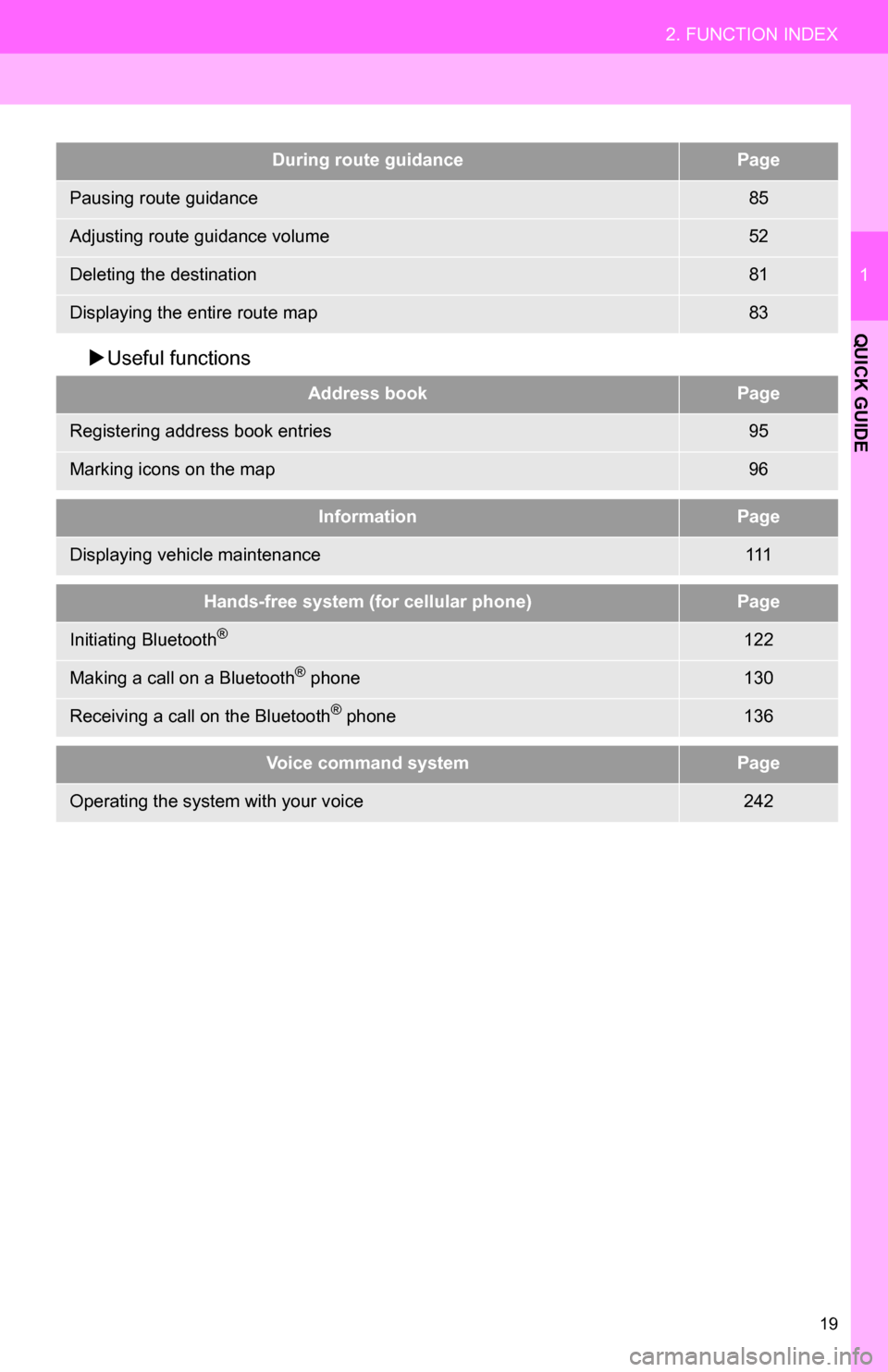
Useful functions
During route guidancePage
Pausing route guidance85
Adjusting route guidance volume52
Deleting the destination81
Displaying the entire route map83
Address bookPage
Registering address book entries95
Marking icons on the map96
InformationPage
Displaying vehicle maintenance111
Hands-free system (for cellular phone)Page
Initiating Bluetooth®122
Making a call on a Bluetooth® phone130
Receiving a call on the Bluetooth® phone136
Voice command systemPage
Operating the system with your voice242
Page 23 of 328
23
3. QUICK REFERENCE
1
QUICK GUIDE
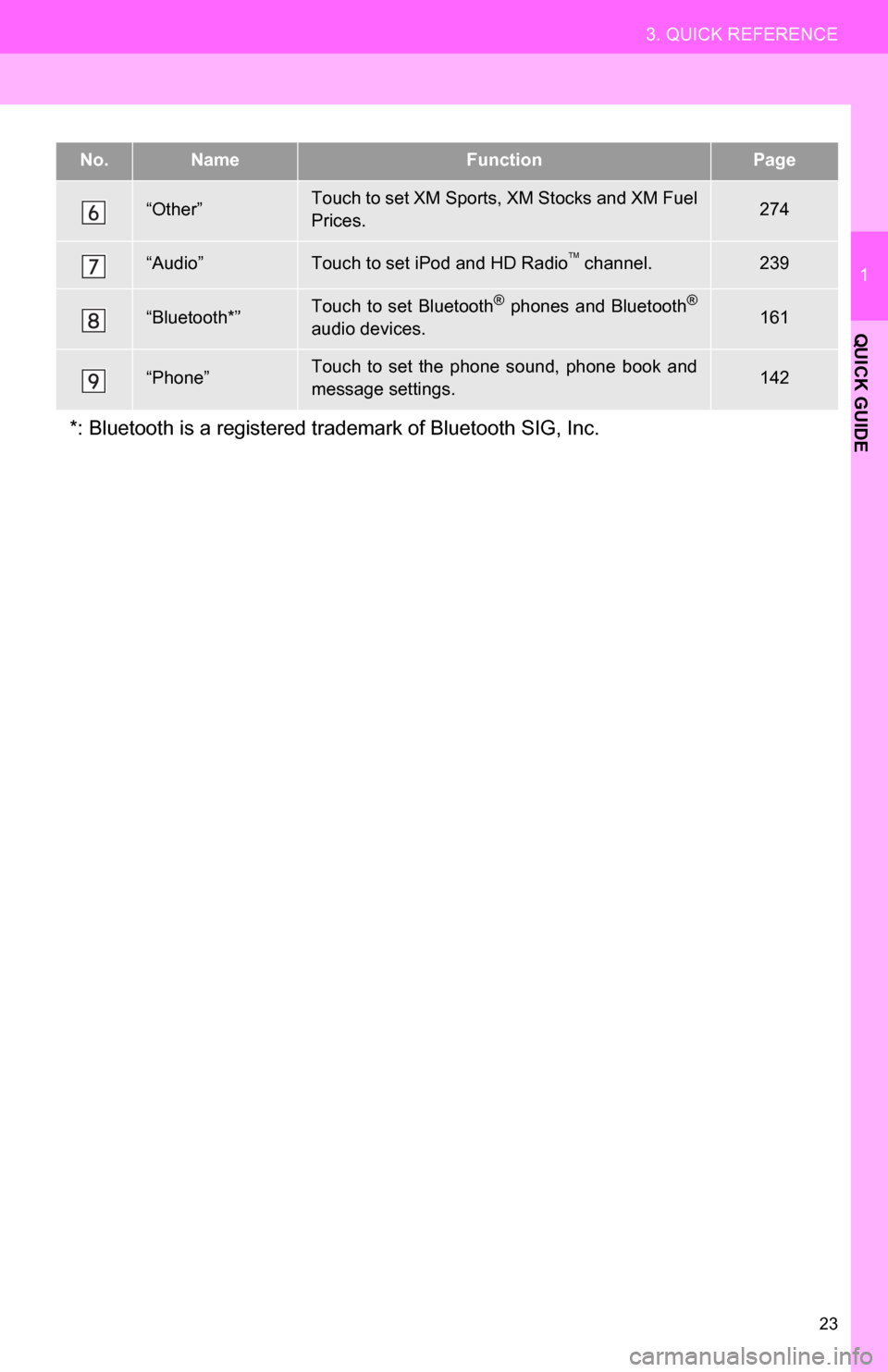
“Other”Touch to set XM Sports, XM Stocks and XM Fuel
Prices.274
“Audio”Touch to set iPod and HD Radio channel.239
“Bluetooth*”Touch to set Bluetooth® phones and Bluetooth®
audio devices.161
“Phone”Touch to set the phone sound, phone book and
message settings.142
*: Bluetooth is a registered trademark of Bluetooth SIG, Inc.
No.NameFunctionPage
Page 36 of 328
36
1. BASIC INFORMATION BEFORE OPERATION
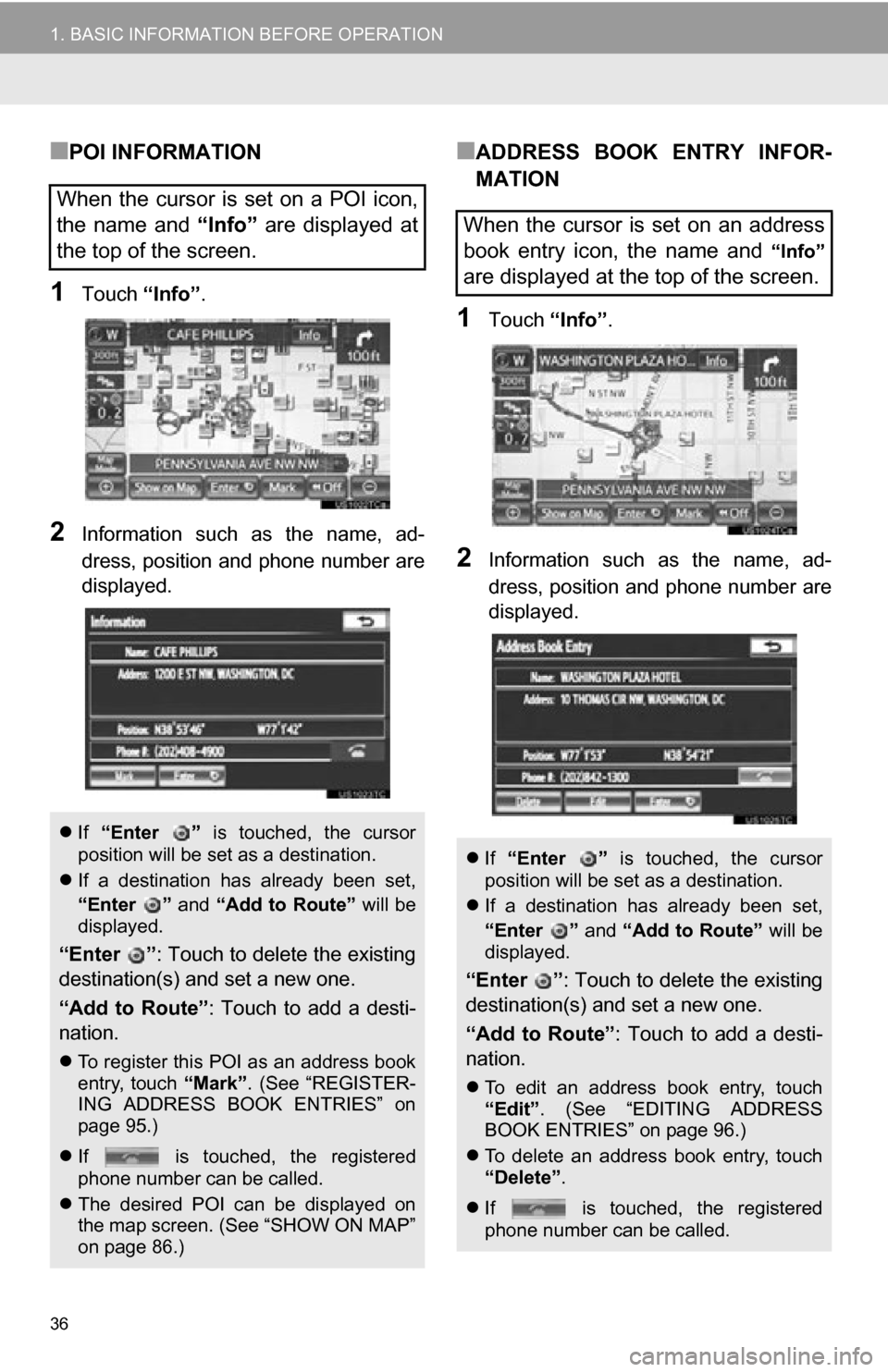
■POI INFORMATION
1Touch “Info”.
2Information such as the name, ad-
dress, position and phone number are
displayed.
■ADDRESS BOOK ENTRY INFOR-
MATION
1Touch “Info”.
2Information such as the name, ad-
dress, position and phone number are
displayed.
When the cursor is set on a POI icon,
the name and “Info” are displayed at
the top of the screen.
If “Enter ” is touched, the cursor
position will be set as a destination.
If a destination has already been set,
“Enter ” and “Add to Route” will be
displayed.
“Enter ”: Touch to delete the existing
destination(s) and set a new one.
“Add to Route” : Touch to add a desti-
nation.
To register this POI as an address book
entry, touch “Mark”. (See “REGISTER-
ING ADDRESS BOOK ENTRIES” on
page 95.)
If is touched, the registered
phone number can be called.
The desired POI can be displayed on
the map screen. (See “SHOW ON MAP”
on page 86.)
When the cursor is set on an address
book entry icon, the name and
“Info”
are displayed at the top of the screen.
If “Enter ” is touched, the cursor
position will be set as a destination.
If a destination has already been set,
“Enter ” and “Add to Route” will be
displayed.
“Enter ”: Touch to delete the existing
destination(s) and set a new one.
“Add to Route” : Touch to add a desti-
nation.
To edit an address book entry, touch
“Edit” . (See “EDITING ADDRESS
BOOK ENTRIES” on page 96.)
To delete an address book entry, touch
“Delete” .
If is touched, the registered
phone number can be called.
Page 37 of 328
37
1. BASIC INFORMATION BEFORE OPERATION
2
BASIC FUNCTION
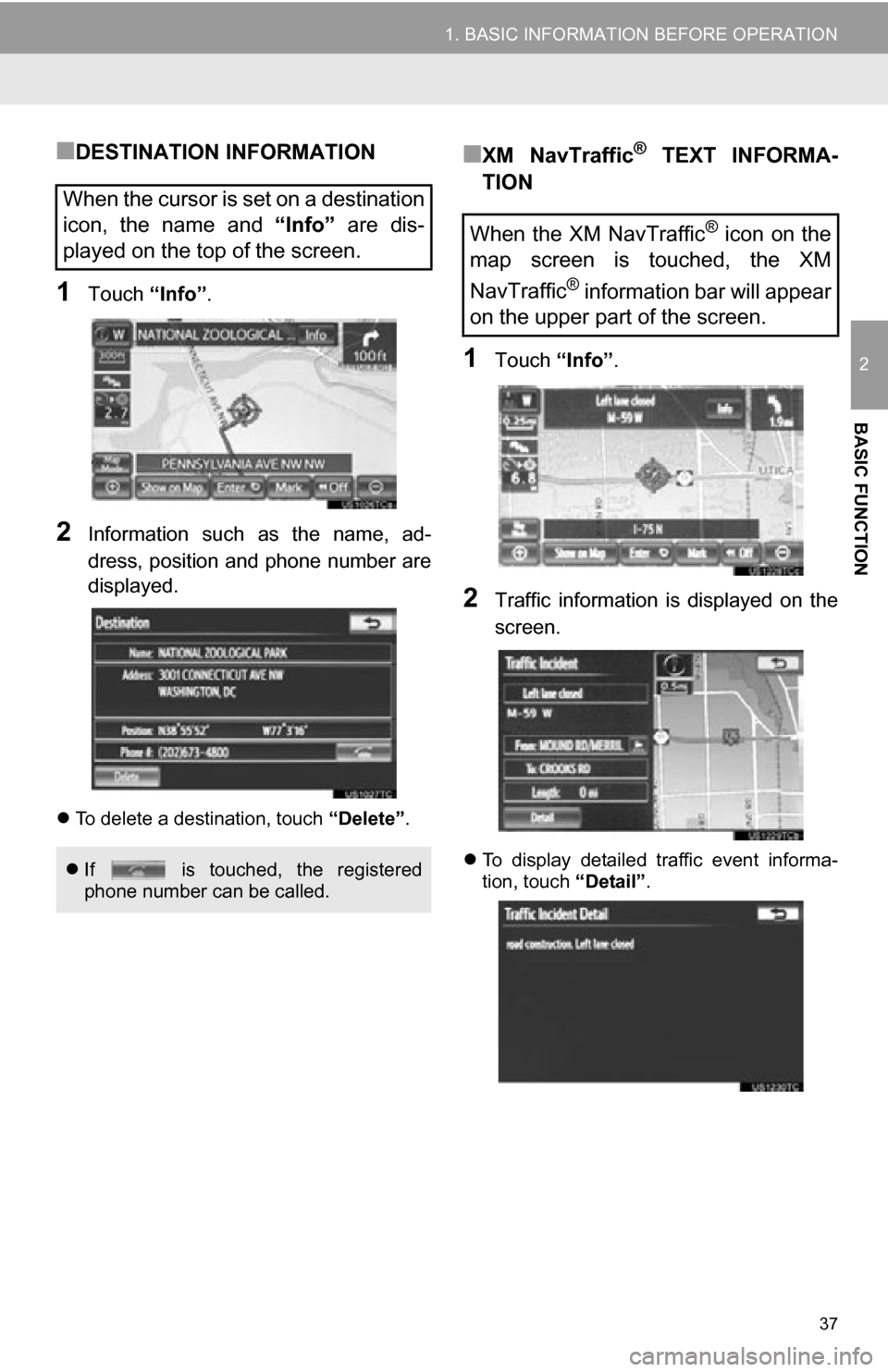
■DESTINATION INFORMATION
1Touch “Info”.
2Information such as the name, ad-
dress, position and phone number are
displayed.
To delete a destination, touch “Delete”.
■XM NavTraffic® TEXT INFORMA-
TION
1Touch “Info”.
2Traffic information is displayed on the
screen.
To display detailed traffic event informa-
tion, touch “Detail”.
When the cursor is set on a destination
icon, the name and “Info” are dis-
played on the top of the screen.
If is touched, the registered
phone number can be called.
When the XM NavTraffic® icon on the
map screen is touched, the XM
NavTraffic
® information bar will appear
on the upper part of the screen.
Page 50 of 328

50
2. SETUP
The following personal data can be
deleted or returned to their default set-
tings:
• Maintenance conditions
• Address book
• Areas to avoid
• Previous points
• Route guidance
• Route trace
• Phonebook data
• Call history data
• Speed dial data
•Bluetooth
® phone data
• Phone sound settings
• Phone display settings
• Message settings
• Audio setting
•Bluetooth
® audio setting
• Startup image data
• Screen off image data
INFORMATION
● This function is not available while driv-
ing.
Page 60 of 328
60
1. DESTINATION SEARCH
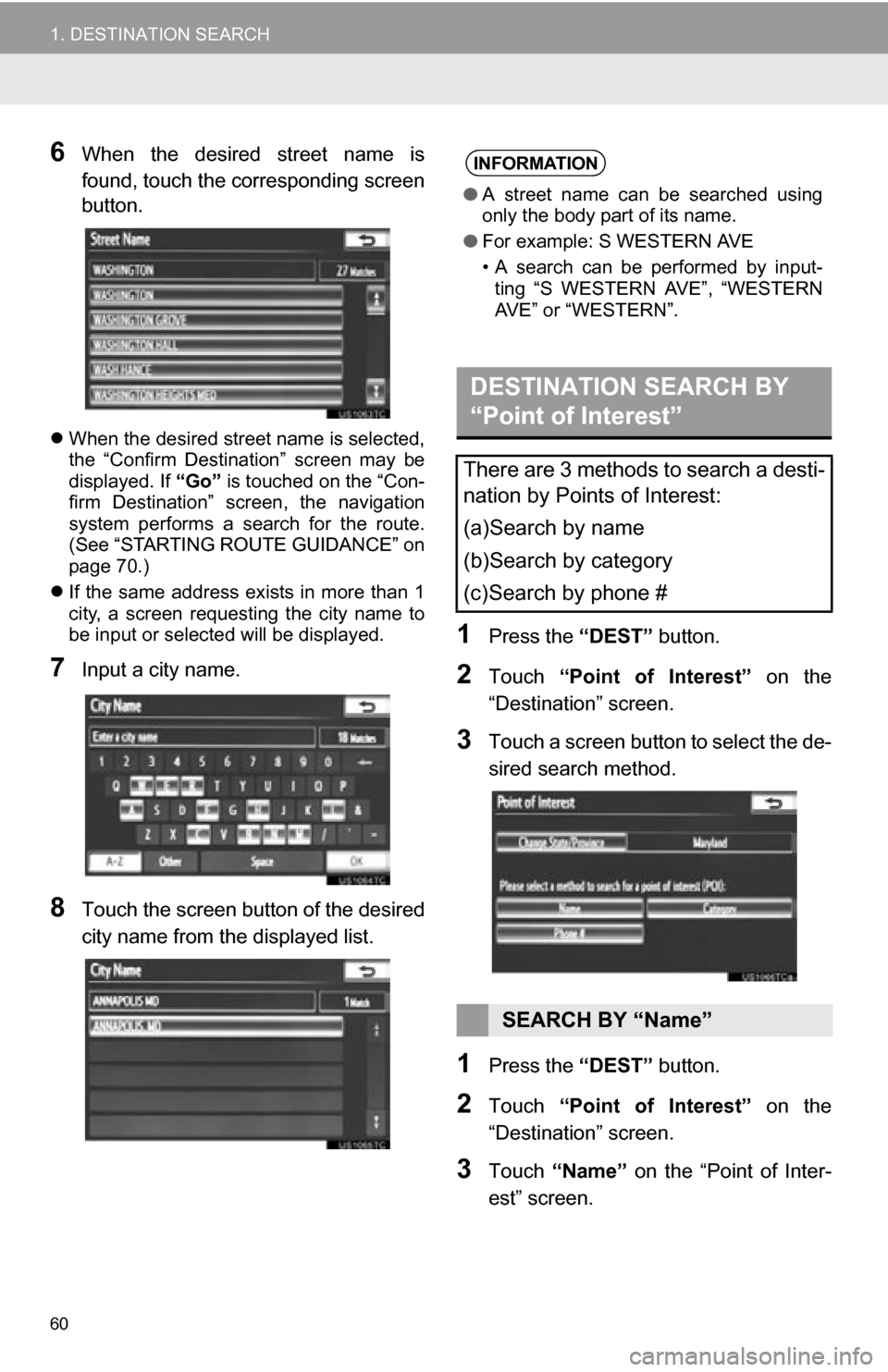
6When the desired street name is
found, touch the corresponding screen
button.
When the desired street name is selected,
the “Confirm Destination” screen may be
displayed. If “Go” is touched on the “Con-
firm Destination” screen, the navigation
system performs a search for the route.
(See “STARTING ROUTE GUIDANCE” on
page 70.)
If the same address exists in more than 1
city, a screen requesting the city name to
be input or selected will be displayed.
7Input a city name.
8Touch the screen button of the desired
city name from the displayed list.
1Press the “DEST” button.
2Touch “Point of Interest” on the
“Destination” screen.
3Touch a screen button to select the de-
sired search method.
1Press the “DEST” button.
2Touch “Point of Interest” on the
“Destination” screen.
3Touch “Name” on the “Point of Inter-
est” screen.
INFORMATION
● A street name can be searched using
only the body part of its name.
● For example: S WESTERN AVE
• A search can be performed by input-
ting “S WESTERN AVE”, “WESTERN
AVE” or “WESTERN”.
DESTINATION SEARCH BY
“Point of Interest”
There are 3 methods to search a desti-
nation by Points of Interest:
(a)Search by name
(b)Search by category
(c)Search by phone #
SEARCH BY “Name”