phone TOYOTA CAMRY 2013 XV50 / 9.G Navigation Manual
[x] Cancel search | Manufacturer: TOYOTA, Model Year: 2013, Model line: CAMRY, Model: TOYOTA CAMRY 2013 XV50 / 9.GPages: 336, PDF Size: 7.37 MB
Page 162 of 336
162
2. SETUP
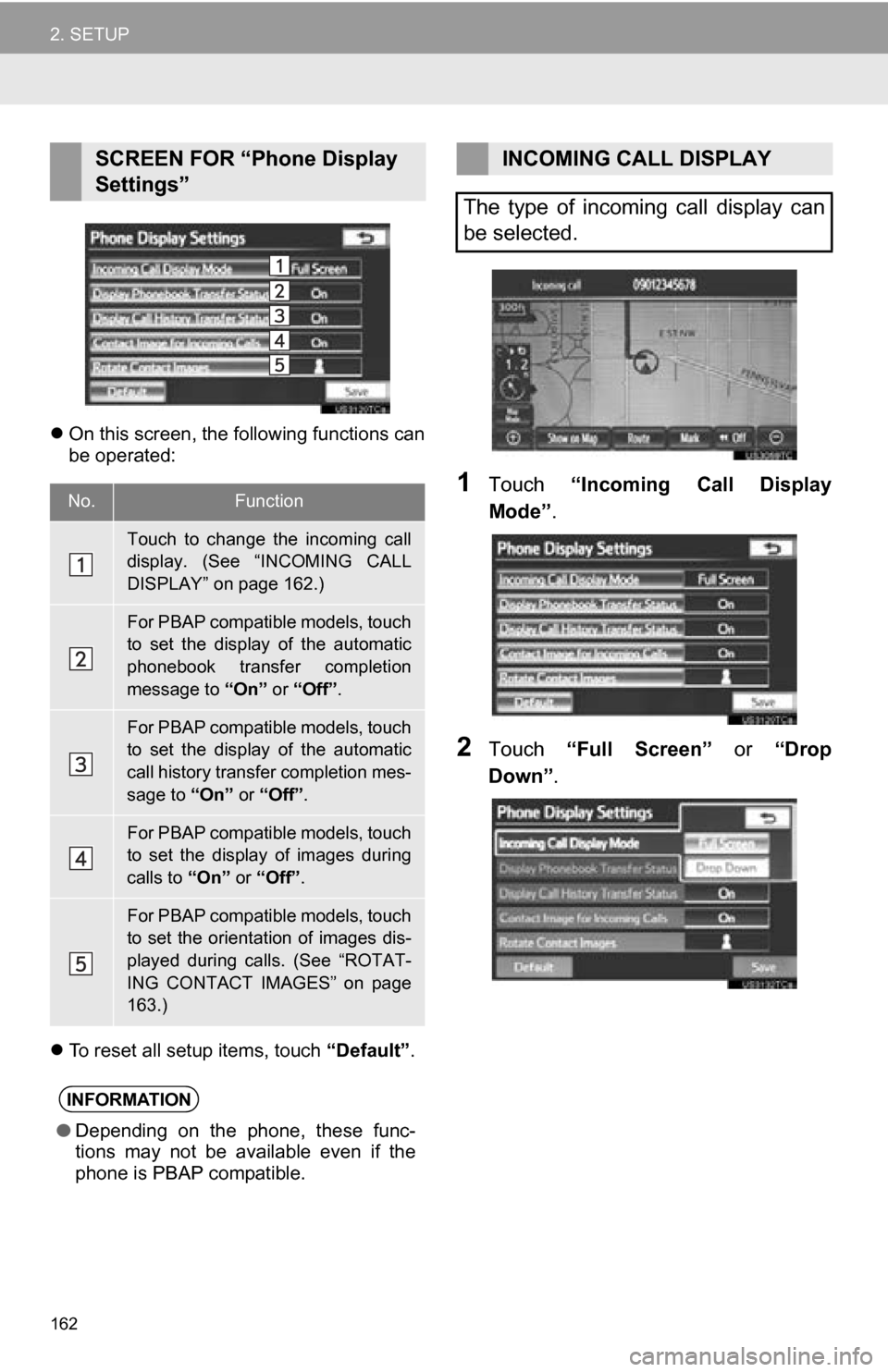
On this screen, the following functions can
be operated:
To reset all setup items, touch “Default”.
1Touch “Incoming Call Display
Mode” .
2Touch “Full Screen” or “Drop
Down” .
SCREEN FOR “Phone Display
Settings”
No.Function
Touch to change the incoming call
display. (See “INCOMING CALL
DISPLAY” on page 162.)
For PBAP compatible models, touch
to set the display of the automatic
phonebook transfer completion
message to “On” or “Off” .
For PBAP compatible models, touch
to set the display of the automatic
call history transfer completion mes-
sage to “On” or “Off” .
For PBAP compatible models, touch
to set the display of images during
calls to “On” or “Off” .
For PBAP compatible models, touch
to set the orientation of images dis-
played during calls. (See “ROTAT-
ING CONTACT IMAGES” on page
163.)
INFORMATION
●Depending on the phone, these func-
tions may not be available even if the
phone is PBAP compatible.
INCOMING CALL DISPLAY
The type of incoming call display can
be selected.
Page 163 of 336
163
2. SETUP
4
PHONE
3Touch “Save” .
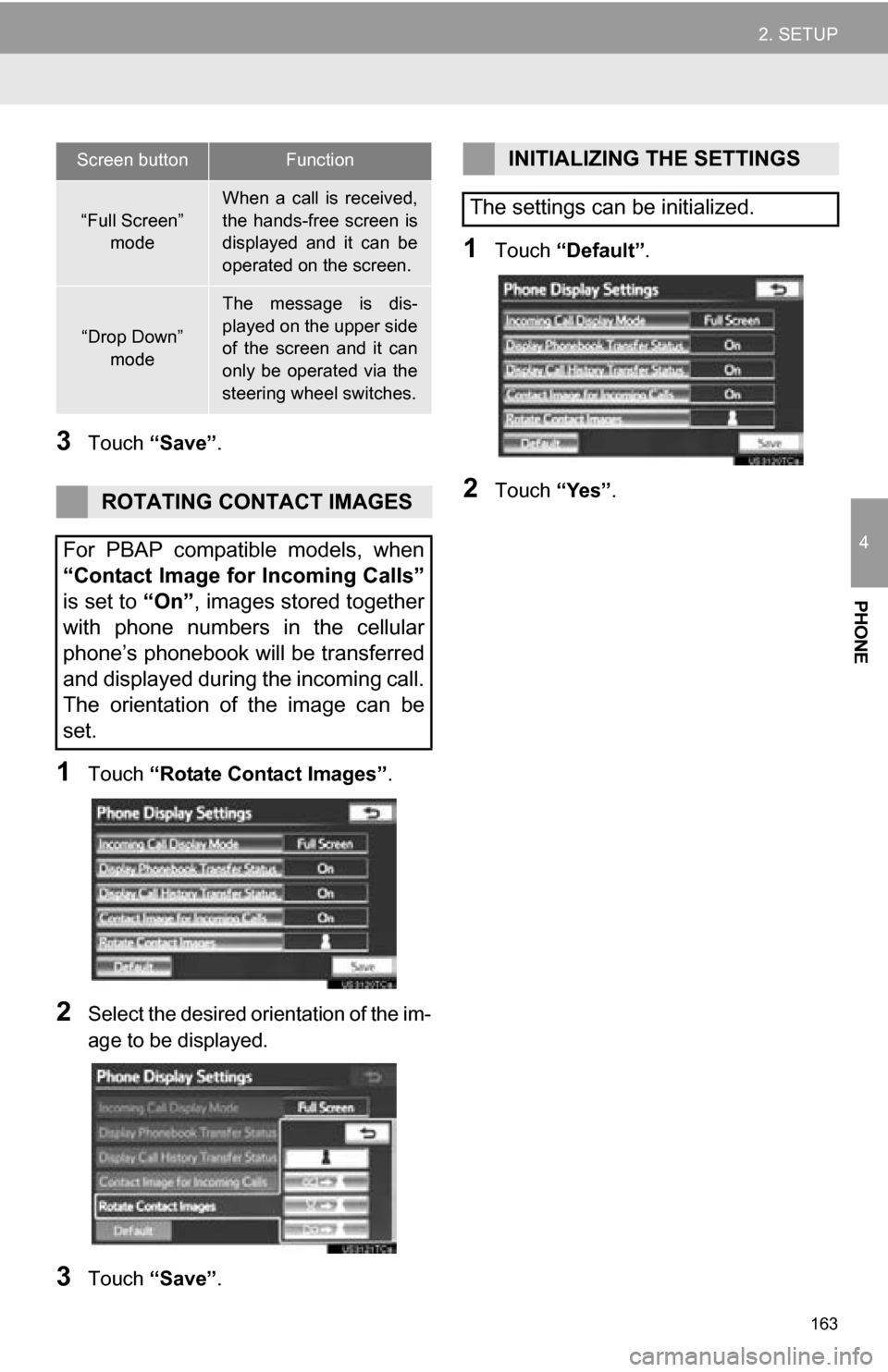
1Touch “Rotate Contact Images” .
2Select the desired orientation of the im-
age to be displayed.
3Touch “Save” .
1Touch “Default” .
2Touch “Yes”.
Screen buttonFunction
“Full Screen”
mode
When a call is received,
the hands-free screen is
displayed and it can be
operated on the screen.
“Drop Down”
mode
The message is dis-
played on the upper side
of the screen and it can
only be operated via the
steering wheel switches.
ROTATING CONTACT IMAGES
For PBAP compatible models, when
“Contact Image for Incoming Calls”
is set to “On”, images stored together
with phone numbers in the cellular
phone’s phonebook will be transferred
and displayed during the incoming call.
The orientation of the image can be
set.
INITIALIZING THE SETTINGS
The settings can be initialized.
Page 165 of 336
165
2. SETUP
4
PHONE
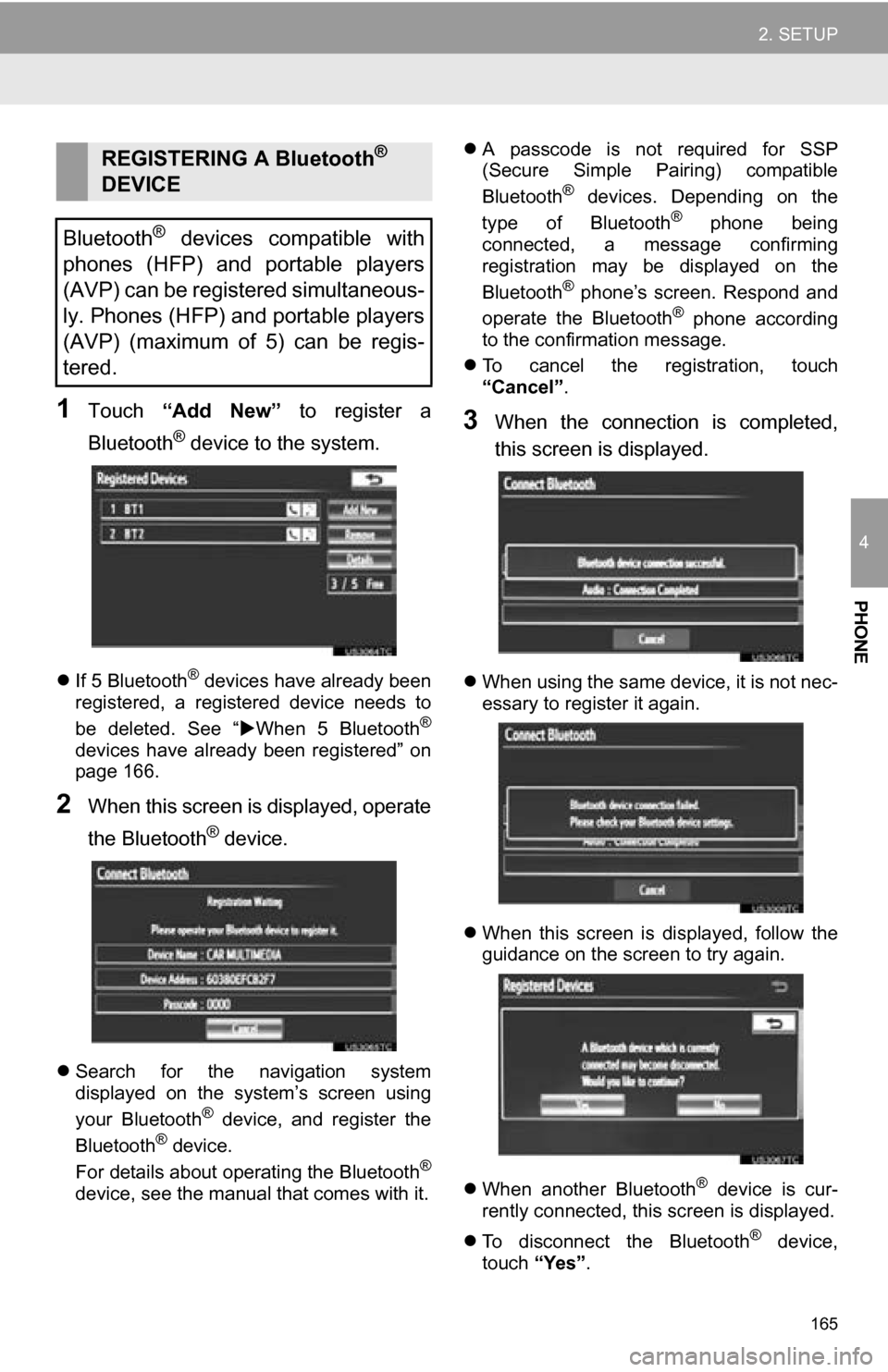
1Touch “Add New” to register a
Bluetooth
® device to the system.
If 5 Bluetooth® devices have already been
registered, a registered device needs to
be deleted. See “ When 5 Bluetooth
®
devices have already been registered” on
page 166.
2When this screen is displayed, operate
the Bluetooth
® device.
Search for the navigation system
displayed on the system’s screen using
your Bluetooth
® device, and register the
Bluetooth® device.
For details about operating the Bluetooth®
device, see the manual that comes with it.
A passcode is not required for SSP
(Secure Simple Pairing) compatible
Bluetooth
® devices. Depending on the
type of Bluetooth® phone being
connected, a message confirming
registration may be displayed on the
Bluetooth
® phone’s screen. Respond and
operate the Bluetooth® phone according
to the confirmation message.
To cancel the registration, touch
“Cancel” .
3When the connection is completed,
this screen is displayed.
When using the same device, it is not nec-
essary to register it again.
When this screen is displayed, follow the
guidance on the screen to try again.
When another Bluetooth
® device is cur-
rently connected, this screen is displayed.
To disconnect the Bluetooth
® device,
touch “Yes”.
REGISTERING A Bluetooth®
DEVICE
Bluetooth
® devices compatible with
phones (HFP) and portable players
(AVP) can be registered simultaneous-
ly. Phones (HFP) and portable players
(AVP) (maximum of 5) can be regis-
tered.
Page 166 of 336
166
2. SETUP
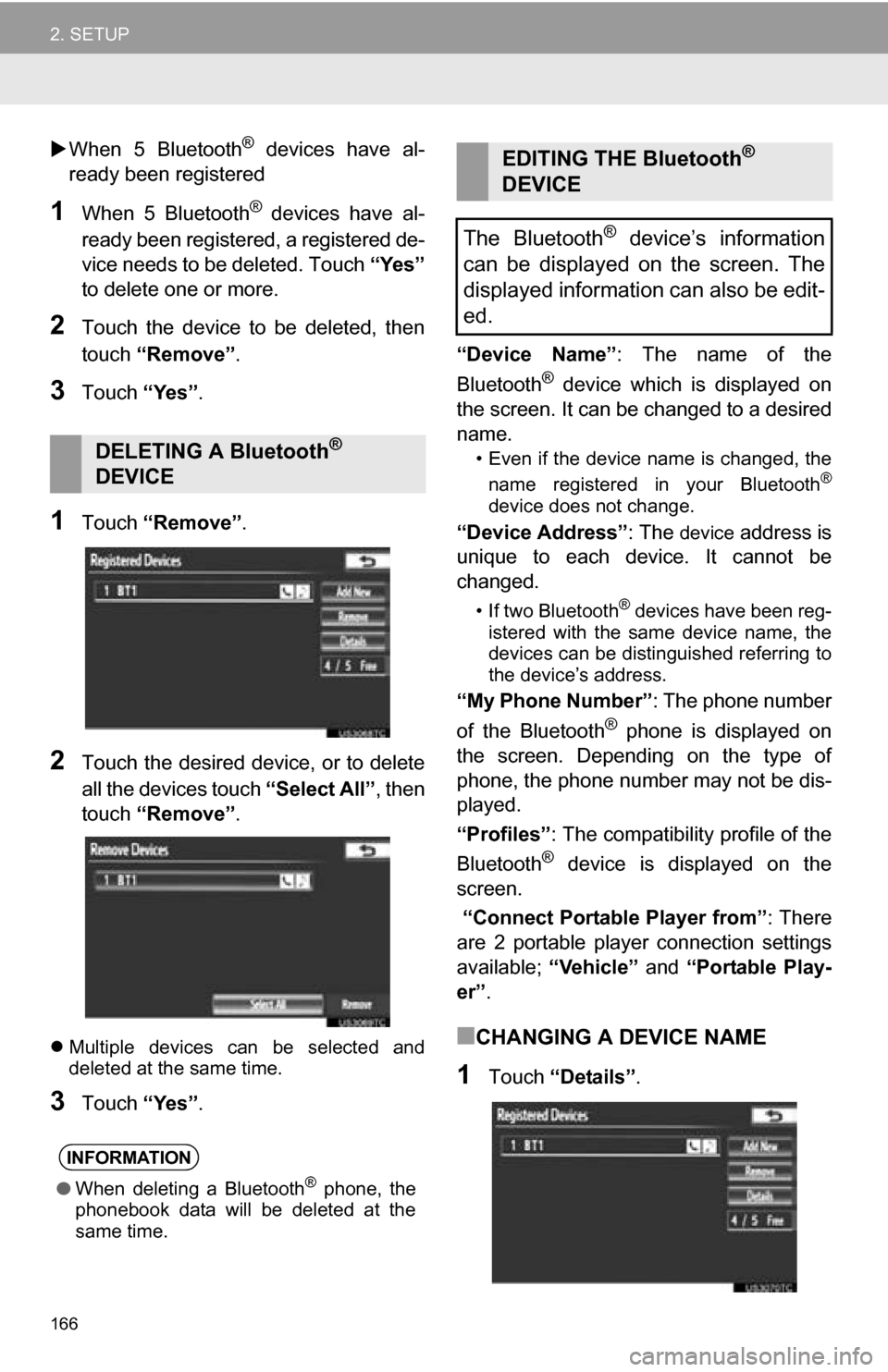
When 5 Bluetooth® devices have al-
ready been registered
1When 5 Bluetooth® devices have al-
ready been registered, a registered de-
vice needs to be deleted. Touch “Yes”
to delete one or more.
2Touch the device to be deleted, then
touch “Remove” .
3Touch “Yes”.
1Touch “Remove” .
2Touch the desired device, or to delete
all the devices touch “Select All”, then
touch “Remove” .
Multiple devices can be selected and
deleted at the same time.
3Touch “Yes”. “Device Name”
: The name of the
Bluetooth
® device which is displayed on
the screen. It can be changed to a desired
name.
• Even if the device name is changed, the
name registered in your Bluetooth®
device does not change.
“Device Address” : The device address is
unique to each device. It cannot be
changed.
• If two Bluetooth® devices have been reg-
istered with the same device name, the
devices can be distinguished referring to
the device’s address.
“My Phone Number” : The phone number
of the Bluetooth® phone is displayed on
the screen. Depending on the type of
phone, the phone number may not be dis-
played.
“Profiles” : The compatibility profile of the
Bluetooth
® device is displayed on the
screen.
“Connect Portable Player from” : There
are 2 portable player connection settings
available; “Vehicle” and “Portable Play-
er” .
■CHANGING A DEVICE NAME
1Touch “Details” .
DELETING A Bluetooth®
DEVICE
INFORMATION
● When deleting a Bluetooth® phone, the
phonebook data will be deleted at the
same time.
EDITING THE Bluetooth®
DEVICE
The Bluetooth
® device’s information
can be displayed on the screen. The
displayed information can also be edit-
ed.
Page 167 of 336
167
2. SETUP
4
PHONE
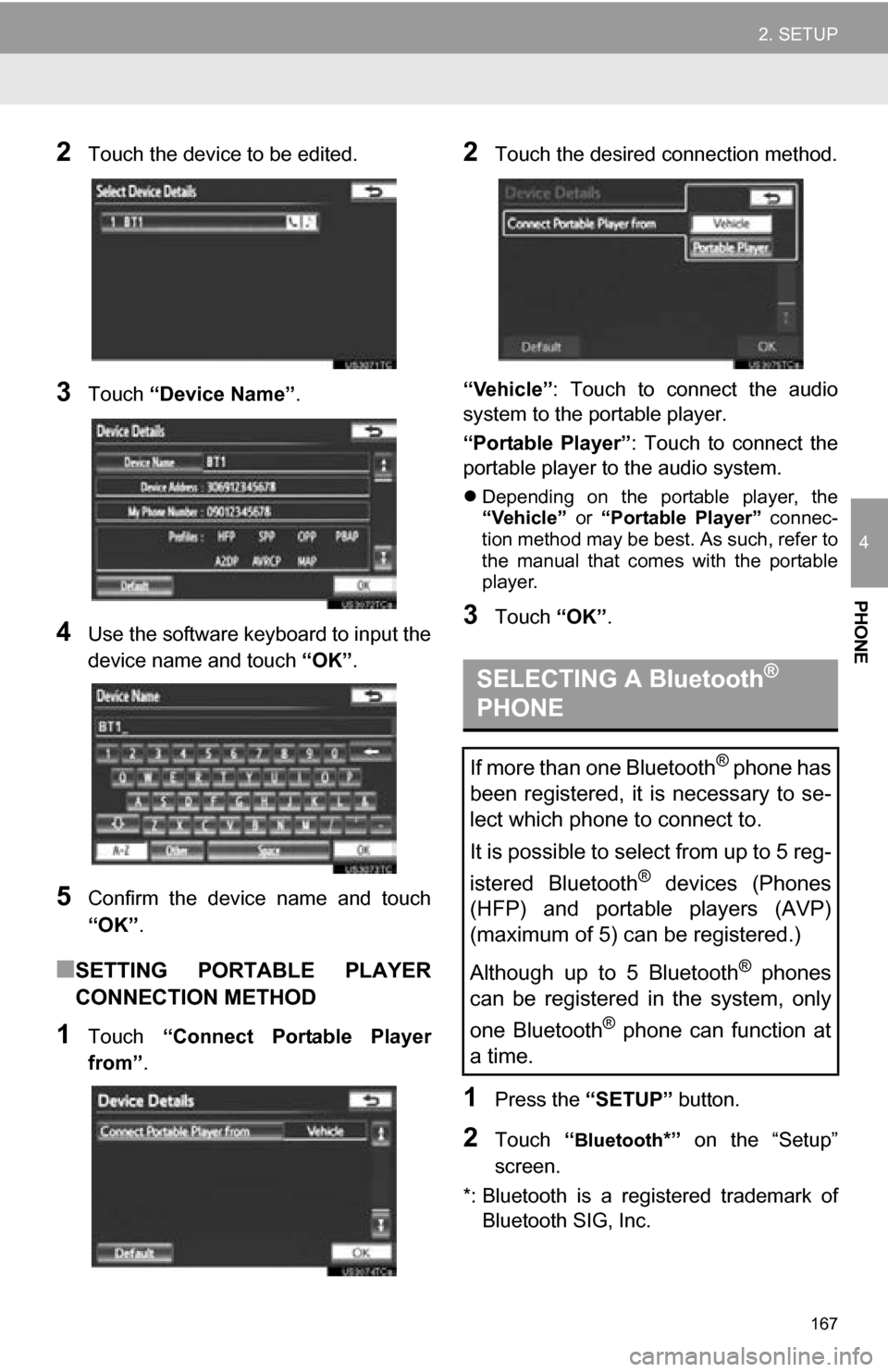
2Touch the device to be edited.
3Touch “Device Name” .
4Use the software keyboard to input the
device name and touch “OK”.
5Confirm the device name and touch
“OK” .
■SETTING PORTABLE PLAYER
CONNECTION METHOD
1Touch “Connect Portable Player
from” .
2Touch the desired connection method.
“Vehicle” : Touch to connect the audio
system to the portable player.
“Portable Player” : Touch to connect the
portable player to the audio system.
Depending on the portable player, the
“Vehicle” or “Portable Player” connec-
tion method may be best. As such, refer to
the manual that comes with the portable
player.
3Touch “OK”.
1Press the “SETUP” button.
2Touch “Bluetooth*” on the “Setup”
screen.
*: Bluetooth is a regi stered trademark of
Bluetooth SIG, Inc.
SELECTING A Bluetooth®
PHONE
If more than one Bluetooth® phone has
been registered, it is necessary to se-
lect which phone to connect to.
It is possible to select from up to 5 reg-
istered Bluetooth
® devices (Phones
(HFP) and portable players (AVP)
(maximum of 5) can be registered.)
Although up to 5 Bluetooth
® phones
can be registered in the system, only
one Bluetooth
® phone can function at
a time.
Page 168 of 336
168
2. SETUP
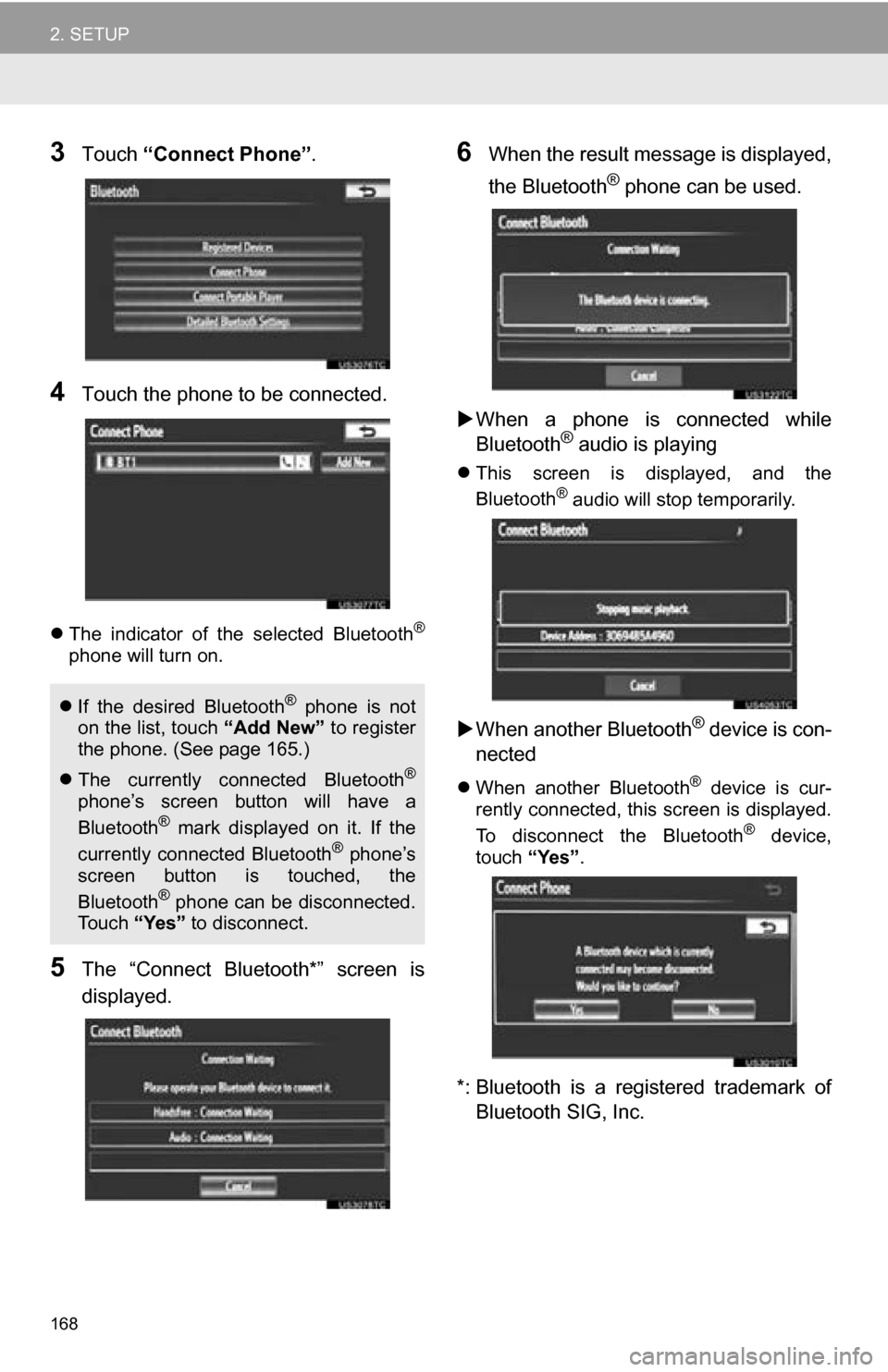
3Touch “Connect Phone” .
4Touch the phone to be connected.
The indicator of the selected Bluetooth®
phone will turn on.
5The “Connect Bluetooth*” screen is
displayed.
6When the result message is displayed,
the Bluetooth
® phone can be used.
When a phone is connected while
Bluetooth
® audio is playing
This screen is displayed, and the
Bluetooth® audio will stop temporarily.
When another Bluetooth® device is con-
nected
When another Bluetooth® device is cur-
rently connected, this screen is displayed.
To disconnect the Bluetooth
® device,
touch “Yes”.
*: Bluetooth is a registered trademark of
Bluetooth SIG, Inc.
If the desired Bluetooth® phone is not
on the list, touch “Add New” to register
the phone. (See page 165.)
The currently connected Bluetooth
®
phone’s screen button will have a
Bluetooth® mark displayed on it. If the
currently connected Bluetooth® phone’s
screen button is touched, the
Bluetooth
® phone can be disconnected.
To u c h “Yes” to disconnect.
Page 169 of 336
169
2. SETUP
4
PHONE
1Press the “SETUP” button.
2Touch “Bluetooth*” on the “Setup”
screen.
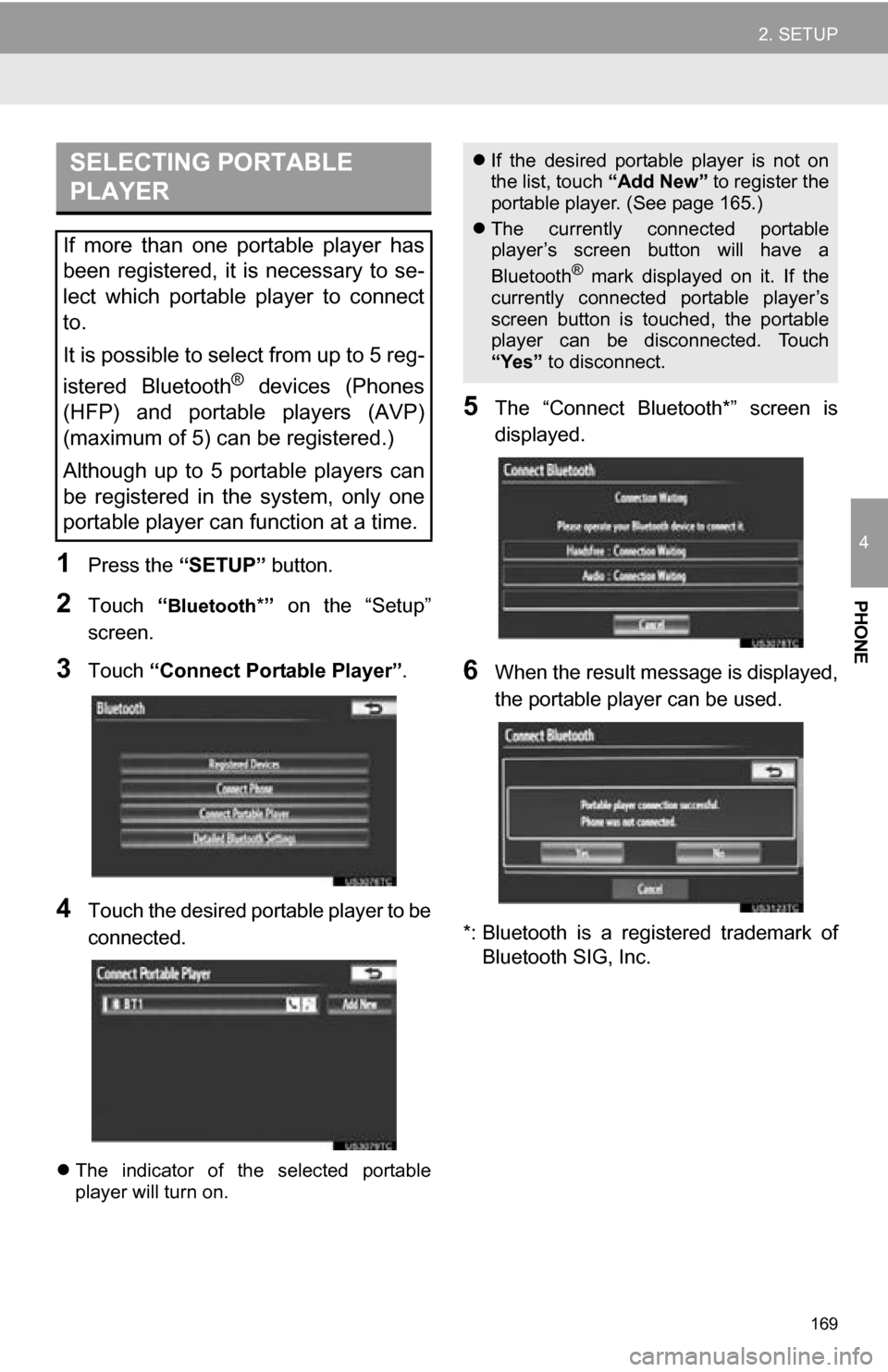
3Touch “Connect Portable Player” .
4Touch the desired portable player to be
connected.
The indicator of the selected portable
player will turn on.
5The “Connect Bluetooth*” screen is
displayed.
6When the result message is displayed,
the portable player can be used.
*: Bluetooth is a regi stered trademark of
Bluetooth SIG, Inc.
SELECTING PORTABLE
PLAYER
If more than one portable player has
been registered, it is necessary to se-
lect which portable player to connect
to.
It is possible to select from up to 5 reg-
istered Bluetooth
® devices (Phones
(HFP) and portable players (AVP)
(maximum of 5) can be registered.)
Although up to 5 portable players can
be registered in the system, only one
portable player can function at a time.
If the desired portable player is not on
the list, touch “Add New” to register the
portable player. (See page 165.)
The currently connected portable
player’s screen button will have a
Bluetooth
® mark displayed on it. If the
currently connected portable player’s
screen button is touched, the portable
player can be disconnected. Touch
“Yes” to disconnect.
Page 171 of 336
171
2. SETUP
4
PHONE
■CHANGING “Bluetooth* Power”
When “Bluetooth* Power” is “On” :
Vehicles with a smart key system
The Bluetooth
® device is automatically
connected when the “POWER” <“ENGINE
START STOP”> switch is in ACCESSORY
or ON
Vehicles without a smart key system
The Bluetooth
® device is automatically
connected when the engine switch is
turned to the “ACC” or “ON” position.
When “Bluetooth* Power” is “Off” : The
Bluetooth
® device is disconnected, and
the system will not connect to it next time.
The “Bluetooth* Power” auto connection
state can be set on or off.
• “On” : The auto connection is turned on.
• “Off” : The auto connection is turned off.
The auto connection state cannot be
changed from “On” to “Off” while driving,
but it can be changed from “Off” to “On”.
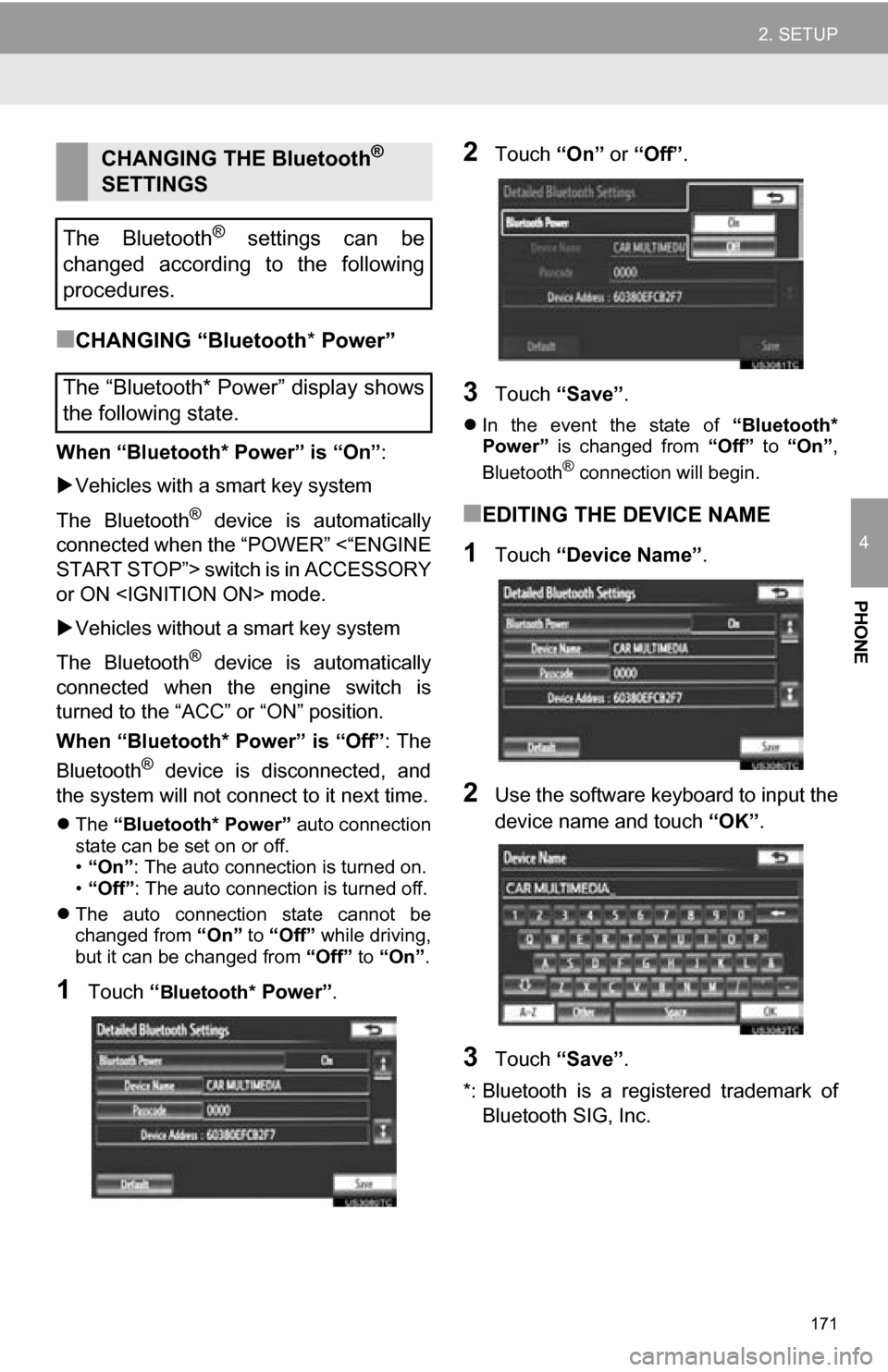
1Touch “Bluetooth* Power” .
2Touch “On” or “Off” .
3Touch “Save” .
In the event the state of “Bluetooth*
Power” is changed from “Off” to “On” ,
Bluetooth
® connection will begin.
■EDITING THE DEVICE NAME
1Touch “Device Name” .
2Use the software keyboard to input the
device name and touch “OK”.
3Touch “Save” .
*: Bluetooth is a regi stered trademark of
Bluetooth SIG, Inc.
CHANGING THE Bluetooth®
SETTINGS
The Bluetooth
® settings can be
changed according to the following
procedures.
The “Bluetooth* Power” display shows
the following state.
Page 172 of 336
172
2. SETUP
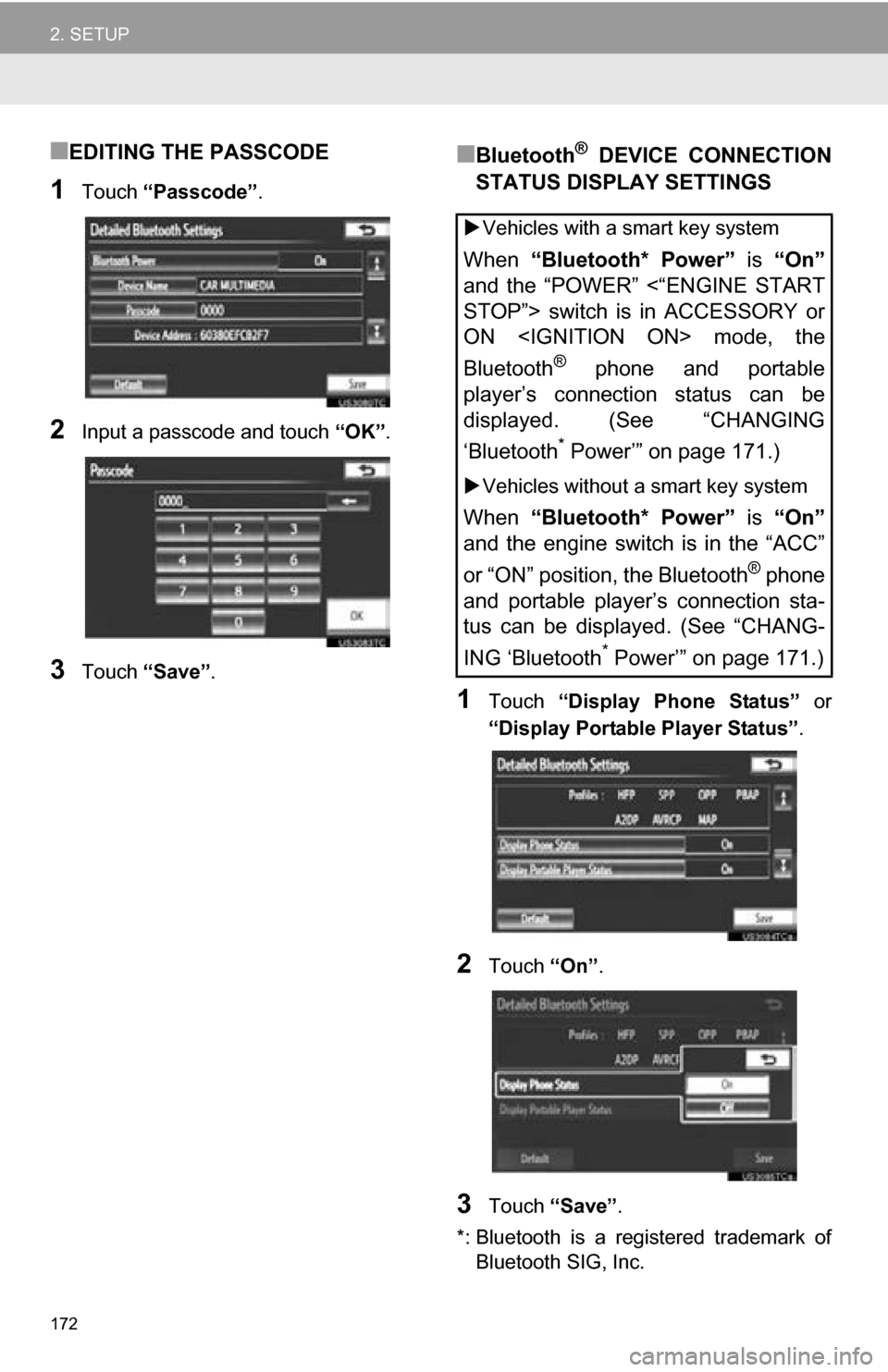
■EDITING THE PASSCODE
1Touch “Passcode” .
2Input a passcode and touch “OK”.
3Touch “Save” .
■Bluetooth® DEVICE CONNECTION
STATUS DISPLAY SETTINGS
1Touch “Display Phone Status” or
“Display Portable Player Status” .
2Touch “On”.
3Touch “Save” .
*: Bluetooth is a registered trademark of Bluetooth SIG, Inc.
Vehicles with a smart key system
When “Bluetooth* Power” is “On”
and the “POWER” <“ENGINE START
STOP”> switch is in ACCESSORY or
ON
Bluetooth
® phone and portable
player’s connection status can be
displayed. (See “CHANGING
‘Bluetooth
* Power’” on page 171.)
Vehicles without a smart key system
When “Bluetooth* Power” is “On”
and the engine switch is in the “ACC”
or “ON” position, the Bluetooth
® phone
and portable player’s connection sta-
tus can be displayed. (See “CHANG-
ING ‘Bluetooth
* Power’” on page 171.)
Page 173 of 336
173
2. SETUP
4
PHONE
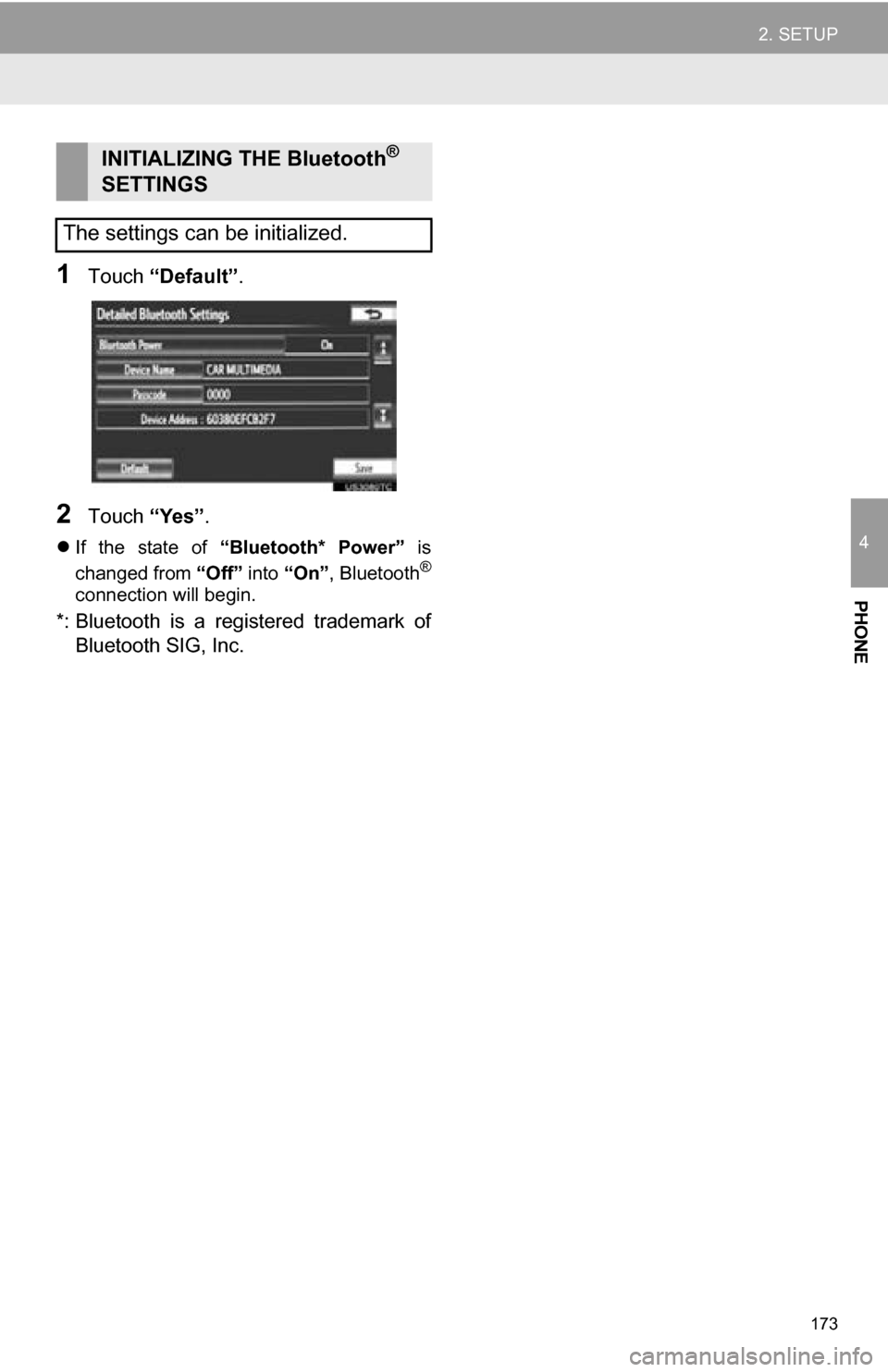
1Touch “Default”.
2Touch “Yes”.
If the state of “Bluetooth* Power” is
changed from “Off” into “On”, Bluetooth®
connection will begin.
*: Bluetooth is a registered trademark of
Bluetooth SIG, Inc.
INITIALIZING THE Bluetooth®
SETTINGS
The settings can be initialized.