phone TOYOTA CAMRY 2013 XV50 / 9.G Navigation Manual
[x] Cancel search | Manufacturer: TOYOTA, Model Year: 2013, Model line: CAMRY, Model: TOYOTA CAMRY 2013 XV50 / 9.GPages: 336, PDF Size: 7.37 MB
Page 277 of 336
8
277
1
2
3
4
5
6
7
8
9
1. ENTUNE SERVICE ..................... 278
SUBSCRIPTION .................................. 279
AVAILABILITY OF SERVICE............... 279
INITIALIZING PERSONAL DATA ........ 279
2. BEFORE USING ENTUNE .......... 280
SETTINGS REQUIRED TO USE ENTUNE ............................................ 280
USER REGISTRATION ....................... 280
REGISTERING THE ENTUNE APPLICATION ................................... 280
1. ACTIVATING “APPS”.. ............... 281
ACTIVATING “APPS” .......................... 281
IF A MESSAGE APPEARS
ON THE SCREEN ............................. 283
2. LINKING “APPS” AND NAVIGATION LOCAL
FUNCTION ...... ....................... ... 284
SETTING A DESTINATION USING
“APPS” .............................................. 285
MAKING A PHONE CALL USING “APPS” .............................................. 285
3. INPUTTING KEYWORD OPERATION ............................. 286
INPUTTING A KEYWORD USING
THE SOFTWARE KEYBOARD ......... 286
INPUTTING A KEYWORD USING THE VOICE RECOGNITION
FUNCTION ........................................ 286
1ENTUNE-OVERVIEW
2ENTUNE OPERATION
APPS
Page 278 of 336
278
1. ENTUNE-OVERVIEW
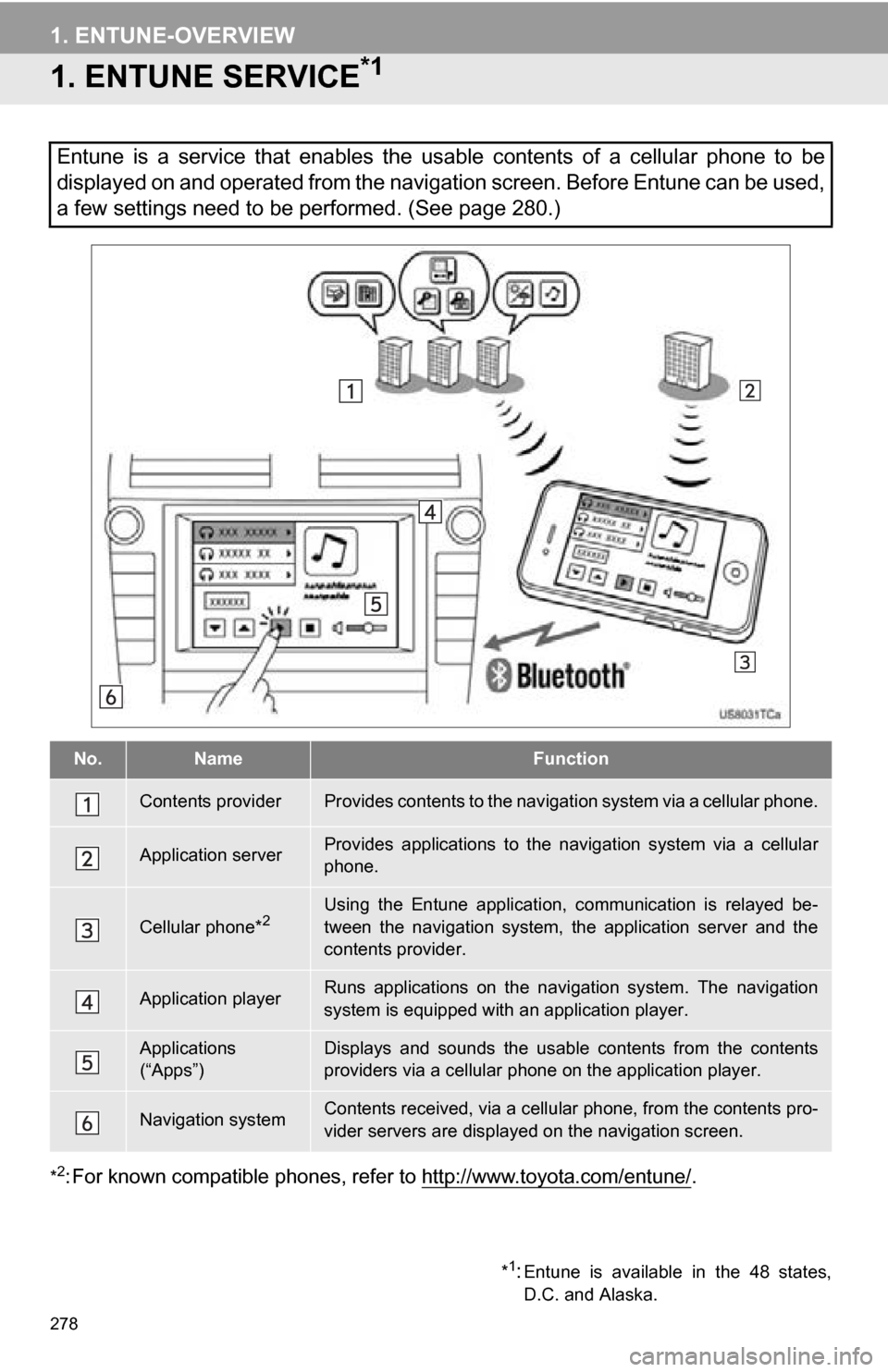
1. ENTUNE SERVICE*1
*2: For known compatible phones, refer to http://www.toyota.com/entune/.
Entune is a service that enables the usable contents of a cellular phone to be
displayed on and operated from the navigation screen. Before Entune can be used,
a few settings need to be performed. (See page 280.)
No.NameFunction
Contents providerProvides contents to the navigation system via a cellular phone.
Application serverProvides applications to the nav igation system via a cellular
phone.
Cellular phone*2Using the Entune application, communication is relayed be-
tween the navigation system, the application server and the
contents provider.
Application playerRuns applications on the navigation system. The navigation
system is equipped with an application player.
Applications
(“Apps”)Displays and sounds the usabl e contents from the contents
providers via a cellular p hone on the application player.
Navigation systemContents received, via a cellular phone, from the contents pro-
vider servers are display ed on the navigation screen.
*1:Entune is available in the 48 states,
D.C. and Alaska.
Page 279 of 336
8
APPS
279
1. ENTUNE-OVERVIEW
Entune will be available on a 3 year trial
period included upon purchase of a new
vehicle. User registration is required to
start using the service. (See page 280.)
When 3 years have elapsed after purchas-
ing a new vehicle, a fee will be charged to
renew the contract.*
Services requiring a separate contract can
also be used.*
*: For details, refer to http://
www.toyota.com/entune/ or call 1-800-
331-4331.
Entune is available in the 48 states, D.C.
and Alaska.
The following personal data can be
deleted and returned to their default set-
tings:
• Downloaded contents
• Radio stations that were listened to
• Input history
SUBSCRIPTION
AVAILABILITY OF SERVICE
INFORMATION
● When using Entune, depending on the
details of your cellular phone contract,
data usage fees may apply. Confirm
data usage fees before using this ser-
vice.
● In this section, the required operations
to activate “Apps”, connect a cellular
phone to the navigation system and reg-
istration steps for Entune are explained.
For details regarding Entune operations
and each of the “Apps”, refer to http://
www.toyota.com/entune/.
INITIALIZING PERSONAL
DATA
The personal data used in “Apps” can
be reset. (See “DELETING PERSON-
AL DATA” on page 49.)
INFORMATION
●Once initialized, data will be erased. Pay
close attention when initializing the data.
Page 280 of 336
280
1. ENTUNE-OVERVIEW
2. BEFORE USING ENTUNE
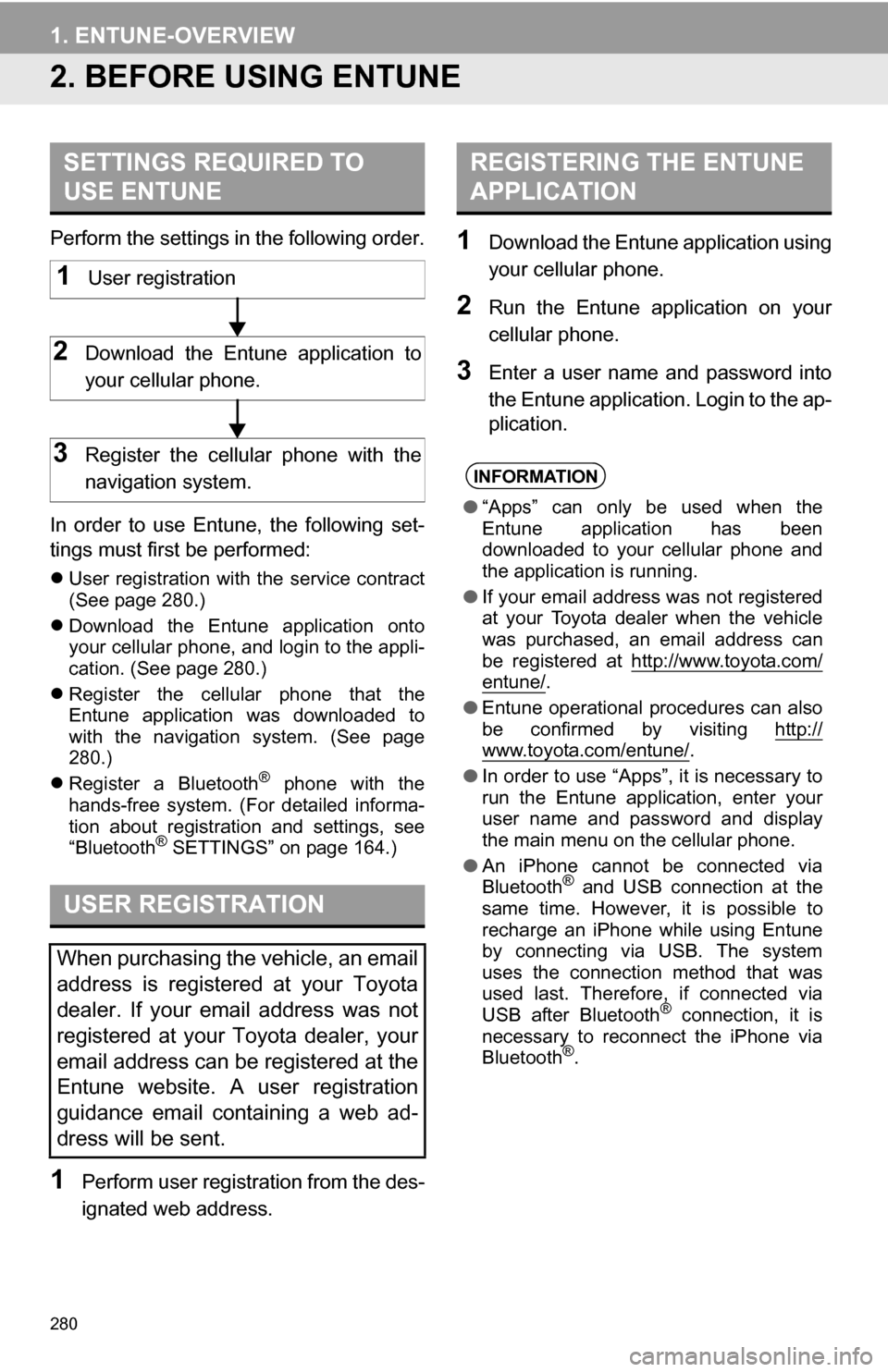
Perform the settings in the following order.
In order to use Entune, the following set-
tings must first be performed:
User registration with the service contract
(See page 280.)
Download the Entune application onto
your cellular phone, and login to the appli-
cation. (See page 280.)
Register the cellular phone that the
Entune application was downloaded to
with the navigation system. (See page
280.)
Register a Bluetooth
® phone with the
hands-free system. (For detailed informa-
tion about registration and settings, see
“Bluetooth
® SETTINGS” on page 164.)
1Perform user registration from the des-
ignated web address.
1Download the Entune application using
your cellular phone.
2Run the Entune application on your
cellular phone.
3Enter a user name and password into
the Entune application. Login to the ap-
plication.
SETTINGS REQUIRED TO
USE ENTUNE
USER REGISTRATION
When purchasing the vehicle, an email
address is registered at your Toyota
dealer. If your email address was not
registered at your Toyota dealer, your
email address can be registered at the
Entune website. A user registration
guidance email containing a web ad-
dress will be sent.
1User registration
2Download the Entune application to
your cellular phone.
3Register the cellular phone with the
navigation system.
REGISTERING THE ENTUNE
APPLICATION
INFORMATION
● “Apps” can only be used when the
Entune application has been
downloaded to your cellular phone and
the application is running.
● If your email address was not registered
at your Toyota dealer when the vehicle
was purchased, an email address can
be registered at http://www.toyota.com/
entune/.
● Entune operational procedures can also
be confirmed by visiting http://
www.toyota.com/entune/.
● In order to use “Apps”, it is necessary to
run the Entune application, enter your
user name and password and display
the main menu on the cellular phone.
● An iPhone cannot be connected via
Bluetooth
® and USB connection at the
same time. However, it is possible to
recharge an iPhone while using Entune
by connecting via USB. The system
uses the connection method that was
used last. Therefore, if connected via
USB after Bluetooth
® connection, it is
necessary to reconnect the iPhone via
Bluetooth
®.
Page 283 of 336
283
2. ENTUNE OPERATION
8
APPS
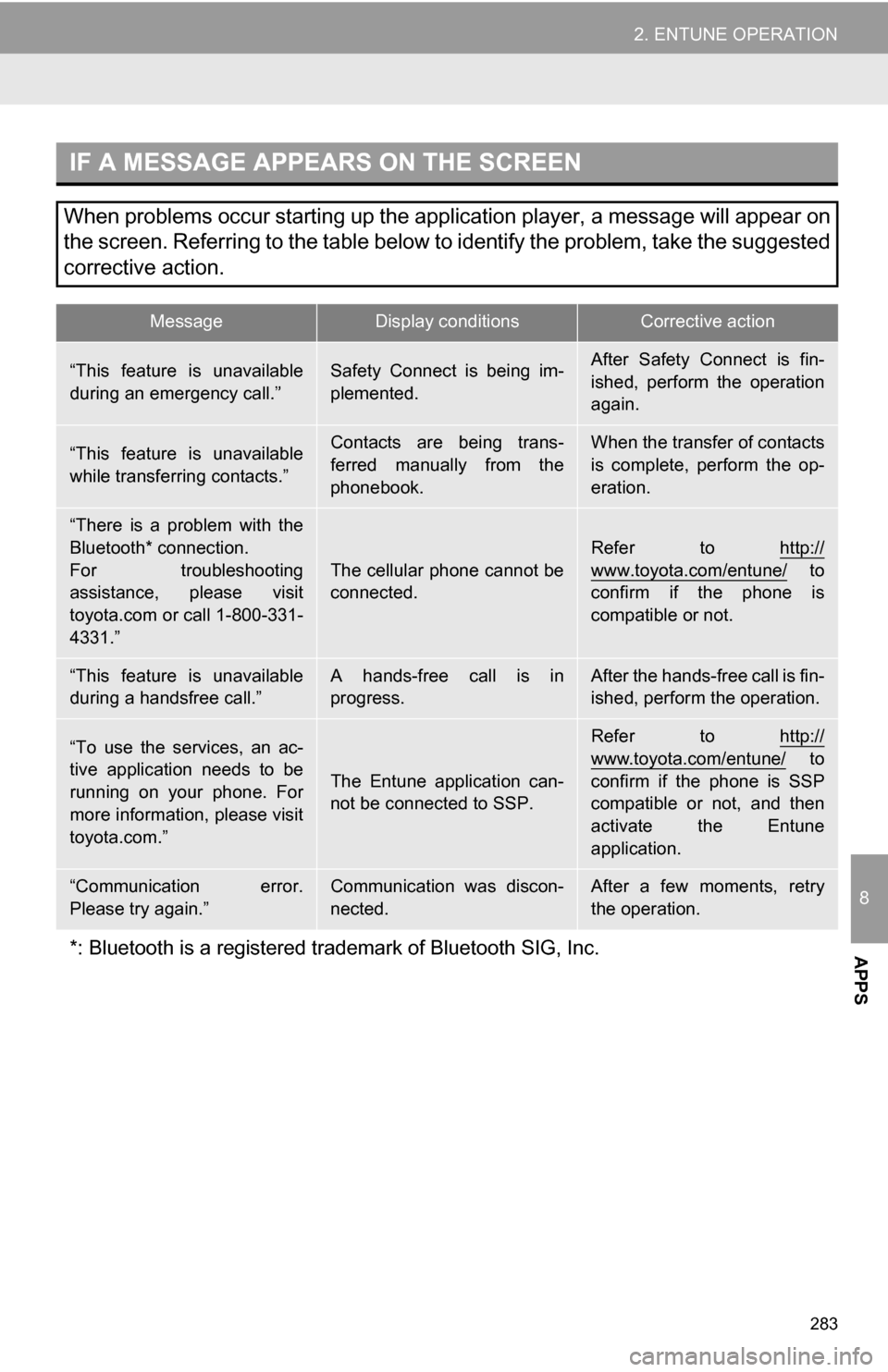
IF A MESSAGE APPEARS ON THE SCREEN
When problems occur starting up the application player, a message will appear on
the screen. Referring to the table below to identify the problem, take the suggested
corrective action.
MessageDisplay conditionsCorrective action
“This feature is unavailable
during an emergency call.”Safety Connect is being im-
plemented.After Safety Connect is fin-
ished, perform the operation
again.
“This feature is unavailable
while transferring contacts.”Contacts are being trans-
ferred manually from the
phonebook.When the transfer of contacts
is complete, perform the op-
eration.
“There is a problem with the
Bluetooth* connection.
For troubleshooting
assistance, please visit
toyota.com or call 1-800-331-
4331.”
The cellular phone cannot be
connected.
Refer to http://
www.toyota.com/entune/ to
confirm if the phone is
compatible or not.
“This feature is unavailable
during a handsfree call.”A hands-free call is in
progress.After the hands-free call is fin-
ished, perform the operation.
“To use the services, an ac-
tive application needs to be
running on your phone. For
more information, please visit
toyota.com.”
The Entune application can-
not be connected to SSP.
Refer to http://
www.toyota.com/entune/ to
confirm if the phone is SSP
compatible or not, and then
activate the Entune
application.
“Communication error.
Please try again.”Communication was discon-
nected.After a few moments, retry
the operation.
*: Bluetooth is a registered tr ademark of Bluetooth SIG, Inc.
Page 285 of 336
285
2. ENTUNE OPERATION
8
APPS
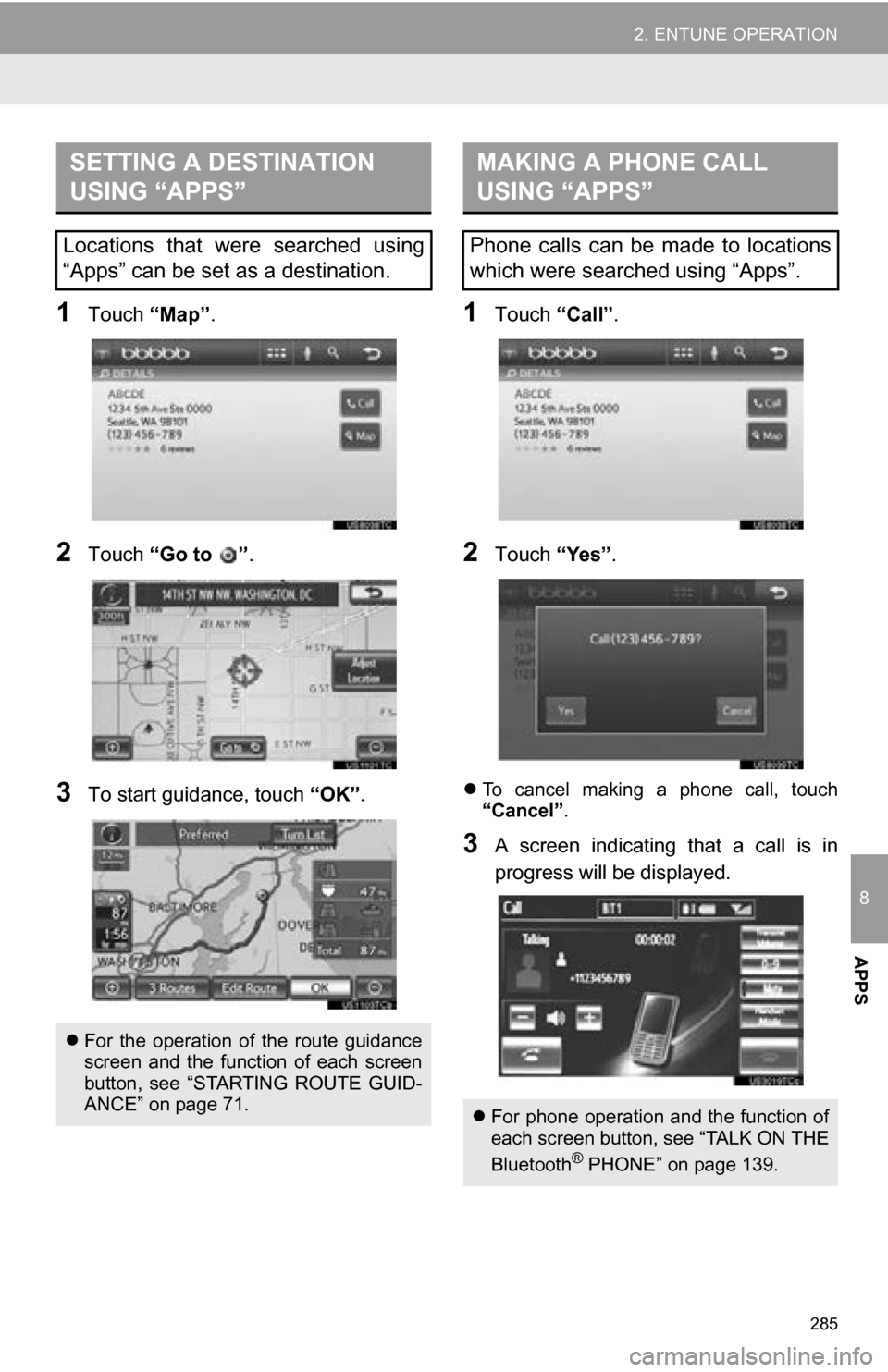
1Touch “Map”.
2Touch “Go to ” .
3To start guidance, touch “OK”.
1Touch “Call”.
2Touch “Yes”.
To cancel making a phone call, touch
“Cancel” .
3A screen indicating that a call is in
progress will be displayed.
SETTING A DESTINATION
USING “APPS”
Locations that were searched using
“Apps” can be set as a destination.
For the operation of the route guidance
screen and the function of each screen
button, see “STARTING ROUTE GUID-
ANCE” on page 71.
MAKING A PHONE CALL
USING “APPS”
Phone calls can be made to locations
which were searched using “Apps”.
For phone operation and the function of
each screen button, see “TALK ON THE
Bluetooth
® PHONE” on page 139.
Page 286 of 336
286
2. ENTUNE OPERATION
3. INPUTTING KEYWORD OPERATION
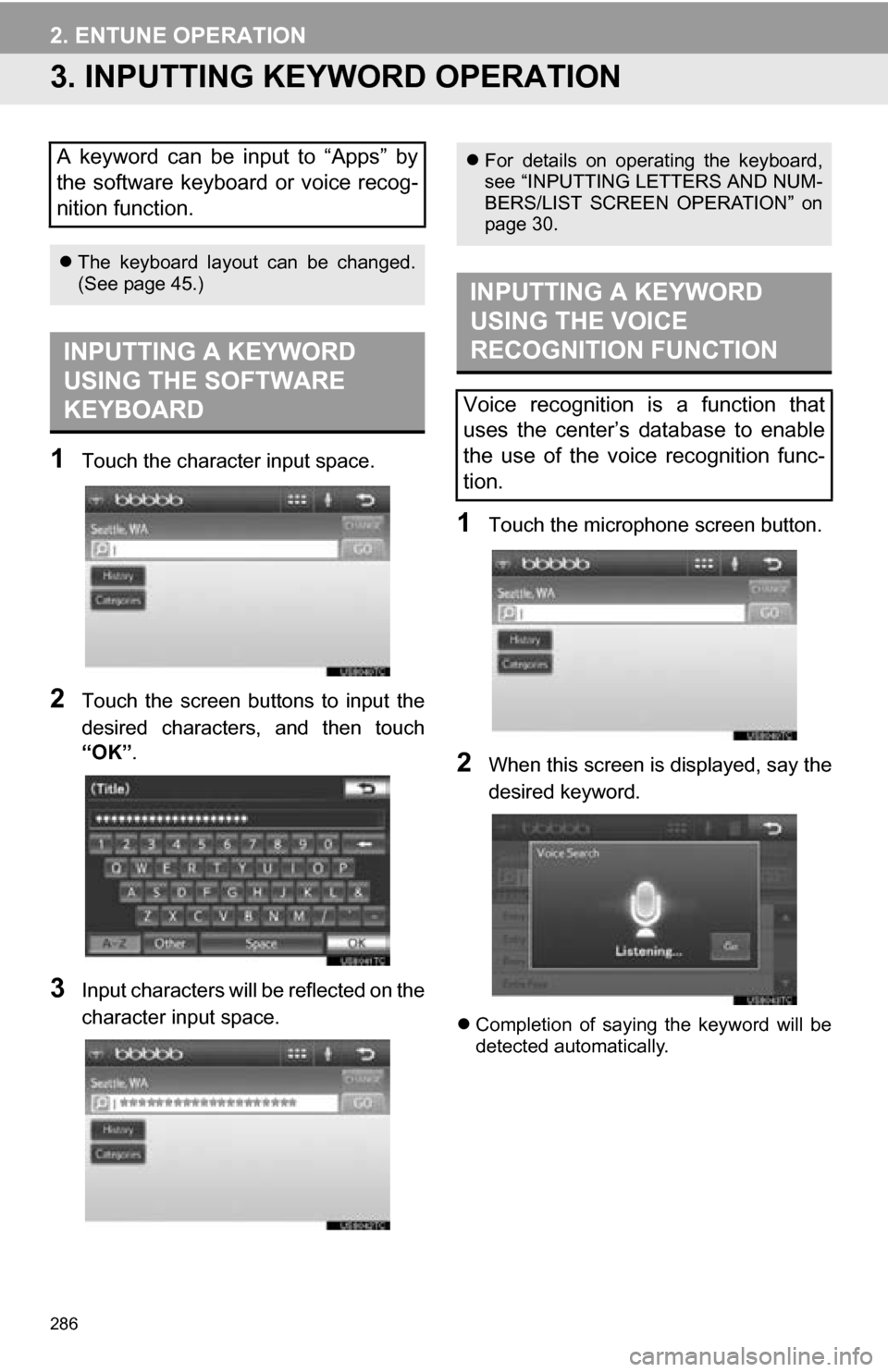
1Touch the character input space.
2Touch the screen buttons to input the
desired characters, and then touch
“OK”.
3Input characters will be reflected on the
character input space.
1Touch the microphone screen button.
2When this screen is displayed, say the
desired keyword.
Completion of saying the keyword will be
detected automatically.
A keyword can be input to “Apps” by
the software keyboard or voice recog-
nition function.
The keyboard layout can be changed.
(See page 45.)
INPUTTING A KEYWORD
USING THE SOFTWARE
KEYBOARD
For details on operating the keyboard,
see “INPUTTING LETTERS AND NUM-
BERS/LIST SCREEN OPERATION” on
page 30.
INPUTTING A KEYWORD
USING THE VOICE
RECOGNITION FUNCTION
Voice recognition is a function that
uses the center’s database to enable
the use of the voice recognition func-
tion.
Page 302 of 336

302
ALPHABETICAL INDEX
A
Adding destinations.................................. 81
Address book ............................................ 96
Address book entries ................................ 96
AM........................................................... 183
Apps ........................................................ 278
Audio ....................................................... 176
Audio language code .............................. 208
Audio settings ........................................ 241HD Radio system settings .. ............. 241
iPod settings ........................................ 242
Audio/video remote controls (steering switches) ............................. 231
Audio/video system ......... ..................... ... 176
Audio/video system operating hints ....... 232 Caring for your DVD player and disc .......................................... 233
CD-R and CD-RW discs ..................... 237
iPod .................................................... 233
MP3/WMA files ................................... 236
Radio reception .................................. 232
Terms ................................................. 238
USB memory ...................................... 233
Automatic Sound Levelizer (ASL) ........... 180
AUX port ................................................ 182
B
Basic function............................................ 28
Bluetooth®............................................... 120
Bluetooth® audio ..................................... 223
Connecting a Bluetooth®
audio player .................................... 226
Playing Bluetooth
® audio ................... 227
Bluetooth® phone.................................... 127
Bluetooth® phone message function ..... 142
Checking messages ........................... 142
New message notification .................. 144
Replying (quick reply) ......................... 143
Bluetooth
® settings ................................ 164
Detailed Bluetooth® settings .............. 170 Registered devices ............................. 164
Selecting a Bluetooth
® phone ............ 167
Selecting portable player .................... 169
Brightness .........................................33, 206
C
Call on the Bluetooth® phone................. 131
By call history ..................................... 133
By dial ................................................. 131
By phonebook..................................... 131
By POI call .......................................... 137
By speed dial ...................................... 133
By voice recognition ........................... 134
Calling using an SMS/MMS message ......................................... 136
CD ...........................................................196
CLOSE button .........................................176
Color..................................................45, 206
Command list ......................................... 252
Contrast.............................................33, 206
Current position calibration .....................109
Current position display............................ 34
D
Deleting destinations ................................ 82
Deleting personal data ..............................49
Deleting previous destinations ............... 104
Deleting set destinations .......................... 69
DEST button..............................................10
“Destination” screen ................................. 20
Destination search ................................... 56 By home ............................................... 57
By preset destinations .......................... 57
By “Address Book”................................ 66
By “Address” ......................................... 58
By “Coordinates”................................... 69
By “Emergency” .................................... 66
By “Intersection & Freeway” ................. 67
By “Map” ............................................... 69
By “Point of Interest” ............................. 60
Page 304 of 336

304
ALPHABETICAL INDEX
P
Pausing guidance .................................... 86
Peripheral monitoring system ................. 290
Phone...................................................... 120
Phone (hands-free system for cellular phone) .................................... 122
About the phonebook in this system .......... .................................. 124
Using the phone switch ...................... 123
Using the steering switches................ 124
When selling or disposing of the vehicle....................................... 124
PHONE button ........................................ 120
Phone settings ....................................... 145 Message settings ............................... 158
Phone display settings ....................... 161
Phone sound settings ......................... 145
Phonebook ......................................... 146
Phonebook...................................... 131, 146
POI call ................................................... 137
POI icons .................................................. 87
Point of Interest ......................................... 60
Preset destinations ............................. 14, 57
Previous destinations ................................ 65
PWR VOL knob....................................... 176
Q
Quick guide ............................................... 10
Quick reference............................... 120, 176
R
Radio...................................................... 183 Listening to the radio .......................... 183
Presetting a station............................. 183
Radio broadcast data system ............. 184
Selecting a station .............................. 184
Traffic announcement......................... 185
Radio broadcast data system ................. 184
RADIO button.......................................... 176
Rear view monitor system ...................... 290 Receive on the Bluetooth
® phone .......... 138
Register a Bluetooth® phone ................. 127
Connecting a Bluetooth® phone ......... 128
Reconnecting the Bluetooth®
phone .............................................. 130
Registering home ..................................... 12
Registering preset destinations ................ 14
Reordering destinations ........................... 81
Resuming guidance ................................. 86
Route guidance .........................................71
Route guidance screen ............................ 74
Route overview ........................................ 84
Route preference ..................................... 85
Route trace............................................... 90
S
Satellite radio (SAT) ................................179
Screen adjustment ................................... 32
Screen Off .................................................32
Screen scroll operation ............................ 34
Screen settings adjustment ...................... 32
Screens for navigation settings ................ 91
SEEK/TRACK button ..............................176
Setting home as the destination ............... 17
Setting up the “Address Book” ................. 96
Setting up the “Areas to Avoid” .............. 100
Setting up the “Home” .............................. 91
Setting up the “Preset Destinations” ........ 93
SETUP button ...................................10, 176
“Setup” screen.......................................... 22
Show on map ........................................... 87
SMS/MMS message .......................136, 142
Speed dial ...............................................133
Standard map icons ................................. 41
Starting route guidance ............................ 71
Steering switches ....................124, 231, 244
Surround .................................................180
Switching the screens .............................. 38
Page 305 of 336
305
T
Talk on the Bluetooth® phone................ 139
Incoming call waiting .......................... 141
Time zone ................................................. 43
Tire change calibration ........................... 109
Tone........................................................ 206
Tone and balance .................................. 180
Touch screen operation ........................... 29
Traffic incidents....................................... 272
TUNE SCROLL knob .............................. 176
Typical voice guidance prompts .............. 77
U
USB memory ......................................... 214 Connecting a USB memory................ 214
Playing a USB memory ...................... 215
USB port ................................................ 182
V
Vehicle settings...................................... 112 Maintenance....................................... 112
Vehicle customization ........................ 116
Voice command system................. 178, 244 Steering switches for the voice command system ........................... 244
Voice recognition ................................... 134
Voice settings .......................................... 51
Voice volume ............................................ 51
W
WMA ....................................... 199, 236, 238
X
XM Fuel Prices ...................................... 266 Show XM Fuel Prices information ...... 266
View detailed fuel price information ... 266
XM Fuel Prices settings ..................... 267 XM NavTraffic
®...................................... 272
Show traffic event ............................... 272
Show XM NavTraffic
® information...... 273
XM NavWeather™ ................................. 269 Show XM NavWeather™ information ...................................... 269
Weather information ........................... 270
Weather warnings .............................. 271
XM NavWeather™ indicator ............... 271
XM Satellite Radio broadcast................. 190
Channel category ............................... 191
Displaying the radio ID ....................... 190
Displaying the title and name ............. 192
How to subscribe to an XM Satellite Radio................................. 190
If the satellite radio tuner malfunctions.................................... 193
Listening to satellite radio ................... 191
Presetting a channel........................... 191
Selecting a channel ............................ 192
XM Sports .............................................. 261
Receive sports information ................. 261
XM Sports settings ............................. 262
XM Stocks .............................................. 264
Receive stock data ............................. 264
XM Stocks settings ............................. 264
Z
Zoom in button .......................................... 10
Zoom out button ........................................ 10