API SN TOYOTA CAMRY 2022 User Guide
[x] Cancel search | Manufacturer: TOYOTA, Model Year: 2022, Model line: CAMRY, Model: TOYOTA CAMRY 2022Pages: 664, PDF Size: 11.3 MB
Page 334 of 664
3344-5. Using the driving support systems
CAMRY_U
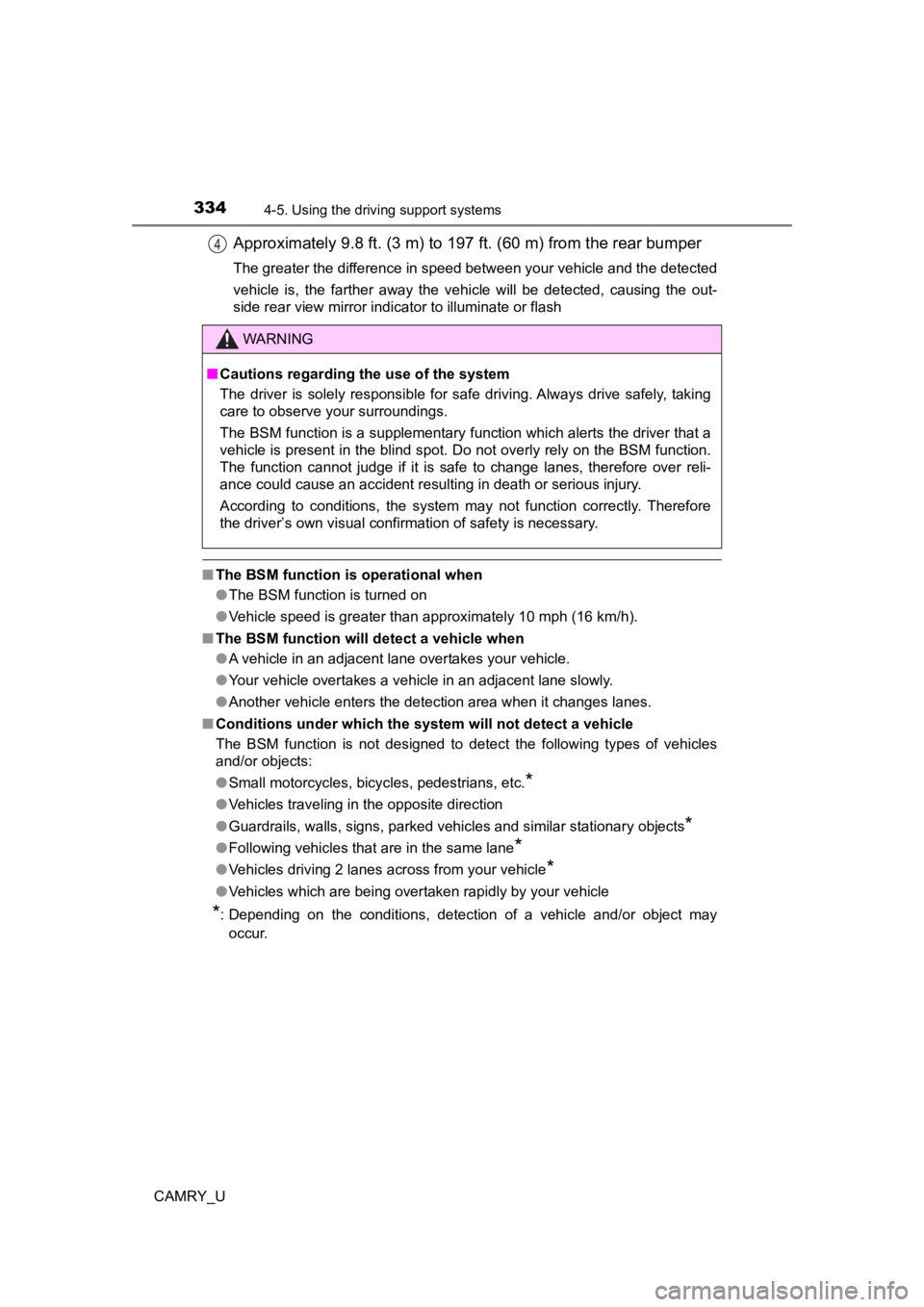
Approximately 9.8 ft. (3 m) to 19 7 ft. (60 m) from the rear bumper
The greater the difference in speed between your vehicle and the detected
vehicle is, the farther away the vehicle will be detected, causing the out-
side rear view mirror indicator to illuminate or flash
■The BSM function is operational when
●The BSM function is turned on
● Vehicle speed is greater than approximately 10 mph (16 km/h).
■ The BSM function will detect a vehicle when
●A vehicle in an adjacent lane overtakes your vehicle.
● Your vehicle overtakes a vehicle in an adjacent lane slowly.
● Another vehicle enters the detection area when it changes lanes.
■ Conditions under which the system will not detect a vehicle
The BSM function is not designed to detect the following types of vehicles
and/or objects:
● Small motorcycles, bicycles, pedestrians, etc.
*
●Vehicles traveling in the opposite direction
● Guardrails, walls, signs, parked vehicles and similar stationary objects
*
●Following vehicles that are in the same lane*
●Vehicles driving 2 lanes across from your vehicle*
●Vehicles which are being overtaken rapidly by your vehicle
*: Depending on the conditions, detection of a vehicle and/or object may
occur.
4
WARNING
■ Cautions regarding the use of the system
The driver is solely responsible for safe driving. Always drive safely, taking
care to observe your surroundings.
The BSM function is a supplementary function which alerts the driver that a
vehicle is present in the blind spot. Do not overly rely on the BSM function.
The function cannot judge if it is safe to change lanes, theref ore over reli-
ance could cause an accident resulting in death or serious inju r y.
According to conditions, the system may not function correctly. Therefore
the driver’s own visual confirmation of safety is necessary.
Page 421 of 664
4215-4. Other interior features
CAMRY_U
5
Interior features
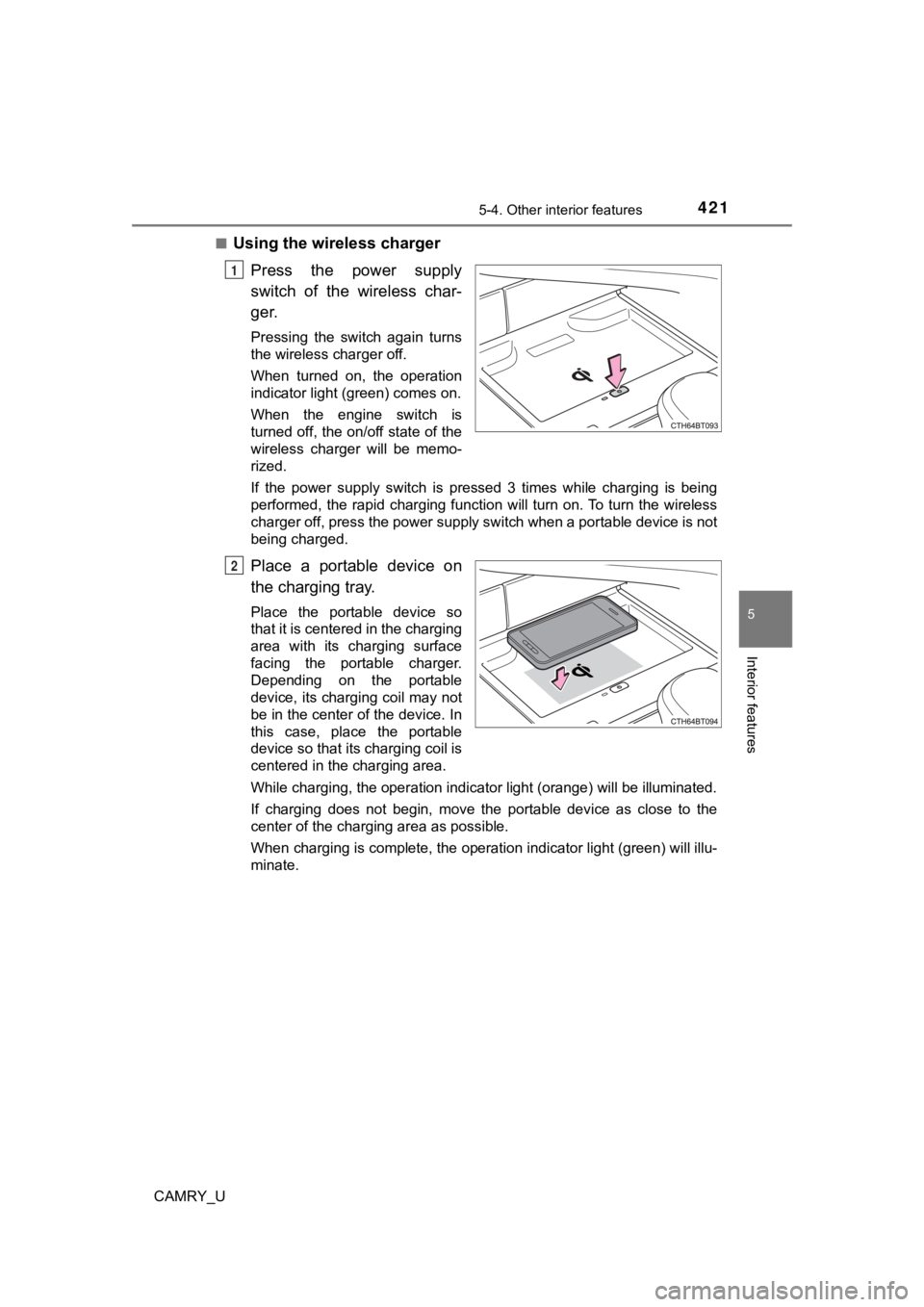
■Using the wireless charger
Press the power supply
switch of the wireless char-
ger.
Pressing the switch again turns
the wireless charger off.
When turned on, the operation
indicator light (green) comes on.
When the engine switch is
turned off, the on/off state of the
wireless charger will be memo-
rized.
If the power supply switch is pressed 3 times while charging is being
performed, the rapid charging function will turn on. To turn th e wireless
charger off, press the power supply switch when a portable devi ce is not
being charged.
Place a portable device on
the charging tray.
Place the portable device so
that it is centered in the charging
area with its charging surface
facing the portable charger.
Depending on the portable
device, its charging coil may not
be in the center of the device. In
this case, place the portable
device so that its charging coil is
centered in the charging area.
While charging, the operation indicator light (orange) will be illuminated.
If charging does not begin, move the portable device as close t o the
center of the charging area as possible.
When charging is complete, the operation indicator light (green ) will illu-
minate.
1
2
Page 422 of 664

4225-4. Other interior features
CAMRY_U■
Recharging function
●
If a certain amount of time has elapsed since charging complete d
and the portable device has not been moved, the wireless char-
ger will restart charging.
● If a portable device is moved significantly within the charging
area, the charging coil may disconnect and charging may tempo-
rarily be stopped. However, if a charging coil is detected within
the charging area, the charging coil inside the wireless charge r
will move near the other coil and charging will resume.
■Rapid charging function
●Portable devices, such as the fo llowing, can be rapidly charged.
• Rapid charging capable devices which conform to WPC Ver 1.2.4.
• 7.5 W charging capable iPhones (iPhone 8 and later)
●To turn the rapid charging function on, press the power supply
switch 3 times while charging is being performed. If rapid
charging is possible, the operation indicator will change from illu-
minated (orange) to alternating between (green) and (orange).
● When charging is finished, the rapid charging function will tur n
off. To perform rapid charging again, turn the rapid charging f unc-
tion back on.
Page 423 of 664
4235-4. Other interior features
CAMRY_U
5
Interior features
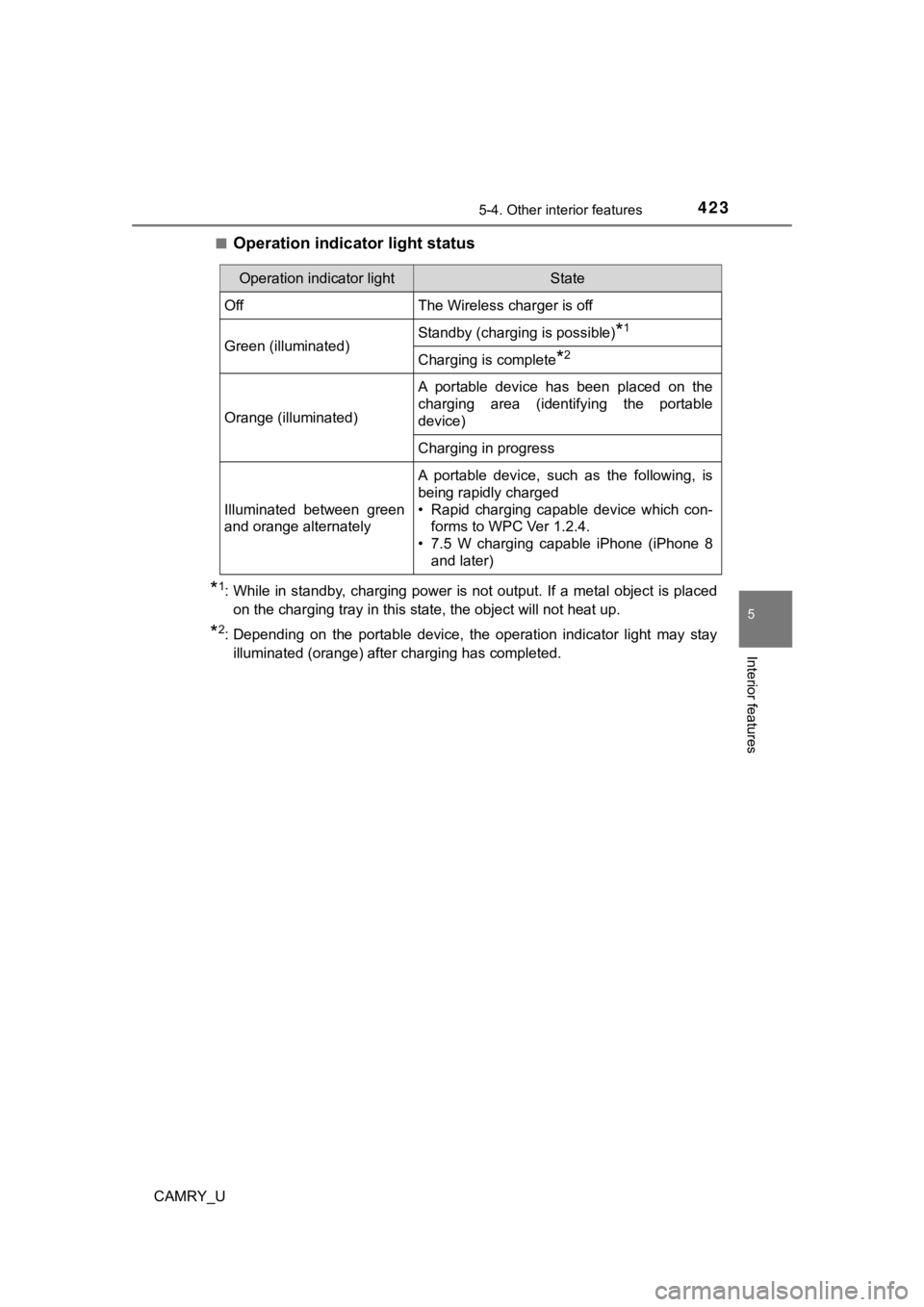
■Operation indicator light status
*1: While in standby, charging power is not output. If a metal obj ect is placed
on the charging tray in this state, the object will not heat up .
*2: Depending on the portable device, the operation indicator ligh t may stay
illuminated (orange) after charging has completed.
Operation indicator lightState
OffThe Wireless charger is off
Green (illuminated)Standby (charging is possible)*1
Charging is complete*2
Orange (illuminated)
A portable device has been placed on the
charging area (identifying the portable
device)
Charging in progress
Illuminated between green
and orange alternately
A portable device, such as the following, is
being rapidly charged
• Rapid charging capable device which con- forms to WPC Ver 1.2.4.
• 7.5 W charging capable iPhone (iPhone 8 and later)
Page 425 of 664
4255-4. Other interior features
CAMRY_U
5
Interior features
■The wireless charger can be operated when
The engine switch is in ACCESSORY or IGNITION ON mode.
■ Portable devices that can be charged
●Portable devices compatible with the Qi wireless charging stand ard can be
charged by the wireless charger. However, compatibility with all devices
which meet the Qi wireless charging standard is not guaranteed.
● The wireless charger is designed to supply low power electricit y (5 W or
less) to a cellular phone, smartphone, or other portable device .
● However, portable devices, such as the following, can be charge d with more
than 5 W.
• 7.5 W charging compatible iPhones can be charged at 7.5 W or l ess.
• Portable devices which conform to WPC Ver 1.2.4 can be charged at 10
W or less.
■ Using the smart key system
During charging, when the smart key system searches for an elec tronic key,
charging may be temporarily suspended.
■ If a cover or accessory is attached to the portable device
Do not charge a portable device if a cover or accessory which i s not Qi com-
patible is attached. Depending on the type of cover and/or acce ssory
attached, it may not be possible to charge the portable device. If the portable
device is placed on the charging area and does not charge, remo ve the cover
and/or accessories.
■ If interference is heard in AM ra dio broadcasts while charging
● Turn off the wireless charger and check if the noise is reduced . If noise is
reduced, press and hold the power supply switch of the wireless charger for
2 seconds. The frequency of the wireless charger is changed and noise may
be reduced. When the frequency is changed, the operation indica tor light
will blink (orange) 2 times.
● Rapid charging for iPhones is performed using a specific radio wave fre-
quency.
Depending on the version of iOS installed, while the frequency is being
changed, rapid charging may not be performed.
■ Charging precautions
While charging, the wireless charger and the portable device wi ll become
warm. This is not a malfunction.
If a portable device becomes warm while charging and charging stops due to
the protection function of the portable device, wait until the portable device
cools down and charge it again.
Also, to decrease the temperature inside the wireless charger, a fan may
operate. This does not indicate a malfunction.
Page 429 of 664
4295-4. Other interior features
CAMRY_U
5
Interior features
NOTICE
■To prevent failure or damage to data
● Do not place magnetic cards, such as a credit card, or magnetic recording
media, close to the wireless charger while charging. Otherwise, data may
be erased due to the influence of magnetism.
Additionally, do not bring precision instruments such as wrist watches,
close to the wireless charger, as such objects may malfunction.
● Do not perform charging with a contactless smart card, such as a credit
card, between the charging surface of a portable device and the charging
area. The IC chip in the card may become extremely hot, possibl y damag-
ing the portable device or smart card.
Be extra careful to not charge a portable device with a case or cover which
a contactless smart card can be inserted.
● Do not leave portable devices in the cabin. The temperature ins ide the
cabin may become high when parked in the sun, and cause damage to the
device.
■ When the OS of a smartphone has been updated
When the OS version of a smartphone has been changed, the charg ing
specifications may have changed. If the WPC compatibility version is
changed, the rapid charging function may no longer be able to be used. For
details, check for information on the website for the smartphone manufac-
turer.
■ To prevent battery discharge
Do not use the wireless charger for a long period of time with the engine
stopped.
Page 434 of 664
4345-4. Other interior features
CAMRY_U■
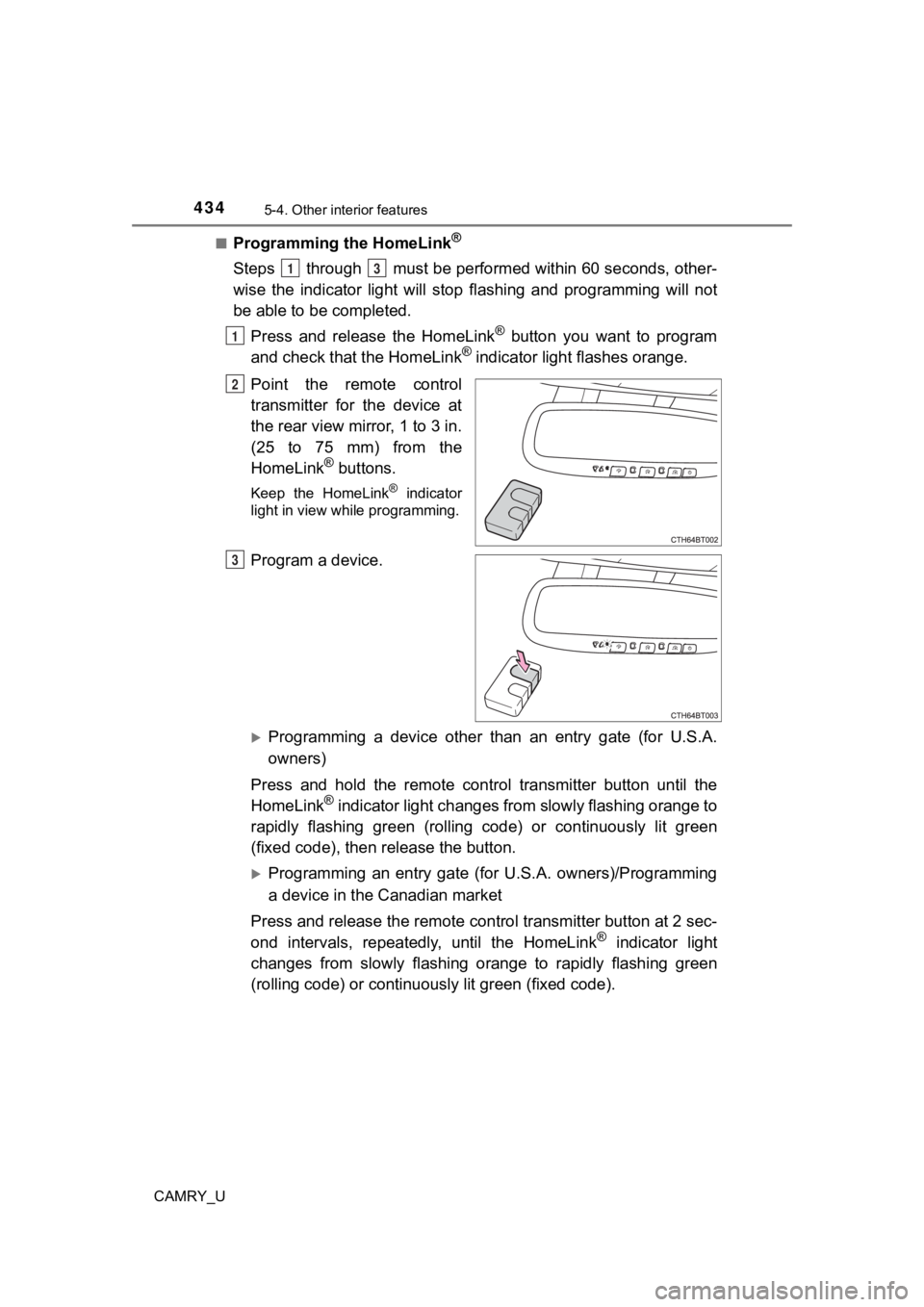
Programming the HomeLink®
Steps through must be perfo
rmed within 60 seconds, other-
wise the indicator light will st op flashing and programming wil l not
be able to be completed.
Press and release the HomeLink
® button you want to program
and check that the HomeLink® indicator light flashes orange.
Point the remote control
transmitter for the device at
the rear view mirror, 1 to 3 in.
(25 to 75 mm) from the
HomeLink
® buttons.
Keep the HomeLink® indicator
light in view while programming.
Program a device.
Programming a device other than an entry gate (for U.S.A.
owners)
Press and hold the remote control transmitter button until the
HomeLink
® indicator light changes from slowly flashing orange to
rapidly flashing gre en (rolling code) or continuously lit green
(fixed code), then release the button.
Programming an entry gate (for U.S.A. owners)/Programming
a device in the Canadian market
Press and release the remote con trol transmitter button at 2 sec-
ond intervals, repeatedly, until the HomeLink
® indicator light
changes from slowly flashing orange to rapidly flashing green
(rolling code) or continuous ly lit green (fixed code).
13
1
2
3
Page 435 of 664
4355-4. Other interior features
CAMRY_U
5
Interior features
Test the HomeLink® operation by pressing the newly pro-
grammed button and observi ng the indicator light:
● Indicator light illuminates: Progr amming of a fixed code device
has completed. The garage door or other device should operate
when a HomeLink
® button is pressed and released.
● Indicator light flashes rapidly: The garage door opener motor o r
other device is equipped with a rolling code. To complete pro-
gramming, firmly press and hold the HomeLink
® button for 2 sec-
onds then release it.
● If the garage door or other device does not operate, proceed to
“Programming a rol ling code system”.
Repeat the steps above to program another device for any of the
remaining HomeLink
® buttons.
■Programming a rolling code system
2 or more people may be necessary to complete rolling code pro-
gramming.
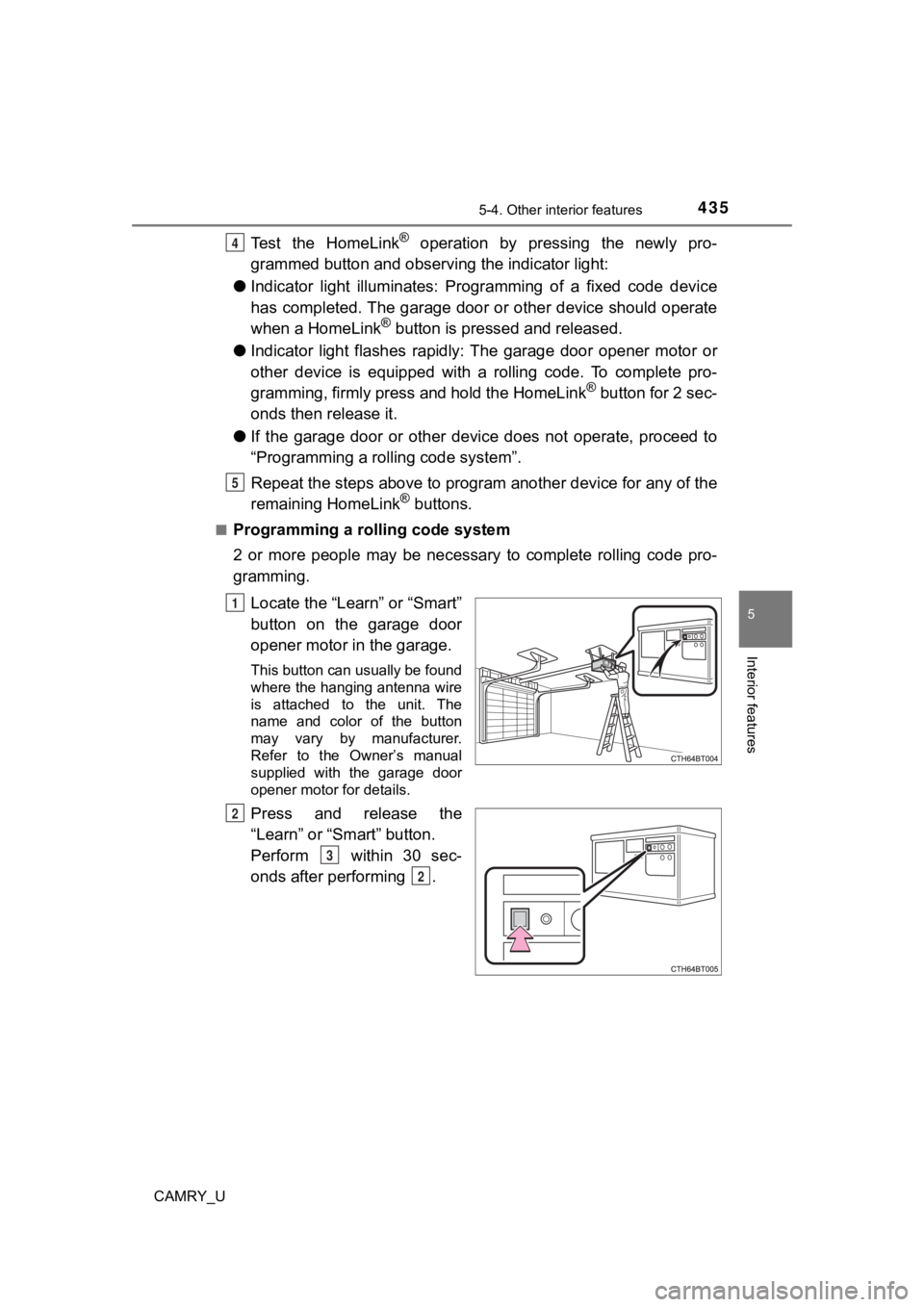
Locate the “Learn” or “Smart”
button on the garage door
opener motor in the garage.
This button can usually be found
where the hanging antenna wire
is attached to the unit. The
name and color of the button
may vary by manufacturer.
Refer to the Owner’s manual
supplied with the garage door
opener motor for details.
Press and release the
“Learn” or “Smart” button.
Perform within 30 sec-
onds after performing .
4
5
1
2
3
2
Page 436 of 664
4365-4. Other interior features
CAMRY_U
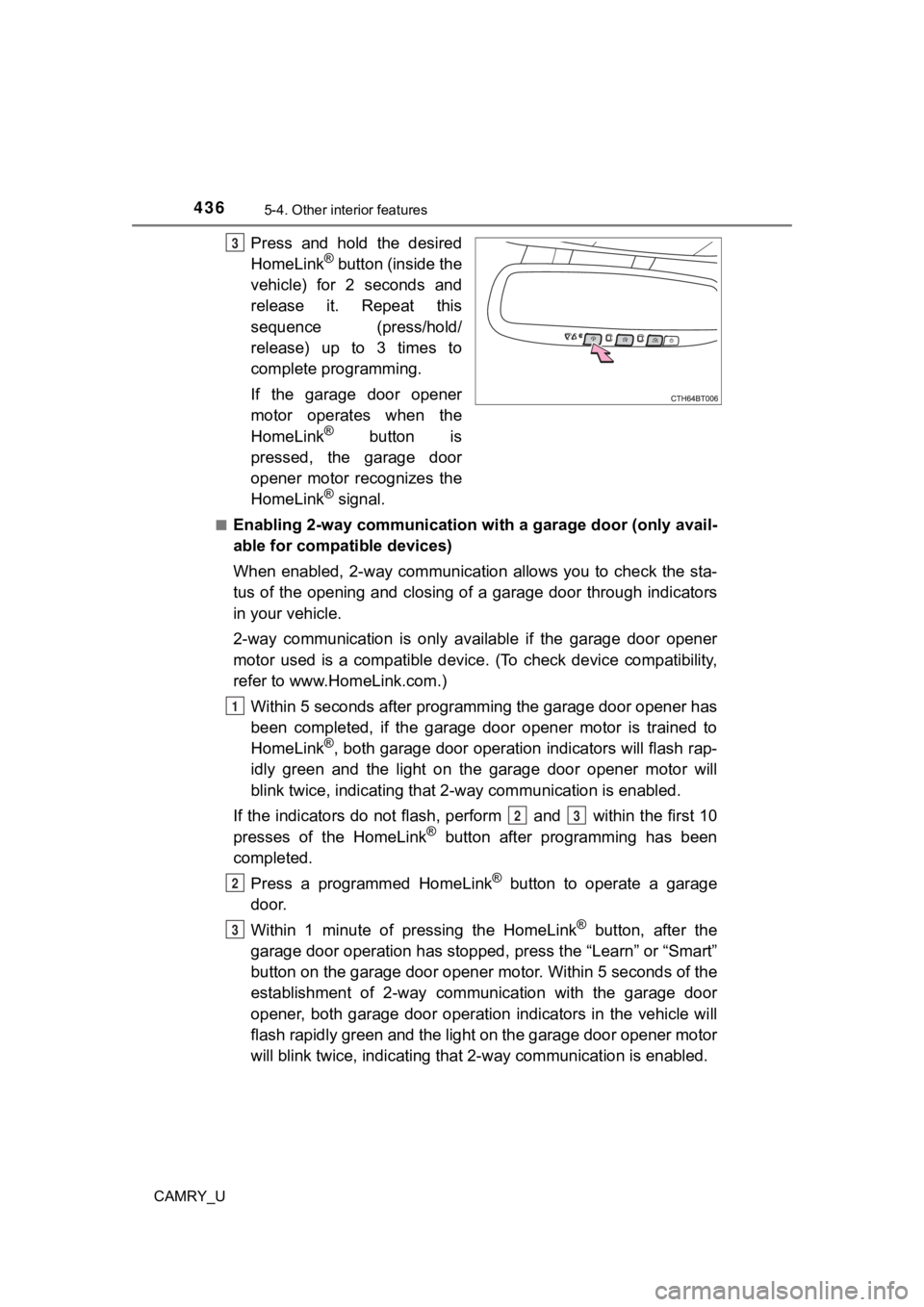
Press and hold the desired
HomeLink® button (inside the
vehicle) for 2 seconds and
release it. Repeat this
sequence (press/hold/
release) up to 3 times to
complete programming.
If the garage door opener
motor operates when the
HomeLink
® button is
pressed, the garage door
opener motor recognizes the
HomeLink
® signal.
■Enabling 2-way communication with a garage door (only avail-
able for compatible devices)
When enabled, 2-way communication allows you to check the sta-
tus of the opening and closing of a garage door through indicat ors
in your vehicle.
2-way communication is only available if the garage door opener
motor used is a compatible device. (To check device compatibility,
refer to www.HomeLink.com.)
Within 5 seconds after programming the garage door opener has
been completed, if the garage door opener motor is trained to
HomeLink
®, both garage door operation indicators will flash rap-
idly green and the light on the garage door opener motor will
blink twice, indicating that 2 -way communication is enabled.
If the indicators do not flash, perform and within the first 10
presses of the HomeLink
® button after programming has been
completed.
Press a programmed HomeLink
® button to operate a garage
door.
Within 1 minute of pressing the HomeLink
® button, after the
garage door operation has stopped, press the “Learn” or “Smart”
button on the garage door opener motor. Within 5 seconds of the
establishment of 2-way commu nication with the garage door
opener, both garage door operation indicators in the vehicle wi ll
flash rapidly green and the light on the garage door opener mot or
will blink twice, indicating that 2- way communication is enabled.
3
1
23
2
3
Page 438 of 664
4385-4. Other interior features
CAMRY_U
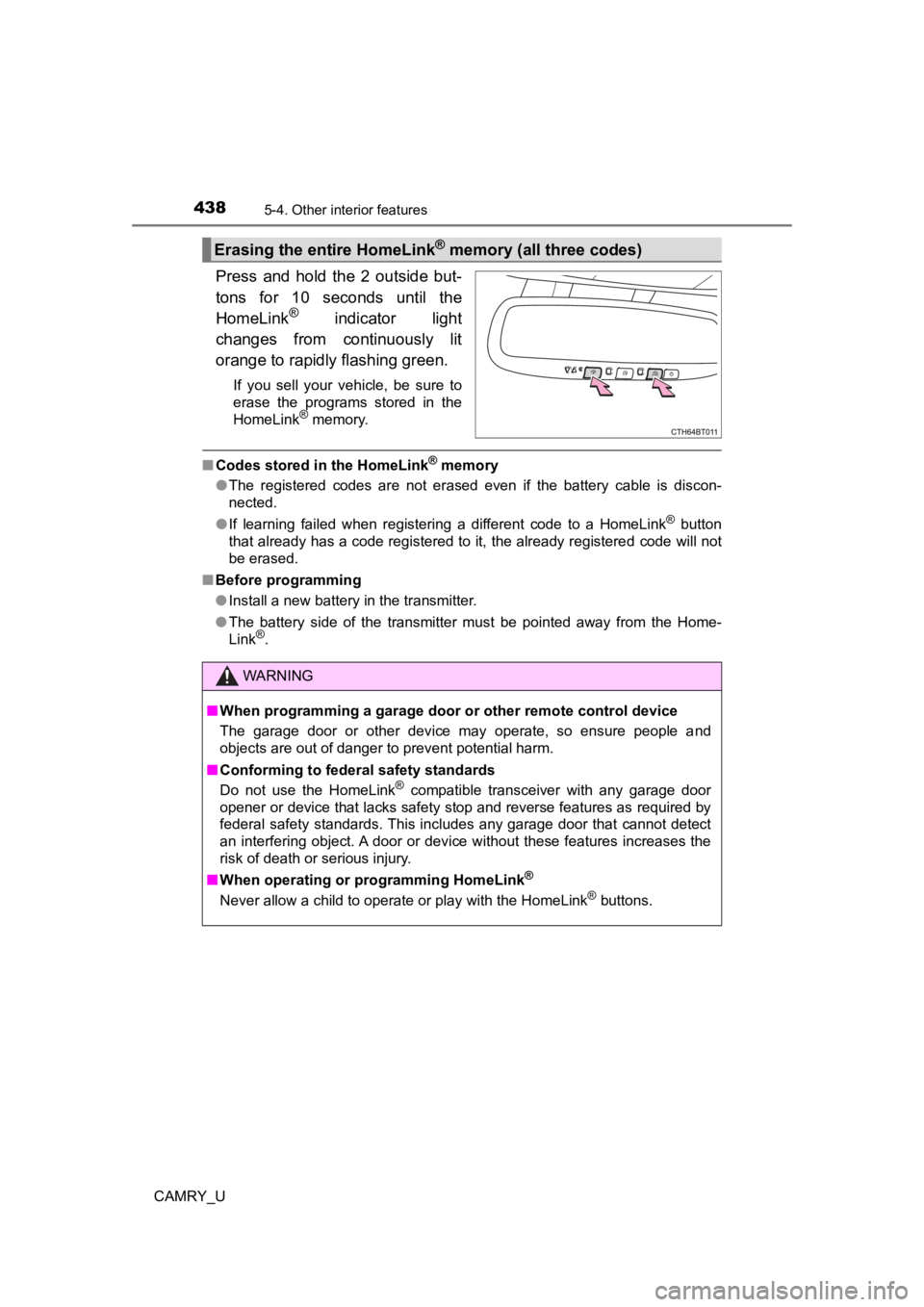
Press and hold the 2 outside but-
tons for 10 seconds until the
HomeLink
® indicator light
changes from continuously lit
orange to rapidly flashing green.
If you sell your vehicle, be sure to
erase the programs stored in the
HomeLink
® memory.
■ Codes stored in the HomeLink® memory
● The registered codes are not erased even if the battery cable is discon-
nected.
● If learning failed when registering a different code to a HomeLink
® button
that already has a code registered to it, the already registere d code will not
be erased.
■ Before programming
●Install a new battery in the transmitter.
● The battery side of the transmitter must be pointed away from the Home-
Link
®.
Erasing the entire HomeLink® memory (all three codes)
WARNING
■When programming a garage door or other remote control device
The garage door or other device may operate, so ensure people a nd
objects are out of danger to prevent potential harm.
■ Conforming to federal safety standards
Do not use the HomeLink
® compatible transceiver with any garage door
opener or device that lacks safety stop and reverse features as required by
federal safety standards. This includes any garage door that cannot detect
an interfering object. A door or device without these features increases the
risk of death or serious injury.
■ When operating or programming HomeLink
®
Never allow a child to operate or play with the HomeLink® buttons.