TOYOTA COROLLA 2012 10.G Workshop Manual
COROLLA 2012 10.G
TOYOTA
TOYOTA
https://www.carmanualsonline.info/img/14/6329/w960_6329-0.png
TOYOTA COROLLA 2012 10.G Workshop Manual
Page 273 of 529
273
3-2. Using the audio system
3
Interior features
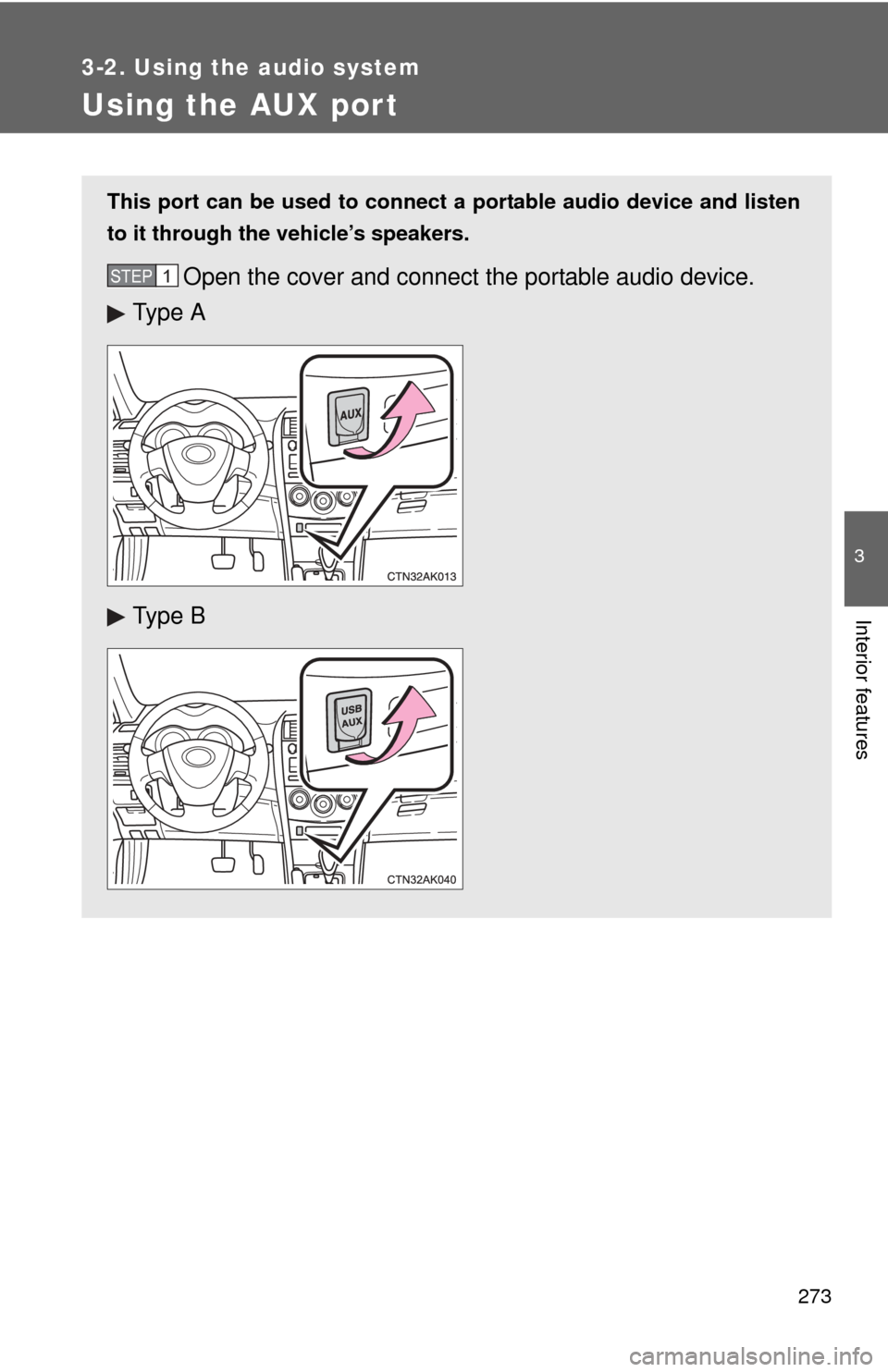
Using the AUX port
This port can be used to connect a portable audio device and listen
to it through the vehicle’s speakers.
Open the cover and connect the portable audio device.
Ty p e A
Ty p e BSTEP 1
Page 275 of 529
275
3-2. Using the audio system
3
Interior features
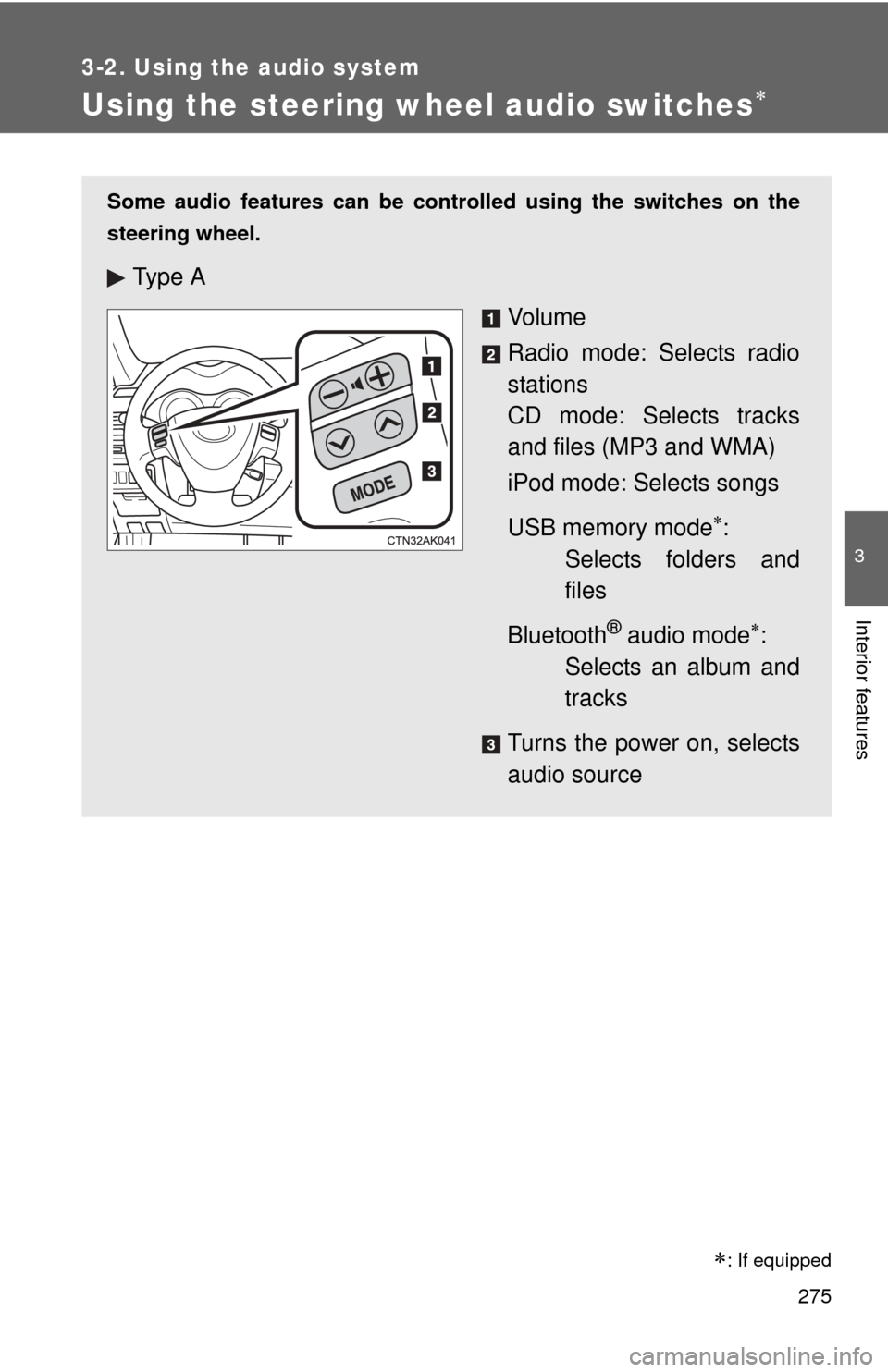
Using the steering wheel audio switches
: If equipped
Some audio features can be controlled using the switches on the
steering wheel.
Ty p e A
Vo l u m e
Radio mode: Selects radio
stations
CD mode: Selects tracks
and files (MP3 and WMA)
iPod mode: Selects songs
USB memory mode
:
Selects folders and
files
Bluetooth
® audio mode:
Selects an album and
tracks
Turns the power on, selects
audio source
Page 277 of 529
277
3-2. Using the audio system
3
Interior features
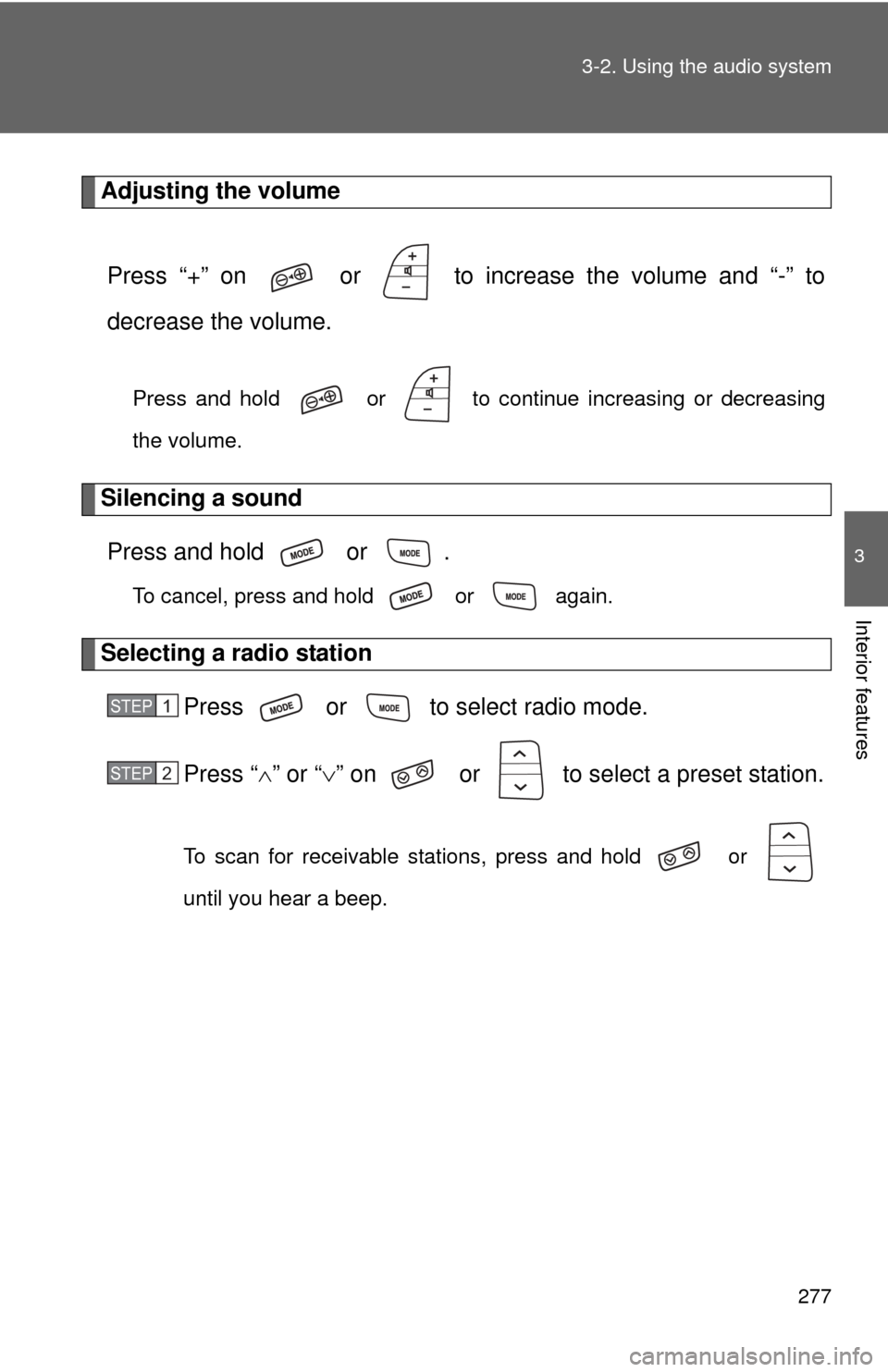
Adjusting the volume
Press “+” on or to increase the volume and “-” to
decrease the volume.
Press and hold or to continue increasing or decreasing
the volume.
Silencing a soundPress and hold or .
To cancel, press and hold or again.
Selecting a radio station Press or to select radio mode.
Press “” or “ ” on or to select a preset station.
To scan for receivable stations, press and hold or
until you hear a beep.
STEP 1
STEP 2
Page 279 of 529
279
3
Interior features
3-3. Using the Bluetooth® audio system
Bluetooth® audio/phone
■Conditions affecting operation
The Bluetooth
® audio/phone may not operate normally in the following situa-
tions:
● The portable player does not support Bluetooth
®
●The cellular phone is located outside the service area
● The Bluetooth
® device is switched off
● The Bluetooth
® device has a low battery
● The Bluetooth
® device is not connected to the system
● The Bluetooth
® device is behind the seat or in the glove box or console
box, or metal material covers or touches the device
■ Bluetooth® audio
The Bluetooth
® audio system enables yo u to enjoy music played
on a portable digital audio player (portable player) from the vehi-
cle speakers via wireless communication.
This audio system supports Bluetooth
®, a wireless data system
capable of playing portable audi o music without cables. If your
portable player does not support Bluetooth
®, the Bluetooth®
audio system will not function.
■ Bluetooth
® phone (hands-free phone system)
This system supports Bluetooth
®, which allows you to make or
receive calls without using cables to connect a cellular phone
and the system, and without operating the cellular phone.
: If equipped
Page 281 of 529
281
3-3. Using the Bluetooth
® audio system
3
Interior features
NOTICE
■
To prevent damage to Bluetooth® device
Do not leave Bluetooth
® device in the vehicle. The temperature inside the
vehicle may become high, resulting in damage to the device.
Page 283 of 529
283
3-3. Using the Bluetooth
® audio system
3
Interior features
■
Steering wheel switches
P. 275
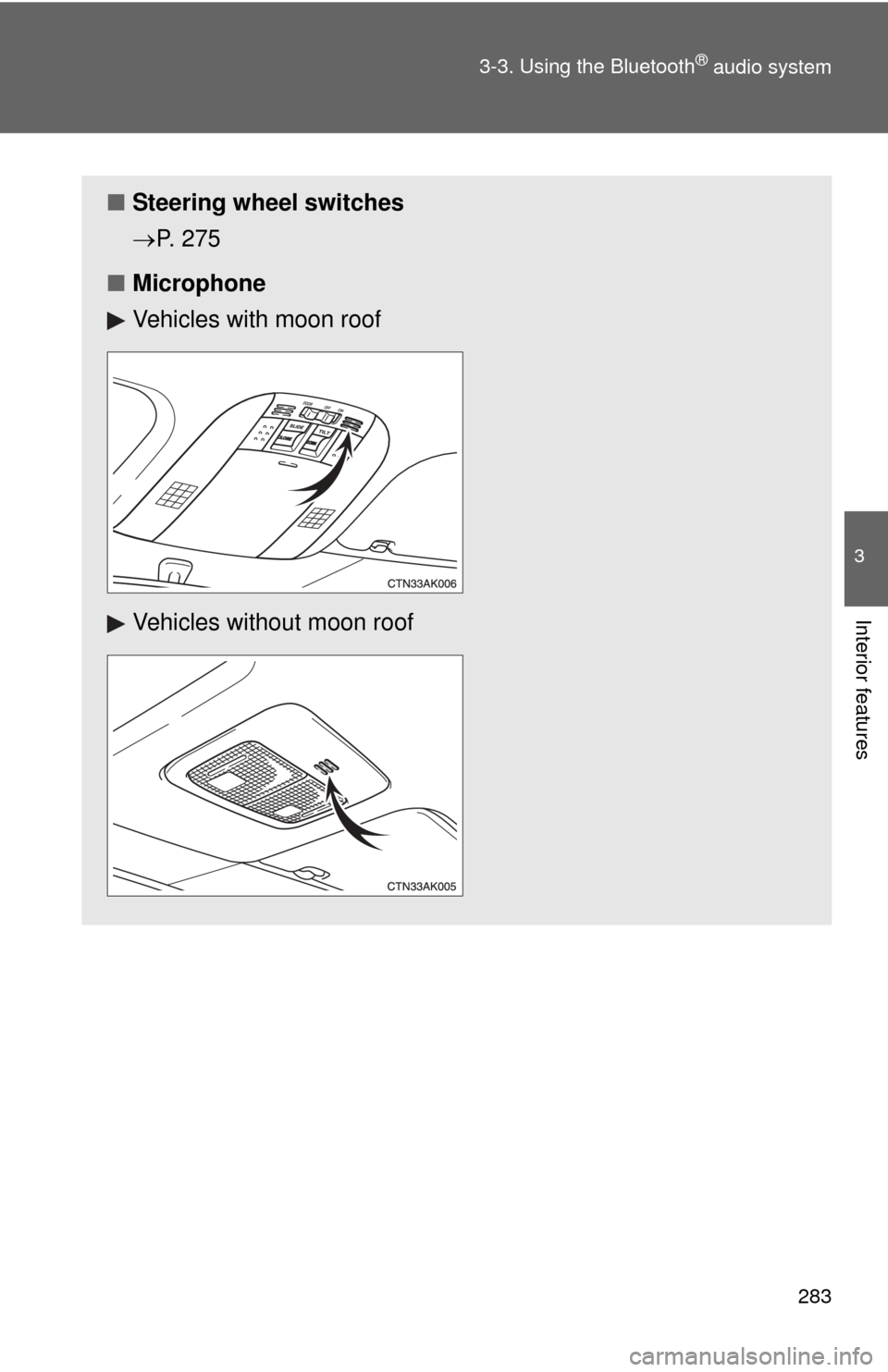
■ Microphone
Vehicles with moon roof
Vehicles without moon roof
Page 285 of 529
285
3-3. Using the Bluetooth
® audio system
3
Interior features
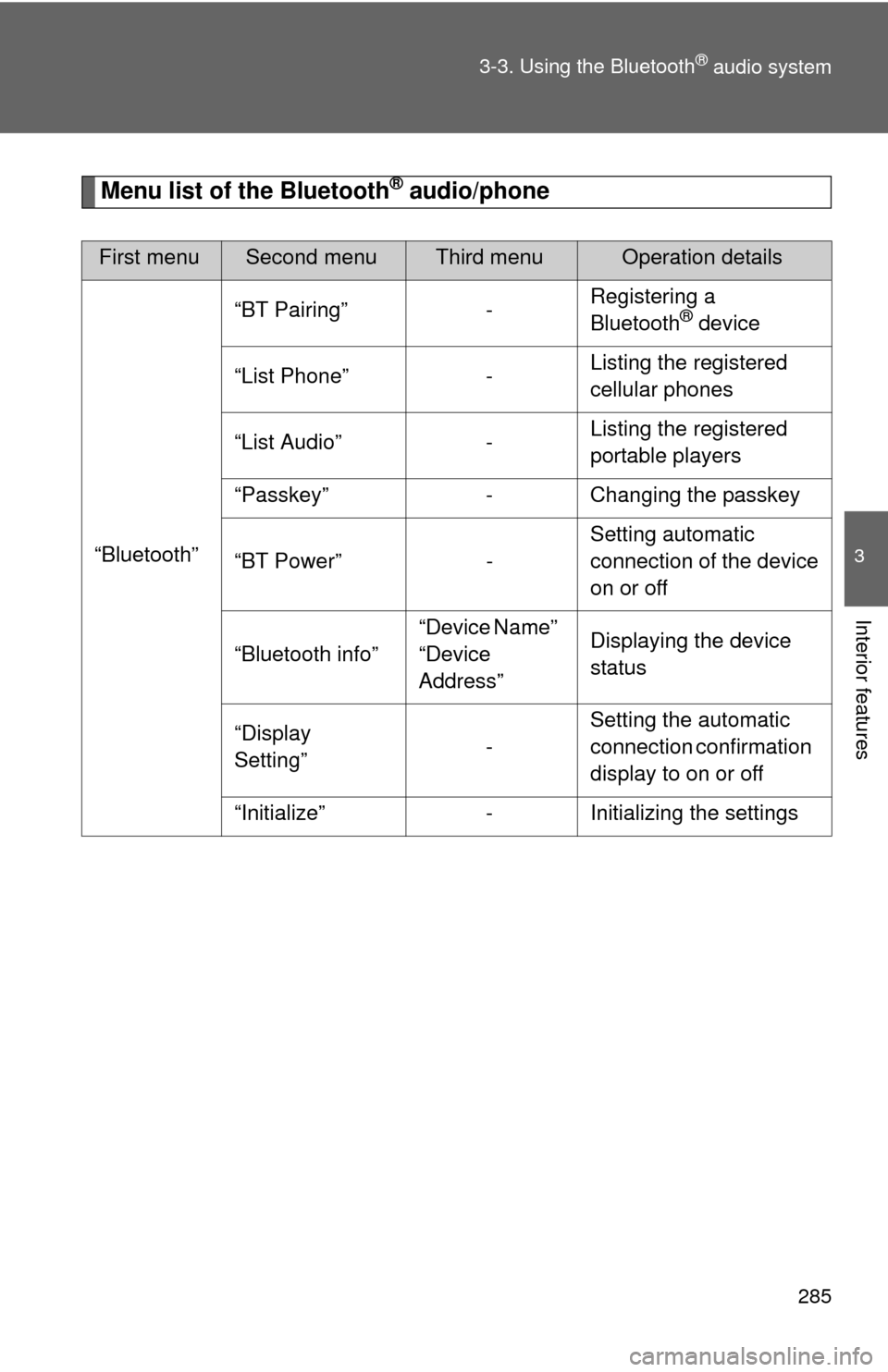
Menu list of the Bluetooth® audio/phone
First menuSecond menuThird menuOperation details
“Bluetooth” “BT Pairing” -
Registering a
Bluetooth
® device
“List Phone” - Listing the registered
cellular phones
“List Audio” - Listing the registered
portable players
“Passkey” - Changing the passkey
“BT Power” - Setting automatic
connection of the device
on or off
“Bluetooth info” “Device Name”
“Device
Address”Displaying the device
status
“Display
Setting” -Setting the automatic
connection confirmation
display to on or off
“Initialize” - Initializing the settings
Page 287 of 529
287
3-3. Using the Bluetooth® audio system
3
Interior features
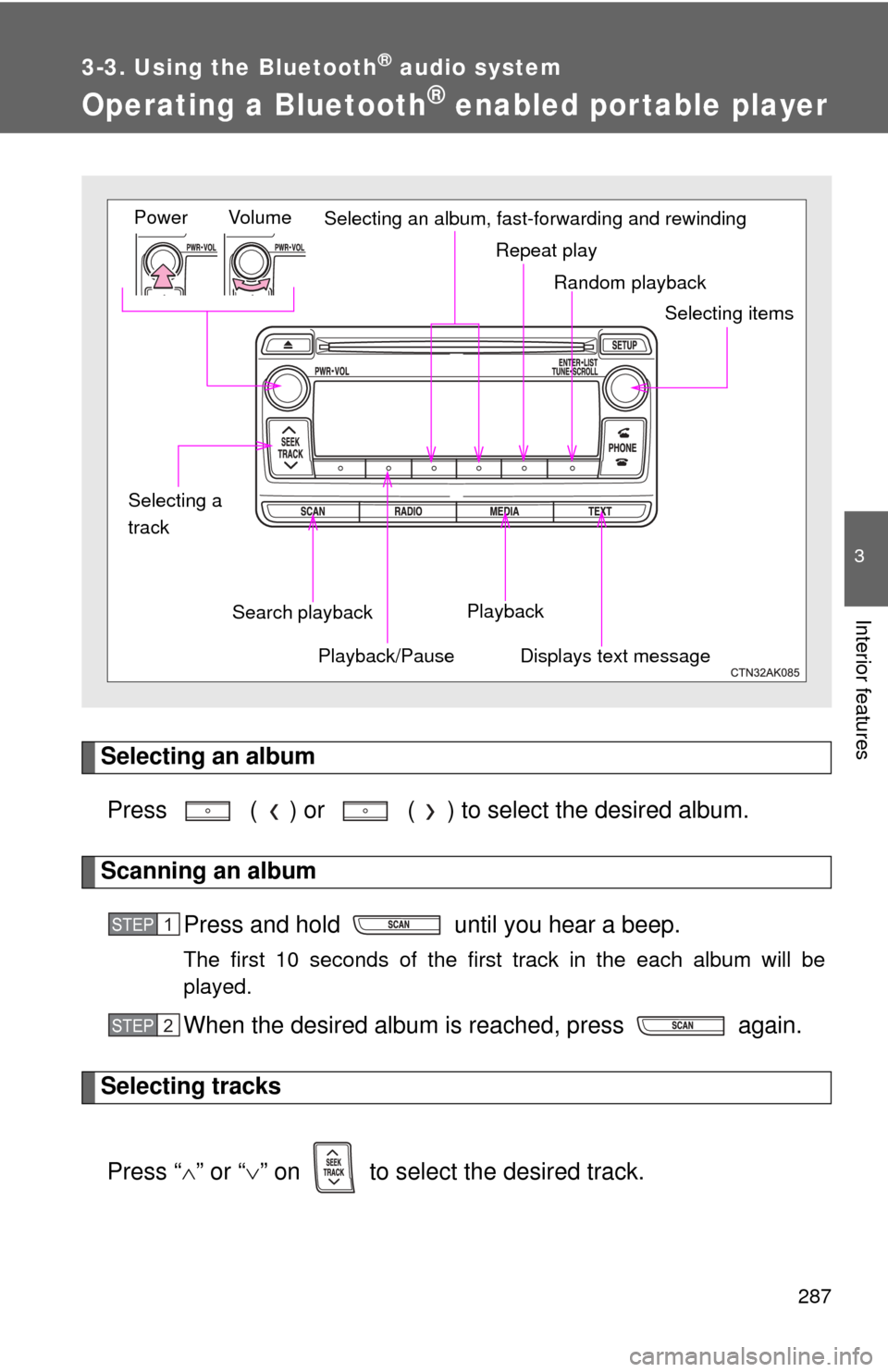
Operating a Bluetooth® enabled portable player
Selecting an albumPress ( ) or ( ) to select the desired album.
Scanning an album Press and hold until you hear a beep.
The first 10 seconds of the first track in the each album will be
played.
When the desired album is reached, press again.
Selecting tracks
Press “ ” or “ ” on to select the desired track.
Random playback
Repeat play
Playback
Playback/PauseDisplays text message
Vol u m e
Power
Selecting itemsSelecting an album, fast-forwarding and rewinding
Search playback
Selecting a
track
STEP 1
STEP 2
Page 289 of 529
289
3-3. Using the Bluetooth
® audio system
3
Interior features
■
Bluetooth® audio system functions
Depending on the portable player that is connected to the system, certain
functions may not be available.
Page 291 of 529
291
3-4. Using the hand
s-free phone system (for cellular phone)
3
Interior features
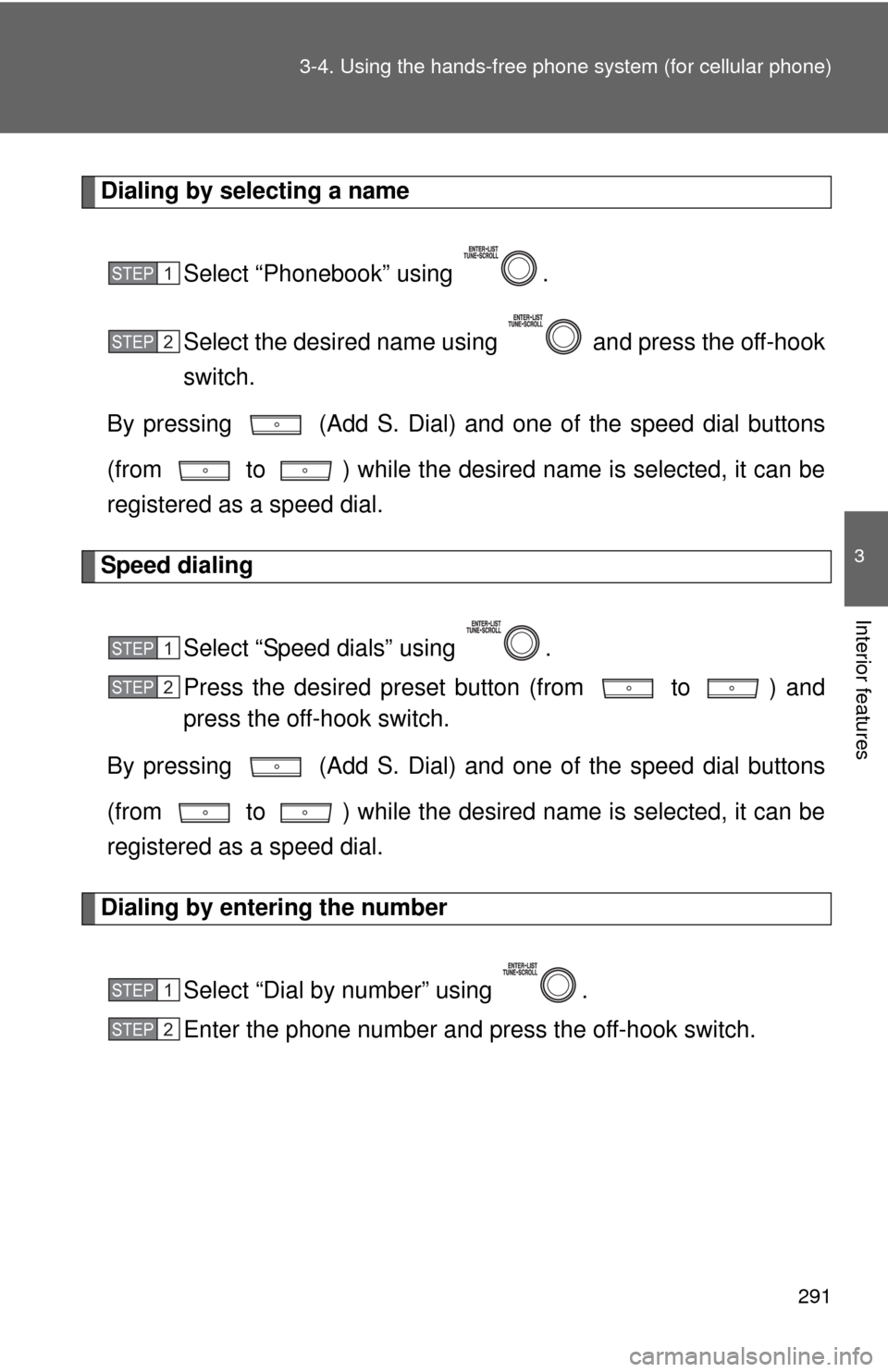
Dialing by selecting a name
Select “Phonebook” using .
Select the desired name using and press the off-hook
switch.
By pressing (Add S. Dial) and one of the speed dial buttons
(from to ) while the desired name is selected, it can be
registered as a speed dial.
Speed dialing
Select “Speed dials” using .
Press the desired preset button (from to ) and
press the off-hook switch.
By pressing (Add S. Dial) and one of the speed dial buttons
(from to ) while the desired name is selected, it can be
registered as a speed dial.
Dialing by entering the number
Select “Dial by number” using .
Enter the phone number and press the off-hook switch.
STEP 1
STEP 2
STEP 1
STEP 2
STEP 1
STEP 2