Interior TOYOTA COROLLA 2012 10.G Repair Manual
[x] Cancel search | Manufacturer: TOYOTA, Model Year: 2012, Model line: COROLLA, Model: TOYOTA COROLLA 2012 10.GPages: 529, PDF Size: 8.07 MB
Page 293 of 529
293
3-4. Using the hand
s-free phone system (for cellular phone)
3
Interior features
Operations during a call
● Transferring a call
A call can be transferred between the cellular phone and system
while dialing, receiving a call, or during a call. Use one of the fol-
lowing methods:
a. Operate the cellular phone.
Refer to the manual that comes with the cellular phone for the oper-
ation of the phone.
b. Press the * (PHONE).
*: This operation can be performed only when transferring a call from
the cellular phone to the system during a call.
● Muting your voice
Press (MUTE).
● Inputting digits
Press (0-9) and using the to input the desired dig-
its.
• To send the input digits press (SEND).
• When finished, press (EXIT) to return to the previous screen.
●Setting call volume
Change the call volume using .
To decrease the volume: Turn counterclockwise.
To increase the volume: Turn clockwise.
Page 295 of 529
295
3-4. Using the hands-free phone system (for cellular phone)
3
Interior features
Using the “SET UP” menu (“Bluetooth” menu)
Registering a Bluetooth® device in the system allows the system to
function. The following functions can be used for registered devices:
■Functions and operation procedures
Press and select “Bluetooth” using .
Press and select one of the following functions
using .
● Registering a Bluetooth
® device
“BT Pairing”
● Listing the registered cellular phones
“List Phone”
● Listing the registered portable players
“List Audio”
● Changing the passkey
“Passkey”
● Setting automatic connection of the device on or off
“BT Power”
● Displaying the device status
“Bluetooth info”
● Setting the automatic connection confirmation display to on or
off
“Display Setting”
● Initialization
“Initialize”
STEP 1
STEP 2
Page 297 of 529
297
3-4. Using the hand
s-free phone system (for cellular phone)
3
Interior features
Listing the registered portable players
Select “List Audio” using . The list of registered portable play-
ers will be displayed.
● Connecting the registered portable player to the audio system
Select the name of the portab le player to be connected
using .
Select “Select” using .
● Deleting the registered portable player
Select the name of the portable player to be deleted using
.
Select “Delete” using .
Press (YES).
STEP 1
STEP 2
STEP 1
STEP 2
STEP 3
Page 299 of 529
299
3-4. Using the hand
s-free phone system (for cellular phone)
3
Interior features
Displaying the device status
Select “Bluetooth info” using .
● Displaying the device name
Select “Device Name” using .
● Displaying the device address
Select “Device Address” using .
Setting the automatic connection conf irmation display to on or off
If the “Display Setting” is set to on, the portable player connection sta-
tus will be displayed when the engine switch is turned to the “ACC” or
“ON” position.
Select “Display Setting” using .
Select “ON” or “OFF” using .
STEP 1
STEP 2
Page 301 of 529
301
3-4. Using the hands-free phone system (for cellular phone)
3
Interior features
Using the “SET UP” menu (“Phone” menu)
■Functions and operation procedures
To enter the menu of each function, press and follow
the steps below using :
●Adding a new phone number
1. “Phone” 2. “Phonebook” 3. “Add contacts”
● Setting speed dials
1. “Phone” 2. “Phonebook” 3. “Add SD”
● Deleting call histories
1. “Phone” 2. “Phonebook” 3. “Delete Call History”
● Deleting a registered phone number
1. “Phone” 2. “Phonebook” 3. “Delete contacts”
● Deleting another cellular phone’s phonebook
1. “Phone” 2. “Phonebook” 3. “Delete other PB”
● Setting call volume
1. “Phone” 2. “HF Sound Setting” 3. “Call Volume”
● Setting ringtone volume
1. “Phone” 2. “HF Sound Setting” 3. “Ringtone Volume”
● Setting ringtone
1. “Phone” 2. “HF Sound Setting” 3. “Ringtone”
● Transferring call histories
1. “Phone” 2. “Transfer Histories”
Page 303 of 529
303
3-4. Using the hand
s-free phone system (for cellular phone)
3
Interior features
Deleting call histories
Select “Delete Call History” using .
● Deleting outgoing call history
Select “Outgoing Calls” using .
Select the desired phone number using and press (YES).
To delete all outgoing call history data, press (ALL) and
then press (YES).
● Deleting incoming call history
Select “Incoming calls” using .
Select the desired phone number using and press (YES).
To delete all incoming call history data, press (ALL) and
then press (YES).
STEP 1
STEP 2
STEP 1
STEP 2
Page 305 of 529
305
3-4. Using the hand
s-free phone system (for cellular phone)
3
Interior features
Deleting a registered phone number
Select “Delete contacts” using .
Select the desired phone number using and press (YES).
To delete all of the registered phone numbers, select “All delete”
using and press (YES).
Deleting another cellular phone’s phonebook
Select “Delete other PB” using .
Select the desired phonebook using and press (YES).
Setting call volume
Select “Call Volume” using .
Change the call volume.
To decrease the volume: Turn counterclockwise.
To increase the volume: Turn clockwise.
STEP 1
STEP 2
STEP 1
STEP 2
STEP 1
STEP 2
Page 307 of 529
307
3
Interior features
3-5. Using the interior lights
Interior lights list
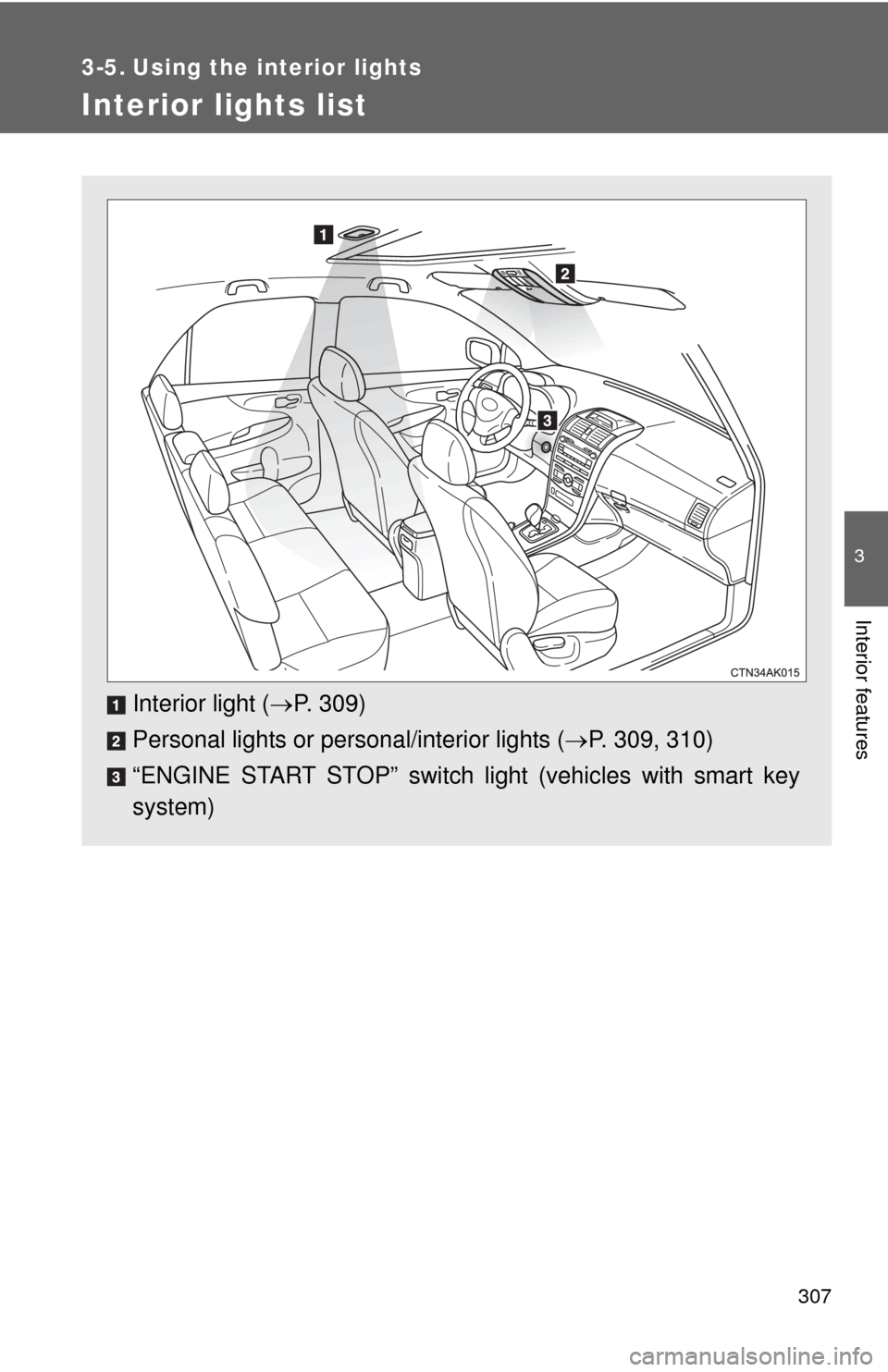
Interior light (P. 309)
Personal lights or personal/interior lights ( P. 309, 310)
“ENGINE START STOP” switch light (vehicles with smart key
system)
Page 308 of 529
308 3-5. Using the interior lights
■Illuminated entry system
Vehicles without moon roof
The interior light (with the switch in the “DOOR” position) and “ENGINE
START STOP” switch light (vehicles with smart key system) automatically
turn on/off according to “ENGINE START STOP” switch mode (vehicles with
smart key system) or engine switch position (vehicles without smart key sys-
tem), the presence of the electronic key (vehicles with smart key system),
whether the doors are locked/unlocked (vehicles with power door lock sys-
tem) and whether the doors are open/closed.
Vehicles with moon roof
The interior light, personal/interior lights (with the switch in the “DOOR” posi-
tion) and “ENGINE START STOP” switch light (vehicles with smart key sys-
tem) automatically turn on/off according to “ENGINE START STOP” switch
mode (vehicles with smart key system) or engine switch position (vehicles
without smart key system), the presence of the electronic key (vehicle\
s with
smart key system), whether the doors are locked/unlocked (vehicles with
power door lock system) and whether the doors are open/closed.
■ To prevent the battery from being discharged
If the interior light, personal/interior lights (vehicles with moon roof) and
“ENGINE START STOP” switch light (vehicles with smart key system)
remain on when the door is not fully closed and the switch is in the “DOOR”
position, the lights will go off automatically after 20 minutes.
■ Customization that can be co nfigured at Toyota dealer
Settings (e.g. The time elapsed before lights turn off) can be changed.
(Customizable features P. 491)
Page 309 of 529
309
3-5. Using the interior lights
3
Interior features
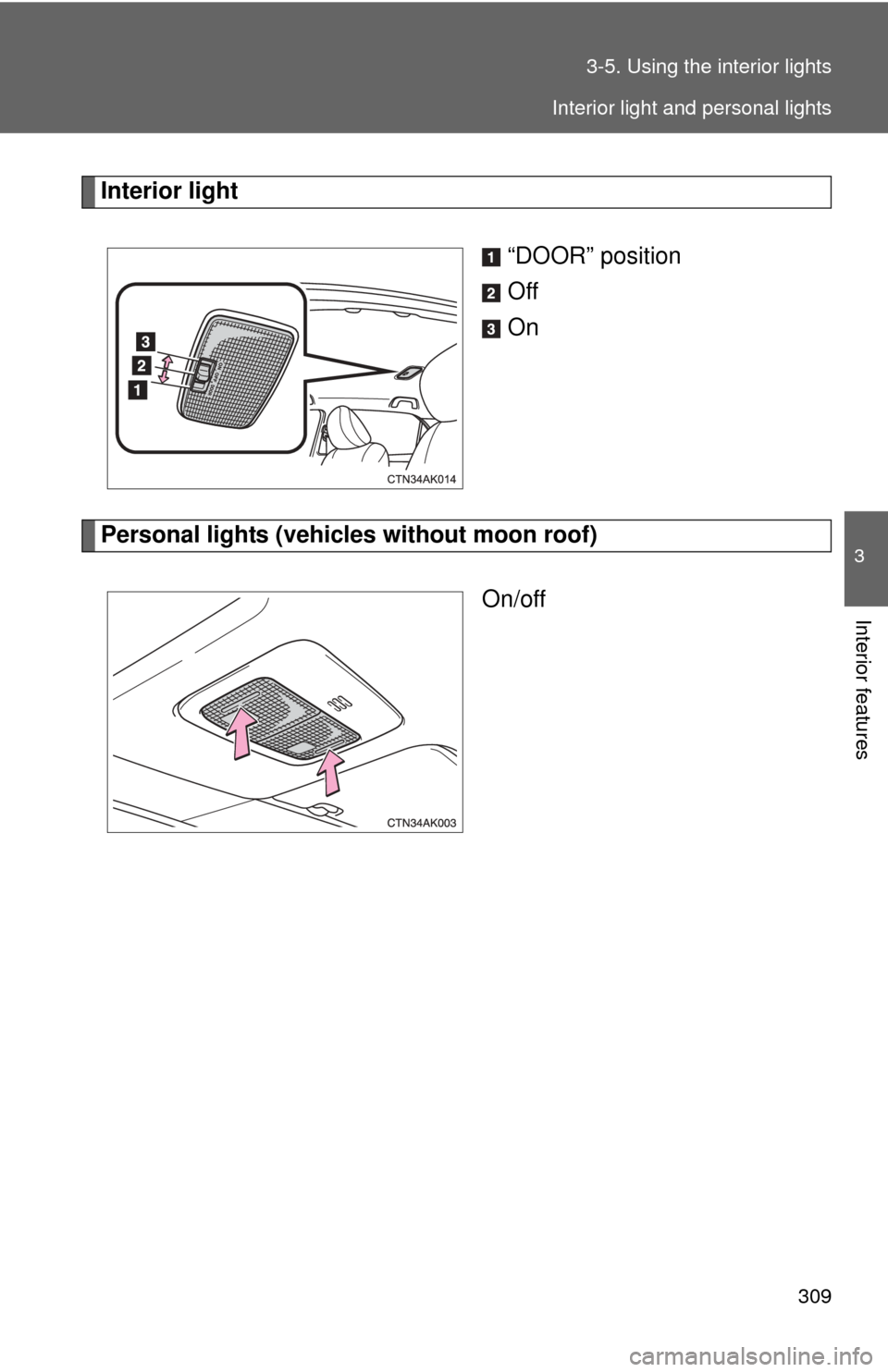
Interior light
“DOOR” position
Off
On
Personal lights (vehicles without moon roof)On/off
Interior light and personal lights