ad blue TOYOTA COROLLA 2016 11.G Navigation Manual
[x] Cancel search | Manufacturer: TOYOTA, Model Year: 2016, Model line: COROLLA, Model: TOYOTA COROLLA 2016 11.GPages: 294, PDF Size: 3.42 MB
Page 53 of 294
53
2. Bluetooth® SETTINGS
COROLLA_14CY_Navi_U
BASIC FUNCTION
2
■AUTO CONNECTION MODE
Vehicles without a smart key system
When the engine switch is in the “ACC” or
“ON” position, the system searches for a
nearby registered device.
The system will connect with the regis-
tered device that was last connected, if it
is nearby.
Vehicles with a smart key system
When the “ENGINE START STOP” switch
is in ACCESSORY or IGNITION ON
mode, the system searches for a nearby
registered device.
The system will connect with the regis-
tered device that was last connected, if it
is nearby.
■CONNECTING MANUALLY
1Press the “APPS” button and select
“Setup” .
2Select “Bluetooth*” .
3Follow the steps in “CONNECTING A
Bluetooth
® DEVICE” from “STEP 2”.
( P.52)
*: Bluetooth is a registered trademark of Bluetooth SIG, Inc.
■RECONNECTING THE Bluetooth®
PHONE
If the system is attempting to connect to a
Bluetooth® phone and the Bluetooth®
phone is turned off and then back on, the
system will attempt to reconnect.
To turn auto connection mode on, set
“Bluetooth* Power” to on. ( P.55)
Leave the Bluetooth
® device in a loca-
tion where the connection can be es-
tablished.
When the auto connection has failed or
“Bluetooth* Power” is turned off, it is
necessary to connect Bluetooth
® man-
ually.
If a Bluetooth® phone is disconnected
due to poor reception from the
Bluetooth
® network when the engine
switch is in the following, the system
automatically reconnect the
Bluetooth
® phone.
Vehicles without a smart key system
The engine switch is turned to the
“ACC” or “ON” position.
Vehicles with a smart key system
The “ENGINE START STOP” switch is
turned to ACCESSORY or IGNITION
ON mode.
Page 54 of 294
54
2. Bluetooth® SETTINGS
COROLLA_14CY_Navi_U
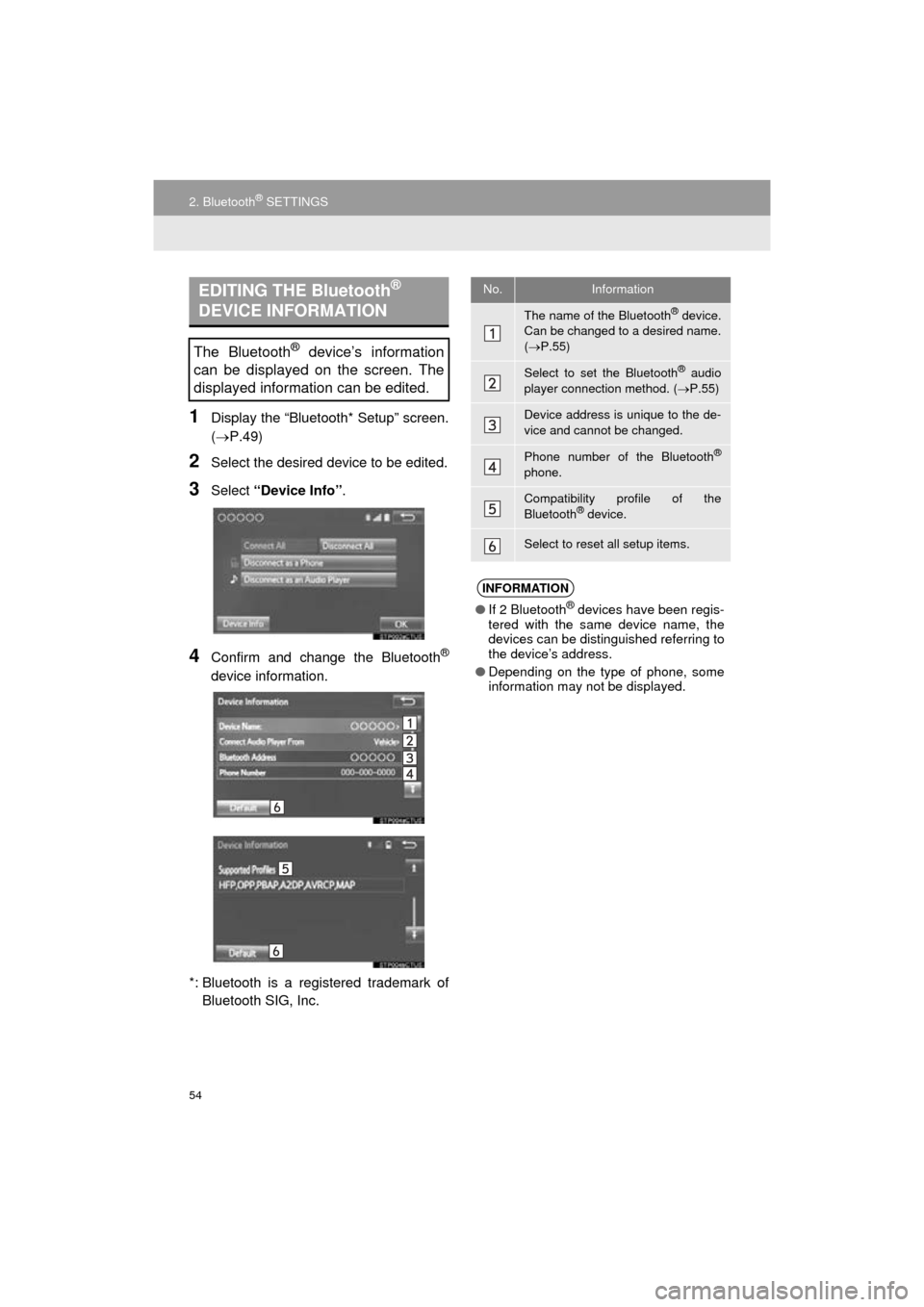
1Display the “Bluetooth* Setup” screen.
(P.49)
2Select the desired device to be edited.
3Select “Device Info” .
4Confirm and change the Bluetooth®
device information.
*: Bluetooth is a regi stered trademark of
Bluetooth SIG, Inc.
EDITING THE Bluetooth®
DEVICE INFORMATION
The Bluetooth® device’s information
can be displayed on the screen. The
displayed information can be edited.
No.Information
The name of the Bluetooth® device.
Can be changed to a desired name.
( P.55)
Select to set the Bluetooth® audio
player connection method. ( P.55)
Device address is unique to the de-
vice and cannot be changed.
Phone number of the Bluetooth®
phone.
Compatibility profile of the
Bluetooth® device.
Select to reset all setup items.
INFORMATION
● If 2 Bluetooth® devices have been regis-
tered with the same device name, the
devices can be distinguished referring to
the device’s address.
● Depending on the type of phone, some
information may not be displayed.
Page 55 of 294
55
2. Bluetooth® SETTINGS
COROLLA_14CY_Navi_U
BASIC FUNCTION
2
1Select “Device Name” .
2Enter the name and select “OK”.
1Select “Connect Audio Player from” .
2Select the desired connection method.
“Vehicle” : Select to connect the audio
system to the audio player.
“Device” : Select to connect the audio
player to the audio system.
Depending on the audio player, the “Vehi-
cle” or “Device” connection method may
be best. As such, refer to the manual that
comes with the audio player.
To reset the connection method, select
“Default” .
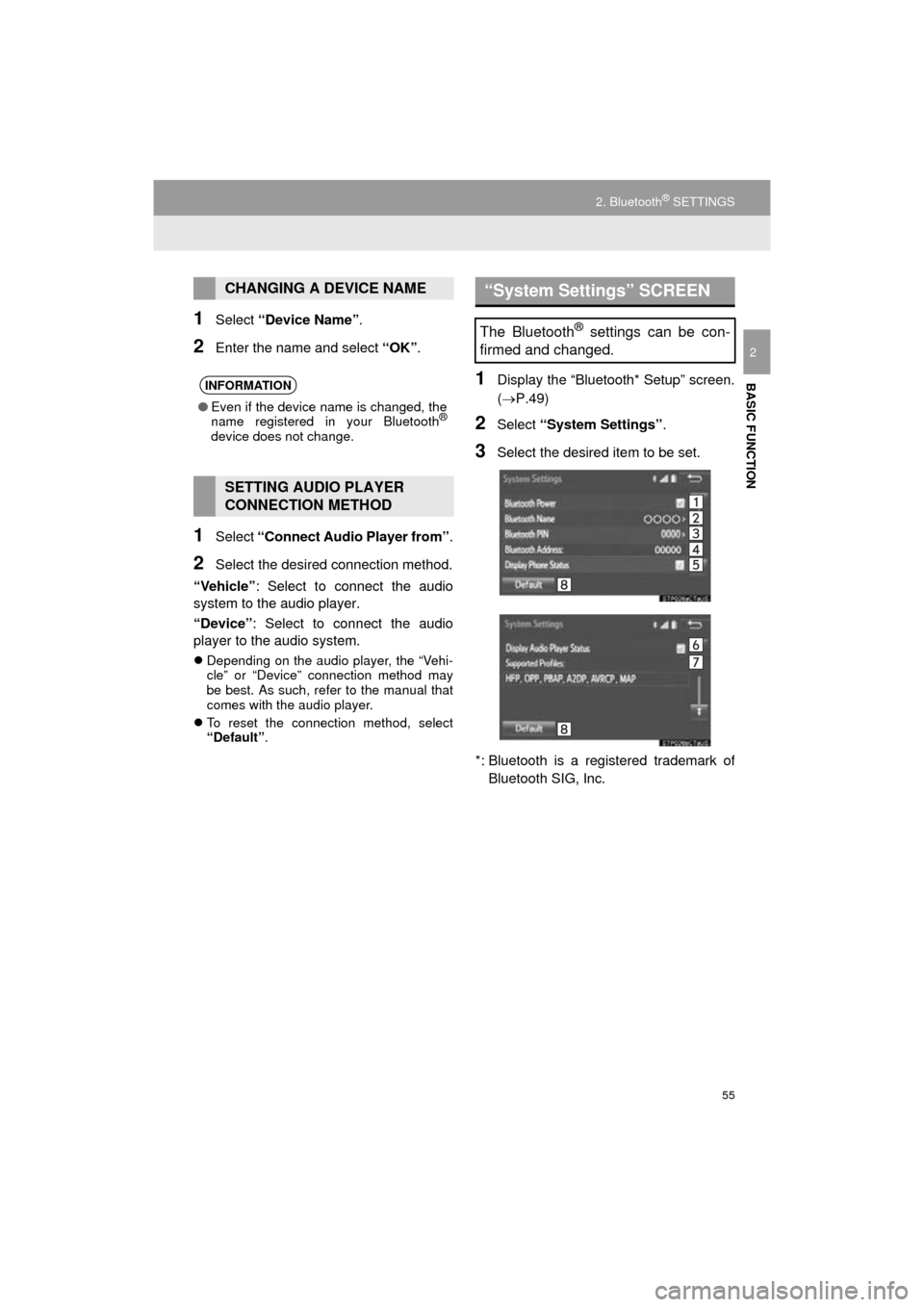
1Display the “Bluetooth* Setup” screen.
(P.49)
2Select “System Settings” .
3Select the desired item to be set.
*: Bluetooth is a regi stered trademark of
Bluetooth SIG, Inc.
CHANGING A DEVICE NAME
INFORMATION
● Even if the device name is changed, the
name registered in your Bluetooth®
device does not change.
SETTING AUDIO PLAYER
CONNECTION METHOD
“System Settings” SCREEN
The Bluetooth® settings can be con-
firmed and changed.
Page 56 of 294
56
2. Bluetooth® SETTINGS
COROLLA_14CY_Navi_U
1Select “Bluetooth* Power” .
When “Bluetooth* Power” is on :
Vehicles without a smart key system
The Bluetooth
® device is automatically
connected when the engine switch is
turned to the “ACC” or “ON” position.
Vehicles with a smart key system
The Bluetooth
® device is automatically
connected when the “ENGINE START
STOP” switch is turned to ACCESSORY
or IGNITION ON mode.
When “Bluetooth* Power” is off :
The Bluetooth
® device is disconnected,
and the system will not connect to it next
time.
1Select “Bluetooth* Name” .
2Enter a name and select “OK”.
1Select “Bluetooth* PIN” .
2Enter a PIN-code and select “OK”.
*: Bluetooth is a registered trademark of Bluetooth SIG, Inc.
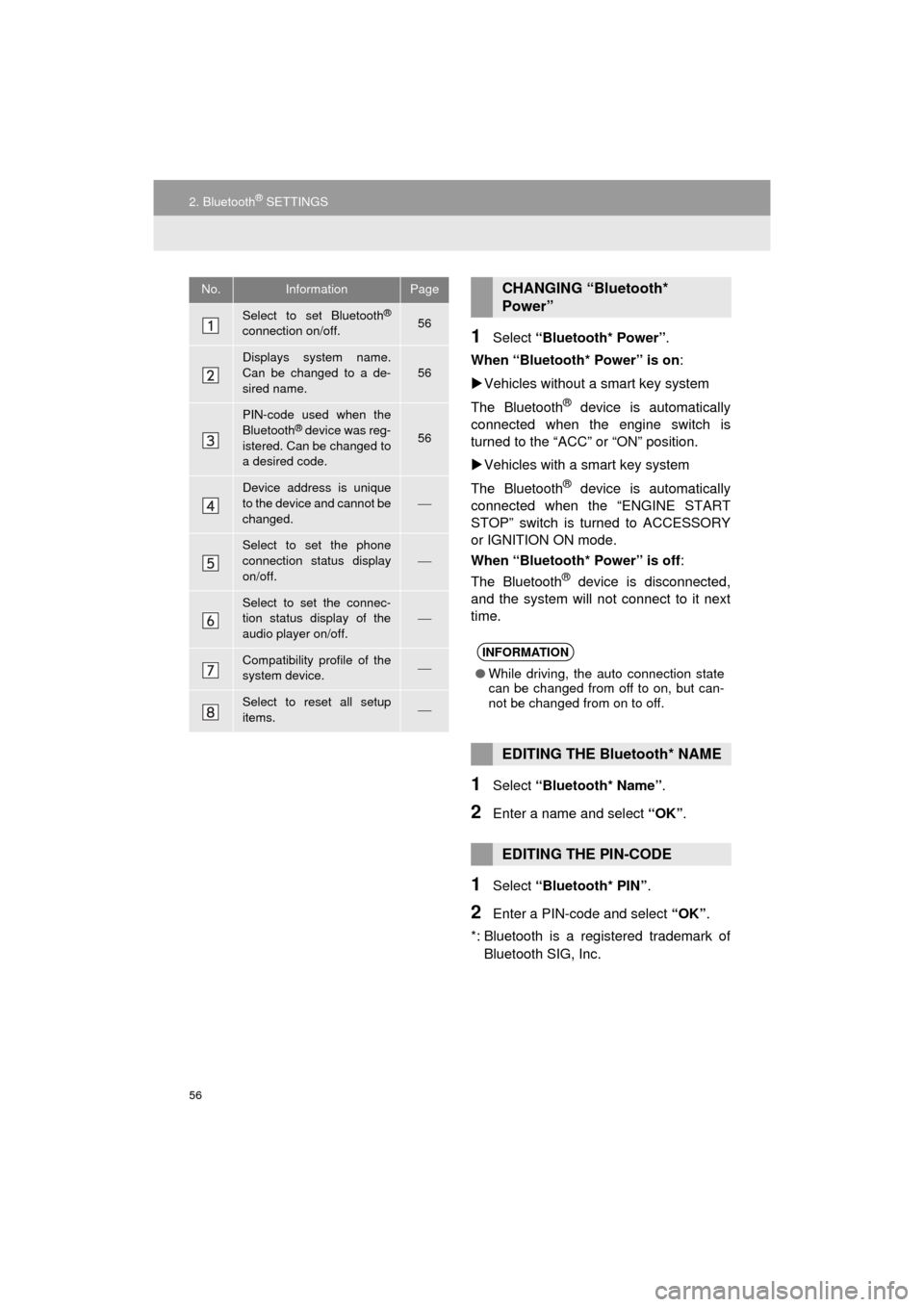
No.InformationPage
Select to set Bluetooth®
connection on/off.56
Displays system name.
Can be changed to a de-
sired name.56
PIN-code used when the
Bluetooth® device was reg-
istered. Can be changed to
a desired code.56
Device address is unique
to the device and cannot be
changed.
Select to set the phone
connection status display
on/off.
Select to set the connec-
tion status display of the
audio player on/off.
Compatibility profile of the
system device.
Select to reset all setup
items.
CHANGING “Bluetooth*
Power”
INFORMATION
● While driving, the auto connection state
can be changed from off to on, but can-
not be changed from on to off.
EDITING THE Bluetooth* NAME
EDITING THE PIN-CODE
Page 58 of 294
58
3. OTHER SETTINGS
COROLLA_14CY_Navi_U
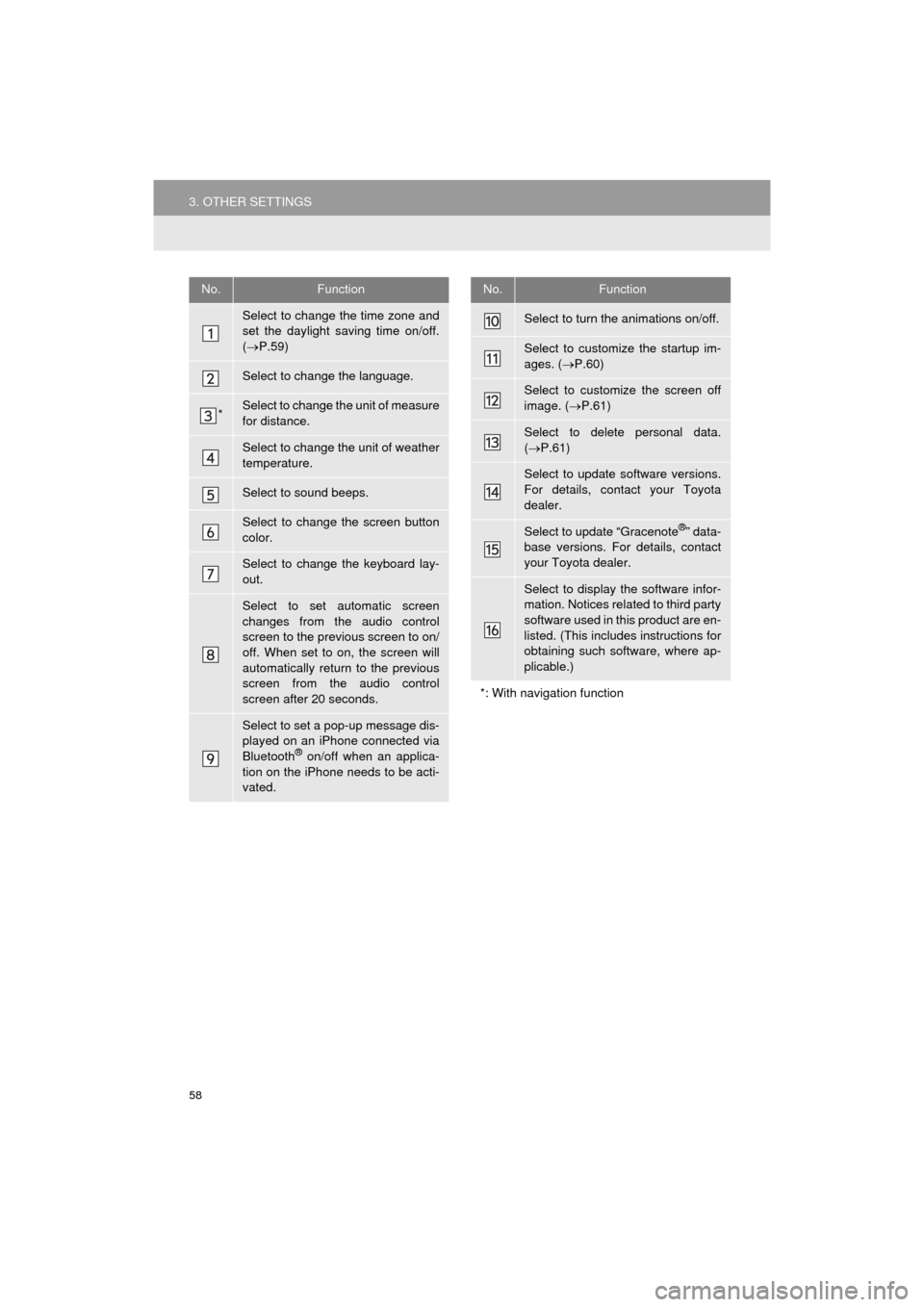
No.Function
Select to change the time zone and
set the daylight saving time on/off.
( P.59)
Select to change the language.
*Select to change the unit of measure
for distance.
Select to change the unit of weather
temperature.
Select to sound beeps.
Select to change the screen button
color.
Select to change the keyboard lay-
out.
Select to set automatic screen
changes from the audio control
screen to the previous screen to on/
off. When set to on, the screen will
automatically return to the previous
screen from the audio control
screen after 20 seconds.
Select to set a pop-up message dis-
played on an iPhone connected via
Bluetooth
® on/off when an applica-
tion on the iPhone needs to be acti-
vated.
Select to turn the animations on/off.
Select to customize the startup im-
ages. ( P.60)
Select to customize the screen off
image. ( P.61)
Select to delete personal data.
( P.61)
Select to update software versions.
For details, contact your Toyota
dealer.
Select to update “Gracenote®” data-
base versions. For details, contact
your Toyota dealer.
Select to display the software infor-
mation. Notices related to third party
software used in this product are en-
listed. (This includes instructions for
obtaining such software, where ap-
plicable.)
*: With navigation function
No.Function
Page 63 of 294
63
3. OTHER SETTINGS
COROLLA_14CY_Navi_U
BASIC FUNCTION
2
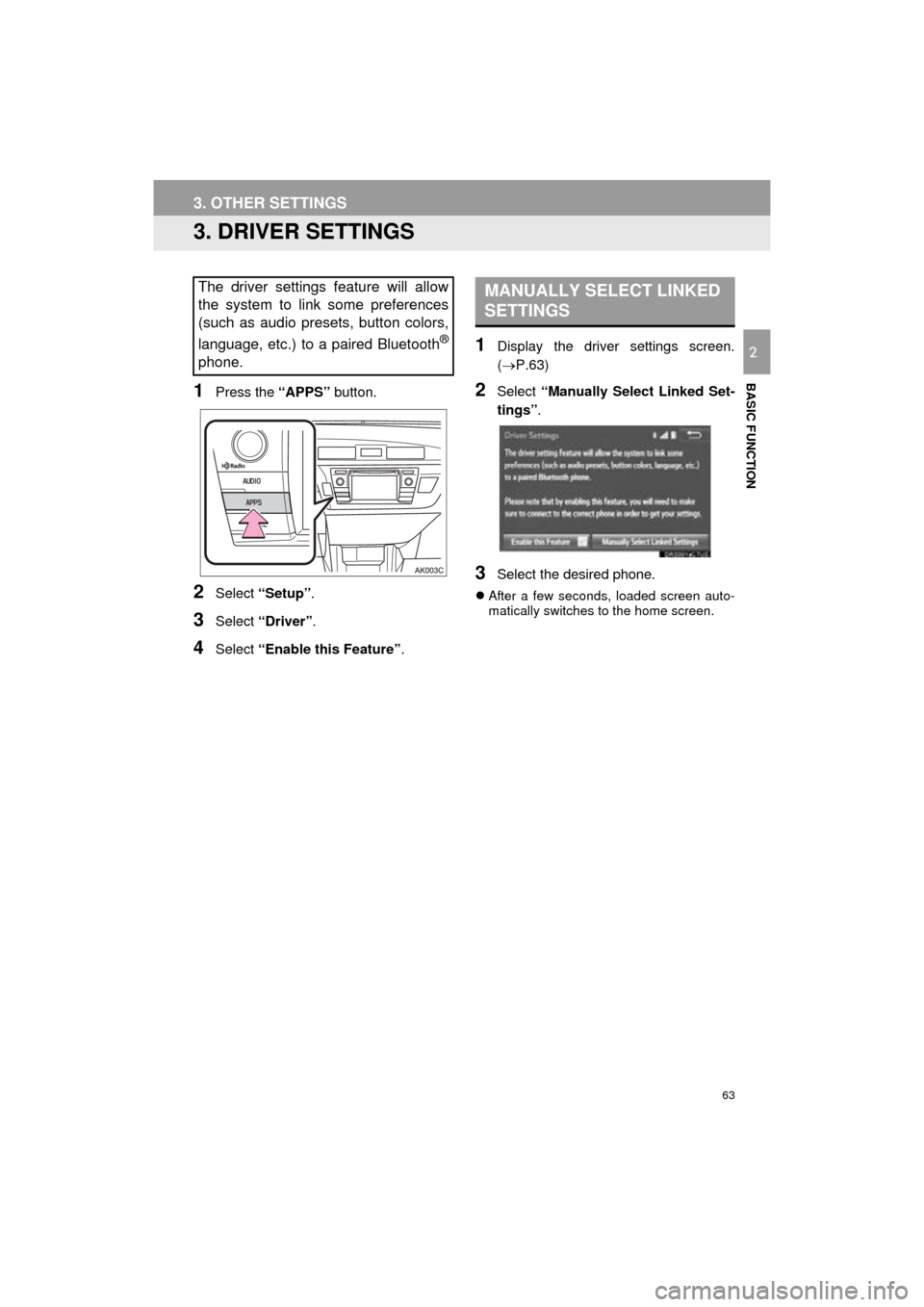
3. DRIVER SETTINGS
1Press the “APPS” button.
2Select “Setup” .
3Select “Driver” .
4Select “Enable this Feature” .
1Display the driver settings screen.
(P.63)
2Select “Manually Select Linked Set-
tings” .
3Select the desired phone.
After a few seconds, loaded screen auto-
matically switches to the home screen.
The driver settings feature will allow
the system to link some preferences
(such as audio presets, button colors,
language, etc.) to a paired Bluetooth
®
phone.
MANUALLY SELECT LINKED
SETTINGS
Page 69 of 294
3
69
COROLLA_14CY_Navi_U
4
5
6
7
8
9
1
2
3
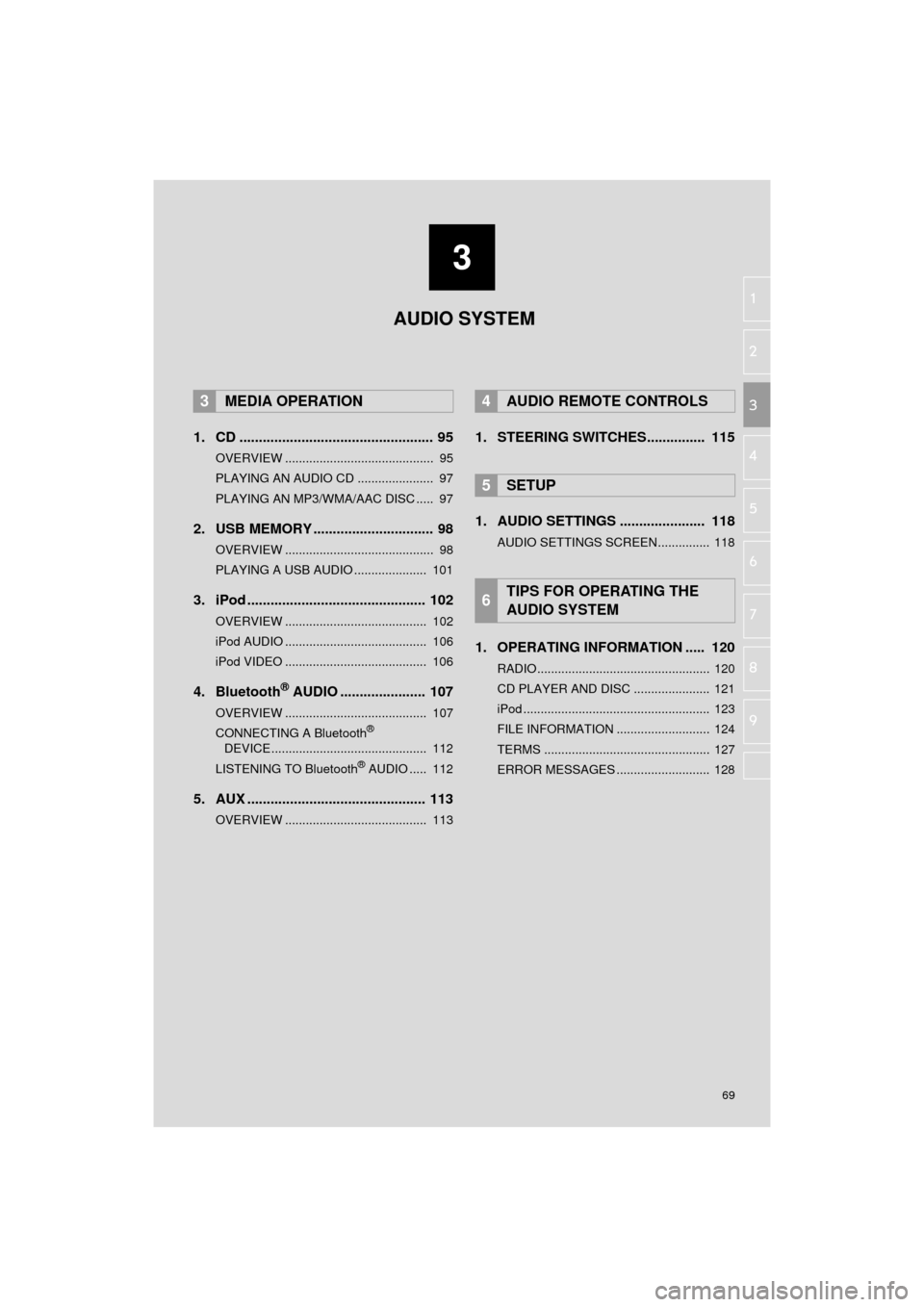
1. CD .................................................. 95
OVERVIEW ........................................... 95
PLAYING AN AUDIO CD ...................... 97
PLAYING AN MP3/WMA/AAC DISC ..... 97
2. USB MEMORY ............................... 98
OVERVIEW ........................................... 98
PLAYING A USB AUDIO ..................... 101
3. iPod .............................................. 102
OVERVIEW ......................................... 102
iPod AUDIO ......................................... 106
iPod VIDEO ......................................... 106
4. Bluetooth® AUDIO ...................... 107
OVERVIEW ......................................... 107
CONNECTING A Bluetooth®
DEVICE ............................................. 112
LISTENING TO Bluetooth
® AUDIO ..... 112
5. AUX .............................................. 113
OVERVIEW ......................................... 113
1. STEERING SWITCHES............... 115
1. AUDIO SETTINGS ...................... 118
AUDIO SETTINGS SCREEN............... 118
1. OPERATING INFORMATION ..... 120
RADIO.................................................. 120
CD PLAYER AND DISC ...................... 121
iPod ...................................................... 123
FILE INFORMATION ........................... 124
TERMS ................................................ 127
ERROR MESSAGES ........................... 128
3MEDIA OPERATION4AUDIO REMOTE CONTROLS
5SETUP
6TIPS FOR OPERATING THE
AUDIO SYSTEM
AUDIO SYSTEM
Page 71 of 294
71
1. BASIC OPERATION
COROLLA_14CY_Navi_U
AUDIO SYSTEM
3
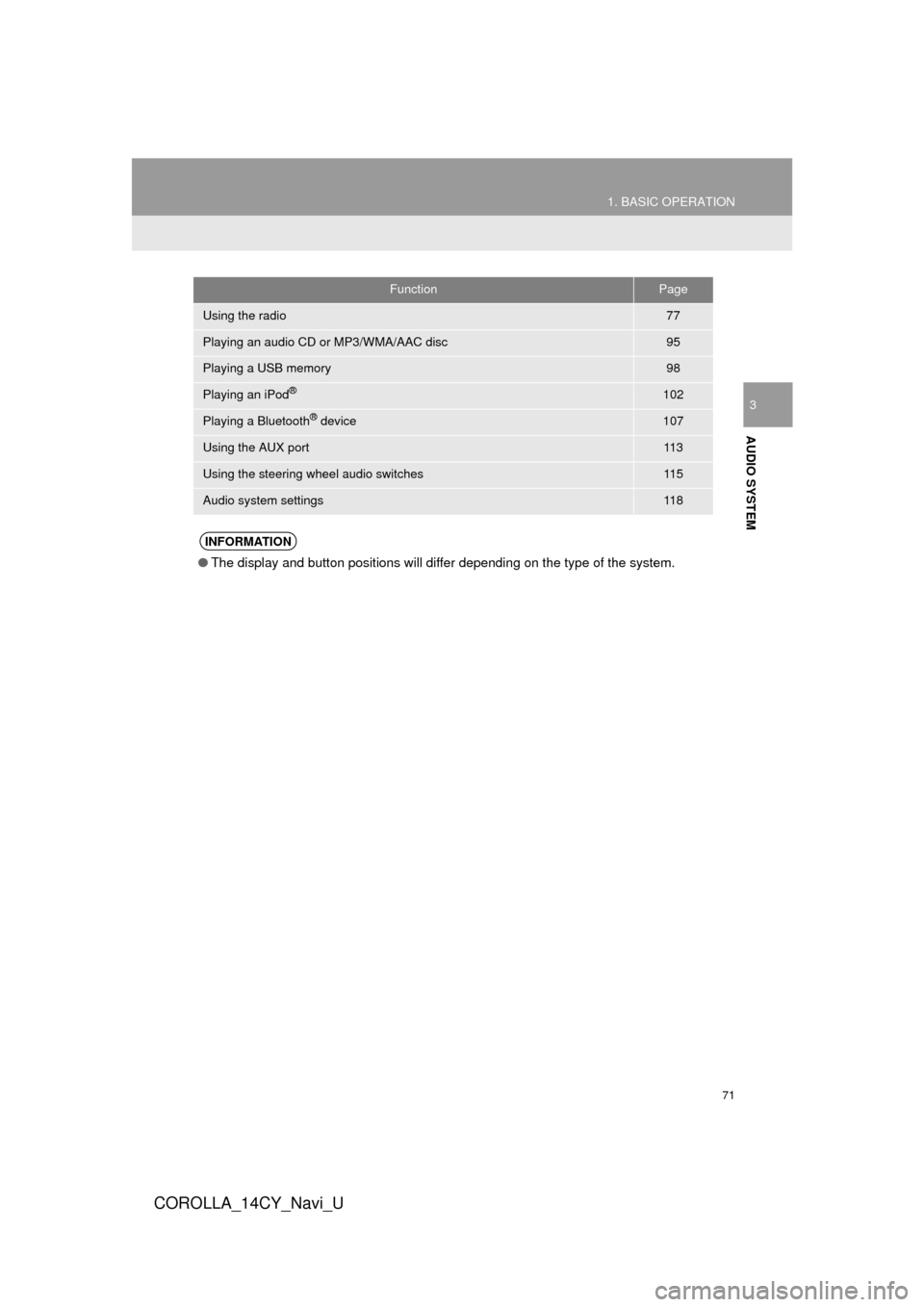
FunctionPage
Using the radio77
Playing an audio CD or MP3/WMA/AAC disc95
Playing a USB memory98
Playing an iPod®102
Playing a Bluetooth® device107
Using the AUX port11 3
Using the steering wheel audio switches11 5
Audio system settings11 8
INFORMATION
●The display and button positions will differ depending on the type of the system.
Page 82 of 294
82
2. RADIO OPERATION
COROLLA_14CY_Navi_U
■REFRESHING THE STATION LIST
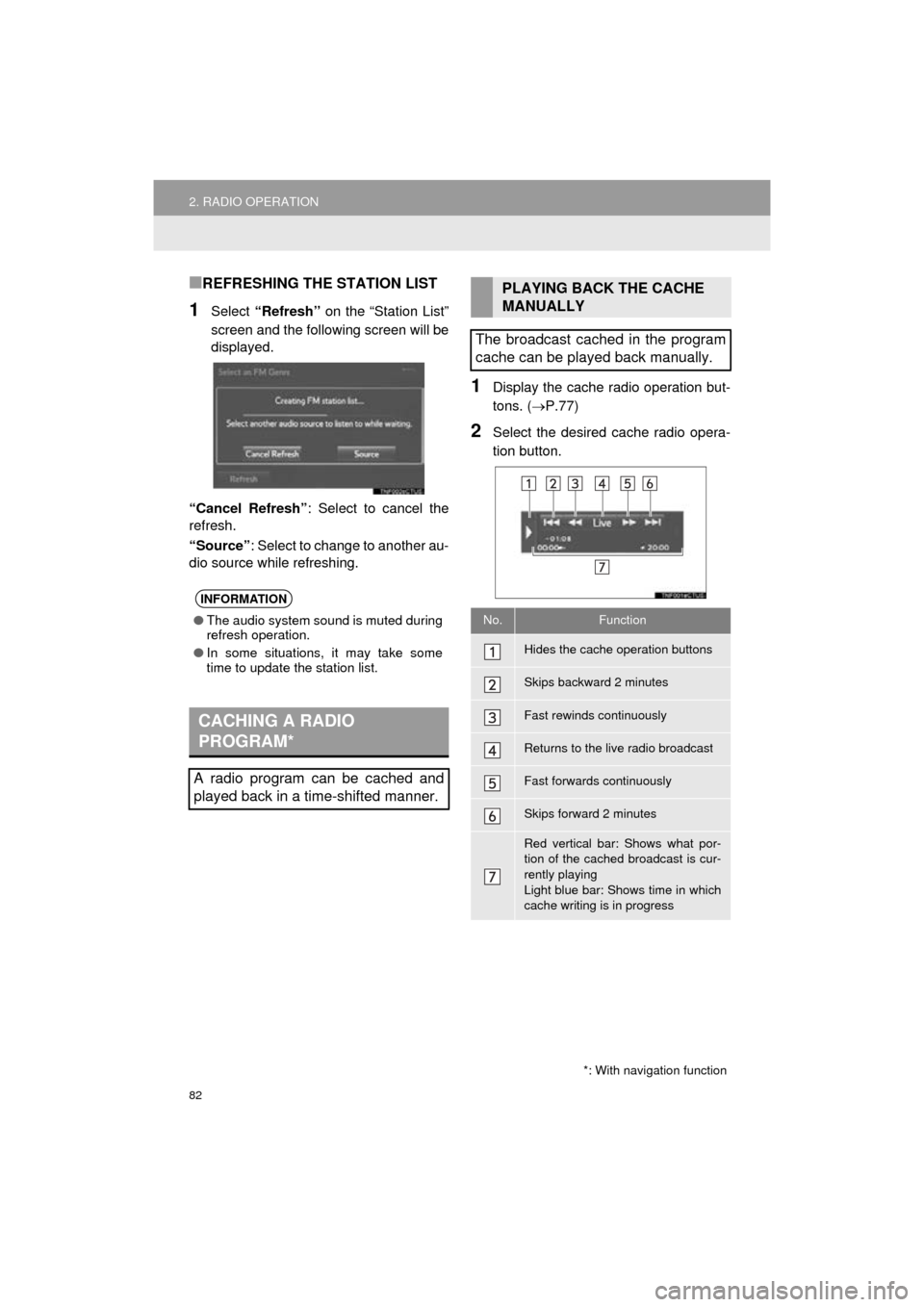
1Select “Refresh” on the “Station List”
screen and the following screen will be
displayed.
“Cancel Refresh” : Select to cancel the
refresh.
“Source” : Select to change to another au-
dio source while refreshing.
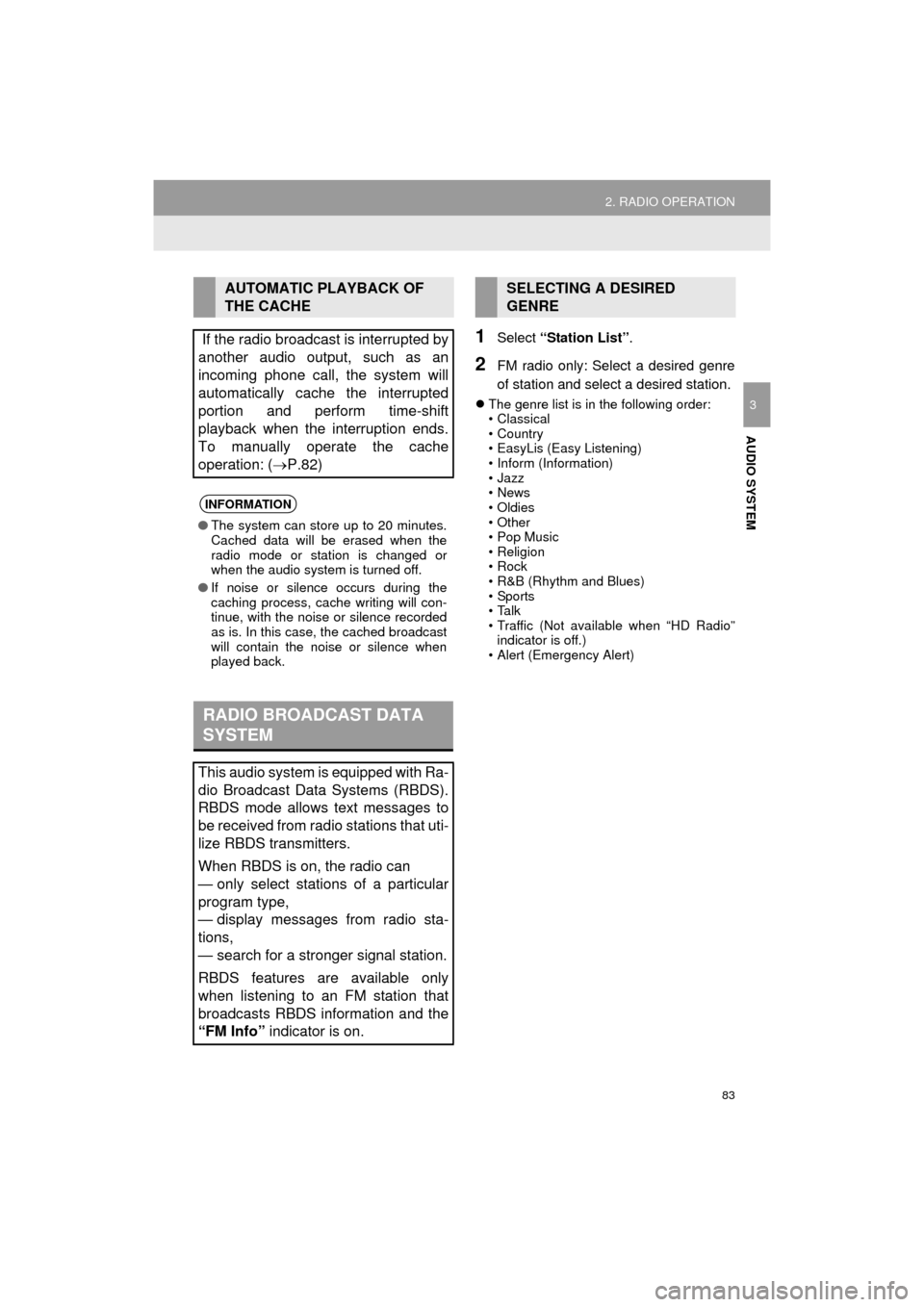
1Display the cache r adio operation but-
tons. ( P.77)
2Select the desired cache radio opera-
tion button.
INFORMATION
● The audio system sound is muted during
refresh operation.
● In some situations, it may take some
time to update the station list.
CACHING A RADIO
PROGRAM*
A radio program can be cached and
played back in a time-shifted manner.
*: With navigation function
PLAYING BACK THE CACHE
MANUALLY
The broadcast cached in the program
cache can be played back manually.
No.Function
Hides the cache operation buttons
Skips backward 2 minutes
Fast rewinds continuously
Returns to the live radio broadcast
Fast forwards continuously
Skips forward 2 minutes
Red vertical bar: Shows what por-
tion of the cached broadcast is cur-
rently playing
Light blue bar: Shows time in which
cache writing is in progress
Page 83 of 294
83
2. RADIO OPERATION
COROLLA_14CY_Navi_U
AUDIO SYSTEM
3
1Select “Station List” .
2FM radio only: Select a desired genre
of station and select a desired station.
The genre list is in the following order:
• Classical
• Country
• EasyLis (Easy Listening)
• Inform (Information)
•Jazz
•News
• Oldies
•Other
• Pop Music
•Religion
•Rock
• R&B (Rhythm and Blues)
•Sports
•Talk
• Traffic (Not available when “HD Radio”
indicator is off.)
• Alert (Emergency Alert)
AUTOMATIC PLAYBACK OF
THE CACHE
If the radio broadcast is interrupted by
another audio output, such as an
incoming phone call, the system will
automatically cache the interrupted
portion and perform time-shift
playback when the interruption ends.
To manually operate the cache
operation: ( P.82)
INFORMATION
●The system can store up to 20 minutes.
Cached data will be erased when the
radio mode or station is changed or
when the audio system is turned off.
● If noise or silence occurs during the
caching process, cache writing will con-
tinue, with the noise or silence recorded
as is. In this case, the cached broadcast
will contain the noise or silence when
played back.
RADIO BROADCAST DATA
SYSTEM
This audio system is equipped with Ra-
dio Broadcast Data Systems (RBDS).
RBDS mode allows text messages to
be received from radio stations that uti-
lize RBDS transmitters.
When RBDS is on, the radio can
— only select stations of a particular
program type,
— display messages from radio sta-
tions,
— search for a stronger signal station.
RBDS features are available only
when listening to an FM station that
broadcasts RBDS information and the
“FM Info” indicator is on.
SELECTING A DESIRED
GENRE