ad blue TOYOTA COROLLA 2016 11.G Navigation Manual
[x] Cancel search | Manufacturer: TOYOTA, Model Year: 2016, Model line: COROLLA, Model: TOYOTA COROLLA 2016 11.GPages: 294, PDF Size: 3.42 MB
Page 94 of 294
94
2. RADIO OPERATION
COROLLA_14CY_Navi_U
3. INTERNET RADIO*
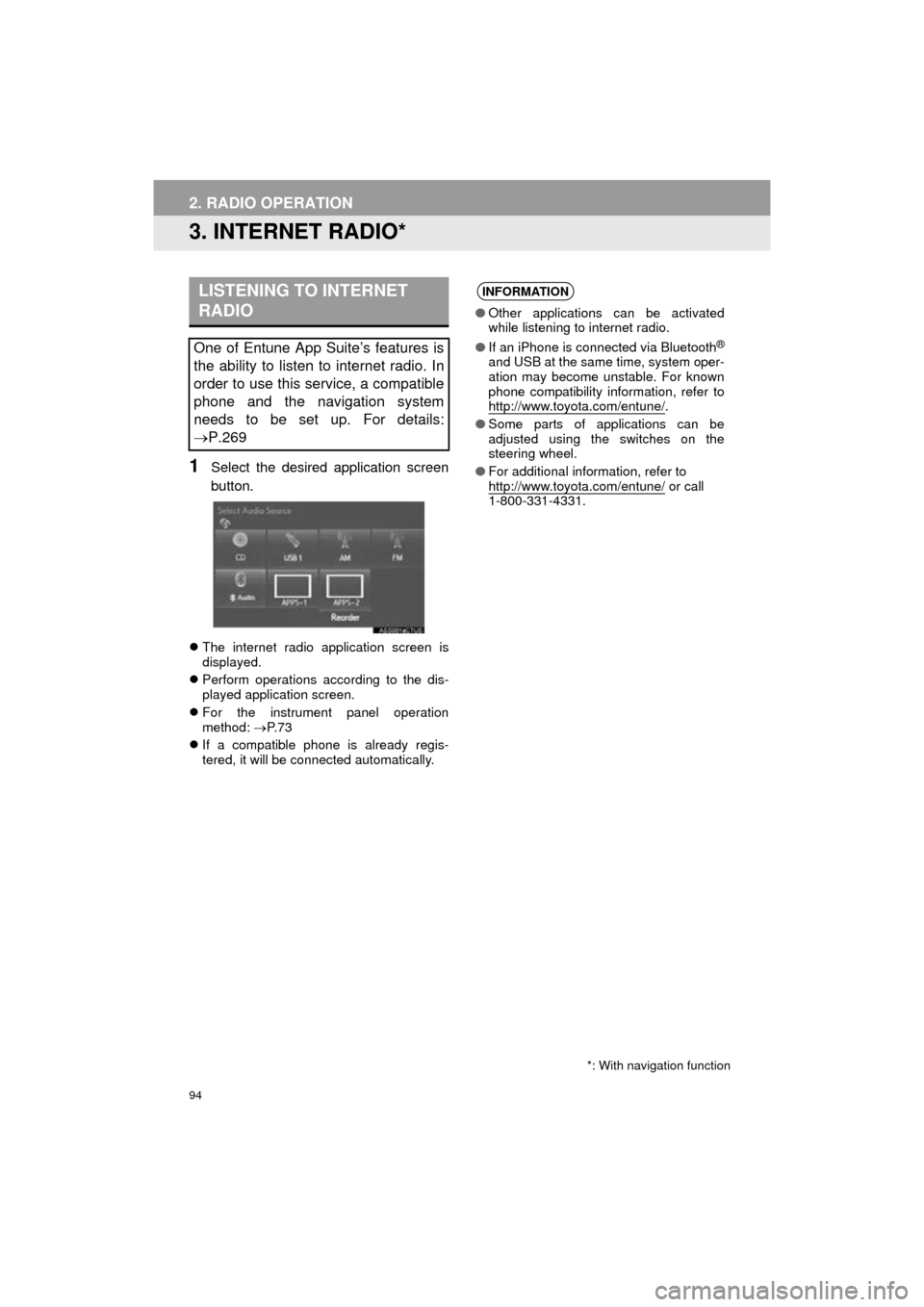
1Select the desired application screen
button.
The internet radio application screen is
displayed.
Perform operations according to the dis-
played application screen.
For the instrument panel operation
method: P. 7 3
If a compatible phone is already regis-
tered, it will be connected automatically.
LISTENING TO INTERNET
RADIO
One of Entune App Suite’s features is
the ability to listen to internet radio. In
order to use this service, a compatible
phone and the navigation system
needs to be set up. For details:
P.269
*: With navigation function
INFORMATION
●Other applications can be activated
while listening to internet radio.
● If an iPhone is connected via Bluetooth
®
and USB at the same time, system oper-
ation may become unstable. For known
phone compatibility information, refer to
http://www.toyota.com/entune/
.
● Some parts of applications can be
adjusted using the switches on the
steering wheel.
● For additional information, refer to
http://www.toyota.com/entune/
or call
1-800-331-4331.
Page 105 of 294
105
3. MEDIA OPERATION
COROLLA_14CY_Navi_U
AUDIO SYSTEM
3
CAUTION
●Do not operate the player’s controls or connect the iPod while driving.
NOTICE
●Do not leave your portable player in the car. In particular, high temperatures inside the
vehicle may damage the portable player.
● Do not push down on or apply unnecessary pressure to the portable player while it is con-
nected as this may damage the portable player or its terminal.
● Do not insert foreign objects into the port as this may damage the portable player or its
terminal.
INFORMATION
●The system can only output the sound while driving.
● When an iPod is connected using a genuine iPod cable, the iPod starts charging its bat-
tery.
● Depending on the iPod, the video sound may not be able to be heard.
● Depending on the iPod and the songs in the iPod, iPod cover art may be displayed. This
function can be changed to on/off. ( P.118) It may take time to display iPod cover art,
and the iPod may not be operated while the cover art display is in process.
● When an iPod is connected and the audio source is changed to iPod mode, the iPod will
resume playing from the same point it was last used.
● Depending on the iPod that is connected to the system, certain functions may not be
available.
● Files/tracks selected by operating a connected iPod may not be recognized or displayed
properly.
● If an iPhone is connected via Bluetooth
® and USB at the same time, system operation
may become unstable. For known phone compatibility information, refer to
http://www.toyota.com/entune/
.
Page 107 of 294
107
3. MEDIA OPERATION
COROLLA_14CY_Navi_U
AUDIO SYSTEM
3
4. Bluetooth® AUDIO
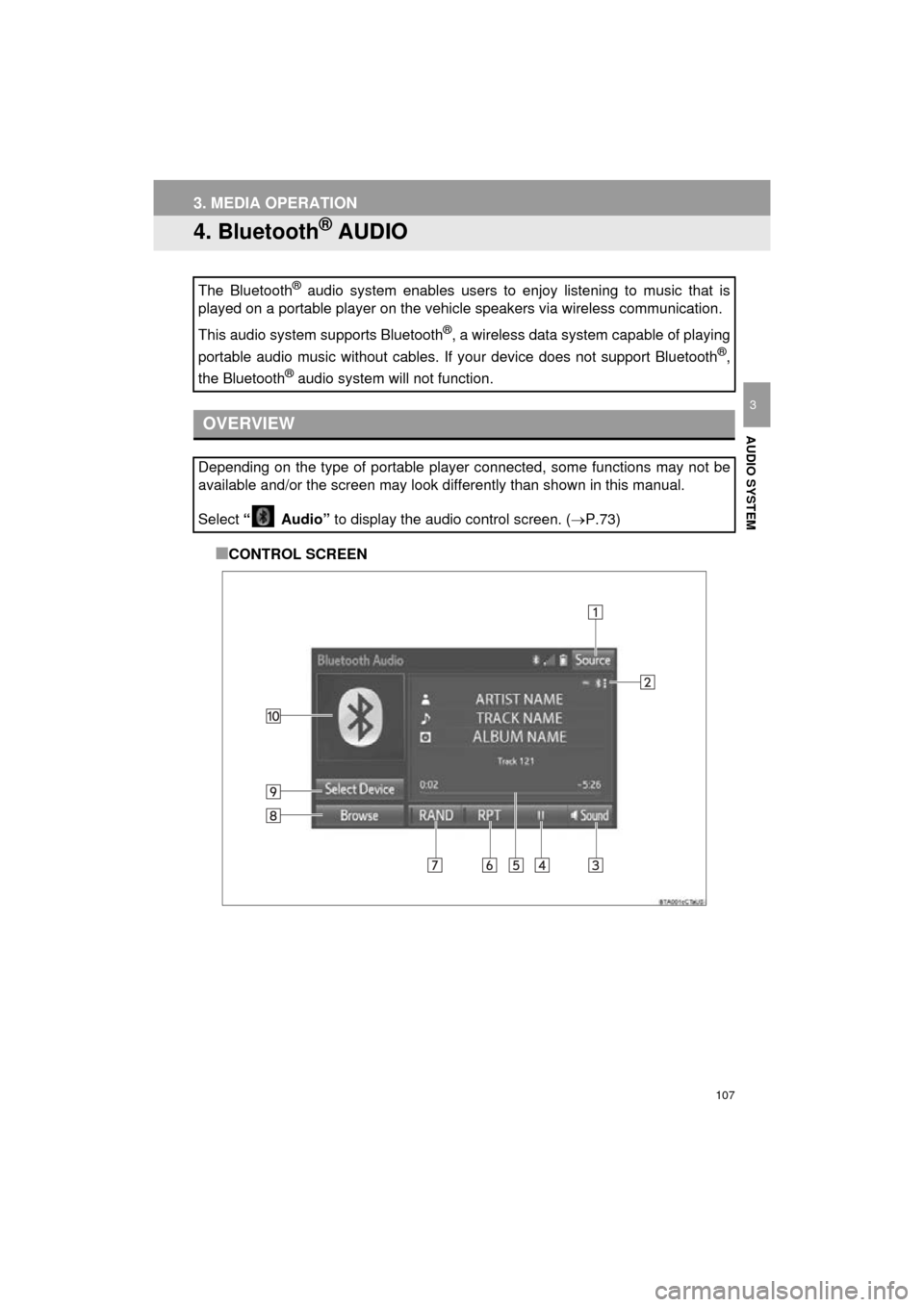
■CONTROL SCREEN
The Bluetooth
® audio system enables users to enjoy listening to music that is
played on a portable player on the vehicle speakers via wireless communi\
cation.
This audio system supports Bluetooth
®, a wireless data system capable of playing
portable audio music without cables. If your device does not support Bluetooth
®,
the Bluetooth
® audio system will not function.
OVERVIEW
Depending on the type of portable player connected, some functions may not be
available and/or the screen may look differently than shown in this manual.
Select “ Audio” to display the audio control screen.
( P.73)
Page 109 of 294
109
3. MEDIA OPERATION
COROLLA_14CY_Navi_U
AUDIO SYSTEM
3
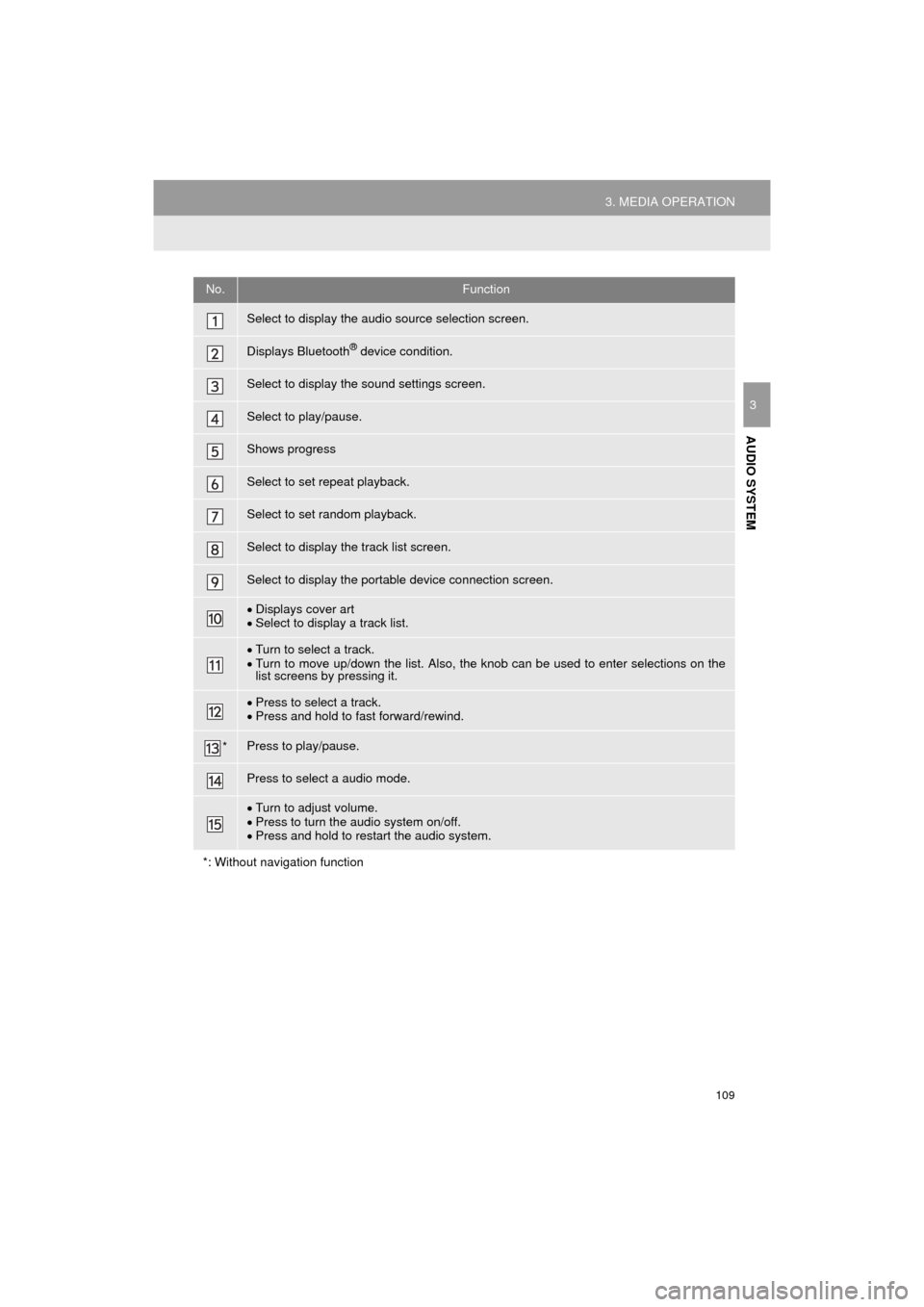
No.Function
Select to display the audio source selection screen.
Displays Bluetooth® device condition.
Select to display the sound settings screen.
Select to play/pause.
Shows progress
Select to set repeat playback.
Select to set random playback.
Select to display the track list screen.
Select to display the portable device connection screen.
Displays cover art
Select to display a track list.
Turn to select a track.
Turn to move up/down the list. Also, the knob can be used to enter selections on the
list screens by pressing it.
Press to select a track.
Press and hold to fast forward/rewind.
*Press to play/pause.
Press to select a audio mode.
Turn to adjust volume.
Press to turn the audio system on/off.
Press and hold to restart the audio system.
*: Without navigation function
Page 110 of 294

110
3. MEDIA OPERATION
COROLLA_14CY_Navi_U
CAUTION
●Do not operate the player’s controls or connect to the Bluetooth® audio system while driv-
ing.
● Your audio unit is fitted with Bluetooth
® antennas. People with implantable cardiac pace-
makers, cardiac resynchronization therapy-pacemakers or implantable cardioverter
defibrillators should maintain a reasonable distance between themselves and the
Bluetooth
® antennas. The radio waves may affect the operation of such devices.
● Before using Bluetooth
® devices, users of any electrical medical device other than
implantable cardiac pacemakers, cardiac resynchronization therapy-pacemakers or
implantable cardioverter defibrillators should consult the manufacturer of the device for
information about its operation under the influence of radio waves. Radio waves could
have unexpected effects on the operation of such medical devices.
NOTICE
● Do not leave your portable player in the vehicle. In particular, high temperatures inside
the vehicle may damage the portable player.
Page 111 of 294
111
3. MEDIA OPERATION
COROLLA_14CY_Navi_U
AUDIO SYSTEM
3
INFORMATION
●Depending on the Bluetooth® device that is connected to the system, the music may start
playing when selecting while it is paused. Conversely, the music may pause when
selecting while it is playing.
● In the following conditions, the system may not function:
• The Bluetooth
® device is turned off.
• The Bluetooth
® device is not connected.
• The Bluetooth
® device has a low battery.
● It may take time to connect the phone when Bluetooth
® audio is being played.
● For operating the portable player, see the instruction manual that comes with it.
● If the Bluetooth
® device is disconnected due to poor reception from the Bluetooth® net-
work when the engine switch is in the following, the system will automatically reconnect
to the portable player.
Vehicles without a smart key system
The engine switch is turned to the “ACC” or “ON” position.
Vehicles with a smart key system
The “ENGINE START STOP” switch is turned to ACCESSORY or IGNITION ON
mode.
● If the system is attempting to connect to a Bluetooth® device and the Bluetooth® device is
turned off and then back on, the system will attempt to reconnect.
● Bluetooth
® device information is registered when the Bluetooth® device is connected to
the Bluetooth® audio system. When selling or disposing of the vehicle, remove the
Bluetooth® audio information from the system. ( P.61)
Page 112 of 294

112
3. MEDIA OPERATION
COROLLA_14CY_Navi_U
Registering an additional device
1Select “Select Device” on the
Bluetooth
® audio control screen.
2For more in formation: P.50
Selecting a registered device
1Select “Select Device” on the
Bluetooth
® audio control screen.
2For more in formation: P.52
1Select the repeat button to change on/
off.
1Select the random button to change
on/off.
CONNECTING A Bluetooth®
DEVICE
To use the Bluetooth® audio system, it
is necessary to register a Bluetooth
®
device with the system.
LISTENING TO Bluetooth®
AUDIO
REPEATING
The track currently being listened to
can be repeated.
RANDOM ORDER
Tracks can be automatically and ran-
domly selected.
Page 115 of 294
115
COROLLA_14CY_Navi_U
AUDIO SYSTEM
3
4. AUDIO REMOTE CONTROLS
1. STEERING SWITCHES
“MODE/HOLD” switch
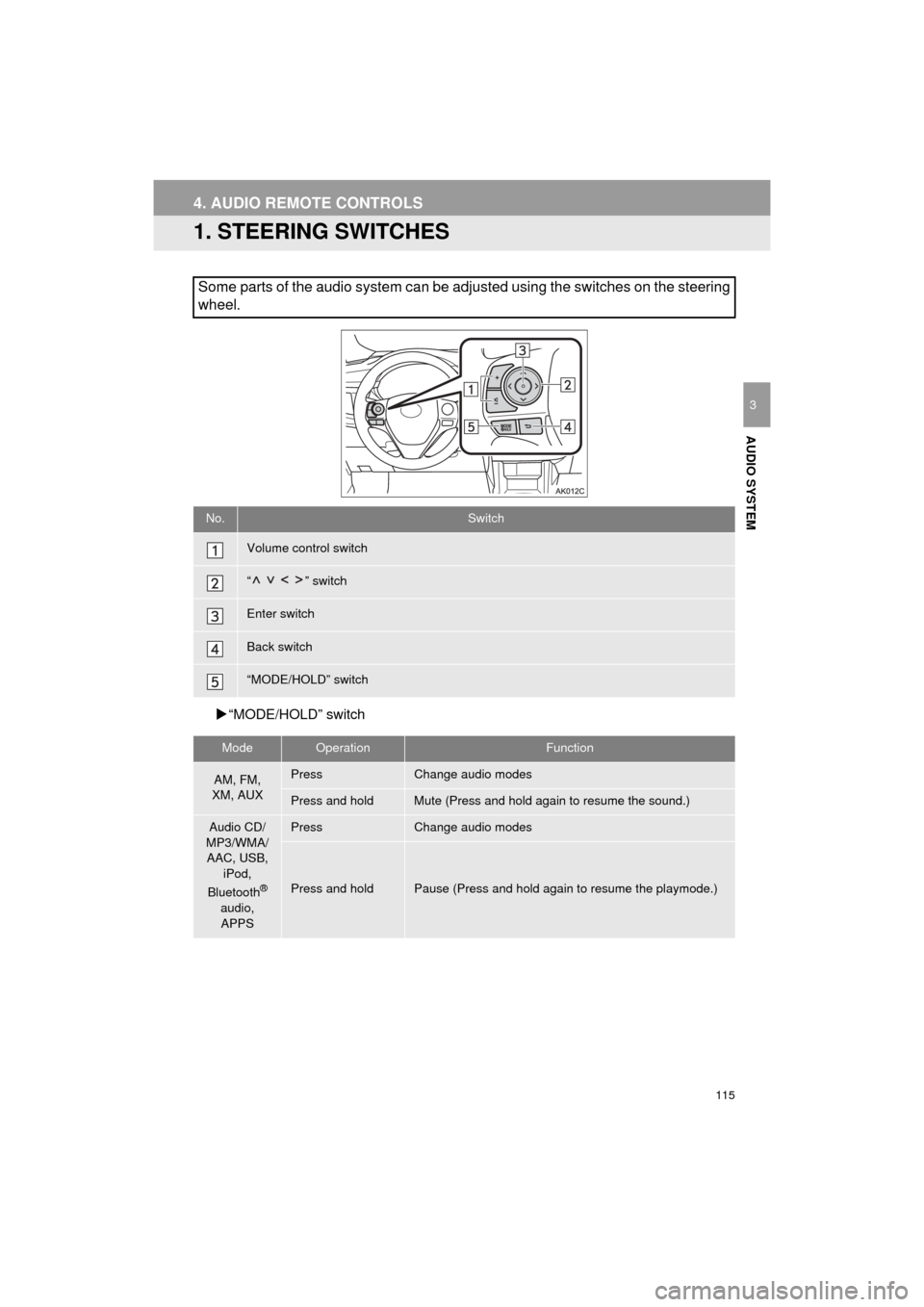
Some parts of the audio system can be adjusted using the switches on the steering
wheel.
No.Switch
Volume control switch
“” switch
Enter switch
Back switch
“MODE/HOLD” switch
ModeOperationFunction
AM, FM,
XM, AUXPressChange audio modes
Press and holdMute (Press and hold again to resume the sound.)
Audio CD/
MP3/WMA/ AAC, USB, iPod,
Bluetooth
®
audio, APPS
PressChange audio modes
Press and holdPause (Press and hold again to resume the playmode.)
Page 139 of 294
139
COROLLA_14CY_Navi_U
VOICE COMMAND SYSTEM
4
2. MOBILE ASSISTANT OPERATION
1. MOBILE ASSISTANT
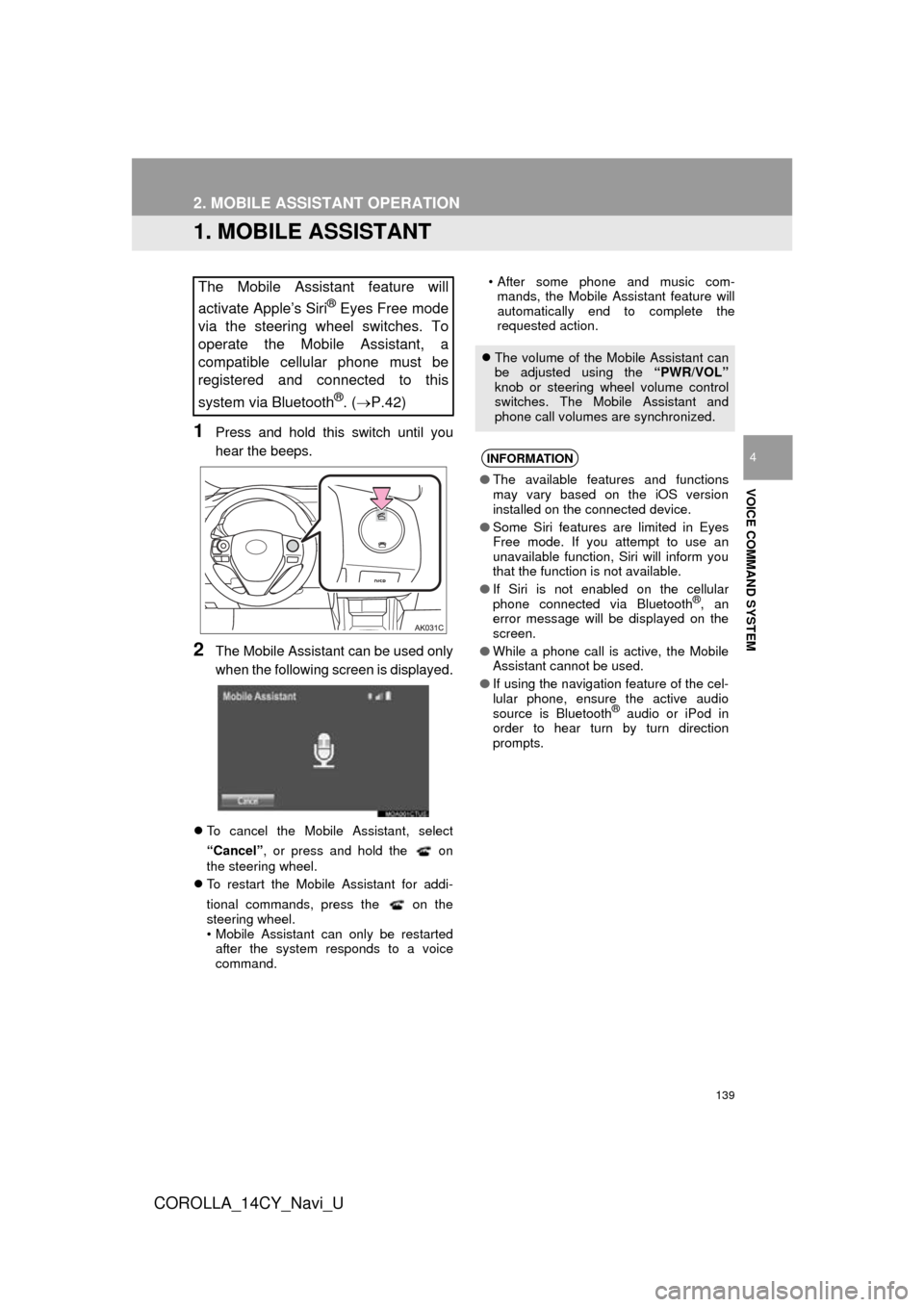
1Press and hold this switch until you
hear the beeps.
2The Mobile Assistant can be used only
when the following screen is displayed.
To cancel the Mobile Assistant, select
“Cancel”, or press and hold the on
the steering wheel.
To restart the Mobile Assistant for addi-
tional commands, press the on the
steering wheel.
• Mobile Assistant can only be restarted
after the system responds to a voice
command. • After some phone and music com-
mands, the Mobile Assistant feature will
automatically end to complete the
requested action.
The Mobile Assistant feature will
activate Apple’s Siri
® Eyes Free mode
via the steering wheel switches. To
operate the Mobile Assistant, a
compatible cellular phone must be
registered and connected to this
system via Bluetooth
®. ( P.42)
The volume of the Mobile Assistant can
be adjusted using the “PWR/VOL”
knob or steering wheel volume control
switches. The Mobile Assistant and
phone call volumes are synchronized.
INFORMATION
● The available features and functions
may vary based on the iOS version
installed on the connected device.
● Some Siri features are limited in Eyes
Free mode. If you attempt to use an
unavailable function, Siri will inform you
that the function is not available.
● If Siri is not enabled on the cellular
phone connected via Bluetooth
®, an
error message will be displayed on the
screen.
● While a phone call is active, the Mobile
Assistant cannot be used.
● If using the navigation feature of the cel-
lular phone, ensure the active audio
source is Bluetooth
® audio or iPod in
order to hear turn by turn direction
prompts.
Page 142 of 294
142
COROLLA_14CY_Navi_U
1. USEFUL INFORMATION
1. RECEIVING DOPPLER WEATHER INFORMATION
1Press the “APPS” button.
2Select “Weather” .
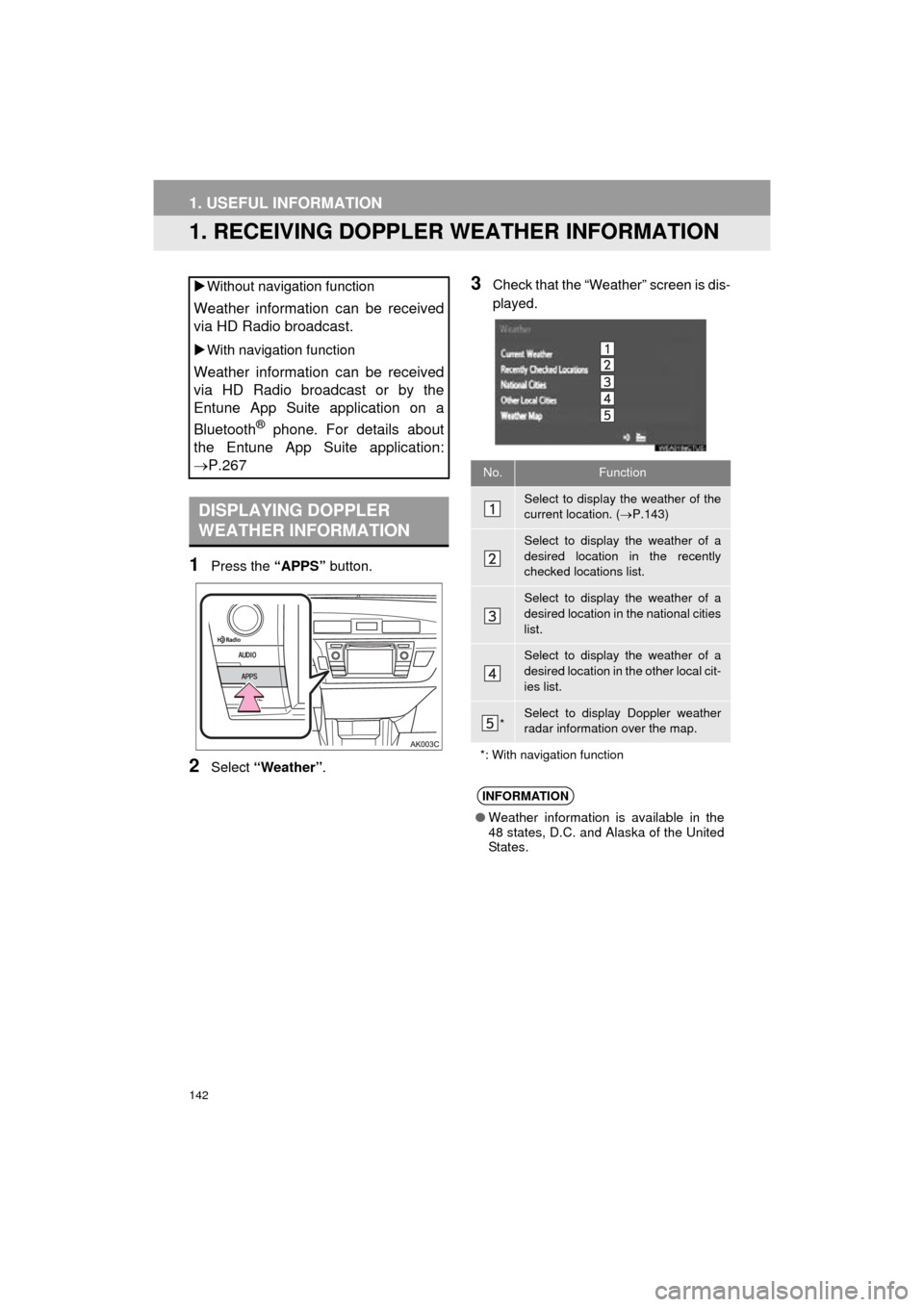
3Check that the “Weather” screen is dis-
played.
Without navigation function
Weather information can be received
via HD Radio broadcast.
With navigation function
Weather information can be received
via HD Radio broadcast or by the
Entune App Suite application on a
Bluetooth
® phone. For details about
the Entune App Suite application:
P.267
DISPLAYING DOPPLER
WEATHER INFORMATION
No.Function
Select to display the weather of the
current location. ( P.143)
Select to display the weather of a
desired location in the recently
checked locations list.
Select to display the weather of a
desired location in the national cities
list.
Select to display the weather of a
desired location in the other local cit-
ies list.
*Select to display Doppler weather
radar information over the map.
*: With navigation function
INFORMATION
● Weather information is available in the
48 states, D.C. and Alaska of the United
States.