phone TOYOTA COROLLA 2016 11.G Navigation Manual
[x] Cancel search | Manufacturer: TOYOTA, Model Year: 2016, Model line: COROLLA, Model: TOYOTA COROLLA 2016 11.GPages: 294, PDF Size: 3.42 MB
Page 131 of 294
131
1. VOICE COMMAND SYSTEM OPERATION
COROLLA_14CY_Navi_U
VOICE COMMAND SYSTEM
41Press the talk switch.
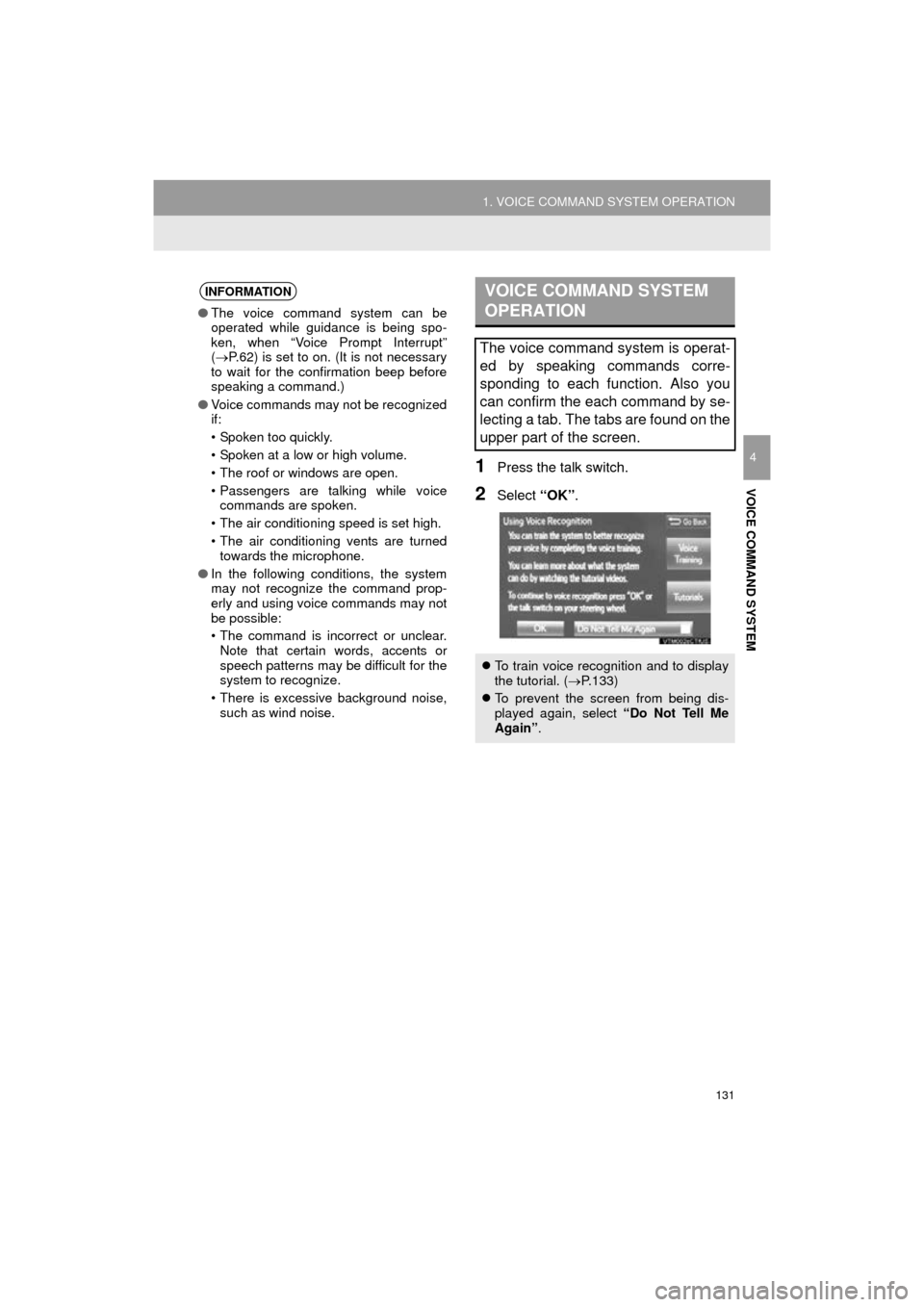
2Select “OK”.
INFORMATION
●The voice command system can be
operated while guidance is being spo-
ken, when “Voice Prompt Interrupt”
( P.62) is set to on. (It is not necessary
to wait for the confirmation beep before
speaking a command.)
● Voice commands may not be recognized
if:
• Spoken too quickly.
• Spoken at a low or high volume.
• The roof or windows are open.
• Passengers are talking while voice
commands are spoken.
• The air conditioning speed is set high.
• The air conditioning vents are turned towards the microphone.
● In the following conditions, the system
may not recognize the command prop-
erly and using voice commands may not
be possible:
• The command is incorrect or unclear.
Note that certain words, accents or
speech patterns may be difficult for the
system to recognize.
• There is excessive background noise, such as wind noise.
VOICE COMMAND SYSTEM
OPERATION
The voice command system is operat-
ed by speaking commands corre-
sponding to each function. Also you
can confirm the each command by se-
lecting a tab. The tabs are found on the
upper part of the screen.
To train voice recognition and to display
the tutorial. ( P.133)
To prevent the screen from being dis-
played again, select “Do Not Tell Me
Again” .
Page 135 of 294
135
1. VOICE COMMAND SYSTEM OPERATION
COROLLA_14CY_Navi_U
VOICE COMMAND SYSTEM
4
1Press the talk switch.
2Say “Call
A confirmation screen will be displayed
showing the recognition results. If multiple
matching items are found, a selection
screen will be displayed. Say “
1Press the talk switch.
2Say the phone number.
In the same manner as it is displayed on
the screen, “Dial
“Dial a number” say the phone number.
Say the phone number one digit at a time.
For example, if the phone number is
2345678:
Say “two three four five six seven
eight”
Do not say “twenty three forty five sixty
seven eight”
Calling to the following phone numbers
• 3 digit numbers (911, 411, 611)
• 7 digit numbers (Local phone numbers)
• 10 digit numbers (Area code + Local
phone number)
• 11 digit phone numbers (1 + Area code + Local phone number)
As the system cannot recognize additional
numbers, say the complete number with-
out stopping.
Calling to other phone numbers
3Say “Call” or press the switch on
the steering wheel.
When the confirmation screen appears,
say “Yes” or select “Yes” or press the
switch on the steering wheel.
VOICE COMMAND EXAMPLE:
CALL NAME
INFORMATION
● In the same manner as it is displayed on
the screen, “Call
say the name, or the name and type of
phone, of a contact.
For example: “Call a contact” , “John
Smith” or “Call a contact” , “Mary
Davis”, “Mobile”
● There are 4 types of phones: Home,
Mobile, Office and Other.
● Short or abbreviated names in the con-
tacts list may not be recognized. Change
names in the contacts list to full names.
● Sometimes a voice recognition result
confirmation screen will be displayed.
After confirming the result, say “Yes” or
“No” .
● When the system recognizes multiple
names from the contacts list, a name
candidate list will be displayed on the
screen. If the desired name is not dis-
played on the top of the screen, say or
select the number of the name from the
candidate list (number 1 and number 2)
to select a name from the candidate list.
● When a contact has multiple phone
numbers registered in the contacts list, a
candidate list will be displayed. If the
desired phone number is not displayed
on the top of the screen, say or select
the number of the desired phone num-
ber from the candidate list (number 1
and number 2) to select a phone number
from the candidate list.
VOICE COMMAND EXAMPLE:
DIAL NUMBER
When the system recognizes multiple
phone numbers, a phone number candi-
date list will be displayed on the screen.
Pressing the
switch on the steering
wheel makes a call to the top entry on
the list. If the desired phone number is
not displayed on the top of the screen,
say the number of the desired phone
number from the candidate list to select
a phone number from the candidate list.
Page 136 of 294
136
1. VOICE COMMAND SYSTEM OPERATION
COROLLA_14CY_Navi_U
2. CASUAL SPEECH RECOGNIZATION
Due to natural language speech recog-
nition technology, this system enables
recognition of a command when spo-
ken naturally. However, the system
cannot recognize every variation of
each command. In some situations, it
is possible to omit the command for the
procedure and directly state the de-
sired operation. Not all voice com-
mands are displayed in the short cut
menu.
INFORMATION
●If the command cannot be recognized
completely, the command input screen
will be displayed. (Search results will be
shown based on the part of the com-
mand that was recognized.)
EXPRESSION EXAMPLES FOR
EACH FUNCTION
CommandExpression examples
“Go Home”*Navigate to my house.
Take me home.
“Enter an
Address”*I need a route to a
street address.
Give me a street.
“Find Nearby
Search for a
I need a route to a
nearby
“Call
Get me
Contact the
“Dial
Can you get me
<3334445555>.
Ring <3334445555>.
“Play Artist
I want to hear the band
“Play Album
Switch to the album
*: With navigation function
Page 138 of 294
138
1. VOICE COMMAND SYSTEM OPERATION
COROLLA_14CY_Navi_U
Phone
Audio
Info*
CommandAction
“Redial”Places a call to the phone number of the latest outgoing
call
“Call Back”Places a call to the phone number of latest incoming call
“Show Recent Calls”Displays the call history screen
“Dial
“Call
phone book
CommandAction
“Play Playlist
“Play Artist
“Play Song
“Play Album
CommandAction
“Show Forecast”Displays weather information
“Show Traffic”Displays traffic information
*: Available models and av ailable country and areas ( P.142, 144)
Page 139 of 294
139
COROLLA_14CY_Navi_U
VOICE COMMAND SYSTEM
4
2. MOBILE ASSISTANT OPERATION
1. MOBILE ASSISTANT
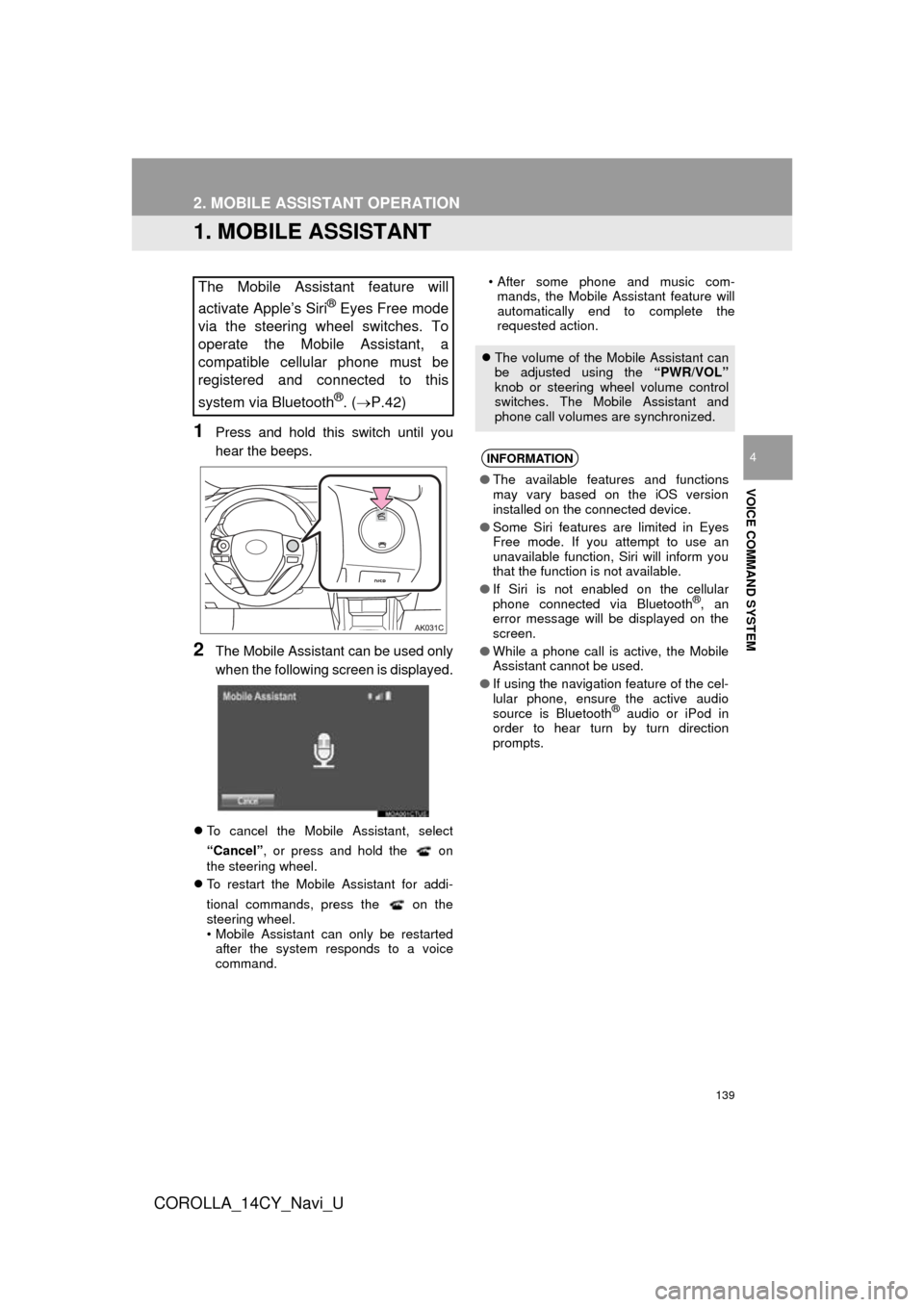
1Press and hold this switch until you
hear the beeps.
2The Mobile Assistant can be used only
when the following screen is displayed.
To cancel the Mobile Assistant, select
“Cancel”, or press and hold the on
the steering wheel.
To restart the Mobile Assistant for addi-
tional commands, press the on the
steering wheel.
• Mobile Assistant can only be restarted
after the system responds to a voice
command. • After some phone and music com-
mands, the Mobile Assistant feature will
automatically end to complete the
requested action.
The Mobile Assistant feature will
activate Apple’s Siri
® Eyes Free mode
via the steering wheel switches. To
operate the Mobile Assistant, a
compatible cellular phone must be
registered and connected to this
system via Bluetooth
®. ( P.42)
The volume of the Mobile Assistant can
be adjusted using the “PWR/VOL”
knob or steering wheel volume control
switches. The Mobile Assistant and
phone call volumes are synchronized.
INFORMATION
● The available features and functions
may vary based on the iOS version
installed on the connected device.
● Some Siri features are limited in Eyes
Free mode. If you attempt to use an
unavailable function, Siri will inform you
that the function is not available.
● If Siri is not enabled on the cellular
phone connected via Bluetooth
®, an
error message will be displayed on the
screen.
● While a phone call is active, the Mobile
Assistant cannot be used.
● If using the navigation feature of the cel-
lular phone, ensure the active audio
source is Bluetooth
® audio or iPod in
order to hear turn by turn direction
prompts.
Page 140 of 294

140
2. MOBILE ASSISTANT OPERATION
COROLLA_14CY_Navi_U
MICROPHONE
It is not necessary to speak directly into
the microphone when using the Mobile
Assistant. (Microphone location:
P.130)
INFORMATION
● Wait for the listening beeps before using
the Mobile Assistant.
● The Mobile Assistant may not recognize
commands in the following situations:
• Spoken too quickly.
• Spoken at a low or high volume.
• The roof or windows are open.
• Passengers are talking while the
Mobile Assistant is being used.
• The air conditioning speed is set high.
• The air conditioning vents are turned toward the microphone.
Page 142 of 294
142
COROLLA_14CY_Navi_U
1. USEFUL INFORMATION
1. RECEIVING DOPPLER WEATHER INFORMATION
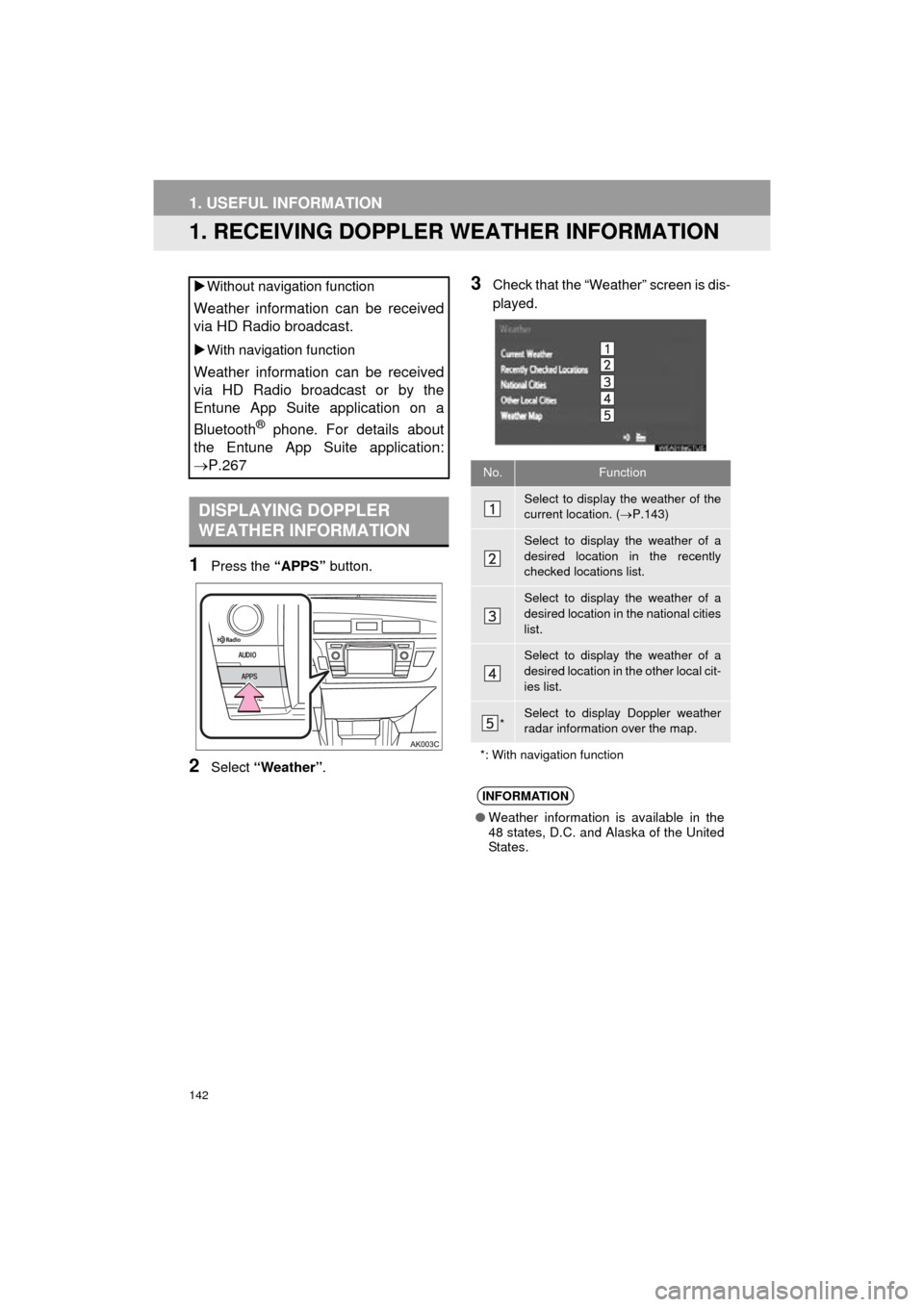
1Press the “APPS” button.
2Select “Weather” .
3Check that the “Weather” screen is dis-
played.
Without navigation function
Weather information can be received
via HD Radio broadcast.
With navigation function
Weather information can be received
via HD Radio broadcast or by the
Entune App Suite application on a
Bluetooth
® phone. For details about
the Entune App Suite application:
P.267
DISPLAYING DOPPLER
WEATHER INFORMATION
No.Function
Select to display the weather of the
current location. ( P.143)
Select to display the weather of a
desired location in the recently
checked locations list.
Select to display the weather of a
desired location in the national cities
list.
Select to display the weather of a
desired location in the other local cit-
ies list.
*Select to display Doppler weather
radar information over the map.
*: With navigation function
INFORMATION
● Weather information is available in the
48 states, D.C. and Alaska of the United
States.
Page 145 of 294
145
1. USEFUL INFORMATION
COROLLA_14CY_Navi_U
INFORMATION
5
3. DATA SERVICES SETTINGS*
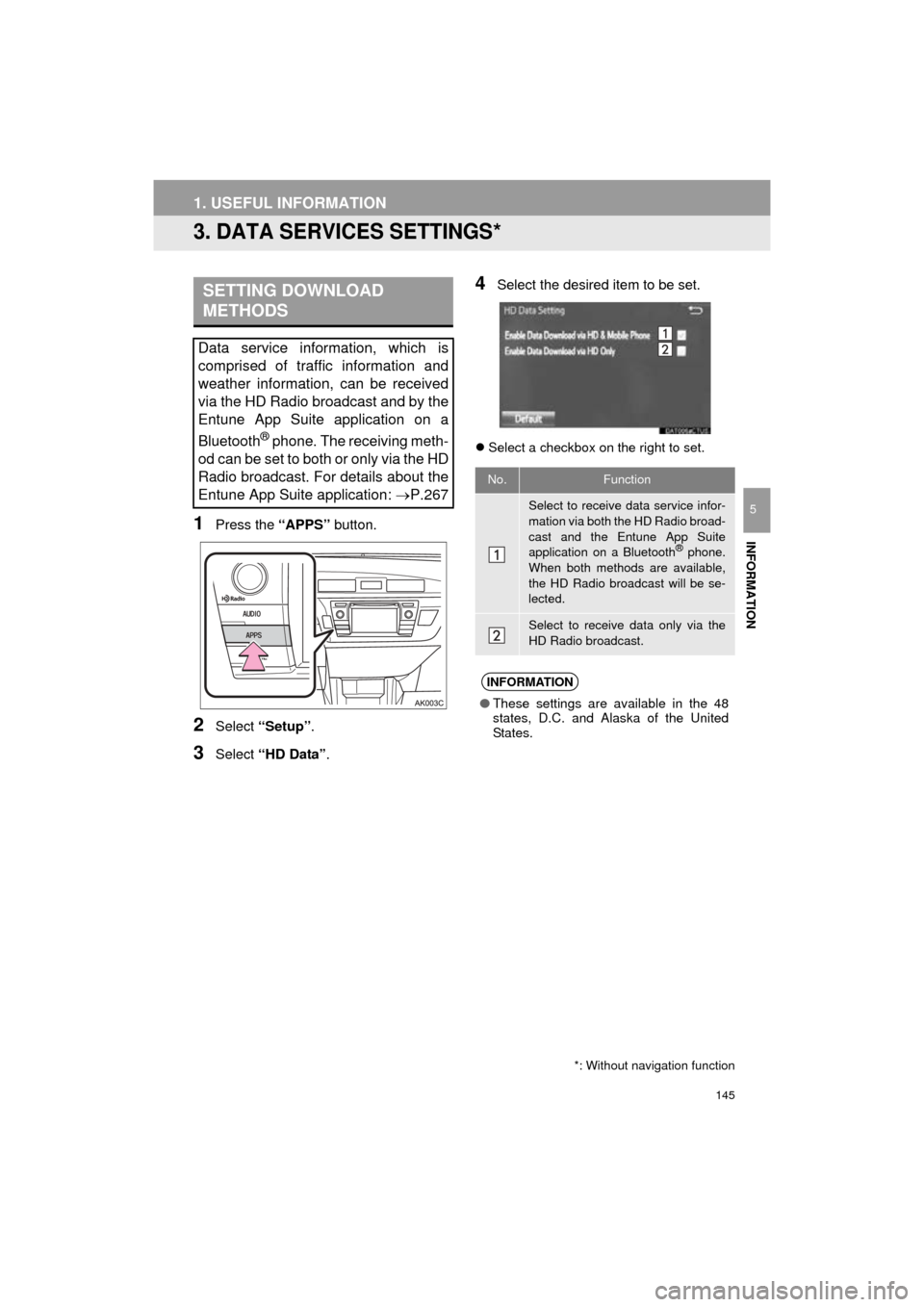
1Press the “APPS” button.
2Select “Setup” .
3Select “HD Data” .
4Select the desired item to be set.
Select a checkbox on the right to set.
SETTING DOWNLOAD
METHODS
Data service information, which is
comprised of traffic information and
weather information, can be received
via the HD Radio broadcast and by the
Entune App Suite application on a
Bluetooth
® phone. The receiving meth-
od can be set to both or only via the HD
Radio broadcast. For details about the
Entune App Suite application: P.267
*: Without navigation function
No.Function
Select to receive data service infor-
mation via both the HD Radio broad-
cast and the Entune App Suite
application on a Bluetooth
® phone.
When both methods are available,
the HD Radio broadcast will be se-
lected.
Select to receive data only via the
HD Radio broadcast.
INFORMATION
● These settings are available in the 48
states, D.C. and Alaska of the United
States.
Page 157 of 294

7
157
COROLLA_14CY_Navi_U
4
5
6
8
9
1
2
3
7
1. QUICK REFERENCE ................... 158
2. SOME BASICS ............................ 159
REGISTERING/CONNECTING
A Bluetooth® PHONE........................ 159
USING THE PHONE SWITCH/MICROPHONE .................. 160
VOICE COMMAND SYSTEM.............. 160
ABOUT THE CONTACTS IN THE CONTACT LIST ................... 161
WHEN SELLING OR DISPOSING OF THE VEHICLE........ 161
3. CALLING ON THE Bluetooth®
PHONE....................................... 162
BY FAVORITES LIST .......................... 163
BY CALL HISTORY ............................. 163
BY CONTACTS LIST .......................... 164
BY DIAL PAD ...................................... 166
BY OFF HOOK SWITCH ..................... 166
BY “Home” SCREEN ........................... 167
4. RECEIVING ON THE Bluetooth®
PHONE....................................... 168
INCOMING CALLS .............................. 168
5. TALKING ON THE Bluetooth®
PHONE ...................................... 169
INCOMING CALL WAITING ................ 171
6. Bluetooth® PHONE MESSAGE
FUNCTION ...... ....................... ... 172
RECEIVING A MESSAGE ................... 173
CHECKING MESSAGES ..................... 173
REPLYING TO A MESSAGE
(QUICK REPLY) ................................ 174
CALLING THE MESSAGE SENDER ........................................... 175
1. PHONE/ MESSAGE SETTINGS . ............. 177
PHONE/MESSAGE SETTINGS
SCREEN ........................................... 177
“Sound Settings” SCREEN .................. 178
“Contact/Call History Settings” SCREEN ........................................... 179
“Messaging Settings” SCREEN ........... 187
“Phone Display Settings” SCREEN ..... 188
1. TROUBLESHOOTING ................ 189
1
PHONE OPERATION
(HANDS-FREE SYSTEM FOR
CELLULAR PHONES)
2SETUP
3WHAT TO DO IF...
PHONE
Page 158 of 294
158
COROLLA_14CY_Navi_U
1. PHONE OPERATION (HANDS-FREE SYSTEM FOR CELLULAR PHONES)
1. QUICK REFERENCE
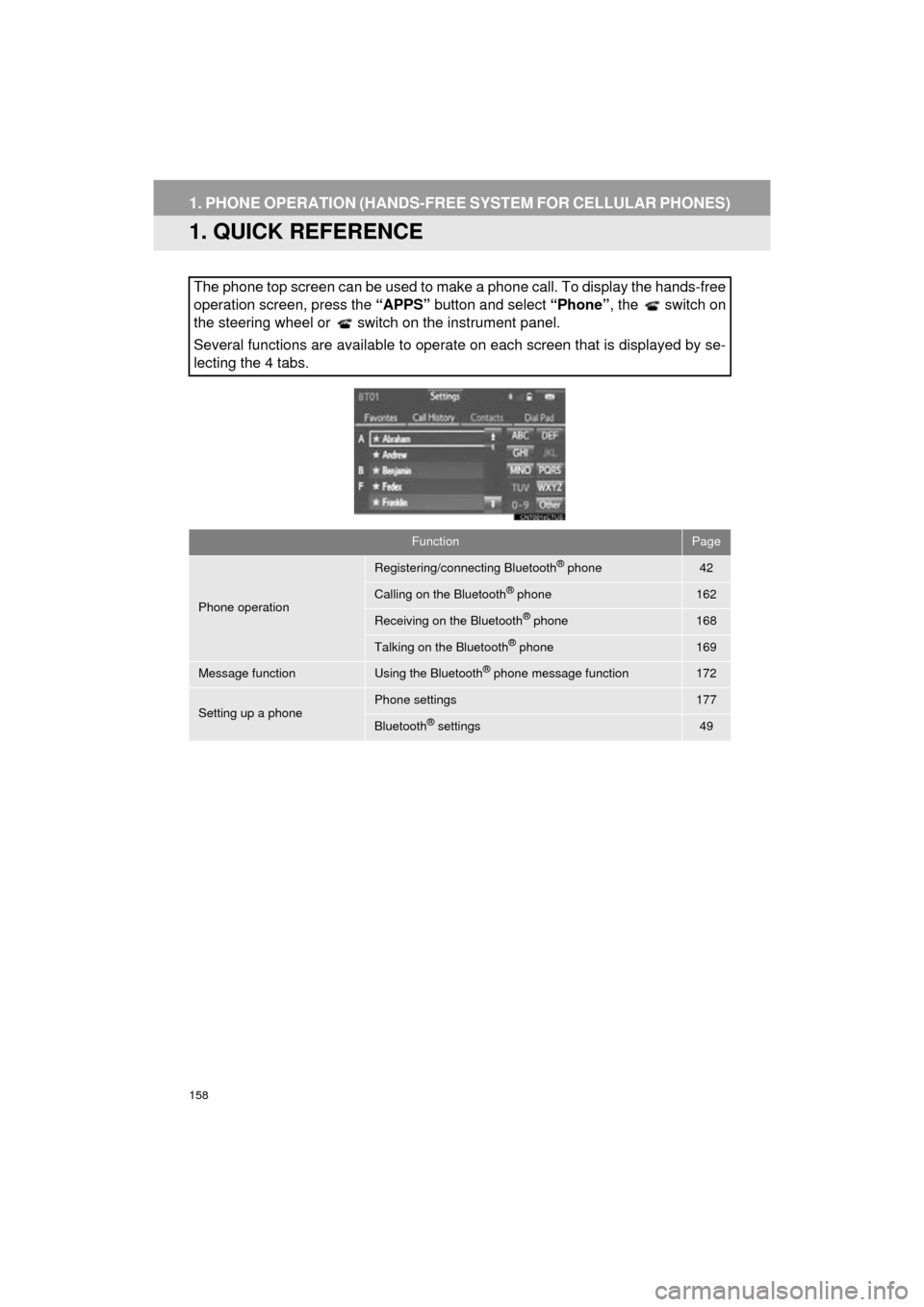
The phone top screen can be used to make a phone call. To display the hands-free
operation screen, press the “APPS” button and select “Phone”, the switch on
the steering wheel or switch on the instrument panel.
Several functions are available to operate on each screen that is displayed by se-
lecting the 4 tabs.
FunctionPage
Phone operation
Registering/connecting Bluetooth® phone42
Calling on the Bluetooth® phone162
Receiving on the Bluetooth® phone168
Talking on the Bluetooth® phone169
Message functionUsing the Bluetooth® phone message function172
Setting up a phonePhone settings177
Bluetooth® settings49