USB TOYOTA COROLLA 2016 11.G Owners Manual
[x] Cancel search | Manufacturer: TOYOTA, Model Year: 2016, Model line: COROLLA, Model: TOYOTA COROLLA 2016 11.GPages: 620, PDF Size: 9.12 MB
Page 3 of 620
3
1
9 8 6 5
4
3
2
COROLLA_TMMMS_TMMC_U (OM12J84U)
10
7
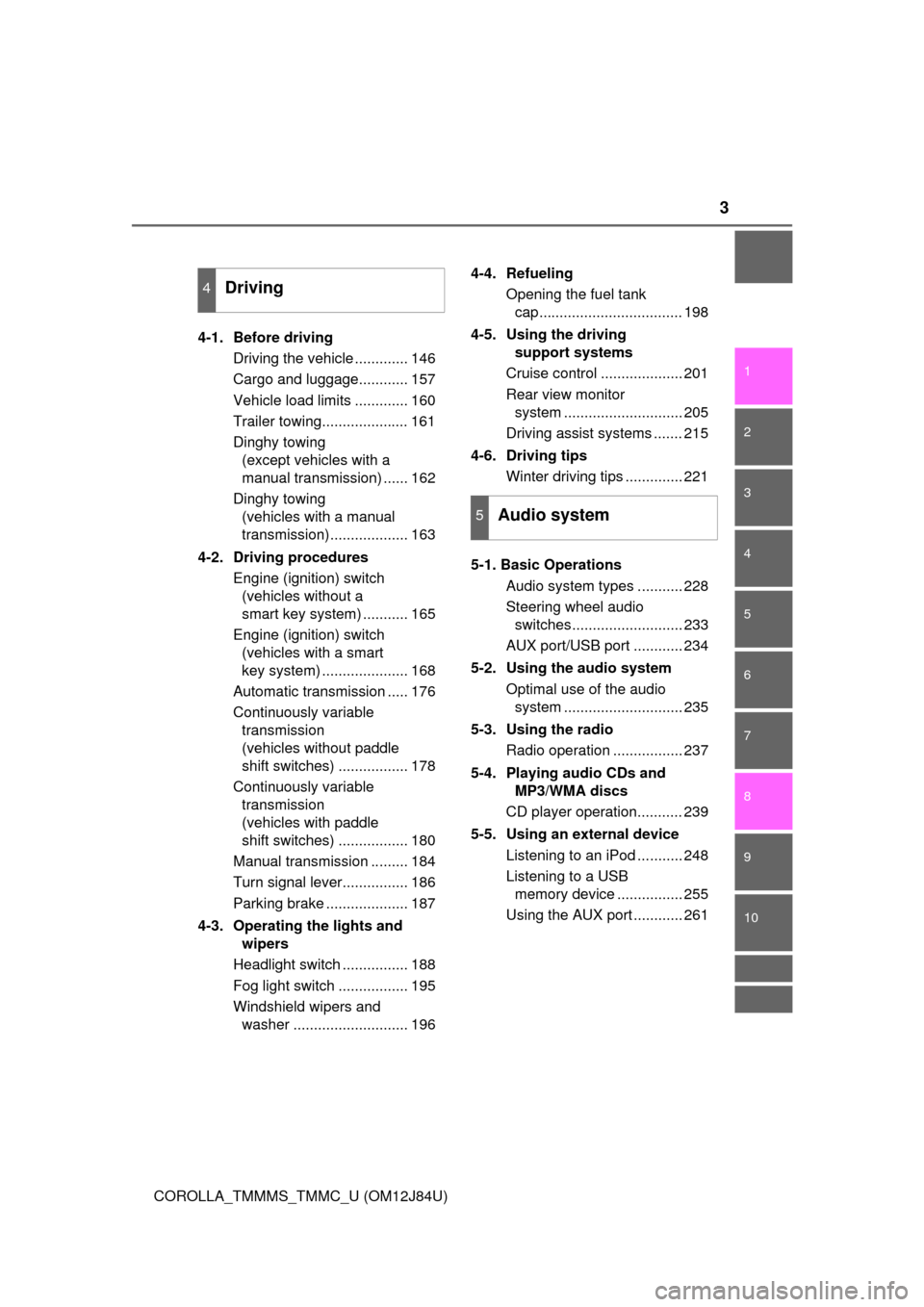
4-1. Before drivingDriving the vehicle ............. 146
Cargo and luggage............ 157
Vehicle load limits ............. 160
Trailer towing..................... 161
Dinghy towing (except vehicles with a
manual transmission) ...... 162
Dinghy towing (vehicles with a manual
transmission)................... 163
4-2. Driving procedures Engine (ignition) switch (vehicles without a
smart key system) ........... 165
Engine (ignition) switch (vehicles with a smart
key system) ..................... 168
Automatic transmission ..... 176
Continuously variable transmission
(vehicles without paddle
shift switches) ................. 178
Continuously variable transmission
(vehicles with paddle
shift switches) ................. 180
Manual transmission ......... 184
Turn signal lever................ 186
Parking brake .................... 187
4-3. Operating the lights and wipers
Headlight switch ................ 188
Fog light switch ................. 195
Windshield wipers and washer ............................ 196 4-4. Refueling
Opening the fuel tank cap................................... 198
4-5. Using the driving support systems
Cruise control .................... 201
Rear view monitor system ............................. 205
Driving assist systems ....... 215
4-6. Driving tips Winter driving tips .............. 221
5-1. Basic Operations Audio system types ........... 228
Steering wheel audio switches........................... 233
AUX port/USB port ............ 234
5-2. Using the audio system Optimal use of the audio system ............................. 235
5-3. Using the radio Radio operation ................. 237
5-4. Playing audio CDs and MP3/WMA discs
CD player operation........... 239
5-5. Using an external device Listening to an iPod ........... 248
Listening to a USB memory device ................ 255
Using the AUX port ............ 261
4Driving
5Audio system
Page 4 of 620

TABLE OF CONTENTS4
COROLLA_TMMMS_TMMC_U (OM12J84U)5-6. Using Bluetooth
®
devices
Bluetooth
® audio/
phone .............................. 262
Using the steering wheel switches .......................... 267
Registering a Bluetooth
®
device.............................. 268
5-7. “SET UP” menu Using the “SET UP” menu (“Bluetooth” menu) .......... 269
Using the “SET UP” menu (“Phone” menu) ............... 274
5-8. Bluetooth
® Audio
Operating a Bluetooth®
enabled portable
player .............................. 279
5-9. Bluetooth
® Phone
Making a phone call .......... 282
Receiving a phone call ...... 285
Speaking on the phone ..... 286
5-10. Bluetooth
®
Bluetooth®......................... 288
5-11. Basic Operations (Multimedia system)
Multimedia system ............ 290
Steering wheel audio switches .......................... 292
USB port/AUX port ............ 293
Basic audio operations ...... 294
5-12. Setup (Multimedia system)
Setup menu ....................... 296
General settings ................ 297
Audio settings.................... 299
Display settings ................. 301
Voice settings .................... 302 5-13. Using the Multimedia
system
Selecting the audio source.............................. 303
List screen operation ......... 304
Optimal use of the multimedia system........... 306
5-14. Using the radio (Multimedia system)
Radio operation ................. 307
5-15. Playing an audio CD and MP3/WMA/AAC discs
(Multimedia system)
CD player operation........... 309
5-16. Using an external device (Multimedia system)
Listening to an iPod ........... 315
Listening to a USB memory device ................ 320
Using the AUX port ............ 324
5-17. Connecting Bluetooth
®
(Multimedia system)
Preparations to use wireless
communication ................ 325
Registering a Bluetooth
®
audio player for the first
time.................................. 329
Registering a Bluetooth
®
phone for the first time..... 330
Registering a Bluetooth
®
device .............................. 331
Connecting a Bluetooth
®
device .............................. 334
Displaying a Bluetooth
®
device details................... 337
Detailed Bluetooth
®
system settings................ 339
Page 225 of 620

225
5Audio system
COROLLA_TMMMS_TMMC_U (OM12J84U)5-1. Basic Operations
Audio system types ........... 228
Steering wheel audio switches .......................... 233
AUX port/USB port ............ 234
5-2. Using the audio system Optimal use of the audio system ............................ 235
5-3. Using the radio Radio operation................. 237
5-4. Playing audio CDs and MP3/WMA discs
CD player operation .......... 239
5-5. Using an external device
Listening to an iPod .......... 248
Listening to a USB memory device ............... 255
Using the AUX port ........... 261
5-6. Using Bluetooth
®
devices
Bluetooth
® audio/
phone .............................. 262
Using the steering wheel switches .......................... 267
Registering a Bluetooth
®
device ............................. 268
Page 226 of 620

226
COROLLA_TMMMS_TMMC_U (OM12J84U)5-7. “SET UP” menu
Using the “SET UP” menu (“Bluetooth” menu) .......... 269
Using the “SET UP” menu (“Phone” menu) ............... 274
5-8. Bluetooth
® Audio
Operating a Bluetooth®
enabled portable
player .............................. 279
5-9. Bluetooth
® Phone
Making a phone call .......... 282
Receiving a phone call ...... 285
Speaking on the phone ..... 286
5-10. Bluetooth
®
Bluetooth®......................... 288
5-11. Basic Operations (Multimedia system)
Multimedia system ............ 290
Steering wheel audio switches .......................... 292
USB port/AUX port ............ 293
Basic audio operations...... 294 5-12. Setup
(Multimedia system)
Setup menu....................... 296
General settings ................ 297
Audio settings ................... 299
Display settings ................. 301
Voice settings.................... 302
5-13. Using the Multimedia system
Selecting the audio source ............................. 303
List screen operation......... 304
Optimal use of the multimedia system .......... 306
5-14. Using the radio (Multimedia system)
Radio operation................. 307
5-15. Playing an audio CD and MP3/WMA/AAC discs
(Multimedia system)
CD player operation .......... 309
5-16. Using an external device (Multimedia system)
Listening to an iPod .......... 315
Listening to a USB memory device ............... 320
Using the AUX port ........... 324
Page 233 of 620
2335-1. Basic Operations
5
Audio system
COROLLA_TMMMS_TMMC_U (OM12J84U)
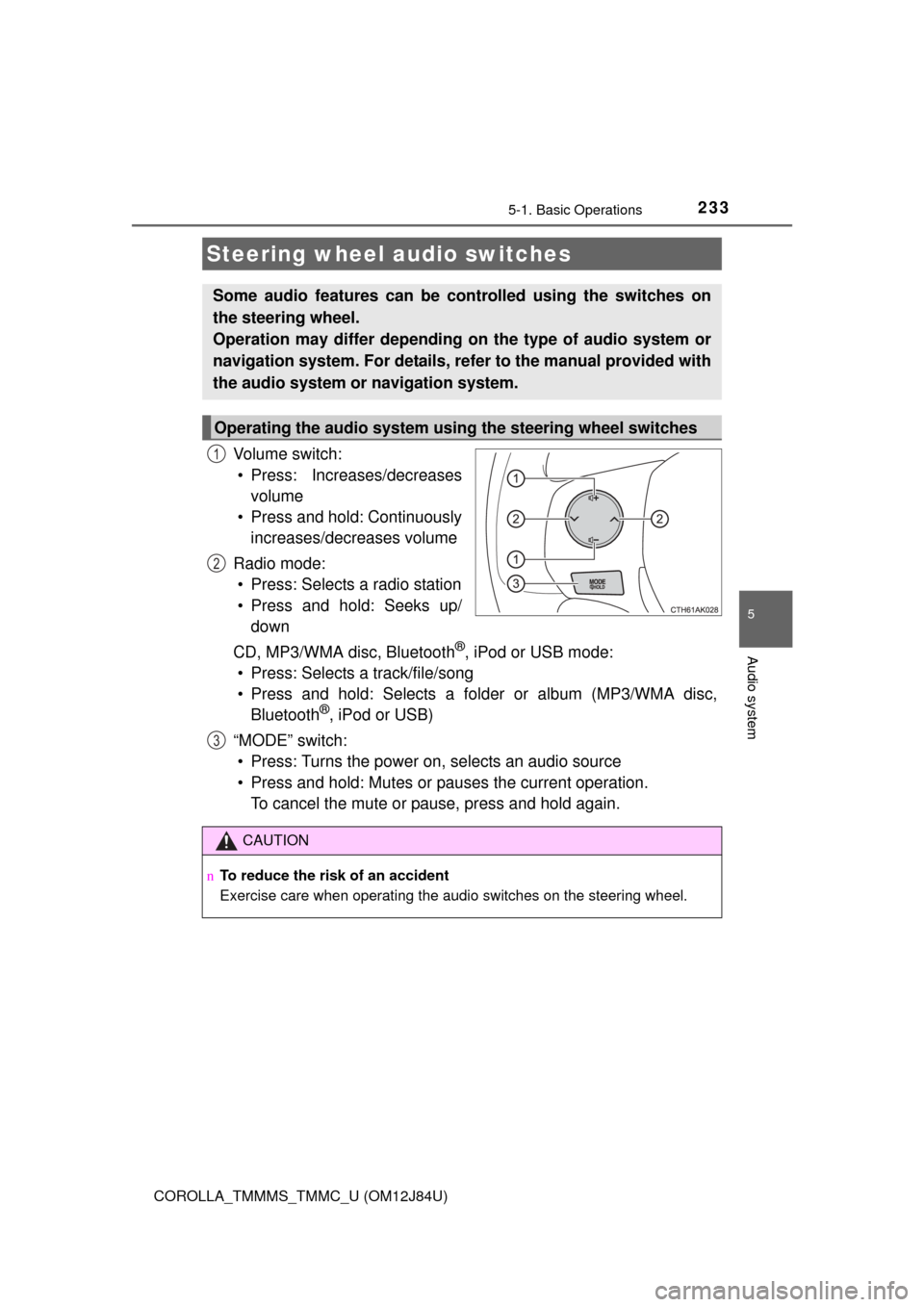
Vo l u m e s w i t c h :• Press: Increases/decreases volume
• Press and hold: Continuously increases/decreases volume
Radio mode: • Press: Selects a radio station
• Press and hold: Seeks up/ down
CD, MP3/WMA disc, Bluetooth
®, iPod or USB mode:
• Press: Selects a track/file/song
• Press and hold: Selects a folder or album (MP3/WMA disc, Bluetooth
®, iPod or USB)
“MODE” switch: • Press: Turns the power on, selects an audio source
• Press and hold: Mutes or pauses the current operation. To cancel the mute or pause, press and hold again.
Steering wheel audio switches
Some audio features can be c ontrolled using the switches on
the steering wheel.
Operation may differ depending on the type of audio system or
navigation system. For details, refer to the manual provided with
the audio system or navigation system.
Operating the audio system using the steering wheel switches
1
2
3
CAUTION
n To reduce the risk of an accident
Exercise care when operating the audio switches on the steering wheel.
Page 234 of 620
2345-1. Basic Operations
COROLLA_TMMMS_TMMC_U (OM12J84U)n
iPod
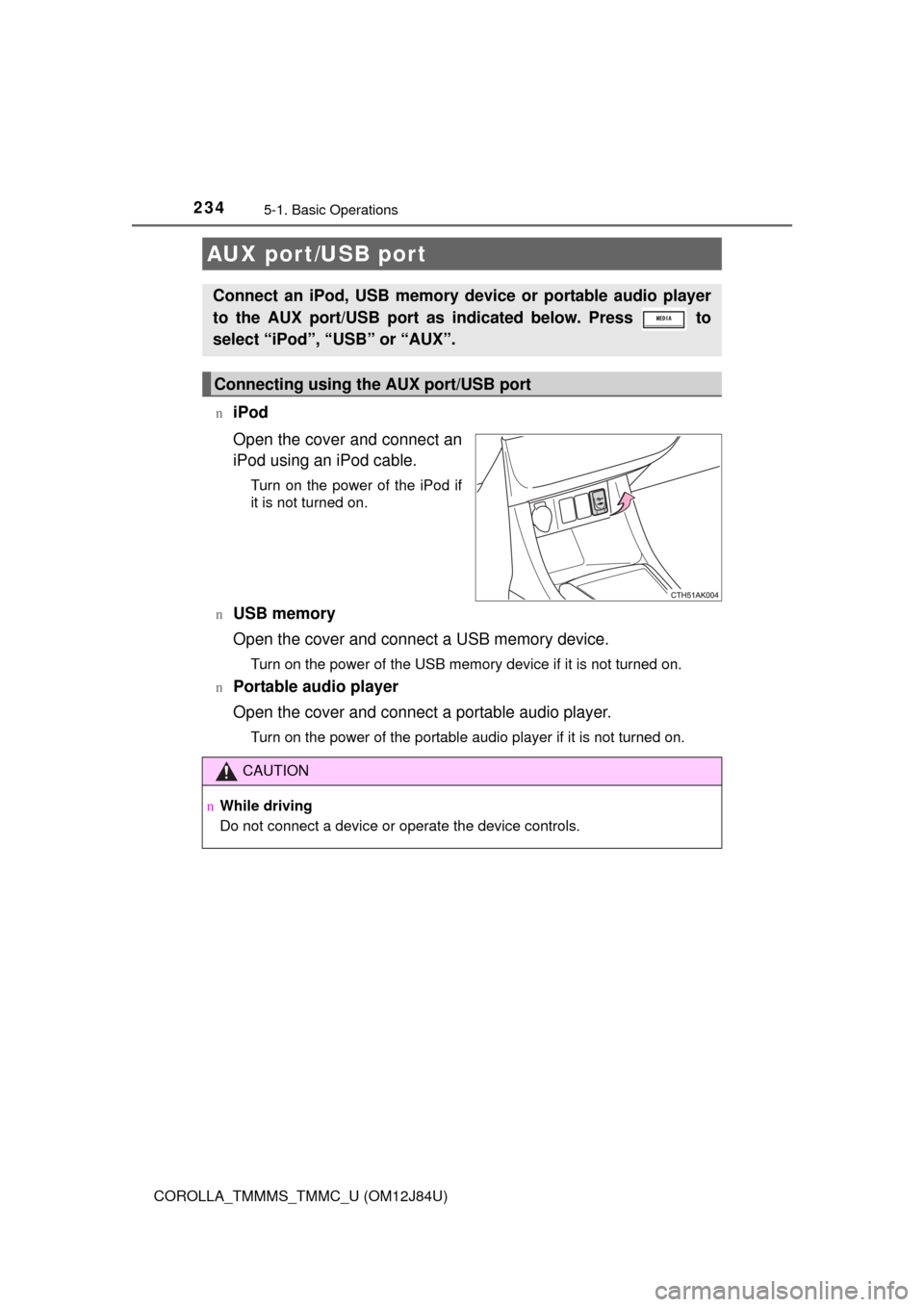
Open the cover and connect an
iPod using an iPod cable.
Turn on the power of the iPod if
it is not turned on.
n
USB memory
Open the cover and connect a USB memory device.
Turn on the power of the USB memory device if it is not turned on.
n
Portable audio player
Open the cover and connect a portable audio player.
Turn on the power of the portable audio player if it is not turned on.
AUX port/USB port
Connect an iPod, USB memory device or portable audio player
to the AUX port/USB port as indicated below. Press to
select “iPod”, “USB” or “AUX”.
Connecting using the AUX port/USB port
CAUTION
n While driving
Do not connect a device or operate the device controls.
Page 255 of 620
2555-5. Using an external device
5
Audio system
COROLLA_TMMMS_TMMC_U (OM12J84U)
P. 2 3 4
Listening to a USB memor y device
Connecting a USB memory device enables you to enjoy music
from the vehicle speakers. Press until “USB” is dis-
played.
Connecting a USB memory
Control panel
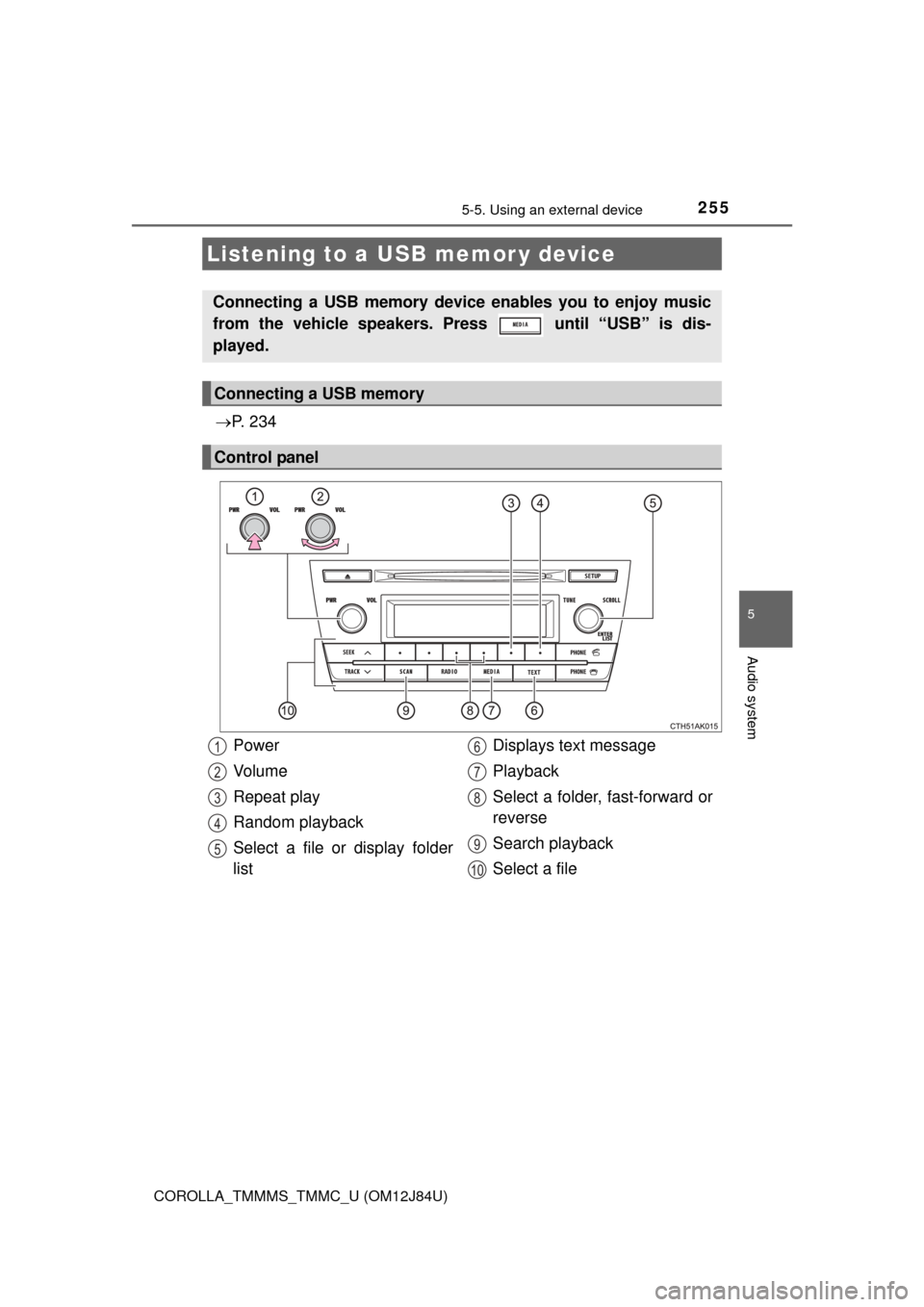
Power
Vo l u m e
Repeat play
Random playback
Select a file or display folder
list Displays text message
Playback
Select a folder, fast-forward or
reverse
Search playback
Select a file1
2
3
4
5
6
7
8
9
10
Page 257 of 620
2575-5. Using an external device
5
Audio system
COROLLA_TMMMS_TMMC_U (OM12J84U)
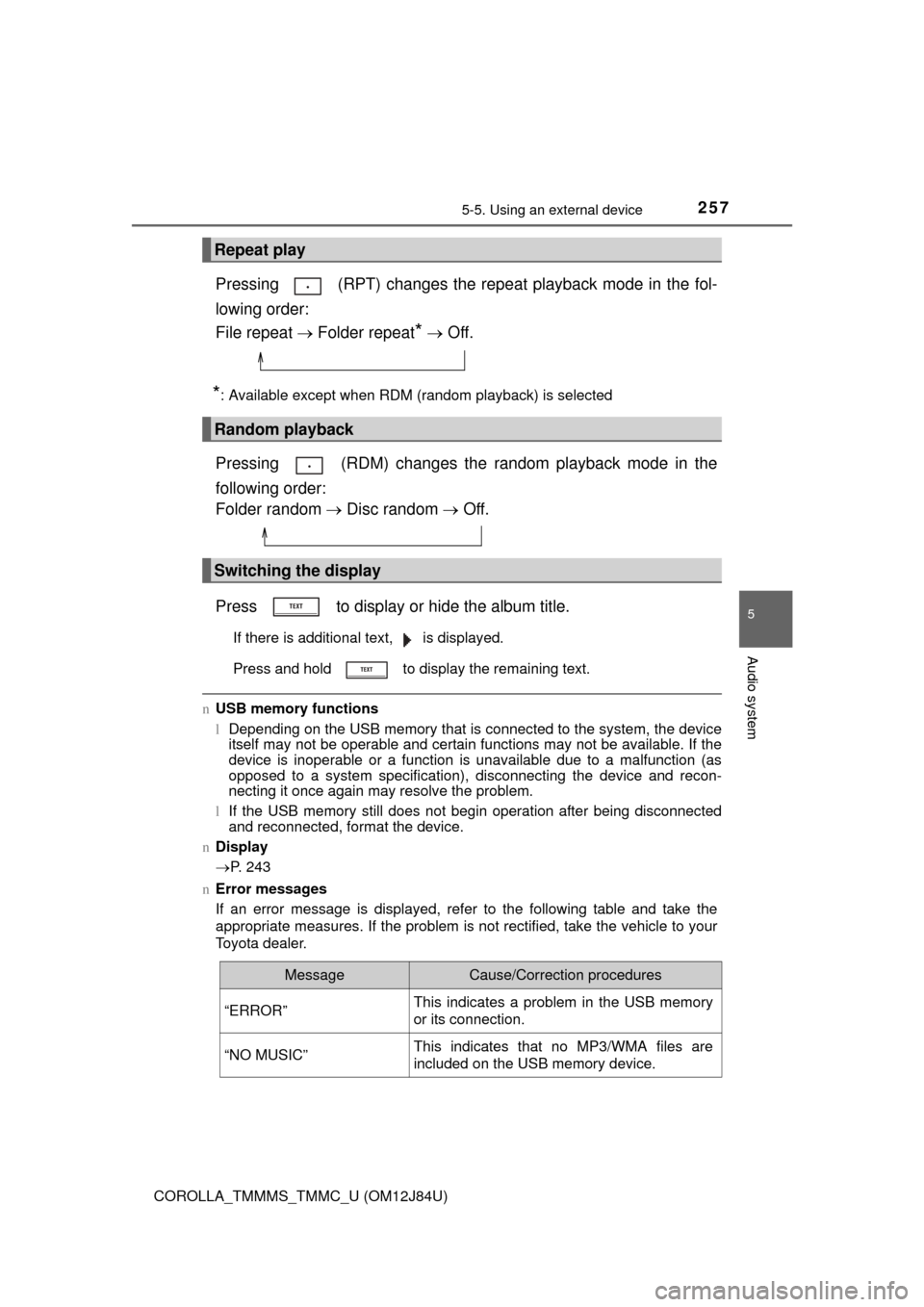
Pressing (RPT) changes the repeat playback mode in the fol-
lowing order:
File repeat Folder repeat
* Off.
*: Available except when RDM (random playback) is selected
Pressing (RDM) changes the random playback mode in the
following order:
Folder random Disc random Off.
Press to display or hide the album title.
If there is additional text, is displayed.
Press and hold to display the remaining text.
n USB memory functions
lDepending on the USB memory that is connected to the system, the device
itself may not be operable and certain functions may not be available. If the
device is inoperable or a function is unavailable due to a malfunction (as
opposed to a system specification), disconnecting the device and recon-
necting it once again may resolve the problem.
l If the USB memory still does not begin operation after being disconnected
and reconnected, format the device.
n Display
P. 243
n Error messages
If an error message is displayed, refer to the following table and take the
appropriate measures. If the problem is not rectified, take the vehicle to your
Toyota dealer.
Repeat play
Random playback
Switching the display
MessageCause/Correction procedures
“ERROR”This indicates a problem in the USB memory
or its connection.
“NO MUSIC”This indicates that no MP3/WMA files are
included on the USB memory device.
Page 258 of 620

2585-5. Using an external device
COROLLA_TMMMS_TMMC_U (OM12J84U)n
USB memory
lCompatible devices
USB memory that can be used for MP3 and WMA playback
l Compatible device formats
The following device formats can be used:
• USB communication formats: USB2.0 FS (12 Mbps)
• File formats: FAT16/32 (Windows)
• Correspondence class: Mass storage class
MP3 and WMA files written in any form at other than those listed above may
not play correctly, and their file names and folder names may not be dis-
played correctly.
Items related to standards and limitations are as follows:
• Maximum directory hierarchy: 8 levels
• Maximum number of folders in a device: 999 (including the root)
• Maximum number of files in a device: 9999
• Maximum number of files per folder: 255
l MP3 and WMA files
MP3 (MPEG Audio LAYER 3) is a standard audio compression format.
Files can be compressed to approximately 1/10 of their original size using
MP3 compression.
WMA (Windows Media Audio) is a Microsoft audio compression format.
This format compresses audio data to a size smaller than that of the MP3
format.
MP3 and WMA file and media/format compatibility are limited.
l MP3 file compatibility
• Compatible standards
MP3 (MPEG1 AUDIO LAYERIII, MP EG2 AUDIO LAYERIII, MPEG2.5)
• Compatible sampling frequencies MPEG1 AUDIO LAYERIII: 32, 44.1, 48 (kHz)
MPEG2 AUDIO LAYERIII: 16, 22.05, 24 (kHz)
MPEG2.5: 8, 11.025, 12 (kHz)
• Compatible bit rates (compatible with VBR) MPEG1 AUDIO LAYERII, III: 32-320 (kbps)
MPEG2 AUDIO LAYERII, III: 8-160 (kbps)
MPEG2.5: 8-160 (kbps)
• Compatible channel modes: stereo, joint stereo, dual channel and mon-
aural
Page 259 of 620

2595-5. Using an external device
5
Audio system
COROLLA_TMMMS_TMMC_U (OM12J84U)l
WMA file compatibility
• Compatible standards
WMA Ver. 7, 8, 9
• Compatible sampling frequencies
HIGH PROFILE 32, 44.1, 48 (kHz)
• Compatible bit rates HIGH PROFILE 48-320 (kbps, CBR)
l File names
The only files that can be recognized as MP3/WMA and played are those
with the extension .mp3 or .wma.
l ID3 and WMA tags
ID3 tags can be added to MP3 files, making it possible to record the track
title, artist name, etc.
The system is compatible with ID3 Ver. 1.0, 1.1, and Ver. 2.2, 2.3, 2.4 ID3
tags. (The number of characters is based on ID3 Ver. 1.0 and 1.1.)
WMA tags can be added to WMA files, making it possible to record the
track title and artist name in the same way as with ID3 tags.
l MP3 and WMA playback
• When a device containing MP3 or WMA files is connected, all files in the
USB memory are checked. Once the file check is finished, the first MP3
or WMA file is played. To make the file check finish more quickly, we rec-
ommend that you do not include any files other than MP3 or WMA files or
create any unnecessary folders.
• When the USB memory is connected and the audio source is changed to USB memory mode, the USB memory will start playing the first file in the
first folder. If the same device is removed and reinserted (and the con-
tents have not been changed), the USB memory will resume play from
the same point in which it was last used.
l Extensions
If the file extensions .mp3 and .wma are used for files other than MP3 and
WMA files, they will be skipped (not played).
l Playback
• To play MP3 files with steady sound quality, we recommend a fixed bit
rate of at least 128 kbps and a sampling frequency of 44.1 kHz.
• There is a wide variety of freeware and other encoding software for MP3
and WMA files on the market, and depending on the status of the encod-
ing and the file format, poor sound quality or noise at the start of playback
may result. In some cases, playback may not be possible at all.
• Microsoft, Windows, and Windows Media are registered trademarks of
Microsoft Corporation in the U.S.A. and other countries.