ad blue TOYOTA COROLLA 2020 (in English) Workshop Manual
[x] Cancel search | Manufacturer: TOYOTA, Model Year: 2020, Model line: COROLLA, Model: TOYOTA COROLLA 2020Pages: 588, PDF Size: 13.49 MB
Page 363 of 588
3635-14. Phone settings
COROLLA_U
5
Entune audio
contact list.* ( P.365)
Select to delete contacts
from the contact list.
*
( P.366)
Select to set the voice tags.
( P.367)
Select to reset all setup
items.
*: For PBAP compatible Bluetooth®
phones, this function is available
when “Automatic Transfer” is set
to off. ( P.363)
●Depending on the type of Blue-
tooth® phone, certain functions
may not be available.
●Contact data is managed inde-
pendently for every registered
phone. When one phone is con-
nected, another phone’s regis-
tered data cannot be read.
The automatic contact/history
function is available for PBAP
compatible Bluetooth
® phones
only.
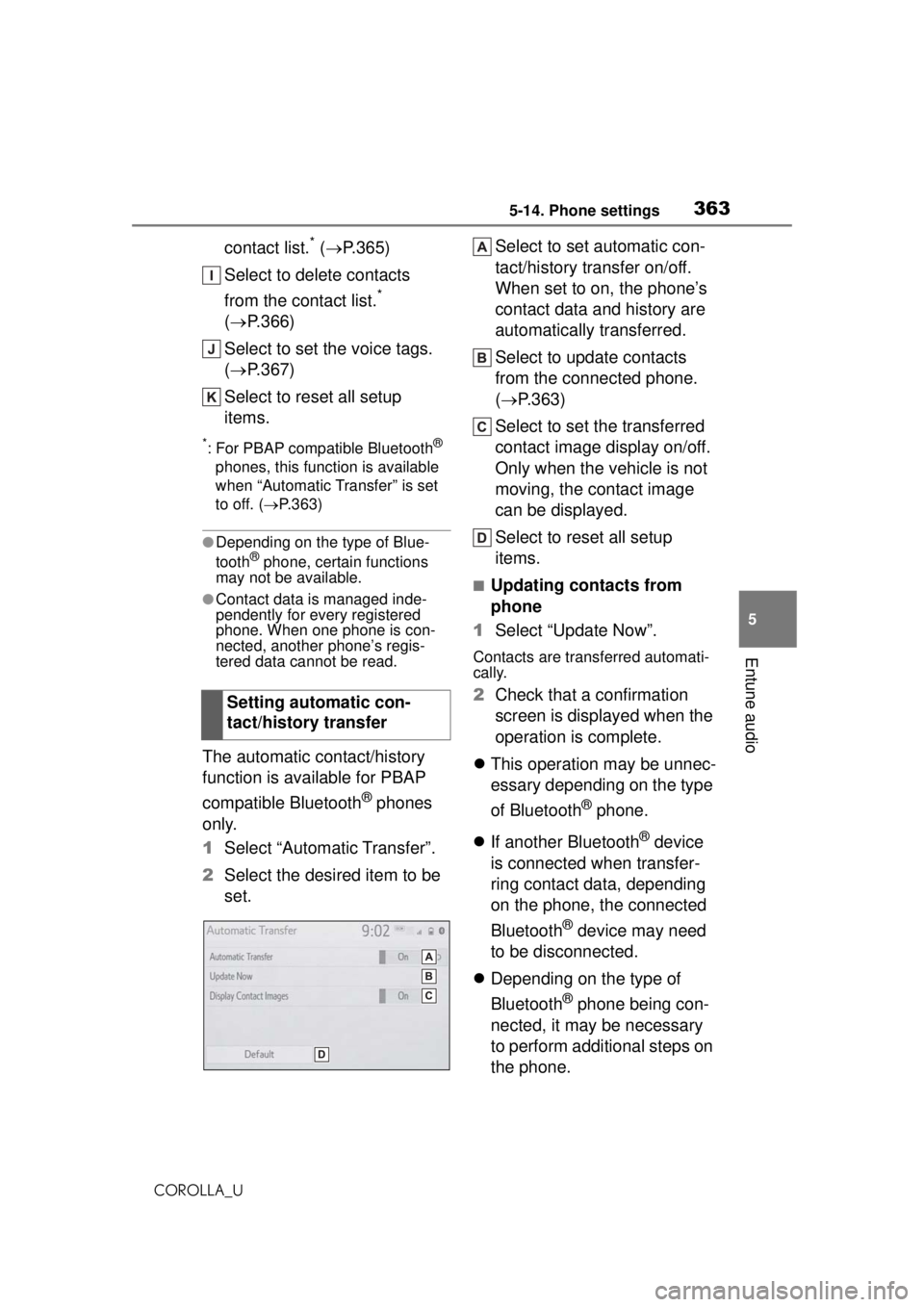
1 Select “Automatic Transfer”.
2 Select the desired item to be
set. Select to set automatic con-
tact/history transfer on/off.
When set to on, the phone’s
contact data and history are
automatically transferred.
Select to update contacts
from the connected phone.
(
P.363)
Select to set the transferred
contact image display on/off.
Only when the vehicle is not
moving, the contact image
can be displayed.
Select to reset all setup
items.
■Updating contacts from
phone
1 Select “Update Now”.
Contacts are transferred automati-
cally.
2Check that a confirmation
screen is displayed when the
operation is complete.
This operation may be unnec-
essary depending on the type
of Bluetooth
® phone.
If another Bluetooth
® device
is connected when transfer-
ring contact data, depending
on the phone, the connected
Bluetooth
® device may need
to be disconnected.
Depending on the type of
Bluetooth
® phone being con-
nected, it may be necessary
to perform additional steps on
the phone.
Setting automatic con-
tact/history transfer
Page 364 of 588
3645-14. Phone settings
COROLLA_U
■Updating the contacts in a
different way (from the call
history screen)
*
1Display the phone top
screen. ( P.345)
2 Select “History” and select a
contact not yet registered in
the contact list.
3 Select “Update Contact”.
4 Select the desired contact.
5 Select a phone type for the
phone number.
*: For PBAP compatible Bluetooth®
phones, this function is available
when “Automatic Transfer” is set
to off. ( P.362)
When the contact is not regis-
tered
1 Select “Transfer Contacts
from Device”.
2 Select “From Phone (Blue-
tooth)”.
3 Transfer the contact data to
the system using a Blue-
tooth
® phone.
This operation may be unnec-
essary depending on the type
of Bluetooth
® phone.
To cancel this function, select “Cancel”.
4 Check that a confirmation
screen is displayed when the
operation is complete.
When the contact is regis-
tered
1 Select “Transfer Contacts
from Device”.
2 Select “From Phone (Blue-
tooth)”.
3 Select “Replace Contacts” or
“Add Contact”.
“Replace Contacts”: Select to trans-
fer the contact from the connected
cellular phone and replace the cur-
rent one.
“Add Contact”: Sele ct to transfer
the desired contact data from the
connected cellular phone to add to
the current one.
4 Transfer the contact data to
the system using a Blue-
tooth
® phone.
This operation may be unnec-
essary depending on the type
of Bluetooth
® phone.
To cancel this function, select
“Cancel”.
5 Check that a confirmation
screen is displayed when the
operation is complete.
Backed-up contact data (vCard
formatted) can be transferred
from USB device or Bluetooth
®
phone to this system.
Transfer contacts from
device
From phone (OPP compati-
ble Bluetooth
® phones only)
From USB device
Page 365 of 588
3655-14. Phone settings
COROLLA_U
5
Entune audio
1 Connect a USB device.
( P.304)
2 Select “Transfer Contacts
from Device”.
3 Select “From USB”.
4 Select “USB 1” or “USB 2”
when the multiple USB
devices are connected. If a
USB device is connected,
skip this procedure.
5 Select “Replace Contacts” or
“Add Contact”. If the contact
is already registered, skip
this procedure.
“Replace Contacts”: Select to trans-
fer the contact from the connected
USB device or Bluetooth
® phone
and replace the current one.
“Add Contact”: Select to transfer
the desired contact data from the
connected USB device or Blue-
tooth
® phone to add to the current
one.
6 Select a desired file from
vCard file list.
7 Check that a confirmation
screen is displayed when the
operation is complete.
●Depending on the type of Blue-
tooth® phone used and number of
files, it may take time to display
vCard file lists and download con-
tacts.
●Downloading may not complete
correctly in the following cases:
• If the engine switch is turned off during downloading.
• If the USB device or Bluetooth
®
phone is removed before down-
loading is complete.
New contact data can be regis-
tered.
Up to 4 numbers per person can
be registered. For PBAP com-
patible Bluetooth
® phones, this
function is available when “Auto-
matic Transfer” is set to off.
( P.362)
1 Select “New Contact”.
2 Enter the name and select
“OK”.
3 Enter the phone number and
select “OK”.
4 Select the phone type for the
phone number.
5 To add another number to
this contact, select “Yes”.
■Registering a new contact
in a different way (from the
call history screen)
1 Display the phone top
screen. ( P.345)
2 Select “History” and select a
contact not yet registered in
the contact list.
3 Select “Add to Contacts”.
4 Follow the steps in “Register-
ing a new contact to the con-
tacts list” from step 2.
( P.365)
For PBAP compatible Blue- Registering a new contact
to the contacts list
Editing the contact data
Page 366 of 588
3665-14. Phone settings
COROLLA_U
tooth® phones, this function is
available when “Automatic
Transfer” is set to off. ( P.362)
1 Select “Edit Contact”.
2 Select the desired contact.
3 Select next to the name
or desired number.
4 Enter the name or the phone
number and select “OK”.
For PBAP compatible Blue-
tooth
® phones, this function is
available when “Automatic
Transfer” is set to off. ( P.362)
1 Select “Delete Contacts”.
2 Select the desired contact
and select “Delete”.
3 Select “Yes” when the confir-
mation screen appears.
●Multiple data can be selected and
deleted at the same time.
●When a Bluetooth® phone is
deleted, the contact data will be
deleted at the same time.
Up to 15 contacts (maximum of
4 numbers per contact) can be
registered in the favorites list.
■Registering the contacts in
the favorites list
1 Select “Add Favorite”.
2 Select the desired contact to
add to the favorites list.
Dimmed contacts are already
stored as a favorite.
3Check that a confirmation
screen is displayed when the
operation is complete.
When 15 contacts have
already been registered to the
favorites list
1 When 15 contacts have
already been registered to
the favorites list, a registered
contact needs to be replaced.
Select “Yes” when the confir-
mation screen appears to
replace a contact.
2 Select the contact to be
replaced.
3 Check that a confirmation
screen is displayed when the
operation is complete.
■Registering contacts in the
favorites list in a different
way (from the contact
details screen)
1 Display the phone top
screen. ( P.345)
2 Select “Contacts” and select
the desired contact.
3 Select “Add Favorite”.
4 Check that a confirmation
screen is displayed when the
operation is complete.
■Deleting the contacts in the
favorites list
1 Select “Remove Favorite”.
2 Select the desired contacts
and select “Remove”.
Deleting the contact data
Favorites list setting
Page 369 of 588
3695-15. What to do if... (Bluetooth®)
COROLLA_U
5
Entune audio
5-15.What to do if... (Bluetooth®)
■When using the hands-free
system with a Bluetooth
®
device
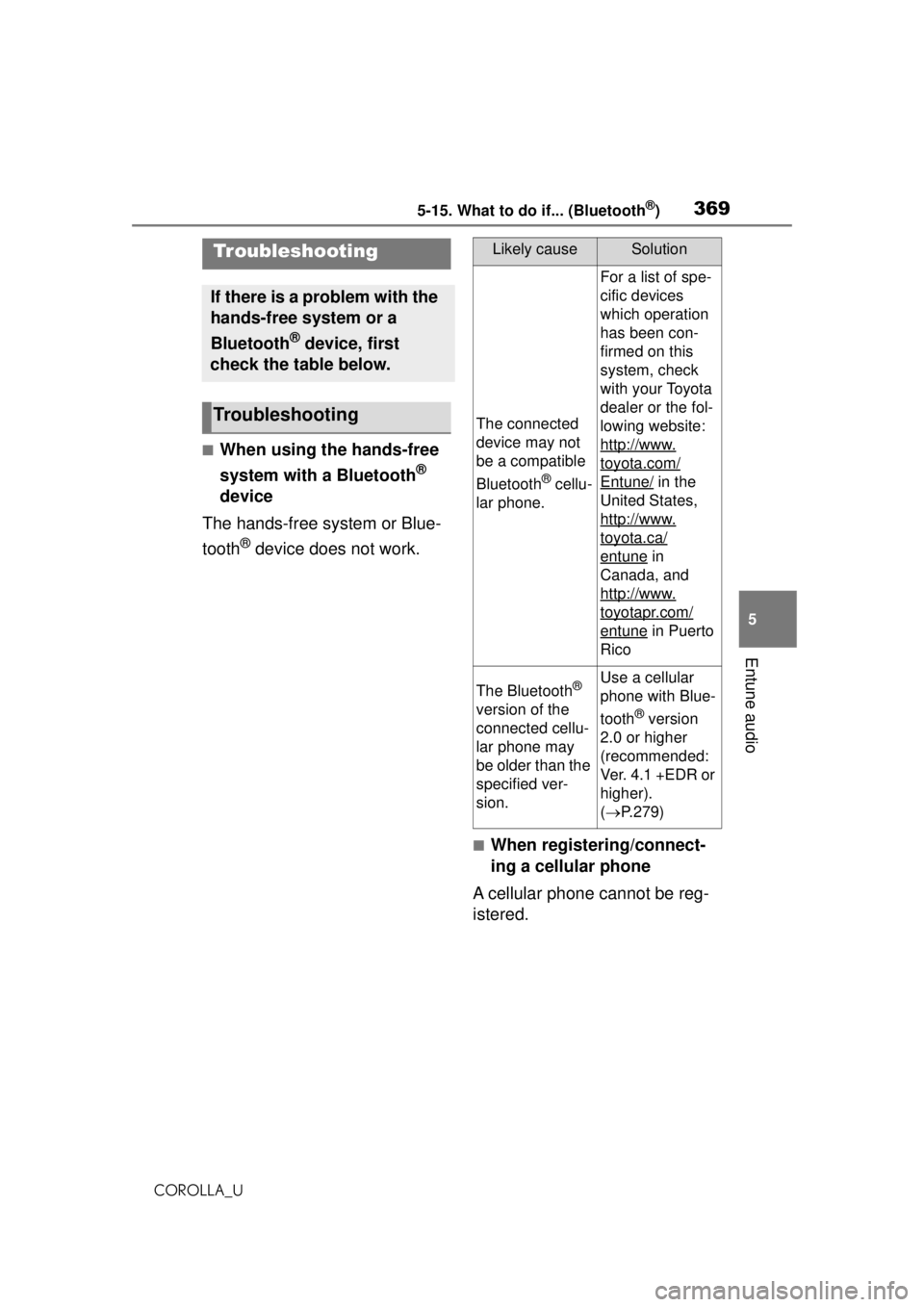
The hands-free system or Blue-
tooth
® device does not work.
■When registering/connect-
ing a cellular phone
A cellular phone cannot be reg-
istered.
Troubleshooting
If there is a problem with the
hands-free system or a
Bluetooth
® device, first
check the table below.
Troubleshooting
Likely causeSolution
The connected
device may not
be a compatible
Bluetooth
® cellu-
lar phone.
For a list of spe-
cific devices
which operation
has been con-
firmed on this
system, check
with your Toyota
dealer or the fol-
lowing website:
http://www.
toyota.com/
Entune/ in the
United States,
http://www.
toyota.ca/
entune in
Canada, and
http://www.
toyotapr.com/
entune in Puerto
Rico
The Bluetooth®
version of the
connected cellu-
lar phone may
be older than the
specified ver-
sion.Use a cellular
phone with Blue-
tooth
® version
2.0 or higher
(recommended:
Ver. 4.1 +EDR or
higher).
( P.279)
Page 370 of 588
3705-15. What to do if... (Bluetooth®)
COROLLA_U
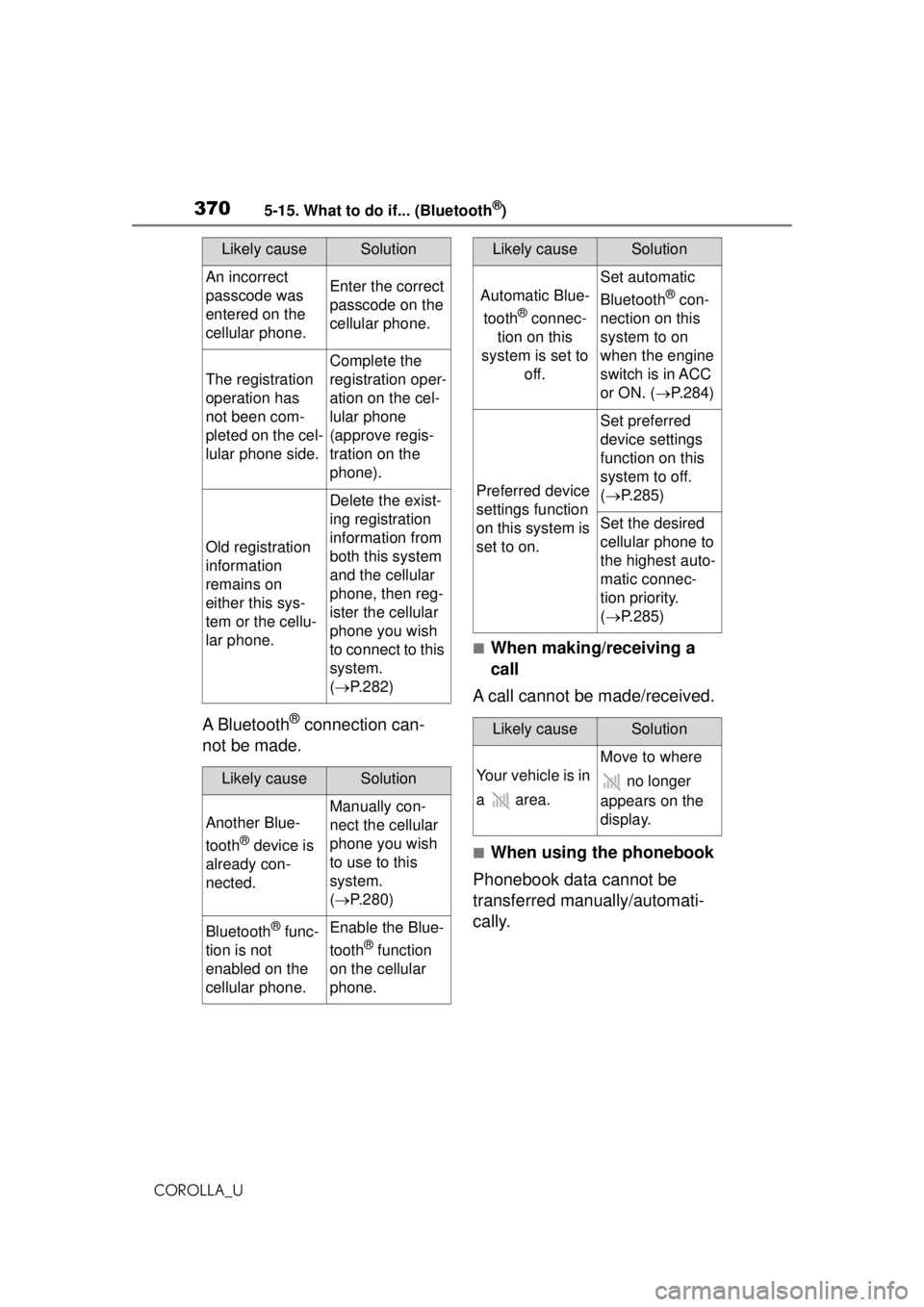
A Bluetooth® connection can-
not be made.
■When making/receiving a
call
A call cannot be made/received.
■When using the phonebook
Phonebook data cannot be
transferred manually/automati-
cally.
Likely causeSolution
An incorrect
passcode was
entered on the
cellular phone.Enter the correct
passcode on the
cellular phone.
The registration
operation has
not been com-
pleted on the cel-
lular phone side.
Complete the
registration oper-
ation on the cel-
lular phone
(approve regis-
tration on the
phone).
Old registration
information
remains on
either this sys-
tem or the cellu-
lar phone.
Delete the exist-
ing registration
information from
both this system
and the cellular
phone, then reg-
ister the cellular
phone you wish
to connect to this
system.
( P.282)
Likely causeSolution
Another Blue-
tooth
® device is
already con-
nected.
Manually con-
nect the cellular
phone you wish
to use to this
system.
( P.280)
Bluetooth® func-
tion is not
enabled on the
cellular phone.Enable the Blue-
tooth
® function
on the cellular
phone.
Automatic Blue-
tooth
® connec-
tion on this
system is set to off.
Set automatic
Bluetooth
® con-
nection on this
system to on
when the engine
switch is in ACC
or ON. ( P.284)
Preferred device
settings function
on this system is
set to on.
Set preferred
device settings
function on this
system to off.
( P.285)
Set the desired
cellular phone to
the highest auto-
matic connec-
tion priority.
( P.285)
Likely causeSolution
Your vehicle is in
a area.
Move to where
no longer
appears on the
display.
Likely causeSolution
Page 371 of 588
3715-15. What to do if... (Bluetooth®)
COROLLA_U
5
Entune audio
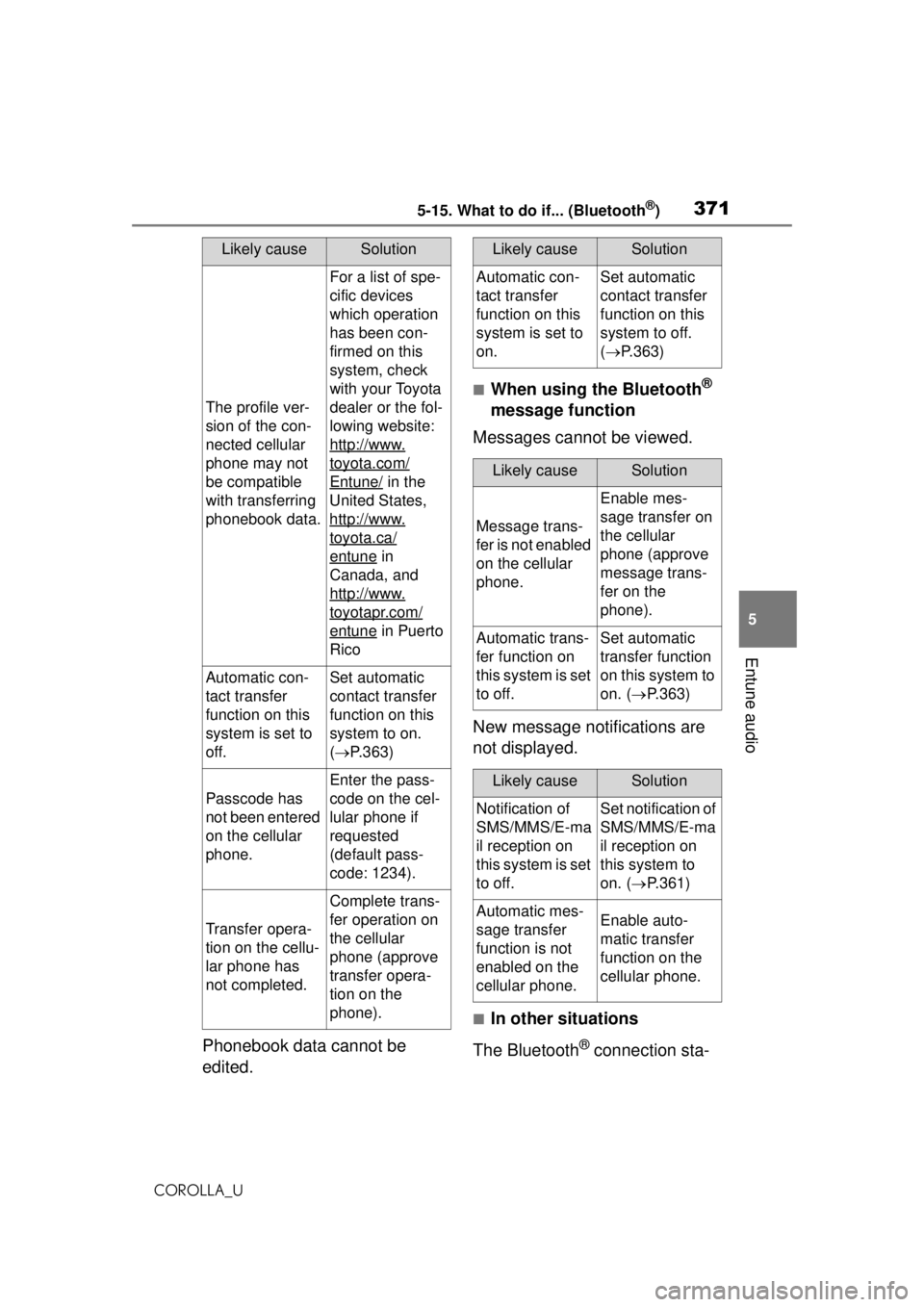
Phonebook data cannot be
edited.
■When using the Bluetooth®
message function
Messages cannot be viewed.
New message notifications are
not displayed.
■In other situations
The Bluetooth
® connection sta-
Likely causeSolution
The profile ver-
sion of the con-
nected cellular
phone may not
be compatible
with transferring
phonebook data.
For a list of spe-
cific devices
which operation
has been con-
firmed on this
system, check
with your Toyota
dealer or the fol-
lowing website:
http://www.
toyota.com/
Entune/ in the
United States,
http://www.
toyota.ca/
entune in
Canada, and
http://www.
toyotapr.com/
entune in Puerto
Rico
Automatic con-
tact transfer
function on this
system is set to
off.Set automatic
contact transfer
function on this
system to on.
( P.363)
Passcode has
not been entered
on the cellular
phone.
Enter the pass-
code on the cel-
lular phone if
requested
(default pass-
code: 1234).
Transfer opera-
tion on the cellu-
lar phone has
not completed.
Complete trans-
fer operation on
the cellular
phone (approve
transfer opera-
tion on the
phone).
Likely causeSolution
Automatic con-
tact transfer
function on this
system is set to
on.Set automatic
contact transfer
function on this
system to off.
( P.363)
Likely causeSolution
Message trans-
fer is not enabled
on the cellular
phone.
Enable mes-
sage transfer on
the cellular
phone (approve
message trans-
fer on the
phone).
Automatic trans-
fer function on
this system is set
to off.Set automatic
transfer function
on this system to
on. ( P.363)
Likely causeSolution
Notification of
SMS/MMS/E-ma
il reception on
this system is set
to off.Set notification of
SMS/MMS/E-ma
il reception on
this system to
on. ( P.361)
Automatic mes-
sage transfer
function is not
enabled on the
cellular phone.Enable auto-
matic transfer
function on the
cellular phone.
Page 372 of 588

3725-15. What to do if... (Bluetooth®)
COROLLA_U
tus is displayed at the top of the
screen each time the engine
switch is in ACC or ON.
Even though all conceivable
measures have been taken, the
symptom status does not
change.
For details, refer to the owner’s
manual that came with the cellular
phone.
Likely causeSolution
Connection con-
firmation display
on this system is
set to on.
To turn off the
display, set con-
nection confir-
mation display
on this system to
off. ( P.285)
Likely causeSolution
The cellular
phone is not
close enough to
this system.Bring the cellu-
lar phone closer
to this system.
Radio interfer-
ence has
occurred.
Turn off Wi-Fi®
devices or other
devices that may
emit radio
waves.
The cellular
phone is the
most likely cause
of the symptom.
Turn the cellular
phone off,
remove and rein-
stall the battery
pack, and then
restart the cellu-
lar phone.
Enable the cellu-
lar phone’s Blue-
tooth
®
connection.
Stop the cellular
phone’s security
software and
close all applica-
tions.
Before using an
application
installed on the
cellular phone,
carefully check
its source and
how its opera-
tion might affect
this system.
Likely causeSolution
Page 374 of 588
3745-16. Toyota Entune overview
COROLLA_U
*: If equipped
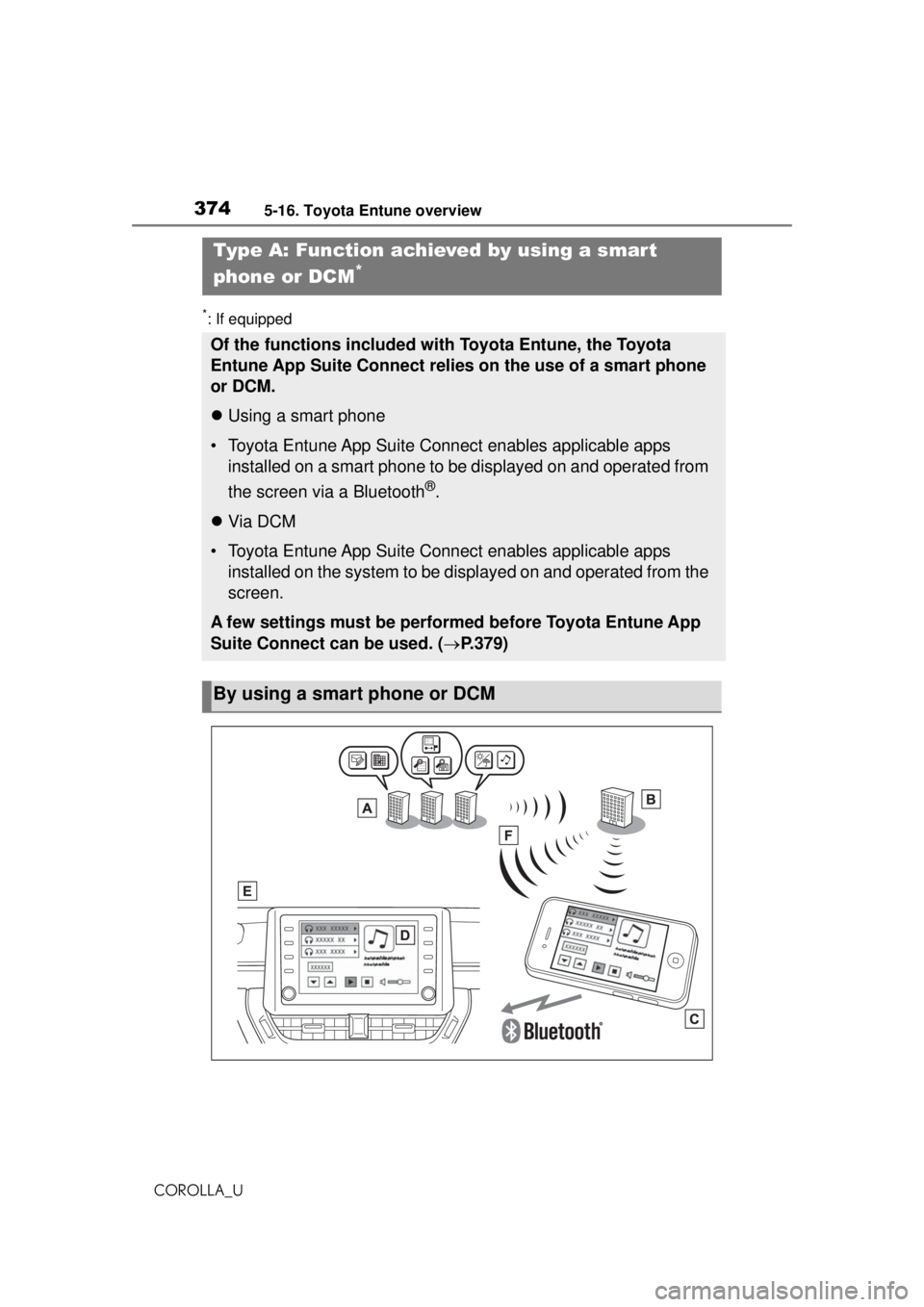
Type A: Function achieved by using a smar t
phone or DCM
*
Of the functions included with Toyota Entune, the Toyota
Entune App Suite Connect relies on the use of a smart phone
or DCM.
Using a smart phone
• Toyota Entune App Suite Connect enables applicable apps
installed on a smart phone to be displayed on and operated from
the screen via a Bluetooth
®.
Via DCM
• Toyota Entune App Suite Connect enables applicable apps
installed on the system to be displayed on and operated from the
screen.
A few settings must be performed before Toyota Entune App
Suite Connect can be used. ( P.379)
By using a smart phone or DCM
Page 376 of 588
3765-16. Toyota Entune overview
COROLLA_U
Washington D.C., Alaska,
Hawaii, Puerto Rico and Can-
ada.
Toyota Entune App Suite
Connect is not available in the
United States Virgin Islands.
●Data usage fees may apply while
using Toyota Entune App Suite
Connect function. Confirm data
usage fees before using this func-
tion.
●For details regarding operation of
the Toyota Entune App Suite Con-
nect and the applications, refer to
http://www.toyota.com/Entune/
in the United States,
http://www.toyota.ca/entune
in Canada, and
http://www.toyo tapr.com/entune
in Puerto Rico.
●These functions are not made
available in some countries or
areas. Availability of functions of
the Toyota Entune App Suite Con-
nect service is dependent on net-
work reception level.
■Initializing personal data
The personal data used in appli-
cations can be reset. ( P.298)
The following personal data can
be deleted and returned to their
default settings:
Downloaded contents
Radio stations that were lis-
tened to
Once initialized, the data and set-
tings will be erased. Pay much
attention when initializing the data.
■Settings required to use
Toyota Entune App Suite
Connect
Perform the settings in the fol-
lowing order.
1 Download the Toyota Entune
App Suite Connect applica-
tion to your smart phone or
the system.
2 Register a Bluetooth
® phone
with the hands-free system.
( P.276)
●Applications can only be used
when the Toyota Entune App
Suite Connect application has
been downloaded to your smart
phone or the system, and the
application is running.
●Toyota Entune App Suite Connect
operational procedures can also
be confirmed by visiting
http://www.toyota.com/Entune/
in the United States,
http://www.toyota.ca/entune
in Canada, and
http://www.toyotapr.com/entune
in Puerto Rico.
●If a Toyota Entune App Suite Con-
nect application is used while iPod
audio/video is being played back,
system operation may become
unstable.
Preparation before using
Toyota Entune App Suite
Connect