phone TOYOTA COROLLA 2021 Accessories, Audio & Navigation (in English)
[x] Cancel search | Manufacturer: TOYOTA, Model Year: 2021, Model line: COROLLA, Model: TOYOTA COROLLA 2021Pages: 262, PDF Size: 8.16 MB
Page 46 of 262
462-2. Connectivity settings
COROLLA_COROLLA
HV(TMMMS)_Navi_(U)
Up to 5 Bluetooth® devices can
be registered.
Bluetooth
® compatible phones
(HFP) and audio players (AVP)
can be registered simultane-
ously.
This operation cannot be per-
formed while driving.
1 Display the Bluetooth
® set-
tings screen. ( P. 4 3 )
2 Select “Add New Device”.
When another Bluetooth®
device is connected
To disconnect the Bluetooth
®
device, select “Yes”.
When 5 Bluetooth® devices
have already been registered
A registered device needs to
be replaced. Select “Yes”, and
select the device to be
replaced.
3 Follow the steps in “Register-
ing a Bluetooth
® phone for
the first time” from step 5.
( P. 3 8 ) This operation cannot be per-
formed while driving.
1
Display the Bluetooth
® set-
tings screen. ( P.43)
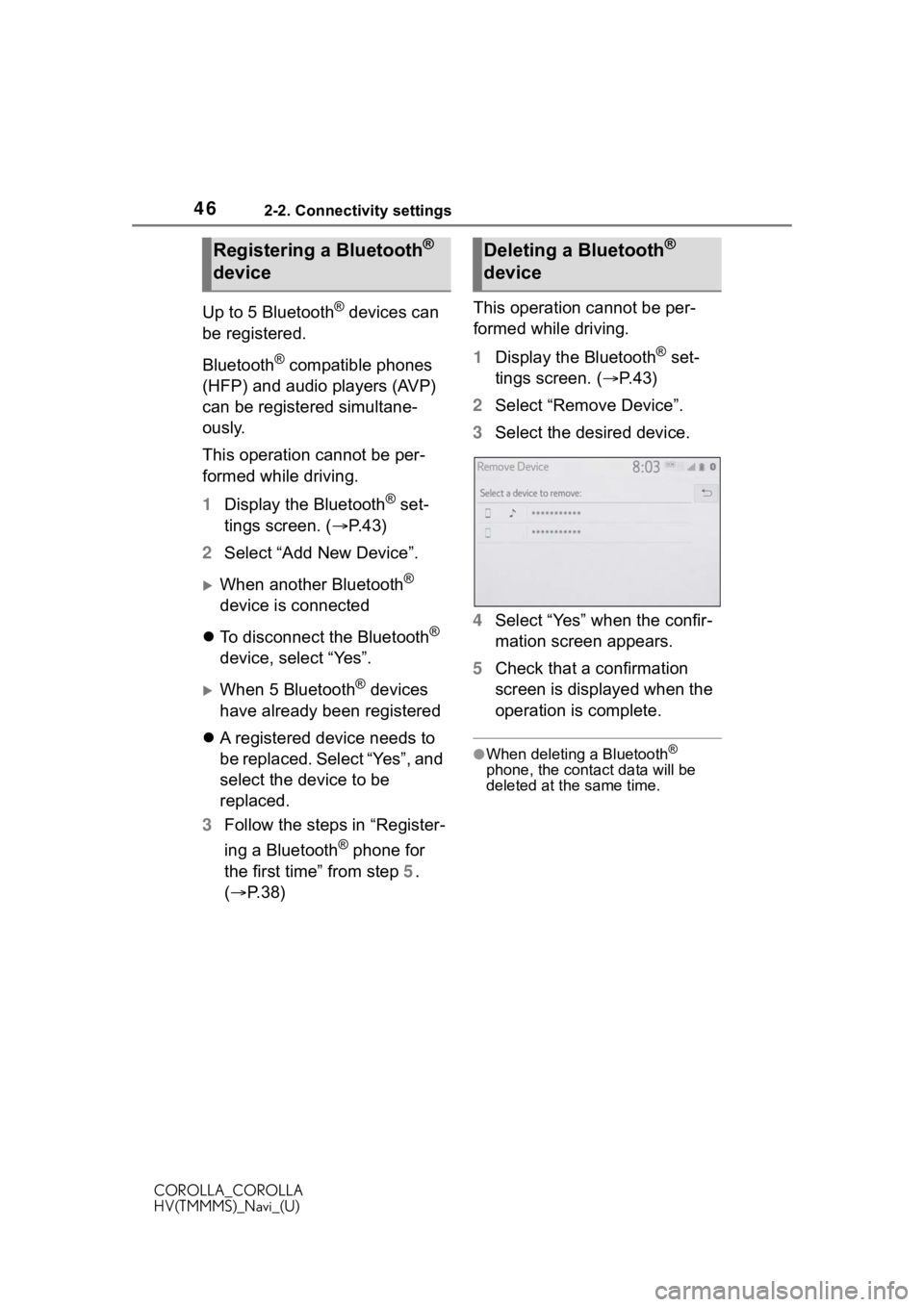
2 Select “Remove Device”.
3 Select the desired device.
4 Select “Yes” when the confir-
mation screen appears.
5 Check that a confirmation
screen is displayed when the
operation is complete.
●When deleting a Bluetooth®
phone, the contact data will be
deleted at the same time.
Registering a Bluetooth®
deviceDeleting a Bluetooth®
device
Page 47 of 262
472-2. Connectivity settings
COROLLA_COROLLA
HV(TMMMS)_Navi_(U)
2
Basic function
The Bluetooth® device’s infor-
mation can be displayed on the
screen. The displayed informa-
tion can be edited.
This operation cannot be per-
formed while driving.
1 Display the Bluetooth
® set-
tings screen. ( P. 4 3 )
2 Select “Registered Device”.
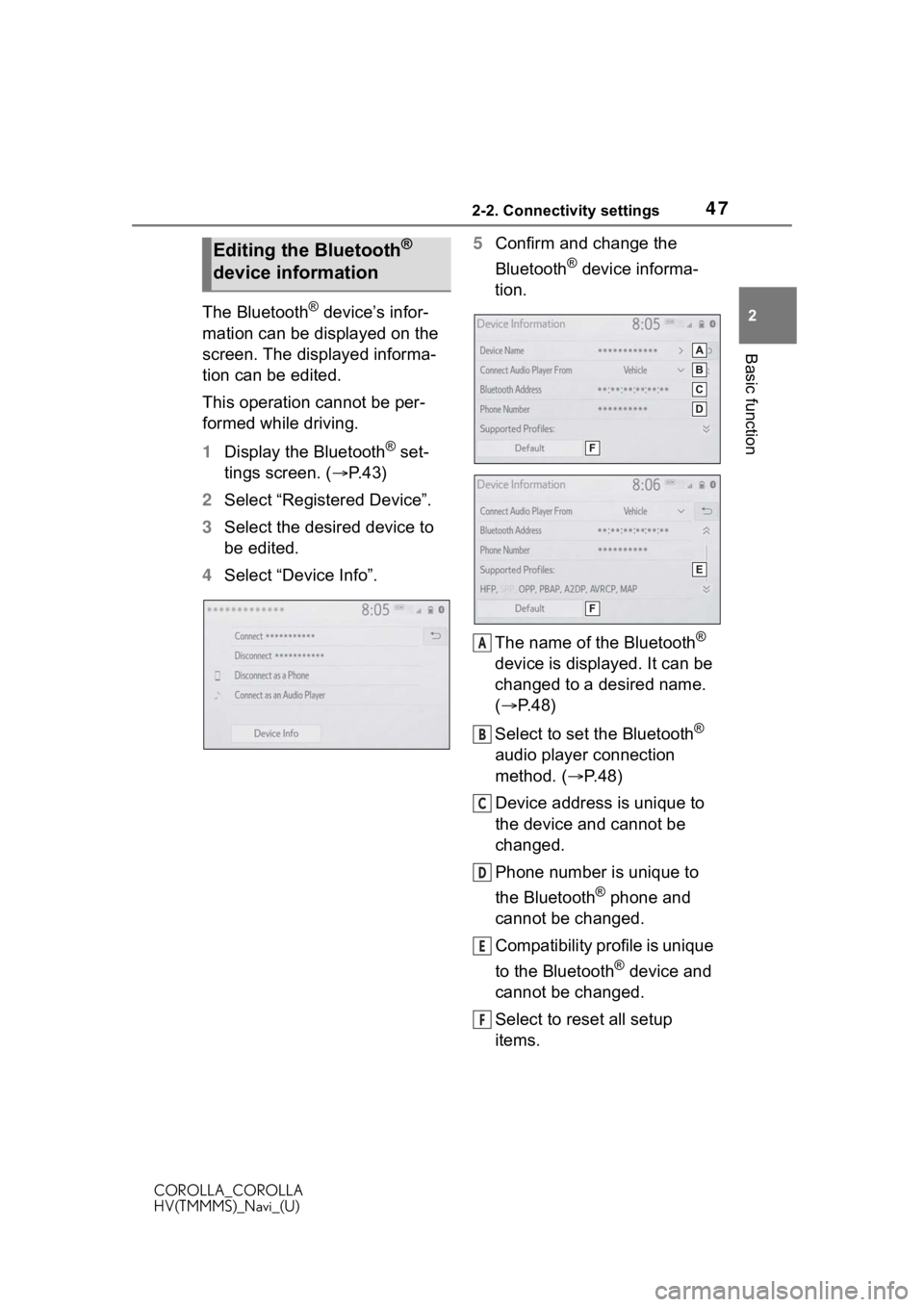
3 Select the desired device to
be edited.
4 Select “Device Info”. 5
Confirm and change the
Bluetooth
® device informa-
tion.
The name of the Bluetooth
®
device is displayed. It can be
changed to a desired name.
( P.48)
Select to set the Bluetooth
®
audio player connection
method. ( P.48)
Device address is unique to
the device and cannot be
changed.
Phone number is unique to
the Bluetooth
® phone and
cannot be changed.
Compatibility profile is unique
to the Bluetooth
® device and
cannot be changed.
Select to reset all setup
items.
Editing the Bluetooth®
device information
A
B
C
D
E
F
Page 48 of 262
482-2. Connectivity settings
COROLLA_COROLLA
HV(TMMMS)_Navi_(U)
●If 2 Bluetooth® devices have been
registered with the same device
name, the devices can be distin-
guished referring to the device’s
address.
●Depending on the type of Blue-
tooth® phone, some information
may not be displayed.
1 Select “Device Name”.
2 Enter the name and select
“OK”.
●Even if the device name is
changed, the name registered in
your Bluetooth
® device does not
change.
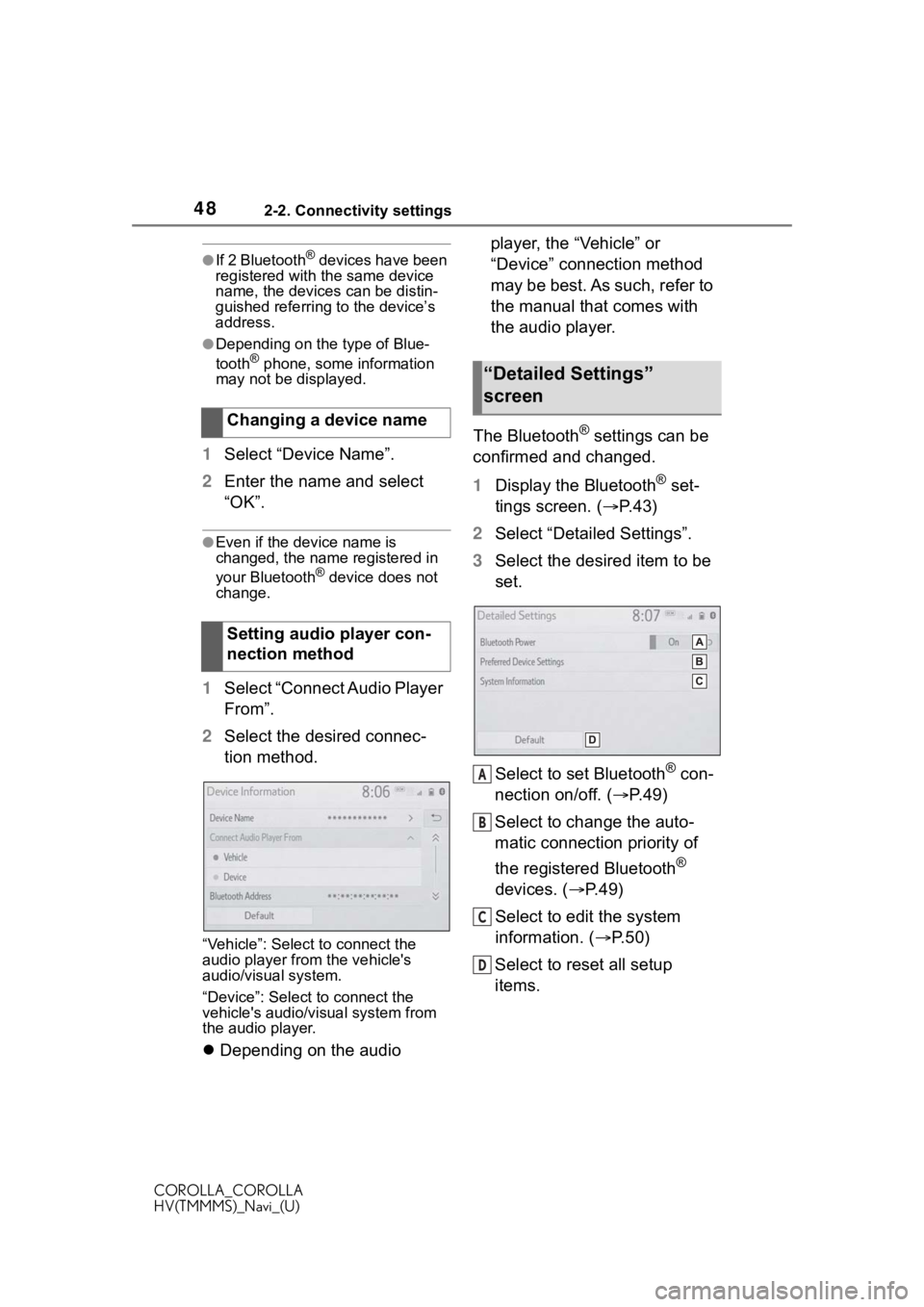
1 Select “Connect Audio Player
From”.
2 Select the desired connec-
tion method.
“Vehicle”: Select to connect the
audio player from the vehicle's
audio/visual system.
“Device”: Select to connect the
vehicle's audio/visual system from
the audio player.
Depending on the audio player, the “Vehicle” or
“Device” connection method
may be best. As such, refer to
the manual that comes with
the audio player.
The Bluetooth
® settings can be
confirmed and changed.
1 Display the Bluetooth
® set-
tings screen. ( P.43)
2 Select “Detailed Settings”.
3 Select the desired item to be
set.
Select to set Bluetooth
® con-
nection on/off. ( P.49)
Select to change the auto-
matic connection priority of
the registered Bluetooth
®
devices. ( P.49)
Select to edit the system
information. ( P.50)
Select to reset all setup
items.
Changing a device name
Setting audio player con-
nection method
“Detailed Settings”
screen
A
B
C
D
Page 49 of 262
492-2. Connectivity settings
COROLLA_COROLLA
HV(TMMMS)_Navi_(U)
2
Basic function
1 Select “Bluetooth Power”.
When “Bluetooth Power” is on:
The Bluetooth
® device is auto-
matically connected when the
engine switch
in ACC or ON.
When “Bluetooth Power” is off:
The Bluetooth
® device is dis-
connected, and the system will
not connect to it next time.
●While driving, the auto connection
state can be changed from off to
on, but cannot be changed from
on to off.
The automatic connection prior-
ity of the registered Bluetooth
®
devices can be changed.
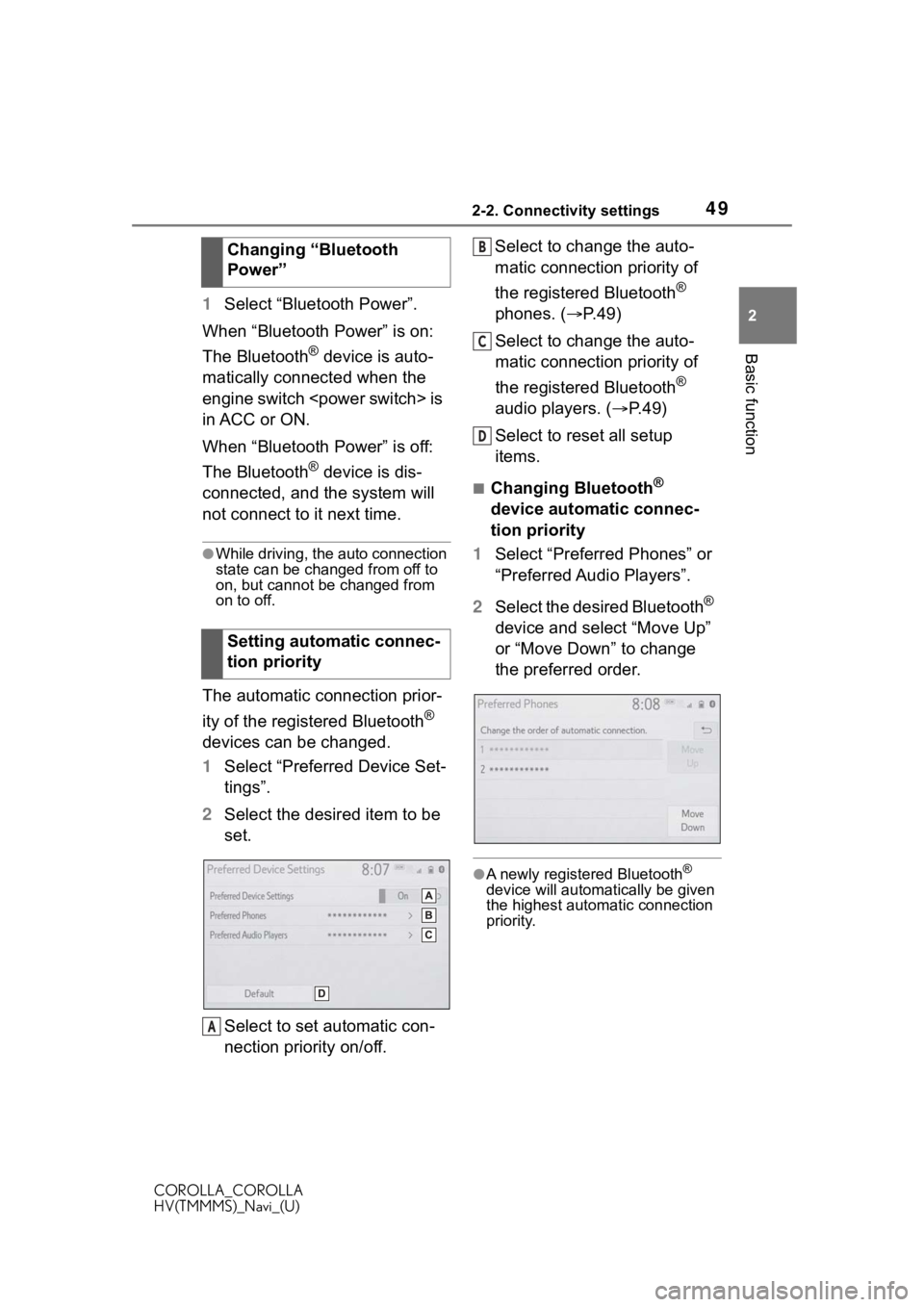
1 Select “Preferred Device Set-
tings”.
2 Select the desired item to be
set.
Select to set automatic con-
nection priority on/off. Select to change the auto-
matic connection priority of
the registered Bluetooth
®
phones. ( P.49)
Select to change the auto-
matic connection priority of
the registered Bluetooth
®
audio players. ( P.49)
Select to reset all setup
items.
■Changing Bluetooth®
device automatic connec-
tion priority
1 Select “Preferred Phones” or
“Preferred Audio Players”.
2 Select the desired Bluetooth
®
device and select “Move Up”
or “Move Down” to change
the preferred order.
●A newly registered Bluetooth®
device will automatically be given
the highest automatic connection
priority.
Changing “Bluetooth
Power”
Setting automatic connec-
tion priority
A
B
C
D
Page 50 of 262
502-2. Connectivity settings
COROLLA_COROLLA
HV(TMMMS)_Navi_(U)
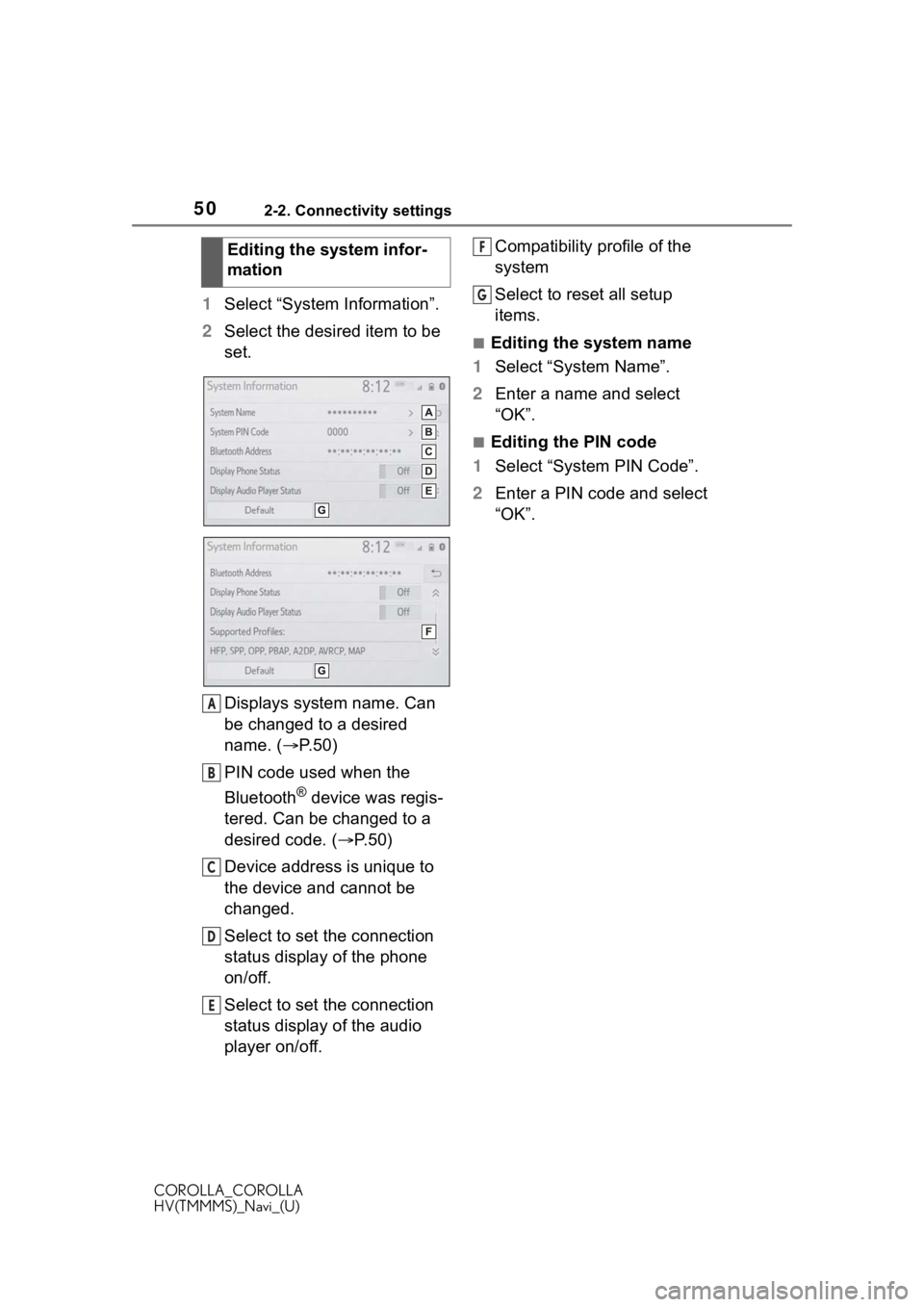
1Select “System Information”.
2 Select the desired item to be
set.
Displays system name. Can
be changed to a desired
name. ( P. 5 0 )
PIN code used when the
Bluetooth
® device was regis-
tered. Can be changed to a
desired code. ( P.50)
Device address is unique to
the device and cannot be
changed.
Select to set the connection
status display of the phone
on/off.
Select to set the connection
status display of the audio
player on/off. Compatibility profile of the
system
Select to reset all setup
items.
■Editing the system name
1 Select “System Name”.
2 Enter a name and select
“OK”.
■Editing the PIN code
1 Select “System PIN Code”.
2 Enter a PIN code and select
“OK”.
Editing the system infor-
mation
A
B
C
D
E
F
G
Page 56 of 262
562-3. Apple CarPlay/Android Auto
COROLLA_COROLLA
HV(TMMMS)_Navi_(U)
2-3.Apple CarPlay/Android Auto
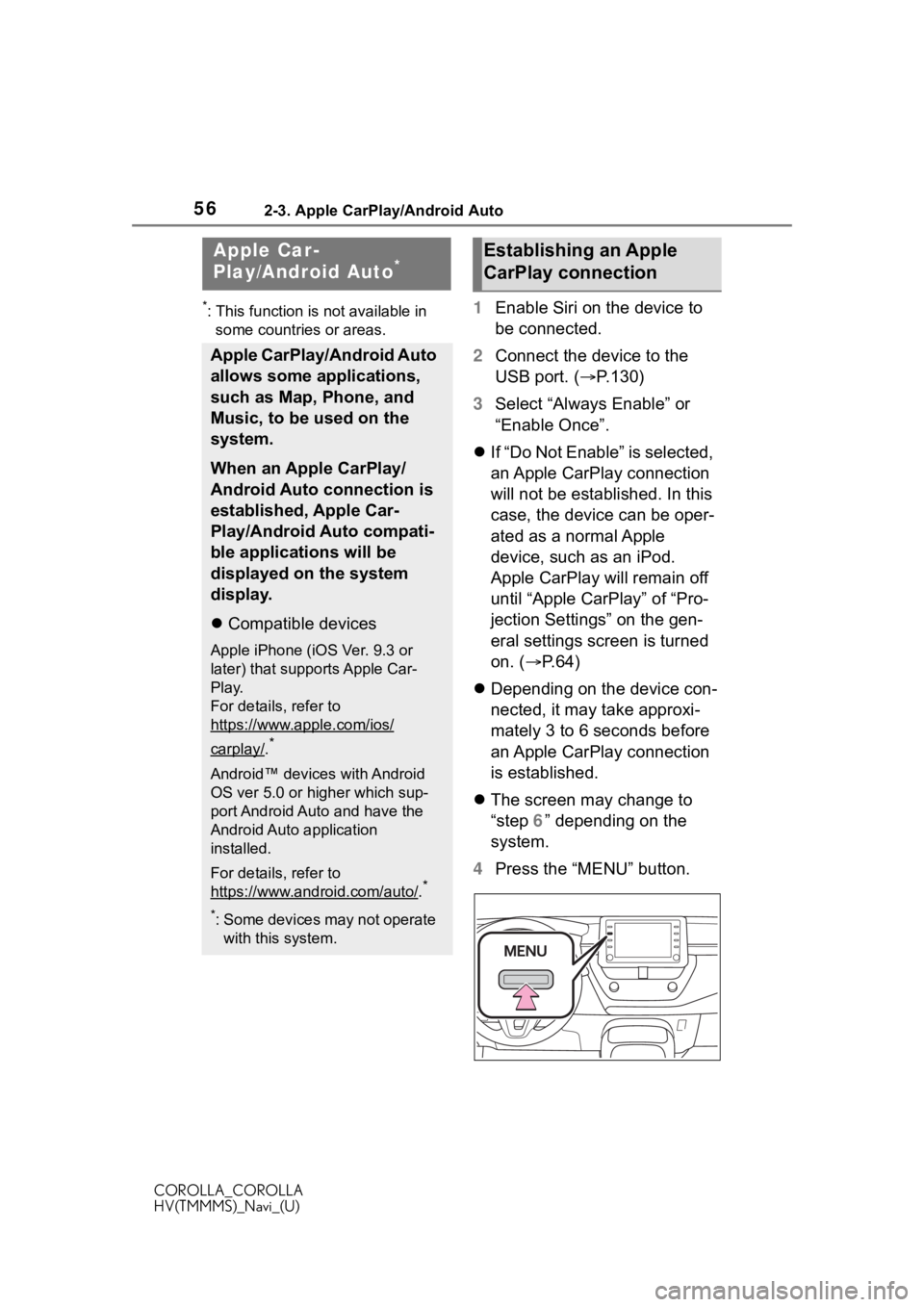
*: This function is not available in some countries or areas.1 Enable Siri on the device to
be connected.
2 Connect the device to the
USB port. ( P.130)
3 Select “Always Enable” or
“Enable Once”.
If “Do Not Enable” is selected,
an Apple CarPlay connection
will not be established. In this
case, the device can be oper-
ated as a normal Apple
device, such as an iPod.
Apple CarPlay will remain off
until “Apple CarPlay” of “Pro-
jection Settings” on the gen-
eral settings screen is turned
on. ( P. 6 4 )
Depending on the device con-
nected, it may take approxi-
mately 3 to 6 seconds before
an Apple CarPlay connection
is established.
The screen may change to
“step 6” depending on the
system.
4 Press the “MENU” button.
Apple Car-
Play/Android Auto*
Apple CarPlay/Android Auto
allows some applications,
such as Map, Phone, and
Music, to be used on the
system.
When an Apple CarPlay/
Android Auto connection is
established, Apple Car-
Play/Android Auto compati-
ble applications will be
displayed on the system
display.
Compatible devices
Apple iPhone (iOS Ver. 9.3 or
later) that supports Apple Car-
Play.
For details, refer to
https://www.apple.com/ios/
carplay/.*
Android™ devices with Android
OS ver 5.0 or higher which sup-
port Android Auto and have the
Android Auto application
installed.
For details, refer to
https://www.android.com/auto/
.*
*: Some devices may not operate
with this system.
Establishing an Apple
CarPlay connection
Page 57 of 262
572-3. Apple CarPlay/Android Auto
COROLLA_COROLLA
HV(TMMMS)_Navi_(U)
2
Basic function
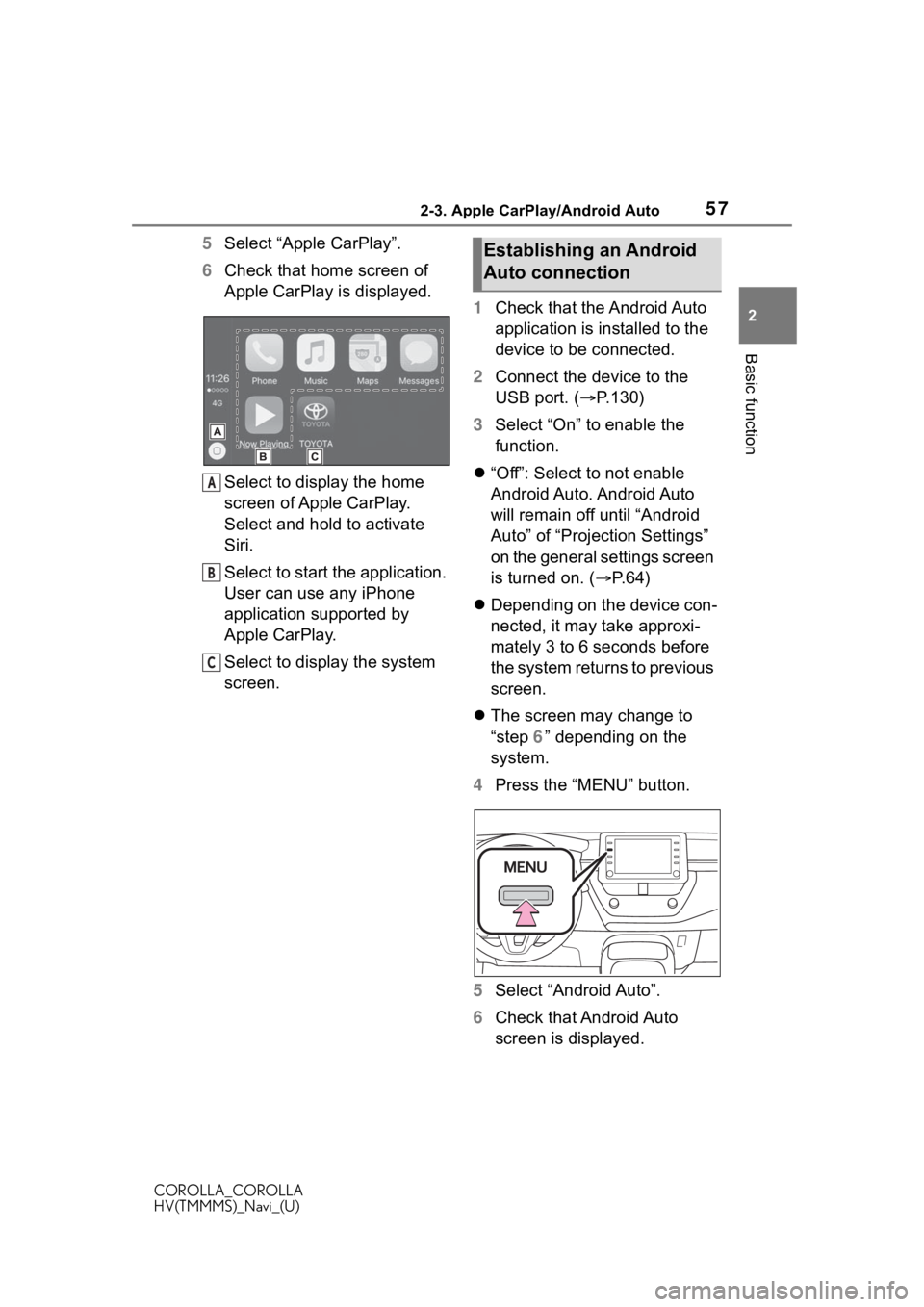
5 Select “Apple CarPlay”.
6 Check that home screen of
Apple CarPlay is displayed.
Select to display the home
screen of Apple CarPlay.
Select and hold to activate
Siri.
Select to start the application.
User can use any iPhone
application supported by
Apple CarPlay.
Select to display the system
screen. 1
Check that the Android Auto
application is installed to the
device to be connected.
2 Connect the device to the
USB port. ( P.130)
3 Select “On” to enable the
function.
“Off”: Select to not enable
Android Auto. Android Auto
will remain off until “Android
Auto” of “Projection Settings”
on the general settings screen
is turned on. ( P. 6 4 )
Depending on the device con-
nected, it may take approxi-
mately 3 to 6 seconds before
the system returns to previous
screen.
The screen may change to
“step 6” depending on the
system.
4 Press the “MENU” button.
5 Select “Android Auto”.
6 Check that Android Auto
screen is displayed.
A
B
C
Establishing an Android
Auto connection
Page 58 of 262
582-3. Apple CarPlay/Android Auto
COROLLA_COROLLA
HV(TMMMS)_Navi_(U)
●When an Apple CarPlay/Android
Auto connection is established,
the function of some system but-
tons will change.
●When an Apple CarPlay/Android
Auto connection is established,
some system functions, such as
the following, will be replaced by
similar Apple CarPlay/Android
Auto functions or will become
unavailable:
• iPod (Audio Playback)
• USB audio/USB video
• Bluetooth
® audio
• Bluetooth® phone (Apple CarPlay
only)
• Toyota apps
●When an Apple CarPlay/Android
Auto connection is established,
voice command system (Siri/Goo-
gle Assistant) and map application
voice guidance volume can be
changed by selecting “ Vo i c e Vo l -
ume ” on the voice settings
screen. It cannot be changed by
“POWER VOLUME” knob on
Audio control panel. ( P. 6 9 )
●Apple CarPlay/Android Auto is an
application developed by Apple
Inc/Google LLC. Its functions and
services may be terminated or
changed without notice depending
on the connected device’s opera-
tion system, hardware and soft-
ware, or due to changes in Apple
CarPlay/Android Auto specifica-
tions.
●For a list of the apps supported by
Apple CarPlay or Android Auto,
refer to their respective website.
●While using these functions, vehi-
cle and user information, such as
location and vehicle speed, will be
shared with the respective appli-
cation publisher and the cellular
service provider.
●By downloading and using each
application, you agree to their
terms of use.
●Data for these functions is trans- mitted using the in
ternet and may
incur charges.
For information about data trans-
mission fees, contact your cellular
service provider.
●Depending on the application, cer-
tain functions, such as music play-
back, may be restricted.
●As the applications for each func-
tion are provided by a third-party,
they may be subject to change or
discontinuation without notice.
For details, refer to the website of
the function.
●If the vehicle’s navigation system
is being used for route guidance
and a route is set using the Apple
CarPlay/Android Auto Maps app,
route guidance will be performed
through Apple CarPlay/Android
Auto.
If the Apple CarPlay/Android Auto
Maps app is being used for route
guidance and a rou te is set using
the vehicle’s navigation system,
route guidance will be performed
by the vehicle’s navigation sys-
tem.
●If the USB cable is disconnected,
operation of Apple CarPlay/
Android Auto will end.
At this time, sound output will stop
and change to the system screen.
●Use of the Apple CarPlay logo
means that a vehicle user inter-
face meets Apple performance
standards. Apple is not responsi-
ble for the operation of this vehicle
or its compliance with safety and
regulatory standards. Please note
that the use of this product with
iPhone or iPod may affect wire-
less performance.
Page 59 of 262
592-3. Apple CarPlay/Android Auto
COROLLA_COROLLA
HV(TMMMS)_Navi_(U)
2
Basic function
●Apple CarPlay is a trademark of
Apple Inc.
●Compatible models
Made for
• iPhone X
• iPhone 8
• iPhone 8 Plus
• iPhone 7
• iPhone 7 Plus
• iPhone SE
• iPhone 6s
• iPhone 6s Plus
• iPhone 6
• iPhone 6 Plus
• iPhone 5s
• iPhone 5c
• iPhone 5
●Android and Android Auto are
trademarks of Google LLC.
WA R N I N G
●Do not connect smartphone or
operate the controls while driv-
ing.
NOTICE
●Do not leave your smartphone
in the vehicle. In particular, high
temperatures inside the vehicle
may damage the smartphone.
●Do not push down on or apply
unnecessary pressure to the
smartphone while it is con-
nected as this may damage the
smartphone or its terminal.
●Do not insert foreign objects into
the port as this may damage the
smartphone or its terminal.
Page 62 of 262
622-3. Apple CarPlay/Android Auto
COROLLA_COROLLA
HV(TMMMS)_Navi_(U)
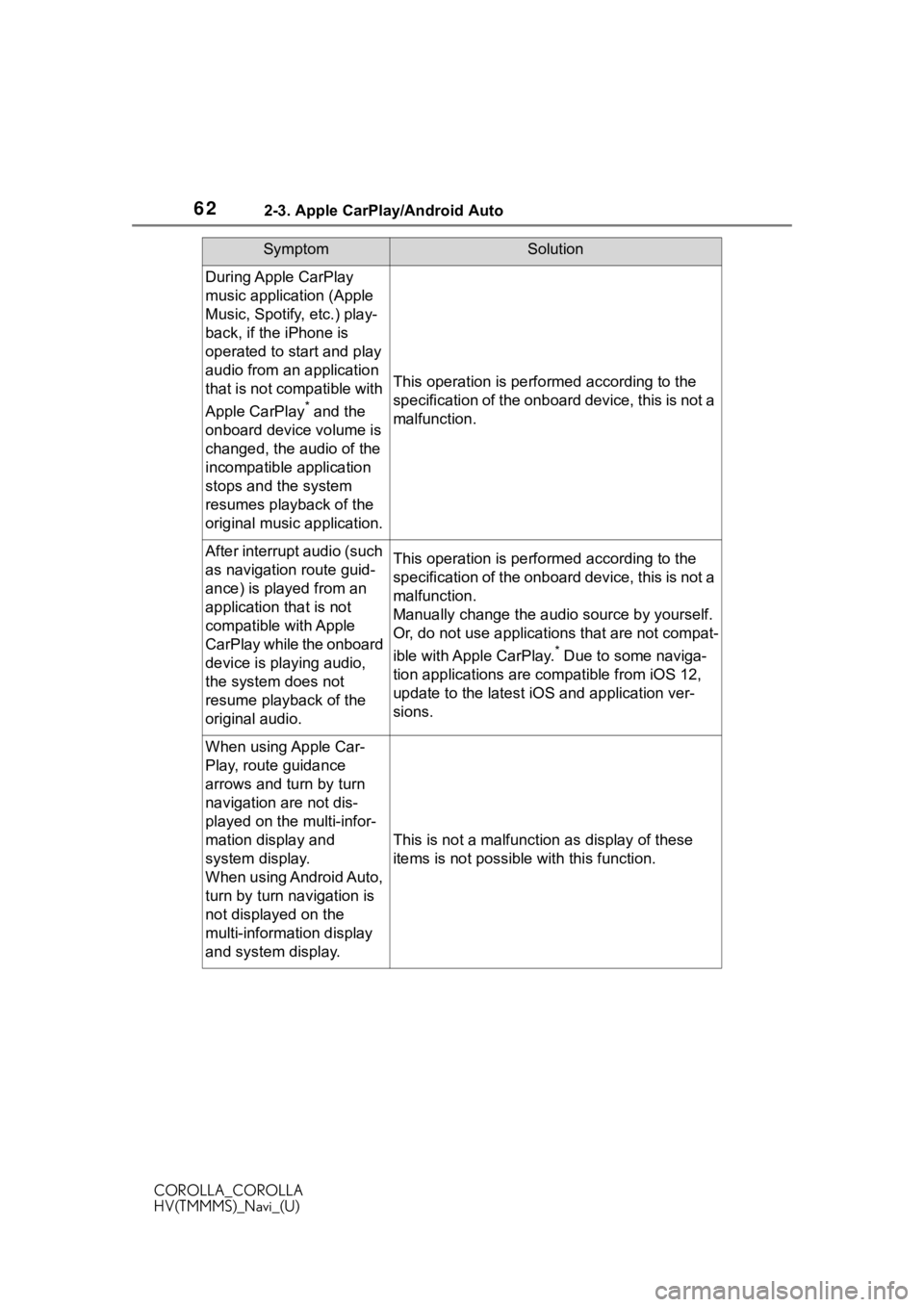
During Apple CarPlay
music application (Apple
Music, Spotify, etc.) play-
back, if the iPhone is
operated to start and play
audio from an application
that is not compatible with
Apple CarPlay
* and the
onboard device volume is
changed, the audio of the
incompatible application
stops and the system
resumes playback of the
original music application.
This operation is perfo rmed according to the
specification of the onboard device, this is not a
malfunction.
After interrupt audio (such
as navigation route guid-
ance) is played from an
application that is not
compatible with Apple
CarPlay while the onboard
device is playing audio,
the system does not
resume playback of the
original audio.This operation is perfo rmed according to the
specification of the onboard device, this is not a
malfunction.
Manually change the audi o source by yourself.
Or, do not use applications that are not compat-
ible with Apple CarPlay.
* Due to some naviga-
tion applications are compatible from iOS 12,
update to the latest iOS and application ver-
sions.
When using Apple Car-
Play, route guidance
arrows and turn by turn
navigation are not dis-
played on the multi-infor-
mation display and
system display.
When using Android Auto,
turn by turn navigation is
not displayed on the
multi-information display
and system display.
This is not a malfunction as display of these
items is not possibl e with this function.
SymptomSolution