audio TOYOTA COROLLA 2021 Owners Manual (in English)
[x] Cancel search | Manufacturer: TOYOTA, Model Year: 2021, Model line: COROLLA, Model: TOYOTA COROLLA 2021Pages: 624, PDF Size: 20.3 MB
Page 1 of 624
1
2
3
4
5
6
7
8
9
9
10
COROLLA_U
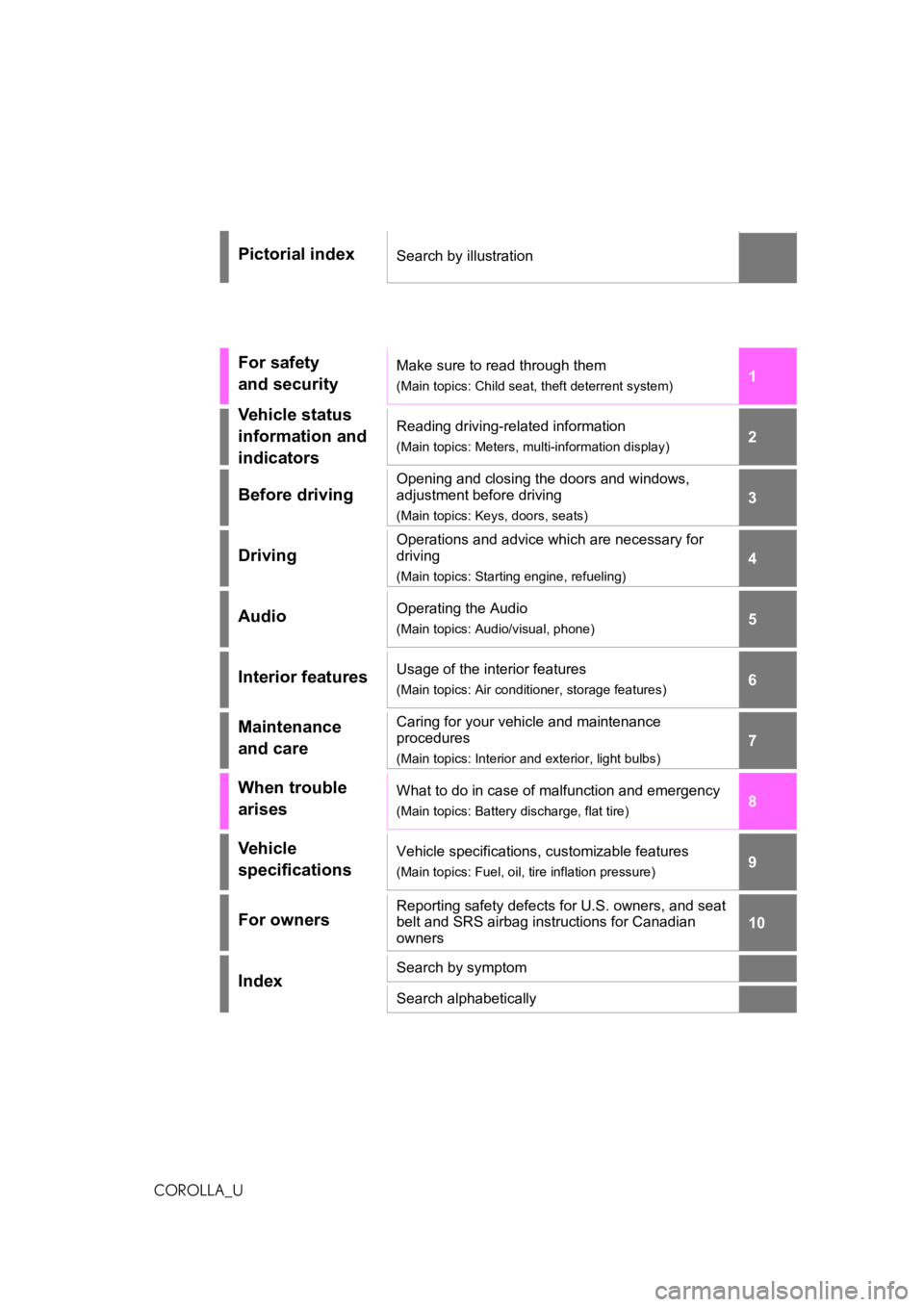
Pictorial indexSearch by illustration
For safety
and securityMake sure to read through them
(Main topics: Child seat, theft deterrent system)
Vehicle status
information and
indicatorsReading driving-related information
(Main topics: Meters, multi-information display)
Before driving
Opening and closing the doors and windows,
adjustment before driving
(Main topics: Keys, doors, seats)
Driving
Operations and advice which are necessary for
driving
(Main topics: Starting engine, refueling)
AudioOperating the Audio
(Main topics: Audio/visual, phone)
Interior featuresUsage of the interior features
(Main topics: Air conditioner, storage features)
Maintenance
and careCaring for your vehicle and maintenance
procedures
(Main topics: Interior and exterior, light bulbs)
When trouble
arisesWhat to do in case of malfunction and emergency
(Main topics: Battery discharge, flat tire)
Vehicle
specificationsVehicle specifications, customizable features
(Main topics: Fuel, oil, tire inflation pressure)
For ownersReporting safety defects for U.S. owners, and seat
belt and SRS airbag instructions for Canadian
owners
IndexSearch by symptom
Search alphabetically
Page 3 of 624
3TABLE OF CONTENTS
1
2
3
4
5
6
7
8
9
10
COROLLA_U
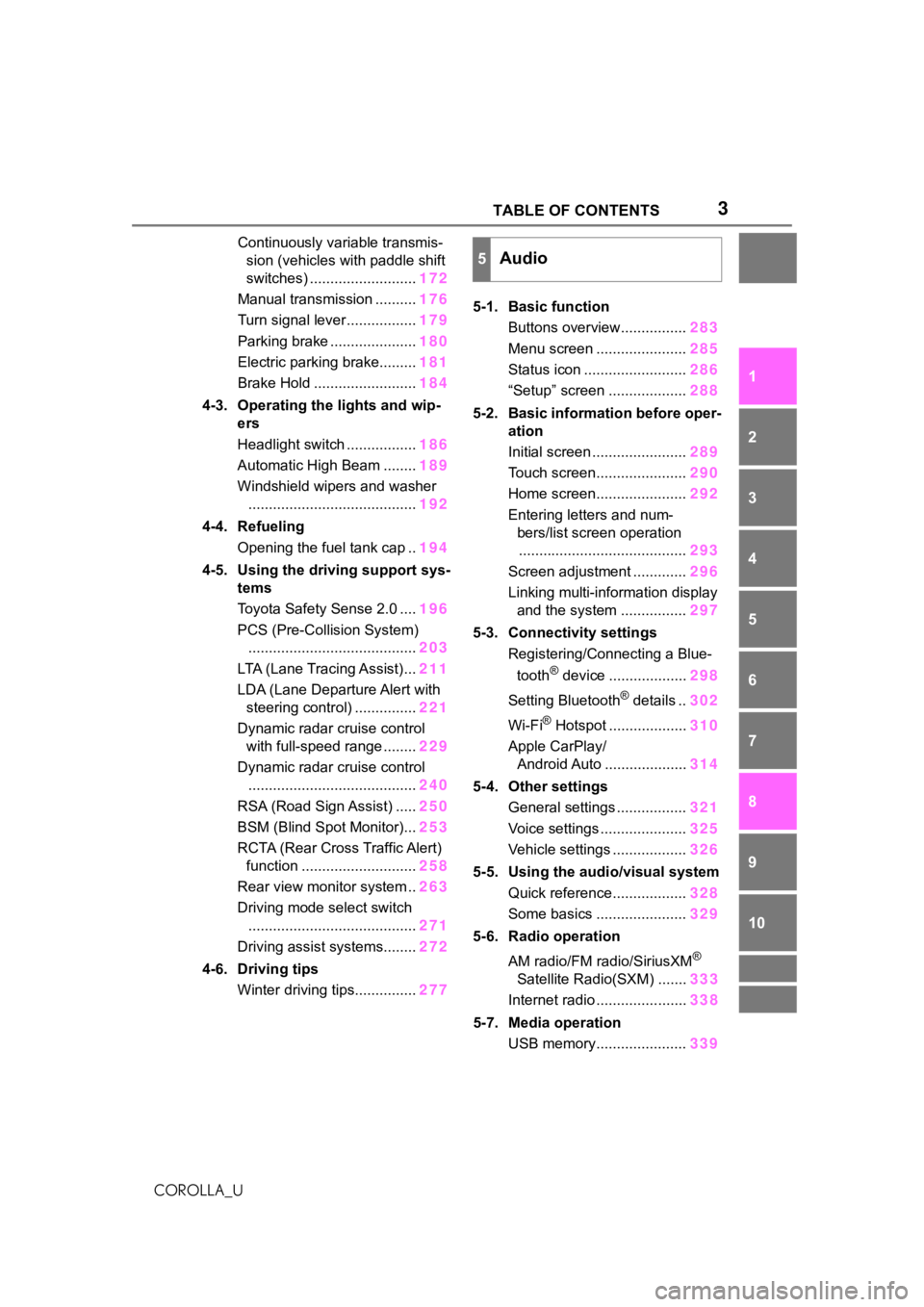
Continuously variable transmis- sion (vehicles with paddle shift
switches) .......................... 172
Manual transmission .......... 176
Turn signal lever................. 179
Parking brake ..................... 180
Electric parking brake......... 181
Brake Hold ......................... 184
4-3. Operating the lights and wip- ers
Headlight switch ................. 186
Automatic High Beam ........ 189
Windshield wipers and washer ......................................... 192
4-4. Refueling Opening the fuel tank cap .. 194
4-5. Using the driving support sys- tems
Toyota Safety Sense 2.0 .... 196
PCS (Pre-Collision System) ......................................... 203
LTA (Lane Tracing Assist)... 211
LDA (Lane Departure Alert with steering control) ............... 221
Dynamic radar cruise control with full-speed range ........ 229
Dynamic radar cruise control ......................................... 240
RSA (Road Sign Assist) ..... 250
BSM (Blind Spot Monitor)... 253
RCTA (Rear Cross Traffic Alert) function ............................ 258
Rear view monitor system .. 263
Driving mode select switch ......................................... 271
Driving assist systems........ 272
4-6. Driving tips Winter driving tips............... 2775-1. Basic function
Buttons overview................ 283
Menu screen ...................... 285
Status icon ......................... 286
“Setup” screen ................... 288
5-2. Basic information before oper- ation
Initial screen ....................... 289
Touch screen...................... 290
Home screen...................... 292
Entering letters and num- bers/list screen operation......................................... 293
Screen adjustment ............. 296
Linking multi-information display and the system ................ 297
5-3. Connectivity settings Registering/Connecting a Blue-
tooth
® device ................... 298
Setting Bluetooth
® details .. 302
Wi-Fi
® Hotspot ................... 310
Apple CarPlay/ Android Auto .................... 314
5-4. Other settings General settings ................. 321
Voice settings ..................... 325
Vehicle settings .................. 326
5-5. Using the audio/visual system Quick reference.................. 328
Some basics ...................... 329
5-6. Radio operation
AM radio/FM radio/SiriusXM
®
Satellite Radio(SXM) ....... 333
Internet radio ...................... 338
5-7. Media operation USB memory...................... 339
5Audio
Page 4 of 624
4TABLE OF CONTENTS
COROLLA_U
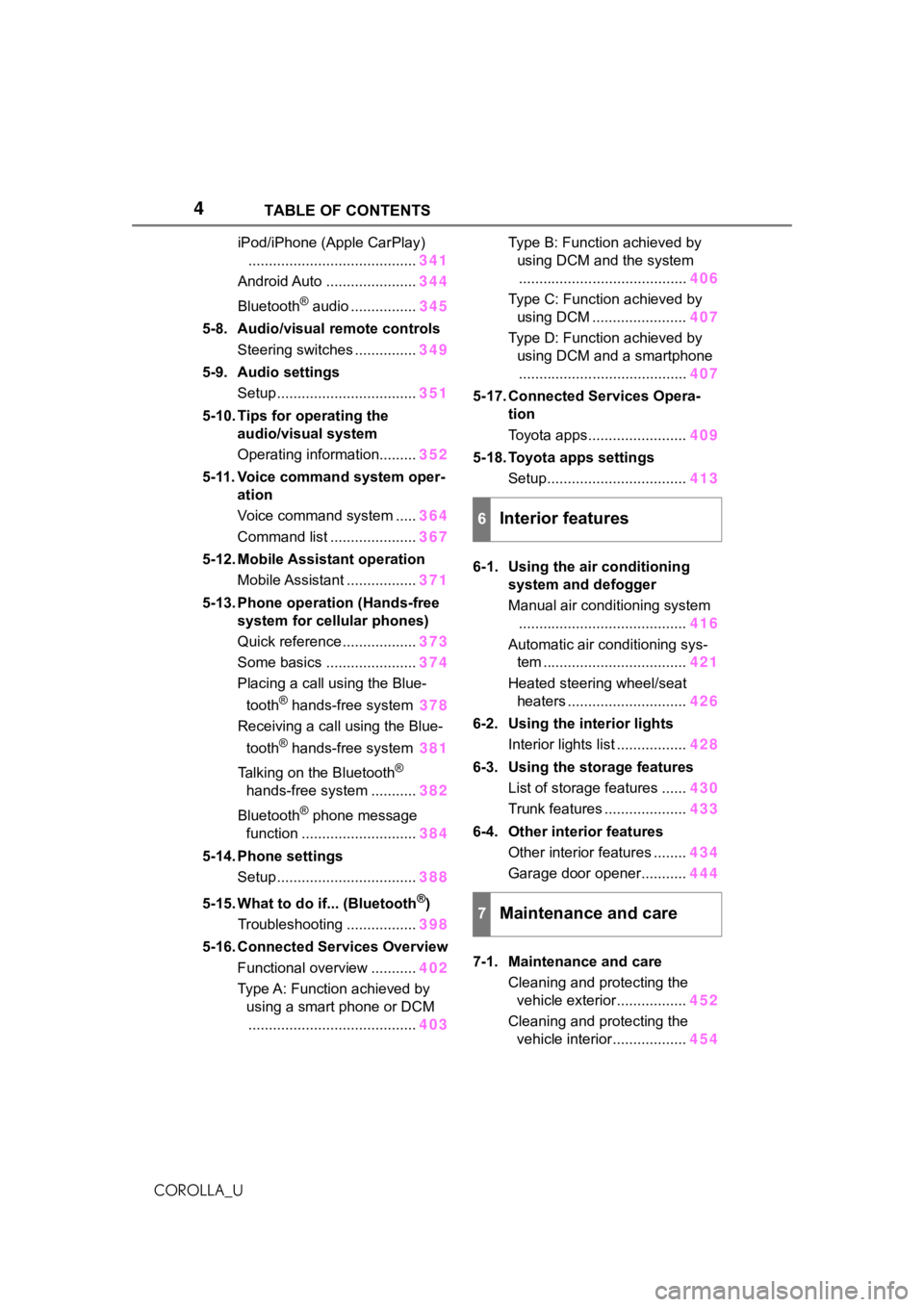
iPod/iPhone (Apple CarPlay)......................................... 341
Android Auto ...................... 344
Bluetooth
® audio ................ 345
5-8. Audio/visual remote controls Steering switches ............... 349
5-9. Audio settings Setup .................................. 351
5-10. Tips for operating the audio/visual system
Operating information......... 352
5-11. Voice command system oper- ation
Voice command system ..... 364
Command list ..................... 367
5-12. Mobile Assistant operation Mobile Assistant ................. 371
5-13. Phone operation (Hands-free system for cellular phones)
Quick reference .................. 373
Some basics ...................... 374
Placing a call using the Blue-
tooth
® hands-free system 378
Receiving a call using the Blue-
tooth
® hands-free system 381
Talking on the Bluetooth
®
hands-free system ........... 382
Bluetooth
® phone message
function ............................ 384
5-14. Phone settings Setup .................................. 388
5-15. What to do if... (Bluetooth
®)
Troubleshooting ................. 398
5-16. Connected Services Overview Functional overview ........... 402
Type A: Function achieved by using a smart phone or DCM......................................... 403Type B: Function achieved by
using DCM and the system......................................... 406
Type C: Function achieved by using DCM ....................... 407
Type D: Function achieved by using DCM and a smartphone......................................... 407
5-17. Connected Services Opera- tion
Toyota apps........................ 409
5-18. Toyota apps settings Setup.................................. 413
6-1. Using the air conditioning system and defogger
Manual air conditioning system......................................... 416
Automatic air conditioning sys- tem ................................... 421
Heated steering wheel/seat heaters ............................. 426
6-2. Using the interior lights Interior lights list ................. 428
6-3. Using the storage features List of storage features ...... 430
Trunk features .................... 433
6-4. Other interior features Other interior features ........ 434
Garage door opener........... 444
7-1. Maintenance and care Cleaning and protecting the vehicle exterior................. 452
Cleaning and protecting the vehicle interior.................. 454
6Interior features
7Maintenance and care
Page 16 of 624
16Pictorial index
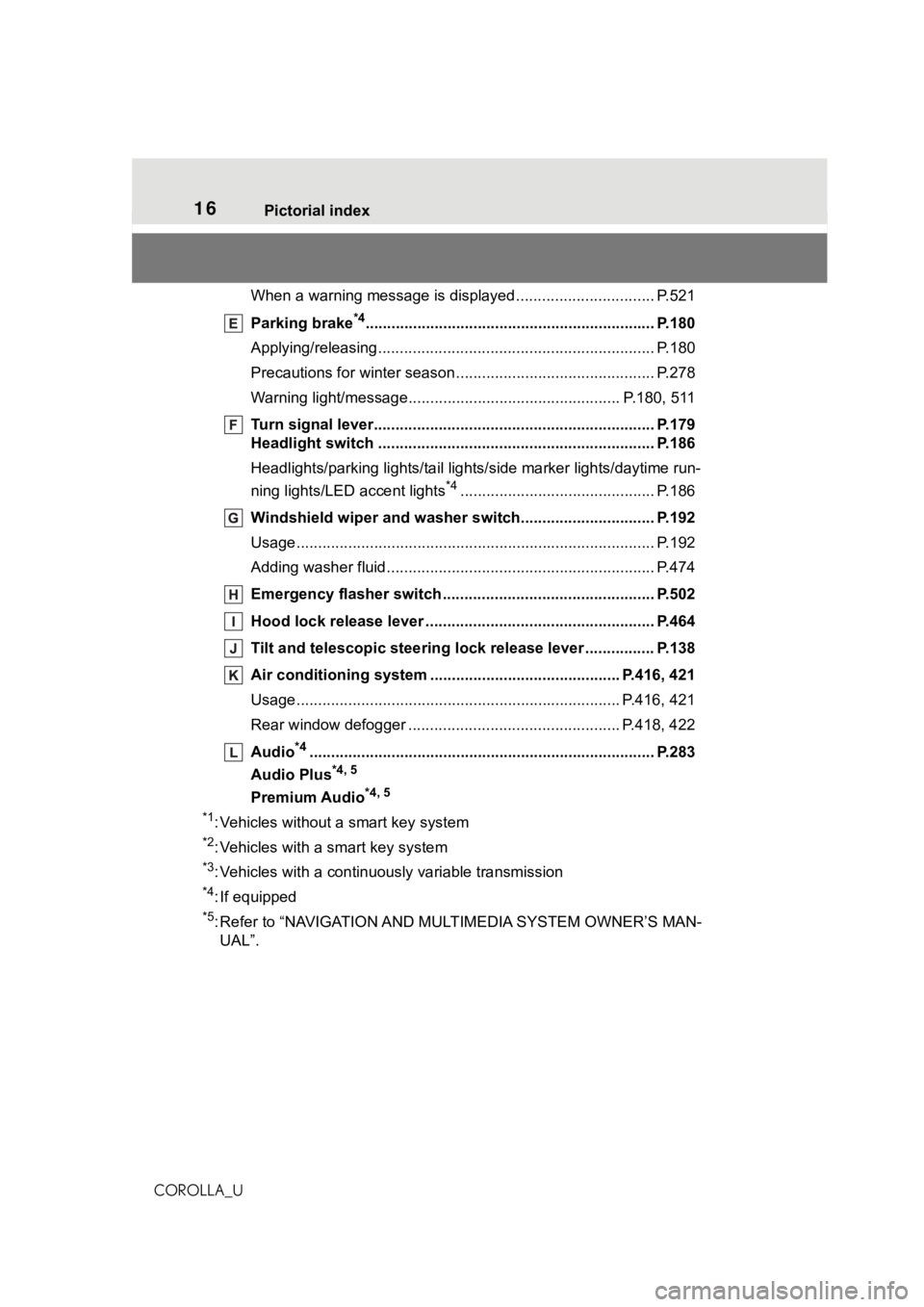
COROLLA_UWhen a warning message is displayed ............................
.... P.521
Parking brake
*4............................................................... .... P.180
Applying/releasing............................................. ................... P.180
Precautions for winter seas on.............................................. P.278
Warning light/message..... ............................................ P.180, 511
Turn signal lever.............................................. ................... P.179
Headlight switch ............................................... ................. P.186
Headlights/parking lights/tail lig hts/side marker lights/daytime run-
ning lights/LED accent lights
*4............................................. P.186
Windshield wiper and washer switch............................... P.192
Usage................................................................................... P.192
Adding washer fluid .............................................................. P.474
Emergency flasher switch ....................................... .......... P.502
Hood lock release lever ........................................ ............. P.464
Tilt and telescopic steering lock release lever ................P. 1 3 8
Air conditioning system ............................. ............... P.416, 421
Usage.......................................................... ................. P.416, 421
Rear window defogger ........................................... ...... P.418, 422
Audio
*4............................................................... ................. P.283
Audio Plus
*4, 5
Premium Audio*4, 5
*1
: Vehicles without a smart key system
*2: Vehicles with a smart key system
*3: Vehicles with a continuous ly variable transmission
*4: If equipped
*5: Refer to “NAVIGATION AND MULTIMEDIA SYSTEM OWNER’S MAN-
UAL”.
Page 18 of 624
18Pictorial index
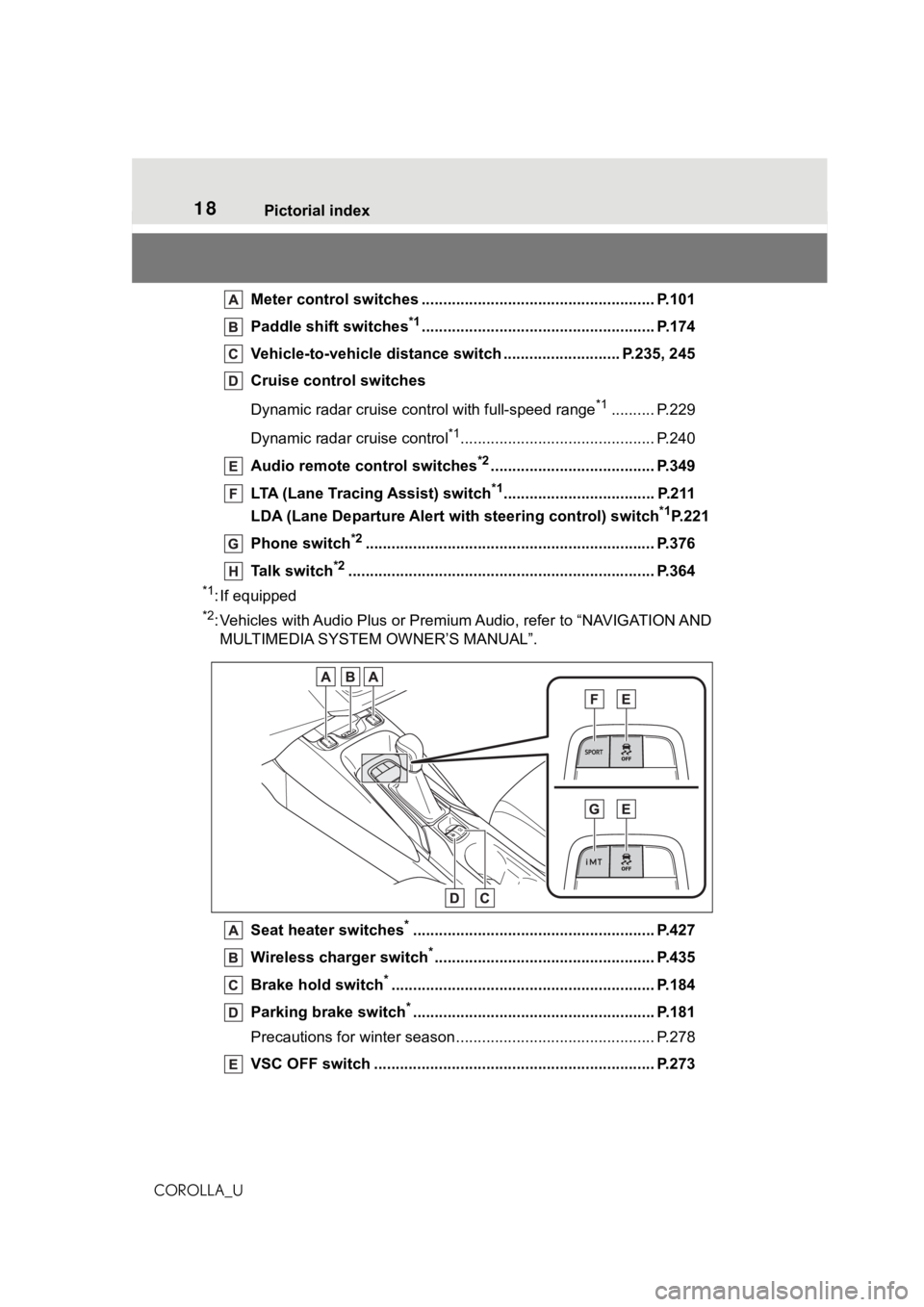
COROLLA_UMeter control switches ..
.................................................... P.101
Paddle shift switches
*1...................................................... P.174
Vehicle-to-vehicle distance switch ........................... P.235, 245
Cruise control switches
Dynamic radar cruise cont rol with full-speed range
*1.......... P.229
Dynamic radar cruise control
*1............................................. P.240
Audio remote control switches
*2...................................... P.349
LTA (Lane Tracing Assist) switch
*1................................... P.211
LDA (Lane Departure Alert wi th steering control) switch
*1P.221
Phone switch
*2............................................................... .... P.376
Talk switch
*2............................................................... ........ P.364
*1: If equipped
*2: Vehicles with Audio Plus or Premium Audio, refer to “NAVIGATIO N AND
MULTIMEDIA SYSTEM OWNER’S MANUAL”.
Seat heater switches
*........................................................ P.427
Wireless cha rger switch
*................................................... P.435
Brake hold switch
*............................................................. P. 184
Parking brake switch
*........................................................ P.181
Precautions for winter seas on.............................................. P.278
VSC OFF switch ................................................. ................ P.273
Page 93 of 624
932-1. Instrument cluster
2
Vehicle status information and indicators
COROLLA_Udifferent distances independently.
To reset, display the desired trip
meter and press and hold the dis-
play change button.
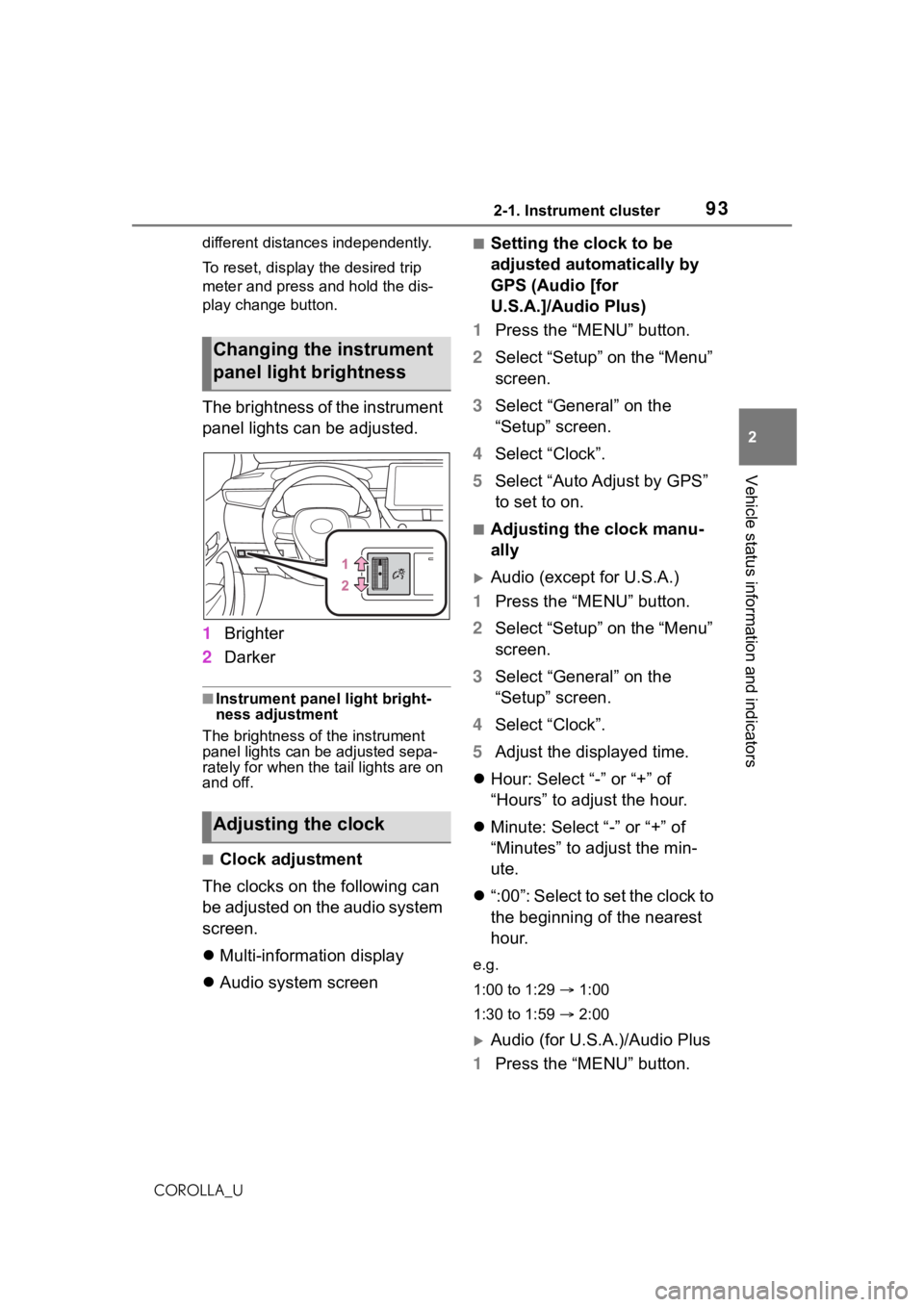
The brightness of the instrument
panel lights can be adjusted.
1
Brighter
2 Darker
■Instrument panel light bright-
ness adjustment
The brightness of the instrument
panel lights can be adjusted sepa-
rately for when the tail lights are on
and off.
■Clock adjustment
The clocks on the following can
be adjusted on the audio system
screen.
Multi-information display
Audio system screen
■Setting the clock to be
adjusted automatically by
GPS (Audio [for
U.S.A.]/Audio Plus)
1 Press the “MENU” button.
2 Select “Setup” on the “Menu”
screen.
3 Select “General” on the
“Setup” screen.
4 Select “Clock”.
5 Select “Auto Adjust by GPS”
to set to on.
■Adjusting the clock manu-
ally
Audio (except for U.S.A.)
1 Press the “MENU” button.
2 Select “Setup” on the “Menu”
screen.
3 Select “General” on the
“Setup” screen.
4 Select “Clock”.
5 Adjust the displayed time.
Hour: Select “-” or “+” of
“Hours” to adjust the hour.
Minute: Select “-” or “+” of
“Minutes” to adjust the min-
ute.
“:00”: Select to set the clock to
the beginning of the nearest
hour.
e.g.
1:00 to 1:29 1:00
1:30 to 1:59 2:00
Audio (for U.S.A.)/Audio Plus
1 Press the “MENU” button.
Changing the instrument
panel light brightness
Adjusting the clock
Page 94 of 624
942-1. Instrument cluster
COROLLA_U
2Select “Setup” on the “Menu”
screen.
3 Select “General” on the
“Setup” screen.
4 Select “Clock”.
5 Select “Auto Adjust by GPS”
to set to off.
6 Adjust the displayed time.
Hour: Select “-” or “+” of
“Hours” to adjust the hour.
Minute: Select “-” or “+” of
“Minutes” to adjust the min-
ute.
“:00”: Select to set the clock to
the beginning of the nearest
hour.
e.g.
1:00 to 1:29 1:00
1:30 to 1:59 2:00
■Setting the time zone
(Audio [for U.S.A.]/Audio
Plus)
1 Press the “MENU” button.
2 Select “Setup” on the “Menu”
screen.
3 Select “General” on the
“Setup” screen.
4 Select “Clock”.
5 Select “Time Zone”.
Select the desired time zone.
■Setting daylight saving time
(Audio [for U.S.A.]/Audio
Plus)
1 Press the “MENU” button. 2
Select “Setup” on the “Menu”
screen.
3 Select “General” on the
“Setup” screen.
4 Select “Clock”.
5 Select “Daylight Saving
Time” then on/off.
■Changing the clock
between 12-hour/24-hour
format
1 Press the “MENU” button.
2 Select “Setup” on the “Menu”
screen.
3 Select “General” on the
“Setup” screen.
4 Select “Clock”.
5 Select “24-Hour Time For-
mat” and then on/off.
When set to off, the clock is dis-
played in 12 hour time format.
■Clock settings screen (Audio
[for U.S.A.]/Audio Plus)
If “Clock : 00” is displayed when
is selected on the multi-information
display, the system may be malfunc-
tioning. Have the vehicle inspected
by your Toyota dealer.
Page 98 of 624
982-1. Instrument cluster
COROLLA_Udifferent distances independently.
To reset, display the desired trip
meter and press and hold the dis-
play change button.
The brightness of the instrument
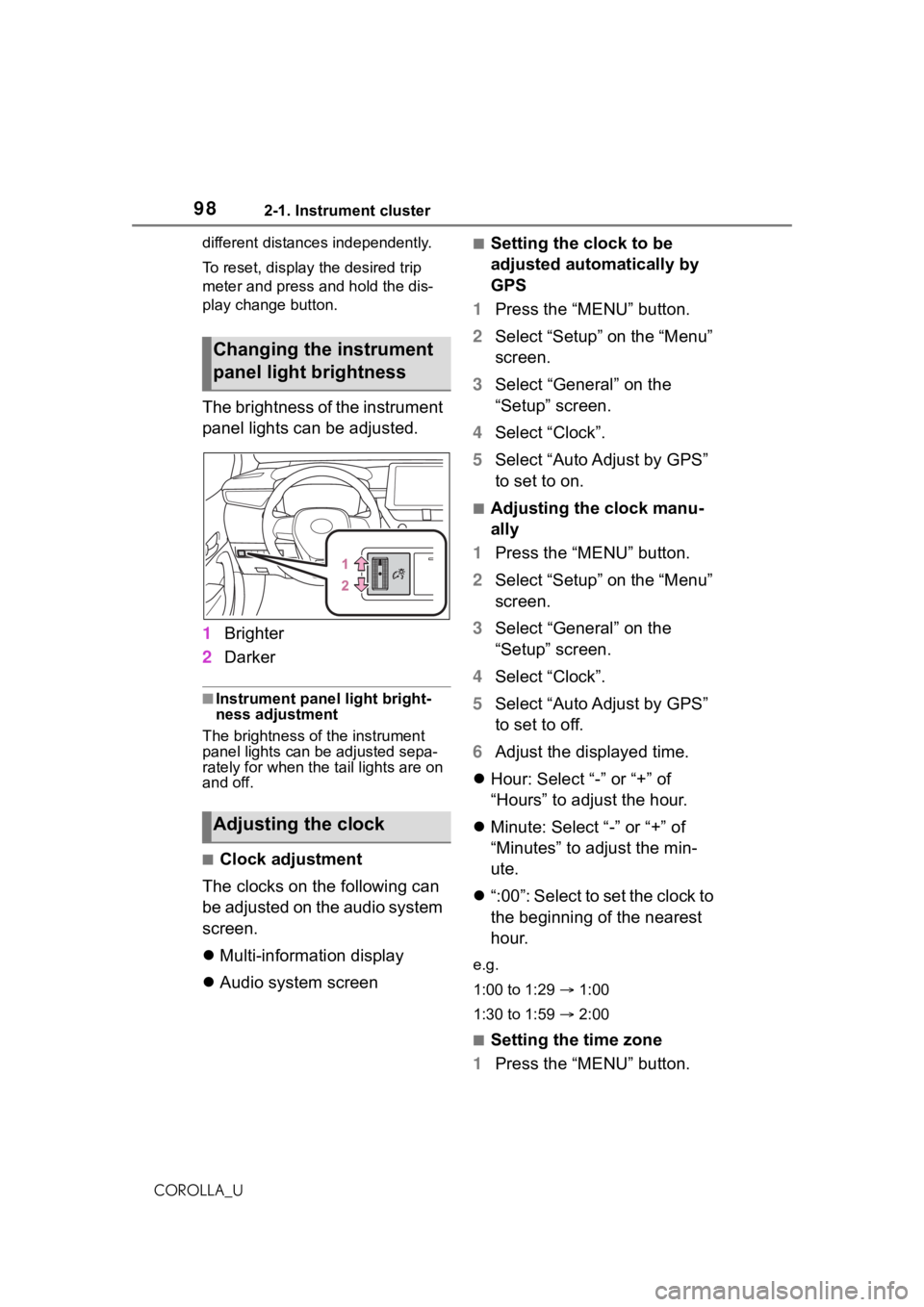
panel lights can be adjusted.
1
Brighter
2 Darker
■Instrument panel light bright-
ness adjustment
The brightness of the instrument
panel lights can be adjusted sepa-
rately for when the tail lights are on
and off.
■Clock adjustment
The clocks on the following can
be adjusted on the audio system
screen.
Multi-information display
Audio system screen
■Setting the clock to be
adjusted automatically by
GPS
1 Press the “MENU” button.
2 Select “Setup” on the “Menu”
screen.
3 Select “General” on the
“Setup” screen.
4 Select “Clock”.
5 Select “Auto Adjust by GPS”
to set to on.
■Adjusting the clock manu-
ally
1 Press the “MENU” button.
2 Select “Setup” on the “Menu”
screen.
3 Select “General” on the
“Setup” screen.
4 Select “Clock”.
5 Select “Auto Adjust by GPS”
to set to off.
6 Adjust the displayed time.
Hour: Select “-” or “+” of
“Hours” to adjust the hour.
Minute: Select “-” or “+” of
“Minutes” to adjust the min-
ute.
“:00”: Select to set the clock to
the beginning of the nearest
hour.
e.g.
1:00 to 1:29 1:00
1:30 to 1:59 2:00
■Setting the time zone
1 Press the “MENU” button.
Changing the instrument
panel light brightness
Adjusting the clock
Page 99 of 624
992-1. Instrument cluster
2
Vehicle status information and indicators
COROLLA_U
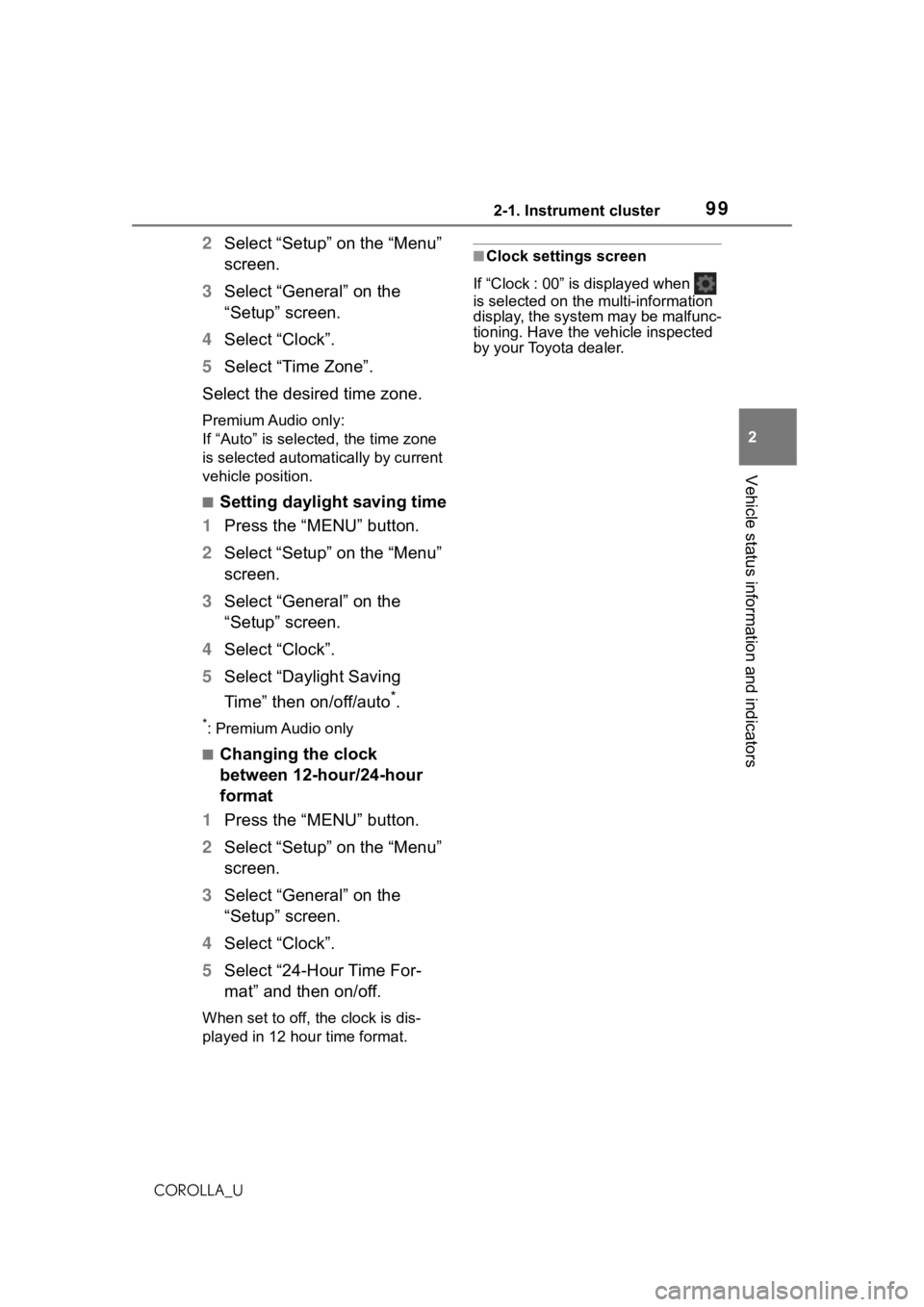
2Select “Setup” on the “Menu”
screen.
3 Select “General” on the
“Setup” screen.
4 Select “Clock”.
5 Select “Time Zone”.
Select the desired time zone.
Premium Audio only:
If “Auto” is selected, the time zone
is selected automatically by current
vehicle position.
■Setting daylight saving time
1 Press the “MENU” button.
2 Select “Setup” on the “Menu”
screen.
3 Select “General” on the
“Setup” screen.
4 Select “Clock”.
5 Select “Daylight Saving
Time” then on/off/auto
*.
*: Premium Audio only
■Changing the clock
between 12-hour/24-hour
format
1 Press the “MENU” button.
2 Select “Setup” on the “Menu”
screen.
3 Select “General” on the
“Setup” screen.
4 Select “Clock”.
5 Select “24-Hour Time For-
mat” and then on/off.
When set to off, the clock is dis-
played in 12 hour time format.
■Clock settings screen
If “Clock : 00” is displayed when
is selected on the multi-information
display, the system may be malfunc-
tioning. Have the vehicle inspected
by your Toyota dealer.
Page 101 of 624
1012-1. Instrument cluster
2
Vehicle status information and indicators
COROLLA_U
■Liquid crystal display
Small spots or light spots may
appear on the display. This phenom-
enon is characteristi c of liquid crys-
tal displays, and there is no problem
continuing to use the display.
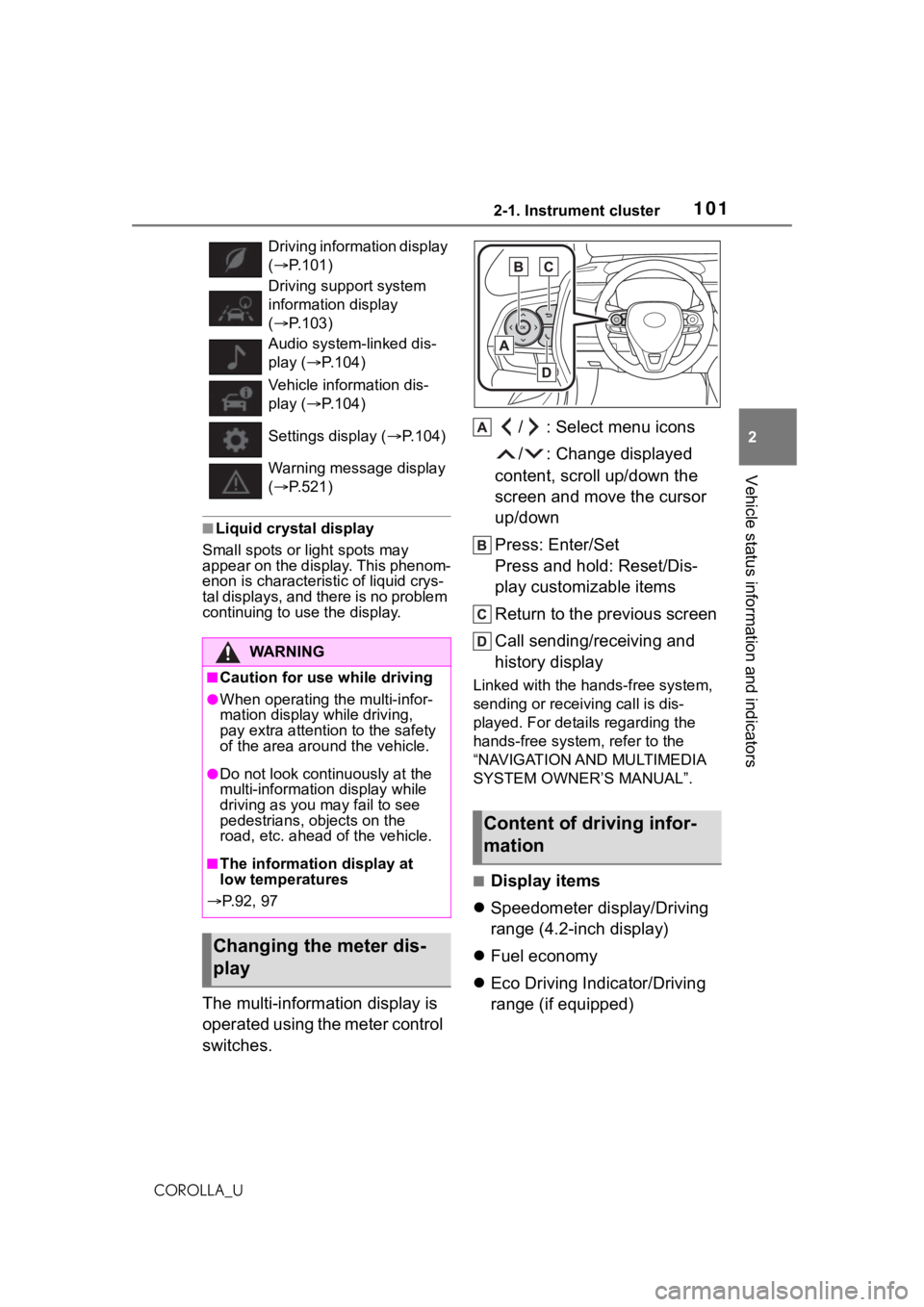
The multi-information display is
operated using the meter control
switches. / : Select menu icons
/ : Change displayed
content, scroll up/down the
screen and move the cursor
up/down
Press: Enter/Set
Press and hold: Reset/Dis-
play customizable items
Return to the previous screen
Call sending/receiving and
history display
Linked with the hands-free system,
sending or receiving call is dis-
played. For details regarding the
hands-free system, refer to the
“NAVIGATION AND MULTIMEDIA
SYSTEM OWNER’S MANUAL”.
■Display items
Speedometer display/Driving
range (4.2-inch display)
Fuel economy
Eco Driving Indicator/Driving
range (if equipped)
Driving information display
( P.101)
Driving supp ort system
information display
( P.103)
Audio system-linked dis-
play ( P.104)
Vehicle information dis-
play ( P.104)
Settings display ( P.104)
Warning message display
( P.521)
WA R N I N G
■Caution for use while driving
●When operating the multi-infor-
mation display while driving,
pay extra attention to the safety
of the area aroun d the vehicle.
●Do not look continuously at the
multi-information display while
driving as you may fail to see
pedestrians, objects on the
road, etc. ahead o f the vehicle.
■The information display at
low temperatures
P.92, 97
Changing the meter dis-
play
Content of driving infor-
mation