light TOYOTA COROLLA CROSS 2022 Owner's Guide
[x] Cancel search | Manufacturer: TOYOTA, Model Year: 2022, Model line: COROLLA CROSS, Model: TOYOTA COROLLA CROSS 2022Pages: 612, PDF Size: 17.18 MB
Page 76 of 612
762-1. Instrument cluster
2-1.Instrument cluster
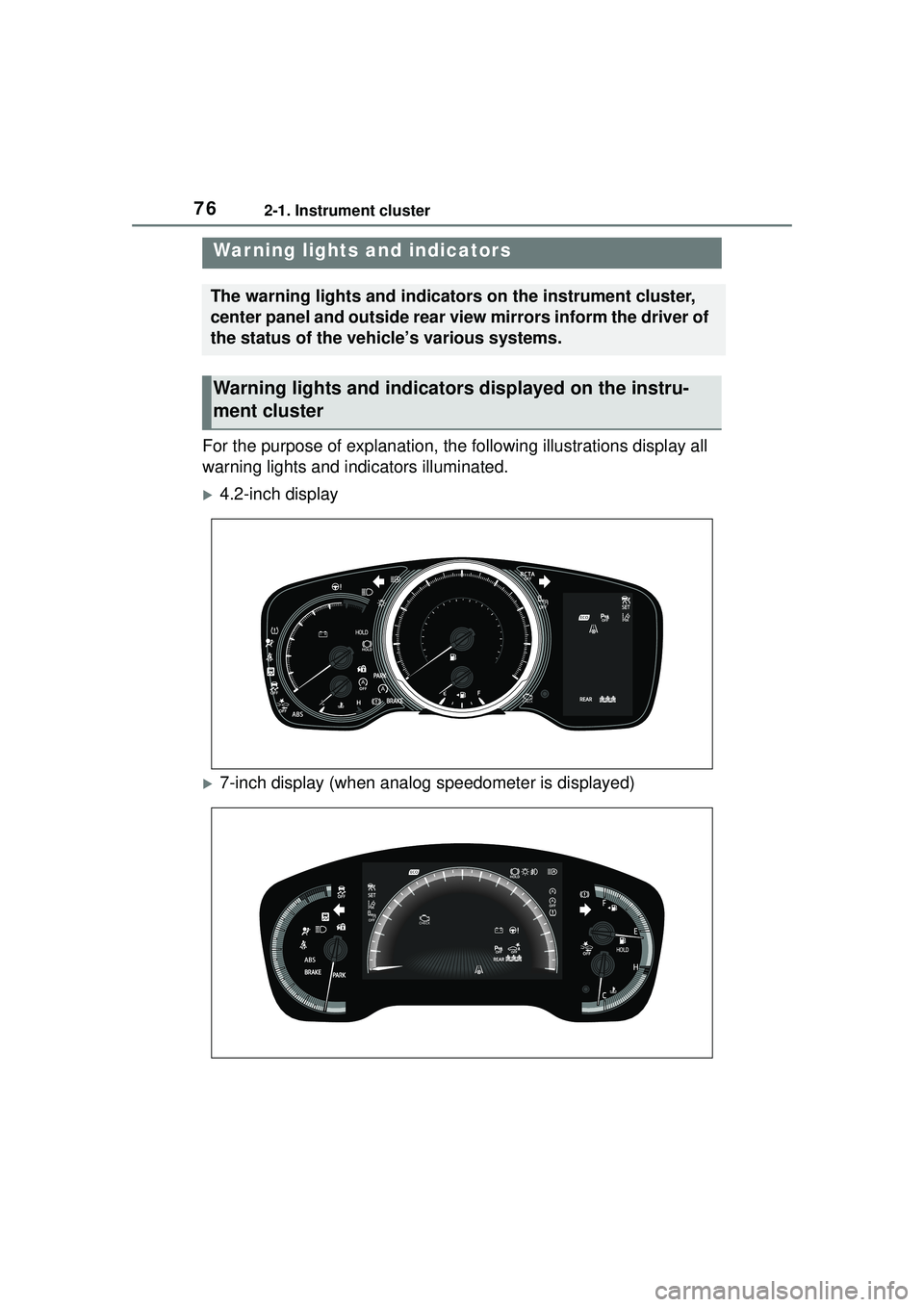
For the purpose of explanation, the following illustrations display all
warning lights and indicators illuminated.
4.2-inch display
7-inch display (when analog speedometer is displayed)
War ning lights and indicators
The warning lights and indicators on the instrument cluster,
center panel and outside rear view mirrors inform the driver of
the status of the vehicle’s various systems.
Warning lights and indicators displayed on the instru-
ment cluster
Page 77 of 612
772-1. Instrument cluster
2
Vehicle status information and indicators
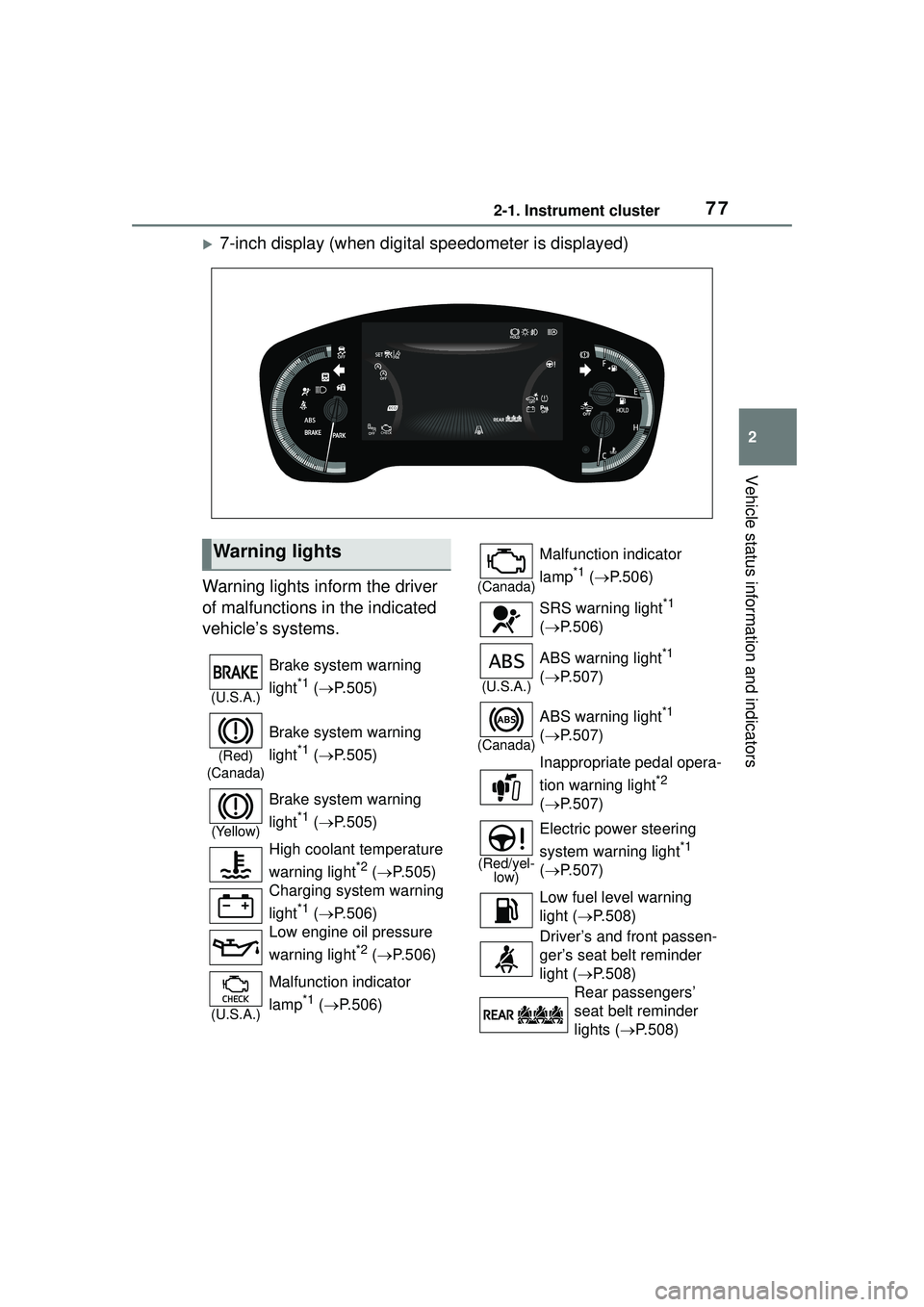
7-inch display (when digital speedometer is displayed)
Warning lights inform the driver
of malfunctions in the indicated
vehicle’s systems.
Warning lights
(U.S.A.)
Brake system warning
light
*1 ( P.505)
(Red)
(Canada)
Brake system warning
light
*1 ( P.505)
(Yellow)
Brake system warning
light
*1 ( P.505)
High coolant temperature
warning light
*2 ( P.505)
Charging system warning
light
*1 ( P.506)
Low engine oil pressure
warning light
*2 ( P.506)
(U.S.A.)
Malfunction indicator
lamp
*1 ( P.506)
(Canada)
Malfunction indicator
lamp
*1 ( P.506)
SRS warning light
*1
( P.506)
(U.S.A.)
ABS warning light*1
( P.507)
(Canada)
ABS warning light*1
( P.507)
Inappropriate pedal opera-
tion warning light
*2
( P.507)
(Red/yel-
low)
Electric power steering
system warning light
*1
( P.507)
Low fuel level warning
light ( P.508)
Driver’s and front passen-
ger’s seat belt reminder
light ( P.508)
Rear passengers’
seat belt reminder
lights ( P.508)
Page 78 of 612
782-1. Instrument cluster
*1: These lights come on when the engine switch is turned to ON to
indicate that a system check is
being performed. They will turn
off after the engine is started, or
after a few seconds. There may
be a malfunction in a system if
the lights do not come on, or turn off. Have the vehicle inspected
by your Toyota dealer.
*2: This light illuminates on the
multi-information display.
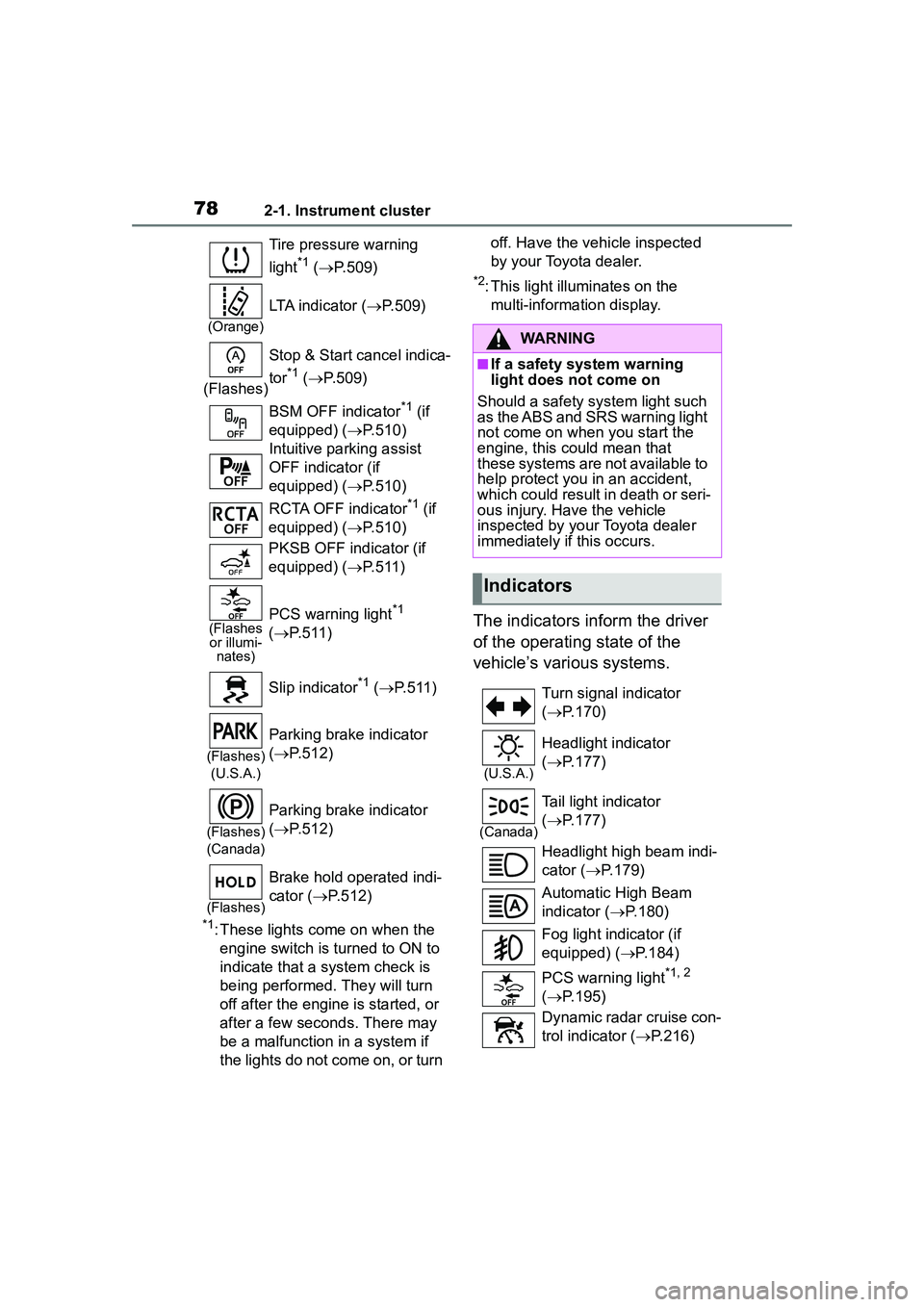
The indicators inform the driver
of the operating state of the
vehicle’s various systems.
Tire pressure warning
light
*1 ( P.509)
(Orange)
LTA indicator ( P.509)
(Flashes) Stop & Start cancel indica-
tor
*1 (
P.509)
BSM OFF indicator
*1 (if
equipped) ( P.510)
Intuitive parking assist
OFF indicator (if
equipped) ( P.510)
RCTA OFF indicator
*1 (if
equipped) ( P.510)
PKSB OFF indicator (if
equipped) ( P.511)
(Flashes
or illumi- nates)PCS warning light*1
( P.511)
Slip indicator
*1 ( P.511)
(Flashes)
(U.S.A.)
Parking brake indicator
( P.512)
(Flashes)
(Canada)
Parking brake indicator
( P.512)
(Flashes)
Brake hold operated indi-
cator ( P.512)
WARNING
■If a safety system warning
light does not come on
Should a safety system light such
as the ABS and SRS warning light
not come on when you start the
engine, this could mean that
these systems are not available to
help protect you in an accident,
which could result in death or seri-
ous injury. Have the vehicle
inspected by your Toyota dealer
immediately if this occurs.
Indicators
Turn signal indicator
( P.170)
(U.S.A.)
Headlight indicator
( P.177)
(Canada)
Tail light indicator
( P.177)
Headlight high beam indi-
cator ( P.179)
Automatic High Beam
indicator ( P.180)
Fog light indicator (if
equipped) ( P.184)
PCS warning light
*1, 2
( P.195)
Dynamic radar cruise con-
trol indicator ( P.216)
Page 79 of 612
792-1. Instrument cluster
2
Vehicle status information and indicators
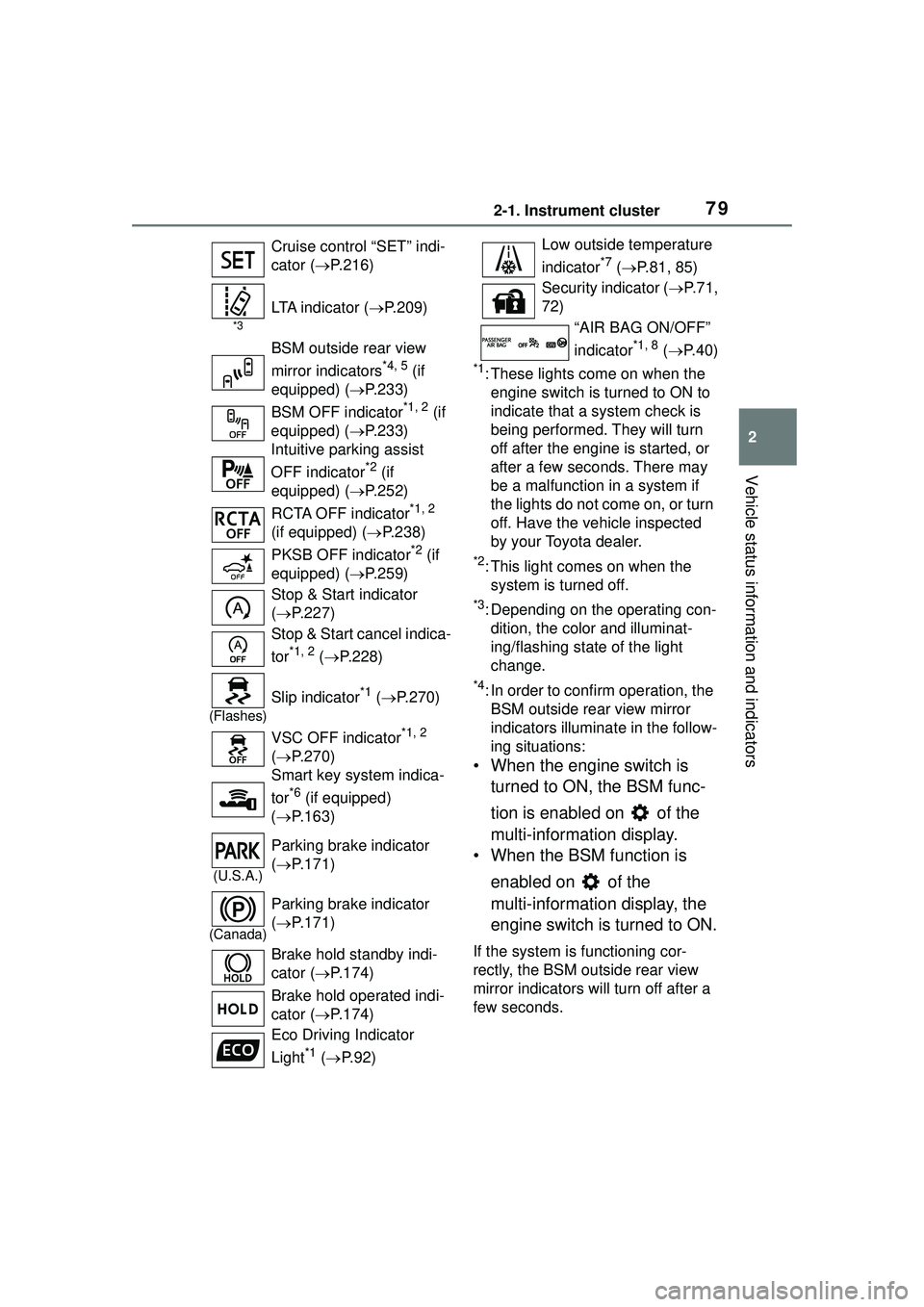
*1: These lights come on when the engine switch is turned to ON to
indicate that a system check is
being performed. They will turn
off after the engine is started, or
after a few sec onds. There may
be a malfunction in a system if
the lights do not come on, or turn
off. Have the vehicle inspected
by your Toyota dealer.
*2: This light comes on when the system is turned off.
*3: Depending on the operating con-dition, the color and illuminat-
ing/flashing state of the light
change.
*4: In order to confirm operation, the BSM outside rear view mirror
indicators illumina te in the follow-
ing situations:
• When the engine switch is
turned to ON, the BSM func-
tion is enabled on of the
multi-information display.
• When the BSM function is
enabled on of the
multi-information display, the
engine switch is turned to ON.
If the system is functioning cor-
rectly, the BSM outside rear view
mirror indicators will turn off after a
few seconds.
Cruise control “SET” indi-
cator (
P.216)
*3
LTA indicator ( P.209)
BSM outside rear view
mirror indicators
*4, 5 (if
equipped) ( P.233)
BSM OFF indicator
*1, 2 (if
equipped) ( P.233)
Intuitive parking assist
OFF indicator
*2 (if
equipped) ( P.252)
RCTA OFF indicator
*1, 2
(if equipped) ( P.238)
PKSB OFF indicator
*2 (if
equipped) ( P.259)
Stop & Start indicator
( P.227)
Stop & Start cancel indica-
tor
*1, 2 ( P.228)
(Flashes)
Slip indicator*1 ( P.270)
VSC OFF indicator
*1, 2
( P.270)
Smart key system indica-
tor
*6 (if equipped)
( P.163)
(U.S.A.)
Parking brake indicator
( P.171)
(Canada)
Parking brake indicator
( P.171)
Brake hold standby indi-
cator ( P.174)
Brake hold operated indi-
cator ( P.174)
Eco Driving Indicator
Light
*1 ( P. 9 2 )
Low outside temperature
indicator
*7 ( P.81, 85)
Security indicator ( P. 7 1 ,
72)
“AIR BAG ON/OFF”
indicator
*1, 8 ( P. 4 0 )
Page 80 of 612
802-1. Instrument cluster
If the BSM outside rear view mirror
indicators do not illuminate or do
not turn off, there may be a mal-
function in the system.
If this occurs, have the vehicle
inspected by your Toyota dealer.
*5: This light illuminates on the out-side rear view mirrors.
*6: This light illuminates on the multi-information display.
*7: When the outside temperature is approximately 37°F (3°C) or
lower, this indicator will flash for
approximately 10 seconds, then
stay on.
*8: This light illuminates on the front interior/personal lights.
Page 83 of 612
832-1. Instrument cluster
2
Vehicle status information and indicators
different distances independently.
To reset, display the desired trip
meter and press and hold the dis-
play change button.
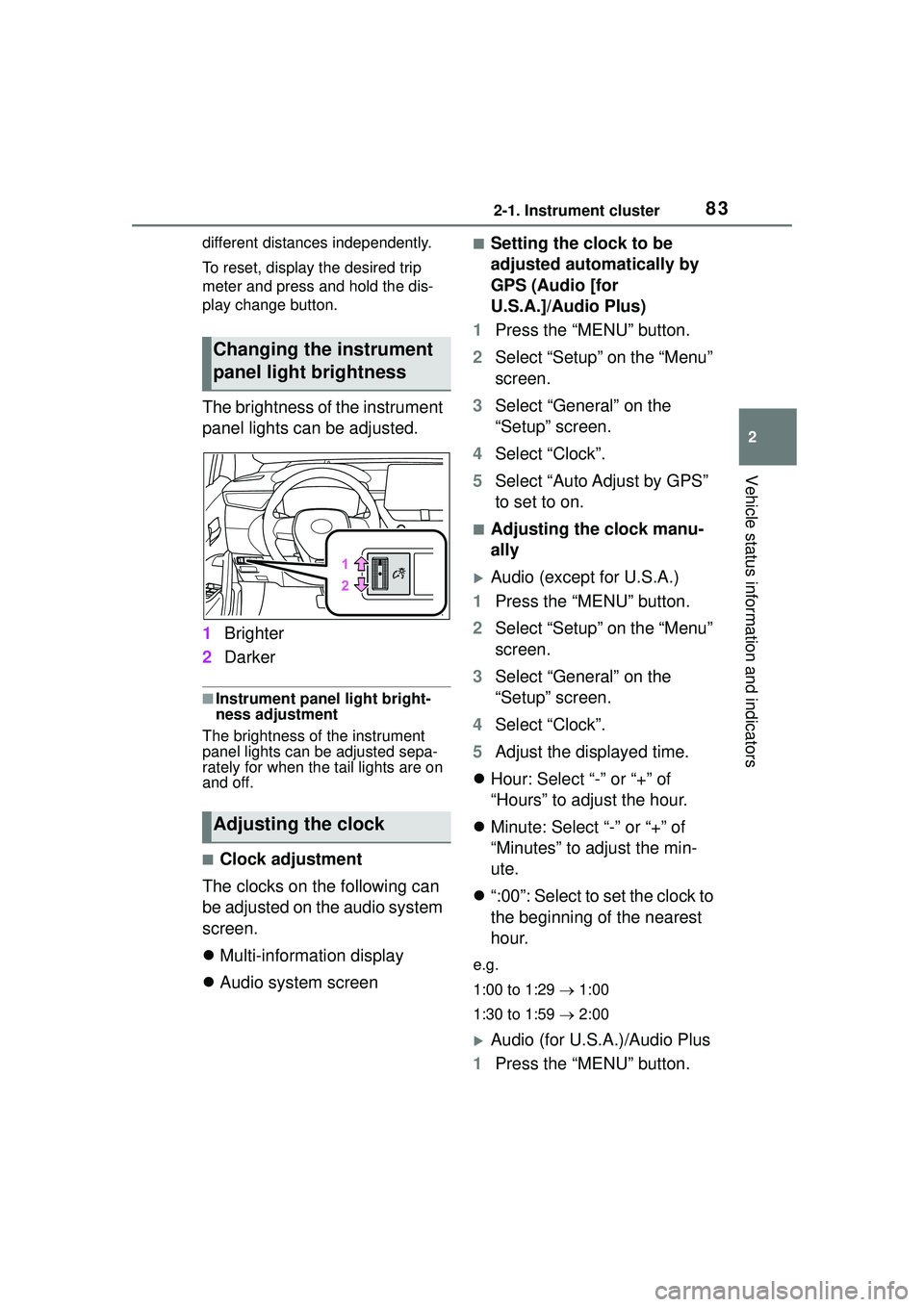
The brightness of the instrument
panel lights can be adjusted.
1Brighter
2 Darker
■Instrument panel light bright-
ness adjustment
The brightness of the instrument
panel lights can be adjusted sepa-
rately for when the tail lights are on
and off.
■Clock adjustment
The clocks on the following can
be adjusted on the audio system
screen.
Multi-information display
Audio system screen
■Setting the clock to be
adjusted automatically by
GPS (Audio [for
U.S.A.]/Audio Plus)
1 Press the “MENU” button.
2 Select “Setup” on the “Menu”
screen.
3 Select “General” on the
“Setup” screen.
4 Select “Clock”.
5 Select “Auto Adjust by GPS”
to set to on.
■Adjusting the clock manu-
ally
Audio (except for U.S.A.)
1 Press the “MENU” button.
2 Select “Setup” on the “Menu”
screen.
3 Select “General” on the
“Setup” screen.
4 Select “Clock”.
5 Adjust the displayed time.
Hour: Select “-” or “+” of
“Hours” to adjust the hour.
Minute: Select “-” or “+” of
“Minutes” to adjust the min-
ute.
“:00”: Select to set the clock to
the beginning of the nearest
hour.
e.g.
1:00 to 1:29 1:00
1:30 to 1:59 2:00
Audio (for U.S.A.)/Audio Plus
1 Press the “MENU” button.
Changing the instrument
panel light brightness
Adjusting the clock
Page 84 of 612
842-1. Instrument cluster
2Select “Setup” on the “Menu”
screen.
3 Select “General” on the
“Setup” screen.
4 Select “Clock”.
5 Select “Auto Adjust by GPS”
to set to off.
6 Adjust the displayed time.
Hour: Select “-” or “+” of
“Hours” to adjust the hour.
Minute: Select “-” or “+” of
“Minutes” to adjust the min-
ute.
“:00”: Select to set the clock to
the beginning of the nearest
hour.
e.g.
1:00 to 1:29 1:00
1:30 to 1:59 2:00
■Setting the time zone
(Audio [for U.S.A.]/Audio
Plus)
1 Press the “MENU” button.
2 Select “Setup” on the “Menu”
screen.
3 Select “General” on the
“Setup” screen.
4 Select “Clock”.
5 Select “Time Zone”.
Select the desired time zone.
■Setting daylight saving time
(Audio [for U.S.A.]/Audio
Plus)
1 Press the “MENU” button. 2
Select “Setup” on the “Menu”
screen.
3 Select “General” on the
“Setup” screen.
4 Select “Clock”.
5 Select “Daylight Saving
Time” then on/off.
■Changing the clock
between 12-hour/24-hour
format
1 Press the “MENU” button.
2 Select “Setup” on the “Menu”
screen.
3 Select “General” on the
“Setup” screen.
4 Select “Clock”.
5 Select “24-Hour Time For-
mat” and then on/off.
When set to off, the clock is dis-
played in 12 hour time format.
■Clock settings screen (Audio
[for U.S.A.]/Audio Plus)
If “Clock : 00” is displayed when
is selected on the multi-information
display, the system may be malfunc-
tioning. Have the vehicle inspected
by your Toyota dealer.
Page 88 of 612
882-1. Instrument cluster
different distances independently.
To reset, display the desired trip
meter and press and hold the dis-
play change button.
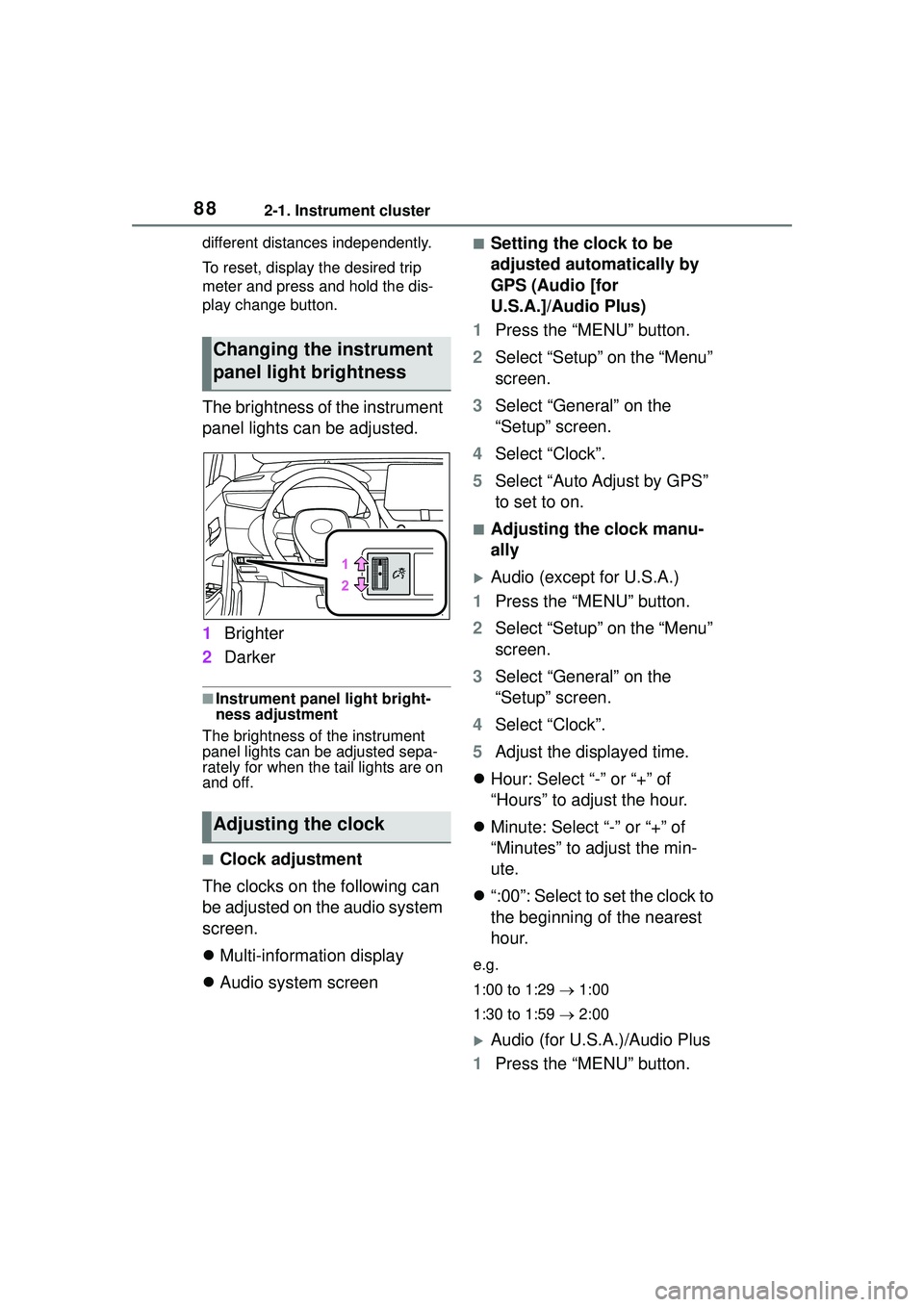
The brightness of the instrument
panel lights can be adjusted.
1Brighter
2 Darker
■Instrument panel light bright-
ness adjustment
The brightness of the instrument
panel lights can be adjusted sepa-
rately for when the tail lights are on
and off.
■Clock adjustment
The clocks on the following can
be adjusted on the audio system
screen.
Multi-information display
Audio system screen
■Setting the clock to be
adjusted automatically by
GPS (Audio [for
U.S.A.]/Audio Plus)
1 Press the “MENU” button.
2 Select “Setup” on the “Menu”
screen.
3 Select “General” on the
“Setup” screen.
4 Select “Clock”.
5 Select “Auto Adjust by GPS”
to set to on.
■Adjusting the clock manu-
ally
Audio (except for U.S.A.)
1 Press the “MENU” button.
2 Select “Setup” on the “Menu”
screen.
3 Select “General” on the
“Setup” screen.
4 Select “Clock”.
5 Adjust the displayed time.
Hour: Select “-” or “+” of
“Hours” to adjust the hour.
Minute: Select “-” or “+” of
“Minutes” to adjust the min-
ute.
“:00”: Select to set the clock to
the beginning of the nearest
hour.
e.g.
1:00 to 1:29 1:00
1:30 to 1:59 2:00
Audio (for U.S.A.)/Audio Plus
1 Press the “MENU” button.
Changing the instrument
panel light brightness
Adjusting the clock
Page 89 of 612
892-1. Instrument cluster
2
Vehicle status information and indicators
2Select “Setup” on the “Menu”
screen.
3 Select “General” on the
“Setup” screen.
4 Select “Clock”.
5 Select “Auto Adjust by GPS”
to set to off.
6 Adjust the displayed time.
Hour: Select “-” or “+” of
“Hours” to adjust the hour.
Minute: Select “-” or “+” of
“Minutes” to adjust the min-
ute.
“:00”: Select to set the clock to
the beginning of the nearest
hour.
e.g.
1:00 to 1:29 1:00
1:30 to 1:59 2:00
■Setting the time zone
(Audio [for U.S.A.]/Audio
Plus)
1 Press the “MENU” button.
2 Select “Setup” on the “Menu”
screen.
3 Select “General” on the
“Setup” screen.
4 Select “Clock”.
5 Select “Time Zone”.
Select the desired time zone.
■Setting daylight saving time
(Audio [for U.S.A.]/Audio
Plus)
1 Press the “MENU” button. 2
Select “Setup” on the “Menu”
screen.
3 Select “General” on the
“Setup” screen.
4 Select “Clock”.
5 Select “Daylight Saving
Time” then on/off.
■Changing the clock
between 12-hour/24-hour
format
1 Press the “MENU” button.
2 Select “Setup” on the “Menu”
screen.
3 Select “General” on the
“Setup” screen.
4 Select “Clock”.
5 Select “24-Hour Time For-
mat” and then on/off.
When set to off, the clock is dis-
played in 12 hour time format.
■Clock settings screen (Audio
[for U.S.A.]/Audio Plus)
If “Clock : 00” is displayed when
is selected on the multi-information
display, the system may be malfunc-
tioning. Have the vehicle inspected
by your Toyota dealer.
Page 91 of 612
912-1. Instrument cluster
2
Vehicle status information and indicators
■Liquid crystal display
Small spots or light spots may
appear on the display. This phenom-
enon is characteristic of liquid crys-
tal displays, and there is no problem
continuing to use the display.
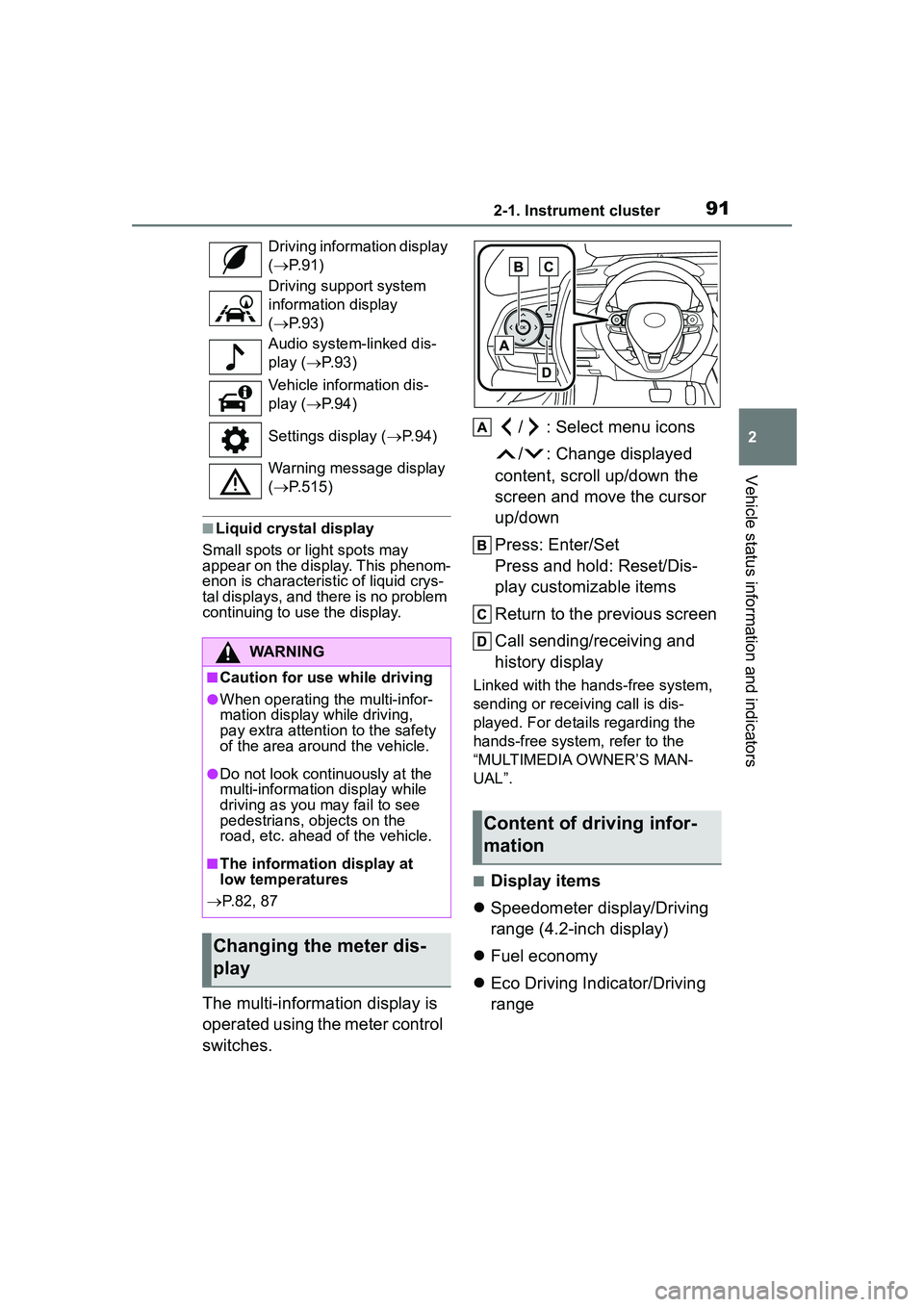
The multi-information display is
operated using the meter control
switches. / : Select menu icons
/ : Change displayed
content, scroll up/down the
screen and move the cursor
up/down
Press: Enter/Set
Press and hold: Reset/Dis-
play customizable items
Return to the previous screen
Call sending/receiving and
history display
Linked with the hands-free system,
sending or receiving call is dis-
played. For details regarding the
hands-free system, refer to the
“MULTIMEDIA OWNER’S MAN-
UAL”.
■Display items
Speedometer display/Driving
range (4.2-inch display)
Fuel economy
Eco Driving Indicator/Driving
range
Driving information display
( P. 9 1 )
Driving support system
information display
( P. 9 3 )
Audio system-linked dis-
play ( P. 9 3 )
Vehicle information dis-
play ( P. 9 4 )
Settings display ( P. 9 4 )
Warning message display
( P.515)
WARNING
■Caution for use while driving
●When operating the multi-infor-
mation display while driving,
pay extra attention to the safety
of the area around the vehicle.
●Do not look continuously at the
multi-information display while
driving as you may fail to see
pedestrians, objects on the
road, etc. ahead of the vehicle.
■The information display at
low temperatures
P.82, 87
Changing the meter dis-
play
Content of driving infor-
mation