audio TOYOTA FJ CRUISER 2014 1.G Owner's Manual
[x] Cancel search | Manufacturer: TOYOTA, Model Year: 2014, Model line: FJ CRUISER, Model: TOYOTA FJ CRUISER 2014 1.GPages: 572, PDF Size: 9.45 MB
Page 258 of 572
258 3-2. Using the audio system
Selecting a CD (type B only)■ Selecting a CD to play
Press ( ) or
().
■ Scanning loaded CDs
Press and hold until you hear a beep.
The first ten seconds of the first track on each CD will be played.
To cancel, press again.
Press again when the desired CD is reached.
Playing and pausing tracks
Press .
Random playback■ Current CD
Press (RDM).
Songs are played in random order.
To cancel, press the button one more (type A), or twice more (type B).
■All CDs (type B only)
Press (RDM) twice.
Tracks on all loaded CDs are played in random order.
To cancel, press the button again.
Page 259 of 572
259
3-2. Using the audio system
3
Interior features
Repeat play
■ Repeating a track
Press (RPT).
To cancel, press the button once more (type A), or twice more (type B).
■Repeating all of the tracks on a CD (type B only)
Press (RPT) twice.
To cancel, press the button again.
Switching the display
Press .
Each time is pressed, the display changes in the following order:
Track title Track name/Artist name Track name/Elapsed time.
■Error messages
“CD CHECK”: This indicates a problem either with the CD or inside the
player. The CD may be dirty, damaged or inserted up-side
down.
“PLEASE WAIT”: Operation has stopped due to a high temperature inside
the player. Wait for a while and then press . Contact
your Toyota dealer if the CD still cannot be played back.
Page 260 of 572
260 3-2. Using the audio system
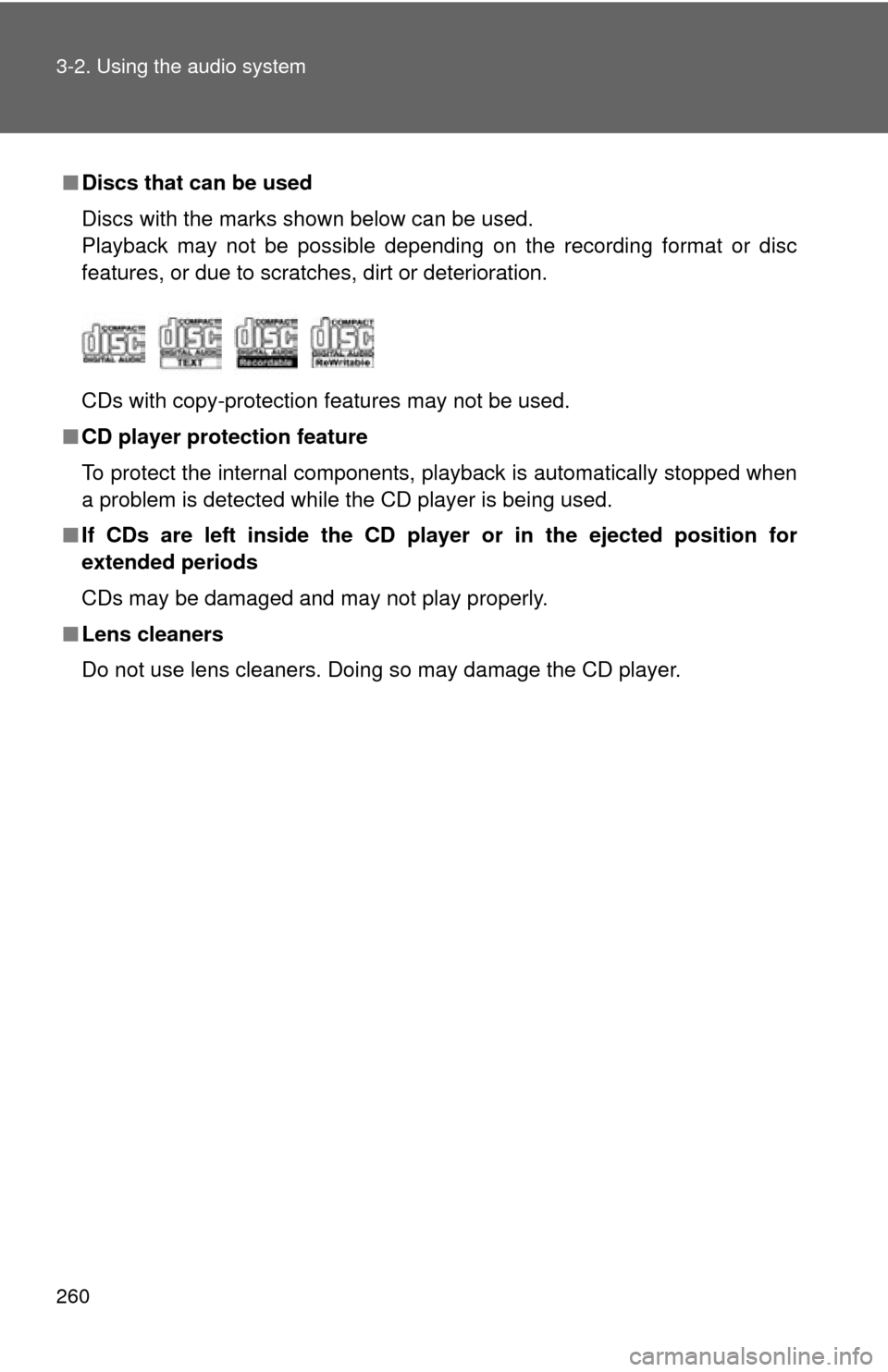
■Discs that can be used
Discs with the marks shown below can be used.
Playback may not be possible depending on the recording format or disc
features, or due to scratches, dirt or deterioration.
CDs with copy-protection features may not be used.
■ CD player protection feature
To protect the internal components, playback is automatically stopped when
a problem is detected while the CD player is being used.
■ If CDs are left inside the CD player or in the ejected position for
extended periods
CDs may be damaged and may not play properly.
■ Lens cleaners
Do not use lens cleaners. Doing so may damage the CD player.
Page 261 of 572
261
3-2. Using the audio system
3
Interior features
NOTICE
■
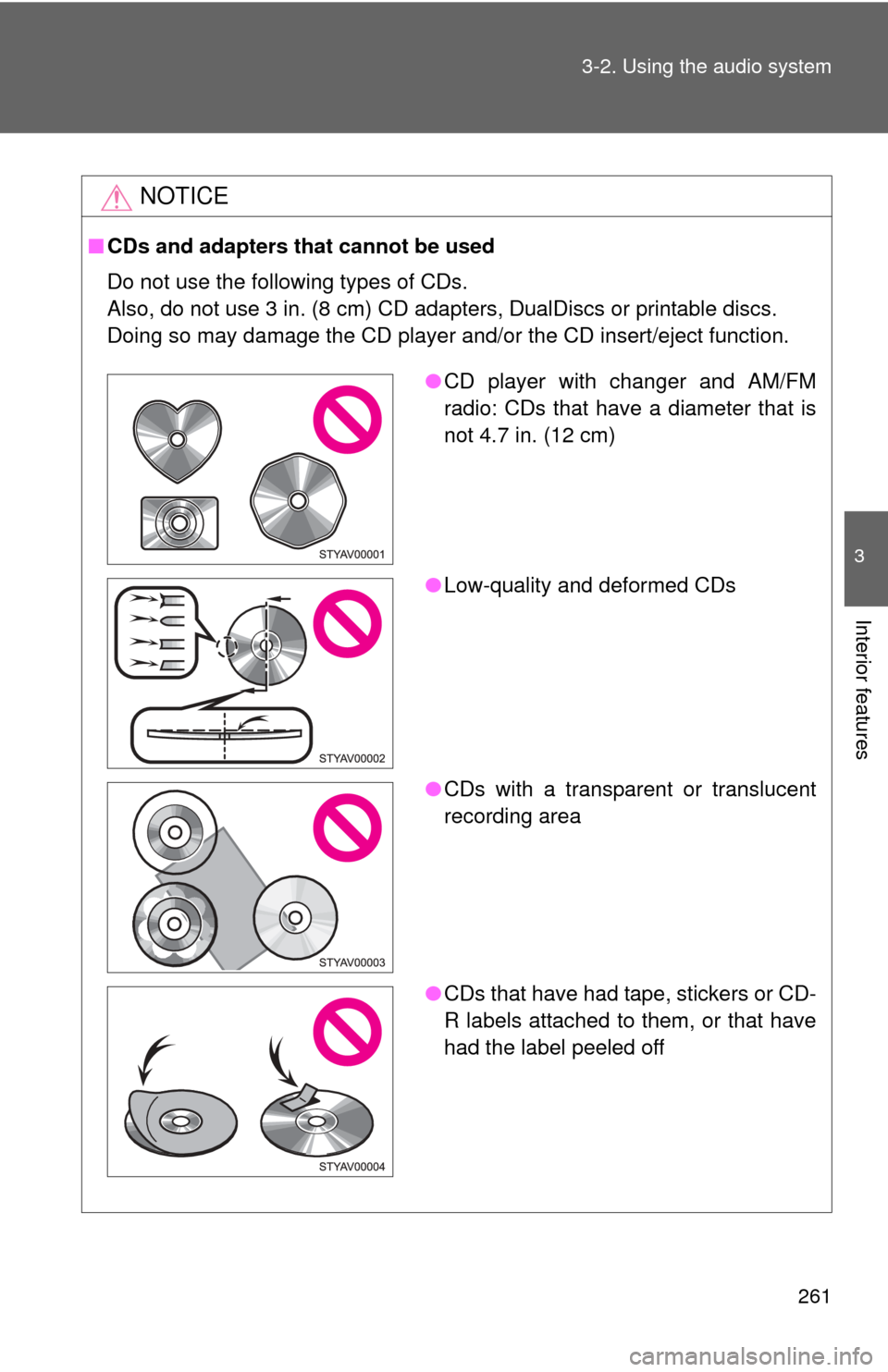
CDs and adapters that cannot be used
Do not use the following types of CDs.
Also, do not use 3 in. (8 cm) CD adapters, DualDiscs or printable discs.
Doing so may damage the CD player and/or the CD insert/eject function.
●CD player with changer and AM/FM
radio: CDs that have a diameter that is
not 4.7 in. (12 cm)
● Low-quality and deformed CDs
● CDs with a transparent or translucent
recording area
● CDs that have had tape, stickers or CD-
R labels attached to them, or that have
had the label peeled off
Page 262 of 572
262 3-2. Using the audio system
NOTICE
■CD player precautions
Failure to follow the precautions below may result in serious damage to the
CDs or the player itself.
●Do not insert anything other than CDs into the CD slot.
● Do not apply oil to the CD player.
● Store CDs away from direct sunlight.
● Never try to disassemble any part of the CD player.
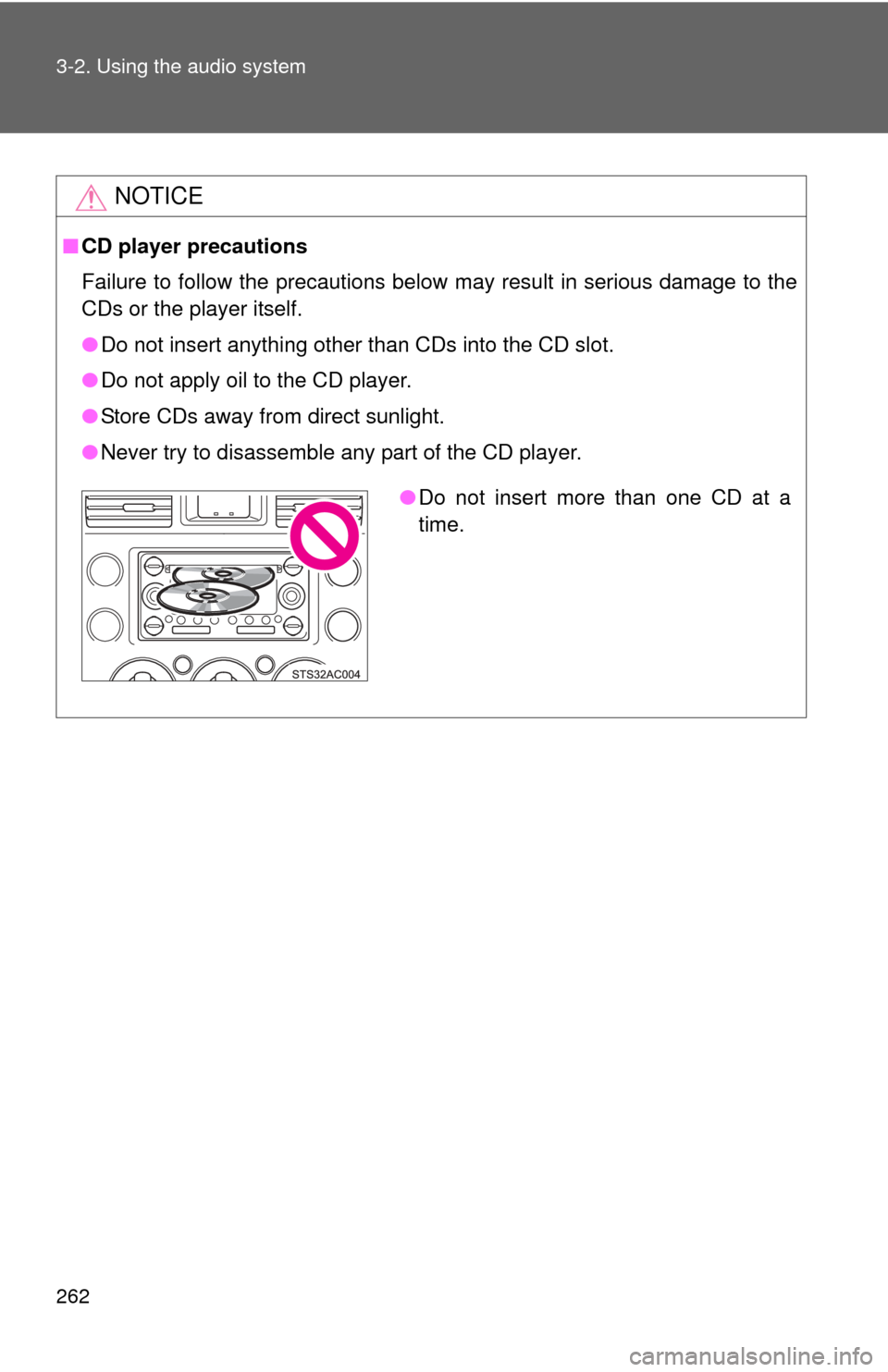
●Do not insert more than one CD at a
time.
Page 263 of 572
263
3-2. Using the audio system
3
Interior features
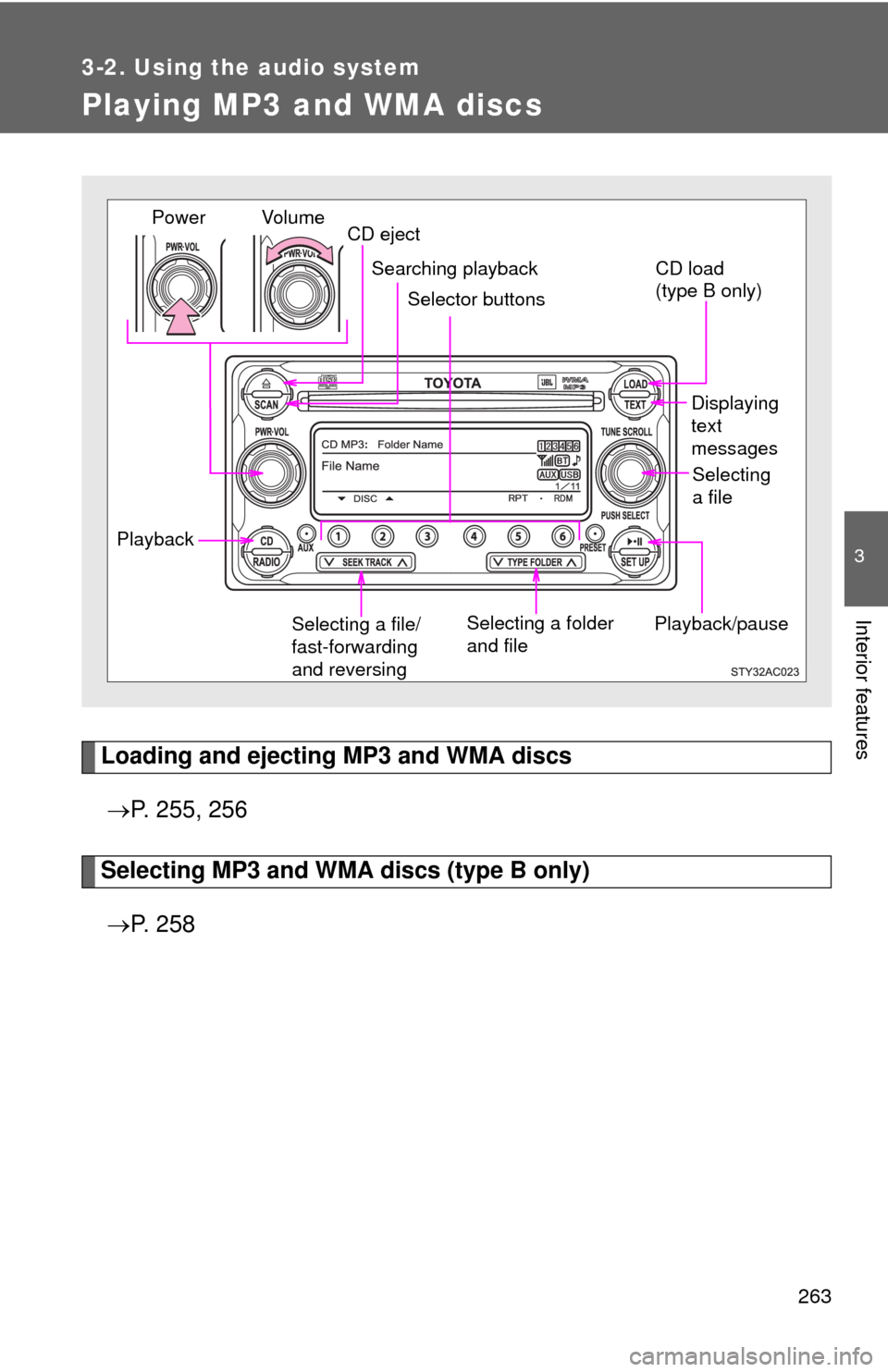
Playing MP3 and WMA discs
Loading and ejecting MP3 and WMA discs P. 255, 256
Selecting MP3 and WMA discs (type B only)
P. 2 5 8
Playback/pause Displaying
text
messages
Selecting a file/
fast-forwarding
and reversing Selecting a folder
and file
Vol u m e
Power
CD eject
Searching playback
Selector buttons
Selecting
a file
CD load
(type B only)
Playback
Page 264 of 572
264 3-2. Using the audio system
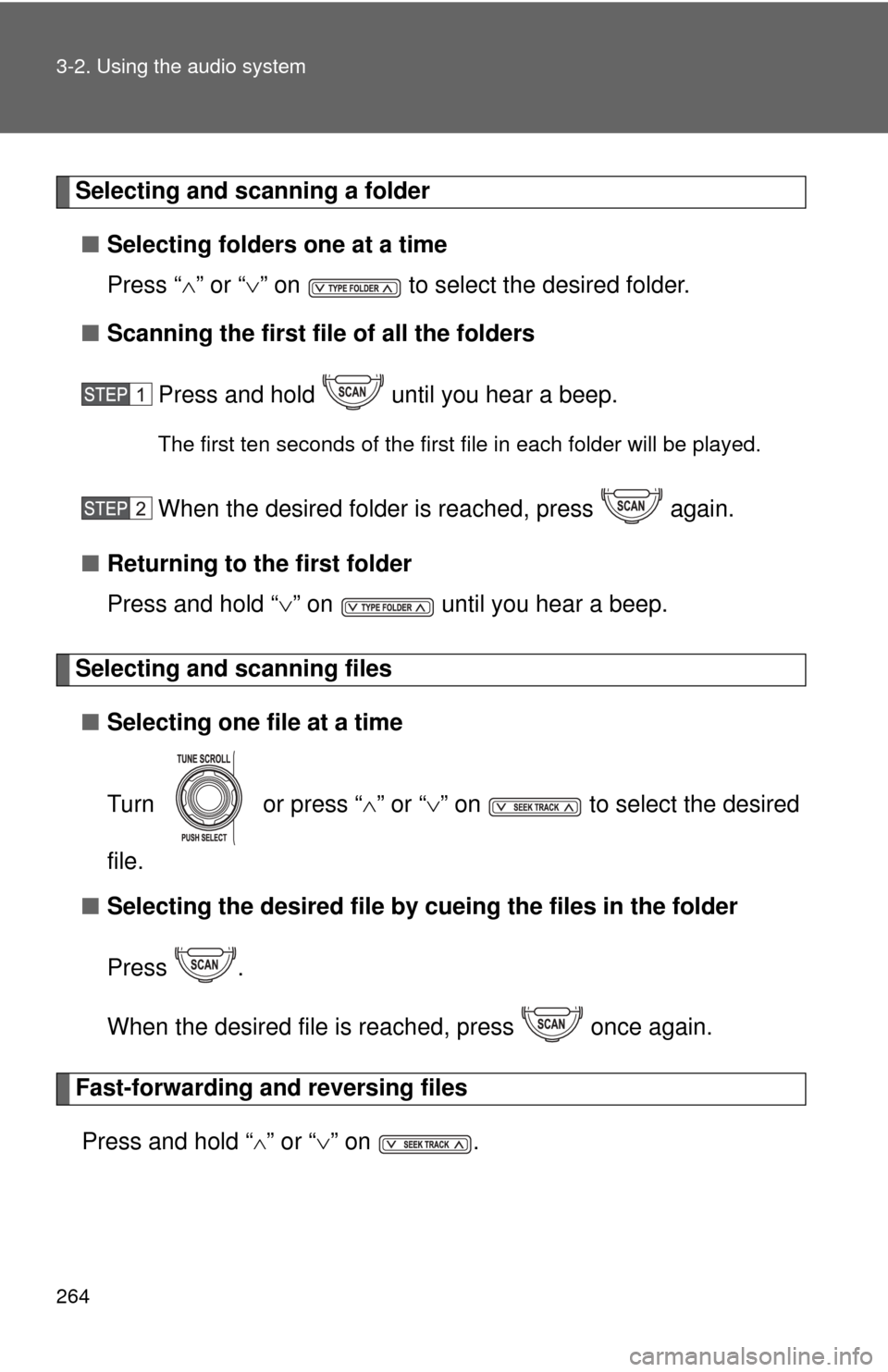
Selecting and scanning a folder■ Selecting folders one at a time
Press “ ” or “ ” on to select the desired folder.
■ Scanning the first file of all the folders
Press and hold until you hear a beep.
The first ten seconds of the first file in each folder will be played.
When the desired folder is reached, press again.
■ Returning to the first folder
Press and hold “ ” on until you hear a beep.
Selecting and scanning files
■ Selecting one file at a time
Turn or press “ ” or “ ” on to select the desired
file.
■ Selecting the desired file by cueing the files in the folder
Press .
When the desired file is reached, press once again.
Fast-forwarding and reversing files Press and hold “
” or “ ” on .
Page 265 of 572
265
3-2. Using the audio system
3
Interior features
Playing and pausing files
Press .
Random playback■ Playing files from a particular folder in random order
Press (RDM).
To cancel, press the button twice more.
■Playing all of the files on a disc in random order
Press (RDM) twice.
To cancel, press the button again.
Repeat play
■ Repeating a file
Press (RPT).
To cancel, press the button twice more (type A), or three times more
(type B).
■Repeating all of the files in a folder
Press (RPT) twice.
To cancel, press the button once more (type A), or twice more (type B).
■Repeating all of the files in a disc (type B only)
Press (RPT) three times.
To cancel, press the button again.
Page 266 of 572
266 3-2. Using the audio system
Switching the displayPress .
Each time is pressed, the display changes in the following order:
Track title Track title/Artist name Track title/Album name (MP3 only)
Track title/Elapsed time.
■Error messages
“CD CHECK”: This indicates a problem either with the CD or inside the
player. The CD may be dirty, damaged or inserted up-side
down.
“PLEASE WAIT”: Operation has stopped due to a high temperature inside
the player. Wait for a while and then press . Contact
your Toyota dealer if the CD still cannot be played.
■ Discs that can be used
P. 260
■ CD player protection feature
P. 260
■ If CDs are left inside the CD player or in the ejected position for
extended periods
P. 260
■ Lens cleaners
P. 260
Page 267 of 572
267
3-2. Using the audio system
3
Interior features
■
MP3 and WMA files
MP3 (MPEG Audio LAYER3) is a standard audio compression format.
Files can be compressed to approximately 1/10 of their original size by using
MP3 compression.
WMA (Windows Media Audio) is a Microsoft audio compression format.
This format compresses audio data to a size smaller than that of the MP3
format.
There is a limit to the MP3 and WMA file standards and to the media/formats
recorded by them that can be used.
●MP3 file compatibility
• Compatible standards
MP3 (MPEG1 LAYER3, MPEG2 LSF LAYER3)
• Compatible sampling frequencies MPEG1 LAYER3: 32, 44.1, 48 (kHz)
MPEG2 LSF LAYER3: 16, 22.05, 24 (kHz)
• Compatible bit rates (compatible with VBR) MPEG1 LAYER3: 64, 80, 96, 112, 128, 160, 192, 224, 256, 320 (kbps)
MPEG2 LSF LAYER3: 64, 80, 96, 112, 128, 144, 160 (kbps)
• Compatible channel modes: stereo, joint stereo, dual channel and monaural
● WMA file compatibility
• Compatible standards
WMA Ver. 7, 8, 9
• Compatible sampling frequencies 32, 44.1, 48 (kHz)
• Compatible bit rates (only compatible with 2-channel playback) Ver. 7, 8: CBR 48, 64, 80, 96, 128, 160, 192 (kbps)
Ver. 9: CBR 48, 64, 80, 96, 128, 160, 192, 256, 320 (kbps)
● Compatible media
Media that can be used for MP3 and WMA playback are CD-Rs and CD-
RWs.
Playback in some instances may not be possible, depending on the status
of the CD-R or CD-RW. Playback may not be possible or the audio may
jump if the disc is scratched or marked with fingerprints.