light TOYOTA GR SUPRA 2022 User Guide
[x] Cancel search | Manufacturer: TOYOTA, Model Year: 2022, Model line: GR SUPRA, Model: TOYOTA GR SUPRA 2022Pages: 356, PDF Size: 39.14 MB
Page 35 of 356
35
3
3
CONTROLS
CONTROLS
.3-1. CONTROLSCockpit ........................... 36
Sensors of the vehicle.... 40
Operating state of the vehi- cle................................. 43
Toyota Supra Command ..................................... 46
General settings ............. 60
Personal settings ........... 63
Connections ................... 68
Opening and closing ...... 77
Seats, mirrors, and steering wheel ............................ 96
Transporting children safely .................................. 109
Driving ......................... 115
Displays ...................... 133
Lights .......................... 152
Safety .......................... 159
Driving stability control sys- tems .......................... 194
Driver assistance systems .................................. 199
Driving comfort ............ 224
Climate control ............ 225
Interior equipment ....... 234
Storage compartments .................................. 244
Cargo area .................. 246
Page 36 of 356
363-1. CONTROLS
3-1.CONTROLS
This chapter describes all stan-
dard, country-specific and
optional features offered with
the series. It also describes fea-
tures and functions that are not
necessarily available in your
vehicle, e.g., due to the selected options or country versions. This
also applies to safety-related
functions and systems. When
using these functions and sys-
tems, the applicable laws and
regulations must be observed.
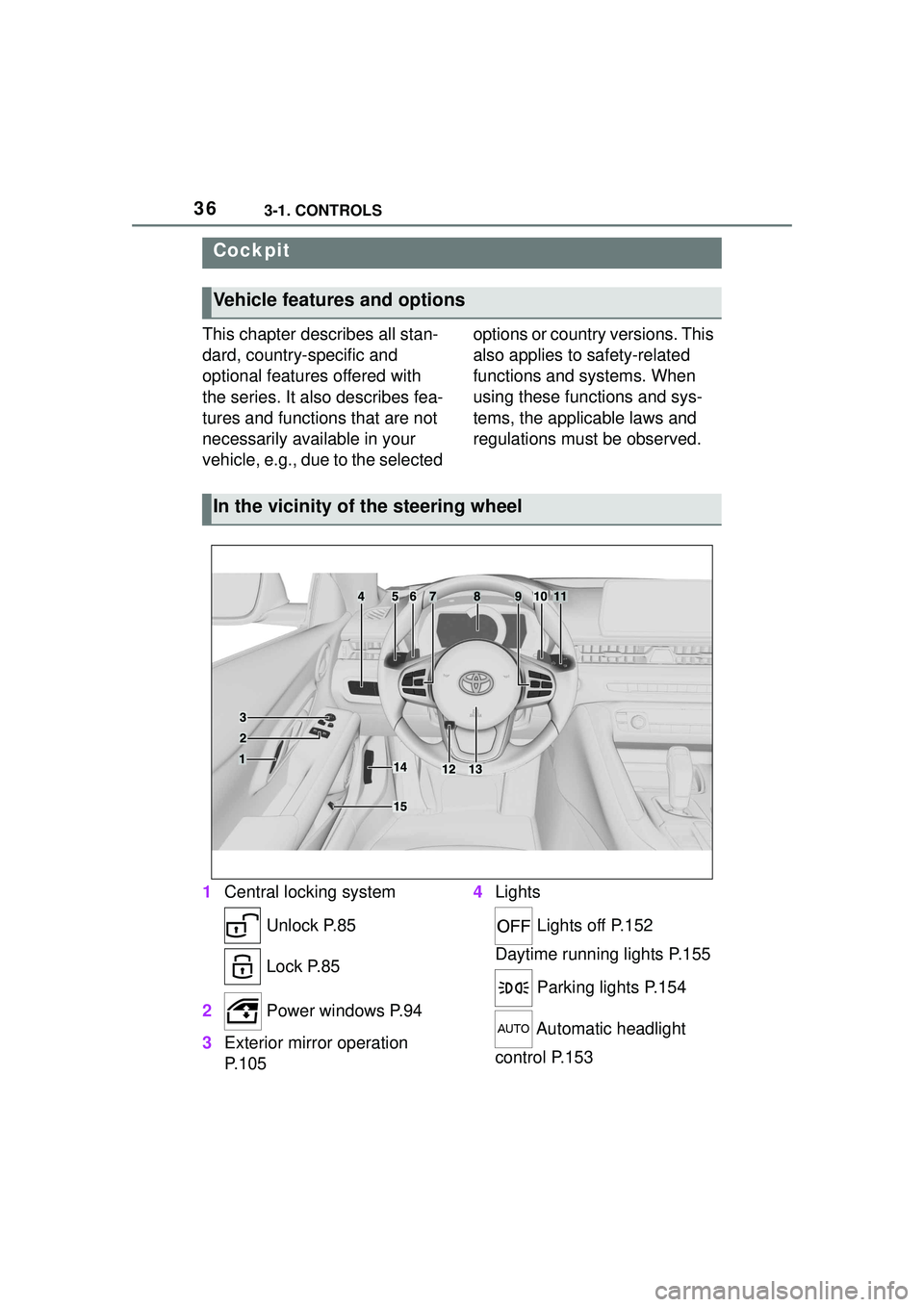
1 Central locking system
Unlock P.85
Lock P.85
2 Power windows P.94
3 Exterior mirror operation
P.105 4
Lights
Lights off P.152
Daytime running lights P.155
Parking lights P.154
Automatic headlight
control P.153
Cockpit
Vehicle features and options
In the vicinity of the steering wheel
Page 37 of 356
373-1. CONTROLS
3
CONTROLS
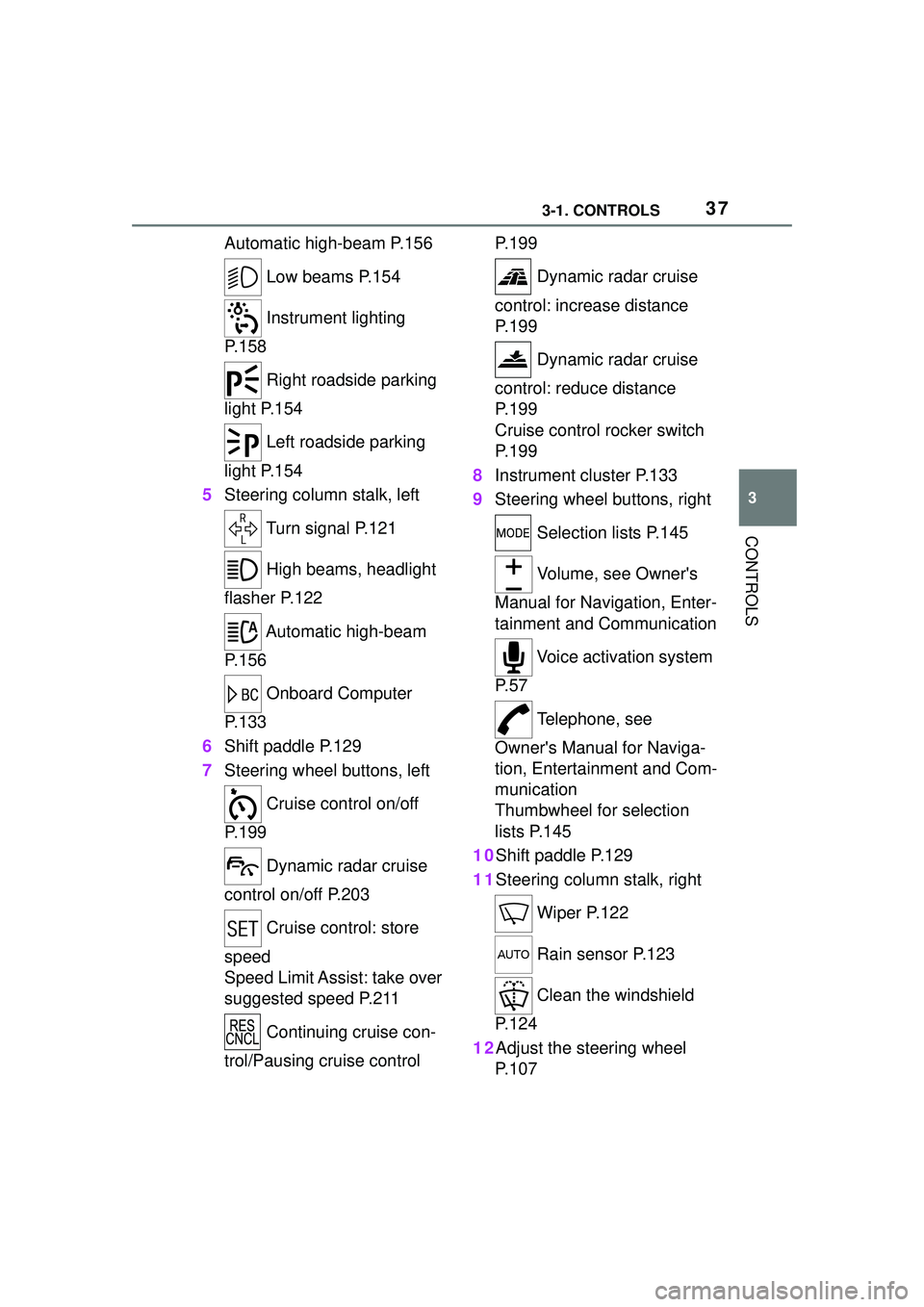
Automatic high-beam P.156 Low beams P.154
Instrument lighting
P.158
Right roadside parking
light P.154
Left roadside parking
light P.154
5 Steering column stalk, left
Turn signal P.121
High beams, headlight
flasher P.122
Automatic high-beam
P.156
Onboard Computer
P.133
6 Shift paddle P.129
7 Steering wheel buttons, left
Cruise control on/off
P.199
Dynamic radar cruise
control on/off P.203
Cruise control: store
speed
Speed Limit Assist: take over
suggested speed P.211
Continuing cruise con-
trol/Pausing cruise control P. 1 9 9
Dynamic radar cruise
control: increase distance
P. 1 9 9
Dynamic radar cruise
control: reduce distance
P. 1 9 9
Cruise control rocker switch
P. 1 9 9
8 Instrument cluster P.133
9 Steering wheel buttons, right
Selection lists P.145
Volume, see Owner's
Manual for Navigation, Enter-
tainment and Communication
Voice activation system
P. 5 7
Telephone, see
Owner's Manual for Naviga-
tion, Entertainment and Com-
munication
Thumbwheel for selection
lists P.145
10Shift paddle P.129
11Steering column stalk, right
Wiper P.122
Rain sensor P.123
Clean the windshield
P. 1 2 4
12Adjust the steering wheel P. 1 0 7
Page 39 of 356
393-1. CONTROLS
3
CONTROLS
9 Parking brake P.119
10 Automatic transmission
selector lever P.126 11
Switch drive-ready
state on/off P.115
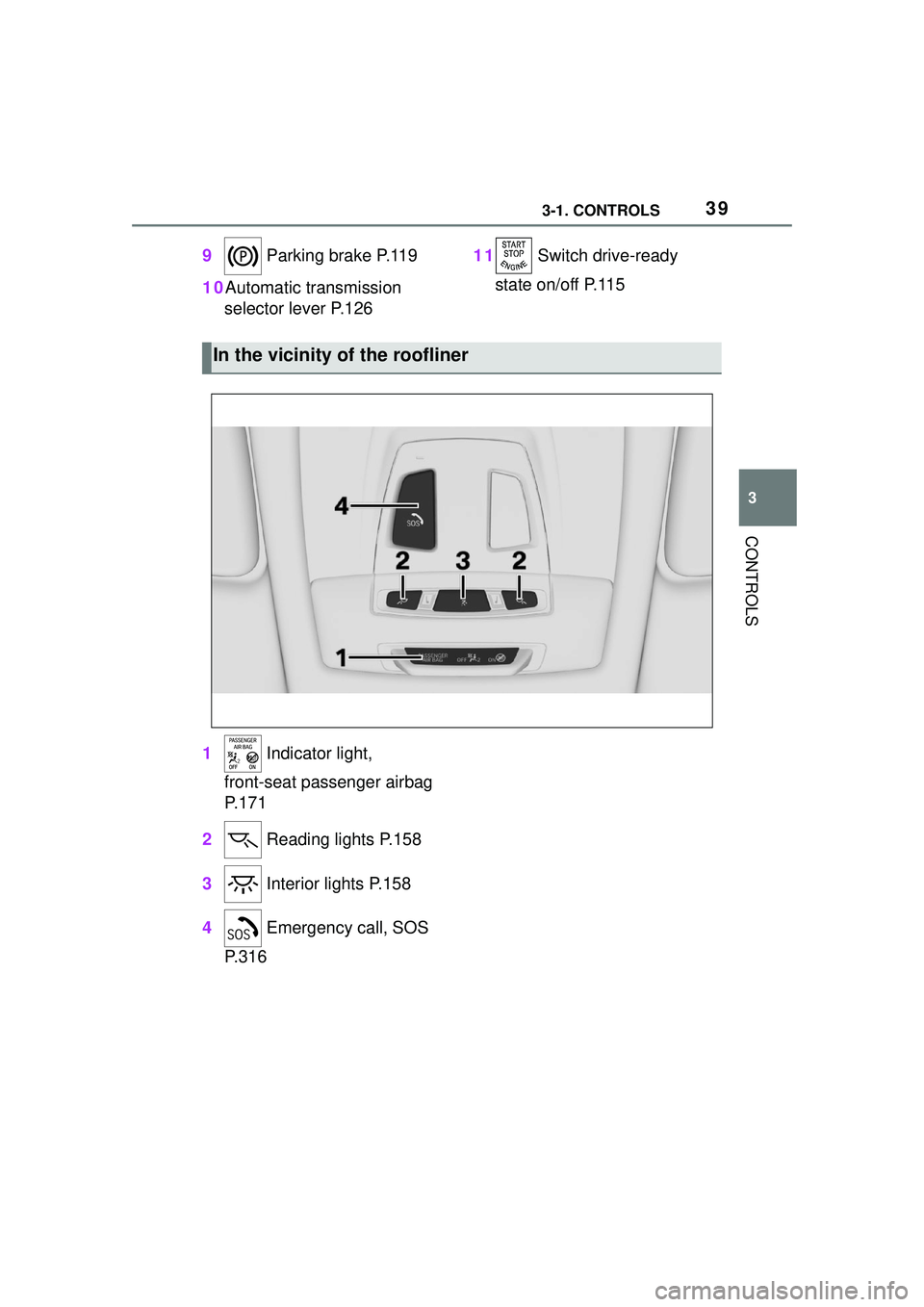
1 Indicator light,
front-seat passenger airbag
P.171
2 Reading lights P.158
3 Interior lights P.158
4 Emergency call, SOS
P.316
In the vicinity of the roofliner
Page 41 of 356
413-1. CONTROLS
3
CONTROLS
depressions or in tight curves.
• When the camera field of view is covered, for instance by a
fogged up windshield or
labels.
• When the camera lens is dirty or damaged.
• When driving toward bright lights or strong reflections,
e.g., because of a setting sun.
• When it is dark outside.
• Camera behind the wind- shield: if the camera has over-
heated and been temporarily
switched off due to exces-
sively high temperatures.
• Camera behind the wind- shield: during calibration of
the camera immediately after
vehicle delivery.
If applicable, a Check Control
message is displayed if the sys-
tem fails.
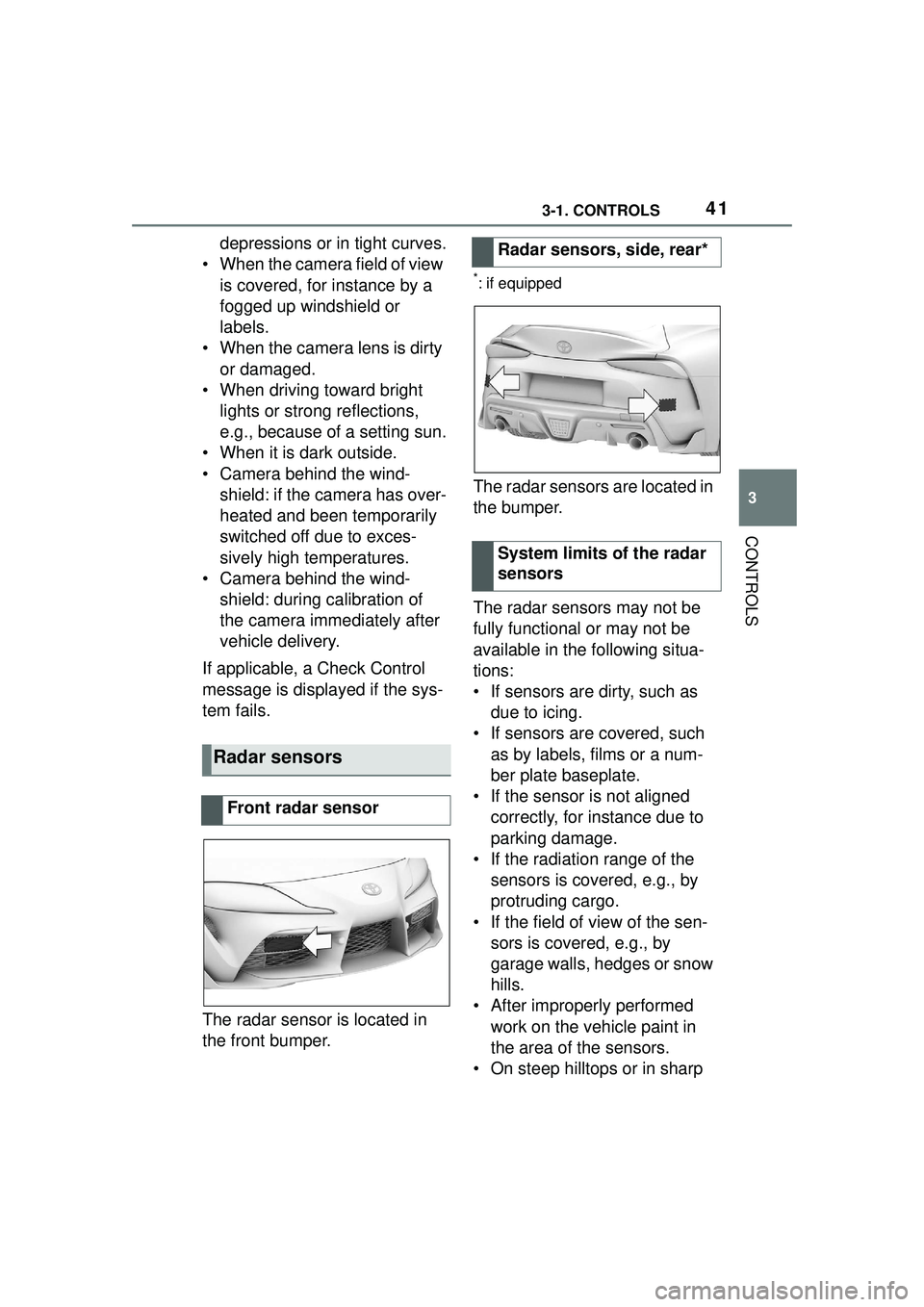
The radar sensor is located in
the front bumper.
*: if equipped
The radar sensors are located in
the bumper.
The radar sensors may not be
fully functional or may not be
available in the following situa-
tions:
• If sensors are dirty, such as due to icing.
• If sensors are covered, such as by labels, films or a num-
ber plate baseplate.
• If the sensor is not aligned correctly, for instance due to
parking damage.
• If the radiation range of the sensors is covered, e.g., by
protruding cargo.
• If the field of view of the sen- sors is covered, e.g., by
garage walls, hedges or snow
hills.
• After improperly performed work on the vehicle paint in
the area of the sensors.
• On steep hilltops or in sharp
Radar sensors
Front radar sensor
Radar sensors, side, rear*
System limits of the radar
sensors
Page 45 of 356
453-1. CONTROLS
3
CONTROLS
1Depress the brake pedal.
2 Press the Start/Stop button. The ignition is activated auto-
matically for a brief time and is
stopped as soon as the engine
starts.
Most of the indicator/warning
lights in the instrument cluster
light up for a varied length of
time.
Depending on the engine condi-
tion, the full drive power may not
be available for approximately
30 seconds after starting the
engine. In this case, the vehicle
will not accelerate as usual.
READY in the instrument cluster
indicates that drive-ready state
is switched on.
1
Engage selector lever posi-
tion P with the vehicle
stopped.
2 Press the Start/Stop button.
The engine is switched off. The
vehicle switches into standby state.
3Set the parking brake.
WARNING
An unsecured vehicle can begin
to move and possibly roll away.
There is a risk of an accident.
Before exiting, secure the vehicle
against rolling.
In order to ensure that the vehicle
is secured against rolling away,
follow the following:
• Set the parking brake.
• On uphill grades or on a down-
hill slope, turn the front wheels
in the direction of the curb.
• On uphill grades or on a down- hill slope, also secure the vehi-
cle, for instance with a wheel
chock.
NOTICE
In the case of repeated starting
attempts or repeated starting in
quick succession, the fuel is not
burned or is inadequately burned.
The catalytic converter can over-
heat. There is a risk of damage to
property. Avoid repeated starting
in quick succession.
Switching on drive-ready
state
Concept
Drive-ready state
is switched on via
the Start/Stop but-
ton:
Automatic transmission
Gasoline engine
Display in the instrument
cluster
Switching off drive-ready
state
Page 51 of 356
513-1. CONTROLS
3
CONTROLS
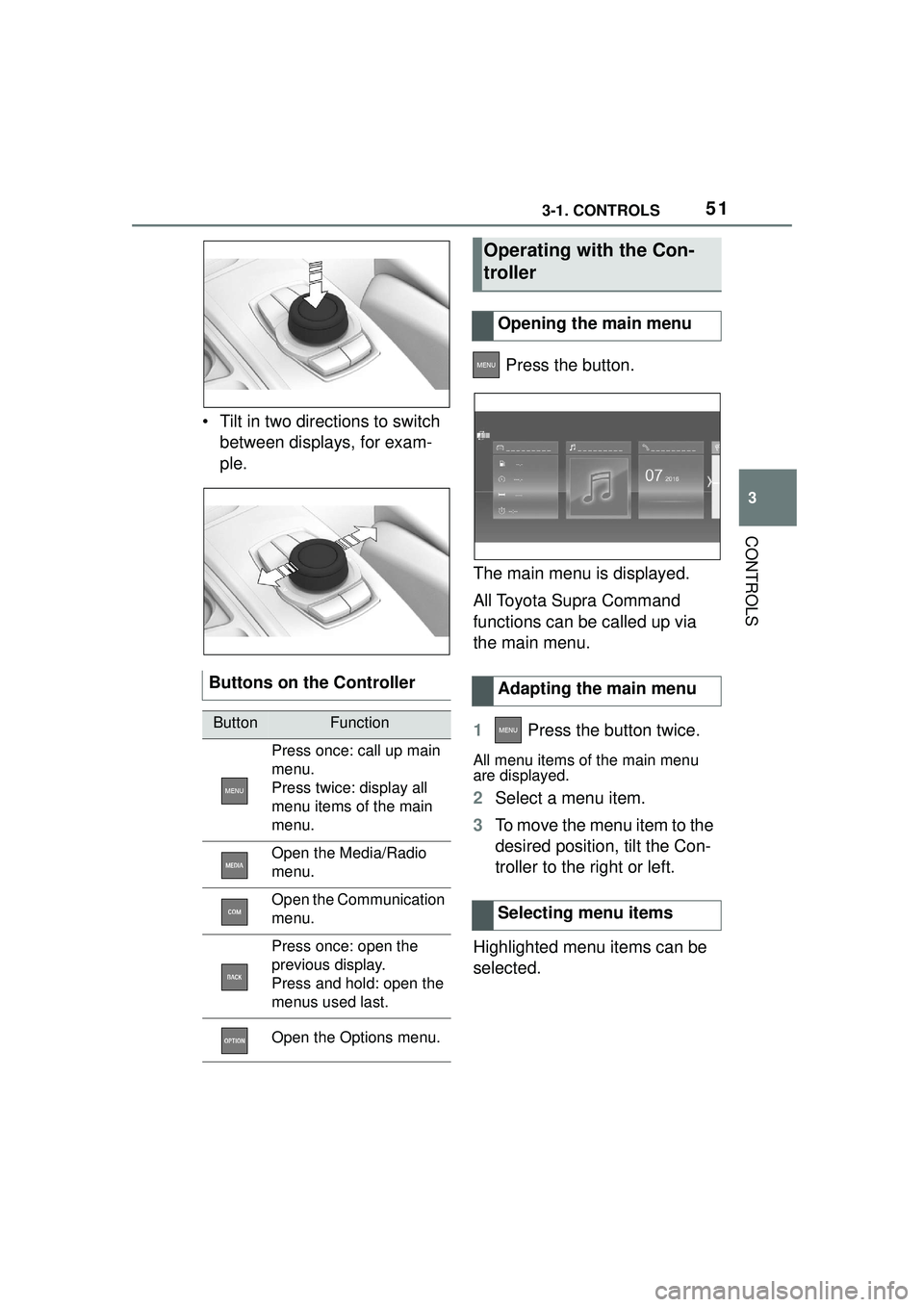
• Tilt in two directions to switch between displays, for exam-
ple. Press the button.
The main menu is displayed.
All Toyota Supra Command
functions can be called up via
the main menu.
1 Press the button twice.
All menu items of the main menu
are displayed.
2Select a menu item.
3 To move the menu item to the
desired position, tilt the Con-
troller to the right or left.
Highlighted menu items can be
selected.
Buttons on the Controller
ButtonFunction
Press once: call up main
menu.
Press twice: display all
menu items of the main
menu.
Open the Media/Radio
menu.
Open the Communication
menu.
Press once: open the
previous display.
Press and hold: open the
menus used last.
Open the Options menu.
Operating with the Con-
troller
Opening the main menu
Adapting the main menu
Selecting menu items
Page 52 of 356
523-1. CONTROLS
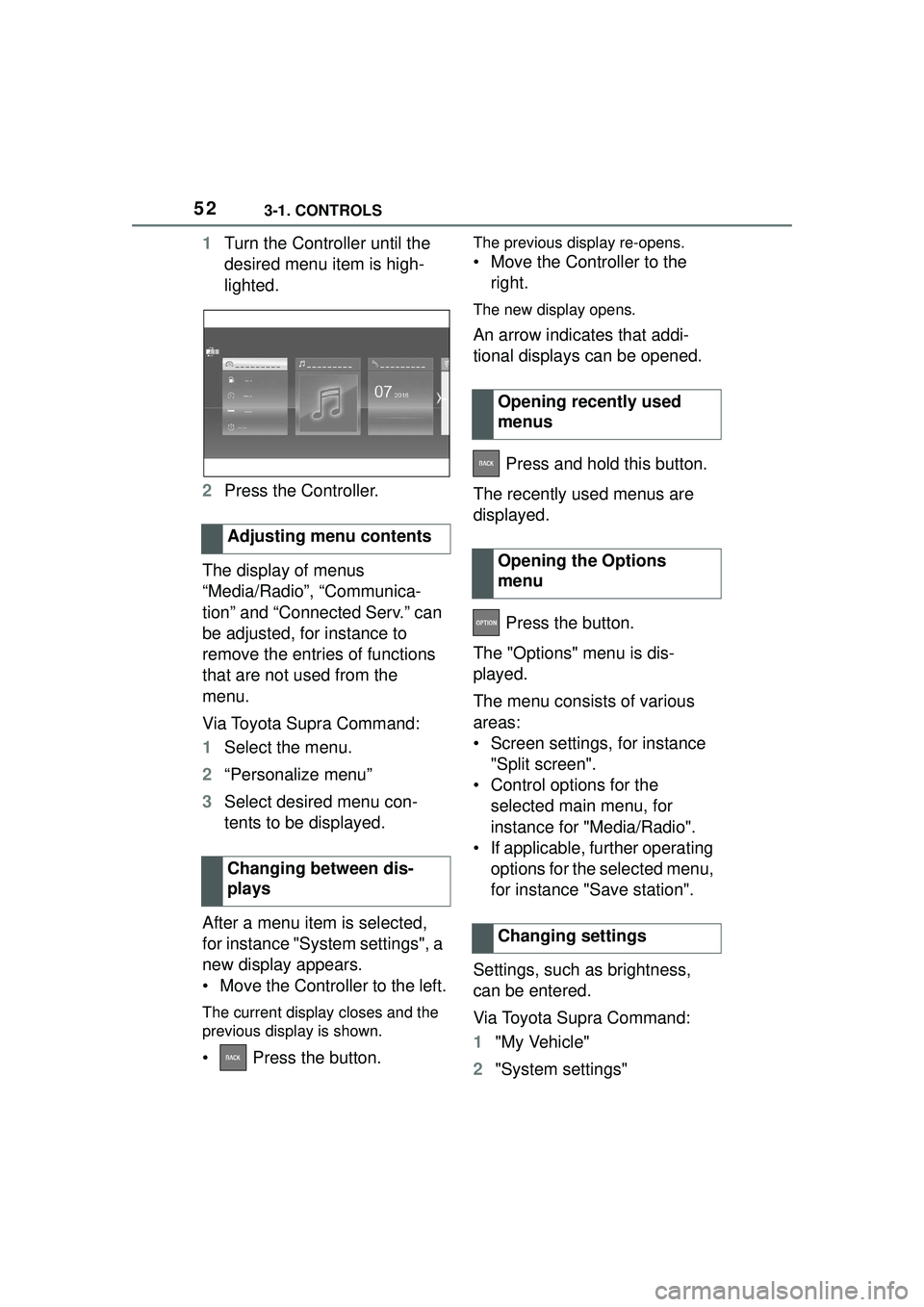
1Turn the Controller until the
desired menu item is high-
lighted.
2 Press the Controller.
The display of menus
“Media/Radio”, “Communica-
tion” and “Connected Serv.” can
be adjusted, for instance to
remove the entries of functions
that are not used from the
menu.
Via Toyota Supra Command:
1 Select the menu.
2 “Personalize menu”
3 Select desired menu con-
tents to be displayed.
After a menu item is selected,
for instance "System settings", a
new display appears.
• Move the Controller to the left.
The current display closes and the
previous display is shown.
• Press the button.
The previous display re-opens.
• Move the Controller to the right.
The new display opens.
An arrow indicates that addi-
tional displays can be opened.
Press and hold this button.
The recently used menus are
displayed.
Press the button.
The "Options" menu is dis-
played.
The menu consists of various
areas:
• Screen settings, for instance "Split screen".
• Control options for the selected main menu, for
instance for "Media/Radio".
• If applicable, further operating options for the selected menu,
for instance "Save station".
Settings, such as brightness,
can be entered.
Via Toyota Supra Command:
1 "My Vehicle"
2 "System settings"
Adjusting menu contents
Changing between dis-
plays
Opening recently used
menus
Opening the Options
menu
Changing settings
Page 62 of 356
623-1. CONTROLS
For some functions, popup win-
dows are displayed automati-
cally on the Control Display.
Some of these popup windows
can be activated or deactivated.
Via Toyota Supra Command:
1"My Vehicle"
2 "System settings"
3 "Pop-ups"
4 Select the desired setting.
Via Toyota Supra Command:
1 "My Vehicle"
2 "System settings"
3 "Displays"
4 "Control display"
5 "Brightness at night"
6 Turn the Controller until the
desired brightness is set.
7 Press the Controller.
Depending on the light condi-
tions, the brightness settings
may not be clearly visible.
For some menu items of the
main menu, the displayed con- tents can be selected.
1
Press button.
2 "Contents of main menu"
3 Select the desired menu and
the desired content.
The menu centrally displays all
messages arriving in the vehicle
in list form.
The following messages can be
displayed:
• Traffic messages.
• Vehicle messages.
• Communication messages, for example emails, SMS text
messages or reminders.
• Service notification mes- sages.
Messages are additionally dis-
played in the status field.
Via Toyota Supra Command:
1 "My Vehicle"
2 "System settings"
3 "Notifications"
4 Select the desired message.
The respective menu is opened,
where the message is dis-
Activating/deactivating
popup windows
Control Display
Brightness
Selecting the contents of
the main menu
Messages
Concept
General information
Retrieving messages
Page 66 of 356
663-1. CONTROLS
The settings for the following
systems and functions are
stored in the active driver profile.
The scope of storable settings
depends on country and equip-
ment.
• Unlocking and locking.
• Lights.
• Climate control.
•Radio.
• Instrument cluster.
• Programmable memory but-tons.
• Volumes, tone.
• Control Display.
•TV.
• Parking Sensors.
• Rearview camera.
• Head-up Display.
• Sport mode switch.
• Seat position, exterior mirror position.
Both the positions saved via the
seat memory and the last position
set are saved.
• Toyota Supra Safety.
Regardless of the remote con-
trol in use, a different driver pro-
file may be activated. This
allows you to call up personal
vehicle settings, even if you did
not unlock the vehicle with your
own remote control. Via Toyota Supra Command:
1
"My Vehicle"
2 "Driver profiles"
3 Select driver profile.
4 "OK"
• All settings stored in the called-up driver profile are
automatically applied.
• The called-up driver profile is assigned to the remote con-
trol being used at the time.
• If the driver profile is already assigned to a different remote
control, this driver profile will
apply to both remote controls.
The guest profile is for individual
settings that are stored in none
of the three personal driver pro-
files.
Via Toyota Supra Command:
1 "My Vehicle"
2 "Driver profiles"
3 "Drive off (guest)"
4 "OK"
The guest profile cannot be
renamed. It is not assigned to
the current remote control.
A personal name can be
assigned to the active driver
profile to avoid confusion
between the driver profiles.
Adjusting
Profile management
Selecting a driver profile
Guest profile
Renaming a driver profile