phone TOYOTA GR86 2022 (in English) User Guide
[x] Cancel search | Manufacturer: TOYOTA, Model Year: 2022, Model line: GR86, Model: TOYOTA GR86 2022Pages: 582, PDF Size: 86.38 MB
Page 74 of 582
721-3. Emergency assistance
WA R N I N G
• During an Emergency Call, the sys-
tem makes repeated attempts to
connect to the PSAP. However, if it cannot connect to the PSAP due to
poor radio wave reception, the sys-
tem may not be able to connect to the cellular network and the call
may finish without connecting. The
red indicator light will blink for
approximately 5 seconds to indicate this disconnection.
●If the battery’s voltage decreases or there is a disconnection, the system
may not be able to connect to the
PSAP.
■When the Emergency Call sys-
tem is replaced with a new one
The Emergency Call system should
be registered. Contact any authorized
Toyota retailer or Toyota authorized repairer, or any reliable repairer.
■For your safety
●Please drive safely.
The function of this system is to
assist you in making the Emer- gency Call in case of accidents
such as traffic accidents or sudden
medical emergencies, and it does not protect the driver or passengers
in any way. Please drive safely and
fasten your seatbelts at all times for your safety.
●In case of an emergency, make lives the top priority.
●If you smell anything burning or other unusual smells, leave the
vehicle and evacuate to a safe area
immediately.
●If the airbag deploys when the sys-
tem is operating normally, the sys- tem makes an emergency call.
Even if the airbag has not deployed,
the system may also make an emergency call when the vehicle is
hit from behind.
●For safety, do not make the Emer- gency Call while driving.
Making calls during driving may
cause mishandling of the steering wheel, which may lead to unex-
pected accidents.
Stop the vehicle and confirm the safety of your surroundings before
making the Emergency Call.
●When changing fuses, please use
the specified fuses. Using other
fuses may cause ignition or smoke in the circuit and lead to a fire.
●Using the system while there is smoke or an unusual smell may
cause a fire. Stop using the system
immediately and consult any authorized Toyota retailer or Toyota
authorized repairer, or any reliable
repairer.
NOTICE
■To prevent damage
Do not pour any liquids onto the
“SOS” button panel, etc. and do not
impact it.
■If the “SOS” button panel,
speaker or microphone malfunc- tions during an Emergency Call
or manual maintenance check
It may not be possible to make Emer- gency Calls, confirm the system sta-
tus, or communicate with the
emergency operator. If any of the above equipment is damaged, please
consult any authorized Toyota retailer
or Toyota authorized repairer, or any reliable repairer.
Page 93 of 582
91
2
2-1. Instrument cluster
Vehicle status information and indicators
■Display items
Odometer
Displays the total distance the vehicle
has been driven.
Trip meter A/Trip meter B
Displays the distance the vehicle has
been driven since the meter was last
reset. Trip meters A and B can be used
to record and display different distances
independently.
To reset, display th e desired trip meter
and press and hold the display change
button.
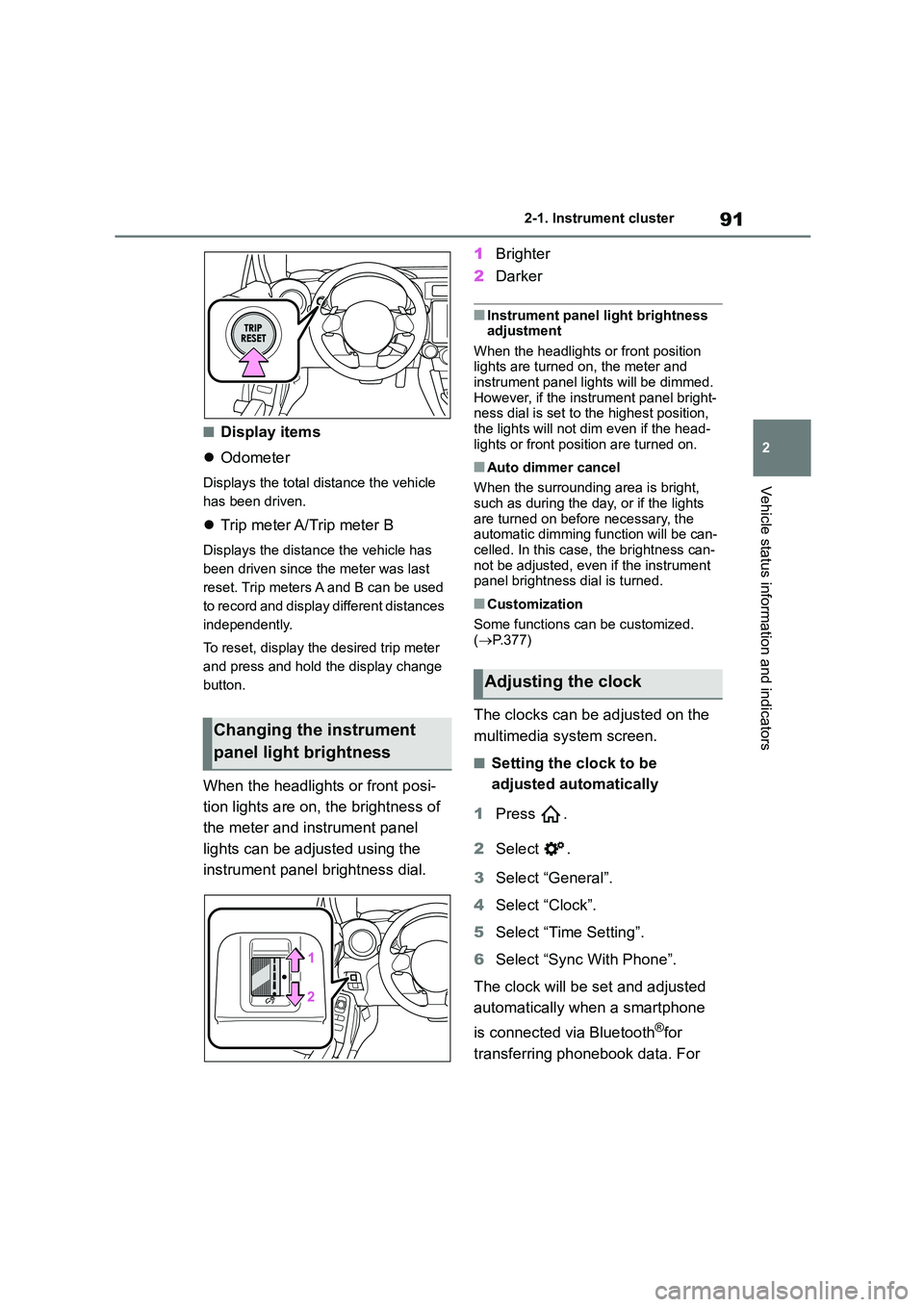
When the headlights or front posi-
tion lights are on, the brightness of
the meter and instrument panel
lights can be adjusted using the
instrument panel brightness dial.
1 Brighter
2 Darker
■Instrument panel light brightness adjustment
When the headlights or front position
lights are turned on, the meter and instrument panel lights will be dimmed.
However, if the instrument panel bright-
ness dial is set to the highest position, the lights will not dim even if the head-
lights or front position are turned on.
■Auto dimmer cancel
When the surrounding area is bright, such as during the day, or if the lights
are turned on before necessary, the
automatic dimming function will be can- celled. In this case, the brightness can-
not be adjusted, even if the instrument
panel brightness dial is turned.
■Customization
Some functions can be customized.
( P.377)
The clocks can be adjusted on the
multimedia system screen.
■Setting the clock to be
adjusted automatically
1 Press .
2 Select .
3 Select “General”.
4 Select “Clock”.
5 Select “Time Setting”.
6 Select “Sync With Phone”.
The clock will be set and adjusted
automatically when a smartphone
is connected via Bluetooth®for
transferring phonebook data. For
Changing the instrument
panel light brightness
Adjusting the clock
Page 102 of 582
1003-1. Key information
3-1.Key information
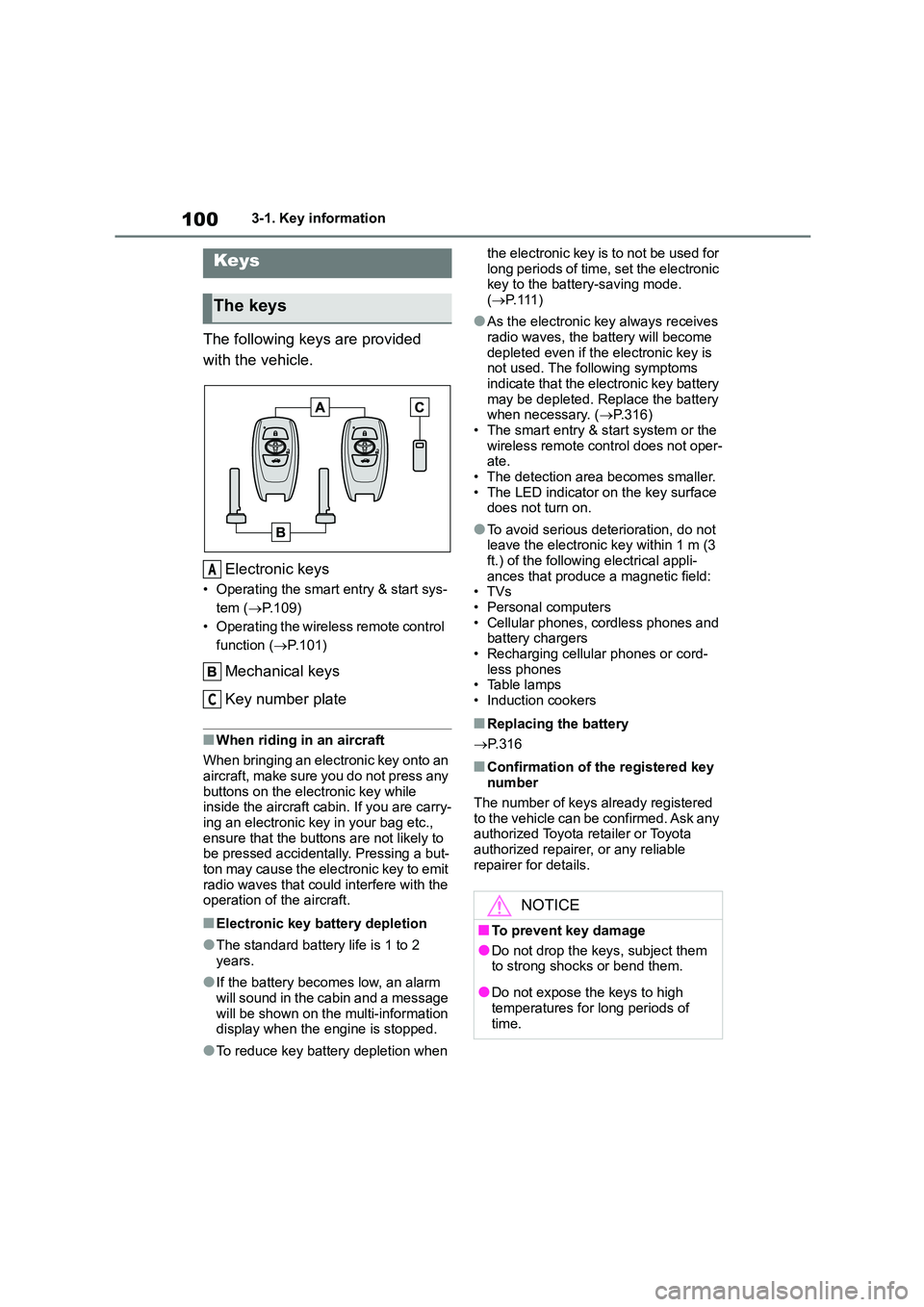
The following keys are provided
with the vehicle.
Electronic keys
• Operating the smart entry & start sys-
tem ( P.109)
• Operating the wireless remote control
function ( P.101)
Mechanical keys
Key number plate
■When riding in an aircraft
When bringing an electronic key onto an
aircraft, make sure you do not press any
buttons on the electronic key while inside the aircraft cabin. If you are carry-
ing an electronic key in your bag etc.,
ensure that the buttons are not likely to be pressed accidentally. Pressing a but-
ton may cause the electronic key to emit
radio waves that could interfere with the operation of the aircraft.
■Electronic key battery depletion
●The standard battery life is 1 to 2 years.
●If the battery becomes low, an alarm
will sound in the cabin and a message will be shown on the multi-information
display when the engine is stopped.
●To reduce key battery depletion when
the electronic key is to not be used for
long periods of time, set the electronic key to the battery-saving mode.
( P. 111 )
●As the electronic key always receives
radio waves, the battery will become
depleted even if the electronic key is not used. The following symptoms
indicate that the electronic key battery
may be depleted. Replace the battery when necessary. ( P.316)
• The smart entry & start system or the
wireless remote control does not oper- ate.
• The detection area becomes smaller.
• The LED indicator on the key surface does not turn on.
●To avoid serious deterioration, do not leave the electronic key within 1 m (3
ft.) of the following electrical appli-
ances that produce a magnetic field: •TVs
• Personal computers
• Cellular phones, cordless phones and battery chargers
• Recharging cellular phones or cord-
less phones • Table lamps
• Induction cookers
■Replacing the battery
P. 3 1 6
■Confirmation of the registered key number
The number of keys already registered
to the vehicle can be confirmed. Ask any authorized Toyota retailer or Toyota
authorized repairer, or any reliable
repairer for details.
Keys
The keys
A
C
NOTICE
■To prevent key damage
●Do not drop the keys, subject them
to strong shocks or bend them.
●Do not expose the keys to high
temperatures for long periods of
time.
Page 113 of 582
111
3
3-2. Opening, closing and locking the doors and trunk
Before driving
• The smart entry & start system has
not been used for 5 days or longer.
●If the smart entry & start system has
not been used for 14 days or longer, the doors cannot be unlocked at the
passenger door. In this case, take
hold of the driver’s door handle, or use the wireless remote control or
mechanical key, to unlock the doors.
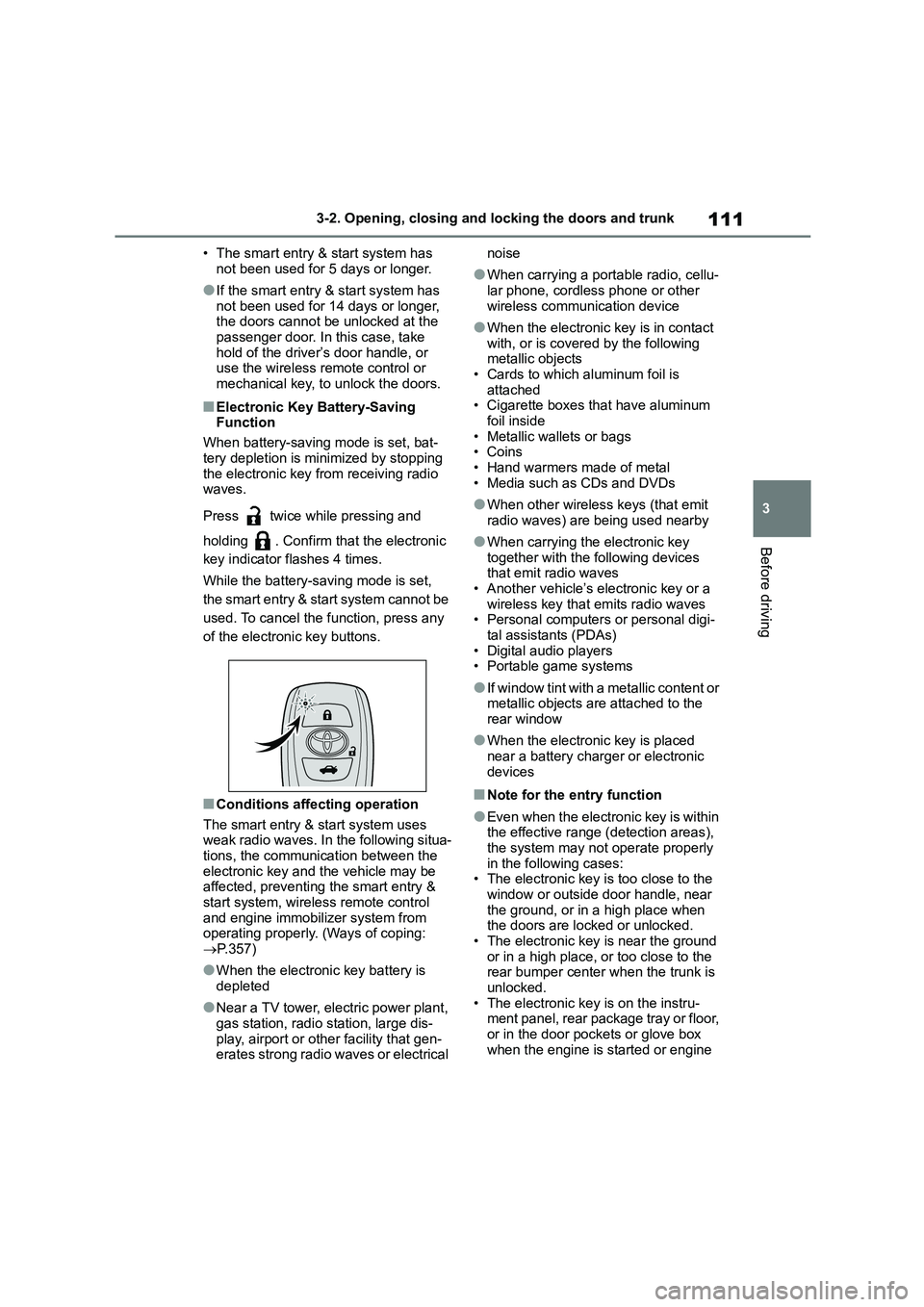
■Electronic Key Battery-Saving
Function
When battery-saving mode is set, bat-
tery depletion is minimized by stopping
the electronic key from receiving radio waves.
Press twice while pressing and
holding . Confirm that the electronic
key indicator flashes 4 times.
While the battery-saving mode is set,
the smart entry & start system cannot be
used. To cancel the function, press any
of the electronic key buttons.
■Conditions affecting operation
The smart entry & start system uses
weak radio waves. In the following situa- tions, the communication between the
electronic key and the vehicle may be
affected, preventing the smart entry &
start system, wireless remote control and engine immobilizer system from
operating properly. (Ways of coping:
P.357)
●When the electronic key battery is
depleted
●Near a TV tower, electric power plant,
gas station, radio station, large dis- play, airport or other facility that gen-
erates strong radio waves or electrical
noise
●When carrying a portable radio, cellu-
lar phone, cordless phone or other
wireless communication device
●When the electronic key is in contact
with, or is covered by the following metallic objects
• Cards to which aluminum foil is
attached • Cigarette boxes that have aluminum
foil inside
• Metallic wallets or bags •Coins
• Hand warmers made of metal
• Media such as CDs and DVDs
●When other wirele ss keys (that emit
radio waves) are being used nearby
●When carrying the electronic key
together with the following devices that emit radio waves
• Another vehicle’s electronic key or a
wireless key that emits radio waves • Personal computers or personal digi-
tal assistants (PDAs)
• Digital audio players • Portable game systems
●If window tint with a metallic content or metallic objects are attached to the
rear window
●When the electronic key is placed
near a battery charger or electronic
devices
■Note for the entry function
●Even when the electronic key is within
the effective range (detection areas), the system may not operate properly
in the following cases:
• The electronic key is too close to the window or outside door handle, near
the ground, or in a high place when
the doors are locked or unlocked.
• The electronic key is near the ground or in a high place, or too close to the
rear bumper center when the trunk is
unlocked. • The electronic key is on the instru-
ment panel, rear package tray or floor,
or in the door pockets or glove box when the engine is started or engine
Page 178 of 582
1764-5. EyeSight
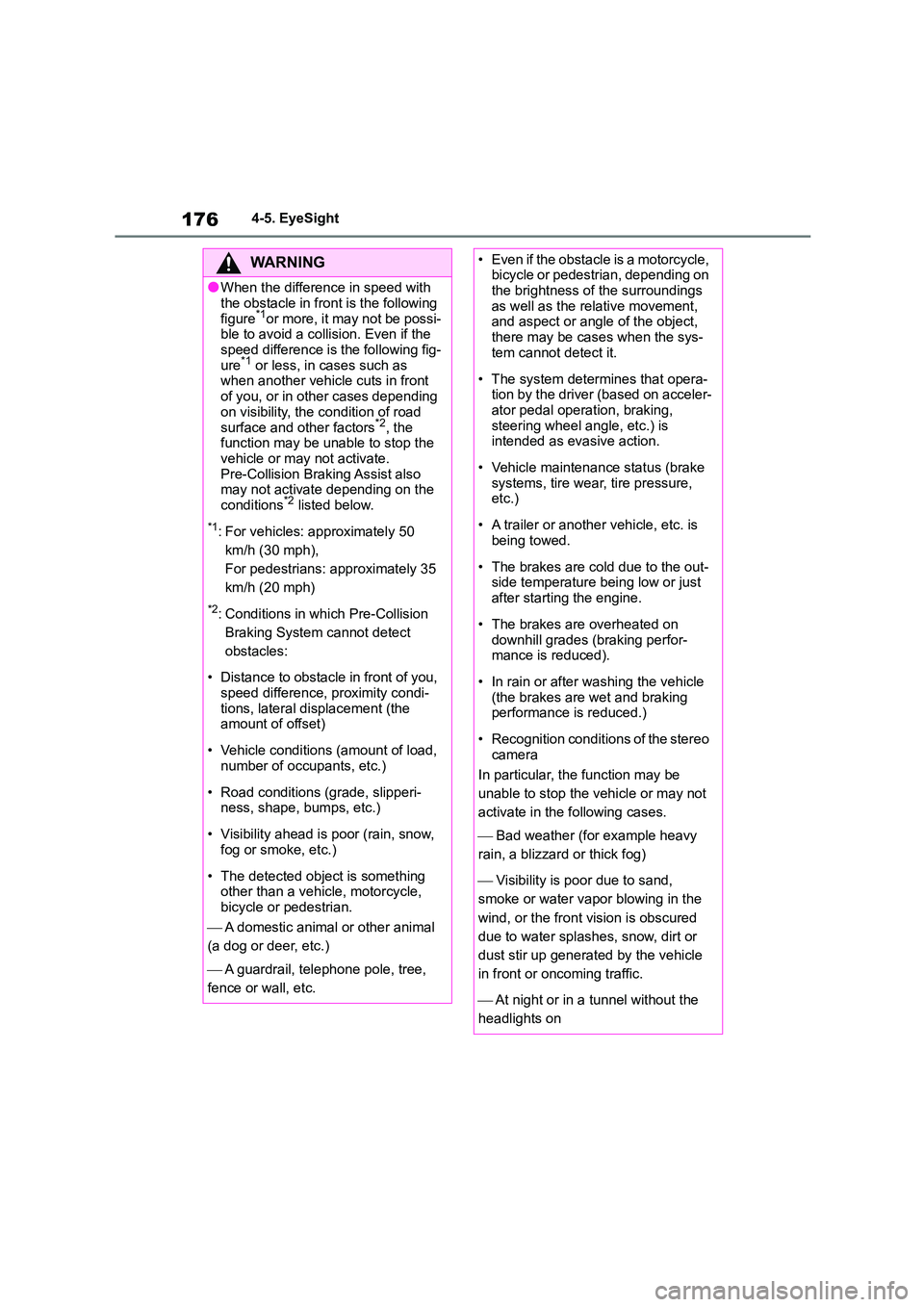
WA R N I N G
●When the difference in speed with
the obstacle in front is the following
figure*1or more, it may not be possi- ble to avoid a collision. Even if the
speed difference is the following fig-
ure*1 or less, in cases such as when another vehicle cuts in front
of you, or in other cases depending
on visibility, the condition of road
surface and other factors*2, the function may be unable to stop the
vehicle or may not activate.
Pre-Collision Braking Assist also may not activate depending on the
conditions*2 listed below.
*1: For vehicles: approximately 50
km/h (30 mph),
For pedestrians: approximately 35
km/h (20 mph)
*2: Conditions in which Pre-Collision
Braking System cannot detect
obstacles:
• Distance to obstacle in front of you,
speed difference, proximity condi- tions, lateral di splacement (the
amount of offset)
• Vehicle conditions (amount of load,
number of occupants, etc.)
• Road conditions (grade, slipperi-
ness, shape, bumps, etc.)
• Visibility ahead is poor (rain, snow,
fog or smoke, etc.)
• The detected object is something
other than a vehi cle, motorcycle,
bicycle or pedestrian.
A domestic animal or other animal
(a dog or deer, etc.)
A guardrail, telephone pole, tree,
fence or wall, etc.
• Even if the obstacle is a motorcycle, bicycle or pedestrian, depending on
the brightness of the surroundings
as well as the relative movement, and aspect or angle of the object,
there may be cases when the sys-
tem cannot detect it.
• The system determines that opera-
tion by the driver (based on acceler- ator pedal operation, braking,
steering wheel angle, etc.) is
intended as evasive action.
• Vehicle maintenance status (brake
systems, tire wear, tire pressure, etc.)
• A trailer or another vehicle, etc. is being towed.
• The brakes are cold due to the out- side temperature being low or just
after starting the engine.
• The brakes are overheated on
downhill grades (braking perfor-
mance is reduced).
• In rain or after washing the vehicle
(the brakes are wet and braking performance is reduced.)
• Recognition conditions of the stereo camera
In particular, the function may be
unable to stop the vehicle or may not
activate in the following cases.
Bad weather (for example heavy
rain, a blizzard or thick fog)
Visibility is poor due to sand,
smoke or water vapor blowing in the
wind, or the front vision is obscured
due to water splashes, snow, dirt or
dust stir up generated by the vehicle
in front or oncoming traffic.
At night or in a tunnel without the
headlights on
Page 306 of 582
3046-3. Do-it-yourself maintenance
pressure has been adjusted.
●Tire inflation pressure changes with
temperature. The displayed values
may also be different from the values measured using a tire pressure
gauge.
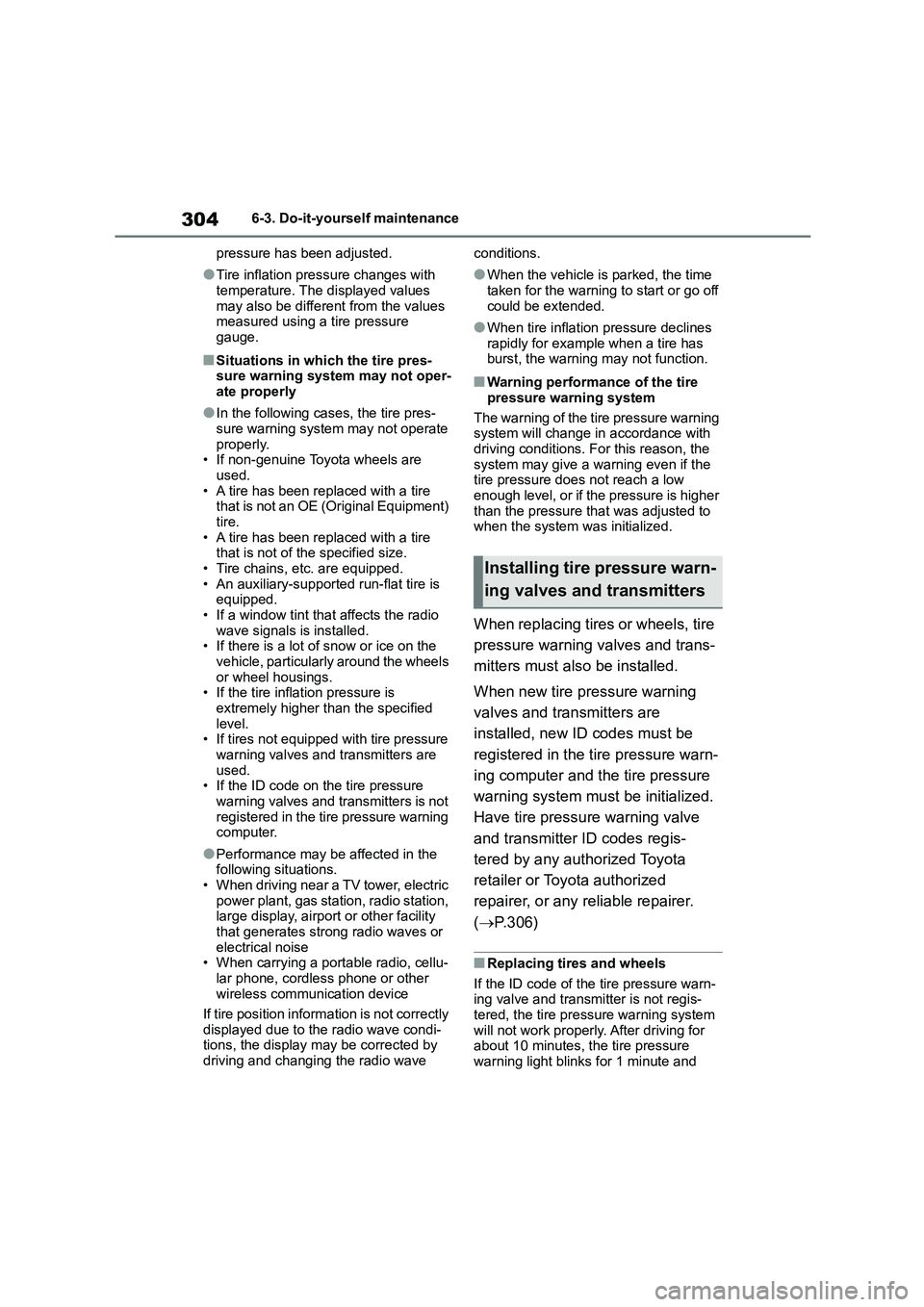
■Situations in which the tire pres-
sure warning system may not oper- ate properly
●In the following cases, the tire pres-sure warning system may not operate
properly.
• If non-genuine Toyota wheels are used.
• A tire has been replaced with a tire
that is not an OE (Original Equipment) tire.
• A tire has been replaced with a tire
that is not of the specified size. • Tire chains, etc. are equipped.
• An auxiliary-supported run-flat tire is
equipped. • If a window tint that affects the radio
wave signals is installed.
• If there is a lot of snow or ice on the vehicle, particularly around the wheels
or wheel housings.
• If the tire inflation pressure is extremely higher than the specified
level.
• If tires not equipped with tire pressure warning valves and transmitters are
used.
• If the ID code on the tire pressure warning valves and transmitters is not
registered in the tire pressure warning
computer.
●Performance may be affected in the
following situations. • When driving near a TV tower, electric
power plant, gas station, radio station,
large display, airport or other facility
that generates strong radio waves or electrical noise
• When carrying a portable radio, cellu-
lar phone, cordless phone or other wireless communication device
If tire position information is not correctly
displayed due to the radio wave condi- tions, the display ma y be corrected by
driving and changing the radio wave
conditions.
●When the vehicle is parked, the time
taken for the warning to start or go off
could be extended.
●When tire inflation pressure declines
rapidly for example when a tire has burst, the warning may not function.
■Warning performance of the tire
pressure warning system
The warning of the tire pressure warning system will change in accordance with
driving conditions. For this reason, the
system may give a warning even if the tire pressure does not reach a low
enough level, or if the pressure is higher
than the pressure that was adjusted to when the system was initialized.
When replacing tires or wheels, tire
pressure warning valves and trans-
mitters must also be installed.
When new tire pressure warning
valves and transmitters are
installed, new ID codes must be
registered in the tire pressure warn-
ing computer and the tire pressure
warning system must be initialized.
Have tire pressu re warning valve
and transmitter ID codes regis-
tered by any authorized Toyota
retailer or Toyota authorized
repairer, or any reliable repairer.
( P. 3 0 6 )
■Replacing tires and wheels
If the ID code of the tire pressure warn-
ing valve and transmitter is not regis- tered, the tire pressure warning system
will not work properly. After driving for
about 10 minutes, the tire pressure warning light blinks for 1 minute and
Installing tire pressure warn-
ing valves and transmitters
Page 463 of 582
GR86_Navi_OM18131E_(EE)
1
7
6
5
4
3
2
8
9
Quick guide•Overview
Basic function• Information to be read before operation
• Connecting the Bluetooth® device
Settings• Bluetooth® settings
• Other settings
Phone• Operating the phone
(Hands-free system for mobile phones)
Apps• Apple CarPlay
• Android Auto
Audio• Listening to the radio • Enjoying music and video
Voice command
system• Operating the voice command system
What to do if...• Troubleshooting
Reference• Certification
Index• Search alphabetically
Page 464 of 582
2TABLE OF CONTENTS
Introduction......................................4
Reading this manual........................ 5
1-1. Basic function
Buttons overview .................... 8
Home screen .......................... 9
Status icon ............................ 10
Settings screen ..................... 11
2-1. Basic information before oper-
ation
Initial screen.......................... 14
Touch screen ........................ 15
Home screen ........................ 16
Entering letters and num-
bers/list screen operation ... 17
Screen adjustment ................ 18
2-2. Connectivity settings
Connecting/Disconnecting a
USB memory device/portable
device ................................. 19
Registering/Connecting a
Bluetooth® device ............... 19
3-1. Bluetooth® settings
Bluetooth® settings ............... 24
3-2. Other settings
General settings.................... 29
Sound settings ...................... 36
Radio settings ....................... 37
Maintenance settings ............ 38
4-1. Phone operation (Hands-free
system for mobile phones)
Phone screen........................ 42
Some basics ......................... 43
Calling on the Bluetooth® phone
............................................ 46
Receiving on the Bluetooth®
phone.................................. 48
Talking on the Bluetooth® phone
............................................ 49
Bluetooth® phone message
function ............................... 50
5-1. Before using applications
Before using applications...... 56
5-2. Apple CarPlay
Apple CarPlay ....................... 59
5-3. Android Auto
Android Auto ......................... 61
6-1. Basic operation
Some basics ......................... 64
6-2. Radio operation
AM radio/FM radio ................ 67
DAB ...................................... 69
6-3. Media operation
USB memory ........................ 72
iPod/iPhone .......................... 74
Bluetooth® audio................... 76
1Quick guide
2Basic function
3Settings
4Phone
5Apps
6Audio
Page 471 of 582
9
1
1-1. Basic function
Quick guide
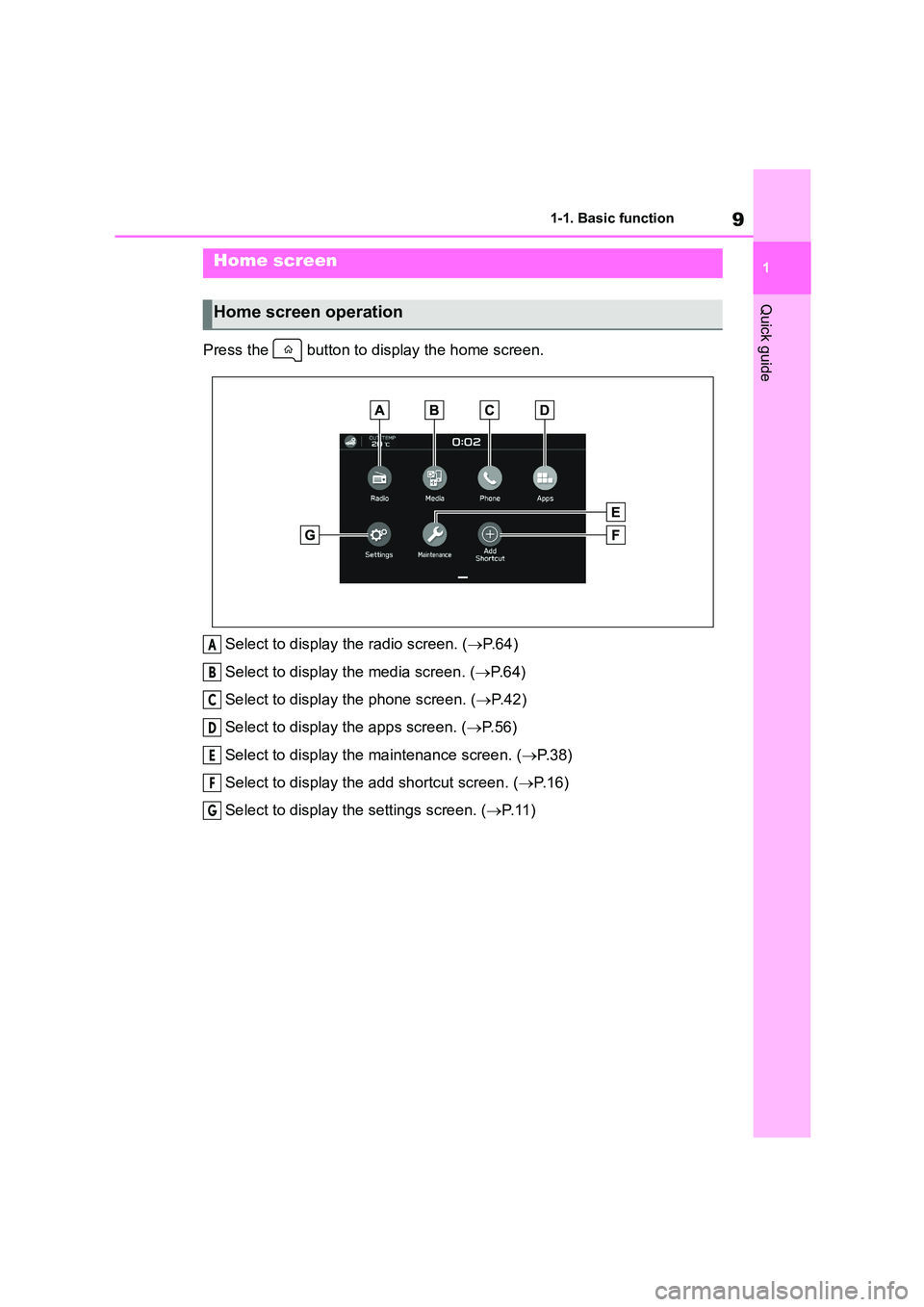
Press the button to di splay the home screen.
Select to display the radio screen. ( P. 6 4 )
Select to display the media screen. ( P. 6 4 )
Select to display the phone screen. ( P.42)
Select to display the apps screen. (P. 5 6 )
Select to display the maintenance screen. ( P. 3 8 )
Select to display the add shortcut screen. ( P. 1 6 )
Select to display th e settings screen. (P. 1 1 )
Home screen
Home screen operation
A
B
C
D
E
F
G
Page 472 of 582
101-1. Basic function
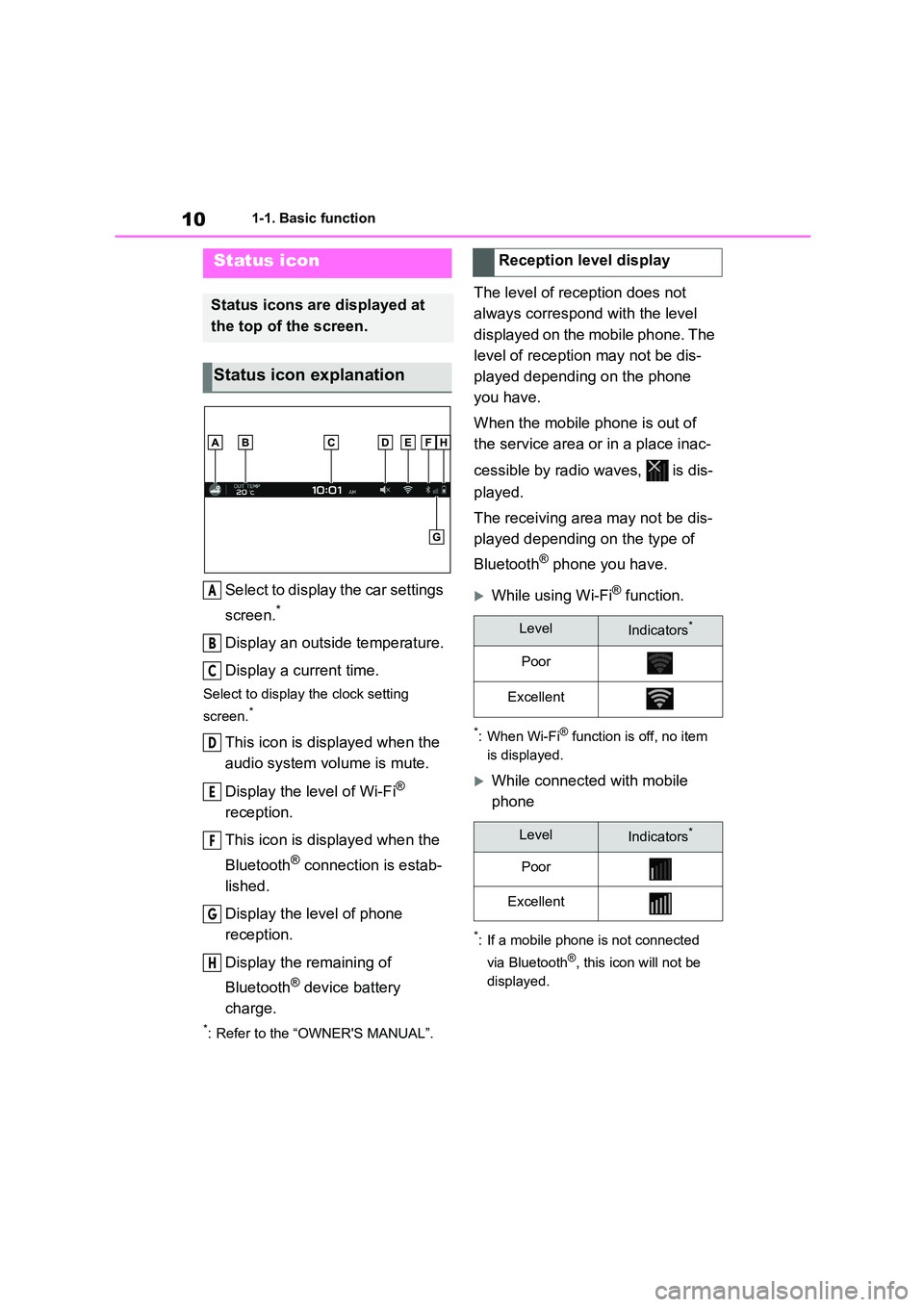
Select to display the car settings
screen.*
Display an outside temperature.
Display a current time.
Select to display the clock setting
screen.*
This icon is displayed when the
audio system volume is mute.
Display the level of Wi-Fi®
reception.
This icon is displayed when the
Bluetooth® connection is estab-
lished.
Display the level of phone
reception.
Display the remaining of
Bluetooth® device battery
charge.
*: Refer to the “OWNER'S MANUAL”.
The level of reception does not
always correspond with the level
displayed on the mobile phone. The
level of reception may not be dis-
played depending on the phone
you have.
When the mobile phone is out of
the service area or in a place inac-
cessible by radio waves, is dis-
played.
The receiving area may not be dis-
played depending on the type of
Bluetooth® phone you have.
While using Wi-Fi® function.
*: When Wi-Fi® function is off, no item
is displayed.
While connected with mobile
phone
*: If a mobile phone is not connected
via Bluetooth®, this icon will not be
displayed.
Status icon
Status icons are displayed at
the top of the screen.
Status icon explanation
A
B
C
D
E
F
G
H
Reception level display
LevelIndicators*
Poor
Excellent
LevelIndicators*
Poor
Excellent