USB TOYOTA HIGHLANDER 2018 Owners Manual (in English)
[x] Cancel search | Manufacturer: TOYOTA, Model Year: 2018, Model line: HIGHLANDER, Model: TOYOTA HIGHLANDER 2018Pages: 732, PDF Size: 14.5 MB
Page 4 of 732

TABLE OF CONTENTS4
HIGHLANDER_U (OM0E031U)5-1. Basic Operations
Audio system types ........... 350
Entune Audio..................... 351
Steering wheel audio switches .......................... 354
AUX Port/USB Port ........... 355
Basic audio operations ....................... 356
5-2. Setup Setup menu ....................... 358
General settings ................ 359
Audio settings.................... 360
Display settings ................. 361
Voice settings .................... 362
5-3. Using Entune Audio Selecting the audio source ............................. 363
List screen operation ......... 364
Optimal use of Entune Audio ............................... 366
5-4. Using the radio Radio operation ................. 367 5-5. Playing an audio CD and
MP3/WMA/AAC discs
CD player operation........... 369
5-6. Using an external device Listening to an iPod ........... 375
Listening to a USB memory device ................ 379
Using the AUX port ............ 383
5-7. Connecting Bluetooth
®
Preparations to use wireless
communication ................ 384
Registering a Bluetooth
®
audio player for the
first time ........................... 388
Registering a Bluetooth
®
phone for the
first time ........................... 389
Registering a Bluetooth
®
device .............................. 390
Connecting a Bluetooth
®
device .............................. 392
Displaying a Bluetooth
®
device details................... 394
Detailed Bluetooth
®
system settings................ 395
5-8. Bluetooth
® Audio
Listening to Bluetooth®
Audio ............................... 396
5Audio system
Page 6 of 732

TABLE OF CONTENTS6
HIGHLANDER_U (OM0E031U)6-4. Using the other interior
features
Other interior features ....... 472
• Sun visors ..................... 472
• Vanity mirrors................ 472
• Conversation mirror ...... 473
• Clock ............................. 473
• Outside temperature display........................... 474
• Power outlets ................ 475
• USB charging ports....... 477
• Rear sunshades............ 479
• Armrest ......................... 480
• Coat hooks.................... 481
• Assist grips ................... 481
• Side table ...................... 482
Garage door opener .......... 483
Safety Connect.................. 490
Compass ........................... 495
7-1. Maintenance and care Cleaning and protecting the vehicle exterior .......... 500
Cleaning and protecting the vehicle interior ........... 504 7-2. Maintenance
Maintenance requirements ................... 507
General maintenance .................... 510
Emission inspection and maintenance (I/M)
programs ......................... 513
7-3. Do-it-yourself maintenance
Do-it-yourself service precautions ...................... 514
Hood .................................. 516
Positioning a floor jack .......................... 518
Engine compartment ......... 519
Tires................................... 531
Tire inflation pressure ........ 542
Wheels............................... 545
Air conditioning filter .......... 547
Wireless remote control/electronic key
battery ............................. 549
Checking and replacing fuses ................................ 552
Light bulbs ......................... 556
7Maintenance and care
Page 348 of 732

348
HIGHLANDER_U (OM0E031U)5-1. Basic Operations
Audio system types ........... 350
Entune Audio .................... 351
Steering wheel audio switches .......................... 354
AUX Port/USB Port ........... 355
Basic audio operations ....................... 356
5-2. Setup Setup menu....................... 358
General settings ................ 359
Audio settings ................... 360
Display settings ................. 361
Voice settings.................... 362
5-3. Using Entune Audio Selecting the audio source ............................. 363
List screen operation......... 364
Optimal use of Entune Audio............................... 366
5-4. Using the radio Radio operation................. 367
5-5. Playing an audio CD and MP3/WMA/AAC discs
CD player operation .......... 369
5Audio system
Page 349 of 732
349
5Audio system
HIGHLANDER_U (OM0E031U)5-6. Using an external device
Listening to an iPod .......... 375
Listening to a USB memory device................ 379
Using the AUX port ........... 383
5-7. Connecting Bluetooth
®
Preparations to use wireless
communication ................ 384
Registering a Bluetooth
®
audio player for the
first time .......................... 388
Registering a Bluetooth
®
phone for the
first time .......................... 389
Registering a Bluetooth
®
device.............................. 390
Connecting a Bluetooth
®
device.............................. 392
Displaying a Bluetooth
®
device details .................. 394
Detailed Bluetooth
®
system settings ............... 395
5-8. Bluetooth
® Audio
Listening to Bluetooth®
Audio ............................... 396 5-9. Bluetooth
® phone
Using a Bluetooth®
Phone ............................. 397
Making a call ..................... 399
Receiving a call ................. 402
Speaking on the phone .............................. 403
Bluetooth
® phone
message function ............ 406
Using the steering wheel switches ................ 410
Bluetooth
® phone
settings ........................... 411
Contact/Call History Settings ........................... 412
What to do if... (Troubleshooting) ............ 421
5-10. Bluetooth
®
Bluetooth®......................... 425
5-11. Using the voice command system
Voice command system ............................ 429
Page 355 of 732
3555-1. Basic Operations
5
Audio system
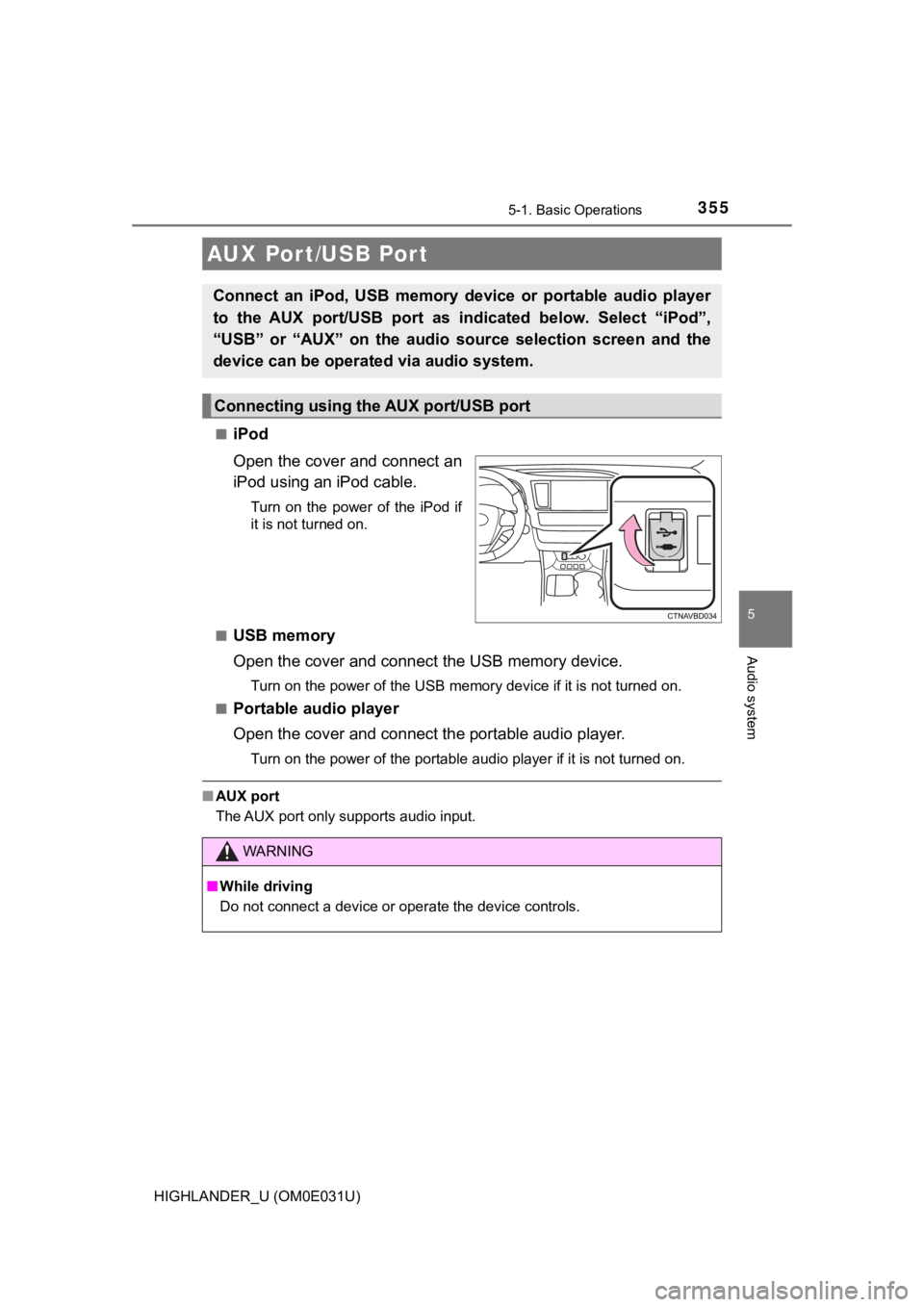
HIGHLANDER_U (OM0E031U)■
iPod
Open the cover and connect an
iPod using an iPod cable.
Turn on the power of the iPod if
it is not turned on.
■
USB memory
Open the cover and connec t the USB memory device.
Turn on the power of the USB memory device if it is not turned on.
■
Portable audio player
Open the cover and connect the portable audio player.
Turn on the power of the portable audio player if it is not tur ned on.
■AUX port
The AUX port only supports audio input.
AUX Por t/USB Por t
Connect an iPod, USB memory device or portable audio player
to the AUX port/USB port as indi cated below. Select “iPod”,
“USB” or “AUX” on th e audio source selection screen and the
device can be operated via audio system.
Connecting using the AUX port/USB port
WARNING
■ While driving
Do not connect a device or operate the device controls.
Page 365 of 732
3655-3. Using Entune Audio
5
Audio system
HIGHLANDER_U (OM0E031U)■
Selecting a track/file/song
Press the “
” or “ ” button on “SEEK/TRACK” or turn the
“TUNE·SCROLL” knob to select the desired track/file/song number.
To fast-forward or reverse, press and hold the “ ” or “ ” button on
“SEEK/TRACK”.
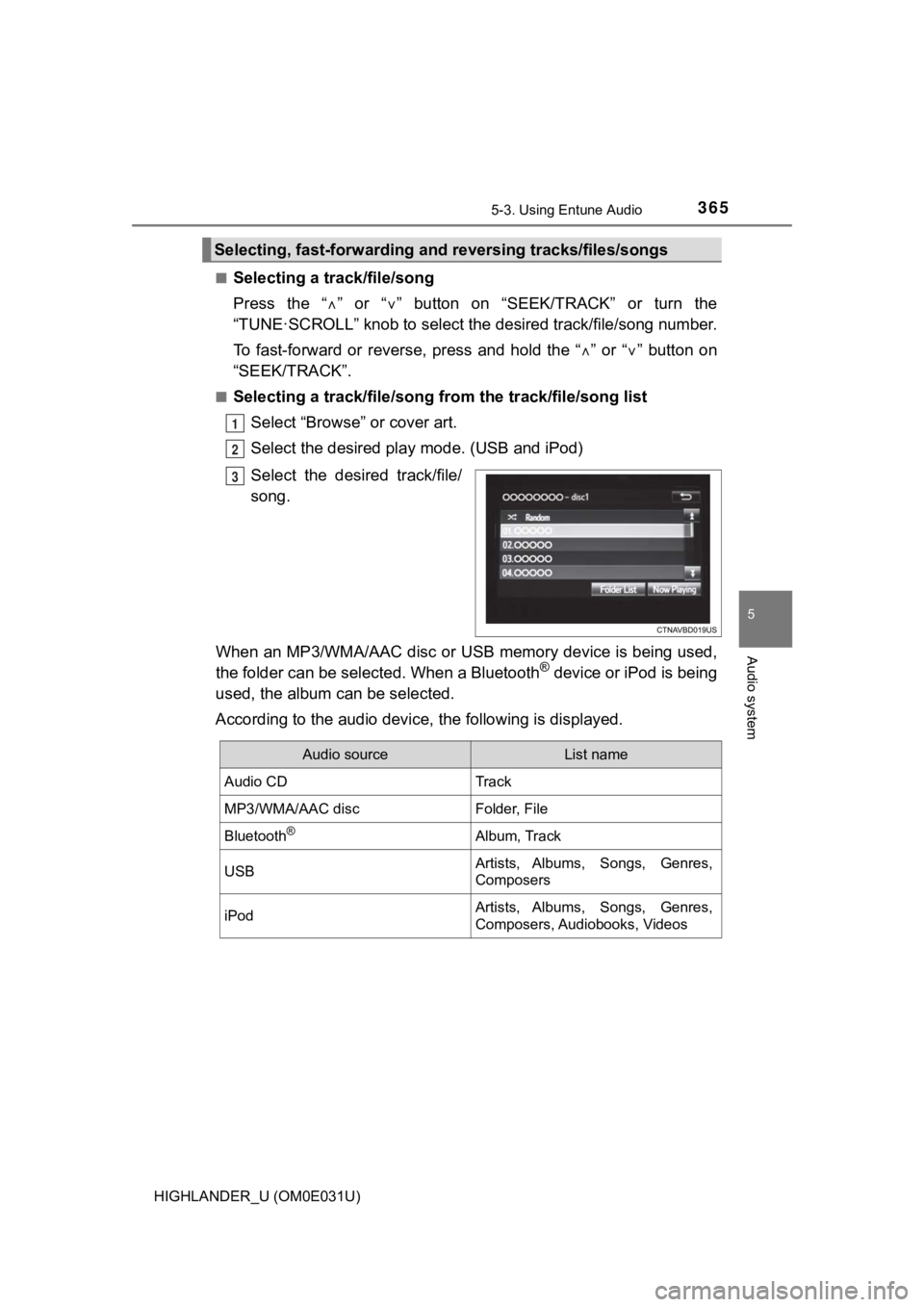
■Selecting a track/file/song from the track/file/song list
Select “Browse” or cover art.
Select the desired play mode. (USB and iPod)
Select the desir ed track/file/
song.
When an MP3/WMA/AAC disc or USB memory device is being used,
the folder can be selected. When a Bluetooth
® device or iPod is being
used, the album can be selected.
According to the audio device, the following is displayed.
Selecting, fast-forwarding and reversing trac ks/files/songs
1
2
3
Audio sourceList name
Audio CDTrack
MP3/WMA/AAC discFolder, File
Bluetooth®Album, Track
USBArtists, Albums, Songs, Genres,
Composers
iPodArtists, Albums, Songs, Genres,
Composers, Audiobooks, Videos
Page 379 of 732
3795-6. Using an external device
5
Audio system
HIGHLANDER_U (OM0E031U)
P. 3 5 5
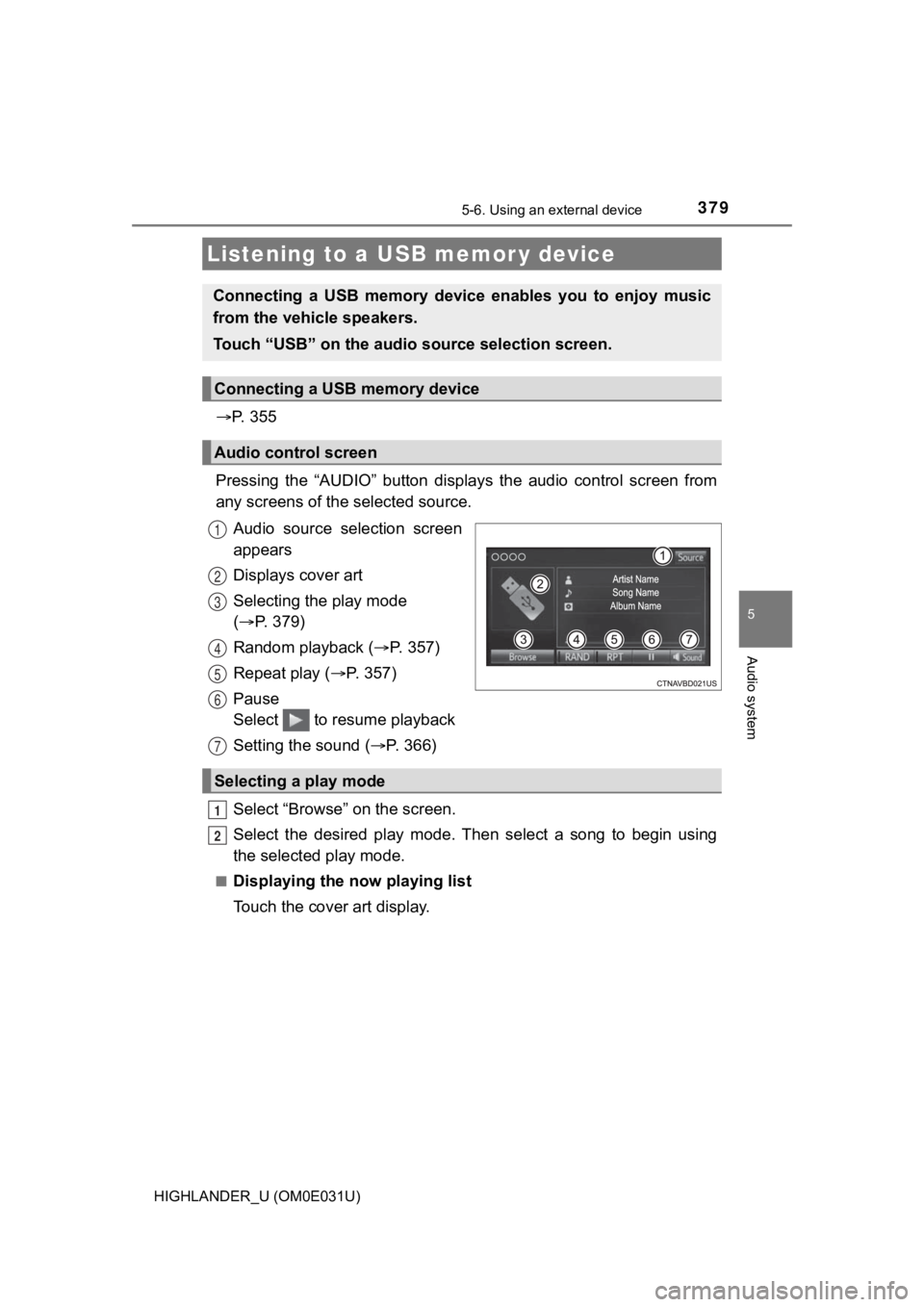
Pressing the “AUDIO” button disp lays the audio control screen from
any screens of the selected source.
Audio source selection screen
appears
Displays cover art
Selecting the play mode
( P. 379)
Random playback ( P. 357)
Repeat play ( P. 357)
Pause
Select to resume playback
Setting the sound ( P. 3 6 6 )
Select “Browse” on the screen.
Select the desired play mode. Then select a song to begin using
the selected play mode.
■Displaying the now playing list
Touch the cover art display.
Listening to a USB memor y device
Connecting a USB memory device enables you to enjoy music
from the vehicle speakers.
Touch “USB” on the audio source selection screen.
Connecting a USB memory device
Audio control screen
1
2
3
4
5
6
7
Selecting a play mode
1
2
Page 380 of 732
3805-6. Using an external device
HIGHLANDER_U (OM0E031U)
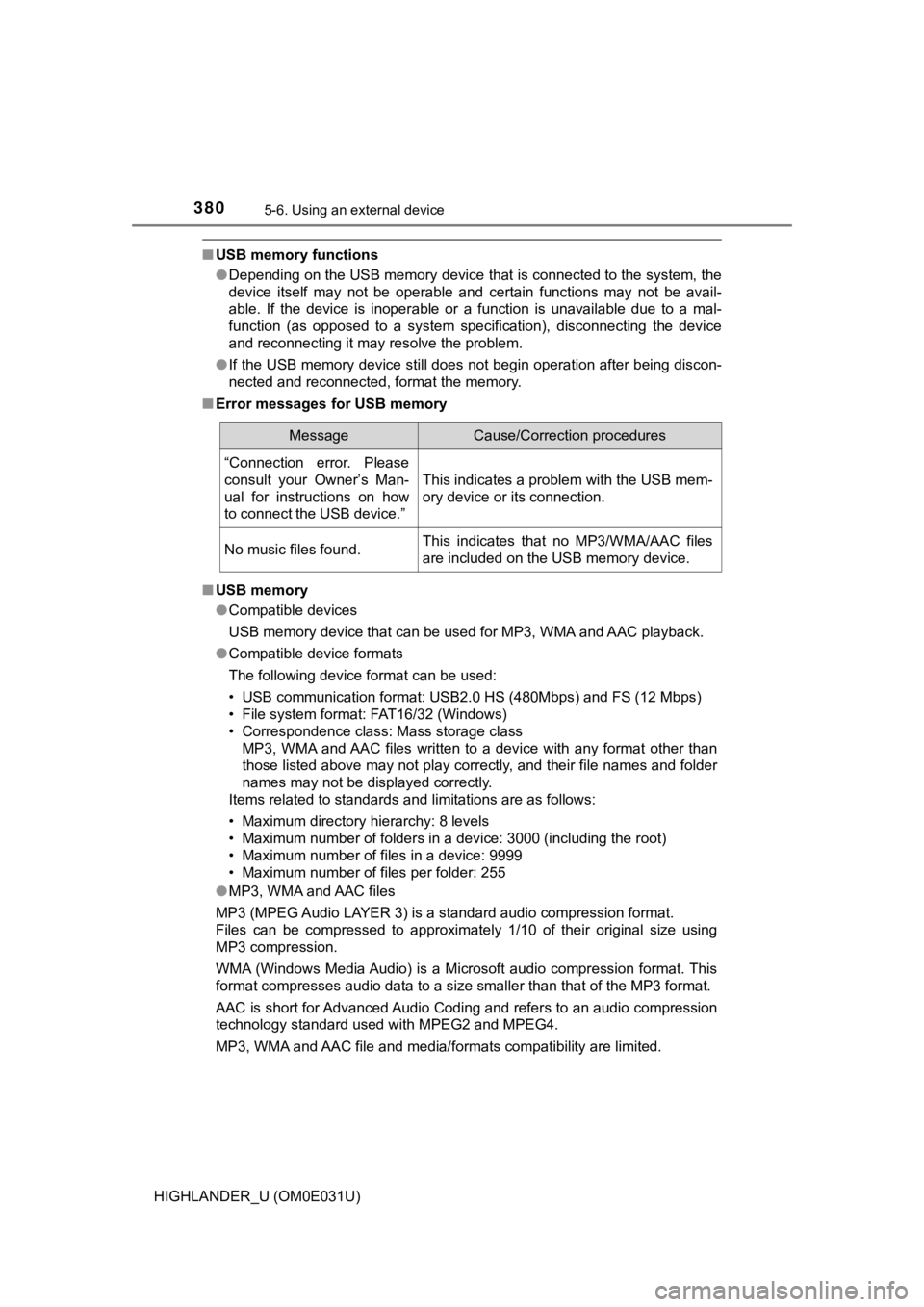
■USB memory functions
●Depending on the USB memory device that is connected to the sys tem, the
device itself may not be operable and certain functions may not be avail-
able. If the device is inoperable or a function is unavailable due to a mal-
function (as opposed to a system specification), disconnecting the device
and reconnecting it may resolve the problem.
● If the USB memory device still does not begin operation after b eing discon-
nected and reconnected, format the memory.
■ Error messages for USB memory
■ USB memory
●Compatible devices
USB memory device that can be used for MP3, WMA and AAC playback.
● Compatible device formats
The following device format can be used:
• USB communication format: USB2.0 HS (480Mbps) and FS (12 Mbps)
• File system format: FAT16/32 (Windows)
• Correspondence class: Mass storage class
MP3, WMA and AAC files written to a device with any format othe r than
those listed above may not play correctly, and their file names and folder
names may not be displayed correctly.
Items related to standards and limitations are as follows:
• Maximum directory hierarchy: 8 levels
• Maximum number of folders in a device: 3000 (including the roo t)
• Maximum number of files in a device: 9999
• Maximum number of files per folder: 255
● MP3, WMA and AAC files
MP3 (MPEG Audio LAYER 3) is a standard audio compression format.
Files can be compressed to approximately 1/10 of their original size using
MP3 compression.
WMA (Windows Media Audio) is a Microsoft audio compression format. This
format compresses audio data to a size smaller than that of the MP3 format.
AAC is short for Advanced Audio Coding and refers to an audio c ompression
technology standard used with MPEG2 and MPEG4.
MP3, WMA and AAC file and media/ formats compatibility are limited.
MessageCause/Correction procedures
“Connection error. Please
consult your Owner’s Man-
ual for instructions on how
to connect the USB device.”
This indicates a problem with the USB mem-
ory device or its connection.
No music files found.This indicates that no MP3/WMA/AAC files
are included on the USB memory device.
Page 382 of 732

3825-6. Using an external device
HIGHLANDER_U (OM0E031U)●
MP3, WMA and AAC playback
• When a device containing MP3, WMA and AAC files is connected, all
files in the USB memory device are checked. Once the file check is fin-
ished, the first MP3, WMA and AAC file is played. To make the file check
finish more quickly, we recommend that you do not include any f iles other
than MP3, WMA and AAC files or create any unnecessary folders.
• When a USB memory device is connected and the audio source is
changed to USB memory mode, the USB memory device will start pl ay-
ing the first file in the first folder. If the same device is r emoved and
reconnected (and the con- tents have not been changed), the USB mem-
ory device will resume play from the same point in which it was last used.
● Extensions
If the file extensions .mp3, .wma and .m4a are used for files other than
MP3, WMA and AAC files, they will be skipped (not played).
● Playback
• To play MP3 files with steady sound quality, we recommend a fi xed bit
rate of at least 128 kbps and a sampling frequency of 44.1 kHz.
• There is a wide variety of freeware and other encoding software for MP3, WMA and AAC files on the market, and depending on the status of the
encoding and the file format, poor sound quality or noise at th e start of
playback may result. In some cases, playback may not be possible at all.
• Microsoft, Windows, and Windows Media are the registered trade marks
of Microsoft Corporation in the U.S.A. and other countries.
WARNING
■ While driving
Do not connect a USB memory device or operate the device contro ls.
NOTICE
■To prevent damage to the USB memory device or its terminals
● Do not leave the USB memory device in the vehicle. The temperat ure
inside the vehicle may become high, resulting in damage to the USB
memory device.
● Do not push down on or apply unnecessary pressure to the USB me mory
device while it is connected.
● Do not insert foreign objects into the port.
Page 435 of 732
435
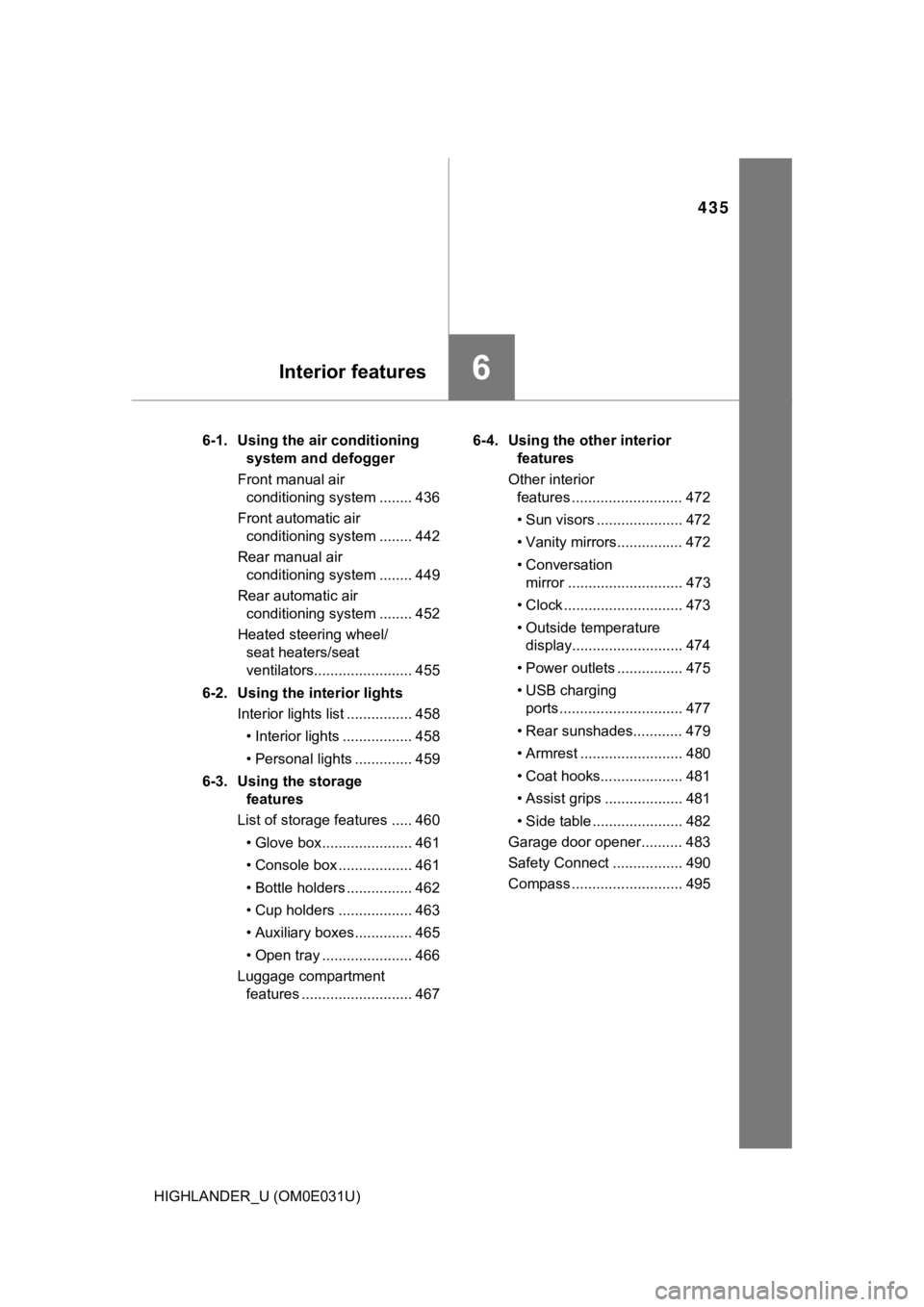
6Interior features
HIGHLANDER_U (OM0E031U)6-1. Using the air conditioning
system and defogger
Front manual air conditioning system ........ 436
Front automatic air conditioning system ........ 442
Rear manual air conditioning system ........ 449
Rear automatic air conditioning system ........ 452
Heated steering wheel/ seat heaters/seat
ventilators........................ 455
6-2. Using the interior lights Interior lights list ................ 458
• Interior lights ................. 458
• Personal lights .............. 459
6-3. Using the storage features
List of storage features ..... 460
• Glove box...................... 461
• Console box .................. 461
• Bottle holders ................ 462
• Cup holders .................. 463
• Auxiliary boxes.............. 465
• Open tray ...................... 466
Luggage compartment features ........................... 467 6-4. Using the other interior
features
Other interior features ........................... 472
• Sun visors ..................... 472
• Vanity mirrors................ 472
• Conversation mirror ............................ 473
• Clock ............................. 473
• Outside temperature display........................... 474
• Power outlets ................ 475
• USB charging ports .............................. 477
• Rear sunshades............ 479
• Armrest ......................... 480
• Coat hooks.................... 481
• Assist grips ................... 481
• Side table ...................... 482
Garage door opener.......... 483
Safety Connect ................. 490
Compass ........................... 495