phone TOYOTA HIGHLANDER 2020 Accessories, Audio & Navigation (in English)
[x] Cancel search | Manufacturer: TOYOTA, Model Year: 2020, Model line: HIGHLANDER, Model: TOYOTA HIGHLANDER 2020Pages: 402, PDF Size: 18.72 MB
Page 20 of 402
201-1. Basic function
HIGHLANDER_HIGHLANDER
HV_NAVI_(U)
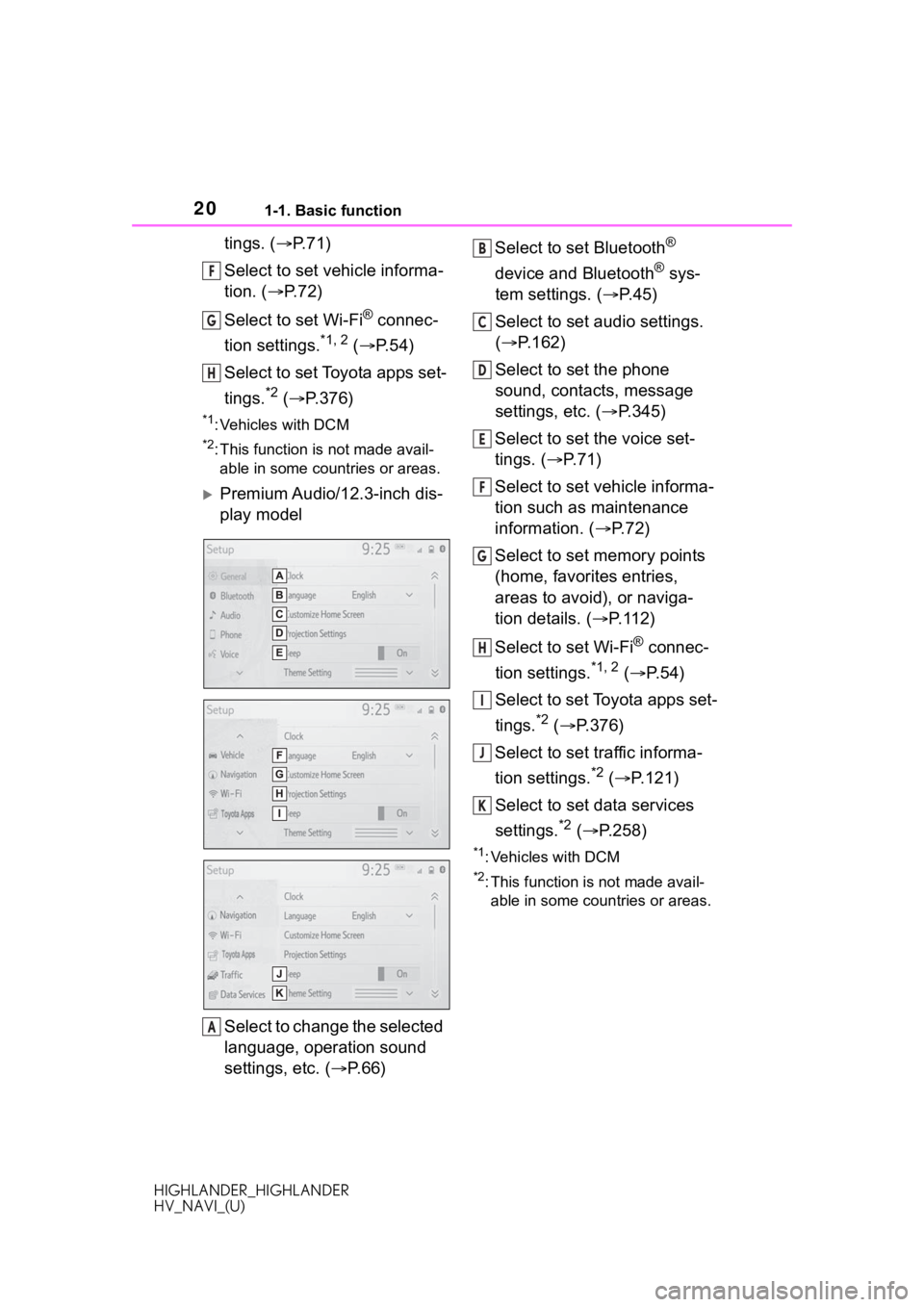
tings. (P.71)
Select to set vehicle informa-
tion. ( P. 7 2 )
Select to set Wi-Fi
® connec-
tion settings.
*1, 2 ( P.54)
Select to set Toyota apps set-
tings.
*2 ( P.376)
*1: Vehicles with DCM
*2: This function is not made avail-
able in some countries or areas.
Premium Audio/12.3-inch dis-
play model
Select to change the selected
language, operation sound
settings, etc. ( P. 6 6 ) Select to set Bluetooth
®
device and Bluetooth
® sys-
tem settings. ( P.45)
Select to set audio settings.
( P.162)
Select to set the phone
sound, contacts, message
settings, etc. ( P.345)
Select to set the voice set-
tings. ( P.71)
Select to set vehicle informa-
tion such as maintenance
information. ( P.72)
Select to set memory points
(home, favorites entries,
areas to avoid), or naviga-
tion details. ( P. 1 1 2 )
Select to set Wi-Fi
® connec-
tion settings.
*1, 2 ( P. 5 4 )
Select to set Toyota apps set-
tings.
*2 ( P.376)
Select to set traffic informa-
tion settings.
*2 ( P.121)
Select to set data services
settings.
*2 ( P.258)
*1: Vehicles with DCM
*2: This function is not made avail-
able in some countries or areas.
F
G
H
A
B
C
D
E
F
G
H
I
J
K
Page 25 of 402
251-2. Navigation operation
HIGHLANDER_HIGHLANDER
HV_NAVI_(U)
1
Quick guide*: Premium Audio/12.3-inch display model
1 Turn the engine switch
ON.
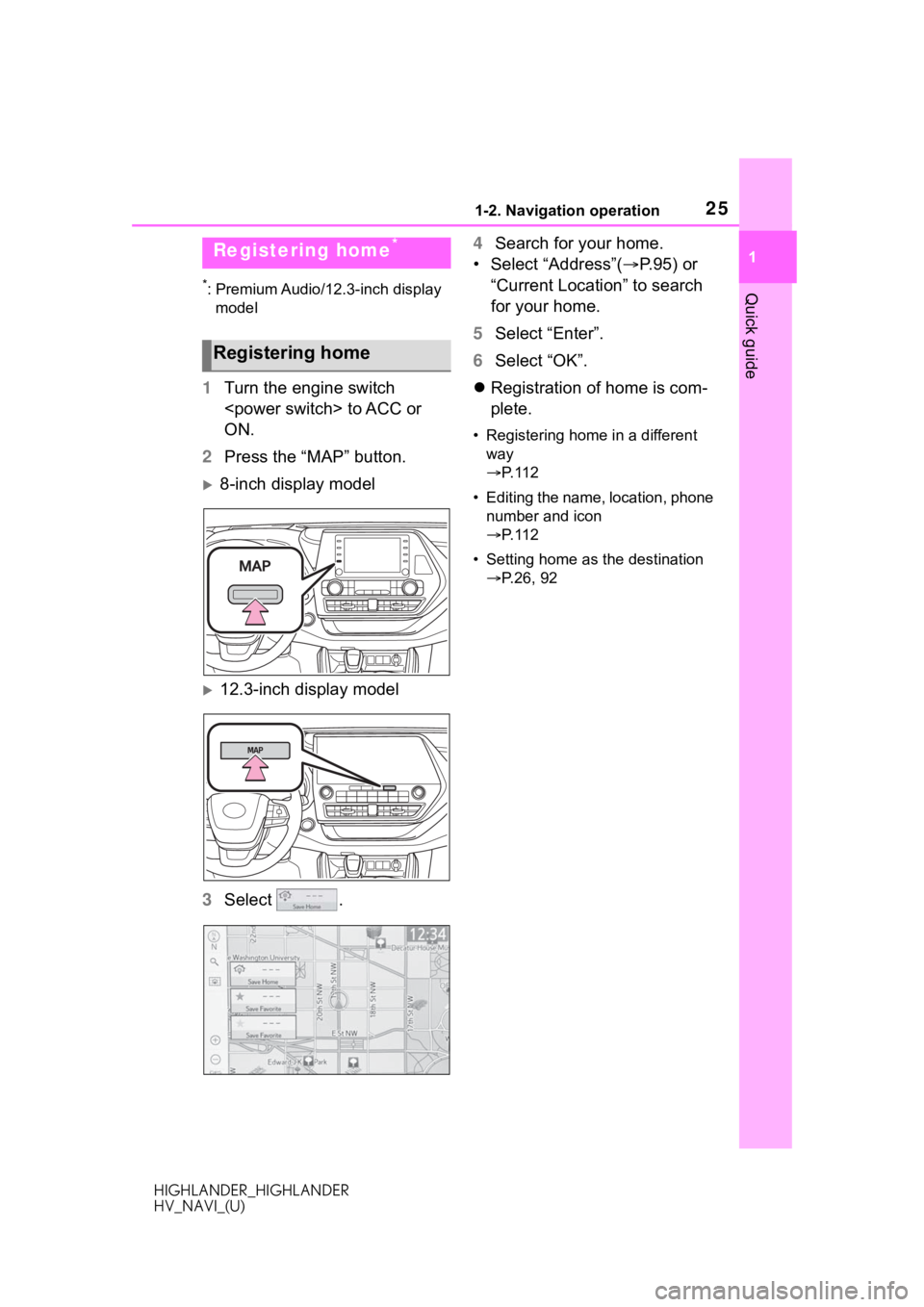
2 Press the “MAP” button.
8-inch display model
12.3-inch display model
3 Select . 4
Search for your home.
• Select “Address”( P. 9 5 ) o r
“Current Location” to search
for your home.
5 Select “Enter”.
6 Select “OK”.
Registration of home is com-
plete.
• Registering home in a different
way
P. 1 1 2
• Editing the name, location, phone number and icon
P. 1 1 2
• Setting home as the destination P.26, 92
Registering home*
Registering home
Page 28 of 402
282-1. Basic information before operation
HIGHLANDER_HIGHLANDER
HV_NAVI_(U)
2-1.Basic information before operation
After a few seconds, the caution
screen will be displayed.
After about 5 seconds or select-
ing “Continue”, the caution
screen automatically switches to
the next screen.
*: Premium Audio/12.3-inch display
model only
This system reminds users
when to replace certain parts or
components and shows dealer
information (if registered) on the
screen.
When the vehicle reaches a pre-
viously set driving distance or
date specified for a scheduled
maintenance check, the mainte-
nance remainder screen will be
displayed when the system is turned on.
To prevent this screen from
being displayed again, select
“Do Not Tell Me Again”.
To register maintenance infor-
mation: P. 7 3
If is selected, the regis-
tered phone number can be
called.
When system response is
extremely slow, the system can
be restarted.
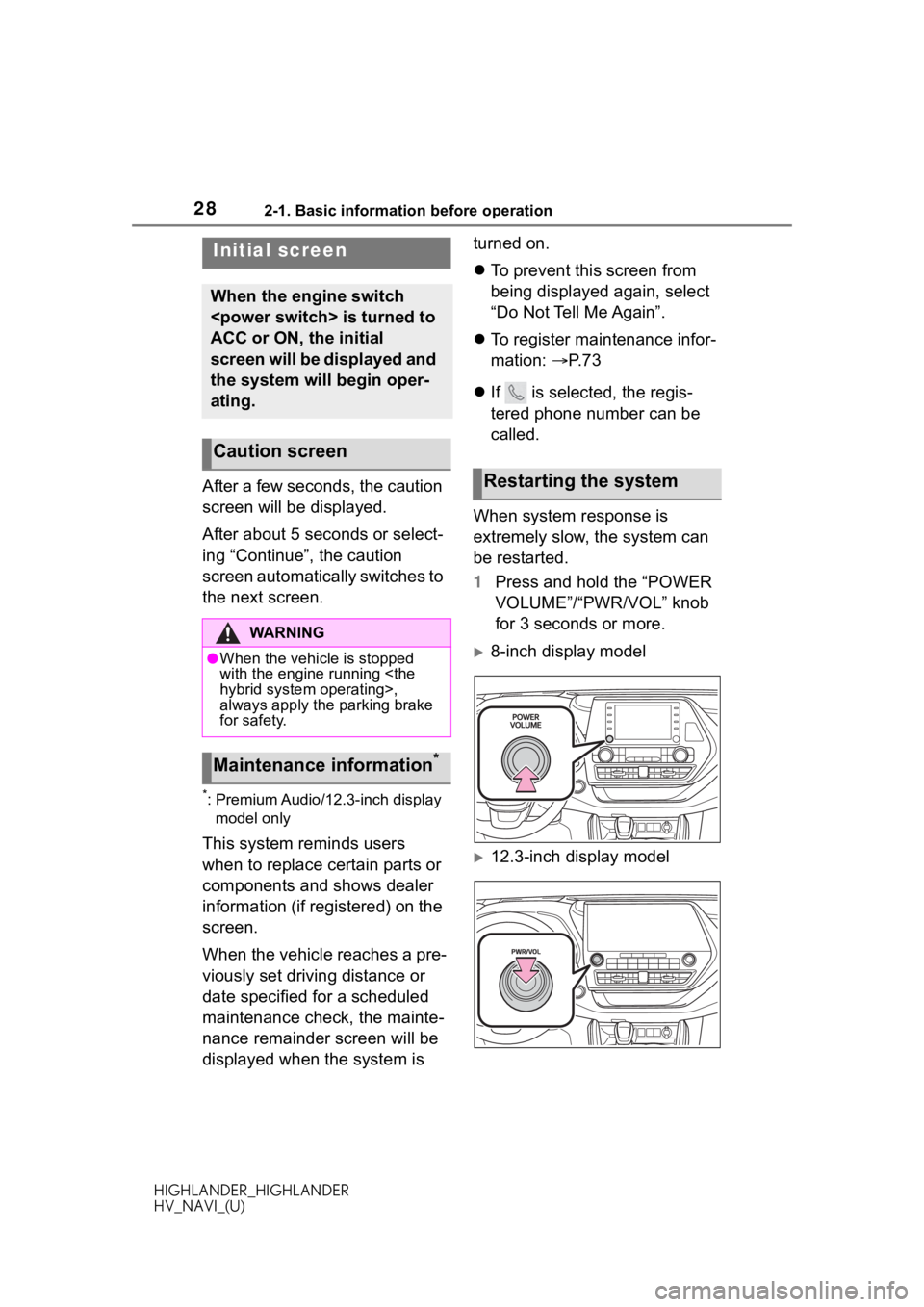
1 Press and hold the “POWER
VOLUME”/“PWR/VOL” knob
for 3 seconds or more.
8-inch display model
12.3-inch display model
Initial screen
When the engine switch
ACC or ON, the initial
screen will be displayed and
the system will begin oper-
ating.
Caution screen
WA R N I N G
●When the vehicle is stopped
with the engine running
always apply the parking brake
for safety.
Maintenance information*
Restarting the system
Page 39 of 402
392-1. Basic information before operation
HIGHLANDER_HIGHLANDER
HV_NAVI_(U)
2
Basic function
Depending on the position of the
headlight switch, the screen
changes to day or night mode.
This feature is available when
the headlight is switched on.
1 Select “Day Mode”.
●If the screen is set to day mode
with the headlight switch turned
on, this condition is memorized
even with the engine
The contrast and brightness of
the screen can be adjusted
according to the brightness of
your surroundings.
1 Select “General” or “Cam-
era”.
2 Select the desired item.
“Display (General)” screen
only: Select “<” or “>” to select
the desired display.
• “Contrast”
“+”: Select to strengthen the con-
trast of the screen.
“-”: Select to weaken the contrast of
the screen.
• “Brightness”
“+”: Select to brighten the screen.
“-”: Select to darken the screen.
Changing between day
and night mode
Adjusting the con-
trast/brightnessLinking multi-informa-
tion display and the
system
The following functions of
the system are linked with
the multi-information dis-
play in the instrument clus-
ter:
Audio*1
Phone*1, 2
etc.
These functions can be
operated using multi-infor-
mation display control
switches on the steering
wheel. For details, refer to
“OWNER’S MANUAL”.
*1: If equipped
*2: When an Apple CarPlay con-
nection is established, this
function will be unavailable.
Page 40 of 402
402-2. Connectivity settings
HIGHLANDER_HIGHLANDER
HV_NAVI_(U)
2-2.Connectivity settings
*: This function is not made avail-able in some countries or areas.
■Registering from the sys-
tem
1 Turn the Bluetooth
® connec-
tion setting of your cellular
phone on.
This function is not available
when Bluetooth
® connection
setting of your cellular phone
is set to off.
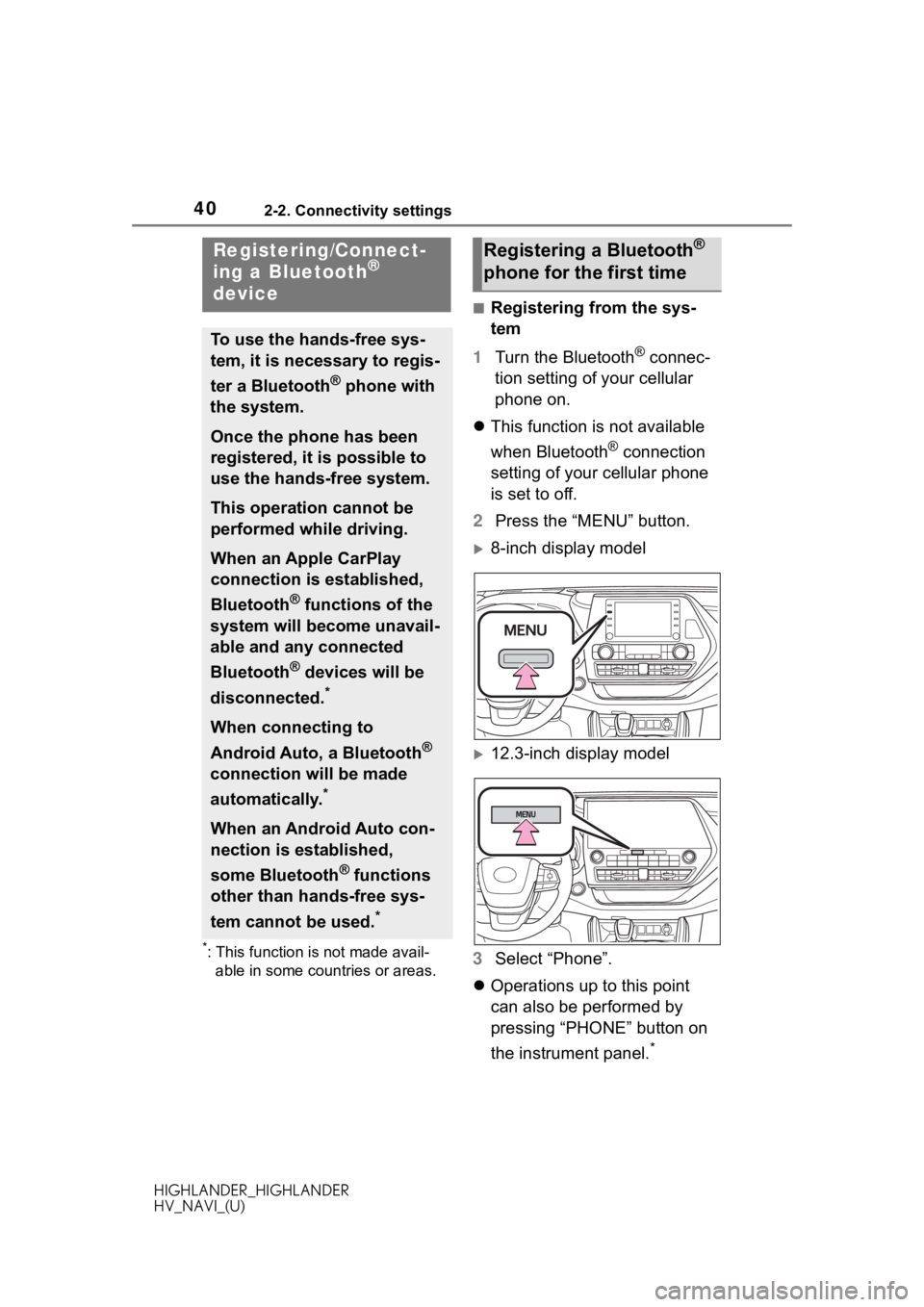
2 Press the “MENU” button.
8-inch display model
12.3-inch display model
3 Select “Phone”.
Operations up to this point
can also be performed by
pressing “PHONE” button on
the instrument panel.
*
Registering/Connect-
ing a Bluetooth®
device
To use the hands-free sys-
tem, it is necessary to regis-
ter a Bluetooth
® phone with
the system.
Once the phone has been
registered, it is possible to
use the hands-free system.
This operation cannot be
performed while driving.
When an Apple CarPlay
connection is established,
Bluetooth
® functions of the
system will become unavail-
able and any connected
Bluetooth
® devices will be
disconnected.
*
When connecting to
Android Auto, a Bluetooth
®
connection will be made
automatically.
*
When an Android Auto con-
nection is established,
some Bluetooth
® functions
other than hands-free sys-
tem cannot be used.
*
Registering a Bluetooth®
phone for the first time
Page 41 of 402
412-2. Connectivity settings
HIGHLANDER_HIGHLANDER
HV_NAVI_(U)
2
Basic function
*: Except 12.3-inch display model
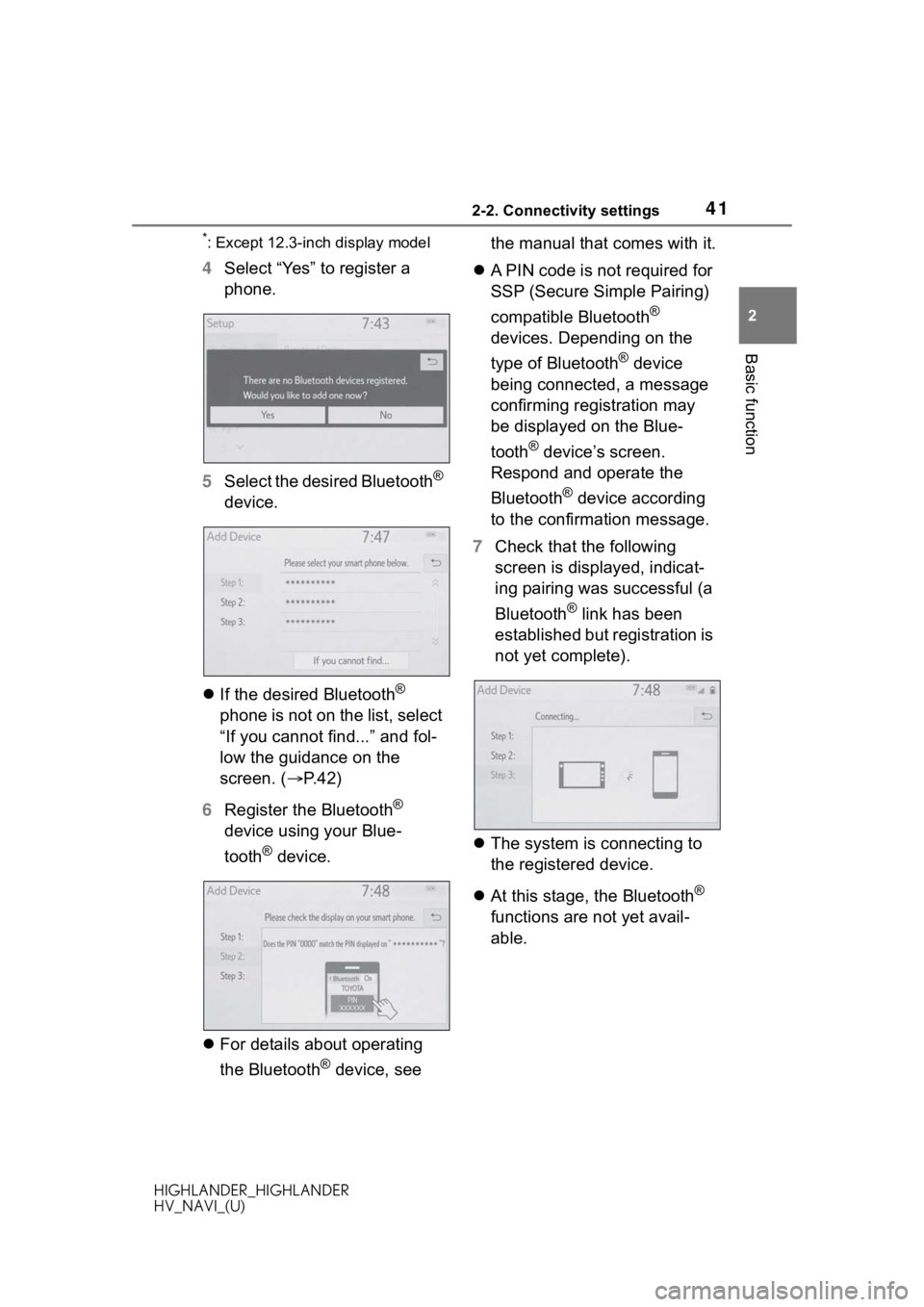
4 Select “Yes” to register a
phone.
5 Select the desired Bluetooth
®
device.
If the desired Bluetooth
®
phone is not on the list, select
“If you cannot find...” and fol-
low the guidance on the
screen. ( P. 4 2 )
6 Register the Bluetooth
®
device using your Blue-
tooth
® device.
For details about operating
the Bluetooth
® device, see the manual that comes with it.
A PIN code is not required for
SSP (Secure Simple Pairing)
compatible Bluetooth
®
devices. Depending on the
type of Bluetooth
® device
being connected, a message
confirming registration may
be displayed on the Blue-
tooth
® device’s screen.
Respond and operate the
Bluetooth
® device according
to the confirmation message.
7 Check that the following
screen is displayed, indicat-
ing pairing was successful (a
Bluetooth
® link has been
established but registration is
not yet complete).
The system is connecting to
the registered device.
At this stage, the Bluetooth
®
functions are not yet avail-
able.
Page 42 of 402
422-2. Connectivity settings
HIGHLANDER_HIGHLANDER
HV_NAVI_(U)
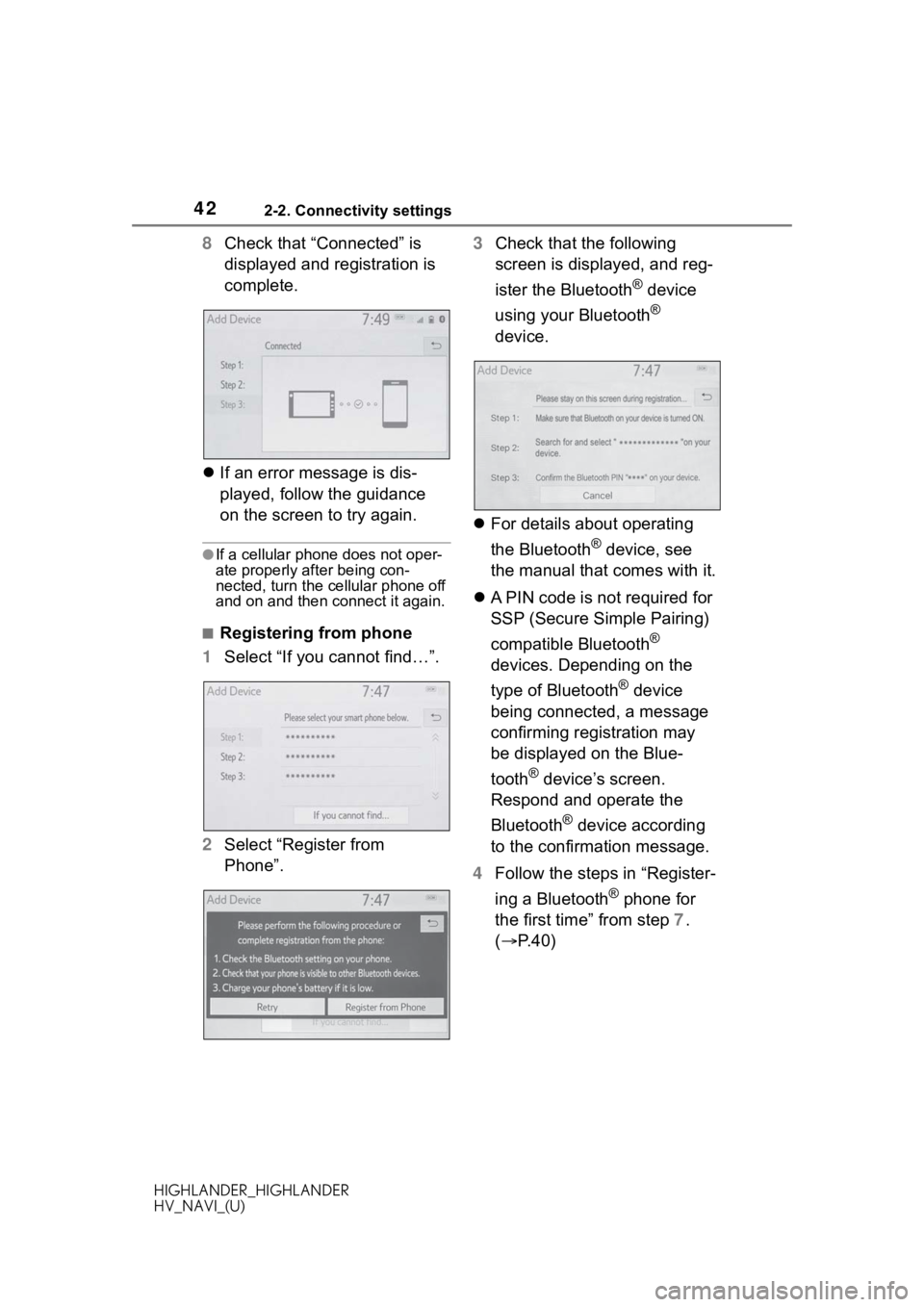
8Check that “Connected” is
displayed and registration is
complete.
If an error message is dis-
played, follow the guidance
on the screen to try again.
●If a cellular phone does not oper-
ate properly after being con-
nected, turn the cellular phone off
and on and then c onnect it again.
■Registering from phone
1 Select “If you cannot find…”.
2 Select “Register from
Phone”. 3
Check that the following
screen is displayed, and reg-
ister the Bluetooth
® device
using your Bluetooth
®
device.
For details about operating
the Bluetooth
® device, see
the manual that comes with it.
A PIN code is not required for
SSP (Secure Simple Pairing)
compatible Bluetooth
®
devices. Depending on the
type of Bluetooth
® device
being connected, a message
confirming registration may
be displayed on the Blue-
tooth
® device’s screen.
Respond and operate the
Bluetooth
® device according
to the confirmation message.
4 Follow the steps in “Register-
ing a Bluetooth
® phone for
the first time” from step 7.
( P.40)
Page 43 of 402
432-2. Connectivity settings
HIGHLANDER_HIGHLANDER
HV_NAVI_(U)
2
Basic functionTo use the Bluetooth® audio, it is
necessary to register an audio
player with the system.
Once the player has been regis-
tered, it is possible to use the
Bluetooth
® audio.
This operation cannot be per-
formed while driving.
For details about registering a
Bluetooth
® device: P. 4 8
1 Turn the Bluetooth
® connec-
tion setting of your audio
player on.
This function is not available
when the Bluetooth
® connec-
tion setting of your audio
player is set to off.
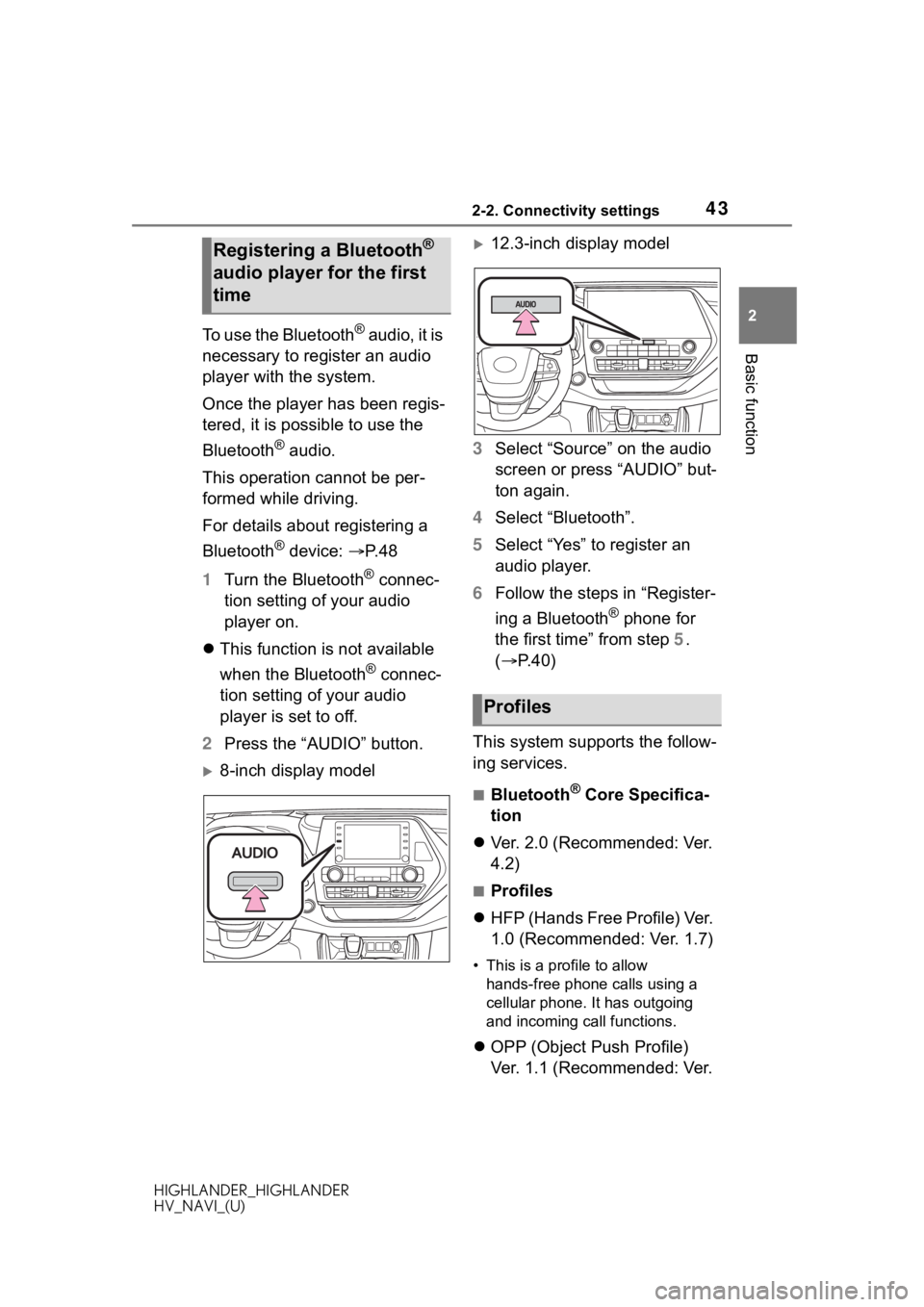
2 Press the “AUDIO” button.
8-inch display model
12.3-inch display model
3 Select “Source” on the audio
screen or press “AUDIO” but-
ton again.
4 Select “Bluetooth”.
5 Select “Yes” to register an
audio player.
6 Follow the steps in “Register-
ing a Bluetooth
® phone for
the first time” from step 5.
( P.40)
This system supports the follow-
ing services.
■Bluetooth® Core Specifica-
tion
Ver. 2.0 (Recommended: Ver.
4.2)
■Profiles
HFP (Hands Free Profile) Ver.
1.0 (Recommended: Ver. 1.7)
• This is a pro file to allow
hands-free phone calls using a
cellular phone. It has outgoing
and incoming call functions.
OPP (Object Push Profile)
Ver. 1.1 (Recommended: Ver.
Registering a Bluetooth®
audio player for the first
time
Profiles
Page 44 of 402
442-2. Connectivity settings
HIGHLANDER_HIGHLANDER
HV_NAVI_(U)
1.2)
• This is a profile to transfer con-tacts data.
PBAP (Phone Book Access
Profile) Ver. 1.0 (Recom-
mended: Ver. 1.2)
• This is a profile to transfer phone-
book data.
MAP (Message Access Pro-
file) Ver. 1.0 (Recommended:
Ver. 1.2)
• This is a profile to use phone
message functions.
SPP (Serial Port Profile) Ver.
1.1 (Recommended: Ver. 1.2)
• This is a profile to use the Toyota
audio multimedia function.
A2DP (Advanced Audio Dis-
tribution Profile) Ver. 1.0 (Rec-
ommended: Ver. 1.3)
• This is a profile to transmit stereo
audio or high quality sound to the
audio/visual system.
AVRCP (Audio/Video Remote
Control Profile) Ver. 1.0 (Rec-
ommended: Ver. 1.6)
• This is a profile to allow remote
control the A/V equipment.
●This system is n ot guaranteed to
operate with all Bluetooth®
devices.
●If your cellular phone does not
support HFP, registering the Blue-
tooth
® phone or using OPP,
PBAP, MAP or SPP profiles indi-
vidually will not be possible.
●If the connect ed Bluetooth®
device version is older than rec-
ommended or incompatible, the Bluetooth
® device function may
not work properly.
●Refer to https://www.toyota.com/
audio-multimedia in the United
States,
https://www.toyota.ca/connected
in Canada, and
http://www.toyotapr.com/
audio-multimedia in Puerto Rico,
to find approved Bluetooth®
phones for this system.
●Certification
Bluetooth is a registered trademark
of Bluetooth SIG, Inc.
Page 46 of 402
462-2. Connectivity settings
HIGHLANDER_HIGHLANDER
HV_NAVI_(U)
Up to 5 Bluetooth® devices
(Phones (HFP) and audio play-
ers (AVP)) can be registered.
If more than 1 Bluetooth
® device
has been registered, select
which device to connect to.
1 Display the Bluetooth
® set-
tings screen. ( P. 4 5 )
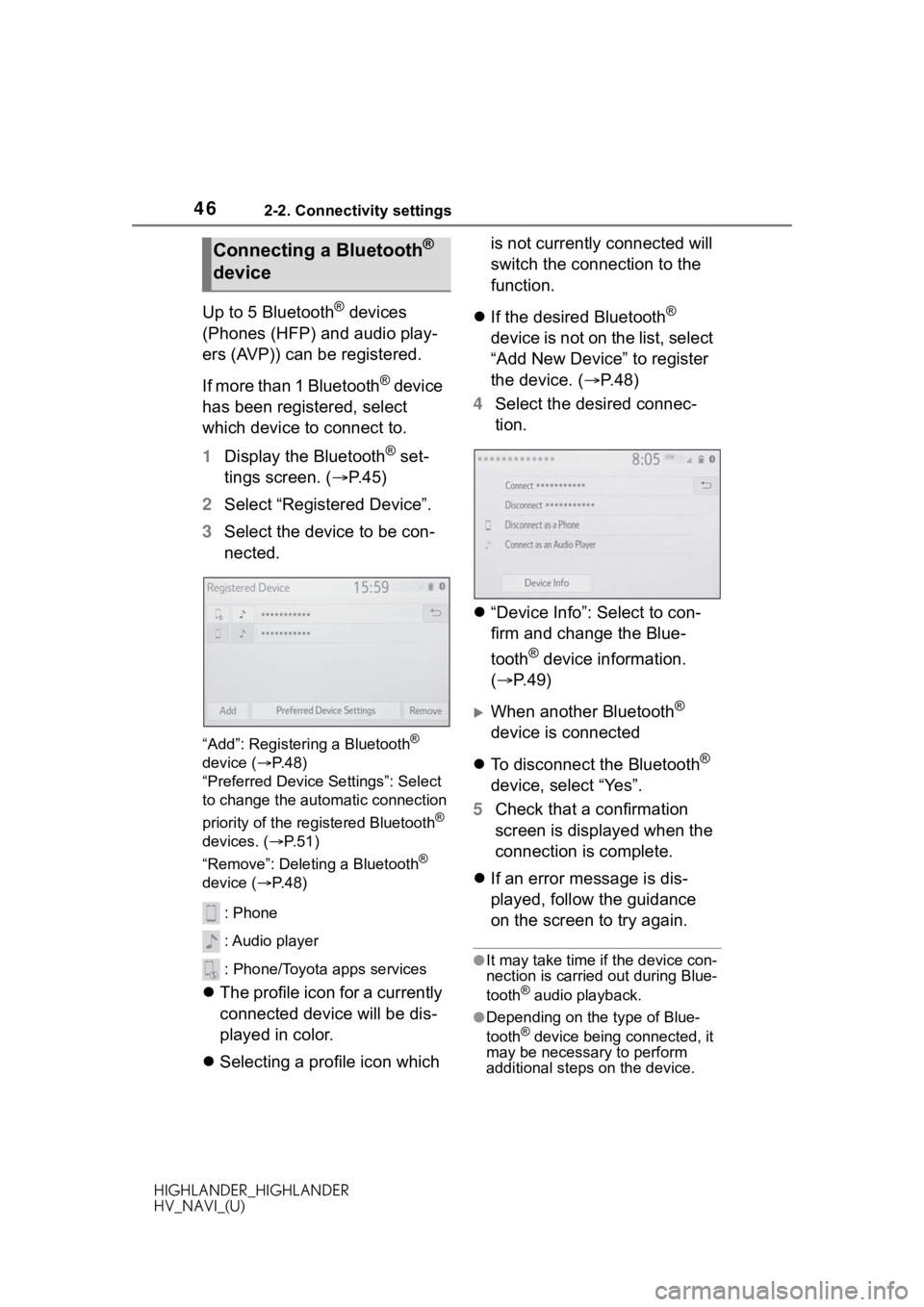
2 Select “Registered Device”.
3 Select the device to be con-
nected.
“Add”: Registeri ng a Bluetooth®
device ( P. 4 8 )
“Preferred Device Settings”: Select
to change the automatic connection
priority of the registered Bluetooth
®
devices. ( P. 5 1 )
“Remove”: Deleting a Bluetooth
®
device ( P. 4 8 )
: Phone
: Audio player
: Phone/Toyota apps services
The profile icon for a currently
connected device will be dis-
played in color.
Selecting a profile icon which is not currently connected will
switch the connection to the
function.
If the desired Bluetooth
®
device is not on the list, select
“Add New Device” to register
the device. ( P. 4 8 )
4 Select the desired connec-
tion.
“Device Info”: Select to con-
firm and change the Blue-
tooth
® device information.
( P.49)
When another Bluetooth®
device is connected
To disconnect the Bluetooth
®
device, select “Yes”.
5 Check that a confirmation
screen is displayed when the
connection is complete.
If an error message is dis-
played, follow the guidance
on the screen to try again.
●It may take time if the device con-
nection is carried out during Blue-
tooth
® audio playback.
●Depending on the type of Blue-
tooth® device being connected, it
may be necessary to perform
additional steps on the device.
Connecting a Bluetooth®
device